Logo

System32 Folder Keeps Popping up at Startup

The System32 folder contains vital configuration and information that are essential to the operating system. It is located inside the “Windows” folder and it consists of important DLL files as well as executable files. You probably have noticed some errors that have the “System32” word in them but that does not necessarily mean that the System32 folder is the one that triggers them as these kinds of errors have only occurred when some important files are corrupted or missing. Some users recently reported that each time they start their computers, the System32 folder will automatically open up in the File Explorer. If you encounter the same problem, read on as this post will guide you on what to do to fix it.

This kind of issue is most likely caused by service or application interference – it is possible that there is a third-party application installed in your computer or a Windows service that triggers the System32 to pop up during startup. It is also possible that this is a result of system modification. Thus, you need to identify the third-party program or restore your computer to its previous state.

Option 1 – Put your computer in a Clean Boot State

As pointed out, it is possible that some third-party program or service is the one that’s behind the problem. To isolate this possibility and to identify the culprit, you have to put your computer into a Clean Boot State. To do so, follow the steps below.

  • Log onto your PC as an administrator.
  • Type in MSConfig in the Start Search to open the System Configuration utility.
  • From there, go to the General tab and click “Selective startup”.
  • Clear the “Load Startup items” check box and make sure that the “Load System Services” and “Use Original boot configuration” options are checked.
  • Next, click the Services tab and select the “Hide All Microsoft Services” check box.
  • Click Disable all.
  • Click on Apply/OK and restart your PC. (This will put your PC into a Clean Boot State. And configure Windows to use the usual startup, just simply undo the changes.)

After putting your PC in a Clean Boot State, try creating a system restore point and see if the problem still occurs. Clean Boot troubleshooting is designed to help you isolate the problem. For you to execute a clean boot troubleshooting, you must do a couple of actions (the steps given above) and then restart your PC after every action. You might have to disable one third-party app after the other to really isolate the issue. And once you’ve narrowed down the problem, you can either disable the third-party app that’s causing the problem or remove it. Note that you must switch your PC back into the Normal Startup mode after you’re done troubleshooting the problem. Here’s how you can do it:

  • From the “Start” menu, go to System Configuration.
  • After that, switch to the General tab and click the option for “Normal Startup”.
  • Next, go to the Services tab and clear the checkbox for “Hide all Microsoft services”.
  • Then find and click “Enable all” and if prompted, you have to confirm.
  • Afterward, go to the Task Manager and enable all the Startup programs and confirm the action.
  • Restart your PC when prompted.

Option 2 – Perform System Restore

  • First, press the Win + R keys to open the Run dialog box.
  • After that, type in “sysdm.cpl” in the field and tap Enter.
  • Next, go to the System Protection tab then click the System Restore button. This will open a new window where you have to select your preferred System Restore point.
  • After that, follow the on-screen instructions to finish the process and then restart your computer and check if the problem is fixed or not.

Option 3 – Run System File Checker scan

You might also try running the System File Checker or SFC scan to fix the issue. System File Checker is a command utility built into your computer that helps restore corrupted files and missing files. Refer to the following steps to run it:

  • Hit the Win + R keys to launch Run.
  • Type in cmd in the field and tap Enter.
  • After opening Command Prompt, type in sfc /scannow

The command will start a system scan which will take a few whiles before it finishes. Once it’s done, you could get the following results:

  1. Windows Resource Protection did not find any integrity violations.
  2. Windows Resource Protection found corrupt files and successfully repaired them.
  3. Windows Resource Protection found corrupt files but was unable to fix some of them.

 Restart your computer and see if the System32 folder still pops up at startup or not.

Do You Need Help with Your Device?

Our Team of Experts May Help
Troubleshoot.Tech Experts are There for You!
Replace damaged files
Restore performance
Free disk space
Remove Malware
Protects WEB browser
Remove Viruses
Stop PC freezing
GET HELP
Troubleshoot.Tech experts work with all versions of Microsoft Windows including Windows 11, with Android, Mac, and more.

Share this article:

You might also like

Windows could not find a driver for adapter
Device drivers serve as a connection between the hardware in your computer and the operating system. So if any of the device drivers fail, the concerned hardware will stop communicating with Windows. And when you encounter some network-related issues, you can run the Network Adapter troubleshooter to fix them. However, this built-in troubleshooter does not work all the time as there are still problems that it can’t fix on its own and you’ll see the following error message:
“Windows could not find a driver for your network adapter.”
If you encounter this kind of error, read on as this post will help you in fixing the problem but before you get started in troubleshooting the problem, try running the Network Adapter Troubleshooter again.
  • Open the Search bar on your computer and type in “troubleshoot” to open the Troubleshoot settings.
  • Next, scroll down and select the “Network Adapter” option from the right pane.
  • Then click on the Run Troubleshooter” button.
  • After that, your computer will check for any possible errors and will pinpoint the root cause of the problem if possible.
Refer to each one of the solutions given below to get started:

Option 1 – Update the Network Adapter drivers

Of course, the first thing you can try to do is to update the Network Adapter drivers to resolve the error.
  • Tap the Win + R keys to launch the Run window and then type in the “devmgmt.msc” command and hit Enter to open the Device Manager window.
  • Under the Device Manager, you will see a list of drivers. From there, look for the Network Adapters and expand it.
  • Then right-click on each one of the Network drivers and update them all.
  • Restart your PC and see if it helped in fixing the BSOD error.
Note: If updating the network drivers didn’t help in fixing the “Windows could not find a driver for your network adapter” error, you can also try to uninstall the very same drivers and restart your Windows 10 PC. After that, the system itself will reinstall the drivers you just uninstalled. Alternatively, you can also download and install the drivers from the manufacturer’s website directly. To reinstall the network adapter driver, refer to these steps:
  • Open the Devices Manager from the Win X Menu.
  • Then locate the device drivers and right-click on them to open the Properties.
  • After that, switch to the Driver tab and click on the Uninstall Device button.
  • Follow the screen option to completely uninstall it.
  • Finally, restart your computer. It will just reinstall the device drivers automatically.

Option 2 – Try running the Hardware and Devices Troubleshooter

Apart from the Network Adapter Troubleshooter, you can also run another built-in troubleshooter in Windows, the Hardware and Devices Troubleshooter, as it can also help you in resolving the “Windows could not find a driver for your network adapter” error.
  • The first thing you need to do is click on Start and then on the gear-like icon to pull up the window for Settings.
  • After opening Settings, look for the Update and Security option and select it.
  • From there, go to the Troubleshoot option located on the left-hand side of the list.
  • Next, select Hardware and Devices from the list and open the Troubleshooter and run it. Once it is doing its job, wait for it to complete the process and then restart the system.
  • After the system restarts, check if the problem’s now fixed. If not, refer to the next option given below.

Option 3 – Try performing a System Restore

You might also want to perform a System Restore that might help you in fixing the error. You can do this option either by booting into Safe Mode or in System Restore. If you are already in the Advanced Startup Options, just directly select System Restore and proceed with the next steps. And if you have just booted your PC into Safe Mode, refer to the steps below.
  • Tap the Win + R keys to open the Run dialog box.
  • After that, type in “sysdm.cpl” in the field and tap Enter.
  • Next, go to the System Protection tab then click the System Restore button. This will open a new window where you have to select your preferred System Restore point.
  • After that, follow the on-screen instructions to finish the process and then restart your computer and check if the problem is fixed or not.
Read More
AMD asking for US investigation of Realtek

AMD and ATI Technologies ULC have filed a complaint in the United States International Trade Commission against Realtek Semiconductor and TCL Industries Holdings claiming that they have violated five patents.

amd ati logo

The complaint has automatically triggered an investigation from USITC which has responded that they will look into certain graphics systems, components thereof, and digital televisions with components from Taiwan-based Realtek and the China/Hong Kong-based TCL Industries Holdings (and its subsidiaries).

AMD and ATI are seeking an exclusion order and cease and desist orders for the sale of the products. The investigation officially started on July the first. AMD and ATI claim that Mediatek and TLC Industries violated five patents on various technologies used in graphic cards.

The ATI patents include texture decompression techniques, a graphics processing architecture with a unified shader, and a multi-threaded graphics processing system (patents 7,742,053 claims 1-9, 8,760,454 claims 2-11, and 11,184,628 claims 7-12). The AMD patents cover a method and system for synchronizing thread wavefront data and events. A patent covers a processing unit that enables asynchronous task dispatch (patents 8,468,547 claims 16-21, and 8,854,381 claims 15-20).

This is not the first time AMD and ATI have asked for a USITC investigation, in 2017 they were targeting LG, Vizio, Mediatek, and Sigma Designs. The previous investigation has been concluded with the settlement between parties, how this one will go we shall see and keep you updated as we move along.

Read More
0x800ccc79 Error Code - A Quick Fix

0x800ccc79 Error - What is it?

0x800ccc79 error is an error message that you may come across when sending emails through Outlook Express from Microsoft. This error message is accompanied by a notification that is displayed as ‘email was not delivered’ or ‘the server doesn’t support SSL connection’.

Solution

Download Available to Recover all Lost Outlook data

Restoro box imageError Causes

This error code 0x900ccc79 is triggered due to the following causes:
  • Problems related to email servers
  • Changes in the configuration settings
  • Corrupted Windows Registry

Further Information and Manual Repair

When you receive the error 0x800ccc79 it may hamper your ability to send emails. Therefore it is advisable to fix it to ensure your emails are sent and received without any difficulty.

This Outlook error 0x800ccc79 is quite easy to repair. By following the quick fix 0x800ccc79 error code solutions given below you can resolve this error in just a couple of minutes.

Here’s what you need to do to fix this error right away:

Cause: Configuration issues

Solution: If the error occurs due to Outlook Express being configured to use the SSL protocol while sending and receiving emails via the web, then to resolve it, you need to allow Outlook Express to bypass the Secure Socket Layer settings.

To do so, click on ‘tools’ and then on ‘Accounts’. Now select the email account that you want to modify.

Now select the ‘Properties’ tab and then click on ‘Advanced Settings’.

Here search for the following text message ‘This server requires a secure connection’. Once you locate it, uncheck all the checkboxes given next to this option. After that save the changes and restart Outlook Express to see bring the changes into effect.

Cause: Missing or Corrupt Registry Entries

Solution: If the error 0x800ccc79 occurs due to missing or corrupt registry entries, then the best way to fix this error is to download and install a good registry cleaner on your PC.

The registry cleaner will help you clean your corrupt and damaged Windows registry entries and get rid of this error right away. It is suggested you download the registry cleaner tool from a reliable website to avoid any malware or virus downloads simultaneously.

Once you download the registry cleaner on your system, click on scan. The cleaner will scan your computer completely for registry errors and show you the results in a list form.

After the scanning is complete, click on repair to fix the errors.

So, next time, if you or anyone at your office comes across the Outlook Express error 0x800ccc79, you can try these solutions and fix the error immediately without waiting for the network personnel to come and resolve it.

Read More
Dangerous GriftHorse Trojan found on Android
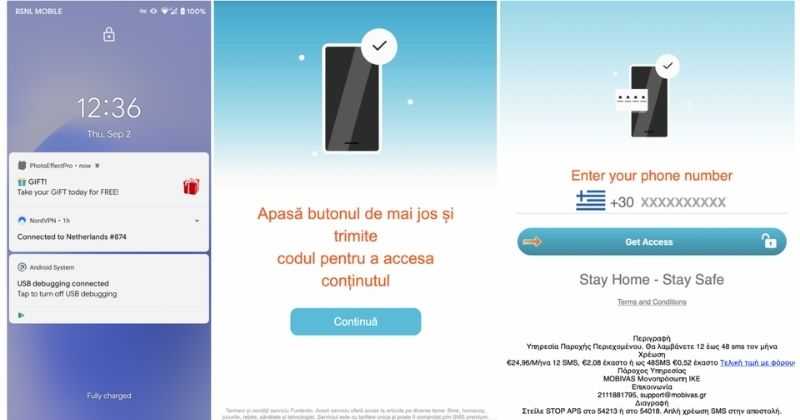
There has been recently discovered in the field of malware targeting Android devices. Affecting more than 10 million users of Android phones, the malware GriftHorse is doing its attacks via phishing and premium services scams. A lot of applications have been discovered that are hosts for this malware and many of them are inside the Google store and available for download. GriftHorseAccording to Zimperium zLabs, this malware that was recently detected has been doing its scams and attacks even in November of 2020 and has thus far accumulated hundreds of thousands of dollars in its scam. On the surface it looks very harmless, asking for typical permissions like internet access, calls, and other related needed functions, and then it waits. After few months the real attack happens when users get charged with premium service they never subscribed to in the first place.

List of Infected Applications that Carry GriftHorse Trojan

Zimperium zLabs listed out some of the apps with this malware. Users are advised to avoid installing them.
  •     Amazing Video Editor
  •     Bag X-Ray 100% Scanner
  •     Bus – Metrolis 2021
  •     Call Recoder Pro
  •     Call Blocker-Spam Call Blocker
  •     Cinema Hall: Free HD Movies
  •     Coupons & Gifts: InstaShop
  •     GPS Phone Tracker – Family Locator
  •     Fingerprint Changer
  •     Fitness Point
  •     Free Calls WorldWide
  •     Geospot: GPS Location Tracker
  •     GPS Phone Tracker – Family Locator
  •     Handy Translator Pro
  •     Horoscope : Fortune
  •     iCare – Find Location
  •     iConnected Tracker
  •     Instant Speech Translation
  •     Lifeel – scan and test
  •     My Chat Translator
  •     My Locator Plus
  •     Plant Camera Identifier
  •     Racers Car Driver
  •     Safe Lock
  •     Screen Mirroring TV Cast
  •     Slime Simulator
  •     Smart Spot Locator
These are only some of the many infected apps available on the internet. Zimperium zLabs also warned that GriftHorse Trojan exists in over 70 countries worldwide. The infected app quickly changes the language and displays content depending on the user’s IP address.
Read More
How to Fix Windows 10 Error 80240020

Error Code 80240020 – What is it?

Users who receive Error Code 80240020 when attempting to install and/or upgrade to Microsoft Windows 10, are receiving the error because the Windows 10 installation folder is either corrupted or unfinished. As a result of this error code, your download and the subsequent update will not process correctly. Users who receive this code do not have to do anything specific, as it might mean that they are attempting to update before their system is ready. These users can simply wait for their computer to prompt them for the update, and then follow the on-screen instructions for the update. However, if a user is seriously wanting to update to Microsoft Windows 10 prior to the prompt, there are ways around error code 80240020. Common symptoms include:
  • A dialog box appears with the Error Code 80240020
  • Microsoft Windows 10 upgrade is unsuccessful or freezes in the process of updating and displays the error code message.

Solution

Restoro box imageError Causes

This error is only caused by one type of issue, and that is unfinished or corrupted files being present in the Windows 10 installation folder.
  • Files that are unfinished in the Windows 10 installation folder are a result of the download not processing correctly, therefore the update is not successful because your computer does not have the files that it needs.
  • Files that are corrupted in the Windows 10 installation folder are a result of either a faulty download or preexisting corrupted files that need to be purged.
Until your system is ready to download the new Microsoft Windows 10 upgrade, you will be unable to install the upgrade. As stated, you have the option of waiting for your system to prompt you to download (which means that your system has made the necessary changes to its own files and is ready for the upgrade), or you can use the following steps to correct the issue yourself.

Further Information and Manual Repair

Users and Microsoft Tech Support personnel have discovered three methods to correct error code 80240020. Each of these methods should be attempted by someone who is comfortable with computer software and programs. Anyone who is not comfortable with software should either contact Microsoft Support or wait for their computer to prompt them for the Microsoft Windows 10 upgrade.

Method 1:

  1. Back up the Registry of your operating system.
  2. Find the Registry Key: [HKEY_LOCAL_MACHINESOFTWAREMicrosoftWindowsCurrentVersionWindowsUpdateOSUpgrade]
  3. Note: this Registry Key should already exist, if it does not exist, create it.
  4. Create a brand new DWORD Value that is named AllowOsUpdate
  5. Set the Value to 0x00000001.
  6. Close and reopen your Control Panel.
  7. Restart the Microsoft Windows 10 upgrade.

Method 2:

  1. Download the Microsoft Windows 10 ISO (installation device) from the following website: http://www.microsoft.com/en-us/software-download/windows10
  2. Users must select the appropriate ISO, either 32 bit or 64 bit, depending upon their individual computer.
  3. Extract the ISO file to a separate USB device or burn the program to a compact disc.
  4. Run the Microsoft Windows 10 upgrade directly from the software that you have thus created.

Method 3:

  1. Access the files on your computer via MY COMPUTER
  2. Under the C: drive, access the WINDOWS folder
  3. Select the SOFTWARE DISTRIBUTION folder, followed by the DOWNLOAD folder.
  4. Delete any files within this download folder.
  5. If you are unable to delete these files, open the command prompt (CMD) as the administrator, and type “net stop wuauserv” into the CMD prompt window. Press ENTER. This should allow you to delete the files from step 4.
  6. Once the files are deleted, open and run the CMD as the administrator and type “wuauclt.exe /updatenow”. Press ENTER.
  7. Access the WINDOWS UPDATE folder from your control panel, the update and download should resume without further interference from the user.
As with any other error codes, if the above methods do not rectify the issue, it may be necessary to download and install a powerful automated tool to rectify error code 80240020.
Read More
How to remove FindYourMaps from Windows

FindYourMaps is a Google Chrome Browser Extension developed by Mindspark. This extension hijacks your home page and new tab page changing them to MyWebSearch.com in order to display ads more efficiently.

While using this extension you will see additional pop-up ads, sponsored content, and unwanted ads (that are sometimes not ever relative to your search query) displayed throughout your browsing sessions, cluttering up the pages and sometimes even going over page parts, making some pages unreadable.

Several anti-virus applications have marked this Extension as a Browser Hijacker due to its data mining behaviors and ad injections and were marked for removal by most of them.

About Browser Hijackers

Browser hijacking is a very common type of internet fraud where your web browser configurations are modified to allow it to do things you never intend. Practically most browser hijackers are made for advertising or marketing purposes. These are typically used to force visitors to a specific website, manipulating web traffic to generate ad revenue. However, it is not that innocent. Your web safety is jeopardized and it is extremely annoying. What’s more, hijackers will make the whole infected system fragile – other harmful malware and viruses would use these opportunities to get into your system very easily.

Indications of browser hijack

There are many symptoms that indicate the browser is highjacked: your home page is reset to some unknown site; you observe new unwanted favorites or bookmarks added, typically directed to ad-filled or porn websites; The default search page of your web browser is modified; you see many toolbars on the browser; you observe numerous ads show up on the browsers or display screen; your browser has instability issues or displays frequent errors; you cannot go to specific sites such as home pages of security software.

How it infects your computer

A browser hijacker could be installed on your PC when you check out an infected website, click an e-mail attachment, or download something from a file-sharing website. They also come from add-on programs, also known as browser helper objects (BHO), web browser plug-ins, or toolbars. A browser hijacker could also come bundled up with some free application which you inadvertently download and install the browser hijack, compromising your PC security. Browser hijackers can record user keystrokes to gather potentially invaluable information leading to privacy concerns, cause instability on computers, drastically disrupt user’s browsing experience, and ultimately slow down the system to a point where it will become unusable.

How to fix a browser hijack

The one thing you can try to remove a browser hijacker is to locate the malware inside the “Add or Remove Programs” list of the Windows Control Panel. It may or may not be there. When it is, uninstall it. But, many hijacking codes aren’t very easy to remove manually, as they go much deeper into your operating system. On top of that, manual removal demands you to carry out several time-consuming and tricky procedures that are very hard to carry out for novice computer users. Anti-malware application is incredibly efficient when it comes to picking up and eliminating browser hijackers that standard anti-virus software has overlooked. Safebytes Anti-Malware features a state-of-the-art anti-malware engine to help you avoid browser hijacking in the first place, and clean up any pre-existing problems. Along with the anti-virus tool, a system optimizer, like SafeBytes’s Total System Care, could help you in deleting all associated files and modifications in the computer registry automatically.

What you can do if Virus Stops You From Downloading Or Installing Anything?

Viruses may cause a great deal of damage to your computer. Certain malware goes to great lengths to stop you from downloading or installing anything on your computer system, particularly antivirus programs. If you’re reading this now, you have probably realized that a malware infection is a reason behind your blocked net connectivity. So how to proceed when you want to download and install an anti-virus application such as Safebytes? Do as instructed below to get rid of the malware by alternate methods.

Start Windows in Safe Mode

If any virus is set to load automatically when Windows starts, stepping into Safe Mode could very well block this attempt. Since only the minimum applications and services start-up in Safe Mode, there are seldom any reasons for conflicts to occur. Below are the steps you have to follow to remove malware in Safemode. 1) At power-on/startup, press the F8 key in one-second intervals. This should bring up the Advanced Boot Options menu. 2) Use the arrow keys to choose Safe Mode with Networking and hit ENTER. 3) When this mode loads, you should have an internet connection. Now, utilize your browser to download and install Safebytes. 4) As soon as the application is installed, allow the scan run to remove trojans and other threats automatically.

Obtain the anti-malware program in an alternate internet browser

Some malware might target vulnerabilities of a specific browser that obstruct the downloading process. If you are not able to download the security program using Internet Explorer, this means malware is targeting IE’s vulnerabilities. Here, you must switch to another internet browser like Chrome or Firefox to download the Safebytes application.

Run anti-virus from your pen drive

Another option would be to create a portable antivirus program onto your USB stick. Adopt these measures to employ a flash drive to fix your infected computer system. 1) Download the anti-malware program on a virus-free computer. 2) Plug the Flash drive into the uninfected computer. 3) Double-click the Setup icon of the anti-malware software to run the Installation Wizard. 4) Choose the USB flash drive as the location for saving the file. Follow the directions to finish the installation process. 5) Now, plug the thumb drive into the infected computer. 6) Double-click the Safebytes Anti-malware icon on the pen drive to run the program. 7) Click on “Scan Now” to run a complete scan on the affected computer for viruses.

Highlights of SafeBytes Anti-Malware

These days, an anti-malware program can protect your laptop or computer from different forms of online threats. But how do choose the right one amongst several malware protection software that’s available out there? Perhaps you might be aware, there are numerous anti-malware companies and tools for you to consider. A few of them are great and some are scamware applications that pretend as legitimate anti-malware programs waiting around to wreak havoc on your personal computer. You have to be careful not to pick the wrong application, particularly if you purchase a paid software. One of the highly recommended software by industry experts is SafeBytes Anti-Malware, well-known security software for Windows computers. Safebytes is among the well-established PC solutions firms, which offer this comprehensive anti-malware program. Through its cutting-edge technology, this software will help you protect your computer against infections caused by different types of malware and similar internet threats, including spyware, adware, trojans, worms, computer viruses, keyloggers, potentially unwanted program (PUPs), and ransomware.

SafeBytes has great features when compared with various other anti-malware programs. These are some of the great features included in the tool.

Real-time Threat Response: SafeBytes delivers complete and real-time security for your PC. They are extremely efficient in screening and getting rid of different threats because they are continuously revised with the latest updates and safety measures. World-class AntiMalware Protection: By using a critically acclaimed anti-malware engine, SafeBytes offers multilayered protection which is made to find and eliminate viruses and malware which are hidden deep in your computer’s operating system. Web Filtering: Safebytes allots all websites a unique safety rating that helps you to have an idea of whether the webpage you’re about to visit is safe to view or known to be a phishing site. Very Low CPU and RAM Usage: SafeBytes is a lightweight tool. It consumes a very small amount of processing power as it runs in the background so you are free to use your Windows-based computer the way you want. 24/7 Assistance: SafeBytes provides 24/7 technical support, automatic maintenance, and upgrades for the best user experience. To sum it up, SafeBytes Anti-Malware offers outstanding protection combined with very low system resource usage with great malware prevention and detection. You can rest assured that your PC will be protected in real-time once you put this software program to use. You will get the very best all-around protection for the money you pay on SafeBytes anti-malware subscription, there is no doubt about it.

Technical Details and Manual Removal (Advanced Users)

If you don’t wish to use an automated tool and prefer to eliminate FindYourMaps manually, you could do so by going to the Windows Add/Remove Programs menu in the control panel and deleting the offending software; in cases of web browser add-ons, you can remove it by visiting the browser’s Add-on/Extension manager. It’s also advised to factory reset your web browser settings to their default state. To ensure the complete removal, manually examine your hard drive and Windows registry for all of the following and remove or reset the values as needed. Please be aware that this is for experienced users only and might be challenging, with incorrect file removal causing additional PC errors. Furthermore, some malware is capable of replicating itself or preventing deletion. Completing this task in Safe Mode is recommended.

Read More
Shutdown your PC properly

So, you have finished with work, game, movie, music, email, or whatever on your PC, you look at the clock, it is late, you decide to go to sleep or outside, you click on the power button and choose shutdown. Now when a PC is shut down you feel good and go with your business but the next time you power it up you get the same error like the computer never really shut down in the first place. You wonder why and reboot it, just in case and all of the sudden error is gone.

If something similar has happened to you or you had the feeling that after shutting down your computer has not really felt like shutting it down, do not seek professional help, everything is OK with you because when you click on shut down, your computer does not really shut down!

Truth is that Microsoft has changed how to shut down works and how rebooting works in Windows with an update but has not publicly said anything about it so some users may experience this feeling of not shutdown phenomenon and might even think there is something wrong with their PC.

Why this change?

A few years ago shutdown button and option in Windows were really shutting down OS, but things changed when Microsoft wanted to increase boot-up speed. Now when that decision was made shutdown option was changed. So, what was changed? Well in order to increase Windows booting time, the shutdown will now turn off power to PC components and it will look like everything is indeed shutdown but the Windows kernel will actually be saved to a hard drive with all settings and just awaken once the PC is turned back ON. This will result in all errors and other stuff being just still present same as they were once the system was instructed to be turned off.

Rebooting your PC will now clear kernel and file from the hard drive and you will get a clean system startup without any issues tied with the kernel itself.

Workaround

Now that we know why and what change has been made to Windows logical question is can we shut down our PC at all properly? Luckily for us, the answer is yes and we will not need any external application to do it, we can still do it inside Windows itself and it is quite quick and easy.

Bringing back the old shutdown

In order to bring the old shutdown functionality of your PC please follow the instructions but be aware that by doing this your PC will boot a little bit slower since it will have to load the kernel from scratch each time computer is turned ON.

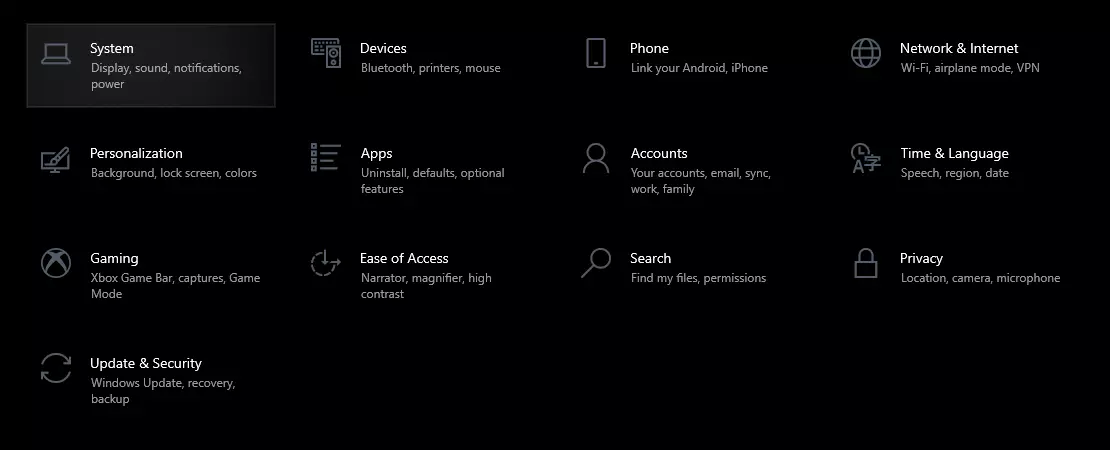
First thing is to go to settings and go to System

system settings

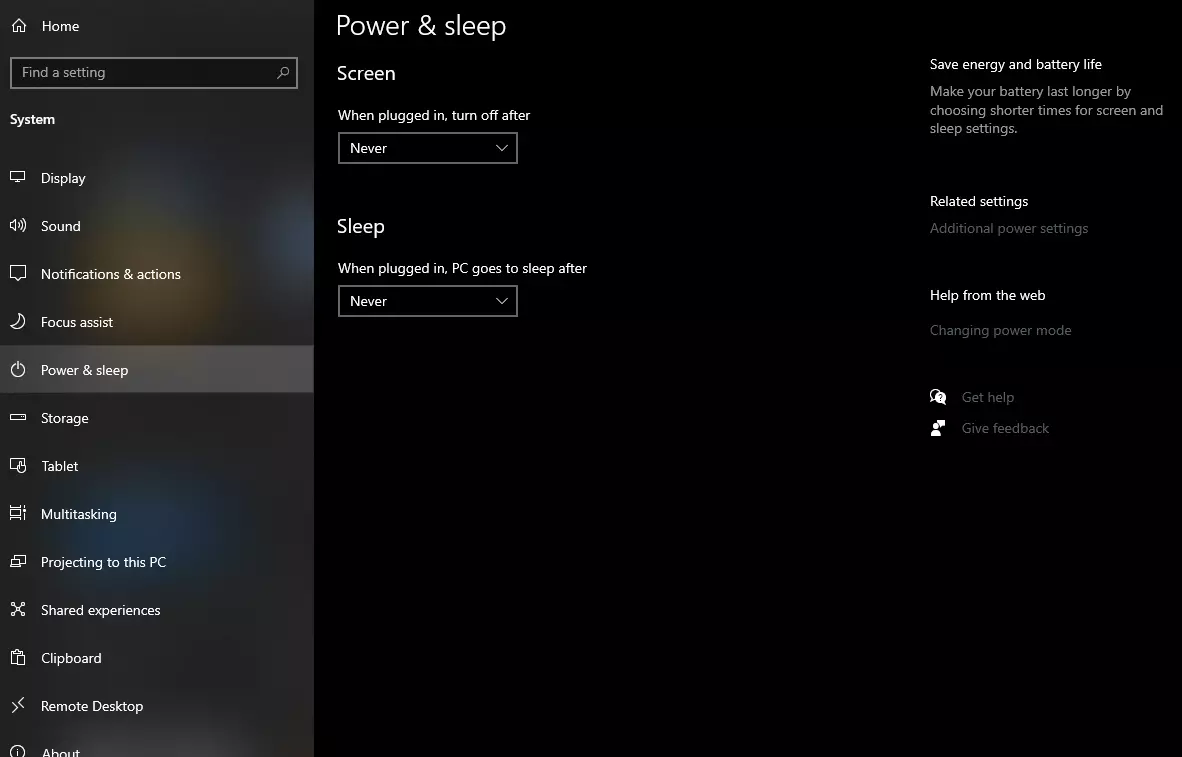
Then once you are inside the system, navigate to the power and sleep and click on it to select it. Once you have it selected to all the way to the right and click on additional power settings.

power and sleep options

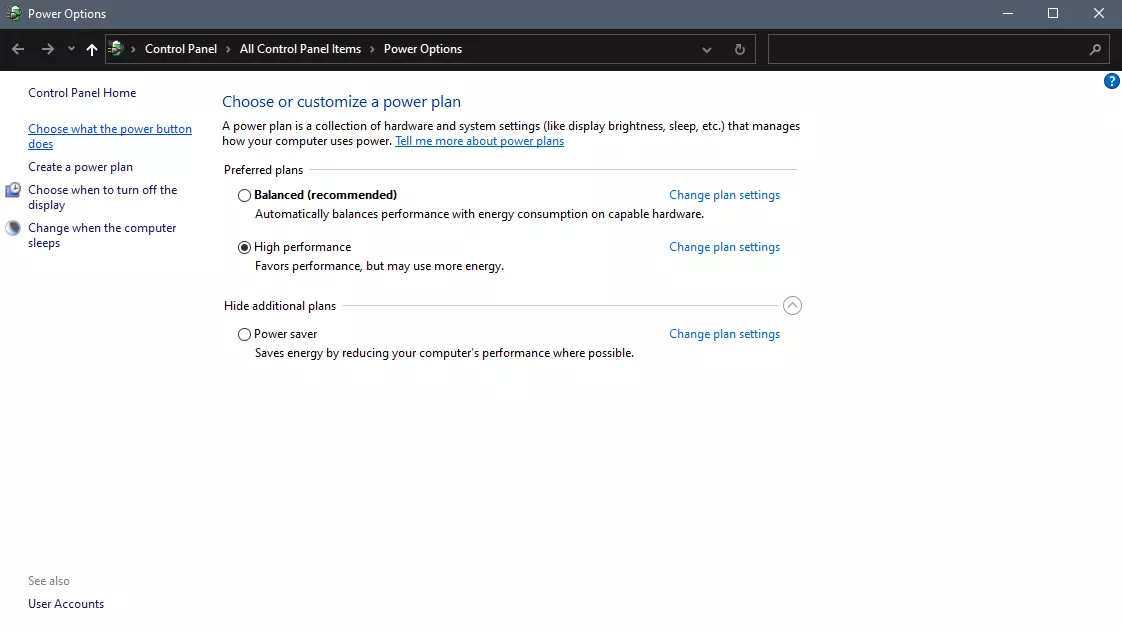
When you click on advanced power settings you should be led to the control panel's power options. Inside this panel click on top left link where it says Choose what the power button does.

power options in control panel

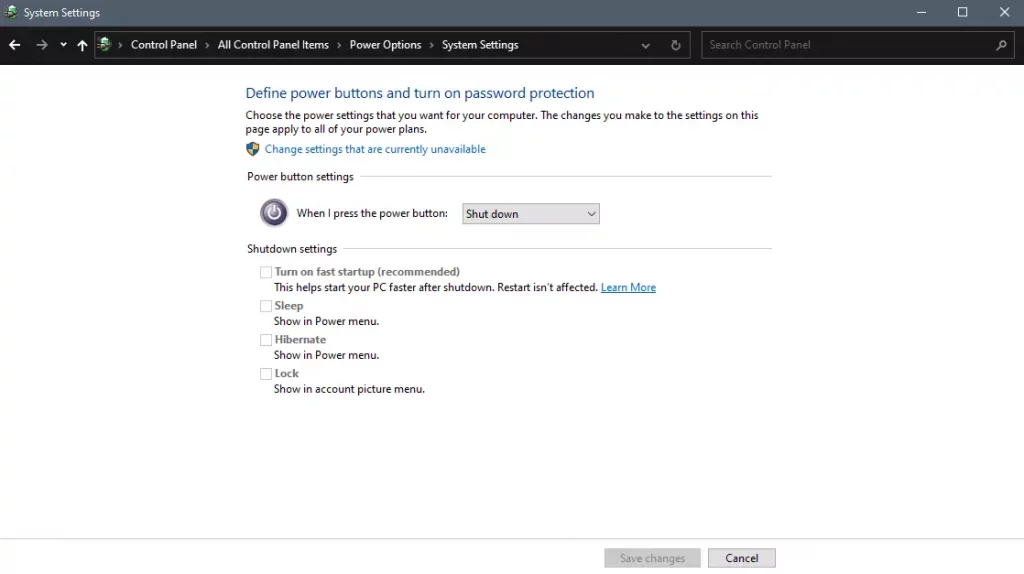
Inside options, you will need to untick the box next to Turn on fast startup (recommended), this option has been ticked ON by the Windows update and probably without notifying you. Option means exactly what was described, it will save kernel state on the hard drive for faster boot time but sadly it can cause some issues since it will never be reloaded from 0.

If you are unable to uncheck the box click on the text beside the shield icon that says: Change settings that are currently unavailable (you will have to be logged in as administrator).

shutdown options for power buttons

Conclusion

Altho turning off fast startup and shutting down the PC completely will for sure extend your bootup time I still believe that it is the right choice since sometimes a lot of clutter and bad things accumulate over time inside the OS and can cause a vast variety of problems in a long run. So stay safe and shut down that PC as it used to be in the past.

Read More
Fix Error opening file for writing
If you got encounter an error message saying, “Error opening file for writing” while running a setup file to install some program on your computer, read on as this post will give you some suggestions on how you can fix it. You can encounter this error when running a setup file for installing a program like GlassWire, Notepad++, VLC, Steam, OBS, Mod Organizer, WinpCap, NSIS, FileZilla, BSPlayer, Kodi, Wireshark, rtcore64, qt5core.dll, MSI Afterburner, GWCtlSrv.exe, npf.sys, vcredist_86 and many more. And so when this error pops up while you run a setup file, refer to the steps given below which might help resolve the problem. Step 1: First, you have to make sure that there is no other installation in progress as multiple installations can most likely cause this error to show up. You can restart your computer and try to run the setup file again. Step 2: If you still got the error even after your restart your computer, click on Retry to try again and if it does nothing, click Abort to terminate the installation. After that, go to the folder where you’ve placed the setup file and then delete it. Step 3: Make sure that you have enough disk space on your computer. You can use the Windows 10 Storage Sense feature which can clean all the temporary files from your computer and help you save storage space. To use Storage Sense, follow the steps below.
  • Open Setting > System > Storage from the WinX Menu.
  • From there, you will see a list of all the local and connected storage devices along with the details on the free space.
  • Now make sure that the Storage Sense feature is turned On then go find a link that says “Free Up Space” and click it to open.
  • After that, a screen which is the built-in program in Windows 10 will appear and will scan your computer for the following junk files so you can free up disk space:
  • Windows Upgrade Log Files
  • The system created Windows Error Reporting Files
  • Thumbnails
  • Temporary Internet Files
  • Previous Windows Installation Files
  • Delivery Optimisation Files
  • DirectX Shader Cache
Note: Once you’re done freeing up space on your drive, try to run the setup file again. Step 4: If freeing up space didn’t help, you can just delete the setup file and download another one from the official homepage of the program. From there download the setup file and place it in a different location. After that, run the setup file once again. Step 5: Make sure that you have downloaded the correct setup file according to your operating system, i.e. x64 or x86. Step 6: Restart your computer once more and make sure that you sign in as administrator. After that, right-click on the setup file and click “Run as administrator”. If it still didn’t help, you might want to take ownership of the folder where you saved the setup file. How? Follow the steps below but before you do that, you have to create a System Restore Point first, once that’s done, proceed.
  • First, locate the concerned folder and right-click on it then select Properties.
  • Next, click on the Edit button in the Properties window and click OK to confirm if you got a User Account Control elevation request.
  • After that, select user/group from the permission windows or click on the Add button to add another user or group. It would be best if you add “Everyone” to give permission.
  • Then check “Full Control” under the “Allow” column to assign full access rights control permissions.
  • Now edit the permission to Full Control for “Everyone”.
  • Click OK to save the changes made and then exit.
Read More
How to Fix R6025 Pure Virtual Function Call
R6025 pure virtual function call’ is a runtime error that occurs suddenly on the screen and disrupts the program being run prior to it. This error display indicates that the program has been corrupted. R6025 runtime error usually occurs with the Visual C++ framework.

Solution

Restoro box imageError Causes

This error occurs when the C++ program crashes which is usually because of the malfunctioning or missing of the device driver or incomplete device driver files. It happens because your application indirectly calls a pure virtual member function in a context where a call to the function is invalid. Most of the time, the compiler detects it and reports it as an error when building the application. R6025 error is usually detected at run time.

Further Information and Manual Repair

To fix the R6025 pure virtual function call error, you need to find the call to the pure virtual function. After you find the call, you need to rewrite the code so that it is not called again. There are 2 ways to do this:

Alternative 1

One way to fix the R6025 pure virtual function call is to replace the function with an implementation that calls the Windows API function DebugBreak. The DebugBreak causes a hard-coded breakpoint. Once the code stops running at this breakpoint, it is easy for you to view the call stack. By viewing the call stack you can identify the place where the function was actually called.

Alternative 2

Another quick way to find a call to a pure virtual function to fix the R6025 error is to set a breakpoint on the _purecall function that is usually found in PureVirt.c. By breaking this function you can trace the problem occurring and rewrite the call to ensure the error does not occur and the program you are trying to develop on the Visual C++ framework is easily developed. If R6025 Error is related to Windows Registry Problem Then here’s how you can fix the problem: To fix the runtime error R6025, run registry cleaner software to scan and fix all errors.  This alternative is suitable if the R6025 error is related to the Windows registry problem and where the error has occurred due to corrupted or malicious registry entries. You can download the registry cleaner repair tool for free. Run it to scan errors and then click the fix error button to repair the problem immediately.
Read More
DDR5 what we know so far about it
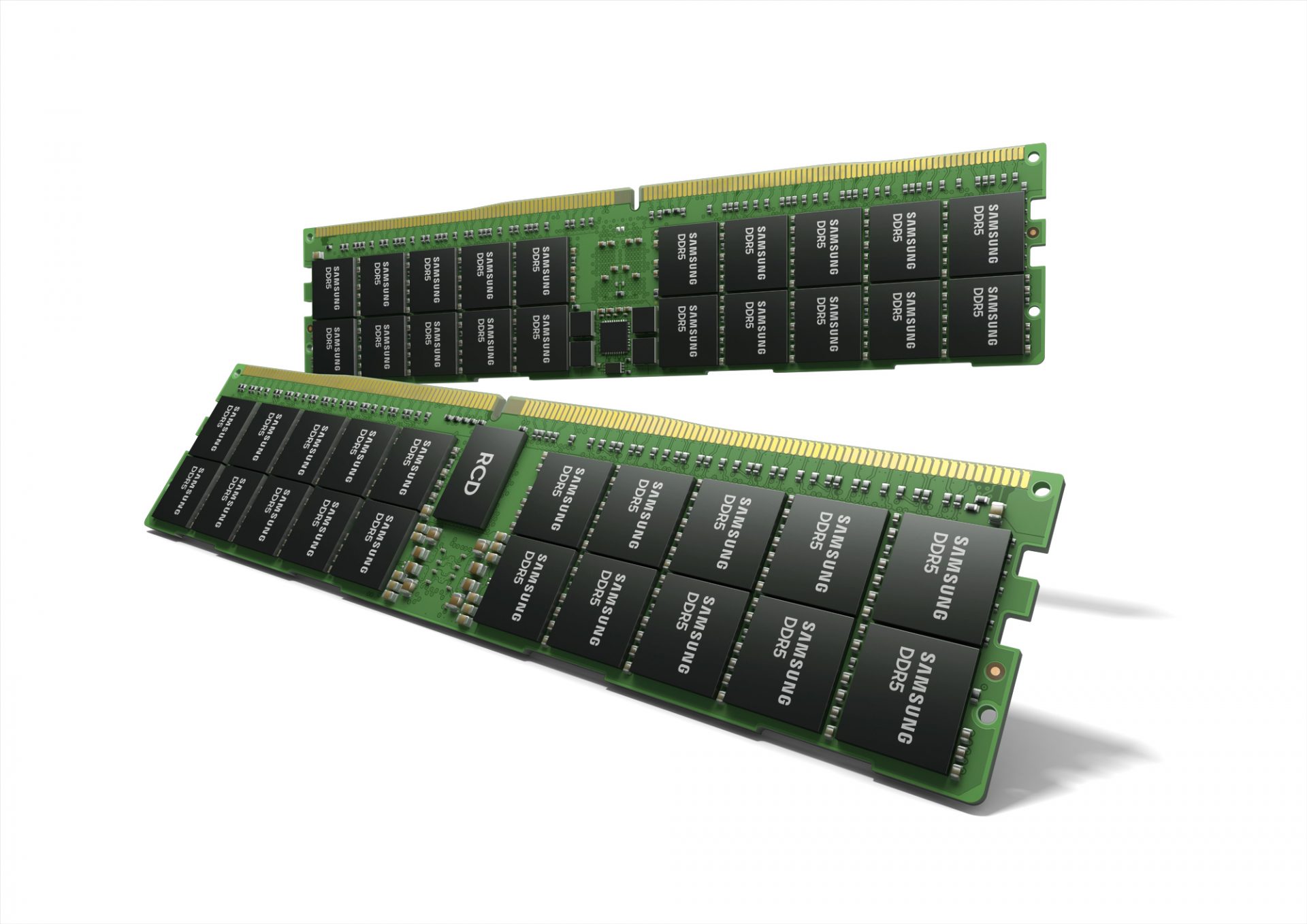
DDR5 memory moduleNext-generation of RAM, DDR5 supposed to hit shelves around late summer or fall in 2021if everything goes as planned. Its goal is to increase speed and efficiency, wants to pack more memory in a single stick, and have better power management.

Hardware requirements for DDR5

Using the latest memory technology will require other hardware to follow certain standards and the first ones that will need to follow are CPUs and Motherboards. Intel is already prepared with its Alder Lake CPUs that suppose to come out also later this year. AMD on other hand has not stated anything at the time of this writing but it is a bet that their next generation that will come in 2022 will have full support. It is speculated that bot companies and their respective CPUs will have both support for DDR4 and DDR5. A story about motherboards is a little different. Motherboards will support DDR4 or DDR5 memory banks, not both, so make sure that your motherboard will support the memory you plan on getting.

Capacity of memory

The goal and aim for the DDR5 memory stick are to reach a whopping 126GB per stack. This will be done by using a dual in-line module or DIMM enabling larger capacity. That being said, the first modules that we will see are more likely to be 16GB as standard and 8GB as low entry ones.

Power consumption of DDR5 memory

The standard voltage that DDR4 operates under is 1.2V. DDR5 wants to lower this to 1.1V without sacrificing speed. Voltage regulation on modules themselves will be now integrated on memory banks instead of leaving that to motherboards which will help to detect memory errors directly on the memory bank.

Speed of memory

The most common speed of DD4 memory banks is 2,666MHz, more expansive ones go from 3,600 to 4,000MHz. DD5 aims to raise this bar to 4,800MHz and offers greater speed.

Should you get it right away?

Hardware is ever-evolving, we have PCIe 3.0 to PCIe 4.0, and taking into account that sometimes the newest tech can cause some unexpected behavior it is always the best strategy to wait for a little. Price for the newest tech has also been in its heist just when it is released and seeing how DDR5 will benefit mostly servers mostly since even today memory, processors, and other available equipment can tackle all daily tasks.
Read More
1 2 3 171
Logo
Copyright © 2023, ErrorTools. All Rights Reserved
Trademark: Microsoft Windows logos are registered trademarks of Microsoft. Disclaimer: ErrorTools.com is not affiliated with Microsoft, nor claims direct affiliation.
The information on this page is provided for information purposes only.
DMCA.com Protection Status