Logo

Middle mouse button is not working

If you suddenly find the middle mouse button not working as you use it on your Windows 10 computer, then you’ve come to the right place as this post will provide some suggestions that can help you fix the issue.

This kind of problem can affect your experience in using your computer as the middle mouse button helps you in scrolling through long web pages and screens with a lot of data. So if that stops, you will end up using your keyboard instead which is kind of a hassle compared to using the middle mouse button.

It is possible that this problem could have something to do with either the hardware or software. To isolate the possibility of a hardware failure, you can try to connect the mouse to a different computer and see if it works just fine there or if it still has the same problem. If the mouse works properly on a different computer, then the issue is software-related. It is possible that a software update, especially gaming software, could have been misconfigured in a way that the middle button does not respond like it’s supposed to. To resolve the problem, you might want to try reinstalling or updating the mouse drivers or run the Hardware and Devices troubleshooter. You can also install OEM-specific mouse drivers or modify some entries in the Windows Registry.

Option 1 – Reinstall or update the Mouse driver

The problem may be caused by a corrupted or an outdated mouse driver. To fix it, you have to update or reinstall the mouse driver. How? Follow these steps:

  • Open the Devices Manager from the Win X Menu.
  • Then locate the Mouse and other pointing devices and right-click on the mouse driver to open the Properties.
  • After that, switch to the Driver tab and click on the Uninstall Device button.
  • Follow the screen option to completely uninstall it.
  • Finally, disconnect the mouse and plug it back in to reinstall the mouse driver.

Note: You can install a dedicated driver on your computer in case you have it or you could also look for it directly from the website of the manufacturer.

Option 2 – Try running the Hardware Troubleshooter

The next thing you can do to fix the problem is by running the Hardware Troubleshooter. Although it won’t make much of a difference, there’s still a possibility that it could automatically fix the problem with these function keys. To use it, refer to these steps:

  • The first thing you need to do is click on Start and then on the gear-like icon to pull up the window for Settings.
  • After opening Settings, look for the Update and Security option and select it.
  • From there, go to the Troubleshoot option located on the left-hand side of the list.
  • Next, select Hardware and Devices from the list and open the Troubleshooter and run it. Once it is doing its job, wait for it to complete the process and then restart the system.
  • After the system restarts, check if the problem’s now fixed. If not, refer to the next option given below.

Option 3 – Try to install OEM specific mouse drivers

Aside from updating or reinstalling the mouse drivers, you might also want to try installing OEM-specific mouse drivers. When you install Windows, it will use a generic driver for all its components. The disadvantage of generic drivers for the mouse is that it limits its functionality. In fact, some also configure the middle mouse button to respond to specific action which does not work without the correct drivers. In such cases, you need to visit the website of your computer’s manufacturers to download and install the latest drivers and then open the software and configure it the way it was before. Keep in mind that some OEMs also offer gestures, so you also have to check on that.

Option 4 – Try to modify some entries in the Registry

If a Windows Update is the one that caused the problem, you could correct it by making some modifications in the Registry but before you proceed, make sure that you create a System Restore point first.

  • Tap the Win + R keys to open the Run utility.
  • Then type “Regedit” in the field and hit Enter to open the Registry Editor.
  • Next, navigate to this registry path: HKEY_CURRENT_USERControl PanelDesktop
  • After that, double click on the “WheelScrollLines” entry on the right pane to open its Properties.
  • Now change its value data to “3” and exit the Registry Editor and then see if the issue with the middle mouse button is fixed or not.

Do You Need Help with Your Device?

Our Team of Experts May Help
Troubleshoot.Tech Experts are There for You!
Replace damaged files
Restore performance
Free disk space
Remove Malware
Protects WEB browser
Remove Viruses
Stop PC freezing
GET HELP
Troubleshoot.Tech experts work with all versions of Microsoft Windows including Windows 11, with Android, Mac, and more.

Share this article:

You might also like

Fix Windows is still setting up ... Code 56
If your internet suddenly stops working on your Windows 10 computer and you get an error message saying, “Windows is still setting up the class configuration for this device (Code 56)”, then read on as this post will show you what you can do to resolve it. This kind of issue has something to do with the Network Adapter and you can see this error message in the Properties menu of the corresponding Network Adapter under the Device Manager. This kind of issue could be caused by many things. For one, it could be caused by your VPN connection if you are using one or it could also be due to an outdated driver. Whatever the cause may be, here are some suggestions you have to check out to fix the error.

Option 1 – Check your VPN

When you install a virtual machine or VPN software on your computer, a new setup will be added in the Network Connection settings and helps your computer in using that adapter setting each time the VPN is turned on. Assuming that you are using an Ethernet connection but your system is trying to use another adapter or settings, that’s when issues occur and one of them is the “Windows is still setting up the class configuration for this device” error. To fix it, you can try to disable your VPN temporarily and see if the error is resolved or not and if turns out that your VPN is the culprit, you have to uninstall it and install a new one or its latest version. To uninstall it, follow the steps below.
  • Tap the Win + R keys to open the Run dialog box
  • Then type “appwiz.cpl” in the field and hit Enter to open the Programs and Features in Control Panel.
  • From there, look for the VPN service you are using, select it and then click on Uninstall to remove it.
  • After that, restart your computer and try to install the latest version of the program again. It should work now. If not, proceed to the next available option below.

Option 2 – Try to update or rollback or uninstall the Network Adapter drivers

You might also want to update, roll back or disable your Network drivers to fix the “This operation failed as no adapter is in the state permissible for this operation” error.
  • Tap the Win + R keys to launch the Run window and then type in the “devmgmt.msc” command and hit Enter to open the Device Manager window.
  • Under the Device Manager, you will see a list of drivers. From there, look for the Network Adapters and expand it.
  • Then right-click on each one of the Network drivers and depending on your preference, you can either select “Update driver”, “Disable device” or “Uninstall device”.
  • After that, restart your PC and see if it helped in fixing the netio.sys Blue Screen error.

Option 3 – Try to run the Network Adapter troubleshooter

To run the Network Troubleshooter, refer to these steps:
  • Open the Search bar on your computer and type in “troubleshoot” to open the Troubleshoot settings.
  • Next, scroll down and select the “Network Adapter” option from the right pane.
  • Then click on the Run Troubleshooter” button.
  • After that, your computer will check for any possible errors and will pinpoint the root cause of the problem if possible.
  • Restart your computer.

Option 4 – Try to reset the Network

You might perform a Network Reset to resolve the problem if none of the three given options above worked. This will reset the entire network configuration including your IP address. To perform Network Reset, follow these steps:
  • Tap the Win + I keys to open Settings.
  • From there, go to the Network and Internet section.
  • Next, scroll down and look for “Network Reset” under the status pane.
  • After that, click on Network Reset and then on Reset now to start resetting the network configuration. Once done, check if it is able to fix the error or not.
Read More
How to Fix The Rtl70.bpl Error on Your System

Rtl70.bpl Error - What is it?

To understand Rt170.bpl error code, it is important to have a good understanding of .bpl files first. BPL is the abbreviation of Borland Package Library. BPL is a developer file format used by Borland. It contains dynamic link libraries which are used for constructing Borland programs. BPL files are most commonly used for Borland Delphi programs. Delphi competes with Visual Basic as an offering for an object-oriented visual programming approach to application development. There are many programs/applications on your system that use rtl70.bpl file format to run successfully on Windows PC. The rtl70.bpl error occurs when this file gets damaged or corrupted. It fails to execute the command and run the application on your system. When your computer experiences this problem with this file, the following error messages are likely to appear:
  • rtl70.bpl is not responding
  • Runtime error: rtl70.bpl
  • Symantec User Session has encountered a problem and needs to close. We are sorry for the inconvenience. Application Name: rtl70.bpl
This error code exposes you to system freeze, crash, abrupt system shutdowns, blue screen of death errors, and it also reduces your PC performance.

Solution

Restoro box imageError Causes

The potential causes of rtl70.bpl error code includes:
  • DLL file was damaged due to viral infection or spyware
  • DLL file was overwritten by an incompatible version
  • Poor program installation
  • Too many invalid and obsolete registry entries stored in the RAM
  • Related Registry entries are corrupt

Further Information and Manual Repair

Here are some of the best yet simple solutions for you to resolve rtl70.bpl error on your PC:

1. Reboot Your PC

Sometimes this error can be resolved by simply restarting your system. Try rebooting your system and running .bpl supported program. If the program runs after you reboot your PC, then that’s great! But you should keep in mind that this is a temporary solution. The error may reappear anytime soon. So, it is advisable to consider a long-term solution for repairing the error code for the longest time.

2. Uninstall and then Reinstall the Program Causing the Error

If the error occurred after a certain program installed on your system,  it is advisable to uninstall it and then reinstall the program. Simply go to the control panel, select Add/Remove program option and uninstall the program that you recently installed that could be triggering the rtl70.bpl error code. Now reinstall and run it on your system. If the error is resolved, then this means the poor installation was the cause. If not, then this means the cause of the error is related to the registry.

3. Registry Restore to Fix rt170.bpl error

There are two ways to go about it. The first one is to click on the start menu, type registry editor, and press run. This will open the registry editor. Now click on the computer option then click file and import. This helps restore the registry but it is possible that the problem might persist. The error code may pop up again. Also, if the registry is damaged due to viral infection, then this solution may not work and you may still experience the error on your system. Then you will also have to download an antivirus which may further reduce the speed of your PC. However, the best way to restore the registry and to get rid of the error code for the longest time is to download Restoro. This is a new, user-friendly, high and multi-functional repair tool that functions as a registry cleaner and a system optimizer. It cleans the registry by scanning and removing all the unnecessary and obsolete files saved in RAM such as junk files, internet history, invalid registry entries, and more. It also repairs the damaged dll files and restores the registry thereby resolving the rtl70.bpl error. Restoro is easy to use, safe, efficient, and compatible on all Windows versions. To get started and resolve the rtl70.bpl error code in just a few seconds on your system click here and download Restoro.
Read More
How to Fix Tcpip.sys Blue Screen Error in Windows 10
If you have received a BSOD error message that says, “Tcpip.sys”, read on as this post will show you how you can fix the problem. The “Tcpip.sys” means Transmission Control Protocol over Internet Protocol. It is a library of a set of rules that are used to interconnect different devices all over the internet. The Tcpip.sys file is a driver and if a BSOD error message includes this one, it could only mean that the driver file is corrupted or incompatible with your system or there are some conflicting programs installed in your computer. To fix this error, you can try the following workarounds. Make sure to carefully follow each one of them.

Option 1 – Check for conflicting or incompatible programs by putting your PC in a Clean Boot state

As mentioned, the “tcpip.sys” BSOD error might be caused by some problematic programs that clash with your existing operating system. Several users reported that numerous programs that are supposedly designed to enhance computer performance are causing conflict in the system instead. To identify which program is causing the problem, you need to put your computer in a Clean Boot State. To do so, follow the steps below.
  • Log onto your PC as an administrator.
  • Type in MSConfig in the Start Search to open the System Configuration utility.
  • From there, go to the General tab and click “Selective startup”.
  • Clear the “Load Startup items” checkbox and make sure that the “Load System Services” and “Use Original boot configuration” options are checked.
  • Next, click the Services tab and select the “Hide All Microsoft Services” checkbox.
  • Click Disable all.
  • Click on Apply/OK and restart your PC. (This will put your PC into a Clean Boot State. And configure Windows to use the usual startup, just simply undo the changes.)
After putting your PC in a Clean Boot State, try creating a system restore point and see if the problem still occurs. Clean Boot troubleshooting is designed to help you isolate the problem. For you to execute a clean boot troubleshooting, you must do a couple of actions (the steps are given above) and then restart your PC after every action. You might have to disable one third-party app after the other to really isolate the issue. And once you’ve narrowed down the problem, you can either disable the third-party app that’s causing the problem or remove it. Note that you must switch your PC back into the Normal Startup mode after you’re done troubleshooting the problem. Here’s how you can do it:
  • From the “Start” menu, go to System Configuration.
  • After that, switch to the General tab and click the option for “Normal Startup”.
  • Next, go to the Services tab and clear the checkbox for “Hide all Microsoft services”.
  • Then find and click “Enable all” and if prompted, you have to confirm.
  • Afterward, go to the Task Manager and enable all the Startup programs and confirm the action.
  • Restart your PC when prompted.

Option 2 – Disabling Antivirus Software

There are cases when the “tcpip.sys” BSOD error is caused by the antivirus program installed in your computer that’s blocking some essential operations. Because of this, the operating system fails which throws up the BSOD error. As you know, the antivirus program is designed to protect the computer and monitor every action in the system. However, there are instances when the antivirus program gives false positives and shuts down some modules even if it’s harmless. So this could be the case for the “tcpip.sys” error. To verify if the problem is indeed caused by the antivirus program in your computer, you need to temporarily disable it. After you’ve disabled it, restart your PC and then check if the problem’s fixed or not.

Option 3 – Try to update all your Drivers

From time to time, drivers get corrupted or outdated so it’s no surprise that they conflict with the operating system and cause errors like the “tcpip.sys” BSOD error. To fix the problem, you need to update all your drivers especially the network driver since the “tcpip.sys” error is closely related to this driver. Follow the steps below to update your drivers.
  • Tap the Win + R keys to launch Run.
  • Type in devmgmt.msc into the box and tap Enter or click OK to open the Device Manager.
  • After that, a list of device drivers will be displayed. If you see a red or yellow sign that shows up against the driver, right-click on the driver’s name and select “Update Driver Software” or “Uninstall”. And if you find any “Unknown device”, you need to update it as well.
  • Select the “Search automatically for updated driver software” option and then follow the instructions to complete the process.
  • Restart your PC.
Note: You also have the option to go directly to the website of your graphics card manufacturer and check if there’s a new update – if there is, download it. After that, you could also check if there’s a new update of the game you’re getting the issue of the black bar.
Read More
Fix Error code 30068 when installing Office
If you are trying to install Microsoft Office on your Windows 10 computer but encounter an error code 30068 instead, read on as this post will guide you in fixing this problem. One of the causes of this error is an issue with the Office Click-to-Run service. It can also occur due to issues with the installation. And aside from the error code 30068, the error codes could also appear like this: 30068-29 (2), 30068-4 (3), 30068-4 (1715), 30068-39 (3), and many more. In most cases, the installation of Microsoft Office happens directly from the Microsoft servers which work via Click-to-Run service. This service is an alternative to MSI or offline installation. It is a Microsoft streaming and virtualization technology that helps in reducing the time that’s required to install Microsoft Office. Although it saves a lot of time, it also requires a good and stable internet connection for it to properly work. So if you encounter error code 30068 or any of the aforementioned error codes above when using this service, here are some potential fixes that could help.

Option 1 – Try to restart your computer and reinstall Office

The first thing you can do is restart your computer and then try installing Office again. It is possible that there’s some glitch and a restart might fix it. Once you’ve restarted your computer, install Office again. And if the online installation didn’t work, you can also try to download an offline Office setup.

Option 2 – Try checking if the Click-to-Run service is disabled

The next thing you can do is to verify if the Click-to-Run service is enabled or disabled. You can check its status in Services. How? Refer to these steps:
  • Tap the Win + R keys to open the Run dialog box and then type “services.msc” in the field and tap Enter or click OK to open Services.
  • Next, look for the Microsoft Click-to-Run service from the list of services and once you found it, double click on it.
  • After that, go to the General tab and in the Startup type section, click on the drop-down menu and select Automatic.
  • Then click on the Apply and OK buttons to save the changes made.
  • Once you’re done, try to install Office again and see if the error is now fixed.
Option 3 – Try to uninstall and reinstall Office If neither of the two given options above worked, then you might want to uninstall Office and reinstall it. All you have to do is download the Microsoft Office Uninstall tool from the official site of Microsoft and run it. This will remove any incomplete Office installation as well as unwanted files. It will also get rid of all the Office apps and settings on your computer. This same option can be also applied if you encountered error code 30068-4 (3) when installing Office. On the other hand, if the Uninstaller tool throws an error that says, “Office installation is missing”, you have to check if there is an ongoing installation of Office.
Read More
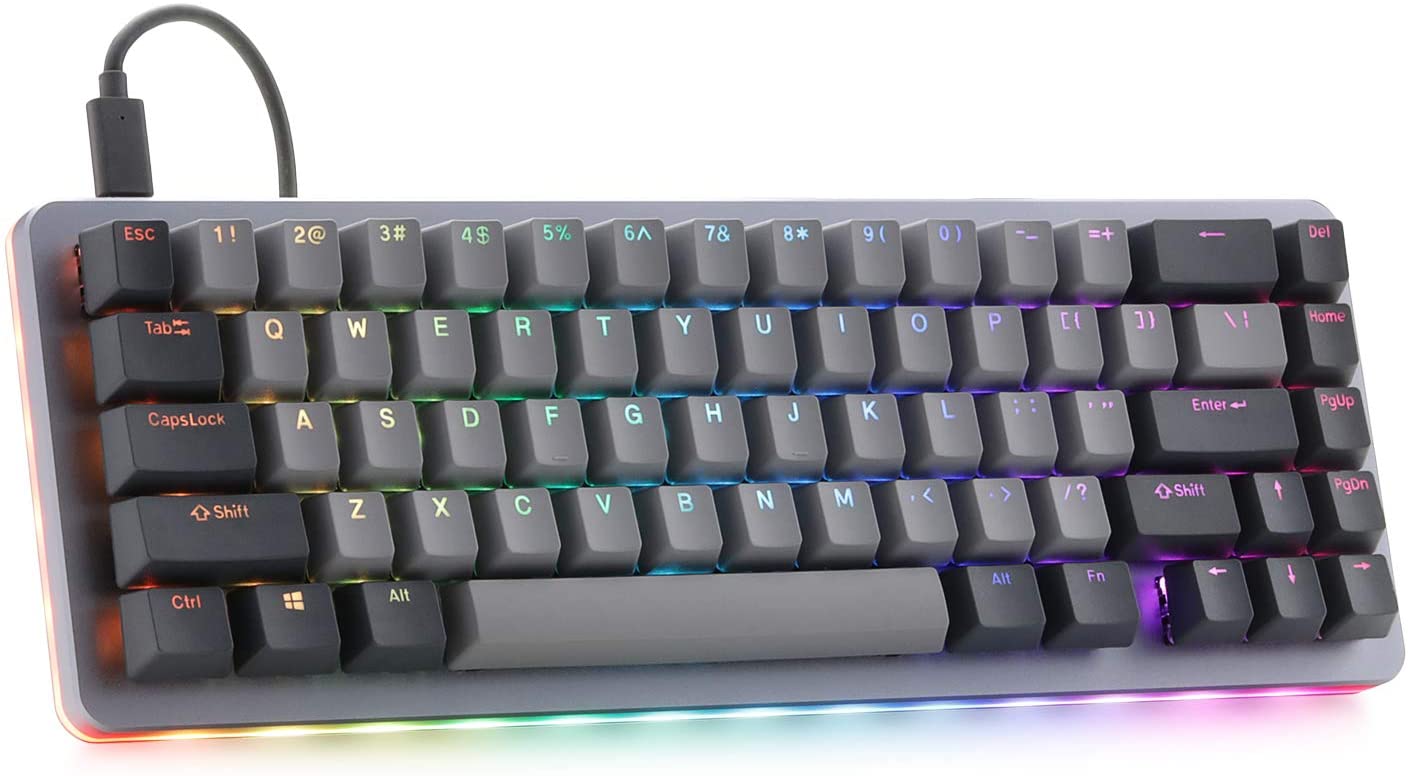
New Windows 11 keyboard shortcuts
New Windows brings new keyboard shortcuts, most of them are tied to new features and we are presenting you some new ones that are worth remembering. keyboad shortcuts⊞ WINDOWS + N - notification panel ⊞ WINDOWS + W - News and Interests feed With the News and Interests feed, Windows 11 offers users the ability to check the latest news, the weather, and more without opening a browser window. ⊞ WINDOWS + Z - Snap Layout Instead of the usual two windows snapping capability, Windows 11 allow users to snap their windows in a three-column layout. Users can access this by pressing Windows Key and Z to access the Snap layout. ⊞ WINDOWS + PRT SCN - taking screenshots This one isn’t exactly new, but pressing the Windows Key and Print Screen will automatically capture the entire screen and save a copy of the image on your PC. Once the screen flashes, you will know that the screenshot has been taken, after which you can find the file saved under your Pictures folder in a subfolder called Screenshot. ⊞ WINDOWS + C - Microsoft Teams chat Microsoft Teams app, the service allows anyone with a Microsoft account to quickly start a chat using the Windows + C shortcut.
Read More
Fix DRIVER_POWER_STATE_FAILURE error
There are times when you suddenly encounter a Blue Screen error like DRIVER_POWER_STATE_FAILURE error when resuming from Sleep or right after you shut down or restart as well as switch from Hibernate mode. This kind of Blue Screen error is due to some issue with the driver state. Moreover, the bug check “0x0000009F” in the error also indicates that a driver is in an inconsistent or invalid power state. The DRIVER POWER STATE FAILURE Blue Screen error usually occurs during events that involve power state transitions like shutting down, moving in or out of standby mode, or hibernate mode. To resolve this error, you can check out the suggestions given below.

Option 1 – Update the Device drivers

The device driver installed in your computer might be incompatible with your operating system which is the reason why the DRIVER POWER STATE FAILURE Blue Screen error occurs. To fix that, you have to update your device drivers.
  • Reboot your computer into Safe Mode with networking support.
  • Tap the Win + R keys on your keyboard to open the Run dialog box.
  • After that, type “msc” in the field and hit Enter or click OK to open the Device Manager.
  • After opening the Device Manager, update all the outdated Device drivers on your computer.
  • Next, right-click on all the driver entries that are appropriately labeled, and then click the Update driver option.
  • Now restart your PC and check if the BSOD error is fixed or not.

Option 2 – Uninstall any faulty device drivers

  • Tap the Win + R keys on your keyboard to open the Run dialog box.
  • After that, type “msc” in the field and hit Enter or click OK to open the Device Manager.
  • From there, look for any device driver which has a yellow exclamation mark which indicates that something is wrong with them.
  • And then right-click on each one of them and click on Uninstall.
  • Once you’re done uninstalling the faulty drivers, restart your computer and allow your computer to reinstall the drivers you just uninstalled.

Option 3 – Run the Blue Screen Troubleshooter

The Blue Screen troubleshooter is a built-in tool in Windows 10 that helps users in fixing BSOD errors like rtwlane.sys Blue Screen error. It can be found on the Settings Troubleshooters page. To use it, refer to these steps:
  • Tap the Win + I keys to open the Settings panel.
  • Then go to Update & Security > Troubleshoot.
  • From there, look for the option called “Blue Screen” on your right-hand side and then click the “Run the troubleshooter” button to run the Blue Screen Troubleshooter and then follow the next on-screen options. Note that you might have to boot your PC into Safe Mode.

Option 4 – Try to remove external hardware

If there is any external hardware plugged into your computer especially the new ones, you can try removing it and then check if the Blue Screen error persists. If the problem gets solved, you might want to update the driver of that particular hardware. On the other hand, if you’re still getting the error, then proceed to the next given options below.

Option 5 – Try resetting Windows 10

To fix this BSOD error, you can try resetting Windows 10. Doing so won’t get rid of any file in your system – instead of erasing all your media files and documents, this reset option resets all the system settings and files.

Option 6 – Try running the System File Checker Scan

The SFC or System File Checker scan could detect and automatically repair damaged system files that could be causing the DRIVER POWER STATE FAILURE Blue Screen error. SFC is a built-in command utility that helps in restoring corrupted files as well as missing files. It replaces bad and corrupted system files to good system files. To run the SFC command, follow the steps given below.
  • Tap Win + R to launch Run.
  • Type in cmd in the field and tap Enter.
  • After opening Command Prompt, type in sfc /scannow
The command will start a system scan which will take a few whiles before it finishes. Once it’s done, you could get the following results:
  1. Windows Resource Protection did not find any integrity violations.
  2. Windows Resource Protection found corrupt files and successfully repaired them.
  3. Windows Resource Protection found corrupt files but was unable to fix some of them.
Read More
Four Proven Methods to Fix The Rundll Error

Rundll Error - What is it?

Rundll Error, DLL is also known as Dynamic Link Library is a Window library that basically consists of instructions and codes used and shared by multiple programs installed on your system. It helps programs load and run smoothly. Rundll error is generated when the system fails to access DLL files thereby hampering your ability to successfully run your desired program.

Solution

Restoro box imageError Causes

The rundll error code is triggered due to multiple reasons such as:
  • DLL file affected by virus and malware
  • Poor program installation
  • Invalid Windows registry entries
It is advisable to fix the run.dll error immediately without any delay because this error exposes your PC to serious threats such as system crash, freeze, failure, data loss, and even privacy threats like cybercrime, data breaches, and identity thefts.

Further Information and Manual Repair

To resolve the rundll error on your system, here are some solutions that you can try:

Solution 1: Reboot your System

Sometimes rebooting your system can also resolve the issue. However, if it doesn’t then you need to try some other solution to fix it.

Solution 2: Identify the Program Triggering the Error

To fix rundll error, the first thing that you need to do is to identify the program generating this error and check it for validity. For this, simply analyze the rundll error dialog box. Let’s say you get the following run.dll error on your system Error loading
C:\WINDOWS\system32\usvdgpo.dll.
This error message indicates that the program ‘usvdgpo’ is causing the run.dll error on the system. Once the program is identified, the next step is to stop it manually. For this, you go to the start menu and click run, now type ‘services.msc’ in the dialog box, and press ‘Enter’. After that right-click the related process to your rundll error and then click the ‘Stop’ button to stop the program. Now close the window. Though this action will stop the process it will not remove the reference to the bogus items. To remove that you will have to remove the program from the Windows Registry. This can be done by typing ‘Regedit’ in the Run dialog box. This will open the registry editor. From the keys listed in the left panel, navigate to the following key: HKEY_LOCAL_MACHINE/Software/Microsoft/Windows/CurrentVersion/Run. Now right-click on this key and click delete and then simply close the windows registry and reboot your system. After this, you will then have to uninstall the program to completely eradicate the rundll error. To do this, go to the control panel, Add/remove programs, and right-click to uninstall the program causing the run.dll error on your system. Click yes to confirm your decision. Once the program is uninstalled, reinstall the program using the program CD to get yourself an error-free program. This procedure is tricky, time-consuming, and maybe slightly challenging for you especially if you are not a computer programmer.

Solution 3: Run an Antivirus

If the cause of the run.dll error is a malware attack then you need to download an antivirus and run it on your system. However, this may impact the speed of your PC. Antivirus is notorious for slowing down PC speed.

Solution 4: Download Restoro.

If you are not a computer programmer, then running Restoro is possibly the easiest way for you to resolve rundll errors on your system in seconds. Restoro is an innovative, cutting edge, and multi-functional feature-filled PC repair tool that can be used to repair all kinds of system-related errors including rundll errors. The registry cleaner utility cleans up the RAM by removing unnecessary and obsolete files like junk files, invalid registry entries, and files from the uninstalled programs. It resolves disk fragmentation issues, repairs dll files, and the registry. In just a few clicks you can easily repair the registry and remove malware thereby resolving rundll errors on your system. Operating Total System Care is quite simple. It has a user-friendly interface and easy navigation. It is safe, efficient, bug-free, and compatible with all Windows versions Click here to download Restoro and resolve ‘rundll errors’ and access/run programs on your system smoothly.

Read More
Apple M2 Chip review

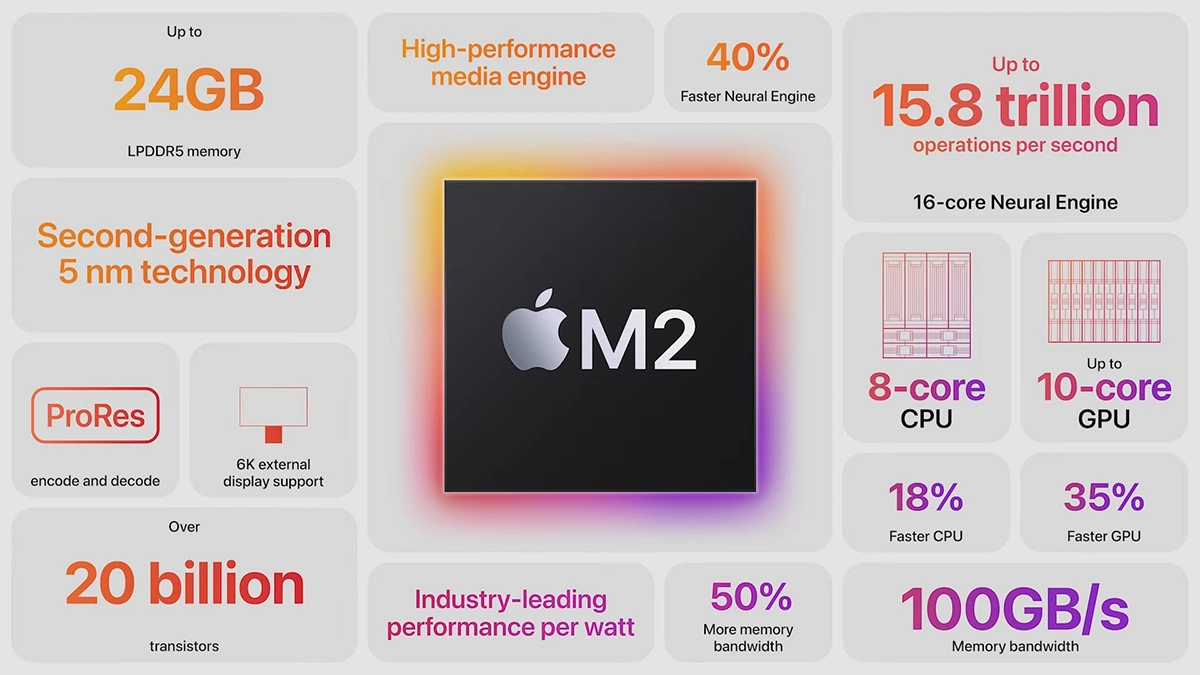
Direct replacement for Apple M1 Chip is near. There were some M1 Chips versions like M1 MAX and M1 ULTRA that were upgrades of the existing M1 chip, but the new and upcoming M2 is something different and it is aiming to replace M1 completely.

apple m2 chip

Made in a 5-nanometer design, with 20 billion transistors and 100GB/s of unified memory bandwidth is meant to increase performance over M1. It has the same M1 8 core design with 4 high-efficiency cores and 4 high-performance ones.

All CPU and GPU cores are faster than their M1 equivalents and Apple states that when running M1 and M2 at the same power level M2 will perform 25% faster. The first version of the chip will place focus on power efficiency so if you are more on side of being a power user wait for the MAX or ULTRA version of M2.

Tech details of M2

M2 system on a chip like its predecessor M1 combines both CPU and GPU on a single chip with shared memory in order to increase performance compared to systems that have separate CPU and GPU. M2 so far has been only announced for MacBook Air and the 13-inch MacBook Pro that suppose to hit the market somewhere around July this year. Of course, we expect that M2 is included in future iPad series or Mac Mini series as well.

  • CPU Cores: 8
  • GPU Cores: Up to 10
  • Unified Memory: Up to 24 GB
  • Neural Engine Cores: 16
  • Number of Transistors: 20 billion
  • Process: Second Generation 5nm
Read More
What to do if USB tethering is not working
This post will guide you in what to do if you are trying to share the internet connection from your Android smartphone to your Windows 10 computer but USB tethering is not working. Although you can always connect your Android phone to your computer using a USB cable, you still won’t be able to access the internet. However, if you’ve already enabled the USB tethering option in your smartphone, you should be able to access the internet but if you still can’t then you can fix this issue by reading this post. There are several potential fixes you can check out to fix the USB tethering issue. You can try running both the Internet Connections and Network Adapter troubleshooters or try installing the USB RNDIS adapter or disable any unnecessary network adapters.

Option 1 – Try to run the Internet Connections and Network Adapter troubleshooter

There are various built-in troubleshooters in Windows 10 that can help fix system issues. Since you are dealing with an internet connection problem, you can try running both the Internet Connections and the Network Adapter troubleshooters. To run them, follow these steps:
  • Go to Settings > Update & security > Troubleshoot.
  • From there, you can select the Internet Connections troubleshooter.
  • Click on the Run troubleshooter button to troubleshoot the problem.
  • Wait until the troubleshooter is done identifying and fixing the problem automatically.
  • Then follow the next on-screen instructions that may appear.
  • Once it’s done, check if the USB tethering issue is now fixed.
Note: You can also try to run the Network Adapter troubleshooter. It is also located under the Troubleshoot section. Just scroll down until you see it and then run it.

Option 2 – Try installing or updating the USB RNDIS adapter

RNDIS or Remote Network Driver Interface Specification can also help you resolve the USB tethering problem. If the pre-installed driver does not help you in connecting to the internet, then you can try installing the USB RNDIS driver that is, if it’s not installed yet. If it is already installed, you can try to update it instead.
  • Tap the Win + R keys to open Run and type “devmgmt.msc” in the field and hit Enter to open the Device Manager.
  • Next, expand the Network adapters section and look for the Remote NDIS based Internet Sharing Device. But if you are using a Samsung smartphone, you might see “Samsung” instead of under Network adapters.
  • Right-click on it and then select the “Update driver” option.
  • Then select the “Browse my computer for driver software” option.
  • After that, select the “Let me pick from a list of available drivers on my computer” option.
  • Now uncheck the checkbox for “Show compatible hardware”.
  • From the given list on your left-hand side, look for Microsoft and then select the Remote NDIS based Internet Sharing Device on your right-hand side.
  • Click on Next. A new popup will appear where you have to click on Yes. This will install the driver.
  • Now click on the Close button and restart your computer.

Option 3 – Try disabling any unnecessary network adapters/connections

Assuming that your Ethernet connection is showing ping loss which indicates that the internet is not stable. In such time, if you use the USB tethering functionality, you won’t be able to access the internet connection from your smartphone. The internet connection will be frequently disconnected since your computer gives priority to the Ethernet connection. Thus, you have to disable the Ethernet connection temporarily.
  • Right-click the network icon on your Taskbar and select the option “Network and Sharing Center”.
  • After that, click the network connection. And then click the Disable button from the status box that opens.
  • After that, check if you can now connect to the internet or not.
Read More
Communication with service process failed
The Intel Driver and Support Assistant automatically identifies, finds, and installs drivers in a computer and is pre-installed in newer Intel-supported systems. If you are using one of those newer Intel supported systems but encountered an error that says, “Communication with service process failed, Tray cannot start” when you launch a program, read on as this post will guide you in fixing this problem. This kind of issue in Intel supported system could be due to some third party application that’s meant to update drivers could be interfering. It is also possible that the Intel Driver and Support Assistant application is corrupted. Whatever the cause may be, here are some suggestions you have to check out to resolve the problem.

Option 1 – Try to uninstall all the third party driver update applications

One of the reasons why some users install third-party driver update software is that it is kind of tiresome to update each one of the drivers manually. However, as tiresome as it might be, it is still better than using a third-party driver update application as these kinds of applications could mess up the drivers, and the Intel Driver and Support Assistant is still much better. To fix the error, you have to uninstall the previously installed third-party driver update application on your computer.
  • Tap the Win + R keys to open the Run dialog box
  • Then type “appwiz.cpl” in the field and hit Enter to open the Programs and Features in Control Panel.
  • From there, look for the third-party driver update application you are using, select it and then click on Uninstall to remove it.
  • After that, restart your computer and try to install the latest version of the program again. It should work now. If not, proceed to the next available option below.

Option 2 – Try to disable the DSATray in Startup

Another thing about the “Communication with service process failed, Tray cannot start” error is that it keeps on popping up each time you boot your computer. And so to resolve this bug, you can just disable the DSATray from Startup. How? Refer to these steps:
  • Tap the Ctrl + Alt + Del to pull up the Security options window.
  • From there, select the option to open the Task Manager.
  • Once you’re in the Task Manager, go to the Startup tab and look for “DSATray” and right-click on it and then select the Disable option.
  • Now restart your computer and you should be good to go.

Option 3 – Try to reinstall the Intel Driver and Support Assistant

If the Intel Driver and Support Assistant is corrupted, you need to uninstall it from your computer. All you have to do is go to Programs and Features like what you did in the first option to uninstall the program. Once you’ve uninstalled it, download the newer or latest version of the Intel Driver and Support Assistant from the official site of Intel and then install it.
Read More
1 2 3 171
Logo
Copyright © 2023, ErrorTools. All Rights Reserved
Trademark: Microsoft Windows logos are registered trademarks of Microsoft. Disclaimer: ErrorTools.com is not affiliated with Microsoft, nor claims direct affiliation.
The information on this page is provided for information purposes only.
DMCA.com Protection Status