Logo

Headphones are not working or detected

If you find that your headphones are suddenly not working, read on as this post will help you sort out the problem. There could be several reasons why your headphone is malfunctioning, it could be due to an update you just installed, or it could also be due to incompatible operating system, drivers, and so on.

Although updates are created to fix bugs on a computer, there are times when it also causes some issues in the computer. One of the issues it causes is the broken headphone. When this happens, the computer will stop playing any audio using the headphones. The problem, as pointed out, could be due to Windows Updates or incompatible or corrupted drivers in the system.

To resolve this problem with the headphones, there are several fixes you can check out. Make sure that you follow each one of the given potential fixes below.

Option 1 – Try to set the headphone as the default device manually

There are times when you plug a headphone, it does not toggle the default audio device. Thus, to fix this issue, you have to set the default audio device to the headphones manually. To do that, follow these steps:

  • First, right-click on the volume icon located on the system tray.
  • Next, select the Open sound settings option to open the Sound section in the Windows 10 Settings app.
  • After that, go to the Output section and select Headphones for the “Choose your output device” option. This should fix the problem for you.

Option 2 – Try to update, rollback or reinstall the Audio driver

If the glitch in your audio has something to do with software, chances are it might be related to the audio driver – it could be that the newest version of your Windows 10 does not work well with the old version of the driver. This is why you have to update your audio driver to the newest available version.

  • Tap the Win + R keys to open the Run dialog box and then type in MSC and tap Enter or click OK to open the Device Manager.
  • Expand the section for the outdated device drivers.
  • And then select the outdated driver(s) and right-click on it/them.
  • From the drop-down menu, select the Update Driver option and follow the on-screen instructions to install the latest version of the driver.
  • Then also click on the option, “Search automatically for updated driver software.
  • Restart your PC after the installation.

Note: If updating the Audio driver didn’t work, you can go to the website of your PC manufacturer and look for the support section where you can download the drivers for your computer. You just need to take note of your PC’s correct model and model number so you can find the appropriate driver.

Option 3 – Try checking the status of the audio-related Windows Services

The Windows Services manages audio for all Windows-based programs and if this service is stopped, audio devices, as well as effects, will also be affected and if this service is disabled, any services that depend on it explicitly will fail to start. So you need to check the status of this service. How? Follow the steps below.

  • Tap the Win + R to open the Run dialog box.
  • Then type in “MSC” in the field and tap enter to open the Windows Service Manager.
  • Next, navigate down to the Windows Audio Service and double-click on it to open Properties.
  • After that, set the Startup Type to Automatic and then click on the Start button and if it has already started, stop it and then start it again.

Note: You should also make sure that the following Dependency Services are started and have Automatic Startup type:

  1. Remote Procedure Call
  2. Windows Audio Endpoint Builder

You should also start the Multimedia Class Scheduler and set it on Automatic if you have it in your system. The Multimedia Class Scheduler Service or MMCSS is a service in Windows that allows multimedia applications to get prioritized access to CPU for time-sensitive processing like the multimedia applications as well as prioritized disc access to make sure that the process does not lack data to process.

Option 4 – Try running the Playing Audio Troubleshooter

Since the Windows 10 operating system has the Playing Audio Troubleshooter, you can use this troubleshooter to try and fix the problem with the headphones. You can access this tool in the Control Panel or in the Taskbar Search and even on the Troubleshooters page of Windows 10.

Run this troubleshooter and see if it can fix the issue or not.

Option 5– Try to rollback or install a newer Windows Update

As mentioned earlier, the issue with the headphones could be due to a Windows Update. Thus, to fix the problem, you can try to either roll back or install a newer Windows Update.

Do You Need Help with Your Device?

Our Team of Experts May Help
Troubleshoot.Tech Experts are There for You!
Replace damaged files
Restore performance
Free disk space
Remove Malware
Protects WEB browser
Remove Viruses
Stop PC freezing
GET HELP
Troubleshoot.Tech experts work with all versions of Microsoft Windows including Windows 11, with Android, Mac, and more.

Share this article:

You might also like

Fix Qualcomm Atheros Qca61x4a Driver Issue
Qualcomm Atheros Qca61x4a Driver is a software driver used in WI FI communication between OS and device itself. When this driver stops working usually it means loss of connection and no internet available. This error knows to comes frequently and repeat itself over long periods of time which makes it quite annoying. If you are one of the unlucky users of Windows who get this error please keep reading in order to eliminate it and continue working on your computer normally.
  1. Disable & Enable the Qualcomm Adapter Driver

    Press ⊞ WINDOWS + X to open the secret menu, click on the device manager. In device manager expand network adapters. Right-click on Qualcomm Atheros Qca61x4a wireless network adapter and click on disable Right-click on Qualcomm Atheros Qca61x4a wireless network adapter and click on enable
  2. Rollback the Qualcomm Adapter driver

    Press ⊞ WINDOWS + X to open the secret menu, click on the device manager. In device manager expand network adapters. Right-click on Qualcomm Atheros Qca61x4a wireless network adapter and click on properties Under properties, window click on Driver tab and left-click on Roll Back driver (if the option is greyed there is no previous driver, follow next step) Choose your reason and click on OK
  3. Update Qualcomm Atheros driver to the latest version

    Press ⊞ WINDOWS + X to open the secret menu, click on the device manager. In device manager expand network adapters. Right-click on Qualcomm Atheros Qca61x4a wireless network adapter and click on Update Driver
  4. Install the new driver in compatibility mode

    Right-click on the installer package and choose properties Go to the compatibility tab Choose compatibility settings and install.
Read More
Fix No Internet, Secured in Windows 10
Strange and anxious message no internet, secured can happen even during when everything is ok and you do indeed have internet. So in order to fix this issue please keep on reading.

Reset Router

Most a simple and most straightforward solution and 80% of the time it works like a charm. Before trying other solutions, try this simple one.

Run the Networking Troubleshooter

  1. Run the build-in Windows 10 troubleshooter for networking.
  2. To do this, right-click Start then select Settings
  3. In the Settings window, click Update & Security > Troubleshoot > Additional troubleshooters > Internet Connections > Run the troubleshooter then follow the instructions

Device Manager solution

The Windows device manager is the place where you can update, disable and re-enable, and reinstall your devices, including the network adapter which is most likely the cause of this issue. In Device Manager, click Network adapters then locate your network adapter and right-click on it
Do the following things in order presented:
  1. Update driver.
  2. Disable device, enable Flight mode in the taskbar, reboot PC, then Enable device and turn off Flight mode.
  3. Uninstall device, reboot PC, reinstall the device if it was not installed automatically

Refresh IP Configuration

Refreshing your IP configuration reassigns your IP address, which will fix the problem if it was down to your IP allocation issues Open the Command Prompt, then enter the following commands:

Reset Winsock

There are a couple of other things you can try in the command prompt. The Winsock protocol controls a big chunk of your computer’s communication with network services and resetting it will reset many of those under-the-hood elements to their default settings. Enter the following into the command prompt:

Fix Connection’s Properties

Click the Wi-Fi (or Ethernet) connection icon in the taskbar, then Network & Internet Settings. In the new window, click Change adapter options then right-click the affected connection and click Properties.
In the Properties window, make sure all the following boxes are ticked:
  • Client for Microsoft Networks
  • File and Printer Sharing
  • Internet Protocol Version 4
  • Internet Protocol Version 6
  • Link-layer Topology Discovery Responder
Click OK and restart PC.

Disable iPv6

IPv6 is the relatively new Internet protocol that more and more PCs are using due to the fact that the number of available IPv4 addresses is simply running out. Not all networking equipment and ISPs play nice with iPv6, however, so if you have this switched on, then it could be interfering with your connection. If you suspect this might be the issue, uncheck the IPv6 box under your connection’s Properties.
Read More
Fix The selected disk is not a fixed MBR disk
Both the DISKPART utility and the Disk Management are useful tools in Windows 10 that manage the disk space allocation, and so on. But these tools are not without errors as you could also encounter some when you run them. Recently, some users reported getting an error that says, “The selected disk is not a fixed MBR disk when trying to use the DISKPART utility”. Here’s the exact message of the error:
“The selected disk is not a fixed MBR disk. The ACTIVE command can only be used on fixed MBR disks.”
This kind of error only occurs when you try to activate a disk partition on a UEFI system partition. However, the command works only if your computer is based on BIOS/MBR. The UEFI method has no concept of the active partition and since you have a UEFI system, the disk type is GPT instead of MBR. To simply put it, your BIOS needs the MBR disk type while the UEFI needs the GPT disk type. To fix the “The selected disk is not a fixed MBR disk when trying to use the DISKPART utility” error, there are various potential fixes you can try. You might have to disable Secure Boot, convert the disk to MBR or fix the Boot Manager. For more instructions, follow the options provided below.

Option 1 – Disable the Secure Boot in the BIOS

Disabling the Secure Boot in the BIOS settings is definitely recommended to resolve the issue. To disable Secure Boot, here’s what you have to do:
  • First, boot your computer into Windows 10.
  • Next, go to Settings > Windows Update. From there, check if there is anything that you have to download and install if you see any available updates. Usually, OEMs send and update the list of trusted hardware, drivers, and operating systems for your computer.
  • After that, go to the BIOS of your computer.
  • Then go to Settings > Update & Security > Advanced Startup options. If you click on Restart Now, it will restart your computer and give you all the advanced options.
  • Next, select Troubleshoot > Advanced Options. As you can see, this screen offers you further options including System restore, Startup repair, Go back to the previous version, Command Prompt, System Image Recovery, and UEFI Firmware Settings.
  • Select the UEFI Firmware Settings which will take you to the BIOS.
  • From there, go to the Security > Boot > Authentication tab where you should see Secure Boot. Note that every OEM has its own way of implementing the options so it varies.
  • Next, set Secure Boot to Disabled and set Legacy Support to On or Enabled.
  • Save the changes made and exit. Afterward, your computer will reboot.

Option 2 – Try converting the disk to MBR

You can try to change the File System of the drive from GPT to MBR but before you do so, make sure that you create a backup copy of your data to an external drive. Once you have that covered, follow the steps below.
  • Create a bootable Windows 10 media and boot your computer from it.
  • Next, click on the “Repair your computer” option on the first Windows 10 installation setup window.
  • Afterward, select the operating system partition from the given options and click on Next.
  • Now select Command Prompt within the System Recovery options box and execute this command to initiate the Diskpart utility: diskpart
  • Then type either one of these commands to view the list of all the Disk connects or the partitions on those disks formed: list disk or list volume
  • After that, execute another one of these commands depending on the command you previously entered to select the disk or partition you want to select: select disk # or select volume #
  • Now execute this command to clean your drive: clean
  • Finally, execute this last command to convert the selected disk or partition as MBR: Convert MBR
  • Restart your computer and check if the error is fixed.

Option 3 – Try to fix the Boot Manager

  • You can start by booting into the installation environment for Windows 10 from an installation media.
  • After that, click on Repair your computer and on the blue screen, select Troubleshoot and then select the Advanced options menu.
  • From there, select Command Prompt and once you open it, enter each one of the commands given below by sequence.
    • bootrec /FixMbr
    • bootrec /FixBoot
    • bootrec /RebuildBcd
  • Once you’re done executing the commands given above, type “exit” to close the Command Prompt window and then restart your computer and see if it fixed error code 0xc000014c.
Read More
Fixing Error 0x80070057 in Windows 10
Whether you’re using Windows Update or upgrading or installing on your Windows 10 computer, you can’t really tell if things will go smoothly as there are times when you might encounter some issues that prevent you from completing the update or upgrade or the installation. One of the errors you can encounter is error 0x80070057. Usually, when you receive this error, it means that one or more arguments are not valid. You can encounter this error in the following cases:
  • Windows Update, Upgrade, or Installation
  • Windows Backup, The parameter is incorrect
  • Partitioning a Disk
  • System Image Restore error 0x80070057
  • Downloading Windows Store apps
Keep in mind that the troubleshooting steps you need to take will depend on the scenarios you are in. Thus, you need to go over each one of the troubleshooting options given below and make sure to carefully follow each one of them but before you proceed, you have to create a System Restore Point first.

Option 1 – Run the Windows Update Troubleshooter

The first thing you can do to fix error 0x80070057 is by running the Windows Update Troubleshooter. It is a built-in tool in Windows that helps users resolve any issues with Windows Update. All you need to do to run it is go to Settings and then select Troubleshoot from the options. From there, click on Windows Update and then click the “Run the troubleshooter” button.

Option 2 – Use the Registry Editor

If you get the error 0x80070057 during Windows Backup, then you need to make some modifications to the Windows Registry. To do so, follow these steps:
  • Tap the Win + R keys to open the Run dialog box.
  • Type “Regedit” in the field and hit Enter to open the Registry Editor.
  • Next, navigate to the following registry key:
HKEY_LOCAL_MACHINESOFTWAREPoliciesMicrosoftSystem
  • Then create a new DWORD value and input “CopyFileBufferedSynchronousIo” as its name and put “1” as its value.
  • Close the Registry Editor and restart your computer then check if the error is fixed or not.

Option 3 – Run the DISM tool

Running the DISM Tool helps in repairing the Windows System Image as well as the Windows Component Store in Windows 10. Using this built-in tool, you have various options such as the “/ScanHealth”, “/CheckHealth”, and “/RestoreHealth”.
  • Open the Command Prompt with admin privileges.
  • Then type in the following commands and make sure to hit Enter right after you type each one of them:
    • Dism /Online /Cleanup-Image /CheckHealth
    • Dism /Online /Cleanup-Image /ScanHealth
    • exe /Online /Cleanup-image /Restorehealth
  • Do not close the window if the process takes a while as it will probably take a few minutes to finish.
Note: If it happens that the Windows Update client is broken, you need to run the following command to repair it then restart your PC and click on Update once again.
DISM.exe /Online /Cleanup-Image /RestoreHealth /Source:C:RepairSourceWindows /LimitAccess

Option 4 – Flush the contents of the SoftwareDistribution folder

You have to stop a couple of services such as BITS, Cryptographic, MSI Installer, and Windows Update Services. And to do that, you need to flush the contents in the SoftwareDistribution folder. The Software Distribution folder in the Windows operating system is a folder that can be found in the Windows directory and is used to store files temporarily which might be required to install the Windows Update on your PC. Thus, it is required by the Windows Update and maintained by WUAgent. Aside from that, it also contains all the Windows Update History files and once you delete them, you will most likely lose the Update history. As a result, the next time you run the Windows Update, it may result in a longer detection time.
  • Open the WinX Menu.
  • From there, open Command Prompt as admin.
  • Then type in the following command – don’t forget to hit Enter right after typing each one of them.
net stop wuauserv net start cryptSvc net start bits net start msiserver
  • After entering these commands, it will stop the Windows Update Service, Background Intelligent Transfer Service (BITS), Cryptographic, and the MSI Installer
  • Next, go to the C:/Windows/SoftwareDistribution folder and get rid of all the folders and files thereby tapping the Ctrl + A keys to select them all and then click on Delete. Note that if the files are in use, you won’t be able to delete them.

Option 5 – Reset Windows Store Cache

  • Right-click on the start button and click on Command Prompt (administrator).
  • Next, type in the command, “wsreset.exe” and tap Enter. Once you do, the command will clear the cache for the Windows Store app.

Option 6 – Run SFC scan

Running the SFC scan or System File Checker might also help in fixing error 0x80070057.
  • Tap Win + R to launch Run.
  • Type in cmd in the field and tap Enter.
  • After opening Command Prompt, type in sfc /scannow and hit Enter.
The command will start a system scan which will take a few whiles before it finishes. Once it’s done, you could get the following results:
  1. Windows Resource Protection did not find any integrity violations.
  2. Windows Resource Protection found corrupt files and successfully repaired them.
  3. Windows Resource Protection found corrupt files but was unable to fix some of them.
Read More
How To Solve The Cyclic Redundancy Check Error

Cyclic Redundancy Check Error - What is it?

To begin with, Cyclic Redundancy Check is basically an error checking technique. This technique is used for data verification. It detects accidental changes in the data. It is used by computers to specifically check the data stored in the hard drive or optical disks (DVD’s and CD’s). The Cyclic Redundancy Check error occurs when the data being verified on the hard drive or optical disks is corrupt. Symptoms for this error code include program lock-ups, slow PC performance, inability to run and execute the desired program, system freeze and shutdown and startup issues.

Error Causes

The Cyclic Redundancy Check error code occurs due to the following reasons:
  • Cluttered hard disk
  • Registry corruption
  • Misconfigured files
  • Unsuccessful program installation
All these causes points towards registry issues and poor PC maintenance. The registry is the main database of the computer. This part of the PC saves practically every activity you perform on it including activities like application installation and deletion and web browsing to name a few. With time and frequent PC usage, the files generated from every activity you execute on your system begin to load the registry. These include even the unnecessary files like junk files, internet files and files of applications that you’ve uninstalled. All these files overload the registry and acquire a lot of hard disk space. And when you don’t remove these files on your system, eventually it leads to file misconfiguration, cluttered disk, and registry corruption. New program versions that you want to install and run on your system also don’t function because the files of the old program version still saved in the registry.

Further Information and Manual Repair

As the Cyclic Redundancy Check Error causes data corruption on the hard disk, it is advisable to fix this error right away. The reason is that it can have serious consequences. It can lead to data loss, fatal crashes, and system failures. When it comes to resolving Cyclic Redundancy Check Error, there are two ways to fix it:

Run the CHKDSK application.

This is a built-in feature in your Windows system. It checks for hard disk damage and attempts to resolve it.
Read More
Completely Uninstall and Remove Flash
Google Chrome, Microsoft Edge, Mozilla Firefox are some of the leading browsers commonly used these days and they all include an embedded copy of the Adobe Flash Player. So if you are running a Windows 10 PC then you can have up to 4 copies of Adobe Flash Player; one for Microsoft Edge, one for Internet Explorer, one for Opera, one for Firefox. You might also experience cases wherein two flash players are simultaneously running, i.e. one installed in Chrome as a single plug-in and another one installed in Windows, trying to parse the data. And in such cases, you might consider removing or uninstalling one of the versions of Adobe Flash Player. If you do, then you’ve come to the right place as this post will guide you in disabling the embedded Adobe Flash Player in Windows 10. Before you get started in removing the Adobe Flash Player in Internet Explorer & Microsoft Edge browser, you need to sign in with your administrative account even if don’t use it or set it as the default browser. After you’ve signed in to your administrative account, follow the steps below. Step 1: Open your browser, if you are using Edge then open it. Step 2: After opening your browser, go to its Settings and select Advanced Settings. Step 3: Next, Move the slider against the “Use Adobe Flash Player” option to off. Step 4: After that, open File Explorer and navigate to this address, “C:/Windows/servicingPackages” and from there, check on the following entries:
  • Adobe-Flash-For-Windows-Package~31bf3856ad364e35~amd64….(version number of the Flash Player)
  • Adobe-Flash-For-Windows-WOW64-Package~31bf3856ad364e35~amd64….(version number of the Flash player #)
  • Adobe-Flash-For-Windows-onecoreuap-Package~31bf3856ad364e35~amd64…(version number of the Flash Player)
Step 5: Take note of all the listed package names of Adobe Flash Player and tap the Win + R keys to open the Run dialog box and type “Regedit” in the field and hit Enter to open the Registry Editor. Step 6: Next, right-click on the three keys which have the name of the packages you listed and select “Permissions” one after the other. Step 7: Then check “Allow” to enable full control for the Administrators account and click OK to save the changes made. Step 8: Select the three keys one after the other and select Visibility DWORD located on the right side and then right-click on Visibility and change the Value data from 2 to 1. Step 9: Go over the same procedures again for the other keys. Once you’ve completed then you should now be able to remove packages using the DISM tool. Step 10: Simply open an elevated Command Prompt and execute the following commands:
  • dism /online /remove-package /packagename:Adobe-Flash-For-Windows-Package~31bf3856ad364e35~amd64-10.0.17134.1
  • dism /online /remove-package /packagename:Adobe-Flash-For-Windows-WOW64-Package~31bf3856ad364e35~amd64-10.0.17134.1
  • dism /online /remove-package /packagename:Adobe-Flash-For-Windows-onecoreuap-Package~31bf3856ad364e35~amd64-10.0.17134.1
Keep in mind that the numbers at the end could be different on your computer due to the difference of version number so you have to use the numbers on your system. After that, reboot your computer.
Read More
How to Fix Error Code 0x8007041d on Your PC

Error Code 0x8007041d - What is It?

Error Code 0x8007041d is an error that arises during the Windows 10 Update process. In some cases, this error code can also arise during the Windows 10 Activation process. It is an error code that has been present in multiple versions of the software but usually arises when antivirus or registry issues interfere with the Windows Update or Activation software.

Common symptoms include:

  • Inability to download the needed Windows 10 updates
  • Inability to complete the Windows 10 Update process

If you are experiencing the Error Code 0x8007041d on your machine, there are several methods that you can use to attempt to resolve the problem. Several of the steps that are most successful for the resolution of this error require familiarity with registry and antivirus tools, so if you are unsure of your ability to complete these steps on your own, contact a qualified computer repair technician to assist you.

Solution

Restoro box imageError Causes

In most cases, Error Code 0x8007041d arises when there is a conflict between multiple antivirus or malware tools on the computer, if there is an issue in the Windows registry, or if your Windows Defender software is out of date. During the Windows Update process, the system checks to ensure that there are not any factors that are present that could introduce viruses to the system, so if there are any indicators that could present issues to the software, Error Code 0x8007041d will often arise.

Further Information and Manual Repair

For users who experience Error Code 0x8007041d, there are several steps that can be taken to resolve the issue. If the following methods are not successful for you or if you are unsure of your ability to undertake them on your own, contact a qualified Windows 10 computer technician.

Here are the best ways to attempt to fix Error Code 0x8007041d on your computer:

Method 1:  Remove Additional Security Software Apart from Windows Defender

In some cases, having multiple versions of malware or antivirus software installed on your computer can cause the Windows system to create conflicts between them, which can interfere with your ability to update. During the update process, the system may attempt to determine if there is any malware present, and having multiple kinds of antivirus software present on the same machine may return mixed results.

If you currently are running antivirus software that is separate from Windows Defender, consider removing it from your computer prior to running the update software. This may allow you to successfully complete your update process without conflict. Additional software can be reinstalled after the update is complete, but make sure to keep both sets of software up to date in order to lessen the chances of encountering this error code again during future updates.

Method 2:  Update Your Windows Defender Software

If you currently have Windows Defender as your primary antivirus software, check to see whether it is fully up to date. Out of date antivirus software can cause conflicts with the Windows Update process since the update to Windows 10 will not be able to be completed unless the system is free from viruses or malware.

If you are unsure of whether or not your Windows Defender is up to date, open it and run the process to check for updates, then re-attempt to run Windows Update. In some cases, you may want to restart your computer before running the Windows 10 Update process a second time.

Method 3:  Run the Registry Repair Tool

Another issue that could cause Error Code 0x8007041d is a problem in the system registry. If you believe that this may be the case, run the Windows Registry Repair Tool on your machine to check for and resolve any issues. This is a fairly simple and straightforward tool to use, but it can help you to resolve any number of problems that may interfere with your ability to update your Windows 10 software.

If you have taken the steps listed above, restart your computer before attempting to proceed with the Windows Update process. If the three methods listed above are not successful in completely resolving Error Code 0x8007041d on your machine or if you are not comfortable in your ability to implement these steps on your own, contact a qualified Windows repair technician who is familiar with the Windows Update process to assist you.

If you wish to always have at your disposal a utility tool to fix these Windows 10 and other related issues when they do arise, download and install a powerful automated tool.

Read More
An Easy Guide to Resolving Error 0x80040600

0x80040600 - What is it?

This is a typical MS Outlook error code. This error message may prevent you from sending and receiving emails via your Outlook account. The error message is displayed in the following format:
"An unknown error has occurred. 0x80040600"
If this is the primary source of your communication in the office, then this error can cause you a great deal of inconvenience as it may prevent you from running important business errands via your Outlook account efficiently. Therefore, when you experience the 0x80040600 error on your PC, it is advisable to fix it immediately.

Solution

Restoro box imageError Causes

This error code is triggered due to multiple reasons. These include but are not limited to:
  • PST (Personal Storage Table) file reaches its file size limit
  • PST file corruption
  • Viral infection
  • Incorrect Windows registry settings
  • Improper shutdown of Outlook
This error code can lower your office productivity as you may be unable to send and receive emails on your Outlook account. Also, you may get locked out of your account and be unable to view your calendar entries and open email attachments saved previously in your account.

Further Information and Manual Repair

To resolve the error on your PC, you don’t have to wait for the network personnel to fix it or be a computer expert. Here is a list of easy and effective DIY methods to help you fix this error code right away.

Method 1: Download a PST File Repair

If the error occurs because your PST file has reached it maximum limit which is normally 2 GB or because of PST file corruption, then it is advisable to download a PST file repair tool. After downloading it, simply run it on your PC. This tool will immediately fix the damaged PST file and file the issue.

Method 2: Download an Antivirus

Deadly viruses like Trojans and spyware can penetrate into your PC if through downloads and opening phishing emails. Therefore, to remove such viruses it is important to install an antivirus and scan your entire PC.

Method 3: Install Restoro.

If the problem is associated with incorrect Windows registry settings or viral infection, it is advisable to download Restoro. This software is multi-functional deployed with 6 different and powerful utilities including an antivirus, a registry cleaner, and a system optimizer to name a few. The registry cleaner repairs the registry corrects the settings and fixes the damaged files. The antivirus on the other hand simultaneously removes all types of viruses including Trojans, spyware, malware, and adware on the system. While the system optimizer feature ensures the PC performance and speed are not compromised during the scanning and cleanup process. This software is safe, efficient, and compatible with all Windows versions. It has a user-friendly interface and simple navigations which makes it quite easy for all levels of users including novice and intermediate to operate. Click here to download Restoro and resolve the 0x80040600 error code on your PC today!
Read More
Fix Display driver failed to start Error
Recently, a number of users reported an error when they tried to open graphic-intensive apps like video games. According to users, when they tried to open an app, they get the “Display driver failed to start” error instead. Thus, if you encounter the same error, then you’ve come to the right place as this post will guide you on how exactly you can fix it. Here’s the full content of the error message:
“Display driver failed to start; using Microsoft Basic Display Driver instead. Check Windows Update for a newer display driver.”
This kind of error could be due to several factors. It is possible that it could be a result of a corrupted or outdated graphics driver. Aside from that, it could also be due to some issues with the system settings. Worry not though for there are potential fixes that can help you fix the problem. But before you troubleshoot the problem, you need to update your Windows 10 computer first and if it didn’t help fix the problem, then here are the potential fixes that should help resolve the “Display driver failed to start” error.

Option 1 – Try to restart the Graphics driver

Although Windows 10 can recover the graphics driver on its own when it crashes, there are times when it fails to do its job. To restart the graphics driver in your computer, simply tap the Win + Ctrl + Shift + B key combination. After that, the graphics driver will be back in less than a second.

Option 2 – Try running the Hardware and Devices troubleshooter

Running the built-in hardware and devices troubleshooter can also help you in fixing the “Display driver failed to start” error.
  • The first thing you need to do is click on Start and then on the gear-like icon to pull up the window for Settings.
  • After opening Settings, look for the Update and Security option and select it.
  • From there, go to the Troubleshoot option located on the left-hand side of the list.
  • Next, select Keyboard from the list and open the Troubleshooter and run it. Once it is doing its job, wait for it to complete the process and then restart the system.
  • After the system restarts, check if the problem’s now fixed. If not, refer to the next option given below.

Option 3 – Try to update or rollback the Graphics driver

You can try to update your Graphics card driver using the Device Manager in your computer to resolve the “Display driver failed to start” error or you can also go directly to the website of your graphics card manufacturers like NVIDIA, Intel, or AMD and go to the section called Drivers then check if there’s a new available update – if there is, download and install it. To update your Graphics driver via Device Manager, refer to these steps:
  • First, boot your computer into Safe Mode.
  • After that, tap the Win + R keys to launch Run.
  • Type in devmgmt.msc into the box and tap Enter or click OK to open the Device Manager.
  • After that, a list of device drivers will be displayed. From there, look for the Display Adapters and click on them.
  • After that, right-click on each entry under the Display Adapters and select the “Uninstall Device” option from the menu.
  • Now restart your computer.
  • After restarting your computer, go to the Settings app and Check for Updates in the Windows Update section.

Option 4 – Try setting your system for maximum performance

If the first three options didn’t fix the error, you can try setting your computer for maximum performance since Windows 10 allows you to choose the effects you want to activate your system and you can do this by adjusting the performance ratio. Adjusting the performance ratio can be done via a certain setting in your computer – and this setting should be set to “Maximum Performance” to resolve the error.
  • In the Windows Search bar, type in “performance” and from the search results that appear, select the “Adjust the appearance and performance of Windows” option.
  • Next, a mini window will appear and from there, click on the radio button that says, “Adjust for best performance”.
  • Once done, click on the Apply and OK buttons to save the changes made. This should resolve the problem.
Read More
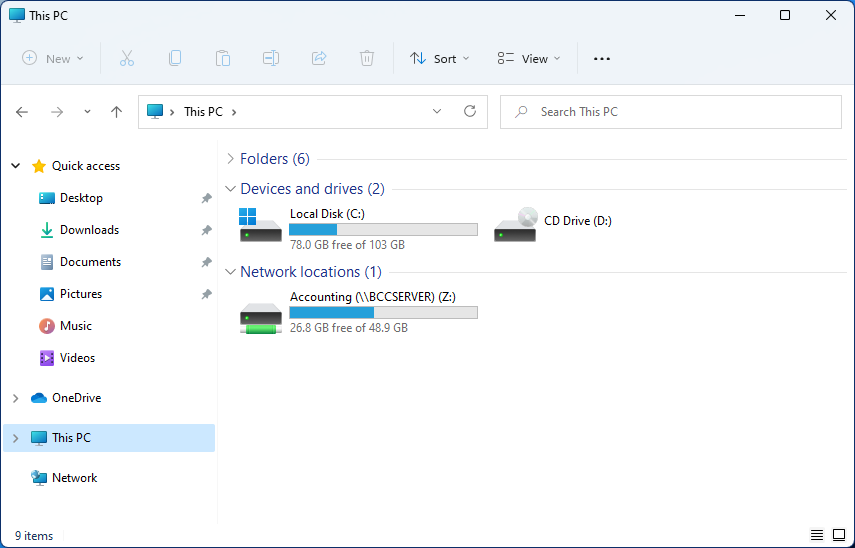
How to map a network drive in Windows 11
windows 11 network driveMapping network drive has many benefits in terms of speed and ease of access of files via network. It lets you access the hard drive over the whole network like it was the hard drive inside your PC case. In order to easily and quickly map a folder as a network drive follow the guide below.

  1. Open File Explorer
  2. Click on the three dots icon in the Toolbar
  3. Select Map Network Drive
  4. Click the Drive drop-down menu
  5. Select a driver letter that you wish to assign as a network drive
  6. In the folder field enter network device and share name (click on browse to see all devices on local network)
  7. Check the box beside Reconnect at sign-in if you wish to automatically connect to a network drive on Windows startup
  8. Check Connect Using Different Credentials if you wish to connect to a network drive using different credentials that one used to login into Windows.
  9. Click Finish
After finishing setting Windows 11 will try to connect to the network drive and if successful drive icon will appear inside File Explorer and the drive will open up to see its content. If for any reason it cannot connect try checking user credentials, cables, network adapters, etc.
Read More
1 2 3 171
Logo
Copyright © 2023, ErrorTools. All Rights Reserved
Trademark: Microsoft Windows logos are registered trademarks of Microsoft. Disclaimer: ErrorTools.com is not affiliated with Microsoft, nor claims direct affiliation.
The information on this page is provided for information purposes only.
DMCA.com Protection Status