Logo

Uninstalling the Weather App in Windows

Windows 10 has a pre-installed Weather app that offers the local weather information, forecast, temperature gradient, historical data, multiple locations, and many more. It can be handy especially if you tend to check on the weather. However, if you are one of those users who barely use this app, you have the option to uninstall it from your computer and that’s exactly what we’re going to do in this post.

There are several methods to uninstall the Weather app in Windows 10. You can uninstall it via Settings or Start Menu or even using a command in Windows PowerShell. Note that uninstalling the Weather app does not affect the functionality of your Windows 10 computer by any means so you shouldn’t worry about uninstalling it. To get started, follow the instructions provided below.

Option 1 – Uninstall the Weather app through Settings

The first option you can try to uninstall the Weather app is through Settings. It’s a very simple process so you wouldn’t have any trouble following it.

  • First, click on the Start menu and go to Settings.
  • From there, select System > Apps & Features.
  • After that, wait until the list of apps is opened, and then look for the Weather app and click on it.
  • Next, click on Uninstall in the given menu to uninstall the Weather app from your computer.

Option 2 – Uninstall the Weather app through the Start Menu

Another simple way to uninstall the Weather app is through the Start Menu. It only takes a right click and there are actually two ways to go about this – one is new with the recent feature update of Windows. How? Refer to these steps:

  • Click on the Start button and type in “weather” and right-click on the Weather app which appears in the list.
  • Next, click on the Uninstall option. This will uninstall the Weather app.
  • You can also use the other uninstall option which you can find on the right side of the list that also shows other quick action for the app.

Option 3 – Uninstall the Weather app through a command in Windows PowerShell

  • Tap the Win + X key combination and click on the “Windows PowerShell (Admin)” option to open PowerShell with admin privileges.
  • After that, execute the following Remove App package command for the Weather app to uninstall it.

Get-AppxPackage Microsoft.BingWeather | Remove-AppxPackage

  • Once done, it will remove the Weather app from your computer.

Do You Need Help with Your Device?

Our Team of Experts May Help
Troubleshoot.Tech Experts are There for You!
Replace damaged files
Restore performance
Free disk space
Remove Malware
Protects WEB browser
Remove Viruses
Stop PC freezing
GET HELP
Troubleshoot.Tech experts work with all versions of Microsoft Windows including Windows 11, with Android, Mac, and more.

Share this article:

You might also like

How to Fix Error Code 0x80240001 on Your PC

Error Code 0x80240001- What is it?

Error Code 0x80240001 usually occurs in Windows 10 and is specific to the process of updating your system. It is similar to an error code found in previous versions of the software during the update process. There are a number of steps that can be taken to solve this error code, most of which are fairly easy for the average user to undertake.

Common symptoms for this particular error code include:

  • Inability to complete the updating process of your Windows 10 system
  • A notice that the Windows Update Agent is not able to provide appropriate services through the update module.

While it can be frustrating to have this message appear during the update process, users can resolve the error in a number of ways. However, if you are not confident in your ability to follow the steps below or if the methods listed fail to resolve the problem, contact a certified Windows 10 repair technician to assist you in the process.

Solution

Restoro box imageError Causes

Error Code 0x80240001 occurs when the Windows Update tool is unable to complete its service successfully. This error occurs most often when users attempt to update to Windows 10 from older versions of the software, including Windows 7, 8, or 8.1.

This particular error code can also occur when your system has not been updated in a regular fashion. Stacked updates make it more likely for Error Code 0x80240001 to occur.

In most cases, when Error Code 0x80240001 appears on your screen, the update process will be halted. Sometimes, the screen may display a single color background, removing the appearance of all other windows and applications.

Fortunately, there are several methods that you can use to attempt to circumvent the problem and see the update process through to completion.

Further Information and Manual Repair

While it can be frustrating to deal with an error when you attempt to update your Windows software, there are several ways that you can seek to resolve the issue that causes Error Code 0x80240001. These steps are relatively simple to complete and do not require advanced techniques to be used. However, if you are not confident in your ability to complete the steps listed below, enlist the aid of a qualified Windows technician to help you.

Here are the most common ways that Error Code 0x80240001 can be resolved for Windows 10:

Method One:  Download and Use the Windows Repair Tool

From the Windows website, you can download the Windows Repair tool, if it is not already installed on your computer. While there are other tools available through outside sites that claim that they can resolve this error, in many cases, they can be a carrier for viruses and other kinds of malware, so it is inadvisable to use non-Windows tools to fix this particular error code.

Once you have successfully added the Windows Repair tool to your computer, open it up and look for the option to run “Repair Windows Update.” Using this process, your system can search for and resolve the error, allowing you to successfully run the update tool through to completion.

Method Two:  Uninstall Recently Added Software

In some cases, software that has been recently added to a non-updated computer can cause the update process to experience issues. If you believe that this may have occurred in your case, simply uninstall the software in question, then attempt to run the Windows 10 Update process again.

The best way to prevent this error from reoccurring when you seek to update your Windows 10 system is to apply updates within a short period of time from their release date. It is recommended that users update regularly, which can allow them to avoid a number of issues that are common to the update process.

If you have any difficulty in resolving Error Code 0x80240001 after you have attempted these steps, you may need to enlist the help of a qualified technician who is familiar with the specific errors related to the Windows 10 Update process. This can especially be helpful if you have recently installed a number of new kinds of software and are unsure of whether or not any specific one may be causing your issues. If you wish to always have at your disposal a utility tool to fix these Windows 10 and other related issues when they do arise, download and install a powerful automated tool.

Read More
Fix Windows Error Code 0x80070017
If you suddenly encountered a Windows Error Code 0x80070017 during an Update, Installation or System Restore then it’s probably due to some missing or corrupted system files. This kind of error code can occur during an update, installation, or system restore and the only way out of it is to download the file once again and re-run the installation from the top. Before you start to troubleshoot the problem, you need to create a System Restore Point first. After you create a System Restore point, you can follow the troubleshooting options laid out below to fix the Windows Error Code 0x80070017. You just have to follow the troubleshooting option that applies to your situation and whether you got the error during an update, installation, or during System Restore. Whether you got the error 0x80070017 while updating Windows 10 or installing it or during a system restore, the first thing you must do is run the System File Checker. As pointed out early on, the Windows Error Code 0x80070017 might be caused by corrupted or missing system files so the first thing you can try is to run the System File Checker scan.
  • Tap Win + R to launch Run.
  • Type in cmd in the field and tap Enter.
  • After opening Command Prompt, type in sfc /scannow and hit Enter.
The command will start a system scan which will take a few whiles before it finishes. Once it’s done, you could get the following results:
  1. Windows Resource Protection did not find any integrity violations.
  2. Windows Resource Protection found corrupt files and successfully repaired them.
  3. Windows Resource Protection found corrupt files but was unable to fix some of them.
If you have encountered Windows Error Code 0x80070017 during an Update, then here are some options you need to try:

Option 1 – Delete the files/contents in the SoftwareDistribution Folder

The Software Distribution folder in the Windows operating system is a folder that can be found in the Windows directory and is used to store files temporarily which might be required to install the Windows Update on your PC. Thus, it is required by the Windows Update and maintained by WUAgent. A lot of users tried deleting the files in this folder to fix the problem and so far it has worked. Like them, you can try clearing the Windows Update cache by simply deleting the contents of the folder named “SoftwareDistribution” since Windows apparently can’t clear and re-download the update contents once they are corrupted. Thus, deleting the contents of this folder will make Windows download the contents again which will fix the problem. To do that, follow the steps below.
  • Open the WinX Menu.
  • From there, open Command Prompt as admin.
  • Then type in the following command – don’t forget to hit Enter right after typing each one of them.
net stop wuauserv net stop bits
  • After entering these commands, it will stop the Windows Update Service and the Background Intelligent Transfer Service.
  • Next, go to the C:/Windows/SoftwareDistribution folder and get rid of all the folders and files thereby tapping the Ctrl + A keys to select them all and then click on Delete. Note that if the files are in use, you won’t be able to delete them.
  • Once all the contents in the Software Distribution folder are deleted, restart your PC and then go back to Command Prompt and input the following commands again.
net start wuauserv net start bits
Since the folder has already been flushed, it will be populated afresh the instant your restart your computer and open Windows Update.

Option 2 – Run the Windows Update Troubleshooter

Running the built-in Windows Update troubleshooter could also help you resolve the Windows Update Error Code 0x80070017. To run it, go to Settings and then select Troubleshoot from the options. From there, click on Windows Update and then click the “Run the troubleshooter” button. After that, follow the next on-screen instructions and you should be good to go. On the other hand, if you got the error code 0x80070017 during a Windows 10 installation, then it’s because of bad media or corruption in ISO. Here are some troubleshooting steps for this kind of situation:

Option a – Try to create Windows 10 ISO media again

In this option, you will have to create a Windows 10 bootable media and use it to install the latest Windows 10 version. Most users reported that this option works and the reason why it does have something to do with the Windows Update client since the Windows Updates downloaded from the regular Windows Update client seem to create issues such as the error 0x80070017. However, issues like this one don’t occur when the very same Windows Updates are downloaded and installed via an ISO file. Take note that when using a Windows ISO file, you will be asked to choose what you want to do with the previous settings and apps. A lot of users opted for the “Not to keep the old Windows settings” option which has resolved the issue. So if you want to keep the previous settings then you must try to update Windows first while keeping the old settings. However, if it doesn’t work, you have to try installing the latest version of Windows without keeping the previous settings.
  • Click this link and then click the Download Tool Now button.
  • Next, click the “Use the tool to create installation media (USB flash drive, DVD, or ISO file)…” option and follow the next given instructions on the screen.
  • Now select the ISO file option in step 5.
  • After that, you should now have an ISO file.
  • Next, go to the location where you’ve downloaded the ISO file.
  • Then right-click on the Windows 10 ISO file and select the Open with the option and then select File Explorer.
  • Now click on “setup.exe” and follow the next instructions that appear on the screen. When asked, you have to select either Nothing (clean install) or Keep personal files only option. Take note that you must not select the “Keep personal files, apps, and Windows settings since it doesn’t really work.

Option b – Run Microsoft’s online troubleshooter

Running Microsoft’s online troubleshooter might also help you fix the Windows update error 0x80070017. This online troubleshooter is known to help in fixing Windows Update errors, it scans your computer for issues that might be causing the problem and then fixes them automatically. If you got the error during System Restore then this means that the files that are being copied from the disk are not making it to the hard drive. To resolve it, here’s what you can do:

Option 1 – Run System Restore in Safe Mode

You might want to run System Restore in Safe Mode and see if it works. Just reboot your PC into Safe Mode and then run System Restore.

Option 2 – Reset Repository

  • Boot your PC into Safe Mode.
  • Then open Command Prompt as admin.
  • Next, type the “net stop winmgmt” command and hit Enter to stop the Windows Management Instrumentation Service.
  • After that, go to C:/Windows/System32/wbem. From there, rename the repository folder to “repository-old”.
  • Restart your computer.
  • After your computer has restarted, open Command Prompt as admin again and then type the “net stop winmgmt” command and hit Enter.
  • Next, type the “winmgmt /resetRepository” and hit Enter to reset Repository.
  • Restart PC and check if System Restore now works.

Option 3 – Try resetting Windows 10

To fix the error 0x80070017, you can try resetting Windows 10. Doing so won’t get rid of any file in your system – instead of erasing all your media files and documents, it only resets all the system settings and files. Simply go to Settings > Recovery. From there click the Get started button under the Reset This PC section.
Read More
3 Methods To Fix Qtcore4.dll Error

Qtcore4.dll Error - What is it?

Qtcore4.dll is a dynamic link library file that helps Microsoft Windows in loading several key components of the system. The Qtcore4.dll error occurs when the Qtcore4.dll file cannot be loaded to run the application supported by this .dll file. The Qcore4.dll missing error message may occur while booting your system or launching a certain program. It is a blue screen of death error type. The Qtcore4.dll error code is often displayed as:

BLUE SCREEN ERROR - QtCore4.dll Not Found

Filei386QtCore4.dll could not be loaded. The error code is 7. Setup cannot continue. Press any key to exit.

Solution

Restoro box imageError Causes

This error code is triggered by a variety of reasons such as:
  • Windows file allocation file gets damaged
  • Your computer BIOS (Basic Input/Output System) are misconfigured
  • The Qtcore4.dll file gets corrupt
  • Registry gets damaged and corrupt
  • Non-Microsoft program not running in tandem with Windows
  • Malware attack
  • Improper hardware driver software
It is advisable to fix the Qtcore4.dll error code immediately as this error can pose serious threats to your system. Qtcore4.dll error can lead to system breakdown.

Further Information and Manual Repair

Here are some ways of fixing the Qtcore4.dll error on your system:

1. Re-install the Program Causing Qtcore4.dll error message to pop up

As dll files are shared files sometimes due to program deletion and installation .dll file settings can get misconfigured, damaged, and corrupt. In such a scenario, you can try reinstalling the program that is causing Qtcore4.dll error message to appear on the screen.

2. Reconfigure your Mis-configured BIOS

If BIOS misconfiguration is the cause of this error code on your system, then try reconfiguring your system’s misconfigured BIOS.
  • To do this boot the computer and then press the BIOS designated keys to enter the BIOS. The keys may vary from manufacture to manufacture but typically, the setup keys are F2, F10, F12, and Del.
  • Once you figure out the setup keys, press them rapidly when booting the computer.
  • After successfully hitting the setup keys, the BIOS will load and you will see the BIOS setting menu on your screen. Adjust settings. Go to SATA Operation and change RAID AHCI to RAID ATA. Save changes and then exit.

3. Scan Your PC with a Registry Cleaner and an Antivirus

However, after adjusting the BIOS if the error still pops up on your screen, then this indicates the problem is bigger than you think. It triggers either malware attack or registry corruption. If these are the underlying causes for the Qtcore4.dll error on your system then you need to scan your PC with a registry cleaner and an antivirus. Registry is the main database of your system; if this gets corrupt it is most likely to result in system failure and valuable data loss. And as for malware, the biggest concern is data security threats. Today’s advanced and lethal malware like viruses and spyware can give easy access to hackers to enter your system from a remote location, browse through your confidential and private data and manipulate it to their advantage. This has led to a surge in various types of cyber crime, data breaches, and identity theft cases over the years. To avoid all this while resolving the error code Qtcore4.dll on your PC, registry cleaning and repair and antivirus scan are needed. You can either download 2 separate tools on your system to scan your PC which by the way will take a lot of time and increase your chances of the system slow down or you can download Restoro.

Why Restoro?

  • Total System Care is an advanced, user-friendly, high, and multi-functional repair.
  • It is deployed with a powerful and intuitive registry cleaner. It also functions as a system optimizer. It spares you from downloading numerous tools to address and resolve different errors on your PC.
  • It is your one-stop solution for not only Qtcore4.dll problems but practically all PC-related issues.
  • The registry cleaner utility detects all the malicious, unnecessary, and obsolete files overloading and corrupting your RAM.
  • This includes junk and temporary files. It wipes them out thus clearing your disk space. Simultaneously, it also repairs the damaged and misconfigured dll files including the Qtcore4.dll file, and fixes the corrupt registry.
  • The privacy error utility has the properties of an antivirus. It detects and removes malware, viruses adware, and spyware from your system in seconds.
  • Total System Care resolves the Qtcore4.dll error on your system and boosts the performance of your system. It has a simple and neat interface which makes it quite easy for users to operate it, even those who are not technically adept.
  • It is compatible with all Windows versions
Click here to download Restoro and repair the Qtcore4.dll error on your PC.
Read More
Excluding a folder from Windows Defender scan
The Windows Defender program can both scan and monitor almost the entire folder on a Windows 10 computer. So if you have a folder that may have files that could trigger an alarm to Windows Security, then it would be better if you add an exclusion to Windows Security. Note that it is okay to do this as long as you’re certain that the contents of the folder you want to exclude are safe and that Windows Defender is only throwing out warnings for nothing. This way, Windows Defender won’t scan those folders in the future. And besides, there are also some Windows folders and files that you may exclude from the Antivirus scans, especially if you want to save your scan time. This kind of feature also comes in handy when you trust a file type or folder or any process that you believe is safe but the Windows Security considers as malicious. To exclude a folder or a file or process or a file type from the Windows Security scan, here are some steps you can follow. Make sure to do them carefully. Step 1: Search for “Windows Security” in the Search box and then click on it from the search results to open it. Step 2: Next, click on Virus & threat protection > Manage settings > Add or remove exclusions. Step 3: After that, on the next screen, click on Add an exclusion > Folder. It will show you a list that includes File, Folder, File Type, and Process. Step 4: Now click on “+Add and exclusion” on the next window and then select a folder you want to exclude and click OK to add it in the Exclusions list. Step 5: Click on the down arrow button to remove it and then click on the Remove button. Note: If you want to only ignore a few file types, it’s better if you configure your antivirus program to ignore these files with a specific extension. This way, it will ignore all of them no matter what their location is. Also keep in mind that when you select a folder, all the subfolders in it will also be excluded from the scan. Thus, you need to understand what you’re about to do. Once you’re done excluding the folder, it is recommended that you protect the folder using the Controlled Folder Access since this folder is not monitored for threat. The Controlled Folder Access will ensure that an external program does not alter it. This way, you can be sure that even though this folder is not included in the scan, it is still secure.
Read More
Guide for Removing FullTab From PC

FullTab is a Browser Extension for Google Chrome, Firefox, and Internet Explorer. When installed this extension hijacks your home page, and changes your default search engine to http://search.fulltabsearch.com. This extension usually comes bundled with other freeware software, and while installed it monitors your internet browsing activity, visited links, clicked pages, and other private information that it later uses to distribute targeted unwanted ads in your search results.

While this extension is installed, you will see modified search results, injected ads, sponsored links, web page redirects, and sometimes even pop-up ads. Several anti-virus scanners have detected this extension as a Browser Hijacker, and due to the information it is gathering from your computer it is not recommended to keep.

About Browser Hijackers

Browser hijackers (sometimes called hijackware) are a kind of malicious software that modifies web browser configuration settings without the user’s knowledge or consent. These hijacks appear to be increasing at an alarming rate globally, and they can be truly nefarious and sometimes harmful too. Browser hijackers are capable of doing more than just changing home pages. Usually, browser hijacking is utilized for earning advertising revenue that comes from forced ad clicks and website visits. Most people believe that such websites are legitimate and harmless but that is not the case. Almost every browser hijacker poses an actual threat to your online safety and it is necessary to categorize them under privacy risks. Browser hijackers can also let other vicious programs without your knowledge further damage your personal computer.

Browser hijacking signs and symptoms

There are numerous signs that indicate the web browser is hijacked: 1. your browser’s home page is suddenly different 2. you find redirected to internet sites you never meant to visit 3. the default web browser settings are modified and/or your default web engine is altered 4. you find unsolicited new toolbars added 5. unstoppable flurries of pop-up advertisements appear on your personal computer screen 6. webpages load slowly and sometimes incomplete 7. you can’t navigate to specific web pages, like computer security software-related sites.

Precisely how browser hijacker infects computers

There are many ways your PC can get infected with a browser hijacker. They usually arrive through spam e-mail, via file-sharing networks, or by a drive-by download. They are usually included with toolbars, BHO, add-ons, plug-ins, or browser extensions. Browser hijackers sneak to your pc in addition to free software application downloads also that you unintentionally install along with the original. Examples of popular browser hijackers include Fireball, GoSave, Ask Toolbar, CoolWebSearch, RocketTab, and Babylon Toolbar. The presence of any browser hijacker on your system can considerably diminish the web browsing experience, record your internet activities that lead to troublesome privacy concerns, diminish overall computer performance and cause application instability as well.

Removal

Some browser hijacking can be quite easily corrected by identifying and removing the corresponding malware software through your control panel. However, most hijackers are very tenacious and require specialized tools to remove them. And there’s no denying the very fact that the manual fixes and removal methods can certainly be a difficult job for a rookie PC user. Additionally, there are many risks associated with tinkering around with the pc registry files.

Virus Blocking Access To Safebytes Website And Anti-Malware Downloads - What You Should Do?

All malware is inherently dangerous, but certain types of malicious software do much more damage to your computer than others. Some malware is meant to interfere with or block things that you’d like to do on your computer. It may not allow you to download anything from the net or prevent you from accessing a few or all sites, especially antivirus websites. If you are reading this article now, you have probably recognized that a malware infection is a reason behind your blocked internet traffic. So how to proceed if you want to install an antivirus program such as Safebytes? There are some actions you can take to get around this problem.

Start Windows in Safe Mode

Safe Mode is actually a special, basic version of Microsoft Windows where just minimal services are loaded to counteract viruses and other troublesome programs from loading. If the malware is blocking the internet connection and affecting your PC, running it in Safe Mode will let you download anti-malware and run a scan while limiting possible damage. In order to enter into Safe Mode or Safe Mode with Networking, press F8 while the computer is booting up or run MSCONFIG and look for the “Safe Boot” options under the “Boot” tab. After you restart into Safe Mode with Networking, you can download, install, as well as update the anti-malware program from there. Right after installation, run the malware scanner to eliminate most standard infections.

Utilize an alternate internet browser to download an antivirus program

Malicious program code could exploit vulnerabilities on a specific web browser and block access to all anti-virus software websites. If you appear to have a virus attached to Internet Explorer, then switch over to a different browser with built-in safety features, such as Firefox or Chrome, to download your preferred antivirus program – Safebytes.

Make a bootable USB anti-virus drive

Another solution is to store and run an antivirus program completely from a Thumb drive. Do these simple measures to clean up your affected computer using portable anti-malware. 1) On a virus-free computer, download and install Safebytes Anti-Malware. 2) Put the pen drive into the uninfected PC. 3) Double-click on the downloaded file to run the installation wizard. 4) When asked, select the location of the pen drive as the place where you would like to store the software files. Do as instructed on the screen to finish up the installation process. 5) Now, insert the USB drive into the corrupted PC. 6) Run the Safebytes Anti-malware directly from the pen drive by double-clicking the icon. 7) Hit the “Scan Now” button to start the virus scan.

Ensure the Safety of Your PC by Using SafeBytes Anti-Malware Software

Do you want to install the best anti-malware application for your laptop? There are many applications available in the market that comes in free and paid versions for Windows systems. Some of them are great, some are decent, and some will affect your PC themselves! You need to go with a tool that has obtained a good reputation and detects not only computer viruses but other types of malware too. While thinking about trustworthy applications, Safebytes Anti-Malware is certainly the highly recommended one. SafeBytes anti-malware is a powerful, very effective protection application designed to assist users of all levels of IT literacy in finding and removing malicious threats from their personal computers. After you have installed this program, SafeBytes sophisticated protection system will make sure that absolutely no viruses or malicious software can seep through your computer. SafeBytes has outstanding features when compared to various other anti-malware programs. A few of them are given as below: Real-time Threat Response: SafeBytes provides round-the-clock protection for your personal computer restricting malware intrusions instantly. They’re extremely effective in screening and eliminating different threats because they’re regularly improved with new updates and safety measures. World-class AntiMalware Protection: With its advanced and sophisticated algorithm, this malware removal tool can detect and get rid of the malware threats hiding within your PC effectively. Quick Multithreaded Scanning: SafeBytes’s high-speed malware scanning engine cuts down scanning times and extends battery life. Simultaneously, it will effectively detect and eliminate infected computer files or any internet threat. Web Security: Through its unique safety rating, SafeBytes alerts you whether a site is safe or not to access it. This will make sure that you’re always certain of your safety when browsing the world wide web. Lightweight: This tool is not “heavy” on the computer’s resources, so you’ll not see any overall performance difficulties when SafeBytes is operating in the background. 24/7 Live Professional Support: You can obtain high levels of support round the clock if you’re using their paid software.

Technical Details and Manual Removal (Advanced Users)

To eliminate FullTab manually, navigate to the Add/Remove programs list in the Windows Control Panel and select the program you want to get rid of. For internet browser extensions, go to your web browser’s Addon/Extension manager and select the add-on you want to disable or remove. You’ll probably also want to reset your browser. To ensure the complete removal, find the following Windows registry entries on your system and remove them or reset the values accordingly. However, this is a challenging task and only computer professionals could carry it out safely. Moreover, certain malware keeps replicating which makes it difficult to eliminate. You are advised to do this process in Safe Mode.
Files: %LOCALAPPDATA%GoogleChromeUser DataDefaultExtensionsdddjdbagaalmcfiaklngpcdefppkhpnf %UserProfile%Local SettingsApplication DataGoogleChromeUser DataDefaultExtensionsdddjdbagaalmcfiaklngpcdefppkhpnf %LOCALAPPDATA%GoogleChromeUser DataDefaultExtensionsdfobofkgfnlaibpdigilbhhnampnfphg %UserProfile%Local SettingsApplication DataGoogleChromeUser DataDefaultExtensionskikgikaaibdokmgbiocgoeepfphfllml %LOCALAPPDATA%GoogleChromeUser DataDefaultExtensionskikgikaaibdokmgbiocgoeepfphfllml %LOCALAPPDATA%GoogleChromeUser DataDefaultExtensionsekeidcohoadhbbfgbhppjihllchhdgea %UserProfile%Local SettingsApplication DataGoogleChromeUser DataDefaultExtensionsdokppbonbkemcpplmcghjemlodkjcoif %LOCALAPPDATA%GoogleChromeUser DataDefaultExtensionsdokppbonbkemcpplmcghjemlodkjcoif %UserProfile%Local SettingsApplication DataGoogleChromeUser DataDefaultExtensionsekeidcohoadhbbfgbhppjihllchhdgea Registry: HKEY_CURRENT_USERSoftwareMicrosoftInternet ExplorerDOMStoragewww.search.fulltabsearch.com HKEY_CURRENT_USERSoftwareMicrosoftInternet ExplorerDOMStoragesearch.fulltabsearch.com HKEY_CURRENT_USERSoftwareGoogleChromePreferenceMACsDefaultextensions.settings, value: dfobofkgfnlaibpdigilbhhnampnfphg

Read More
Get public IP address inside Windows 10
There are a lot of online services and a lot of ways to get your public IP address. One of them being typing whats my IP in Google search and you will get immediate results. But there is a way to get the same information inside Windows 10 which could be very useful if for any reason you can not connect to mentioned services. By checking public IP directly inside your windows you can make sure that the issue for not being able to open some websites is not due to your public IP. In order to use this Windows feature, we will be checking our public IP using Windows PowerShell. To open Power Shell in Windows first press ⊞ WINDOWS + R to open the run dialog keyboard with windows and r markedInside run dialog type Powershell and press ENTER In the Powershell type in the following command and press ENTER

(Invoke-WebRequest -uri "http://ifconfig.me/ip").Content
When the command finishes you will see what is your public IP address, if you wish to know more about your connection type in and press ENTER:
Invoke-RestMethod -Uri ('https://ipinfo.io/')
This command will provide you with further information like city, region, country, and others.
Read More
Choose what application will load on startup
Hello everyone and welcome to another great tutorial from errortools.com I hope everyone is feeling great and that you are prepared to boost the performance of your computer. This time we will speed up Windows startup time and overall performance by eliminating startup programs that we don't need and do not use. Microsoft itself and some application developers tend to have some applications or some services always active and set to be loaded on Windows startup. If you want to change which of these applications are starting up with your Windows and change them, follow this easy guide and you will be speeding up your Windows in no time. First thing is to open a task manager, fastest and most direct way of doing this is with a keyboard combination of CTRL + SHIFT + ESC keyboard with ctrl shift and esc markedWhen Task Manager opens, click on the startup tab on top. task manager startup tabOnce you click on startup you will get a list of applications that are set to be started when Windows is booted. startup applicationsYou can now click on the application and then click on disable on the bottom button, the application status will update in task manager to disabled and it will not be booted anymore when Windows starts. In this same manner, you can enable back some applications if you changed your mind about them. Please note that some applications are using some services and must have them running or they will not work properly. The best practice is to disable applications you are positive you will not use or use rarely so you do not want them to slow down Windows.
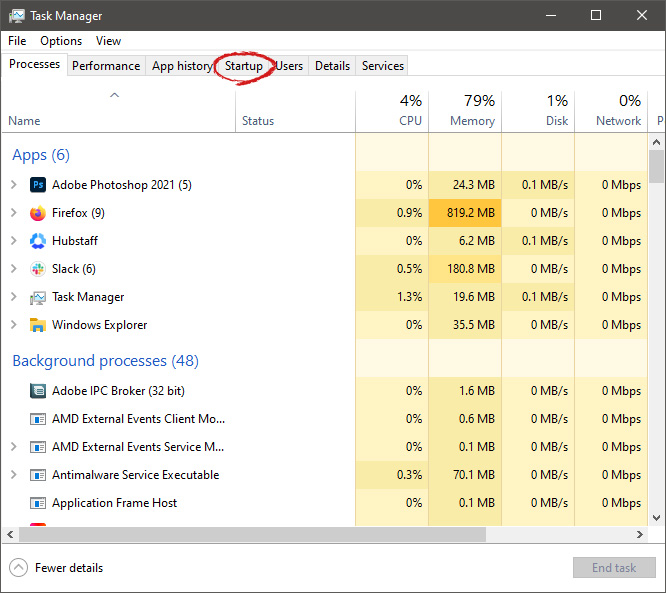
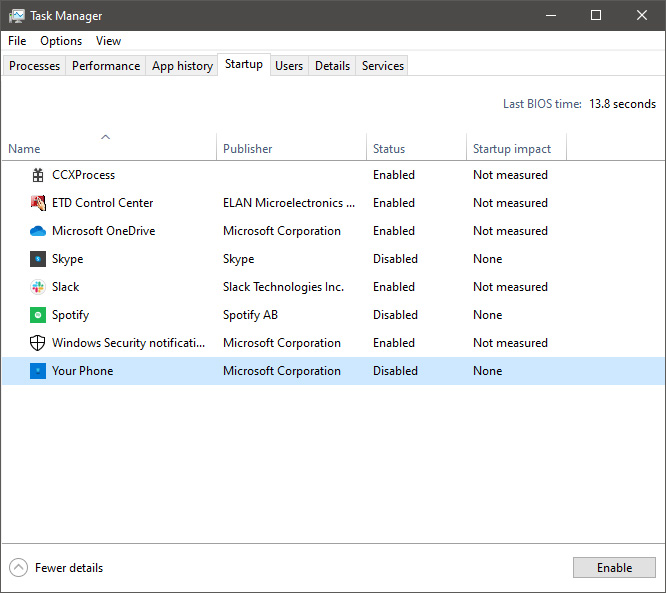

Read More
How to Fix Windows Setup Error 0x80300002
Installing a Windows 10 upgrade is definitely not an easy task since the process is not always smooth sailing and you could encounter some errors when doing so. This isn’t unusual since there are various software configurations and hardware configurations as well as services it depends on in order to properly work. So if any of them malfunctions or becomes corrupted, it will affect the process which will result in errors like the error code 0x80300002. When you encounter this kind of Windows Update error, you will see the following error message on your screen:
“We couldn’t install Windows in the location you choose. Please check your media drive. Here’s more info about what happened: 0x80300002”
You can encounter this kind of error if there is corruption in the partition table of the drive where the installation is in progress. In addition, corruption on the Media device could also cause this problem. So if you encounter this error when running Windows Setup, read on as this post will guide you in fixing it. There are several ways to resolve this issue. The first thing you can do is to verify the compatibility between the BIOS and the installation media. You could also try recreating all the partitions as well as recreating the bootable USB drive. For more detailed information, follow the given options below.

Option 1 – Check if the BIOS is compatible with the installation media

The first thing you can do to fix the error is to check if there are any compatibility issues between the BIOS and the installation media you’re using. This is actually one of the most likely reasons why you’re getting the error since this is a complicated point for the Windows installation process. If the installation media is based on GPT, then your BIOS must be based on UEFI. So if you have your bootable media with the MBR partitioning, you need to set your BIOS to Legacy.
  • In the Windows Search box, type “command prompt” and from the search results that appear, right-click on Command Prompt and select the “Run as administrator” option.
  • After that, execute this command: exe /convert /allowfullOS
  • Now, wait until the process is completed since you can track its process on your screen.
  • Once it’s done, go to Settings > Update & Security > Advanced Startup options and from there, click on Restart Now. This will restart your computer and give you advanced options.
  • Next, select Troubleshoot > Advanced Options where you will see further options including System Restore, Startup Repair, Go back to the previous version, Command Prompt, System Image Recovery, and UEFI Firmware Settings.
  • Now select the “Legacy” option. This will take you to the BIOS. Boot Mode is typically available under Boot > Boot Configuration. Once you’re there, set it to Legacy and then save the changes you’ve made. After that, your computer will restart.

Option 2 – Try recreating a new bootable drive

  • Insert your USB drive into your PC.
  • Tap the Win + R keys to open the Run dialog box and type in “cmd” and tap Enter to open the Command Prompt. Alternatively, you can also search for “cmd” in the Cortana search box to open Command Prompt.
  • Once you’ve opened CMD, type in this command to open the DISPART utility – diskpart
  • After that, you should see a new black and white window that would say, “DISKPART>”.
  • Next, type in “list disk” in the command line and tap Enter to see the list of all the Storage devices as well as your hard disk connected to your PC. Here, you have to identify your disk’s number.
  • Type in this command where “X” is the disk number you have identified and then tap Enter – disk X
  • Type in this command and hit Enter to clear the table records and all the visible data on the drive – clean
  • Now you have to recreate a new primary partition of the drive so you’ll have to type in this command and tap Enter right after – create part pri
  • A new primary partition has been created so you have to select it by typing this command and tapping Enter – select part 1
  • Now you have to format it to make it visible to normal users by typing – format fs=ntfs quick
Note: If your platform supports the Unified Extensible Firmware Interface or UEFI, replace the “NTFS” with “FAT32” in the command on Step 10.
  • After that, type in this command and tap Enter after – active
  • Finally, type this command and hit Enter to exit the utility – exit
  • After you prepare the image for the operating system, save it to the root of your USB Storage device.

Option 3 – Try to recreate all the partitions

If none of the first two options given above worked, then you can try to recreate all the partitions instead. All you have to do is restart the Windows installation process and wait until you get to the part that says, “Where do you want to install Windows?”. From there, you will see options like delete, format, extend, create new partitions, and many more. Now you have to select the Delete all the partitions options and then use the “New” button to create new partitions. Just make sure that you have one primary partition at least where you can install Windows 10. After that, continue the installation of Windows on the new partition. Keep in mind that when you create a new partition, it also recreates the partition table configuration which means that the chances of getting an error are very unlikely.
Read More
Could not find this item, no longer in path
If you were trying to copy, move modify or delete a folder or a file in your computer but you’re not able to do so and encountered an error instead that says, “Could not find this item, This is no longer located in <path>, Verify the item’s location and try again”, then you’ve come to the right place as this post will guide you on how you can fix this error. You can encounter this error when you delete, rename, open or copy a certain file which is often created by third-party software and lacks important information like file format, and so on. Although you can see these files in File Explorer, you might not be able to perform some operations in them. To fix this problem, you need to check out the given suggestions below.

Option 1 – Try to rename the file via Command Prompt

If you were trying to rename the file but unable to do so, you can achieve that by executing a command in Command Prompt. Make sure to follow the steps carefully.
  • Type in “Command Prompt” In the Start menu to search for it or you could also click the search button right next to the Start menu and then right-click on the related result and select the option “Run as administrator” to open Command Prompt with admin privileges.
  • Next, type in “cd” followed by the path where the file is located with this format – “C:/Folder1/Folder2/Folder3”. However, you have to omit the problematic file this time. To put it simply, the last folder in the command must be the folder where the file is located.
  • After inputting the command, press Enter on your keyboard and then use the set of commands given below. Note that each command is a new line so you need to tap Enter after copying each line.
    • DIR /A /X /P
    • RENAME (the current name of the problematic file) (a non-problematic name)
    • EXIT
Note: Make sure that you only input the current name and the new name separated by a space. You must not write the brackets in the command. If everything goes well, you will now be able to operate the file like you used to before.

Option 2 – Try to delete the file using Command Prompt

On the other hand, if you were trying to delete the file instead of renaming it, you can execute another command in Command Prompt.
  • Open Command Prompt with admin privileges like what you did earlier.
  • Once you’ve opened Command Prompt, copy and paste the command given below and tap Entre after you do so. You also have to make sure that you key in the correct path where the file is located as well as its name.
rd /s \?X:badfolderpath
Note: In the command above, “X” is the placeholder letter so you must input the letter that corresponds to the drive’s letter where the file is located.
  • After that, you will see the “Operation completed successfully” message on your screen. If you don’t, check if you’ve really inputted the correct location of the file or its name.

Option 3 – Delete the file without any extension

If the file you were trying to delete does not have an extension, this means that Windows does not know what to do with this file which is why it’s throwing an error message. The best thing to do in such cases is to delete the file especially if it takes up a lot of memory. To delete these kinds of files, here’s what you have to do:
  • Follow the first two steps from the previous option above so you can navigate to the location of the file accurately just be careful in inputting the folders.
  • Don’t forget to tap Enter right after each command and then use the next command below so you can delete the affected file which has no extension:
del *.*
  • After you’re done, open the File Explorer and then check if the file is now deleted or not.
Read More
Quick Fix For 0x80004005 Outlook Error

What Is 0x80004005 Outlook Error?

0x80004005 Outlook is an error that users commonly encounter while attempting to send or receive emails on Outlook.

The message that appears usually states “This message could not be sent. Try sending the message again or contact your network administrator."

The client operation failed. Error is [OX80004005- 0X0004B9-OXOO501].

Error Causes

This error is usually caused by a problem in the Local Area Network or LAN. What actually happens is that signals with the wireless LAN are lost or a connection problem occurs within the network cable.

As a result, the 0x80004005 Outlook error is triggered while sending or receiving an email. Sometimes the problem goes away on its own. However, if it recurs after a few hours, it shows that some problem exists within the network.

Also, it is important to understand that different factors can affect the quality of wireless connections in a network.

For instance, garage door openers, microwave ovens, and Bluetooth devices can easily become obstacles, disrupting the connection and causing the quality to degrade. Other causes are listed below as follows.

  • Missing, corrupt, or damaged registry keys
  • Existence of viruses
  • Outdated drivers

It is a must to fix this error otherwise potential risks associate with this error such as permanent damage and blue screens.

Further Information and Manual Repair

There are two ways to fix this error and both are listed below as follows.

  • One solution is to disable script blocking in Norton Antivirus. Most users encountering this problem have Norton Antivirus installed on their PCs. To correct this problem, simply turn off the ‘Enable Script Blocking’ feature. However, there is a downside associated with this solution. Enabling script blocking will make your network or computer vulnerable to viruses and malware. That’s why it is not advised to implement this solution.
  • The alternative solution is to simply disable the new-mail notification feature offered in Outlook. To disable notifications of any new emails, the steps go as follows. Open Outlook and go to the Tools menu. Here you will come across ‘Options’.Click on it and then select the ‘Preferences’ tab. Here you will find the ‘Email Options’. Click on it and then uncheck the checkbox against the option, ‘Display a notification message when new mail arrives’. Click Ok two times.

Both these workarounds will work. Therefore, it is advised that you employ any one of them as per your needs.

Read More
1 2 3 171
Logo
Copyright © 2023, ErrorTools. All Rights Reserved
Trademark: Microsoft Windows logos are registered trademarks of Microsoft. Disclaimer: ErrorTools.com is not affiliated with Microsoft, nor claims direct affiliation.
The information on this page is provided for information purposes only.
DMCA.com Protection Status





