Logo

Turn off animations in Windows11

Windows 11 has come a long way from its infant stage. Today it is incredibly good and stable operating system that also looks good and modern. Unfortunately, fancy animations and good graphics come with a price, in this case, slower performance on some little older and weaker computers.

windows 11 animations

Animations itself which include also fading effects can sometimes feel slugging and laggy and have a general overall feeling of delay. For a more old-school instant experience, you can turn off animations.

In order to turn animations inside Windows 11 follow this simple guide:

First thing is to open Settings by pressing Windows + i key combination or you could open Start and in the search box type in Settings and then click on its icon.

Once inside settings on the left side find Accessibility and click on it to select it. Once it is selected on the right side choose Visual effects. Inside the visual effects section click on the switch next to Animation effects to OFF. You can also turn off transparency effects in this section if you wish if you have an older GPU in order to speed it up a little.

That is all you need to do, settings will be automatically saved and all animations will be turned off for a quicker and more responsive feeling when working inside W11

Do You Need Help with Your Device?

Our Team of Experts May Help
Troubleshoot.Tech Experts are There for You!
Replace damaged files
Restore performance
Free disk space
Remove Malware
Protects WEB browser
Remove Viruses
Stop PC freezing
GET HELP
Troubleshoot.Tech experts work with all versions of Microsoft Windows including Windows 11, with Android, Mac, and more.

Share this article:

You might also like

Remove or join a Domain from Windows
As you know, networks that are domain-based are common in organizations and companies. These domain-based networks require multiple computers to be controlled through a single node known as a server. And the one that sets certain policies and restrictions on every system that is joined to the domain is the server administrator. So if you want to add your computer to a domain, you need to have the following information available:
  • The domain name
  • A user account name that’s registered in the active directory associated with the server
  • Windows Enterprise, Pro, or education version
In this post, you will be guided on how you can join or remove a domain. To get started, follow the given instructions below.

Option 1 – Joining a domain

  • First, you need to connect your computer to the network associated with the server since your computer and the server have to be on the same network.
  • Next, click the Start button and then click on the gear-like icon for Settings to open it.
  • After that, navigate to this path: Accounts > Access work or school.
  • Then click on Connect. This will open a new dialog box and from there, select the “Join this device to a local Active Directory domain” option.
  • Afterward, you will be asked to enter the username and password of your domain account.
  • Now select your Account type and when you proceed, you have to restart your computer. Your domain account should now be created.

Option 2 – Removing a domain

  • You need to open the Windows 10 Settings app.
  • And from there, go to this path: Accounts > Access work and school.
  • Next, select the account you want to remove from the domain and then click on Disconnect.
  • A prompt will then appear that says, “Are you sure you want to remove this account? This will remove your access to resources like email, apps, network, and all content associated with it. Your organization might also remove some data stored on this device”. Just click on Yes.
  • This will give you a Disconnect from the organization prompt.
  • Now click on Disconnect and select Restart now to restart your computer. This will complete the removal process of the domain.
Read More
NVIDIA GameStream is not working
The GameStream is an NVIDIA service that allows users to stream games from their Windows 10 computers to other supported devices which includes the NVIDIA SHIELD devices. However, a number of users reported that the NVIDIA GameStream is not working on their Windows 10 computers. This kind of issue is most likely caused by improper installation, some glitches with the network, and many more. To fix this issue in the NVIDIA GameStream, there are several options you need to check out to fix the problem. You can try to lo logout of GameStream and try logging back in again. You could also try to update or uninstall and reinstall the drivers related to NVIDIA or fix some network glitches or update the NVIDIA SHIELD device. For more details, you can refer to each one of the given potential fixes below.

Option 1 – Try to logout and log back into NVIDIA GameStream

The first thing you can do is to log out and then log back into NVIDIA GameStream. Some users claimed that by doing this simple task, they were able to resolve the problem. This is probably because with the re-login, the entire cache of the system and service is rebuilt and any bad sectors of that data will be replaced with the fresh one so this should resolve the problem with the NVIDIA GameStream, if not, refer to the other given options below.

Option 2 – Try updating the drivers from the official site of NVIDIA

If both the first and second given options didn’t work, you can also try updating the drivers from the official NVIDIA website. And in case you don’t know the type of Nvidia graphics card that your computer is on, follow the steps below:
  • Tap the Win + R keys to open the Run dialog box.
  • Next type in “dxdiag” in the field and click OK or hit Enter to open the DirectX Diagnostic Tool.
  • From there, you can see what type of Nvidia graphics card that your system is on.
  • Take note of your graphics card information and then look for the best drivers for your operating system. Once you’ve downloaded and installed the file, restart your PC.

Option 3 – Try to roll back the driver to the previous version

If updating the NVIDIA display drivers didn’t work for you, then it’s time to roll back the device drivers. It is most likely that after you updated your Windows computer that your driver also needs a refresh.
  • Tap the Win + R keys to launch the Run window and then type in the “MSC” command and hit Enter to open the Device Manager window.
  • Under the Device Manager, you will see a list of drivers. From there, look for the NVIDIA Drivers and expand it.
  • Next, select the driver entries that are labeled appropriately.
  • Then select each one of them and double click to open a new mini window.
  • After that, make sure that you’re on the Driver tab and if you are not, just navigate to it then click the Roll Back Driver button to switch back to the previous version of the NVIDIA Drivers.
  • Now restart your computer to successfully apply the changes made.

Option 4 – Try fixing your network

The next thing you can do to fix the problem with the NVIDIA GameStream is to fix the glitches in your network. Make sure that you connect both of your devices to a 5 GHz Wi-Fi network and you also have to ensure that the Wi-Fi connection you’re connected to is strong enough for both the devices for the latency to go down. Once you’ve covered all of these things with your network, restart your computer and change the Wi-Fi channel both devices are connected to. This should resolve the problem.

Option 5 – Try to update the NVIDIA SHIELD device

You might also want to update the NVIDIA SHIELD device. There are times when an outdated NVIDIA SHIELD device can result to several issues like the problem with the NVIDIA GameStream. Thus, you need to update NVIDIA SHIELD and check if it fixes the problem or not.
Read More
Fix Windows Activation Error 0x80070005
Windows uses 2 types of keys for its activation, KMS or MAK. These keys should work without any issues since they are elevated with higher permissions but in some cases, they are by accident run without their proper permission, and then we have access denied error or error 0x80070005 To resolve this issue please first check if not by any chance your antivirus or firewall is preventing slmgr.bs file to access the right permissions, that being said if the previous solution is not working note that you have to be an administrator of the system or have administrator privileges. As an administrator, you will have to use Software Licencing Management Tool or short SLMGR.VBS, a VBS file in Windows used for its activation purposes. As an administrator, open Command prompt with admin permissions and then run slmgr.vbs This will make sure that activation goes through, make sure to use proper options like:
/ipk <ProductKey> or /ato [<Activation ID>]
Read More
An Easy Guide to Resolving Error 1032

Error 1032 - What is it?

If you are an iPhone or an iPad user and you sometimes open your email Yahoo Mail account on your phone, then you will most likely experience the MF Message Error Domain: Error 1032. This error may occur when you access your mail account. The MF Message Error Domain: Error 1032 may prevent you from composing new emails and even stop the inbox from loading.

Solution

Restoro box imageError Causes

The error 1032 can be triggered due to multiple reasons such as:
  • Overloaded History
  • Problems with the account log-in credentials
  • Outdated Yahoo Mail app
  • Authentication issues

Further Information and Manual Repair

To fix this issue on your iPhone or iPad, here are some methods you can try:

Method 1 - Delink and Re-setup Yahoo Email Account

If the error code 1032 occurs due to problems with the account log-in credentials, then try re-setting up your Yahoo email account. To do this, go to tap settings mail, contacts, and calendar, then remove your email account. Now repeat the process and provide valid log-in credentials to re-setup your Yahoo email account.

Method 2 - Update Yahoo Mail App

Another reason can be the outdated Yahoo Mail App. If this is the cause, then simply update it to the latest version. To do this, simply download the latest version from the iTunes store and run it. This will hopefully resolve the issue.

Method 3 - Manage App Connections to Resolve Authentication issues

If the error 1032 occurs due to authentication issues then there are possibilities of conflicts between account security settings. The best way to resolve the error in such a situation is to learn how to manage app connections. Here’s how it’s done: Use your desktop computer to sign in to your Yahoo account. Now click the menu icon and select account info. Enter your account password and sign in again. Now click manage apps and website connections under Sign-in and security section. A list of all authorized mobile devices and applications will be displayed to you. Remove any existing entries appearing for mobile devices. After this, try logging into your Yahoo account from your iPhone or iPad. You will not receive the error.

Method 4 - Clear History

When the cause of the issue is overloaded history, then the best way to go about it is clearing the clutter in the history. Also clear cache and cookies. The cache is the location where temporary files are saved for speeding up the file retrieval process. But sometimes it can get corrupt and the iOS may fail to retrieve data from corrupt cache contents. To clear history and cache, simply tap Settings, Safari, and then clear history, cookies, and data. The process may take some time depending on the cache file size.
Read More
How to remove ConvertDocsOnline from Your PC

ConvertDocsOnline is a Browser Extension for Google Chrome developed by Mindspark Inc. This extension offers users a quick and easy way to convert documents without any additional applications installed on their computer, it also has quick access links to popular websites that the average user might find interesting. While all this may look appealing and nice, this extension injects itself into your browser.

While installed, ConvertDocsOnline will monitor your browsing activity and record visited websites, clicked links, downloads, and even viewed products. All this information is later used/sold to Mindsparks Ad network to better serve user-targeted ads.

Browsing the internet with this extension installed will result in ad placement throughout your browsing sessions. These ads might appear as normal links (sponsored content), ad links, or even pop-up ads.

ConvertDocsOnline has been marked as a Browser Hijacker by several Anti-Virus scanners and is therefore recommended for optional removal from your PC.

About Browser Hijackers

Browser hijackers (sometimes referred to as hijackware) are a type of malware that changes web browser settings without the user’s knowledge or permission. These types of hijacks are increasing at an alarming rate around the globe, and they can be truly nefarious and sometimes dangerous too. There are plenty of reasons why you may have a browser hijack; however commercial, marketing, and advertising are definitely the primary reasons for their creation. In most cases, browser hijacking is used for earning advertising revenue that comes from forced ad mouse clicks and site visits. It might appear naive, but the majority of these sites are not legitimate and may pose a significant threat to your online safety. In a much worst case, your internet browser could be hijacked to download malicious software that can do a lot of damage to your PC.

Symptoms of browser hijacker malware

Symptoms that a web browser is a hi-jacked include: 1. the browser’s homepage is modified 2. your internet browser is constantly being redirected to adult websites 3. the default online search engine and/or the default browser settings are altered 4. you see many toolbars in your internet browser 5. you might find endless pop-up adverts on your computer screen 6. your web browser gets slow, buggy crashes very often 7. you can’t navigate to certain web pages, such as computer security software-related websites.

How they infect computer systems

Browser hijackers can enter a PC in some way or other, for example via downloads, file sharing, and e-mail also. Many browser hijackings come from add-on software, i.e., toolbars, browser helper objects (BHO), or plug-ins added to browsers to give them extra functionality. Browser hijackers sneak to your computer in addition to free software downloads also that you unwittingly install alongside the original. Examples of popular browser hijackers are Fireball, CoolWebSearch. GoSave, Ask Toolbar, RocketTab, and Babylon Toolbar. The existence of any browser hijacker on your computer could drastically diminish the web browsing experience, record your internet activities that lead to critical privacy issues, degrade overall computer efficiency, and result in application instability also.

Removing browser hijackers

Certain hijackers could be removed by simply uninstalling the related freeware or add-ons from the Add or Remove Programs in the Windows control panel. But, many hijacking codes are certainly not very easy to get rid of manually, since they go deeper into your operating system. Beginner PC users should not try for the manual form of removal methods, as it calls for thorough system knowledge to perform fixes on the system registry and HOSTS file. Browser hijackers can be effectively removed by installing and running anti-malware software on the affected PC. To get rid of any browser hijacker from your laptop or computer, you should download this particular certified malware removal application – SafeBytes Anti-Malware. Along with the antivirus tool, a system optimizer, like SafeBytes’s Total System Care, will help you in getting rid of all related files and modifications in the computer registry automatically.

Virus Blocking Access To Safebytes Website And Preventing Anti-Malware Downloads - What You Should Do?

All malware is bad and the level of the damage will vary greatly in accordance with the type of infection. Some malware types modify browser settings by including a proxy server or modify the PC’s DNS configuration settings. In such cases, you’ll be unable to visit some or all of the websites, and thus unable to download or install the necessary security software to remove the malware. If you are reading this now, you may have probably realized that a malware infection is the cause of your blocked net traffic. So how to proceed when you want to install antivirus software such as Safebytes? Do as instructed below to remove malware through alternate ways.

Get rid of viruses in Safe Mode

The Windows operating system includes a special mode known as “Safe Mode” where just the bare minimum required programs and services are loaded. If the malicious software is set to load immediately when PC boots, switching into this particular mode can prevent it from doing so. In order to enter into Safe Mode or Safe Mode with Networking, press the F8 key while the PC is starting up or run MSConfig and look for the “Safe Boot” options under the “Boot” tab. Once you are in safe mode, you can try to download and install your antivirus software application without the hindrance of the malware. Now, you can actually run the antivirus scan to eliminate computer viruses and malware without hindrance from another malicious application.

Switch to an alternate internet browser

Some malware only targets certain internet browsers. If this is your situation, make use of another internet browser as it can circumvent the malware. If you’re not able to download the anti-virus program using Internet Explorer, this means the virus could be targeting IE’s vulnerabilities. Here, you need to switch to a different internet browser like Firefox or Chrome to download the Safebytes Anti-malware program.

Install antivirus on a USB drive

Another option would be to make a portable anti-malware program on your USB stick. Adopt these measures to run the anti-malware on the infected PC. 1) On a clean PC, download and install Safebytes Anti-Malware. 2) Plug the pen drive into the clean PC. 3) Double click on the downloaded file to open the installation wizard. 4) When asked, choose the location of the pen drive as the place where you would like to store the software files. Follow the instructions on the computer screen to finish up the installation process. 5) Now, transfer the thumb drive to the infected PC. 6) Double-click the anti-malware program EXE file on the pen drive. 7) Run Full System Scan to detect and clean-up up all kinds of malware.

Review of SafeBytes Anti-Malware

If you are planning to purchase anti-malware for your desktop, there are plenty of brands and utilities for you to consider. Some are good ones, some are decent, while some are simply just bogus anti-malware applications that can ruin your personal computer themselves! You have to pick a tool that has got a good reputation and detects not only computer viruses but other sorts of malware also. When thinking about trustworthy programs, Safebytes Anti-Malware is certainly the strongly recommended one. Safebytes is one of the well-established PC solutions companies, which provide this all-inclusive anti-malware software. Using its cutting-edge technology, this application will assist you to get rid of multiples types of malware including computer viruses, trojans, PUPs, worms, ransomware, adware, and browser hijackers.

SafeBytes anti-malware takes computer protection to a whole new level with its advanced features. These are some of the highlighted features included in the tool.

Real-time Active Protection: SafeBytes gives real-time active monitoring and protection against all known viruses and malware. It’ll monitor your PC for suspicious activity continuously and safeguards your PC from illegal access. Robust, Anti-malware Protection: Built upon a highly acclaimed anti-virus engine, this malware removal tool has the capacity to find and get rid of several stubborn malware threats such as browser hijackers, PUPs, and ransomware that other typical antivirus applications will miss. Extremely Speed Scanning: SafeBytes Anti-Malware has got a multi-thread scan algorithm that works up to 5 times faster than any other anti-malware software. Web Protection: Through its unique safety score, SafeBytes informs you whether a site is safe or not to access it. This will make sure that you’re always certain of your safety when browsing the world wide web. Light-weight: SafeBytes is really a lightweight tool. It uses up an extremely small amount of processing power as it operates in the background so you’re free to use your Windows-based PC the way you want. 24/7 Assistance: Support service is available 24 x 7 x 365 days through chat and email to answer your concerns. SafeBytes can keep your personal computer protected from most advanced malware threats automatically, thus keeping your online experience secure and safe. Malware issues will become a thing of the past once you put this software program to use. You’ll get the best all-around protection for the money you spend on SafeBytes AntiMalware subscription, there is no doubt about it.

Technical Details and Manual Removal (Advanced Users)

To eliminate ConvertDocsOnline manually, go to the Add/Remove programs list in the Control Panel and choose the program you want to get rid of. For internet browser extensions, go to your web browser’s Addon/Extension manager and select the add-on you intend to remove or disable. You might also want to reset your home page and search engine providers, as well as delete browsing history, temporary files, and internet cookies. In order to ensure the complete removal, manually check your hard drive and Windows registry for all of the following and remove or reset the values as needed. But bear in mind, this can be a tricky task and only computer professionals could carry it out safely. Furthermore, certain malicious programs are capable to defend against its removal. It is advised that you carry out the removal process in Safe Mode.
Files: %LOCALAPPDATA%\ConvertDocsOnlineTooltab %LOCALAPPDATA%\Google\Chrome\User Data\Default\Local Extension Settings\pebplbnpogfdllkijjlabbjbbngdadjl %UserProfile%\Local Settings\Application Data\Google\Chrome\User Data\Default\Local Extension Settings\pebplbnpogfdllkijjlabbjbbngdadjl %LOCALAPPDATA%\Google\Chrome\User Data\Default\Extensions\pebplbnpogfdllkijjlabbjbbngdadjl %UserProfile%\Local Settings\Application Data\Google\Chrome\User Data\Default\Extensions\pebplbnpogfdllkijjlabbjbbngdadjl Registry: HKEY_LOCAL_MACHINE\Software\Google\Chrome\PreferenceMACs\Default\extensions.settings, value: pebplbnpogfdllkijjlabbjbbngdadjl HKEY_LOCAL_MACHINE\Software\Microsoft\Internet Explorer\DOMStorage\convertdocsonline.dl.myway.com HKEY_LOCAL_MACHINE\Software\Microsoft\Internet Explorer\DOMStorage\convertdocsonline.dl.tb.ask.com HKEY_CURRENT_USER\SOFTWARE\Wow6432Node\ConvertDocsOnline HKEY_CURRENT_USER\SOFTWARE\ConvertDocsOnline HKEY_LOCAL_MACHINE\Software\[APPLICATION]\Microsoft\Windows\CurrentVersion\Uninstall..Uninstaller ConvertDocsOnlineTooltab Uninstall Internet Explorer

Read More
Windows laptop turns off when unplugged
If your Windows 10 laptop suddenly turns off when you unplug its power cord, then you’ve come to the right place as this post will guide you on how you can fix this issue. One of the most common causes for this kind of issue is that there is some problem with your laptop’s battery. It is possible that it might have gone bad or has been damaged. However, this couldn’t be the case especially if the laptop is new. The problem could have something to do with the system settings, connections, laptop hardware, and so on. To fix it, there are various suggestions you can check out such as follows:

Option 1 – Perform a hard reset on your laptop

This option works in most cases when the laptop with a removable battery is charging slowly as it is plugged in constantly. Refer to the steps below to do a hard reset on your laptop.
  1. Switch off the power of your laptop.
  2. Disconnect your laptop’s charger and then remove the battery.
  3. Tap and hold the power button for at least 30 seconds – doing so will discharge the capacitors of the motherboard and reset the memory chips that were active constantly.
  4. Plug the battery back and then charge the laptop again.
Check if the problem is fixed, if not, proceed to the next option below.

Option 2 – Try to change the Power Options

  • Tap the Win + R keys to open the Run utility.
  • Then type “powercfg.cpl” and tap Enter to open the Power Options window.
  • Next, go to your selected power plan and click the “Change plan settings” option to open a new page.
  • From there, click on the “Change advanced power settings” option. This will open a new window where you can see various power consumption options.
  • Now on the next window that appears, click on “Change advanced power settings”. This will open another window where you have to expand the Processor power management > Maximum processor state.
  • Then change the value for On battery mode to 25% and enable Adaptive brightness.
  • Now shut down your computer and try to boot it with the power cord unplugged.

Option 3 – Try to run the Power troubleshooter

The next thing you can do is to run the Power troubleshooter. To do so, follow these steps:
  • Go to Settings and navigate to Update & Security > Troubleshoot.
  • After that, look for the “Power” option from the given list of built-in troubleshooters and click on it.
  • Next, click on the “Run the troubleshooter” button to run the Power troubleshooter.
  • Once the troubleshooter is done identifying the problems, follow the next on-screen instructions to resolve the problem.

Option 4 – Try to run the Power Efficiency Diagnostics Report

You could also try to run the Power Efficiency Diagnostics Report to fix the problem. This tool is helpful and will help you analyze the status of the battery but note that this can be quite overwhelming especially if you’re not well-versed in this matter.

Option 5 – Try to uninstall or reinstall the Battery driver

You might also want to uninstall or reinstall the battery driver as it can also resolve the problem. But before you start, you have to shut down your computer and remove the power chord as well as the battery. Once you’re done, follow these steps:
  • Plug the power cord and restart your computer.
  • Once your computer has restarted, tap the Win + R keys to open the Run utility and type “devmgmt.msc” in the field and tap Enter to open the Device Manager.
  • After that, look for the “Batteries” driver from the list of drivers and expand it.
  • Then right-click on the “Microsoft ACPI-Compliant System” driver and click on the “Uninstall device” option.
  • Once it’s done, restart shut down your computer and remove the power cord and then attach the battery.
  • Now attach the power chord again and restart your computer to automatically install the driver.

Option 6 – Try to update the BIOS

Updating the BIOS can help you fix the problem but as you know, BIOS is a sensitive part of a computer. Even though it is a software component, the functioning of the hardware depends on it largely. Thus, you must be careful when modifying something in the BIOS. So if you don’t know much about it, it’s best if you skip on this option and try the other ones instead. However, if you are well-versed in navigating the BIOS, then follow the steps below.
  • Tap the Win + R keys to open the Run dialog box.
  • Next, type “msinfo32” in the field and press Enter to open System Information.
  • From there, you should find a search field on the bottom where you have to search for the BIOS version and then press Enter.
  • After that, you should see the developer and version of the BIOS installed on your PC.
  • Go to your manufacturer’s website and then download the latest version of BIOS on your computer.
  • If you are using a laptop, make sure that you keep it plugged in until you have updated the BIOS.
  • Now double click on the downloaded file and install the new BIOS version on your computer.
  • Now restart your computer to apply the changes made.
Note: If updating the BIOS didn’t help, you might want to consider resetting it instead.
Read More
Media Creation Tool Error 0x80042405-0xA001A
As you know, the Windows Media Creation Tool is a great utility in Windows that helps lots of users in installing Windows on their PCs. However, just like any other program in Windows, it also experiences a couple of issues every now and then. So in this post, you will be guided on how you can resolve a particular issue in the Media Creation Tool which is the error 0x80042405-0xA001A. You can encounter this error while creating a USB installation media used in installing Windows 10. When getting this kind of error in the Windows Media Creation Tool, you will see the following error message on your screen:
“We’re not sure what happened, but we’re unable to run this tool on your PC, Error code 0x80042405 – 0xA001A”
The error 0x80042405 – 0xA001A occurs while creating a bootable USB installation drive. This is a common error faced by many users and it has something to do with the USB hardware. To get this issue fixed, here are some suggestions you could check out.

Option 1 – Try to reformat the USB drive

Reformatting your USB drive might help in fixing error 0x80042405 – 0xA001A.
  • Open This PC and right-click your USB drive from there then select Format.
  • Next, select FAT32 as the drive type and uncheck the “Quick Format” option.
  • After that, try to run the Windows Media Creation Tool again and check if the error is fixed or not. But hopefully, it should work since formatting the drive as FAT32 will give the driver a proper type and would resolve any minor issues in the drive.

Option 2 – Copy the Windows Media Creation Tool to the USB drive

If the first option didn’t work, you might want to copy the latest version of the Media Creation Tool to the USB drive. After you do that, you can run it from inside the drive. This is actually a working fix and can definitely get the USB drive to run with Windows inside it so it should resolve the error 0x80042405 – 0xA001A on the Windows Media Creation Tool.

Option 3 – Run CHKDSK to check the drive for errors

When it comes to some issues concerning the hard drive or removable devices, there is a utility in Windows that might help which is called “chkdsk”. This error check utility can help with several issues in the system including the “Diskpart failed to clear disk attributes” error.
  • Tap the Win + S keys to open the Search box.
  • Then type “command prompt” in the field and from the search results that appear, right-click on Command Prompt and select “Run as administrator”.
  • After opening an elevated command prompt, copy and paste the following command and hit Enter:
CHKDSK [volume [[path] filename]] [/F] [/V] [/R] [/X] [/C] [: size]]
Note: In the command given above, “[/F]” will try to fix the system errors while “[/R]” will be the one to fix the bad sectors.
  • Now if you are prompted to run CHKDSK after your reboot your PC, just tap Y and reboot your PC.
  • If CHKDSK is not able to find any errors, tap the Win + E keys and navigate the access window. From there, right-click on the concerned drive and click on Properties.
  • After opening Properties, click on the tab Tools and then click on the “Check” button under the Error-checking section.
  • Wait until the process is completed and then restart your computer.

Option 4 – Try checking the hardware components

On the other hand, it is also possible that the issue has something to do with a hardware problem and so you need to check the hardware components on your computer to determine that.
Read More
Fix Your system requires SMB2 or higher Error
SMB which stands for “Server Message Block”, is a protocol used for file sharing. It provides the Read and Writes operating on network devices. Thus, it is why it is widely used when accessing a server-based in Linux. Its latest version is the SMB2 which follows after SMB1. The SMB2 contains more fixes to vulnerabilities that were found in SMB1. The predecessor was vulnerable since it served as a gateway to various modern ransomware which is why Microsoft disabled it by default starting with Windows 10 v1709. When you try to share a file, you will get the following error message:
“Microsoft Windows Network: You can’t connect to the file share because it is not secure. This share requires the obsolete SMB1 protocol, which is unsafe and could expose your system to attack. Your system requires SMB2 or higher.”
In this post, you will be guided on how to check if the SMB2.0 version can be installed on your Windows 10 computer. To get started, follow the steps below. Step 1: Tap the Win + X keys to open the Device Manager. Step 2: After that, click on the Windows PowerShell (Admin) option. Step 3: In the Windows PowerShell window, type the following command and hit Enter:
Get-SmbServerConfiguration | Select EnableSMB2Protocol
Note: After entering the command, you will see the following content on your screen which means that your Windows 10 computer is now capable of running the SMB2 protocol Now all that’s left for you to do is to enable the SMB 2 protocol on your Windows computer by enabling the SMB 1 protocol first and then upgrading it to SMB 2 afterward. Refer to the steps below for more details. Step 1: Tap the Win + I keys to open the Settings app. Step 2: Then type in “control panel” in the search area and click on Control Panel from the search results. Step 3: After opening Control Panel, click on Programs. From there, select the “Turn Windows features on or off” option under the larger menu of Programs and Features. Step 4: After that, Windows Features will appear on your screen. And from there, make sure that you select SMB 1.0/CIFS File Sharing Support and then click on OK. Step 5: Now let it install all the required files and then restart your computer to apply the changes made successfully. After your computer has restarted, the SMB 2 protocol should now be supported on your Windows 10 computer. Note: On the other hand, you can also enter the following command in the Windows PowerShell window. Just make sure you have admin rights to enable it.
Set-SmbServerConfiguration –EnableSMB2Protocol $true
Read More
What happened to Facebook and why it is down?
Usually when online service is not working or when something goes wrong online it is DNS, well that is what most of the time is the case. And yes, DNS or Domain Name Server seems to be an issue with Facebook being completely down along with Instagram and wassap. facebook downThe true cause is that there is no working Border Gateway Protocol (BGP) routes into Facebook's sites. BGP is the standardized exterior gateway protocol used to exchange routing and reachability information between the internet top-level autonomous systems (AS). Most people, indeed most network administrators, never need to deal with BGP. Cloudflare VP Dane Knecht was the first to report the underlying BGP problem. This meant, as Kevin Beaumont, former Microsoft's Head of Security Operations Centre, tweeted, "By not having BGP announcements for your DNS name servers, DNS falls apart = nobody can find you on the internet. Same with WhatsApp btw. Facebook has basically de-platformed themselves from their own platform." Many people are very annoyed by this and with the fact that they cannot use their social media platforms but it seems that Facebook employees are in even bigger annoyance as it was reported that Facebook employees can't enter their buildings because their "smart" badges and doors were also disabled by this network failure. If true, Facebook's people literally can't enter the building to fix things. Reddit user u/ramenporn, who claimed to be a Facebook employee working on bringing the social network back from the dead, reported, before he deleted his account and his messages: "DNS for FB services has been affected and this is likely a symptom of the actual issue, and that's that BGP peering with Facebook peering routers has gone down, very likely due to a configuration change that went into effect shortly before the outages happened (started roughly 1540 UTC). There are people now trying to gain access to the peering routers to implement fixes, but the people with physical access is separate from the people with knowledge of how to actually authenticate to the systems and people who know what to actually do, so there is now a logistical challenge with getting all that knowledge unified. Part of this is also due to lower staffing in data centers due to pandemic measures." Ramenporn also stated that it wasn't an attack, but a mistaken configuration change made via a web interface. Both BGP and DNS are down, the "connection to the outside world is down, remote access to those tools don't exist anymore, so the emergency procedure is to gain physical access to the peering routers and do all the configuration locally." Technicians on site don't know how to do that and senior network administrators aren't on site. It seems that it will all be down for a couple of more hours before the issue is resolved.
Read More
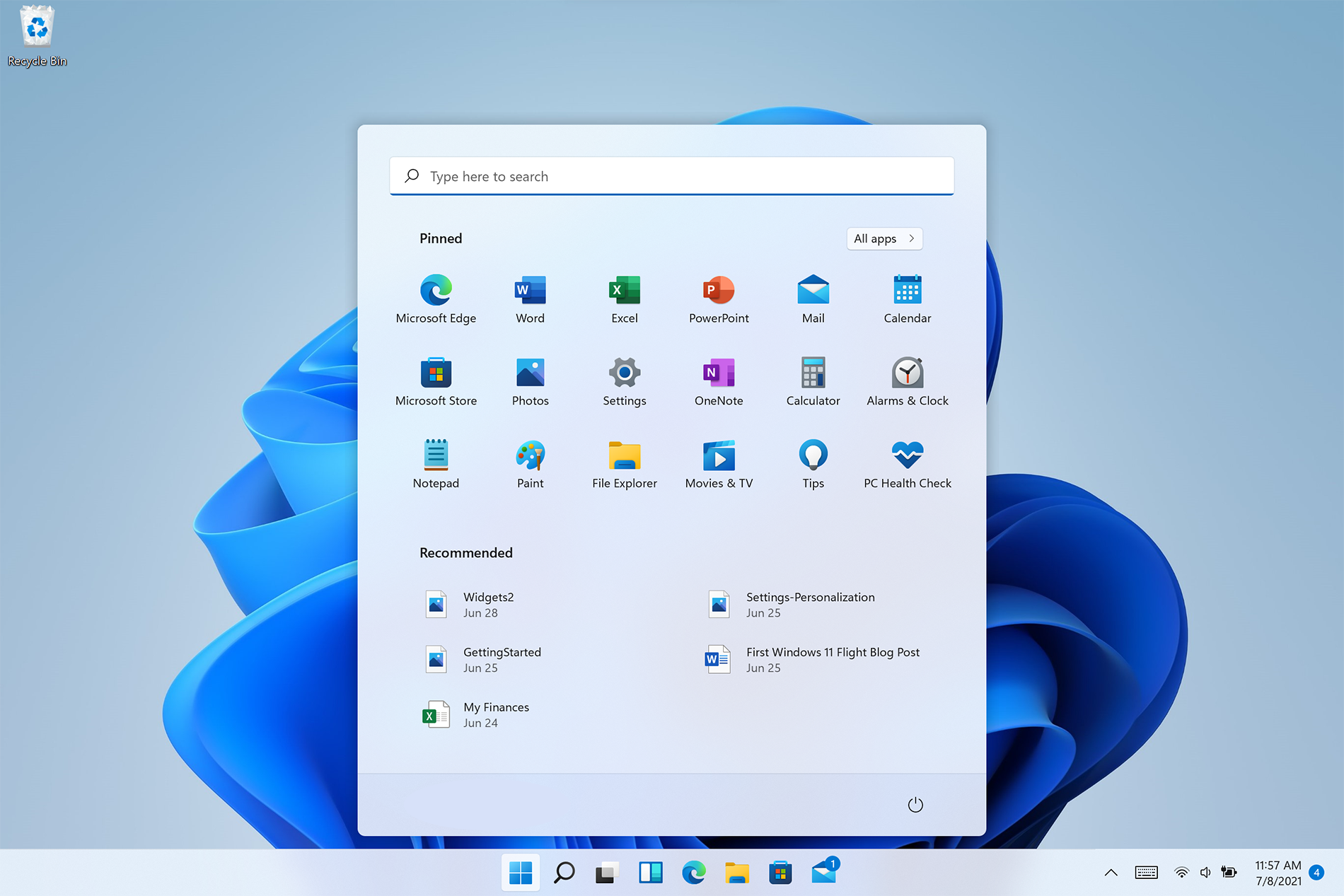
Personalize Windows 11 Start menu
Windows 11 is released and its adoption goes slower than Microsoft would like but nevertheless, it is slowly getting adopted, especially among new computers. Windows 11 has brought us a new modern look of OS but if you would like to personalize it a little more you can. Follow the guide on various things that you can change inside Windows 11.

windows 11 desktop iconsPersonalize list of recently added apps, opened items, folders

The recommended section that shows recently added apps and recently open items can be turned off and hidden now to be shown. In order to do this follow these steps:
  1. Open Windows Settings by pressing WINDOWS + I
  2. Click on personalization in the sidebar
  3. Click on START and go through the options
  4. Turn OFF switch beside recently accessed files
  5. Additionally, you can also change which folders appear on the Start menu.

Remove apps or change app order on the Start Menu

To remove application not to be shown in the Start menu at all follow this simple guide:
  1. Right-click on app
  2. Choose unpin
  3. To place the application on Start click on All Apps, right-click on the app and choose Pin to Start
  4. To drag and rearrange apps, simply click on them and drag them to the new place.

Change the Start Menu location

When Windows 11 was first released Start Menu could only be located in the middle of the screen but thanks to plenty of backlash from users now it is possible to move it on a more traditional left side.
  1. Press WINDOWS + I to open the settings app
  2. Click on Personalization
  3. Look for taskbar behaviors
  4. Inside taskbar behaviors look for Taskbar alignment
  5. Change alignment to left

Change the Start Menu color

In order to change the color of the Start Menu follow the next steps:
  1. Open Settings app
  2. Go to personalization settings
  3. Go to Colors
  4. Switch to custom
  5. Under accent color pick a color you like or make your custom one.
Read More
1 2 3 171
Logo
Copyright © 2023, ErrorTools. All Rights Reserved
Trademark: Microsoft Windows logos are registered trademarks of Microsoft. Disclaimer: ErrorTools.com is not affiliated with Microsoft, nor claims direct affiliation.
The information on this page is provided for information purposes only.
DMCA.com Protection Status