Logo

Tips and tricks for longer SSD life

Today most users have an SSD drive, times have changed and SSD has become your typical computer equipment.

A lot of time has passed from the first SSD hard drives up to today and technology has evolved and improved but still, there are some cool tricks and tips to speed up and extend the lifespan of your SSD hard drive.

That being said let us dive right into what I would like to call the essentials of having an SSD hard drive.

  1. Keep your SSD firmware up to date.

    This one really is a no-brainer, keeping your firmware updated at all times will ensure longer life and SSD stability. The trick here is that each SSD manufacturer has its own ways of updating firmware so this is not something universal, you will have to go to the official website of your SSD manufacturer and get firmware updates and instructions from them directly.

  2. Enable ACHI.

    Advanced controller host interface or short ACHI is a feature that will ensure that your Windows will support all of the features that come with running SSD on your computer. It controls the TRIM feature which is crucial in helping Windows itself in its garbage collection on your hard drive. In order to enable ACHI, you will have to do it from your BIOS and it would be very good if the feature is enabled before Windows itself is installed so it can take full advantage of it.

  3. Enable TRIM.

    TRIM feature is vital in extending your SSD lifespan and it should be enabled by default in Windows but you can never be too cautious and double-check and enable if needed. To make sure it is enabled, open your command prompt and type in: fsutil behavior set disabledeletenotify 0

  4. Make sure your system restore is enabled.

    In the first SSD days, system restore was really a feature that you wanted to be disabled in order to prevent and extend the life span of your SSD drive, but we came a long way from there and today there is no reason to keep this feature turned off since it can be helping many ways with both your system and SSD.

  5. Disable Indexing in Windows.

    A large portion of the speed of your SSD drive is used for indexing files in Windows. Of course, the indexing feature is great if you store everything on your SSD drive but if by any chance you have another drive for your backup, pictures, music, etc. it would be highly beneficial for you to turn it off on your SSD. To turn indexing off click on your start menu, click on the computer. Right-click on your SSD and then click on properties. De-select box that says: Allow files to have contents indexed in addition to file properties and click OK. Once you do this the operating system will apply this to all the files and folders on the drive. If you see a dialog telling you that it couldn’t remove a file from the index, click Ignore All.

  6. Keep Windows defrag ON.

    This also was the option in early SSD days which was better to be OFF, but as said before since technology has been making progress and Windows has been improved and made aware of SSD drives, defrag has evolved as well, and now it is more of optimization tool then defragmenter which was once.

  7. Disable Prefetch and Superfetch.

    Windows is placing information in both physical and virtual memory for applications that you are not currently using but they are used often in order to speed their response time. If you are running low on space or having struggles with virtual memory it would be best to turn them both off. Go to registry manager and find: HKEY_LOCAL_MACHINE\SYSTEM\CurrentControlSet\Control\Session Manager\Memory Management\PrefetchParameters, there you have 2 values: EnablePrefetcher and EnableSuperfetch, set both values to 0.

  8. Disable Search and Superfetch services.

    Disabling Superfetch in the registry is not all work, Press WINDOWS + R to bring run dialog, type in it services.msc, Find both Search and Superfetch and disable them.

  9. Configure Write Caching.

    Write caching can be enabled and disabled in the device manager by expanding disk drives, right-clicking on SSD, then click properties, select the policies tab. In the tab, there is the option to Enable write caching on the device. Now trick in this is that you will need to try and benchmark your SSD with both options turned ON and OFF since different manufacturers have different performances with this option being ON or OFF.

  10. Disable CleanPageFileAtShutdown and LargeSystemCache.

    Page file and a large cache of page files are not something that we longer need, since SSD writes with great speed in its flash memory both of these options can be disabled and you will both speed up shut down the process of your system and save some SSD life since page files will not be written. Find both options in the registry under the key: Computer\HKEY_LOCAL_MACHINE\SYSTEM\CurrentControlSet\Control\Session Manager\Memory Management set both to 0

  11. Set high performance in Power options.

    This option in power management will prevent your SSD from constantly shutting down and bringing it up increasing speed without sacrificing its life span.

These are tips and tricks for having great and longer life as well as speed for your SSD drive. We hope that you have found them useful and that you will come again to check new articles published daily for easier IT life.

Do You Need Help with Your Device?

Our Team of Experts May Help
Troubleshoot.Tech Experts are There for You!
Replace damaged files
Restore performance
Free disk space
Remove Malware
Protects WEB browser
Remove Viruses
Stop PC freezing
GET HELP
Troubleshoot.Tech experts work with all versions of Microsoft Windows including Windows 11, with Android, Mac, and more.

Share this article:

You might also like

Fix missing files in Recycle bin
Have you ever deleted a file by mistake? Do not feel bad, we all have, but what if you deleted the file by mistake and then you went to Recycle bin to restore it only to find out that the bin is empty? If you experienced this kind of issue then you know how unpleasant and frustrating it is but do not worry, we are here to help and provide you with solutions to this problem and hopefully get your file back. Follow the next steps from first to last since they are organized in a way to minimalize the permanent deletion of lost files.
  1. Refresh Recycle bin view

    If you spend any amount of time on this site reading through articles, you know I am a big fan of simple and effective solutions and there is nothing simpler than a single press of a button. Open your recycle bin and press F5 to refresh view or right-click anywhere inside and choose refresh. If your file does not appear with this method go to the next step.
  2. Set Windows to show hidden system files

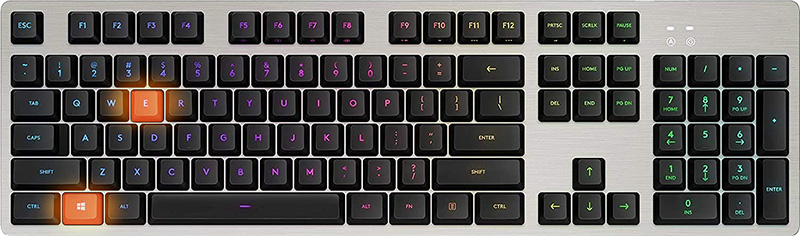
    In order for this to work first, you will need to open File Explorer by pressing ⊞ WINDOWS + E Keyboard with windows and e markedWhen File Explorer opens go to VIEW > OPTIONS. Inside options select “Show hidden files, folders, and drives”, uncheck “Hide protected operating system files (Recommended)”, and click APPLY > OK Go to the recycle bin and check to see if files have managed to show up.
  3. Check if Don't move the file to the recycle bin is enabled

    Right-click on recycle bin and choose properties, under properties, there is the option that says Don’t move files to the Recycle Bin, Remove files immediately when deleted. This option is not selected by default, but it could be turned on by someone else or by mistake. If you see that this option is enabled sadly your file is gone and you will have to get the file back by using some third-party undelete application, uncheck this option to prevent future deletion of files by mistake.
  4. Increase recycle bin size

    This will not help you to get your file back sadly but it will help you in storing more files in recycle bin. This is helpful since if you reach your recycle bin limit all further files will be permanently deleted and not been able to get them back. So by increasing bin size you will have more space for deleted files to be saved. To do that, right-click on Recycle Bin, select Properties. Now, increase the Maximum size from the Custom size option, and click Apply and OK.
  5. Reset recycle bin

    To reset and fix corrupted recycle bin do the following: Press ⊞ WINDOWS + X to open the secret Windows menu and click on command prompt (admin) keyboard with windows and x markedIn the command prompt type in the following: rd /s /q C:\$Recycle.bin Reboot your system
Read More
How to know if you have keylogger in Windows
Hello and welcome everyone, today we will be talking about dreaded keyloggers, why they are dangerous, and how to know if you might have one in your system. Keylogger is a malicious application placed in your system and hidden with only one goal in mind, to get information about what are you typing and by that means for a person who infected you to get information about your credit card information or other sensitive data. They can be introduced into your systems in various ways and often can not be detected easily. Modern antivirus applications have ways of detecting them and removing but this tutorial aims to teach you how to spot them all by yourself since new keyloggers are produced daily and sometimes relying on antivirus alone is not enough. Unlike viruses and trojans, keyloggers are not heavy on system resources and you will not feel slow down on your computer if you have one which makes them harder to sport with regular work. Some of them can be even tracking you on the website and not even be physically present on your computer. Generally, we could categorize keylogger into 4 categories:
  1. Web browser-based keylogger. Some websites would have CSS scripts, input web forms, or so-called man in the middle keylogger. Lucky for us even Windows defenders with the latest update can detect this type of keylogger and successfully deal with it and how keylogger itself is not present on our system we are safe.
  2. General spyware keylogger. This keylogger is present in your system, usually, it infected it via email attachment, social media download, torrent download, some malicious so-called fixer application, etc. Most antivirus applications and windows defenders can detect these types as well and remove them successfully.
  3. Kernel-level keylogger. This keylogger is a more dangerous type they tend to operate underneath Windows as a rootkit and can go undetected by antivirus and windows defenders.
  4. Hypervisor-based keylogger. This is the most dangerous keylogger, they use virtualization techniques to hide and mask themselves as a replica of the operating system and they scan all keystrokes by the user. These are very rare keyloggers but they do exist.
If you suspect that you have a keylogger or just want to check your system for precaution reasons follow these tips and guides and luckily you will solve your issue in no time and your data will be safe.
  1. Use Task Manager to find suspicious entries.

    Task manager is a great application implemented in Windows that is constantly monitoring and showing all services, applications, and processes currently running on your system and thus a great tool to monitor your system if you know how to use it. First, open task manager by pressing CTRL + SHIFT + ESC Then take a good look into it, try to find suspicious names, probably duplicate of running application, something like Windows logon application, or keylog or anything similar which seems out of ordinary. If you manage to find a suspicious running application right-click on it and close it. Also while you are in task manager jump into the startup tab and check to see are there some unusual applications starting with your Windows, if you find anything, disable it right away. This is the most simple and quickest way to get some information right away if you suspect to have some simpler keylogger in your system.
  2. Use the command prompt to monitor your network.

    In order to check connections to your computer and find potential suspicious ones start the command prompt in administrator mode, press ⊞ Win + X, and choose command prompt (administrator). type in netstat -b and press ENTER. All website and application connections to your computer are now visible. ignore svchost, edge browser, windows store, etc ad check the IP of the remaining ones using the internet.
  3. Use keystroke encryption.

    Install encrypting software and even if you have a keylogger, the application will encrypt each stroke and all that attacker will get is gibberish
Please remember to always download files from trusted sources, do not open unknown emails, and do not share your information publicly. Take common protection steps in order to protect yourself in the digital world.
Read More
How to remove TotalRecipeSearch from your PC

TotalRecipeSearch is a browser extension for Google Chrome developed by Mindspark. This extension allows access to popular cooking websites. From the Author: Discover 1000s of tasty recipes – for FREE! Find creative, new meal ideas all in one convenient place!

When installed, this extension changes your default search engine and home page to MyWebSearch.com. While active it will monitor user activity, recording browsing data, visited websites and clicked links. This data is later used to display targeted ads throughout your browsing sessions.

While browsing the internet you will see additional unwanted ads, sponsored links, and even pop-up ads injected into your search results and websites. This extension has been marked as a Browser Hijacker by several anti-virus programs and it is targeted for removal.

About Browser Hijackers

Browser hijacking means a malicious code has taken power over and modified the settings of your web browser, without your consent. Practically most browser hijackers are made for advertising or marketing purposes. Typically, it will drive users to particular sites which are aiming to boost their ad income. Though it might appear naive, all browser hijackers are damaging and thus always classified as security risks. They not only mess up your web browsers, but browser hijackers could also modify the computer registry, making your computer susceptible to other malicious programs.

How to determine if your browser is hijacked

The typical signs that indicate having this malware on your computer are: 1. you see unauthorized changes to your web browser’s homepage 2. when you key in a URL, you find yourself regularly directed to some other web page than the one you meant 3. the default web browser settings have been changed and/or your default web engine is altered 4. you are finding browser toolbars you have never witnessed before 5. your web browser will display constant pop-up ads 6. websites load slowly and at times incomplete 7. you are blocked to access those sites of security solution providers.

How does a browser hijacker infect a computer?

Browser hijackers can enter a computer in some way or other, for example via downloads, file sharing, and email as well. They also come from add-on applications, also called browser helper objects (BHO), web browser plug-ins, or toolbars. Browser hijackers sneak into your computer in addition to free software downloads also that you unwittingly install alongside the original. Popular examples of browser hijackers include CoolWebSearch, Conduit, RocketTab, OneWebSearch, Coupon Server, Snap.do, Delta Search, and Searchult.com. The existence of any browser hijacker malware on your system might significantly diminish the browsing experience, monitor your internet activities that lead to critical privacy concerns, develop system stability problems and ultimately cause your PC to slow down or to an almost unusable condition.

How you can fix a browser hijack

Certain hijackers could be removed by simply uninstalling the corresponding free software or add-ons from the Add or Remove Programs in the Windows Control Panel. But, the majority of hijackers are very tenacious and need specialized tools to remove them. Novice PC users should not try for the manual form of removal, as it calls for comprehensive computer knowledge to carry out repairs on the computer registry and HOSTS file. Professionals always recommend users to get rid of any malware including browser hijacker by using an automatic removal tool, which is better, safer, and quicker than the manual removal technique. SafeBytes Anti-Malware discovers all types of hijackers – including TotalRecipeSearch – and eliminates every trace quickly and efficiently. Along with the anti-malware tool, a system optimizer, like SafeBytes’s Total System Care, will help you in deleting all linked files and modifications in the computer registry automatically.

Help! Malware Preventing Anti-Malware Installation And Access To The Internet

Malware could potentially cause plenty of damage to your PC. Certain malware variants alter browser settings by adding a proxy server or modify the PC’s DNS settings. In these instances, you will be unable to visit some or all of the internet sites, and thus unable to download or install the necessary security software to clear out the computer virus. So what you should do if malware prevents you from downloading or installing Safebytes Anti-Malware? Refer to the instructions below to get rid of malware through alternate methods.

Download the application in Safe Mode with Networking

In the event the malware is set to load at Windows start-up, then booting in Safe Mode should prevent it. Only minimal required applications and services are loaded when you start your PC into Safe Mode. To launch your Windows XP, Vista, or 7 PCs in Safe Mode with Networking, please do as instructed below. 1) At power-on/startup, hit the F8 key in 1-second intervals. This should bring up the Advanced Boot Options menu. 2) Use the arrow keys to choose Safe Mode with Networking and hit ENTER. 3) Once you get into this mode, you should have an internet connection again. Now, use your web browser normally and navigate to https://safebytes.com/products/anti-malware/ to download Safebytes Anti-Malware. 4) Following installation, do a full scan and allow the software program to remove the threats it detects.

Obtain the antivirus software in a different web browser

Web-based viruses could be environment-specific, targeting a particular browser or attacking particular versions of the web browser. The best way to overcome this problem is to choose a browser that is well known for its security features. Firefox comprises built-in Malware and Phishing Protection to keep you safe online.

Install and run anti-malware from your flash drive

To effectively get rid of the malware, you need to approach the issue of installing anti-virus software on the infected computer system from a different angle. Adopt these measures to employ a flash drive to fix your corrupted PC. 1) Use another virus-free computer system to download Safebytes Anti-Malware. 2) Plug the Flash drive into the clean computer. 3) Run the setup program by double-clicking the executable file of the downloaded application, with a .exe file format. 4) Select the flash drive as the location for saving the software file. Follow the directions to finish the installation process. 5) Transfer the thumb drive from the clean PC to the infected computer. 6) Double-click the EXE file to open the Safebytes software from the pen drive. 7) Click on “Scan Now” to run a scan on the affected computer for viruses.

Features and Benefits of SafeBytes Anti-Malware

If you are looking to download anti-malware software for your computer, there are various tools in the market to consider however, you cannot trust blindly anyone, regardless of whether it is a paid or free software. A few are good ones, some are decent, while some are simply just fake anti-malware programs that can damage your personal computer themselves! You need to be careful not to pick the wrong application, especially if you buy a paid software. When thinking about the highly regarded applications, Safebytes AntiMalware is certainly the highly recommended one. SafeBytes can be described as a highly effective, real-time anti-spyware application that is designed to assist everyday computer users in protecting their computers from malicious threats. This program can easily identify, remove, and protect your PC from the most advanced malware threats such as adware, spyware, trojan horses, ransomware, parasites, worms, PUPs, and other possibly damaging software programs.

SafeBytes anti-malware comes with a myriad of advanced features that sets it apart from all others. Listed below are some of the features you might like in SafeBytes Anti-Malware.

Real-time Threat Response: SafeBytes provides an entirely hands-free real-time protection and is set to check, prevent and destroy all computer threats at its very first encounter. They’re highly effective in screening and getting rid of different threats since they’re regularly improved with the latest updates and alerts. Anti-Malware Protection: Built on a highly acclaimed anti-virus engine, this malware removal application can detect and get rid of many stubborn malware threats like browser hijackers, potentially unwanted programs, and ransomware that other typical anti-virus software will miss. Fast Scan: This software program has one of the fastest and most effective virus scanning engines in the industry. The scans are highly accurate and take a little time to complete. Internet Security: SafeBytes inspects the hyperlinks present on a web page for possible threats and notifies you whether the site is safe to browse or not, through its unique safety rating system. Very Low CPU and RAM Usage: SafeBytes provides complete protection from online threats at a fraction of the CPU load because of its advanced detection engine and algorithms. Fantastic Technical Support: Skilled technicians are at your disposal 24/7! They will immediately fix any technical issues you may be experiencing with your security software. Put simply, SafeBytes has formulated a meaningful anti-malware solution that is aimed to protect your computer against various malware. Now you may realize that this software does more than just scan and eliminate threats from your computer. So when you want sophisticated forms of protection features & threat detections, buying SafeBytes Anti-Malware could be worth the dollars!

Technical Details and Manual Removal (Advanced Users)

To remove TotalRecipeSearch manually, navigate to the Add or Remove programs list in the Control Panel and choose the offending program you want to get rid of. For web browser plug-ins, go to your web browser’s Addon/Extension manager and choose the plug-in you want to remove or disable. It’s also advised to factory reset your web browser to its default condition to fix corrupt settings. If you opt to manually delete the system files and Windows registry entries, utilize the following checklist to ensure that you know exactly what files to remove before carrying out any actions. Please keep in mind that only experienced computer users should try to manually edit the system files simply because removing any single critical registry entry results in a major problem or even a system crash. Also, certain malware is capable of replicating itself or preventing deletion. Doing this malware-removal process in Safe Mode is suggested.
Files: %PROGRAMFILES%\TotalRecipeSearch_14\bar.bin\AppIntegrator.exe %PROGRAMFILES%\TotalRecipeSearch_14\bar.binSrcAs.dll %PROGRAMFILES%\TotalRecipeSearch_14\bar.binbar.dll %UserProfile%\Local Settings\Application Data\TotalRecipeSearch_14 %LOCALAPPDATA%\TotalRecipeSearch_14 %USERPROFILE%\Desktop\TotalRecipeSearch.exe %PROGRAMFILES%\TotalRecipeSearch_14\bar.binmedint.exe %PROGRAMFILES%\TotalRecipeSearch_14 %LOCALAPPDATA%\Google\Chrome\User Data\Default\cnbegpgknjllkedcnkfailmjbiahbfba %UserProfile%\Local Settings\Application Data\Google\Chrome\User Data\Default\cnbegpgknjllkedcnkfailmjbiahbfba %PROGRAMFILES%\TotalRecipeSearch_14\bar.binHighIn.exe %PROGRAMFILES%\TotalRecipeSearch_14\bar.binbarsvc.exe %PROGRAMFILES%\TotalRecipeSearch_14\bar.binbrmon.exe %USERPROFILE%\Local Settings\Application Data\TotalRecipeSearchTooltab %LOCALAPPDATA%\TotalRecipeSearchTooltab Registry: HKEY_CURRENT_USER\Software\AppDataLow\Software\TotalRecipeSearch_14 HKEY_CURRENT_USER\Software\TotalRecipeSearch_14 HKEY_LOCAL_MACHINE\SOFTWARE\Classes\TotalRecipeSearch_14.DynamicBarButton HKEY_LOCAL_MACHINE\SOFTWARE\Classes\TotalRecipeSearch_14.DynamicBarButton.1 HKEY_LOCAL_MACHINE\SOFTWARE\Classes\TotalRecipeSearch_14.FeedManager HKEY_LOCAL_MACHINE\SOFTWARE\Classes\TotalRecipeSearch_14.FeedManager.1 HKEY_LOCAL_MACHINE\SOFTWARE\Classes\TotalRecipeSearch_14.HTMLMenu HKEY_LOCAL_MACHINE\SOFTWARE\Classes\TotalRecipeSearch_14.MultipleButton HKEY_LOCAL_MACHINE\SOFTWARE\Classes\TotalRecipeSearch_14.MultipleButton.1 HKEY_LOCAL_MACHINE\SOFTWARE\Classes\TotalRecipeSearch_14.PseudoTransparentPlugin HKEY_LOCAL_MACHINE\SOFTWARE\Classes\TotalRecipeSearch_14.PseudoTransparentPlugin.1 HKEY_LOCAL_MACHINE\SOFTWARE\Classes\TotalRecipeSearch_14.Radio HKEY_LOCAL_MACHINE\SOFTWARE\Classes\TotalRecipeSearch_14.Radio.1 HKEY_LOCAL_MACHINE\SOFTWARE\Classes\TotalRecipeSearch_14.RadioSettings HKEY_LOCAL_MACHINE\SOFTWARE\Classes\TotalRecipeSearch_14.SettingsPlugin HKEY_LOCAL_MACHINE\SOFTWARE\Classes\TotalRecipeSearch_14.SettingsPlugin.1 HKEY_LOCAL_MACHINE\SOFTWARE\Classes\TotalRecipeSearch_14.SkinLauncher HKEY_LOCAL_MACHINE\SOFTWARE\Classes\TotalRecipeSearch_14.SkinLauncher.1 HKEY_LOCAL_MACHINE\SOFTWARE\Classes\TotalRecipeSearch_14.SkinLauncherSettings HKEY_LOCAL_MACHINE\SOFTWARE\Classes\TotalRecipeSearch_14.SkinLauncherSettings.1 HKEY_LOCAL_MACHINE\SOFTWARE\Classes\TotalRecipeSearch_14.ThirdPartyInstaller HKEY_LOCAL_MACHINE\SOFTWARE\Classes\TotalRecipeSearch_14.UrlAlertButton HKEY_LOCAL_MACHINE\SOFTWARE\Classes\TotalRecipeSearch_14.UrlAlertButton.1 HKEY_LOCAL_MACHINE\SOFTWARE\Classes\TotalRecipeSearch_14.XMLSessionPlugin HKEY_LOCAL_MACHINE\SOFTWARE\Wow6432Node\Microsoft\Internet Explorer\Low Rights\ElevationPolicy\03f3147c-cea6-4aae-b0ae-8d8abe7a8080 HKEY_LOCAL_MACHINE\SOFTWARE\Wow6432Node\Microsoft\Internet Explorer\Low Rights\ElevationPolicy\435e56d9-92df-4d38-bdff-fe316064953c HKEY_LOCAL_MACHINE\SOFTWARE\Wow6432Node\Microsoft\Internet Explorer\Low Rights\ElevationPolicy\4a80a60d-bdef-4d70-bccc-d0dad25ff951 HKEY_LOCAL_MACHINE\SOFTWARE\Wow6432Node\Microsoft\Internet Explorer\Low Rights\ElevationPolicy\8cab2773-5453-4778-90d9-6672805b41ca HKEY_LOCAL_MACHINE\SOFTWARE\Wow6432Node\Microsoft\Internet Explorer\Low Rights\ElevationPolicy\b723e5aa-0f63-47df-971c-ae8ea0f8393a HKEY_LOCAL_MACHINE\SOFTWARE\Wow6432Node\Microsoft\Internet Explorer\Toolbar, value: a0154e07-2b48-475c-a82a-80efd84ea33e HKEY_LOCAL_MACHINE\SOFTWARE\Wow6432Node\Microsoft\Windows\CurrentVersion\explorer\Browser Helper Objects\ab56dfde-0c14-45b3-9df6-7b0eba617870 HKEY_LOCAL_MACHINE\SOFTWARE\Wow6432Node\Microsoft\Windows\CurrentVersion\explorer\Browser Helper Objects\df22384f-cf68-4d19-969f-10423715528b HKEY_LOCAL_MACHINE\SOFTWARE\Wow6432Node\Microsoft\Windows\CurrentVersion\Ext\PreApproved\96b8a0ef-0d9d-4a92-b548-376db4bbb58b HKEY_LOCAL_MACHINE\SOFTWARE\Wow6432Node\Microsoft\Windows\CurrentVersion\Ext\PreApproved\A4503EC3-1111-4B62-8F46-0D88508F8A7B HKEY_LOCAL_MACHINE\SOFTWARE\Wow6432Node\Microsoft\Windows\CurrentVersion\Ext\PreApproved\b38fbaed-ded1-4ba6-ba2e-f2515fd49442 HKEY_LOCAL_MACHINE\SOFTWARE\Wow6432Node\Microsoft\Windows\CurrentVersion\Ext\PreApproved\e8106344-16d4-41d1-9a2a-0521a59199ea HKEY_LOCAL_MACHINE\SOFTWARE\Wow6432Node\Microsoft\Windows\CurrentVersion\Ext\PreApproved\fd79f359-e577-46db-aa74-d6e6b8b45ba8 HKEY_LOCAL_MACHINE\SOFTWARE\Wow6432Node\Microsoft\Windows\CurrentVersion\Run, value: TotalRecipeSearch Search Scope Monitor HKEY_LOCAL_MACHINE\SOFTWARE\Wow6432Node\Microsoft\Windows\CurrentVersion\Uninstall\TotalRecipeSearch_14bar Uninstall Firefox HKEY_LOCAL_MACHINE\SOFTWARE\Wow6432Node\MozillaPlugins\@TotalRecipeSearch_14.com/Plugin HKEY_LOCAL_MACHINE\SOFTWARE\Wow6432Node\TotalRecipeSearch_14 HKEY_LOCAL_MACHINE\SOFTWARE\Microsoft\Internet Explorer\Low Rights\ElevationPolicy\0384459a-9d5e-4ae1-b154-8eac39721c97 HKEY_LOCAL_MACHINE\SOFTWARE\Microsoft\Internet Explorer\Low Rights\ElevationPolicy\03f3147c-cea6-4aae-b0ae-8d8abe7a8080 HKEY_LOCAL_MACHINE\SOFTWARE\Microsoft\Internet Explorer\Low Rights\ElevationPolicy\435e56d9-92df-4d38-bdff-fe316064953c HKEY_LOCAL_MACHINE\SOFTWARE\Microsoft\Internet Explorer\Low Rights\ElevationPolicy\4a80a60d-bdef-4d70-bccc-d0dad25ff951 HKEY_LOCAL_MACHINE\SOFTWARE\Microsoft\Internet Explorer\Low Rights\ElevationPolicy\8cab2773-5453-4778-90d9-6672805b41ca HKEY_LOCAL_MACHINE\SOFTWARE\Microsoft\Internet Explorer\Low Rights\ElevationPolicy\b723e5aa-0f63-47df-971c-ae8ea0f8393a HKEY_LOCAL_MACHINE\SOFTWARE\Microsoft\Windows\CurrentVersion\explorer\Browser Helper Objects\df22384f-cf68-4d19-969f-10423715528b HKEY_LOCAL_MACHINE\SOFTWARE\Microsoft\Windows\CurrentVersion\Ext\PreApproved\2502086b-5a46-4d05-8d5b-a1e77ab8bb32 HKEY_LOCAL_MACHINE\SOFTWARE\Microsoft\Windows\CurrentVersion\Ext\PreApproved\76f3207c-3a0a-461b-b958-5653c5718243 HKEY_LOCAL_MACHINE\SOFTWARE\Microsoft\Windows\CurrentVersion\Ext\PreApproved\96b8a0ef-0d9d-4a92-b548-376db4bbb58b HKEY_LOCAL_MACHINE\SOFTWARE\Microsoft\Windows\CurrentVersion\Ext\PreApproved\A4503EC3-1111-4B62-8F46-0D88508F8A7B HKEY_LOCAL_MACHINE\SOFTWARE\Microsoft\Windows\CurrentVersion\Ext\PreApproved\b38fbaed-ded1-4ba6-ba2e-f2515fd49442 HKEY_LOCAL_MACHINE\SOFTWARE\Microsoft\Windows\CurrentVersion\Ext\PreApproved\e8106344-16d4-41d1-9a2a-0521a59199ea HKEY_LOCAL_MACHINE\SOFTWARE\Microsoft\Windows\CurrentVersion\Ext\PreApproved\fd79f359-e577-46db-aa74-d6e6b8b45ba8 HKEY_LOCAL_MACHINE\SOFTWARE\MozillaPlugins\@TotalRecipeSearch_14.com/Plugin HKEY_LOCAL_MACHINE\SYSTEM\CurrentControlSet\Services\TotalRecipeSearch_14Service HKEY_CURRENT_USER\Software\Microsoft\Internet Explorer\DOMStorage\totalrecipesearch.dl.myway.com HKEY_CURRENT_USER\Software\Microsoft\Internet Explorer\DOMStorage\totalrecipesearch.com

Read More
How to Repair Runtime Error 216

What is Runtime Error 216?

Runtime Error 216 is not a common error message like Runtime Error 339. However, it may sometimes occur when starting up the computer if you are using a Windows-based application or using Internet Explorer.

Solution

Download Available to Completely Repair Runtime Error 216

Restoro box imageError Causes

The runtime error 216 error occurs when your computer gets infected with one or more viruses. The most common virus, in this case, is the SubSeven Trojan virus. Once your computer gets infected with a virus(es) it creates a backdoor on your Windows system. This might give hackers access to monitor your PC remotely. This poses a great risk to confidential information and personal data stored on your PC. The hackers can easily monitor your PC, access your private information and misuse it.

Further Information and Manual Repair

If you experience this error message, it is advisable to repair it immediately without any delays; Runtime Error 216 can make your system vulnerable. Here’s what you must do:
  • First things first, disconnect the internet connection so that the hacker can’t access your PC.
  • Now perform a boot scan through a powerful antivirus.  The antivirus will scan your system for viruses. After the scan is complete, all the disinfected files will appear in the scan report results. You are advised to delete them and click repair to fix the error.
  • Remember the antivirus will not scan infected Windows Registry entries, therefore to remove SubSeven.exe Windows Registry entries go to the start menu and type REGEDIT in the search box.
  • Click on REGEDIT and select Run as Administrator. Now type the following registry path HKEY_LOCAL_MACHINESoftware. This will help locate SubSeven.exe infected files. Once located, delete all of them and close Windows Registry Editor.
To ensure your computer is completely free from SubSeven Trojan Virus and other possible viruses, it is advisable to remove all the recently installed programs and downloaded applications. This is recommended because sometimes while downloading programs, we tend to download corrupted programs which include viruses. It’s, therefore, best to delete all the programs you’ve installed recently. Secondly, to prevent virus and hacker attacks, you must frequently update your security program by installing a powerful antivirus program. Following the repair guide steps will protect your system from malware. It will also help fix runtime error 216 and ensure your PC is protected from similar threats.
Read More
How to Fix Error Code HPQTRA08.exe

HPQTRA08.exe - What is it?

HPQTRA08.exe (Hewlett Packard Tray 08) is the Hewlett Packard Digital Imaging Monitor task. It is installed with the drivers of HP imaging products like PhotoSmart Printers.

It incessantly monitors and indicates the connectivity status with any recognizable HP product.

Simply put, HPQTRA08.exe is an exe (executable) file that contains step-by-step instructions that a computer follows to carry out a function.

HPQTRA08.exe error code is displayed in any of the following formats:

  • "Hpqtra08.exe Application Error."
  • "Cannot find hpqtra08.exe."
  • "Hpqtra08.exe not found."
  • "Error starting program: hpqtra08.exe."
  • "Hpqtra08.exe is not a valid Win32 application."
  • "Hpqtra08.exe failed."
  • "Faulting Application Path: hpqtra08.exe."
  • "Hpqtra08.exe has encountered a problem and needs to close. We are sorry for the inconvenience."
  • "Hpqtra08.exe is not running."

Solution

Restoro box imageError Causes

Error code HPQTRA08.exe can be triggered for several reasons. However, some of the most common causes include:

  • Corrupt Windows registry keys
  • Virus infection
  • Deleted, damaged, or corrupted HPQTRA08.exe file
  • HPQTRA08.exe file conflict
  • Corrupt or incomplete installation of Hp Digital Imaging

It is advisable to repair the error code HPQTRA08.exe on your PC immediately. Delays can lead to serious problems especially if the underlying cause of the error is related to registry corruption.

Further Information and Manual Repair

To resolve this error on your PC, you don’t need to hire a professional and pay hundreds of dollars for the repair. Simply try the DIY methods listed below to fix the problem right away.

Method 1 - Download and Install HPQTRA08.exe File

If the error cause is related to deleted, corrupted, or damaged HPQTRA08.exe file, then the best way to fix the problem is to install the HPQTRA08.exe file on your PC.

However, first, make sure the site you select to download the file from is reliable and trusted.

By downloading from an unreliable website you can expose your PC to potential malicious programs and risk your data security.

Method 2 - Remove all Viruses

Sometimes viruses and malware tend to disguise in the form of exe files such as the HPQTRA08.exe file.

In such a situation scan your entire PC for viruses and malware using a powerful antivirus. Remove all the malicious programs found to fix the issue.

Method 3 - Clean and Repair the Registry

The registry saves all PC-related activities and information including both important and obsolete files such as cookies, bad registry entries, invalid keys, internet history, and junk files.

If these files are not removed from the registry frequently, these accumulate in the registry and corrupt thereby triggering error codes. Error code HPQTRA08.exe is generated when the corrupt Windows registry keys are associated with the HPQTRA08.exe file.

To resolve, clean the registry and repair it. Although this can be done manually it can be time-consuming and tricky especially if you are not technically sound, therefore it is advisable to download Restoro.

Click here to download Restoro and resolve error HPQTRA08.exe.

Method 4 - Locate and Install the Driver

As was pointed out, you might need to reinstall the printer driver again. Using DriverFIX, you’ll be able to automatically update your computer system and install the drivers your computer needs to operate smoothly.
Read More
Fix Remote Desktop: Your credentials ...
Experiencing issues while using Remote Desktop connections is not uncommon. One of the issues that users encountered recently while trying to connect to their Remote Desktop network is the error saying, “Your credentials did not work, The login attempt failed”. If you are one of these users, then you’ve come to the right place as this post will walk you through fixing the problem. When facing this kind of problem, the first thing you can try before you do some troubleshooting steps is to verify the credentials. But if you are certain that you’ve entered the correct credentials just like what other users reported, then it’s completely a different matter. Based on the reports, this error is common on newly installed versions of Windows 10 or after reinstalling the operating system which could mean that the problem might be due to the Windows security policies or the username might have been recently modified. The latter case is a possibility especially if you’ve reinstalled Windows 10 and had entered a new username. In such a case, you will really have a difficult time connecting to your Remote Desktop connection since its credentials do not really automatically change. If you’ve verified that your credentials are correct, then now’s the time you troubleshoot the problem with the help of the potential fixes provided below. Just make sure that you follow each one of them in sequence.

Option 1 –Try to run the Network Adapter troubleshooter

To run the Network Troubleshooter, refer to these steps:
  • Open the Search bar on your computer and type in “troubleshoot” to open the Troubleshoot settings.
  • Next, scroll down and select the “Network Adapter” option from the right pane.
  • Then click on the Run Troubleshooter” button.
  • After that, your computer will check for any possible errors and will pinpoint the root cause of the problem if possible.
  • Restart your computer.

Option 2 – Try to change the network profile from public to private

According to some reports, this error occurs on systems where the network profile was set to public. Thus, you need to change the network profile to private to resolve the problem. How? Refer to these steps:
  • Go to Start and from there click on Settings > Network & Internet > Status.
  • Next, click on the “Change connection properties” option.
  • After that, set the radio button of Network Profile from Public to Private.
  • Wait for a couple of seconds until the system is done applying the changes you’ve made and then see if you can now connect to the Remote Desktop connection.

Option 3 – Try changing the account username

As mentioned, one of the possible causes for this error is the reinstallation of the operating system. You might have changed the username for the system but it does not really change the username of the Remote Desktop connection as well. Thus, you have to change the username back to what it was before you’ve reinstalled Windows 10.

Option 4 – Try modifying the Windows Security Policy

You can also try to edit the Windows Security Policy as it could help in resolving the error. This Windows Security Policy, when enabled, will not allow non-admin users to log on to the Remote Desktop connection. So if you want to allow non-admin users to use the Remote Desktop connection, then you need to modify this policy. Note that you can only do that if you are the admin of the system yourself.
  • Tap the Win + R keys to open the Run utility.
  • Then type “secpol.msc” in the field and tap Enter or click OK to open the Local Security Policy.
  • After opening the Local Security Policy window, select Local Policies > User Rights Agreement located on the left pane.
  • Next, double click on “Allow log on through Remote Desktop Services” located in the right pane.
  • And in the next window that appears, select Add user or group.
  • After that, type in the username of the intended non-admin user under the “Enter the object names to select” column.
  • Once done, click on the Check Names button to fix the username and then click OK to save the changes made.
  • Restart your computer.

Option 5 – Use the Group Policy Editor

  • Tap the Win + R keys to open the Run dialog box and then type “gpedit.msc” in the field and tap Enter to open the Group Policy Editor.
  • Next, navigate to this path: Computer Configuration > Administrative Templates > System > Credentials Delegation.
  • Double click on the “Allow delegating default credentials with NTLM-only server authentication” policy setting located on the right pane to edit it.
  • After that, shift its radio button to Enabled and click on Show.
  • Then type “TERMSRV/*” in the Value box and click OK.
  • Now repeat the same for the following policy settings:
    • “Allow delegating default credentials”
    • “Allow delegating saved credentials”
    • “Allow delegating saved credentials with NTLM-only server authentication”
  • Once you’re done, restart your computer and see if the problem is fixed.
Read More
How to Repair Missing MSVCR100.dll Error

What is MSVCR100.dll Error?

Msvcr100.dll is a dynamic link library file. This file is loaded into the memory at runtime for successful program execution. This process is also referred to as runtime dynamic linking. The Msvcr100.dll belongs to the Microsoft Visual C++ Runtime Library. It is a core Windows component used by numerous Windows-based applications to load and run smoothly on Windows PC. Msvcr100.dll error occurs when the process of runtime dynamic linking fails. Due to this error, you are unable to access the desired application. The error code is displayed in either of the following formats:
  • “Msvcr100.dll Not Found"
  • "This application failed to start because msvcr100.dll was not found. Re-installing the application may fix this problem."
  • "Cannot find [PATH]msvcr100.dll"
  • "msvcr100.dll  is missing from your computer"
  • "XXX.exe - System Error - MSVCR100.dll is missing from your computer."

Solution

Restoro box imageError Causes

Narrowing down the cause of the Msvcr100.dll error is not possible as this error can occur on your PC due to multiple reasons. However, here are some of the most common causes of Msvcr100.dll error code on Windows PC:
  • Msvcr100.dll file corrupt and damaged
  • Missing Msvcr100.dll file
  • Corrupt runtime code library
  • Registry issues
  • Malware attack and viral infection

Further Information and Manual Repair

Here are some of the best ways to resolve this error on your system:

Reinstall the application causing the error

As dll are shared files used by multiple programs to load and run, there is the possibility of it getting deleted when uninstalling a certain program. If so, then the best way to fix it is to reinstall the application that is causing the error to pop up on your screen. This way you’ll be able to set up the program again and install the Msvcr100.dll file back on your system.

Download Microsoft Visual C++ 2010 Redistributable Package

Another way to resolve this error is to download Microsoft Visual C++ 2010 Redistributable Package. To do this, first, see if you are running a 32 bit or 64-bit copy of Windows. XP users go to the start menu and click run then type winver and press enter. In Vista and Windows 7, go to the start menu and type computer and click properties. The information you require is under Windows Edition. Once you find out whether you are using a 32 bit or a 64-bit version, accordingly, download the correct version of Microsoft Visual C++ 2010 Redistributable Package directly from Microsoft’s official website. Simply download and install the software. Then follow the prompts to add the toolbox to your PC. After that, restart your computer; most likely the error message will be gone. If it still persists, then this means the error is either related to the registry or malware.

Download and Run Restoro

Restoro can be used to resolve both malware infection and registry issues on your PC that could be triggering Msvcr100.dll errors. Restoro is a next-generation and multi-functional PC repair tool embedded with powerful utilities like an antivirus, a registry cleaner, and a system optimizer. The registry cleaning feature detects all registry issues and Msvcr100.dll errors. It removes unnecessary and obsolete files on the disk, like junk files, cookies, internet history, and temporary files cluttering the disk and damaging dll files. It repairs the damaged and corrupt dll files and restores the registry. Simultaneously the antivirus feature scans and removes all malicious software on your system. These include spyware, viruses, Trojans, adware, and malware that can damage dll files. This software is efficient and resolves the Msvcr100.dll error in seconds. It is easy to use and has a simple navigation. It is compatible with all Windows versions. Click here to download Restoro on your PC and resolve the Msvcr100.dll error today!
Read More
Fix Black background behind Folder icons
The File Explorer in Windows 10 provides several ways to organize the contents of folders and files in the system. Windows users can utilize some efficient styles to view the contents of the file system as per the user’s requirement. A user may opt to display the file picture in large size thumbnails while the other one could opt to set the icons of folder and files in a small or medium size list. On the other hand, while setting up several styles for the folder and file icons, some Windows 10 users have experienced some unusual issues where there is the Black background showing up behind folder icons. They tried refreshing the File Explorer a couple of times but it didn’t help in fixing the problem and the black squares are still visible on some folder icons. The black squares behind the folder icons might look disturbing though it’s not really a big problem and is merely a graphical glitch that does not cause any damage or whatsoever to the content of the folder and files. The most likely cause of this glitch might have something to do with the corrupted system files or it could also be caused by outdated thumbnail caches. In addition, graphical glitches like this one could also occur if you are using out outdated graphics drivers. To fix this problem, you need to follow the options laid out below.

Option 1 – Try using the Disk Cleanup to remove Thumbnail files

The Disk Cleanup tool is one of the options you can try to fix the black squares behind the folder icons. Through this tool, you can delete all the Thumbnail files on your disk. To use it, refer to these steps:
  • Open the Search bar and type “disk cleanup” in the field.
  • After opening Disk Cleanup from the search results, then from the drop-down menu select the C: drive to clean up and click OK.
  • Wait for the scanning process to complete. Once it’s done, select the files you want to delete.
  • Ensure that you select the box labeled “Thumbnails” under the Files to Delete section then click on OK.
  • After that, a confirmation box will appear, just click on Delete files to delete the files permanently.
  • Restart your PC.

Option 2 – Try resetting the Thumbnail cache

You have the option to manually delete the Thumbnail Cache to resolve the black square background behind the folder icons issue. Follow the steps given below to reset the Thumbnail cache.
  • Open the File Explorer.
  • Next, navigate to the View tab and select the option with Hidden items to display all the hidden folders and files.
  • Next, go to this path: C:Users<username>AppDataLocal
  • In the given path, make sure that you put your actual username in the username field. Then look for a file named “IconCache.db”. Right-click on this file and click on Delete.
  • After that, go to this path: C:Users<username>AppDataLocalMicrosoftWindowsExplorer
  • From there, select all the files and delete them.
Note: If a prompt appears saying, “The files are in use and cannot be deleted”, simply select the “Do this for all current items” option and then click on Try Again. If you get an error message, click on Cancel to close the window and restart your computer.

Option 3 – Try updating or reinstalling the Graphics driver

  • Tap the Win + R keys to open the Run dialog box and then type in devmgmt.msc and tap Enter or click OK to open the Device Manager.
  • Expand the section for the outdated device drivers.
  • And then select the outdated driver(s) and right-click on it/them.
  • From the drop-down menu, select the Update Driver option if you wish to update the driver or select the Uninstall device if you want to uninstall the driver and then follow the on-screen instructions to install the latest version of the driver.
  • Restart your PC after the installation to allow the system to reinstall the driver.
Read More
How to Fix Windows 10 Error 0x8000ffff

Error Code 0x8000ffff - What is it?

Error Code 0x8000ffff is an error that is often experienced while attempting to install updates on a Windows machine. It has been found in Windows 10, although the error has been present in the Windows operating systems dating back to Windows Vista.

Common symptoms include:

  • Inability to download updates for the operating system
  • Inability to successfully run updates for the operating system through to completion

There are several basic Windows tools that can be used to attempt to resolve Error Code 0x8000ffff on your machine. While some of these tools may be familiar for basic users, others may require advanced competency in order to be used correctly. If you are unsure of your ability to complete the methods listed below in order to resolve this error code on your system, you may need to get in touch with a computer repair technician who is competent in dealing with Windows Update repairs.

Solution

Restoro box imageError Causes

The most common cause of Error Code 0x8000ffff is that there is a problem within one of the system files or the registry entries on the computer. There are a number of reasons why a device could have an error in these places, from conflicting software commands to updates that were not installed correctly, to bugs within the system, to viruses or malware that have corrupted the necessary files.

Further Information and Manual Repair

There are several common ways that users can attempt to resolve the appearance of Error Code 0x8000ffff on their Windows devices. If you are not sure that you can follow these steps through to completion, you would be well advised to get in touch with a qualified computer repair technician to help you to finish out the repair process.

Here are the best methods to resolve Error Code 0x8000ffff on your Windows machine:

Method One:  Restart Your Computer

It may sound obvious, but one of the most effective ways to resolve Error Code 0x8000ffff on your machine is to simply reboot your computer. In some cases, the error shows up because there are processes that the system believes are still running when they really aren’t. Restarting your machine also allows your system to apply any previous changes that have been made and to mark any installations that have been undertaken as being complete.

Reattempt your update installations after you have restarted your computer to see if you are able to finish them out successfully.

Method Two:  Run the Windows Registry Repair Tool

The Windows Registry Repair tool is an asset that can make it easy for your system to scan for potential problems in the registry and notify you as to their status. In many cases, the Registry Repair tool can fix the problems that it finds all on its own, although in some cases, you may receive a message that states an error was found that could not be resolved through the program.

The simplest way to access the Windows Registry Repair tool is to do a search for it within the search bar in the Start menu. Once you begin to run the Registry Repair tool, it can take a while to complete its scan, so be prepared to wait for some time once you start it.

Once the tool has completed its scan of your system, it’s always a good idea to reboot your computer so that all of the changes that have been made to the system can be applied successfully to the operating system.

Method Three:  Run the Windows Fix It Tool

Another great tool to help in the resolution is the Windows Fix It tool. You can download it directly from the Microsoft website. Once you run it, it will complete a scan of your system to find any potential hang-ups and to attempt to resolve them. After you run the scan, it is a good idea to reboot your computer to allow all changes to be recognized and applied properly.

Method Four: Use An Automated Tool

If you wish to always have at your disposal a utility tool to fix these Windows 10 and other related issues when they do arise, download and install a powerful automated tool.
Read More
How to Fix Error 0x0000605 in Windows
Recently, some users reported not being able to boot up their Windows 10 computers. And during the startup phase, at some time, the bootup sequence is halted with a Recovery error along with an error message saying, “Your PC/Device needs to be repaired” with an error code of 0x0000605. This kind of error message indicates that Windows was not able to verify the digital signature for the file as the signing certificate or it could be that it has expired. To resolve this error, you can follow the potential fixes given below and see if you stumble upon a fix that might work out for you.

Option 1 – Change the Date & Time settings in the BIOS

Some users reported that they were able to fix the error by changing the Date & Time settings in the BIOS. Upon checking, they saw that in their BIOS settings, the date was off several years. As a result, the incorrect date and time settings end up ticking the system into believing that the Windows build has expired long before the actual expiration date. You can check if the error pops up due to the same reasons by accessing the BIOS settings. To do so, you have to tap the Boot key that’s associated with your motherboard manufacturer during the initial startup phase. After that, you can search for a particular boot key online or you can also tap keys like F2, F4, F8, F10, F12, and the Delete key. Once you’re able to access the BIOS settings, locate the Date & time or anything similar, and then check if the date is correct or not. If not, you need to change the date to the actual date and then save the changes made and restart your computer and then check if the issue is now fixed or not. Just remember that if the actual date is past the expiration date of the build you have, you need to change it to an older date. If your Windows 10 PC is able to boot back up, you have to update it to a stable Windows build and then go back to the BIOS settings and change the date to the current one else you will definitely encounter Windows update errors in the future as well as security alerts.

Option 2 – Perform a clean install of a stable Windows 10 build

If every system boot fails accompanied by a BSOD error with error code 0x0000605 “A component of the operating system has expired” and you’ve already followed every instruction on option 1, then it’s most likely that your current Windows build has already expired. Remember that almost all the Windows 10 Insider Preview builds (98xx) are created along with an expiration date and when your computer reaches the expiration date, you won’t be able to boot your computer up. Note that the exact expiration date varies based on the build number. And prior to the expiration date, the operating system will start to display some error warnings telling you that the build will expire and urge you to update the most recent build available. And so once the computer reaches its expiration date, it will begin to reboot every three hours until it no longer boots up which is about 2 weeks approximately after the license has expired. Once the expiration date is up and your computer no longer boots up, you need to perform a clean install and then install the latest Windows 10 build to resolve the issue once and for all.
Read More
1 2 3 171
Logo
Copyright © 2023, ErrorTools. All Rights Reserved
Trademark: Microsoft Windows logos are registered trademarks of Microsoft. Disclaimer: ErrorTools.com is not affiliated with Microsoft, nor claims direct affiliation.
The information on this page is provided for information purposes only.
DMCA.com Protection Status