Logo

Schedule restart update on Windows 11

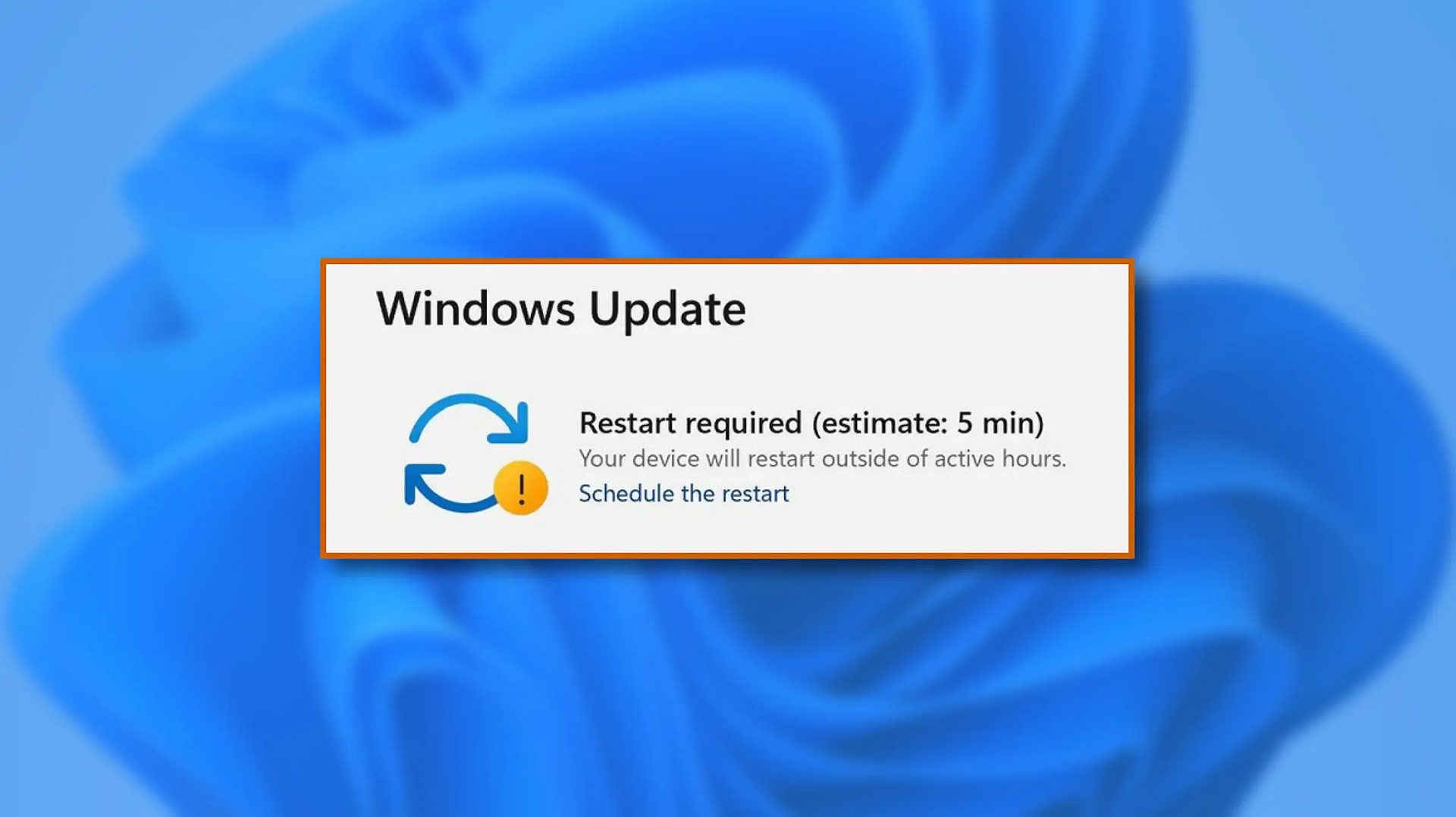
windows 11 schedule updateWhen Windows 11 update is available but you do not wish to restart right away because you are in the middle of using a computer, you can schedule a restart for up to 7 days. It is very easy and we will show you how to do it.

  1. Press ⊞ WINDOWS + I to open settings
  2. Click on Windows Update
  3. At the top, under the Restart required to click on Schedule the Restart
  4. Click the switch under Schedule a Time to turn it ON
  5. Use the Pick a Time and Pick a Day menu to set time and day when you want to update
  6. Go back to one screen and visually confirm that the date is set
  7. Close the settings

The scheduled restart will be confirmed in a message on the Windows Update page.

Do You Need Help with Your Device?

Our Team of Experts May Help
Troubleshoot.Tech Experts are There for You!
Replace damaged files
Restore performance
Free disk space
Remove Malware
Protects WEB browser
Remove Viruses
Stop PC freezing
GET HELP
Troubleshoot.Tech experts work with all versions of Microsoft Windows including Windows 11, with Android, Mac, and more.

Share this article:

You might also like

Could not configure one or more components
If you are trying to install or upgrade your Windows 10 computer but suddenly encountered an error message saying, “Windows Could not configure one or more system components”, read on as this post will show you how you can fix the problem. You are not alone in experiencing this problem as other users also reported having the same scenario. Some of them reported getting the following error message:
“Windows could not configure one or more system components. To install Windows restart the computer with error code 0xc1900101-0x30018.”
When you check on the Windows 10 rollback log, you will see a part with the “iisetup.exe” that’s related to the abort. Usually, the upgrade process completes over 50% and gets stuck and then rolls back later on and generates the error logs. This kind of error, in most cases, appears during the upgrade of Windows 10 and is related to the Internet Information Services or IIS in Windows 10. For some unknown reason, it restricts the installation or the upgrade which causes the error to appear. To fix the “Windows could not configure one or more system components” error, you can try to remove the IIS from the Windows Features or rename the “inetsrv” folder. You could also move all the folders related to IIS to another drive. For more details, refer to the options provided below.

Option 1 – Try to remove the IIS from Windows Features

The IIS is installed from the Windows Features and you can find it at Control Panel > Programs. From there, uncheck the checkbox for the Internet Information Services. Once done, click on the OK button to save the changes. Note that this process will get rid of all the related programs, services, and folders from Windows 10. So if you want to, you can just install them later on or use an offline installer from the official site of Microsoft.

Option 2 – Try renaming the inetsrv folder

The next option you can check out to resolve the problem is to rename the “inetsrv” folder. If you have uninstalled IIS from the Windows Features, this should remove the folders as well, however, it didn’t remove the folder then you have to delete the folders that are related to the IIS by following these steps:
  • First, you have to boot into the Advanced Recovery Mode and from there, open Command Prompt.
  • Next, execute this command to rename the folder from this location, C:Windowssystem32inetsrv: rename C:/Windows/system32/inetsrv/inetsrv.old
  • Once done, boot into your computer normally and try to upgrade Windows 10 again, and check if the problem is fixed or not.

Option 3 – Try to move the folders related to IIS to a different drive

  • Tap the Win + R keys to launch the Run utility and type “services.msc” in the field and hit Enter to open the Windows Services Manager.
  • Next, look for the Application Host Helper Service from the list of services and stop it.
  • Once done, take ownership of the “WinSxS” folder and then move the *windows-iis*.*” folders to another drive. You can just search using the “*windows-iis*.*” keyword in the Start Search.
  • Next, tap the Ctrl + X keys and paste the folders to another drive.
  • After that, start the update process for Windows 10 again.
Read More
Some update files aren’t signed, 0x800b0109
Windows Updates are checked for their validity every time they are downloaded from Microsoft servers just like how browsers check websites for a valid certificate. And so if you got an error message saying, “ Some update files aren’t signed correctly, error code 0x800b0109 ” while trying to update your computer, it indicates that the Windows service was unable to verify the validity of the Windows Update. To fix this error, you can try out the options prepared in this post.

Option 1 – Reboot your computer and try again

Save your work and reboot your computer and then try checking for updates again. In some cases, all you need is a restart to fix errors like error code 0x800b0109.

Option 2 – Try to update Windows after an hour or so

There are times when the issue is from Microsoft’s end. It could be that there’s some issue with Microsoft’s server so it would be better if you give it an hour or so before trying to run Windows Update again.

Option 3 – Try running the Windows Update Troubleshooter

Running the built-in Windows Update troubleshooter is one of the things you can first check out as it is known to automatically resolve any Windows Update errors like Error 0x8007001E. To run it, go to Settings and then select Troubleshoot from the options. From there, click on Windows Update and then click the “Run the troubleshooter” button. After that, follow the next on-screen instructions and you should be good to go.

Option 4 – Delete the contents in the Temporary folder

You can also try deleting the contents in the Temporary folder – all the downloaded, pending, or failed Windows 10 updates. You can do that using the simple and easy steps below.
  • Tap the Win + R keys to open the Run dialog box.
  • Then type “%temp%” in the field and press Enter to open the Temporary folder.
  • After that, select all the folders and files within the Temp folder and delete all of them.

Option 5 – Clear the contents in the Software distribution and Catroot2 folders

  • Open the WinX Menu.
  • From there, open Command Prompt as admin.
  • Then type in the following command – don’t forget to hit Enter right after typing each one of them.
net stop wuauserv net start cryptSvc net start bits net start msiserver
  • After entering these commands, it will stop the Windows Update Service, Background Intelligent Transfer Service (BITS), Cryptographic, and the MSI Installer
  • Next, go to the C:/Windows/SoftwareDistribution folder and get rid of all the folders and files thereby tapping the Ctrl + A keys to select them all and then click on Delete. Note that if the files are in use, you won’t be able to delete them.
After resetting the SoftwareDistribution folder, you need to reset the Catroot2 folder to restart the services you just stopped. To do that, follow these steps:
  • Type each one of the following commands.
net start wuauserv net start cryptSvc net start bits net start msiserver
  • After that, exit Command Prompt and restart your computer, and then try to run Windows Update once more.

Option 6 – Install the updates in a Clean Boot State

You might want to try putting your computer in a Clean Boot state and then install Windows Updates again without any trouble. During this state, you can start the system with a minimum number of drivers and startup programs that will surely help you in isolating the root cause of the issue.
  • Log onto your PC as an administrator.
  • Type in MSConfig in the Start Search to open the System Configuration utility.
  • From there, go to the General tab and click “Selective startup”.
  • Clear the “Load Startup items” check box and make sure that the “Load System Services” and “Use Original boot configuration” options are checked.
  • Next, click the Services tab and select the “Hide All Microsoft Services” check box.
  • Click Disable all.
  • Click on Apply/OK and restart your PC. (This will put your PC into a Clean Boot State. And configure Windows to use the usual startup, just simply undo the changes.)
  • After that, try to install the Windows Updates or upgrade again.
Read More
Fix Adobe causes high CPU usage in Windows 11
adobe creative suiteIn today's world any professional, whatever be design, print, web design or similar is using one or more Adobe programs. Adobe has cemented itself as a must-have software for any kind of serious and even amateur work. Sadly in the latest Windows 11 adobe software in some instances can slow down your computer and put some hard load on the CPU. If you are one of these unfortunate users, keep reading because we have a few things you can do to solve this.

1. Run SFC scan

SFC scan is a built-in Windows tool aimed at diagnosing and repairing system files inside Windows itself. Running an SFC scan usually solves most issues of these kinds so we will try that one first.
  1. Press ⊞ WINDOWS + S to open the Search bar and type in cmd
  2. Select command prompt and on the right side click on Run as administrator
  3. Inside command prompt type in: sfc /scannow and press ENTER
  4. Wait for the whole process to finish and reboot your system

2. Update Windows

Windows updates are designed to fix issues and solve problems, check to see if a new update is available to install.
  1. Press ⊞ WINDOWS + I to open the Settings app
  2. Click on Windows Update in the bottom left pane
  3. On the right check visually if there is an update pending and if there is, install it

3. Temporary turn off antivirus and firewall

Antivirus and firewall can interfere with adobe applications and background services, try turning your preferred protection software temporarily off and check if your CPU is still under high load.

4. Reinstall Adobe suite

Uninstall and install a clean version of the adobe creative suite or individual applications that you are using. Check your CPU load after reinstallation.

5. Uninstall Adobe CEF Helper

This is not a really advisable course of action but if non of the previous solutions have produced results then this might be the only option if you would like to keep using the software. Open File Explorer and paste the following line in the path box on top: C\:Program Files>Adobe Systems>Adobe CEF Helper or Adobe Creative Cloud >Adobe CEF Helper_uninstall.exe. Double click on the file and uninstall the CFT helper.
Read More
Turn off animations in Windows11

Windows 11 has come a long way from its infant stage. Today it is incredibly good and stable operating system that also looks good and modern. Unfortunately, fancy animations and good graphics come with a price, in this case, slower performance on some little older and weaker computers.

windows 11 animations

Animations itself which include also fading effects can sometimes feel slugging and laggy and have a general overall feeling of delay. For a more old-school instant experience, you can turn off animations.

In order to turn animations inside Windows 11 follow this simple guide:

First thing is to open Settings by pressing Windows + i key combination or you could open Start and in the search box type in Settings and then click on its icon.

Once inside settings on the left side find Accessibility and click on it to select it. Once it is selected on the right side choose Visual effects. Inside the visual effects section click on the switch next to Animation effects to OFF. You can also turn off transparency effects in this section if you wish if you have an older GPU in order to speed it up a little.

That is all you need to do, settings will be automatically saved and all animations will be turned off for a quicker and more responsive feeling when working inside W11

Read More
Fix The selected disk is not a fixed MBR disk
Both the DISKPART utility and the Disk Management are useful tools in Windows 10 that manage the disk space allocation, and so on. But these tools are not without errors as you could also encounter some when you run them. Recently, some users reported getting an error that says, “The selected disk is not a fixed MBR disk when trying to use the DISKPART utility”. Here’s the exact message of the error:
“The selected disk is not a fixed MBR disk. The ACTIVE command can only be used on fixed MBR disks.”
This kind of error only occurs when you try to activate a disk partition on a UEFI system partition. However, the command works only if your computer is based on BIOS/MBR. The UEFI method has no concept of the active partition and since you have a UEFI system, the disk type is GPT instead of MBR. To simply put it, your BIOS needs the MBR disk type while the UEFI needs the GPT disk type. To fix the “The selected disk is not a fixed MBR disk when trying to use the DISKPART utility” error, there are various potential fixes you can try. You might have to disable Secure Boot, convert the disk to MBR or fix the Boot Manager. For more instructions, follow the options provided below.

Option 1 – Disable the Secure Boot in the BIOS

Disabling the Secure Boot in the BIOS settings is definitely recommended to resolve the issue. To disable Secure Boot, here’s what you have to do:
  • First, boot your computer into Windows 10.
  • Next, go to Settings > Windows Update. From there, check if there is anything that you have to download and install if you see any available updates. Usually, OEMs send and update the list of trusted hardware, drivers, and operating systems for your computer.
  • After that, go to the BIOS of your computer.
  • Then go to Settings > Update & Security > Advanced Startup options. If you click on Restart Now, it will restart your computer and give you all the advanced options.
  • Next, select Troubleshoot > Advanced Options. As you can see, this screen offers you further options including System restore, Startup repair, Go back to the previous version, Command Prompt, System Image Recovery, and UEFI Firmware Settings.
  • Select the UEFI Firmware Settings which will take you to the BIOS.
  • From there, go to the Security > Boot > Authentication tab where you should see Secure Boot. Note that every OEM has its own way of implementing the options so it varies.
  • Next, set Secure Boot to Disabled and set Legacy Support to On or Enabled.
  • Save the changes made and exit. Afterward, your computer will reboot.

Option 2 – Try converting the disk to MBR

You can try to change the File System of the drive from GPT to MBR but before you do so, make sure that you create a backup copy of your data to an external drive. Once you have that covered, follow the steps below.
  • Create a bootable Windows 10 media and boot your computer from it.
  • Next, click on the “Repair your computer” option on the first Windows 10 installation setup window.
  • Afterward, select the operating system partition from the given options and click on Next.
  • Now select Command Prompt within the System Recovery options box and execute this command to initiate the Diskpart utility: diskpart
  • Then type either one of these commands to view the list of all the Disk connects or the partitions on those disks formed: list disk or list volume
  • After that, execute another one of these commands depending on the command you previously entered to select the disk or partition you want to select: select disk # or select volume #
  • Now execute this command to clean your drive: clean
  • Finally, execute this last command to convert the selected disk or partition as MBR: Convert MBR
  • Restart your computer and check if the error is fixed.

Option 3 – Try to fix the Boot Manager

  • You can start by booting into the installation environment for Windows 10 from an installation media.
  • After that, click on Repair your computer and on the blue screen, select Troubleshoot and then select the Advanced options menu.
  • From there, select Command Prompt and once you open it, enter each one of the commands given below by sequence.
    • bootrec /FixMbr
    • bootrec /FixBoot
    • bootrec /RebuildBcd
  • Once you’re done executing the commands given above, type “exit” to close the Command Prompt window and then restart your computer and see if it fixed error code 0xc000014c.
Read More
Add app shortcut on the context menu

Sometimes, some applications after they are installed will put their shortcut in the context menu (right-click on desktop) for easy access, most of the time these are some system tied applications like AMD and Nvidia control panels or archives like WinRAR or 7ZIP but it can happen even for some usual application to do this.

Windows contex menu

There are some applications that you use frequently and they could be worth putting in the context menu, if you want to avoid clutter on the desktop or in the taskbar this is the third place that you should consider placing shortcuts.

Doing this will require some playing and tweaking in the Windows registry editor so be careful when editing the registry since bad entries can lead to system crash or instability. Follow step-by-step instructions.

Adding apps to the context menu in the registry

Creating entry

Open the registry editor by searching Regedit and pressing enter than inside of the registry editor search for the next key:

HKEY_CLASSES_ROOT\Directory\Background\shell

Select shell and right-click on it, hover over New and in the submenu click on Key. In the next step, you need to name a key, this name will be the thing that will be shown in the context menu when you right-click on a desktop so type in the name that you would like or the name of the application that you wish to add to the menu.

If you wish you can even add a keyboard shortcut to launch this specific application. To do this select entry that you have created and edit the default value, inside the edit string in the Value data field type first & and after that key that you would like as a shortcut. Now after right click if you hit your shortcut key app will be launched right away.

Adding command

The next task is to create a command key that will actually hold the command to launch the application. Right-click on the entry that you have created, hover over New, and click on Key.

Next, you’ll need to create the command key that will actually hold the command used to launch the application. Right-click on the new Notepad key, and then choose New \ Key from the menu. Name this key 'command', all in lower case and without hyphens.

Now in order to finish setting the launcher, you need the full path of the file that you would like to run. Locate your file in file explorer or in another tool and copy its path by SHIFT + right-clicking on the file itself and choosing copy as path option.

Now click on the command key and double click on the default key on right to edit it, inside the field value data paste your path to executable. close and save the registry and you are done.

Read More
Download and Install Google Fonts on Windows
Google fonts are a free open-source font library made to enrich web content and present end-user with a smooth web experience while surfing. Fonts are completely free for both commercial and personal use and they are not limited to use in WEB only, you can use them also in other projects like business cards, flyers, etc. In order to use google fonts first thing of course you will need to download them. In this guide, we will show you how to download and install google fonts.
  • Go to the Google Fonts page.
  • Select the font family that you wish to use. You can preview each font style to make double-sure it is the right one.
  • When you are ready, click on the Download family button.
Roboto Font
  • A File Explorer window will pop up, asking you where to save the font family.
  • The downloaded file will be compressed in .zip format to save bandwidth, so you will first need to uncompress/unzip it. Right-click on the file and select Extract all.
Extract All
  • You will then be asked where to unzip/extract the file. File Explorer will automatically create a new subfolder, named as the file name, so all you need to do is confirm it by clicking Extract.
Extract Files
  • Click on the Windows icon in the bottom-left corner of your desktop
Settings
  • Select the Personalization category and Fonts.
Available Fonts
  • Split the screen between File Explorer and Settings by dragging the windows to either the left or right edge of the screen. Select all the font files by pressing CTRL + A and drag them into the Add fonts box.
Add Fonts New
Read More
How to Fix Windows 8 Error Code 0xc004f034

Error Code 0xc004f034 – What is it?

Error code 0xc004f034 occurs when Windows users are unable to activate their operating system. It affects Windows 8 and Windows 10 users and features common symptoms which include the following:
  • Inability to activate Windows
  • Message box with error code 0xc004f034

Solution

Restoro box imageError Causes

Error code 0xc004f034 often occurs due to an issue with the Windows product key. This may occur when users enter an invalid product key or use one that is appropriate for use on a different version of Windows. To correct the issue, users will need to use the correct product key for their system or contact an IT professional if their device is connected to a Key Management Service (KMS).  Windows users affected by this error code may also need to check their system for viruses or missing system files since these issues can result in error codes on Windows devices.

Further Information and Manual Repair

Manual repair methods enable users to fix problems related to error codes. Though some manual repair methods require the use of Command Prompt and utility tools like the System File Checker, even non-technical Windows users can find success simply by following the instructions provided below.

However, note that some issues can be complex, thus requiring the use of an automated tool or help from a Windows repair technician. Consider these options if the manual repair methods below do not resolve error code 0xc004f034 on your Windows 8 device.

Method One: Enter Valid Windows Product Key

Microsoft currently offers several ways for customers to activate their Windows operating system, the most common of which is the product key. This 25-character code verifies that users have access to an authorized version of Windows.

You may get a valid product key from an authorized dealer, a new PC with Windows, or access a digital copy from a Windows website when you purchase your Windows operating system online. Once you have a valid product key, use it to activate Windows and resolve error code 0xc004f034 in Windows 8. Follow the steps below to access the Product Activation Wizard.

  • Step one: Click or tab Start button then select Settings
  • Step two: Tap or click PC Settings, then select Activate Windows
  • Step three: Type invalid product key

Once a valid product key is used, the Product Activation Wizard should complete the activation process. If you are unable to complete the process, however, and error code 0xc004f034 remains unresolved, click the link or instructions the Product Activation Wizard provides regarding activation via phone or customer support.

Method Two: Run System File Checker

Another option available to Windows 8 users is System File Checker (SFC). This tool enables Windows users to scan and repair corrupted or missing system files. Follow the steps below to access SFC.

  • Step one: Go to Start and type Command Prompt or CMD.
  • Step two: Run as Administrator
  • Step three: Type sfc /scannow ensuring a space is between “sfc” and “/scannow”.

System File Checker will repair any corruptions found on system files within your machine once you successfully follow the instructions provided. The tool will also replace missing files which will lead to better performance on your PC.

When the process is complete, restart your device then check if you are able to activate Windows. If error code 0xc004f034 is still present, you will need to find another solution via repair method three.

Method Three: Scan for Viruses and other Malware

Viruses and other forms of malware are one of the main issues resulting in poor PC performance and Windows error codes. To fix this issue on your PC, scan your machine for signs of these malicious programs. If you do not have anti-malware software and would like to download one from the Internet, ensure the software you choose is effective before attempting to download it.

Once you have powerful antimalware software on your PC, begin a scan for viruses, Trojan horses, and other forms of malware. If the Windows error code occurred due to issues related to malicious programs, you will be able to resolve the issue. If, however, this manual repair method proves ineffective in resolving error code 0xc004f034, download a powerful automated tool or contact a Windows repair technician to assist you.

Method Four: Use an Automated Tool

If you wish to always have at your disposal a utility tool to fix these Windows 8 and other related issues when they do arise, download and install a powerful automated tool.
Read More
How to Fix Error Code 0xC004C4AE on Your PC

Error Code 0xC004C4AE - What is it?

Activation errors in Windows 10 can interfere with your ability to fully use the system. When Error Code 0xC004C4AE appears on your computer, you may see a message that shows that the validation process has been stalled due to binaries that appear to have been tampered with.  

While the text of this message may sound intimidating to people who are not familiar with the inner workings of the Windows 10 system, the basic meaning of the error message is that something has been introduced to the system that is not natively supported in Windows 10. During the Activation process, Windows checks to ensure that all of the Windows elements that are currently on the computer are valid and authentic to the Windows system. Usually, this particular error code refers to a language package that has been downloaded into the system using an outside application, which the Windows 10 operating system does not support. 

Common symptoms include: 

  • An error message when the activation is attempted 
  • Inability to complete the Windows 10 Activation process 
  • Inability to fully use apps in Windows 10 until the issue is resolved 

This particular error can easily be resolved with a few simple steps. However, if you are not confident in your ability to use the methods below or they do not fully remove the issue on your computer, you may want to seek the assistance of a qualified repair technician who is well versed in the Windows 10 Activation process.

Solution

Restoro box imageError Causes

The most basic cause of Error Code 0xC004C4AE is that an unsupported language package has been enabled in the computer. This most often occurs when third-party applications have been used to introduce additional display languages to your system. While third-party applications that provide language packs are acceptable in some versions of the Windows operating system, the Windows 10 Activation process will not be able to complete if the system detects that one of these unofficial language packs exists on your machine.

Further Information and Manual Repair

There are several methods that may be helpful in resolving the basic issue in the display languages that causes Error Code 0xC004C4AE to appear: 

Method 1: Restore Your System to an Earlier Point to Revert Changes 

Use a backup copy to restore your computer to an earlier date, in effect undoing the changes that caused the error. When your system has been restored, you will be able to go through any language packs that are not native to the Windows operating system and remove them before re-attempting the installation and activation of the Windows 10 system. 

This method is most useful if you keep a regular backup of your system and files. If you do not regularly back up the information on your computer, attempt one of the other methods instead. If you are unsure of how to use a backup to revert your changes or are not comfortable completing this step on your own, contact a certified Windows technician to assist you in the process. 

Method 2:  Revert to an Earlier System to Remove the Language Pack 

If you are unable to restore your system using a backup, the other option to resolve Error Code 0xC004C4AE is to halt your installation of Windows 10 and go back to Windows 7 or Windows 8.1, from which you will be able to remove the language pack in question. Once the offending language pack has been completely removed from your computer, the Windows 10 Activation process should be able to proceed normally. 

Several versions of windows don’t support language packages, so the best way to prevent this error from occurring is to avoid using any kind of third-party tool to install additional languages onto your Windows system. Activities Language You may be able to use third-party tools to instead complete alternative language actions without installing these languages as language packs. 

If the above solutions do not help you to resolve Error Code 0xC004C4AE on your machine, get in touch with a qualified Windows repair technician, who may be able to perform the operations needed to remove the problematic language pack from your computer and allow the Windows 10 Activation process to continue to completion. 

Read More
Motitags Browser Hijacker Removal Guide

The Motitags toolbar browser add-on was created by Mindspark Inc. and is compatible with Internet Explorer and Mozilla Firefox. It claims to enhance users’ Internet browsing experience by enabling smileys within popular email clients such as Gmail, Yahoo!, AOL, and Outlook Live. While such added functionality may seem useful, Internet users should be aware that this browser plugin is categorized as a Browser Hijacker due to its behavior.

When installed this extension changes your default search engine, the home page, and new tab to MyWay.com, and while installed it gathers user browsing data and sends it back to Mindspark servers. This data is later used to inject additional unwanted ads into the user’s browser search results.

About Browser Hijackers

Browser hijacking is actually a type of unwanted software program, often a web browser add-on or extension, which then causes modifications in the web browser’s settings. Browser hijacker malware is developed for a number of reasons. These are generally used to force hits to a specific website, manipulating web traffic to generate ad revenue. It could seem harmless, but the majority of these websites aren’t legitimate and could pose a serious threat to your online safety. In a much worst case, your internet browser could be hi-jacked to open up your computer to a host of additional computer infections.

How one can identify a browser hijack

There are several signs of browser hijacking. Here are a few of them: the home page of your browser is changed unexpectedly; you get re-directed to websites you never intended to visit; the essential web browser settings are altered and unwanted or unsafe resources are added to the trusted websites list; discover new toolbars that you didn’t add; endless pop-up adverts show up and/or your web browser popup blocker is disabled; your browser gets sluggish, buggy, crashes frequently; you can’t navigate to certain internet pages, for example, security software related websites.

So how does a browser hijacker infect a computer?

Browser hijackers infect computers via malicious email attachments, downloaded infected files, or by going to infected sites. Many internet browser hijackings come from add-on software, i.e., toolbars, browser helper objects (BHO), or plug-ins added to browsers to provide them extra capabilities. Browser hijackers sneak into your pc in addition to free software application downloads that you unwittingly install along with the original. An example of some infamous browser hijacker includes Babylon, Anyprotect, Conduit, SweetPage, DefaultTab, RocketTab, and Delta Search, but the names are often changing. Browser hijacking can bring about severe privacy problems and also identity theft, affect your browsing experience by taking control over outgoing traffic, drastically slows down your PC by consuming lots of resources, and result in system instability also.

Getting rid of browser hijackers

Some browser hijacking could be easily stopped by discovering and eliminating the corresponding malware program through your control panel. But, most browser hijackers are difficult to eliminate manually. No matter how much you try to eliminate it, it can return over and over. Rookie PC users should not try for the manual form of removal, since it needs thorough computer knowledge to perform fixes on the system registry and HOSTS file. Professionals always recommend users to remove any malware including browser hijacker with an automatic removal tool, which is easier, safer, and quicker than the manual removal technique. Safebytes Anti-Malware has a state-of-the-art anti-malware engine that will help you stop browser hijacking in the first place, and clean up any existing issues.

What To Do If You Cannot Download Safebytes Anti-Malware?

Malware could potentially cause all sorts of damage once they invade your computer, starting from stealing your private details to erasing data files on your computer system. Some malware sits in between your computer and your internet connection and blocks some or all sites that you would like to visit. It might also prevent you from installing anything on your PC, particularly anti-virus programs. If you’re reading this, you probably have infected by malware that prevents you from downloading a computer security program such as Safebytes Antimalware on your PC. There are a few options you could try to get around with this particular obstacle.

Install in Safe Mode

If the malware is set to load automatically when Windows starts, entering Safe Mode could block this attempt. Only minimal required programs and services are loaded whenever you start your personal computer in Safe Mode. To start your Windows XP, Vista, or 7 computers in Safe Mode with Networking, please do as instructed below. 1) At power on/start-up, press the F8 key in 1-second intervals. This would conjure up the Advanced Boot Options menu. 2) Choose Safe Mode with Networking with arrow keys and press Enter. 3) When you are into this mode, you will have online access again. Now, get the virus removal application you want by using the web browser. To install the program, follow the directions within the setup wizard. 4) Right after the software is installed, allow the scan run to eliminate viruses and other threats automatically.

Use an alternate web browser to download security software

Malicious code could exploit vulnerabilities on a particular internet browser and block access to all anti-virus software sites. The most effective way to avoid this issue is to choose a web browser that is renowned for its security features. Firefox contains built-in Malware and Phishing Protection to keep you safe online.

Install security software on a USB drive

To effectively eliminate the malware, you need to approach the problem of installing an anti-virus software program on the infected PC from a different angle. Follow these steps to run the antivirus on the affected computer. 1) Download Safebytes Anti-Malware or Microsoft Windows Defender Offline onto a virus-free computer system. 2) Plug the pen drive into the uninfected computer. 3) Double click on the downloaded file to open the installation wizard. 4) Choose the USB stick as the destination for saving the software file. Follow the instructions on the screen to finish up the installation process. 5) Disconnect the flash drive. You may now use this portable anti-malware on the infected computer. 6) Double-click the anti-malware program EXE file on the USB flash drive. 7) Run Full System Scan to detect and get rid of all sorts of malware.

Benefits and Features of SafeBytes Security Suite

To protect your laptop or computer from many different internet-based threats, it is very important to install an anti-malware program on your PC. However, with so many anti-malware companies in the marketplace, nowadays it’s difficult to decide which one you should obtain for your laptop. A few are very good ones, some are ok types, and some are simply just fake anti-malware applications that could damage your computer themselves! When looking for an anti-malware program, pick one which gives reliable, efficient, and total protection against all known viruses and malware. One of the highly recommended software by industry analysts is SafeBytes Anti-Malware, a popular security application for Microsoft Windows. Safebytes is one of the well-established computer solutions companies, which provide this complete anti-malware software. Using its cutting-edge technology, this application can assist you to eliminate multiples types of malware such as viruses, PUPs, trojans, worms, ransomware, adware, and browser hijackers.

SafeBytes possesses a variety of wonderful features that can help you protect your laptop or computer from malware attack and damage. Below are some typical features found in this application:

World-class AntiMalware Protection: Built upon a greatly acclaimed anti-virus engine, this malware removal application can find and remove numerous stubborn malware threats like browser hijackers, PUPs, and ransomware that other typical anti-virus applications will miss. Real-time Threat Response: SafeBytes gives complete and real-time security for your computer. They’re extremely effective in screening and getting rid of numerous threats since they’re regularly improved with the latest updates and alerts. “Fast Scan” Features: Safebytes Anti-Malware, using its enhanced scanning engine, provides ultra-fast scanning which can quickly target any active online threat. Website Filtering: Through its unique safety ranking, SafeBytes notifies you whether a site is safe or not to visit it. This will ensure that you’re always certain of your online safety when browsing the internet. Light-weight: The program is lightweight and can run silently in the background, and will not have an effect on your PC efficiency. 24/7 Premium Support: SafeBytes provides you with 24/7 technical support, automatic maintenance, and software upgrades for the best user experience. Simply put, SafeBytes has developed a meaningful anti-malware solution that is aimed to protect you against various malware. Malware issues can become a thing of the past when you put this tool to use. So if you’re seeking the very best malware removal application out there, and when you don’t mind shelling out a few bucks for it, go for SafeBytes Anti-Malware.

Technical Details and Manual Removal (Advanced Users)

If you wish to manually remove Motitags without using an automated tool, it may be possible to do so by removing the application from the Windows Add/Remove Programs menu, or in cases of browser extensions, going to the browsers AddOn/Extension manager and removing it. Additionally, it is advised to factory reset your web browser to its default state to fix corrupt settings. Finally, check your hard drive for all of the following and clean your computer registry manually to get rid of leftover application entries after uninstalls. Please remember that only advanced users should try to manually edit the system files simply because removing any single vital registry entry leads to a serious issue or even a PC crash. Moreover, certain malicious programs have the capability to defend against its removal. Carrying out this in Safe Mode is recommended.
Folders: C:\Program Files\Motitags_94 C:\Program Files\Motitags_94EI C:\Users\(username)\AppData\Local\Motitags_94 C:\Users\(username)\AppData\LocalLow\Motitags_94 C:\Users\(username)\AppData\LocalLow\Motitags_94EI C:\Users\(username)\AppData\Roaming\Mozilla\Firefox\Profiles\g75s8p2u.default\extensionsffxtbr-bs@Motitags_94.com C:\Users\(username)\AppData\Roaming\Mozilla\Firefox\Profiles\g75s8p2u.default\extensionsffxtbr@Motitags_94.com C:\Users\(username)\AppData\Roaming\Mozilla\Firefox\Profiles\g75s8p2u.default\Motitags_94 Files: Search and Delete: 94auxstb.dll 94auxstb64.dll 94bar.dll 94barsvc.exe 94bprtct.dll 94brmon.exe 94brmon64.exe 94brstub.dll 94brstub64.dll 94datact.dll 94dlghk.dll 94dlghk64.dll 94feedmg.dll 94highin.exe 94hkstub.dll 94htmlmu.dll 94httpct.dll 94idle.dll 94ieovr.dll 94medint.exe 94mlbtn.dll 94Plugin.dll 94radio.dll 94regfft.dll 94reghk.dll 94regiet.dll 94script.dll 94skin.dll 94skplay.exe 94SrcAs.dll 94SrchMn.exe 94srchmr.dll 94tpinst.dll AppIntegrator64.exe AppIntegratorStub64.dll BOOTSTRAP.JS chromeffxtbr.jar CHROME.MANIFEST CREXT.DLL CrExtP94.exe DPNMNGR.DLL EXEMANAGER.DLL FF-NativeMessagingDispatcher.dll Hpg64.dll INSTALL.RDF installKeys.js LOGO.BMP NP94Stub.dll T8EPMSUP.DLL T8EXTEX.DLL T8EXTPEX.DLL T8HTML.DLL T8RES.DLL T8TICKER.DLL UNIFIEDLOGGING.DLL VERIFY.DLL 94EIPlug.dll 94EZSETP.dll NP94EISb.dll Registry: Key HKLM\SOFTWARE\Microsoft\Windows\CurrentVersion\Run Value: Motitags_94 Browser Plugin Loader Data: 94brmon.exe Key HKLM\SOFTWARE\Microsoft\Windows\CurrentVersion\Run Value: Motitags Search Scope Monitor Data: C:\PROGRA~1\MOTITA~2\bar.binsrchmn.exe” /m=2 /w /h Key HKLM\SOFTWARE\Microsoft\Windows\CurrentVersion\Run Value: Motitags Home Page Guard 32 bit Data: C:\PROGRA~1\MOTITA~2\bar.bin\AppIntegrator.exe Key HKLM\SOFTWARE\Microsoft\Windows\CurrentVersion\Run Value: Motitags EPM Support Data: C:\PROGRA~1\MOTITA~2\bar.binmedint.exe” T8EPMSUP.DLL,S Key HKCU\Software\AppDataLow\Software\Motitags_94 Key HKLM\SOFTWARE\Motitags_94 Key HKLM\SOFTWARE\MozillaPlugins\@Motitags_94.com/Plugin Key HKLM\SOFTWARE\Microsoft\Windows\CurrentVersion\Uninstall\Motitags_94bar Uninstall Firefox Key HKLM\SOFTWARE\Microsoft\Windows\CurrentVersion\Explorer\Browser Helper Objects\6df8a038-1b03-41eb-a92b-0e82de08ee4a Key HKLM\SOFTWARE\Microsoft\Windows\CurrentVersion\Explorer\Browser Helper Objects\598f4e85-2ee6-43a8-bf43-c75c82b925fe Key HKLM\SOFTWARE\Classes\Motitags_94.ToolbarProtector.1 Key HKLM\SOFTWARE\Classes\Motitags_94.ToolbarProtector Key HKLM\SOFTWARE\Classes\Motitags_94.ThirdPartyInstaller.1 Key HKLM\SOFTWARE\Classes\Motitags_94.ThirdPartyInstaller Key HKLM\SOFTWARE\Classes\Motitags_94.SettingsPlugin.1 Key HKLM\SOFTWARE\Classes\Motitags_94.SettingsPlugin Key HKLM\SOFTWARE\Classes\Motitags_94.ScriptButton.1 Key HKLM\SOFTWARE\Classes\Motitags_94.ScriptButton Key HKLM\SOFTWARE\Classes\Motitags_94.RadioSettings.1 Key HKLM\SOFTWARE\Classes\Motitags_94.RadioSettings Key HKLM\SOFTWARE\Classes\Motitags_94.Radio.1 Key HKLM\SOFTWARE\Classes\Motitags_94.Radio Key HKLM\SOFTWARE\Classes\Motitags_94.PseudoTransparentPlugin.1 Key HKLM\SOFTWARE\Classes\Motitags_94.PseudoTransparentPlugin Key HKLM\SOFTWARE\Classes\Motitags_94.MultipleButton.1 Key HKLM\SOFTWARE\Classes\Motitags_94.MultipleButton Key HKLM\SOFTWARE\Classes\Motitags_94.HTMLPanel.1 Key HKLM\SOFTWARE\Classes\Motitags_94.HTMLPanel Key HKLM\SOFTWARE\Classes\Motitags_94.HTMLMenu.1 Key HKLM\SOFTWARE\Classes\Motitags_94.HTMLMenu Key HKLM\SOFTWARE\Classes\Motitags_94.FeedManager.1 Key HKLM\SOFTWARE\Classes\Motitags_94.FeedManager

Read More
1 2 3 171
Logo
Copyright © 2023, ErrorTools. All Rights Reserved
Trademark: Microsoft Windows logos are registered trademarks of Microsoft. Disclaimer: ErrorTools.com is not affiliated with Microsoft, nor claims direct affiliation.
The information on this page is provided for information purposes only.
DMCA.com Protection Status