Logo

How to place control panel in File explorer

Recent Windows updates have been slowly but surely moved a lot of control panel features into settings. This indicates that in the long term goal is probably to get rid of the control panel altogether. No matter how the setting app is easy to use and good there are still things in the control panel that we need and we will still need until they are all moved in the setting application.

There are several ways to open and get to the control panel from run dialog to shortcut keys but one perhaps more convenient and easiest way is to just simply have in file explorer right beside hard drives double click away.

In order to place the control panel icon inside file explorer, we will need the help of our old friend: the registry editor. As always playing with the registry editor can cause some instability and it is always a smart thing to back up it first before attempting any kind of edits.

Registry editor adding a key

To open registry editor press ⊞ WINDOWS + R to open the run dialog and inside type in REGEDIT followed by ENTER

Once the registry editor is opened locate the following key: HKEY_LOCAL_MACHINE\SOFTWARE\Microsoft\Windows\CurrentVersion\Explorer\MyComputer

Right-click on the NameSpace folder on the left navigation pane and then select New > Key

Rename the key with {21EC2020-3AEA-1069-A2DD-08002B30309D} (This CLSID code will add access to the Category view of the Windows 10 Control Panel) or with {26EE0668-A00A-44D7-9371-BEB064C98683} (This CLSID code will add access to the large icons view of the Windows 10 Control Panel)

Save and exit the registry editor

Now when opened, file explorer will show a control panel icon for easy access.

Do You Need Help with Your Device?

Our Team of Experts May Help
Troubleshoot.Tech Experts are There for You!
Replace damaged files
Restore performance
Free disk space
Remove Malware
Protects WEB browser
Remove Viruses
Stop PC freezing
GET HELP
Troubleshoot.Tech experts work with all versions of Microsoft Windows including Windows 11, with Android, Mac, and more.

Share this article:

You might also like

Where can you get computer viruses & malware
From their infant stages to modern days, computer viruses were always kind of here. From simple ones that were annoying with playing speaker sounds and throwing messages on screen to more malicious ones capable of deleting and encrypting files. In today's modern world it is very important to protect yourself, modern viruses are not a joke anymore and they are aimed to create serious damage to computer systems. Where can you get computer viruses & malwareThey can encrypt files in order to make you pay for a decrypter, they can straight up delete files or even cause some hardware damage. Like mentioned before protecting yourself is important, but protecting does not mean only having antivirus software installed, information, where are common places in which they lurk and could be picked up, is also very important. That is why we are exploring in this article the most common place where you can pick viruses or other malware.

Downloading Programs

Programs that contain the downloadable files are the commonest source of malware such as freeware, worms, and other executable files. Whether you download an image editing software, a music file, or an e-book, it is important to ensure the reliability of the source of the media. Unknown, new, or less popular sources should be avoided.

Pirated or Cracked Software

Are you aware of software cracking? Well, every time you open cracked software, your antivirus software might flag it as malware as the cracks consist of malicious scripts. Always say “No” to cracks as they can inject malicious script into your PC.

Email Attachments

Anyone can send you an email attachment whether you know them or not. Clicking on unknown links or attachments can harm your device. Think twice before clicking anything and make sure that file type is not ‘.exe’.

Internet

One of the easiest ways to get a virus on your device is through the Internet. Make sure to check the URL before accessing any website. For a secured URL always look for ‘HTTPS in it. For example, when you click videos published on social media websites, they may require you to install a particular type of plug-in to watch that video. But in reality, these plug-ins might be malicious software that can steal your sensitive information.

Booting Data from Unknown CDs

Malicious software can get into your device through an unknown CD. A good practice to be safe from malicious infection is to remove CD when your device is not working at all. Your system could reboot the CD if it is not removed before switching off the computer.

Bluetooth

Bluetooth transfers can also infect your system, so it is crucial to know what type of media file is being sent to your computer whenever a transfer takes place. An effective armor would be to allow Bluetooth connectivity with only known devices and activate it only when required.

Unpatched Software

Often overlooked, unpatched software is also a leading source of virus infection. Security holes in software are exploited by attackers and are unknown to software makers until the attackers release them in the form of zero-day attacks. It is therefore recommended to install software updates as soon as they are available on your PC.
Read More
How to enable God mode inside Windows 11
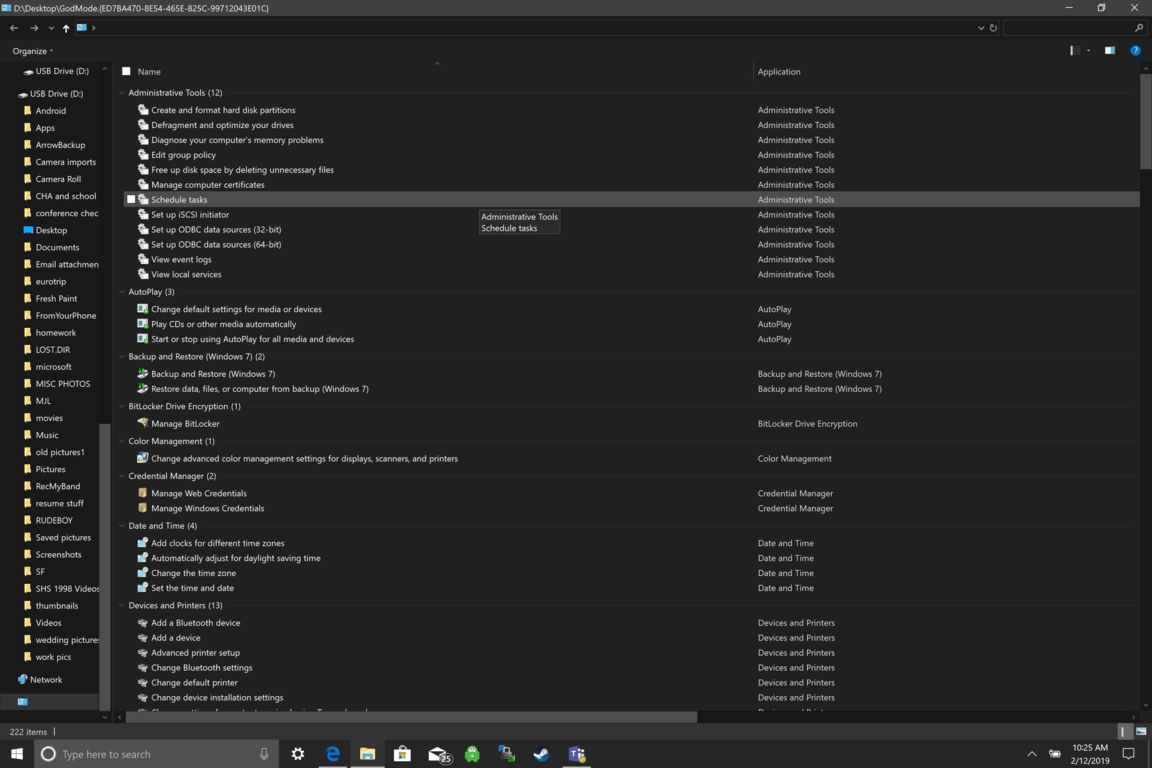
God mode windows 11Like in Windows 10, Windows 11 will also support God mode to be enabled and used. For those readers that do know what God mode is, let me explain it in simple terms. God mode is the icon on the desktop that once clicked will open and let you adjust every option in the control panel and some hidden features for Windows inside one application. There are a lot of advantages to having this one-click fast access to features, especially if you are a power user. Luckily creating such an awesome icon and enabling God mode is very easy to accomplish, all you have to do is:
  1. Create a new folder where you want to have the God mode icon
  2. Rename folder exactly: {ED7BA470-8E54-465E-825C-99712043E01C}
  3. Enjoy God mode
As you can see creating and accessing all settings at your fingertips is much easier than most people think. Enjoy your ultimate access to Windows 11 features and if you wish you can drag and drop sections from it into the desktop or anywhere for easy access to that specific topic.
Read More
How to remove Aro 2012 from your Computer.

Aro2012 is a PC Optimizer Software that typically comes bundled with other software. Even though Aro2012 poses no threat itself, the programs that it comes bundled with may pose a problem to your computer.

From the Author: ARO is an advanced repair and optimization utility designed to help improve and maintain computers running the Windows operating system (both 32- and 64-bit). ARO focuses on finding errors that hide out in the Windows registry, identifying PC and web browser clutter that may be hindering PC performance, and ensuring computers have adequate security solutions installed and up to date. With its advanced scanning engine, ARO provides deep scanning capabilities to identify and repair registry errors. ARO also searches for and removes “junk” files that accumulate over time and can put a damper on PC performance.

When installed Aro2012 creates a startup entry that allows it to run each time the computer is started. It also adds a task scheduler that allows it to run at various times.

About Potentially Unwanted Applications

Have you ever found an unwanted program on your computer system and pondered how it got there since you are sure you didn’t purposefully download and never gave authorization to be installed? A PUA / PUP (potentially unwanted application / potentially unwanted program) is a piece of software that comes bundled with freeware/shareware and you agree to install on your computer. These are programs you definitely don’t want on your PC since it doesn’t give any beneficial service. The term PUP was first coined to outline this downloadable crapware as something other than malicious software. The reason is, most PUPs get into a PC not because they slip via the security holes, for instance, but because the users have installed them by themselves – 100 % unintentionally needless to say. PUPs might not be malware but nevertheless, they are dangerous programs for your laptop or computer. At best, these types of unwanted programs provide hardly any benefit, and at worst, they can be quite harmful to your computer.

What do PUPs do on your PC, precisely?

Most Potentially Unwanted Programs comes in the form of adware, which typically aims to exhibit lots of annoying pop-up ads, banners, coupons, and bargains on web pages you explore. PUPS also comes in the form of unwanted toolbars or browser plug-ins. Not only they entirely take up space on your computer screen, but toolbars could also manipulate search engine results, track your surfing activities, decrease your internet browser’s overall performance, and slow down your internet connection to a crawl. They could appear innocent but PUPs tend to be spyware. And in the large majority of the cases, end-users will not be aware that they’re installing an unwanted program. These are software programs that don’t do anything useful to you; in addition to taking up space on your hard disk drive, they will also slow down your computer, often modify settings without your permission, and the list of frustrating features goes on and on.

How can you avoid ‘crapware’

• Read the fine print so that the end-user license agreement (EULA) you’re accepting is only for the program you actually intend to download. • Always choose “Custom” or “Advanced” installation and never blindly click the Next button, which should let you uncheck any “foistware” software programs you do not want. • Have a solid anti-virus program such as Safebytes Anti-malware that can protect your computer from PUPs. As soon as you install this software, protection from malware and PUPs is already turned on. • Avoid installing a freeware application you will not use. Nowadays ‘freeware’ isn’t actually freeware – but “crapware” bundling nonsense. • Don’t download software programs from pop-ups, online advertisements, file sharing websites, as well as other unreliable sources; look out for any preset, unwanted options when downloading the program. Avoid visiting blogs and sites that support pirated programs.

What To Do When You Cannot Install Any Anti-Malware?

Practically all malware is inherently unsafe, but certain kinds of malicious software do a lot more damage to your computer than others. Some malware is designed to interfere with or prevent things that you’d like to do on your computer. It may well not permit you to download anything from the net or it will prevent you from accessing some or all of the websites, especially the antivirus sites. If you’re reading this, odds are you’re stuck with a malware infection that is preventing you to download and install the Safebytes Anti-Malware program on your computer. Although this type of issue will be harder to get around, there are some actions you can take.

Install in Safe Mode

If the malware is set to load at Windows startup, then booting in safe mode should avoid it. Only minimal required applications and services are loaded when you start your computer into Safe Mode. To launch your Windows XP, Vista, or 7 computers in Safe Mode with Networking, follow the instructions below. 1) At power-on/startup, hit the F8 key in 1-second intervals. This should bring up the Advanced Boot Options menu. 2) Use the arrow keys to select Safe Mode with Networking and hit ENTER. 3) Once this mode loads, you should have internet access. Now, get the virus removal application you need by using the internet browser. To install the program, follow the guidelines within the setup wizard. 4) Immediately after installation, do a complete scan and let the software get rid of the threats it detects.

Download the antivirus program in a different internet browser

Web-based viruses could be environment-specific, aiming for a particular internet browser or attacking specific versions of the browser. If you seem to have a trojan attached to Internet Explorer, then switch over to a different internet browser with built-in security features, such as Chrome or Firefox, to download your favorite antivirus program – Safebytes.

Install and run anti-malware from a Thumb drive

Another option is to create a portable antivirus program on your USB flash drive. Adopt these measures to use a thumb drive to clean your corrupted system. 1) Make use of another virus-free computer to download Safebytes Anti-Malware. 2) Insert the USB drive on the same computer. 3) Double-click the Setup icon of the antivirus software to run the Installation Wizard. 4) Select the USB flash drive as the destination for saving the software file. Follow the on-screen instructions to finish the installation process. 5) Now, insert the pen drive into the corrupted PC. 6) Run the Safebytes Anti-malware directly from the flash drive by double-clicking the icon. 7) Simply click “Scan Now” to run a scan on the affected computer for viruses.

SafeBytes Anti-Malware: Lightweight Malware Protection for Windows PC

Want to install the very best anti-malware software for your laptop or computer? There are plenty of applications available that come in paid and free versions for Windows systems. Some of them are excellent, some are ok types, and some will ruin your PC themselves! You need to pick out a product that has obtained a good reputation and detects not only viruses but other kinds of malware also. On the list of strongly recommended applications by industry experts is SafeBytes Anti-Malware, the most dependable program for Microsoft Windows. SafeBytes can be described as a powerful, real-time antivirus application that is designed to assist the typical computer user in protecting their computer from malicious threats. Using its outstanding protection system, this software will quickly detect and get rid of most of the security threats, including adware, viruses, browser hijackers, ransomware, trojans, worms, and PUPs. SafeBytes has got a plethora of wonderful features that can help you protect your computer from malware attacks and damage. A few of them are given as below: Active Protection: SafeBytes provides round-the-clock protection for your personal computer limiting malware attacks instantly. It’ll continuously monitor your laptop or computer for hacker activity and also gives users superior firewall protection. Most Reliable AntiMalware Protection: With a critically acclaimed malware engine, SafeBytes gives multilayered protection which is designed to catch and remove viruses and malware which are concealed deep in your computer. Extremely Speed Scanning: SafeBytes’s very fast malware scanning engine lessens scanning times and extends battery life. At the same time, it will effectively detect and remove infected computer files or any internet threat. Website Filtering: Through its unique safety ranking, SafeBytes notifies you whether a website is safe or not to access it. This will ensure that you’re always certain of your online safety when browsing the web. Minimal CPU and RAM Usage: This software is lightweight and will run quietly in the background, and will not affect your computer efficiency. Premium Support: Support service is readily available for 24 x 7 x 365 days through email and chats to answer your queries.

Technical Details and Manual Removal (Advanced Users)

To eliminate Aro 2012 manually, go to the Add or Remove programs list in the Control Panel and choose the program you want to get rid of. For web browser plug-ins, go to your web browser’s Addon/Extension manager and select the add-on you intend to disable or remove. It is also advised to reset your web browser to its default state to fix corrupt settings. To ensure complete removal, find the following registry entries on your computer and remove them or reset the values accordingly. Please keep in mind that only professional users should try to manually edit the registry because removing any single critical system file results in a serious issue or perhaps a PC crash. Additionally, some malicious programs have the capability to defend against its deletion. Completing this task in Safe Mode is advised.
Files: Search & Delete ARO2013_tbt.exe CleanSchedule.exe soref.dll AROSS.dll CheckForV4.dll aro.exe Registry: Search and delete: CURRENT_USER / AROReminder
Read More
Taskbar has disappeared from the Desktop
As you know, the Taskbar is one of the integral parts of the Windows desktop and it has been there since the release of Windows 1.0 and up until now with Windows 10. Since then, Microsoft has been modifying the Taskbar with a new design which makes it a home for new features such as Windows Search, Task View, and many more. However, there are times when you may that the Taskbar has disappeared or has stopped responding. If you experience either one of these scenarios, read on as this post will walk you through what you can do to resolve the problem. Here are some suggestions you can check out to resolve the issue with the Taskbar in Windows 10 but before you proceed, make sure that you create a System Restore point first. To do that, follow these steps:
  • In the Start search, type in “create a restore point” and click the entry “System Properties”.
  • Next, select the main system drive under Protection Settings and click on the Configure button.
  • After that, select the “Turn on system protection” option and then click on the Apply and OK buttons to save the changes made.
Once you’ve created a System Restore point, refer to the troubleshooting steps below to fix the Taskbar in Windows 10.

Option 1 – Try to restart the Explorer process

This may sound really basic but it actually is a proven method to fix the Taskbar issue. So if anything gets stuck on the system tray or the Taskbar, you can always fix it by restarting the explorer.exe. How? Refer to these steps:
  • First, right-click on the Taskbar and select the Task Manager.
  • After opening the Task Manager, go to the Processes tab and look for the process named “Windows Explorer”.
  • Then right-click on that process and select the option to Restart. Afterward, you should now be seeing the Taskbar as this will reload the whole Windows Shell.

Option 2 – Unhide the Taskbar using the Settings app

It is possible that the Taskbar could be hidden so you can try to unhide it using the Settings app.
  • Tap the Win + I keys to open Settings.
  • After that, go to Personalization > Taskbar.
  • From the main section, make sure that the “Automatically hide the task in desktop mode” is toggled to the off position. However, if it’s already off then proceed to the next options below.

Option 3 – Make sure that you are not in Tablet Mode

Since Windows 10 is designed to work on both desktop and mobile devices, it could be that your computer has slipped into Tablet Mode which explains why you’re not seeing the Taskbar. To check if your computer is really in Tablet Mode, follow these steps:
  • Go to the Start menu and select Settings.
  • Next, select the System setting and from the left pane select the Tablet Mode.
  • From there, make sure that the buttons next to the options given below are set to the off position:
    • Hide app icons on the taskbar in tablet mode
    • Automatically hide the taskbar in tablet mode

Option 4 – Try to check the Projection Settings

You might also want to check the Projection settings as it could be the reason why Taskbar has disappeared.
  • Tap the Win + P keys to open the Windows Projection settings.
  • Next, make sure that you select the “PC screen only” option and then check if your Taskbar has now appeared or not.
Read More
Epic games and many more coming in Win store
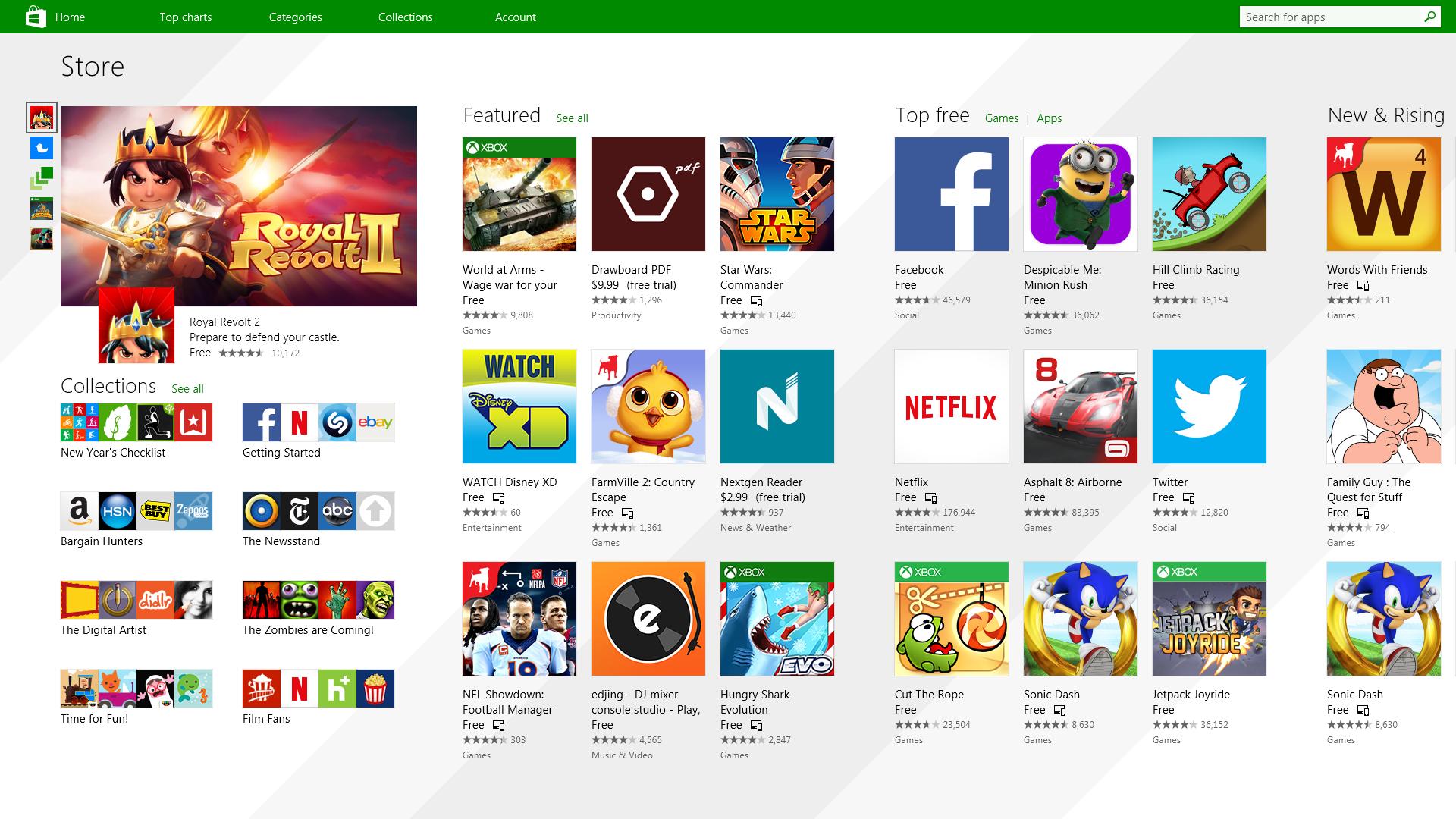
Microsoft store is ready and prepared for Windows 11 official release on October 5th and it is coming with some surprises. Windows storeIt has officially confirmed that many open source and free applications will be in it like Opera, VLC, discord, Libre office, etc. It seems that Microsoft wants to place its store as one place to go for all of your software needs. Another great surprise is the coming of Epic games store implementation. It was officially confirmed but not explained in detail, will we have Epic store opened in Windows store or we will only get installer as a package we will see but this is some great news. As for how it states now, it seems that the Windows store aims to eliminate searching the web for applications and bring them all into one environment with reviews and ratings so you know which one to install and use. It also features a great search engine to find proper applications for your needs. The new store will come to Windows 10 as well but after all Windows 11 has been mostly released and adopted. So expect it via update in two or three months' time. It would be great if some larger companies decide to join MS stores like Autodesk, Adobe, the Foundry, etc so you can install everything you need from it but one can only hope.
Read More
How to remove Converters now

Converters Now developed by Mindspark Interactive is a Browser Extension for Google Chrome and is promoted at their website like a very useful tool for converting PDF and Doc files, alongside with dictionary, and other useful tools. While this might appeal to you the extension hijacks your New Tab page, changing it to Search.MyWay.com

While active, this extension monitors user’s online activity, recording visited websites, clicked links, bought products, and other browsing information. This information is later forwarded or sold to Mindsparks ad network to better deliver user Targeted Ads.

Browsing the internet with ConvertersNow will result in displaying additional ads, sponsored content, and sometimes even pop-up ads injected into various pages or websites throughout your browsing sessions. CovertersNow has been marked as a Browser Hijacker by several anti-virus programs and it is marked for removal.

About Browser Hijackers

Browser hijacking is actually a type of unwanted software, commonly a browser add-on or extension, which then causes modifications in the web browser’s settings. There are plenty of reasons why you may experience a web browser hijack; however commercial, advertising, and marketing are the major purposes for their creation. Usually, the idea would be to force users to visit particular websites that are aiming to improve their site visitor traffic and generate higher ad income. Though it might appear harmless, these tools were created by vicious individuals who always try to take advantage of you, so that they can easily earn money from your naivety and distraction. Browser hijackers could also let other vicious programs without your knowledge further damage your PC.

How you can recognize a browser hijack

Signs that an internet browser is hijacked include: the home page of your respective web browser is changed all of a sudden; your web browser is constantly being redirected to pornography websites; default web engine is changed; you are finding new toolbars you haven’t witnessed before; unstoppable flurries of popup ads show up on your computer screen; your web browser starts running sluggishly or presents frequent glitches; Inability to navigate to certain sites, particularly anti-malware and also other security software websites.

So how does a computer get infected with a browser hijacker

Browser hijackers could use drive-by downloads or file-sharing networks or even an e-mail attachment in order to reach a targeted computer system. Many web browser hijackings come from add-on applications, i.e., browser helper objects (BHO), toolbars, or plug-ins added to browsers to provide the extra features. Also, certain freeware and shareware can put the hijacker inside your computer through the “bundling” technique. Some of the most well-known hijackers are ConvertersNow, Conduit Search, Babylon Toolbar, OneWebSearch, Sweet Page, and CoolWebSearch. Browser hijackers might record user keystrokes to collect potentially important information leading to privacy issues, cause instability on systems, drastically disrupt user’s browsing experience, and eventually slow down the PC to a stage where it becomes unusable.

Removal

Some hijackers could be removed by deleting the freeware they were included with or by eliminating any extension you’ve recently added to your computer. Having said that, most hijackers are quite tenacious and need specialized applications to eradicate them. Furthermore, manual removals require deep system knowledge and therefore can be very difficult task for beginner computer users. You might opt for automatic browser hijacker removal by just installing and running efficient anti-malware software. If you want to eliminate persistent hijackers quickly and effectively, install the top-rated, award-winning Anti-Malware tool Safebytes Anti-Malware.

What To Do If You Cannot Install Any Anti-virus?

Malware can cause several kinds of damage to computing devices, networks, and data. Certain malware goes to great lengths to prevent you from installing anything on your computer system, particularly anti-virus software. If you’re reading this article now, you might have perhaps recognized that a malware infection is the cause of your blocked web traffic. So what to do when you want to download and install an anti-malware program such as Safebytes? Although this kind of issue will be tougher to circumvent, there are some actions you can take.

Install in Safe Mode

If the malware is set to load immediately when Windows starts, entering safe mode could block the attempt. Since only the minimal applications and services start-up in Safe Mode, there are seldom any reasons for issues to occur. You will have to do the following to remove malware in Safe mode. 1) At power-on/startup, hit the F8 key in 1-second intervals. This should bring up the Advanced Boot Options menu. 2) Make use of the arrow keys to choose Safe Mode with Networking and hit ENTER. 3) When this mode loads, you will have an internet connection. Now, use your web browser to download and install Safebytes. 4) After installation, do a complete scan and let the software program remove the threats it finds.

Download the security software using a different internet browser

Certain viruses may target vulnerabilities of a specific browser that obstruct the downloading process. If you’re not able to download the security software using Internet Explorer, this means malware may be targeting IE’s vulnerabilities. Here, you must switch to another web browser like Chrome or Firefox to download the Safebytes application.

Create a portable USB antivirus for removing viruses

Another way is to download and transfer an anti-malware program from a clean PC to run a scan on the infected computer. Try these simple steps to clear up your affected computer using portable anti-malware. 1) Download Safebytes Anti-Malware or Microsoft Windows Defender Offline onto a clean PC. 2) Insert the pen drive on the same computer. 3) Double-click on the downloaded file to run the installation wizard. 4) Choose the drive letter of the USB drive as the location when the wizard asks you where you would like to install the anti-virus. Follow the instructions to complete the installation process. 5) Now, plug the pen drive into the infected system. 6) Double-click the EXE file to open the Safebytes tool from the pen drive. 7) Simply click “Scan Now” to run a complete scan on the infected computer for malware.

Benefits and Features of SafeBytes Security Suite

In order to protect your personal computer from a variety of internet-based threats, it’s important to install an anti-malware program on your personal computer. But with countless numbers of antimalware companies out there, these days it’s hard to decide which one you should buy for your personal computer. A few of them do a good job in eradicating malware threats while many will ruin your PC by themselves. You need to pick out a tool that has got a good reputation and detects not only computer viruses but other kinds of malware also. When considering trustworthy software programs, Safebytes Anti-Malware is undoubtedly the strongly recommended one. Safebytes is one of the well-established PC solutions firms, which offer this all-inclusive anti-malware program. Using its outstanding protection system, this utility will automatically detect and eliminate most of the security threats, which include viruses, adware, browser hijackers, PUPs, trojans, worms, and ransomware.

There are lots of amazing features you will get with this particular security product. Listed below are some of the highlighted features included in the product.

Anti-Malware Protection: Using a critically acclaimed anti-malware engine, SafeBytes offers multilayered protection which is designed to catch and eliminate threats which are concealed deep in your PC. Live Protection: SafeBytes provides real-time active supervision and protection from all known computer viruses and malware. It will constantly monitor your pc for hacker activity and also provides end-users with advanced firewall protection. Safe Browsing: Through its unique safety score, SafeBytes notifies you whether a website is safe or not to visit it. This will make sure that you’re always certain of your safety when browsing the world wide web. High-Speed Malware Scanning Engine: SafeBytes’s very fast malware scanning engine cuts down scan times and extends battery life. At the same time, it’ll effectively detect and remove infected files or any internet threat. Lightweight: SafeBytes is a lightweight application. It consumes a very small amount of processing power as it works in the background therefore you won’t observe any computer performance difficulties. 24/7 Online Tech Support: You can get high levels of support 24/7 if you are using their paid software. To conclude, SafeBytes Anti-Malware is pretty great for securing your computer against all sorts of malware threats. There is no doubt that your computer system will be protected in real-time once you put this software program to use. For top protection and the best value for money, you can’t get better than SafeBytes Anti-Malware.

Technical Details and Manual Removal (Advanced Users)

If you’d like to carry out the removal of ConvertersNow manually instead of employing an automated tool, you may follow these steps: Proceed to the Windows Control Panel, click on the “Add/Remove Programs” and there, choose the offending program to remove. In case of suspicious versions of web browser extensions, you can easily get rid of them via your browser’s extension manager. It’s also advised to factory reset your web browser to its default condition to fix corrupt settings. If you decide to manually delete the system files and Windows registry entries, use the following checklist to make sure you know precisely what files to remove before executing any actions. But bear in mind, this is often a tough task and only computer professionals could accomplish it safely. Furthermore, certain malicious programs are capable to defend against its removal. Doing this malware-removal process in Safe Mode is recommended.
Files: %UserProfile%\Local Settings\Application Data\ConvertersNowTooltab %LOCALAPPDATA%\Google\Chrome\User Data\Default\Sync Extension Settings\jbfdncemokhjnhoiohfdjahheefaiaec %UserProfile%\Local Settings\Application Data\Google\Chrome\User Data\Default\Sync Extension Settings\jbfdncemokhjnhoiohfdjahheefaiaec %LOCALAPPDATA%\Google\Chrome\User Data\Default\Local Extension Settings\jbfdncemokhjnhoiohfdjahheefaiaec %UserProfile%\Local Settings\Application Data\Google\Chrome\User Data\Default\Local Extension Settings\jbfdncemokhjnhoiohfdjahheefaiaec %LOCALAPPDATA%\Google\Chrome\User Data\Default\Extensions\jbfdncemokhjnhoiohfdjahheefaiaec %UserProfile%\Local Settings\Application Data\Google\Chrome\User Data\Default\Extensions\jbfdncemokhjnhoiohfdjahheefaiaec Registry: HKEY_LOCAL_MACHINE\Software\Wow6432Node\ConvertersNow HKEY_LOCAL_MACHINE\Software\ConvertersNow HKEY_LOCAL_MACHINE\Software\Google\Chrome\PreferenceMACs\Default\extensions.settings, value: jbfdncemokhjnhoiohfdjahheefaiaec HKEY_LOCAL_MACHINE\Software\Microsoft\Internet Explorer\DOMStorage\convertersnow.dl.tb.ask.com HKEY_LOCAL_MACHINE\Software\Microsoft\Internet Explorer\DOMStorage\convertersnow.dl.myway.com HKEY_LOCAL_MACHINE\Software\[APPLICATION]\Microsoft\Windows\CurrentVersion\Uninstall..Uninstaller ConvertersNowTooltab Uninstall Internet Explorer

Read More
Happy New Year from ErrorTools.com!!!
As we are on the last day of 2021, our team here at errortools.com would like to express their great gratitude to you all for being with us all this time and would also want to wish you error-free 2022!!! Thank you for being part of this community, we wish you all the best in the upcoming 2022 and hope that we will see you again From all members of errotools, HAPPY NEW YEAR!!! new year christmass tree
Read More
OneXPlayer Mini Handheld Gaming PC
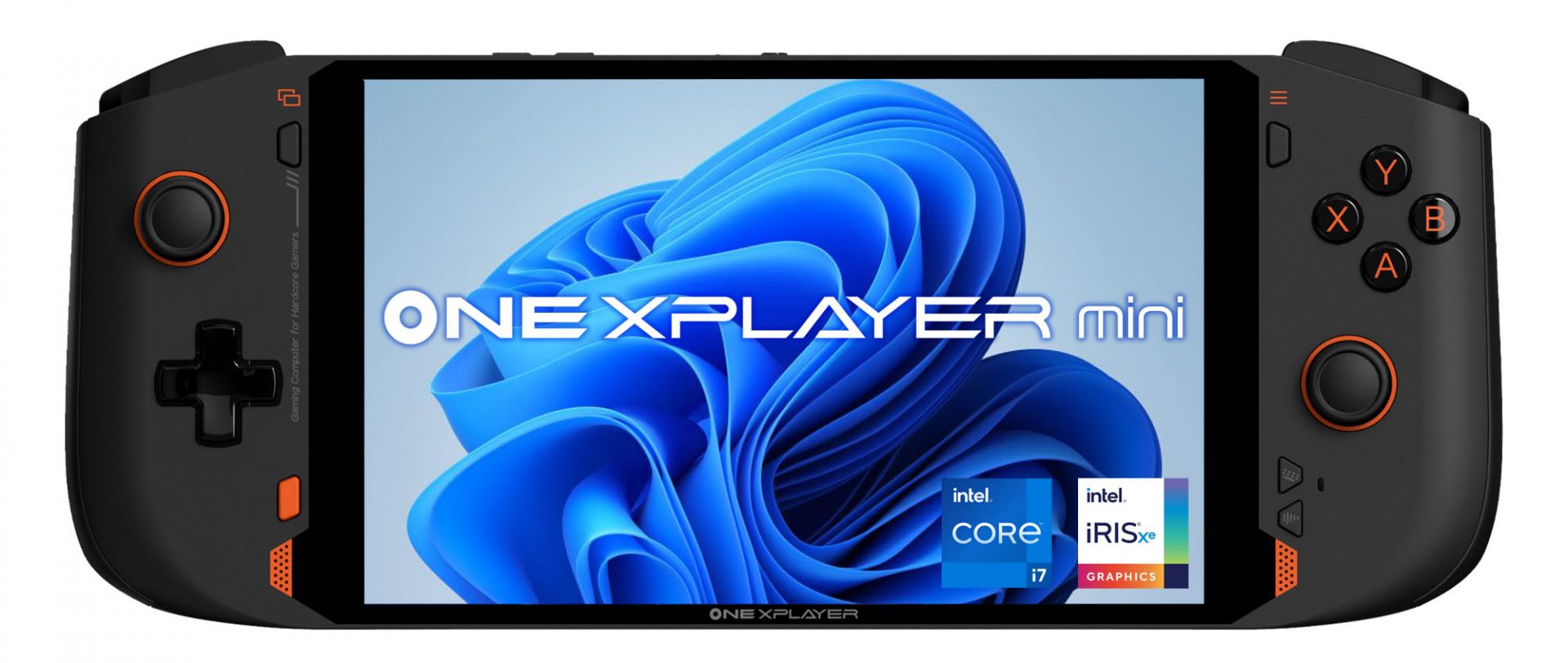
OneXPlayer is a direct competitor to Valve’s upcoming steam deck. This device is clearly inspired by Valve’s offering and it shows all over the place, from its looks to its purpose and aims to PC gamers as a handheld device.

OneXPlayer miniHardware under the hood

This device is packing a 7-inch 1080p display, 11th generation Intel Core i7-1195G7 CPU, stunning 16GB of RAM, 512GB SSD drive with the option to purchase 1TB or 2TB model. GPU of choice is Intel iris Xe Graphics that is in our opinion a bottleneck in the whole system and for more demanding games, we believe switching them to 720p would be a better option. Everything here is powered with a 10455 mAh lithium-ion battery.

OneXPlayer inputs and other stuff

Handheld is equipped with dual bumpers and dual linear triggers. The console comes with dual speakers on both sides of it. Inside the console, there is an aluminum heat sink with copper heat pipes and a fan in order to cool internal hardware. On the outside, we have two USB-C ports and one USB-A port for connections, and of course, a headphone jack for headphones. The console comes with Wi-Fi 6 and Bluetooth 5.0 for wireless connectivity.

Price

The base entry model will cost you a whopping $1.259, 1TB model $1.399 and 2TB one will go as far as $1,599. With this kind of price, I am not sure it can come up as a winner against Valve. Sure it is packing fully licensed Windows 11 that will for sure offer more options than Stem’s OS based on Linux but even with that advantage I do not think it justifies such a big price difference.

Conclusion

Of course, this kind of console or handheld PC will still find its customer base, many users will probably like it since it comes Windows ready out of the box. Sure, you can place Windows on Steam deck as well but you will need to know how, where everything is ready and you can run beside steam other launchers without issues like origin, uplay, gog, etc. How this will be accepted by community time will tell but it is good to see that there is variety and competition in handheld PC space.
Read More
Fix Windows errors 80240020, 8007002C, 80246007, 80070004
Upgrading your Windows 10 computer does not always go smoothly and you often encounter not just one but various errors so, in this post, we are going to cover several Windows 10 upgrade errors such as 80240020, 8007002C, 80246007, 80070004. All these upgrade errors are related to the Windows Update folder. Thus, you need to clear the Software Distribution folder, repair the System Image and fix System Health in order to resolve all these Windows 10 Upgrade errors. Before you get started on the steps to resolve these tons of errors, you have to disable your security program for the meantime, disconnect your peripherals, remove USBs connected to your PC and then make sure that your PC is connected to the main power supply. Once you have everything covered, carefully follow the options given below.

Option 1 – Delete Windows 10 Update Files in the SoftwareDistribution folder

The Software Distribution folder in the Windows operating system is a folder that can be found in the Windows directory and is used to store files temporarily which might be required to install the Windows Update on your PC. Thus, it is required by the Windows Update and maintained by WUAgent. A lot of users tried deleting the files in this folder to fix the problem and so far it has worked. Like them, you can try clearing the Windows Update cache by simply deleting the contents of the folder named “SoftwareDistribution” since Windows apparently can’t clear and re-download the update contents once they are corrupted. Thus, deleting the contents of this folder will make Windows download the contents again which will fix the problem. To do that, follow the steps below.
  • Open the WinX Menu.
  • From there, open Command Prompt as admin.
  • Then type in the following command – don’t forget to hit Enter right after typing each one of them.
net stop wuauserv net stop bits
  • After entering these commands, it will stop the Windows Update Service and the Background Intelligent Transfer Service.
  • Next, go to the C:\Windows\SoftwareDistribution folder and get rid of all the folders and files thereby tapping the Ctrl + A keys to select them all and then click on Delete. Note that if the files are in use, you won’t be able to delete them.
  • Once all the contents in the Software Distribution folder are deleted, restart your PC and then go back to Command Prompt and input the following commands again.
net start wuauserv net start bits
Since the folder has already been flushed, it will be populated afresh the instant your restart your computer and open Windows Update.
  • Now Open Settings and check for Windows Updates. Windows 10 should begin the download right away.

Option 2 – Try using the DISM tool

Running the DISM Tool helps in repairing the Windows System Image as well as the Windows Component Store in Windows 10. Using this built-in tool, you have various options such as the “/ScanHealth”, “/CheckHealth”, and “/RestoreHealth”.
  • Open the Command Prompt with admin privileges.
  • Then type in the following commands and make sure to hit Enter right after you type each one of them:
    • Dism /Online /Cleanup-Image /CheckHealth
    • Dism /Online /Cleanup-Image /ScanHealth
    • exe /Online /Cleanup-image /Restorehealth
  • Do not close the window if the process takes a while as it will probably take a few minutes to finish.
Note: If it happens that the Windows Update client is broken, you need to run the following command to repair it then restart your PC and click on Update once again.
DISM.exe /Online /Cleanup-Image /RestoreHealth /Source:C:RepairSourceWindows /LimitAccess
Note: The Windows Upgrade error, with error code 80240020 is an expected error message that happens when the upgrade requires customer user action. Thus, you need to do the following steps to resolve this particular Windows Upgrade error.
  • Tap the Win + R keys to open the Run dialog box.
  • Then type “regedit” in the field and hit Enter to open the Registry Editor.
  • After that, navigate to this registry key: HKEY_LOCAL_MACHINESOFTWAREMicrosoftWindowsCurrentVersionWindowsUpdate
  • Now right click on WindowsUpdate located in the left pane and then create a new key and name it as “OSUpgrade
  • Next, right-click in an empty space in the left pane and create a new DWORD and name it “AllowOSUpgrade” and enter “1” as its value.

Option 3 – Try running the Windows Update in a Clean Boot State.

Putting your PC in a Clean Boot state can also help you install Windows Updates or Upgrades without any trouble because, during this state, you can start the system with a minimum number of drivers and startup programs that will surely help you in isolating the root cause of the issue.
  • Log onto your PC as an administrator.
  • Type in MSConfig in the Start Search to open the System Configuration utility.
  • From there, go to the General tab and click “Selective startup”.
  • Clear the “Load Startup items” checkbox and make sure that the “Load System Services” and “Use Original boot configuration” options are checked.
  • Next, click the Services tab and select the “Hide All Microsoft Services” checkbox.
  • Click Disable all.
  • Click on Apply/OK and restart your PC. (This will put your PC into a Clean Boot State. And configure Windows to use the usual startup, just simply undo the changes.)
  • After that, try to install the Windows Updates or upgrade again.
Read More
How to Fix Error Code 0x8007007B on Your PC

Error Code 0x8007007B (Code 0x8007007B) – What is it?

Error code 0x8007007B (Code 0x8007007B) is an error that occurs when you attempt to activate Windows 10, as well as Windows Server 2008, Windows Vista, Windows 7, Windows 8, or Windows Server 2012.

Common symptoms include:

  • You will see an error message like this: “Error 0x8007007B 'The filename, directory name, or volume label syntax is incorrect”.
  • If you are using volume-licensed media to install: Windows 7, Windows 8, Windows Vista Business, Windows Vista Enterprise, Windows Server 2008 R2, Windows Server 2008, Windows Server 2012, Windows 10.
  • Your computer is not connecting the activation wizard to a Key Management Service (KMS) host computer.

Solution

Restoro box imageFurther Information and Manual Repair

Error Code 0x8007007B usually occurs when a product key has been activated too many times. Blocking activation aids in avoiding abuse of the key. If abuse of the key is not the case, it is possible to get the key reset, or you may receive a new key altogether. When you are not sure that you can complete these methods yourself, as they do contain advanced steps, it would be wise to consult a computer repair technician to avoid making the problem any worse.

Generally, the solution can be simple; it is just dependent on how comfortable you are with getting technical in your computer. Volume licensed media means that the media has a preset number of times that it is allowed to be activated. This helps to avoid misuse of the product. Some people install the Windows 10 program multiple times on their computer if they are software developers or do certain types of software testing. It is important to know the cause in order to effectively find the solution.

Method One:

  1. From the desktop screen, press the Windows key and S, type “Command Prompt”. Then, right-click on Command Prompt in the results. Select Run as Administrator.  Click Yes when asked about requesting permission.
  2. In the Command Prompt box, enter the command: slmgr.vbs -ipk xxxxx-xxxxx-xxxxx-xxxxx-xxxxx
  3. The x's represent the product key. Replace these with your unique product key.
  4. Type in the following command into the “Command Prompt” window: slmgr.vbs -ato
  5. Click Enter
  6. Restart your computer and try to activate windows again. It should not show the error code anymore.

Method Two:

  1. While on the desktop, press the Windows key and R.
  2. A window saying Run should open.
  3. Type in the following command: Slui 3
  4. Press ENTER and a window should appear.
  5. This window asks for you to enter the operating system activation product key.
  6. Enter this key in the space provided.
  7. After entering this, click Activate.
  8. Restart your computer now.
  9. Check for activation. The Error code should be gone now.

Method Three:

  1. Open the Command Prompt with access as administrator just as in Method One, and enter the following command: sfc /scannow
  2. The command will complete the tasks. This will take some time so just let the computer do its thing and work. Let the sfc finish the scan.
  3. When the scan is complete, restart the computer.
  4. Check for the activation. The error code should be gone at this point.
  5. If it is gone, revisit Method One or move on the Method Four.

Method Four:

Call the Microsoft Support Team and explain the problem in as much detail as you can give. Give the team the error code 0x8007007B and ask to have a different product key. When they give you the new product key, repeat Method 2. The Microsoft Support Team will either change your product key, or they will reset your current product key so that it can be used for activation again.

Read More
1 2 3 171
Logo
Copyright © 2023, ErrorTools. All Rights Reserved
Trademark: Microsoft Windows logos are registered trademarks of Microsoft. Disclaimer: ErrorTools.com is not affiliated with Microsoft, nor claims direct affiliation.
The information on this page is provided for information purposes only.
DMCA.com Protection Status