Logo

Perform System Restore when Windows won’t boot

System restore is usually the go-to tool when something goes bad in Windows, we fire it up and roll back Windows in the state when everything was working fine. But what if Windows does not want to boot? Can we use system restore in that case?

The answer to that question would be yes, yes we can.

  1. Boot interrupt Windows 10 by starting your PC and as soon as you see the Windows logo; press and hold the power button to force a shutdown.
  2. Repeat this 2-4 times and Windows will open up the Advanced Startup Options menu for you.
  3. At the Advanced Startup Options screen, select Advanced Options.
  4. Select Troubleshoot.
  5. Under the Advanced options screen, select System Restore.

or if you prefer, use Windows USB installation.

  1. Boot the faulty PC using the Windows 10 installation media.
  2. The Windows Setup dialog box will appear.
  3. Set the Time and currency format, Keyboard or input method, and the language to install.
  4. Click Next.
  5. Click on Repair your computer from the lower-left corner.
  6. From the Choose an option screen, click on Troubleshoot.
  7. Click Advanced Options in the Troubleshoot screen.
  8. In the Advanced Options screen, click System Restore.
  9. Windows will take some time to prepare System Restore. It may even restart your computer or device.
  10. When System Restore is ready, you will be prompted to choose a user account to continue.
  11. Select an account that is set as administrator on your Windows 10 computer or device.
  12. At the next screen, change the keyboard layout if you want and then input the password for that account.
  13. Click the Continue button.

Do You Need Help with Your Device?

Our Team of Experts May Help
Troubleshoot.Tech Experts are There for You!
Replace damaged files
Restore performance
Free disk space
Remove Malware
Protects WEB browser
Remove Viruses
Stop PC freezing
GET HELP
Troubleshoot.Tech experts work with all versions of Microsoft Windows including Windows 11, with Android, Mac, and more.

Share this article:

You might also like

Basic IT skills everybody should know
In today’s world and age, there are some essential IT skills that basically everyone should know. No matter in what field you are working some skills are just needed in order to function properly in the work. So, without further ado let's dive into what are these essential IT skills everyone, even your grandmother should know.

Basic IT skills5 Essential IT skills everybody should know

  1. Word processing

    No matter are you creating or editing business documents or just trying to help a friend or relative, word processing skill is an essential asset and requirement in today’s age. Writing anything on a bunch of paper is time-consuming, papers can get lost, and searching for a particular item inside a bunch of papers is not a really enjoyable experience. A much easier solution is to write, format, and keep everything on the computer and almost all employers are asking for this skill.
  2. Send and using emails

    Today we live in the digital age and most communication is done in real-time via messaging apps and file sharing is done via file-sharing services. Despite mentioned technology, many files are shared and sent through emails. When a message is too long or complex when it needs to have some attachment or to be kept in archive emails are the way to go and therefore using email is a must-have essential skill.
  3. Using search engines

    When talking about using search engines we really do not think about firing up your favorite browser, going into the search engine,s and typing cat pictures. What we think is that a person should know how to use a search engine properly, tweak its search options, and phrase words and sentences to find everything he or she needs.
  4. Doing data work

    Data entry and data calculations have been made easier than ever thanks to today's technology. Microsoft excel, libre office calc, google sheets, etc. are all capable of performing a great variety of calculations and keeping track of plenty of required data. This skill is often asked by employers as an essential one.
  5. Cyber security

    Each employee or person, in general, should be quite aware of various scams and best practices to keep itself safe in this digital world. We have several articles on this topic and there are a great variety of articles on the internet as well.

Conclusion

No matter are you young or old, employed or looking for a job, these skills are a must-have in today’s world.  There are a lot of great tutorials online on these various topics and I am sure that your knowledgeable friend or cousin would be happy to help and show you how to do all of these things.
Read More
Something went wrong, We couldn’t start
There are instances when you might encounter an error that says, “Something went wrong, We couldn’t start your program” when you open any Office program. This could be due to an issue with the Office file and any Office app you open throws the same error message. This applies to Office 2019/2016, Office 365 Home, Office for Business as well as Business editions. In this post, you will be guided in what you can do to resolve this error. There are several potential fixes for this error, you might only have to restart your computer or you may have to repair Office from Apps and Features or you could also uninstall and install it back again. For more details, follow each one of the provided options below.

Option 1 – Restart your computer

You might be unable to launch any Office app due to some background process that got stuck or there might be some glitch in the system. Thus, the first thing you can do to resolve the error is simply restarting your computer. Once you’ve restarted your computer, open the Office app again or you could also try to sign in back with your Microsoft account that’s connected to Office. If you’re not quite sure which account you were using, you can follow these steps:
  • Open any Office app.
  • Then click on File and look for your name located in the top-right portion.
  • Now click on it. This will display the email or Microsoft account that’s related to Office.

Option 2 – Try repairing Office from Apps and Features

Since Windows 10 offers some repair features that could replace some of the core files with the original files, you can take advantage of such a feature to fix the “Something went wrong, We couldn’t start your program” error when opening any Office app.
  • Open Windows settings and click the Apps and Features option.
  • Next, scroll down until you see the Microsoft Office installation option. Select it and click on Modify.
  • This will open a window and from there, select Quick Repair or Online Repair and click on the Repair button.
Note: When you choose to repair, you might be given two options which depend on how Microsoft Office was installed. For instance, it was installed via Web Installer or Offline Installer (MSI-based). In Web Installer, select Online Repair > Repair when you’re prompted on how you would like to repair Office. While in MSI-based, you have to select Repair under “Change your installation” and then click on Continue. The repair process makes sure that the app data remains untouched.

Option 3 – Try to uninstall and reinstall Office

If neither of the two given options above worked, then you might want to uninstall Office and reinstall it. All you have to do is download the Microsoft Office Uninstall tool from the official site of Microsoft and run it. This will remove any incomplete Office installation as well as unwanted files. It will also get rid of all the Office apps and settings on your computer.
Read More
List of games that support Nvidia RTX tech

RTX nvidiaWhat is RTX

Nvidia GeForce RTX is a high-end professional visual computing platform created by Nvidia, primarily used for designing complex large-scale models in architecture and product design, scientific visualization, energy exploration, and film and video production. Nvidia RTX enables real-time ray tracing. Historically, ray tracing had been reserved for non-real-time applications (like CGI in visual effects for movies and in photorealistic renderings), with video games having to rely on direct lighting and precalculated indirect contribution for their rendering. RTX facilitates a new development in computer graphics of generating interactive images that react to lighting, shadows, and reflections. RTX runs on Nvidia Volta-, Turing- and Ampere-based GPUs, specifically utilizing the Tensor cores (and new RT cores on Turing and successors) on the architectures for ray-tracing acceleration.

Advantage in games

With incredible lighting and shadows, reflection, better smoke, and water effects, and more, RTX has managed to place awesome real-time effects on your desktop all that’s to Nvidia technology behind it. Of course, in order to harvest this kind of technology and features game itself needs to support and have RTX in it, you can not turn RTX in just any game, the game itself must have technology build in it. Therefore we are bringing you the list of all RTX games you can find currently on the market so you can enjoy at the moment best graphics a PC can offer

List of games supporting the technology

  • Amid Evil
  • The Ascent
  • Battlefield V
  • Call of Duty: Black Ops Cold War
  • Call of Duty: Modern Warfare
  • Control
  • Cyberpunk 2077
  • Deliver Us the Moon
  • Doom Eternal
  • Dirt 5
  • Fortnite
  • Ghostrunner
  • Justice Online
  • Weibo
  • JX3
  • Lego Builder’s Journey
  • Mechwarrior 5: Mercenaries
  • The Medium
  • Metro Exodus (and The Two Colonels DLC)
  • Minecraft
  • Moonlight Blade
  • Mortal Shell
  • Observer: System Redux
  • Pumpkin Jack
  • Quake II RTX
  • Ring of Elysium
  • Shadow of the Tomb Raider
  • Stay in the Light
  • Watch Dogs: Legion
  • Wolfenstein: Youngblood
  • World of Warcraft: Shadowlands
  • Xuan-Yuan Sword VII

Upcoming games that will support RTX

  • Atomic Heart
  • Boundary
  • Bright Memory: Infinite
  • Convallaria
  • Dying Light 2
  • F.I.S.T.: Forged in Shadow Torch
  • Five Nights at Freddy’s: Security Breach
  • Grimmstar
  • Maneater
  • Project X
  • Sword and Fairy 7
  • Synced: Off Planet
  • Vampire: The Masquerade — Bloodlines 2
  • The Witcher 3: Complete Edition
Read More
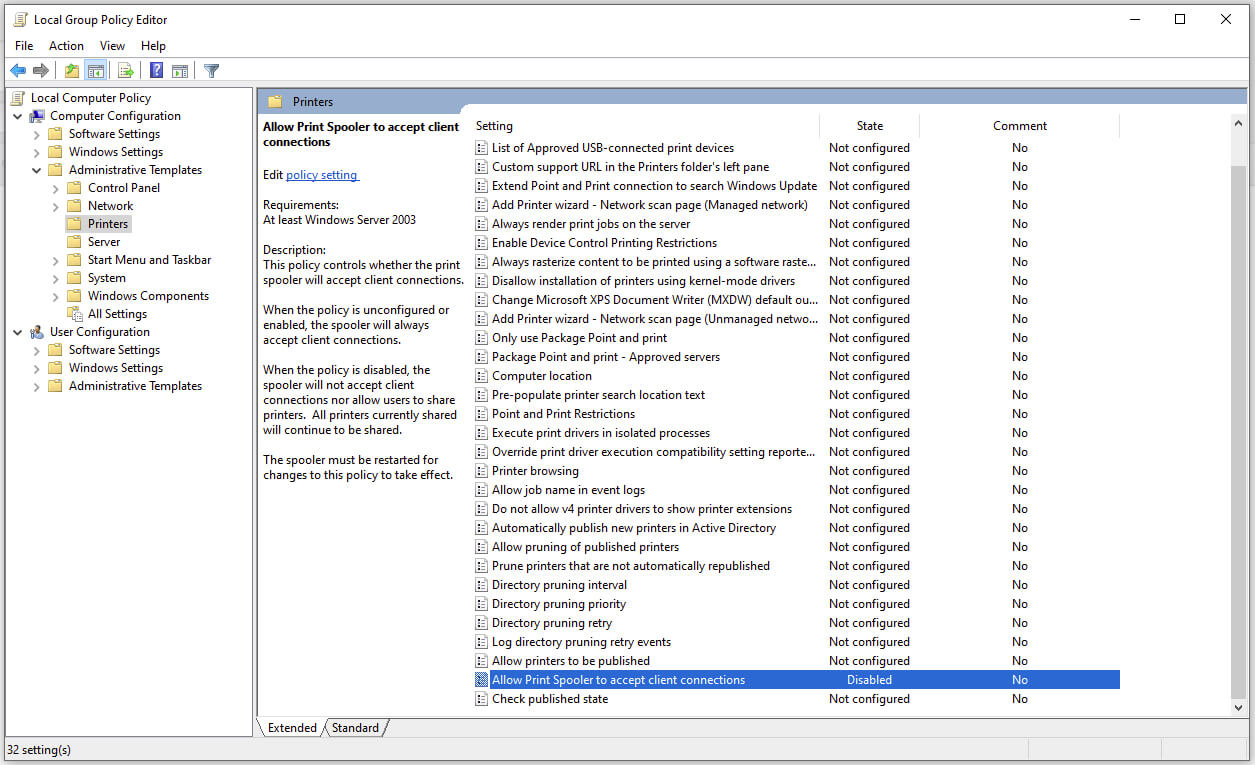
Disable Windows print spooler in PowerShell
The third time is charm saying goes but not when we are talking about Microsoft. Print spooler is again in focus, in a bad way. This is the third print spooler vulnerability to emerge in just five weeks. While a critical flaw was originally identified and patched in June, a similar flaw came to light shortly after and was subsequently patched (with mixed success). print spoolerMicrosoft is once again advising its customers to disable Windows print spooler after a new vulnerability that allows hackers to execute malicious code on machines has emerged. While a patch fixing the flaw will be released in due course, the most effective workaround currently on the table is to stop and disable the print spooler service entirely.
"An elevation of privilege vulnerability exists when the Windows Print Spooler service improperly performs privileged file operations. An attacker who successfully exploited this vulnerability could run arbitrary code with SYSTEM privileges. An attacker could then install programs; view, change, or delete data; or create new accounts with full user rights."

Stop this service right away or you are risking a potential attack.

  1. Press ⊞ WINDOWS + X to open the hidden menu
  2. Click on Power Shell (admin)
  3. In Power Shell type in the following command to check if spool service is running: Get-Service -Name Spooler followed by ENTER
  4. If spooler service is running type in the next command to stop it: Stop-Service -Name Spooler –Force and press ENTER
  5. Then follow with this command to disable it at startup: Set-Service -Name Spooler -StartupType Disabled followed with ENTER
That’s it, we hope a patch will come soon for all the people that are using network printing and indeed need this service running in order to do work.
Read More
Fix The backup application could not start
Windows comes with a built-in backup solution. However, if it failed because of an internal error, you will encounter an error message saying, “The backup application could not start due to an internal error, Server execution failed (0x80080005)”. When you get this kind of error, it means that it did not start and the process failed with a Server execution error. If you got this kind of error worries not for this post will guide you in fixing the problem in your Windows 10 computer. The Windows Backup service is an excellent feature in Windows that only works on the NTFS file system and if you want to use this make sure that you have formatted your files system to NTFS. It is performed by the Volume Shadow Copy, all you have to do is right-click on any folder and if you see the “Previous versions” option, this means that a backup process runs from time to time and can bring back old files when needed. To resolve the “The backup application could not start due to an internal error”, here are two suggestions you can check out.

Option 1 – Check if the Volume Shadow Copy service is running and restart it

The first thing you need to do is check if the Volume Shadow Copy service. To do that, refer to the following steps:
  • Click on Start and type “cmd” and right-click on Command Prompt from the search results.
  • Then select the “Run as administrator” option to open Command Prompt with admin privileges.
  • After that, type “net stop sdrsvc” and hit Enter to execute the command in stopping the Volume Shadow Copy service.
  • Next, type the “net start sdrsvc” command and hit Enter to start the service again.
Note: You can also restart the service using the Windows Services Manager.
  • In the Cortana search box, type “services” and click on the Services icon to open the Services Manager. Alternatively, you can also tap the Win + R keys to launch the Run prompt and then type “services.msc” in the field and hit Enter to open the Services Manager.
  • From there, look for the Volume Shadow Service (sdrsv) from the list of services. Its Startup type should be set to Manual by default.
  • Restart the service and if you don’t encounter any error while you turn it on, re-run the backup service and see if the backup process runs successfully.

Option 2 – Try to run the Volume Shadow Copy Service in a Clean Boot State

If the first option didn’t work and the service still keeps on failing even though the service is running, you can try putting your computer in a Clean Boot State and then try to run Windows Backup again.
  • Log onto your PC as an administrator.
  • Type in MSConfig in the Start Search to open the System Configuration utility.
  • From there, go to the General tab and click “Selective startup”.
  • Clear the “Load Startup items” check box and make sure that the “Load System Services” and “Use Original boot configuration” options are checked.
  • Next, click the Services tab and select the “Hide All Microsoft Services” check box.
  • Click Disable all.
  • Click on Apply/OK and restart your PC. (This will put your PC into a Clean Boot State. And configure Windows to use the usual startup, just simply undo the changes.)
  • Now try to run the Volume Shadow Copy service again and see if the process goes smoothly.
Note: You might also want to delete all the files in the backup solution if you want to start fresh with the backup solution. Just go to C:/System/Volume/Information/Windows Backup and take ownership of the folder. After that, make sure to stop the Volume Shadow Copy service and then delete all the files inside it.
Read More
How to Fix Error Code 0x8007267C on Your PC

Error Code 0x8007267C – What is it?

Error code 0x8007267C is specific to Windows 10. This error is triggered when no DNS server is currently configured in your network settings during the Activation process. If you are fairly confident in your ability to address command-line tools and networking issues, you can follow the steps below to try to remedy the error code on your own. If not, you may need to contact a qualified technician in order to resolve the error successfully.

Solution

Restoro box imageError Causes

The cause of Error Code 0X8007267C within the Window 10 system is fairly straightforward. Windows Activation requires a valid DNS server to be configured in order to complete the Activation process; if one is not available or properly configured, then you may see this error code and Activation will fail.

Further Information and Manual Repair

The following methods may help you to resolve this error, but you’ll need to have some familiarity with command-line tools to complete the steps successfully. If these methods do not work or if you are uncomfortable in using the command prompt, you may need to consult a technician to fully resolve this particular error code on the Windows 10 system.

Method 1: Register a DNS server within your network properties and test the connection.

In order to resolve this error code, client connectivity to a DNS server must first be established. The following steps may help you to determine the root problem with your connectivity status:

  1. Open a command prompt, after which you'll run IPCONFIG /all
  2. Verify the following values: The IP address that has been assigned, the DNS server, the subnet mask, and the default gateway. Compare each to ensure that all are set with the values that correspond to your specific environment
  3. Check for basic IP connectivity to the DNS server using the PING command. In using the PING command, utilize the address of the DNS server found in Step 1

ping <DNS Server IP address>

If basic connectivity to the DNS server in question is failing, then you will need to resolve that issue before going further in the process.

After troubleshooting the above basic connectivity issues to the DNS server, you can reattempt Windows Activation by using the command below from within an Elevated Command selection:

cscript windowssystem32slmgr.vbs -ato

If the steps above did not work for you, you may want to try the steps found in method 2.

Method 2: Use phone-based authentication with a MAK (multiple activation key).

If a DNS server is not connected to your network, you can use an alternative method to complete the Windows Activation process. Bypass Method 1 by using a MAK product key instead to activate the volume license installation. Certain MAK product key providers have a variation on the specific key numbers that you will need to use. If you are using TechNet media or MSDN media, you will have to change the product key listed to the product key provided. The product keys provided by either TechNet media or MSDN media for Windows Server 2008 or for Windows Vista Enterprise will be the MAK product key that you will enter in a later step.

Like the previous method, you will need to have some familiarity or confidence in your ability to operate Command Line tools before proceeding. Once you have found your MAK product key, you’ll need to open a command prompt and use the following command to change the product key to match the MAK product key, which should look something like the example below:

            slmgr –ipk xxxxx-xxxxx-xxxxx-xxxxx-xxxxx-xxxxx

After completing the product key change, use the following command to initiate the phone activation wizard, thereby completing the activation of the system:

            slui 04

The activation wizard should be able to walk you through the remainder of the process in a step-by-step manner. In addition to appearing as an error code in Windows 10, this particular error may apply to multiple versions of Windows, including:

  • Windows 7 Enterprise
  • Windows 7 Enterprise E
  • Windows 7 Enterprise N
  • Windows 7 Professional
  • Windows 7 Professional E
  • Windows 7 Professional N

Steps to address the error code may be different in any of these other versions of Windows. If you have difficulty in resolving the error effectively, seek professional technical help.

Read More
Fix Windows Update Error 0x8007025D-0x2000C
Recently, a number of users reported getting an error code 0x8007025D-0x2000C while updating their Windows 10 computers using an ISO or the Media Creation tool. You will also see a detailed error message saying, “The installation failed in the SAFE_OS phase with an error during APPLY_IMAGE operation” together with the error code 0x8007025D-0x2000C. This kind of issue usually occurs when there is some problem with the installation files and when Windows Update fails to apply upgrade using the Media Creation Tool or ISO. To resolve this issue, you can use the troubleshooting options given below as a reference.

Option 1 – Try recreating the Windows 10 installation USB

Recreating the Windows 10 installation USB might help in fixing the problem. You can use a USB drive to do so but make sure that it has a great read-write speed. Follow the steps below to recreate Windows 10 installation USB”
  • Click this link and then click the Download Tool Now button.
  • Next, click the “Use the tool to create installation media (USB flash drive, DVD, or ISO file)…” option and follow the next given instructions on the screen.
  • Now select the ISO file option in step 5.
  • After that, you should now have an ISO file.
  • Next, go to the location where you’ve downloaded the ISO file.
  • Then right-click on the Windows 10 ISO file and select the Open with option and then select File Explorer.
  • Now click on “setup.exe” and follow the next instructions that appear on the screen. When asked, you have to select either Nothing (clean install) or Keep personal files only option. Take note that you must not select the “Keep personal files, apps, and Windows settings since it doesn’t really work.

Option 2 – Try running the Windows Update troubleshooter

You might also want to run the Windows Update Troubleshooter as it could also help in fixing Windows Update error code 0x8007025D-0x2000C. To run it, go to Settings and then select Troubleshoot from the options. From there, click on Windows Update and then click the “Run the troubleshooter” button. After that, follow the next on-screen instructions and you should be good to go.

Option 3 – Update the BIOS

Take note that you have to be careful when modifying something in the BIOS. So if you don’t know much about it, it’s best if you skip on this option and try the other ones instead. However, if you are well-versed in navigating the BIOS, then follow the steps below.
  • Tap the Win + R keys to open the Run dialog box.
  • Next, type “msinfo32” in the field and press Enter to open System Information.
  • From there, you should find a search field on the bottom where you have to search for the BIOS version and then press Enter.
  • After that, you should see the developer and version of the BIOS installed on your PC.
  • Go to your manufacturer’s website and then download the latest version of BIOS on your computer.
  • If you are using a laptop, make sure that you keep it plugged in until you have updated the BIOS.
  • Now double click on the downloaded file and install the new BIOS version on your computer.
  • Now restart your computer to apply the changes made.

Option 4 – Try restarting the Background Intelligent Transfer Service

The Background Intelligent Transfer Service or BITS is a part of the Windows Update service and is the one that manages the background download of Windows Update, as well as scans for new updates and so on. And if Windows Update is experiencing some problems, you can try restarting BITS but make sure that you have admin privileges to do so.
  • Tap the Win + R keys to open the Run dialog box.
  • Next, type “services.msc” in the field and hit Enter to open Windows Services.
  • From the list of Services, look for the Background Intelligent Transfer Service and double-click on it to open Properties.
  • After that, you need to set the Startup type to “Automatic (Delayed Start) and click on Apply.
  • Now click the Stop button to stop BITS and then click the Start button to restart the service.
  • Click OK to save the changes made and then restart your PC.

Option 5 – Try to update Windows after a couple of minutes or an hour

There are times when the issue is from Microsoft’s end. It could be that there’s some issue with Microsoft’s server so it would be better if you give it a couple of minutes or an hour or so before trying to run Windows Update again.
Read More
Upcoming comic book movies with release dates
upcoming comic moviesThe World of Superhero movies has gone through some interesting variations, from good ones to bad ones, from big-budget ones to small ventures, even from large well-known characters to niche ones. No matter what you think of some of them no one would disagree that since the release of Iron Man and starting Marvel cinematic universe superheroes movies exploded in popularity. Following the Superhero craze, let’s see what is coming up in comic books transferred to big screens with their release dates.

List of upcoming movies

Shang-Chi and the Legend of the Ten Rings, Sept. 3, 2021 Trailer Venom: Let There Be Carnage, Oct. 15, 2021 Trailer Eternals, Nov. 5, 2021 Trailer Spider-Man: No Way Home, Dec. 17, 2021 Trailer Morbius, Jan. 28, 2022 Trailer The Batman, March 4, 2022 Trailer Doctor Strange in the Multiverse of Madness, March 25, 2022 Thor: Love and Thunder, May 6, 2022 DC League of Super-Pets, May 22, 2022 Black Panther: Wakanda Forever, July 8, 2022 Black Adam, July 29, 2022 Trailer Spider-Man: Into the Spider-Verse 2, Oct. 7, 2022 The Flash, Nov. 4, 2022 The Marvels, Nov. 11, 2022 Aquaman and the Lost Kingdom, Dec. 16, 2022
Read More
Star Wars movies & series, chronological order
Besides Star Trek, Star Wars was one of my favorite movie franchises, as a kid, it was the first movie I have seen in Theatre and over the years I have rewatched and reached each entry in the franchise. It has significantly grown over the years, sometimes for worse, sometimes for better but what it always did is explored and expanded lore, characters and brought stories interesting and original enough. The Series has always been original and innovative enough with interesting characters and locations and it managed to capture the imagination of many viewers around the globe. If you or someone else is watching the franchise for the first time it is recommended actually to watch everything how it was released because of some information that is spoiled in prequels that could spoil some interesting revelations later. But if you have already watched everything and would like to follow the story from the beginning to end we are presenting you with the list of all TV series and movies in tar Wars canon in their chronological order so you can enjoy some good character developments and see the whole story unfold how it was meant to be. In the following list, as told, we are including TV series (both released and currently in production) in the Star Wars canon.

Chronological order of Star Wars franchise:

Star Wars: The Acolyte Acolyte is upcoming TV series exploring times in the old republic and the rise of the dark side within Star Wars Episode I: The Phantom Menace The first movie entry in the franchise introducing some key characters who will go through various adventures yet to come Star Wars Episode II: Attack of the Clones Continuation of story and deepening of the plot laid out in the previous movie Star Wars: The Clone Wars Animated TV series exploring war in more detail, set in the period between episodes 2 and 3, before series there is clone wars full length animated movie titles simply as Star wars clone wars serving as a pilot to series. Star Wars Episode III: Revenge of the Sith Last movie in so-called prequel trilogy finishing some stories and finalizing some character arcs Star Wars: The Bad Batch Upcoming animated series Bad batch will focus on few troopers find their way in changing the galaxy Solo: A Star Wars Story Story of everyone loved Han Solo character, this origin story will introduce you to some key characters in the later entry of series Obi-Wan Kenobi Upcoming series that will focus on everyone's favorite JEDI master Obi-Wan Star Wars Rebels Animated series exploring first sparks of forming rebel alliance against dreaded empire Andor Upcoming series set five years before the events of Rogue One, the series follows rebel spy Cassian Andor during the formative years of the Rebellion. Star Wars Rogue One Full feature movie setting up events for episode 4 Star Wars Episode IV: A New Hope First Star Wars movie, little outdated today with special effects but with a strong story and introducing some new characters which will become main icons of franchise Star Wars Episode V: The Empire Strikes Back Arguably the best movie in the whole series, leaning more to serious note and darker than previous entries. Besides Episode 3 this is the most serious and dark movie of the series. Star Wars Episode VI: Return of the Jedi Last movie entry in the so-called original trilogy, finishing some stories and wrapping up one era. Star Wars The Mandalorian Set after episode 6 show focuses on a Mandalorian bounty hunter character following his adventures in the galaxy. The Book of Boba Fett Upcoming Mandalorian spin-off TV series focusing on Bobba Fet, one of most loved bounty hunter characters in the Star Wars universe Ahsoka Star Wars: Ahsoka is an upcoming live-action television limited series exploring the character of Ashoka Tano first seen in Clone Wars Rangers of the New Republic Set within the timeline of The Mandalorian, Rangers of the New Republic is a new upcoming live-action series. Star Wars: Resistance Animated series exploring resistance against first-order setting up events to be followed in the newest trilogy of movies. Star Wars Episode VII: The Force Awakens First full feature movie set in the post-empire era introducing new characters and bringing back some fan favorites. Star Wars Episode VIII: The Last Jedi The second movie in the last order trilogy, continuing stories of previously establishes characters Star Wars Episode IX: The Rise of Skywalker Last entry in new order trilogy of movies, finishing some open stories and concluding arcs for characters previously introduced in Force Awakens. That's it, chronological order of canon TV shows and movies of the Star Wars franchise. We are sure there will be more movies and shows in the future and someday we will revisit this list to include them as well. Until then, may the force be with you. If you would like to read more helpful articles and tips about various software and hardware visit errortools.com daily.

Read More
How To Fix the D3dx9_43.dll Error Code

D3dx9_43.dll – What is it?

D3dx9_43.dll is a type of dynamic link library. This is one of the many files contained in the DirectX software collection which is used to load and run most of the Windows PC based games and advanced graphics programs. D3dx9_43.dll error message is displayed when any one of the Microsoft games fails to load. The error message is displayed in either of the following formats:
“D3dx9_43.DLL Not Found" "The file d3dx9_43.dll is missing" "File d3dx9_43.dll not found" "D3dx9_43.dll not found. Reinstalling might help fix this."

Solution

Restoro box imageError Causes

D3dx9_43.dll error may occur due to multiple reasons. These include:
  • D3dx9_43.dll files get corrupt or damaged
  • Missing Microsoft DirectX file
  • Viruses and malware on your system
  • Driver issues
  • Registry overloaded with invalid entries
If the D3dx9_43.dll error is not fixed timely, it not only causes you a great deal of inconvenience as it hampers your ability to play Microsoft games but since the underlying causes of the error are critical, it can result in serious PC damages like system failure, system crash, and data loss. Therefore to avoid it, it is advisable to resolve the error code immediately.

Further Information and Manual Repair

Though this is a critical PC error but the good thing is that it is easy to resolve. To fix it, you don’t always have to pay hundreds of dollars to a professional technician or be technically sound. Here are some of the best ways to repair and resolve D3dx9_43.dll error on your system:

Check the Recycle Bin

If you get the error message "The file d3dx9_43.dll is missing" then the best method to resolve this error from your system is to check your recycle bin. The Microsoft Direct X file could be there especially if you recently uninstalled a gaming program. Here’s why: dll files are shared by multiple programs. So, it is possible that the program you deleted from your PC also shared the same file to load and run. And because of this reason, the file also got removed from your PC when you uninstalled that particular program. Therefore, check your recycle bin. If you find the d3dx9_43.dll in there, restore it and try running the desired Microsoft game again. See if it works.

Re-Download DirectX

Nonetheless, if you can’t relocate it, try installing the latest version of DirectX on your system. This can be done by downloading the DirectX End-User Runtimes Web Installer on your system from the official Microsoft website.

Update Your Drivers

If the error is related to video card driver, then it is advisable to update the driver. By updating the driver for your video card you can fix the D3dx9_43.dll error instantly.

Repair the Registry

Other reasons for the D3dx9_43.dll error could be corrupt and damaged dll files. It triggers registry issues and sometimes even malware infections. DLL files often get corrupt when the registry overloads with too many files these include mostly unnecessary and obsolete files like junk files, cookies, temporary internet history, invalid and bad registry entries. As the clutter and overload the registry, the important files like dynamic link libraries get damaged. Here cleaning and restoring of the registry is the best way to resolve the error pop-ups like D3dx9_43.dll. You can repair the registry manually however, it is time consuming and somewhat technical. But if you are looking for a simple and a quick fix, then download Restoro.

Try Restoro.

Restoro is a next-generation and multi-functional PC repair tool. It is embedded with a variety of PC fixing and performance-boosting utilities all in one. It includes a registry cleaner with an intuitive algorithm that detects all types of registry issues on your system and resolves them in seconds. It cleans the registry, restores the damaged D3dx9_43.dll files, and repairs the registry. Furthermore, Restoro also includes utilities like an antivirus, Active X controls and class detector. With the help of the in-built antivirus you can scan for viruses and malware infecting your system and remove them right away. It also functions as a system optimizer boosting the speed of your PC dramatically. It is safe, efficient, and compatible with all Windows versions. Click here to download Restoro, resolve the D3dx9_43.dll error, and resume enjoying Microsoft games on your PC.
Read More
1 2 3 171
Logo
Copyright © 2023, ErrorTools. All Rights Reserved
Trademark: Microsoft Windows logos are registered trademarks of Microsoft. Disclaimer: ErrorTools.com is not affiliated with Microsoft, nor claims direct affiliation.
The information on this page is provided for information purposes only.
DMCA.com Protection Status