How to hide taskbar inside Windows 11

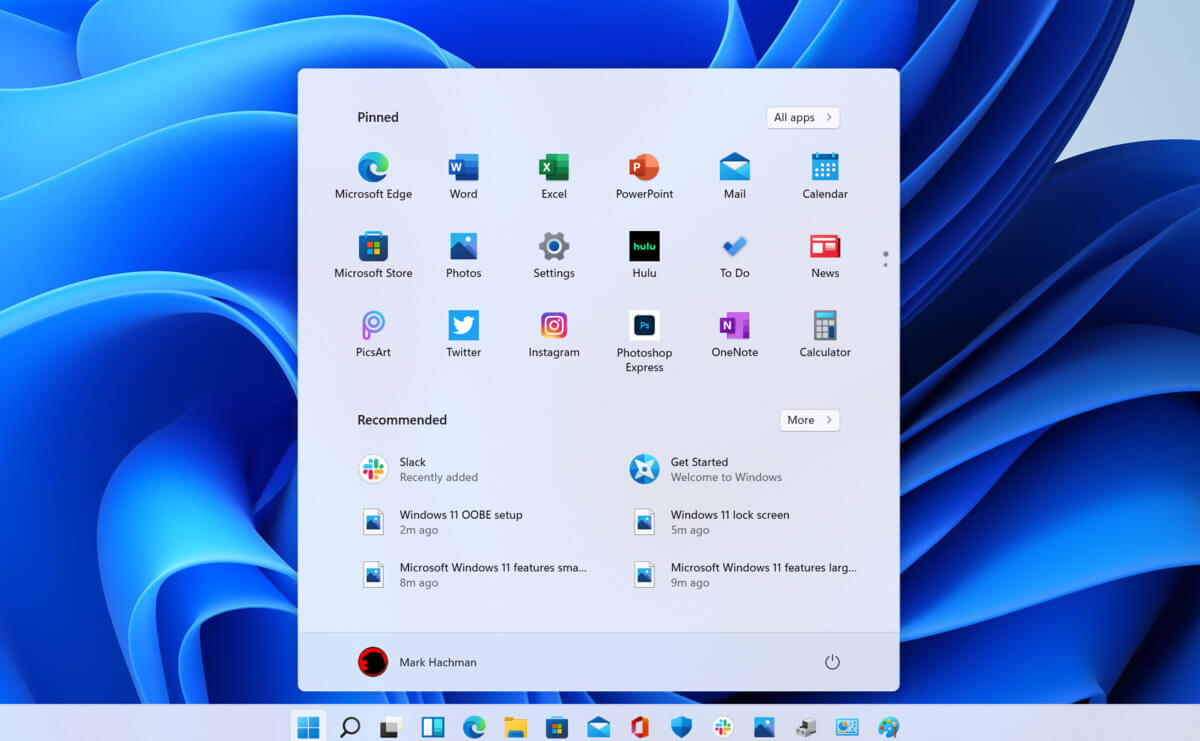
windows 11 taskbarWindows 11 has brought some bad reviews for its inability to change the taskbar location to the screen. Luckily we can still hide it if needed.


In order to hide the taskbar from the screen follow these simple instructions:

  1. Right-click the taskbar itself and select “Taskbar Settings” in the tiny menu that pops up or open Windows Settings and navigate to Personalization > Taskbar
  2. Click on Taskbar Behaviors
  3. Check the box next to Automatically hide the Taskbar
  4. Close settings

As soon as you click on the box to hide the taskbar Windows 11 will apply your settings and hide the taskbar, you will get one line at the very bottom of the screen indicating that the taskbar is still present, just hidden.

When you reach the bottom of your screen with the mouse it will pop up and be visible again, just like in all Windows so far.

Do You Need Help with Your Device?

Our Team of Experts May Help
Troubleshoot.Tech Experts are There for You!
Replace damaged files
Restore performance
Free disk space
Remove Malware
Protects WEB browser
Remove Viruses
Stop PC freezing
GET HELP
Troubleshoot.Tech experts work with all versions of Microsoft Windows including Windows 11, with Android, Mac, and more.

Share this article:

You might also like

Fixing Folder Size Issue in Windows 10
Recently, several Windows 10 users have reported an issue with the Windows folder sizes in their PCs. If you are one of these affected users, read on as this post will walk you through fixing this issue. For instance, if you have a folder with 100 GB worth of data and when checking its size using its properties, you see the wrong size instead of 100GB. The size displayed will most likely be a random number which can either be bigger or smaller than the real size of the folder. This incorrect folder size issue does not happen to any specific drive or certain kinds of folders as any folder can be affected by this incorrect folder size issue. When you try to rename the affected folder, the size will change but its size still remains to be incorrect. The root cause of this particular issue is in Windows 10 itself. It is a known bug that came along with one of the latest Windows Updates which prevents the File Explorer to accurately read the metadata of a certain folder or file and leads to displaying incorrect and unexpected file sizes and the reason why you might also notice that your drive is also not correct. Since this is brought upon by one of the recent or latest Windows Updates the good thing is that Microsoft will most likely release a fix on its next upcoming updates but until then, you will be left with no choice but to deal with an incorrect folder or file size. To remedy that, here are some suggestions you can try that might fix the problem.

Option 1 – Try using the System File Checker

The System File Checker or SFC is a built-in command utility that helps in restoring corrupted files as well as missing files. It replaces bad and corrupted system files to good system files that might be causing the incorrect folder or file size in Windows 10. To run the SFC command, follow the steps given below.
  • Tap Win + R to launch Run.
  • Type in cmd in the field and tap Enter.
  • After opening Command Prompt, type in sfc /scannow
The command will start a system scan which will take a few whiles before it finishes. Once it’s done, you could get the following results:
  1. Windows Resource Protection did not find any integrity violations.
  2. Windows Resource Protection found corrupt files and successfully repaired them.
  3. Windows Resource Protection found corrupt files but was unable to fix some of them.

Option 2 – Try resetting Windows 10

To fix the folder and file size issue, you can try resetting Windows 10. Doing so won’t get rid of any file in your system – instead of erasing all your media files and documents, this reset option resets all the system settings and files. That way, you won’t have to deal with inaccurate folders or file sizes as you browse and use your files.

Option 3 – Wait for the Windows Update

As mentioned, this is already a known issue and a lot of Windows 10 users have already complained about it to Microsoft so a bug fix will be soon released in the latest Windows Updates.
Read More
Windows Search not searching the entire PC
There are times when the Windows Search results do not include what you want to search. However, if you are trying to search for something that’s located on your desktop and Libraries, they would appear right away on the search results. Actually, the issue is not with the search but with the list of files and folders that Windows can index. If you encounter this issue, read on as this post will guide you on how to fix it. The Windows 10 operating system, ever since Windows v1903 was released, offers two kinds of searches – the classic and the enhanced search. You may have to add more folders to the classic search or use the enhanced mode to resolve the issue. In other words, to fix the problem with the Start Menu Search, you can try to enable the Enhanced Mode or add folders to the Class Search or remove the excluded folders, as well as run the Search and Indexing troubleshooter. For more information, refer to each one of the options provided below.

Option 1 – Try to enable the Enhanced Mode

To fix the problem, you have to enable the Enhanced Mode search and configure the folders you want to be indexed. How? Follow these steps:
  • First, you have to go to Settings > Search > Searching Windows.
  • Next, select the radio button for the Enhanced option.
  • After that, select the folders you want the Windows Indexer to exclude from the Enhanced Search mode.

Option 2 – Try to add folders to the Class Search

If you don’t want to enable the Enhanced search mode, then you might want to add folders that are important to you. All you have to do is configure the Search Indexing Options by following these steps:
  • Go to Settings > Search > Classic and from there, click on the “Customize search locations” option.
  • Next, click on Modify in the pop-up window that appears.
  • Then add drives and folders that are important to you. Once the indexing is completed, Windows will be able to find the file and display it in the search results.

Option 3 – Try removing the excluded folders

If you have already enabled the Enhanced mode but your files still don’t appear, then you might want to check out the excluded folder list.
  • The first thing you have to do is go to Search and from there, you will find a list of folders under the Excluded folder list.
  • Next, click on the excluded folder that you want to remove by clicking on the “Remove Excluded folders” button.
  • If you are using the Classic search, you have to check if the index has restrictions on the file type. You can find it in Advanced options > File Types.
Note: If you want to search in Documents, you could also enable the Index Properties and File Contents. This should resolve the problem.

Option 4 – Try to run the Search and Indexing troubleshooter

You might also want to run the Search and Indexing troubleshooter in Windows 10 as it checks whether the settings for the Windows Start Search are in place and automatically corrects any issues if the update or software installation has changed the settings. To run it just click on the Start button and select Settings > Updates and Security > Troubleshoot. From there, select the Search and Indexing Troubleshooter.
Read More
How to Fix Error 12031

Error 12031 - What is it?

Error 12031 indicates that the connection with the server has been reset or is not properly connected. In other words, it signifies that the File Transfer Protocol which is the standard network protocol that is used to transfer files from one host to another over the internet is either reset or not working properly. For example, if you are using a wireless adapter, then you may experience this error code when the adapter loses its association with the access point. The error code is often displayed in the following format:
  • "ERROR_INTERNET_CONNECTION_RESET"
  • "Cannot Connect to the FTP Server"

Solution

Restoro box imageError Causes

Though the error 12031 is largely caused by poor internet connection and failure to obtain files from the FTP server, however, sometimes the error may be caused by invalid registry entries and outdated drivers. Furthermore, it may also be a Firewall issue.

Further Information and Manual Repair

To resolve this issue on your system, we have listed down the best and easy DIY solutions. These solutions are simple to perform and do not require any kind of technical expertise or knowledge. Just follow the steps and you will be able to resolve it in a couple of minutes.

Solution 1: Disable Firewall

If you are unable to connect to the server and you encounter the error code 12031 on your system, then to resolve this issue, disable the Firewall on your PC.

Solution 2: Reset IE (Internet Explorer) Settings

This error is typically experienced by IE7 users.  If you can’t access some websites in Internet Explorer and you come across a 12031 error code, then try resetting your IE settings. To do this, open Internet Explorer, click on tools, and then click on Internet Options. Now go to the advanced tab and select Use Passive FTP. After checking the box, exit and then try accessing those sites that were not accessible before. If after modifying IE settings you are able to access the sites without any error message display, then this means the error is resolved. Nonetheless, if the error still persists, then the error could be generated due to invalid registry entries.

Solution3: Download and Run Restoro

To remove invalid registry entries from your system and resolve the 12031 error immediately, it is advisable to download and run Restoro. This is a new, cutting-edge, and multi-functional PC repair tool integrated with multiple utilities like a powerful registry cleaner, an antivirus, and a system optimizer. The registry cleaning utility scans your PC for all registry errors. It wipes out unnecessary files, bad and invalid registry entries, repairs damaged files, and restores the registry thereby resolving the 12031 error on your PC. This error tool has a user-friendly interface and simple navigations. It is easy to use and compatible with all Windows versions. In addition to this, you can also use it to scan for malicious software and remove malware. It also functions as a system optimizer and boosts your computer’s speed dramatically. Click here to download Restoro on your PC and resolve error 12031 right away!
Read More
INET_E_RESOURCE_NOT_FOUND
The previous Windows versions all came with Microsoft's browser Internet Explorer. A lot of users love it because not only that it is easy to use. It is also very fast. Users didn’t have to worry about compatibility because it is almost always compatible with its Windows Version. When they introduced Windows 10, they changed the name of the browser from Internet Explorer to Microsoft Edge. It is faster and more user-friendly compared to its predecessors. But after the Creator Update, some experienced receiving the inet_e_resource_not_found error code. In contrary to what everyone expects, you actually don’t have to uninstall and reinstall the Microsoft Edge App. What you can do is reset the browser in your Apps & Features Settings in your Microsoft Settings.

To reset the browser you can follow the steps below:

  1. Click on the Windows icon and go to settings.
  2. Click on Apps and this will bring you to the Apps & Features page. Look for Microsoft Edge from the list of Apps and click on it.
  3. Choose Advance Option
  4. Scroll down then Under Reset, click on repair or reset. When you repair it will fix the existing problem but the data that caused the problem may still be present and can still cause problems. If you click on reset, it will delete all the cache and cookies that are installed in your browser but it will save your Favorites as well as your bookmarks.

Another way to resolve this is by disabling the feature TCP Fast Open on Microsoft Edge. To disable this, go ahead and follow the steps below:

  1. Open the Microsoft Edge browser.
  2. Type in about: flags on the Address (URL) bar.
  3. Under Networking, uncheck the Enable TCP Fast Open.
  4. Close your Microsoft Edge browser and open a new one.
Flushing the DNS also worked for other Users. Sometimes, the error code the inet_e_resource_not_found is caused by a corrupted DNS cache. There are 2 ways to flush your DNS. The first option is to use the command prompt to run the command.
  1. To access the Command prompt or CMD, you can search for it on Cortana or you can click on the Windows icon to access the Programs, scroll down to the Windows System folder and click on it.
  2. A dropdown menu will show up, click on Command Prompt which is the first on the list.
  3. Type in the code ipconfig /flushdns and press enter.
  4. There will be a message that will show that says Windows IP configuration successfully flushed the DNS Resolver Cache
  5. Exit the CMD by typing exit and press enter.
The easiest way to do this is to Press the keys Window + R on your keyboard. Type in ipconfig /flushdns in the search box and hit enter or click on OK. These are only some of the ways to resolve the inet_e_resource_not_found. There are other ways to further troubleshoot this issue such as reinstalling your Wifi Adapter Driver or adjusting the DNS Server Address. But most of the time, users are able to resolve the issue with the steps provided above.
Read More
World of Warcraft lost connection to server
World of Warcraft had been released on November 23, 2004, and even today it is the most successful MMORPG ever made. Some say that it was the right timing, others say it was Blizzard's history and its fans, it is even spoken that marketing team has responsibility for WOW's success. Whatever the reason may be, the fact remains that WOW is a really fun game to play. In this article we will cover the annoying issue of World of Warcraft's lost connection to the game server and how can you fix it. Please be aware that before you try any fixes go to the official World of Warcraft website and check to see if the server maintenance is not underway. If this is the case, you will have to wait for servers to come back online after the maintenance. Keep reading and try provided solutions as they are presented to fix this issue and continue gaming.
Read More
An Easy Guide to Resolving Error C00D11B1

Error C00D11B1- What is it?

Error C00D11B1 is a type of Windows Media Player error code. The error C00D11B1 hampers your ability to play videos, MP3 files and songs on Windows Media Player. The error is displayed in the following format:
Error C00D11B1:’Windows Media Player can’t play the file.’

Solution

Restoro box imageError Causes

The cause of error C00D11B1 message pop up on your computer can be narrowed down to one particular reason virtually because this error may be triggered due to several reasons, these include:
  • Corrupt DRM license
  • Enabled codec of the video in Windows Media Player codecs section
  • Registry Corruption
The good news is that this error is not fatal and does not pose serious PC threats like runtime and BSoD error codes. However, it is still advisable to resolve to ensure you are able to watch movies and listen to songs on Windows Media Player without any difficulty.

Further Information and Manual Repair

Here are some of the best and effective do it yourself methods to resolve the error C00D11B1 on your PC right away:

Method 1- Disable the codec of the video option in the Codecs Section

If you are unable to play downloaded movie files on your PC on Windows Media Player, then try this method to resolve the issue. Simply open Windows Media Player, Go to Tools, Options, DVD and then click Advanced Tab. Here find the codecs section, scroll down to the codec of the video you are trying to play and see if it says enabled. If it does, then disable it and then select a decorder for the codec. Now try running the video again on your Windows Media Player. This will hopefully resolve the issue. Nonetheless if the error still persists, try method 2.

Method 2- Delete DRM Licenses & cache and Download it Again

Sometimes the error C00D11B1 can also be trigged by corrupt DRM licenses & cache. To resolve the issue, simply delete all files. First open Windows Explorer (Windows key + E) and then go to C:ProgramDataMicrosoftWindowsDRM. Now delete all files in this folder. Once deleted, Let Windows Media Player download your license again. After downloading the DRM license again, run the Windows Media Player to see if it works.

Method 3- Disable Firewall Temporarily

Firewall can also be responsible for blocking the Windows Media Player streaming. Firewalls often block important ports that are required in order to run some programs. If this is the cause, then simply disable Firewall temporarily to resolve the issue.

Method 4- Repair the Registry

Registry is that part of your computer that saves all the activities performed on the PC and all the files too including both important and unimportant files like cookies, junk files and bad registry entries. If these unimportant and obsolete files are not removed frequently, the registry gets corrupt and damaged. And due to this reason you may experience error code C00D11B1 on your system. To resolve this issue, simply repair the damaged registry by downloading Restoro. This is a powerful PC Fixer integrated with a registry cleaner. The registry cleaner removes all unnecessary files, cleans and repairs the registry in seconds. Click here to download Restoro and fix error C00D11B1 on your PC right now!
Read More
Chrome won’t clear Browsing History and Data
As you know, one of the most popular browsers these days is the Google Chrome browser. Browsing the web every day using your Chrome browser, leaves a trail of browsing history. Google uses the browser history to streamline and make the browsing experience a lot better. But there are times when Chrome users experience trouble in deleting their web browsing history, data, cookies, and cache. In this post, you will be guided through specific settings that will help you in getting rid of the browsing history in Chrome. There are several options you can take in clearing the browsing history in Chrome. But before you try them, you can try the basic one first using the following steps:
  • First, click on the three-dotted icon and click on History from the menu.
  • Next, click on the Clear browsing data option and select “All time”.
  • Then select the type of history you want to delete.
  • After that, click on the Clear Data button.
If clearing the browsing history in Chrome the old way didn’t work, then you can try to check out the options provided below.

Option 1 – Clear the cache using the File Explorer

The first thing you can do is to clear the cache by using File Explorer. To get started, refer to these steps:
  • Tap the Win + E keys to open File Explorer.
  • Next, navigate to the following paths:
    • C:/Users/YOURUSERNAME/AppData/Local/GoogleChrome/User Data/DEFAULT/Cache
    • C:/Users/YOURUSERNAME/AppData/Local/GoogleChrome/User Data/PROFILENAMECache
  • From the given locations above, replace “YOUR USERNAME” with the user profile name you use and then search for a file named “Cookies”.
  • Now delete its contents.

Option 2 – Reset Chrome

Resetting Chrome can also help you fix the error. This means that you will be restoring its default settings, disabling all the extensions, add-ons, and themes. Aside from that, the content settings will be reset as well and the cookies, cache, and site data will also be deleted. To reset Chrome, here’s what you have to do:
  • Open Google Chrome, then tap the Alt + F keys.
  • After that, click on Settings.
  • Next, scroll down until you see the Advanced option, once you see it, click on it.
  • After clicking the Advanced option, go to the “Restore and clean up option and click on the “Restore settings to their original defaults” option to reset Google Chrome.
  • Now restart Google Chrome.

Option 3 – Try to clean reinstall Chrome

There are instances when programs leave files behind after you’ve uninstalled them and the same thing can happen to Chrome so before you reinstall Chrome, you have to make sure that you have deleted the User Data folder. To do so, refer to the following steps:
  • Hit the Win + R keys to open the Run dialog box.
  • Next, type “%LOCALAPPDATA%GoogleChromeUser Data” in the field and hit Enter to open the User Data folder.
  • From there, rename the default folder and name it something else, e.g. “Default.old”.
  • After that, install Google Chrome again and check if the issue is now fixed.
Read More
How to create a public VPN Server on Windows
As you know, a Virtual Private Network or VPN is used to access a particular network from another network which is why it is also referred to as a mini-internet. Moreover, you can use it in two ways. One, you can use it to get you access to a closed server which means that you would not be getting access to the internet. Second, you can also use it to access a set of resources while at the same time get access to the internet. However, what if you want to access your resources at home even when you’re away? And what if you want to use the private server at home or at your office even when you’re away? This is where the callout for a VPN server for yourself comes in. And so in this post, you will be guided in how you can create a public VPN server on your Windows 10 computer. Follow each one of the given steps below to get started. Step 1: Find your IP address. This step is rather simple since all you have to do is open Control Panel > Network and Internet > Network and Sharing Center. From there, click on “Local Area Connection” and then click on Details where you’ll see your IP address next to “Autoconfiguration IPv4 Address”. Step 2: Next, set up port forwarding on your router. In this step, you will have to configure port forwarding in your router so that you would be able to connect to the VPN server through a public network like the internet.
  • Log in to the Admin Panel of your router. You have to do this since your router will be the gateway for your access to the network.
  • After you’re logged in, look for the “Port Forwarding” or “Applications and Gaming” or “NAT/QoS” menu tab and other similar names.
  • Now you need to set the port number to 1723 for connections based on Point to Point Tunneling Protocol.
  • Then save the configuration and reboot your router.
Step 3: Set up a VPN server on Windows 10.
  • In the Cortana search box, type “ncpa.cpl” and click on the related entry from the search results.
  • After that, tap the Alt + F keys to bring down the File Menu and then select New Incoming Connection which will open a mini window where you can allow the user accounts on the particular machine to access the VPN connection.
  • On the other hand, you can also click the “Add someone” button so that you can add someone else to the whitelist that can access the connection.
  • Now click on Next and you’ll see an option to select how people will connect to the network. Check the checkbox for the “Through the Internet” option.
  • After that, you will see a page where you have to configure the network. Just select IPv4 and then click on Properties.
  • From there, you will be asked to continue some additional settings like letting users access your Local Area Network or how IP addresses will be allocated to these users. Click on OK to save the changes you’ve made.
  • Click on Allow Access after you configure the network. And if you want to, you have the option to print this information for future reference or for the client machine.
  • Now click on Close to exit the configuration process.
Step 4: Allow the VPN Connections through the firewall In this step, you will have to allow the VPN connections through the firewall.
  • In the Cortana search box, type “Allow an app through Windows Firewall” and click on the related search result to open the intended Windows Firewall settings.
  • Next, click on Change Settings.
  • Then scroll down to check if Routing and Remote Access is Enabled for both the Public and Private networks and click on OK.
Step 5: Set up a VPN connection on Windows 10 Now all that’s left for you to do is to set up a VPN connection on Windows 10.
  • Go to Settings > Network and Internet.
  • From the list of options given, click on VPN located on the left pane to see the related settings.
  • After that, click on the “+” icon to add a VPN connection.
  • Next, select Windows Default under VPN Provider and under the Connection Name, input your VPN’s name, and then enter the IP address you got from the VPN service provider under the Server name or address section.
  • Now select PPTP under VPN type since it is the most commonly used protocol for VPNs.
Read More
Fix 0x80070013 for Restore, Backup and Update
In this post, you will be guided on how you can fix error 0x80070013 while executing various operations in your Windows 10 computer like System Restore, Windows Backup, or Windows Updates. When you encounter error 0x80070013, you will see the following error messages. For System Restore, it states:
“System Restore did not complete successfully. Your computer’s system files and settings were not changed. Details: System Restore failed while scanning the file system on the drive <Partition Letter> The drive might be corrupt. You might want to retry System Restore after running chkdsk /R on this disk. An unspecified error occurred during System Restore. (0x80070013) You can try System Restore again and choose a different restore point. If you continue to see this error, you can try an advanced recovery method.”
Whereas in Windows Backup, it states:
“Check your backup, Windows Backup failed while trying to read from this shadow copy on one of the volumes being backed up. Please check in the event logs for any relevant errors. The backup failed, The media is write protected (0x80070013).”
On the other hand, you will see the following error message in Windows Update:
“There were some problems installing updates, but we’ll try again later. If you keep seeing this and want to search the web or contact the support for information, this may help: (0x80070013).”
There are several suggestions you can check out to fix the error depending on where you encountered it. If you encountered it while running Windows Updates, then you can try to reset the Windows Update components or run the Windows Update Troubleshooter. And if you got the error when running System Restore, you can try to run a System File Checker scan or the DISM tool as well as the CHKDSK utility. Lastly, if you got this error when running the Windows Backup service, you can try to check its status in the Services Manager. Error 0x80070013 in Windows Updates:

Option 1 – Try to reset the Windows Update components

  • Open Command Prompt with admin privileges.
  • After that, type each one of the following commands and hit Enter after you key in one after the other.
    • net stop wuauserv
    • net stop cryptsvc
    • net stop bits
    • net stop msiserver
Note: The commands you entered will stop the Windows Update components such as Windows Update service, Cryptographic services, BITS, and MSI Installer.
  • After disabling WU components, you need to rename both the SoftwareDistribution and Catroot2 folders. To do that, type each one of the following commands below, and don’t forget to hit Enter after you type one command after the other.
    • ren C:/Windows/SoftwareDistribution/SoftwareDistribution.old
    • ren C:/Windows/System32/catroot2/Catroot2.old
  • Next, restart the services you’ve stopped by entering another series of commands. Don’t forget to hit Enter after you key in one command after the other.
    • net start wuauserv
    • net start cryptsvc
    • net start bits
    • net start msiserver
  • Close Command Prompt and reboot your PC.

Option 2 – Run the Windows Update Troubleshooter

You might also want to run the Windows Update Troubleshooter as it could also help in fixing error 0x80070013. To run it, go to Settings and then select Troubleshoot from the options. From there, click on Windows Update and then click the “Run the troubleshooter” button. After that, follow the next on-screen instructions and you should be good to go. Error 0x80070013 in System Restore:

Option 3 – Try to run both Systems File Checker scan and DISM tool

Running the System File Checker scan as well as the DISM tool can help you resolve error 0x80070013 while performing System Restore. Refer to these steps to do so.
  • Open the Command Prompt with admin privileges.
  • After opening Command Prompt, execute this command to run a System File Checker scan: sfc /scannow
  • Once the scan is completed, restart your computer and then see if the error is now fixed. If not, you can run the DISM tool.
  • Open Command Prompt with admin privileges again.
  • Then type in the following commands and make sure to hit Enter right after you type each one of them in order to properly run the DISM tool:
    • Dism /Online /Cleanup-Image /CheckHealth
    • Dism /Online /Cleanup-Image /ScanHealth
    • Dism /Online /Cleanup-image /Restorehealth
  • Do not close the window if the process takes a while as it will probably take a few minutes to finish.

Option 4 – Run the CHKDSK utility

  • In the Windows Search box, type “command prompt” and from the search results, right-click on Command Prompt and select “Run as administrator”.
  • After opening Command Prompt, type this command and tap Enter: chkdsk <Partition Letter>: /f /r /x /b
  • The command you entered will start to check for errors and fix them automatically. Else, it will throw an error message saying, “Chkdsk cannot run because the volume is in use by another process. Would you like the schedule this volume to be checked the next time the system restarts? (Y/N)”.
  • Tap the Y key to schedule Disk Check the next time your computer restarts.
Error 0x80070013 in Windows Backup:

Option 5 – Try checking the status of the Windows Backup Service

  • First, you need to tap the Win + R keys on your keyboard to open the Run dialog box.
  • Next, type “services.msc” in the field and click OK or tap Enter to open the Windows Services Manager.
  • After that, you will see a list of services and from there, look for the Windows Backup Service and double click on it to open its Properties.
  • Then check if its Startup type is set to Disabled. If it is, then change it to “Manual”. Note that this service is essential as it provides backup and restores capabilities.
  • Now click on the Apply and OK buttons to save the changes made and then restart your computer. Check if the error is now gone.
Read More
Change system font in Windows 10
In previous versions of Windows changing the system, the font was a pretty straightforward process, but it seems Microsoft did not want this feature to keep for whatever reason and there is no option as of the time of the writing of this article to do it in standard options in Windows 10. But do not worry, you are still able to customize your Windows and choose which font would you like to see inside it in all of its dialogs. You can choose whichever font you desire, the only prerequisite is it to be installed on your system. This guide will require you to change values in the registry of Windows itself so please follow step-by-step instructions and always make a backup of the registry before changing it in order to prevent some permanent Windows issues. All of that being said, let's start.

Setting new font

First thing is to open notepad, in the notepad paste the next block of code:
Windows Registry Editor Version 5.00 [HKEY_LOCAL_MACHINE\SOFTWARE\Microsoft\Windows NT\CurrentVersion\Fonts] "Segoe UI (TrueType)"="" "Segoe UI Bold (TrueType)"="" "Segoe UI Bold Italic (TrueType)"="" "Segoe UI Italic (TrueType)"="" "Segoe UI Light (TrueType)"="" "Segoe UI Semibold (TrueType)"="" "Segoe UI Symbol (TrueType)"="" [HKEY_LOCAL_MACHINE\SOFTWARE\Microsoft\Windows NT\CurrentVersion\FontSubstitutes] "Segoe UI"="NEW_FONT"
Where in "Segoe UI"="NEW_FONT" instead of NEW_FONT you need to write the exact name of the font that you wish to use as a system font. Once you have replaced the default system font with your desired one, go to File and save as, from file type drop-down menu, choose all files and save this file as .REG type giving it whatever name you wish. When the file is saved, close notepad, right-click on the saved file and choose the merge option. Confirm with YES and click on OK. Reboot your system and your Windows will now use the font of your choice as its default system font.

Restoring default font

If you wish to return the old default system font as it was, follow the same steps but in your notepad paste this code:
Windows Registry Editor Version 5.00 [HKEY_LOCAL_MACHINE\SOFTWARE\Microsoft\Windows NT\CurrentVersion\Fonts] "Segoe UI (TrueType)"="segoeui.ttf" "Segoe UI Black (TrueType)"="seguibl.ttf" "Segoe UI Black Italic (TrueType)"="seguibli.ttf" "Segoe UI Bold (TrueType)"="segoeuib.ttf" "Segoe UI Bold Italic (TrueType)"="segoeuiz.ttf" "Segoe UI Emoji (TrueType)"="seguiemj.ttf" "Segoe UI Historic (TrueType)"="seguihis.ttf" "Segoe UI Italic (TrueType)"="segoeuii.ttf" "Segoe UI Light (TrueType)"="segoeuil.ttf" "Segoe UI Light Italic (TrueType)"="seguili.ttf" "Segoe UI Semibold (TrueType)"="seguisb.ttf" "Segoe UI Semibold Italic (TrueType)"="seguisbi.ttf" "Segoe UI Semilight (TrueType)"="segoeuisl.ttf" "Segoe UI Semilight Italic (TrueType)"="seguisli.ttf" "Segoe UI Symbol (TrueType)"="seguisym.ttf" "Segoe MDL2 Assets (TrueType)"="segmdl2.ttf" "Segoe Print (TrueType)"="segoepr.ttf" "Segoe Print Bold (TrueType)"="segoeprb.ttf" "Segoe Script (TrueType)"="segoesc.ttf" "Segoe Script Bold (TrueType)"="segoescb.ttf" [HKEY_LOCAL_MACHINE\SOFTWARE\Microsoft\Windows NT\CurrentVersion\FontSubstitutes] "Segoe UI"=-
Reboot your system and your Windows will now revert the font of your choice as its default system font.
Read More
1 2 3 171
Logo
Copyright © 2023, ErrorTools. All Rights Reserved
Trademark: Microsoft Windows logos are registered trademarks of Microsoft. Disclaimer: ErrorTools.com is not affiliated with Microsoft, nor claims direct affiliation.
The information on this page is provided for information purposes only.
DMCA.com Protection Status