Logo

Fix Windows Update Error 0x8024A10A

The Windows Update service, just like other services in Windows 10 may sometimes experience some issues and stop behaving properly. One of the issues you might encounter as you use the Windows Update service is the Windows Update error 0x8024A10A. This kind of error code signifies that the Windows Update service is shutting down. So if you encounter this error, read on as this post will guide you on how you can fix it.

When you receive the Windows Update error 0x8024A10A, you may see this error message on your screen:

“USO_E_SERVICE_SHUTTING_DOWN indicates that the WU Service is shutting down. This may happen due to a very long period of time of inactivity, a system hang leading to the service being idle and leading to the shutdown of the service. Ensure that the system remains active and the connections remain established to complete the upgrade.”

You could try to restart your computer to resolve the problem since there are instances when a simple restart can fix errors. However, if it does not work, you might find the options provided below useful.

Option 1 – Try to restart the Windows Update Service

The first thing you can do to fix Windows Update error 0x8024A10A is to restart the Windows Update Service from the Services Manager. To do so, follow these steps:

  • In the Cortana search box, type “services” and click on the Services icon to open the Services Manager. Alternatively, you can also tap the Win + R keys to launch the Run prompt and then type “services.msc” in the field and hit Enter to open the Services Manager.
  • After opening the Services Manager, look for the Windows Update Service.
  • Once you found it, right-click on it and check if the Service is stopped. If it is, then select the Start option. On the other hand, if the Windows Update Service is already started, just select the Restart option.
  • After that, try to run the Windows Update again and see if the error 0x8024A10A is now fixed.

Option 2 – Run the Windows Update Troubleshooter

Since the Windows Update troubleshooter reviews the status of the services that support the process, it would prompt and fix it if there is anything that’s not right. Thus, you might want to run a built-in Windows Update troubleshooter to resolve the Windows Update error. It is one of the things you can check out as it is known to automatically resolve any Windows Update errors like error 0x8024A10A. To run this troubleshooter, go to Settings and then select Troubleshoot from the options. From there, click on Windows Update and then click the “Run the troubleshooter” button. After that, follow the next on-screen instructions and you should be good to go.

Option 3 – Run Microsoft’s online troubleshooter

Aside from the Windows Update troubleshooter, running Microsoft’s online troubleshooter might also help you fix the Windows Update Error 0x8024A10A. This online troubleshooter is known to help in fixing Windows Update errors, it scans your computer for issues that might be causing the problem and then fixes them automatically.

Option 4 – Try to run the Windows Update Service in a Clean Boot State

There are some instances that some conflicting programs installed in your computer might be the one that’s causing Windows Update error code 0x8024A10A. To identify which program is causing the problem, you need to put your computer in a Clean Boot State. To do so, follow the steps below.

  • Log onto your PC as an administrator.
  • Type in MSConfig in the Start Search to open the System Configuration utility.
  • From there, go to the General tab and click “Selective startup”.
  • Clear the “Load Startup items” check box and make sure that the “Load System Services” and “Use Original boot configuration” options are checked.
  • Next, click the Services tab and select the “Hide All Microsoft Services” check box.
  • Click Disable all.
  • Click on Apply/OK and restart your PC. (This will put your PC into a Clean Boot State. And configure Windows to use the usual startup, just simply undo the changes.)
  • Now try to run the Windows Update Service again and see if Windows Update error 0x8024A10A is now gone.

Do You Need Help with Your Device?

Our Team of Experts May Help
Troubleshoot.Tech Experts are There for You!
Replace damaged files
Restore performance
Free disk space
Remove Malware
Protects WEB browser
Remove Viruses
Stop PC freezing
GET HELP
Troubleshoot.Tech experts work with all versions of Microsoft Windows including Windows 11, with Android, Mac, and more.

Share this article:

You might also like

Fix missing files in Recycle bin
Have you ever deleted a file by mistake? Do not feel bad, we all have, but what if you deleted the file by mistake and then you went to Recycle bin to restore it only to find out that the bin is empty? If you experienced this kind of issue then you know how unpleasant and frustrating it is but do not worry, we are here to help and provide you with solutions to this problem and hopefully get your file back. Follow the next steps from first to last since they are organized in a way to minimalize the permanent deletion of lost files.
  1. Refresh Recycle bin view

    If you spend any amount of time on this site reading through articles, you know I am a big fan of simple and effective solutions and there is nothing simpler than a single press of a button. Open your recycle bin and press F5 to refresh view or right-click anywhere inside and choose refresh. If your file does not appear with this method go to the next step.
  2. Set Windows to show hidden system files

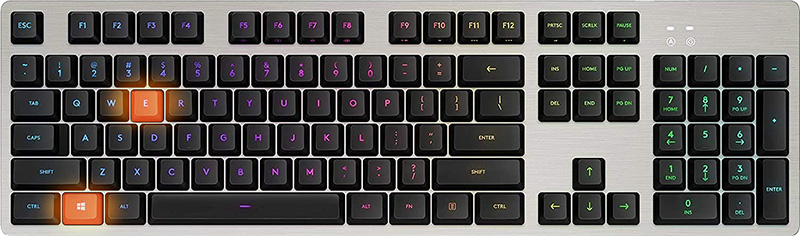
    In order for this to work first, you will need to open File Explorer by pressing ⊞ WINDOWS + E Keyboard with windows and e markedWhen File Explorer opens go to VIEW > OPTIONS. Inside options select “Show hidden files, folders, and drives”, uncheck “Hide protected operating system files (Recommended)”, and click APPLY > OK Go to the recycle bin and check to see if files have managed to show up.
  3. Check if Don't move the file to the recycle bin is enabled

    Right-click on recycle bin and choose properties, under properties, there is the option that says Don’t move files to the Recycle Bin, Remove files immediately when deleted. This option is not selected by default, but it could be turned on by someone else or by mistake. If you see that this option is enabled sadly your file is gone and you will have to get the file back by using some third-party undelete application, uncheck this option to prevent future deletion of files by mistake.
  4. Increase recycle bin size

    This will not help you to get your file back sadly but it will help you in storing more files in recycle bin. This is helpful since if you reach your recycle bin limit all further files will be permanently deleted and not been able to get them back. So by increasing bin size you will have more space for deleted files to be saved. To do that, right-click on Recycle Bin, select Properties. Now, increase the Maximum size from the Custom size option, and click Apply and OK.
  5. Reset recycle bin

    To reset and fix corrupted recycle bin do the following: Press ⊞ WINDOWS + X to open the secret Windows menu and click on command prompt (admin) keyboard with windows and x markedIn the command prompt type in the following: rd /s /q C:\$Recycle.bin Reboot your system
Read More
Why ActiveX Control May Damage Your Personal Computer
ActiveX Controls are plugins you may constantly come across when working with Internet Explorer. An illustration of these kinds of control is the MICROSOFT IE Flash Player. They frequently result into significant problems for the Computer, yet they're vital for IE to operate correctly. You shouldn't ever overlook that after you install Active Controls in your Personal Computer, you effectively provide them with access to other areas of your PC. The ActiveX Controls not only tracks your search routines, but in addition puts malicious software, which might possibly be hazardous to your Computer.

Solution

Restoro box imageError Causes

ActiveX Controls make your Internet Explorer work as required and are usually great and beneficial to your own Computer. Yet, they can function as a source of problems because of the following factors.
  • You should stop installing  ActiveX Controls from Un Trustworthy Resources
In the event they are installed by you from un trustworthy resources new threats are likely introduced by ActiveX Controls to your PC. One of the more regular types of ActiveX Controls worth necessary for installation is Flash Player. Yet, never be in a hurry to install these Controls from resources that you don't trust.
  • Limit The Number of ActiveX Controls You Install on your PC
Prevent installing java/oracle ActiveX controls, because of its weak security measures which could make your Personal Computer and any additional information there in, open to attacks. Limit to the variety of ActiveX Controls that you install on your PC as these could increase the vulnerability canvas on your computer.

Further Information and Manual Repair

You can manually fix any malfunction that springs up from ActiveX Controls. Yet, more than mending the harm, produce the setting that ensures you never have troubles from them to start with. Just how do you do that?

a) Stop installing or downloading ActiveX Controls from Un Trustworthy Sources

This has been mentioned above, but it's worth repeating because it's the most common reason behind ActiveX Controls malfunctions. You might anticipate that for this kind of obvious reason for ActiveX Controls malfunctions, PC consumers would be extra cautious, however that is never true.

b) Limit ActiveX Controls Softwares

You can restrict ActiveX controls from running automatically on your PC. To limit them, head to Tools in Internet Explorer, and choose Internet Options. Proceed to the Security tab, and select Customs level Browse completely down before you get to the area designated "ActiveX". Subsequently, mark "Prompt" under every choice that you encounter. But don't mark the choice indicated "Run ActiveX Controls and Plug-Ins", together with, "Script ActiveX Controls Marked Safe for Scripting". By performing the measures emphasized above, you happen to be in substance stating that, you will not permit any installation of ActiveX Controls, without express authorization by you. In this manner, you have better control over different forms of ActiveX Controls you permit to be installed, therefore reducing potential threats to your PC.
Read More
How to Fix 0x80070643 Error Code

What is the Ox80070643 Error Code?

The 0x80070643 error is a Windows Update error. It may appear on your computers due to several reasons.  Though this error does not pose any harmful threats to your system it is still advisable to fix it to ensure your system works perfectly and there are no installation issues.

Solution

Restoro box imageError Causes

The error 0x80070643 error code is usually triggered:
  • When the MSI software update registration fails
  • .NET framework installation becomes corrupted on your PC
Though it does not cause any serious damages it is advisable to repair this issue as it may hamper your ability to install updates on your PC.

Further Information and Manual Repair

If you experience the error 0x80070643 on your PC, you don’t have to panic. This error is rated as easy to resolve. All you have to do to fix this error is to uninstall and reinstall the .NET Framework. Here is a step by step guide to repairing the error 0x80070643:
  1. First close all the currently running programs on your PC
  2. Then go to the start menu and click on the control panel. After you click on it you will see a Programs option here.
  3. Now click on Programs and then click ‘Programs and Features
  4. Under the Programs and Features section, you will see lots of programs. Double click on Microsoft .Net Framework 4 Client Profile.
  5. Now as you double click on it a dialog box will open in front of the screen with 2 options Repair .Net Framework 4 Client Profile to its original state and the other option would be Remove.Net Framework 4 Client profile from this computer. Click on the first option that says Repair.
  6. After clicking on the Repair tab, click ‘Next’ and then click ‘Finish’. This shows that the .NET Framework is repaired.
  7. Now to bring the changes into effect, restart your PC and reboot.
  8. After rebooting it, go to the start menu again and type Windows Update in the search box.
  9. Click ‘Windows update’ to check for and install updates.
Follow these steps to resolve the 0x80070643 error code issue immediately. Nonetheless, to avoid the error 0x80070643 from occurring again, it is suggested that you download the Windows Update tool. This helps keep your system updated. By updating the latest vulnerability and performance improvements on your PC, you can ensure your PC works smoothly and is not exposed to such errors and threats.
Read More
Fix Tile Database is corrupt Error in Windows
As you know, the Start Menu in Windows 10 is quite a stable experience. However, there are times when it can encounter some issues as well like getting corrupted. If your computer is going through the same problem, you’ve come to the right place as this post will guide you on how you can fix the “Tile Data is corrupt” error. This kind of problem is actually quite common among a lot of Windows 10 users. This kind of problem prevents the Start Menu from working properly and no amount of clicking the keyboard keys or mouse will resolve the issue. Fixing it is important since the Start Menu is required for the operating system to function properly and even though there are several ways to get around in using the Start Menu, it can get quite problematic. Even if you manage to open the Start Menu, the ability to click on apps to open them is out of the question and you need to fix the problem. Worry not for the potential fixes provided in this post are not hard to follow. You can try to run the Start Menu troubleshooter or run the DISM tool. You could also reset the folder for Tile Database or re-register the Windows 10 Start Menu. For more details, refer to each one of the options provided below.

Option 1 – Try running the Start Menu troubleshooter

The first and basic thing you can do to fix the problem is to run the Start Menu troubleshooter as it can help you fix the problem automatically. Since this is not a built-in troubleshooter, you can download it from the official website of Microsoft. After you download it, run it and wait until it’s done identifying the problem and automatically fixing it.

Option 2 – Try running the DISM tool

You can run the DISM tool as well to help fix the “Tile Database is corrupt” error. Using this built-in tool, you have various options such as the “/ScanHealth”, “/CheckHealth”, and “/RestoreHealth”.
  • Open the Command Prompt with admin privileges.
  • Then type in the following commands and make sure to hit Enter right after you type each one of them:
    • Dism /Online /Cleanup-Image /CheckHealth
    • Dism /Online /Cleanup-Image /ScanHealth
    • Dism(.)exe /Online /Cleanup-image /Restorehealth
  • Do not close the window if the process takes a while as it will probably take a few minutes to finish.
  • Once it’s done, check if it was able to fix the corrupted Start Menu or not.

Option 3 – Try to reset the Tile Database folder

  • First, you need to restart your computer and log into another user account where the Start Menu works.
  • Next, navigate to this folder location, C:/Users/<userX>/AppData/Local/Tile/DataLayer.
  • From there, copy the “TdlData.xml” file and save it to another drive.
  • Once done, restart your computer and log into the user account where the Start Menu is corrupted.
  • After that, navigate to this folder location, C:/Users/<userY>/AppData/Local/Tile/DataLayer.
  • Now paste the TdlData.xml file you copied earlier and navigate to this location, %LocalAppData%MicrosoftWindowsShell.
  • Afterward, copy the DefaultLayouts.xml file from the user account that’s working fine to the user account where the Start Menu is corrupted.

Option 4 – Try to re-register the Windows 10 Start Menu

  • Tap the Win + X and select the “Windows PowerShell (Admin” option from the menu.
  • After opening PowerShell, execute this command: Get-AppXPackage -AllUsers |Foreach{Add-AppxPackage -DisableDevelopmentMode -Register "$($_.InstallLocation)AppXManifest.xml"}
  • Wait until the command is executed and then see if it fixed the problem with the Start Menu or not.
Read More
How to remove CyboScan PC Optimizer

CyboScan PC Optimizer is promoted as a useful program that helps you clean unnecessary files and registry entries on the Windows Operating System. When installed CyboScan PC Optimizer will automatically scan your computer for issues. Upon reviewing the scan results, it was discovered that most, if not all of these issues were exaggerated, and removing them will not give the promised speed boost. The CyboScan PC Optimizer program appears to scan the Registry for installed anti-virus and anti-spyware shields and may recommend users to install products from partners. This Potentially Unwanted Program comes bundled with other Potentially Unwanted Applications that may harm your Operating System or lead to information compromise.

CyboScan PC Optimizer is also known as MySoftScans PC Cleaner, none of these offer any details about the development company and users will end up paying a fee of up to 99.95USD every 3 months for using the program.

About Potentially Unwanted Applications

You have encountered it – you download a free application, then you discover some unwanted applications on your computer or discover a strange toolbar has been added to your web browser. You did not install them, so how did they appear? These unwanted programs, which are called Potentially Unwanted Programs, or PUPs in short, typically tag along as a software bundle when downloading the application and can result in major problems for computer users. The idea of PUP was actually coined to outline this crapware as something other than malicious software. This is because, the majority of PUPs get into a computer not because they slip via the security holes, for instance, but mainly because the users have installed them themselves – 100 % unintentionally needless to say. Even though a PUP isn’t really malware by definition, it could nevertheless be dangerous software that puts the computer at risk exactly the same way a virus does.

Exactly how do unwanted programs look like?

Unwanted programs can be found in many forms. Typically, they could be found in adware bundlers which are known to utilize aggressive and misleading advertising. The majority of bundlers install many adware applications from several companies, each of which has its own EULA policy. Safebytes Anti-malware completely eliminates this threat and protects your machine against PUP or adware infection. Also, the majority of free programs nowadays come with a few unwanted add-ons; in most cases a web browser toolbar or browser modification such as a homepage hijacker. They may track your online routines, redirect your search results to unsafe websites where viruses can be downloaded and installed, hijack your search page, and slow your browser down to a crawl. PUPs lie inside the gray part of the software spectrum. Some PUPs contain keyloggers, dialers, and other software to gather your individual information which often can lead to identity theft. These are software programs that don’t really do anything useful to you; in addition to taking over space on the hard disk, they also slow down your computer, often alter settings without your permission, and the list of bothersome features goes on and on.

How one can prevent PUPs

• Read carefully before agreeing to the license agreement as it might possess a clause about PUPs. • Always pick the custom if you’re provided a choice between Recommended and Custom Installations – never click Next, Next, Next blindly. • Install reputable antivirus software, just like Safebytes Anti-malware that offers real-time protection against PUPs. • Do not download free applications or shareware unless you actually need it. Disable or remove toolbars and browser extensions you don’t actually need. • Always download software from the original site. The majority of PUPs find their way onto your PC is via download portals, so steer clear of it entirely. Remember that although PUPs can cause damage and hinder the proper functioning of your computer, they can’t enter into your computer without your permission, so be watchful not to give it to them.

Malware Blocking Internet And All Anti-Malware Software? Do This!

Malware can cause all kinds of damage when they invade your system, starting from stealing sensitive details to erasing files on your computer. Some malware variants modify web browser settings by adding a proxy server or modify the computer’s DNS settings. In such cases, you will be unable to visit some or all of the internet sites, and therefore unable to download or install the necessary security software to get rid of the computer virus. If you’re reading this article, odds are you’re stuck with a virus infection that is preventing you to download and/or install the Safebytes Anti-Malware program on your PC. There are a few options you can try to get around with this issue.

Make use of Safe Mode to resolve the issue

Safe Mode is a unique, simplified version of Windows in which just essential services are loaded to stop malware and also other problematic applications from loading. In the event, the malware is set to load automatically when the computer boots, switching to this particular mode may well prevent it from doing so. To start the computer into Safe Mode, hit the “F8” key on your keyboard right before the Windows logo screen shows up; Or after normal Windows boot up, run MSConfig, check “Safe Boot” under Boot tab, and then click Apply. Once you’re in Safe Mode, you can try to download and install your antivirus software application without the hindrance of the malicious software. Right after installation, run the malware scanner to remove most standard infections.

Utilize an alternate internet browser to download antivirus software

Some malware only targets certain browsers. If this is your case, use another internet browser as it may circumvent the virus. If you’re not able to download the antivirus application using Internet Explorer, it means malware may be targeting IE’s vulnerabilities. Here, you should switch to an alternate web browser like Firefox or Chrome to download Safebytes software.

Create a portable antivirus for removing malware

Here’s another solution which is using portable USB anti-malware software that can scan your system for viruses without the need for installation. Abide by these steps to run the anti-virus on the affected computer system. 1) On a virus-free computer, install Safebytes Anti-Malware. 2) Plug the Flash drive into the uninfected computer. 3) Double click on the executable file to run the installation wizard. 4) Choose the USB stick as the location for saving the file. Follow activation instructions. 5) Transfer the thumb drive from the uninfected computer to the infected PC. 6) Run the Safebytes Anti-malware directly from the USB drive by double-clicking the icon. 7) Click on “Scan Now” to run a scan on the infected computer for malware.

Protect Your Personal Computer From Viruses and Malware With SafeBytes Security Suite

If you’re looking to install an anti-malware program for your computer, there are various tools on the market to consider but you should not trust blindly anyone, irrespective of whether it is a free or paid program. Some of them do a great job in eliminating threats while some will ruin your PC themselves. When searching for an antivirus program, pick one that provides solid, efficient, and comprehensive protection against all known viruses and malware. On the list of highly recommended software by industry leaders is SafeBytes Anti-Malware, popular security software for Windows computers. Safebytes is among the well-established PC solutions companies, which provide this all-inclusive anti-malware software program. With its most advanced virus detection and repair technology, this software will help you protect your PC against infections caused by different kinds of malware and other internet threats, including spyware, adware, viruses, worms, trojans, keyloggers, potentially unwanted program (PUPs), and ransomware.

SafeBytes anti-malware provides an array of enhanced features that sets it apart from all others. Here are some of the good ones:

Real-time Active Protection: SafeBytes gives complete and real-time security for your personal machine. It will constantly monitor your pc for hacker activity and also gives users superior firewall protection. Antimalware Protection: This deep-cleaning antimalware software program goes much deeper than most antivirus tools to clean out your computer. Its critically acclaimed virus engine detects and disables hard-to-remove malware that hides deep within your PC. Web Security: Safebytes allots all sites a unique safety ranking that helps you to get an idea of whether the webpage you’re going to visit is safe to view or known to be a phishing site. Extremely Speed Scanning: This software has got one of the quickest and most powerful virus scanning engines in the industry. The scans are extremely accurate and take a short amount of time to complete. Lightweight: SafeBytes is a lightweight and easy-to-use anti-virus and anti-malware solution. Since it utilizes low computer resources, this program leaves the computer power exactly where it belongs: with you. 24/7 Guidance: You can get 24/7 technical assistance to promptly resolve any concern with your security tool. On the whole, SafeBytes Anti-Malware is a solid program as it has lots of features and can detect and eliminate any potential threats. Once you have downloaded and installed this software, you will no longer have to worry about malware or any other security worries. If you need sophisticated forms of protection features & threat detections, buying SafeBytes Anti-Malware could be worth the dollars!

Technical Details and Manual Removal (Advanced Users)

If you wish to manually get rid of CyboScan PC Optimizer without the use of an automated tool, it might be possible to do so by removing the application from the Windows Add/Remove Programs menu, or in cases of browser plug-ins, going to the browsers AddOn/Extension manager and removing it. You will likely also want to reset your internet browser. In order to ensure the complete removal, manually check your hard disk and computer registry for all of the following and remove or reset the values accordingly. Having said that, editing the registry is actually a difficult task that only advanced users and professionals should try to fix the problem. Furthermore, certain malware keeps replicating which makes it tough to remove. You’re suggested to do this procedure in Safe Mode.
Files: %APPDATA%\Microsoft\Windows\Start Menu\Programs\Cyboscan PC Optimizer %ALLUSERSPROFILE%\Start Menu\Programs\Cyboscan PC Optimizer %PROGRAMFILES(x86)%\Cyboscan\Cyboscan PC Optimizer Registry: HKEY_LOCAL_MACHINE\Software\[APPLICATION]\Microsoft\Windows\CurrentVersion\Uninstall..Uninstaller E55FEFEA-F506-47DC-A76E-9F7668D6E5C9

Read More
What to do if Windows 10 Store is not downloading Apps
The store is not downloading Apps: As you know, the Windows Store is one of the places where you can download Windows apps. However, there are times when you might not be able to do so for some reason. For instance, if you search for an app and click on the get it now button, instead of downloading the app, nothing happens and there are also cases when the download will start but the page will refresh after half a second. When this issue happens, you won’t be seeing any error message or warning at all. So you’ll just have to look at the download get started where the page will refresh and you’ll be back at the Get button. This issue in the Windows 10 Store only happens for a few apps so even though you are able to download some apps, you might be able to do on other ones. Note that the apps affected are random and there is no specific set of apps that cause this issue while downloading and that this problem will repeat again each time you click on the Get it now button. This issue is definitely caused by Windows itself and has something to do with a bug in the Windows store which was brought by the latest Windows Update. It’s already a known issue among other Windows 10 users who are also suffering the same dilemma. So until Microsoft releases another update to fix this bug, you will have no choice but to deal with it in the meantime. On the other hand, you can also try a couple of suggestions laid out in this post. Follow the steps in every option given below to fix the issue with the Windows 10 Store.

Option 1 – Try signing out from the Microsoft Store

A lot of Windows 10 users were able to resolve the problem by simply signing out and signing back into the Microsoft Store. How? Follow these steps:
  • Go to the Microsoft Store.
  • Next, go to the Get page of the app you were trying to download.
  • And then click on your account picture located in the top right corner of the window and select your account.
  • Sign out from your account and after that, click the Get button to download the app.
  • After that, a new window will appear where you’ll have to select your account and click on Continue.
  • Now enter your credentials. Once you do, the app should be downloaded automatically after you’re signed in. And that’s about it.
Note: Keep in mind that this option is merely a temporary solution to the problem and once you close the Microsoft Store and open it back again, you will be back to square one.

Option 2 – Wait for the Windows Update

As mentioned, this is already a known issue and a lot of Windows 10 users have already complained about it to Microsoft so a bug fix will be soon released in the latest Windows Updates.
Read More
An Easy Fix For Error 2032

What is Error 2032?

Error 2032 is a Windows stream error. The error is generated when running applications like Flash. It shows that the application is unable to request ads from server.

Error Causes

The error 2032 is triggered due to multiple reasons including:
  • The URL cannot be located or is blocked
  • HTTP Service is not found
  • Incorrect proxy settings
  • Automatic cookies handling
  • Corrupt Flash Player
  • Viral infection
  • Registry issues

Further Information and Manual Repair

Here are some easy and best do it yourself methods to resolve the error 2032 on your system:

Fix the Proxy Settings

To do this, first, go to the start menu and press RUN, type regedit in the RUN box and press enter. Now from the left-hand panel of the registry path open: HKEY_CURRENT_USERSoftwareMicrosoftWindowsCurrentVersionInternet Settings. Now double click the proxyenable string and replace its value with 0. After that, right-click on proxy server and select delete option. Then exit Regedit and restart your PC to activate changes.

Verify the URL

Sometimes the error 2032 may be generated due to wrong or incorrect URL in the HTTP Service URL property. So, verify your URL and look for typos. Specifying the correct URL can fix the error right away.

Check Cookies Handling

Automatic cookies handling can also trigger this error code. Therefore, to resolve the error, it is advisable to disable automatic cookies handling. This can be done by launching your web browser. Go to tools and then press the privacy tab. Now click on the advance tab from settings and un-check override automatic cookie handling. To confirm changes press OK.

Uninstall and then Reinstall the Flash Player

It is possible your Flash Player is corrupt. Therefore, another way to fix error 2032 is to uninstall the Flash Player and then reinstall it on your system.

Scan for Viruses

Programs usually get corrupted due to two reasons, viruses or registry issues. Therefore, to remove viruses on your PC, download and run an antivirus program.

Clean and Restore Registry

Also, clean the registry.
Read More
A 3 Step DIY Guide to Repairing Error 501

Error 501 - What is it?

Error 501 is an error code that sometimes may occur while you are using Internet Explorer on your Windows PC. The error message is displayed as:

'Error 501: Not implemented or not supported.'

Solution

Restoro box imageError Causes

It is difficult to narrow down the ultimate cause of error 501. This is because this error code can be triggered by multiple reasons such as:
  • Third-party confliction or due to an incorrect HTTP 1.1 setting
  • Improper program installation
  • Changes in the “LocalAccountTokenFilterPolicy” registry key
  • Corrupted Registry Database

Further Information and Manual Repair

The occurrence of this error regardless of what the cause is may cause a lot of inconvenience to you. And if not fixed on the time it can lead to system failure too. To repair the error 501, identifying the cause for the error really helps. By identifying the cause, you can easily select the most suitable solution to fix it.

Let us walk you through the solutions to fix error 501 timely:

Cause: Third-party conflicts or due to an incorrect HTTP 1.1 setting

Solution: If the above cause is the reason for error 501, this means the Local Policy Rights Settings have been altered. And because of that, Windows is not running your desired program. To solve this error simply log on to Windows as an administrator. Then run local computer policy snap-in. Open it and click on the computer configuration. Here you will see the Windows settings option. Click on it and then open security settings, local policies, and click on properties. Now in the add users section select the user which you want to add to the policy and save by pressing OK. After you’ve made changes, now try using internet explorer again. If this is the cause for the error pop, the error will not occur. If it still occurs then this means there is some other underlying cause for the error. Read on to find out.

Cause: Improper Program Installation

Solution: Error 501 may also occur due to improper program installation. The best way to resolve it is to uninstall recently installed programs.

Cause: Changes in the “LocalAccountTokenFilterPolicy” registry key

Solution: Sometimes during installation registry keys also get damaged or changed. If changes in the LocalAccountTokenFilterPolicy” registry key is the issue, then you need to alter the registry key ‘LocalAccountTokenFilterPolicy settings and its value. This key inside the registry database allows Windows to control the various access options that you have. However, due to wrong settings, it denies access and shows error 501 when you open Internet Explorer. To alter registry key settings can be tricky and complex if you are not a computer programmer. In such as scenario it is advisable to download Restoro. This is a user-friendly and multi-functional repair tool embedded with a powerful register cleaner. In addition to this, it also functions as anti-virus and a system optimizer.

Restoro Solution

Restoro is simple and easy to use. To operate this tool on your PC and to reset registry settings you don’t need any technical expertise or sound knowledge. Its smooth navigation makes it easy for users to scan and repair errors like 501 due to registry misconfiguration in seconds.  With this helper, you don’t have to modify Windows registry settings manually. It will do it automatically. Furthermore, if Error 501 is triggered by a corrupted registry database, you can run it to repair this issue too. It cleans and wipes out all the unnecessary and obsolete files that could be corrupting your registry. This includes junk files, internet history, and invalid registry entries. It clears up your hard disk space and repairs your corrupted registry. If your PC’s registry is damaged due to malicious software like viruses and malware, then it uses advanced antivirus to remove them from your system. It has a value-adding backup feature that enables you to create a backup of your files for data safety and recovery in case of loss during repair. Restoro is compatible with all Windows versions.

Starting with Restoro

Here are 3 simple steps to get started:
  1. Click here to download Restoro.
  2. Once the installation is complete, run it to scan for errors
  3. After scanning the errors, simply click repair to resolve the issues including the error code 501.
Along with fixing error code 501 triggered by registry damage, it also repairs all other PC-related issues. It helps maintain a stable and error-free system for the longest time.
Read More
A Quick Fix Guide to Error 0x8004060c

What's Error 0x8004060c?

If you use Ms-Outlook. You may experience the malfunction 0x8004060c sooner or later. This malfunction was proven to arise in nearly every MS Outlook variation be it 2010 or 2,000, 2007. The malfunction 0x8004060c hinders your capacity to deliver and get e-mails from and your MS-Outlook account and happens without any forewarning. The error happens when the PST file grows too big and there's almost no memory to handle the increase (Which is rather rare nowadays). Generally, the PST file has about 2 gigabytes upper limit and when you reach that, this error is unavoidable. This error happens when you attempt incorporating data that is fresh into your MS-OUTLOOK Account.

Solution

Restoro box imageError Causes

This malfunction might generate difficulties for you personally as your e-mails vanish and can happen suddenly. The system could also crash at times unpredictably. You may not be able to see fresh notifications and attachments in your e-mail. Also, it's also possible to drop significant contact details. What's more, this malfunction could stop e-mails that are fresh to arrive in your inbox. Therefore, it is undoubtedly a significant issue that has to be repaired immediately. The following may be some of the causes for error 0x8004060c:-
  • This error might occur when OST/PST file got corrupt.
  • OST file becomes inaccessible due to Exchange connectivity or synchronization issue.
  • OST/PST file exceeded its default maximum file size.

Further Information and Manual Repair

In the event that you find the malfunction 0x8004060c at any stage, you should do the repair instead of risking dropping connections and all the significant data in your account. The easiest way to repair this malfunction and to handle this issue would be to download the Restoro. Click here to obtain this fix tool on your computer. After installing, click your mouse's left button after which can use the application. It repairs the error code 0x8004060c in the least period and walks you through the entire repair procedure quickly.
Read More
3 ways to bypass TPM and install W11 anywhere
TPM 2.0 requirement for Windows 11 has produced a lot of discussions since it was announced. A lot of somewhat older hardware seems to be left behind with this decision from Microsoft. So naturally, when something like this is announced, especially when it is stated it is the must-have thing, people find a way to break it and to prove it is not the case. In that spirit, I am proud to present you with not one but three-way you can install Windows 11 on hardware that does not has TPM 2.0. Please note that by bypassing this you will not be able to use some Windows 11 features tied to modules like Device encryption, vTPM in Hyper-V, and all TPM-related services. I will cover methods from the most simple and straightforward ones to the more complicated using registry editor.

Windows 11 TPM installationBypass TPM with changing installation media

For this method to work you will need both Windows 10 ISO and Windows 11 ISO since it will require some file copying between them. You will also need Rufus or another tool to make a new installation media once files are copied All you have to do in this method is to go into your Windows 10 ISO and delete the install.esd, then just copy install.wim from Windows 11 installation media into the same place, and you are done. Make install ISO with Rufus and install Windows 11.

Change DLL on installation media method

For this method, you will need everything like in the previous one and the process is almost the same, but this time instead of migrating the whole installation file, we will just replace the appraiserres.dll file. Copy appraiserres.dll file from your Windows 10 installation media over the same file on Windows 11 installation and you are good to go.

Bypassing TPM via registry editor

If for some reason previous easy solutions have not worked for you do not lose hope just yet, there is one more way you can bypass TPM. In this given method you will not need Windows 10 installation media but the process is a little more complicated than previous ones.
  1. Create Windows 11 media installation
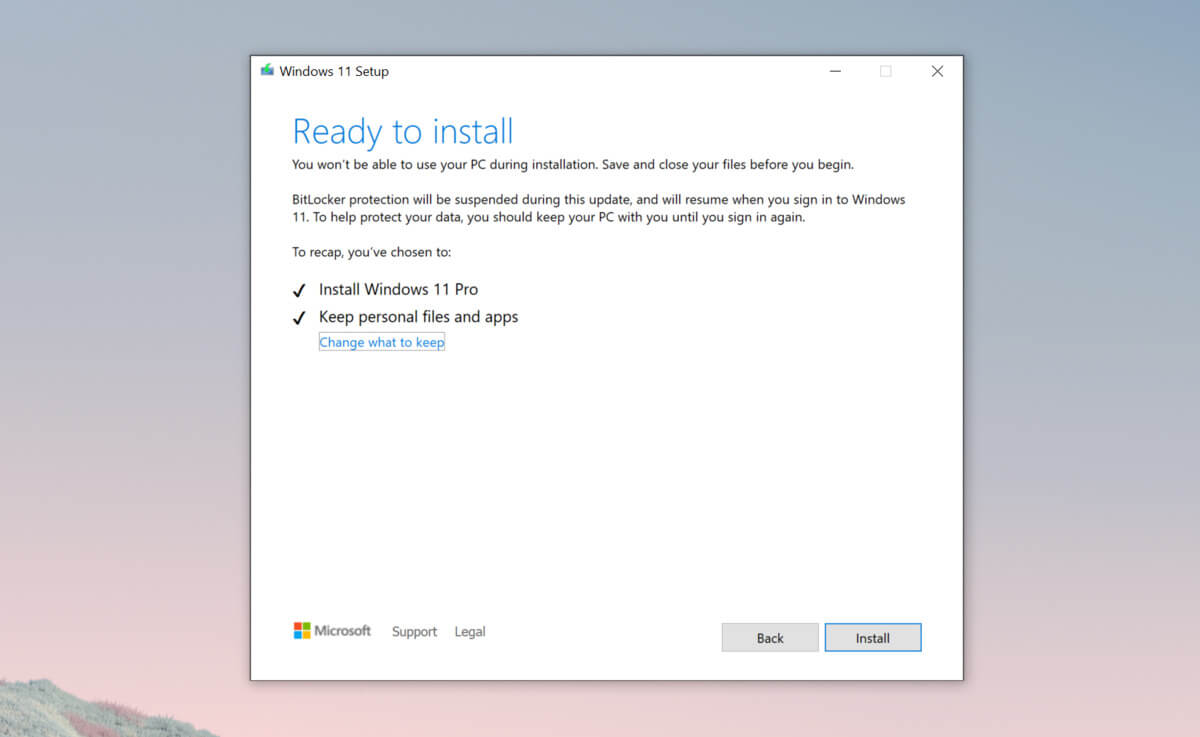
  2. Start the installation process
  3. Click the Next button.
  4. Select region, language, and time when asked. You can change these settings later.
  5. Click the Install now button.
  6. If your device was already activated, click the I don’t have a product key option to continue.
  7. Click the Next button. Select the edition of Windows. When you’re installing the OS on an existing device, Windows won’t activate if you select the incorrect edition.
  8. Click the Next button.
  9. Select the I accept the license terms option and click next.
  10. Select Custom: Install Windows only (Advanced)
  11. During the Windows installation screen, now you will see a message stating that the PC can’t run Windows 11 if you do not have TPM 2.0
  12. On this screen, press SHIFT + F10 to open Command Prompt window.
  13. Launch the registry editor, type regedit.exe in Command Prompt, and press ENTER
  14. Create a new key “LabConfig” by right-clicking on the Setup key and select New > Key under HKEY_LOCAL_MACHINE\SYSTEM\Setup.
  15. Type LabConfig and press ENTER.
  16. Right-click on the LabConfig key.
  17. Select New > DWORD (32-bit) value.
  18. Create two values: BypassTPMCheck and BypassSecureBootCheck.
  19. Set their DWORD32 value to 1.
  20. Press ENTER.
  21. Close the Registry Editor.
  22. Type exit in the Command Prompt and press ENTER or close its window.
  23. Press the back button in the Windows installation setup if it still says “This PC can’t run Windows 11”.
  24. Accept the terms & conditions.
  25. Select Custom: Install Windows only (Advanced) option and configure the partition with the current installation.
  26. Click the Next button.
  27. Finish Windows 11 installation
Read More
1 2 3 171
Logo
Copyright © 2023, ErrorTools. All Rights Reserved
Trademark: Microsoft Windows logos are registered trademarks of Microsoft. Disclaimer: ErrorTools.com is not affiliated with Microsoft, nor claims direct affiliation.
The information on this page is provided for information purposes only.
DMCA.com Protection Status