Logo

Fix Tile Database is corrupt Error in Windows

As you know, the Start Menu in Windows 10 is quite a stable experience. However, there are times when it can encounter some issues as well like getting corrupted. If your computer is going through the same problem, you’ve come to the right place as this post will guide you on how you can fix the “Tile Data is corrupt” error.

This kind of problem is actually quite common among a lot of Windows 10 users. This kind of problem prevents the Start Menu from working properly and no amount of clicking the keyboard keys or mouse will resolve the issue. Fixing it is important since the Start Menu is required for the operating system to function properly and even though there are several ways to get around in using the Start Menu, it can get quite problematic. Even if you manage to open the Start Menu, the ability to click on apps to open them is out of the question and you need to fix the problem.

Worry not for the potential fixes provided in this post are not hard to follow. You can try to run the Start Menu troubleshooter or run the DISM tool. You could also reset the folder for Tile Database or re-register the Windows 10 Start Menu. For more details, refer to each one of the options provided below.

Option 1 – Try running the Start Menu troubleshooter

The first and basic thing you can do to fix the problem is to run the Start Menu troubleshooter as it can help you fix the problem automatically. Since this is not a built-in troubleshooter, you can download it from the official website of Microsoft. After you download it, run it and wait until it’s done identifying the problem and automatically fixing it.

Option 2 – Try running the DISM tool

You can run the DISM tool as well to help fix the “Tile Database is corrupt” error. Using this built-in tool, you have various options such as the “/ScanHealth”, “/CheckHealth”, and “/RestoreHealth”.

  • Open the Command Prompt with admin privileges.
  • Then type in the following commands and make sure to hit Enter right after you type each one of them:
    • Dism /Online /Cleanup-Image /CheckHealth
    • Dism /Online /Cleanup-Image /ScanHealth
    • Dism(.)exe /Online /Cleanup-image /Restorehealth
  • Do not close the window if the process takes a while as it will probably take a few minutes to finish.
  • Once it’s done, check if it was able to fix the corrupted Start Menu or not.

Option 3 – Try to reset the Tile Database folder

  • First, you need to restart your computer and log into another user account where the Start Menu works.
  • Next, navigate to this folder location, C:/Users/<userX>/AppData/Local/Tile/DataLayer.
  • From there, copy the “TdlData.xml” file and save it to another drive.
  • Once done, restart your computer and log into the user account where the Start Menu is corrupted.
  • After that, navigate to this folder location, C:/Users/<userY>/AppData/Local/Tile/DataLayer.
  • Now paste the TdlData.xml file you copied earlier and navigate to this location, %LocalAppData%MicrosoftWindowsShell.
  • Afterward, copy the DefaultLayouts.xml file from the user account that’s working fine to the user account where the Start Menu is corrupted.

Option 4 – Try to re-register the Windows 10 Start Menu

  • Tap the Win + X and select the “Windows PowerShell (Admin” option from the menu.
  • After opening PowerShell, execute this command: Get-AppXPackage -AllUsers |Foreach{Add-AppxPackage -DisableDevelopmentMode -Register "$($_.InstallLocation)AppXManifest.xml"}
  • Wait until the command is executed and then see if it fixed the problem with the Start Menu or not.

Do You Need Help with Your Device?

Our Team of Experts May Help
Troubleshoot.Tech Experts are There for You!
Replace damaged files
Restore performance
Free disk space
Remove Malware
Protects WEB browser
Remove Viruses
Stop PC freezing
GET HELP
Troubleshoot.Tech experts work with all versions of Microsoft Windows including Windows 11, with Android, Mac, and more.

Share this article:

You might also like

HTTP Error 500 – Edge Installation or Update
If you are trying to install or update Microsoft Edge on your Windows 10 computer but ended up getting HTTP Error 500 or Error 0x8004xxxx or 0x8007xxxx, then you’ve come to the right place as this post will help you sort this problem out. The aforementioned errors when either installing or updating the Edge browser occur due to a Network issue. There is actually a range of error codes that are associated with the network connection issue. These error codes include Error 500 or 0x80010108, 0x80040801, 0x80042193, 0x80042194, 0x800421F4, 0x800421F6, 0x800421F7, 0x800421F8, 0x80072742, 0x80072EE2, 0x80072EE7, 0x80072EFD, and 0x80072EFE. To fix them, there are several options you can try. You can try to run the Network Adapter troubleshooter or update or reset the Network Adapter as well as check and the proxy configuration.

Option 1- Try updating the Network Adapter Driver

Follow the steps below to update your Network Adapter Driver:
  • Tap the Win + R keys to launch the Run window and then type in the “MSC” command and hit Enter to open the Device Manager window.
  • From there, expand the list of all the network drives and update each one of them.
Note: If updating the network drivers didn’t help in fixing the problem, you can also try to uninstall the very same drivers and restart your Windows 10 PC. After that, the system itself will reinstall the drivers you just uninstalled. Alternatively, you can also download and install the drivers from the manufacturer’s website directly.

Option 2 – Run the Network Adapter troubleshooter

To run the Network Troubleshooter, refer to these steps:
  • Open the Search bar on your computer and type in “troubleshoot” to open the Troubleshoot settings.
  • Next, scroll down and select the “Network Adapter” option from the right pane.
  • Then click on the Run Troubleshooter” button.
  • After that, your computer will check for any possible errors and will pinpoint the root cause of the problem if possible.
  • Restart your computer.

Option 3 – Try to reset the Network Adapter

You can also try to perform a Network Reset to resolve the problem. This will reset the entire network configuration including your IP address. To perform Network Reset, follow these steps:
  • Tap the Win + I keys to open Settings.
  • From there, go to the Network and Internet section.
  • Next, scroll down and look for “Network Reset” under the status pane.
  • After that, click on Network Reset and then on Reset now to start resetting the network configuration. Once done, check if it is able to fix the error or not.

Option 4 – Try to fix the Proxy Settings

  • In the Cortana search box, search for Internet Explorer and then click on the related search result.
  • After that, tap the Win + T keys on your keyboard and click on Internet Options.
  • Next, navigate to the Connections tab and click on LAN Settings.
  • Then click on the Advanced button and delete all the entries in the list generated in the Exceptions section. And if the Advanced button is disabled because the “Use a proxy server for your LAN (These settings will not apply to dial-up or VPN connections)” option is disabled then you are good to go. Now proceed to the next step.
  • Tap the Win + X keys or right-click on the Start button and select Command Prompt (Admin) or you could also search for “cmd” in the Cortana search box and right-click on Command Prompt from the search results and select the “Run as administrator” option.
  • If a User Account Control appears, click on Yes to proceed. After that, type each one of the commands listed below, and don’t forget to hit Enter after you type each one of them.
    • netsh winhttp reset proxy
    • net stop wuauserv
    • net start wuauserv
  • Now restart your computer and check if the problem is fixed or not by installing or updating Microsoft Edge again.
Read More
Fix Sandbox failed to start, 0x80070057
As you already know, the Windows Sandbox is one of the new features in Windows 10. However, just like other new features, it also throws up errors and one of them is the error that states,
“Windows Sandbox failed to start, Error 0x80070057, The parameter is incorrect”.
This particular error in Windows Sandbox occurs due to its dependence on numerous components of Windows 10 that are related to Hyper-V and Virtualization mainly. To fix this error, there are several options you can check out. You can try to install any pending updates on your Windows 10 computer, as well as make sure that all the services related to Windows Sandbox are enabled.

Option 1 – Try to run the Windows Updates to install pending updates

The first thing you can do to resolve the “Windows Sandbox failed to start, Error 0x80070057” is to check Windows Updates in your computer and see if there are any pending Windows Updates you have to install. All you have to do is go to the Windows 10 Settings app and then go to the Windows Updates section and click on the “Check for updates” button to check if there are any pending updates that are needed to be installed. This could fix the Windows Sandbox error.

Option 2 – Ensure that all the supporting processes and services are running properly

If running Windows Sandbox as an administrator didn’t fix the error, you have to ensure that all related processes for Windows Sandbox are running properly. To do that, follow these steps:
  • Tap the Win + R keys to launch the Run utility and type “services.msc” in the field and hit Enter to open the Windows Services Manager.
  • Next, from the list of services, look for the following services in the given order:
    • Network Virtualization Service
    • Virtual Disk
    • Hyper – V Virtual Machine
    • Hyper – V Host Computer Service
    • Container Manager Services
  • After you find the aforementioned services, make sure to check if they are enabled or not and then restart each one of them.
  • Once done, try to open the Windows Sandbox again and see if the error is fixed or not.
Read More
How to Fix Backup Error 0x80070002

What is Backup Error 0x80070002?

Error 0x80070002 shows once you’re done backing up files through the Windows Backup program on a system running Windows 7, you see a notification that pops up with a message that reads something like: “Check your backup results. The backup completed but some files were skipped.” You try finding out the reason and you hover over to the Options button beside the message, then you get to read the following lines: “Check your backup results. The backup completed but some files were skipped. View skipped files.” Upon clicking the “View Skipped Files” option, the backup error 0x80070002 pops up on your screen and you’re left scratching your head, wondering what you’re going to do now.

Solution

Restoro box imageError Causes

There are multiple error logs that you will encounter in backup error 0x80070002 as per different conditions. The two most common cases in which this error shows up are stated below:

Case 1

You will see the following message when you press “View skipped files”: “Backup encountered a problem while backing up file C: Windows/System32/config/systemprofile. Error: (The system cannot find the file specified. (0x80070002))” You will face this case if you have backed up a library that included custom folders that were located in your user profile.

Case 2

Upon pressing “View Skipped files” you will encounter the below-mentioned messages: “Backup encountered a problem while backing up file C:/Users<User>AppDataLocalLow. Error: (The system cannot find the file specified. (0x80070002))” “Backup encountered a problem while backing up file C:/Users<User>Contacts. Error: (The system cannot find the file specified. (0x80070002))” “Backup encountered a problem while backing up file C:/Users<User>Searches. Error:(The system cannot find the file specified. (0x80070002))” You are likely to encounter any of these messages in case:
  • The Windows Backup program is trying to back up your files in either one or all of these folders (LocalLow, Searches, Contacts).
  • All three of these folders don’t exist in your system.
Keep in mind that all three of these folders exist due to the installation of certain programs and applications on your system.

Notes

The backup error 0x80070002 is also found to occur while using USB devices instead of storage devices. Other occurrences include the times when input/output (I/O) operations are performed on the USB device, which results in failure.

Further Information and Manual Repair

To make sure this issue is resolved, you will have to follow either one of the following solutions as appropriate to your situation:

Solution for Case 1

  1. Ignore the error. The store files of the custom library in your user profile will not be created as backups.
  2. Transfer the library folder from where it currently exists to a place outside its current folder (user profile). For instance, you can move the library folder to an entirely new destination such as “C: My Folders”
  3. Remove the library folder from the list of files that you are backing up using the Windows Backup program. Then, add the original place of the library’s content in the list.
  4. Go back and check step two. If carried out successfully then add a link to the folder you moved from the library. Check to see if the backup includes the library folder. To make sure, you have to do as follows:
  • Go to Start and select your username.
  • Hover across to the folder you wish to move, right-click on it and select “Cut”.
  • Head to the navigation pane and search for the area you will store the folder in, right-click and select “Paste” so that the folder is moved to that location.
  • Right-click on the folder that you just moved and select “Copy”.
  • Go back to Start, select your username, right-click any vacant space in your folder and select “Paste Shortcut”.
Note: If you want to store the folder in a different place other than the folder in which it currently exists (user profile), you will need to create a new folder. In order to do so, go to the Windows Explorer menu and look up the root of the drive. Hit “New Folder” and then choose edit to change its name. You can set it as any name for instance, “My Folders”.

Solution for Case 2

You can ignore this error safely. However, if you wish not to see this error in the future during your backup operations then you will need to carry out the following steps:
  1. Create all the folders listed in the error message including LocalLow, Contacts, and Searches.
  2. Remove all of these folders from the Backup settings to make sure they aren’t being backed up then add the folders which are in their original place. To carry out this procedure, you will have to follow the below-mentioned steps:
  • Head over to the Control Panel and open “Backup & Restore”.
  • Go to the Backup section and select “Change Settings”.
  • Click Next in the Setup backup dialog box.
  • Select “Let me choose” in the dialog box termed “What do you want to back up” then proceed by clicking Next.
  • Expand Data Files, expand <user> Libraries, expand Additional Locations then proceed by clearing out the AppData Folder, searches, and Contacts checkboxes.
  • Expand Computer as well as the item for your system drive (expand Local Disk (D:)), expand users, expand <user>, then go to AppData, Searches and Contacts and mark them if they are present.
  • Proceed by clicking next and select “Save Settings” then exit.
  • Back to Backup & Restore, select Back up now and your new backup will begin proceeding. The entire process will be complete without any errors now.
Read More
Fake Windows 11 installers come with malware
Being in the Microsoft Windows insider program will let you get a hands-on new Windows 11, but some people just want Windows 11 without being in the insider program. Well, people beware! It was detected that some groups have been releasing fake Windows 11 installers with malware into them. There’s one malicious file called 86307_windows 11 builds 21996.1 x64 + activator.exe. Based on the filename, one might guess that it includes Windows 11 build 21996.1, and on top of that, there’s something in it that will automatically activate Windows for you. It comes in at 1.75GB, so for some people, that might seem reasonable. It starts out looking like a normal installer, and then there’s a second installer that calls itself a download manager. If you accept the nonsense agreement that’s included, you get a bunch of malware. This is just one example of malicious installers running amok internet, but there are more of them with different software placed inside. Malware can be anything from adware to a Trojan virus. The adware usually isn’t super dangerous. It’s just malware that’s meant to inject your PC with advertisements. Viruses can be more of an issue, and they can be harder to get rid of if your machine is infected. Windows Defender does a good job of getting rid of this stuff. The only problem is that if you’re downloading Windows 11 from shady sources, you’re probably already set to click through the dozen or so warnings that pop up telling you not to install it. The solution will be to get Windows from a trusted source of roll inside the insider program and get it from Microsoft directly.
Read More
Reversing Mouse & Touchpad scrolling direction
As you know, aside from making computing a lot easier, mouse and touchpad, it also makes computing more efficient and less time-consuming. And so life is unimaginable without these useful devices. However, it is a known fact that you can’t customize these devices since all touchpads and mice come with their own default scrolling direction but worry not for in this post you will be guided on how you can reverse their default scrolling directions. Every user has their own different preferences when it comes to scrolling directions. You might want the scrolling directions to look like the page is being scrolled in the same direction in where you move your fingers over the touchpad or you might prefer it in an inverted way. Reversing the scroll direction for your device’s touchpad is really easy as Windows by default offers this customization. So if you are trying to find a way to reverse the scrolling direction of your mouse, then you have to follow a tricky little method which will be provided in this post. It is apparent from the number of settings the touchpad is available that it has become more customizable. You can configure everything, from its gestures, taps, sensitivity, and even its scrolling direction. And now, if you want to reverse its scrolling direction, here’s what you have to do: Step 1: Tap the Win + I keys to open Settings. Step 2: From there, go to Devices and select Touchpad from the menu. Step 3: Next, look for the Scrolling Direction setting. Step 4: Then click on the drop-down and select your preferred setting.  If you want the same direction scrolling, just select the “Downwards motion scrolls down” option, and if you want the opposite select the other one. After you carry out these steps, the settings will be applied right away and you will see the changes. On the other hand, if you want to change the scrolling direction for your mouse, the procedure is not as simple as it was for the touchpad.

To reverse the scrolling direction for a mouse, refer to these steps:

Step 1: In the Start Search, type “device manager” and click on the appropriate result to open the Device Manager. Step 2: After opening the Device Manager, look for your Mouse under the “Mice and other pointing devices” section. It is mostly listed as an “HID-compliant mouse”. Step 3: Right-click on your mouse and click Properties. Step 4: From there, go to the Details tab and from the drop-down menu, select Device Instance Path. Step 5: Now take note of the value displayed on its value field and then tap the Win + R keys to open the Run dialog box. Step 6: Type in “Regedit” in the field and hit Enter to open the Registry Editor. Step 7: Next, navigate to the following location:
HKEY_LOCAL_MACHINESYSTEMCurrentControlSetEnumHID
Step 8: From this folder, you have to start matching the values in the first part of the value you’ve taken note of. Step 9: Open the folder which has the same value and repeat this for the second part of the value. Step 10: Afterwards, click on the Device Parameters and look for a property named “FlipFlopWheel” and invert its value from 0 to 1 or 1 to 0 to reverse the scrolling direction. And then restart your PC to apply the changes made. After you restart your PC, you should see the changes in the scrolling direction of your mouse. Note that you can change the value back to its original value or just use the registry backup to undo the changes you’ve made.
Read More
Fix a Steam Disk Write error

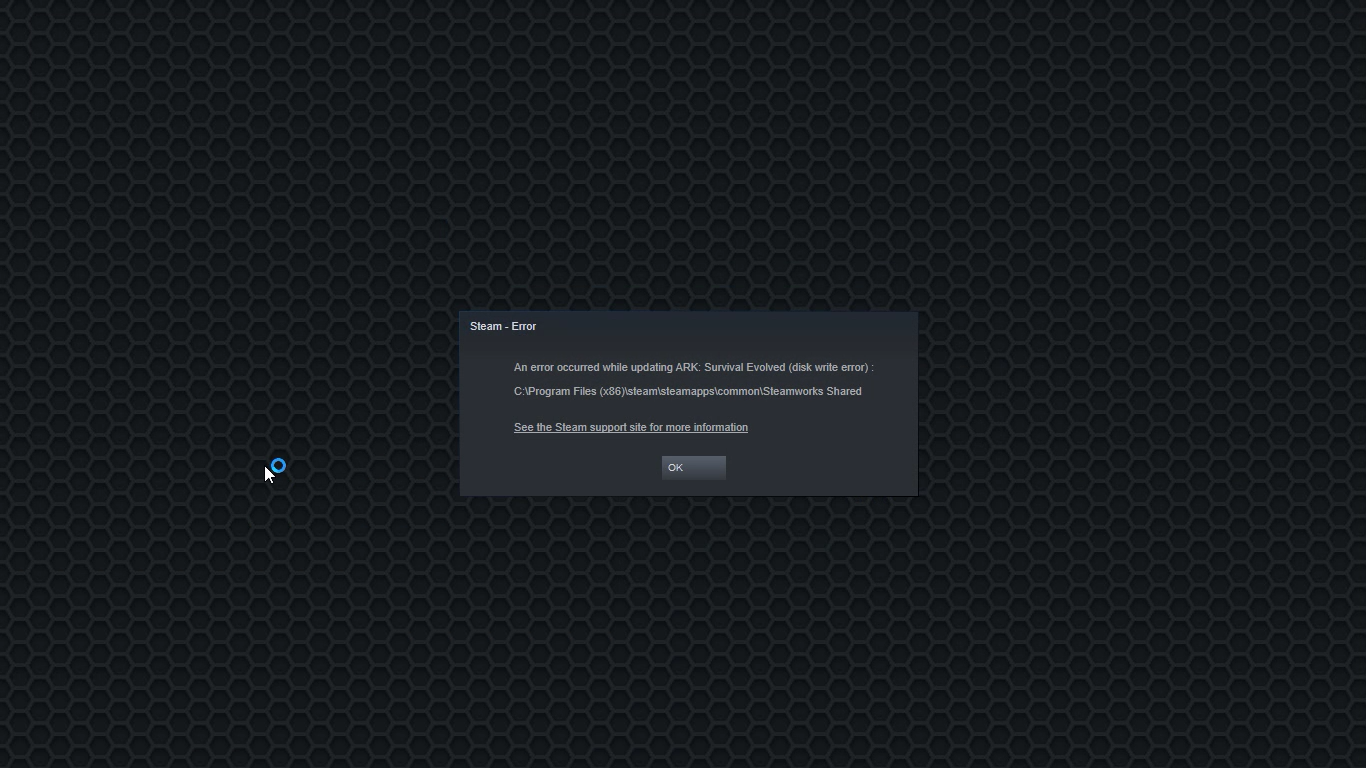
Disk Write Error in Steam is thrown at you while you try to download or update the game in your library. If you are an unfortunate user of Steam that has encountered this error do not sweat, the error is usually tied to permission in windows or file corruption and not to hardware issues and can be easily resolved.

In this guide, we will go through solutions for this specific error and it is advisable to go through solutions as they are presented since they go from the easiest and most common issues.

steam disk write error

Restart PC and Steam

The easiest and quickest way of resolving this issue is just a simple restart of the Steam client. Just completely quit Steam and they run it again, if this has not solved the issue try rebooting your PC. In most cases, this can solve the issue since this error is known to be introduced with some communication issues with OS (Windows)

Set Write permissions

Disk write permissions could also cause this error because if by any chance the Steam library folder has been set or changed to the read-only client would be unable to write anything in it. To easily solve this issue completely exit the Steam client and rerun it as administrator. Just right-click on it and select Run as Administrator. If this has solved your issue run Steam always as an administrator.

To run always as an administrator right click on the steam executable, go to properties, and inside properties go to the compatibility tab. In the compatibility tab check run as administrator and click on OK.

Clear download cache

If for any reason cache has become corrupted there is a big chance that this might be an issue why there is a disk drive error in Steam. To clear download, cache goes into your client, and on top drow down menu click on steam. Find and open settings and inside go to the downloads tab. Locate a clear download cache and immediately you will be prompted to restart Steam. After restart, you will be asked to login into steam and the issue with disk write should be gone.

Repair library folder

Library folder issues can also be the source of disk write annoyance so let's repair them. Click steam in the top left and go to the settings. Locate and click on Downloads and then go to Steam library folders. You will be here shown all disk drivers you are using for steam games and all of the games that are downloaded.

Select the game you are getting errors with and click on three dots on the far right. From the menu choose the repair folder option. Take note that the more games you have installed, the more time the repair process will need.

Change download server

Sometimes the issue is not at your end at all, servers can experience problems and outrages and this can directly reflect at your end with a disk write error. If any of the previous solutions have not resolved the issue this is the next logical step to try. If the server is facing issues then changing the download server will resolve the issue at your end.

Click on settings in the top drop-down menu and then click on the Steam library folder. Find the downloads page and then click on download region, Choose another server than one nearest to your location since that's what will Steam choose by default.

Read More
Backup and Restore pinned Taskbar Items
Pinned Windows 10 Taskbar Items. One of the most used interfaces in the Windows environment is the Taskbar. It is where users like to pin their most-used programs as well as shortcuts with extra privileges and automated tasks. In fact, it’s a lot better than the Start Menu. So if any Windows Update messes up with your computer, or if you’ve just switched to a different computer, setting up the Taskbar with the very same set of programs you used to have is definitely not an easy task. But worry not as this post will guide you on how you can backup and restore the items on your Taskbar either manually or automatically.

Manual Backup:

  • Tap the Win + R keys to open the Run prompt.
  • Then type “%AppData%MicrosoftInternet ExplorerQuick LaunchUser PinnedTaskBar” in the field and hit Enter to open the folder where you can see all the shortcuts or pinned items in the Taskbar.
  • After that, copy all the files in the folder and paste them somewhere else as a backup. For instance, E:\Pinned Items Backuppinnedshortcuts.
  • Next, tap the Win + R keys to open the Run prompt once more, and then type “Regedit” in the field and hit Enter to open the Registry Editor. When the User Account Control dialog box appears, click Yes.
  • After opening the Registry Editor, navigate to this key – HKEY_CURRENT_USERSoftwareMicrosoftWindowsCurrentVersionExplorerTaskband
  • Then right-click on the Taskbar folder and select Export.
  • Now save the file with the .reg extension to another location like the E:\Pinned Items Backup folder and then name it.
  • Close the Registry Editor.

Manual Restore:

Make sure to copy all the files to one of the drives if you are using another computer and then refer to the following steps.
  • Tap the Win + R keys to open the Run prompt.
  • Then type “%AppData%MicrosoftInternet ExplorerQuick LaunchUser PinnedTaskBar” in the field and hit Enter to open the same folder where you just copied all the shortcuts. Make sure to keep it open.
  • Then open the backup folder where you saved all the pinned items and copy all the files there.
  • Next, go to the Taskbar folder (%AppData%MicrosoftInternet ExplorerQuick LaunchUser PinnedTaskBar) and then paste your files in there. If you encounter a problem while doing so, just replace it with your own set of files.
  • After that, go to E:\Pinned Items Backuppinnedshortcuts and then double click on tb-pinned-items.reg. If a User Account Control prompt appears, click Yes. This will add the registry file into the main registry hub. You will also get a dialog box that will confirm that data has been added to the registry successfully. Click OK.
  • You should now see the items on the Taskbar. You have to restart Windows Explorer. To do so, end its process in the Task Manager.

Automatic Backup:

Backing up and restoring the pinned Taskbar items in your Windows 10 computer can be done automatically as well. But before you get started on the process, you need to understand what’s going on behind the hood first. First, you need to create two bat files and name them “Backup Pinned Taskbar Items” and “Restore Pinned Taskbar Items”. After you have that covered, refer to the following steps:
  • Open the Notepad app and paste the following details and save it as “Backup Pinned Taskbar Items.bat.
REG EXPORT HKEY_CURRENT_USERSoftwareMicrosoftWindowsCurrentVersionExplorerTaskband “E:\Pinned Items Backuptb-pinned-items.reg” xcopy “%AppData%MicrosoftInternet ExplorerQuick LaunchUser PinnedTaskBar” “E:\Pinned Items Backuppinnedshortcuts” /E /C /H /R /K /Y
  • After that, run the newly created bat file with admin privileges.

Automatic Restore:

  • Open the Notepad app and paste the following details and save it as “Restore Pinned Taskbar Items.bat”.
REGEDIT /S “E:Pinned Items Backuptb-pinned-items.reg” xcopy “E:Pinned Items Backuppinnedshortcuts” “%AppData%MicrosoftInternet ExplorerQuick LaunchUser PinnedTaskBar” /E /C /H /R /K /Y
  • After that, run the bat file with admin privileges.
Note: Just so you know, there is a drawback to this process as we’ve noticed that any pinned apps that were downloaded from the Windows Store don’t appear in these places and any items downloaded and installed separately from the internet and then pinned.
Read More
Fix One Drive Error: This is not a valid file name
As you know, Microsoft’s consumer cloud storage platform is none other than OneDrive. It is where users can save any of their files albeit it’s mostly used to store common files like documents and photos. However, there are times when you might encounter some problems when saving these files. Recently, some users reported that they had problems saving Word documents to OneDrive and if you experience the same issue, then you’ve come to the right place as this post will guide you on how to resolve it. According to users who encountered the problem, when they try to save Word documents on OneDrive, an error message appears instead stating, “This is not a valid file name”. This kind of error only occurs when the file is opened from within OneDrive for saving in a different folder. In other words, if the file is saved in the same folder, the error won’t pop up but if it is saved in a separate folder, that’s when the error appears. Worry not though for fixing this error is not complicated and won’t take too long. It seems that this error is due to the 259-character limitation when creating and saving files as far as the Office products are concerned. To resolve it, there are several workarounds you can check out. Before you proceed with these workarounds, make sure that you have a stable internet connection.

Option 1 – Try renaming the file with a shorter name

The first thing you can do to fix the problem is to rename the file with a shorter name. Just right-click on the file and select the Rename option from the menu and then type in the new name and click OK or tap Enter to rename the file.

Option 2 – Try renaming the folders where the file is located

Like what you did in the first given option, all it takes is a right-click but this time on a folder. Rename the folder with a different name and save the changes made and then check if you can now save the Word document on OneDrive.

Option 3 – Try moving the file to a folder with a shorter path

If the first two options didn’t work, you can try moving the file to a folder with a shorter path. Note that it is not the same as doing it locally on a Windows 10 computer so you have to right-click on the file and select the “Move to” option. After that, locate the folder where you want to move the file and select it and then click on the Move button to complete the task.

Option 4 – Try making some changes in the document

You could also try to make some modifications to the document. Once you’ve done that, click the File tab and select the Save As option and then go to the folder where you want to save the file and tap enter.
Read More
Marine Aquarium Lite Removal Guide and Instructions
Marine Aquarium Lite is a Browser Extension for Google Chrome. This extension changed your default search ending and home page to MyWebSearch.com. It is published by Mindspark Interactive and is considered a browser hijacking extension. While installed, users will see additional ads and sponsored links in their search results. This extension also collects user website data, which allows it to better target ads. Several anti-virus scanners have marked Marine Aquarium Lite as a Browser Hijacker and are marked for removal. From the Author: MyWebSearch is an incredibly popular toolbar (over 20 million active users each month!), that gives you access to the web’s leading search engine Google; includes some of the most popular products on the web for making communication easier, more expressive, and more entertaining. The MyWebSearch toolbar platform allows you to take advantage of more than a dozen interactive features and websites.

About Browser Hijackers

Browser hijacking is a very common type of online fraud where your web browser configuration settings are altered to make it carry out things you never intend. They’re created to interfere with web browser functions for a variety of reasons. Typically, hijackers will force hits to websites of their choice either to increase traffic generating higher ad earnings, or to obtain a commission for each and every user visiting there. Even though it may seem naive, all browser hijackers are damaging and thus always classified as security risks. Once the malware attacks your PC, it begins to mess things up a whole that slows your system down to a crawl. In the worse case, you will be pushed to deal with serious malware threats too.

Major signs that your browser has been hijacked

There are many signs of browser hijacking: home-page is changed; you observe new unwanted bookmarks or favorites added, typically directed to ad-filled or porn websites; The default search page of web browser is altered; you find multiple toolbars in your browser; you’ll notice random pop-ups start showing on a regular basis; your web browser starts running slowly or displays frequent glitches; you have prohibited entry to specific web pages, for example, the site of an anti-malware software developer like SafeBytes.

How they get into your computer or laptop

Browser hijackers infect PCs by numerous means, including through a file-share, a drive-by download, or an infected e-mail. They also come from add-on software, also referred to as browser helper objects (BHO), web browser plug-ins, or toolbars. Also, some shareware and freeware can put the hijacker inside your PC through “bundling”. An example of some notorious browser hijacker includes Conduit, Anyprotect, Babylon, DefaultTab, SweetPage, RocketTab, and Delta Search, but the names are constantly changing. Browser hijacking could lead to serious privacy issues and also identity theft, affect your web browsing experience by taking control over outbound traffic, drastically slows down your PC by deleting lots of resources, and result in system instability as well.

How you can fix a browser hijack

Some hijackers can be simply removed by uninstalling the free software they were included with or by eliminating any extension you have recently added to your computer system. But, the majority of hijacking codes are certainly not easy to get rid of manually, as they go deeper into the operating system. And there is no denying the very fact that manual fixes and removal could be a difficult job for an amateur computer user. Besides, there are several risks connected with fiddling around with the system registry files. You can choose automatic browser hijacker removal by simply installing and running efficient anti-malware software. SafeBytes Anti-Malware discovers all types of hijackers – including Marine Aquarium Lite – and eliminates every trace quickly and efficiently. Utilize a system optimizer (such as Total System Care) together with your anti-malware software to fix various computer registry issues, eliminate computer vulnerabilities, and enhance your computer performance.

Can't Install Safebytes Anti-malware because of Malware? Try This!

Malware may cause several different types of damage to computer systems, networks, and data. Some malware sits in between your PC and the net connection and blocks a few or all websites that you want to visit. It will also prevent you from installing anything on your PC, particularly antivirus applications. If you are reading this right now, you have probably realized that virus infection is the reason behind your blocked net traffic. So what to do when you want to install an anti-malware program such as Safebytes? Even though this sort of issue will be tougher to circumvent, there are some actions you can take.

Boot your system in Safe Mode

In Safe Mode, you could adjust Windows settings, uninstall or install some programs, and eradicate hard-to-delete viruses and malware. In the event the malware is blocking access to the internet and affecting your PC, running it in Safe Mode allows you to download anti-virus and run a diagnostic scan whilst limiting potential damage. To enter into Safe Mode or Safe Mode with Networking, press the F8 key while the system is booting up or run MSConfig and find the “Safe Boot” options in the “Boot” tab. As soon as you restart the PC into Safe Mode with Networking, you may download, install, as well as update the anti-malware program from there. At this point, you could run the anti-virus scan to get rid of viruses and malware without interference from another application.

Switch over to some other internet browser

Some malware mainly targets certain web browsers. If this is your situation, use another browser as it may circumvent the computer virus. When you suspect that your Internet Explorer happens to be hijacked by a virus or otherwise compromised by cybercriminals, the best thing to do would be to switch to a different web browser such as Google Chrome, Mozilla Firefox, or Apple Safari to download your chosen security software – Safebytes Anti-Malware.

Make a bootable USB anti-virus drive

To successfully get rid of the malware, you will need to approach the issue of running an antivirus software program on the infected computer system from a different angle. Do these simple measures to clean up your affected computer by using a portable antivirus. 1) Use another virus-free computer system to download Safebytes Anti-Malware. 2) Plug the pen drive into the clean PC. 3) Double-click on the downloaded file to run the installation wizard. 4) Select the drive letter of the pen drive as the place when the wizard asks you where you want to install the anti-virus. Follow the instructions on the computer screen to finish up the installation process. 5) Now, plug the thumb drive into the infected computer. 6) Run the Safebytes Anti-malware directly from the pen drive by double-clicking the icon. 7) Click on the “Scan” button to run a full computer scan and remove viruses automatically. SafeBytes Security Suite Benefits"]If you are looking to install an anti-malware program for your computer, there are various tools out there to consider but you just cannot trust blindly anyone, no matter whether it is a free or paid program. Some are good ones, some are decent, and some are simply just fake anti-malware programs that will harm your personal computer themselves! You must be careful not to choose the wrong product, particularly if you purchase premium software. One of the highly recommended software by industry analysts is SafeBytes Anti-Malware, a well-known security application for Microsoft Windows. SafeBytes anti-malware is a powerful, highly effective protection software intended to assist users of all levels of IT literacy in detecting and removing harmful threats from their PC. Through its cutting-edge technology, this software protects your personal computer against infections brought on by different kinds of malware and similar internet threats, including adware, spyware, trojans horses, worms, computer viruses, keyloggers, potentially unwanted program (PUPs), and ransomware.

SafeBytes anti-malware provides an array of advanced features that sets it aside from all others. Here are a few popular features present in this computer software:

Robust Anti-malware Protection: This deep-cleaning antimalware software program goes much deeper than most antivirus tools to clean your personal computer. Its critically acclaimed virus engine locates and disables hard to remove malware that conceals deep within your PC. Real-time Active Protection: SafeBytes offers an entirely hands-free active protection and is set to check, block, and get rid of all threats at its first encounter. This tool will constantly monitor your computer for any suspicious activity and updates itself regularly to keep abreast of the latest threats. Web protection: SafeBytes gives an instant safety rating on the web pages you’re going to visit, automatically blocking risky sites and making sure that you are certain of your safety while browsing the web. Lightweight Application: The program is lightweight and will work silently in the background, and will not have an effect on your computer efficiency. Fantastic Tech Support: For any technical questions or product guidance, you can get 24/7 professional assistance through chat and e-mail. SafeBytes has developed a fantastic anti-malware solution to help you conquer the latest malware threats and virus attacks. You can rest assured that your computer will be protected in real-time as soon as you put this software program to use. If you want sophisticated forms of protection features and threat detections, purchasing SafeBytes Anti-Malware could be worth the money!

Technical Details and Manual Removal (Advanced Users)

If you’d like to manually remove Marine Aquarium Lite without the use of an automated tool, it might be possible to do so by removing the application from the Microsoft Windows Add/Remove Programs menu, or in cases of browser plug-ins, going to the browsers AddOn/Extension manager and removing it. You’ll likely also want to reset your browser to its default configuration settings. To be certain of complete removal, find the following Windows registry entries on your system and delete them or reset the values accordingly. Please be aware that this is for skilled users only and could be challenging, with wrong file removal resulting in additional PC errors. In addition, some malicious programs have the capability to defend against its deletion. Doing this in Safe Mode is suggested.
Files: C:\%Documents%\%User%\Local\Temp\nst2.tmp\nsDialogs.dll C:\%Documents%\%User%\Local\Temp\nst2.tmp\System.dll

Read More
A Quick Guide to Resolving Error 0x80070571

Error 0x80070571 - What is it?

If you are a Windows 7 user and you also have a Maxtor One Touch 4 external hard drive installed on your PC, then you may come across the error code 0x80070571. The error code is displayed in the following format:
"The disk structure is corrupt and unreadable. Error 0×80070571"

Solution

Restoro box imageError Causes

Here are some of the common causes of the error 0×80070571:
  • Changed Windows files or settings
  • Maxtor 750G driver damaged or corrupt
  • Damaged or corrupt registry keys
  • System files are missing or broken
In short, the error code 0×80070571 indicates an unhealthy system and is a surefire sign of poor PC maintenance. It is advisable to repair and resolve the error immediately especially if the underlying cause of the error is related to the registry. Such errors can expose your PC to serious threats like system failure, crashes, and valuable data loss. And retrieving data is often the hardest.

Further Information and Manual Repair

To resolve the error 0×80070571 on your system, you don’t need to be a computer programmer or hire a technician either. We have listed down the best and simplest ways to fix this error on your system. These solutions are so easy to follow and execute that it requires no technical expertise whatsoever. So, let’s get started:

Solution 1: Update The Maxtor 750G Driver

The best way to fix the error 0×80070571 on your system is to update the Maxtor 750G driver. This can be easily done by either contacting the manufacturer or downloading the updated version from Maxtor’s official website.

Solution 2: Update Windows

For the smooth running of the PC, it is crucial to keep Windows updated. Therefore, update Windows on your PC. To do this, go to the Windows Update option in the control panel. This will show your updated status. Turn it on and click on update.

Solution 3: Clean the Registry

The registry basically stores all the activities and information on your PC. This includes both important and unimportant data including the junk files, cookies, internet history, bad registry keys and invalid entries. Such files if not removed, take up a lot of disk space. It corrupts the registry and damages the system files as well. Furthermore, it also leads to disk fragmentation because of which new files are stored in fragments in different locations and this is exactly why it takes a long time to call system files. The registry damage and corruption then generates various errors on your PC and one of them is error 0×80070571. The best way to clean and restore the registry is to download Restoro. This is a highly functional and next-generation registry cleaner. It is embedded with a smart algorithm that detects and scans all registry issues and errors on your system in seconds. It removes all the unnecessary and obsolete files accumulated and cluttering your PC. Furthermore, it fixes the damaged system files and restores the registry right away. It has a sophisticated and an easy to use interface that enables users to work around it without any hassle or technical expertise. It is compatible with all Windows versions. In addition to this, this tool is also deployed with several other value-added utilities such as an antivirus, a system optimizer and Active X controls, and a class ID scanner. It is safe and efficient. Click here to download Restoro on your PC and repair error 0×80070571 today!
Read More
1 2 3 171
Logo
Copyright © 2023, ErrorTools. All Rights Reserved
Trademark: Microsoft Windows logos are registered trademarks of Microsoft. Disclaimer: ErrorTools.com is not affiliated with Microsoft, nor claims direct affiliation.
The information on this page is provided for information purposes only.
DMCA.com Protection Status