
Logo

Fix This device is currently in use, USB Error

USB storage devices, peripherals, and other devices are almost used on a daily basis. And as you know, when removing the USB storage devices, it is recommended to always use the “Safely remove the USB storage device” option in order to prevent data corruption in the USB storage device. However, there are times when you may see the following error message after you use the “Safely remove the USB storage device” option:

“Problem ejecting USB Mass Storage – This device is currently in use, close any programs or windows that might be using this device, and then try again.”

This kind of error message occurs when the device is still interacting with the operating system in the background. There are several ways you can fix this error but before you check them out below, you need to close all the open windows and programs that may be using the USB storage device and then wait for a couple of seconds and then try safely removing it again. However, if you are still getting the same error message, then here are some tips you should try:

Option 1 – Try to use the Task Manager

  • Tap the Ctrl + Shift + Esc keys on your keyboard to open the Task Manager.
  • After that, look for the running processes and programs hogging on your USB Storage device. The error could be due to a program or process that’s using the USB device. This program or process will hog onto some Disk or CPU while transferring data and interacting with the device.
  • Once you find the culprits, right-click on each one of them and select End Process or End Task. You could also try to restart the process for “Explorer.exe” and see if it fixes the problem.

Option 2 – Try using DISKPART

The next thing you can try to resolve the issue is to use DISKPART. Refer to the given steps below to do so.


  • Tap the Win + R keys to launch Run and then type “cmd” in the field and tap Enter or click OK to open an elevated Command Prompt.
  • Next, type and enter this command to execute it: diskpart
  • The command you entered will initiate the DISKPART utility. After that, type and enter this second command: list disk
  • Next, type and enter this third command: list volume
  • The commands you just executed will help you in either listing all the Disk connects or all the partitions on those disks formed and from there, you need to select one command depending on the “list” command you entered. You can execute either of the two following commands:
    • select disk #
    • select volume #
  • After that, it will select the Disk or Partition you want to select.
  • Now type either one of the following commands:
    • offline disk #offline volume #
  • The command you entered will mark the selected disk is Offline. Afterward, try to safely remove your USB Storage device. Just remember that when you plug it back in again, you have to carry out the same method except for the last given command as this time you will have to enter either of these commands in order to get your USB storage device back online:
    • online disk #
    • online volume #

Option 3– Try using the Disk Management utility

  • Tap the Win + R keys to open Run.
  • Then type “diskmgmt.msc” in the field and hit Enter to open the Disk Management utility.
  • Next, look for the entry for your USB Storage device and once you’ve found it, right-click on it and select Offline.
  • After that, try to safely remove your USB Storage device again and see if the error is fixed. Note that you need to go over the same steps again if you want to plug your USB Storage device back in but make sure to select the Online option instead of Offline to get your device back online.

Do You Need Help with Your Device?

Our Team of Experts May Help
Troubleshoot.Tech Experts are There for You!
Replace damaged files
Restore performance
Free disk space
Remove Malware
Protects WEB browser
Remove Viruses
Stop PC freezing
GET HELP
Troubleshoot.Tech experts work with all versions of Microsoft Windows including Windows 11, with Android, Mac, and more.

Share this article:

You might also like

How to block websites in Windows
There are a lot of reasons to ban or block different websites in your Windows. From wanting to limit yourself from distraction to block certain sites for sake of kids not going into them. Whatever your reason might be, keep reading in order to find out how you can block any website inside Windows for all browsers. The technique I am going to share with you is universal and not tied to Windows versions, they will work in any Windows from XP onward. Also, the technique will block desired websites on any browser, already installed or even ones that will be installed after doing the trick. And we will also be looking at applications that can help you in this task if you do not wish to do it manually.

Block websites using dedicated software

A small free application called Focal Filter which can be found here: https://www.focalfilter.com/ is a software solution for your needs. It is a pretty straightforward and easy-to-understand application and not really much can be said here about it. You simply download and install it, set your websites, and you are done, the app does rest.

Blocking manually via host file

Another method besides mentioned one using the dedicating application is to manually set site addresses inside the Windows host file. The first thing, of course, is to open the host file, run a notepad with administrator privileges, go to file open, and navigate to c:\windows\system32\drivers\etc\hosts. Once the file is opened go all the way down and add: 127.0.0.1 SITENAME For example: 127.0.0.1 www.youtube.com or 127.0.0.1 www.facebook.com This way each time user on a PC tries to access a listed website computer will reroute it to the given address which is your PC's local address and asked website will not be able to load.
Read More
What Is a VPN and What Can It Do For You?

Have you been feeling anxious in the digital space? Feeling like you have a million eyes on you each time you visit a website? It can definitely make you uneasy. Luckily there’s an easy fix, and it’s called a VPN.

In this article we’ll take you through the basics of what a VPN does and some of the biggest benefits you can reap from buying one.

VPN: definition and how it works

VPN stands for Virtual Private Network, so its name already says a lot about what it does. 

A VPN is specialized software that keeps your browsing private and secure. Essentially it hides your identity, preventing possible cyberattacks and data theft. This is especially important in cases of public network use, where you’re highly exposed to potential threats.

To be more specific, this software encrypts your Internet Protocol (IP) address by filtering it through a server hosted by the VPN provider first. That way, it prevents your Internet service provider, third parties and lurking online thieves from tracking the actual you.


Credit: FLY:D on Unsplash

Some providers, such as Surfshark VPN with its IP Rotator feature, even make it a habit to frequently change your IP address to further protect your identity. With most VPN providers, you can also appear to be in a completely different country, adding to your disguise.

There are tons of advantages you can look forward to if you decide to use a VPN. Take a look at some of the crucial ones.

Benefits of using a VPN

When choosing a VPN, you can find both free and paid options. We recommend you go with the paid ones, since they have stronger security, encryption and data protection, as well as more advanced features. Free VPNs come with limitations and risk of malicious attacks on the software itself.

You can choose to buy a singular VPN service or opt for antivirus software that has a VPN built in, for example Bitdefender’s Ultimate Security plan. That depends on what you use your computer for and how much. 

When you pick one, here’s what it can do for you.

1. Access region-specific content

When we said you could change your location, we meant it. Say you’re using a streaming service and a show you desperately want to watch isn’t available in your country. You can use your VPN to make it look like you’re browsing from a country where it’s unlocked.

This option is also convenient for gamers who want to access maps, skins and other in-game items unavailable in their location.
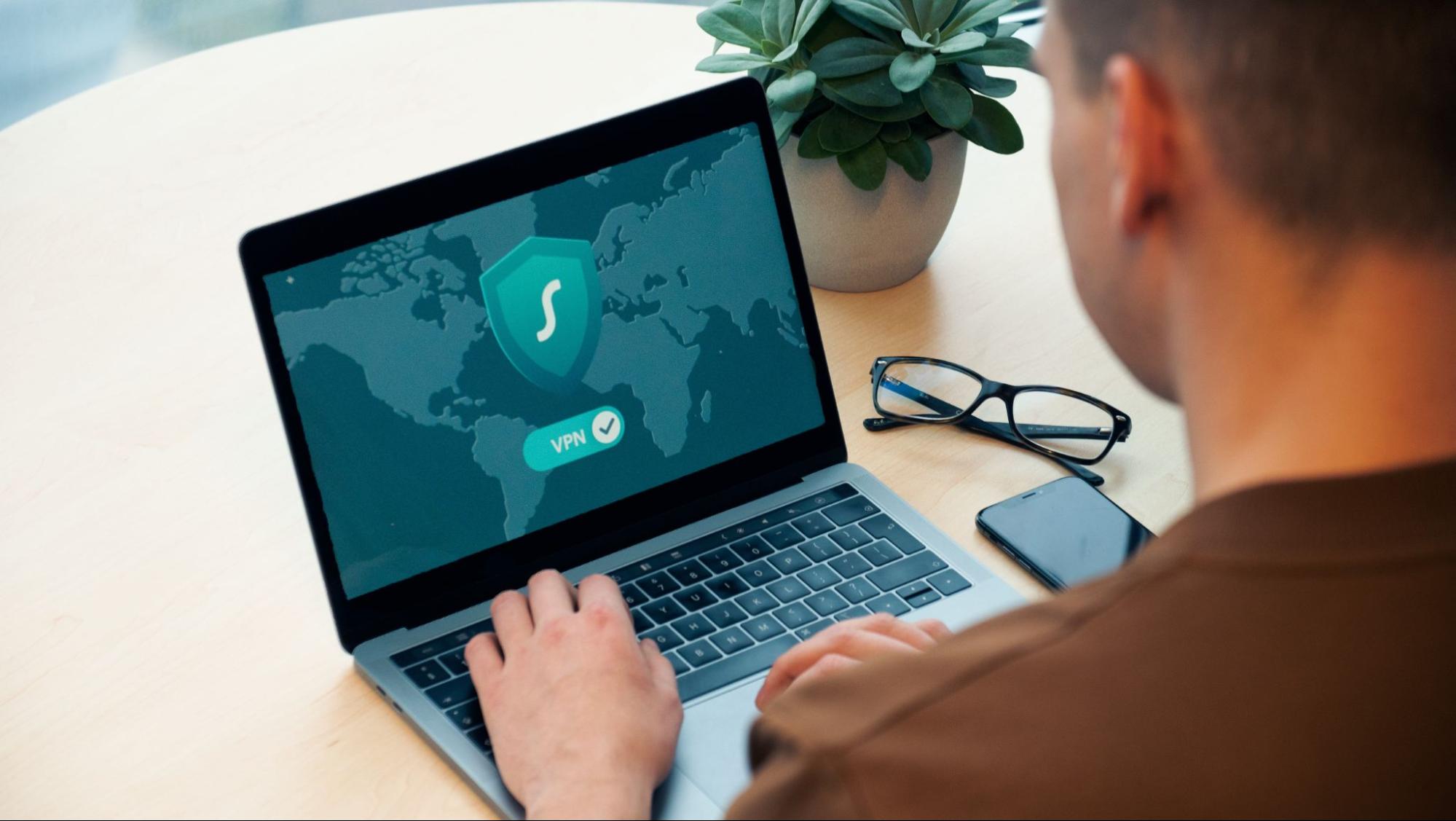
Surfshark VPN
Surfshark VPN (Credit: Dan Nelson on Unsplash)

In addition, you can use this powerful feature when you’re traveling to a region where some of your favorite content may not be accessible.

Do keep in mind that you need to read the Terms and Conditions (yeah, we know - who does that?) of your games and services before doing this, since you could end up getting a penalty. It’s also important to remember that there are entire countries that have strict regulations or even bans on VPNs, for example Belarus, Russia and China. So make sure to be very cautious with your VPN use, friends.

2. Browse like no one’s watching

VPNs shield your browsing habits from prying eyes on the web. Those can be malicious hackers or just third-party cookies tracking your every move to later bombard you with targeted ads. For example, Surfshark VPN features a Cookie blocker that blocks all cookie-related pop-ups and lets you browse in peace (and secret). It works even when the VPN is turned off, which is also pretty neat.

In addition, their CleanWeb 2.0 technology makes sure ads and especially malware don’t stand a chance at all, since they’re blocked before they can even load.

The inability of sites to track your browsing means they can’t collect and analyze any of your data. So, your personal information - or your company’s information in case that’s what you’re using your computer for - is entirely hidden and secure.

3. Save money

It’s well-known that the prices of certain items and services vary based on your location, browsing time, age and many other factors. This most commonly goes for airline tickets and hotel stays.

You can use your VPN to avoid high prices and surcharges. Clear all cookies, turn on your VPN and visit an online shopping site to check out their prices. Then compare your findings with the offers you see when your VPN is off, when you spend a long time on the site or have an active account with the company. 

Sometimes this can really help you find the best deals and avoid breaking the bank. But again, check the Terms and Conditions before you purchase something using a VPN.

4. Secure your smart home

The more smart devices you have connected to your network, the more exposed you are to potential cyberattacks. Phones and computers are generally designed to be decently secure even without a VPN or antivirus, but smart home devices leave a lot to be desired in that regard. 

Protecting your home network with a VPN software means all devices connected to it are secure, be it an air purifier or Alexa.
Credit: Bence Boros on Unsplash

5. Prevent connection slowdown

Your ISP can intentionally slow down your internet speed based on how much data you’ve consumed (data throttling) or your activities online (bandwidth throttling).

But with a VPN, what kind of data you send and receive and how much is entirely hidden. Therefore, if your ISP can’t see you, they can’t control you and they can’t throttle down your speed.   

The bottom line

You can never be too safe online. So definitely think about getting yourself a solid VPN to pump up your privacy and security as much as you can. And if you have any questions or need help choosing the perfect software for you, feel free to reach out to us.
Read More
How to know if you have keylogger in Windows
Hello and welcome everyone, today we will be talking about dreaded keyloggers, why they are dangerous, and how to know if you might have one in your system. Keylogger is a malicious application placed in your system and hidden with only one goal in mind, to get information about what are you typing and by that means for a person who infected you to get information about your credit card information or other sensitive data. They can be introduced into your systems in various ways and often can not be detected easily. Modern antivirus applications have ways of detecting them and removing but this tutorial aims to teach you how to spot them all by yourself since new keyloggers are produced daily and sometimes relying on antivirus alone is not enough. Unlike viruses and trojans, keyloggers are not heavy on system resources and you will not feel slow down on your computer if you have one which makes them harder to sport with regular work. Some of them can be even tracking you on the website and not even be physically present on your computer. Generally, we could categorize keylogger into 4 categories:
  1. Web browser-based keylogger. Some websites would have CSS scripts, input web forms, or so-called man in the middle keylogger. Lucky for us even Windows defenders with the latest update can detect this type of keylogger and successfully deal with it and how keylogger itself is not present on our system we are safe.
  2. General spyware keylogger. This keylogger is present in your system, usually, it infected it via email attachment, social media download, torrent download, some malicious so-called fixer application, etc. Most antivirus applications and windows defenders can detect these types as well and remove them successfully.
  3. Kernel-level keylogger. This keylogger is a more dangerous type they tend to operate underneath Windows as a rootkit and can go undetected by antivirus and windows defenders.
  4. Hypervisor-based keylogger. This is the most dangerous keylogger, they use virtualization techniques to hide and mask themselves as a replica of the operating system and they scan all keystrokes by the user. These are very rare keyloggers but they do exist.
If you suspect that you have a keylogger or just want to check your system for precaution reasons follow these tips and guides and luckily you will solve your issue in no time and your data will be safe.
  1. Use Task Manager to find suspicious entries.

    Task manager is a great application implemented in Windows that is constantly monitoring and showing all services, applications, and processes currently running on your system and thus a great tool to monitor your system if you know how to use it. First, open task manager by pressing CTRL + SHIFT + ESC Then take a good look into it, try to find suspicious names, probably duplicate of running application, something like Windows logon application, or keylog or anything similar which seems out of ordinary. If you manage to find a suspicious running application right-click on it and close it. Also while you are in task manager jump into the startup tab and check to see are there some unusual applications starting with your Windows, if you find anything, disable it right away. This is the most simple and quickest way to get some information right away if you suspect to have some simpler keylogger in your system.
  2. Use the command prompt to monitor your network.

    In order to check connections to your computer and find potential suspicious ones start the command prompt in administrator mode, press ⊞ Win + X, and choose command prompt (administrator). type in netstat -b and press ENTER. All website and application connections to your computer are now visible. ignore svchost, edge browser, windows store, etc ad check the IP of the remaining ones using the internet.
  3. Use keystroke encryption.

    Install encrypting software and even if you have a keylogger, the application will encrypt each stroke and all that attacker will get is gibberish
Please remember to always download files from trusted sources, do not open unknown emails, and do not share your information publicly. Take common protection steps in order to protect yourself in the digital world.
Read More
Setting default applications in Windows 11
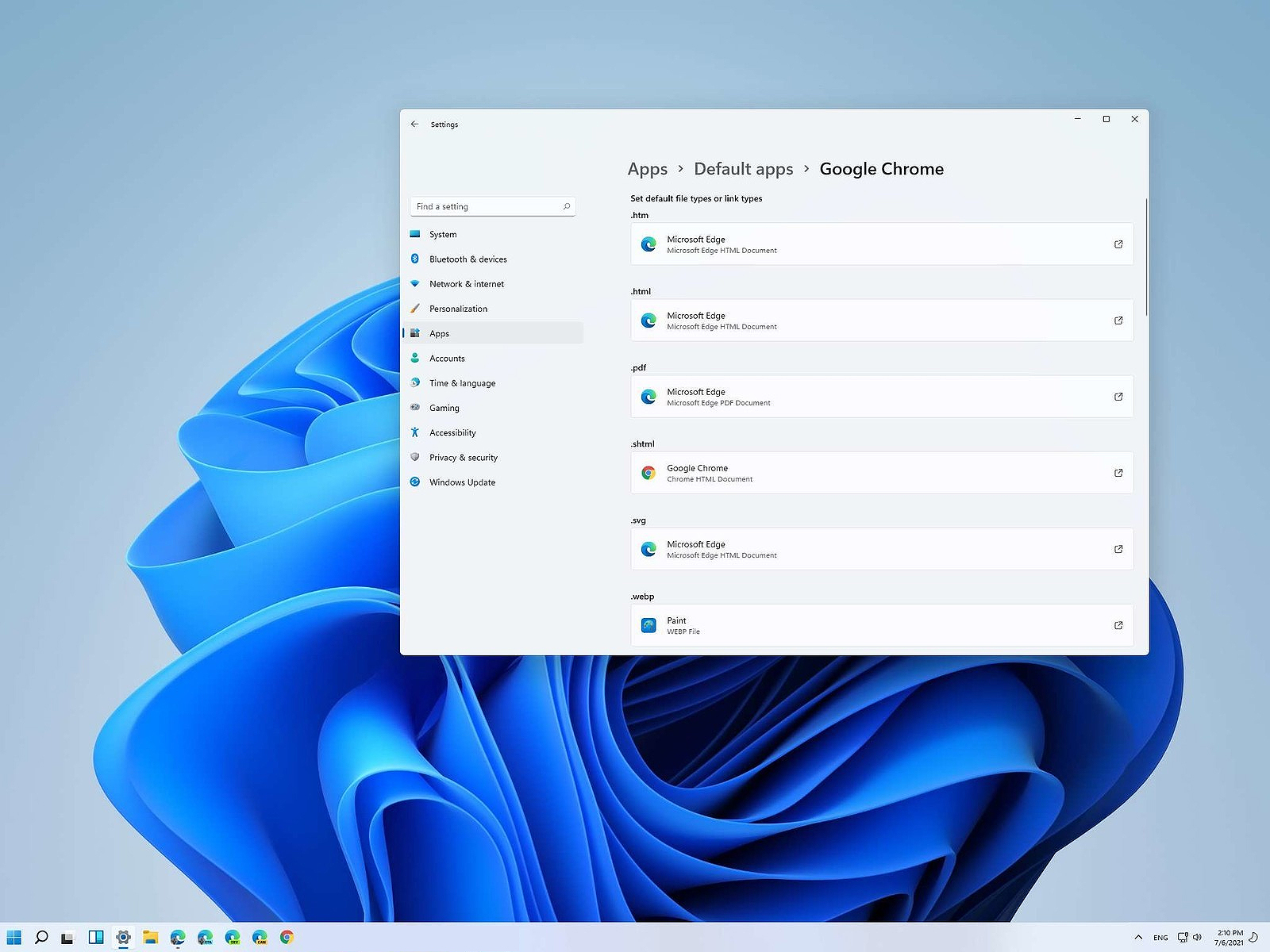
Setting default applications in Windows 11Same as in previous Windows versions, Windows 11 will also use certain applications as default ones for opening certain file types and file extensions. And yes, same as in previous versions it will come preconfigured for certain file types and associated applications like for example photos for pictures. Of course, users usually have their own favorite applications for certain file types and much more prefer to open them inside the application of their choice instead of the default one. We can change the default application like in previous Windows versions but this time there are two ways and overall more control of this process. Windows 11 has settings for choosing default file type applications and default file extension applications giving you more control of this process.

The opening setting for apps

Whatever you wish to change default application or default extension application you will need to open settings for default application. Follow steps to quickly go into it.
  1. Press ⊞ WINDOWS + I to open settings
  2. Select Apps on left
  3. On the right part select Default Apps
Now you are in settings for choosing default applications

Choosing default application by file type extension

This is considering by Microsoft as a typical way to set default applications inside Windows 11. Once you are inside the settings app there is a box labeled Enter a file type or link type. Inside the search box, type in file extension that you wish to associate the application with like .JPG, .TXT, or other. If the file extension is not associated with any application you will be presented with a Choose a Default button, if however, the file extension is already associated with the app, you will need to click on the app box itself. In any case, a pop-up will appear and ask How do you want to open YOUR FILE EXTENSION files from now on? Choose Application from the list of presented ones and click on OK.

Choosing default file type

Another method is to select the default application by file type selecting application for it. In the settings screen, under the search box, you will have a list of installed applications. Choose the application that you would like to associate a file type with and click on it. On the next details screen scroll down and select the file type that you want to associate with the selected application and click on OK.

Other/third method

There is also the third method for choosing the default application for file type but it includes some surfing on your hard drive and it can be more time-consuming for first-time settings. But it is fairly quick when you need to only use it once on some new file type (for example you have a new application installed and want to switch just one file type extension to that application). Locate the file that you want to associate with the application and right-click on it. Select Open With from the menu and then Choose Another App. Pop up will appear, select the application that you would like to use, and check the box beside Always use this app to open CHOOSEN EXTENSION files followed by clicking on the OK button.
Read More
Program Cannot Start Because MSVCR100.Dll Is Missing, What Can I Do?
When you get the error information, "The Software Can Not Begin Because MSVCR100.Dll Is Missing", what this implies is that the Computer will be lacking the  MS Visual C++ 2010 libraries. The malfunction is rather frequent throughout installations. It doesn't matter the number of times you try to reinstall the program. The malfunction can happen whether you've been utilizing your pc for many years, or it's really a recent one.

Solution

Restoro box imageError Causes

a) Missing MSVCR100.DLL: As the problem message indicates, you get this information mainly because MSVCR100.DLL is completely missing. b) Broken MSVCR100.DLL: When the msvcr100.dll is broken, you will also get the same error, suggesting the software won't start. The thing you need to understand is the fact that MSVCR100.DLL is playing an important role in the application referred to as MS Visual C++ 2010 Redistributable Package. Without the MS Visual C++ 2010 Redistributable Package, any software that you simply make an effort to install won't start. You could possibly complete installing it by pursuing proper installation procedures, and then end up getting the "The Software Can Not Begin Because MSVCR100.Dll Is Missing" error.

Further Information and Manual Repair

If you get the "The Software Can Not Begin Because MSVCR100.Dll Is Missing" error information on an effective setup of any software, you shouldn't worry. You can really repair the issue and commence your recently installed software without any more hassle. Start by checking whether you presently use 64-bit or 32-bit Windows. Visit the start button, in case you use Winxp. Type winver. On the window that appears, click Run, subsequently push enter. Head to Start, in case you use both Win7 or Vista. Subsequently, click on the search box and type “Computer”. Right-click windows and subsequently click on Properties. Under Windows Edition, you'll find whether your Windows is 64-bit or 32-bit. Search for the correct variation of MS Visual C++ 2010 Redistributable Package, as soon as you discover whether your Windows is 64-bit or 32-bit. Down load the x86 variant of MS Visual C++ Redistributable Package if your version is 32-bit and you must obtain the x64 variant of MS Visual C++, for those who own a-64-bit version of Windows Operating System. You must never obtain MS Visual C++ 2010 Redistributable Package from third-party websites. This is because Microsoft doesn't charge a cent for the files. The files are openly and easily available on Microsoft. These files come in many different variants. Consequently, select what's suitable for your own Computer with regards to the version of Windows which you operate.
  • Never pick the edition of MS Visual C++ 2010 Redistributable Package that's not compatible or appropriate to your Windows Operating System.

Make use of the release date, when installing MS Visual C++ 2010 Redistributable Package. You might also look out for Service Pack 1 and obtain it for your Windows. Service Pack 1 only ensures that you simply obtain the latest edition. As soon as you end installing the most up-to-date version of MS Visual C++ 2010 Redistributable Package as demonstrated above, reboot your computer and you'll not have to worry about getting the annoying"The Software Can Not Begin Because MSVCR100.Dll Is Missing" error message anymore.
Read More
Fix Boot Device Not Found 3F0 Error
Today we will be solving the Device not found 3F0 error which is a common error, especially among HP (HP Pavilion G6), Lenovo, Acer, and Dell laptops/desktops. This error occurs when the computer is turned ON and when the system is about to boot. It can happen on windows 7,  8, or 10. When a mentioned error occurs one of the following messages will be displayed on your screen:
  • “No bootable device – insert boot disk and press any key”
  • “No Boot Device Found. Press any key to reboot the machine”
  • “Boot Device Not Found. Please install an operating system on your hard disk. Hard Disk (3FO)”
  • “No boot device is available”

The most common reasons for 3F0 error to occur is:

  • Using the unbootable device or disk to boot from.
  • If the bootable hard drive you are using might have corrupted or damaged somehow.
  • MBR or boot sector is damaged on the bootable hard drive.
  • If your system has gone through a virus or malware attack.
  • The wrong boot order in the BIOS.
  • Hard disk connection problem.
  • System files or boot files unknowingly damaged.
  • Corrupt hard drive partitions.
Now all of these being said let us go through some of the solutions and fix this dreaded error in order to get your computer back in working order:

1: Change Boot Order


This is well, the most simple solution and the easiest one, try to change the boot sequence in the BIOS settings of your motherboard. Sometimes most easier solutions can provide great results and solve our problems. If sadly this fails and the issue persists move to the next solution.

2: Perform a Hard Reset


Performing hard reset can often solve issues, to perform a hard reset do the following:
  • Turn off the computer and unplug the power adapter. If there is a removable battery, it should also be removed.
  • Then disconnect all peripherals, including the removable hard drive, etc.
then
  • Press and hold the power button for 15 seconds to drain all remaining power.
  • Insert the battery, and then re-plug the AC adapter into the laptop.
  • Press the power button to turn on the computer.
  • Once the computer starts up properly and the startup menu appears, use the arrow keys to select “Start Windows normally” and then press Enter.
Reconnect everything back of your peripherals. If by any chance problem still persists follow the next step:

3: Test Hard Drive Using HP Diagnostic Tool


Use the built-in tool in the Hp device to solve the issue:
  • Turn on your computer and keep pressing the Esc key until the menu appears on the screen.
  • Next, press the F2 key.
  • Choose the Components Tests option from the HP PC Hardware Diagnostics menu.
  • Select Hard Drive from the Component Tests menu.
  • Click on the Quick Test, then click on the Run once button.
  • If there are still any issues with your hard drive, then run the Extensive Test.

4: Restore BIOS Default Settings


  • Press the Power button to start the computer, and immediately after this, repeatedly press the F10 key to enter the BIOS setup menu.
  • To load and restore BIOS Setup Default settings, press F9 on the BIOS setup menu.
  • Once loaded, press F10 to Save and Exit.
  • Select yes, and then press Enter when it says Exit Saving Changes.

5: Reconnect Your Hard Drive


  • Turn the computer off and remove the power cable.
  • If you have a removable battery, take it out
  • Disconnect your hard drive and then connect it back.
  • Reassemble your computer and turn the computer on to see if it fixed the issue.

6: Fix and Rebuild Damaged MBR


  • Boot from the original installation DVD (or the recovery USB)
  • At the Welcome screen, click Repair your computer.
  • Choose Troubleshoot.
  • Choose Command Prompt.
  • When the Command Prompt loads, type the following commands: bootrec /FixMbr bootrec /FixBoot bootrec /ScanOs bootrec /RebuildBcd.

7: Fix Operating System


  • Prepare a Windows installation disc, CD/DVD or USB flash drive and connect it to your PC.
  • During the installation process, launch Command Prompt.
  • In Windows 7, under the System Recovery Options tab, click Startup Repair.
  • In Windows 8 and Windows 10, click Repair your computer, then select Troubleshoot > Advanced options > Automatic Repair (Windows 8) or Startup Repair (Windows 10).

8: Replace the Hard Disk

Read More
Facebook messengers alternatives
People are becoming more and more concerned with their privacy and Facebook's flagship messaging application is caught between it all. While still widely popular it has becoming to lose its ground due to many unanswered questions about privacy encryption. Lucky for all of us there are alternatives for more secure messaging.

SIGNAL

Arguably the most secure of all well-regarded messaging apps, Signal is the favorite of the European Commission, as well as newsrooms around the world. While Signal doesn’t disclose how many daily or monthly users the app has, Google’s Play Store says it has been installed more than 50 million times. While using Signal, each voice or video call connected through the app includes full end-to-end encryption. Signal takes an extra step by hiding message metadata so that the location of the original message is missing. While it asks for your mobile number, that number isn’t used with your profile. Instead, it acts as a numeric username. Once registered, you will find 1-1 chat, audio, and video calls, disappearing or “secret” chats, and a privacy lock so nobody can access the app even if they have your phone. Best of all, it’s completely free to use.

TELEGRAM

One of the biggest competitors to Facebook Messenger (and WhatsApp), Telegram is a very strong alternative. With more than 400 million users, it offers an interface that should feel right at home for anyone coming from Messenger. Telegram offers some huge benefits over Messenger, including features like groups that can hold up to 200,000 members for a chat. There is no limit on your media or chat size, and you can share all types of files between users and in groups. From a privacy standpoint, Telegram has robust security, but it is worth noting that only “secret” messages are end-to-end encrypted and can self-destruct. Non-secret messages can be stored on Telegram’s servers so you can pick them up between your devices quickly. That’s a consideration worth knowing prior to making Telegram your default Messenger replacement. Telegram is free across all platforms.

THREEMA

Rising in popularity, Threema is another privacy-focused alternative that has quickly become a competitor to Facebook Messenger. This paid service ($2.99 on both App Store and Play Store) is a pay-once, use forever option. Once you pay the small fee, you gain all of Threema’s touted privacy options, like open-source end-to-end encryption for both messages and calls. Like Signal, Threema won’t require you to link any phone numbers or emails to your account. All chats are handled anonymously, and the service generates a random user ID when you first open and register for the app. No data is collected from any of your chats and no ads are shown. The Swiss-made app does have its own servers hosted in Switzerland, which do not store any chat messages. Another privacy benefit of Threema is the notion that all of your contact lists, groups, and user profiles are hosted on your device, not on the Swiss servers. Because of that, Threema can once again state that none of your personal info is stored anywhere they have access.
Read More
How to Fix fltmgr.sys in Windows 10
The fltmgr.sys file or the Filter Manager is the one that’s responsible in making sure that all the file stored in a computer’s hard drive stays on their respective locations and is located in C:/Windows/System32/drivers. Now when you encounter a Blue Screen of Death or BSOD error saying, “Your PC ran into a problem that it couldn’t handle, and now it needs to restart. SYSTEM_SERVICE_EXCEPTION”. This kind of Stop error is due to an error with the driver that’s responsible for enabling the communication between the hardware and the computer. It indicates that this driver allows direct access to the internal hardware from the CPU itself. What’s worse about the SYSTEM_SERVICE_EXCEPTION BSOD error is that there are times when you won’t be able to log in to your computer even after it reboots. However, you need not worry as this post will guide you into fixing this BSOD error. All you have to do is follow the given options below carefully and that before you proceed make sure that you create a System Restore point just in case something goes wrong.

Option 1 – Run the Windows Update

Obviously, since the fltmgr.sys file is a system file from Microsoft, you can try running the Windows Update and see if it fixes the problem or not.

Option 2 – Run the System File Checker

The System File Checker, also known as the SFC scan, is a built-in utility in Windows that can be found in the C:/Windows/System32 folder. This tool allows you to scan and restore any corrupted system files in Windows that might be causing the SYSTEM_SERVICE_EXCEPTION BSOD error. To use this tool, follow the steps below.
  • Tap Win + R to launch Run.
  • Type in cmd in the field and tap Enter.
  • After opening Command Prompt, type in sfc /scannow
The command will start a system scan which will take a few whiles before it finishes. Once it’s done, you could get the following results:
  1. Windows Resource Protection did not find any integrity violations.
  2. Windows Resource Protection found corrupt files and successfully repaired them.
  3. Windows Resource Protection found corrupt files but was unable to fix some of them.
  • Restart your computer and then check if it has fixed the error or not.

Option 3 – Run the Blue Screen Troubleshooter

The Blue Screen troubleshooter is a built-in tool in Windows 10 that can be found on the Settings Troubleshooters page. To use it, refer to these steps:
  • Tap the Win + I keys to open the Settings panel.
  • Then go to Update & Security > Troubleshoot.
  • From there, look for the option called “Blue Screen” on your right-hand side and then click the “Run the troubleshooter” button to run the Blue Screen Troubleshooter and then follow the next on-screen options. Note that you might have to boot your PC into Safe Mode.

Option 4 – Check your hardware for any physical issues

There are times when faulty hardware can result in serious problems in the system such as the SYSTEM_SERVICE_EXCEPTION Blue Screen error. Thus, it is highly recommended that you check the internal components of your CPU to find out if there are any problems. And if there is any physical damage, you need to bring that to a technician to get it fixed or have it replaced.

Option 5 – Run the CHKDSK utility

You can also run the Chkdsk utility to resolve the BSOD error. The Chkdsk utility is the one that repairs hard drive errors that might be causing the problem.
  • Open Command Prompt with admin privileges.
  • After opening Command Prompt, execute the commands listed below, and don’t forget to hit Enter right after you type in each one of them and if you have installed Windows to some different directory, you must replace “C” with the name of the drive you’ve installed Windows with.
  • chkdsk C: /r /x
  • chkdsk C: /f
Read More
Almost complete List of Cortana commands
Cortana is your personal digital assistant fully integrated into Windows 10 designed to help you make your life easier. The more you use it, the more Cortana can learn about you, and the experience becomes more personalized and accurate. It can perform a variety of tasks, and it's full of handy tricks, but perhaps one of the best features is the advanced speech recognition that enables Cortana to understand the context of a natural voice conversation. On Windows 10, and across platforms with the Cortana app on iPhone and Android, the assistant can understand virtually any voice command and perform tasks. For example, by just speaking you can find facts, create reminders and manage your calendar, launch applications, change settings, and a lot more. Now, if you're looking for an official list of all the voice commands Cortana supports, you'll never find it because it doesn't exist. Cortana can understand natural language and context, there's no particular set of commands to make things happen. In a sort of way, you are speaking to Cortana as you would to any other person.

Invoking Cortana

Before using voice commands, it's important to know the ways in which you can invoke Cortana using natural language:
  • You can click the microphone icon in the taskbar next to the Start menu.
  • You can use the Shift + ⊞ Windows + C keyboard shortcut to open Cortana in listening mode.
  • You can use the Hey Cortana feature, which lets you invoke the assistant by simply saying Hey Cortana followed by the command. For example, Hey Cortana: How's the weather?.
  • On Windows 10 Mobile devices, you can press and hold the search button to open Cortana in listening mode.

Comprehensive list of Cortana voice commands

The following list of commands are examples you can use to learn how to control Cortana with voice commands. Keep in mind that there isn't a specific way to speak the commands. For example, Hey Cortana: Let me listen to some tunes is the same as asking for a more systematic command like Hey Cortana: Play music.

Cortana basic voice commands:

Getting the time for any location:

  • "What time is it?"
  • "What time is in New York?" or "What time is in Greece?"

Getting weather information for any location:

  • "What's the weather like?"
  • "What's the weather in Madrid?" or "What's the weather in Slovakia?"
  • "When does the sun set?"
  • "Is it hot in Hawaii?"
  • "How's the weather looking for tomorrow/next week?"

Opening (Store and desktop) apps and websites:

  • "Open Photoshop" or "Go to Firefox"
  • "Open errortools.com."

Getting news information:

  • "Show me top headlines."
  • "Show me the latest news."
  • "Show me weather news."
  • "Show me Blizzard stock."
  • "Show me bitcoin exchange rate."
  • "What was the score of the last Brazil football game."

Creating a note:

  • "Create a note."
  • "Create Shopping note."
  • "Create Shopping note: Buy a basket of eggs"
  • "Take a note."
  • "Draft a note."
  • "Write a note."

Translating to a different language:

  • "Translate."
  • "Translate Hello to German"
  • "Translate Where is the nearest park? to Spain"

Doing math:

  • "What's 34% or $764.89?"
  • "What's 43 times 59?"
  • "What the square root of 26509?"
  • "What's 29 times 6 divided by 12?"
  • "Convert 6.9 cups to fluid ounces."
  • "How many miles are in 89 Kilometers?"

Defining a word:

  • "Define Space."

Tracking packages:

  • "Where is my package?"
  • "Show me my packages."

Cortana search voice commands:

Finding documents, photos, videos:

  • "Find photos from August 1998."
  • "Find cat videos."
  • "Find document called Collection of poems."

Searching the web:

  • "Search the web for Heroes of Might and magic."

Finding facts:

  • "How tall is Mount Everest?"
  • "Who is Steve Jobs?"
  • "When Arnold Schwarzenegger was born?"
  • "Who is Mercedes CEO?"
  • "When does spring begin?"
  • "What's the capital of Zimbabwe?"
  • "When is Thanksgiving?"
It's important to note that Cortana is capable of conversational understanding, which means that you can also ask follow-up questions without having to be very specific. For example, if you ask Cortana: "Who is the president of the United States", you can then ask a follow-up question, such as "Who is his wife?" or "When was he born?" and the assistant should be able to answer those questions accurately.

Discovering food places nearby:

  • "Find food places near me."
  • "Find restaurants near me."
  • "Find bars near me."
  • "What's a good restaurant near me?"
  • "What's interesting nearby?"
  • "Show me Chinese restaurants near me."
  • "Show me Italians restaurants in Los Angeles."

Cortana health and fitness voice commands:

  • "How was my sleep last night?"
  • "What was my step count yesterday?"
  • "How many calories did I burn today?"
These commands require a tracking device, such as the Microsoft Band 2 to enable your fitness and health activities, and you need to connect Cortana with the Microsoft Health (Microsoft Band) service.

Cortana settings voice commands:

Opening the Settings app:

  • "Open Settings."
  • "Open Action Center."

Controlling settings:

  • "Turn on/off Bluetooth"
  • "Turn on/off Wi-Fi"
  • "Turn on/off Airplane Mode"

Cortana reminders voice commands:

Creating reminders:

  • "Remind me to wash the car."

Creating location-based reminders:

  • "Remind me to buy CDs next time I go to Walmart."

Creating person-based reminders:

  • "Remind me to ask for vacation time next time I talk to Goran."

Creating time-based reminders:

  • "Remind me to watch the basketball game at 6 PM."
  • "Remind me to buy the food for the d&d session on Sunday at 3 PM."

Viewing reminders:

  • "Show me my reminders."

Cortana calendar voice commands:

Viewing calendar events:

  • "How's my schedule looking today?"
  • "Show me my appointments for next week."
  • "When is my dentist appointment?"

Adding new calendar events:

  • "Add dental appointment for Monday at 2 PM."

Moving calendar events:

  • "Move dental appointment to Friday at 5 PM."

Cortana alarms voice commands:

Creating alarms:

  • "Set an alarm for next Monday at 5:30 AM."
  • "Set an alarm for Saturdays at 9 AM."

Viewing alarms:

  • "Show my alarms"

Removing alarms:

  • "Cancel alarm for Saturdays at 9 AM."

Cortana timer voice commands:

Creating a timer:

  • "Set a timer for 5 minutes."
You can only start a one-timer at one point in time. If there is a timer already running, Cortana will ask you to restart it at a new time.

Viewing timer:

  • "Show timer."
  • "How much time is left on the timer?"

Canceling timer:

  • "Stop timer."

Cortana location voice commands:

Knowing your exact location:

  • "Tell me where am I?"

Cortana messaging voice commands:

Sending text messages:

  • "Send a text to Milan: I'll be late for lunch today."

Sending quick emails:

  • "Send email to Milena: See you later tonight."
  • "Send email to John and Claudia: How is the project coming along?"

Cortana location voice commands:

Getting directions:

  • "What's the traffic like on the way home?"
  • "How do I get home."
  • "How long would it take to drive to Madison Square Garden?"
  • "Get me directions to Port Authority."
  • "How do I get from my location to Long Beach, New York?"
  • "How far away is the moon?"
  • "Show me walking directions to the nearest gas station."
  • "Show me public transit to 11 Times Sq, New York, NY 10036."
  • "Show me the map of San Francisco."

Tracking flights:

  • "Track flight 1056."
  • "Is my flight delayed?"
  • "Is my flight on time?"

Cortana entertainment voice commands:

Controlling music:

  • "Play Metallica."
  • "Put some Symphonic music."
  • "Shuffle music."
  • "Play and Justice for all by Metallica."
  • "Stop music"
  • "Pause music"
  • "Pause song."
  • "Play next"
  • "Next track"
  • "Skip track."

Identifying what's playing:

  • "What is this song?"
  • "What's playing?"

Movies & TV:

  • "What's Blade Runner run time?"
  • "Who was the director of Gladiator?"
  • "What movies are playing near me?"
  • "What are the showtimes for Star Trek lower decks?"

Cortana technical support voice commands:

  • "How do I install a printer?"
  • "How do I project my screen?"
  • "How do I change my background?"
  • "How do I update Windows?"
  • "How do I make a backup?"
  • "How do I change default apps?"
  • "How do I change Privacy?"
  • "How do I connect a wireless device?"
Sometimes asking a "How to do I" question will result in a web search response.

Cortana phone voice commands:

  • "Call wife on speakerphone."
  • "Call David at home."
  • "Call Goran."
  • "Redial."
  • "Send a photo to my PC."

Cortana random voice commands:

  • "Tell me a joke."
  • "Tell me a riddle."
  • "Tell me something interesting."
  • "Tell me something funny."
  • "Tell me a scary story."
  • "Sing me a song."
  • "Surprise me."
  • "Do an impression."
  • "What do you look like?"
  • "Which is the best smartphone?"
  • "What is love?"
  • "Which is better, Google or Bing?"
  • "Why should I buy this phone?"
  • "What do you think about Google?"
  • "Do you like Google?"
  • "What do you think about Yahoo?"
  • "Do you like Windows 10?"
  • "Play the movie game."
  • "Are you better than Siri?"
  • "Where is Clippy?"
  • "What do you think about Clippy?"
  • "Heads or tails?"
  • "Rock, paper, scissors."
  • "Roll a dice."
Read More
How to Fix 0x80040154 Error Code

What is 0x80040154 Error Code?

0x80040154 is a typical ‘class not registered’ error message. It occurs when PC users try to register and Run a 32-bit DLL (dynamic link library) Windows programs on a 64-bit version of Windows.

Solution

Restoro box imageError Causes

  • The 0x80040154 error causes include:
  • Incompatible software
  • Invalid entry command path
  • Damaged and corrupt DLL files
  • COM components not properly registered
  • Active X control and class issues
To avoid the inconvenience of running programs on your Windows PC, it is advisable to resolve the 0x80040154 error.

Further Information and Manual Repair

Here are some of the best methods that you can try to resolve the 0x80040154 error code on your PC:

# 1. Use Regsvr32.exe to Re-register the Failing COM Component

This is one way to resolve the 0x80040154 error code. Regsvr32.exe is a program that you can use to register DLLs (Dynamic Link Libraries) and ActiveX controls in the registry. To use this file to re-register the failing COM components, simply open an elevated command prompt. If the 32-bit DLL is in the %systemroot%System32 folder, then move it to the %systemroot%SysWoW64 folder. After that run the following command: %systemroot%SysWoW64regsvr32 <full path of the DLL>. This will help resolve the issue.

# 2. Install and Run Restoro PC Fixer.

Another alternative is to download Restoro. This is a new, advanced, and innovative PC repair tool deployed with multiple utilities like Active X control and class fixer, system optimizer, an antivirus, and a registry cleaner. It has a user-friendly interface with simple navigation. This makes it quite easy to use for all levels of users. It is safe, fast, and compatible on all Windows versions. The Active X control and class utility scans your entire PC, detects and resolves all errors like 0x80040154 triggering ActiveX and class ID issues in seconds. Besides this, Restoro also offers other benefits. By running this software on your system you can also ensure good PC health and performance as it also removes anti-viruses, repairs registry issues, fixes damaged DLL files, and also boosts the speed of your PC. DLL files often can get damaged and corrupt due to data overload. This is associated with the registry. If you don’t clean the registry frequently, it overloads with data and damages the DLL files. However, with the help of the registry cleaner utility embedded inside this software, you can repair these files easily. The registry cleaner wipes out all the unnecessary files from your system occupying your disk space and simultaneously fixes the damaged DLL files and restores the registry. However, if the DLL files are damaged due to a malware attack, the antivirus module takes care of them. It removes all the malicious software like adware, spyware, viruses, and Trojans and restores your files. Click here to download Restoro on your PC and resolve the error 0x80040154 on your PC now!
Read More
1 2 3 171
Logo
Copyright © 2023, ErrorTools. All Rights Reserved
Trademark: Microsoft Windows logos are registered trademarks of Microsoft. Disclaimer: ErrorTools.com is not affiliated with Microsoft, nor claims direct affiliation.
The information on this page is provided for information purposes only.
DMCA.com Protection Status


