Logo

Fix Chrome ERR QUIC PROTOCOL ERROR in Windows

If you aren’t able to pull up any website and instead got the ERR QUIC PROTOCOL ERROR error message in Google Chrome then read on as this post will help you resolve the problem. When you encounter such an error in Chrome, you will see the following error message:

“This site can’t be reached, The webpage at [website URL] might be temporarily down or it may have moved permanently to a new web address, ERR_QUIC_PROTOCOL_ERROR”

This kind of error message pops up when the URL is down. However, if you are certain that the site is not down and you’re still seeing this error message, then troubleshoot further using the suggestions given below.

Option 1 – Try to disable the QUIC Protocol

QUIC is an experimental transport layer network protocol that is present in Google Chrome in order to establish a connection between two endpoints over UDP. So if there is any problem on the development side, you will most likely encounter ERR_QUIC_PROTOCOL_ERROR on your Google Chrome browser when you try to open any website. Thus, you have to disable the QUIC protocol in order to resolve the error. How? Simply follow the steps below.

  • Open your Google Chrome browser.
  • Now type in “chrome://flags/” in the address bar and hit Enter.
  • After that, look for the Experimental QUIC protocol which should be set by default.
  • Then expand the drop-down menu and select Disable.
  • Restart Google Chrome and see if the error is fixed or not.

Option 2 – Disable VPN

As mentioned, if you are using VPN, this could be the reason why you’re getting the Windows Update error 0x800F0922 so the most obvious thing to do is for you to turn off the VPN and try to run the Windows Update once more. And if you use a VPN software that works using their software, you can just completely exit or log-off from its account. On the other hand, if you are using a built-in Windows 10 VPN, you can simply turn it off or delete all the settings you have created there. Although it’s understandable that you might have to use a VPN connection to connect to the work network, you really have to disable it at least until the Windows Update is no longer stuck in the error 0x800F0922. It would be best if you do this when you are not working.

Option 3 – Disable the Proxy server

You can also try to disable the Proxy server to fix the ERR_QUIC_PROTOCOL_ERROR in Chrome. Refer to these steps to do so:

  • Tap the Win + R keys to open the Run dialog box.
  • Then type “inetcpl.cpl” in the field and hit Enter to pull up the Internet Properties.
  • After that, go to the Connections tab and select the LAN settings.
  • From there. Uncheck the “Use a Proxy Server” option for your LAN and then make sure that the “Automatically detect settings” option is checked.
  • Now click the OK and the Apply buttons.
  • Restart your PC.

Note: If you are using a third-party proxy service, you have to disable it.

Do You Need Help with Your Device?

Our Team of Experts May Help
Troubleshoot.Tech Experts are There for You!
Replace damaged files
Restore performance
Free disk space
Remove Malware
Protects WEB browser
Remove Viruses
Stop PC freezing
GET HELP
Troubleshoot.Tech experts work with all versions of Microsoft Windows including Windows 11, with Android, Mac, and more.

Share this article:

You might also like

Win Firewall and third party Firewall are off
As you know, the Windows 10 operating system, as well as other Windows versions, comes with the Windows Firewall. In Windows 10, the firewall allows users to install and run a third-party firewall. This kind of firewall works independently to block any suspicious activity on your computer. However, recently, some users reported that they are getting a notification on the Startup saying,
“Windows Firewall and <Third party firewall name> Firewall are both turned off; tap or click to see available options”.
This particular error could be caused by a lot of factors but when you manually check the firewall, you’ll find that there really is nothing wrong with both the Windows Firewall and the third party firewall. So if both the Windows Firewall and third-party firewalls like McAfee, Comodo, and many others are both turned off in Windows 10, then you need to do several things to resolve the problem – you need to check the supporting services that are required and uninstall and then reinstall the third party firewall on your computer. For more instructions, refer to the options provided below.

Option 1 – Try enabling all the supporting services for the firewall

The first thing you can do to resolve the error with the firewall is to check all of its supporting services by following these steps:
  • Tap the Win + R keys to open the Run utility and type “services.msc” in the field and then hit Enter to open the Windows Services Manager.
  • Next, look for the Windows Defender Firewall service among the given list of services.
  • Once you found it, make sure that its Startup Type is set to Automatic and that the status of the service is Running. So if it’s not running, just click on the Start button.
  • In addition, you also have to make sure that the following services’ status is set as follows:
    • Xbox Live Networking Service: Manual
    • Base Filtering Engine: Automatic
  • Once done, start the firewall again and check if the error is now fixed or not.

Option 2 – Try to uninstall and reinstall the third-party firewall

It is possible that the firewall error might be due to an error with the compatibility of the installation in Windows 10 and the third-party firewall. Thus, the next thing you can do is to uninstall the third-party firewall and then reinstall it again. Once you have uninstalled the third-party firewall, you can download its latest version from its official website and install it again. This should fix the error with the firewall.
Read More
An Easy Guide to Repairing Error Code 0x000000A5

0x000000A5 - What is this Error Code?

0x000000A5 is a stop error code also referred to as a blue screen of death error code. It is related to Advanced Configuration and Power Interface basic input/output system in Windows. It often leads to a sudden system shut down or your system may restart unexpectedly. Blue error codes like 0x000000A5 are the most severe and dangerous types of errors Windows can encounter. Ignoring 0x000000A5 error pop-ups and not repairing it timely can result in system crashes, valuable data loss and system failure.

Solution

Restoro box imageError Causes

The 0x000000A5 error code occurs particularly because of the ACPI BIOS error. This error message on your computer screen indicates that the Advanced Configuration and Power Interface (ACPI) BIOS of the computer is not compatible with your Windows system and is not fully compliant with the ACPI specifications. BIOS is a set of software. Through this software, the operating system communicates with the computer’s hardware devices. The ACPI is a part of BIOS and the Windows operating system. It is the standard for the way BIOS works. The presence of ACPI in the BIOS on a given Windows system determines whether the system can make full use of features such as Power Management or Plug and Play. Here’s what happens: traditionally, ACPI BIOS implementation tries to manipulate hardware resources directly through BIOS code for hardware functionality nonetheless if the ACPI-based BIOS is not compliant with the ACPI standard on your system, it may not support workable communication between the operating system and the hardware. This results in imbalance as the operations cannot be synchronized which results in system shut down, system instability, and machine failure. As a warning stop error 0x0000000A5 is displayed on the screen.

Further Information and Manual Repair

To fix the error message 0x0000005A on your PC you don’t need any professional assistance. Solving such blue screen errors in just a couple of clicks is not possible with Restoro This is a multi-functional and feature-filled registry cleaner and system optimizer that helps PC users resolve practically every type of system instability issues and registry errors including BSoD errors like 0x000000A5. It offers a comprehensive suite of utilities including registry cleaning, privacy issue detection and repair, system stability error identification, and Active X and Class issues detection. This innovative and advanced PC fixer is designed to ensure and deliver optimum system performance. It scans and detects causes for 0x000000A5 error code and repairs them in seconds. It has a neat and intuitive layout and easy navigation which makes this repair tool extremely user-friendly. Users of all levels are it novice or experienced can use it with ease and fix all types of PC-related errors like 0x000000A5 right away with no hassle. ACPI BIOS Error can be quickly resolved with this tool. This error tool offers outstanding compatibility. It is practically compatible with all Windows versions.

Restoro download

To get started all you have to do is click here to install the Restoro on your computer. Once it is installed, run it to scan for 0x000000A5 error code. After scanning is complete, click the repair button to repair this issue immediately. For user safety and data security, Restoro also creates backup files. This ensures that no valuable data is lost during system repair. So, don’t delay in resolving error 0x000000A5 error code; install Restoro on your system today!
Read More
Fixing TV screen resolution on PC
When you connect your TV via HDMI cable Windows will recognize it as another monitor and will control the display settings for your HDMI connection. In most cases using it as the extended desktop will work fine, issues will arise when you play video on it. Video playing applications can override Windows settings which can lead to strange results on the screen. Here in this guide, we will tackle with reasons and solutions to this particular issue. Solutions provided are not meant to be followed in the way they are presented but as a silent rule, they go from most common one to most rare so it is advisable to try them in the order presented.

FIXING RESOLUTION ISSUES

The first thing when experiencing resolution issues on your TV connected to a PC is to check TV settings. There is very likely a chance that you will need to manually adjust picture settings on the TV itself using TV controls. On older models of TV, there is an overscan option which can lead to different resolutions and screen sizes. Overscan is a technology that was used in order to help content creators to deliver consistent pictures on different screen sizes and aspect ratios but how technology has advanced and everything including aspect ratio was standardized overscan itself has become a relic of the past. If you are unable to access or see edges of your desktop on the TV screen it is very likely that overscan is the issue. In order to fix this be sure to select HDTV's aspect ratio to fit the screen setting in the picture setting. Sadly finding this option on your TV will be different from manufacturer to manufacturer and even from model to model of the same manufacturer so we can not cover all models but in most cases option is located under picture settings or advanced options. Sometimes you will face even different overscan settings instead of classic ft to screen options, in this case, experiment with the setting until you find one which will work. If you have it, find settings in the user manual of your TV. Luckily you have managed to find the proper option on your TV set and have chosen the right aspect ratio for display. If everything works ok there is no need for the next step but if you experience a different resolution than desired on your TV follow this next guide on how to change the resolution of the TV on your PC.
  1. Press the ⊞ Windows and type Change Display Settings. Click on the top result.
  2. Once the Display Settings App opens, you’ll see two screens (or more if you’ve got multiple HDMI outputs connected). Make sure you select the right display for the HDMI TV before making any changes. You can do this by clicking on Identify.
  3. You’ll see the number from the screenshot above displayed on the monitors for a brief period. Depending on which screen is set to your primary display, make sure you change the settings for the HDMI monitor.
  4. Select the HDMI monitor from the available displays.
  5. Scroll down until you see the current resolution settings for your HDMI monitor.
  6. You can change the resolution settings and test different values that match your HDMI TV’s configuration.
  7. Once you change the setting, Windows will apply the new resolution for a limited time and revert if you don’t accept the new setting.
  8. Once you’ve found the best resolution for your TV, select Keep Changes to keep the new resolution.
You are all set now, make sure that you have the latest drivers on your system and enjoy using your TV as a second monitor.
Read More
DirectX encountered an unrecoverable error
DirectX encountered unrecoverable error usually face gamers when they try to star certain game. In this guide, we will help you to get over it and solve the issue. Follow steps in this guide one after another since they go from most simple ones to complex ones so following is advised in order not to waste a ton of time and resources doing wrong tasks.
  1. Check your game page and your DirectX

    The first and most common thing that can cause this type of error is when your installed DirectX is not the same version that the game requires. Check the game store page to see system requirements and write down which DirectX version it requires in order to run. Then press ⊞ WINDOWS + R to bring run dialog and type in it DXDIAG and press ENTER DX diagnostic window will pop up and at the bottom, you can find which DirectX version is installed on your system. If versions are different, install the required DirectX version and run the game.
  2. Update or reinstall GPU drivers

    DirectX can get corrupted via bad driver update, in order to fix this, reinstall or update your Graphic drivers to the latest version from the official manufacturers' website.
  3. Set custom scaling to 100

    Go into Windows settings and set custom Display scaling to a value of 100, sign out, and then sign back in.
  4. Delete registry key

    Note that you should do this as the last option and be very careful since you can crash whole Windows in this way. Press ⊞ WINDOWS + R to open the run dialog and type RegEdit in it to open the registry editor. Find this key: ComputerHKEY_CLASSES_ROOTPROTOCOLSFiltertext/XML and delete it from the registry, you might want to do a backup of the registry first, just in case.
Read More
Adobe Express review

Social media is here to stay it seems, from Facebook, Instagram, Twitter, etc each site has its users and its rules. Companies, bloggers, public figures, and people, in general, are using them on a daily basis and some are posting cool ads, nice graphics, videos, and many more in order to gain followers or just to share something that they think is worth.

adobe express

Making your post look good is somewhat essential if you plan on reaching a larger audience and Adobe's Express aims to fill that gap. It is the latest Adobe product that is purposely made for graphic and video creation for social media.

Adobe is well known in the world of professional design in all spheres like print, web, and motion, with this application, they want to take over social media design with Express. The direct competitor to Spark and canva, Express is filled with high-quality adobe templates and some great stuff found in photoshop like automatic background removal which gives it an edge over other applications.

The good thing about Express is that there is a completely free version and premium, like its competitors but with some benefits that clearly show that Adobe is determined to place its application on top of the game. The free plan includes:

  • Thousands of unique templates, design assets, and Adobe Fonts.
  • A limited collection of royalty-free Adobe Stock-free collection photos.
  • Basic editing and photo effects including remove background and animate.
  • Create on both web and mobile.
  • 2GB of storage.

For 10 USD per month of 100 USD prepaid annual fee, you get a premium plan that includes:

  • All premium templates and design assets.
  • The entire collection of over 160 million royalty-free Adobe Stock collection* photos.
  • Over 20,000 licensed Adobe Fonts, curved type, grids, and font pairs.
  • Premium features like refine cutout, resize, and graphic groups.
  • Plan, schedule, and publish social media content across multiple channels.
  • Add your branding, logo, colors, and fonts in one tap.
  • Convert & export to and from PDFs and other file types.
  • Create, manage, and share your templates and assets with Creative Cloud Libraries.
  • Create on both web and mobile.
  • 100GB of storage.

The application itself is incredibly easy to learn and to work with and literally, anyone can pick it up and start creating immediately. No matter are you just starting with social media or using Canva or Spark, give Express a go, make a free account and try it, I guarantee that you will find some features amazing, and its ease of use relaxing.

Read More
Linkury Smartbar Engine Removal Guide for Windows

Linkury Smartbar Engine is a Brower Toolbar for Internet Explorer. Upon investigation, we discovered that this toolbar does not work with the latest versions of Internet Explorer.

From the Author:

What the Smartbar does: – Changes the default search engine in your web browser’s built-in search box. – Changes the default home page of your web browser. – Adds alternative “page not found” functionality. – Enable search from the address bar of your web browser. – Allows software updates of the application once a new version is released. – Adds, removes, or modifies components interacting with search input fields.

While installed, users may see additional unwanted ads throughout their browsing sessions.

Several anti-virus applications have marked this toolbar as a Browser Hijacker, and it is not recommended to keep it on your computer, especially if you are using a newer version of internet explorer that renders this toolbar useless.

About Browser Hijackers

Browser hijacking means a malicious program code has taken control over and modified the settings of your browser, without your permission. Browser hijackers will do a number of things on a computer. These are typically used to force visitors to a particular site, manipulating web traffic to earn ad revenue. It may appear naive, but the majority of these sites are not legitimate and may pose a serious threat to your online safety. They did not just screw up your web browsers, but browser hijackers can also modify the system registry, leaving your computer susceptible to other attacks.

How you can determine if your browser is hijacked

When your browser is hijacked, the following could happen: home-page is changed; you see new unwanted favorites or bookmarks added, usually directed to advertisement-filled or pornography sites; the default browser settings are changed and/or your default web engine is altered; you find unsolicited new toolbars added; never-ending pop-up adverts appear and/or your web browser pop-up blocker is disabled; your web browser starts running slowly or exhibits frequent errors; you can’t visit specific websites like home pages of security software.

Precisely how browser hijacker infects computer systems

Browser hijackers could use drive-by downloads or file-sharing websites or perhaps an e-mail attachment in order to reach a targeted computer. They may also come from any BHO, browser extension, add-on, toolbar, or plug-in with malicious intent. A browser hijacker can be installed as a part of freeware, shareware, demoware, and fake programs. A good example of a well-known browser hijacker is the latest Chinese malware called “Fireball”, which has infected 250 million PCs across the world. It works as a hijacker but can be turned into a fully functioning malware downloader afterward. The existence of any browser hijacker malware on your system could substantially diminish the web browsing experience, monitor your internet activities that lead to serious privacy concerns, create system stability problems and ultimately cause your PC to slow down or to a nearly unusable state.

Removing browser hijackers

Some kinds of browser hijackers can be removed from your computer by deleting malicious software applications or any other recently added freeware. At times, it could be a tough job to find and eliminate the malicious program since the associated file could be running as part of the operating system process. Also, manual removals require in-depth system understanding and thus can be a very difficult job for novice computer users. Browser hijackers could be effectively removed by installing and running an anti-malware program on the affected PC. To eradicate any kind of browser hijacker from your laptop or computer, you could download this certified malware removal application – SafeBytes Anti-Malware. Utilize a system optimizer together with your anti-malware software to fix various computer registry problems, eliminate computer vulnerabilities, and enhance your computer's overall performance.

Help! Malware Blocking Anti-virus Installation And Access To The Web

Practically all malware is bad, but certain kinds of malware do a lot more damage to your computer than others. Some malware sits in between the computer and your net connection and blocks some or all websites that you really want to check out. It would also block you from installing anything on your machine, especially anti-virus software. If you are reading this now, you have probably recognized that a malware infection is the real cause of your blocked web traffic. So how to proceed if you need to download and install an anti-malware application such as Safebytes? There are some steps you can take to circumvent this issue.

Eliminate viruses in Safe Mode

If the malware is set to load at Windows start-up, then booting in Safe Mode should prevent it. Only the minimum required applications and services are loaded whenever you start your laptop or computer in Safe Mode. You need to do the following to remove malware in Safe mode. 1) After switching on the computer, hit the F8 key before the Windows splash screen starts to load. This should bring up the Advanced Boot Options menu. 2) Select Safe Mode with Networking using arrow keys and hit ENTER. 3) As soon as this mode loads, you will have an internet connection. Now, utilize your web browser normally and navigate to https://safebytes.com/products/anti-malware/ to download and install Safebytes Anti-Malware. 4) Right after installation, run a complete scan and let the program get rid of the threats it detects.

Switch over to some other browser

Web-based malware can be environment-specific, aiming for a particular web browser or attacking particular versions of the web browser. The best solution to overcome this issue is to choose a browser that is well known for its security features. Firefox has built-in Phishing and Malware Protection to help keep you safe online.

Install antivirus on a USB drive

To successfully remove the malware, you will need to approach the issue of installing an antivirus program on the infected computer system from a different angle. To run antivirus using a thumb drive, follow these simple measures: 1) On a virus-free computer, install Safebytes Anti-Malware. 2) Plug the Thumb drive into the clean computer. 3) Double click on the exe file to run the installation wizard. 4) Choose a USB drive as the location when the wizard asks you where you wish to install the software. Follow activation instructions. 5) Transfer the pen drive from the clean PC to the infected PC. 6) Double-click the antivirus software EXE file on the USB flash drive. 7) Simply click “Scan Now” to run a scan on the affected computer for malware.

SafeBytes Anti-Malware Features

In order to protect your personal computer from many different internet-based threats, it’s important to install anti-malware software on your PC. But with so many anti-malware companies in the market, these days it’s challenging to decide which one you should purchase for your laptop. Some are really worth your money, but most aren’t. You must choose one that is efficient, practical, and has a strong reputation for its malware protection. While considering the trustworthy applications, Safebytes Anti-Malware is undoubtedly the strongly recommended one. SafeBytes anti-malware is really a powerful, highly effective protection application created to assist users of all levels of IT literacy in identifying and eliminating harmful threats from their PC. With its most advanced virus detection and repair technology, this software protects your PC against infections caused by different kinds of malware and similar internet threats, including adware, spyware, viruses, worms, trojans, keyloggers, potentially unwanted program (PUPs), and ransomware.

SafeBytes anti-malware offers a myriad of advanced features that sets it aside from all others. Here are some of the best ones:

Most Reliable AntiMalware Protection: Built upon a highly acclaimed antivirus engine, this malware removal application can detect and get rid of the most stubborn malware threats like browser hijackers, PUPs, and ransomware that other common anti-virus programs will miss. Real-time Threat Response: SafeBytes provides totally hands-free live protection and is set to check, block, and get rid of all computer threats at its very first encounter. They’re extremely efficient in screening and getting rid of numerous threats since they’re constantly revised with the latest updates and alerts. Web Protection: SafeBytes checks the links present on a web page for possible threats and notifies you whether the site is safe to browse or not, through its unique safety rating system. “Fast Scan” Features: Safebytes AntiMalware, using its enhanced scanning engine, gives super-fast scanning that can quickly target any active internet threat. Light-weight: This program is lightweight and can work silently in the background, and will not have an effect on your PC efficiency. 24/7 Online Support: Support service is accessible 24 x 7 x 365 days via email and chats to answer your concerns. To sum it up, SafeBytes has developed a meaningful anti-malware solution that is aimed to protect you against various malware. You can be sure that your PC will be protected in real-time once you put this software to use. So when you want advanced forms of protection features & threat detections, buying SafeBytes Anti-Malware could be worth the money!

Technical Details and Manual Removal (Advanced Users)

If you do not wish to use an automated tool and prefer to eliminate Linkury Smartbar Engine manually, you might do so by going to the Add/Remove Programs menu in the control panel and removing the offending program; in cases of web browser plug-ins, you may uninstall it by visiting the browsers Add-on/Extension manager. You’ll likely also want to reset your web browser. To be certain of complete removal, find the following Windows registry entries on your system and eliminate them or reset the values appropriately. Please note that this is for advanced users only and might be difficult, with wrong file removal leading to additional system errors. Furthermore, certain malware is capable of replicating itself or preventing deletion. Carrying out this in Safe Mode is suggested.
Files: %LOCALAPPDATA%\Smartbar\Application\Lrcnta.exe %LOCALAPPDATA%\Linkury\Application\Linkury.exe %LOCALAPPDATA%\Smartbar\Application\QuickShare.exe %USERPROFILE%\Local\AppData\Smartbar\Application\Delta.exe %ALLUSERSPROFILE%\WCService\WCService.exe %LOCALAPPDATA%\Smartbar\Application\Luckysave.exe %LOCALAPPDATA%\Smartbar\Application\Muvic.exe %LOCALAPPDATA%\Linkury\Application\Smartbar.exe %LOCALAPPDATA%\Smartbar\Application\SavePass.exe %LOCALAPPDATA%\Smartbar\Application\SafeFinder.exe %LOCALAPPDATA%\Smartbar\Application\WhiteSmoke.exe %LOCALAPPDATA%\Smartbar\Application\BrowserHelper.exe %LOCALAPPDATA%\Smartbar\Application\SnapDo.exe %LOCALAPPDATA%\Smartbar\Application\ProductsRemovalTool.exe %LOCALAPPDATA%\Smartbar\Application\MagicBox.exe Registry: HKEY_LOCAL_MACHINE\SOFTWARE\Microsoft\Tracing\Linkury_RASMANCS HKEY_LOCAL_MACHINE\SOFTWARE\Microsoft\Tracing\Linkury_RASAPI32 HKEY_LOCAL_MACHINE\SOFTWARE\Wow6432Node\Microsoft\Tracing\Linkury_RASMANCS HKEY_LOCAL_MACHINE\SOFTWARE\Wow6432Node\Microsoft\Tracing\Linkury_RASAPI32 HKEY_CURRENT_USER\Software\Microsoft\Internet Explorer\Main\FeatureControl\FEATURE_BROWSER_EMULATION, value: Linkury.exe HKEY_CURRENT_USER\Software\Microsoft\Installer\Products\C5670CA607D1C7C4AA305DE018401AA3 HKEY_CURRENT_USER\Software\Microsoft\Installer\Features\C5670CA607D1C7C4AA305DE018401AA3 HKEY_CURRENT_USER\Software\Linkury HKEY_LOCAL_MACHINE\SOFTWARE\Microsoft\Shared Tools\MSConfig\startupreg\Browser Infrastructure Helper HKEY_LOCAL_MACHINE\SOFTWARE\Classes\LinkurySmartBar.LinkurySmartBarBandObject HKEY_LOCAL_MACHINE\SOFTWARE\Classes\LinkurySmartBar.LinkuryMenuForm HKEY_LOCAL_MACHINE\SOFTWARE\Classes\LinkurySmartBar.DockingPanel HKEY_LOCAL_MACHINE\SOFTWARE\Classes\LinkurySmartBar.BandObjectAttribute HKEY_LOCAL_MACHINE\SOFTWARE\Microsoft\Windows\CurrentVersion\Run, value: Linkury Chrome Smartbar HKEY_LOCAL_MACHINE\SOFTWARE\Microsoft\Tracing\Mntz_Installer_RASAPI32 HKEY_LOCAL_MACHINE\SOFTWARE\Microsoft\Tracing\Mntz_Installer_RASMANCS HKEY_LOCAL_MACHINE\SOFTWARE\Wow6432Node\Microsoft\Tracing\Mntz_Installer_RASAPI32 HKEY_LOCAL_MACHINE\SYSTEM\CurrentControlSet\services\sulpnar HKEY_LOCAL_MACHINE\SYSTEM\ControlSet002\Services\Stpro HKEY_LOCAL_MACHINE\SYSTEM\ControlSet001\Services\Stpro HKEY_LOCAL_MACHINE\SOFTWARE\mtPlusdax HKEY_LOCAL_MACHINE\SOFTWARE\Wow6432Node\mtPlusdax

Read More
Windows computer goes to sleep automatically
If your Windows 10 computer or laptop keeps on going to sleep randomly even when you’re using it, read on as this post will walk you through the process of resolving the problem. There are a number of users who reported about how their Windows 10 computers would automatically go into Sleep Mode. One particular user claimed that when he installed a fresh Windows 10 version he began experiencing the same problem. It turns out that the screen goes to sleep but what’s odd is that the power lights and the keyboard are still working. The computer is also warm to touch which shouldn’t be the case when it is in sleep mode. And when some users tried checking the event log, it showed them that the computer didn’t actually go into sleep mode but it shut down instead. To fix this issue, here are some possible fixes that could hopefully work.

Option 1 – Edit the Power Plan settings using Control Panel

  • Click the Cortana button and type “control panel” in the field and select the appropriate result to open Control Panel.
  • After opening Control Panel, click on the Power Options.
  • From there, select the “Edit Plan Settings” option and make sure that the option to “Put the computer to sleep” is set to Never.

Option 2 – Edit the Power Options using Settings

  • Tap the Windows key + I to open the Settings app.
  • After that, select Settings and go to the Power & sleep section.
  • Next, set the system to “Never” when the device is running on battery power or plugged in.
  • Now restart your computer to make sure that everything is working properly.

Option 3 – Try running the Power Troubleshooter

Another option that could help resolve the problem is the Power Troubleshooter. This built-in troubleshooter in Windows can help you get things up and running again.

Option 4 – Troubleshoot Sleep Mode issue in a Clean Boot State

The issue with Sleep Mode might be caused by some third-party programs installed on your computer. This program might be the one that puts your computer to sleep and so to isolate this possibility, you have to put your PC in a Clean Boot State using the steps below.
  • Log onto your PC as an administrator.
  • Type in MSConfig in the Start Search to open the System Configuration utility.
  • From there, go to the General tab and click “Selective startup”.
  • Clear the “Load Startup items” check box and make sure that the “Load System Services” and “Use Original boot configuration” options are checked.
  • Next, click the Services tab and select the “Hide All Microsoft Services” check box.
  • Click Disable all.
  • Click on Apply/OK and restart your PC. (This will put your PC into a Clean Boot State. And configure Windows to use the usual startup, just simply undo the changes.)
  • After that, try to install the Windows Updates or upgrade again.

Option 5 – Try checking the Sleep Advanced Settings

  • Click on the Windows key and type “control panel” in the field and select the related search result.
  • Next, select the Security and Maintenance option and click on the Power Options.
  • After that, you have to select the Change Plan Settings but keep in mind that this option is barely readable so you need to read each option carefully.
  • Now click on the Change advanced power settings button and a new window will appear.
  • Then look for the “Sleep” option and expand it to select the Allow hybrid sleep” option. Turn this option off and close all the opened windows.
  • Reboot your computer and check if your computer now functions properly. If it still didn’t work, you may have to reverse the changes you’ve made.

Option 6 – Try installing v9 or 10 of the MEI or Intel Management Engine Interface

Note that this option only applies to users who are using an HP laptop. And if your motherboard does not support Hybrid Sleep, you might have to downgrade the Intel MEI to version 9 or 10. To install v9 or v10, you need to go to the HP Drivers & Downloads page and look for the MEI driver version 9 from the website’s Driver Chipset section. Once you’ve downloaded the driver, install it and if a dialog box warning pops up, simply ignore it and proceed.

Option 7 – Update the device drivers

  • Reboot your computer into Safe Mode with networking support.
  • Tap the Win + R keys on your keyboard to open the Run dialog box.
  • After that, type “devmgmt.msc” in the field and hit Enter or click OK to open the Device Manager.
  • After opening the Device Manager, update all the outdated Device drivers on your computer.
  • Next, right-click on all the driver entries that are appropriately labeled, and then click the Update driver option.
  • Now restart your PC and check if your computer is now back to normal.
Read More
Fix One Drive Error: This is not a valid file name
As you know, Microsoft’s consumer cloud storage platform is none other than OneDrive. It is where users can save any of their files albeit it’s mostly used to store common files like documents and photos. However, there are times when you might encounter some problems when saving these files. Recently, some users reported that they had problems saving Word documents to OneDrive and if you experience the same issue, then you’ve come to the right place as this post will guide you on how to resolve it. According to users who encountered the problem, when they try to save Word documents on OneDrive, an error message appears instead stating, “This is not a valid file name”. This kind of error only occurs when the file is opened from within OneDrive for saving in a different folder. In other words, if the file is saved in the same folder, the error won’t pop up but if it is saved in a separate folder, that’s when the error appears. Worry not though for fixing this error is not complicated and won’t take too long. It seems that this error is due to the 259-character limitation when creating and saving files as far as the Office products are concerned. To resolve it, there are several workarounds you can check out. Before you proceed with these workarounds, make sure that you have a stable internet connection.

Option 1 – Try renaming the file with a shorter name

The first thing you can do to fix the problem is to rename the file with a shorter name. Just right-click on the file and select the Rename option from the menu and then type in the new name and click OK or tap Enter to rename the file.

Option 2 – Try renaming the folders where the file is located

Like what you did in the first given option, all it takes is a right-click but this time on a folder. Rename the folder with a different name and save the changes made and then check if you can now save the Word document on OneDrive.

Option 3 – Try moving the file to a folder with a shorter path

If the first two options didn’t work, you can try moving the file to a folder with a shorter path. Note that it is not the same as doing it locally on a Windows 10 computer so you have to right-click on the file and select the “Move to” option. After that, locate the folder where you want to move the file and select it and then click on the Move button to complete the task.

Option 4 – Try making some changes in the document

You could also try to make some modifications to the document. Once you’ve done that, click the File tab and select the Save As option and then go to the folder where you want to save the file and tap enter.
Read More
Easy Remove FoxTab From Windows

FoxTab Toolbar is a browser hijacking toolbar add-on for IE, Firefox, Chrome, and Opera browsers that claims that it allows you to access your favorite sites faster, and improving your overall search and browsing experience. 1-click access to search results, most popular websites, and web services directly from our Foxtab browser toolbar.

Fox tab will integrate itself into your browser, modifying the search engine, welcome page, and new tab. This toolbar may change some browser settings, display unwanted ads, and sometimes displays additional ads from its ad sponsor. Some of the settings that this toolbar changes can lower the security of your browser.

Upon installation the toolbar ads scheduled tasks in Windows, allowing it to run with your browser every time, and to automatically update itself. Several anti-virus programs have flagged this software as Malware and therefore it is classified as a browser hijacker and recommended for optional removal.

About Browser Hijackers

Browser hijackers (sometimes called hijackware) are a type of malicious software that modifies internet browser settings without the user’s knowledge or approval. These types of hijacks are rising at an astonishing rate across the world, and they can be actually nefarious and sometimes dangerous too. They are created to interfere with web browser programs for many different reasons. Often, hijackers will force hits to internet sites of their choice either to increase targeted traffic generating higher ad revenue, or to gain a commission for every user visiting there. Although it might appear harmless, these tools are made by malicious people who always try to take full advantage of you, so that hackers can earn money from your naivety and distraction. What’s more, hijackers can make the whole infected system fragile – other destructive malware and viruses will take hold of these opportunities to get into your computer system effortlessly.

How to know whether the browser is hijacked?

Symptoms that your internet browser is hijacked include: 1. your home page has been reset to some unknown webpage 2. bookmark and the new tab are also changed 3. default web engine is changed 4. you see unwanted new toolbars added 5. you’ll notice random pop-ups start showing regularly 6. your web browser starts running sluggishly or exhibits frequent glitches 7. Inability to navigate to particular sites, particularly anti-malware as well as other computer security software webpages.

How it infects your PC

Browser hijackers infect PCs in numerous ways, including via a file-share, a drive-by download, or an infected email. They can also be deployed via the installation of an internet browser toolbar, extension, or add-on. Also, certain shareware and freeware can put the hijacker in your PC through “bundling”. Browser hijackers can record user keystrokes to collect potentially invaluable information that leads to privacy issues, cause instability on systems, drastically disrupt the user experience, and ultimately slow down the PC to a point where it becomes unusable.

Tips on how to get rid of browser hijackers

Certain kinds of browser hijackers can be removed from your computer by deleting malicious applications or any other recently added freeware. Often, it can be a tough task to find and eliminate the malicious component because the associated file might be running as part of the operating system process. Also, manual removals require in-depth system understanding and thus can be a very difficult task for beginner computer users. Professionals always suggest users remove any malicious software including browser hijacker by using an automatic removal tool, which is easier, safer, and quicker than the manual removal process. Safebytes Anti-Malware detects all kinds of hijackers – including FoxTab – and eliminates every trace efficiently and quickly. Employ a pc optimizer along with your antivirus software to solve various computer registry problems, eliminate system vulnerabilities, and boost your computer performance.

Malware Blocking Access To Safebytes Website And Anti-Malware Downloads - What You Should Do?

Malware may cause many different types of damage to computer systems, networks, and data. Some malware is meant to interfere with or prevent things that you wish to do on your PC. It may well not permit you to download anything from the internet or prevent you from accessing some or all of the sites, particularly the anti-malware sites. If you’re reading this, you may have affected by a virus that stops you from downloading a computer security program like Safebytes Anti-Malware. There are a few steps you can take to get around this problem.

Download the software in Safe Mode with Networking

If any virus is set to load automatically when Microsoft Windows starts, getting into Safe Mode could very well block the attempt. Just the minimum required programs and services are loaded when you start your PC in Safe Mode. To start your Windows XP, Vista, or 7 computers in Safe Mode with Networking, please do as instructed below. 1) Tap the F8 key repeatedly as soon as your system boots, but before the large windows logo comes up. This would conjure up the Advanced Boot Options menu. 2) Choose Safe Mode with Networking using arrow keys and hit ENTER. 3) When this mode loads, you will have the internet. Now, get the virus removal software you want by utilizing the internet browser. To install the software, follow the guidelines within the setup wizard. 4) Immediately after installation, do a complete scan and let the program remove the threats it finds.

Download the antivirus program in a different web browser

Some malware mainly targets particular browsers. If this is your situation, employ another web browser as it could circumvent the computer virus. In the event you suspect that your Internet Explorer has been hijacked by malware or otherwise compromised by online hackers, the ideal course of action would be to switch over to a different browser like Chrome, Firefox, or Safari to download your favorite computer security application – Safebytes Anti-Malware. Create a bootable USB anti-virus drive Another option is to make a portable anti-malware program onto your USB flash drive. Try these simple measures to clean up your infected PC using a portable antivirus. 1) Make use of another virus-free computer to download Safebytes Anti-Malware. 2) Insert the pen drive into the clean PC. 3) Double-click the Setup icon of the antivirus software to run the Installation Wizard. 4) When asked, choose the location of the USB drive as the place in which you would like to store the software files. Follow the on-screen instructions to finish the installation. 5) Disconnect the USB drive. You may now utilize this portable anti-virus on the affected computer system. 6) Run the Safebytes Anti-malware directly from the thumb drive by double-clicking the icon. 7) Hit the “Scan Now” button to start the malware scan.

Protect Your PC and Privacy With SafeBytes Anti-Malware

Do you want to install the best anti-malware software for your computer? There are plenty of applications on the market that comes in free and paid versions for Windows computers. Some are very good ones, some are decent, and some are simply just bogus anti-malware software that will damage your PC themselves! You need to be very careful not to pick the wrong product, particularly if you buy a paid application. On the list of recommended software programs is SafeBytes AntiMalware. SafeBytes has a very good reputation for excellent service, and clients seem to be happy with it. SafeBytes anti-malware is a trusted tool that not only protects your computer system permanently but is also quite easy to use for people of all skill levels. After you have installed this application, SafeBytes' superior protection system will make sure that absolutely no viruses or malware can seep through your computer. SafeBytes has great features when compared with other anti-malware programs. Below are some of the great features included in the application. Active Protection: SafeBytes offers real-time active monitoring service and protection against all known viruses and malware. It’ll monitor your computer system for suspicious activity regularly and its unparalleled firewall guards your PC against illegal access by the outside world. World-class AntiMalware Protection: Built on a highly acclaimed anti-virus engine, this malware removal tool is able to detect and remove numerous obstinate malware threats such as browser hijackers, potentially unwanted programs, and ransomware that other common antivirus software will miss. Safe Browsing: SafeBytes checks and provides a unique safety rating to every single site you visit and block access to web pages known to be phishing sites, thus protecting you from identity theft, or known to contain malicious software. Low Memory/CPU Usage: This software is lightweight and will run quietly in the background, and that does not have an effect on your PC efficiency. 24/7 Online Technical Support: SafeBytes provides you with 24/7 technical support, automatic maintenance, and updates for the best user experience. Overall, SafeBytes Anti-Malware is a solid program since it has plenty of features and can detect and remove any potential threats. There is no doubt that your computer will be protected in real-time as soon as you put this software program to use. If you’re looking for the absolute best malware removal tool out there, and if you don’t mind shelling out some money for it, go for SafeBytes Anti-Malware.

Technical Details and Manual Removal (Advanced Users)

If you wish to manually remove FoxTab without the use of an automated tool, it may be possible to do so by removing the program from the Windows Add/Remove Programs menu, or in cases of browser extensions, going to the browsers AddOn/Extension manager and removing it. You will likely also want to reset your browser. To ensure the complete removal, manually check your hard drive and registry for all of the following and remove or reset the values accordingly. Please note that this is for advanced users only and may be difficult, with incorrect file removal causing additional PC errors. In addition, some malware is capable of replicating or preventing deletion. Doing this in Safe Mode is advised.

The following files, folders, and registry entries are created or modified by FoxTab

Registry: HKEY_CURRENT_USERSoftwareMicrosoftWindowsCurrentVersionRunrandom.exe HKEY_CURRENT_USERSoftwareMicrosoftWindowsCurrentVersionUninstallFoxTab HKEY_CURRENT_USERSoftwareMicrosoftWindowsCurrentVersionUninstallFoxTabDisplayIcon %AppData%[RANDOM CHARACTERS][RANDOM CHARACTERS].exe HKEY_CURRENT_USERSoftwareMicrosoftWindowsCurrentVersionUninstallFoxTabDisplayName Trojan horse name HKEY_CURRENT_USERSoftwareMicrosoftWindowsCurrentVersionRunOnce[RANDOM CHARACTERS] %AppData%RANDOM CHARACTERS[RANDOM CHARACTERS].exe
[/section][/vc_column_text][/vc_column][/vc_row][/vc_section]
Read More
Cleaning your PC for better performance
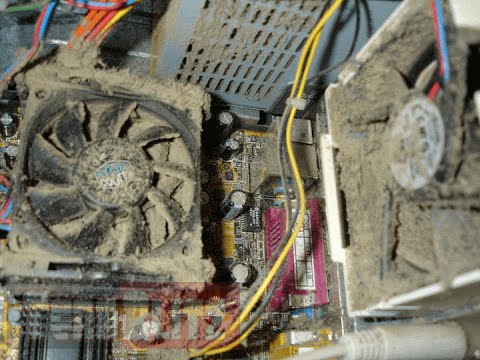
Hello everyone, last time we were talking about disk cleanup and its benefits, but as you need to keep your System clean you should also clean and keep your hardware clean as well. Many system issues could be traced and could happen due to dirty PC. In this article, we will give you tips on how to perform safely cleaning on your computer and hopefully point good sides to it so you can develop a healthy habit of regularly cleaning it and keeping it tidy. dirty PC that needs cleaningKeeping your PC clean is not rocket science and you can do it with things you already and probably have in your house. One thing that I would recommend tho to purchase is antistatic gloves since they could prevent any kind of electrostatic discharges thus protecting your electric components. If you have the option to disconnect your PC and get it outdoors, I would highly recommend this approach since all the dust will be dusted outside and not in the room where your computer is. If you can not it is still ok, but since some portion of dust will be set in the room, you might need to dust your room after cleaning your computer.
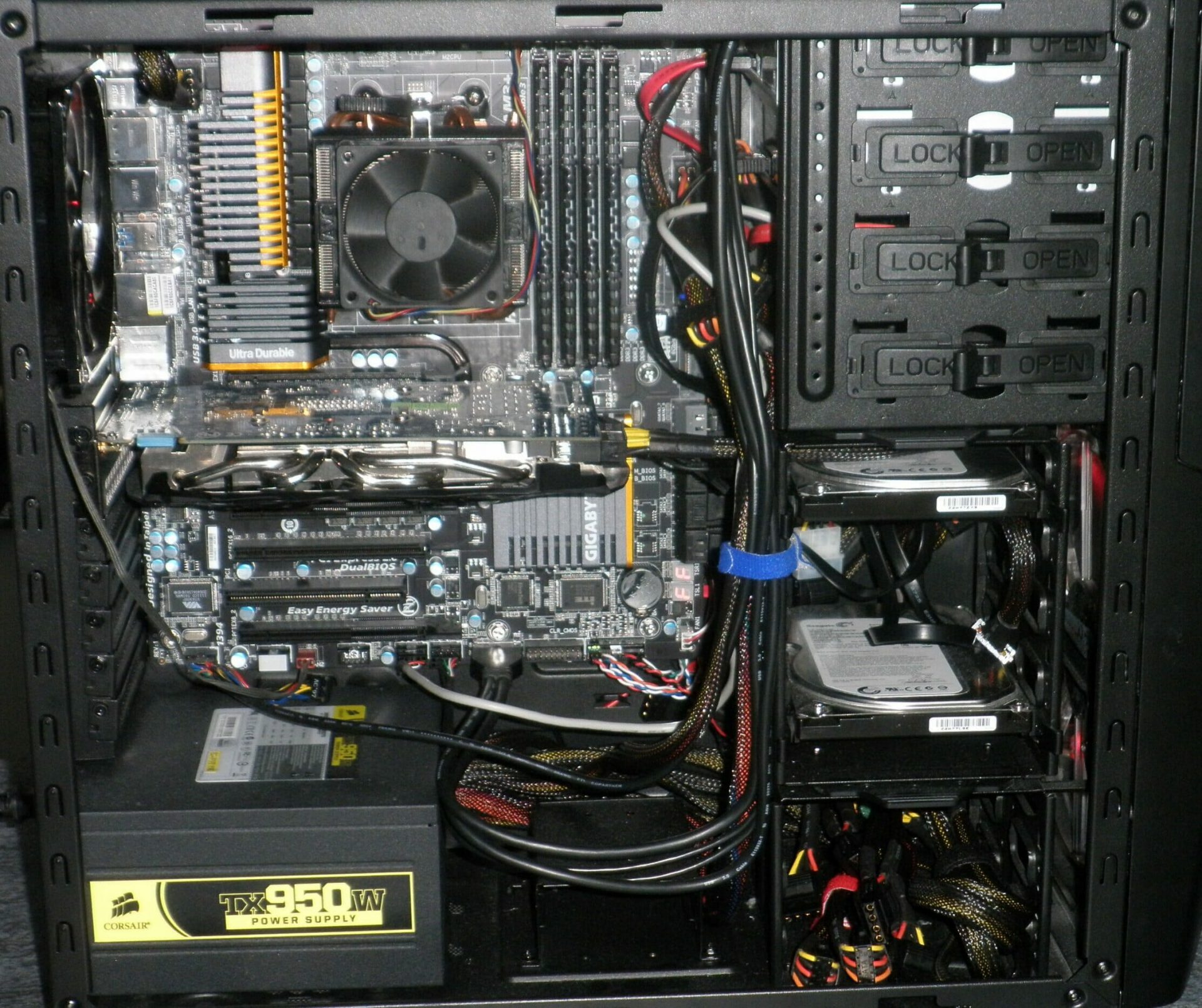

Cleaning outside case & redusting inside

The first thing after disconnecting your computer is to dust it from outside, here you will need a vacuum cleaner and a brush, gently brush outside dust from your casing and vacuum it with your vacuum cleaner. You can use dustcloth for larger parts but use the brush for fans and connectors. After you have done cleaning the outside part, open the side of your computer casing, put on your antistatic gloves, and get a fine and soft brush, repeat dusting and vacuuming of the inner parts of your computer. If your computer is not regularly been cleaned this part will take a little longer since there would be excess dust inside and it will take a longer time to vacuum it all but keep going until you are left with no dirt.

Cleaning it inside

Fans are troublesome to clean since they will rotate when brushed and that could make you miss certain sports, in order to battle this get a tape and stick the fan into one position, brush areas that you can reach, then unstick it, rotate the head, stick it again in another position and dust off remaining areas which you could not reach before. If your computer is very dirty and some hard dirt is at bottom of the connectors, disconnect desired component and clean the connection properly. plug it back in immediately after cleaning to avoid connecting it somewhere else. Harder stains that could not be dusted could be cleaned with little alcohol. Get your dustcloth just a little wet with alcohol, just a corner, and gently wipe out sticky dust or spills if they are present. Leave it 10 minutes for alcohol to evaporate before plugging it back into an electric socket.

Thermal paste and cable management

If you have money and expertise, every 2 years would be a good idea to change the thermal paste on your processor, all you need to do is buy it from your local computer store online, remove the CPU fan clean the CPU and bottom of the fan and apply new thermal paste, place fan back and lock it. If you do not have expertise in this area, call someone who has to show you how it is done. When cleaning it would be a good idea if you do not have any cable management to do it now, nice and tidy cables not only look good, they also improve your air circulation inside your casing making your computer cooling better. once you are done with it, close back the casing side and plug it back in the wall.

Peripherals

When you are cleaning your computer, do yourself a favor and clean your keyboard, mouse, and screen as well. the keyboard can be quickly cleaned with compressed air in the can and screen and mouse with dustcloth. That's it, remember, keep your PC clean and tidy and enjoy the benefits of non-hardware malfunctions caused by dirt and dust. cleaned PC
Read More
1 2 3 171
Logo
Copyright © 2023, ErrorTools. All Rights Reserved
Trademark: Microsoft Windows logos are registered trademarks of Microsoft. Disclaimer: ErrorTools.com is not affiliated with Microsoft, nor claims direct affiliation.
The information on this page is provided for information purposes only.
DMCA.com Protection Status