Logo

How to Fix Error 0x8024a206 in Windows

When you upgrade or update your Windows 10 computer but you suddenly got Error 0x8024a206 while trying to install the updates, it is due to a rouge update that was downloaded or because of some corrupted component in Windows. In case you don’t know, any file downloaded by Windows is verified for its integrity and if the files don’t pass the integrity test, then Error 0x8024a206 will most likely pop up during the Windows update or upgrade.

Option 1 – Reset the Windows Update components to the default

You have to stop a couple of services such as BITS, Cryptographic, MSI Installer, and Windows Update Services. And to do that, you need to flush the contents in the SoftwareDistribution folder. The Software Distribution folder in the Windows operating system is a folder that can be found in the Windows directory and is used to store files temporarily which might be required to install the Windows Update on your PC. Thus, it is required by the Windows Update and maintained by WUAgent. Aside from that, it also contains all the Windows Update History files and once you delete them, you will most likely lose the Update history. As a result, the next time you run the Windows Update, it may result in a longer detection time.

  • Open the WinX Menu.
  • From there, open Command Prompt as admin.
  • Then type in the following command – don’t forget to hit Enter right after typing each one of them.

net stop wuauserv

net start cryptSvc

net start bits

net start msiserver

  • After entering these commands, it will stop the Windows Update Service, Background Intelligent Transfer Service (BITS), Cryptographic, and the MSI Installer
  • Next, go to the C:/Windows/SoftwareDistribution folder and get rid of all the folders and files thereby tapping the Ctrl + A keys to select them all and then click on Delete. Note that if the files are in use, you won’t be able to delete them.

After resetting the SoftwareDistribution folder, you need to reset the Catroot2 folder to restart the services you just stopped. To do that, follow these steps:

  • Type each one of the following commands.

net start wuauserv

net start cryptSvc

net start bits

net start msiserver

  • After that, exit Command Prompt and restart your computer, and then try to run Windows Update once more.

Option 2 – Re-register DLLs related to Windows Update

DLL files, also known as Dynamic Link Library, are parts of applications that are separated from the core program so that they can be used again as well as independently be updated. The DLL files are loaded into memory and then used. Note that they have to be registered with Windows so they can be loaded. So if they’re not, the main program will fail. And this is the same with the DLL files related to the Windows Update. Thus, you need to register them in order to resolve Error 0x8024a206.

  • In the Cortana search box, type “command prompt”.
  • From the search results that appear, right-click on Command Prompt and select the “Run as administrator” option.
  • After that execute the commands listed below one after the other and don’t forget to hit Enter right after you key in each one of them.
    • regsvr32 JSCRIPT.DLL
    • regsvr32 MSXML3.DLL
    • regsvr32 WUPS2.DLL
    • regsvr32 WUPS.DLL
    • regsvr32 WUAUENG.DLL
    • regsvr32 WUAPI.DLL
    • regsvr32 WUCLTUX.DLL
    • regsvr32 WUWEBV.DLL

Note: You also have the option to run the commands together via a batch file. Simply create a batch file by copying all the commands in a notepad and then save it as “WURegisterDLL.bat”. After that, run the batch file and it will execute the commands all at the same time. Then you have to restart your computer and see if it has fixed the Error 0x8024a206.

Option 3 – Run the System File Checker

The SFC or System File Checker scan could detect and automatically repair damaged system files that could be causing the Error 0x8024a206. SFC is a built-in command utility that helps in restoring corrupted files as well as missing files. It replaces bad and corrupted system files to good system files. To run the SFC command, follow the steps given below.

  • Tap Win + R to launch Run.
  • Type in cmd in the field and tap Enter.
  • After opening Command Prompt, type in sfc /scannow and hit Enter.

The command will start a system scan which will take a few whiles before it finishes. Once it’s done, you could get the following results:

  1. Windows Resource Protection did not find any integrity violations.
  2. Windows Resource Protection found corrupt files and successfully repaired them.
  3. Windows Resource Protection found corrupt files but was unable to fix some of them.

Option 4 – Run the Windows Update Troubleshooter

Running the built-in Windows Update troubleshooter could also help you resolve the Windows Update Error 0x8024a206. To run it, go to Settings and then select Troubleshoot from the options. From there, click on Windows Update and then click the “Run the troubleshooter” button. After that, follow the next on-screen instructions and you should be good to go.

Do You Need Help with Your Device?

Our Team of Experts May Help
Troubleshoot.Tech Experts are There for You!
Replace damaged files
Restore performance
Free disk space
Remove Malware
Protects WEB browser
Remove Viruses
Stop PC freezing
GET HELP
Troubleshoot.Tech experts work with all versions of Microsoft Windows including Windows 11, with Android, Mac, and more.

Share this article:

You might also like

Taskbar has disappeared from the Desktop
As you know, the Taskbar is one of the integral parts of the Windows desktop and it has been there since the release of Windows 1.0 and up until now with Windows 10. Since then, Microsoft has been modifying the Taskbar with a new design which makes it a home for new features such as Windows Search, Task View, and many more. However, there are times when you may that the Taskbar has disappeared or has stopped responding. If you experience either one of these scenarios, read on as this post will walk you through what you can do to resolve the problem. Here are some suggestions you can check out to resolve the issue with the Taskbar in Windows 10 but before you proceed, make sure that you create a System Restore point first. To do that, follow these steps:
  • In the Start search, type in “create a restore point” and click the entry “System Properties”.
  • Next, select the main system drive under Protection Settings and click on the Configure button.
  • After that, select the “Turn on system protection” option and then click on the Apply and OK buttons to save the changes made.
Once you’ve created a System Restore point, refer to the troubleshooting steps below to fix the Taskbar in Windows 10.

Option 1 – Try to restart the Explorer process

This may sound really basic but it actually is a proven method to fix the Taskbar issue. So if anything gets stuck on the system tray or the Taskbar, you can always fix it by restarting the explorer.exe. How? Refer to these steps:
  • First, right-click on the Taskbar and select the Task Manager.
  • After opening the Task Manager, go to the Processes tab and look for the process named “Windows Explorer”.
  • Then right-click on that process and select the option to Restart. Afterward, you should now be seeing the Taskbar as this will reload the whole Windows Shell.

Option 2 – Unhide the Taskbar using the Settings app

It is possible that the Taskbar could be hidden so you can try to unhide it using the Settings app.
  • Tap the Win + I keys to open Settings.
  • After that, go to Personalization > Taskbar.
  • From the main section, make sure that the “Automatically hide the task in desktop mode” is toggled to the off position. However, if it’s already off then proceed to the next options below.

Option 3 – Make sure that you are not in Tablet Mode

Since Windows 10 is designed to work on both desktop and mobile devices, it could be that your computer has slipped into Tablet Mode which explains why you’re not seeing the Taskbar. To check if your computer is really in Tablet Mode, follow these steps:
  • Go to the Start menu and select Settings.
  • Next, select the System setting and from the left pane select the Tablet Mode.
  • From there, make sure that the buttons next to the options given below are set to the off position:
    • Hide app icons on the taskbar in tablet mode
    • Automatically hide the taskbar in tablet mode

Option 4 – Try to check the Projection Settings

You might also want to check the Projection settings as it could be the reason why Taskbar has disappeared.
  • Tap the Win + P keys to open the Windows Projection settings.
  • Next, make sure that you select the “PC screen only” option and then check if your Taskbar has now appeared or not.
Read More
Adaptive Brightness is not working
The Adaptive Brightness setting in Windows 10 is a useful setting you can use in adjusting your computer’s brightness. It helps you get the brightness automatically based on the light around your computer. However, there are times when it does not work or it doesn’t turn off when you want it to. If this issue happened right after you update or install Windows 10, then read on as this post will give you a couple of options you can try to resolve the problem.

Option 1 – Try to run the Power Troubleshooter

The first thing you can do to resolve the issue with Adaptive Brightness is to run the Power Troubleshooter as the problem could occur due to some conflicted power settings. To use it, refer to the following steps:
  • Open the Windows 10 Settings panel and go to Update & Security and then to Troubleshoot.
  • After that, scroll down to your left-hand side and click the Power option.
  • From there, you should see the “Run the troubleshooter” button. Click on it to fix the problem.
  • Afterward, follow the next on-screen instructions that follow.

Option 2 – Try disabling or turning off the corresponding options in GPU settings

The problem might be due to the Graphics card settings. If you are using either an AMD graphics card or the HD graphics of Intel, you may have to disable the power-related options in the GPU settings. To be specific, you have to disable the Vari-Bright in AMD graphics card settings or the Display Power Saving Technology under Intel’s Graphics panel.
  • AMD users:
    • Open the AMD Radeon settings panel.
    • Then go to Preferences. From there, select Radeon Additional Settings.
    • Next, go to the Power tab and click the PowerPlay option.
    • You should find an option called “Enable Vari-Bright” located on your right-hand side. Remove the mark from its checkbox and then save the changes you’ve made.
  • Intel users:
    • Open the Intel Graphics and Media Control Panel from your Desktop.
    • Then select the Basic mode and go to the Power tab.
    • From there, select “On battery” as Power Source and then you’ll get the Display Power Saving Technology option. It should be set to enabled by default.
    • Now remove the mark from the checkbox and then save the changes you’ve made.

Option 3 – Try resetting the Power Plan defaults

You might also want to use a command-line tool to resolve the problem. This command-line tool is known as PowerCfg. It is a command utility tool that will scan your computer for 60 seconds to know its power. This tool gives detailed results in the form of an HTML report that will help you in evaluating the real cause of the battery drain issues. You can also use this tool to reset the Power Plan defaults of your computer. To use it, follow the steps below.
  • Open the Command Prompt as administrator.
  • Then type in the following command and tap Enter to execute it:
powercfg –restoredefaultschemes
  • After the command has been executed, restart your computer.

Option 4 – Try updating your Graphics drivers

  • First, boot your computer into Safe Mode.
  • After that, tap the Win + R keys to launch Run.
  • Type in devmgmt.msc into the box and tap Enter or click OK to open the Device Manager.
  • After that, a list of device drivers will be displayed. From there, look for the Display Adapters and click on them.
  • After that, right-click on each entry under the Display Adapters and select the “Uninstall Device” option from the menu.
  • Now restart your computer.
  • After restarting your computer, go to the Settings app and Check for Updates in the Windows Update section.
Note: You also have the option to go directly to the website of your graphics card manufacturers like NVIDIA, Intel, or AMD and go to the section called Drivers then check if there’s a new available update – if there is, download and install it.

Option 5 – Try disabling adaptive brightness via Registry Editor

Since you will be dealing with Registry files in this post, you need to create a System Restore point first. Once you have that covered, proceed to the following steps:
  • Tap the Win + R keys to open the Run dialog box.
  • Next, type “regedit” in the field and hit Enter to open the Registry Editor.
  • After that, navigate to this path: HKEY_LOCAL_MACHINESOFTWAREIntelDisplayigfxcuiprofilesMediaBrighten Movie
  • Now double click on the “ProcAmpBrightness” and set its value to “0”.
  • Now go to this path: HKEY_LOCAL_MACHINESOFTWAREIntelDisplayigfxcuiprofilesMediaDarken Movie
  • From there, double click on “ProcAmpBrightness” and set the value to “0”.
  • Then close the Registry Editor and restart your PC and then see if the problem’s fixed or not.
Read More
How to Fix the EhRecvr.exe Error on Your PC

EhRecvr.exe Error Code - What is it?

EhRecvr.exe is an executable file located in a subfolder of C:\Windows (usually C:\WINDOWS). An executable file is denoted by the filename extension .exe. You should only run executable files from the publisher you trust because .exe files are prone to errors. Executable files can potentially change your computer settings and harm your computer.  These files can easily get corrupted. Similarly, when the EhRecvr.exe fails to run on the computer and gets corrupt, you experience an EhRecvr.exe error on your system. This error code may pop up while playing games on the PC or using any other program. EhRecvr.exe error may be displayed in any one of the following formats:
  • “ehRecvr.exe cannot be found."
  • “There was a problem starting [path]ehRecvr.exe. The specified module could not be found."
  • "Runtime Error. ehRecvr.exe pure virtual function call."
  • "This program can't start because ehRecvr.exe is missing from your computer."
  • "Unable to launch the software located at path: [path]ehRecvr.exe"
  • "This application requires the file ehRecvr.exe, which was not found on this system."
  • "ehRecvr.exe is missing."
  • "Access Violation File [path]ehRecvr.exe"

Solution

Restoro box imageError Causes

There are plenty of reasons why this error may occur these include:
  • EhRecvr.exe file is mistakenly deleted
  • EhRecvr.exe file is corrupted and damaged
  • Viral/Malware infection
  • Bad registry entries
  • Outdated drivers
Though this error code is not fatal but nonetheless it is advisable to fix it immediately because EhRecvr.exe error not just hampers your ability to run and access different programs on your system but it also triggers issues like viral infection and registry problems which if not resolved can put your big at greater risk like system failure, freeze, and crash.

Further Information and Manual Repair

To resolve the EhRecvr.exe error on your system, you don’t have to hire a professional and spend hundreds of dollars in repair. Here are the best and easy DIY methods that you can try to fix this error. To work around these methods you don’t need to be a technical whiz. Let’s get started:

Method 1 - Restore EhRecvr.exe from Recycle Bin

In the case of EhRecvr.exe file deletion, it is advisable to check the recycle bin. Search through the bin for the file. If you find it, then simply restore it, if not then if you have access to the internet, then download it from a trusted website.

Method 2 - Reinstall the Associated Software That Uses EhRecvr.exe File

If you receive this error when you want to use certain software on your PC, then try reinstalling that software again on your PC. This will be very helpful to obtain the EhRecvr.exe file that is not provided by Microsoft. To re-install, first, uninstall the program. Go to Add/Program in the control panel and find the program and then uninstall it. Once uninstalled, simply follow the same steps but this time round install the software. This will hopefully help resolve the EhRecvr.exe error code.

Method 3 - Update Drivers for Hardware Devices

Sometimes the error may pop up due to outdated drivers. If this is the cause then the best way to resolve the issue would be to update the driver. Use the wizard within the Device Manager to update the outdated drivers.

Method 4 - Scan for Viruses

Viruses and malware can disguise as executable files. These usually enter your PC through downloads from unreliable websites and phishing emails. In such an event, it is recommended to install a powerful antivirus. Scan your entire PC and remove all viruses to repair the issue.

Method  5 - Clean and Repair the Registry

Another method is to clean and repair the registry. If you don’t clean the registry regularly it may get accumulated with obsolete files and get corrupt. This may generate EhRecvr.exe error codes. To resolve, simply download Restoro. This is a user-friendly PC Fixer with a powerful registry cleaner. It scans for all registry errors, wipes out all the invalid entries and obsolete files and repairs corrupted DLL and .exe files in minutes. Click here to download Restoro and resolve the EhRecvr.exe error now!
Read More
Fix DRIVER_VERIFIER_DETECTED_VIOLATION
Driver Verifier is a built-in tool in Windows 10 that monitors device drivers on your computer, if it detects issues with drivers, it will attempt to fix the issue. If you are encountering Blue Screen for a Driver and after running Driver Verifier you get another with message DRIVER_VERIFIER_DETECTED_VIOLATION ten follow this article step by step in order to solve it. There is a chance that you will maybe even have to do this in safe mode, if that is your case, login into safe mode and proceed, otherwise proceed normally.
  1. Update Device Drivers

    the most common issue with the blue screen is old Drivers, in most cases, graphical drivers, update all Drivers with the latest versions and see if this will resolve the issue.
  2. Stop or uninstall Virtualization software

    Virtua machine software is a great way to have a safe environment and to experiment while preserving your Windows installation intact, however sometimes due to the nature of these applications they can be a case for blue screen errors. Stop virtualization software to see if it will remove the issue. If that is the case, try another virtualization application
  3. Disable Driver Verifier

    Press ⊞ WINDOWS + X to open the secret menu Click on Command Prompt (admin) Inside command prompt type: verifier and press ENTER Select the Delete existing settings radio button Click Finish Reboot your computer
  4. Reset Driver Verifier

    Press ⊞ WINDOWS + X to open the secret menu Click on Command Prompt (admin) Inside command prompt type: verifier /reset and press ENTER Reboot your computer
  5. Use system restore

    Rollback Windows to the previous state where everything was working fine.
Read More
Device frequently disconnects from hotspot
As you know, Windows 10 comes with the option to create Mobile Hotspot for other devices. This allows you to share your Ethernet connection. However, there are times when one of your devices might fail to reconnect to the mobile hotspot again. For instance, you moved out of the Wi-Fi range because you have somewhere to be and whatnot and when you’re back you find that you are now unable to reconnect to the Windows 10 Hotspot or the shared network. Although you can always restart the mobile hotspot to resolve the problem, however, it might only be a temporary fix. So in this post, you will be given options for a much better solution to the problem. This kind of problem seems unusual and does not occur that often. To fix it, you can try to set up DNS on your Windows 10 device and then configure the settings on the mobile device. It seems that what’s happening here is that the mobile device is unable to lock on to the Mobile Hotspot when the IP address changes for some reason.

Option 1 – Try changing the DNS settings on your laptop

In this option, you need to make sure that IPv4 and IPv6 are selected on your Ethernet connection. You also have to change the Preferred DNS server as well as the Alternate DNS server to 8.8.8.8 and 8.8.4.4, respectively. You also have to validate the settings before you exit just to ensure that you’ve entered everything correctly. After that, open Command Prompt and run the ipconfig command and then take note of the IP address, Gateway DNS 1 and DNS 2.

Option 2 – Try changing the Wi-Fi settings on your mobile device

This option should be mostly the same on all your mobile devices. And given that OEMs build their customization and skin, you might have to fiddle around a little to get the settings. Refer to the steps below to change the Wi-Fi settings:
  • Go to the Settings of your mobile device and tap on Wi-Fi.
  • Then click the Mobile Hotspot connection that you’ve created on your laptop.
  • After that, input the password and tap the Advanced options.
  • From there, tap on IP settings and select the Static option instead of DHCP.
  • Now you have to enter the IP address, Gateway, DNS 1, and DNS 2 of the laptop you’ve taken note of earlier and that’s it.
Note: If you are already connected to the Mobile Hotspot, long press on the Wi-Fi network and select the Modify Network option and then follow the steps given above to change from DHCP to static. Once you’re done, your mobile device should now be able to connect to the Windows 10 Mobile Hotspot all the time.
Read More
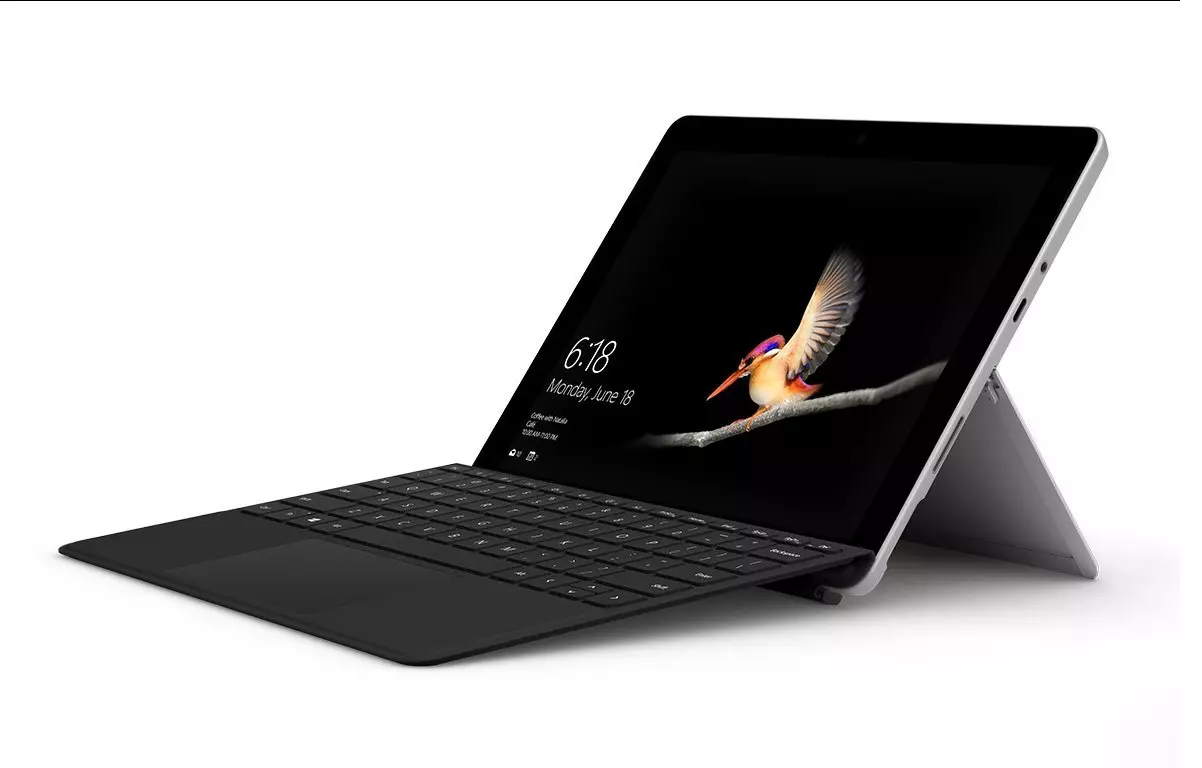
New MS Surface coming in October

In the Windows ecosystem, MS Surface laptops are among the best laptops on the market, they are regarded as equivalent to Apple MAC laptops but for Windows. Microsoft Fall 2022 Event will be held on October 12th at 10 AM. The event itself will be held right before it kicks off its annual, developer-focused Ignite event in Seattle from that same day through October 14.

ms surface pro

This event is the first in-person event that Microsoft has held since the beginning of the pandemic. We expect the launch of the Surface Pro 9 and the Surface Laptop 5, and maybe Surface Studio 3 as well. There are also some rumors about products themselves like choices between an ARM or x86 CPU but nothing is confirmed so far, we can just wait and see.

Read More
Fix Display driver failed to start Error
Recently, a number of users reported an error when they tried to open graphic-intensive apps like video games. According to users, when they tried to open an app, they get the “Display driver failed to start” error instead. Thus, if you encounter the same error, then you’ve come to the right place as this post will guide you on how exactly you can fix it. Here’s the full content of the error message:
“Display driver failed to start; using Microsoft Basic Display Driver instead. Check Windows Update for a newer display driver.”
This kind of error could be due to several factors. It is possible that it could be a result of a corrupted or outdated graphics driver. Aside from that, it could also be due to some issues with the system settings. Worry not though for there are potential fixes that can help you fix the problem. But before you troubleshoot the problem, you need to update your Windows 10 computer first and if it didn’t help fix the problem, then here are the potential fixes that should help resolve the “Display driver failed to start” error.

Option 1 – Try to restart the Graphics driver

Although Windows 10 can recover the graphics driver on its own when it crashes, there are times when it fails to do its job. To restart the graphics driver in your computer, simply tap the Win + Ctrl + Shift + B key combination. After that, the graphics driver will be back in less than a second.

Option 2 – Try running the Hardware and Devices troubleshooter

Running the built-in hardware and devices troubleshooter can also help you in fixing the “Display driver failed to start” error.
  • The first thing you need to do is click on Start and then on the gear-like icon to pull up the window for Settings.
  • After opening Settings, look for the Update and Security option and select it.
  • From there, go to the Troubleshoot option located on the left-hand side of the list.
  • Next, select Keyboard from the list and open the Troubleshooter and run it. Once it is doing its job, wait for it to complete the process and then restart the system.
  • After the system restarts, check if the problem’s now fixed. If not, refer to the next option given below.

Option 3 – Try to update or rollback the Graphics driver

You can try to update your Graphics card driver using the Device Manager in your computer to resolve the “Display driver failed to start” error or you can also go directly to the website of your graphics card manufacturers like NVIDIA, Intel, or AMD and go to the section called Drivers then check if there’s a new available update – if there is, download and install it. To update your Graphics driver via Device Manager, refer to these steps:
  • First, boot your computer into Safe Mode.
  • After that, tap the Win + R keys to launch Run.
  • Type in devmgmt.msc into the box and tap Enter or click OK to open the Device Manager.
  • After that, a list of device drivers will be displayed. From there, look for the Display Adapters and click on them.
  • After that, right-click on each entry under the Display Adapters and select the “Uninstall Device” option from the menu.
  • Now restart your computer.
  • After restarting your computer, go to the Settings app and Check for Updates in the Windows Update section.

Option 4 – Try setting your system for maximum performance

If the first three options didn’t fix the error, you can try setting your computer for maximum performance since Windows 10 allows you to choose the effects you want to activate your system and you can do this by adjusting the performance ratio. Adjusting the performance ratio can be done via a certain setting in your computer – and this setting should be set to “Maximum Performance” to resolve the error.
  • In the Windows Search bar, type in “performance” and from the search results that appear, select the “Adjust the appearance and performance of Windows” option.
  • Next, a mini window will appear and from there, click on the radio button that says, “Adjust for best performance”.
  • Once done, click on the Apply and OK buttons to save the changes made. This should resolve the problem.
Read More
A Quick Guide to Fixing Error 404

Error 404 - What is it?

Error 404 is a HTTP status code. You may come across the error code 404 while browsing online. The message indicates the web page you are trying to log on to couldn’t be found on the server. This error code is frequently customized by individual websites. Most of the time it is displayed by:
  • “404 Error"
  • "404 Not Found"
  • "Error 404"
  • "404 File or Directory Not Found"
  • "HTTP 404 Not Found”
  • "The requested URL [URL] was not found on this server."
  • "HTTP 404"
  • "404 Page Not Found"
  • “Error 404 Not Found"
The error message 404 can occur in any browser including Firefox, Internet Explorer and Google Chrome. It can also occur is any operating system. In addition to this, the error 404 may also occur during Windows updates.

Solution

Restoro box imageError Causes

Technically, the error 404 is a client-side error that implies you couldn’t access the desired web page because either you typed the wrong URL or either the page has been removed from the website. Other causes of this error code include:
  • Junk files in the browser
  • Junk registry entries
  • Browser cache issues
  • DNS server problems

Further Information and Manual Repair

If the error code does not occur due to web page removal from the owner of the website, then this means there is some other underlying issue from the error code 404. To avoid inconvenience and to access the website, it is advisable to resolve the error right away. To help you resolve the error 404 on your PC, we have listed some of the best and easy DIY solutions. Try these methods to fix the issue on your system:

Method 1

Press F5 to retry accessing the web page. F5 is the refresh/reload button. If the error is temporary this will resolve the issue immediately.

Method 2

Check the URL - ‘The error 404 not found’ may also appear because the URL was typed wrong. Search for the page on the popular search engines. Insert the correct URL for the web page you want to access. This will most likely fix the error.

Method 3

Clear your browser’s cache – For this, simply go to the history and clear up your browser’s cookies.

Method 4

Change the DNS Servers - If the entire website you want to access is giving you error 404 and if the site is available to others on different servers then you might want to try changing your DNS server. 404 errors are not particularly common unless your ISP or government filters or censors websites.

Method 5

Remove Junk files and Junk registry entries - Another way to resolve the error is to clean the registry. The underlying cause of the error could be accumulation of the junk, invalid and bad registry entries. You can remove them manually, but that process will require technical expertise and will be quite time-consuming. Nonetheless, the easy and efficient way to clean up the registry is to download Restoro. This is an advanced, highly functional and next-generation Registry Cleaner.

Why Use Restoro?

  • It is deployed with a cutting-edge and intuitive algorithm that detects, scans, and removes all the registry issues on your entire PC in seconds.
  • This registry cleaner wipes out all bad entries and junk files saved on the disk immediately, fixes the damaged and corrupt files, and restores the registry back to normal.
  • Besides functioning as a registry cleaner, this software is also integrated with several other utilities such as an antivirus that removes all kinds of malicious software from your system, a system optimizer for optimum PC functioning, and Active X controls and Class ID scanner.
  • It is safe to download, user-friendly and efficient. This error tool is compatible with all Windows versions.
To resolve error 404 on your PC, click here to download Restoro today!
Read More
Fix Orange Screen of Death Error in Windows
The Windows 10 Orange Screen of Death, unlike Blue Screen of Errors, is quite an uncommon error where the hardware is the culprit which is mostly caused by some issues with the GPU. If you are currently facing this problem, then you’ve come to the right place as this post will guide you on what you can do to fix it. There have been reports from users that the Orange Screen of Death is caused by various reasons. Some users reported that they encountered Orange Screen of Death when they were watching a YouTube video, while some were not able to boot into their Windows 10 PCs and encountered an error instead of that either says, FAULTY_HARDWARE_CORRUPTED_PAGE or WHEA_UNCORRECTABLE_ERROR error. In addition, this error can also occur when your computer wakes up from Sleep or while using BitLocker, or while you use a second monitor. Whatever the case is, you can try updating your drivers or lower the clock speed of the GPU. You could also try to fix the DRIVER_IRQL issue in case it’s the one that triggers the error or performs Automatic Repair or uninstalls any recently installed software.

Option 1 – Update your Graphics card drivers

One of the possible reasons why you’re getting the Orange Screen of Death error is most likely related to the Graphics card drivers in your computer. Thus, the first thing you can do to resolve it is to update these drivers by following these steps:
  • First, boot your computer into Safe Mode.
  • After that, tap the Win + R keys to launch Run.
  • Type in msc into the box and tap Enter or click OK to open the Device Manager.
  • After that, a list of device drivers will be displayed. From there, look for the Display Adapters and click on them.
  • After that, right-click on each entry under the Display Adapters and select the “Uninstall Device” option from the menu.
  • Now restart your computer.
  • After restarting your computer, go to the Settings app and Check for Updates in the Windows Update section.
Note: You also have the option to go directly to the website of your graphics card manufacturers like NVIDIA, Intel, or AMD and go to the section called Drivers then check if there’s a new available update – if there is, download and install it.

Option 2 – Try to uninstall software you’ve installed recently

If you have installed a software or two recently and then suddenly encounter this Orange Screen of Death, then they are most likely the culprits. The best thing you can do is to first check the System Log in the Event Viewer for any additional information in case it’s not the GPU but some other driver or device that’s causing the error. Once you have identified the culprits, uninstall them and see if the error is fixed.

Option 3 – Try disabling Overclocking

If overclocking is enabled, you might have to disable it as some users reported that the WHEA_UNCORRECTABLE_ERROR 0x00000124 error started to appear right after overclocking. To disable it, follow the steps below.
  • Go to the Start Menu and open Settings.
  • Next, select Update and Security and go to the Recover tab.
  • From there, click on Restart now in Advanced startup. This will restart your computer.
  • Once you’re in the Advanced startup, go to Troubleshoot and then select Advanced Options.
  • From there, select the UEFU Firmware Settings.
  • Now click on Restart. Once your computer has restarted, it will automatically open BIOS.
  • From the BIOS, go to the Advanced tab and navigate to Performance and then look for Overclocking.
  • Once you’ve found Overclocking, make sure that it is disabled. If it’s not, then disable it and then save the changes made by tapping the F10 key.
  • Start your computer normally and check if the WHEA_UNCORRECTABLE_ERROR 0x00000124 error is now fixed.

Option 4 – Use the Driver Verifier Manager

The Driver Verifier Manager is another tool in Windows that could help you fix driver-related issues. And so if you want to fix the Wdf01000.sys Blue Screen error, you need to use the Driver Verifier Manager:
  • Type in the keyword “Verifier” in the Cortana search box to search for Verifier in Windows 10.
  • After that, select the option “Create custom settings”.
  • Make sure that you have checked everything except the options “DDI compliance checking” and “Randomized low resources simulation”.
  • Next, select the option “Select driver names from a list” option.
  • Afterward, you have to select all the drivers from any unofficial or third-party provider. To simply put it, you have to select all the drivers that are not supplied by Microsoft.
  • Then click on the Finish button.
  • Open Command Prompt as administrator and execute this command – verifier /querysettings
  • The command you just executed will display the Driver Verifier settings so if you see any of the flags enabled boot your Windows 10 PC into Safe Mode.
  • Open the Command Prompt as admin again and run this command – verifier /reset
  • The command will reset the Driver Verifier. Once the process is done, restart your PC and check.

Option 5 – Try to run the Automatic Repair Utility

You might also want to use Automatic Repair in fixing the error. To do so, follow the steps below.
  • You can start by creating and booting from a bootable Windows 10 USB Stick.
  • After that, click on Repair your computer located on the bottom left corner when you are on the initial Windows Startup screen.
  • Next, click on Troubleshoot, and then on the other screen, click the Startup Repair option.
  • Now select the operating system you want to repair. Once you do that, it will start to repair your operating system. Wait until the process is completed and then check if the problem’s now fixed.
Read More
How to Deal With Error Code 42

Code 42 - What is it?

Code 42 Error is referred to as a Device Manager Error code. Before we explain what this code indicates, it is important to understand what ‘Device Manager’ is and its functions.

Device Manager is basically a Windows tool that helps manage devices attached to the system such as the Printer, Scanner and the USB Device. The Device Manager Error code 42 occurs when a duplicate device is detected.

Error Code 42 is displayed in the following format:

“Windows cannot load the device driver for this hardware because there is a duplicate device already running in the system. Code 42”

Solution

driverfix boxError Causes

Narrowing down to one particular cause for error code 42 is not virtually possible because it may be triggered due to many underlying reasons. These include:

  • When a bus driver incorrectly generates and creates 2 identically named devices
  • When a device with a serial number is found in a new location without being removed from its original location
  • Mis-configured drivers

No matter what the reason for this error code,, to avoid inconvenience and to ensure proper hardware performance, it is advisable to fix it right away without any delay.

Further Information and Manual Repair

If you’re not technically sound, the code 42 message display can panic you. But don’t worry, the error message sounds complex but it is quite easy to fix.

To resolve code 42 in a few minutes, simply try the methods given below. These methods are easy-to-perform, effective and more importantly require no technical expertise.

Method 1 - Restart Your System

Code 42 can pop up due to some temporary glitch in the Device Manager. By simply restarting your PC, you can resolve this problem.

Therefore, first things first, restart your system. However, in case it doesn’t work out, try other methods.

Method 2 - Launch the Troubleshooting Wizard

Launch the troubleshooting wizard to find the underlying problem and resolve it accordingly. To do this, proceed with the following steps:

  • Go to the start menu
  • Type Device Manager in the search bar and press enter
  • Now click on the ‘General Tab’
  • Then click on ‘Trouble Shoot’ to launch the Troubleshooting Wizard
  • After that follow the instructions in this Wizard to diagnose the problem and resolve it.

Method 3 - Restore Your PC to its Previous State

Another method to fix code 42 is to use the System Restore tool to restore your PC to its previous working state before the error popped up. To do this,

  • Go to the start menu
  • Type System Restore in the search bar and press enter
  • Now click on ‘Restore my computer to an earlier time’ and then click ‘Next’
  • After that select the restore point on the restore point list and confirm settings
  • Restart your PC to activate changes
  • Before restoring your PC to its previous state, create a backup. By creating data backup you can avoid data loss issues, which are likely to occur during this process.

Creating backup manually can be time-consuming and a painstaking task. The best way to create backup and restore your PC to its normal state is to download DriverFIX.

It is a user-friendly device driver management software that helps create data backup automatically and simultaneously restores your PC back to its normal working state in a few seconds.

This software is compatible with all Windows versions.

Click here to download DriverFIX on your system to resolve error code 42.

Read More
1 2 3 171
Logo
Copyright © 2023, ErrorTools. All Rights Reserved
Trademark: Microsoft Windows logos are registered trademarks of Microsoft. Disclaimer: ErrorTools.com is not affiliated with Microsoft, nor claims direct affiliation.
The information on this page is provided for information purposes only.
DMCA.com Protection Status