Logo

Fix 0x80070079: The semaphore timeout ...

This post will guide you on how you can fix the Error 0x80070079. This kind of error mostly occurs during the transfer of files across the networks. It could be caused by several factors which include the incorrect configuration of drivers or the network, as well as deadlock state or the server is loaded with a lot of tasks and if any location is not available. This error could also appear when you try to create a System Image or copy or move files on your computer. Here’s the full context of the error message:

“Error 0x80070079: The semaphore timeout period has expired.”

To fix this error, you can try to run the three built-in Network-related troubleshooters or update or reinstall the network adapter drivers or perform a network reset. For more details, follow the options laid out below.

Option 1 – Try to run the three built-in Network-related troubleshooters

The first thing you could do to fix the problem is to run any of the three built-in troubleshooters related to Networks such as Incoming Connections, Network Adapter, and Shared Folders troubleshooters. To access them, just open the Windows Settings app, and go to Update & security > Troubleshoot. From there, run any or each one of the aforementioned troubleshooters.

Option 2 – Update the Network Adapter drivers

You might also want to update the Network Adapter drivers by following these steps:

  • Tap the Win + R keys to launch the Run window and then type in the “MSC” command and hit Enter to open the Device Manager window.
  • Under the Device Manager, you will see a list of drivers. From there, look for the Network Adapters and expand them.
  • Then right-click on each one of the Network drivers and update them all.
  • Restart your PC and see if it helped in fixing the BSOD error.

Note: If updating the network drivers didn’t help in fixing the “Windows could not find a driver for your network adapter” error, you can also try to uninstall the very same drivers and restart your Windows 10 PC. After that, the system itself will reinstall the drivers you just uninstalled. Alternatively, you can also download and install the drivers from the manufacturer’s website directly.

To reinstall the network adapter driver, refer to these steps:

  • Open the Devices Manager from the Win X Menu.
  • Then locate the device drivers and right-click on them to open the Properties.
  • After that, switch to the Driver tab and click on the Uninstall Device button.
  • Follow the screen option to completely uninstall it.
  • Finally, restart your computer. It will just reinstall the device drivers automatically.

Option 3 – Perform a Network Reset

Network Reset is a feature in Windows 10 that will help you reinstall the Network adapters as well as reset the Networking Components back to their original settings.

  • Open the Start Menu and click on the Settings icon.
  • Next, click on the Status link on the left side where you should see the status of your Network. Aside from that, you should also see a link that will let you open the Network Troubleshooter – click on that link to expand Network Troubleshooter.
  • Under Network Troubleshooter, select the link for “Network reset”.
  • After you click on Network reset, it should redirect you to the following page. From there, click on the Reset now button.

Do You Need Help with Your Device?

Our Team of Experts May Help
Troubleshoot.Tech Experts are There for You!
Replace damaged files
Restore performance
Free disk space
Remove Malware
Protects WEB browser
Remove Viruses
Stop PC freezing
GET HELP
Troubleshoot.Tech experts work with all versions of Microsoft Windows including Windows 11, with Android, Mac, and more.

Share this article:

You might also like

UNMOUNTABLE_BOOT_VOLUME
One of the worst Blue Screen of Death errors you can encounter is the UNMOUNTABLE_BOOT_VOLUME BSOD on Windows 10. In this BSOD error, your computer won’t be able to properly boot. Meaning to say, even if you want to reinstall Windows, you won’t be able to back up your important files. Thus, it wouldn’t be really feasible to fix the system files, and besides, reinstalling Windows 10 would take a lot of time, not to mention resources. The UNMOUNTABLE BOOT VOLUME error is the kind of BSOD error that occurs if Windows is not able to access the volume that contains the boot files. Resolving this BSOD error won’t be easy but you will surely manage by following the suggestions laid out below but before you go on, make sure to create a System Restore Point.

Option 1 – Try checking the hardware

If you got the UNMOUNTABLE BOOT VOLUME BSOD error while trying to update your computer to a higher version of Windows, then you need to check if you have the compatible drivers for the disk controller as well as re-check the drive cabling and make sure that it is properly configured. And if you’re reusing either ATA-100 or ATA-66 drivers, ensure that you have an 80-connector cable and not the standard 40-connector IDE cable.

Option 2 – Try using Automatic Repair

You might also want to use Automatic Repair in fixing the BSOD error. To do so, follow the steps below.
  • You can start by creating and booting from a bootable Windows 10 USB Stick.
  • After that, click on Repair your computer located in the bottom left corner when you are on the initial Windows Startup screen.
  • Next, click on Troubleshoot, and then on the other screen, click the Startup Repair option.
  • Now select the operating system you want to repair. Once you do that, it will start to repair your operating system. Wait until the process is completed and then check if the problem’s now fixed.

Option 3 – Try fixing the Master Boot Record or MBR

The MBR or Master Boot Record is the location and is where the architecture of the operating system is installed. Thus, if either the location or the architecture has tampered with, it can cause lots of BSOD errors like the UNMOUNTABLE BOOT VOLUME error.
  • Boot your computer into Safe mode with Networking using the Advanced startup options which you can access by tapping the F2 or F8 key. Once you’ve accessed the Advanced startup options.
  • After you access the Advanced Startup options, select Command Prompt by using the arrow keys on your keyboard.
  • After opening Command Prompt, execute the following command and hit Enter:
bootrec /fixboot
  • After entering the command, wait until the process is completed and then restart your computer to apply the changes made successfully.

Option 4 – Run the CHKDSK command to repair hard disk errors

Running the Chkdsk utility could help you fix the UNMOUNTABLE BOOT VOLUME error. If your hard drive has issues with integrity, the update will really fail as the system will think that it’s not healthy and that’s where the Chkdsk utility comes in. The Chkdsk utility repairs hard drive errors that might be causing the problem.
  • After you access the Advanced Startup options, select Command Prompt by using the arrow keys on your keyboard.
  • After opening Command Prompt, execute the following command and hit Enter:
chkdsk /f /r
  • The command you entered will scan the hard disk for any errors and will automatically fix it if it finds some issues. Wait for the process to be completed and then reboot your PC.
Read More
Fix 0x00000016 Blue Screen Error
If you are a gamer, you might have encountered either the CID HANDLE CREATION or VIDEO TDR ERROR errors with an error code of 0x00000016 as you play a game. These kinds of Stop errors have something to do with the Graphics card driver. It could be that your Graphics card driver needs to be updated or it may be corrupted. Whichever the case is, you can try fixing this error using the given solutions below but before you proceed, make sure to create a System Restore Point first so that you can easily roll back to the previous state of your computer in case something does not go as expected.

Option 1 – Try checking if your graphics card is enabled and update it as well

Although the problem is quite massive, the fix could be as simple as enabling the graphics card if it turns out to be disabled. There might be some strange reason why your graphics card disables itself. Thus, the best and first option you can try is to check if the graphics card is enabled or not. To do so, follow these steps:
  • Tap the Win + R keys to open the Run dialog box.
  • Then type “devmgmt.msc” in the field and hit Enter to open the Device Manager.
  • After opening the Device Manager, look for your graphics card option among the list of device drivers. Once you found it, check if it is enabled or not. If it’s not enabled, you should see a gray arrow pointing downwards. Right-click on the card and select Enabled.
  • Next, right-click on the graphics card once more and click on the Update Driver Software option and then click on the “Search automatically for updated driver software” option.

Option 2 – Reinstall the Graphics card drivers

  • Tap Win + R to open Run then type “devmgmt.msc” in the field and hit Enter to open the Device Manager.
  • From there, look for the Display adapters and uninstall each one of the graphics card drivers by right-clicking on them and selecting the Uninstall device option.
  • After uninstalling the graphics card drivers, close the Device Manager and tap Win + R to open Run once again.
  • After that, type “appwiz.cpl” in the field and hit Enter to open Programs & Features in the Control Panel.
  • Next, look for any program that’s related to your GPU manufacturers like Nvidia, AMD, or Intel. Right-click on any GPU-related entry and click on Uninstall to uninstall them and then follow the next on-screen instructions that appear afterward.
  • Now restart your computer.
  • Once your computer has restarted, go to the GPU manufacturer’s website and download the latest driver version for your graphics card model and then install it.
  • Restart your computer once again. That should fix the problem.

Option 3 – Try reinstalling the game

If updating and reinstalling your Graphics card driver didn’t help, then you can try to reinstall the game where you’re getting the CID HANDLE CREATION or VIDEO TDR ERRORS.

Option 4 – Uninstall the programs you installed recently

Chances are, some programs that you just installed might be the one that’s causing the BSOD error. Thus, you need to uninstall the program to resolve the problem.
  • In the search box, type in “control” and then click on Control Panel (desktop app) among the search results.
  • After that, select Programs and Features from the list which will give you a list of all the programs installed on your computer.
  • From there, look for the concerned program and select it and then uninstall it.
Note: If you have downloaded the app from the Windows Store, you can simply right-click on it from the application list and then uninstall it. In addition, you might also want to check the hardware components of your computer that might not support the operating system itself. You can disconnect all the external devices like USB drives, scanners, printers, etc., and then reboot your PC. After that, add the devices again one after the other and check if the BSOD error is now fixed or not.

Option 5 – Try disabling your monitor’s Sleep functionality

There are times when the Sleep functionality of your monitor can also cause BSOD errors like CID HANDLE CREATION or VIDEO TDR errors. There are also times when the graphics card is running in the background and the display goes to sleep and then it’s turned back on but you encounter this kind of Blue Screen error. This is why you can try to disable your computer monitor’s Sleep mode.

Option 6 – Run the Blue Screen Troubleshooter

The Blue Screen troubleshooter is a built-in tool in Windows 10 that helps users in fixing BSOD errors like CID HANDLE CREATION or VIDEO TDR errors. It can be found on the Settings Troubleshooters page. To use it, refer to these steps:
  • Tap the Win + I keys to open the Settings panel.
  • Then go to Update & Security > Troubleshoot.
  • From there, look for the option called “Blue Screen” on your right-hand side and then click the “Run the troubleshooter” button to run the Blue Screen Troubleshooter and then follow the next on-screen options. Note that you might have to boot your PC into Safe Mode.

Option 7 – Try to run the Chkdsk utility

Running the CHKDSK utility might also help you resolve the CID HANDLE CREATION or VIDEO TDR errors. If your hard drive has issues with integrity, the update will really fail as the system will think that it’s not healthy and that’s where the CHKDSK utility comes in. The CHKDSK utility repairs hard drive errors that might be causing the problem.
  • Open Command Prompt with admin privileges.
  • After opening Command Prompt, execute the following command and hit Enter:
chkdsk /f /r
  • Wait for the process to be completed and then restart your computer.
Read More
How to Fix Windows 10 Error Code 0x80072F8F

Error Code 0x80072F8F - What is it?

Error Code 0x80072F8F manifests in one main way. It is known to appear as early as Windows 7, and mainly deals with an error that occurs in the update process, or when the computer is trying to connect to the online activation service. It can appear when the activation fails to verify the product key. The error code will present itself when the system realizes that the PC's date and time are incorrect. Error Code 0x80072F8F will also appear if the computer has determined that the time zone settings on the computer are not accurate.

When Windows is going through the installation process and is verifying all of the information associated with the computer, Error Code 0x80072F8F will arise, indicating that the information in the computer's settings is not valid. Correct times and dates are necessary when using serial validation keys to install Windows. When these settings are outside of the tolerated window, the problem will arise.

Error Causes

There is only one main symptom to look out for, and it will manifest during a Windows installation. In the midst of the installation, the computer will not be able to proceed with the installation if Error Code 0x80072F8F has popped up. Because the information cannot be verified, Windows will not be able to continue the installation process when the time settings are not accurate. This interrupts the process, causing the need to edit the settings, restart the computer, and try again. It is imperative to be sure that the date and time on the computer are inside of the tolerated window for the serial key.

  • This error code will not give any information on how to correct it.
  • Windows Error 0x80072F8F is displayed on the screen.
  • The error code appears when typing the Windows serial key and proceeding.

Further Information and Manual Repair

When experiencing Error Code 0x80072F8F, the date and time need to be corrected in the computer settings menu, and then verify the correct time zone settings.  There are a few different ways to edit the time and date settings, and one may need to even edit the time zone settings. After this, restarting the computer may be needed. When booting into Windows, the validation code should be activated within 30 days of obtaining the serial number.

  • Method One

Check the time and date settings.

  1. Open the Start menu.
  2. Select Settings, then Time and Language, then Date and Time.
  3. Check and make sure that the PC is operating at the correct time and date.
  • Method Two

Ensure that the computer is connected to the internet.

  1. Enter “network troubleshooter” into the search box located on the taskbar.
  2. Select “Identify and Repair Network Problems”.
  3. Follow the instructions that are given on-screen. This will fix any problems that the network is experiencing.
  • Method Three

Review the timezone.

  1. Open the Start menu.
  2. Select Settings, then Time and Language, then Date and Time.
  3. Check to make sure that the correct timezone is selected from the drop-down menu.
  • Method Four

Reboot the PC and check if that fixes the problem. This may help in the event that the network troubleshooter does not detect a problem.

After completing these steps to edit the time, date, and time zone settings, it may be necessary to restart the computer. This is to ensure that the computer will save and recognize the new settings. After restarting, continue the process as intended and enter the product key. The computer will now be able to verify the product key since the time and date will be recognizable. The Windows installation should proceed as normal and complete successfully when the time, date, and time zone are inside of the parameters for the Windows product key.

In short, if it is not, the computer will not be able to recognize the product key, thus will not be able to install the Windows product. Generally, the fix is quite simple and does not take much time at all, but it is very important.

Read More
Could not find this item, no longer in path
If you were trying to copy, move modify or delete a folder or a file in your computer but you’re not able to do so and encountered an error instead that says, “Could not find this item, This is no longer located in <path>, Verify the item’s location and try again”, then you’ve come to the right place as this post will guide you on how you can fix this error. You can encounter this error when you delete, rename, open or copy a certain file which is often created by third-party software and lacks important information like file format, and so on. Although you can see these files in File Explorer, you might not be able to perform some operations in them. To fix this problem, you need to check out the given suggestions below.

Option 1 – Try to rename the file via Command Prompt

If you were trying to rename the file but unable to do so, you can achieve that by executing a command in Command Prompt. Make sure to follow the steps carefully.
  • Type in “Command Prompt” In the Start menu to search for it or you could also click the search button right next to the Start menu and then right-click on the related result and select the option “Run as administrator” to open Command Prompt with admin privileges.
  • Next, type in “cd” followed by the path where the file is located with this format – “C:/Folder1/Folder2/Folder3”. However, you have to omit the problematic file this time. To put it simply, the last folder in the command must be the folder where the file is located.
  • After inputting the command, press Enter on your keyboard and then use the set of commands given below. Note that each command is a new line so you need to tap Enter after copying each line.
    • DIR /A /X /P
    • RENAME (the current name of the problematic file) (a non-problematic name)
    • EXIT
Note: Make sure that you only input the current name and the new name separated by a space. You must not write the brackets in the command. If everything goes well, you will now be able to operate the file like you used to before.

Option 2 – Try to delete the file using Command Prompt

On the other hand, if you were trying to delete the file instead of renaming it, you can execute another command in Command Prompt.
  • Open Command Prompt with admin privileges like what you did earlier.
  • Once you’ve opened Command Prompt, copy and paste the command given below and tap Entre after you do so. You also have to make sure that you key in the correct path where the file is located as well as its name.
rd /s \?X:badfolderpath
Note: In the command above, “X” is the placeholder letter so you must input the letter that corresponds to the drive’s letter where the file is located.
  • After that, you will see the “Operation completed successfully” message on your screen. If you don’t, check if you’ve really inputted the correct location of the file or its name.

Option 3 – Delete the file without any extension

If the file you were trying to delete does not have an extension, this means that Windows does not know what to do with this file which is why it’s throwing an error message. The best thing to do in such cases is to delete the file especially if it takes up a lot of memory. To delete these kinds of files, here’s what you have to do:
  • Follow the first two steps from the previous option above so you can navigate to the location of the file accurately just be careful in inputting the folders.
  • Don’t forget to tap Enter right after each command and then use the next command below so you can delete the affected file which has no extension:
del *.*
  • After you’re done, open the File Explorer and then check if the file is now deleted or not.
Read More
How to remove ConvertDocsOnline from Your PC

ConvertDocsOnline is a Browser Extension for Google Chrome developed by Mindspark Inc. This extension offers users a quick and easy way to convert documents without any additional applications installed on their computer, it also has quick access links to popular websites that the average user might find interesting. While all this may look appealing and nice, this extension injects itself into your browser.

While installed, ConvertDocsOnline will monitor your browsing activity and record visited websites, clicked links, downloads, and even viewed products. All this information is later used/sold to Mindsparks Ad network to better serve user-targeted ads.

Browsing the internet with this extension installed will result in ad placement throughout your browsing sessions. These ads might appear as normal links (sponsored content), ad links, or even pop-up ads.

ConvertDocsOnline has been marked as a Browser Hijacker by several Anti-Virus scanners and is therefore recommended for optional removal from your PC.

About Browser Hijackers

Browser hijackers (sometimes referred to as hijackware) are a type of malware that changes web browser settings without the user’s knowledge or permission. These types of hijacks are increasing at an alarming rate around the globe, and they can be truly nefarious and sometimes dangerous too. There are plenty of reasons why you may have a browser hijack; however commercial, marketing, and advertising are definitely the primary reasons for their creation. In most cases, browser hijacking is used for earning advertising revenue that comes from forced ad mouse clicks and site visits. It might appear naive, but the majority of these sites are not legitimate and may pose a significant threat to your online safety. In a much worst case, your internet browser could be hijacked to download malicious software that can do a lot of damage to your PC.

Symptoms of browser hijacker malware

Symptoms that a web browser is a hi-jacked include: 1. the browser’s homepage is modified 2. your internet browser is constantly being redirected to adult websites 3. the default online search engine and/or the default browser settings are altered 4. you see many toolbars in your internet browser 5. you might find endless pop-up adverts on your computer screen 6. your web browser gets slow, buggy crashes very often 7. you can’t navigate to certain web pages, such as computer security software-related websites.

How they infect computer systems

Browser hijackers can enter a PC in some way or other, for example via downloads, file sharing, and e-mail also. Many browser hijackings come from add-on software, i.e., toolbars, browser helper objects (BHO), or plug-ins added to browsers to give them extra functionality. Browser hijackers sneak to your computer in addition to free software downloads also that you unwittingly install alongside the original. Examples of popular browser hijackers are Fireball, CoolWebSearch. GoSave, Ask Toolbar, RocketTab, and Babylon Toolbar. The existence of any browser hijacker on your computer could drastically diminish the web browsing experience, record your internet activities that lead to critical privacy issues, degrade overall computer efficiency, and result in application instability also.

Removing browser hijackers

Certain hijackers could be removed by simply uninstalling the related freeware or add-ons from the Add or Remove Programs in the Windows control panel. But, many hijacking codes are certainly not very easy to get rid of manually, since they go deeper into your operating system. Beginner PC users should not try for the manual form of removal methods, as it calls for thorough system knowledge to perform fixes on the system registry and HOSTS file. Browser hijackers can be effectively removed by installing and running anti-malware software on the affected PC. To get rid of any browser hijacker from your laptop or computer, you should download this particular certified malware removal application – SafeBytes Anti-Malware. Along with the antivirus tool, a system optimizer, like SafeBytes’s Total System Care, will help you in getting rid of all related files and modifications in the computer registry automatically.

Virus Blocking Access To Safebytes Website And Preventing Anti-Malware Downloads - What You Should Do?

All malware is bad and the level of the damage will vary greatly in accordance with the type of infection. Some malware types modify browser settings by including a proxy server or modify the PC’s DNS configuration settings. In such cases, you’ll be unable to visit some or all of the websites, and thus unable to download or install the necessary security software to remove the malware. If you are reading this now, you may have probably realized that a malware infection is the cause of your blocked net traffic. So how to proceed when you want to install antivirus software such as Safebytes? Do as instructed below to remove malware through alternate ways.

Get rid of viruses in Safe Mode

The Windows operating system includes a special mode known as “Safe Mode” where just the bare minimum required programs and services are loaded. If the malicious software is set to load immediately when PC boots, switching into this particular mode can prevent it from doing so. In order to enter into Safe Mode or Safe Mode with Networking, press the F8 key while the PC is starting up or run MSConfig and look for the “Safe Boot” options under the “Boot” tab. Once you are in safe mode, you can try to download and install your antivirus software application without the hindrance of the malware. Now, you can actually run the antivirus scan to eliminate computer viruses and malware without hindrance from another malicious application.

Switch to an alternate internet browser

Some malware only targets certain internet browsers. If this is your situation, make use of another internet browser as it can circumvent the malware. If you’re not able to download the anti-virus program using Internet Explorer, this means the virus could be targeting IE’s vulnerabilities. Here, you need to switch to a different internet browser like Firefox or Chrome to download the Safebytes Anti-malware program.

Install antivirus on a USB drive

Another option would be to make a portable anti-malware program on your USB stick. Adopt these measures to run the anti-malware on the infected PC. 1) On a clean PC, download and install Safebytes Anti-Malware. 2) Plug the pen drive into the clean PC. 3) Double click on the downloaded file to open the installation wizard. 4) When asked, choose the location of the pen drive as the place where you would like to store the software files. Follow the instructions on the computer screen to finish up the installation process. 5) Now, transfer the thumb drive to the infected PC. 6) Double-click the anti-malware program EXE file on the pen drive. 7) Run Full System Scan to detect and clean-up up all kinds of malware.

Review of SafeBytes Anti-Malware

If you are planning to purchase anti-malware for your desktop, there are plenty of brands and utilities for you to consider. Some are good ones, some are decent, while some are simply just bogus anti-malware applications that can ruin your personal computer themselves! You have to pick a tool that has got a good reputation and detects not only computer viruses but other sorts of malware also. When thinking about trustworthy programs, Safebytes Anti-Malware is certainly the strongly recommended one. Safebytes is one of the well-established PC solutions companies, which provide this all-inclusive anti-malware software. Using its cutting-edge technology, this application will assist you to get rid of multiples types of malware including computer viruses, trojans, PUPs, worms, ransomware, adware, and browser hijackers.

SafeBytes anti-malware takes computer protection to a whole new level with its advanced features. These are some of the highlighted features included in the tool.

Real-time Active Protection: SafeBytes gives real-time active monitoring and protection against all known viruses and malware. It’ll monitor your PC for suspicious activity continuously and safeguards your PC from illegal access. Robust, Anti-malware Protection: Built upon a highly acclaimed anti-virus engine, this malware removal tool has the capacity to find and get rid of several stubborn malware threats such as browser hijackers, PUPs, and ransomware that other typical antivirus applications will miss. Extremely Speed Scanning: SafeBytes Anti-Malware has got a multi-thread scan algorithm that works up to 5 times faster than any other anti-malware software. Web Protection: Through its unique safety score, SafeBytes informs you whether a site is safe or not to access it. This will make sure that you’re always certain of your safety when browsing the world wide web. Light-weight: SafeBytes is really a lightweight tool. It uses up an extremely small amount of processing power as it operates in the background so you’re free to use your Windows-based PC the way you want. 24/7 Assistance: Support service is available 24 x 7 x 365 days through chat and email to answer your concerns. SafeBytes can keep your personal computer protected from most advanced malware threats automatically, thus keeping your online experience secure and safe. Malware issues will become a thing of the past once you put this software program to use. You’ll get the best all-around protection for the money you spend on SafeBytes AntiMalware subscription, there is no doubt about it.

Technical Details and Manual Removal (Advanced Users)

To eliminate ConvertDocsOnline manually, go to the Add/Remove programs list in the Control Panel and choose the program you want to get rid of. For internet browser extensions, go to your web browser’s Addon/Extension manager and select the add-on you intend to remove or disable. You might also want to reset your home page and search engine providers, as well as delete browsing history, temporary files, and internet cookies. In order to ensure the complete removal, manually check your hard drive and Windows registry for all of the following and remove or reset the values as needed. But bear in mind, this can be a tricky task and only computer professionals could carry it out safely. Furthermore, certain malicious programs are capable to defend against its removal. It is advised that you carry out the removal process in Safe Mode.
Files: %LOCALAPPDATA%\ConvertDocsOnlineTooltab %LOCALAPPDATA%\Google\Chrome\User Data\Default\Local Extension Settings\pebplbnpogfdllkijjlabbjbbngdadjl %UserProfile%\Local Settings\Application Data\Google\Chrome\User Data\Default\Local Extension Settings\pebplbnpogfdllkijjlabbjbbngdadjl %LOCALAPPDATA%\Google\Chrome\User Data\Default\Extensions\pebplbnpogfdllkijjlabbjbbngdadjl %UserProfile%\Local Settings\Application Data\Google\Chrome\User Data\Default\Extensions\pebplbnpogfdllkijjlabbjbbngdadjl Registry: HKEY_LOCAL_MACHINE\Software\Google\Chrome\PreferenceMACs\Default\extensions.settings, value: pebplbnpogfdllkijjlabbjbbngdadjl HKEY_LOCAL_MACHINE\Software\Microsoft\Internet Explorer\DOMStorage\convertdocsonline.dl.myway.com HKEY_LOCAL_MACHINE\Software\Microsoft\Internet Explorer\DOMStorage\convertdocsonline.dl.tb.ask.com HKEY_CURRENT_USER\SOFTWARE\Wow6432Node\ConvertDocsOnline HKEY_CURRENT_USER\SOFTWARE\ConvertDocsOnline HKEY_LOCAL_MACHINE\Software\[APPLICATION]\Microsoft\Windows\CurrentVersion\Uninstall..Uninstaller ConvertDocsOnlineTooltab Uninstall Internet Explorer

Read More
How to Fix Windows 10 Error 0x80072ee7

Error Code 0x80072ee7 - What is it?

Error Code 0x80072ee7 is an error code that is most commonly associated with Windows 10 and the use of the Windows Store. Several things can cause this error, which has been present as an error message in Windows 10 and all the way back through Windows 8.

Common symptoms include:

  • An error message when you attempt to connect to the Windows Store.
  • Inability to download or install purchases from the Windows Store.

Fortunately, there are several simple methods that can be used to attempt to resolve Error Code 0x80072ee7 on your Windows machine. These methods don’t require advanced computer knowledge or familiarity with high-level tools, so the average user should be able to complete them without help. However, if you feel like you need assistance in resolving Error Code 0x80072ee7, always contact a qualified Windows repair technician who can assist you.

Solution

Restoro box imageError Causes

There are four basic things that can cause Error Code 0x80072ee7 to appear on a Windows device. The first is that the connection to the Internet is limited in some manner, either due to a system or equipment error. Secondly, some parts of the update components could be missing. Next, an error within the DNS can be a cause. Finally, having any kind of compatibility errors on the machine (for example, between the antivirus software that you run and the Windows Update tool) can lead to the appearance of Error Code 0x80072ee7.

Further Information and Manual Repair

There are a few different methods that you can try in order to resolve the appearance of Error Code 0x80072ee7 on your Windows machine. These are fairly simple to complete, but if you do not feel confident in your ability to carry them out successfully, you may want to get in touch with a qualified computer repair technician to help you.

Here are the best methods to employ as you seek to resolve Error Code 0x80072ee7 on your Windows device:

Method One: Check Your Connection

Make sure that you are able to connect to the Internet by visiting several common sites like Google in order to ensure that your issue is not related to your Internet service provider or the equipment that you are using to access the Internet.

Method Two: Use an Alternative DNS

If you believe that your DNS connection may be the problem, you can change the specific DNS that you are using to one that is provided by Google. This can resolve any conflicts that may occur because of the IP address detected on your device. In order to do this, simply follow these steps:

  • Step One: Go into your control panel and click on the option for “Network and Internet,” then select “Network and Sharing Center.” You’ll want to find the option to “change adapter settings,” which is normally located on the left bar of the navigation panel.
  • Step Two: Find the connection method that you are employing (i.e. Wi-Fi network).
  • Step Three: Right-click and find the connection properties menu. Under the TCP/IPV4 menu, click on the option to change your DNS numbers to manual entry and set your preferred DNS server to “8.8.8.8” and your alternate server to “8.8.4.4”.

Once these steps are complete, you can reattempt to connect to the Windows Store. You may need to restart your computer before connecting.

Method Three: Run the Fix It Tool from Windows

Microsoft has created a great tool that can automatically scan your computer for a number of common errors and attempt to fix them as they are encountered. This can be downloaded directly from the Windows site and can be used to try to fix not only Error Code 0x80072ee7 but also many other error messages that may pop up on your computer.

After you have run the Fix It tool, it is always a good idea to restart your computer to allow any changes that have been made to fully take effect.

Method Four: Use An Automated Tool

If you wish to always have at your disposal a utility tool to fix these Windows 10 and other related issues when they do arise, download and install a powerful automated tool.

Read More
Fixing Error code 15 or Error code 16
If you get an Error Code 15 or Error Code 16 while you are browsing the web and you notice that your access is blocked to a particular website, then read on as this post will guide you in resolving this problem. Both Error Code 15 and Error Code 16 have the same message that states, “Access Denied: This request was blocked by the security rules”. Note that the error depends on what kind of browser you are using, as well as the operating system and network that you are using. On the other hand, the fixes for this error are the same and there is a handful of them that you can check out just make sure to follow each one of them carefully.

Option 1 – Sync Date and Time

The first thing you can try is to sync the Date and Time of your computer as the wrong Date and Time settings are one of the most common causes of connection problems like Error code 15 or Error code 16. This is because of the incompatibility between the SSL Certificate validation date and the System Clock. Thus, you have to sync your System Clock. Refer to the steps below to do so.
  • Right-click on the Taskbar and click on the Adjust Date and Time option.
  • Next, click on the Sync Now button to synchronize the Date and Time with the Microsoft Servers.
  • Now make sure that the Time Zone that’s set on the same page is correct.

Option 2 – Try to reset the affected browser

Resetting the affected browser might help in fixing Error Code 15 or Error Code 16.

Mozilla Firefox

  • Open Firefox and click the icon that looks like three stacked lines located at the top-right section of the browser.
  • Next, select the question mark icon from the drop-down menu.
  • Then select “Troubleshooting information” from the slide-out menu.
  • After that, click on the “Reset Firefox” button located at the top-right section of the newly opened web page.
  • Now select “Reset Firefox” in the confirmation pop-up window that appears.

Google Chrome

  • Open Google Chrome, then tap the Alt + F keys.
  • After that, click on Settings.
  • Next, scroll down until you see the Advanced option, once you see it, click on it.
  • After clicking the Advanced option, go to the “Restore and clean up option and click on the “Restore settings to their original defaults” option to reset Google Chrome.
  • Now restart Google Chrome.

Internet Explorer

  • Launch Internet Explorer.
  • Next, click the wrench icon for Settings.
  • Then click Internet Options.
  • After that, go to the Advanced tab.
  • From there, click the Reset button. This will reset Internet Explorer’s settings to their default condition.
  • Now click OK to save the changes made.

Option 3 – Temporarily disable Firewall and third-party antivirus

Firewall and antivirus programs are known to block files the instant it detects a threat to the system. However, there are some cases when it can also block a file even when it’s a safe one. Thus, your antivirus or firewall programs might be the reason why you can’t download anything on your Windows 10 computer. To isolate the issue, you need to temporarily disable both the Firewall and antivirus programs and then check if you can now download anything from the internet. Do not forget to enable them again as disabling them can leave your computer vulnerable to cyber threats.

Option 4 – Disable the Proxy server

You can also try to disable the Proxy server for your LAN to fix Error code 15 or Error code 16 especially if your computer was attacked by some malware or adware recently. In such cases, there is a chance that the malware or adware has changed your network settings in order to generate intrusive advertisements. Thus, you have to disable the proxy server and you can do that by following these steps:
  • Tap the Win + R keys to open the Run dialog box.
  • Then type “inetcpl.cpl” in the field and hit Enter to pull up the Internet Properties.
  • After that, go to the Connections tab and select the LAN settings.
  • From there. Uncheck the “Use a Proxy Server” option for your LAN and then make sure that the “Automatically detect settings” option is checked.
  • Now click the OK and the Apply buttons.
  • Restart your PC.
Note: If you are using a third-party proxy service, you have to disable it.

Option 5 – Check your VPN

If you are using a VPN application, there are times when it causes some issues like this error. If that’s the case, you can try to disable your VPN temporarily and see if the error is resolved or not and if turns out that your VPN is the culprit, you have to uninstall it and install a new one or its latest version. To uninstall it, follow the steps below.
  • Tap the Win + R keys to open the Run dialog box
  • Then type “appwiz.cpl” in the field and hit Enter to open the Programs and Features in Control Panel.
  • From there, look for the VPN service you are using, select it and then click on Uninstall to remove it.
  • After that, restart your computer and try to install the latest version of the program again. It should work now. If not, proceed to the next available option below.
Read More
Fix Unknown USB Device error message
USB devices are one of the commonly used devices every day – from plugging mobile devices for charging using pen drives, you are making use of USB drives. However, there are times when you might encounter an error message saying, “Unknown USB Device” as you plug your USB device on your Windows 10 computer. So if you encounter this kind of error message followed by either of the following explanations, read on as this post will give you a couple of suggestions you can check out to resolve the issue.
  • Device Descriptor Request Failed
  • Port reset failed
  • The device failed enumeration
  • Set address failed
  • Error code 43
You can fix this error using several ways. You can try changing the Power Options, update or roll back the USB drivers, turn off Fast Startup, or run the USB troubleshooter. Follow the options given below for more details.

Option 1 – Try to change the Power Options

  • Tap the Win + R keys to open the Run utility.
  • Then type “powercfg.cpl” and tap Enter to open the Power Options window.
  • Next, go to your selected power plan and click the “Change plan settings” option to open a new page.
  • From there, click on the “Change advanced power settings” option. This will open a new window where you can see various power consumption options.
  • Now look for the USB Settings option and expand it.
  • Then set the USB selective suspend setting to “Disabled” for both scenarios: On Battery and Plugged in.
  • After that, click on OK and restart your computer to apply the changes made.

Option 2 – Update or reinstall the Universal Serial Bus Controller driver

Since it could be a driver issue, you can try to update or reinstall the Universal Serial Bus Controller drivers using the Device Manager. Refer to the following steps:
  • First, click the Start button and type “device manager”.
  • Then click on the “Device Manager” from the search results to open it.
  • From there, look for the “Universal Serial Bus controllers” option and then right-click on each one of the USB drivers and select the Update Driver from the menu.
Note: If it is a regular USB drive, then it will be listed as a USB Mass Storage Device but if you have a USB 3.0 device, then look for a USB 3.0 Extensible Host Controller.
  • Restart your PC and then click the “Search automatically for updated driver software” option.
Note: If updating the USB Controller drivers didn’t work, you can try to reinstall them instead.

Option 3 – Try turning off Fast Startup

  • Tap the Win + R keys to open the Run dialog box and type in “control” to open the Control Panel.
  • Next, click on the Hardware and Sound section and click on Power Options.
  • Afterwards, select the “Choose what the power buttons do” option from the left side menu pane.
  • Now click on Change settings that are currently unavailable and uncheck the entry that says, “Turn on fast startup (Recommended).
  • Then click on Save Changes and restart your computer and see if it has fixed the problem or not.

Option 4 – Run the Hardware and Devices Troubleshooters

  • The first thing you need to do is click on Start and then on the gear-like icon to pull up the window for Settings.
  • After opening Settings, look for the Update and Security option and select it.
  • From there, go to the Troubleshoot option located on the left-hand side of the list.
  • Next, select Hardware and Devices from the list and open the Troubleshooter and run it. Once it is doing its job, wait for it to complete the process and then restart the system.
  • After the system restarts, check if the problem’s now fixed. If not, refer to the next option given below.
Read More
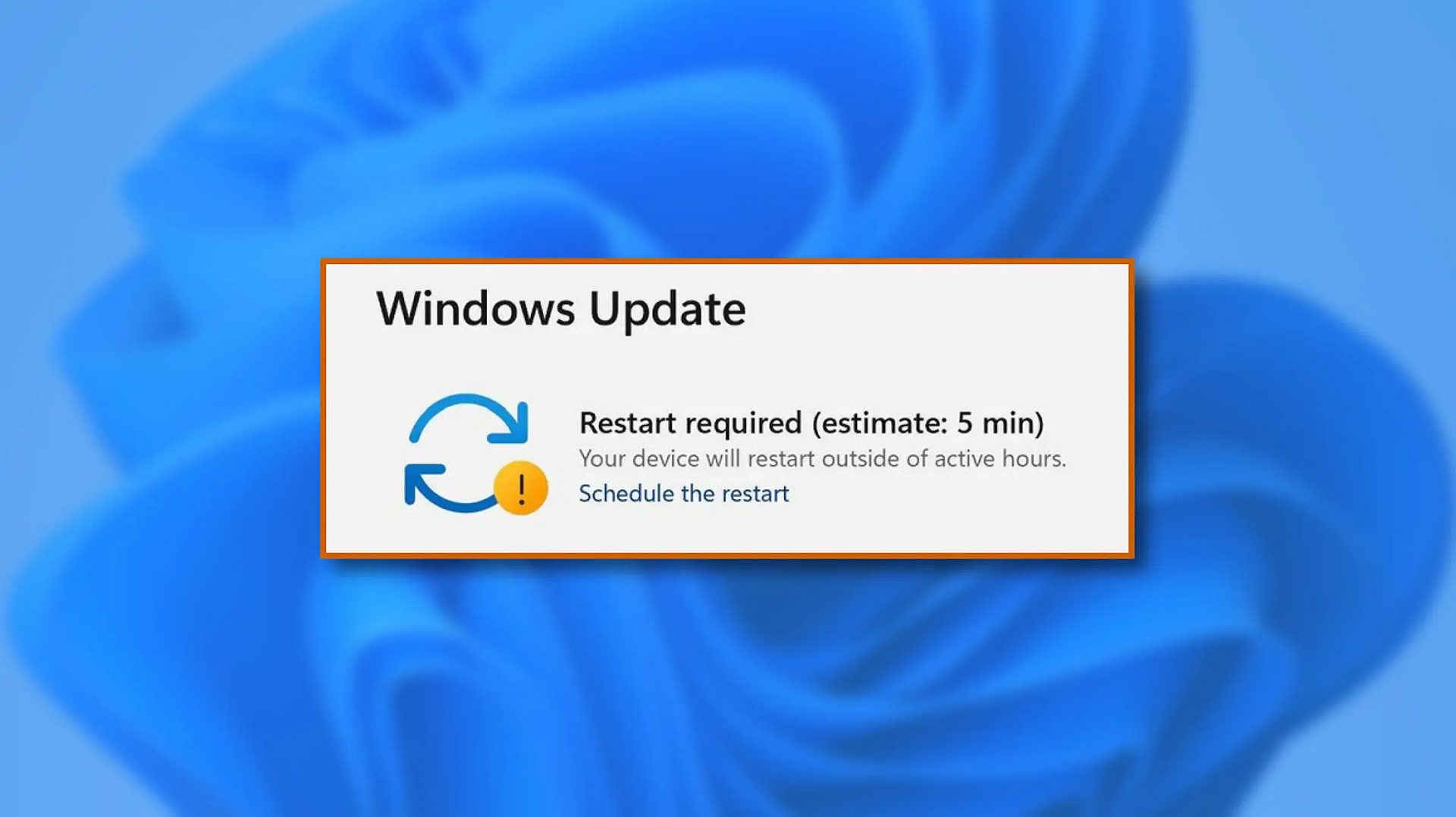
Schedule restart update on Windows 11
windows 11 schedule updateWhen Windows 11 update is available but you do not wish to restart right away because you are in the middle of using a computer, you can schedule a restart for up to 7 days. It is very easy and we will show you how to do it.

  1. Press ⊞ WINDOWS + I to open settings
  2. Click on Windows Update
  3. At the top, under the Restart required to click on Schedule the Restart
  4. Click the switch under Schedule a Time to turn it ON
  5. Use the Pick a Time and Pick a Day menu to set time and day when you want to update
  6. Go back to one screen and visually confirm that the date is set
  7. Close the settings
The scheduled restart will be confirmed in a message on the Windows Update page.
Read More
What Is Phishing And How Can You Protect Yourself From It?

Ever gotten an e-mail offer that seemed just a little bit too good to be true? Might’ve been a phishing attempt! These are everywhere and can come in many different forms. 

So what’s phishing exactly, how can you detect it and how can you keep safe?

What is phishing?

Phishing (pronounced like fishing) is a type of cyberattack that tricks the user into trusting the source and revealing sensitive information. Fishing being the perfect analogy, the bait is a legitimate-looking site, e-mail or file and when you take a bite, your identity, banking information and much more can be revealed and stolen.

Phishing Illustration
Credit: Anne Nygård on Unsplash

Some phishing attempts are incredibly obvious, others are super elaborate. Like with most types of malware, cybercriminals have become extremely well-versed in phishing and anyone can fall for it. To help you recognize and avoid it, we’ll take you through a couple of phishing types and give you tips on what to do if faced with them.

Phishing techniques

E-mail phishing

This is actually the most common type of phishing. A cybercriminal creates an e-mail containing stuff like attractive offers, legitimate-looking attachments or links and makes it appear as though it’s coming from a trusted source.

Illustration of Email Phishing
Credit: Justin Morgan on Unsplash

For example, it looks like it’s coming from your bank or your favorite retailer. The logo looks legit and the structure of the e-mail seems familiar, so you might get tricked into clicking on whatever clickable content is in it.

Unfortunately this exposes your device to malware that hands your data off to the hacker, who can decide what to do with it further.

SMS and social media phishing

Like the above example, you could be approached with lucrative offers or links via text messages or social media messages. Typically, the messages seem relevant to the user as they will be made to look like they’re related to apps or services you’re using.

Voice phishing

Voice phishing attacks are schemes that appear as though they’re coming from a credible number. Normally, you’ll get a call about something related to credit cards or taxes to get you into a state of worry, leading you to disclose personal information on the phone.

Spear phishing, whaling and BEC

Spear phishing normally targets specific individuals within a company who are likely to have access to sensitive data. Spear phishers spend time collecting information they can use to reach out to the individual looking as trustworthy as possible. They’ll typically lead with something relevant, for example mentioning an upcoming company event, and make a seemingly legitimate request.

Whaling is a more elaborate form of spear phishing, which targets people in even stronger positions such as executives or high-value individuals. The ultimate goal is to get them to transfer financial or other sensitive information that can be used to compromise the entire business.

Spear Phishing Illustration
Credit: Azamat E on Unsplash

BEC, or Business e-mail compromise, is a specific spear phishing technique carried out via e-mail. While there are many ways this is done, most commonly you’ll see instances where the phisher poses as a CEO or similar executive, or as a lower-level employee in specific positions (e.g. sales managers or financial controllers).

In the first situation, the impersonator reaches out to employees requesting them to transfer certain files or pay invoices. In the second situation, the phisher takes control of the employee’s e-mail account and sends false instructions to other employees in order to obtain data and information from them.

What can you do?

There are many ways you can be aware and spot a phishing attempt. Here are some tips:

  • Always check the sender’s address in your e-mails, even when they seem to come from a familiar source.
  • In any instance where payment information is requested, be very, very careful.
  • If you are receiving attachments you never asked for and definitely didn’t expect, better not click on them. 
  • Beware of content that transmits a sense of urgency (sales deals, urgent updates to login credentials, etc.).
  • Bad spelling and grammar are usually a telltale sign of phishing.
  • Links that look shortened (e.g. Bit.ly) or just suspicious in general - if you have a bad feeling, do not click on them.
  • If you are receiving threats, you probably shouldn’t be clicking on anything in that message.
  • Always examine first-time senders in detail.
  • Block suspicious e-mail addresses, numbers and social media accounts.
  • If you are receiving a coupon for free stuff… You aren’t.
  • If you’re being asked to update your payment details by a service you use, such as Netflix, chances are it’s an impersonator.

Those are some of the ways to identify and prevent phishing attacks. However, sometimes phishers disguise themselves a little too well or a misclick happens and there you go - you’ve been exposed to malware.

Illustration of a Lock on Keyboard Keys
Credit: FLY:D on Unsplash

This won’t happen if you invest in powerful protection software from the get-go, though. A good antivirus program like Bitdefender will keep you safe from becoming a victim of phishing scams. In fact, it will protect you from malicious attacks overall.

Be it your household or your business you’re concerned about, there are a bunch of different packages and options available, providing different kinds of cybersecurity services. That’s the only way you can ever really be sure you aren’t at risk of a digital attack.

Summary

Have you ever been targeted by phishers and didn’t know that’s what it was until you read this article? Many can relate. Protect yourself before it’s too late!

Read More
1 2 3 171
Logo
Copyright © 2023, ErrorTools. All Rights Reserved
Trademark: Microsoft Windows logos are registered trademarks of Microsoft. Disclaimer: ErrorTools.com is not affiliated with Microsoft, nor claims direct affiliation.
The information on this page is provided for information purposes only.
DMCA.com Protection Status