Logo

CHKDSK cannot continue in read-only mode

As you know, the CHKDSK utility is proven to be one of the useful tools to fix any issues that concerns file system, storage, and disk. However, as useful as it may be, it is still not immune to issues as you could encounter errors when running it. One of these errors is the “One such error is the CHKDSK cannot continue in read-only mode” error. If you receive such an error message while running CHKDSK, then you’ve come to the right place as this post will help you sort the problem out.

It is possible that the drive is read-only or that the Write Protection is enabled. It could also be that the drive is already being used and scanned by a different program or utility. To get rid of this error, there are a couple of suggestions you need to check out. You can try to run the CHKDSK utility from Recovery or run it on Boot. You could also try to disable Write Protection. For more detailed steps, follow the given instructions below.

Option 1 – Try to run the CHKDSK utility from Recovery

The first thing you can do to resolve the error in CHKDSK is to run the CHKDSK utility from Recovery. How? Follow these steps:

  • First, boot into the installation environment for Windows 10 from a Windows installation media.
  • Next, click on the “Repair your computer” option.
  • After that, select Troubleshoot > Advanced options > Command Prompt.
  • After opening Command Prompt, type this command and tap Enter: chkdsk <Partition Letter>: /r /f
  • Wait until the disk error checking process is completed.
  • Once it’s done, exit the Command Prompt window and restart your computer and then see if the error is fixed.

Option 2 – Try running the CHKDSK utility on Boot

On the other hand, you can also try to run the CHKDSK utility on Boot so you can fix the error and recover any damaged segments of the drive.

  • Open an elevated Command Prompt and enter this command: chkdsk /r
  • After that, you will a message that says, “Chkdsk cannot run because the volume is in use by another process. Would you like to schedule this volume to be checked the next time the system restarts? (Y/N)”
  • Type Y and tap Enter to schedule a CHKDSK scan once your computer reboots next time.

Option 3 – Try to remove the Write Protection from the drive

As mentioned, removing the Write-Protection on the concerned drive could also help you fix the problem and there are two ways to get rid of the write protection – you can either use the Diskpart utility or the Registry Editor. How? Refer to the following steps.

Via Diskpart utility:

  • Open Command Prompt with admin privileges and then type the “diskpart” command and tap Enter to execute it.
  • Next, type “list disk” and tap Enter to get the list of all the Disk connects or all the partitions that are formed on those disks.
  • After that, you need to choose one command depending on the list of commands you entered. Type “select disk #” and tap Enter to select the disk or partition you want to select.
  • Then type “attribute disk clear readonly” and tap Enter to Disable the Write Protection on the selected disk or partition.

Via Registry Editor:

  • Tap the Win + R keys to open the Run utility and type “Regedit” in the field and then tap Enter to open the Registry Editor.
  • Next, navigate to the following registry key:

ComputerHKEY_LOCAL_MACHINESYSTEMCurrentControlSetControlStorageDevicePolicies

  • After that, look for the DWORD named “WriteProtect” and double click on it, and then set its Value Data to “0”.
  • Now restart your computer and see if the problem is now fixed or not.

Do You Need Help with Your Device?

Our Team of Experts May Help
Troubleshoot.Tech Experts are There for You!
Replace damaged files
Restore performance
Free disk space
Remove Malware
Protects WEB browser
Remove Viruses
Stop PC freezing
GET HELP
Troubleshoot.Tech experts work with all versions of Microsoft Windows including Windows 11, with Android, Mac, and more.

Share this article:

You might also like

Fix Windows Update Error 0x80071a91
Windows Update Error 0x80071a91, what it is? As you know, Windows Updates are very essential to the operating system since they push with them the important security updates that are crucial to the system. And if a Windows Update is delayed, it can the system vulnerable to potential threats. Thus, this kind of issue must be resolved right away. One of the errors that you can encounter while updating your computer is the Windows Update Error 0x80071a91. The error code 0x80071a91 occurs when the “Transaction support within the specified file system resource manager is not started or was shut down due to an error”. This happens when a service called “File System Resource Manager” or FSRM does not function due to some reason. To fix the Windows Update Error 0x80071a91, here are some suggestions that could help.

Option 1 – Run the Windows Update Troubleshooter

Running the built-in Windows Update troubleshooter could also help you resolve the Windows Update Error 0x80071a91. To run it, go to Settings and then select Troubleshoot from the options. From there, click on Windows Update and then click the “Run the troubleshooter” button. After that, follow the next on-screen instructions and you should be good to go.

Option 2 – Disable the antivirus program temporarily

There are times when the antivirus program installed in your computer blocks file access and even disk access. Thus, disabling the antivirus program or any security software installed in your computer is always a good idea you can try when the Windows Update process does not go smoothly. So before you try updating your computer again, make sure to disable the antivirus or security program and once the Windows Update is done, don’t forget to enable the antivirus program back again.

Option 3 – Try resetting the File System Resource Manager

As pointed out earlier, the error 0x80071a91 pops up when the FSRM service suddenly stops working and so resetting this service via Command Prompt might resolve the problem. To do so, follow the steps below.
  • In the Windows Search box, type “command prompt” and hit Enter.
  • Then right-click on Command Prompt from the related search results and click the “Run as administrator” option.
  • After opening Command Prompt as admin, type the following command and hit Enter:
resource setautoreset true C:
  • After that, exit Command Prompt and restart your computer and then check if the problem’s fixed by running Windows Update again.

Option 4 – Flush the contents of the SoftwareDistribution folder

You have to stop a couple of services such as BITS, Cryptographic, MSI Installer, and Windows Update Services. And to do that, you need to flush the contents in the SoftwareDistribution folder. The Software Distribution folder in the Windows operating system is a folder that can be found in the Windows directory and is used to store files temporarily which might be required to install the Windows Update on your PC. Thus, it is required by the Windows Update and maintained by WUAgent. Aside from that, it also contains all the Windows Update History files and once you delete them, you will most likely lose the Update history. As a result, the next time you run the Windows Update, it may result in a longer detection time.
  • Open the WinX Menu.
  • From there, open Command Prompt as admin.
  • Then type in the following command – don’t forget to hit Enter right after typing each one of them.
net stop wuauserv net start cryptSvc net start bits net start msiserver
  • After entering these commands, it will stop the Windows Update Service, Background Intelligent Transfer Service (BITS), Cryptographic, and the MSI Installer
  • Next, go to the C:/Windows/SoftwareDistribution folder and get rid of all the folders and files thereby tapping the Ctrl + A keys to select them all and then click on Delete. Note that if the files are in use, you won’t be able to delete them.
  • Once all the contents in the Software Distribution folder are deleted, restart your PC and then go back to Command Prompt and input the following commands again.
net start wuauserv net start bits

Option 5 – Delete the Common Log File System transaction logs

You might also want to delete the Common Log File System or CLFS transaction logs to fix the Windows Update Error 0x80071a91.
  • Open an elevated Command Prompt.
  • Then type each of the commands listed below and press Enter after you type each one of them.
    • cd /d %SystemRoot%System32SMIStoreMachine
    • attrib -s -h *
    • del *.blf
    • del *.regtrans-ms
  • After you’ve executed the commands given above, restart your computer and try to update Windows 10 again.
Read More
Power Calibration Error or Medium Speed Error when burning CD/DVD
If you are one of the few users who is still burning CDs and DVDs, you might have come across an error that says, “Medium Speed Error” or “Power Calibration Error”. There are several factors that could cause this error but it’s most likely that the CD/DVD burner wasn’t able to determine the Optimum Power Calibration rate properly. So what is Optimum Power Calibration rate? It is a test that runs before the burning process to regulate the optimal laser power needed to complete the job. And if this process malfunctions, obviously, you won’t be able to burn the content on your CD or DVD. There are also cases when the Power Calibration error pops up for some small issues that have nothing to do with the regulation of laser power. Here are some quick fixes you can try to resolve the Power Calibration error when burning a CD or DVD.

Option 1 – Make sure you’re using good quality CD or DVD

A lot of burning issues stem down to the purchase of low CDs or DVDs to make sure that what you are using has good quality for it is not always a good idea to purchase cheap products as cheap products could also mean cheap quality.

Option 2 – Try burning at lower speeds

If you’re certain the problem is not with the CD or DVD you are using then you can try burning again, this time at lower speeds. There are instances when doing things quickly can end in a disaster such as the “Medium Speed Error” or “Power Calibration Error” you’re getting.  To fix the problem, you have to burn at a slower speed and just take the time to wait until the burning process is done.

Option 3 – Try updating your burning software

It’s always a good idea to check if the burning software you’re using requires an update especially if it’s throwing up “Medium Speed Error” or “Power Calibration Error”. Thus, you need to update your burning software right away and then try to burn your CD or DVD once the update has been completed.

Option 4 – Try cleaning the disk drive

You might want to consider cleaning the disk drive using several tools in the market that is designed to clean the disk drive. These tools work on removing dust particles from the lens which helps a lot in the burning quality. Aside from that, it also helps in reducing errors like “Medium Speed Error” or “Power Calibration Error”. So give this option a try as it might time for a disk drive cleanup.

Option 5 – Try to disable the IMAPI

If none of the options given above worked, you might want to disable the IMAPI or Image Mastering Applications Programming Interface. How? Refer to the steps below.
  • Open Control Panel by simply clicking the Start button and then typing “control panel” in the field.
  • Control Panel should pop up in the search results. Once you found it, click it to open it.
  • Next, select System Security > Administrative Tools and then click Services.
  • After that, you’ll have to search for the “IMAPI CD-Burning COM Service” option.
  • Then right-click on it and select Properties.
  • From there, switch the Startup Type from “Enabled” to “Disabled”.
  • Now click on Apply and then restart your PC.
Read More
How to Fix Windows 10 Error 0x8007000d

Error Code 0x8007000d - What is it?

Error Code 0x8007000d is a common error code that can be found on the Windows 10 Operating system, although it can also appear in previous versions of the operating system, as well.

Common symptoms include:

  • Inability to download new updates.
  • Inability to run the Update tool through to completion.

There are four basic ways to try to resolve Error Code 0x8007000d on your Windows machine. Three of these are pretty simple for even the most basic users, while the final method requires some familiarity with running commands in the Command Prompt. If you don’t feel that you have the skill or confidence to complete the steps listed below, it is generally recommended that you get in touch with a qualified computer repair technician that can assist you in error resolution.

Error Causes

The main cause for the appearance of Error Code 0x8007000d on a Windows machine is that one of the files that the Update tool uses to run one or more updates cannot be found or has experienced damage. Fortunately, there are a few things that you can try on your machine that can be used to attempt to resolve the issues at hand.

Further Information and Manual Repair

Three primary methods exist for the resolution of Error Code 0x8007000d on a Windows machine. As mentioned above, two of these methods can usually be accomplished by basic users, while the third requires some degree of familiarity with the tools associated with the Command Prompt. If you don’t feel that you have the knowledge or skill necessary to follow these steps, contact a computer repair technician to aid you.

Here are the best ways to try to resolve Error Code 0x8007000d on your device:

Method One:  Use the Troubleshooting Tool from Windows Update

From the Windows Update tool, you can attempt to run a scan using the Windows Update Troubleshooter, which can try to identify the specific issue that is occurring and to fix it automatically.

Not only will this tool often fix the problem at hand, but it can also help you to avoid other errors that you may have encountered later on in the Update process. This tool should always be your starting point when you encounter an error as you attempt to download or install updates for your Windows machine.

After the tool has been run, restart your computer to apply any changes and then reopen the Update tool to reattempt installation.

Method Two:  Reset Your Computer

In some cases, the missing or corrupted files may be extensive enough that you need to restore your computer to an earlier point. If you create regular backups of your information or have a past version of the software that you can install, this can help you to resolve the issue. Otherwise, you may need to restore your device to its factory settings to resolve the error.

Always make sure to backup your important files and information before you perform a reset of your device, in order to ensure that you are able to return the computer to its original state when you have finished.

Method Three:  Use Command Line Tools to Resolve the Issue

One of the ways that you can try to resolve this particular error code is the use a DISM tool. This is accessed through the Command Prompt. In order to use this method, follow the steps below:

  • Step One: Open up the search bar in the Start Menu and type in the words “Command Prompt,” selecting it and choosing to run it as an administrator.
  • Step Two: Enter each of the commands below, hitting the “Enter” key when you finish each one:
    • exe /Online /Cleanup-image /Scanhealth
    • exe /Online /Clean-upimage /Restorehealth
    • Exit
  • Step Three: Attempt to run the Update program again. In some cases, you may want to restart your computer before you attempt to run the Update tool again.

If you have not been able to resolve the error code using the steps above or if you are unsure of your ability to follow these steps on your own, get in touch with a trusted computer repair professional that is familiar with the Update process and the errors associated with it.

Read More
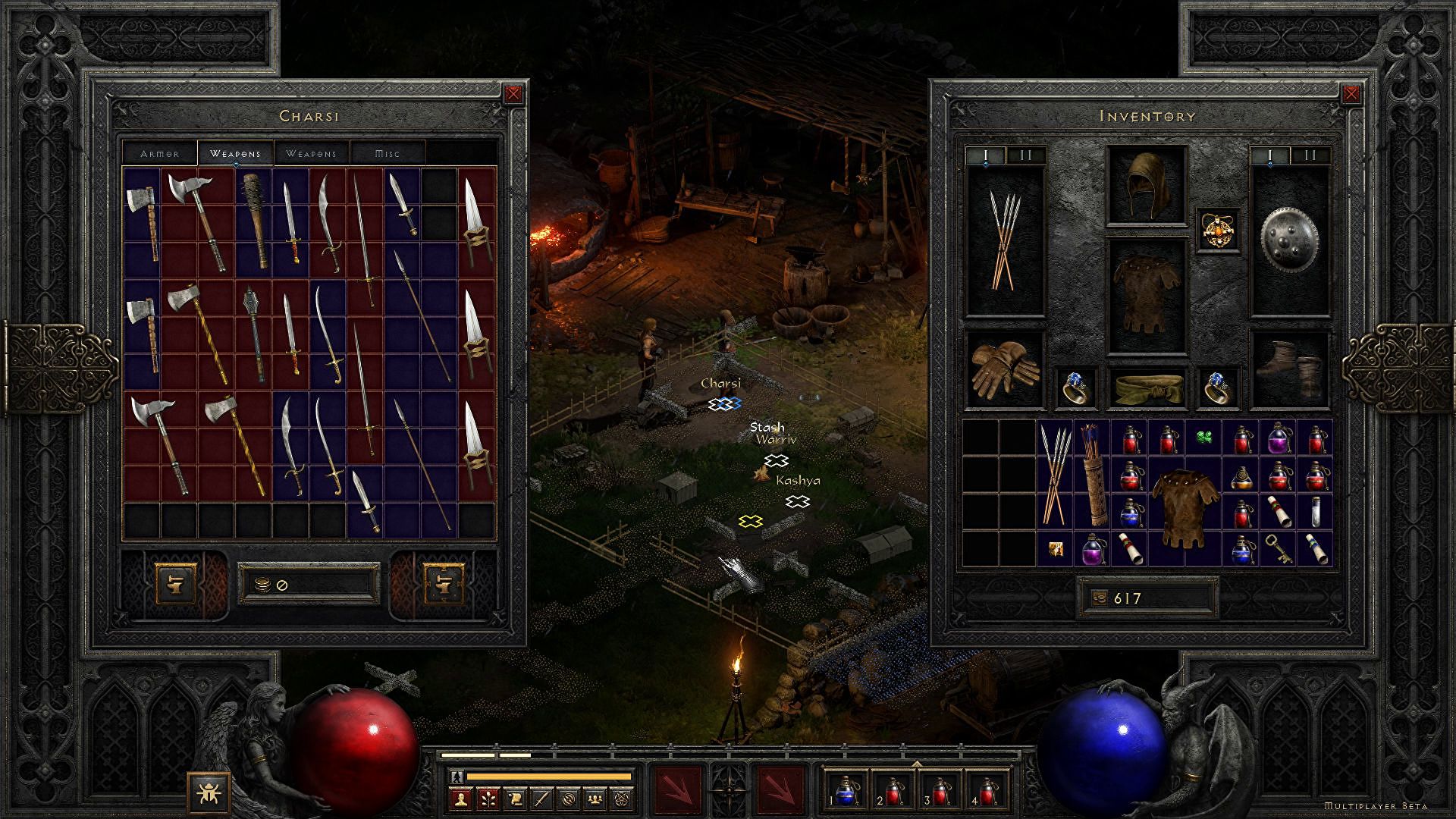
Diablo 2 is trending after launch looking good
Finally, some good news for Blizzard entertainment after tons of bad stuff happening around it regarding lawsuits and people layoffs. Diablo 2 has become the most-watched game on Twitch after its official release and sold copies are on a satisfactory level. Diablo 2 resurrectedFor people not familiar with recent events, the state of California has sued Blizzard for various things including discrimination and offensive behavior. Later Blizzard executives were caught shredding some evidence and things just started to go to worse from there. After much drama, many people believed that this is the end for Blizzard entertainment and that they would not be able to recover from this since the community has sided with California and Blizzard has received a large punch as many subscribed WOW players have left the game. Things are not so grim as they were looking as their Diablo 2 remake has made moderate success despite being released in these troubling times and there are rumors of Overwatch 2 planned release date as of the first quarter of 2022. overwatch 2
Read More
Error 0x80004001 Quick Fix Guide

What Is 0x80004001 Error Code?

0x80004001 is an error code that Windows users encounter quite commonly.

This error usually occurs when users try to update an old Windows application or attempt to run a certain application. When this error appears on the screen, the system automatically restarts to stop further processing. The error results in a blue screen after the system boots.

This blue screen is known as the Blue Screen of Death.

Error Causes

There are different files in the Windows operating system responsible for its smooth functioning. Sometimes problems like viruses or incorrect register entries corrupt or damage these files. This is when this 0x80004001 error appears.

Simply put, some of the most common causes that trigger 0x80004001 error are listed below as follows.

  • Corrupt or damaged EXE, VXD, DLL files of Windows
  • Incorrect entry of registry files
  • Presence of viruses or malware in the system
  • Corrupt or damaged system files
  • Unfinished application installation

Irrespective of what causes this error, it is of utmost importance to troubleshoot it as soon as possible.

Further Information and Manual Repair

While there are several ways of troubleshooting this error, the two most useful approaches have been listed below as follows.

  • This solution is for advanced users. Start your system and log on to it as the administrator. Click on the Start button. Now select All Programs->Accessories->System Tools. Finally, click on System Restore. In a new window, select the option “Restore My Computer to an Earlier Time”. Now click on Next. A list of restore points will be displayed. Choose the most recent restore point from this list and click “Next”. Now click next on the confirmation Window again. Once the restoration is finished, the computer will restart itself and you will observe that the error no longer appears.
  • This solution is for beginner or novice users. Download a 0x80004001 error repair utility available online. Install this program on your computer and use it to scan for the error in your system. When the scan completes, find if any feature allows you to fix errors. If yes, click on it. Now restart your computer again. You will notice that the virus has disappeared. It is a good idea to use error repair utilities because they scan the system, diagnose the error and then perform the repair.

Use any of the methods listed above to get rid of the 0x80004001 error once and for all.

Read More
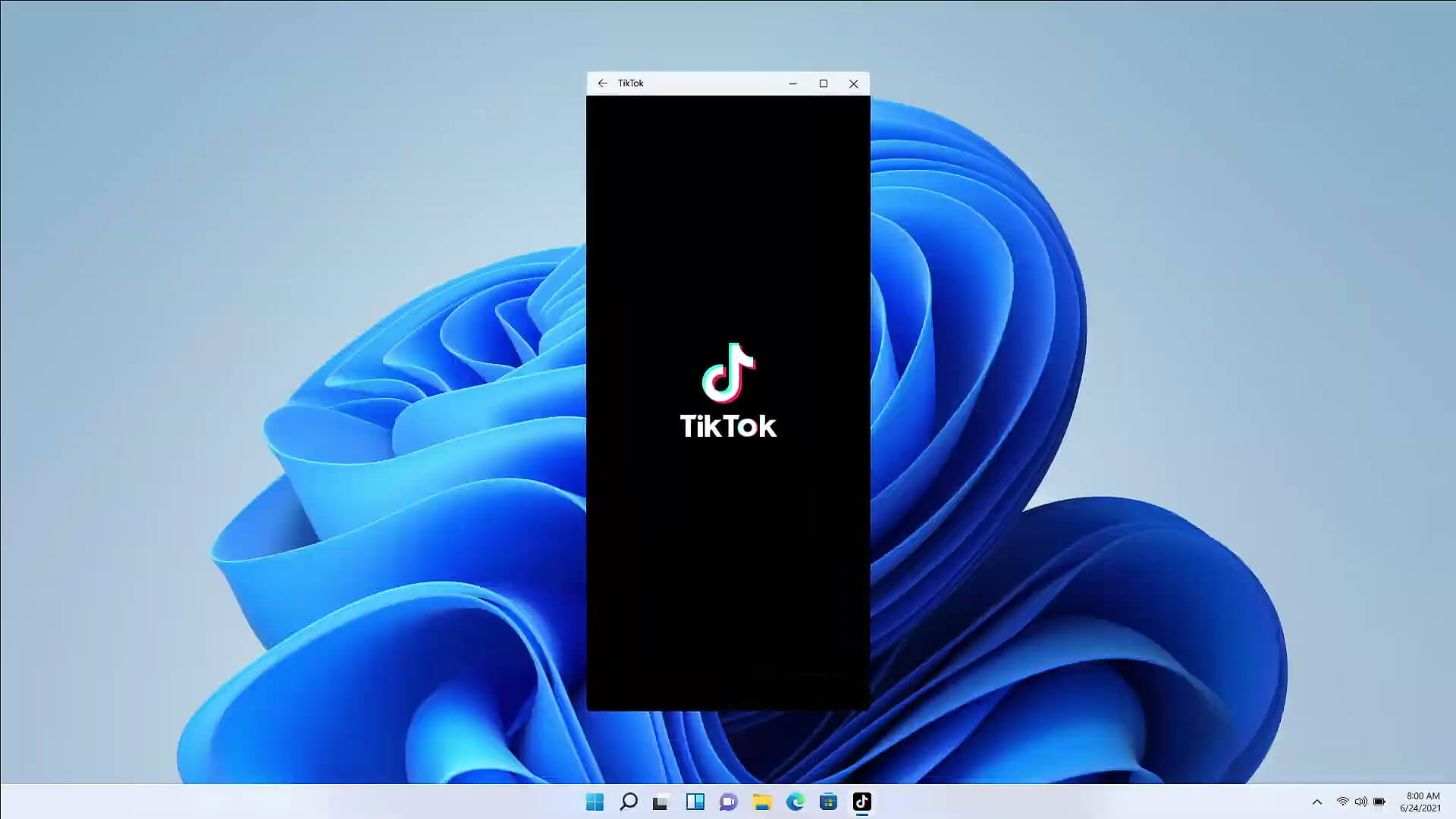
Android apps inside Windows 11
Android apps inside Windows 11The euphoria around Windows 11 is not dying and reveal that Android apps will work natively inside Windows 11 has raised many emotions and questions. So, Microsoft has announced that Android apps will run natively inside Windows 11 OS and that they will reside alongside your other installed ones as icons, etc. It is no secret that many users have been using emulation software to run Android apps inside Windows so far, so what is the difference?

It is still emulation

Whatever you would like to believe it is still emulation and Android apps are at the end of the day still Android apps running inside emulated environment. This time we will not need third-party emulation software running inside Windows, we will have third-party emulation services running inside Windows. Intel has teamed up with Microsoft in order to integrate Intel bridge algorithms in order to run Android apps, meaning that yea, pretty much we have emulation services running in order to run the application. The problem with this kind of approach is that well emulation software is running and consuming system resources only when we start it, this kind of service is always running and always consuming resources and for someone who really does not care about Android apps at all, this is just a waste of resources.

Android store

The store is another issue here, instead of the Google play store we will have the Amazon app store integrated inside the new Microsoft store. This means that any kind of for example game progress or login information from Google store cannot be transferred into Windows 11, add to that information that in the Amazon app store there are tons of missing applications like SLACK, TRELLO, BitWarden, etc and we might have a serious question here about the use of this feature.

Android apps that do not use Android services

If you even look past that it is still emulation and that it is available on the Amazon app store there is still concern about applications not using Google services for their running. Many Android apps are relying on Google services like location or optimize their use of on-device resources, handle in-app purchases, etc. that cannot be found on this system. Uber is a prime example that uses Google location service to determine your location and for its mapping data, with that application, is useless. Other like Guardian will even pop up message that says Google play service is required in order to even work.

Android apps without Eero system

Amazon Eero system for enhanced internet access is not even yet available in its own app store which brings us to missing some key players like Bank of America, Chase mobile, Bueller, etc. And across the board, the apps that are present in the Amazon Appstore are often as good as abandoned. Lots of titles are numerous versions behind their up-to-date Play Store counterparts, and plenty of programs you encounter in the Amazon environment clearly haven't been touched in years.

Conclusion

Many new Windows 11 features are quality features that I personally consider good but although this one seems innovative and good I simply cannot stand back it up. Android apps were already inside Windows with emulation software which used google services and was working just fine, this was not needed in my opinion.
Read More
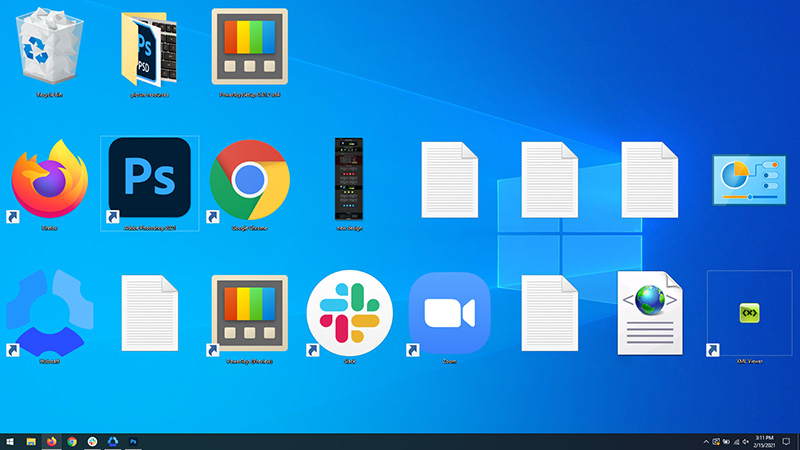
Resize icons on desktop quickly in Windows 10
Resize icons on desktop in Windows 10 in a matter of seconds! Hello everyone and welcome to today's quick tip. If you have ever been dissatisfied with icon size on your desktop and any of the default sizes like small, medium large, etc have not been appropriate know that there is a quick way to resize icons on your desktop in between sizes. All that you have to do in order to use this built-in feature is: Press and hold CTRL and scroll with the mouse. That's it! Find your appropriate size for icons and enjoy. icons on desktop
Read More
How to Get Rid of GifsGalore

The GifsGalore Toolbar from Mindspark Interactive Network, Inc. is proposed to active Web users who like to embed GIFs into their emails and share entertaining GIFs with friends via social media services. The GifsGalore software can be added to your Internet client for free but you need to be using Google Chrome, Internet Explorer or Mozilla Firefox for the GifsGalore Toolbar to be activated.

When installed it hijacks your New tab page and default search engine changing them to search.myway.com. This extension also monitors user browsing activity recording information such as: visited websites, clicked links, viewed products, etc. This information is later used to better target ads. While browsing the internet with this extension enabled you will see additional pop-up ads, as well as sponsored links and injected ads throughout your browsing session, especially in search results.

About Browser Hijackers

Browser hijacking is actually a form of unwanted software program, often a browser add-on or extension, which causes modifications in web browser’s settings. There are various reasons why you may experience an internet browser hijack; however commercial, advertising, and marketing are definitely the main reasons for their creation. The idea would be to force users to visit specific sites that are aiming to improve their site visitor traffic and generate higher ad earnings. It could seem naive, but most of these sites are not legitimate and could present a serious risk to your online safety. Browser hijackers can even let other vicious programs without your knowledge further damage the computer.

Find out how to identify a browser hijack

When your web browser is hijacked, the following can happen: the browser’s homepage is modified; bookmark and the new tab are also changed; the default search engine has been changed and your browser security settings have been lowered without your knowledge; you see unwanted new toolbars added; unstoppable flurries of popup ads appear on your computer screen; your web browser gets sluggish, buggy, crashes very often; you are prohibited access to particular web pages, including the site of an anti-malware software developer like SafeBytes.

How browser hijacker finds its way onto your computer system

Browser hijackers might use drive-by downloads or file-sharing networks or perhaps an email attachment to reach a targeted computer. They may also come from any BHO, browser extension, toolbar, add-on, or plug-in with malicious purpose. Other times you might have unintentionally accepted a browser hijacker as part of an application package (usually freeware or shareware). Examples of well-known browser hijackers are Fireball, CoolWebSearch. save, Ask Toolbar, RocketTab, and Babylon Toolbar.

Removal

Some browser hijacking could be quite easily reversed by discovering and removing the corresponding malware software from your control panel. Yet, certain hijackers are far harder to find or eliminate since they might get themselves associated with some crucial computer files that enable them to operate as a necessary operating system process. Additionally, manual removals demand deep system knowledge and therefore can be a very difficult job for novices. Installing and running an anti-malware program on the affected computer could automatically erase browser hijackers and other malicious applications. Safebytes Anti-Malware has a sophisticated anti-malware engine to help you prevent browser hijacking in the first place, and mop up any pre-existing problems. And use a PC optimizer, like Total System Care, to get rid of all related files in the registry and repair browser issues.

What you can do if Malware Stops You From Downloading Or Installing Anything?

All malware is bad, but certain types of malware do a lot more damage to your computer than others. Some malware is created to restrict or prevent things that you want to do on your PC. It may well not let you download anything from the internet or stop you from accessing some or all websites, particularly the antivirus websites. If you’re reading this article, you may have infected by a virus that stops you from installing security software such as Safebytes Antimalware on your PC. There are some actions you can take to circumvent this problem.

Remove malware in Safe Mode

The Windows OS includes a special mode known as “Safe Mode” in which just the bare minimum required programs and services are loaded. If the malware is obstructing internet access and affecting the computer, launching it in Safe Mode allows you to download anti-virus and run a scan whilst limiting possible damage. To enter into Safe Mode or Safe Mode with Networking, press the F8 key while the computer is starting up or run MSConfig and find the “Safe Boot” options in the “Boot” tab. After you restart into Safe Mode with Networking, you can download, install, as well as update the anti-malware program from there. At this point, you could run the antivirus scan to remove computer viruses and malware without any interference from another application.

Download the security software using an alternate web browser

Web-based viruses can be environment-specific, aiming for a particular browser or attacking specific versions of the browser. If you are not able to download the anti-malware software program using Internet Explorer, it means the virus could be targeting IE’s vulnerabilities. Here, you should switch over to a different browser like Firefox or Chrome to download the Safebytes Anti-malware program.

Install and run antivirus from your USB drive

Another solution is to create a portable anti-malware program onto your USB stick. Adopt these measures to run the antivirus on the affected computer system. 1) Make use of another virus-free computer to download Safebytes Anti-Malware. 2) Plug the Thumb drive into the uninfected computer. 3) Double click on the executable file to run the installation wizard. 4) Select flash drive as the place when the wizard asks you where you wish to install the software. Do as instructed on the screen to finish up the installation process. 5) Now, transfer the USB drive to the infected computer system. 6) Double click the Safebytes Anti-malware icon on the thumb drive to run the software. 7) Click on “Scan Now” to run a complete scan on the affected computer for malware.

How SafeBytes Anti-Malware Keep your Computer Virus Free

If you’re planning to purchase anti-malware for your desktop, there are plenty of brands and utilities for you to consider. A few of them are good but there are lots of scamware applications that pretend as legit anti-malware programs waiting around to wreak havoc on your computer. You need to go with a tool that has obtained a strong reputation and detects not only viruses but other kinds of malware as well. Amongst few good applications, SafeBytes Anti-Malware is the strongly recommended software program for the security-conscious individual. SafeBytes anti-malware is a trusted tool that not only protects your PC completely but is also extremely user-friendly for people of all ability levels. With its cutting-edge technology, this application can help you remove multiples types of malware which include viruses, trojans, PUPs, worms, ransomware, adware, and browser hijackers.

SafeBytes anti-malware provides a myriad of enhanced features that sets it aside from all others. Below are a few of the good ones:

Robust, Anti-malware Protection: Built upon a greatly acclaimed anti-virus engine, this malware removal tool can identify and remove several stubborn malware threats like browser hijackers, PUPs, and ransomware that other common antivirus software will miss. Live Protection: SafeBytes gives you round-the-clock protection for your personal computer restricting malware intrusions instantly. They’re extremely effective in screening and removing numerous threats because they are regularly improved with new updates and alerts. Web Filtering: SafeBytes inspects the links present on a web page for possible threats and alerts you whether the website is safe to browse or not, through its unique safety ranking system. Fast Scan: SafeBytes’s virus scan engine is one of the quickest and most efficient in the industry. It's targeted scanning greatly increases the catch rate for viruses which is embedded in various computer files. Very Low CPU and RAM Usage: SafeBytes is a lightweight and easy-of-use anti-virus and anti-malware solution. Since it uses low computer resources, this application leaves the computer power exactly where it belongs to: with you. 24/7 Premium Support: You will get 24/7 technical support to quickly resolve any issue with your security tool. To sum it up all, SafeBytes Anti-Malware offers superb protection combined with very low system resource usage with both great malware detection and prevention. You now may realize that this particular software does more than just scan and eliminate threats from your computer. You’ll get the best all-around protection for the money you spend on SafeBytes AntiMalware subscription, there isn’t any doubt about it.

Technical Details and Manual Removal (Advanced Users)

To remove GifsGalore manually, go to the Add or Remove programs list in the Windows Control Panel and select the program you want to get rid of. For internet browser extensions, go to your web browser’s Addon/Extension manager and choose the add-on you would like to remove or disable. You’ll probably also want to reset your web browser. If you choose to manually delete the system files and registry entries, use the following list to make sure you know precisely what files to remove before undertaking any actions. However, editing the registry is usually a difficult task that only experienced users and professionals should try to fix it. Moreover, some malware is capable of replicating or preventing deletion. Carrying out this malware-removal process in Safe Mode is recommended.
Files: %LOCALAPPDATA%\GifsGaloreTooltab %UserProfile%\Local Settings\Application Data\GifsGaloreTooltab %UserProfile%\Local Settings\Application Data\Google\Chrome\User Data\Default\Sync Extension Settings\fnjgjdfhhakkbojkgmiihabbbjhgbchh %UserProfile%\Local Settings\Application Data\Google\Chrome\User Data\Default\Extensions\fnjgjdfhhakkbojkgmiihabbbjhgbchh %LOCALAPPDATA%\Google\Chrome\User Data\Default\Sync Extension Settings\fnjgjdfhhakkbojkgmiihabbbjhgbchh Registry: HKEY_LOCAL_MACHINE\Software\[APPLICATION]\Microsoft\Windows\CurrentVersion\Uninstall..Uninstaller GifsGaloreTooltab Uninstall Internet Explorer HKEY_CURRENT_USER\Software\Microsoft\Internet Explorer\LowRegistry\DOMStorage\gifsgalore.dl.tb.ask.com HKEY_CURRENT_USER\Software\Microsoft\Internet Explorer\LowRegistry\DOMStorage\gifsgalore.dl.myway.com HKEY_CURRENT_USER\Software\GifsGalore

Read More
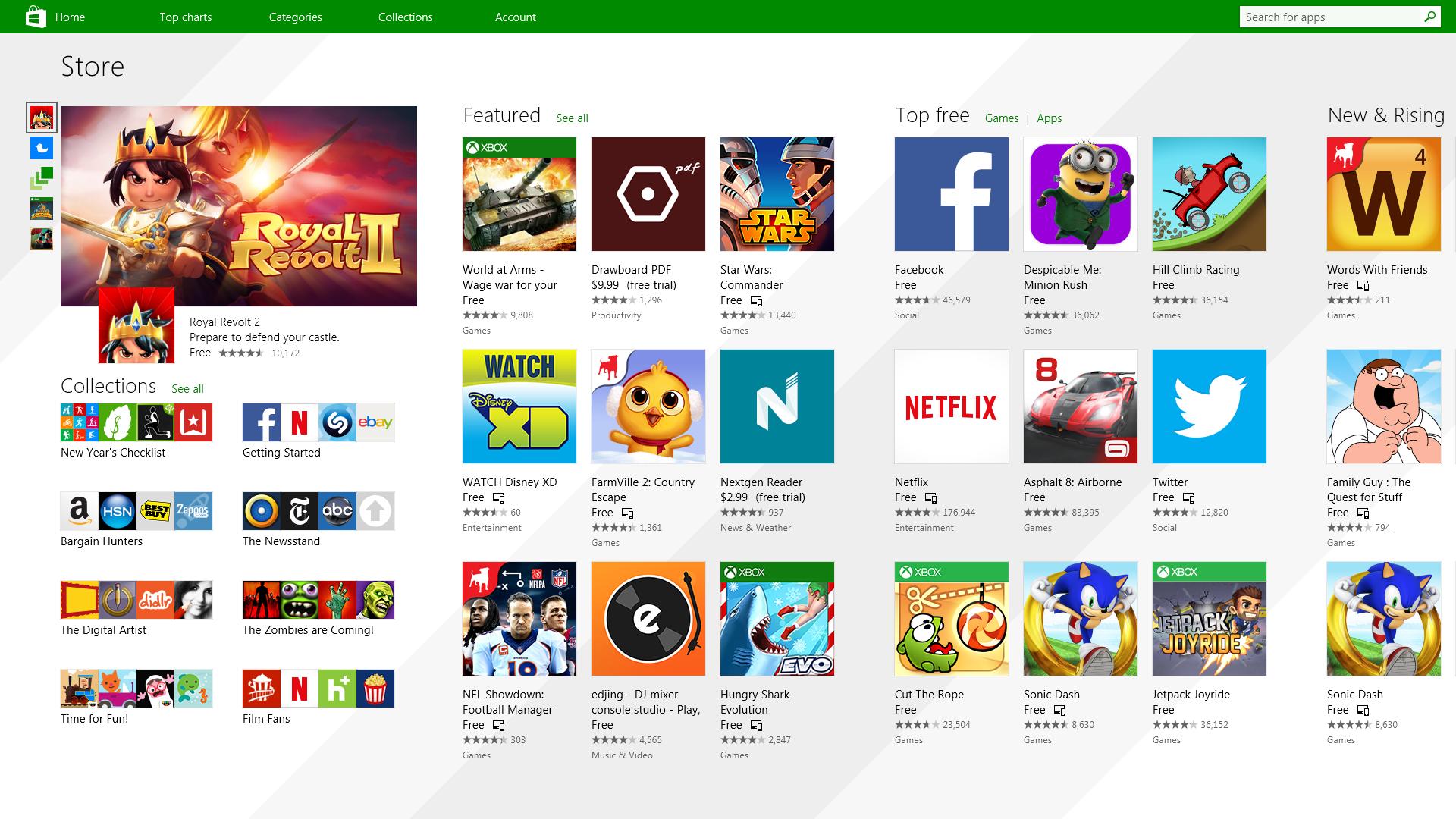
Epic games and many more coming in Win store
Microsoft store is ready and prepared for Windows 11 official release on October 5th and it is coming with some surprises. Windows storeIt has officially confirmed that many open source and free applications will be in it like Opera, VLC, discord, Libre office, etc. It seems that Microsoft wants to place its store as one place to go for all of your software needs. Another great surprise is the coming of Epic games store implementation. It was officially confirmed but not explained in detail, will we have Epic store opened in Windows store or we will only get installer as a package we will see but this is some great news. As for how it states now, it seems that the Windows store aims to eliminate searching the web for applications and bring them all into one environment with reviews and ratings so you know which one to install and use. It also features a great search engine to find proper applications for your needs. The new store will come to Windows 10 as well but after all Windows 11 has been mostly released and adopted. So expect it via update in two or three months' time. It would be great if some larger companies decide to join MS stores like Autodesk, Adobe, the Foundry, etc so you can install everything you need from it but one can only hope.

Read More
Disabling Windows 10 startup delay
First time when your computer is turned ON and when Windows is booting it will wait 10 seconds before starting your startup applications. This 10 second is used to load all of Windows services so everything is running smoothly. If by any chance you do not want to wait for this startup delay and wish to start applications right away then keep on reading and follow this guide precisely. This guide will require you to play ad tweak with the registry of Windows, it is always recommended to make a registry backup before attempting any tweaks. Also, it is imperative to follow the guide as it is presented step by step. be aware that this guide will eliminate a 10-second delay for all of your starting applications, there is no way currently to remove delay for only one or a few.
  1. Press ⊞ WINDOWS + R to open the run dialog
  2. In run dialog type Regedit and press ENTER
  3. Locate HKEY_CURRENT_USER\SOFTWARE\Microsoft\Windows\CurrentVersion\Explorer\Serialize
  4. If the key does not exist, make a new one,  Go to HKEY_CURRENT_USER\SOFTWARE\Microsoft\Windows\CurrentVersion\Explorer\, right-click on the explorer and choose new > key. Name it Serialize
  5. Right-click on Serialize and choose New > DWORD (32-bit) Value
  6. Name the value StartupDelayInMSec
  7. Double click on StartupDelayInMSec and locate Value data
  8. Set the value to 0
  9. Save changes and Exit Registry editor
  10. Reboot
If you want to reverse changes and enable delay again, go back to the Registry Editor and delete the StartupDelayInMSec value.
Read More
1 2 3 171
Logo
Copyright © 2023, ErrorTools. All Rights Reserved
Trademark: Microsoft Windows logos are registered trademarks of Microsoft. Disclaimer: ErrorTools.com is not affiliated with Microsoft, nor claims direct affiliation.
The information on this page is provided for information purposes only.
DMCA.com Protection Status