When it comes to downloading and installing games in the Windows operating system, Steam is one of the well-known sources. You can find many big titles in Streams such as PUBG, Heaven Vaults, and a whole lot more. It is undeniably a great source of getting games in the Windows operating systems. However, just like other software, Steam is not immune to errors as you could encounter errors while using it. This isn’t caused by a bad code but also due to reliance on various factors in both respects to the software and hardware. One of these errors is the Application Load Error 5:0000065434. This kind of error can appear when you launch numerous game titles on your Windows 10 computer like Skyrim, Oblivion, Bully, Morrowind, Vortex, and many more.
To fix this application error in Steam, you can try to copy the Steam executable file or use the Command Prompt. You could also try to verify the integrity of the game files feature or delete any conflicting files on your computer.
Option 1 – Try copying the Steam executable file
The first thing you can do to fix the error is to copy the executable file of Steam.
First, right-click on the desktop shortcut of steam located on your Desktop and click on the “Open file location” option.
After that, copy the executable file for Steam and navigate to the folder of the library of the games which is usually located in SteamSteamAppsCommon
Now paste the Steam executable file you just copied inside the folder of the game and see if it fixes the error or not.
Option 2 – Try to use the Command Prompt
In the Start Search, type “command prompt” and right-click on Command Prompt from the search results and then select the “Run as administrator” option.
After opening Command Prompt as administrator, execute the following command:
The command you entered will create a link between the executable file of Steam to the operating system. Once you see a message that states, “Operation completed successfully”, restart your computer.
Option 3 – Try to use the “Verify integrity of the game files” feature
The next thing you can do to get rid of the error is to use the “Verify integrity of the game files” feature. How? Refer to these steps:
Open Steam and right-click on the entry of the game where you encountered the error in the Library and then select Properties.
After that, navigate to the LOCAL FILES tab and click the “VERIFY INTEGRITY OF GAME FILES” button.
Wait for the process to be completed and see if the feature has helped in fixing the error or not.
Option 4 – Try to delete any conflicting files
The error might be caused by some conflicting files on your computer which is why you have to delete them. To do that, follow these steps:
Open the Documents folder and look for the folder created by the game that’s throwing the error. For instance, it could be stored in the “My Games” folder.
Next, delete the folder and then try to launch the game again and see if the error is now fixed.
If you receive an error message saying, “File System Error 2147219196” when trying to open a picture, access a file or when moving a folder on your Windows 10 computer then read on as this post will help you resolve this error. According to experts, this error started to appear right after the Windows Update v1803 was released. Users who installed the new Windows version faced the same dilemma.
This error might be caused by a corrupted disk or it could be due to some broken Windows components or due to file system encryptions. Before you troubleshoot the problem, make sure that you are logged in as an administrator.
Option 1 – Update Windows
The first thing you can do to Resolve File System Error -2147219196 is to update Windows. Since Microsoft is already aware of this issue, they might have already released a fix for this in one of their new updates so make sure to check for any available updates on your computer and have it installed right away.
Tap Win + S to open Search then type “update” in the field and from the search results that appear, click on Windows Update.
After that, it will open Windows Update under Settings and from there click the Check for Updates button and let Windows check for any available updates.
And if there are any updates available, download and install them on your Windows 10 computer.
Restart your PC and check if the error is now fixed or not.
Option 2 – Run CHKDSK to check your disk for errors
When it comes to some issues concerning the hard drive or removable devices, there is a utility in Windows that might help which is called “chkdsk”. This error check utility can help with several issues in the system including File System Error -2147219196.
Tap the Win + S keys to open the Search box.
Then type “command prompt” in the field and from the search results that appear, right-click on Command Prompt and select “Run as administrator”.
After opening an elevated command prompt, copy and paste the following command and hit Enter:
chkdsk /r /f
Now if you are prompted to run CHKDSK after your reboot your PC, just tap Y and reboot your PC.
If CHKDSK is not able to find any errors, tap the Win + E keys and navigate the access window. From there, right-click on the concerned drive and click on Properties.
After opening Properties, click on the tab Tools and then click on the “Check” button under the Error-checking section.
Wait until the process is completed and then restart your computer.
Once your computer has restarted, try accessing the file and check if the error persists.
Option 3 – Disable the File System Encryption
File System Encryption allows you to encrypt drives to protect them from being accessed from another computer. This is the standard practice in various organizations in order to protect their data. However, there are times when the file encryption system caused issues for users in accessing files and throws the File System Error -2147219196 instead which is why you need to temporarily disable it to access your file. To do so, follow the steps below.
Tap the Win + R keys to open the Run dialog box.
Then type “control” in the field to open Control Panel.
From there, navigate to Security and select the BitLocker Drive Encryption option from the list.
After that, make sure that all your drives are not encrypted and if any of them are encrypted, turn off encryption by selecting Turn off BitLocker.
Reboot your computer for the changes to take effect.
Option 4 – Run SFC scan
Tap Win + R to launch Run.
Type in cmd in the field and tap Enter.
After opening Command Prompt, type in sfc /scannow
Bluetooth perhaps is slowly becoming an outdated feature but sometimes you can really used it and need it.
By default, in Windows 11 Bluetooth is turned OFF so if you need it, you will need to turn it ON first. Luckily turning it ON is easy and we will guide you through the process
Turning Bluetooth using the Quick Settings menu
The easiest and fastest way to turn the Bluetooth ON is using the quick setting menu:
Click on indicator icons located left of date and time in Taskbar
Click on the Bluetooth icon (if the icon is not displayed, click on the pencil icon, then click on Add and add Bluetooth icon from the list)
Right-click on the Bluetooth icon and select go to Settings
Go to Adding a Bluetooth Device to Windows 11 section
Switch it ON via Windows Settings
Open Windows settings by using ⊞ WINDOWS + I combination
Click on Bluetooth & Devices
Inside settings turn Switch to ON beside Bluetooth
Click + Add Device large button on top
Click Bluetooth
Select device in the list of found devices (make sure device is turned ON, it has Bluetooth sharing ON, and that it is in pairing mode)
If the device needs the password, type it in
When the message Your device is ready to go is showed on the screen click on the Done
Advice on Bluetooth devices
Note that the Bluetooth devices you connect to Windows 11 stay linked to your PC unless you pair them with a different PC, smartphone, or tablet later.
After a time, most Bluetooth devices power down automatically to save battery life. To continue where you left off, either power the Bluetooth device up (if it has a power button) or press a button on a keyboard or mouse, and it should automatically turn on and reconnect with your PC.
If you’re having trouble connecting your Bluetooth device, make sure that Windows 11 is fully updated and that you’ve installed any drivers that came with your device.
Make sure that the device is fully charged or that it has a fresh set of batteries.
while Windows is searching. You’ll need to remove the device from Windows 11 first and then attempt to pair it with your PC again.
Removing devices
If you need to remove (un-pair) a Bluetooth device, just open Windows Settings and navigate to Bluetooth & Devices. Locate the name of the device that you want to remove, click the three dots button in the corner of its square and select Remove Device.
InboxAce is a browser extension for Google Chrome developed by Mindspark and gives users easy access to the most popular email clients with just 1 click away. This extension changes your default search engine, as well as your home page to MyWay.com. Several anti-virus scanners have marked this extension as a Browser Hijacker due to its information mining nature.
While installing this extension monitors user browsing activities. It logs the website you visit, the links you click, the products you buy, basically everything that you do in a browser. This information is later used to display unwanted targeted ads that are injected into your search results.
About Browser Hijackers
Browser hijacking means that a malicious code has power over and modified the settings of your internet browser, without your consent. Browser hijacker malware is designed for many different reasons. Typically, it will drive users to particular websites which are looking to increase their advertising campaign revenue. Many people believe that these kinds of sites are legitimate and harmless but that is incorrect. Almost every browser hijacker poses an actual threat to your online safety and it is vital to classify them under privacy risks. Browser hijackers can also permit other malicious programs without your knowledge to further damage the computer.
How to determine if your browser has been hijacked
Signs that an internet browser is hijacked include: the home page of your respective browser is changed unexpectedly; you observe new unwanted favorites or bookmarks added, usually directed to ad-filled or pornography sites; default online search engine is modified; find new toolbars which you did not add; unstoppable flurries of popup advertisements show up on your computer screen; your browser gets slow, buggy, crashes very often; Inability to navigate to particular sites, especially anti-malware and also other security software sites.
How it infects your PC
Browser hijackers might use drive-by downloads or file-sharing websites or an e-mail attachment in order to reach a targeted computer. They also come from add-on applications, also known as browser helper objects (BHO), browser extensions, or toolbars. Other times you may have unintentionally accepted a browser hijacker as part of a software bundle (usually freeware or shareware). A good example of some notorious browser hijackers includes Conduit, Anyprotect, Babylon, DefaultTab, SweetPage, Delta Search, and RocketTab, but the names are continually changing.
Browser hijackers can disrupt the user’s web surfing experience greatly, record the websites frequented by users and steal private information, cause problems in connecting to the internet, and then finally create stability problems, making applications and systems crash.
Tips on how to get rid of browser hijackers
Some types of browser hijackers can be effortlessly removed from your PC by deleting malicious software or any other recently installed freeware. But, most hijackers are extremely tenacious and need specialized applications to eliminate them. And there’s no denying the very fact that the manual repairs and removal methods could be a difficult job for a novice PC user. On top of that, there are many risks connected with tinkering around with the system registry files.
Anti-malware software is very effective with regards to picking up and eliminating browser hijackers that normal anti-virus application has overlooked. SafeBytes Anti-Malware will counter persistent browser hijackers and provide you real-time computer protection against all types of malware. In addition to anti-malware, a system optimizer program, similar to Total System Care, could help you fix Windows registry errors, get rid of unwanted toolbars, secure your online privacy, and increase overall computer performance.
Find Out How To Install Safebytes Anti-Malware On An Infected PC
Malware can cause all sorts of damage once they invade your computer, starting from stealing your personal details to deleting files on your computer system. Some malware goes to great lengths to stop you from installing anything on your computer system, particularly antivirus programs. If you’re reading this, odds are you’re stuck with a malware infection that is preventing you to download or install the Safebytes Anti-Malware program on your PC. There are a few fixes you could try to get around with this particular problem.
Remove viruses in Safe Mode
If any virus is set to run automatically when Windows starts, entering Safe Mode could very well block this attempt. Just the minimum required programs and services are loaded when you start your PC into Safe Mode. The following are the steps you have to follow to boot into the Safe Mode of your Windows XP, Vista, or 7 computers (visit Microsoft website for instructions on Windows 8 and 10 computers).
1) At power-on/startup, tap the F8 key in 1-second intervals. This will bring up the Advanced Boot Options menu.2) Use the arrow keys to choose Safe Mode with Networking and press ENTER.3) When you are into this mode, you should have online access once again. Now, make use of your browser normally and navigate to https://safebytes.com/products/anti-malware/ to download and install Safebytes Anti-Malware.4) After installation, do a full scan and let the program eliminate the threats it finds.
Switch over to an alternate web browser
Some viruses may target vulnerabilities of a particular web browser that block the downloading process. If you’re not able to download the security software using Internet Explorer, this means malware could be targeting IE’s vulnerabilities. Here, you must switch to another browser such as Firefox or Chrome to download Safebytes software.
Make a bootable USB anti-virus drive
Another option is to save and operate an anti-malware program completely from a Thumb drive. Adopt these measures to run the antivirus on the affected computer.
1) On a clean computer, install Safebytes Anti-Malware.2) Plug the Thumb drive into the clean computer.3) Double click on the exe file to open the installation wizard.4) When asked, select the location of the USB drive as the place where you would like to put the software files. Follow activation instructions.5) Unplug the pen drive. You may now utilize this portable anti-virus on the affected computer system.6) Double click the EXE file to open the Safebytes tool right from the pen drive.7) Simply click “Scan Now” to run a complete scan on the affected computer for viruses.
A Look at the Best AntiMalware Program
If you are looking to download the anti-malware program for your PC, there are various tools in the market to consider but you just cannot trust blindly anyone, irrespective of whether it is paid or free program. Some are very good ones, some are ok types, and some are just bogus anti-malware programs that could ruin your computer themselves! You should select one that is dependable, practical, and has a strong reputation for its malware source protection. When considering commercial antimalware tool options, many people select well-known brands, such as SafeBytes, and they are quite happy with it.
SafeBytes is a powerful, real-time anti-malware application that is designed to assist the typical computer end user in safeguarding their computer from malicious internet threats. When you have installed this software, SafeByte's state-of-the-art protection system will make sure that no viruses or malware can seep through your personal computer.
SafeBytes anti-malware takes PC protection to a totally new level with its enhanced features. Here are some of the features you will like in SafeBytes.
World-class AntiMalware Protection: Built on a greatly acclaimed anti-virus engine, this malware removal application can detect and remove numerous obstinate malware threats like browser hijackers, PUPs, and ransomware that other typical antivirus programs will miss.
Active Protection: SafeBytes gives you round-the-clock protection for your computer limiting malware intrusions instantly. This software will constantly keep track of your computer for suspicious activity and updates itself continuously to keep abreast of the constantly changing threat landscape.
Extremely Speed Scanning: SafeBytes’s virus scan engine is one of the fastest and most efficient in the industry. Its targeted scanning highly increases the catch rate for malware that is embedded in various computer files.
Safe Web Browsing: SafeBytes checks and gives a unique safety rating to each and every website you visit and block access to web pages known to be phishing sites, thus protecting you from identity theft, or known to contain malicious software.
Light-weight: SafeBytes gives total protection from online threats at a fraction of the CPU load because of its advanced detection engine and algorithms.
Premium Support: Skilled technicians are at your disposal 24/7! They will promptly resolve any technical issues you might be experiencing with your security software.
On the whole, SafeBytes Anti-Malware is a solid program as it has lots of features and could detect and remove any potential threats. You can rest assured that your PC will be protected in real-time as soon as you put this tool to use. You will get the very best all-around protection for the money you spend on SafeBytes anti-malware subscription, there is no doubt about it.
Technical Details and Manual Removal (Advanced Users)
If you’d like to manually get rid of InboxAce without the use of an automated tool, it may be actually possible to do so by removing the program from the Microsoft Windows Add/Remove Programs menu, or in cases of web browser plug-ins, going to the browsers AddOn/Extension manager and removing it. It is also highly recommended to factory reset your browser settings to their default state.
If you choose to manually delete the system files and registry entries, utilize the following list to ensure that you know precisely what files to remove before executing any actions. But bear in mind, this can be a tricky task and only computer professionals could accomplish it safely. Also, certain malware is capable of replicating itself or preventing deletion. You’re urged to do this process in Safe Mode.
Thorconnwndclass error is an Outlook error that has recently reared its head.
Known to create several problems in the proper functioning of the Outlook application, this error is essentially a constituent of the Norton Antivirus Crash Guard Symantec component. That’s why those using the Norton Antivirus program are most likely to encounter this error.
Solution
Error Causes
When the Thorconnwndclass error occurs, the Outlook closes unexpectedly, users encounter problems while sending or receiving emails and, performance of Outlook is degraded and this happens because issues arise while accessing the PST file. Because of this damaged PST file, stored data is unavailable for access.
Other factors that trigger the Thorconnwndclass error are listed below.
Corrupt or damaged Outlook Add-ins
Corrupt or damaged Outlook bar
Unfinished Outlook installation
Faulty settings
Thorconnwndclass Norton is being used with Outlook
Regardless of the underlying factors that lead up to the occurrence of this error, it's of paramount importance that workarounds are implemented to ensure desired performance of Outlook in the long run.
Further Information and Manual Repair
While there are several ways to rectify this error, some of the most common ones are listed below as follows.
The most effective solution is the PST file repair tools available online. These tools use a complex algorithm and thoroughly scan the PST file and repair it as needed. This resolves the Thorconnwndclass error that one encounters in Outlook. Usually such software have an easy to use interface and can easily be used, without the need for the user to have a strong technical background. Another advantage of using these software available online is that they not only repair the file, but they often play a pivotal role in retrieving inaccessible or lost data.
Some other tips for manually resolving this problem are listed below as follows.
First and foremost, disable your Norton Antivirus program if it’s installed on your system. Now, open the Outlook application in Safe Mode. Since this problem may also be triggered by damaged or corrupt Outlook add-ins, it is strongly advised that you disable or uninstall them. Now, you will come across some .dat files. Rename them by changing the existing .dat files to new .dat.
Another useful approach is to employ the Inbox Repair tool offered by Outlook.
Finally, one can also use the scanpst.exe file to fix any problem or error that resides within the Outlook application.
AudioToAudio is a browser extension for Google Chrome developed by Mindspark Inc. This extension allows users easy access to popular audio converting websites.
When installed, it changes the default search engine, home page, and new tab to MyWay.com. While active AudioToAudio gathers user browsing activities such as, but not limited to: visited websites, clicked links, search queries. This data is later used/sold by the Mindspark ad network to better target ads.
While browsing the internet with this extension enabled, you will see additional injected ads, sponsored content (such as links to web pages, banner ads, affiliate shop links, etc), and even pop-up ads from time to time if the regular ads are blocked.
AudioToAudio has been marked as a Browser Hijacker by several anti-virus applications and is marked for removal by most of them.
About Browser Hijackers
Browser hijacking is a form of unwanted software, commonly a web browser add-on or extension, which causes modifications in web browser’s settings. They are created to interfere with browser functions for various purposes. Typically, hijackers are developed for the benefit of cyber hackers often through revenue generation from forced ad clicks and website visits. However, it isn’t that innocent. Your online safety is compromised and it is also extremely annoying. Some browser hijackers are programmed to make particular modifications beyond the browsers, like changing entries in the computer registry and letting other malware further damage your computer.
How to determine if your browser has been hijacked
When your web browser is hijacked, the following might happen:
1. your web browser’s homepage is suddenly different2. you get re-directed to sites you never meant to visit3. The default search page of the web browser is changed4. discover new toolbars that you simply did not add5. you see numerous ads pop up on the web browsers or computer screen6. webpages load slowly and often incomplete7. Inability to navigate to certain websites, especially antivirus and also other computer security software sites.
How they infect computers
There are many ways your computer or laptop can become infected with a browser hijacker. They usually arrive by way of spam email, via file-sharing networks, or by a drive-by-download. They can also be deployed via the installation of an internet browser toolbar, extension, or add-on. A browser hijacker could also come bundled up with some free software that you unknowingly download and install the browser hijack, compromising your PC security. Some of the most well-known hijackers are AudioToAudio, Babylon Toolbar, Conduit Search, OneWebSearch, Sweet Page, and CoolWebSearch.
Removing browser hijackers
Some hijackers could be removed by just uninstalling the related freeware or add-ons through the Add or Remove Programs in the Microsoft Windows Control Panel. But, the majority of hijackers are quite tenacious and require specialized applications to eliminate them. Novice computer users shouldn’t ever attempt the manual form of removal, as it requires thorough computer knowledge to carry out repairs on the computer registry and HOSTS file.
Browser hijackers can be effectively removed by installing and running anti-malware software on the affected PC. Safebytes Anti-Malware has a sophisticated anti-malware engine to help you prevent browser hijacking in the first place, and mop up any existing issues. In addition to anti-malware, a system optimizer tool, similar to Total System Care, could help you resolve Windows registry errors, eliminate unwanted toolbars, secure online privacy, and increase overall computer performance.
How To Get Rid Of Malware That Is Preventing Anti-Malware Installation?
All malware is bad, but certain types of malware do more damage to your computer than others. Some malware types alter internet browser settings by including a proxy server or change the PC’s DNS settings. In these cases, you will be unable to visit some or all internet sites, and thus not able to download or install the required security software to remove the malware. If you are reading this article, you probably have got affected by malware that prevents you from installing a computer security program like Safebytes Anti-Malware. There are a few actions you can take to get around this problem.
Install in Safe Mode
In Safe Mode, you are able to modify Windows settings, un-install or install some applications, and remove hard-to-delete viruses and malware. In the event the malware is blocking access to the internet and affecting your PC, running it in Safe Mode allows you to download anti-malware and run a diagnostic scan whilst limiting possible damage. In order to enter into Safe Mode or Safe Mode with Networking, press the F8 key while the PC is starting up or run MSCONFIG and locate the “Safe Boot” options in the “Boot” tab. Once you are in Safe Mode, you can attempt to download and install your anti-malware software without the hindrance of the malicious software. Now, you can actually run the antivirus scan to remove computer viruses and malware without any interference from another application.
Switch over to a different web browser
Malicious code could exploit vulnerabilities in a particular internet browser and block access to all anti-virus software websites. If you suspect that your Internet Explorer happens to be hijacked by a computer virus or otherwise compromised by cybercriminals, the best plan of action would be to switch to an alternate browser like Chrome, Firefox, or Safari to download your favorite computer security program – Safebytes Anti-Malware.
Install and run antivirus from your Thumb drive
Here’s another solution which is creating a portable USB anti-virus software package that can scan your computer for malicious software without needing installation. Adopt these measures to use a USB drive to fix your infected computer system.
1) Download Safebytes Anti-Malware or MS Windows Defender Offline onto a virus-free computer system.2) Mount the USB drive on the same computer.3) Double-click the executable file to run the installation wizard.4) Choose the USB flash drive as the destination for saving the file. Do as instructed on the screen to finish up the installation process.5) Transfer the USB drive from the uninfected PC to the infected computer.6) Double-click the EXE file to open the Safebytes tool from the thumb drive.7) Run Full System Scan to detect and clean-up up all types of malware.
Protect Your PC and Privacy With SafeBytes Anti-Malware
If you’re looking to install an anti-malware application for your computer, there are several tools in the market to consider but you should not trust blindly anyone, irrespective of whether it is paid or free software. A few of them do a good job in removing malware threats while many will damage your computer by themselves. When searching for an antivirus tool, purchase one that offers reliable, efficient, and complete protection against all known viruses and malware. When considering commercial anti-malware software options, most people choose popular brands, like SafeBytes, and are very happy with them.
Safebytes is among the well-established computer solutions companies, which provide this all-inclusive anti-malware application. Through its cutting-edge technology, this software will help you protect your PC against infections brought on by various kinds of malware and other threats, including spyware, adware, computer viruses, worms, trojan horses, keyloggers, potentially unwanted program (PUPs), and ransomware.
SafeBytes anti-malware takes computer protection to a whole new level with its advanced features. Here are a few of the good ones:
Robust, Anti-malware Protection: Safebytes is built on the very best virus engine within the industry. These engines can find and eliminate threats even during the early phases of a malware outbreak.
Real-Time Protection: Malware programs trying to enter the computer are identified and stopped as and when detected by the SafeBytes real-time protection shields. This software will constantly monitor your PC for any suspicious activity and updates itself regularly to keep abreast of the constantly changing threat scenarios.
Internet Security: Safebytes assigns all websites a unique safety rating that helps you to get an idea of whether the webpage you’re going to visit is safe to browse or known to be a phishing site.
Lightweight: SafeBytes is a lightweight application. It uses up a really small amount of processing power as it works in the background so you’re free to use your Windows-based computer the way you want.
Premium Support: For any technical problems or product guidance, you may get 24/7 professional assistance via chat and e-mail.
Overall, SafeBytes Anti-Malware is a solid program since it has loads of features and could detect and eliminate any potential threats. You now may realize that this tool does more than just scan and eliminate threats from your computer. So when you want advanced forms of protection features & threat detections, purchasing SafeBytes Anti-Malware will be well worth the money!
Technical Details and Manual Removal (Advanced Users)
If you’d like to carry out the removal of AudioToAudio manually rather than utilizing an automated software tool, you can follow these simple steps: Go to the Windows Control Panel, click on the “Add/Remove Programs” and there, select the offending application to uninstall. In case of suspicious versions of web browser plugins, you can easily get rid of them through your browser’s extension manager. You may also want to reset your home page and search engine providers, as well as clear your browser cache and cookies.
If you decide to manually delete the system files and registry entries, utilize the following checklist to ensure that you know exactly what files to remove before undertaking any actions. However, this can be a tricky task and only computer professionals could carry it out safely. In addition, some malware is capable of replicating or preventing deletion. It is recommended that you do the removal procedure in Safe Mode.
For more information and manual removal instructions visit www.ErrorTools.com
Download Safebytes Anti-Malware: https://errortools.com/download/safebytes-anti-malware/
AudioToAudio is a browser extension for Google Chrome developed by Mindspark Inc. This extension allows users easy access to popular audio converting websites.
When installed, it changes the default search engine, home page, and new tab to MyWay.com. While active AudioToAudio gathers user browsing activities such as, but not limited to: visited websites, clicked links, search queries. This data is later used/sold by the Mindspark ad network to better target ads.
While browsing the internet with this extension enabled, you will see additional injected ads, sponsored content (such as links to web pages, banner ads, affiliate shop links, etc), and even pop-up ads from time to time if the regular ads are blocked.
AudioToAudio has been marked as a Browser Hijacker by several anti-virus applications and is marked for removal by most of them.
Error 0x800706be is a Windows error code that pops up when a particular system file is having some issue. This error pops up on other Windows-compatible software as well as driver vendors. This error signifies a misconfigured or corrupted system file so you might encounter this error in different instances. For instance, this error might pop up when you click the audio icon from the system tray or when the Windows Upgrade or Update has failed. Needless to say, this error can be caused by different factors. Anyhow, this post will show you what you can do to fix the problem when the error pops up during a Windows Update or Upgrade. If you are seeing this error when you try to install the latest Windows updates, it will show a Windows Update failed message and you obviously won’t be able to update your Windows 10 PC until you fix this error. You will keep seeing this error even when you try to reboot or update it a couple of times.
As mentioned, the error code 0x800706be appears when there is something wrong with your system files – they are either corrupted or misconfigured. This error is most likely caused by the corrupted Windows Update Components. Corruption of these files is not unusual and it could happen anytime. So since the Windows Update files or components are corrupted, you won’t be able to successfully install the latest Windows Updates.
Here are some options you can try to fix the problem.
Option 1 – Try running the Windows Update Troubleshooter
Running the Windows Update troubleshooter is one of the basic things to do when facing any kind of issue with Windows Updates. As long as it can it will detect the issue and automatically solve them so that there will be no need for you to do more technical steps to resolve the issue.
Tap the Windows and R keys on your keyboard to open the Run dialog box.
Then type in “control.exe /name Microsoft.Troubleshooting” in the field and tap Enter to open the Windows Update Troubleshooter.
After that, click Windows Update and follow the next on-screen instructions.
Option 2 – Try resetting the Windows Update Components
This is another basic thing to do in fixing the error 0x800706be. It is also one of the solutions that mostly worked for users who also got this error when trying to install Windows updates. And since the problem is caused by corrupted Windows update components, the most logical thing to do is to delete old files and reset components.
To reset the Windows Update components, follow the given instructions below carefully.
Tap the Windows key once.
Then in the Windows Start Search, type in “command prompt”.
From the search results displayed, right-click on Command Prompt and select the “Run as administrator” option.
After that, type in “net stop wuauserv” and tap Enter.
Next, type in “net stop cryptSvc” and tap Enter.
Then type in “net stop bits” and tap Enter.
Type in “ren C:\Windows\Software\Distribution Software\Distribution.old” and then tap Enter.
Afterward, type in “C:\Windows\System32\catroot2\Catroot2.old” and tap Enter.
Next, type “net start cryptSvc” and tap Enter.
Then type “net start bits” and tap Enter.
Finally, type in “net start msiserver” and tap Enter.
Now close Command Prompt and then try updating Windows once more.
Today most users have an SSD drive, times have changed and SSD has become your typical computer equipment.
A lot of time has passed from the first SSD hard drives up to today and technology has evolved and improved but still, there are some cool tricks and tips to speed up and extend the lifespan of your SSD hard drive.
That being said let us dive right into what I would like to call the essentials of having an SSD hard drive.
Keep your SSD firmware up to date.
This one really is a no-brainer, keeping your firmware updated at all times will ensure longer life and SSD stability. The trick here is that each SSD manufacturer has its own ways of updating firmware so this is not something universal, you will have to go to the official website of your SSD manufacturer and get firmware updates and instructions from them directly.
Enable ACHI.
Advanced controller host interface or short ACHI is a feature that will ensure that your Windows will support all of the features that come with running SSD on your computer. It controls the TRIM feature which is crucial in helping Windows itself in its garbage collection on your hard drive. In order to enable ACHI, you will have to do it from your BIOS and it would be very good if the feature is enabled before Windows itself is installed so it can take full advantage of it.
Enable TRIM.
TRIM feature is vital in extending your SSD lifespan and it should be enabled by default in Windows but you can never be too cautious and double-check and enable if needed. To make sure it is enabled, open your command prompt and type in: fsutil behavior set disabledeletenotify 0
Make sure your system restore is enabled.
In the first SSD days, system restore was really a feature that you wanted to be disabled in order to prevent and extend the life span of your SSD drive, but we came a long way from there and today there is no reason to keep this feature turned off since it can be helping many ways with both your system and SSD.
Disable Indexing in Windows.
A large portion of the speed of your SSD drive is used for indexing files in Windows. Of course, the indexing feature is great if you store everything on your SSD drive but if by any chance you have another drive for your backup, pictures, music, etc. it would be highly beneficial for you to turn it off on your SSD. To turn indexing off click on your start menu, click on the computer. Right-click on your SSD and then click on properties. De-select boxthat says: Allow files to have contents indexed in addition to file properties and click OK. Once you do this the operating system will apply this to all the files and folders on the drive. If you see a dialog telling you that it couldn’t remove a file from the index, click Ignore All.
Keep Windows defrag ON.
This also was the option in early SSD days which was better to be OFF, but as said before since technology has been making progress and Windows has been improved and made aware of SSD drives, defrag has evolved as well, and now it is more of optimization tool then defragmenter which was once.
Disable Prefetch and Superfetch.
Windows is placing information in both physical and virtual memory for applications that you are not currently using but they are used often in order to speed their response time. If you are running low on space or having struggles with virtual memory it would be best to turn them both off. Go to registry manager and find: HKEY_LOCAL_MACHINE\SYSTEM\CurrentControlSet\Control\Session Manager\Memory Management\PrefetchParameters, there you have 2 values: EnablePrefetcher and EnableSuperfetch, set both values to 0.
Disable Search and Superfetch services.
Disabling Superfetch in the registry is not all work, Press WINDOWS + R to bring run dialog, type in it services.msc, Find both Search and Superfetch and disable them.
Configure Write Caching.
Write caching can be enabled and disabled in the device manager by expanding disk drives, right-clicking on SSD, then click properties, select the policies tab. In the tab, there is the option to Enable write caching on the device. Now trick in this is that you will need to try and benchmark your SSD with both options turned ON and OFF since different manufacturers have different performances with this option being ON or OFF.
Disable CleanPageFileAtShutdown and LargeSystemCache.
Page file and a large cache of page files are not something that we longer need, since SSD writes with great speed in its flash memory both of these options can be disabled and you will both speed up shut down the process of your system and save some SSD life since page files will not be written. Find both options in the registry under the key: Computer\HKEY_LOCAL_MACHINE\SYSTEM\CurrentControlSet\Control\Session Manager\Memory Management set both to 0
Set high performance in Power options.
This option in power management will prevent your SSD from constantly shutting down and bringing it up increasing speed without sacrificing its life span.
These are tips and tricks for having great and longer life as well as speed for your SSD drive. We hope that you have found them useful and that you will come again to check new articles published daily for easier IT life.
As you know, the Google Drive service is a Backup and Synchronization service provided by Google. It was launched way back in April 2012 which provides users with the options to synchronize, store and share files by uploading them to Google’s servers where they stay until they are deleted personally by the users and can be accessed anywhere using the Google Account that’s used to upload them.
Recently, a lot of users reported that they were unable to connect to Google Drive from their Windows 10 computers. This kind of problem has been noticed in the middle of the upload process and can be seen at times after the app launches. If you also experience the same issue, then you’ve come to the right place as this post will guide you in fixing it.
There are a lot of possible reasons why this kind of problem occurs. It could be that the app was not able to launch properly or the internet got disconnected when the app was about to launch. It is also possible that the Firewall has blocked the app from connecting to the internet or that the antivirus program is preventing the app from making contact with its database. Aside from that, it is possible that the account you are using on your computer is preventing Google Drive from connecting to the internet due to some configuration errors.
Follow the suggestions provided below to fix the connection issue with Google Drive.
Option 1 – Configure the Firewall
As mentioned, the Windows Firewall might be blocking the app from contacting its database so, in this option, you have to allow Google Drive through the Firewall. To do so, follow these steps:
In the Windows Start Search, type “firewall” and click on the “Allow an app or feature through Windows Firewall” option from the search results.
After that, you will see a list of apps, and here, click on the “Change Settings” button.
Next, scroll down and make sure to check both the “Public” and “Private” options for Google Drive.
Now click on Ok to save the changes made and then try to launch Google Drive again.
Option 2 – Try to launch Google Drive again
Google Drive might have not launched properly that’s why it can’t connect to its servers so you can try to launch it again and see if it helps.
Tap the Ctrl + Shift + Esc keys to open the Task Manager.
Next, go to the Processes tab and click on the “View” option located at the top.
After that, uncheck the “Group by Type” option and click on the “Google Drive Sync” from the list of processes.
Then click on the “End Task” option and close the Task Manager.
Launch Google Drive again and see if the issue is now resolved.
Aside from Firewall, antivirus programs, especially the third party ones, are also known to block files applications the instant it detects a threat to the system. Thus, your antivirus program might be the reason why you can’t download anything on your Windows 10 computer. To fix this, you can try to disable the antivirus program on your computer in the meantime and then try to launch Google Drive again. Do not forget to enable them again as disabling them can leave your computer vulnerable to cyber threats.
Option 4 – Try to create a new account
There are times when a certain configuration for a user account might be blocking some elements of the Google Drive app. In such cases, you can try to create a new account to fix the problem.
Click on the Windows key and then click on the icon for Settings.
From there, click on the Accounts button and select the “Family & Other People” option from the left pane.
Next, click the “Add someone else to this PC” option.
After that, click on the “I don’t have this person’s sign-in information” option and select the “Add a user without a Microsoft Account” setting.
Type in the credentials for the new account you are creating and click on Next.
After the account is created, click on the account and then select the “Change account type” option.
Click on the drop-down menu and select the “Administrator” option and then click on OK.
Now sign out of the current account and sign in to the new one and then open Google Drive again.
What software are you using to keep your information and all your files and memories safe?
None? Yikes. Let’s hope no damage has been done to your data yet then. Because with how the digital world has evolved, your data might be getting leaked and you have no idea.
Why do you need to invest in security software?
There’s really no good excuse not to purchase a quality platform for PC protection. Especially since top security solutions are available at such affordable prices nowadays, your wallet would barely even notice it.
At this point, only people who barely use their PCs and have zero sensitive information on them can get away with simply using the built-in Windows 10/11 security software. But we guarantee that those people are extremely hard to find and that you’re not one of them, and here’s why.
Even if you don’t use your computer for things that are very obviously sensitive, such as internet banking, you still have some personal data at risk of being stolen. How so? Well, think about the data you enter into your social media profiles, for example. How devastating would it be if somebody got a hold of any of it? Yep, that’s what we thought.
Credit: FLY:D on Unsplash
In the hands of a skilled cybercriminal, your phone number alone could put you at risk of scams, ransomware, identity theft and more. Also think about the stuff you share in texts and social media chats. Think about the websites you visit and how many times you may have accidentally clicked on an ad, which could very well contain malicious software. Those all seem harmless until someone’s actually used them against you.
Now imagine the dangers involved when you actually store truly confidential data on your PC and browsers. Sends shivers down your spine, doesn’t it?
In the case of a successful cyberattack of whatever type (virus, phishing, worms, etc.), there’s so much that is at stake. Businesses/legal persons will suffer from financial loss and damaged reputation, at the very least. Natural persons may be threatened or exploited, get their banking or medical information and even their identity stolen, etc. And that’s just the tip of the iceberg.
These are our biggest reasons for investing in Windows PC protection software:
Cyberthreats are constantly evolving to the point where built-in or free software won’t cut it anymore.
Those working remotely can have peace of mind knowing both personal and business data is completely secure.
Businesses using top security solutions ensure their customers trust them.
Data breaches are a pain in the you-know-what to handle. Fighting a cyberattack and going back to normal is a demanding process, and not to mention the stress it’ll cause. We’d rather prevent all that by using trustworthy security products!
It helps parents worry a little less about their children’s safety in the online world.
Added bonus: with most products, you get an ad-free browsing experience!
Obviously, there are a lot more reasons to get your PC secured. But we think you get it. So let’s cut to the chase and take a look at our 6 favorite protection solutions and the wonders they can do for you.
*Note that in this article we’re looking at products primarily suited for households and home offices, some for small businesses. No enterprise solutions will make the list today, but stay tuned for a future article on those.
Top 6 best PC protection solutions
1. Bitdefender Total & Internet Security\
One of the biggest security product vendors out there, Bitdefender offers several awesome solutions. We want to introduce two of our favorites, Bitdefender Total Security and Bitdefender Internet Security.
Bitdefender Total Security is great for both households and smaller offices. You can choose to protect 5 or 10 devices, and not necessarily just Windows devices. It also works for macOS, Android and iOS. It offers a range of powerful features, such as:
Real-time data protection
Webcam and microphone protection
Device optimization options
Anti-phishing/-fraud/-spam technology
Ransomware protection
Anti-loss and anti-theft tools
VPN and privacy firewall
Anti-tracking technology
Parental controls
24/7 support
Bitdefender Internet Security shares almost all of these features, but there are a few important differences to note. Unlike Total Security, Internet Security has more options in terms of the number of protected devices: 1, 3, 5 or 10. However it’s only compatible with the Windows platform and it doesn’t offer device optimization tools or anti-theft options. Whether or not this is a deal-breaker depends on your needs alone - we still find it a great security tool.
Credit: Firmbee.com on Unsplash
2. ESET Internet Security
An award-winning Windows security product, ESET Internet Security is essential on this list. It has an outstanding protection rate of 99.9% and a range of amazing options you’ll definitely want to make use of. It can be installed on up to 10 devices, making it an awesome tool for your household, home office or a small business. It’s also compatible with macOS and Android.
These are ESET Internet Security’s best features:
Protection against ransomware and spyware
Protection against malware specifically designed to avoid detection
In-depth scans when the computer is not in use
Firewall to prevent unauthorized access to your PC
Anti-spam tool
Anti-phishing and botnet protection technologies
Tool to scan your router and smart devices for vulnerabilities
Special browser for secure internet banking
Parental controls
Prevention of unauthorized webcam access
If you ask us, ESET has it all!
Credit: rupixen.com on Unsplash
3. Kaspersky Total & Internet Security
Having a deja vu? Didn’t you just read Total Security and Internet Security somewhere? Oh, that’s right - the first entry on our list! But here we’re talking about Kaspersky, a vendor you’ve also definitely heard about before.
Just like Bitdefender, Kaspersky is another one of those renowned names in the cybersecurity world that always make it to every ‘best of’ list. And for good reason - its products really fulfill their purpose. So let’s take a closer look at the two we chose.
These are the features both Kaspersky Total Security and Kaspersky Internet Security have in common:
Real-time virus and spyware blocking
Webcam protection
Wi-Fi security notifications
Advanced identity theft protection
Free technical support on several channels
Remote security management
Multiple devices (up to 10)
The main difference between Kaspersky Total Security and Internet Security is that the former offers more capabilities. These are the features KTS offers that KIS does not:
System cleanup
File shredding
Password management
Data backup and encryption
Both are excellent security tools, though we do prefer KTS a little more because of these additional options.
4. Norton 360 Deluxe
Of course one of the industry-leading solutions makes the list. Norton 360 Deluxe can protect up to 5 devices, be it Windows, iOS, macOS or Android. It’s worth noting that its features are best developed for Windows. Here’s what you get with Norton 360 Deluxe:
Protection against viruses, hackers, malware
100% virus protection promise
VPN included for all devices
Unlimited VPN on Windows
Password manager
Parental controls
So is there anything aside from these standard protection features that makes it such a favorite among us techies? Let us tell you! Norton added a little bit of spice here with two really powerful capabilities. The Deluxe product offers 50GB of cloud backup and dark web monitoring. The latter means the software notifies you if any of your personal information is found on the dark web, which helps protect you against identity theft.
Credit: Luke Peters on Unsplash
5. McAfee Antivirus
Don’t be misled by the name of this product. Antivirus software may have started as protection against viruses only, but it’s developed quite a lot. The name simply stuck. All that to say that McAfee Antivirus - another award-winning security solution - protects you against several different threats.
The basic and essential plan allow 1 and 5 devices respectively, while McAfee+ Premium and Advanced work on an unlimited number of devices. The latter two also offer more capabilities, as you can imagine. Here’s what you can expect from all of them:
Secure unlimited VPN
File shredder to delete sensitive files completely
Ultimate safety while browsing
Protection against hackers
100% virus protection promise
Advanced firewall to block dangerous traffic
Online support from specialists
Protection score (shows how safe you are and detects vulnerabilities)
Identity monitoring (notifies you if any of your information is on the dark web)
Password management
Unlike the previous products, McAfee Antivirus does not offer parental controls. Otherwise it’s a pretty strong and comprehensive protection tool and might just be the right choice for you!
6. Trend Micro Maximum Security
Last but definitely not least, we’ve got Maximum Security by Trend Micro. And yes, you guessed it, Trend Micro is also an award winner in terms of cybersecurity. Its products have been recognized as industry-leading security solutions by AV-Test since 2003. Among all its fantastic solutions, our favorite for households or small offices is Maximum Security.
You can use Trend Micro Maximum Security to protect 3-5 devices for a year or two years before needing to renew your license. Aside from Windows, it’s compatible with iOS, Android, Mac and Chromebook devices. Here’s what you can expect from this protection software:
Powerful malware protection
Phishing detection and prevention (email)
Password management and protection
Maximum security for online banking and shopping
System optimization
Social media privacy protection
Parental controls
24/7 technical support
No notifications during gaming
It’s truly one of the most effective platforms out there dedicated to protecting your digital life. Using this product, ransomware, identity thieves and malicious websites don’t stand a chance.
The bottom line
If you’ve made it all the way here, congratulations, you’ve made the right choice: to invest in securing your valuable data! Now the question is: which one of these 6 awesome antivirus/antimalware products to select?
The paradox of choice is a very real thing - we feel you. As mentioned, it comes down to what your specific needs are. So before you go ahead and purchase your security software, make sure to explore all options.
And if you really can’t handle the decision-making anxiety, feel free to reach out. We’ll happily assist you in finding the right product to keep your digital life secure!
Support for Bluetooth hardware has always been included in the Windows 10 operating system for a long time now. And it just keeps getting better especially now with the support for the latest version of Bluetooth 5.0 LE. However, there are still times when Bluetooth experiences a couple of issues one of which is users were not able to turn on or off Bluetooth on their Windows 10 Pc since the option to turn Bluetooth off or on is missing in the Windows 10 settings app and even in the Action Center. So if you are one of the users who experience the same problem, read on as this post will guide you in resolving the issue.
To resolve this Bluetooth issue, here are some suggestions that could help:
Option 1 – Try running the Bluetooth Troubleshooter
As you know, Windows 10 has various troubleshooters with user-friendly interfaces where you can utilize them to fix issues in your PC. And since you’re dealing with some Bluetooth problem, you have to run the Bluetooth Troubleshooter.
Open the Windows 10 Settings.
Then go to Update & Security > Troubleshoot.
You should find the option for Bluetooth on your right-hand side – click on it then click on the “Run the troubleshooter” option.
Now follow the next screen options.
Option 2 – Try to reinstall or update the Bluetooth driver
The issue might have something to do with the Bluetooth drivers. It could be that it is outdated and needs to be updated or that you recently updated it and since then you have trouble removing the Bluetooth devices and so to fix the issue, you can update, roll back or uninstall the Bluetooth drivers. How? Follow the steps below.
Tap the Win + X keys to open the Device Manager.
Next, look for the Bluetooth device and right-click on it.
Select the option “Update driver”.
After that, a new popup window will appear. In there, select the option, “Search automatically for updated driver software”.
Note: Checking the update may take a few minutes so you’ll have to wait until it finishes. If it is able to find an update, you must install it. And if you want to reinstall the Bluetooth driver, just select the “Uninstall driver” option and follow the next on-screen instructions that follow.
Option 3 – Configure the Bluetooth Services
If the first two options didn’t work, the next thing you can do is configure Bluetooth Services. How? Simply follow these steps:
Tap the Win + R key combination to open the Run dialog box.
After that, type “services.msc” in the field and hit Enter to open the Windows Services Manager.
You will then see a list of services and from there, look for the following services and make sure that their default values are set as follows:
Bluetooth Handsfree Service – Manual (Triggered)
Bluetooth Audio Gateway Service – Manual (Triggered)
Bluetooth Support Service – Manual (Triggered)
Bluetooth User Support Service – Manual (Triggered)
Now click on the Start button to start all the aforementioned services and then check if you can now see the option to turn Bluetooth on or on.







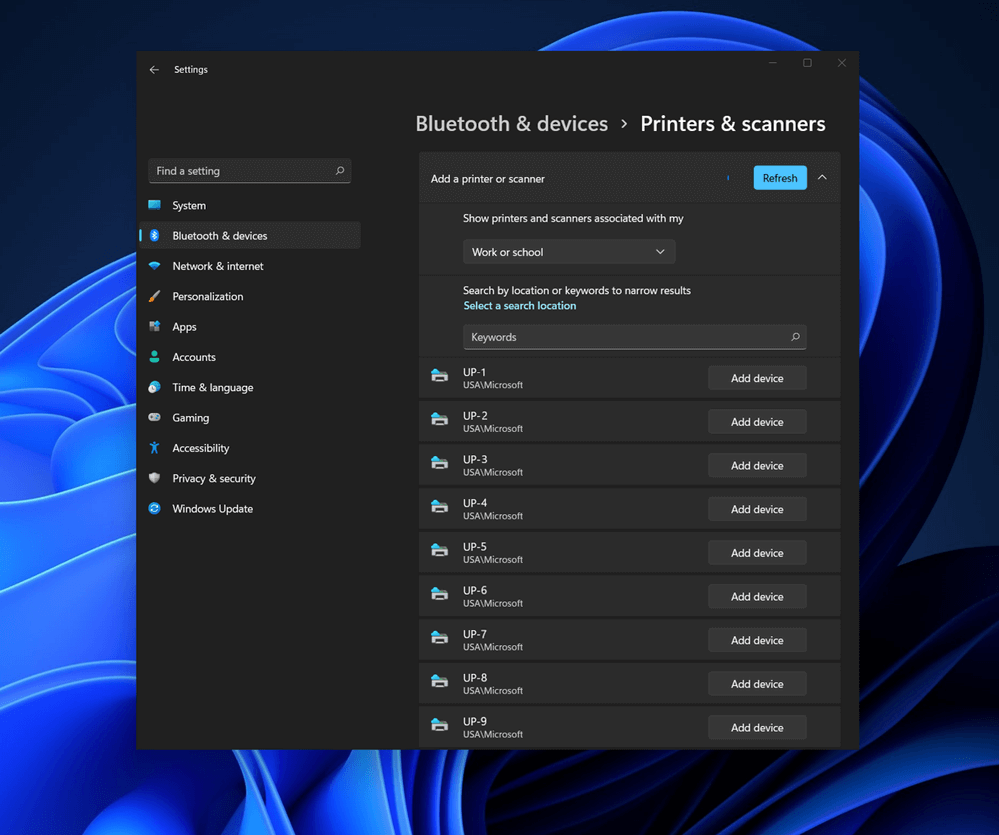 Bluetooth perhaps is slowly becoming an outdated feature but sometimes you can really used it and need it.
By default, in Windows 11 Bluetooth is turned OFF so if you need it, you will need to turn it ON first. Luckily turning it ON is easy and we will guide you through the process
Bluetooth perhaps is slowly becoming an outdated feature but sometimes you can really used it and need it.
By default, in Windows 11 Bluetooth is turned OFF so if you need it, you will need to turn it ON first. Luckily turning it ON is easy and we will guide you through the process
 Error Causes