





Logo

How to avoid errors in Windows

We have all experienced Windows errors over time and that can range from simple ones that will do very little to no harm and can be even system breaking making us lose our work or completely making the PC unusable. No one likes them but they happen, and usually, they happen once we least expect them.

No matter how frequent and unpleasant they might be there are ways to keep them at the minimum and even avoid them.

We will discuss steps that you can take in order to do this, simple tips and guides on how to keep your computer in top form and eliminate not just Windows, but any kind of errors altogether.

computer free of errors

Keep your hardware clean

Believe it or not, some serious Windows errors like the dreaded blue screen of death can come from hardware issues not from the software at all. It is very important to keep your computer clean and with enough air flow so it can function properly.

Not so far ago we had an article about cleaning your hardware detailing what and how to do it. Here is a link to the article: https://errortools.com/windows/cleaning-your-pc/

Do not keep applications you are not using

Keeping applications on the drive might seem harmless but sadly that is not the case. Some applications have a certain impact on the system itself after all most of them are tweaking registry entries in Windows and sometimes having too many applications means an increased possibility of conflict over certain resources even when they are not running.

Some applications like adobe creative suite, for example, will have certain services always running in the background, and more of these kinds of applications you have, more services, more places for unexpected errors when they collide. Some of them will also install certain dependencies that could be problematic.

The general idea is: if you are not using it, uninstall it and you will be safer and more resilient to errors inside OS.

Do not use pirated or cracked software

Besides moral and law implications that using pirated or cracked software might bring you there are also certain other things that might be problematic. Certain "free" software might come packet with some problematic malware, for example, it is not uncommon for attackers to use some popular software to pack their malicious application with it.

Other things might be wrong and incomplete tweaking with application in order to bypass security and thus bringing some instability due to scripts needed to run in order to achieve this goal.

Keep your drivers updated

Errors can also come from old drivers or bad drivers, device manufacturers are not all-knowing and perfect, and sometimes drivers can wreak havoc on the system. Having updated drivers can minimize any kind of unexpected behaviors inside the operating system making it more stable and reliable.

You can check your driver version in the control panel inside the Windows OS and then compare it to the ones found on the manufacturer's site, if there are newer available it is recommended to download and install them,

Keep software updated

Applications can have bugs, and bugs can lead to certain errors both in the system and when using the app as well. It is in your best interest to get the latest patch or newer version of the software in order to avoid these unpleasant experiences.

Also, certain codecs and extensions that are installed directly in Windows can also have some unpredictable behavior, updating is the best solution to keep them in line.

Keep Windows updated

Same as with drivers and applications, Windows itself is not immune from bugs and some unpredictable issues. Luckily Microsoft is always working on fixes and features of Windows but in order to actually have benefited from that work, you will need to keep Windows updated. Sometimes a bad update can introduce some errors but you can always roll back to the previous and wait for them to fix everything and then download them all.

Check the health of your hardware regularly

Hardware components have their life cycle, more quality ones tend to last longer but eventually, they will reach the end of their lifecycle. There are a lot of testers for various components in your computer that can check different things and provide you with information about the state of your components.

If you are on Windows 11, Microsoft has included a basic health app inside OS, just type PC health check in search and start the app. For some more detailed information and advanced checks, you will have to use a custom application. There are plenty of them specialized for single components like RAM, SSD, etc. A simple google search with providing you with top results and most of them are free for personal use.

Remember, a faulty component or component that is reaching its life cycle can produce many errors inside the operating system.

Do You Need Help with Your Device?

Our Team of Experts May Help
Troubleshoot.Tech Experts are There for You!
Replace damaged files
Restore performance
Free disk space
Remove Malware
Protects WEB browser
Remove Viruses
Stop PC freezing
GET HELP
Troubleshoot.Tech experts work with all versions of Microsoft Windows including Windows 11, with Android, Mac, and more.

Share this article:

You might also like

Experiencing Error Code 36, We Have A Solution!

Error Code 36 – What is it?

This is a common Device Manager Error Code that users encounter. It is commonly found on all Windows 2000 and later versions of Windows operating systems. Error Code 36 is usually prompted by the following message:

"This device is requesting a PCI interrupt but is configured for an ISA interrupt (or vice versa). Please use the computer's system setup program to reconfigure the interrupt for this device. (Code 36)"

Solution

driverfix boxError Causes

Error Code 36 occurs when there is a failure in IRQ translation due to your Windows operating system getting corrupted. This is caused due to a number of triggers, such as:

  • An excess of startup entries
  • Errors in registries
  • RAM or hardware failure
  • Excessive unnecessary installed programs
  • Malware or spyware

When programs are removed excessively, some programs are not removed completely and create problems in your computer’s registry.

Also, due to the presence of malware and spyware and other causes mentioned above, your computer registry builds up errors with the time that leads to slowing your PC, time lags, and even result in crashes and freezes.

Error Code 36 can cause internal and external components to malfunction or experience time lags such as DVD drive or printer and hence can severely affect your entire PC.

Further Information and Manual Repair

Error Code 36 is a severe PC error and any attempt at fixing the error must be approached with extreme caution for your PC to start functioning properly again. Here are two methods to fixing your PC.

Method 1 – Change IRQ reservation settings

Changing the IRQ reservation settings is the best way you can rely on to fix the error code. You can do this by changing the BIOS settings of your PC.

The BIOS stands for ‘Basic Input/Output System’ and is the program of your PC’s microprocessor that allows your PC to boot after you switch it on.

Caution needs to be exercised before changing the BIOS settings of your PC. This is because every PC’s BIOS version differs from another and any wrong attempt to change the settings may make matters worse.

It is therefore recommended to refer to hardware documentation that you received with your PC or motherboard and check for the model number and details of your PC’s motherboard.

Only after you have checked and confirmed all the details, should you use the specific BIOS settings required to configure your IRQ reservations?

Method 2 – Install DriverFIX

Error Code 36 isn’t an easy error to remove.

While changing the BIOS settings can work to restore your PC, it may create a whole lot of inconvenience for finding the time and effort to check the hardware documentation details and attempting to change the specific settings and especially, if your PC does not support the options to change IRQ reservations.

Given the high risks of fixing such an error, you can also install software that enables you to fix your slow PC at the click of a few buttons.

Programs such as DriverFIX can enable you to download and replace your outdated drivers with new updated ones without you having to look for them. It will detect which drivers to download based on your PC’s motherboard version from the program’s database and can get rid of error code 36.

Click here to download DriverFIX and remove error code 36 and any other type of Device Manager error from your PC.


Read More
login does not appear/password box not showing
As you know, Windows 10 offers its users tons of options to log in to their computers. This includes simple and easy methods like PIN and complex ones like the Windows Hello Face unlock. However, there are instances when you might face a situation where the login screen in Windows 10 does not appear at all. If you are currently facing this problem, worry not for this post will show you what you can do to fix this problem. There are actually two scenarios to this issue, you might encounter one where the login screen does not show up at all, while the second one is when the login screen shows up but there is no username or password box. There are several options you can check out to resolve the problem. You can try to run System Restore or try the combination of Ctrl + Alt + Delete keys. You could also try to enter a username and password to use the computer or disable Fast Startup or troubleshoot the problem in a Clean Boot State. You could also create a new User Account or run Fresh Start or run the Startup Repair. To get started, follow each one of the given options below.

Option 1 – Try using the Ctrl + Alt + Delete key combination

The first and simple thing you can do to fix the login screen is to tap the Ctrl + Alt + Delete keys and see if it makes the credentials appear or not. If not, proceed to the next given option.

Option 2 – Try running System Restore

If you aren’t able to boot into the desktop of your computer, you can run System Restore in the Advanced Startup Options by following these steps:
  • Boot your computer into the Advanced Startup Options screen.
  • From there, you will see some options to troubleshoot when you can’t log in to Windows in the usual way.
  • Now select Troubleshoot > Advanced Options > Command Prompt.
  • After that, type “rstrui” and hit Enter to execute the command which will start the System Restore process.
  • Once it’s done, restart your computer.

Option 3 – Try to turn off Fast Startup

  • Tap the Win + R keys to open the Run dialog box and type in “control” to open the Control Panel.
  • Next, click on the Hardware and Sound section and click on Power Options.
  • Afterward, select the “Choose what the power buttons do” option from the left side menu pane.
  • Now click on Change settings that are currently unavailable and uncheck the entry that says, “Turn on fast startup (Recommended).
  • Then click on Save Changes and restart your computer and see if it has fixed the problem or not.

Option 4 – Try troubleshooting the problem in a Clean Boot State

There are times when some conflicting programs installed in your computer might be the reason why there is an issue with the password box in the login screen of Windows 10. To identify which program is causing the problem, you need to put your computer in a Clean Boot State. To do so, follow the steps below.
  • Log onto your PC as an administrator.
  • Type in MSConfig in the Start Search to open the System Configuration utility.
  • From there, go to the General tab and click “Selective startup”.
  • Clear the “Load Startup items” check box and make sure that the “Load System Services” and “Use Original boot configuration” options are checked.
  • Next, click the Services tab and select the “Hide All Microsoft Services” check box.
  • Click Disable all.
  • Click on Apply/OK and restart your PC. (This will put your PC into a Clean Boot State. And configure Windows to use the usual startup, just simply undo the changes.)
  • From there, start to isolate the problem by checking which one of the programs you installed recently is the root cause of the problem.

Option 5 – Try to run Startup Repair

You might also want to run Startup Repair in fixing the issue with the login screen. To do so, follow the steps below.
  • You can start by creating and booting from a bootable Windows 10 USB Stick.
  • After that, click on Repair your computer located on the bottom left corner when you are on the initial Windows Startup screen.
  • Next, click on Troubleshoot, and then on the other screen, click the Startup Repair option.
  • Now select the operating system you want to repair. Once you do that, it will start to repair your operating system. Wait until the process is completed and then check if the problem’s now fixed.
Read More
How to Repair Windows 10 Error 0x800ccc13

Error Code 0x800ccc13– What is it?

0x800ccc13 is an error message related to sending email using Outlook. Many people are receiving this error after making an upgrade from Windows 7 or Windows 8.1 to Windows 10. The error message appears when you try to send an email message with the use of a POP3 account or an IMAP account in an Outlook profile that has an Exchange Server 2010 mailbox configured. A common complaint would be: Since upgrading to Windows 10 I cannot send email from Outlook 2013. Mail stays in the Outbox, and I get: Error 0x800CCC13. Cannot connect to the network.

Symptoms

This problem may arise under the following situations:
  • You are using Microsoft Office Outlook in online mode to connect to a Microsoft Exchange Server 2010 mailbox
  • When you add an additional POP3 or IMAP account in the same Microsoft Outlook profile
  • You are sending an attachment through email.
  • You try sending an email by selecting POP3 or IMAP account as the sender
During these circumstances, the email message stays in the Outbox and you receive the following error message: Task '<the POP3 account or the IMAP account> - Sending' reported error (0x800CCC13): 'Unable to connect to the network. Check your network connection or modem.'

Solution

Restoro box imageError Causes

Error Code 0x800ccc13 occurs because the system files in Windows 10 during the upgrade became corrupted and most likely caused authentication issues. It can happen with any version of Outlook. Damaged data files will also cause error code 0x800ccc13 to manifest. Overall, the corruption of the Microsoft Windows System could be a result of an installation partially done (or an incomplete one), deletion of any application or hardware erroneously, and or malware or adware infestation.

Further Information and Manual Repair

Method 1:

Use the Windows System File Checker to repair corrupted files Verify that your SMTP, username, and password settings are correct. Now, in order to correct missing or corrupt Windows System files, try the following solution by running a command. This is known as the System File Checker. Follow the steps below to invoke the program using a command prompt command:
  1. At first, you need to open the command prompt. To do so, right-click the Windows button in the bottom left of the screen, and select Command Prompt (Admin).
  2. Now, enter the following command
sfc/scannow
When it is done, a message will confirm that Windows found some corrupt or missing files and it has successfully repaired those. Check the Outlook and see if your emails are sending. If the problem persists, don’t worry there is another way to solve this. Users have found another command helpful is using the NetShell utility from the command prompt, which is similar to the above solution.
  1. Open the Command prompt by Right-clicking the Windows button in the bottom left of the screen and select Command Prompt (Admin).
  2. Enter the following command
netshwinsosk reset
This helpful command will reset the network adapter to its default settings. Hope this will solve your problem. If not, you may want to try the Method 2 listed below.

Method 2:

For this method, you need to consider the following things:
  • Are you using POP3, IMAP, or Exchange server for your email account?
  • How many email accounts have you configured in your Outlook?
  • Is there an undelivered email stuck in your Outbox?
  • If you are trying to send an attachment, what is the size of the attachment?
Try the following:
  1. Move or delete any undelivered email that is stuck in the Outbox folder, and then try sending an email and verify the result
  2. Start Outlook in Safe Mode by following the instructions below
Hold down Windows key + R. Copy this command Outlook /safe Note, there is a space between Outlook and / Paste it in the open box and press Enter If Outlook in Safe Mode works, disable the add-ins by following the steps below and determine if the problem is caused by add-ins.
  • Click File menu, click Options, Add-ins, Go button beside Manage Com-in Add.
  • If there are add-ins listed, clear the checkbox.
  • Close Microsoft Office and restart it.
  • Disable the add-ins one at a time. Now, restart Outlook and repeat the procedure once more. If the problem appears again, it will help you find which add-in is causing the problem.
  1. Start the computer using the clean boot. Now, try to send an email and see the result.
  2. If the problem still lingers, create a new profile and configure the email account.
If you do not possess the technical expertise required to accomplish this yourself or do not feel comfortable doing so, download and install a powerful automated tool to get the job done.
Read More
Arrows keys are not working in Microsoft Excel
As you know, Excel sheet is frequently acclaimed as one of the most useful software that allows users to create spreadsheets, crunch numbers as well as prepare a business report. Usually, tapping the arrow keys to move from one cell to another. However, there are times when you might experience trouble in tapping them – for instance, they won’t work when you tap them. This kind of problem can be quite frustrating since no matter what you do, especially when you tap the arrow keys, instead of a single cell, it moves the entire spreadsheet. If you are one of the users who experience this problem, worry no more for this post will guide you on what you can do to fix it. When arrow keys won’t function as intended in Excel spreadsheets, it could be due to unintended behavior of the Scroll key or it could be related to some issues with the keyboard driver. Whatever the cause is, here are some suggestions you can check out to fix it.

Option 1 – Try to disable the Scroll Lock

The first thing you can do to fix this problem with arrow keys is to disable the Scroll Lock. Although doing this is easy, newer laptops don’t actually come with it so if your keyboard does not come with a scroll key, all you have to do is tap the Fn key and disable Scroll Lock. Aside from that, you could also use the on-screen keyboard to turn off the Scroll Lock. You will see its status on the Excel sheet which will help you to double-check. Moreover, you could also tap the Shift + F14 keys to toggle off the Scroll Lock. To use the on-screen keyboard to turn off Scroll Lock, follow the steps below.
  • Tap the Windows key and type “on-screen keyboard” and then tap Enter.
  • Once the on-screen keyboard is opened, you should see that the Scroll Lock is on the “On” position since the ScrLk keys are in blue.
  • Like pointed out earlier, you can utilize the Scroll Lock indicator located in the status bar as well as disable or enable the scroll key by using this feature on Microsoft Excel.

Option 2 – Try turning on the Sticky key

If disabling the Scroll Lock did not fix the problem, you can try turning on the Sticky Key instead. A lot of users reported that this option fixed the problem for them. So you should try to turn on the Sticky key and to do that, follow the steps below.
  • First, type “control panel” in the Start Search and click on Control Panel from the search results.
  • Next, select the “Turn On Sticky Keys” option and click on OK.
  • After that, go back and uncheck the “Turn On Sticky Keys” option. This should fix the malfunctioning arrow keys on Excel.

Option 3 – Try running the Hardware and Devices Troubleshooter

The first thing you can do to fix the problem is by running the Hardware Troubleshooter. Although it won’t make much of a difference, there’s still a possibility that it could automatically fix the problem with these function keys. To use it, refer to these steps:
  • The first thing you need to do is click on Start and then on the gear-like icon to pull up the window for Settings.
  • After opening Settings, look for the Update and Security option and select it.
  • From there, go to the Troubleshoot option located on the left-hand side of the list.
  • Next, select Hardware and Devices from the list and open the Troubleshooter and run it. Once it is doing its job, wait for it to complete the process and then restart the system.
  • After the system restarts, check if the problem’s now fixed. If not, refer to the next option given below.

Option 4 – Update the keyboard driver

You can also update the keyboard driver to fix the problem. There are cases when an outdated or corrupted driver can fix the problem. To do so, follow the steps below.
  • Tap the Win + R keys to open the Run dialog box.
  • Then type “devmgmt.msc” in the field and hit Enter to open the Device Manager.
  • From there, look for the keyboard driver and click on it.
  • Next, right-click on the keyboard driver and select the Update driver option.
  • After that, click the “Search automatically for updated driver software” option to proceed.

Option 5 – Reinstall the keyboard driver

If updating the keyboard driver didn’t help, then you might want to reinstall it. How? Follow the steps below.
  • Tap the Win + R keys to launch Run.
  • Type in MSC into the box and tap Enter or click OK to open the Device Manager.
  • After that, a list of device drivers will be displayed. Look for the keyboard driver, right-click on it and then select “Uninstall device”.
  • After that, unplug the device and restart your PC.
  • Then plug your device back in. Assuming your device is connected to your PC, open the Device Manager again.
  • Next, click on the Action button and click the Scan for hardware changes button. That should fix the problem
Note: You could also completely uninstall the driver and go directly to the manufacturer’s website and download the latest driver for your hardware and then install it.
Read More
This Publisher has been blocked
There are times when you try to open a file, an executable file for instance, but were unable to do so since you encounter an error in an Open File – Security Warning dialog box that says, “This publisher has been blocked from running software on your machine, You must unblock this publisher to run this software”. This kind of error is most likely thrown by your operating system because it considers the file to be unsafe and could potentially harm your computer. However, if you’re certain that the file is harmless, read on as this post will walk you through fixing the error so you can open the file without getting an error. There are various options you can check out to fix the error. You may run the program using Command Prompt or unblock it using File Properties. You could also try turning off SmartScreen or use the unblock file command in Windows PowerShell.

Option 1 – Try running the program via Command Prompt

  • Tap the Win + R keys to open the Run dialog box and type “cmd” in the field and hit Enter to open Command Prompt.
  • Next, tap the Shift key and right-click on the program or the executable file, and then select the “Copy as path” option.
  • After that, paste this path in the Command Prompt window and tap Enter to open the program.

Option 2 – Try to unblock the file using File Properties

  • Right-click on the file you were trying to open and select Properties.
  • Next, click the Unblock button and then click on the Apply and OK buttons.
  • You should now be able to open or access the file without getting the error.

Option 3 – Turn off SmartScreen

The next thing you can do is to turn off SmartScreen temporarily. All you have to do is open the Windows Defender Security Center and from there, go to the App & browser control section. After that, click on the radio button for Off under Check apps and files. Once you’re done, try opening the file again. Don’t forget to enable the SmartScreen back on.

Option 4 – Try to use the Unblock-File command in PowerShell

You might also want to utilize the Unblock-File command in Windows PowerShell as it will unblock the file so you can open it. To execute this command, follow these steps:
  • Tap the Win + X keys and then click on Windows PowerShell.
  • After opening PowerShell, type or copy and paste this command and tap Enter to execute it: Get-ChildItem -Path 'C:Users<username>Downloads' | Unblock-File
  • The command you entered will unblock all the files in the Downloads folder, assuming that’s where the file you were trying to open is stored. If it’s not, then replace the path with the path where the file is located. Take note to also replace “<username>” with your Username.
  • Now check if the file has been unblocked by accessing or opening it.
Read More
One or more Network Protocols are missing
Windows 10 users a set of rules or standards called Network Protocols in communicating over the internet. These protocols are the ones that made sure that the data is correctly sent between computers. However, if any of the Network Protocol is missing in your Windows 10 computer, then you will most likely encounter a problem like not being able to browse the internet, or share files. For this, you can try to run the Incoming Connections troubleshooter: As you were not able to connect to your internet connection using your PC, you can try to run the Incoming Connections troubleshooter as it might resolve the problem. Refer to the following steps to run this troubleshooter:
  • Tap the Win + I keys to open Settings.
  • After opening Settings, go to Update and Security.
  • Next, navigate to the Troubleshoot pane and select the Incoming Connections section and click the Run Troubleshooter button to get started.
  • Wait until the troubleshooter is finished doing its job and then try connecting to your network again.
If after running the Incoming Connections troubleshooter you receive an error message instead that says, “Network Protocol is missing”, then here are some suggestions you need to check out to fix it. Take note that you must have admin privileges before you start troubleshooting the problem.

Option 1 – Try to update or rollback or uninstall the Network drivers

You might also want to update, roll back, or disable your Network drivers to fix the “This operation failed as no adapter is in the state permissible for this operation” error.
  • Tap the Win + R keys to launch the Run window and then type in the “devmgmt.msc” command and hit Enter to open the Device Manager window.
  • Under the Device Manager, you will see a list of drivers. From there, look for the Network Adapters and expand it.
  • Then right-click on each one of the Network drivers and depending on your preference, you can either select “Update driver”, “Disable device” or “Uninstall device”.
  • After that, restart your PC and see if it helped in fixing the netio.sys Blue Screen error.

Option 2 – Try to reset Winsock, TCP/IP & Flush DNS

You might also want to try resetting Winsock, TCP/IP, and flushing DNS might help you resolve errors. To do so, follow these steps:
  • Right-click on the Start button and click on Command Prompt (administrator) so you can pull up an elevated Command Prompt.
  • After that, execute each one of the commands listed below. And after you typed in one after the other, you have to hit Enter.
  1. netsh winsock reset – type in this command to reset Winsock
  2. netsh int ip reset resettcpip.txt – type in this command to reset TCP/IP
  3. ipconfig /flushdns – type in this command to flush the DNS cache
  • Next, restart your PC and check if the problem’s fixed.

Option 3 – Diagnose the Network Adapter

To diagnose the Network Adapter, go to Control Panel > All Control Panel Items > Network Connections, and from there, look for the network adapter that could be causing the error. Note that if you are using a Wi-Fi connection, then it’s probably your Wi-Fi adapter, otherwise it has something to do with your Ethernet adapter. Just right-click on the problematic network adapter and select diagnose to troubleshoot.

Option 4 – Try to perform Network Reset

You can also try to perform a Network Reset to resolve the problem. This will reset the entire network configuration including your IP address. To perform Network Reset, follow these steps:
  • Tap the Win + I keys to open Settings.
  • From there, go to the Network and Internet section.
  • Next, scroll down and look for “Network Reset” under the status pane.
  • After that, click on Network Reset and then on Reset now to start resetting the network configuration. Once done, check if it is able to fix the error or not.

Option 5 – Try importing Winsock settings from another computer

If resetting Winsock or the Network didn’t fix the problem, then you can try to import settings from a computer that’s in good condition. You need to have access to the registry to get this done and then export and import a couple of settings. Refer to these steps to get started:
  • Tap the Win + R keys to open the Run dialog box and type “Regedit” in the field and hit Enter to open the Registry Editor.
  • After that, go to this registry path: HKEY_LOCAL_MACHINESYSTEMCurrentControlSetServices
  • Next, look for two registry keys named “Winsock” and “Winsock2” and then right-click on each one of them and select the Export option.
  • Now copy the registry keys to a USB drive and then copy the keys on the PC in excellent condition.
  • Then double click on each one of them and it will install the WINSOCK keys.
Read More
Cannot Create User Account During Out Of Box Experience or Sign In, Non-Responsive Behavior (Welcome Back) Page

When you upgrade your Windows 7 or Windows 8.1 system to Windows 10, you’ll undergo a phase called Out of Box Experience, or simply OOBE. This phase is intended to allow users to customize their Windows 10 experience, which includes defining personal settings, creating user accounts, and more. Some users reported having issues when creating their user account during the Out of Box Experience (OOBE) on Windows 10 upgrade. Some also reported issues about non-responsive behavior (Welcome Back) page.

Solution

Restoro box imageError Causes

Unfortunately, there’s no known cause for this error. However, some users reported that this occurs when:

  • There’s a problem with the ISO or CD used to install Windows 10
  • There’s hardware malfunctioning on the computer

Further Information and Manual Repair

Your Windows 10 upgrade will not be successful if you’re not able to create a user account or finish the Out of the Box (OOBE) phase of the installation. Here are some methods that will help you fix this manually.

Method 1 – Wait and retry

Some users reported that waiting for about an hour and retrying the process again will solve this problem. It’s also recommended that you keep your computer in a ventilated place while you wait to retry the process.

Method 2 – Load default user manually

This method has 2 requirements in order to work.

  1. You need to be upgrading from a previous Windows version, and
  2. Your Windows was originally configured to automatically boot to desktop

If you meet these two requirements, you can solve the error by following the steps below:

  1. Hold CTRL+ESC keys. Windows should load the default user after doing this step.
  2. Press the Windows key + X. Then, click the Computer Management icon
  3. Choose “Local Users and Groups”
  4. Double click on Users
  5. Right-click on the right pane, and then choose “New User”
  6. Create a new user account and password

Method 3 – Power down your laptop

This method only applies if you’re a laptop user.

  1. Power down your laptop
  2. Remove the battery of your laptop
  3. Wait for about 10 minutes
  4. Connect your laptop using direct current
  5. Turn on your laptop again
  6. Create a new user account and log in

Method 4 – Create a local account if you’re trying to set up a Microsoft account

Instead of connecting to a Microsoft Account after the set-up, you might want to try creating a local account. To do this, follow the steps below:

  1. Power down your computer if you are to set up a Local Account.
  2. Disconnect your computer from the Internet, either Wired or Wireless
  3. Unplug your computer, and wait for about 10 minutes.
  4. Reconnect your computer and start Windows. Do NOT connect to the Internet and make sure you’re disconnected to any devices you don’t need.
  5. Try creating a user account again

 If the steps above don’t work, you might want to try Startup repair.

Method 5 – Boot your computer from Windows 10 media

In order to do this step, you need to have official Windows 10 ISO files.

  1. Go to the “Install Now” screen
  2. Choose Repair your computer
  3. Click Advanced Options
  4. Click Safe Mode

After doing the steps above, there’s a chance you get an error message that says “installation cannot be completed in safe mode”. When you see this, just press Shift+F10. This will execute and open the command prompt of your computer.

 From the command prompt, you can try and create a new user account.

 For example, net user Username Password /add

 The username here should be replaced with the account name you want to add, and the Password here should be replaced with the password you want to use for the account.

 After replacing the username and password on the text, press the Enter button on your keyboard. You’ll know if the command is successful once you see the message, “The command completed successfully.”

You can now close the command prompt. Restart your computer and try to log in using the account you just created.

Method 6 – Use a powerful automated software

If all the above methods still don’t work, it might be best to try automated software to help you fix this problem.

Read More
Fixing corrupted bootres.dll file in Windows 10
In this post, we will discuss what the “ bootres.dll ” file is in the Windows 10 operating system and where it’s also located. In addition, you will also be guided on how you can replace or fix a corrupt bootres.dll file which may prevent you from booting to your Windows desktop and will display an error message instead saying, “Boot critical file resourcescustombootres.dll is corrupt”. There are times when this error might also boot your PC to the Automatic Repair screen. DLL files, also known as Dynamic Link Libraries are external parts of applications that run on Windows as well as other operating systems. Almost all applications are not complete in themselves and store code in different files so if there is a need for the code, the related file being called by a certain application is loaded into memory and used. If the software or the operating system is unable to find the concerned DLL file or if the DLL file ends up getting corrupted, you will most likely get an error message. In case you don’t know, the bootres.dll file is a critical system OS file, size 90KB, and can be found in the Windows folder. It is a part of the Boot Resource Library and portrays an important role in making sure that your PC boots properly. So if it ends up getting corrupted, your PC may fail to boot correctly and you’ll get an error message instead. To resolve this problem, here are some suggestions that might help. If your PC automatically boots to the Automatic Repair screen, you need to click on that option to run the Automatic Repair. If it doesn’t work, you have to boot into the Advanced Startup options to manually access and run the Automatic Repair. Once you’re in the Advanced Options, you will be able to:
  • Run Automatic Repair
  • Use System Restore
  • Start Windows from an external device
  • Access Command Prompt
  • And use the System Image Recovery to restore Windows from a Factory image.
If the Automatic Repair fails to fix the problem, you may have to use System Restore or the Command Prompt to carry out further troubleshooting steps. Refer to the guide below to use these tools.

Option 1 – Try running the System File Checker in Safe Mode

Running the System File Checker is the safest way to fix DLL file missing or corrupted errors are thrown up by the Windows operating system as it could give you better results. System File Checker or SFC is a built-in command utility that helps in restoring corrupted files as well as missing files. It replaces bad and corrupted system files with good system files that might be causing the Machine Check Exception BSOD error. To run the SFC command, follow the steps given below.
  • Boot your PC into Safe Mode.
  • Tap Win + R to launch Run.
  • Type in cmd in the field and tap Enter.
  • After opening Command Prompt, type in sfc /scannow
The command will start a system scan which will take a few whiles before it finishes. Once it’s done, you could get the following results:
  1. Windows Resource Protection did not find any integrity violations.
  2. Windows Resource Protection found corrupt files and successfully repaired them.
  3. Windows Resource Protection found corrupt files but was unable to fix some of them.

Option 2 – Try running the DISM tool to repair the System Image

To repair the System Image, you need to use the DISM or Deployment Imaging and Servicing Management tool. The DISM tool is another command-line tool in the Windows operating system that could help users fix various corrupted system files. To use it, follow these steps:
  • Open the Command Prompt as admin.
  • Then type in this command: Dism /Online /Cleanup-Image /RestoreHealth
  • Do not close the window if the process takes a while as it will probably take a few minutes to finish.
Note: The command you executed will check for Windows component store corruption and will restore its good health. The scan might take up to 15 minutes. Once it is done, you have to restart your computer.

Option 3 – Try to repair the MBR and rebuild BCD

To repair the MBR and rebuild BCD, follow these steps: The problem might boil down to the Master Boot Records since the previous case has already been isolated. There are times when the Master Boot Records can get corrupted and even though it is a serious issue, it can still be rectified by repairing the Master Boot Record.
  • Tao the F8 key while booting the system to go into the Windows Recovery Menu.
  • Next, click on Troubleshoot.
  • Then click on the Advanced options to get into the Automatic Repair menu.
  • After that, you have to use the bootrex.exe tool, so click on the command prompt and type in the following commands, one after the other:
  • bootrec /RebuildBcd
  • bootrec /fixMbr
  • bootrec /fixboot
  • Exit and then go ahead and restart your PC.

Option 4 – Try running the ChkDsk utility

One of the best options you must try is running chkdsk as it will check the disk for any errors and repair them automatically. To use it, follow these steps:
  • Boot your PC to the Advanced Options menu and click on Command Prompt.
  • Once you’ve opened an elevated Command Prompt, type in the following command and tap Enter to execute it:
chkdsk C: /f /x /r
Note: “C” is the drive root drive so it could be changed if you’re using a different one.

Option 5 – Try resetting your PC

Go to the Advanced Options > Troubleshoot > and select the Reset This PC option from the menu and then select Keep my files.
Read More
Change Windows 10 Lock Screen Background
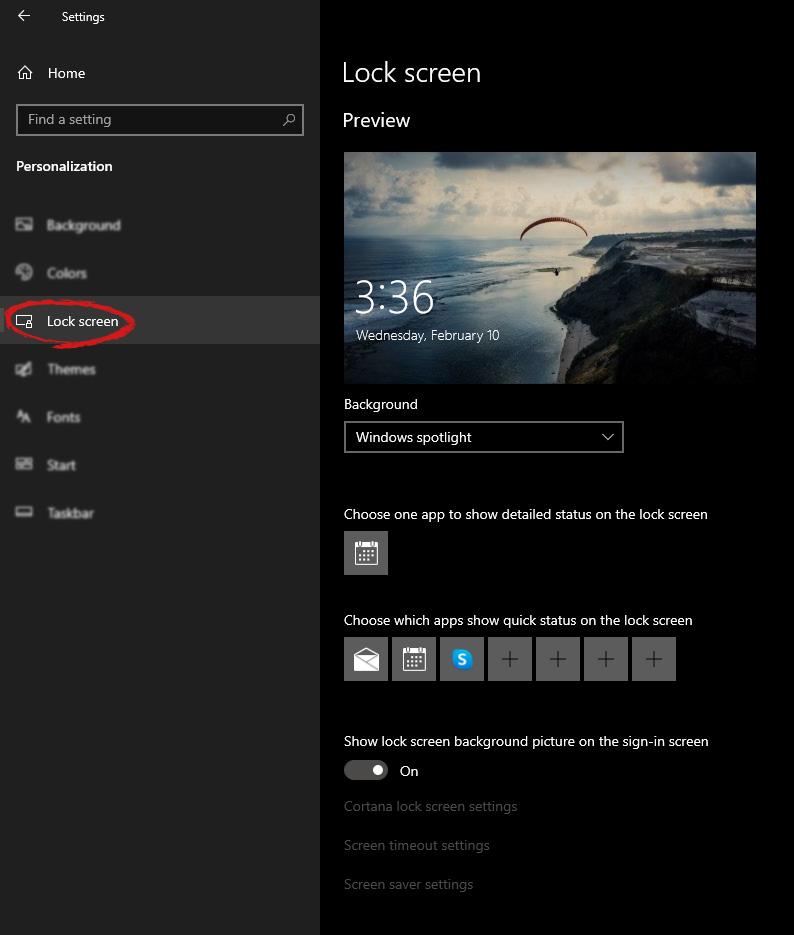
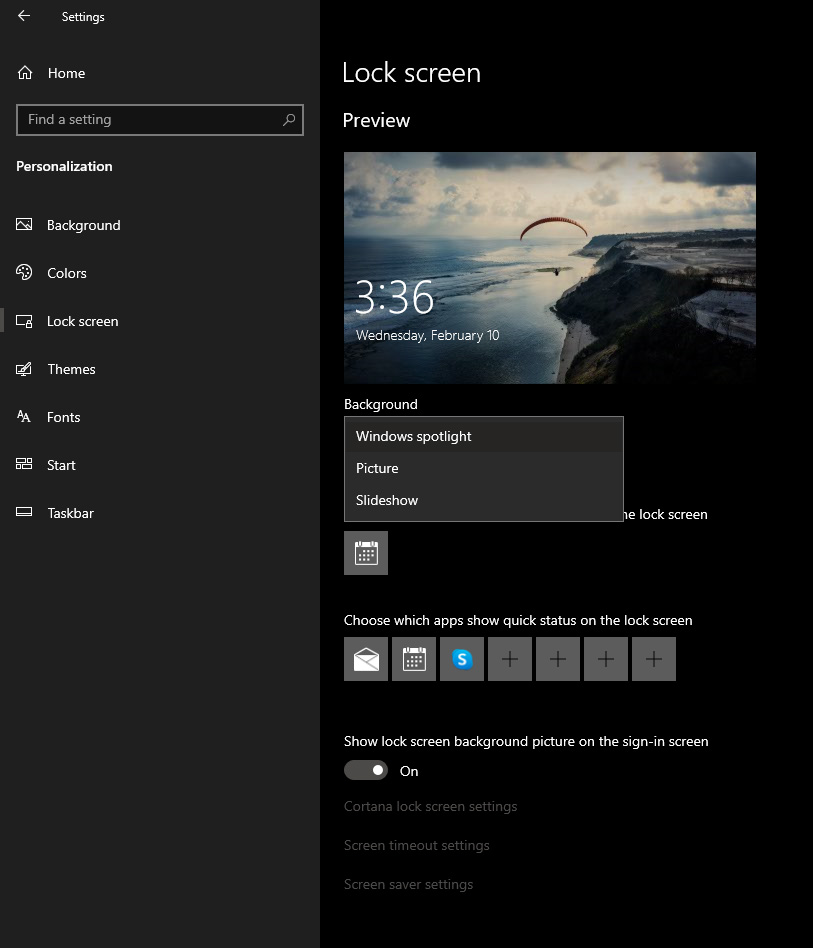
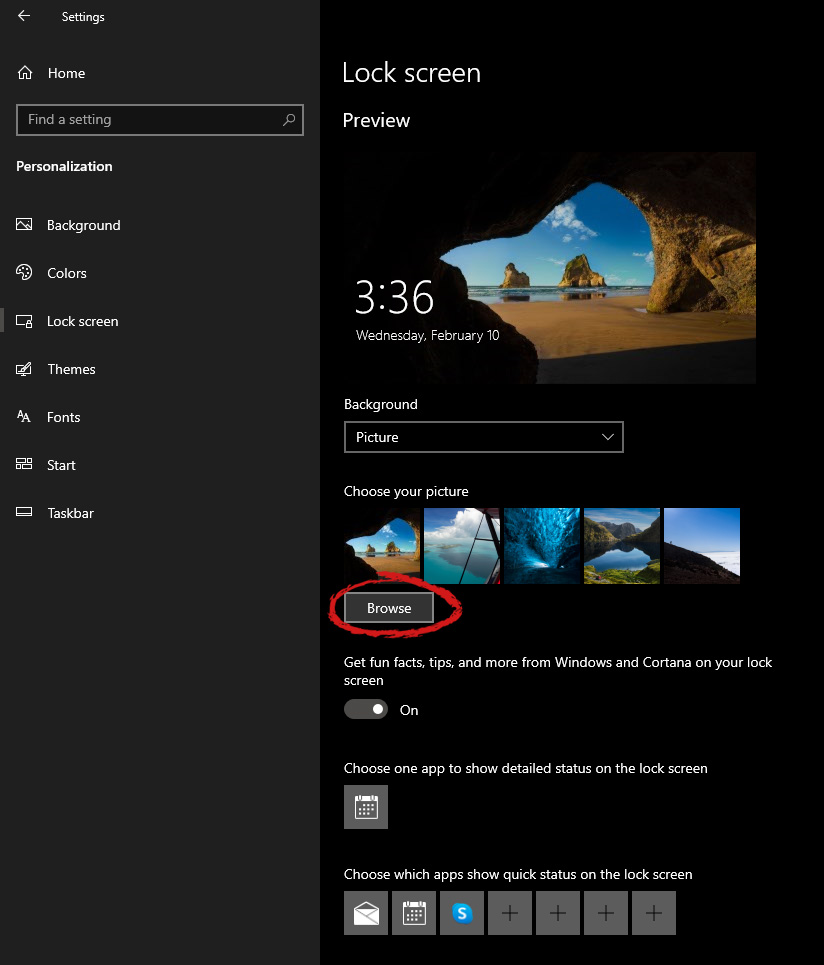
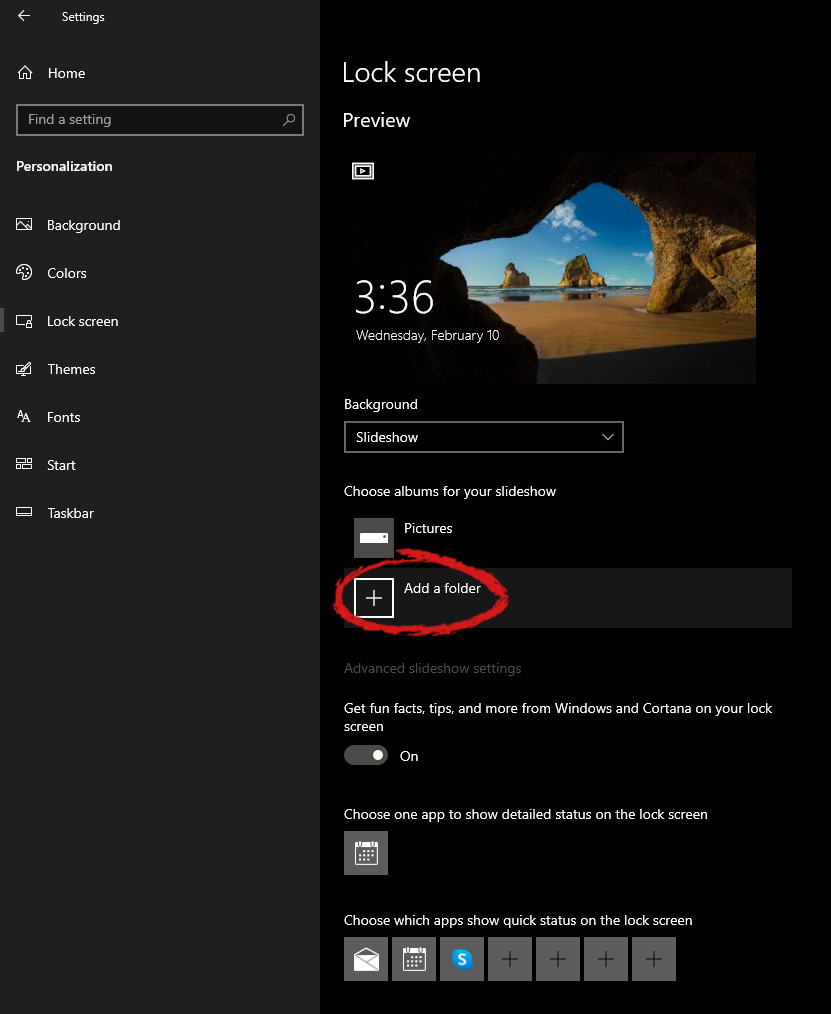
Hello everyone, I hope you are all doing well. Today we will be changing the Windows Lock Screen background. Changing the lock screen background is a very easy task and it can be done in a very short time. So let's jump right into it. The first thing you need to do is to press the Windows start button on the bottom left and then press settings. Windows 10 Star menu with marked settings iconOnce the settings screen appears, choose and click on Personalization. Windows 10 settings menu with marked Personalization groupInside personalization, click on the Lock Screen tab. Windows settings lock screenOn the right screen, under the picture, you will find Windows spotlight, click on it to bring a drop-down menu up. lock screen drop down menuYour choice is presented as a single picture for background or slideshow, a series of pictures that are going to be looped in a given time interval. If you would like just a single picture for your background, choose that and click on it. lock screen browse for picturesOnce you are in choose picture dialog, click on the browse button and navigate to the picture on your storage which you would like to have as a background. If however, you fancy slideshow as your lock screen background, click on the background drop-down menu and choose the slideshow. Next, click on add a folder and navigate to a folder where you have pictures that you would like to have as a slideshow for your Windows lock screen. lock screen add a folder option

Read More
Fix Printer driver issue in Windows
The printer can stop working for many various reasons, some of them are however tied to the printer driver itself. In this guide, we will address issues and provide you with advice on how to get your printer back in working order in no time. All of that being said let us fix your Printer driver issue.
  1. Check to see if the printer is plugged and that it has toner or colors and paper in the tray

    The simplest solutions are the best ones, and most of the time simplest issues are overlooked. To eliminate any basic issues check the printer cable does it has paper in the tray and check the status of toner or colors in it.
  2. Check if Windows troubleshooter will resolve the issue

    Bring up settings and choose devices, under devices click on printers and scanners. On the far right top, you have a link to start the troubleshooter, click on it. Windows built-in tools could resolve issues and fix them for you. If by any chance Windows is not able to find or resolve issues move to the next step.
  3. Check if the Device Manager is reporting an error and update the driver

    If the hardware is functioning properly then the issue might be in Windows not detecting device or driver malfunction. In any case, the Device Manager will be the one who will report this problem. In order to check to see if the driver is properly working press ⊞ WINDOWS + X to open the hidden start menu. keyboard with windows and x marked Once it opens, click on Device Manager to open it, If you have a driver device error inside Windows, you should see it immediately when entering the Device Manager, it will have a yellow exclamation mark beside it. Right-click on it and choose update driver.

  4. Reinstall driver

    If driver update failed or you already have the latest drivers, reinstalling them could fix the issue since drivers might have corrupted during installation of some update or application. Follow steps from point 3 to get to the driver in Device Manager, then right-click on it but instead of update choose to uninstall. Reboot Windows once the driver is uninstalled and Windows will install a new one automatically. If you do not want to update drivers automatically install the latest driver for your device, then reboot.
  5. Check Windows update

    Check to see if the latest Windows update is installed, update your Windows if needed
  6. Fix driver issue with DRIVERFIX

    If everything else fails, get DRIVERFIX, a premium solution for your PC issues, and fix driver errors.
Read More
1 2 3 171
Logo
Copyright © 2023, ErrorTools. All Rights Reserved
Trademark: Microsoft Windows logos are registered trademarks of Microsoft. Disclaimer: ErrorTools.com is not affiliated with Microsoft, nor claims direct affiliation.
The information on this page is provided for information purposes only.
DMCA.com Protection Status
