Logo

Setup has failed to determine install choices

Running the Windows Setup does not always go smoothly as you could encounter some errors along the way. One of these errors is the “Something happened, Setup has failed to determine supported install choices” error. The only given option in such cases is to click the Close button and exit the setup.

This kind of error in Windows setup can occur when you try to downgrade to the previous version of Windows using the built-in mechanism. This error could be caused by a corrupted image or it is also possible that the set of files are incomplete. Aside from that, it could also be due to compatibility issues or that the module used to downgrade the Windows operating system is not configured properly. To fix this error, you have to run the Windows Setup program in compatibility mode so that you can downgrade Windows. You could also use the image for the lower version of Windows that’s available on the official site of Microsoft. But before you do any of these, make sure that you’re logged in as an administrator.

To fix the “Something happened, Setup has failed to determine supported install choices” error, follow the given options below sequentially.

Option 1 – Try to run the Installer of the downgraded version in Compatibility Mode

This is the first thing you can try to resolve the issue instead of going right ahead on making a bootable device. So if you are downgrading Windows, you can try to run the installer in the compatibility mode for that specific Windows version.

  • Look for the setup file.
  • Once you find it, right-click on it and select Properties from the context menu.
  • After that, go to the Compatibility tab and mark the checkbox for “Run this program in compatibility mode for:” and from the drop-down list, select either Windows 7 or Windows 8.
  • You also have to check the “Run as administrator” option.
  • Now click the Apply button and then click OK to save the changes made and check if it has resolved the issue or not.

Option 2 – Try to troubleshoot compatibility

This option is almost the same as the first one except it is an alternative way of fixing the “Setup has failed to determine supported install choices” error in case the first one didn’t work. In this option, you will troubleshoot the compatibility issue.

  • Look for the setup file.
  • Then right-click on it and select the “Troubleshoot compatibility” from the context menu.
  • After that, click on the “Try recommended setting” option. Once the process is done, the error message should be gone.

Option 3 – Run the DISM tool

You can run the DISM tool as well to help fix the error code 0x80244022 during Windows Update. Using this built-in tool, you have various options such as the “/ScanHealth”, “/CheckHealth”, and “/RestoreHealth”.

  • Open the Command Prompt with admin privileges.
  • Then type in the following commands and make sure to hit Enter right after you type each one of them:
    • Dism /Online /Cleanup-Image /CheckHealth
    • Dism /Online /Cleanup-Image /ScanHealth
    • exe /Online /Cleanup-image /Restorehealth
  • Do not close the window if the process takes a while as it will probably take a few minutes to finish.

Option 4 – Try using the image from the official site of Microsoft

If none of the options given above worked, you can try to use the image from Microsoft’s official site. This would help, especially if the error is caused by a corrupted image or image folder with incomplete files.

Do You Need Help with Your Device?

Our Team of Experts May Help
Troubleshoot.Tech Experts are There for You!
Replace damaged files
Restore performance
Free disk space
Remove Malware
Protects WEB browser
Remove Viruses
Stop PC freezing
GET HELP
Troubleshoot.Tech experts work with all versions of Microsoft Windows including Windows 11, with Android, Mac, and more.

Share this article:

You might also like

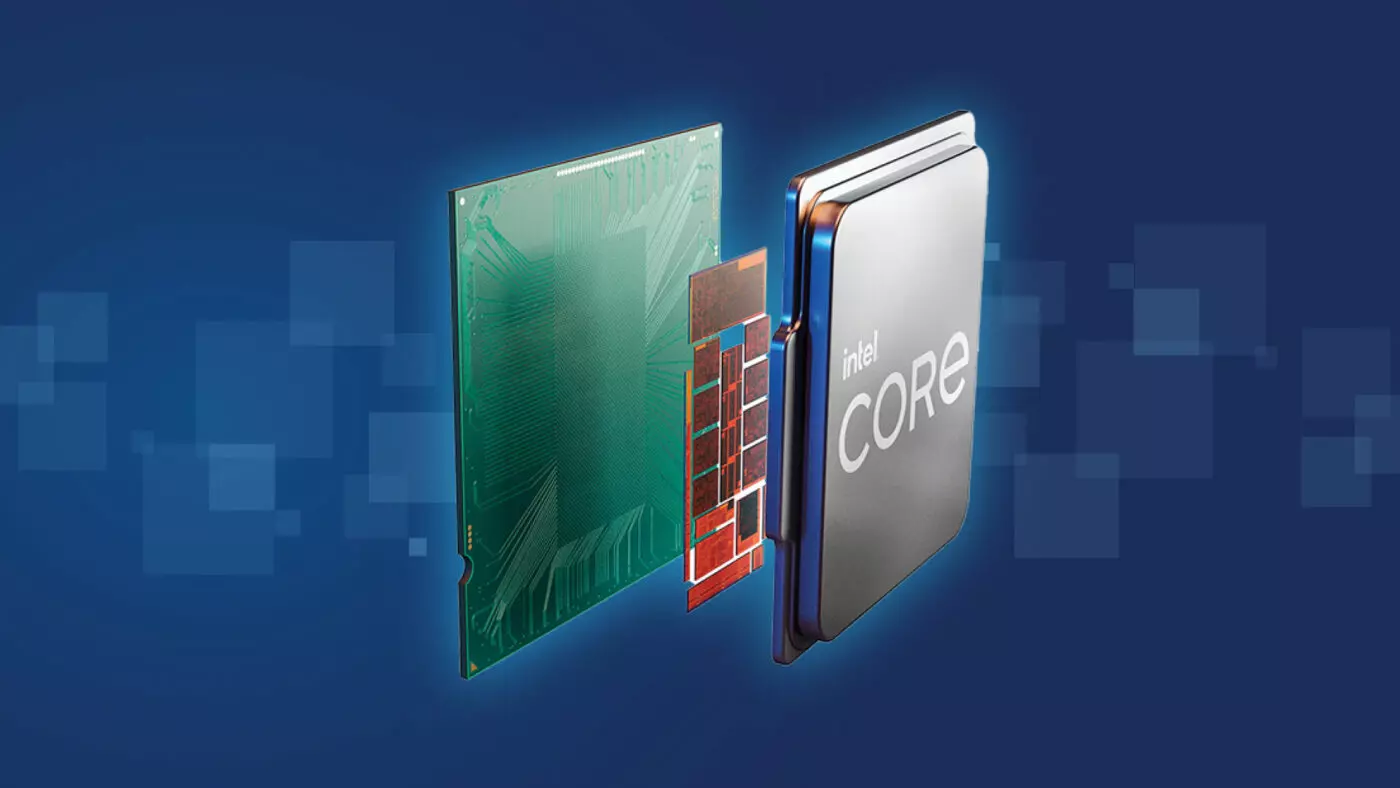
Raptor Lake is promising much

Raptor Lake, a new and upcoming Intel 13th generation CPU will break the 6GHz barrier for the first time ever in normal working mode, overclocked mode in Intel words will go as high as 8GHz. CPU will be 15% faster than Alder lake in single-threaded tasks and a stunning 41% faster in multi-threaded workloads.

The current world record for overclocking is 8.72GHz done with AMD FX-8370 and Intel is aiming at breaking that record with Raptor Lake, of course, this kind of extreme overclocking will require some top-of-the-line nitrogen cooling systems.

raptor lake

Raptor Lake will run on the current LGA 1700 socket, so you will not need to buy another motherboard for CPU and they will also be manufactured on a 10nm process which means that you will need to take care of cooling and power supply if they really go over 6GHz.

Mid-range Intel Core i5-13600K processor will come with 14 cores inside and 20 threads running at a maximum P-core frequency of 5.1GHz, while Core i7-13700K will have 16 cores and 24 threads and run on 5.3GHz max P-core frequency. Best i9-13900K will come packed with 24 cores, 8 of them will be P-cores, and the rest 16 are E-cores, and 32 threads. It will reach 5.4GHz frequency but it was stated it can go to 5.8GHz with Thermal Velocity Boost.

After this statement, we can clearly see that the 6GHz breaker CPU will probably be an i9 special KS variant. In other words, specially tested and picked existing i9 running at higher speeds as was with Alder Lake as well where normal i9-12900K ran at 5.2GHz while i9-12900KS was running at 5.5GHz.

Read More
Fix Operating System Loader has no signature
Booting up your Windows 10 computer does not always go smoothly as it is a complex process and you may encounter some issues along the way. There are various files that get loaded and executed while the Windows 10 operating system is loaded. You might encounter a page that displays the following error message:
“Operating System Loader has no signature. Incompatible with SecureBoot. All bootable devices failed Secure Boot verification.”
There are two main causes for this error – it could be that your computer is using a bad unauthentic Boot Image File or the Windows operating system is installed in the BIOS Mode. To fix this error, you can try performing a “cold” boot or reset the BIOS or reset your Windows 10 computer.

Option 1 – Try to perform a Cold Boot

To perform a cold boot, all you have to do is press and hold the power button of your CPU until it goes off. Once it’s off, boot your computer normally and then check if the problem is now fixed.

Option 2 – Try resetting the BIOS

If performing a cold boot did nothing to fix the problem, you can try to reset the BIOS instead.
  • Start your computer and tap the F10 key during the booting process to enter the BIOS. If it does not work, you can try tapping the F1 or F2 key as well as the Del key.
  • Once you’re already in the BIOS, tap the F9 key to get the prompt to RestoreLoad default configuration now for the BIOS.
  • Next, click on Yes and then follow the next on-screen instructions that appear to set the BIOS back to its default settings.
  • Once you’re done restoring the default settings of the BIOS, restart your computer and then check if it now boots properly.

Option 3 – Try to change the Boot Sequence

You could also try to change the Boot Sequence to fix the error. To change the Boot Sequence, follow these steps:
  • Open Windows Settings and then go to Update & Security > Recovery Advanced Startup and then click on Restart Now.
  • Once your computer has restarted, you should see the Advanced Options.
  • Next, select Troubleshoot > Advanced Options. This will offer another set of options and from there, select the UEFI Firmware Settings and it will let your restart your computer.
  • After the restart, it will take you to the Firmware settings and from there, switch to the Boot tab where you’ll see the “Boot Priority” which contains the list of the connected hard drive, CD/DVD, ROM, and USB drive.
  • Use the arrow keys on your keyboard to change the boot sequence.
  • Once you’re done, save and exit.

Option 4 – Reset your computer

  • Tap the Win key or click on the Start button located in the Taskbar.
  • Then click on the Power button at the bottom right portion of the screen.
  • Next, press and hold the Shift key on your keyboard and then click on Restart. This will restart your Pc into the Advanced Startup options.
Note: Once you have access to the Advanced Startup options, you have to go to the setting which allows you to Reset your Windows 10 PC. All you have to do is select Troubleshoot > Reset this PC to reach the following screen
  • Afterward, select either the “Keep my files” option and then proceed to the next on-screen instructions that follow to reset your Windows 10 computer without losing your files.
Read More
FindGoFind Browser Hijacker Removal Guide

FindGoFind is a browser extension for Google Chrome.Developers present findgofind.com as an improved Internet search engine that supposedly enhances the Internet browsing experience by generating better search results. These claims often trick users into believing that findgofind.com is legitimate and useful. In fact, developers promote this site using deceptive software download/installation set-ups that hijack web browsers and modify various options without permission. Furthermore, findgofind.co continually records various data relating to users’ Internet browsing activity.

While this extension is installed, users will see additional unwanted ads throughout their browsing sessions. Furthermore, this extension changed the default search engine to FindGoFind to easier display Sponsored content.

About Browser Hijackers

Browser hijackers (also known as hijackware) are a type of malicious software that modifies web browser configuration settings without the computer owner’s knowledge or approval. These hijacks are raising at an astonishing rate across the world, and they can be truly nefarious and sometimes harmful too. Browser hijackers can do a variety of things on your computer. These are typically used to force hits to a specific site, manipulating web traffic to earn ad revenue. Many people believe that the browser hijacker is just a harmless website but that is incorrect. Almost every browser hijacker poses an actual threat to your online safety and it’s vital to categorize them under privacy risks. When the malware attacks your computer, it begins to mess things up a whole lot that slows your PC down to a crawl. In the worse case, you will be pushed to tackle serious malware threats too.

How one can know if your browser is hijacked

The typical signs that signify having this malicious software on your PC are: 1. the home page of the browser is changed all of a sudden 2. you see new unwanted favorites or bookmarks added, usually directed to advertisement-filled or porn websites 3. the default browser configurations are changed and/or your default web engine is altered 4. you’ll see multiple toolbars in your internet browser 5. you see lots of pop-ups on your screen 6. your internet browser has become unstable or starts running slowly 7. you can’t navigate to certain websites, like security software-related sites.

Exactly how they infect computer systems

Browser hijackers may use drive-by downloads or file-sharing websites or even an e-mail attachment to reach a targeted computer. They also come from add-on programs, also known as browser helper objects (BHO), web browser plug-ins, or toolbars. Also, certain freeware and shareware can put the hijacker in your PC through “bundling”. Some of the most well-known hijackers are FindGoFind, Babylon Toolbar, Conduit Search, Sweet Page, OneWebSearch, and CoolWebSearch.

How you can get rid of a browser hijacker

Some hijackers can be simply removed by uninstalling the free software they came with or by deleting any add-ons you have recently added to your system. In some cases, it can be a difficult job to find and delete the malicious program because the associated file might be running as part of the operating system process. Apart from that, manual removal expects you to perform several time-consuming and complicated actions that are tough to do for new computer users. Industry experts always recommend users to eliminate any malware including browser hijacker with an automatic malware removal tool, which is easier, safer and faster than the manual removal method. SafeBytes Anti-Malware can counter relentless hijackers and provide you with proactive PC protection against all kinds of malware.

What you can do if Virus Prevents You From Downloading Anti-virus?

Malware may cause several kinds of damage to computers, networks, and data. Some malware sits in between the computer and your net connection and blocks a few or all internet sites that you want to visit. It will also block you from adding anything to your system, particularly the anti-virus program. So what to do if malicious software keeps you from downloading or installing Anti-Malware? There are a few actions you can take to get around this issue.

Download the application in Safe Mode with Networking

If the malware is set to load at Windows startup, then booting in Safe Mode should prevent it. Just the minimum required programs and services are loaded when you start your computer in Safe Mode. To start your Windows XP, Vista, or 7 computers in Safe Mode with Networking, do as instructed below. 1) At power on/start-up, hit the F8 key in one-second intervals. This will conjure up the Advanced Boot Options menu. 2) Select Safe Mode with Networking with arrow keys and press Enter. 3) When this mode loads, you will have the internet. Now, use your browser to download and install Safebytes Anti-malware. 4) Following installation, run a complete scan and let the software delete the threats it detects.

Use an alternate web browser to download an antivirus application

Some malware may target vulnerabilities of a particular browser that obstruct the downloading process. If you’re not able to download the anti-malware software program using Internet Explorer, it means the virus is targeting IE’s vulnerabilities. Here, you need to switch over to a different browser like Firefox or Chrome to download Safebytes Anti-malware software.

Make a bootable USB anti-virus drive

Another option would be to make a portable antivirus program onto your USB thumb drive. Adopt these measures to use a flash drive to fix your infected computer system. 1) Download the anti-malware program on a virus-free PC. 2) Connect the USB flash drive to a USB port on the uninfected computer. 3) Double click on the downloaded file to run the installation wizard. 4) Pick a USB flash drive as the place when the wizard asks you exactly where you intend to install the application. Follow the activation instructions. 5) Transfer the pen drive from the clean PC to the infected PC. 6) Run the Safebytes Anti-malware directly from the pen drive by double-clicking the icon. 7) Hit the “Scan” button to run a full computer scan and remove viruses automatically.

Protect your PC against Malware With SafeBytes Security Suite

If you are looking to download an anti-malware application for your PC, there are several tools out there to consider nonetheless, you should not trust blindly anyone, no matter whether it is free or paid software. A few are good ones, some are decent, and some are merely fake anti-malware software that will harm your PC themselves! You need to be very careful not to select the wrong product, particularly if you buy a paid application. When considering commercial application options, the majority of people select well-known brands, like SafeBytes, and are very happy with them. SafeBytes anti-malware is trustworthy software that not only secures your PC permanently but is also very easy to use for people of all ability levels. Once you have installed this software, SafeByte's sophisticated protection system will ensure that no viruses or malicious software can seep through your personal computer.

SafeBytes has excellent features when compared to other anti-malware programs. Listed below are some of the features you may like in SafeBytes.

Robust Anti-malware Protection: With a critically acclaimed anti-malware engine, SafeBytes offers multilayered protection which is made to find and get rid of viruses and malware that are hidden deep in your computer’s operating system. Real-Time Protection: SafeBytes gives complete and real-time security for your PC. It’ll inspect your personal computer for suspicious activity at all times and its unparalleled firewall protects your PC from illegal access by the outside world. High-Speed Malware Scanning Engine: SafeBytes Anti-Malware has got a multi-thread scan algorithm that works up to 5 times faster than any other antivirus software. Safe Web Browsing: SafeBytes provides an instant safety rating on the web pages you are going to check out, automatically blocking unsafe sites and making sure that you’re certain of your online safety while browsing the web. Lightweight: The program is lightweight and can run silently in the background, and that does not impact your PC efficiency. Premium Support: For any technical queries or product guidance, you can obtain 24/7 professional assistance through chat and e-mail. To sum it up, SafeBytes has created a meaningful anti-malware solution that is aimed to protect your computer against all manner of malware. There is no doubt that your PC will be protected in real-time as soon as you put this software program to use. You’ll get the best all-around protection for the money you pay on SafeBytes Anti-Malware subscription, there’s no question about it.

Technical Details and Manual Removal (Advanced Users)

If you wish to carry out the removal of FindGoFind manually instead of employing an automated tool, you may follow these simple steps: Navigate to the Windows Control Panel, click the “Add or Remove Programs” and there, select the offending program to remove. In case of suspicious versions of browser plug-ins, you can actually remove it via your browser’s extension manager. You’ll likely also want to reset your browser. If you opt to manually delete the system files and Windows registry entries, use the following list to make sure you know precisely what files to remove before performing any actions. Please remember that this is for experienced users only and might be challenging, with wrong file removal resulting in additional system errors. In addition, some malicious programs have the capability to defend against its deletion. Doing this malware-removal process in Safe Mode is recommended.
Registry: HKEY_LOCAL_MACHINE\SOFTWARE\Microsoft\Windows\FindGoFind.comTT0-F49X-LPA01-3150QB HKEY_LOCAL_MACHINE\SOFTWARE\Microsoft\Windows\CurrentVersion\FindGoFind.comWG9-L33B-ZSH05-1418OI HKEY_LOCAL_MACHINE\SOFTWARE\Microsoft\Windows\Shell\FindGoFind.comRegistry: HKEY_LOCAL_MACHINE\SOFTWARE\Microsoft\Windows\FindGoFind.comTT0-F49X-LPA01-3150QB HKEY_LOCAL_MACHINE\SOFTWARE\Microsoft\Windows\CurrentVersion\FindGoFind.comWG9-L33B-ZSH05-1418OI HKEY_LOCAL_MACHINE\SOFTWARE\Microsoft\Windows\Shell\FindGoFind.com%#MANIFEST#%PH1-S39W-JGS29-6268LL HKEY_CURRENT_USER\Software\Microsoft\Windows\CurrentVersion\Run [random].exe HKEY_CURRENT_USER\Software\AppDataLow\Software\FindGoFind.com HKEY_LOCAL_MACHINE\SOFTWARE\Microsoft\Windows\CurrentVersion\Uninstall\ FindGoFind.com HKEY_LOCAL_MACHINE\SOFTWARE\Microsoft\Windows\CurrentVersion\Explorer\BrowserHelperObjects\[random numbers]PH1-S39W-JGS29-6268LL HKEY_CURRENT_USER\Software\Microsoft\Windows\CurrentVersion\Run [random].exe HKEY_CURRENT_USER\Software\AppDataLow\Software\FindGoFind.com HKEY_LOCAL_MACHINE\SOFTWARE\Microsoft\Windows\CurrentVersion\Uninstall\ FindGoFind.com HKEY_LOCAL_MACHINE\SOFTWARE\Microsoft\Windows\CurrentVersion\Explorer\BrowserHelperObjects\[random numbers]
Read More
How to Fix Error Code 1627

Error Code 1627 - What is it?

Error Code 1627 is a type of HP printer installation error. It usually occurs when you try to install an HP printer on your PC. The error code 1627 pop-up hampers your ability to install an HP printer successfully. This error code is usually displayed in the following format:
Installation Error: Call to Driver Package Install returned error 1627 for package C:ProgramFilersHPHP deskjet 2510 seriesDriver storePipelinehpvplog.inf

Solution

Restoro box imageError Causes

Like every device installed on your PC, printers also need software called drivers to function on Windows Operating System. Although Windows supports several computer devices since many drivers are already installed in Windows but there are some devices that do need additional software to get started and operate smoothly on Windows such as Hewlett-Packard HP printers. Installing a Hewlett-Packard printer driver is slightly more time-consuming and complex than any other driver. Causes for HP printer installation usually include:
  • Driver issues
  • Bad Registry Keys
Though this is not a fatal error, it is still advisable to fix it right away to avoid inconvenience.

Further Information and Manual Repair

To resolve this error on your PC, you don’t necessarily have to hire a professional and spend hundreds of dollars in repair. The good news is that HP Installation error code 1627 is quite easy to fix. Here are some of the best and proven DIY methods to resolve error code 1627:

Method 1 - Uninstall and then Reinstall HP Printer Driver

HP printer installation errors can occur due to driver issues.  If the driver is not installed properly or is outdated, you will never be able to install an HP printer on your PC successfully. Therefore to solve this issue, first, make sure the driver used for printer installation is up to date. If it is outdated, then update it. On the other hand, if the printer driver is up to date but not installed properly then reinstall it. In both situations, first, you must uninstall the driver. Uninstalling the previous installation will help you clean the system. Once the system is clean you can reinstall the HP drivers again. To uninstall, go to the start menu and then the control panel. Now go to the Add/Remove program option and uninstall the driver. To activate changes, reboot your PC. Now install the updated version again.

Method 2 - Clean the Registry

If the printer software installation fails while updating, then this means the removal of the failed software was not successful. It may not show up in the Control Panel program list. This means the entries of the failed software are still present in the registry of your PC. In this scenario, you need to clean the registry and remove the bad entries from there to successfully install the HP printer driver on your system. Though this can be done manually this can be both time-consuming and slightly challenging if you are not technically sound. Therefore, to remove bad entries from the registry in seconds in just a few clicks download Restoro. This is a user-friendly PC Repair Tool deployed with a powerful registry cleaner. The registry cleaner scans your entire PC, detects and removes all bad entries and files corrupting the registry right away. Once the registry is cleaned, you can try installing the printer driver again. This is most likely to resolve the issue. Click here to download Restoro.

Method 3: Locate and Install the Driver

As was pointed out, you might need to reinstall the printer driver again. Using DriverFIX, you'll be able to automatically update your computer system and install the drivers your computer needs to operate smoothly.
Read More
Linkury Smartbar Engine Removal Guide for Windows

Linkury Smartbar Engine is a Brower Toolbar for Internet Explorer. Upon investigation, we discovered that this toolbar does not work with the latest versions of Internet Explorer.

From the Author:

What the Smartbar does: – Changes the default search engine in your web browser’s built-in search box. – Changes the default home page of your web browser. – Adds alternative “page not found” functionality. – Enable search from the address bar of your web browser. – Allows software updates of the application once a new version is released. – Adds, removes, or modifies components interacting with search input fields.

While installed, users may see additional unwanted ads throughout their browsing sessions.

Several anti-virus applications have marked this toolbar as a Browser Hijacker, and it is not recommended to keep it on your computer, especially if you are using a newer version of internet explorer that renders this toolbar useless.

About Browser Hijackers

Browser hijacking means a malicious program code has taken control over and modified the settings of your browser, without your permission. Browser hijackers will do a number of things on a computer. These are typically used to force visitors to a particular site, manipulating web traffic to earn ad revenue. It may appear naive, but the majority of these sites are not legitimate and may pose a serious threat to your online safety. They did not just screw up your web browsers, but browser hijackers can also modify the system registry, leaving your computer susceptible to other attacks.

How you can determine if your browser is hijacked

When your browser is hijacked, the following could happen: home-page is changed; you see new unwanted favorites or bookmarks added, usually directed to advertisement-filled or pornography sites; the default browser settings are changed and/or your default web engine is altered; you find unsolicited new toolbars added; never-ending pop-up adverts appear and/or your web browser pop-up blocker is disabled; your web browser starts running slowly or exhibits frequent errors; you can’t visit specific websites like home pages of security software.

Precisely how browser hijacker infects computer systems

Browser hijackers could use drive-by downloads or file-sharing websites or perhaps an e-mail attachment in order to reach a targeted computer. They may also come from any BHO, browser extension, add-on, toolbar, or plug-in with malicious intent. A browser hijacker can be installed as a part of freeware, shareware, demoware, and fake programs. A good example of a well-known browser hijacker is the latest Chinese malware called “Fireball”, which has infected 250 million PCs across the world. It works as a hijacker but can be turned into a fully functioning malware downloader afterward. The existence of any browser hijacker malware on your system could substantially diminish the web browsing experience, monitor your internet activities that lead to serious privacy concerns, create system stability problems and ultimately cause your PC to slow down or to a nearly unusable state.

Removing browser hijackers

Some kinds of browser hijackers can be removed from your computer by deleting malicious software applications or any other recently added freeware. At times, it could be a tough job to find and eliminate the malicious program since the associated file could be running as part of the operating system process. Also, manual removals require in-depth system understanding and thus can be a very difficult job for novice computer users. Browser hijackers could be effectively removed by installing and running an anti-malware program on the affected PC. To eradicate any kind of browser hijacker from your laptop or computer, you could download this certified malware removal application – SafeBytes Anti-Malware. Utilize a system optimizer together with your anti-malware software to fix various computer registry problems, eliminate computer vulnerabilities, and enhance your computer's overall performance.

Help! Malware Blocking Anti-virus Installation And Access To The Web

Practically all malware is bad, but certain kinds of malware do a lot more damage to your computer than others. Some malware sits in between the computer and your net connection and blocks some or all websites that you really want to check out. It would also block you from installing anything on your machine, especially anti-virus software. If you are reading this now, you have probably recognized that a malware infection is the real cause of your blocked web traffic. So how to proceed if you need to download and install an anti-malware application such as Safebytes? There are some steps you can take to circumvent this issue.

Eliminate viruses in Safe Mode

If the malware is set to load at Windows start-up, then booting in Safe Mode should prevent it. Only the minimum required applications and services are loaded whenever you start your laptop or computer in Safe Mode. You need to do the following to remove malware in Safe mode. 1) After switching on the computer, hit the F8 key before the Windows splash screen starts to load. This should bring up the Advanced Boot Options menu. 2) Select Safe Mode with Networking using arrow keys and hit ENTER. 3) As soon as this mode loads, you will have an internet connection. Now, utilize your web browser normally and navigate to https://safebytes.com/products/anti-malware/ to download and install Safebytes Anti-Malware. 4) Right after installation, run a complete scan and let the program get rid of the threats it detects.

Switch over to some other browser

Web-based malware can be environment-specific, aiming for a particular web browser or attacking particular versions of the web browser. The best solution to overcome this issue is to choose a browser that is well known for its security features. Firefox has built-in Phishing and Malware Protection to help keep you safe online.

Install antivirus on a USB drive

To successfully remove the malware, you will need to approach the issue of installing an antivirus program on the infected computer system from a different angle. To run antivirus using a thumb drive, follow these simple measures: 1) On a virus-free computer, install Safebytes Anti-Malware. 2) Plug the Thumb drive into the clean computer. 3) Double click on the exe file to run the installation wizard. 4) Choose a USB drive as the location when the wizard asks you where you wish to install the software. Follow activation instructions. 5) Transfer the pen drive from the clean PC to the infected PC. 6) Double-click the antivirus software EXE file on the USB flash drive. 7) Simply click “Scan Now” to run a scan on the affected computer for malware.

SafeBytes Anti-Malware Features

In order to protect your personal computer from many different internet-based threats, it’s important to install anti-malware software on your PC. But with so many anti-malware companies in the market, these days it’s challenging to decide which one you should purchase for your laptop. Some are really worth your money, but most aren’t. You must choose one that is efficient, practical, and has a strong reputation for its malware protection. While considering the trustworthy applications, Safebytes Anti-Malware is undoubtedly the strongly recommended one. SafeBytes anti-malware is really a powerful, highly effective protection application created to assist users of all levels of IT literacy in identifying and eliminating harmful threats from their PC. With its most advanced virus detection and repair technology, this software protects your PC against infections caused by different kinds of malware and similar internet threats, including adware, spyware, viruses, worms, trojans, keyloggers, potentially unwanted program (PUPs), and ransomware.

SafeBytes anti-malware offers a myriad of advanced features that sets it aside from all others. Here are some of the best ones:

Most Reliable AntiMalware Protection: Built upon a highly acclaimed antivirus engine, this malware removal application can detect and get rid of the most stubborn malware threats like browser hijackers, PUPs, and ransomware that other common anti-virus programs will miss. Real-time Threat Response: SafeBytes provides totally hands-free live protection and is set to check, block, and get rid of all computer threats at its very first encounter. They’re extremely efficient in screening and getting rid of numerous threats since they’re constantly revised with the latest updates and alerts. Web Protection: SafeBytes checks the links present on a web page for possible threats and notifies you whether the site is safe to browse or not, through its unique safety rating system. “Fast Scan” Features: Safebytes AntiMalware, using its enhanced scanning engine, gives super-fast scanning that can quickly target any active internet threat. Light-weight: This program is lightweight and can work silently in the background, and will not have an effect on your PC efficiency. 24/7 Online Support: Support service is accessible 24 x 7 x 365 days via email and chats to answer your concerns. To sum it up, SafeBytes has developed a meaningful anti-malware solution that is aimed to protect you against various malware. You can be sure that your PC will be protected in real-time once you put this software to use. So when you want advanced forms of protection features & threat detections, buying SafeBytes Anti-Malware could be worth the money!

Technical Details and Manual Removal (Advanced Users)

If you do not wish to use an automated tool and prefer to eliminate Linkury Smartbar Engine manually, you might do so by going to the Add/Remove Programs menu in the control panel and removing the offending program; in cases of web browser plug-ins, you may uninstall it by visiting the browsers Add-on/Extension manager. You’ll likely also want to reset your web browser. To be certain of complete removal, find the following Windows registry entries on your system and eliminate them or reset the values appropriately. Please note that this is for advanced users only and might be difficult, with wrong file removal leading to additional system errors. Furthermore, certain malware is capable of replicating itself or preventing deletion. Carrying out this in Safe Mode is suggested.
Files: %LOCALAPPDATA%\Smartbar\Application\Lrcnta.exe %LOCALAPPDATA%\Linkury\Application\Linkury.exe %LOCALAPPDATA%\Smartbar\Application\QuickShare.exe %USERPROFILE%\Local\AppData\Smartbar\Application\Delta.exe %ALLUSERSPROFILE%\WCService\WCService.exe %LOCALAPPDATA%\Smartbar\Application\Luckysave.exe %LOCALAPPDATA%\Smartbar\Application\Muvic.exe %LOCALAPPDATA%\Linkury\Application\Smartbar.exe %LOCALAPPDATA%\Smartbar\Application\SavePass.exe %LOCALAPPDATA%\Smartbar\Application\SafeFinder.exe %LOCALAPPDATA%\Smartbar\Application\WhiteSmoke.exe %LOCALAPPDATA%\Smartbar\Application\BrowserHelper.exe %LOCALAPPDATA%\Smartbar\Application\SnapDo.exe %LOCALAPPDATA%\Smartbar\Application\ProductsRemovalTool.exe %LOCALAPPDATA%\Smartbar\Application\MagicBox.exe Registry: HKEY_LOCAL_MACHINE\SOFTWARE\Microsoft\Tracing\Linkury_RASMANCS HKEY_LOCAL_MACHINE\SOFTWARE\Microsoft\Tracing\Linkury_RASAPI32 HKEY_LOCAL_MACHINE\SOFTWARE\Wow6432Node\Microsoft\Tracing\Linkury_RASMANCS HKEY_LOCAL_MACHINE\SOFTWARE\Wow6432Node\Microsoft\Tracing\Linkury_RASAPI32 HKEY_CURRENT_USER\Software\Microsoft\Internet Explorer\Main\FeatureControl\FEATURE_BROWSER_EMULATION, value: Linkury.exe HKEY_CURRENT_USER\Software\Microsoft\Installer\Products\C5670CA607D1C7C4AA305DE018401AA3 HKEY_CURRENT_USER\Software\Microsoft\Installer\Features\C5670CA607D1C7C4AA305DE018401AA3 HKEY_CURRENT_USER\Software\Linkury HKEY_LOCAL_MACHINE\SOFTWARE\Microsoft\Shared Tools\MSConfig\startupreg\Browser Infrastructure Helper HKEY_LOCAL_MACHINE\SOFTWARE\Classes\LinkurySmartBar.LinkurySmartBarBandObject HKEY_LOCAL_MACHINE\SOFTWARE\Classes\LinkurySmartBar.LinkuryMenuForm HKEY_LOCAL_MACHINE\SOFTWARE\Classes\LinkurySmartBar.DockingPanel HKEY_LOCAL_MACHINE\SOFTWARE\Classes\LinkurySmartBar.BandObjectAttribute HKEY_LOCAL_MACHINE\SOFTWARE\Microsoft\Windows\CurrentVersion\Run, value: Linkury Chrome Smartbar HKEY_LOCAL_MACHINE\SOFTWARE\Microsoft\Tracing\Mntz_Installer_RASAPI32 HKEY_LOCAL_MACHINE\SOFTWARE\Microsoft\Tracing\Mntz_Installer_RASMANCS HKEY_LOCAL_MACHINE\SOFTWARE\Wow6432Node\Microsoft\Tracing\Mntz_Installer_RASAPI32 HKEY_LOCAL_MACHINE\SYSTEM\CurrentControlSet\services\sulpnar HKEY_LOCAL_MACHINE\SYSTEM\ControlSet002\Services\Stpro HKEY_LOCAL_MACHINE\SYSTEM\ControlSet001\Services\Stpro HKEY_LOCAL_MACHINE\SOFTWARE\mtPlusdax HKEY_LOCAL_MACHINE\SOFTWARE\Wow6432Node\mtPlusdax

Read More
How to Remove FileShareFanatic

FileShareFanatic is a browser extension developed by Mindspark Inc. This extension offers users the ability to quickly access some of the most popular file-sharing websites. While this may sound tempting and useful at start, using this extension might prove more annoying then useful.

When installed FileShareFanatic hijacks your new tab page changing your default search engine to search.myway.com. Additionally it monitors user activity, recording visited websites, clicked links, viewed products, and whatever other information that can be used by the Ad network to display targeted Ads.

While browsing the internet with this extension you will notice an increase of ads on pages, especially in search results. This extension injects additional ads, sponsored links, and even displays pop-up ads in order to gain revenue.

FileShareFanatic has been marked as a Browser Hijacker by several top anti-virus scanners, and is scheduled for deletion.

About Browser Hijackers

Browser hijacking is considered the web’s constant danger that targets browsers. It is a kind of malicious software that modifies your internet browser’s configuration settings so that you are redirected to websites or pages that you had no intention of visiting. Browser hijackers can do more than simply modifying homepages. It redirects you to the sponsored sites and inserts advertisements on your browser which helps its developer generate earnings. It might appear naive, but most of these websites are not legitimate and will pose a major risk to your online safety. Browser hijackers can even let other vicious programs without your knowledge to further damage your PC.

Symptoms of browser hijack

There are numerous symptoms of browser hijacking: 1. you see unauthorized modifications to your internet browser’s homepage 2. you get re-directed to internet sites you never meant to visit 3. default online search engine is modified 4. discover new toolbars which you did not add 5. you observe lots of pop-ups on your screen 6. your web browser gets slow, buggy, and crashes frequently 7. Inability to navigate to certain sites, especially anti-malware as well as other security software webpages.

How they infect computers

Browser hijackers attack computers via malicious email attachments, downloaded infected documents, or by visiting infected internet sites. Many internet browser hijackings originate from add-on software, i.e., browser helper objects (BHO), toolbars, or extensions added to browsers to give them extra features. A browser hijacker could also be installed as a part of freeware, demoware, shareware and pirated programs. Browser hijackers can interrupt the user’s web browsing experience significantly, track the websites visited by users and steal sensitive information, cause difficulty in connecting to the internet, and eventually create stability problems, making software programs and computer to crash.

Removal

The one thing you can try to get rid of a browser hijacker is to find the malware within the “Add or Remove Programs” list in the Microsoft Windows Control Panel. It may or may not be there. If it is, try to uninstall it. But, most hijacking codes aren’t very easy to eliminate manually, as they go deeper into your operating system. Besides, browser hijackers could modify the Computer registry so that it could be very hard to repair manually, especially when you’re not a very tech-savvy individual. You can choose automatic browser hijacker removal by just installing and running reliable anti-malware software. If you need to get rid of persistent browser hijackers effectively, install the top-rated Anti-Malware software Safebytes Anti-Malware.

Find Out How To Install Safebytes Anti-Malware On An Infected PC

Malware can cause a lot of damage to your PC. Some malware types alter internet browser settings by including a proxy server or change the PC’s DNS configuration settings. When this happens, you’ll be unable to visit certain or all of the sites, and thus unable to download or install the required security software to remove the infection. If you are reading this, you may have infected by a virus that prevents you from downloading a security program such as Safebytes Antimalware on your PC. There are some actions you can take to circumvent this issue.

Download the application in Safe Mode with Networking

If the virus is set to load immediately when Microsoft Windows starts, entering Safe Mode could very well block the attempt. Since only the bare minimum programs and services launch in safe mode, there are hardly any reasons for conflicts to occur. To start your Windows XP, Vista or 7 computer in Safe Mode with Networking, please do as instructed below. 1) At power on, hit the F8 key before the Windows splash screen starts to load. This will bring up the Advanced Boot Options menu. 2) Choose Safe Mode with Networking with arrow keys and hit ENTER. 3) Once this mode loads, you will have the internet. Now, utilize your browser to download and install Safebytes Anti-malware. 4) As soon as the application is installed, allow the scan run to eliminate viruses and other malware automatically.

Switch to an alternate internet browser

Web-based viruses can be environment-specific, aiming for a particular web browser or attacking specific versions of the browser. The best solution to avoid this problem is to opt for a browser that is known for their security measures. Firefox comprises built-in Phishing and Malware Protection to keep you safe online.

Run antivirus from a USB drive

Another option is to make a portable antivirus program onto your USB thumb drive. To run antivirus from a thumb drive, follow these simple steps: 1) Download Safebytes Anti-Malware or Microsoft Windows Defender Offline onto a clean computer system. 2) Plug the Thumb drive into the uninfected computer. 3) Double-click the Setup icon of the anti-malware software to run the Installation Wizard. 4) Select the drive letter of the USB drive as the place when the wizard asks you exactly where you would like to install the anti-virus. Follow the directions to finish the installation process. 5) Unplug the pen drive. Now you can utilize this portable antivirus on the affected computer. 6) Double-click the anti-malware program EXE file on the thumb drive. 7) Simply click “Scan Now” to run a complete scan on the infected computer for malware.

SafeBytes Anti-Malware Features

To protect your personal computer from many different internet-based threats, it’s important to install an anti-malware application on your computer system. However, with countless numbers of anti-malware companies in the marketplace, nowadays it is challenging to decide which one you should purchase for your PC. Some are good ones, some are decent, and some are simply just fake anti-malware applications that could harm your personal computer themselves! You should choose one that is trustworthy, practical and has a strong reputation for its malware source protection. On the list of strongly recommended software by industry analysts is SafeBytes Anti-Malware, the most dependable program for Windows computers. SafeBytes anti-malware is a powerful, very effective protection application made to help users of all levels of computer literacy in finding and eliminating malicious threats from their computer. Once you’ve installed this program, SafeBytes state-of-the-art protection system will ensure that absolutely no viruses or malware can seep through your PC.

SafeBytes anti-malware takes PC protection to a totally new level with its enhanced features. These are some of the highlighted features included in the software.

World-class AntiMalware Protection: Built on a greatly acclaimed anti-virus engine, this malware removal tool can identify and get rid of several obstinate malware threats such as browser hijackers, potentially unwanted programs, and ransomware that other typical antivirus programs will miss. Real-time Threat Response: Malware programs attempting to get into the computer are discovered and stopped as and when detected by the SafeBytes active protection shields. It’ll examine your PC for suspicious activity at all times and its unrivaled firewall protects your computer from unauthorized access by the outside world. Safe Browsing: Safebytes assigns all sites a unique safety ranking that helps you to get an idea of whether the webpage you’re just about to visit is safe to browse or known to be a phishing site. Lowest Memory/CPU Usage: SafeBytes is a lightweight tool. It consumes a really small amount of processing power as it operates in the background therefore you will not see any computer performance difficulties. 24/7 Guidance: SafeBytes provides 24/7 technical support, automatic maintenance and updates for best user experience. All in all, SafeBytes Anti-Malware is a solid program as it has lots of features and could identify and remove any potential threats. Once you have downloaded and installed this software, you no longer need to worry about malware or any other security worries. So if you’re searching for the best anti-malware subscription for your Windows-based computer, we recommend SafeBytes Anti-Malware tool.

Technical Details and Manual Removal (Advanced Users)

If you wish to carry out the removal of FileShareFanatic manually instead of using an automated software tool, you may follow these measures: Proceed to the Windows Control Panel, click the “Add or Remove Programs” and there, choose the offending application to uninstall. In cases of suspicious versions of web browser plug-ins, you can easily get rid of it via your web browser’s extension manager. You’ll probably also want to reset your browser. To be certain of complete removal, find the following registry entries on your computer and remove it or reset the values appropriately. Having said that, editing the registry can be a complicated job that only advanced users and professionals should try to fix it. Furthermore, some malware is capable of replicating or preventing removal. It is advisable that you carry out the removal process in Windows Safe Mode.
Files: %UserProfile%\Local Settings\Application Data\FileShareFanaticTooltab %LOCALAPPDATA%\FileShareFanaticTooltab Registry: HKEY_LOCAL_MACHINE\Software\Microsoft\Internet Explorer\Approved Extensions, value: FB8C7587-6C03-425D-821D-65339B3E249E HKEY_CURRENT_USER\SOFTWARE\Wow6432Node\Microsoft\Windows\CurrentVersion\explorer\Browser Helper Objects\FB8C7587-6C03-425D-821D-65339B3E249E HKEY_CURRENT_USER\SOFTWARE\Microsoft\Windows\CurrentVersion\explorer\Browser Helper Objects\FB8C7587-6C03-425D-821D-65339B3E249E HKEY_CURRENT_USER\SOFTWARE\Wow6432Node\Microsoft\Windows\CurrentVersion\explorer\Browser Helper Objects\EA89EC10-2255-42A6-9AA7-84B4441C2DCA HKEY_CURRENT_USER\SOFTWARE\Microsoft\Windows\CurrentVersion\explorer\Browser Helper Objects\EA89EC10-2255-42A6-9AA7-84B4441C2DCA HKEY_LOCAL_MACHINE\Software\Microsoft\Windows\CurrentVersion\Ext\Stats\FB8C7587-6C03-425D-821D-65339B3E249E HKEY_LOCAL_MACHINE\Software\Microsoft\Windows\CurrentVersion\Ext\Stats\EA89EC10-2255-42A6-9AA7-84B4441C2DCA HKEY_LOCAL_MACHINE\Software\Microsoft\Windows\CurrentVersion\Ext\Settings\6E4DF5E6-A1D8-48E0-BA5A-91C5DBD6AAF1 HKEY_CURRENT_USER\SOFTWARE\Wow6432Node\Microsoft\Internet Explorer\SearchScopes\BDF4A303-E4F0-42F0-B235-351F6C8F6C1A HKEY_LOCAL_MACHINE\Software\Microsoft\Internet Explorer\SearchScopes\BDF4A303-E4F0-42F0-B235-351F6C8F6C1A HKEY_CURRENT_USER\SOFTWARE\Wow6432Node\Microsoft\Tracing\FileShareFanatic_RASMANCS HKEY_CURRENT_USER\SOFTWARE\Microsoft\Tracing\FileShareFanatic_RASMANCS HKEY_CURRENT_USER\SOFTWARE\Wow6432Node\Microsoft\Tracing\FileShareFanatic_RASAPI32 HKEY_CURRENT_USER\SOFTWARE\Microsoft\Tracing\FileShareFanatic_RASAPI32 HKEY_CURRENT_USER\SOFTWARE\Microsoft\Internet Explorer\DOMStorage\filesharefanatic.dl.myway.com HKEY_LOCAL_MACHINE\Software\FileShareFanatic
Read More
MMC.exe has been blocked for your protection
When trying to run Computer Management, or when running mmc.exe or compmgmt.msc from a command prompt you get the error that the application has been blocked for your protection then keep reading in order to solve the issue. This is a permission issue where if a regular user tries to run such system tools will result in saying that it has been blocked. Along with this, you may have a Group Policy issue. This can be fixed, but you will need admin permission to achieve it. It’s because when they are run from the command prompt with elevated privileges, it works.
  1. Change Group Policy Settings

    If your account is an admin account, and you are still facing the issue, then change the group policy settings: Open Group Policy Settings by typing gpedit.msc in the run prompt followed by pressing ENTER Navigate to User Configuration > Administrative Templates > Windows Components > Microsoft Management Console > Restricted/Permitted snap-ins Locate Computer Management policy, and double click to open it Enable it, exit Group Policy. When Enabled: The snap-in is permitted and can be added into the Microsoft Management Console or run from the command line as a standalone console. When Disabled: The snap-in is prohibited and cannot be added into the Microsoft Management Console or run from the command line as a standalone console. An error message is displayed stating that the policy is prohibiting the use of this snap-in.
  2. Temporarily disable UAC

    UAC is the user access control panel, and if you need to run the command right away, you can choose to disable it for some time. Click on the Start button, and then type UAC to find the User Account Control Settings. Click to open, and then slide down the notification setting at the bottom. It will temporarily allow launching the application as there is no check. However, make sure to switch to default once you are done.
Read More
Fix Windows Updates Error code 0x80246007
Downloading Windows Updates does not always go smoothly as you can encounter several issues like the “Some updates did not finish downloading, We will keep trying, Error code 0x80246007” error. In fact, this error can also occur on other Windows applications like OneNote. According to security experts, this error happens for many reasons. For one, it could be that the Windows Update database is corrupted. It could also be that there is another process that’s in conflict with the Windows Update components or there might be some issue with the Background Intelligent Transfer Service (BITS). Whichever the cause may be, you can fix it by following the solutions given below.

Option 1 – Delete the contents in the Temporary folder

You can also try deleting the contents in the Temporary folder – all the downloaded, pending, or failed Windows 10 updates. You can do that using the simple and easy steps below.
  • Tap the Win + R keys to open the Run dialog box.
  • Then type “%temp%” in the field and press Enter to open the Temporary folder.
  • After that, select all the folders and files within the Temp folder and delete all of them.

Option 2 – Try running the Windows Update Troubleshooter

Running the built-in Windows Update troubleshooter is one of the things you can first check out as it is known to automatically resolve any Windows Update errors like Error code 0x80246007. To run it, go to Settings and then select Troubleshoot from the options. From there, click on Windows Update and then click the “Run the troubleshooter” button. After that, follow the next on-screen instructions and you should be good to go.

Option 3 – Try renaming or removing the pending .xml file

The problem might be due to some pending .xml file so you need to rename or remove it. To do so, just go to C:/Windows/WinSxS folder. From there, look for a pending .xml file – you can either rename it or delete it. This will allow the Windows Update to delete any pending tasks and build a new and fresh update check.

Option 4 – Restart the Background Intelligent Transfer Service (BITS)

The Background Intelligent Transfer Service or BITS is a part of the Windows Update service that manages the background download of Windows Update, as well as scans for new updates and so on. Thus, if your Windows Update fails a couple of times, you might want to restart BITS. For you to do that, make sure that you have admin privileges.
  • Press the Win + R keys to open the Run dialog box.
  • Then type “msc” in the field and hit Enter to open Services.
  • After opening Services, look for the Background Intelligent Transfer Service from the list of services and then double click on it to open Properties.
  • Next, set the Startup type to Manual and click on the Start button. If it doesn’t help, you can try setting it to Automatic (Delayed) and then reboot your PC.

Option 5 – Run the DISM tool

Running the DISM Tool helps in repairing the Windows System Image as well as the Windows Component Store in Windows 10. Using this built-in tool, you have various options such as the “/ScanHealth”, “/CheckHealth”, and “/RestoreHealth”.
  • Open the Command Prompt with admin privileges.
  • Then type in the following commands and make sure to hit Enter right after you type each one of them:
    • Dism /Online /Cleanup-Image /CheckHealth
    • Dism /Online /Cleanup-Image /ScanHealth
    • exe /Online /Cleanup-image /Restorehealth
  • Do not close the window if the process takes a while as it will probably take a few minutes to finish.

Option 6 – Delete the files from the Software Distribution folder

The downloaded Windows Updates are placed in a folder called “SoftwareDistribution”. The files downloaded in this folder are automatically deleted once the installation is completed. However, if the files are not clean up or if the installation is still pending, you can delete all the files in this folder after you pause the Windows Update service. For complete instructions, refer to the steps below.
  • Open the WinX Menu.
  • From there, open Command Prompt as admin.
  • Then type in the following command – don’t forget to hit Enter right after typing each one of them.
net stop wuauserv net start cryptSvc net start bits net start msiserver
  • After entering these commands, it will stop the Windows Update Service, Background Intelligent Transfer Service (BITS), Cryptographic, and the MSI Installer
  • Next, go to the C:/Windows/SoftwareDistribution folder and get rid of all the folders and files thereby tapping the Ctrl + A keys to select them all and then click on Delete. Note that if the files are in use, you won’t be able to delete them.

Option 7 – Reset the Catroot2 folder

After resetting the SoftwareDistribution folder, you need to reset the Catroot2 folder to restart the services you just stopped. To do that, follow these steps:
  • Type each one of the following commands.
net start wuauserv net start cryptSvc net start bits net start msiserver
  • After that, exit Command Prompt and restart your computer, and then try to run Windows Update once more.
Read More
Fix CLOCK_WATCHDOG_TIMEOUT in Windows
If you encounter the CLOCK_WATCHDOG_TIMEOUT Blue Screen of Death error while using your Windows 10 computer then it is most likely caused by a specified processor which is not processing interrupts. This occurs when the processor is deadlocked or nonresponsive. Specifically, this kind of Stop error occurs when the processor is having a hard time with the cooperation of its threads and cores. The threads are the tasks performed by cores and some cores can have many threads at the same time. And this is where the problem begins – one thread is waiting for an adequate response from another thread or one kernel is waiting for a response from another kernel and those responses are not coming. In other words, when the processor is unable to continue the processing of tasks since its resources are occupied and are interdependent to get free, such a state is called Deadlock. The CLOCK WATCHDOG TIMEOUT bug check has a value of 0x00000101 which means that an expected clock interrupt on a secondary processor, in a multiprocessor system, was not received within the allocated interval. To troubleshoot the problem, you can check out the possible fixes provided below but before you proceed, make sure that you boot your computer into Safe Mode with Networking only.

Option 1 – Undo or disable overclocking if you have overclocked your system

  • Go to the Start Menu and open Settings.
  • Next, select Update and Security and go to the Recover tab.
  • From there, click on Restart now in Advanced startup. This will restart your computer.
  • Once you’re in the Advanced startup, go to Troubleshoot and then select the Advanced Options.
  • From there, select the UEFU Firmware Settings.
  • Now click on Restart. Once your computer has restarted, it will automatically open BIOS.
  • From the BIOS, go to the Advanced tab and navigate to Performance and then look for Overclocking.
  • Once you’ve found Overclocking, make sure that it is disabled. If it’s not, then disable it and then save the changes made by tapping the F10 key.
  • Start your computer normally and check if the CLOCK_WATCHDOG_TIMEOUT 0x00000101 error is now fixed.

Option 2 – Try running the Memory Diagnostic Tool

The Memory Diagnostic tool in windows can help resolve the CLOCK_WATCHDOG_TIMEOUT 0x00000101 Blue Screen error by checking and automatically fixing any memory-based issues. To run it, refer to these steps:
  • Tap the Win + R keys to open Run and type mdsched.exe and hit Enter to open the Windows Memory Diagnostic Tool.
  • After that, it will give two options such as:
    • Restart now and check for problems (Recommended)
    • Check for problems the next time I start my computer
  • Once your computer has restarted, perform a basic scan or you could also go for the “Advanced” options such as “Test mix” or “Pass count”. Simply tap the F10 key to start the test.

Option 3 – Try to rollback, update or disable drivers

The next thing you can do to fix the CLOCK_WATCHDOG_TIMEOUT 0x00000101 Stop error is to roll back, or update, or disable device drivers. It is most likely that after you updated your Windows computer that your driver also needs a refresh. On the other hand, if you have just updated your device drivers then you need to roll back the drivers to their previous versions. Whichever applies to you, refer to the steps below.
  • Open the Devices Manager from the Win X Menu.
  • Then locate the device drivers and right-click on them to open the Properties.
  • After that, switch to the Driver tab and click on the Uninstall Device button.
  • Follow the screen option to completely uninstall it.
  • Finally, restart your computer. It will just reinstall the device drivers automatically.
Note: You can install a dedicated driver on your computer in case you have it or you could also look for it directly from the website of the manufacturer.

Option 4 – Try running the Blue Screen Troubleshooter

The Blue Screen troubleshooter is a built-in tool in Windows 10 that helps users in fixing BSOD errors like CLOCK_WATCHDOG_TIMEOUT 0x00000101. It can be found on the Settings Troubleshooters page. To use it, refer to these steps:
  • Tap the Win + I keys to open the Settings panel.
  • Then go to Update & Security > Troubleshoot.
  • From there, look for the option called “Blue Screen” on your right-hand side and then click the “Run the troubleshooter” button to run the Blue Screen Troubleshooter and then follow the next on-screen options. Note that you might have to boot your PC into Safe Mode.

Option 5 – Try to disconnect or disable newly installed hardware

In this option, you will have to disable or remove the hardware you’ve just installed recently since external devices could be the one that’s causing the Blue Screen of Death error to appear. To do that, just disconnect any external device that’s connected to your computer physically and then check if it fixes the CLOCK_WATCHDOG_TIMEOUT Blue Screen error.

Option 6 – Troubleshoot the BSOD error in Clean Boot State

You can also troubleshoot the Blue Screen error in a Clean Boot state. There are times when third-party applications cause BSOD errors. Putting your computer in this state can help you identify which program is the culprit and thus isolates the problem. In a Clean Boot state, your computer will start using only the pre-selected minimal set of drivers and startup programs. Note that you have to disable and enable one process at a time.
  • Log onto your PC as an administrator.
  • Type in MSConfig in the Start Search to open the System Configuration utility.
  • From there, go to the General tab and click “Selective startup”.
  • Clear the “Load Startup items” check box and make sure that the “Load System Services” and “Use Original boot configuration” options are checked.
  • Next, click the Services tab and select the “Hide All Microsoft Services” check box.
  • Click Disable all.
  • Click on Apply/OK and restart your PC. (This will put your PC into a Clean Boot State. And to configure Windows to use the usual startup, just simply undo the changes.)
  • From there, start to isolate the problem by checking which one of the programs you installed recently is the root cause of the problem.

Option 7 – Try to update the BIOS

Updating the BIOS can help you fix the CLOCK_WATCHDOG_TIMEOUT BSOD error but as you know, BIOS is a sensitive part of a computer. Even though it is a software component, the functioning of the hardware depends on it largely. Thus, you must be careful when modifying something in the BIOS. So if you don’t know much about it, it’s best if you skip on this option and try the other ones instead. However, if you are well-versed in navigating the BIOS, then follow the steps below.
  • Tap the Win + R keys to open the Run dialog box.
  • Next, type “msinfo32” in the field and press Enter to open System Information.
  • From there, you should find a search field on the bottom where you have to search for the BIOS version and then press Enter.
  • After that, you should see the developer and version of the BIOS installed on your PC.
  • Go to your manufacturer’s website and then download the latest version of BIOS on your computer.
  • If you are using a laptop, make sure that you keep it plugged in until you have updated the BIOS.
  • Now double click on the downloaded file and install the new BIOS version on your computer.
  • Now restart your computer to apply the changes made.
Read More
Should you upgrade to Windows 11
Windows 11 has been rolling out for a while now so many PC users ask the question is it wise and good to upgrade your Operating System to the latest Microsoft incarnation. No Thank you for reading, cya tomorrow in next article. Windows 10 vs Windows 11Jokes aside, I truly believe that choosing to upgrade your System to Windows 11 at this point in time is a bad decision and I will explain why I do believe it.

Reasons to upgrade to the new OS

First of all, let me say what is good in Windows 11 and provide reasons why you should upgrade your computer.
  1. The new fancy look made for modern computers. New Windows new look, Microsoft has tried their best to bring a new modern look to its flagship operating system and I must say that they have managed it. I could argue that it is a little bit late since Apple had this kind of look in years but hey, better late than never I guess.
  2. Increased security This point is very valid but it will play a role only if you have all system requirements including TPM 2.0. If that is the case new security features of OS are really well done and are perhaps one thing that might nudge some people in installing W11 on their system.
  3. New settings app The New and redesigned settings app inside Windows 11 is really great and it provides a great workflow and easy management of system settings. This is not some radical change but it will save time and make life much easier.
  4. It is better suited to the newest hardware Windows 11 was made with the newest hardware in mind and its performances on it are great so if you are punching the latest tech this reason is sufficient to make a switch, however, if you are still on an older system you will not gain much by switching.

Reasons to avoid Windows 11 for now

  1. Almost just a visual update to Windows 10 Some features of Windows 11 are great but they are not plenty of them to justify a new number and new version of OS. Considering what we really got new under the hood Windows 11 could have been just a patch and update to Windows 10 since the architecture is the same.
  2. Bugs Each day there are new bugs reporting for Windows 11, most of them are at the moment unsolvable and are caused because hardware manufacturers' drivers and software overall is not W11 ready. This hinders the stability of some systems and introduces headaches to others.
  3. Runs poorly on unsupported hardware Strange behavior has been reported on some older systems, granted systems are not officially supported but the point is OS is simply not working at the top of its game on older hardware.
  4. No updates on non supported systems Officially stated if you install Windows 11 on non-supported hardware you will not get any security updated on in. This is a deal-breaker as far as I am concerned.
  5. It is still under development When Windows 11 was released, Android native apps were not working on it, it later came with an update, this is just one example but there are more features that were promised but are not delivered on release and constant updates are fixing these things. It is obvious that Windows 11 is still under active development and not the final product that was promised.
  6. Microsoft’s edge pushing And not just edge, some other things as well but most notably is edge pushing to borders they are risking lawsuit similar as they did in the past pushing and disabling any other browser except internet explorer.

Conclusion

Firstly I want to point that this is my personal opinion but going through facts and taking into account the current state of Windows 11, at this point, it is not worth making a switch. I am sure that in time it will become a system that will be worth upgrading to but until that time comes, my advice would be to stay with Windows 10.
Read More
1 2 3 171
Logo
Copyright © 2023, ErrorTools. All Rights Reserved
Trademark: Microsoft Windows logos are registered trademarks of Microsoft. Disclaimer: ErrorTools.com is not affiliated with Microsoft, nor claims direct affiliation.
The information on this page is provided for information purposes only.
DMCA.com Protection Status