Logo

How to Fix R6025 Pure Virtual Function Call

R6025 pure virtual function call’ is a runtime error that occurs suddenly on the screen and disrupts the program being run prior to it. This error display indicates that the program has been corrupted. R6025 runtime error usually occurs with the Visual C++ framework.

Solution

Restoro box imageError Causes

This error occurs when the C++ program crashes which is usually because of the malfunctioning or missing of the device driver or incomplete device driver files.

It happens because your application indirectly calls a pure virtual member function in a context where a call to the function is invalid. Most of the time, the compiler detects it and reports it as an error when building the application. R6025 error is usually detected at run time.

Further Information and Manual Repair

To fix the R6025 pure virtual function call error, you need to find the call to the pure virtual function. After you find the call, you need to rewrite the code so that it is not called again.

There are 2 ways to do this:

Alternative 1

One way to fix the R6025 pure virtual function call is to replace the function with an implementation that calls the Windows API function DebugBreak. The DebugBreak causes a hard-coded breakpoint.

Once the code stops running at this breakpoint, it is easy for you to view the call stack. By viewing the call stack you can identify the place where the function was actually called.

Alternative 2

Another quick way to find a call to a pure virtual function to fix the R6025 error is to set a breakpoint on the _purecall function that is usually found in PureVirt.c.

By breaking this function you can trace the problem occurring and rewrite the call to ensure the error does not occur and the program you are trying to develop on the Visual C++ framework is easily developed.

If R6025 Error is related to Windows Registry Problem Then here’s how you can fix the problem:

To fix the runtime error R6025, run registry cleaner software to scan and fix all errors.  This alternative is suitable if the R6025 error is related to the Windows registry problem and where the error has occurred due to corrupted or malicious registry entries.

You can download the registry cleaner repair tool for free. Run it to scan errors and then click the fix error button to repair the problem immediately.

Do You Need Help with Your Device?

Our Team of Experts May Help
Troubleshoot.Tech Experts are There for You!
Replace damaged files
Restore performance
Free disk space
Remove Malware
Protects WEB browser
Remove Viruses
Stop PC freezing
GET HELP
Troubleshoot.Tech experts work with all versions of Microsoft Windows including Windows 11, with Android, Mac, and more.

Share this article:

You might also like

Fix Steam stuck on Allocating disk space
If you have been stuck on allocating disk space on steam you know how annoying this error could be. Here you are, with your new game eager to play it and relax a little and all of the sudden steam gets stuck on allocating disc space. Luckily this error is fixable, follow provided guide to fix the error and continue with installing the game.
  1. Restart computer

    An old age solution of turning it off and turning it back on but in this case, it works 90% of the time.
  2. Run Steam as administrator

    Allocating disk space when done by a third-party application can be a task that requires privileges higher than the normal user. Find the steam executable file in the installation folder, right-click on it and run it as an administrator
  3. Clear Steam cache

    Launch Steam in admin mode. Once in the client, click on Steam at the top left corner of the screen. From the drop-down box, click on Settings. Once in the Settings, navigate to the Downloads tab. Click the Clear Download Cache option. Click OK on the prompt to confirm your action. Wait for the process to complete. When done, save changes and exit the client.
  4. Change download server

    Launch Steam client in admin mode. Once in the client, click on Steam at the top left corner of the screen. From the drop-down box, click on Settings. Once in the Settings, navigate to the Downloads tab. Click the drop-down menu under the Download Region. Choose a different server to download from. Exit the Steam client.
  5. Refresh installation files

    • Kill a Steam process in Task Manager.
    • Navigate to your Steam folder
    • Inside the Steam folder, select everything except the steamapps folder and the Steam.exe executable file.
    • Tap the Delete key on your keyboard.
  6. Turn off firewall

    Firewall can prevent steam and cut access to system operations, disable firewall to fix this issue.
  7. Stop overclocking

    If you have overclocked your PC, you can simply reverse the change. The steps you will need to take depends on the overclocking software. Launch the software and look for the option to stop the overclocking. Once done, restart your computer, rerun the game installation.
Read More
Great gadgets for emergency blackout

Blackouts are one of the most annoying things that can happen in the modern age. We have all learned to depend on electricity, maybe too much, so having a backup plan in these unpleasant situations is necessary. Here are some good gadgets for these kinds of situations.

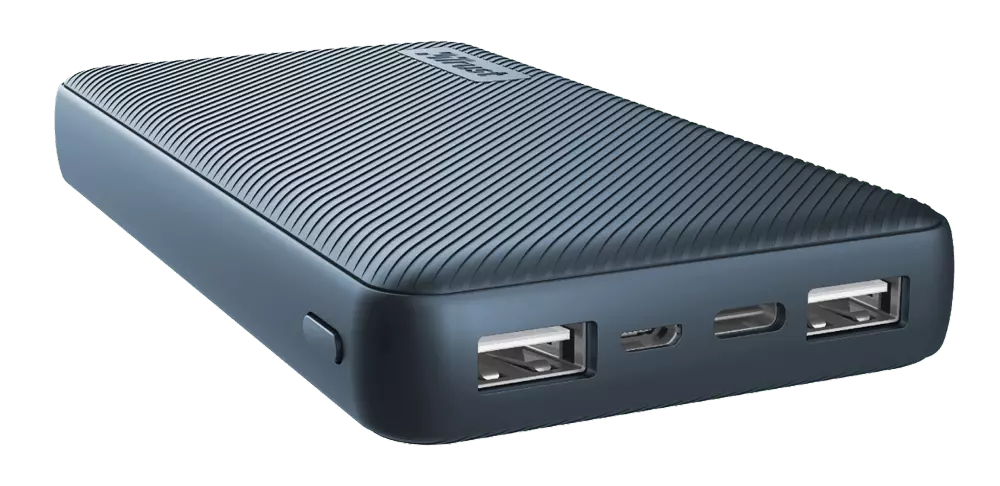
Power Bank

power bank

The fully charged power bank is a great item that could fill up your phone or tablet. If it is a larger power bank it could fill them up all the way to the top several times and having charged phone or tablet can help greatly with some fun during dark times. The power bank can also be used to fill up other gadgets on this list so if the power outage is expected to last longer perhaps it would be wiser not to waste it on phone/tablet games.

Portable Generator

portable generator

If the power bank is too short-lived for your needs, a portable generator is always a good option since it can provide power for longer time periods. The solar generator is what we recommend because it is much cheaper to produce electricity but it is limited if a power surge comes at night, one on gasoline is more stable and practical but it costs more to produce electricity.

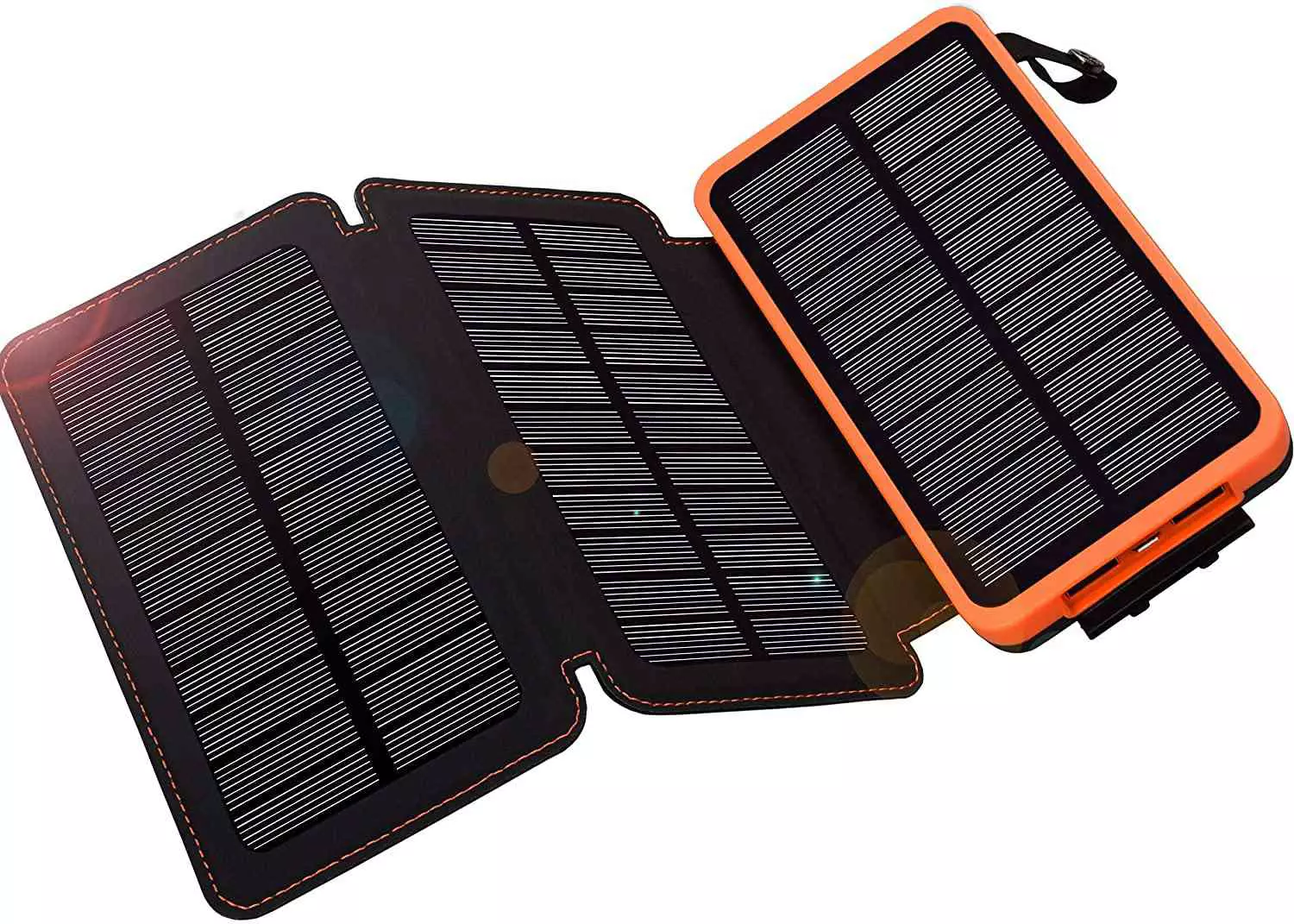
Portable Solar Charger

solar charger

One more electric-producing device on the list, this one however is aimed at charging your phone, tablet, or laptop by harvesting Sun's energy and turning it into valuable electricity for your devices. Fully silent and easy to operate this is a great tool for power outrage. It will not be able to produce electricity for smaller house appliances but for basic phone/tablet/laptop needs it will suffice.

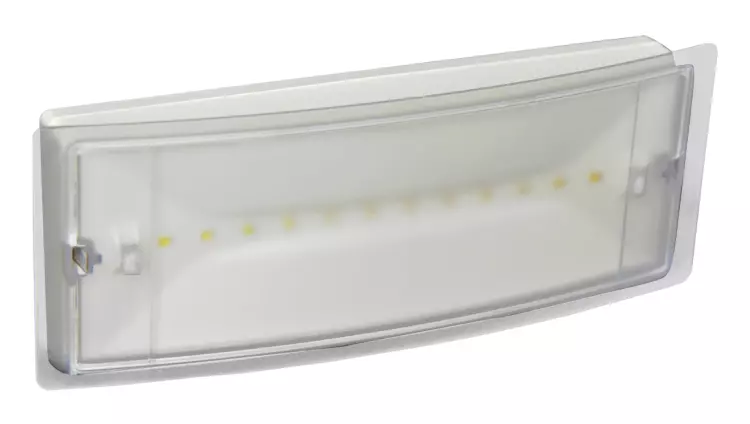
Panic light

panic light

Self-sustained with its own battery, panic lights are great assets for lightning when power is not present. They can turn automatically when the circuit detects that power is missing but can be also manually switched on or off. There are many versions of panic lights ranging from the light they produce to how long can they work so picking the right one will depend entirely on your home size and needs.

USB Headlamp

usb headlight

If you lack panic lights USB headlamp is a great choice to light your way and it works even better than a flashlight, although a flashlight is also a great tool, a headlight will provide you with free arms to do various things that you would not be able to by holding a flashlight. Modern headlights come with LED lights so they provide a good amount of light with small power consumption and they can be recharged in a power bank, solar charger, or generator.

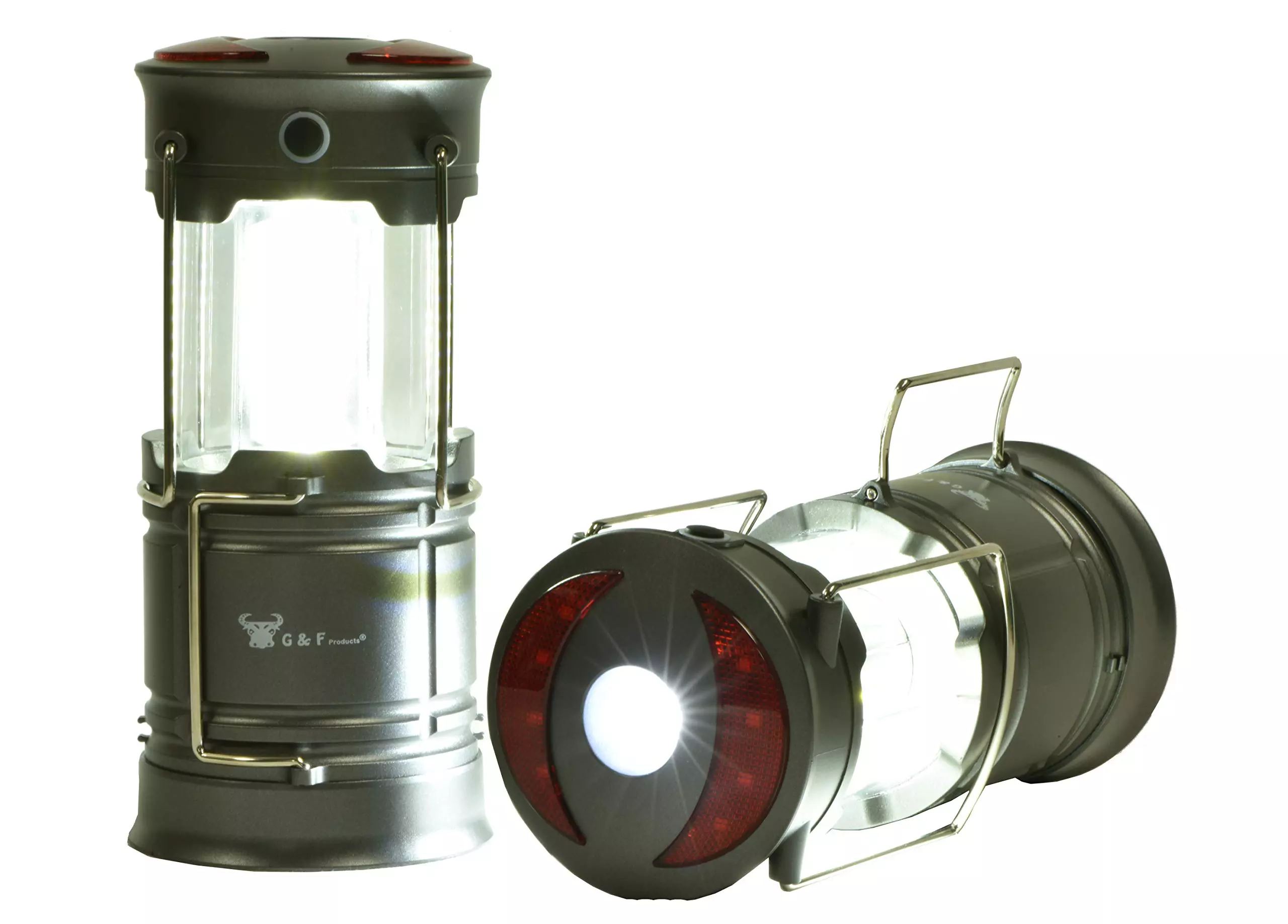
LED lantern

led light

LED Lantern is a gadget sitting somewhere between a headlight and a panic light, it offers around the same light amount as a panic light but you can carry it around with you. Of course, it will drain its battery faster than a panic light and it will still need to carry around but it can offer some good options when you need it, like taking it with you to the toilet.

Electric Lighter

electric lighter

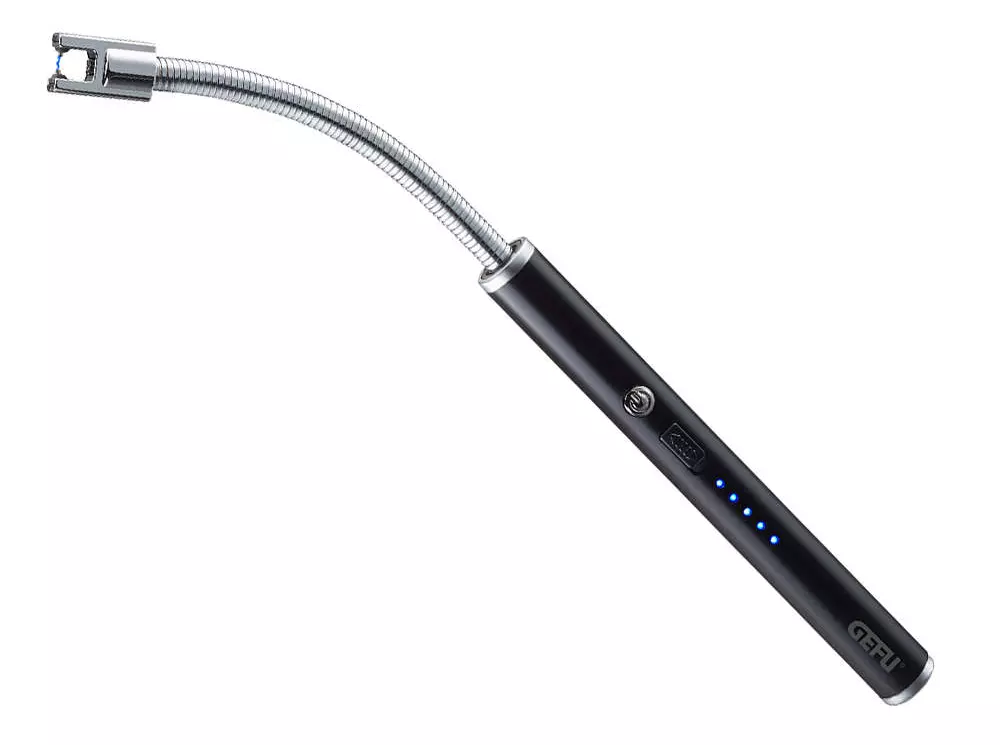
An electric lighter is also one of the things that you will need, it can ignite candles, paper, stoves, etc. Its battery is usually enough for extensive use and there are small chances that it will need to be recharged. Having matches is also smart, just in case.

Solar Oven

solar oven

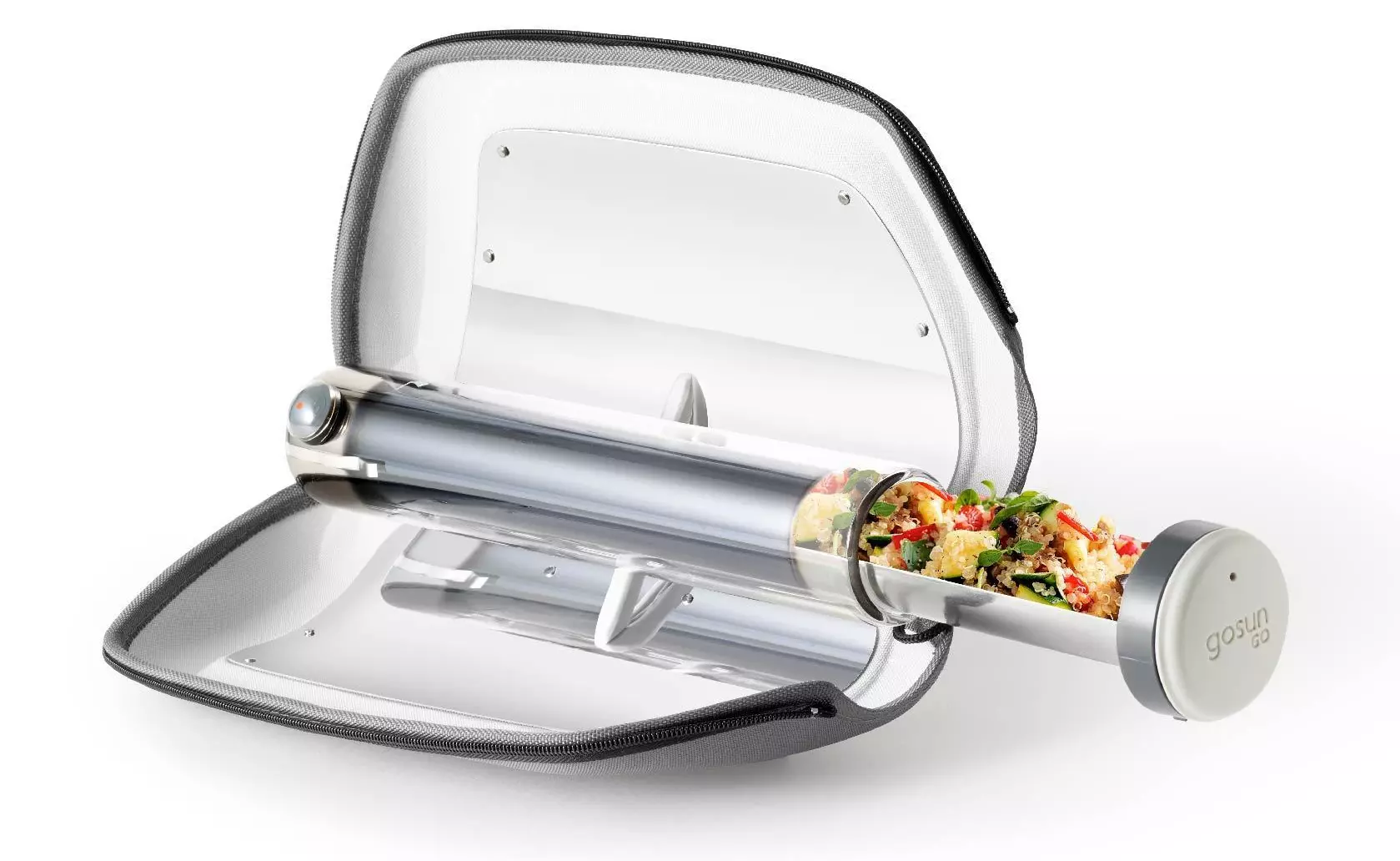
Great gadget when outbreaks last long or when you get hungry. Not all households have gas ovens so a Solar oven is a great tool to keep you full of food. Granted it will not be on par in speed and quality with a regular oven but when it is the only option it will suffice.

Read More
Purchased Adobe CC applications show as trial
Buying a product and then finding out that is not working is one of the most annoying and disappointing things that a consumer can experience. It is no secret that Adobe software and services online can malfunction or detect somewhat false information and behave accordingly placing buyers in an awkward position. Adobe no matter how huge and great can also still sometimes has software that can misbehave in this way and sometimes downloading their suite and buying it after can not be 100% registered and even after the money is transferred and purchase has been completed you can still have a trial status for your adobe cloud applications. In this guide, we will address this issue and see how we can fix it so you can get back to your creative work in no time. Follow this guide as it is presented step by step.
  1. Wait an hour

    No, seriously, wait an hour. Sometimes transaction and registration of transaction along with activation can take up to one hour of time. If you just made a purchase and you are still under trial in the launcher, give it a little time to detect the purchase and adjust accordingly.
  2. Check to see if your subscription is active

    Sign in to https://account.adobe.com/plans. If you have more than one account, make sure you sign in with the proper one. Under My plans, select Manage plan. In the Plan Information section, check to make sure that your subscription is active. If it’s expired, it's likely why you’re seeing messaging that indicates you are in trial mode or that your trial has expired. If your subscription is showing as active, then an out-of-date payment method may be the issue. To see if your payment information is current, in the Plan information section, select Manage payment. If your payment method isn’t current, update your credit card information in the pop-up window and select Save. Your new payment method will take effect in the next billing cycle.
  3. Sing out and then sign back in

    Open the Creative Cloud desktop app. (Select the icon in your Windows taskbar or the macOS menu bar.) Select the Account icon in the upper right, and then select Sign out. In the confirmation dialog box, select Sign Out. The Creative Cloud apps and services associated with your account are deactivated on the computer. Sign in again to your Adobe account. Launch any Creative Cloud app included in your membership, such as Photoshop or Illustrator. If prompted, sign-in on the next screen.
  4. Update creative cloud applications

    Open the Creative Cloud desktop app. (Select the icon in your Windows taskbar or the macOS menu bar.) Depending on your version of the Creative Cloud desktop app, do one of the following: On the Help menu, select Check for updates. or
    Select the three vertical dots icon in the upper-right corner of the app. Choose Check for App Updates from the menu. If you aren’t using the latest version of your Creative Cloud app, an update prompt appears next to it on the apps list. Select Update.
  5. Remove entries in the HOSTS file

    If the previous solutions do not work, your computer could have trouble connecting to Adobe's activation servers. This could be because of an incorrectly configured Operating System hosts file (Operating system hosts files map host names to IP addresses). To solve this issue, try removing Adobe-related entries from the hosts file. You can remove the Adobe-related entries from the hosts file in two ways: Automatically repair the hosts file using the Limited Access Repair tool: Repair the hosts file using the Limited Access Repair tool. With this method, you do not have to manually edit the hosts file -- the tool automatically repairs the file. Reset the hosts file manually: If the issue is not fixed even after you run the Limited Access Repair tool, reset the hosts file manually: To reset the hosts file on Windows, do the following: Navigate to C:\WINDOWS\System32\drivers\etc. Open the hosts file with a text editor such as Notepad. Check for any Adobe-related entries in the hosts file. If there are Adobe-related entries in the hosts file, move the file to the desktop, for example by dragging. Delete the Adobe-related entries from the hosts file. Make sure that you do not delete any other entries. Save the hosts file that you edited in the previous step. The updated hosts file should not have any Adobe-related entries. Move the file from desktop to the original location: C:\WINDOWS\System32\drivers\etc. When moving the file, select the Replace option. To reset the hosts file on macOS, do the following: To find the hosts file, open Finder and then choose to Go > Go to Folder. In the box, type the following location and then press Return: /private/etc/hosts If you are unable to locate the file, it means that the hosts file is hidden. Type the following command in terminal to unhide the file, and then repeat Step 1. chflags nohidden /etc/hosts Open the hosts file using a text editor such as Text Edit. Check for any Adobe-related entries in the hosts file. If there are Adobe-related entries in the hosts file, move the file to the desktop, for example by dragging. Delete the Adobe-related entries from the hosts file. Make sure that you do not delete any other entries. Save the hosts file that you edited in the previous step. Move the file from the desktop to the original location: /private/etc/hosts. When moving the file, select the Replace option.
Read More
Fix Windows Update Error 0x80070BC9
As you know, every Windows Update is essential for every Windows operating system. They have to be regularly installed, especially since they include various security updates that are important to the system. However, there are times when Windows Update fails to execute properly and you get errors like the error code 0x80070BC9. When you encounter this particular Windows Update error, you will get the following error message on your screen:
“0x80070BC9 – ERROR_FAIL_REBOOT_REQUIRED. The requested operation failed. A system reboot is required to roll back changes made.”
This kind of Windows Update error is most likely caused by a newly installed problematic software, corrupted Windows Update files, or policies that restrict the behavior of the Windows Module Installer. The Windows Module Installer, also known as “WMIW” or “TiWorker.exe”, is the one that checks for new updates from the Windows server and installs them on your computer. This is why you need to make sure that you do not have any policies that control the start behavior of the Windows Module Installer since this service must not be hardened to any start value and should be managed by the operating system. To resolve the Windows Update error code 0x80070BC9, you can check out the options provided below.

Option 1 – Try checking the status of the Windows Modules Installer Worker Service

Since the Windows Update error code 0x80070BC9 has something to do with the Windows Module Installer Worker service, you need to check its status in the Service Manager. Refer to the following steps to do so.
  • In the Cortana search box, type “services” and click on the Services icon to open the Services Manager. Alternatively, you can also tap the Win + R keys to launch the Run prompt and then type “MSC” in the field and hit Enter to open the Services Manager.
  • After opening the Services Manager, look for the Windows Modules Installer Worker Service.
  • Once you found it, check its status and make sure that its Startup type is set to Manual.
  • Now click on the Start button and see if it fixes the Windows Update error.

Option 2 – Run the Windows Update Troubleshooter

You might want to run a built-in Windows Update troubleshooter to resolve the Windows Update error. It is one of the things you can check out as it is known to automatically resolve any Windows Update errors like error code 0x80072EE2. To run this troubleshooter, go to Settings and then select Troubleshoot from the options. From there, click on Windows Update and then click the “Run the troubleshooter” button. After that, follow the next on-screen instructions and you should be good to go.

Option 3 – Try contacting the IT administrator to modify the group policies

You could also try to contact the IT administrator to have the group policies modified. This option is applicable for company-managed systems. As mentioned, one of the possible causes of the Windows Update error 0x80072EE2 is the policies that control the start behavior of the Windows Module Installer. Thus, you need to have them removed so that the Windows Module Installer Worker service is managed by the operating system itself. And since there could be many policies, it is highly advised that you contact your company’s IT administrator to get the job done for you.

Option 4 – Try to install the Windows Updates in a Clean Boot State

There are some instances that some conflicting programs installed in your computer might be the one that’s causing Windows Update error code 0x80070BC9. To identify which program is causing the problem, you need to put your computer in a Clean Boot State. To do so, follow the steps below.
  • Log onto your PC as an administrator.
  • Type in MSConfig in the Start Search to open the System Configuration utility.
  • From there, go to the General tab and click “Selective startup”.
  • Clear the “Load Startup items” check box and make sure that the “Load System Services” and “Use Original boot configuration” options are checked.
  • Next, click the Services tab and select the “Hide All Microsoft Services” check box.
  • Click Disable all.
  • Click on Apply/OK and restart your PC. (This will put your PC into a Clean Boot State. And configure Windows to use the usual startup, just simply undo the changes.)
  • From there, start to isolate the problem by checking which one of the programs you installed recently is the root cause of the problem.
Read More
Guide for Removing SMSFromBrowser Malware

What is SMSFromBrowser

SMSFromBrowser is a Browser Extension developed by MindSpark. This extension usually comes bundled up with other software or via online advertising. Allegedly this extension allows you to send SMS messages from your computer, however, all it does is point you to other websites that offer this service. While active this extension monitors your browsing behavior, it records your website visits, clicks, links, and sometimes even private information, in order to use this data to better serve additional ads. During your browsing sessions, you may encounter additional unwanted ads, sponsored links, and sometimes even pop-up ads. Several anti-virus scanners have detected this extension as a potentially unwanted extension / Browser Hijacker, and due to its privacy mining behavior, it is not recommended to keep it on your computer.

Browser hijackers (sometimes referred to as hijackware) are a kind of malicious software that modifies web browser settings without the computer owner’s knowledge or permission. These hijacks appear to be increasing at an astonishing rate around the world, and they could be actually nefarious and sometimes harmful too. Browser hijackers are capable of doing more than just modifying homepages. These are typically used to force hits to a specific site, manipulating web traffic to generate ad revenue. Though it might seem naive, these tools are made by vicious people who always try to take advantage of you, so that they can easily make money from your naive and distraction. As soon as the program attacks your laptop or computer, it starts to mess things up a whole lot that slows your system down to a crawl. In the worst-case scenario, you will be forced to deal with serious malware threats as well.

Indications of browser hijack

There are many signs of web browser hijacking: 1. home page is changed 2. your browser is constantly being redirected to porn sites 3. the default online search engine and the default browser settings are altered 4. discover new toolbars that you simply didn’t add 5. you notice numerous ads pop up on the browsers or computer screen 6. your browser gets sluggish, buggy crashes very often 7. you can’t go to specific sites such as homepages of anti-malware software.

How it infects your personal computer

A browser hijacker can be installed on your computer or laptop when you visit an infected site, click on an e-mail attachment, or download something from a file-sharing website. They can be included with toolbars, BHO, add-ons, plug-ins, or browser extensions. Some internet browser hijackers spread in user’s PC by using a deceptive software distribution technique known as “bundling” (often through freeware and shareware). A good example of a notorious browser hijacker is the most recent Chinese malware known as “Fireball”, which has attacked 250 million PCs worldwide. It acts as a hijacker but could be turned into a fully functioning malware downloader afterward. Browser hijackers could interrupt the user’s web surfing experience greatly, keep track of the websites visited by users and steal financial information, cause difficulty in connecting to the web, and eventually create stability problems, making applications and computers freeze.

Removal

Some types of browser hijackers can be effortlessly removed from your PC by deleting malicious applications or any other recently added freeware. Many times, it could be a tough job to discover and get rid of the malicious program because the associated file will be running as part of the operating system process. And there’s no denying the very fact that manual repairs and removal methods can be a difficult job for an amateur computer user. Also, there are several risks associated with fiddling around with the pc registry files. Browser hijackers could be effectively removed by installing and running an anti-malware application on the affected computer. To remove any browser hijacker from your PC, you can download the following professional malware removal program – Safebytes Anti-Malware. And utilize a system optimizer, such as Safebytes Anti-Malware, to erase all associated files in the registry and repair browser problems. All malware is detrimental and the degree of the damage may vary greatly according to the type of infection. Certain malware types alter web browser settings by adding a proxy server or modify the computer’s DNS configuration settings. In such cases, you will be unable to visit some or all internet sites, and thus unable to download or install the required security software to eliminate the infection. If you’re reading this article, odds are you’re stuck with a virus infection that is preventing you to download or install the Safebytes Anti-Malware program on your system. Follow the instructions below to get rid of the malware by alternative methods.

Install the anti-virus in Safe Mode

If the malware is set to run automatically when Microsoft Windows starts, entering Safe Mode could very well block the attempt. Just bare minimum required programs and services are loaded whenever you boot your PC into Safe Mode. To start your Windows XP, Vista, or 7 PCs in Safe Mode with Networking, follow the instructions below. 1) Tap the F8 key continuously as soon as your PC boots, however, before the large Windows logo shows up. This would invoke the “Advanced Boot Options” menu. 2) Use the arrow keys to choose Safe Mode with Networking and press ENTER. 3) Once this mode loads, you should have an internet connection. Now, get the malware removal application you need by using the web browser. To install the program, follow the guidelines in the installation wizard. 4) Right after the software is installed, let the diagnostic scan run to eliminate trojans and other malware automatically. Use an alternate internet browser to download an antivirus application Some malware only targets specific web browsers. If this sounds like your situation, employ another browser as it might circumvent the virus. The best way to avoid this problem is to opt for an internet browser that is known for its security measures. Firefox has built-in Phishing and Malware Protection to help keep you secure online.

Create a bootable USB anti-virus drive

Another option is to store and run an antivirus software program completely from a Flash drive. To run anti-malware from a flash drive, follow these simple steps: 1) On a virus-free PC, download and install Safebytes Anti-Malware. 2) Insert the pen drive on the same PC. 3) Run the setup program by double-clicking the executable file of the downloaded software, which has a .exe file extension. 4) Choose the USB flash drive as the destination for saving the software file. Follow the directions to complete the installation process. 5) Now, transfer the thumb drive to the infected computer system. 6) Double click the Safebytes Anti-malware icon on the pen drive to run the application. 7) Press the “Scan” button to run a full computer scan and remove malware automatically.

Benefits and Features of SafeBytes Anti-Malware

These days, an anti-malware tool can protect your computer or laptop from various types of internet threats. But wait, how to select the best one amongst plenty of malware protection applications that are available on the market? You may be aware, there are several anti-malware companies and products for you to consider. Some of them are good, some are ok types, and some will ruin your PC themselves! You need to be very careful not to select the wrong application, particularly if you purchase a premium application. When it comes to commercial antimalware tool options, many people opt for well-known brands, like SafeBytes, and they are quite happy with it. SafeBytes can be described as a powerful, real-time anti-malware application that is created to assist the average computer end user in safeguarding their computer from malicious internet threats. Through its cutting-edge technology, this software will help you protect your PC against infections caused by various kinds of malware and other threats, including spyware, adware, computer viruses, worms, trojan horses, keyloggers, ransomware, and potentially unwanted program (PUPs).

SafeBytes has excellent features when compared to various other anti-malware programs. A few of them are given as below:

Real-time Active Protection: SafeBytes gives you round-the-clock protection for your personal computer limiting malware attacks instantly. They are extremely effective in screening and removing various threats because they’re continuously revised with new updates and alerts. Robust, Anti-malware Protection: Safebytes is made on the best virus engine within the industry. These engines will detect and get rid of threats even during the early stages of a malware outbreak. Internet Security: SafeBytes inspects the hyperlinks present on a webpage for possible threats and informs you if the website is safe to visit or not, through its unique safety rating system. Low CPU Usage: SafeBytes is a lightweight and user-friendly anti-virus and anti-malware solution. Since it uses minimum computer resources, this application leaves the computer power exactly where it belongs to: with you actually. 24/7 Online Tech Support: You may get absolutely free 24/7 technical support from their computer experts on any product queries or computer security concerns. SafeBytes will keep your personal computer safe from the latest malware threats automatically with almost no input needed from you again. Once you have downloaded and installed this software, you will no longer have to bother about malware or any other security concerns. You will get the best all-around protection for the money you pay on SafeBytes anti-malware subscription, there isn’t any doubt about it.

Technical Details and Manual Removal (Advanced Users)

If you wish to manually remove SMSFromBrowser without the use of an automated tool, it may be possible to do so by removing the program from the Windows Add/Remove Programs menu, or in cases of browser extensions, going to the browsers AddOn/Extension manager and removing it. You will likely also want to reset your browser. To ensure the complete removal, manually check your hard drive and registry for all of the following and remove or reset the values accordingly. Please note that this is for advanced users only and may be difficult, with incorrect file removal causing additional PC errors. In addition, some malware is capable of replicating or preventing deletion. Doing this in Safe Mode is advised. The following files, folders, and registry entries are created or modified by SMSFromBrowser
Files: %ALLUSERSPROFILE%MicrosoftWindowsStart MenuProgramsSMSfromBrowser %ALLUSERSPROFILE%Start MenuProgramsSMSfromBrowser %LOCALAPPDATA%SMSfromBrowserTooltab %UserProfile%Local SettingsApplication DataSMSfromBrowserTooltab Registry: HKEY_CURRENT_USERSoftwareWow6432NodeMicrosoftWindowsCurrentVersionexplorerBrowser Helper ObjectsFFE35078-94B2-4FC0-990D-BF8289BC25E4 HKEY_CURRENT_USERSoftwareMicrosoftWindowsCurrentVersionexplorerBrowser Helper ObjectsFFE35078-94B2-4FC0-990D-BF8289BC25E4 HKEY_CURRENT_USERSoftwareWow6432NodeMicrosoftWindowsCurrentVersionexplorerBrowser Helper Objects3188EEFD-9259-445D-8CCD-B99D6296AD1A HKEY_CURRENT_USERSoftwareMicrosoftWindowsCurrentVersionExtStats3188EEFD-9259-445D-8CCD-B99D6296AD1A HKEY_CURRENT_USERSoftwareMicrosoftWindowsCurrentVersionExtSettingsFFE35078-94B2-4FC0-990D-BF8289BC25E4 HKEY_CURRENT_USERSoftwareMicrosoftWindowsCurrentVersionExtSettingsB1D7EA4A-79CA-454E-897F-F5A052E467F6 HKEY_CURRENT_USERSoftwareMicrosoftWindowsCurrentVersionExtSettings3188EEFD-9259-445D-8CCD-B99D6296AD1A HKEY_CURRENT_USERSoftwareMicrosoftInternet ExplorerApproved Extensions, value: 3188EEFD-9259-445D-8CCD-B99D6296AD1A HKEY_CURRENT_USERSoftwareMicrosoftInternet ExplorerApproved Extensions, value: B1D7EA4A-79CA-454E-897F-F5A052E467F6 HKEY_CURRENT_USERSoftwareMicrosoftInternet ExplorerApproved Extensions, value: FFE35078-94B2-4FC0-990D-BF8289BC25E4 HKEY_CURRENT_USERSoftwareMicrosoftInternet ExplorerToolbar, value: B1D7EA4A-79CA-454E-897F-F5A052E467F6 HKEY_CURRENT_USERSoftwareWow6432NodeMicrosoftTracingSMSfromBrowser_RASMANCS HKEY_CURRENT_USERSoftwareMicrosoftTracingSMSfromBrowser_RASMANCS HKEY_CURRENT_USERSoftwareWow6432NodeMicrosoftTracingSMSfromBrowser_RASAPI32 HKEY_CURRENT_USERSoftwareMicrosoftTracingSMSfromBrowser_RASAPI32 HKEY_CURRENT_USERSoftwareAppDataLowHKEY_CURRENT_USERSoftwareSMSfromBrowser_f7 HKEY_CURRENT_USERSoftwareMicrosoftInternet ExplorerDOMStoragesmsfrombrowser.dl.myway.com HKEY_CURRENT_USERSoftwareSMSfromBrowser HKEY_LOCAL_MACHINEHKEY_CURRENT_USERSoftware[APPLICATION]MicrosoftWindowsCurrentVersionUninstall..Uninstaller

Read More
How to fix random Computer crashes
Computer crashes are one of the most annoying things that can happen to users. It often loses your data and work, you must spend extra time if you were in the middle of something and can even break Windows itself. Computer without crashes working fineBefore we move to the article I just want to say that technically there are no random crashes, there is always a reason why the system hangs up, why you received blue screen, annoying restarts out of nowhere and many more PC crashes. In this article, we will explore many possible reasons why something may occur and offer you straight forward solution on how to escape the situation and prevent it from happening again. Without further delay, let's begin:
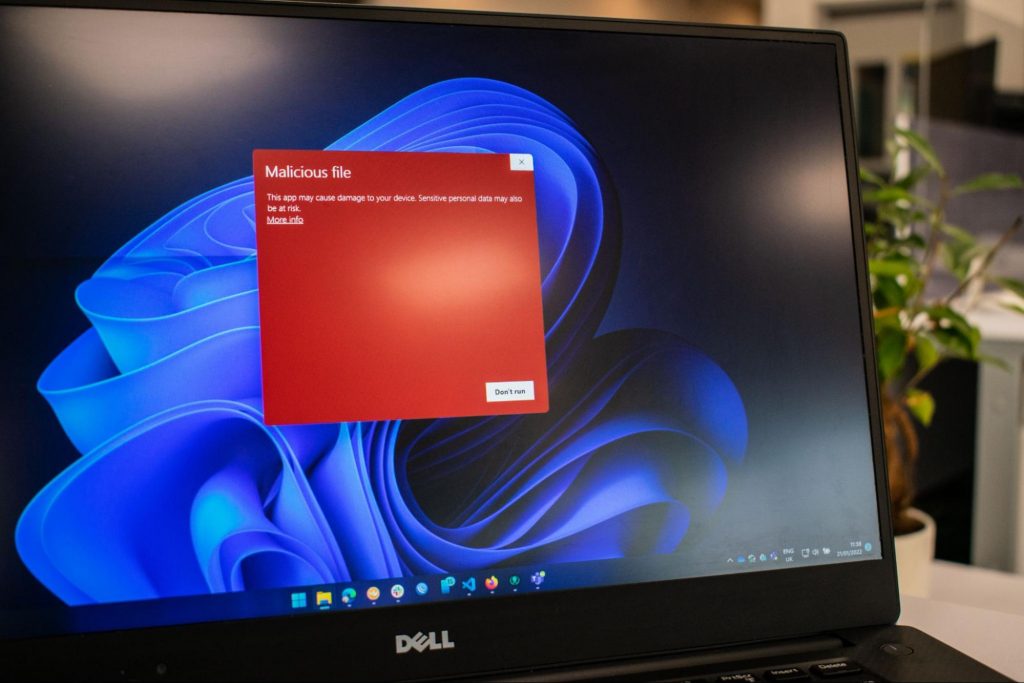
  1. Check switch connectors and power outlets

    Yes, sometimes the most basic approach provides the best results, check to see if your power outlet is stable and providing you with constant voltage, if not, maybe you want to invest in a UPS system so you do not face random shutdowns and restarts during work, also while you are at it, check to see if that reset and power switch are connected properly and that they are not dirty or loose.
  2. Clean your PC and check connectors

    Dirt can cause many issues with computers, from overheating to shutdowns to blue screens and memory dumps, check to see if your computer is clean enough and that all connectors are connected tight into their respective sockets.
  3. Check the temperature of your CPU

    CPU overheating can cause so-called random freezes and blue screens, the computer might shut down or restart also without any visible reason. Check to see if your fan on the CPU is working properly and change the thermal paste if needed.
  4. Check the health of your hard drive

    If your hard drive is beginning to go down the path of dying out, many issues can come from this condition. There are many tools on the internet and in Windows itself to check if your hard drive is working properly.
  5. Run antivirus and firewall

    Random lock-ups or similar issues can also occur if by any chance you have some malware on your system, run protection software, and keep it updated to make sure the issue does not come from the computer being infected with malicious applications.
  6. Keep system clean

    Have a habit to clean regularly system files and registries, keep removing unnecessary files from your computer and regularly update your Windows and applications along with drivers.
  7. Run memory test

    Bad RAM bank can cause many issues during the work, check it out to be sure the problem is not RAM itself.
  8. Do not run applications that are too demanding for your system

    Some applications require stronger hardware, and some require the latest hardware, if your computer is a little outdated, running a demanding application can cause issues like freezing, restarts, etc.
  9. Remove applications you do not use

    This does not seem like anything important but if you are not using a specific application just remove it from the system, why? Sometimes an application has some ties to certain services and if it is outdated can cause issues for newer ones.
  10. Stop installing everything you find on the internet

    Yes, that extension for chrome looks cool, yes, that fancy new player seems sick but if it is from an unverified source and from the unknown publisher without any reviews maybe you are better off with it. You can never tell what you might be placing into your system from the internet.
And that's it, 10 reasons and solutions on what to do on random computer freezes, crashes, etc.
Read More
How to Resolve Runtime Error 372

What is the Runtime Error 372?

Runtime Error 372 is one of the various types of runtime errors on Windows PC. This error code hampers your ability to access and run Microsoft Visual Basic applications on the system.

Solution

Restoro box imageError Causes

Runtime Error 372 can occur due to multiple reasons:
  • Corrupt application due to viral infection
  • Missing or damaged DLL file
  • Poor PC maintenance
  • Data overload
  • Registry damages
Delay in resolving the runtime error 372  exposes your PC to further problems like the inability to install new programs, Windows startup issues, slow PC performance, system hang-ups, and crashes, etc. Therefore, it is recommended to take measures to resolve the runtime error 372 immediately.

Further Information and Manual Repair

The registry is one of the most critical components of Windows PC. It stores every data and configuration of your computer. Every hardware and software on the system has to connect to the registry to function properly. However, everyday and frequent PC usage keeps creating wasted, obsolete and invalid entries on your system and saves them in the registry. And if not cleaned, these files dilate the registry and eventually cause the registry to malfunction. DLL files go missing and often get damaged or corrupt. This leads to runtime error pop-ups like the error code 372. Furthermore, sometimes the registry also gets damaged due to malware attacks and viral infections. This malicious software damages the registry and exposes your system to serious PC threats like system failures, data loss, and data breaches.

Solutions To Runtime Error 372

To resolve the runtime error 372 on your system, clean and restore your registry. For this, you don’t have to hire a technician and spend hundreds of dollars when you can repair it for free. All you have to do is download Restoro. This is a powerful one-stop solution for all your PC-related problems. It functions as a registry cleaner and a system optimizer. Restoro is a user-friendly Windows PC repair tool that can be used by all levels of users. To run and operate this software on your system you don’t have to be a computer programmer or an expert. Its simple navigation and layout make it very easy to use. It resolves disk fragmentation issues which lead to missing DLL files. It also repairs the damaged and corrupted registry thereby resolving runtime errors like the error code 372. Restoro is a bug-free, reliable, and efficient tool. It is compatible with all Windows versions. Click here to download Restoro to repair the runtime error 372 on your PC.
Read More
Fix 0xc0000454, The Boot Configuration ...
If you are in the process of booting up your computer but suddenly encountered an error saying, “The Boot Configuration Data for your PC is missing or contains errors” with an error code of 0xc0000454, read on as this post will help you resolve the problem. The error code 0xc0000454 occurs when you boot your computer and when the Windows Boot Manager encounters an issue with the Boot Configuration Data or BCD. The error code 0xc0000454 (STATUS_INSUFFICIENT_NVRAM_RESOURCES) signifies that there are no sufficient NVRAM or Non-Volatile Random Access Memory resources to complete the API. NVRAM is a component of the system based on the software that stores the Boot Configuration Data in an operating system. Usually, a simple restart can resolve the problem. However, if you’ve already done that and it’s of no use, then there are other potential fixes you can check out to troubleshoot the problem. To resolve the error code 0xc0000454, here are some potential fixes that should help:

Option 1 – Try to repair corrupted BCD

As mentioned, the error could also be due to corruption in BCD, and to fix it, you can use Bootrec.exe – a built-in command-line tool used to troubleshot issues related to boot up and Windows Startup. Before you run this tool, make sure that you have inserted a bootable USB or DVD into your computer. Once you have that covered, follow these steps:
  • You need to go to the Advanced Startup Options.
  • Then click on Troubleshoot.
  • Next, select the Advanced Options and then Command Prompt.
  • Once Command Prompt has been pulled up, enter each one of the following commands and in the sequence that they are given to rebuild BCD files and repair MBR files:
    • Bootrec /Fixmbr
    • Bootrec /FixBoot
  • After you execute the commands given above, you should see a confirmation message that says, “The operation completed successfully”.
  • Now type the “Bootrec /RebuildBCD” command to rebuild BCD.
  • Finally, close Command Prompt and then restart your computer to successfully apply the changes made.

Option 2 – Try to run the Automatic Repair Utility

You might also want to use Automatic Repair in fixing the error. To do so, follow the steps below.
  • You can start by creating and booting from a bootable Windows 10 USB Stick.
  • After that, click on Repair your computer located on the bottom left corner when you are on the initial Windows Startup screen.
  • Next, click on Troubleshoot, and then on the other screen, click the Startup Repair option.
  • Now select the operating system you want to repair. Once you do that, it will start to repair your operating system. Wait until the process is completed and then check if the problem’s now fixed.

Option 3 – Disable the Secure Boot in the BIOS

Disabling the Secure Boot in the BIOS settings is definitely recommended to resolve the error. To disable Secure Boot, here’s what you have to do:
  • First, boot your computer into Windows 10.
  • Next, go to Settings > Windows Update. From there, check if there is anything that you have to download and install if you see any available updates. Usually, OEMs send and update the list of trusted hardware, drivers, and operating systems for your computer.
  • After that, go to the BIOS of your computer.
  • Then go to Settings > Update & Security > Advanced Startup options. If you click on Restart Now, it will restart your computer and give you all the advanced options.
  • Next, select Troubleshoot > Advanced Options. As you can see, this screen offers you further options including System restore, Startup repair, Go back to the previous version, Command Prompt, System Image Recovery, and UEFI Firmware Settings.
  • Select the UEFI Firmware Settings which will take you to the BIOS.
  • From there, go to the Security > Boot > Authentication tab where you should see Secure Boot. Note that every OEM has its own way of implementing the options so it varies.
  • Next, set Secure Boot to Disabled and set Legacy Support to On or Enabled.
  • Save the changes made and exit. Afterward, your computer will reboot.

Option 4 – Try to reset the BIOS

If updating the BIOS didn’t help in fixing the error, you can try to reset the BIOS instead.
  • Start your computer and tap the F10 key during the booting process to enter the BIOS. If it does not work, you can try tapping the F1 or F2 key as well as the Del key.
  • Once you’re already in the BIOS, tap the F9 key to get the prompt to RestoreLoad default configuration now for the BIOS.
  • Next, click on Yes and then follow the next on-screen instructions that appear to set the BIOS back to its default settings.
  • Once you’re done restoring the default settings of the BIOS, restart your computer and then check if it now boots properly.
Read More
Types of Malware Attacks & How to Battle Them

Afraid of the growing threats online? As you should be. But we’re here to show you what kinds of malware are out there and what you can do to keep them at bay.

Malware definition

Malware comes from the term malicious software. It’s software designed to attack and exploit devices and networks to the advantage of the hacker who made it.

Malware can be transmitted in different ways. Most commonly this happens via infected USB drives, downloadable files or malicious websites. Depending on the type and ultimate goal, the consequences of a malware attack can range from negligible to catastrophic.

Credit: Ed Hardie on Unsplash

What kinds of malware are there?

1. Virus

A virus is typically spread via infected files, websites or links. It’s one of the oldest malware types and one of the most difficult to get rid of. That’s because, once activated, it replicates itself - hence the name. 

It can perform different kinds of attacks, depending on what the creator wants to achieve. The main characteristic of a virus is that it really doesn’t show itself until you activate the host. So that’s a scary thought for sure.

2. Adware

Sometimes an ad blocker isn’t enough to fight off unwanted ads. And some of them can, unfortunately, be malicious. They may redirect you to infected sites or prompt downloads of risky files. Even just opening a malicious site can lead to data theft.

So, definitely be careful when clicking around. Even if an ad seems completely legitimate, you can never be too sure.

3. Ransomware

Through ransomware, cybercriminals gain access to a user’s data and use it to extort them for money. Basically, the user is threatened with data deletion or even exposure if a ransom isn’t paid by a specific deadline.

This is a particularly nerve-wracking type of malware. If it targets an individual, it preys upon their sense of anxiety, fear, guilt and even shame. If it targets a business (which is a lot more common), it preys upon not only that business’s profit but also every single one of their customers and their data.

4. Trojans

This type of malware disguises itself very well as a legitimate-looking program. Once you download it, hackers can get full access and control of your device, data and network. They can even be hidden in games, apps and attachments. They cannot self-replicate, though, so we guess that’s… good news?

5. Worms

Worms can replicate, just like viruses, but you don’t need to actually activate the infected program for them to get going. They can be used for various purposes, ranging from data deletion to file encryption to support a ransomware attack.

Credit: Growtika on Unsplash

6. Spyware

Spyware refers to malicious software that stays hidden on your computer and monitors your activity. The best-known type is keyloggers. This can be used to steal sensitive data like passwords and banking information.

7. Rootkits

Rootkits are among the most dangerous types of malware. They allow administrative access and full control of a device, which lets hackers continue hijacking all your data and monitoring your activity without your knowledge.

8. Botnets

Botnets are networks made up of bots - computers that cybercriminals have infected with malicious software. Bots and botnets give hackers remote access to users’ devices and allow them to spy on your camera, take screenshots, memorize passwords and launch Distributed Denial of Service attacks. This one truly makes your hair stand on end.

What can you do about it?

You know the old adage - better safe than sorry. And trust us, malware attacks are such a pain in the you-know-what that you really don’t want to be sorry.

Luckily, there are simple solutions that can shield you from most digital threats these days. What you want to be looking at is a solid antivirus program. Well, technically, you need an antimalware program, but since the latter evolved from the former, we still mostly refer to them as antivirus software.
The majority of antimalware programs these days don’t just shield you from potential risks online, but include additional features as well. For example, some Bitdefender antivirus packages also include parental control and a VPN. And Bitdefender is not just for PCs either - it offers protection for your beloved iPhone or Android as well. You can throw in a password manager in there too, for an additional layer of security.

Credit: Dan Nelson on Unsplash

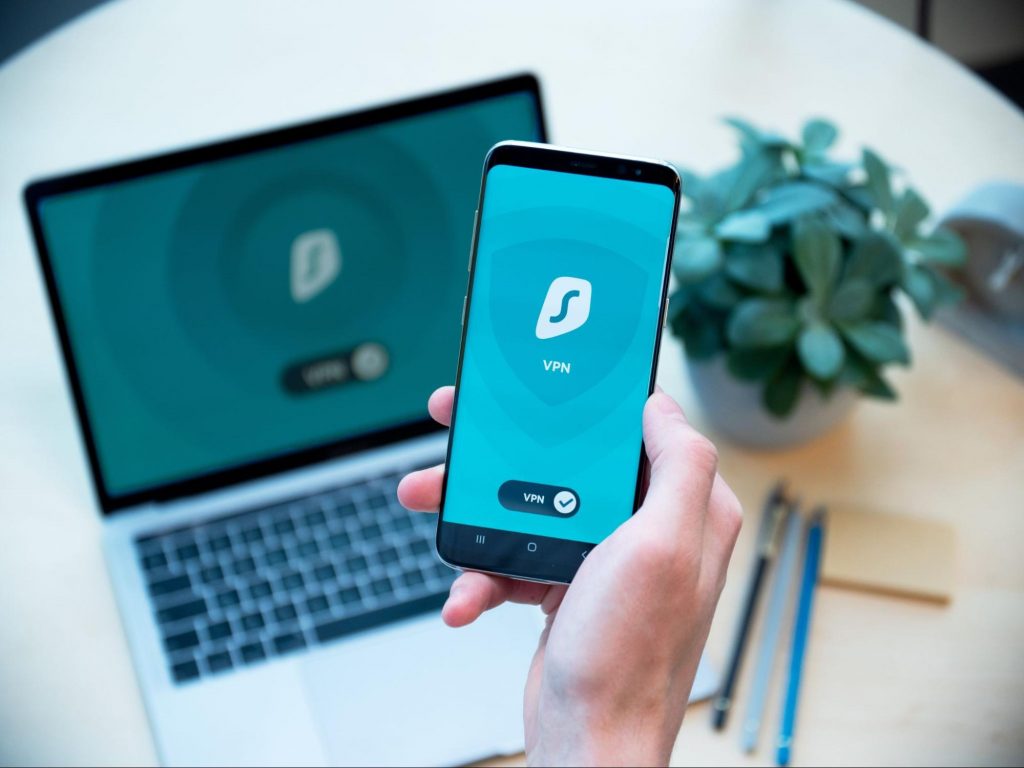
If you aren’t too concerned about all these various threats or feel like you don’t need extra security, you can at least take a step to protect your information from being exposed to lurking cybercriminals as you’re browsing. This can be done through a good VPN like Surfshark, which hides your identity in the digital space and prevents your data from being tracked.

Choosing the right protective software is especially important if you have children with access to the Internet, since they’re unfortunately even more vulnerable to malicious attacks. If you aren’t sure what the right kind of antimalware program is right for you, you can reach out to us and we’ll be happy to help keep your entire household or office digitally secure.

The bottom line

The truth is that there’s no way to be 100% protected in the online world. Hackers are constantly coming up with new ways to infiltrate our devices. But malware-battling software evolves along with them and there’s still plenty you can do to keep risks away. Stay safe!

Read More
Fix KMODE EXCEPTION NOT HANDLED e1d65x64.sys
KMODE_EXCEPTION_NOT_HANDLED seems to be connected primarily to a third-party driver, e1d65x64.sys associated with the Intel(R) Gigabit adapter, NIC/Wired network NDIS (Network Driver Interface Specification) 6.x driver. Error is known to produce the dreaded blue screen of death or BSOD. Most usually error is connected with gaming on Windows 10 computer and it manifests itself during gaming sessions. If you are unlucky and you are faced with this unfortunate error we will be happy to try to help you and present with tips and tricks in order for you to find a solution for it. Before you proceed with the provided solutions, be sure you have sufficient disk space on the Windows drive, run Disk Cleanup and then run CHKDSK.

1) Run the Blue Screen Online Troubleshooter

Open Control Panel, change the view setting to icons. Click Troubleshooting, and click “View all” in the tasks pane. Click “Blue Screen”. This opens the Blue Screen Troubleshooter.

2) Run Driver Verifier

  1. Start a Command Prompt window by selecting Run as an administrator, and type verifier to open Driver Verifier Manager.
  2. Select Create standard settings (the default task), and select Next. You can also choose to Create custom settings to select from predefined settings, or to select individual options. For more information, see Driver Verifier options and rule classes and Selecting Driver Verifier Options.
  3. Under Select what drivers to verify, choose one of the selection schemes described in the following table.
    Driver verifier table:
    Option Recommended use
    Automatically select unsigned drivers Useful for testing on computers that are running versions of Windows that do not require signed drivers.
    Automatically select drivers built for older versions of Windows Useful for testing driver compatibility with newer versions of Windows.
    Automatically select all drivers installed on this computer Provides maximum coverage in terms of the number of drivers that are tested on a system. This option is useful for test scenarios where a driver can interact with other devices or drivers on a system. This option can also exhaust the resources available for Special Pool and some resource tracking. Testing all drivers can also adversely affect system performance.
    Select driver names from a list In most cases, you will want to specify which drivers to test. Selecting all drivers in a device stack allows the Enhanced I/O Verification option to track objects and check compliance because an I/O request packet (IRP) is passed between each of the drivers in the stack, which allows for a greater level of detail to be provided when an error is detected. Select a single driver if you are running a test scenario that measures system or driver performance metrics, or if you want to allocate the greatest number of resources available for detecting memory corruption or resource tracking issues (such as deadlocks or mutexes). The Special Pool and I/O Verification options are more effective when used on one driver at a time.
  4. If you chose Select driver names from a list, select Next, and then select one or more specific drivers.
  5. Select Finish, and then restart the computer.

3) Update network device drivers

Go to the official Intel website and try to find newer versions of drivers, if there are none perhaps you will need to revert back to the previous version.

4) Scan memory for issues

Run a memory test on your system, sometimes these errors can be traced back to a faulty RAM bank.

5) Stop over-clocking your PC

If you have overclocked your PC please reverse it back to its original state and see if that would solve the issue

6) Perform System Restore to the previous restore point

If none of the previous solutions have bared fruit, roll back to a previous restore point and that should solve the issue.
Read More
1 2 3 171
Logo
Copyright © 2023, ErrorTools. All Rights Reserved
Trademark: Microsoft Windows logos are registered trademarks of Microsoft. Disclaimer: ErrorTools.com is not affiliated with Microsoft, nor claims direct affiliation.
The information on this page is provided for information purposes only.
DMCA.com Protection Status