Logo

Microsoft Store Error 0x80072F7D in Windows

Check your connection. Microsoft Store needs to be online. It looks like you’re not.

Check connection

Code: 0x80072F7D

This is the error that you get if trying to open the Microsoft store on Windows 10 and it fails. If you experienced this error and are unable to access the store do not despair we are here to help you. This particular error is usually due to some internet issues, follow the presented guide step by step in order to solve it and be able to access the Windows store again.

  1. Check your Internet connection

    Since this error is closely tied to internet connection it is advisable to first eliminate the obvious and check if your computer is connected to the internet.

  2. Run Network troubleshooter

    Built-in Windows troubleshooter is a great tool and we will be using it in the next few segments in order to locate the issue and fix it.
    Open Windows 10 Settings app using the WINDOWS + I
    Click on Network & Internet
    Click on Network troubleshooter
    Select network adapter to diagnose
    Press the Next button.

  3. Run Internet Connections troubleshooter

    Press WINDOWS + I to open the Settings app
    Click on the Update & Security
    Click on the Troubleshoot
    Select Additional troubleshooters option
    Click on Internet Connections option
    Hit Run the troubleshooter button.

  4. Run Windows Store Apps troubleshooter

    Press WINDOWS + I to open the Settings app
    Select Update & Security
    Click on the Troubleshoot
    Use the Additional troubleshooters option
    Click on the Windows Store Apps option
    Press Run the troubleshooter button

  5. Temporarily disable security software

    Your antivirus or firewall might be interfering with the application, sometimes, in some cases store is detected as a false positive in some security applications, and its access to the internet is cut. Disable your security suite to see if this is the case.

Do You Need Help with Your Device?

Our Team of Experts May Help
Troubleshoot.Tech Experts are There for You!
Replace damaged files
Restore performance
Free disk space
Remove Malware
Protects WEB browser
Remove Viruses
Stop PC freezing
GET HELP
Troubleshoot.Tech experts work with all versions of Microsoft Windows including Windows 11, with Android, Mac, and more.

Share this article:

You might also like

How to remove myBrowser

myBrowser is a Potentially Unwanted Program that allows users to access the internet. This browser suggests users install other PUP like myfiles, myemail, and others. This application claims to be a good reliable portable internet browser, however during our test use of the program several website scripts crashed and were not able to open up all the website assets required, leaving the users with a mediocre browsing experience.

While browsing the internet through this program, you might see additional ads and sponsored links injected into your search results and/or websites.

About Potentially Unwanted Applications

What is a Potentially Unwanted Program (PUP)?

Everyone has experienced it – you download and install a free application, you then notice some unwanted programs on your computer system, come across a strange toolbar on your web browser, or find your default search engine has been changed to something else. You didn’t set them up, so how did they turn up? Potentially Unwanted Programs (PUP), also referred to as Potentially Unwanted Applications (PUA), are programs that you never wanted in the first place and often come bundled with freeware software. Once installed, most of these applications can be difficult to eliminate and become much more of an annoyance rather than a necessity. PUP doesn’t involve malware in the traditional sense. A basic difference between PUP and malware is distribution. Malware is commonly dropped by silent installation vectors such as drive-by downloads while PUP gets installed with the consent of the user, who knowingly or unintentionally authorizes the PUP installation on their PC. PUP developers may argue that their programs aren’t malicious software but they can still be dangerous software and put the computer at risk much the same way a computer virus does.

What do PUPs do on your PC, precisely?

Unwanted programs can be found in various forms. Usually, they will be found in adware bundlers that are known to utilize aggressive and misleading advertising. The majority of bundlers install many adware applications from several vendors, each of which features its own EULA policy. Safebytes Anti-malware entirely removes this threat and protects your PC against unwanted programs or malware infection. PUPS also appear in the form of undesirable toolbars or web browser add-ons. They may change your internet browser settings, monitor your surfing activities and online searches, take up a large amount of space on your monitor, and degrade your web browsing experience. Potentially Unwanted Programs at times act quite similarly to computer viruses or spyware. They will often carry keyloggers, dialers, and other programs built inside them that may track you or send your sensitive details to third parties. Even if the PUPs aren’t basically malicious, these programs still do absolutely nothing good on your computer – they will take precious resources, slow down your PC, weaken your device’s security, making your PC more vulnerable to trojans.

Protect yourself from PUPs

• Read very carefully before you install anything. Do not click accept till you have read the fine print. There will probably be a clause about PUPs. • Always select “Custom” or “Advanced” installation and never blindly click the Next button, which will let you uncheck any foistware software programs you do not want. • Use an anti-PUP program. Security software like Safebytes Anti-malware provides the very best real-time protection against PUPs and also other malware. • Be alert if you install freeware, open-source software, or shareware. Don’t install programs that appear suspicious or malicious. • Always download software from reliable sources like official websites instead of untrustworthy sharing space. Stay away from file-hosting sites where/when possible. Comply with these guidelines and you should more or less never get potentially unwanted programs on your PC

What To Do When You Cannot Install Safebytes Anti-Malware?

Malware could cause all kinds of damage once they invade your PC, from stealing your private details to deleting files on your computer. Some malware is designed to restrict or prevent things that you wish to do on your computer. It may well not let you download anything from the internet or stop you from accessing a few or all of the internet sites, particularly the anti-malware sites. So what you should do if malware prevents you from downloading or installing Safebytes Anti-Malware? Follow the instructions below to eliminate malware by alternate methods.

Make use of Safe Mode to fix the problem

If any virus is set to run automatically when Microsoft Windows starts, stepping into safe mode could very well block this attempt. Since only the minimal programs and services launch in Safe Mode, there are hardly any reasons for issues to occur. Below are the steps you need to follow to start into the Safe Mode of your Windows XP, Vista, or 7 computers (check out the Microsoft website for instructions on Windows 8 and 10 computers). 1) Hit the F8 key repeatedly as soon as your PC boots, but before the big Windows logo comes up. This will bring up the Advanced Boot Options menu. 2) Make use of the arrow keys to select Safe Mode with Networking and press ENTER. 3) When this mode loads, you should have the internet. Now, make use of your internet browser to download and install an anti-malware application. 4) Right after the software is installed, let the scan run to remove viruses and other threats automatically.

Obtain the antivirus software using a different browser

Some malware mainly targets specific web browsers. If this sounds like your case, make use of another internet browser as it might circumvent the virus. If you’re not able to download the security application using Internet Explorer, this means the virus is targeting IE’s vulnerabilities. Here, you should switch to another internet browser such as Chrome or Firefox to download the Safebytes program.

Create a bootable USB antivirus drive

Here’s another solution which is creating a portable USB anti-virus software package that can scan your system for malware without needing installation. Adopt these measures to run the anti-virus on the affected PC. 1) Download Safebytes Anti-Malware or Microsoft Windows Defender Offline onto a clean PC. 2) Plug in the pen drive into the uninfected computer. 3) Double click on the exe file to open the installation wizard. 4) When asked, choose the location of the USB drive as the place in which you want to store the software files. Follow the directions to finish the installation process. 5) Now, transfer the flash drive to the infected computer. 6) Double-click the EXE file to open the Safebytes tool right from the flash drive. 7) Click the “Scan” button to run a full computer scan and remove malware automatically.

SafeBytes Anti-Malware: Lightweight Malware Protection for Windows Computer

If you’re looking to download the anti-malware program for your computer, there are numerous tools on the market to consider however, you should not trust blindly anyone, irrespective of whether it is a paid or free program. Some of them do a good job in removing threats while some will ruin your computer themselves. You have to select one that is reliable, practical and has a good reputation for its malware source protection. On the list of strongly recommended tool by industry experts is SafeBytes Anti-Malware, a well known security software for Microsoft Windows. SafeBytes is a powerful, real-time anti-malware application that is designed to assist the common computer user in safeguarding their computer from malicious threats. With its outstanding protection system, this tool will quickly detect and eliminate the majority of the security threats, which includes adware, viruses, browser hijackers, ransomware, trojans, worms, and PUPs.

SafeBytes anti-malware takes computer protection to a whole new level with its enhanced features. The following are some of the great features included in the software.

Live Protection: SafeBytes offers real-time active checking and protection against all known viruses and malware. It will continuously monitor your pc for hacker activity and also gives end-users superior firewall protection. Best AntiMalware Protection: This deep-cleaning anti-malware application goes much deeper than most antivirus tools to clean your computer. Its critically acclaimed virus engine locates and disables hard to remove malware that hides deep within your computer. Website Filtering: SafeBytes provides instant safety rating to the webpages you’re going to visit, automatically blocking unsafe sites and to make sure that you are certain of your safety while browsing the internet. Lightweight Utility: SafeBytes is a light-weight application. It consumes a very small amount of processing power as it works in the background so you are free to use your Windows-based computer the way you really want. Premium Support: You will get 24/7 technical assistance to quickly resolve any concern with your security application. SafeBytes can keep your PC protected from the latest malware threats automatically, thus keeping your online experience secure and safe. Now you may realize that this tool does more than just scan and delete threats in your computer. If you’re looking for the very best malware removal tool out there, and if you don’t mind spending some dollars for it, opt for SafeBytes Anti-Malware.

Technical Details and Manual Removal (Advanced Users)

If you want to carry out the removal of myBrowser manually instead of using an automated software tool, you can follow these simple steps: Proceed to the Windows Control Panel, click on the “Add/Remove Programs” and there, choose the offending application to remove. In cases of suspicious versions of browser extensions, you can easily remove them through your web browser’s extension manager. You will most probably also want to totally reset your internet browser to its default settings. Lastly, check your hard disk for all of the following and clean your Windows registry manually to remove leftover application entries after uninstalls. Please remember that only advanced computer users should try to manually edit the registry because incorrect file deletion leads to a major problem or even a PC crash. Moreover, some malicious programs have the capability to defend against its deletion. Carrying out this in Safe Mode is advised.
Read More
Virtual desktop with different wallpapers
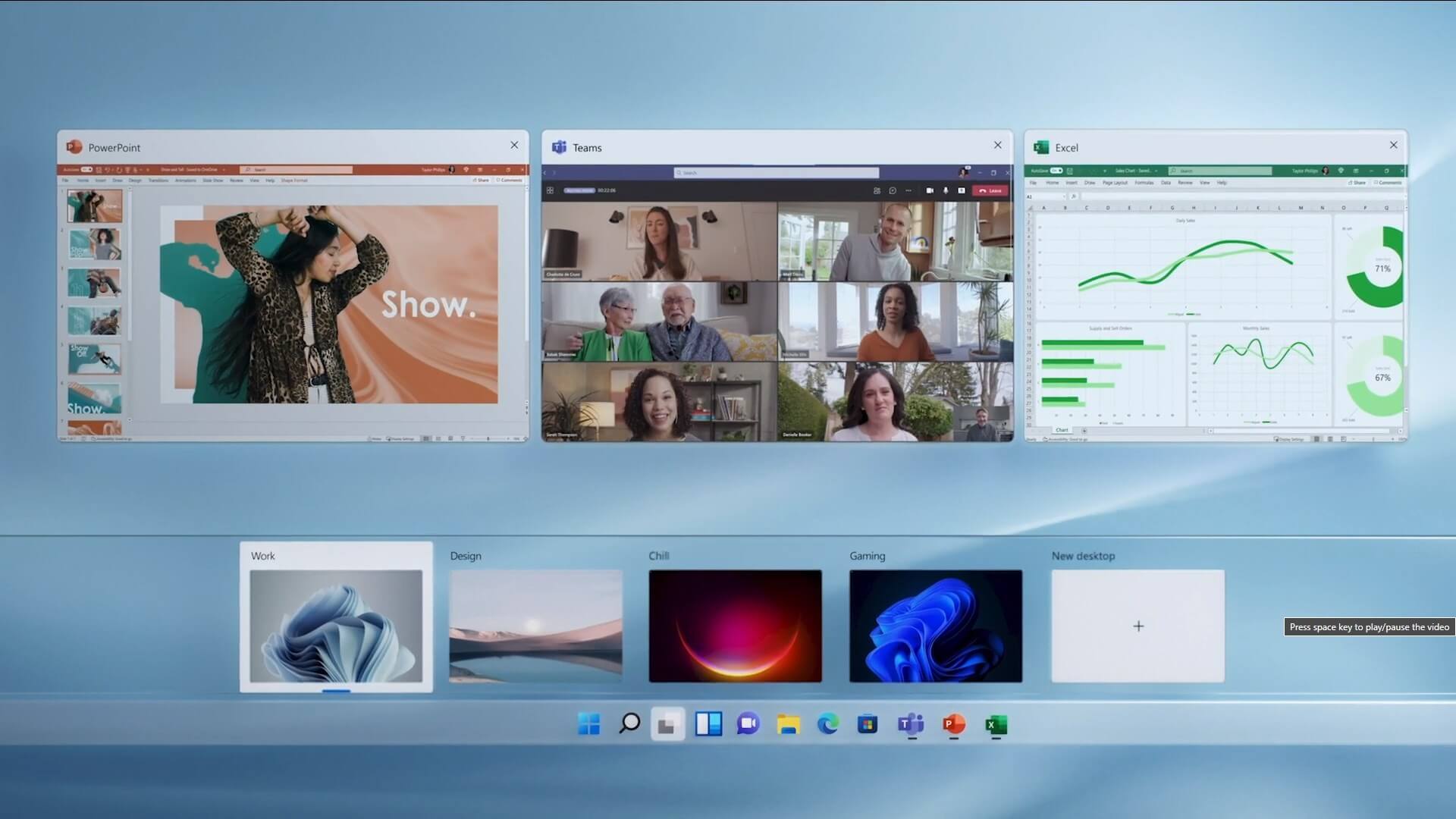
Virtual desktopThe feature that was originally planned for now scrapped Windows 10X is included in Windows 11. You will be able to customize your Virtual desktop with different wallpapers for each screen. In order to fully customize your virtual desktops with different wallpapers follow this easy step-by-step guide.
  1. Click on the Task View button in the taskbar
  2. When the Task View opens, select the desktop on which you want to set wallpaper
  3. The view will switch to the selected desktop. Right-click anywhere on the desktop and select personalize
  4. In personalization settings, click on the background
  5. Select wallpaper which you would like to have on the desktop by clicking on browse and navigating to the desired one
  6. Close the settings
  7. Repeat for each virtual desktop you would like to customize
Read More
Creating custom Keyboard shortcuts in Windows
Keyboard shortcuts are undeniably one of the most utilized ways and are helpful in maximizing productivity through the various applications at top speed in Windows 10. It offers the option to create custom keyboard shortcuts that allow users to launch apps, and even websites, instantly. There are already tons of keyboard shortcuts that are built-in in Windows 10 but in case you don’t know, you can actually create new ones. Doing so is not a difficult task and in this post, you will be guided on how you can exactly create custom keyboard shortcuts in your Windows 10 computer. Most users would create desktop shortcuts or pin the apps in the taskbar to speed up the process of working on their computers. It is an easy task to do since you can easily do it by dragging an app from the Start Menu to the desktop or by simply right-clicking on the executable app and selecting the “Create Shortcut” option. However, doing so would take physical effort and there are times when you have to minimize all the apps to get to the desktop so you can click the shortcut and this is where the Custom Keyboard Shortcuts come in handy. You can create Custom Keyboard Shortcuts in Windows 10 for various programs – from the traditional desktop apps to the new universal apps – you can fling in a shortcut so that you can instantly open them faster compared to when doing it manually and besides this also wouldn’t affect any of the ongoing system activity. To get started, you need to follow the steps provided below carefully.

To add Custom Keyboard hotkeys to a program and website desktop shortcuts, here’s what you have to do:

Step 1: First, you have to right-click on the app or website and select Properties. Step 2: After that, go to the Shortcut tab and from there, you will see the “Shortcut key” textbox which allows you to enter a new or custom keyboard shortcut for the app or website. Step 3: In the textbox field, input your preferred letters to set up the new hotkey. Keep in mind that this custom shortcut has to be combined with the Ctrl + Alt keys which means that if you want to select “N”, you have to tap the Ctrl + Alt + N keys. Step 4: Once done, click on the Apply and OK buttons to save the changes made and then close the window. Step 5: After that, tap the newly created keyboard shortcut, Ctrl + Alt + N keys again to open the app or website you’ve set up earlier.

To add Custom Keyboard hotkeys to a desktop app or an independent program that can be installed using direct download, here’s what you have to do:

Step 1: First, open the Start Menu and look for the icon/tile of the required app in the menu. However, if you are not able to find the desired app, then just click on the All Apps option to navigate through all the apps that are installed on your PC. Step 2: Once you find the app, just right-click on it and select More and then click on the “Open file location” option. Step 3: This will open a new window with the shortcut icon. Right-click on the app’s shortcut icon and select Properties. Step 4: This will open the Properties window where you can add the shortcut combination. Keep in mind that just like the previous method, the custom shortcut has to be combined with the Ctrl + Alt keys. For instance, if you select E, then you also have to set a keyboard shortcut that includes Ctrl + Alt, so it will be, Ctrl + Alt + E. Step 5: Once you’re done, click on the Apply and OK buttons to save the changes made. You should now be able to use the custom shortcut key you’ve set.
Read More
How to remove GoodShop Landing

GoodShopLanding is a browser extension for Google Chrome, Mozilla Firefox, and Safari. This extension offers the latest coupons from a range of variety stores. While this may seem useful, this extension only offers coupons from sponsored stores, not all coupons available, so the only coupons that you will get are from the Extensions Ad network. You may see additional new tabs opening randomly while browsing the internet, these tabs are opened by GoodShopLanding and usually contain last-minute store deals.

As it is often distributed via potentially unwanted advertising, and impacts browser performance in a way that many users do not want, it is classified as a Browser Hijacker and thus flagged for optional removal. From the Author:
Shop online? Here’s your free automatic coupon finder, Gumdrop. Never miss a coupon again Gumdrop automatically applies the best coupons for you at checkout. Get the best deals anywhere With over 500,000 coupons, Gumdrop finds deals for thousands of stores, including Amazon, Expedia, and Papa John’s.

About Browser Hijackers

Browser hijackers (sometimes called hijackware) are a kind of malicious software that alters internet browser configurations without the computer owner’s knowledge or consent. These hijacks appear to be increasing at an astonishing rate around the globe, and it could be truly nefarious and sometimes harmful too. There are numerous reasons why you may have a browser hijack; but commercial, marketing, and advertising are definitely the primary purposes for their creation. Often, hijackers will force hits to sites of their choice either to increase traffic generating higher advertisement revenue, or to gain a commission for every user visiting there. However, it isn’t that harmless. Your web safety is jeopardized and it is extremely irritating. They not only mess up your web browsers, but browser hijackers can also modify the system registry, leaving your computer vulnerable to various other attacks.

Indications of browser hijack

There are many symptoms that indicate the browser is highjacked: your homepage is reset to some mysterious site; bookmark and the new tab are likewise changed; The default search page of web browser is changed; unwanted new toolbars are added to your web browser; you may see never-ending pop-up ads on your computer screen; web pages load very slowly and sometimes incomplete; you’re disallowed access to certain webpages, such as the site of an antimalware software developer like SafeBytes.

How they get into the computer

A browser hijacker can be installed on your computer if you go to an infected website, click an e-mail attachment, or download something from a file-sharing website. They can also be deployed via the installation of an internet browser toolbar, add-on, or extension. Browser hijackers sneak into your pc along with free software application downloads that you unknowingly install along with the original. A good example of some well-known browser hijackers includes Babylon, Anyprotect, Conduit, DefaultTab, SweetPage, RocketTab, and Delta Search, but the names are often changing. Browser hijackers may record user keystrokes to collect potentially invaluable information that leads to privacy issues, cause instability on computers, significantly disrupt user’s browsing experience, and finally slow down the computer to a stage where it will become unusable.

How you can get rid of browser hijackers

Certain browser hijacking can be simply corrected by identifying and removing the corresponding malware program from your control panel. Unfortunately, most of the software programs utilized to hijack a web browser are intentionally designed to be hard to remove or detect. Moreover, manual removal requires you to carry out many time-consuming and intricate steps which are tough to conduct for new computer users. Installing and running anti-malware software on the affected computer can automatically delete browser hijackers as well as other malicious applications. If you want to remove persistent browser hijackers quickly and effectively, install the top-rated Anti-Malware program Safebytes Anti-Malware. Along with anti-virus software, a system optimizer program can help you fix registry errors, get rid of unwanted toolbars, secure internet privacy, and enhance overall computer performance.

What you can do if Malware Stops You From Downloading Anti-virus?

Malware could cause all kinds of damage when they invade your system, from stealing your private information to deleting data files on your computer. Some malware sits in between the computer and the internet connection and blocks some or all sites that you really want to visit. It could also block you from adding anything to your machine, especially antivirus applications. If you are reading this, you may have got infected by malware that stops you from installing a computer security application like Safebytes Anti-Malware. Do as instructed below to get rid of the malware in alternate ways.

Download the application in Safe Mode with Networking

If the malware is set to load immediately when Microsoft Windows starts, entering Safe Mode could very well block the attempt. Since only the bare minimum applications and services start-up in safe mode, there are seldom any reasons for issues to take place. Here are the steps you should follow to boot into the Safe Mode of your Windows XP, Vista, or 7 computers (go to Microsoft site for instructions on Windows 8 and 10 computers). 1) At power-on/startup, press the F8 key in 1-second intervals. This will conjure up the “Advanced Boot Options” menu. 2) Use the arrow keys to select Safe Mode with Networking and hit ENTER. 3) When this mode loads, you should have internet access. Now, use your internet browser normally and navigate to https://safebytes.com/products/anti-malware/ to download Safebytes Anti-Malware. 4) Immediately after installation, do a full scan and allow the program to delete the threats it discovers.

Switch over to an alternate browser

Malicious program code could exploit vulnerabilities in a particular internet browser and block access to all anti-virus software sites. If you seem to have a virus attached to Internet Explorer, then switch over to an alternate web browser with built-in safety features, such as Firefox or Chrome, to download your favorite antivirus program – Safebytes.

Create a portable antivirus for removing malware

Another solution is to make a portable antivirus program on your USB stick. Adopt these measures to use a USB flash drive to fix your corrupted computer system. 1) Download Safebytes Anti-Malware or MS Windows Defender Offline onto a virus-free computer system. 2) Plug the USB drive into the clean PC. 3) Double-click the Setup icon of the antivirus software package to run the Installation Wizard. 4) Pick a USB flash drive as the location when the wizard asks you where you intend to install the software. Follow the directions to complete the installation process. 5) Remove the USB drive. You may now utilize this portable antivirus on the infected computer system. 6) Double click the Safebytes Anti-malware icon on the thumb drive to run the program. 7) Click the “Scan Now” button to begin the virus scan.

Let's Talk About SafeBytes Anti-Malware!

If you’re looking to download anti-malware software for your PC, there are numerous tools in the market to consider nonetheless, you cannot trust blindly anyone, regardless of whether it is paid or free program. Some of them are good but there are several scamware applications that pretend as legit anti-malware programs waiting to wreak havoc on your personal computer. When looking for antimalware software, pick one that provides solid, efficient, and total protection against all known computer viruses and malware. When thinking about reliable software programs, Safebytes AntiMalware is undoubtedly the highly recommended one. SafeBytes anti-malware is a powerful, highly effective protection tool made to help users of all levels of IT literacy in identifying and eliminating harmful threats from their personal computers. Once you’ve got installed this tool, SafeBytes superior protection system will ensure that no viruses or malicious software can seep through your PC. SafeBytes carries a variety of amazing features which can help you protect your PC from malware attack and damage. Listed below are some of the good ones: Real-time Threat Response: SafeBytes delivers complete and real-time security for your PC. It’ll monitor your personal computer for suspicious activity at all times and safeguards your PC from unauthorized access. Robust, Anti-malware Protection: With a critically acclaimed malware engine, SafeBytes gives multilayered protection which is made to catch and eliminate viruses and malware that are hidden deep inside your computer’s operating system. Fast Scan: Safebytes Anti-Malware, using its enhanced scanning engine, offers extremely fast scanning which can promptly target any active online threat. Safe Browsing: SafeBytes inspects the links present on a webpage for possible threats and alerts you if the site is safe to visit or not, through its unique safety rating system. Light-weight Tool: This software program is not “heavy” on the computer’s resources, so you’ll not see any performance troubles when SafeBytes is working in the background. 24/7 Online Technical Support: For any technical issues or product guidance, you could get 24/7 professional assistance through chat and email. To sum it up, SafeBytes Anti-Malware provides excellent protection combined with very low system resource usage with both great malware detection and prevention. You can be sure that your computer system will be protected in real-time once you put this software program to use. So if you’re searching for the absolute best malware removal application out there, and when you don’t mind shelling out some money for it, go for SafeBytes Anti-Malware.

Technical Details and Manual Removal (Advanced Users)

If you wish to do the removal of GoodShop Landing manually instead of employing an automated tool, you can follow these measures: Navigate to the Windows Control Panel, click the “Add or Remove Programs” and there, select the offending program to remove. In cases of suspicious versions of browser extensions, you can actually get rid of it through your browser’s extension manager. You will likely also want to reset your browser. To be certain of complete removal, find the following registry entries on your computer and remove them or reset the values appropriately. Please note that this is for professional users only and might be difficult, with wrong file removal leading to additional system errors. Additionally, certain malicious programs are capable to defend against its deletion. Doing this malware-removal process in Safe Mode is suggested.

Read More
Microsoft acquires Activision Blizzard
In the latest news, Microsoft has reached a deal to purchase Activision Blizzard for 67.8 billion. Now franchises like Warcraft, Starcraft, Overwatch, Call of duty, Diablo are now the property of Microsoft and I am sure that some of these games we can expect to be included in the Xbox game pass. microsoft activision blizzardThis is the second large game company acquisition by Microsoft, Acquiring Bethesda first and a big hit to Sony since Xbox will now have more games in its catalog and as exclusives. Of course, the sale has to go through the standard closing conditions and completion of regulatory review and Activision Blizzard’s shareholder approval before it’s finalized. Assuming that all goes well, the deal is slated to be completed during the fiscal year 2023, which is July 1, 2022, through June 30, 2023.

Read More
GitHub introduction and explanation
If you are starting to get into the “wonderful” world of coding there is a high chance that you have heard of GitHub or Git for short and there is a slight chance that you might be confused about what exactly GitHub is. If this is the case, we are welcoming you to go through our article and find everything about it and why it is so popular and used all around the world.

githubWhat exactly is GitHub?

If we want to go all technical and just point the obvious we could say that GitHub is basically a WEB site and cloud service used for storing and managing code in all languages. But to truly understand why you should use GitHub and not Dropbox or any storage service instead you need to understand concepts like Version Control and Git.

Version Control

Version control is meant to help developers to work separately on different parts of codes and update is separately not breaking the original one. Take note that this option is meant when there is a big project and has more than one coder working on it. If you are a solo coder on your personal project this might not be anything groundbreaking for you personally. But let’s now assume that you are part of a team and that your task is to edit only one function of a project and other people working will also have their tasks. With version control, you could take only part of the code and work on it and once you are finished merge it back into the main repository. All changes in the main code are automatically tracked and can be easily reverted back if needed. The good stuff is that rolling back can be used only let’s say on a code you submitted and other changes made to the source can be kept. As you can see this makes a very good and efficient working space and a good coding environment.

Git

Git itself is a specific version control system, an open-source version control system to be more precise created by Linus Torvalds in 2005. It is a distributed version control system, which means that the entire codebase and history is available on every developer’s computer, which allows for easy branching and merging. Currently, over 87% of worldwide developers are using Git on a daily basis.

So GitHub is?

GitHub is a profit company that offers a cloud-based Git repository hosting service, in other words, it automates and makes it easy for everyone to use Git for version control and collaboration. It focuses on user interface and ease of use so even beginner coders can use it right away without any large confusion and using command lines and setting it themselves manually. GitHub also has a free personal plan in which you can host a public code repository completely free. This option placed GitHub very popular with open source projects. If you are a company you can purchase a plan to have a private code repository shared only to members of your team or company.

Conclusion

As stated almost every developer on a planet uses some version of Git, many of them are on GitHub and there is a lot of open source projects on it. Some employers even ask to see your GitHub repository when deciding if they want to employ you, think of it as a portfolio for coders. There is not a single disadvantage and not a single argument against using it, especially it has a personal free option. So if you want to look better and more professional in the coding world go, make an account and place some code on it, share it with the world, and see how it goes. You might even get some help on projects from other coders if you need it.
Read More
Things that are killing your WI-FI signal

A surprisingly large amount of things present at your home can and do interfere with your wi-fi signal making it weak so devices are dropping it, having trouble connecting, or being slow.

Hello and welcome to our latest article where we will take a look at all things that are present in a lot of homes but are very bad for your WI-Fi signal.

wi-fi router

Bad router placement

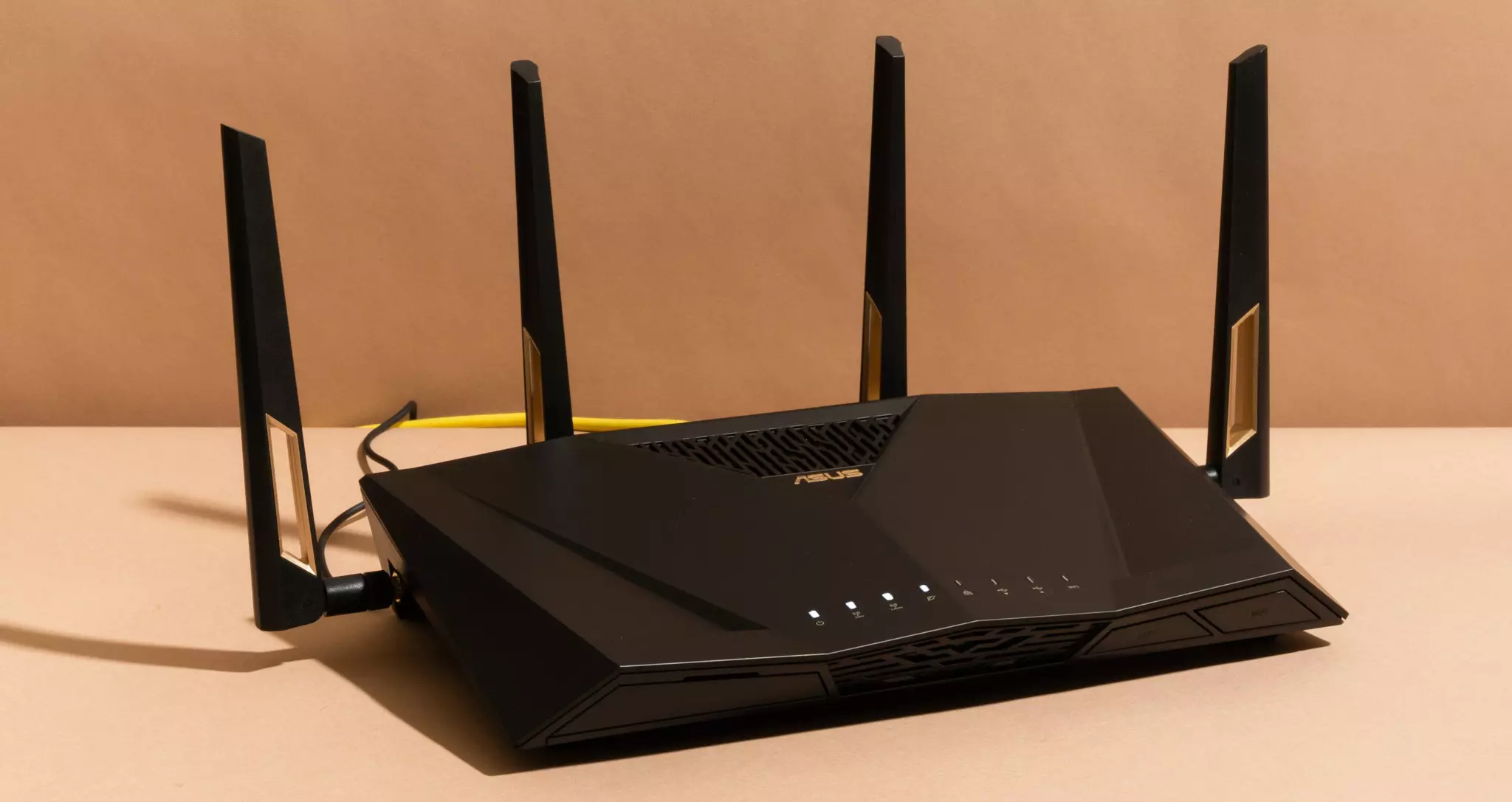
Having a router in a bad position can have some really large effects on WI-Fi signal strength and its availability. Usually, we do not give great attention to where we are placing our router but it has been proved over and over again that being close to certain objects does indeed have a great influence on the wireless signal strength and performance.

So, what are these objects and bad positions where we could place the router and effectively kill his Wi-Fi capabilities?

Fish Tanks

Water will block all radio waves including Wi-FI signals and waves themselves, so having a router next to the aquarium or any large source of water is a bad idea. You should always look at water as something bad for your Wi-Fi and move your router away from it as far as possible.

Bookshelves

Paper is another story and example of the dampening effect on radio waves. Did you know that various patterns of paper are used in silent rooms and recording studios in order to eliminate sound reflection from surfaces? Well besides absorbing sound waves, the paper also absorbs Wi-Fi signals and if you have a large bookshelf with a lot of books packed one beside another you just have a great wall of signal absorbing.

Mirrors

The problem with mirrors is in their coating that goes over the glass in order to turn it into the mirror, that coating is metal and as such, it is absorbing signals in large amounts. If you have an old or high-quality mirror that has a silver coating things are even worse since silver will absorb even more waves than modern cheap ones.

TV

Yup, TV is also on this list and for a similar reason as a mirror, although TV does not have coatings of metal, they have something even worse: a large metal plating on the back. Metal plating is there to produce structural integrity of the TV set and provide it with shielding from electromagnetic waves and as such it will prevent Wi-Fi waves as well. Do not place the router behind your TV.

Things that influence signals in homes

Any kind of metal decoration

Now when we covered mirrors and TV because of the metal they have, we must take a look at the metal itself. Any kind of metal stuff that you might have like baskets, figures, statues, frames, etc will effectively block your signal.

Kitchen appliances and Home utilities

Kitchen appliances like refrigerators, microwaves, ovens, stoves, etc. along with home appliances and utilities like dishwashers, washing machines, dryers, etc are large metal objects enclosed in a metal cage that will block signals from spreading further and it is no secret that most kitchens have weaker Wi-Fi because of this reason.

Home gyms

This is a logical conclusion as to everything explained so far if you have a workout room or small gym at home it is probably filled with weights that are metal and have mirrors inside, all of that will interfere and block signals.

Things blocking your Wi-Fi that you have no easy control over

Walls

Thick walls will dampen signals, thick walls from bricks will dampen even more and concrete walls will kill it almost completely. Any kind of metal reinforcement wiring inside walls will reduce and kill signals as well.

Floors and ceiling

This is somewhat important if you have a floor beneath or under the room where is your router located, but for the same reason how walls are blocking your signal floor and ceiling can do it as well, especially since most of the time they are made of some stronger material like concrete with metal fence inside.

Heating systems

If you have a heating system that is composed of metal radiators with water inside, then in terms of Wi-Fi signal strength you have an aquarium but in a metal box, and as such it will greatly reduce signal strength.

Read More
Tailor Made Solution For Windows AppCrash Error

What is AppCrash Error?

As the name implies the AppCrash error is an error code that indicates a crashed program/application on your system. This term is used by Windows to designate an application crash. It is reported and displayed on the system as “Problem Event Name: AppCrash,” which is followed by additional technical information which unless you are a computer programmer, you may not fully decode. There are various symptoms that trigger the occurrence of this error code on your system such as:
  • Application becoming unresponsive and intermittent
  • Momentary application freezing
  • Application times out and then successfully recovers itself

Solution

Restoro box imageError Causes

The reason for AppCrash error occurrence cannot be narrowed down to a specific cause. This error code is triggered by multiple causes such as:
  • The system is stressed out. This happens when your CPU is held at 100% usage for an unacceptable length of time.
  • Lack of system resources
  • Windows version incompatibility with the application
  • Malware and viral infection
  • Poor PC maintenance
  • Registry damage and corruption
  • Data overload
No matter what the cause for the AppCrash error may be, if you experience this error on your system you must repair it right away before the damage sets in. This is a serious error posing severe consequences. If not repaired on time, it not only hampers your ability to use your desired application but also exposes your PC to fatal crashes, data loss, and system failure.

Further Information and Manual Repair

Though this is a serious Windows error, the good news is that it is an easy-to-fix error code, so resolving it is not a problem. There are three ways to fix the AppCrash error:
  • Hiring a technician, this by the way is quite costly. You may have to pay hundreds of dollars to get professional assistance to fix this error code.
  • Giving your computer adequate rest to cool down. Stressing out your PC heats the hardware which triggers such errors and eventually results in system failure. Try cooling it, and see if it fixes the error.
  • Downloading Restoro. This is by far the best, simple, quick, and money-saving way to resolve the AppCrash error on your system. Restoro is an innovative, performance-driven and multi-functional user-friendly PC Fixer that helps resolve practically all types of PC-related errors including the AppCrash error. It has an intuitive and powerful in-built registry cleaner which scans and detects all types of registry issues on your PC in seconds. It helps you clear up all the unnecessary files saved on your hard disk like junk files, internet history, invalid entries and files from the programs that you’ve uninstalled. Such files not only occupy a lot of disk space but they also lead to registry damage and corruption thus shooting error code pop-ups like the AppCrash error.

Restoro features

Restoro performs an in-depth scan and removes all these files cluttering the system and repairs the damaged registry. It resolves the error AppCrash and simultaneously boosts the speed of your PC making it easy for you to access and run applications fast and smoothly without any application errors. Sometimes malicious software programs like malware and viruses may also damage and corrupt the registry. If the underlying cause of the AppCrash error is a viral infection on your PC corrupting the registry, then don’t worry; Restoro, with the help of its built-in anti-virus program, resolves it too. It scans for viruses on your system and removes them immediately. Restoro is easy to use. Whether you are a novice or an experienced user, working around this PC Fixer is simple. It has a user-friendly interface that allows users to navigate through it without any hassle. In addition to this, it offers enhanced compatibility. It smoothly runs on all Windows versions.

Get Restoro

To get started, all you need to do is Click here to download Restoro. Once it is installed on your system, run it to scan for registry issues like the AppCrash error. This intuitive tool will detect all the errors on your PC in just a few seconds and display them on your Windows screen in the form of a comprehensive scan report. Now simply hit the repair tab to resolve. Once repairing is successfully complete, try running your desired application. You will notice two significant differences:
  1. No AppCrash error code message pop-ups
  2. The application runs fast and smoothly regardless of whether it’s Windows Media Player or any gaming application.
Read More
How to Fix Windows 10 Error Code 0x80070570

Error Code 0x80070570 - What is it?

Error Code 0x80070570 is a common Windows 10 error code that generally is seen by users who are attempting to install a new version of the operating system. While it is most often associated with Windows 10, variations on this same error code have been present in previous versions of the operating system, going all the way back to Windows 7.

Common symptoms include:

  • Inability to run through the installation process to completion when attempting to install a new version of the operating system
  • Error message regarding corrupt or missing files
While it is frustrating to encounter an error like Error Code 0x80070570 as you try to install a new operating system version on your device, there are several methods that can be used to try to resolve the issue. If you do not feel like you have the skill or knowledge necessary to successfully apply the steps below, be sure to get in touch with a trusted computer repair technician that is competent in the repair of Windows 10 errors.

Solution

Restoro box imageError Causes

In some cases, Error Code 0x80070570 arises erroneously when the system isn’t able to find a particular file that it needs. Other times, it happens when there is a conflict with the antivirus software that you are running and the installation software. Finally, there may be a faulty source of RAM in your computer that needs to be removed before the installation can be completed.

Regardless of what you believe to be the cause behind the error code, there are at least two different methods that you can use to try to resolve Error Code 0x80070570 on your device. The first is fairly simple and easy to follow, while the second requires a little bit more knowledge of your hardware in order to complete it successfully.

Further Information and Manual Repair

There are two common ways that users can attempt to get around Error Code 0x80070570 on their devices. Each requires a little more skill and technical knowledge than the last. If you don’t feel like you have the skill, time, or ability to invest in the methods below, be sure to get in touch with a Windows repair technician who can help you to complete the necessary steps in the right ways.

Here are the best ways to attempt to resolve Error Code 0x80070570 on your Windows device:

Method One:  Reattempt Installation

In some cases, when Error Code 0x80070570 appears on your computer, you can simply click on the OK button and then go back to the screen immediately proceeding where your installation has left off, choosing to restart the process of installation. For some users, repeating this method at least four times has allowed them to bypass the error without undertaking more serious and time-consuming methods to resolve the issue at hand.

Method Two:  Check Your Various Sources of RAM

If you have more than one source of RAM in your computer, first remove one of the sources, then re-attempt installation. If you are still encountering Error Code 0x80070570 after removing one of the sources, continue to remove each until you are down to a single source, then trade that last source for one of the ones that have been pulled.

If you have a bad source of RAM, this can help you to figure out which input is causing the error to appear and to address the problem appropriately. Once you have determined which specific source is causing the problem, you can reboot your computer and attempt to run the installation process one more time.

If your RAM sources are not specifically causing the issue, you may still need to run diagnostics tests on your hardware to identify the source of the problem at hand.

Method Three: Use An Automated Tool

If you wish to always have at your disposal a utility tool to fix these Windows 10 and other related issues when they do arise, download and install a powerful automated tool.

Read More
EasyPDFCombine Complete Removal Guide

EasyPDFCombine is a browser extension by Mindspark Inc. This extension claims to offer users an easy and fast way to combine different PDF documents into a single file for easy access and sharing.

When installed this extension changes your default search engine to MyWay.com, it also hijacks your home page and new tab page, also changing it to search powered by MyWay. While browsing the internet with this extension you will see additional pop-up ads, injected ads in search results, and sponsored content throughout your browsing sessions. This extension has been marked as a Browser Hijacker by several anti-virus programs and it is not recommended to keep on your computer.

About Browser Hijackers

Browser hijack is a common type of internet fraud where your web browser settings are altered to allow it to carry out things you do not intend. Browser hijacker malware is developed for a variety of reasons. In general, browser hijacking is used for earning ad revenue from forced advert clicks and website visits. While it may seem harmless, these tools were created by malicious individuals who always look to take full advantage of you, so that hackers could make money from your naivety and distraction. They not only screw up your web browsers, but browser hijackers can also modify the system registry, making your computer susceptible to other malicious programs.

How to know whether the web browser is hijacked?

There are many symptoms of browser hijacking. Here are a few of them: 1. the browser’s homepage is modified 2. you find yourself regularly directed to a different webpage than the one you intended 3. the main web browser settings are modified and undesirable or insecure resources are put into the trusted sites list 4. you are finding new toolbars you haven’t witnessed before 5. you see a lot of pop-up ads on your computer screen 6. your web browser gets sluggish, buggy crashes often 7. Inability to navigate to certain websites, especially antivirus as well as other security software websites.

How browser hijacker infects computers

Browser hijackers attack computers via malicious email attachments, downloaded infected computer files, or by checking out infected sites. They may also originate from any BHO, browser extension, add-on, toolbar, or plug-in with the malicious objectives. Also, certain shareware and freeware can put the hijacker in your computer through the “bundling” technique. A good example of a well-known browser hijacker is the most recent Chinese malicious software known as “Fireball”, which has infected 250 million computers around the world. It acts as a hijacker but can be turned into a fully functioning malware downloader later on. The presence of any browser hijacker malware on your system can drastically diminish the web browsing experience, monitor your internet activities that result in severe privacy concerns, develop system stability issues and ultimately cause your PC to slow down or to a practically unusable condition. How you can remove browser hijackers Certain browser hijacking can be easily stopped by finding and removing the corresponding malware program from your control panel. At times, it could be a challenging job to identify and delete the malicious program because the associated file will be running as part of the operating system process. You should think of doing manual repairs only if you’re a tech-savvy individual since there are risks associated with tinkering around with the system registry and HOSTS file. Browser hijackers could be effectively removed by installing and running anti-malware software on the affected PC. Among the best tools for fixing browser hijacker infections is SafeBytes Anti-Malware. It helps you remove any pre-existing malicious software in your computer and gives you real-time monitoring and protection from the latest threats.

What you can do if Virus Stops You From Downloading Or Installing Antivirus?

Malware could potentially cause all kinds of damage when they invade your system, starting from stealing your personal details to erasing data files on your PC. Some malware is meant to hinder or prevent things that you’d like to do on your PC. It may not allow you to download anything from the web or prevent you from accessing a few or all websites, especially antivirus sites. If you’re reading this, odds are you’re stuck with a malware infection that is preventing you to download and/or install Safebytes Anti-Malware software on your PC. Follow the instructions below to remove malware through alternate ways.

Download the anti-virus in Safe Mode with Networking

If the malware is set to run automatically when Windows starts, entering Safe Mode may block this attempt. Since only the minimal programs and services launch in safe mode, there are rarely any reasons for issues to occur. The following are the steps you need to follow to start into the Safe Mode of your Windows XP, Vista, or 7 computers (check out Microsoft site for instructions on Windows 8 and 10 computers). 1) At power-on/startup, hit the F8 key in 1-second intervals. This would conjure up the Advanced Boot Options menu. 2) Choose Safe Mode with Networking using arrow keys and hit ENTER. 3) When this mode loads, you will have an internet connection. Now, get the malware removal application you need by using the web browser. To install the program, follow the directions in the setup wizard. 4) After installation, do a complete scan and let the software program delete the threats it discovers.

Utilize an alternate internet browser to download antivirus software

Some viruses might target vulnerabilities of a specific browser that block the downloading process. If you appear to have a virus attached to Internet Explorer, then switch to an alternate web browser with built-in security features, such as Firefox or Chrome, to download your favorite anti-malware program – Safebytes.

Install anti-malware on a USB drive

To successfully remove the malware, you should approach the problem of installing anti-virus software on the affected PC from a different angle. To run antivirus using a USB pen drive, follow these simple measures: 1) Download Safebytes Anti-Malware or MS Windows Defender Offline onto a virus-free PC. 2) Insert the USB drive onto the same computer. 3) Run the setup program by double-clicking the executable file of the downloaded application, with a .exe file format. 4) When asked, choose the location of the USB drive as the place where you would like to store the software files. Do as instructed on the screen to finish up the installation process. 5) Unplug the USB drive. Now you can utilize this portable anti-malware on the affected computer. 6) Double click the Safebytes Anti-malware icon on the pen drive to run the program. 7) Click on the “Scan Now” button to start the virus scan.

SafeBytes Anti-Malware - More Protection For You

In order to protect your PC from various internet-based threats, it is important to install an anti-malware program on your computer system. But with countless numbers anti-malware companies in the market, these days it is hard to decide which one you should purchase for your personal computer. A few are really worth your money, but many aren’t. While looking for anti-malware software, choose one that offers solid, efficient, and complete protection against all known viruses and malware. Among few good applications, SafeBytes Anti-Malware is the highly recommended program for the security-conscious individual. SafeBytes is a powerful, real-time antivirus application that is made to assist the common computer end user in safeguarding their PC from malicious internet threats. This program could easily detect, remove, and protect your personal computer from the most advanced malware threats including adware, spyware, trojan horses, ransomware, PUPs, worms, parasites as well as other potentially harmful software applications.

There are lots of great features you will get with this security product. Below are some of the features you may like in SafeBytes.

Live Protection: SafeBytes offers 100 % hands-free live protection and is set to observe, prevent and eliminate all threats at its very first encounter. It will continuously monitor your computer for hacker activity and also gives users superior firewall protection. World-class AntiMalware Protection: Using its enhanced and sophisticated algorithm, this malware removal tool can find and remove the malware threats hiding in your computer effectively. “Fast Scan” Abilities: This software has got one of the fastest and most efficient virus scanning engines in the industry. The scans are very accurate and take a little time to complete. Web Security: SafeBytes checks and gives a unique safety rating to every single website you visit and block access to web pages known to be phishing sites, thus protecting you against identity theft, or known to contain malware. Very Low CPU and RAM Usage: SafeBytes gives total protection from internet threats at a fraction of the CPU load because of its advanced detection engine and algorithms. Premium Support: SafeBytes gives you 24/7 technical support, automatic maintenance, and upgrades for the best user experience. SafeBytes can keep your personal computer protected from most advanced malware threats automatically with little or no input needed from you again. There is no doubt that your computer system will be protected in real-time as soon as you put this software program to use. So if you are looking for the best anti-malware subscription for your Windows-based PC, we suggest the SafeBytes Anti-Malware application.

Technical Details and Manual Removal (Advanced Users)

If you’d like to manually remove EasyPDFCombine without the use of an automated tool, it might be possible to do so by deleting the program from the Microsoft Windows Add/Remove Programs menu, or in cases of browser extensions, going to the browser’s AddOn/Extension manager and removing it. You’ll probably also want to reset your internet browser. Finally, check your hard drive for all of the following and clean your Windows registry manually to get rid of leftover application entries following an uninstallation. Please keep in mind that only experienced users should try to manually edit the system files simply because deleting any single vital registry entry results in a major problem or even a computer crash. Additionally, certain malware is capable of replicating itself or preventing deletion. It is advised that you carry out the removal process in Safe Mode.
Files: %LOCALAPPDATA%\Google\Chrome\User Data\Default\Local Extension Settings\kpocjpoifmommoiiiamepombpeoaehfh %UserProfile%\Local Settings\Application Data\Google\Chrome\User Data\Default\Local Extension Settings\kpocjpoifmommoiiiamepombpeoaehfh %LOCALAPPDATA%\Google\Chrome\User Data\Default\Sync Extension Settings\kpocjpoifmommoiiiamepombpeoaehfh %UserProfile%\Local Settings\Application Data\Google\Chrome\User Data\Default\Sync Extension Settings\kpocjpoifmommoiiiamepombpeoaehfh %UserProfile%\Local Settings\Application Data\EasyPDFCombine_ce %LOCALAPPDATA%\EasyPDFCombine_ce %USERPROFILE%\Application Data\easypdfcombine_ceIE %USERPROFILE%\AppData\LocalLow\easypdfcombine_ce %PROGRAMFILES%\easypdfcombine_ceEI %LOCALAPPDATA%\Google\Chrome\User Data\Default\Extensions\eoijigimapijneedmehmjccmmdknkbef %UserProfile%\Local Settings\Application Data\Google\Chrome\User Data\Default\Extensions\eoijigimapijneedmehmjccmmdknkbef %UserProfile%\Local Settings\Application Data\Google\Chrome\User Data\Default\Extensions\kpocjpoifmommoiiiamepombpeoaehfh chrome-extension_eoijigimapijneedmehmjccmmdknkbef_0.localstorage %UserProfile%\Local Settings\Application Data\EasyPDFCombineTooltab %LOCALAPPDATA%\EasyPDFCombineTooltab Registry: HKEY_CURRENT_USER\Software\AppDataLow\Software\easypdfcombine_ce HKEY_CURRENT_USER\Software\Microsoft\Internet Explorer\Approved Extensions, value: 0D159187-1DDE-426D-8D17-74B6CEF7D9E3 HKEY_CURRENT_USER\Software\Microsoft\Internet Explorer\Approved Extensions, value: 1930D4C0-D0E6-4CF1-B6A4-A09140F88475 HKEY_CURRENT_USER\Software\Microsoft\Internet Explorer\Approved Extensions, value: 4E8A04A7-E70B-4391-9AF3-1C0CC98AE8DA HKEY_LOCAL_MACHINE\SYSTEM\CurrentControlSet\services\easypdfcombine_ceService HKEY_LOCAL_MACHINE\SYSTEM\ControlSet001\services\easypdfcombine_ceService HKEY_LOCAL_MACHINE\SYSTEM\ControlSet002\services\easypdfcombine_ceService HKEY_LOCAL_MACHINE\SOFTWARE\Wow6432Node\Microsoft\Windows\CurrentVersion\Run, value: EasyPDFCombine AppIntegrator 32-bit HKEY_LOCAL_MACHINE\SOFTWARE\Wow6432Node\Microsoft\Windows\CurrentVersion\Run, value: easyPDFCombine AppIntegrator 64-bit HKEY_LOCAL_MACHINE\SOFTWARE\Wow6432Node\Microsoft\Windows\CurrentVersion\Run, value: easyPDFCombine EPM Support HKEY_LOCAL_MACHINE\SOFTWARE\Microsoft\Windows\CurrentVersion\Run, value: EasyPDFCombine AppIntegrator 64-bit HKEY_LOCAL_MACHINE\SOFTWARE\Microsoft\Windows\CurrentVersion\Run, value: EasyPDFCombine EPM Support HKEY_LOCAL_MACHINE\SOFTWARE\Microsoft\Windows\CurrentVersion\Run, value: EasyPDFCombine Search Scope Monitor HKEY_LOCAL_MACHINE\SOFTWARE\Wow6432Node\Microsoft\Internet Explorer\Toolbar, value: 4e8a04a7-e70b-4391-9af3-1c0cc98ae8da HKEY_LOCAL_MACHINE\SOFTWARE\Microsoft\Internet Explorer\Toolbar, value: 4e8a04a7-e70b-4391-9af3-1c0cc98ae8da HKEY_LOCAL_MACHINE\SOFTWARE\Wow6432Node\Microsoft\Windows\CurrentVersion\explorer\Browser Helper Objects\1930d4c0-d0e6-4cf1-b6a4-a09140f88475 HKEY_LOCAL_MACHINE\SOFTWARE\Microsoft\Windows\CurrentVersion\explorer\Browser Helper Objects\1930d4c0-d0e6-4cf1-b6a4-a09140f88475 HKEY_LOCAL_MACHINE\SOFTWARE\Microsoft\Internet Explorer\LowRegistry\DOMStorage\easypdfcombine.dl.myway.com HKEY_LOCAL_MACHINE\SOFTWARE\Microsoft\Internet Explorer\DOMStorage\easypdfcombine.dl.myway.com HKEY_LOCAL_MACHINE\Software\Microsoft\Internet Explorer\DOMStorage\easypdfcombine.dl.tb.ask.com HKEY_LOCAL_MACHINE\SOFTWARE\Microsoft\Internet Explorer\LowRegistry\DOMStorage\easypdfcombine.dl.tb.ask.com HKEY_LOCAL_MACHINE\SOFTWARE\Wow6432Node\EasyPDFCombine
Read More
1 2 3 171
Logo
Copyright © 2023, ErrorTools. All Rights Reserved
Trademark: Microsoft Windows logos are registered trademarks of Microsoft. Disclaimer: ErrorTools.com is not affiliated with Microsoft, nor claims direct affiliation.
The information on this page is provided for information purposes only.
DMCA.com Protection Status