Logo

How to fix the Javaw.exe Error Code

Javaw exe - What is it?

Javaw.exe is a type of executable file or a process used by Sun Microsystems. It is in charge of executing programs created with Java on Windows PC. It is a part of the Oracle Java Runtime Environment.

The javaw exe error hampers your ability to run programs supported by Java.

Common Javaw.exe error messages include:

  • "Javaw.exe Application Error."
  • "Javaw.exe is not a valid Win32 application."
  • “Cannot find javaw.exe.""Javaw.exe not found."
  • "Error starting program: javaw.exe."
  • "Javaw.exe is not running.""Javaw.exe failed."
  • "Javaw.exe has encountered a problem and needs to close. We are sorry for the inconvenience."

Solution

Restoro box imageError Causes

There can be many reasons for javaw.exe error code on your PC such as:

  • Viral infection
  • Malware attack
  • Invalid registry entries

Ignoring such error messages is not wise. You must resolve it right away as such errors can lead to serious PC threats like system failure and data security threats.

Further Information and Manual Repair

Scan the Javaw.Exe File For Malware

To fix Java Exe error on your system, first you need to find out the cause of the error. Is it triggered by malware or invalid registry entries? The best way to identify the cause is to check your system’s CPU usage.

This can be done through assessing the Task Manager by pressing Ctrl+Alt+Del all at the same time. After that, click ‘Processes and locate the javaw.exe file. Remember this file does not require too much memory, so abnormal memory usage is a surefire sign that the java.exe file on your system is a virus.

To resolve it, download an antivirus and run it to scan and remove viruses from your PC. However, running an antivirus may slow down your PC performance.

On the other hand, if you find the memory usage is fine, then this means the error is not caused by malware but it occurred either due to old version system files on your PC or registry corruption.

Update the Javaw.Exe File

To remove the old version files, go to the start menu. Click Control Panel and then Add/Remove programs.

Here find the Java program and uninstall it. Now after the program is completely uninstalled, go to Java’s official website and download the latest version of your desired program. Restart your PC after the installation is successfully complete.

Clean & Repair Registry

If the problem still persists, then the javaw exe error is mostly likely triggered due to registry corruption. The best way to resolve it is to clean and restore the registry. You can do it manually but you may find the manual procedure slightly time-consuming and complex especially you are not a computer programmer.

Therefore we recommend you download Restoro.

Why Restoro?

Whether the javaw exe error occurs due to viral infection, invalid entries, or registry corruption, Restoro takes care of all. This is a new, cutting edge, and multi functional PC fixer deployed with multiple performance-boosting and system repair utilities including a powerful registry cleaner, an antivirus, a system optimizer, and Active X controls, and a Class ID detector.

The registry cleaning utility wipes out all the unnecessary files, clearing up the cluttered disk. It cleans the registry and restores it.

Simultaneously, the antivirus feature detects and scans all malicious software infecting your PC and removes them right away. The system optimizer module boosts the speed of your system and ensures your PC performs at its optimum pace.

This is a safe, efficient, and bug-free tool. It has a user-friendly interface and easy navigation. Furthermore, it is compatible with all Windows versions.

Click here to download Restoro and resolve Javaw exe error on your PC today!

Do You Need Help with Your Device?

Our Team of Experts May Help
Troubleshoot.Tech Experts are There for You!
Replace damaged files
Restore performance
Free disk space
Remove Malware
Protects WEB browser
Remove Viruses
Stop PC freezing
GET HELP
Troubleshoot.Tech experts work with all versions of Microsoft Windows including Windows 11, with Android, Mac, and more.

Share this article:

You might also like

Best fitness trackers for your health needs
fitness trackerIf this unfortunate COVID-19 worldwide pandemic has managed to teach us, I would argue it is that our health is the most important thing. So in that spirit, we will continue in this article reviewing some of the best fitness trackers that can be found in the time of writing this article in 2021. Now the market for fitness trackers is not small by any means and offerings are also not small, from no-name manufacturers costing only a few bucks to more serious one’s going slightly over 100 USD there is a fitness tracker for everyone. In this particular article, we will not focus on cheap few dollars no-name ones, instead, we will be offering top ones in the field among some in the middle range simply because we can stand behind them considering quality and precision.

Fitbit Charge 4 fitness and activity tracker

Fitbit is not a pioneer company in the world of fitness trackers and it shows. Charge 4 model offers maybe the best quality, performance, and features for its price. It stands out with implemented GPS meaning that you will need your phone for tracking workouts. It also offers step tracking, sleep tracking, automatic workout-tracking, active zone minutes, etc. It weighs 30g and has 1 inch grayscale OLED. Battery life is said to hold up to 4 days if you use built-in GPS regularly, if you decide to use GPS constantly device will last only 5 hours. Without GPS it can last up to 7 days and it is water-resistant and waterproof up to 50 meters.

Amazfit Band 5

Amazon’s offering of fitness tracker is aimed at beginners and as such, it is lacking some advanced features including an automated working tracker or GPS, also the model does not have replaceable bands so customization is not an option. It does however offer activity and sleep tracking, heart rate monitoring and it is the only model that integrates with Alexa. The manufacturer states that the battery can last up to 15 days depending on usage which places Amazfit Band 5 as a device that has a longer life of use. The device itself is packed with a 1.1-inch color OLED and it weights 12g. It is splash-resistant, not water-resistant.

Xiaomi Mi Band 6

Xiaomi tracker is the best budget version on this list including in it 30 sport modes like running, cycling, yoga, swimming, and more. Battery life is not bad also packing up to 14 days of life but only if the device is not used constantly. It has activity and sleep tracking, a heart rate monitor, sleep tracking, customizable replicable bands and it is water-resistant up to 50m. It comes in a 1.56 inch AMOLED color display and it weighs 63g. The device also has menstrual health tracking making it a great device for women.

Samsung Galaxy Fit 2 fitness tracker

Now we are getting into serious and little more expensive ones. Galaxy Fit 2 is among the top-notch trackers currently on the market. It of course can work along with Samsung’s smartwatches and mobile phones. Packed in the military-grade 1.1-inch casing with color AMOLED and weighing 91g with battery life up to 21 days and water resistance up to 50m this bracelet is an absolute beast. It comes packed with features from standard sleep tracking to automated workout-tracking but it also has a connection to Samsung’s Health mobile app to choose from over 90 workouts, it monitors heart rate and stress levels making it really one of the complete solutions for serious fitness enthusiasts.

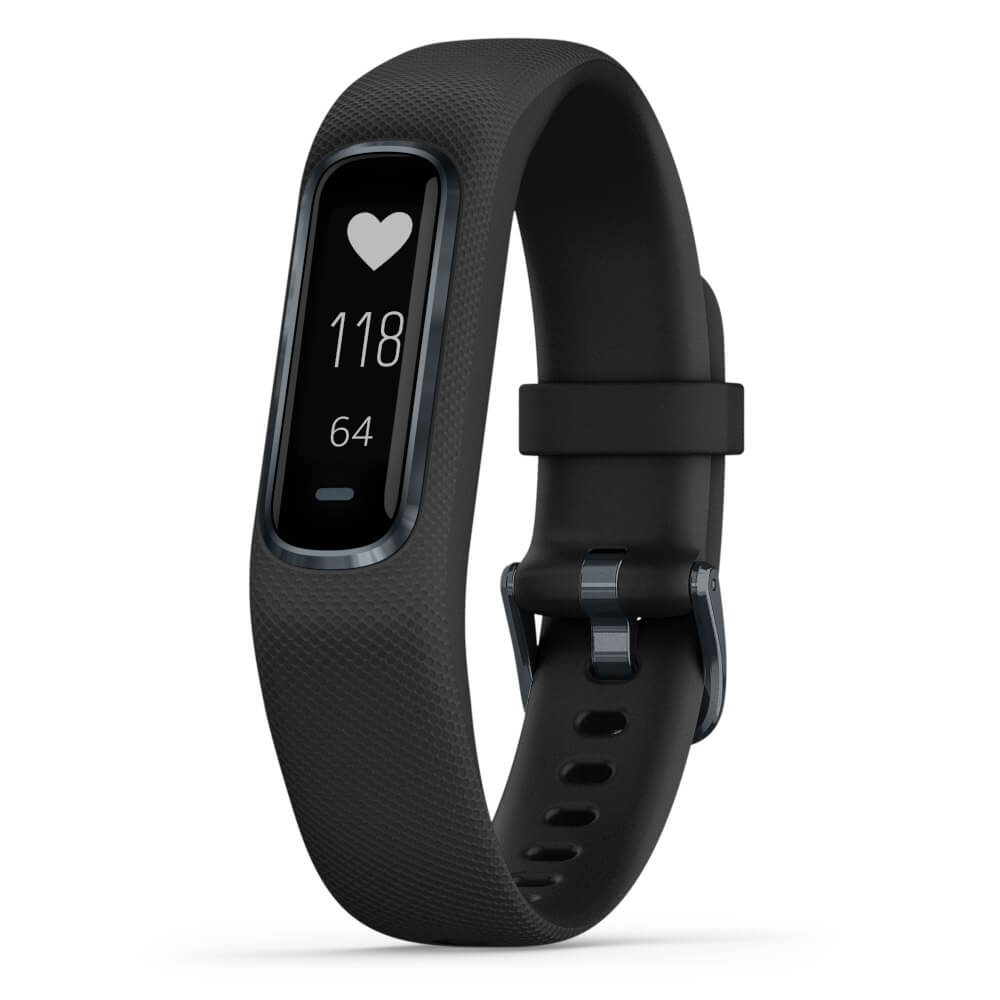
Garmin Vivosmart 4 fitness tracker

Last on our list is Garmin vivosmart 4. The device itself is not very impressive, 7 days battery life with 0.7 inch OLED display and 17g weight packed with 50m water resistance is nothing spectacular, Samsung’s model is packing better hardware and way more battery life but all of the mentioned devices fall flat if we compare software to Garvin. Garvin’s Vivosmart 4 software is best on the list, it keeps track of your steps, sleep, calories burned, floors climbed, various exercises, and heart rate as standard features but you'll have advanced sleep tracking with REM sleep. It can also gauge blood oxygen saturation levels during the night with its wrist-based Pulse Ox sensor. In addition, a relaxation breathing timer complements the all-day stress tracking feature. Lastly, the "Body Battery" monitor helps optimize your daily activities based on your energy levels making it truly the only complete tracking solution on this list. That's it for our review of fitness trackers of today, be sure to come back each day to find more interesting articles and tips for your everyday digital life.
Read More
5 Windows 10 Upgrade errors you might encounter

5 Windows 10 Upgrade Errors

The recently released Windows 10 captivated the mass but its rollout, polished as it might have been, proved everything but seamless. Surf the Internet and you’ll get the gist. People are complaining and they need assistance. Assistance with what you might ask? Many have attempted to make an upgrade but failed after encountering various strange combinations of letters and numbers. These are none other than error codes. If you’ve tried and failed, feast your visuals below as you might encounter one of these 5 Windows 10 Upgrade errors.

Error Code 0x80073712

Encountering error code 0x80073712 in no way implies that you need to throw out your computer system and acquire a new one. Not at all! This error code simply means that a very important file to Windows might have gone missing or corrupted. This file is crucial to Windows update so without obtaining this file, you won’t be able to proceed with the update.

Error Code 0x800F0923

Likely, there are many programs and drivers installed on your computer. They all play a vital role. However, if you’ve received error code 0x800F0923, it might be time to consider or turn your eyes to installed drivers on your system. Why? Error code 0x800F0923 means that there’s a driver or driver on your current Operating System that’s not compatible with Windows 10. There’s clearly a dilemma here.

“We couldn't complete the updates. Undoing changes. Don't turn off your computer.” Or “Failure configuring Windows Updates. Reverting changes”

That’s a pretty odd error but I will say it's slick… That Windows 10 upgrade error is straightforward. Microsoft is just letting you know that they won’t be able to complete the update to Windows 10 and so they are putting your computer back to where it was. How nice of them.

The error messages above are pretty generic and will manifest when the upgrade fails for one reason or the other. To resolve this issue, you’ll most definitely have to decipher what error code was presented. Identifying that will provide a glimpse into exactly what steps you need to take.

The Update Isn't Applicable to Your Computer

I don’t know about you but I strongly believe Microsoft is subtly letting you know that your computer system is old and needs to be thrown out. Also, this update could imply that your PC needs to install important updates to rev you up to the requirements. All relevant updates to your computer must be installed before you can get past this stage.

Error… “Something Happened”

This Windows 10 upgrade error has been the talk of the Internet. In fact, users of Windows OS have been making it a mockery. Clearly, not many have had success after encountering this error. Obviously, “something happened” but it’s just not easy to decipher what went wrong. Microsoft is still trying to figure it out.

Solution

Restoro box image
Read More
Fix Windows Update Error 0x80072EE2
If you got an error code of 0x80072EE2 while trying to download a Windows 10 update then it could be that something is blocking the Windows Update service on your Windows 10 PC and is preventing it from connecting to the Microsoft server. In addition, the error code 0x80072EE2 also indicates “ERROR_INTERNET_TIMEOUT” and together with this message, you might also see a message as Windows Update encountered an unknown error or you might also find it hard to search for new updates. So in this post, you will be guided on how you can fix the Windows Update error code 0x80072EE2. Make sure to follow the steps below carefully.

Option 1 – Restart your computer and try installing the Updates again

You can restart your computer and then try installing the updates once again. There are instances when a simple restart resolves Windows Update errors. Aside from that, it would also be better if you make sure that your internet connection is working and that it’s stable. And so after you restart your computer, check for updates once again and see if you’re still getting the error or not.

Option 2 – Run the Windows Update Troubleshooter

Running the built-in Windows Update troubleshooter is one of the things you can first check out as it is known to automatically resolve any Windows Update errors like error code 0x80072EE2. To run it, go to Settings and then select Troubleshoot from the options. From there, click on Windows Update and then click the “Run the troubleshooter” button. After that, follow the next on-screen instructions and you should be good to go.

Option 3 – Try to disable your antivirus program

Disabling the antivirus program or any security software installed in your computer is always a good idea you can try when the Windows Update process does not go smoothly. So before you try updating your computer again, make sure to disable the antivirus or security program and once the Windows Update is done, don’t forget to enable the antivirus program back again.

Option 4 – Try to restart the Background Intelligent Transfer Service

The Background Intelligent Transfer Service or BITS is a part of the Windows Update service and is the one that manages the background download of Windows Update, as well as scans for new updates and so on. And if Windows Update is experiencing some problems, you can try restarting BITS but make sure that you have admin privileges to do so.
  • Tap the Win + R keys to open the Run dialog box.
  • Next, type “services.msc” in the field and hit Enter to open Windows Services.
  • From the list of Services, look for the Background Intelligent Transfer Service and double-click on it to open Properties.
  • After that, you need to set the Startup type to “Automatic (Delayed Start) and click on Apply.
  • Now click the Stop button to stop BITS and then click the Start button to restart the service.
  • Click OK to save the changes made and then restart your PC.

Option 5 – Try installing the updates in a Clean Boot State

It could be that some third-party application is the one that’s causing the problem so it’s best if you put your computer in a Clean Boot state. During this state, you can start the system with a minimum number of drivers and startup programs that will surely help you in isolating the root cause of the issue.
  • Log onto your PC as an administrator.
  • Type in MSConfig in the Start Search to open the System Configuration utility.
  • From there, go to the General tab and click “Selective startup”.
  • Clear the “Load Startup items” check box and make sure that the “Load System Services” and “Use Original boot configuration” options are checked.
  • Next, click the Services tab and select the “Hide All Microsoft Services” check box.
  • Click Disable all.
  • Click on Apply/OK and restart your PC. (This will put your PC into a Clean Boot State. And configure Windows to use the usual startup, just simply undo the changes.)
  • After that, try to install the Windows app again.
Note: If you are able to install the app without any trouble at all then it means that the error is caused by some third-party application on your computer. You need to look for the culprit and uninstall it once you found it.

Option 6 – Run Microsoft’s online troubleshooter

Running Microsoft’s online troubleshooter might also help you fix the Windows update error code 0x80072EE2. This online troubleshooter is known to help in fixing Windows Update errors, it scans your computer for issues that might be causing the problem and then fixes them automatically.
Read More
Setup Voice control in Windows11

Computer voice control has moved a long way from its beginning routes and in today's age controlling your PC with voice is truly a reality and fully possible. Voice control is taking up the steam in everyday life, from simple commands in cars, Alexa, smartphones, TVs, etc. to modern computers.

voice control

Windows 10 has introduced voice control into PC with Cortana even during the installation process but a lot has changed from having a virtual assistant in begging days and in today's modern Windows 11 OS. You can now freely open apps, move, copy delete files, and even dictate in order to create a word document.

However, in order to take this advantage, you will need to turn it off first since it is disabled by default. Of course, you will need a microphone and some spare time to train Windows in understanding you properly.

Setting up Voice Control

Just like in Windows 10, in Windows 11 voice control is also in accessibility options and the first step is to turn ON Windows Speech Recognition.

Click on the Start button and type Settings into the search bar, click on Open, or press ENTER. On the left side of the settings, window locate and click on Accessibility. On the right part once Accessibility is selected scroll down and find a section titled Interaction and click on Speech. Turn on the switch next to Windows Speech Recognition.

A pop-up will appear that will lead you through the rest of the setup and that's it.

Improving Voice Control

In order to make your voice control better, if you are not satisfied with the results, you can sample more of your voice into the algorithm to tune it more to your liking. Sadly this option is still deep in Control Panel.

Click the Start button and type in Speech recognition into the search bar, look for the search result with Control Panel displayed under it, and click on Open. Click on Train Your Computer to Better Understand You and follow the instructions.

The process will probably take a few minutes. The more data you provide to the speech recognition model, the more accurate it will be when interpreting your instructions. You can train the model multiple times, and each time you do, it should improve the accuracy.

Read More
How to get rid of FunPopularGames.com

FunPopularGames is a browser extension developed by Mindspark Inc. that lets you play popular, best-rated, and other games via popular websites, it also allows you to bookmark your favorite games for faster and easier access.

When installed it changes your default new tab page and default search engine to Search by MyWay. While browsing the internet with this extension enabled you will see additional injected ads, sponsored content, and pop-up ads throughout your browsing sessions.

While active this extension monitors user activity and browsing sessions, enabling it to track visited websites, clicked links, and other useful information that it later forwards to Mindspark to be used/sold for better ad placement.

About Browser Hijackers

Browser hijacking is amongst the internet’s constant risks that target internet browsers. It’s a kind of malicious software that alters your web browser’s configuration settings so that you are redirected to sites or web pages you had no intention of visiting. Browser hijackers could do a variety of things on your PC. These are generally used to force hits to predetermined sites, manipulating web traffic to generate ad revenue. Although it may seem naive, all browser hijackers are harmful and therefore always classified as security threats. Browser hijackers could also allow other destructive programs without your knowledge to further damage your PC.

How to determine if your internet browser has been hijacked

The following are some signs and symptoms that indicate you’ve been hijacked: 1. the home page of your browser is changed suddenly 2. you find new unwanted bookmarks or favorites added, usually directed to ad-filled or porn sites 3. the default online search engine and the default browser settings are altered 4. you see unsolicited new toolbars added 5. unstoppable flurries of popup ads show up on your computer screen 6. your browser has become unstable or starts running sluggishly 7. you can’t navigate to certain web pages, such as security software-related sites.

Exactly how browser hijacker finds its way onto your PC

There are several ways your computer or laptop can become infected with a browser hijacker. They typically arrive by way of spam email, via file sharing websites, or by a drive-by download. They can also originate from any BHO, extension, add-on, toolbar, or plug-in with malicious intent. Sometimes you might have accidentally accepted a browser hijacker as part of an application bundle (usually freeware or shareware). Browser hijacking can cause serious privacy problems and also identity theft, disrupt your browsing experience by taking control of outbound traffic, drastically slows down your computer by consuming lots of resources, and lead to system instability at the same time.

Browser Hijacker Malware – Removal

Certain browser hijacking can be simply reversed by discovering and removing the corresponding malware application from your control panel. But, the majority of hijacking codes are not easy to get rid of manually, since they go deeper into the operating system. Moreover, manual removals require in-depth system understanding and therefore could be a very difficult job for beginner computer users. Anti-malware software is really effective with regards to discovering and removing browser hijackers that standard anti-virus program has overlooked. To eradicate any type of browser hijacker from your personal computer, you should download this certified malware removal application – SafeBytes Anti-Malware.

What To Do When You Cannot Install Any Anti-virus?

Malware can cause all sorts of damage if they invade your PC, ranging from stealing your private information to deleting data files on your computer. Some malware is created to interfere with or prevent things that you want to do on your computer system. It may not allow you to download anything from the web or it will stop you from accessing a few or all internet sites, especially the anti-malware websites. If you’re reading this, you may have got affected by malware that stops you from downloading a security program such as Safebytes Anti-Malware. Although this type of issue will be difficult to circumvent, there are a few steps you can take.

Get rid of malware in Safe Mode

In Safe Mode, you are able to modify Windows settings, un-install or install some software, and eradicate hard-to-delete viruses. In the event the malware is obstructing internet access and affecting your PC, launching it in Safe Mode allows you to download antivirus and run a scan while limiting potential damage. To start the computer into Safe Mode, press the “F8” key on the keyboard just before the Windows logo screen comes up; Or right after normal Windows boot up, run MSConfig, look over “Safe Boot” under the Boot tab, and then click Apply. As soon as you reboot into Safe Mode with Networking, you can download, install, as well as update the anti-malware program from there. At this point, you can run the anti-malware scan to get rid of computer viruses and malware without any hindrance from another application.

Switch over to an alternate browser

Malicious program code may exploit vulnerabilities in a particular web browser and block access to all anti-malware software sites. If you are not able to download the security program using Internet Explorer, this means malware is targeting IE’s vulnerabilities. Here, you must switch to a different web browser like Chrome or Firefox to download the Safebytes application.

Create a portable antivirus for removing malware

Another method is to download and transfer anti-malware software from a clean PC to run a scan on the affected computer. Follow these steps to employ a flash drive to clean your corrupted system. 1) On a clean PC, install Safebytes Anti-Malware. 2) Plug the Thumb drive into the clean computer. 3) Double-click the Setup icon of the anti-malware software to run the Installation Wizard. 4) Choose the flash drive as the location for saving the file. Follow the directions to finish the installation process. 5) Remove the USB drive. You can now use this portable antivirus on the infected computer system. 6) Double-click the antivirus program EXE file on the USB flash drive. 7) Run Full System Scan to identify and clean-up up all kinds of malware.

SafeBytes Security Suite Benefits

In order to protect your laptop or computer from a variety of internet-based threats, it’s very important to install an anti-malware program on your PC. But with so many anti-malware companies out there, nowadays it’s difficult to decide which one you should obtain for your computer. A few of them do a good job in removing malware threats while some will ruin your computer by themselves. You have to pick one that is dependable, practical, and has a good reputation for its malware protection. Among few good applications, SafeBytes Anti-Malware is the strongly recommended software program for the security-conscious end user. SafeBytes anti-malware is a powerful, highly effective protection tool designed to help end-users of all levels of IT literacy in finding and removing harmful threats out of their personal computers. With its cutting-edge technology, this application will allow you to eradicate several types of malware which include viruses, PUPs, trojans, worms, ransomware, adware, and browser hijackers.

SafeBytes has got a plethora of wonderful features that can help you protect your computer from malware attacks and damage. A few of them are listed as below:

World-class AntiMalware Protection: With its advanced and sophisticated algorithm, this malware elimination tool can detect and remove the malware threats hiding in the computer effectively. Real-time Active Protection: SafeBytes offers an entirely hands-free active protection that is set to check, block and destroy all computer threats at its first encounter. They’re very efficient in screening and removing various threats since they’re continuously revised with new updates and safety measures. Internet Security: SafeBytes gives an instant safety rating to the pages you’re about to visit, automatically blocking dangerous sites and ensuring that you are certain of your online safety while browsing the web. Lowest CPU and Memory Usage: SafeBytes is a lightweight and easy-of-use anti-virus and antimalware solution. Since it utilizes minimum computer resources, this software leaves the computer’s power exactly where it belongs: with you. 24/7 Online Support: For any technical concerns or product assistance, you could get 24/7 professional assistance via chat and email. SafeBytes has come up with an excellent anti-malware solution that can help you conquer the latest malware threats and virus attacks. Malware trouble can become a thing of the past when you put this software program to use. You will get the very best all-around protection for the money you pay on SafeBytes Anti-Malware subscription, there isn’t any doubt about it.

Technical Details and Manual Removal (Advanced Users)

If you do not wish to use an automated tool and like to get rid of FunPopularGames manually, you could possibly do so by going to the Windows Add/Remove Programs menu in the Control Panel and delete the offending program; in cases of browser extensions, you may remove it by going to the browser’s Add-on/Extension manager. You will probably also want to reset your web browser to its default configuration settings. To be certain of complete removal, find the following registry entries on your computer and remove them or reset the values accordingly. However, editing the registry is usually a hard task that only advanced users and professionals should try to fix the problem. Moreover, some malicious programs have the capability to defend against its removal. Completing this task in Safe Mode is advised.
Files: Search and delete: AppIntegrator.exe AppIntegrator64.exe AppIntegratorStub.dll AppIntegratorStub64.dll AssistMonitor.dll AssistMonitor64.dll BAT.dll CrExt.dll CrExtPdu.exe DpnMngr.dll dubar.dll dubarsvc.exe dubprtct.dll dudatact.dll dudlghk.dll dudlghk64.dll dufeedmg.dll duhighin.exe duhtmlmu.dll duhttpct.dll duidle.dll dumedint.exe dumlbtn.dll duPlugin.dll duregiet.dll duscript.dll duskin.dll duskplay.exe duSrcAs.dll HiddenToolbarReminder.dll HkFxMgr.dll HkFxMgr64.dll InstallEnabler.dll t8EPMSup.dll T8EXTEX.DLL T8EXTPEX.DLL T8HTML.DLL t8Res.dll T8TICKER.DLL ToolbarGuard.dll ToolbarGuard64.dll Verify.dll TPIManagerConsole.exe

Read More
A Quick Fix Guide to Error 0x8004060c

What's Error 0x8004060c?

If you use Ms-Outlook. You may experience the malfunction 0x8004060c sooner or later. This malfunction was proven to arise in nearly every MS Outlook variation be it 2010 or 2,000, 2007. The malfunction 0x8004060c hinders your capacity to deliver and get e-mails from and your MS-Outlook account and happens without any forewarning. The error happens when the PST file grows too big and there's almost no memory to handle the increase (Which is rather rare nowadays). Generally, the PST file has about 2 gigabytes upper limit and when you reach that, this error is unavoidable. This error happens when you attempt incorporating data that is fresh into your MS-OUTLOOK Account.

Solution

Restoro box imageError Causes

This malfunction might generate difficulties for you personally as your e-mails vanish and can happen suddenly. The system could also crash at times unpredictably. You may not be able to see fresh notifications and attachments in your e-mail. Also, it's also possible to drop significant contact details. What's more, this malfunction could stop e-mails that are fresh to arrive in your inbox. Therefore, it is undoubtedly a significant issue that has to be repaired immediately. The following may be some of the causes for error 0x8004060c:-
  • This error might occur when OST/PST file got corrupt.
  • OST file becomes inaccessible due to Exchange connectivity or synchronization issue.
  • OST/PST file exceeded its default maximum file size.

Further Information and Manual Repair

In the event that you find the malfunction 0x8004060c at any stage, you should do the repair instead of risking dropping connections and all the significant data in your account. The easiest way to repair this malfunction and to handle this issue would be to download the Restoro. Click here to obtain this fix tool on your computer. After installing, click your mouse's left button after which can use the application. It repairs the error code 0x8004060c in the least period and walks you through the entire repair procedure quickly.
Read More
Fix Mic not working in DOTA2
DOTA2 involves teams of five players each, where each player chooses a “hero” character. Each game has two teams pitted against each other, on opposite sides of a map. Once you start, you and your teammates try to level up by fighting and defeating heroes from other teams as well as non-player characters who exist within the game universe. Once you have a strong enough team, you would then try to attack an opposing team’s base. If you destroy their “ancient,” your team wins. The teamwork and interactivity required to play the game are some of its biggest attractions. You can text and voice chat as part of the Dota 2 gameplay, enabling you and your team to come up with strategies to take over your opponents’ base and fortifications. For this reason, a properly working microphone and headset are important if you are to get the most out of this exciting online game. However, there are many times when you find that there are audio dropouts when you try to speak into your microphone. The question “How do I get my mic to work on Dota 2?” is one of the most commonly asked on gaming forums related to this game. Here are solutions for why this can happen:
  1. You are logged in to another computer that is running the STEAM client

    While entirely rare, there are cases where the microphone in Steam is disabled because the same account is active and in use on a different computer. It may not notify you that your account is in use elsewhere. If this is the error, try to log out on other devices and then test it on only one system. If you cannot access the other computer that has access to your account, then change your password. This will automatically disconnect your Steam account from the other computer and let you enjoy voice chat in Dota 2 and other Steam games.
  2. Your microphone is not properly set up in Dota 2

    From the main Dota 2 menu, before you start a match, you can set up your microphone for voice chat. At the top, left-hand corner, click the gear icon to open Settings Select the AUDIO tab and ensure that the Sound Device and Speaker Configuration are set to default. On the same tab, activate Voice (Party) and set your Push to Talk shortcut key for your team. Select the appropriate Open Mic Threshold using the slider at the bottom of this tab to get your microphone recorded at a comfortable level.
  3. The Windows Audio Enhancements setting is turned on

    If you still cannot get your microphone to work properly, then your problem could be Windows Audio Enhancement. It is possible to get your microphone to work with Dota 2 by disabling these features. Right-click your volume icon on the system tray and select Recording Devices. Choose your active microphone then click its Properties button. On the Microphone Enhancements tab, make sure the checkboxes marked Voice enhancements and Acoustic Echo cancellation is unchecked Reboot your PC and retry using your microphone to chat.
  4. Your audio drivers need to be updated

    If you try all of the steps above and still have Dota 2 not recognizing your mic input update mic drivers by going in device manager and choosing update driver.
Read More
Fix 0xc0000454, The Boot Configuration ...
If you are in the process of booting up your computer but suddenly encountered an error saying, “The Boot Configuration Data for your PC is missing or contains errors” with an error code of 0xc0000454, read on as this post will help you resolve the problem. The error code 0xc0000454 occurs when you boot your computer and when the Windows Boot Manager encounters an issue with the Boot Configuration Data or BCD. The error code 0xc0000454 (STATUS_INSUFFICIENT_NVRAM_RESOURCES) signifies that there are no sufficient NVRAM or Non-Volatile Random Access Memory resources to complete the API. NVRAM is a component of the system based on the software that stores the Boot Configuration Data in an operating system. Usually, a simple restart can resolve the problem. However, if you’ve already done that and it’s of no use, then there are other potential fixes you can check out to troubleshoot the problem. To resolve the error code 0xc0000454, here are some potential fixes that should help:

Option 1 – Try to repair corrupted BCD

As mentioned, the error could also be due to corruption in BCD, and to fix it, you can use Bootrec.exe – a built-in command-line tool used to troubleshot issues related to boot up and Windows Startup. Before you run this tool, make sure that you have inserted a bootable USB or DVD into your computer. Once you have that covered, follow these steps:
  • You need to go to the Advanced Startup Options.
  • Then click on Troubleshoot.
  • Next, select the Advanced Options and then Command Prompt.
  • Once Command Prompt has been pulled up, enter each one of the following commands and in the sequence that they are given to rebuild BCD files and repair MBR files:
    • Bootrec /Fixmbr
    • Bootrec /FixBoot
  • After you execute the commands given above, you should see a confirmation message that says, “The operation completed successfully”.
  • Now type the “Bootrec /RebuildBCD” command to rebuild BCD.
  • Finally, close Command Prompt and then restart your computer to successfully apply the changes made.

Option 2 – Try to run the Automatic Repair Utility

You might also want to use Automatic Repair in fixing the error. To do so, follow the steps below.
  • You can start by creating and booting from a bootable Windows 10 USB Stick.
  • After that, click on Repair your computer located on the bottom left corner when you are on the initial Windows Startup screen.
  • Next, click on Troubleshoot, and then on the other screen, click the Startup Repair option.
  • Now select the operating system you want to repair. Once you do that, it will start to repair your operating system. Wait until the process is completed and then check if the problem’s now fixed.

Option 3 – Disable the Secure Boot in the BIOS

Disabling the Secure Boot in the BIOS settings is definitely recommended to resolve the error. To disable Secure Boot, here’s what you have to do:
  • First, boot your computer into Windows 10.
  • Next, go to Settings > Windows Update. From there, check if there is anything that you have to download and install if you see any available updates. Usually, OEMs send and update the list of trusted hardware, drivers, and operating systems for your computer.
  • After that, go to the BIOS of your computer.
  • Then go to Settings > Update & Security > Advanced Startup options. If you click on Restart Now, it will restart your computer and give you all the advanced options.
  • Next, select Troubleshoot > Advanced Options. As you can see, this screen offers you further options including System restore, Startup repair, Go back to the previous version, Command Prompt, System Image Recovery, and UEFI Firmware Settings.
  • Select the UEFI Firmware Settings which will take you to the BIOS.
  • From there, go to the Security > Boot > Authentication tab where you should see Secure Boot. Note that every OEM has its own way of implementing the options so it varies.
  • Next, set Secure Boot to Disabled and set Legacy Support to On or Enabled.
  • Save the changes made and exit. Afterward, your computer will reboot.

Option 4 – Try to reset the BIOS

If updating the BIOS didn’t help in fixing the error, you can try to reset the BIOS instead.
  • Start your computer and tap the F10 key during the booting process to enter the BIOS. If it does not work, you can try tapping the F1 or F2 key as well as the Del key.
  • Once you’re already in the BIOS, tap the F9 key to get the prompt to RestoreLoad default configuration now for the BIOS.
  • Next, click on Yes and then follow the next on-screen instructions that appear to set the BIOS back to its default settings.
  • Once you’re done restoring the default settings of the BIOS, restart your computer and then check if it now boots properly.
Read More
0x80070780, The file cannot be accessed
Error 0x80070780 is a particularly nasty error since it means we can not access files on our hard drive. This might be an important file from work or anything similar and it can be frustrating when we can access it. In this article, we will address solutions to this error so you can continue with your activities where you have left off. Follow the guide step by step in the given order to minimize file damage and find the solution quickly.
  1. Run File and Folder built-in troubleshooter

    The simple and clean solution, try first by running Windows built-in tools. Leave troubleshooter to scan and attempt repairs and try to access a file after that.
  2. Run disk checker

    Maybe the file is corrupted or slightly damaged but repairable, run a built-in Windows disk checker and let it scan and repair any error found. Try accessing your file after the scan.
  3. Try copying file

    If the file is under a bad sector or cluster on a disk drive that could be a reason why you can not access it, try copying the file to another location and then opening it, if the operation fails, boot Windows in safe mode and try to copy or move file then. If you are successful with copying files in safe mode, reboot your computer and try to open the file.
  4. Reinstall the driver for the hard drive

    Like when the driver for USB is not working and you can not access files same can happen on your hard drive. Go to the device manager and reinstall the driver for your hard drive.
Read More
Resolve Windows Update Not enough disk space
If you are trying to update your Windows 10 computer but are not able to do so since your computer is running low on storage then this obviously indicates that there is not enough disk space available on your drive where Windows 10 has been installed. As you know, when Windows 10 downloads the update packages, it extracts them in a separate folder which means that there should be enough space on that particular folder for the update to begin with. Windows do not really check systems for any adequate space requirements before it even initializes the update or upgrades and you only get to know about it right when the update process starts. On Windows 10 thin clients or the ones with embedded systems that have limited storage space, when Windows Update runs, the update initialization may fail because as pointed out, Windows does not check systems for adequate space requirements so you may have to do the work for them by making sure that your disk has enough space available. Here are some suggestions you can follow to resolve Windows 10 update issues on computers with low storage space.

Option 1 – Delete the files from the Download folder

Since you are going to delete everything manually, you need to create a backup for all your important files which you may have placed in the Download folder. After you create backup copies of important files, delete the files from this folder or you could simply tap the Shift + Del keys to remove the files permanently after you selected them all.

Option 2 – Change the Windows Update Folder location

You might have to change the Windows Update folder location where Windows download all the files need to update the operating system if you cannot really create some space on your primary driver. So all you have to do is set the drive with enough space available for the update to be completed.

Option 3 – Uninstall apps and programs you no longer use

In some cases, apps and programs take up a lot of space on your drive. So if there are programs or apps that you no longer use, you can uninstall them to save storage space. To do so, follow these steps:
  • In the search box, type in “control” and then click on Control Panel (desktop app) among the search results.
  • After that, select Programs and Features from the list which will give you a list of all the programs installed on your computer.
  • From there, look for the apps and programs that you no longer use and right-click on each one of them and click on Uninstall.

Option 4 – Move files to another drive

This is another thing you can try. You can move files, especially the ones with large sizes, to another drive to make up space on your drive. After that, install the updates once again.

Option 5 – Reduce on-drive files from Cloud services

If you are using tons of cloud backup services such as OneDrive and Dropbox, you might want to consider reducing the number of files you have on those cloud backup services. You can do what you’ve done on option number three and have those files moved to another drive to free up storage space.

Option 6 – Empty the contents in Recycle Bin

As you know, the files that are deleted from your computer goes to the Recycle Bin first. So if you have not emptied Recycle Bin for a long time now, the files you delete are still actually taking up space on your drive. Thus, you need to empty the contents in the Recycle Bin to save storage space.

Option 7 – Clean up temporary files

You can use the Windows 10 Storage Sense feature which can clean all the temporary files from your computer. To use Storage Sense, follow the steps below.
  • Open Setting > System > Storage from the WinX Menu.
  • From there, you will see a list of all the local and connected storage devices along with the details on the free space.
  • Now make sure that the Storage Sense feature is turned On then go find a link that says “Free Up Space” and click it to open.
  • After that, a screen which is the built-in program in Windows 10 will appear and will scan your computer for the following junk files so you can free up disk space:
  • Windows Upgrade Log Files
  • System created Windows Error Reporting Files
  • Thumbnails
  • Temporary Internet Files
  • Previous Windows Installation Files
  • Delivery Optimisation Files
  • DirectX Shader Cache
Choose the files you want to get rid of and then click on the remove files option. Note that you’ll have an idea of the total size as you select any of the junk files listed above.
Read More
1 2 3 171
Logo
Copyright © 2023, ErrorTools. All Rights Reserved
Trademark: Microsoft Windows logos are registered trademarks of Microsoft. Disclaimer: ErrorTools.com is not affiliated with Microsoft, nor claims direct affiliation.
The information on this page is provided for information purposes only.
DMCA.com Protection Status