Logo

Fix Failed to register a VB Script DLL file on Windows 10

When you try to open Outlook 20016 and other programs on your Windows 10 PC and end up getting an error instead saying, “Failed to register a VB Script DLL. Reinstall or run Regsvr32.exe Vbscript.dll to self-register”, read on as this post will help you resolve the problem and help you re-register the vbscript.dll file. Follow each one of the steps below carefully to fix the problem.

  • Step 1: In the Start search, type “cmd” and from the search results that appear, right-click on Command Prompt and select the “Run as administrator” option from the context menu.
  • Step 2: After opening Command Prompt as admin, type the regsvr32.exe vbscript.dll command and hit Enter to execute it.
  • Step 3: After entering the command, it will re-register the concerned DLL file using the regsvr32.exe, a Windows OS tool. The Regsvr32 tool is a command-line utility that allows users to register or unregister OLE controls like the DLL and ActiveX (OCX) controls in the Windows operating system. After the command you entered has successfully run, you will see a message saying, “DllRegisterServer in vbscript.dll succeeded.”

On the other hand, if re-registering the DLL file didn’t work, you might have to log on to your computer using an administrator account and then try re-registering the DLL file once more. But before you do that, you need to create a system restore point first so that if anything goes wrong, you can always undo the changes you’ve made. After creating a system restore point, double-click on the downloaded .reg file to add its contents to the Registry. After that, try opening the program you were trying to open but weren’t able to because of the error.

If it doesn’t work, you can always reinstall the affected programs that throw up the error and see if it resolves the problem. You could also seek the help of a one-click solution to fix the problem for you. This program is a useful tool that does not only repair corrupted registries and optimize your PC’s overall performance but also resolves any DLL issues like the Failed to register a VB Script DLL. Reinstall or run Regsvr32.exe Vbscript.dll to self-register” error. Aside from that, it also cleans out your computer for any junk or corrupted files that help you eliminate any unwanted files from your system. This is basically a solution that’s within your grasp with just a click. It’s easy to use as it is user-friendly. For a complete set of instructions for downloading and using it, refer to the steps below.

Do You Need Help with Your Device?

Our Team of Experts May Help
Troubleshoot.Tech Experts are There for You!
Replace damaged files
Restore performance
Free disk space
Remove Malware
Protects WEB browser
Remove Viruses
Stop PC freezing
GET HELP
Troubleshoot.Tech experts work with all versions of Microsoft Windows including Windows 11, with Android, Mac, and more.

Share this article:

You might also like

Start Search is not displaying results
If you have just installed the latest Cumulative Update on your Windows 10 computer and you find that since then, the Windows 10 Start Search is not displaying any results when you try to use it to search for something in your computer, then this post might help as it will give you some suggestions to fix the problem. This problem might be caused by some bugs brought in by the new cumulative update you’ve installed. It is also possible that Cortana is having some issues or that the Windows Search service hasn’t been initialized. Whatever the cause is, here are some suggestions you need to follow to fix this issue. You can try running the Search and Indexing troubleshooter or configure the
  1. Run Search and Indexing Troubleshooter
  2. Configure the Windows Firewall
  3. Reinstall Cortana.

Option 1 – Try to run the Search and Indexing troubleshooter

The first thing you can do is to run the Search and Indexing troubleshooter in Windows 10 as it checks whether the settings for Cortana are in place and automatically corrects any issues if the update or software installation has changed the settings. To run it just click on the Start button and select Settings > Updates and Security > Troubleshoot. From there, select the Search and Indexing Troubleshooter.

Option 2 – Restart Cortana’s process in the Task Manager

Restarting Cortana’s process in the Task Manager could also help you resolve the problem. Refer to the steps given below to do so.
  • Tap the Ctrl + Alt + Del keys to open the Security options window.
  • From there, look for the Task Manager in the given list and open it.
  • Next, look for the process of Cortana and right-click on it, and then select the End Task option to end its process.
  • After that, the Cortana process will restart by itself and re-initialize.

Option 3 – Try resetting Cortana

  • Open Cortana and go to the Settings section where you’ll see the “Turning off Cortana clears what Cortana knows on this device, but won’t delete anything from the Notebook. After Cortana is off, you can decide what you’d like to do with anything still stored in the cloud” option. Turn this option off.
  • Restart your PC.
  • After your computer boots, launch Cortana again and check.

Option 4 – Try to configure the Windows Firewall

  • Tap the Win + Fn + Shift (Pause) keys to open Control Panel.
  • From there, open the Windows Defender Firewall applet and click on the Advanced Settings to open the Windows Firewall with the Advanced Security panel.
  • Next, click on the Outbound Rules section and look for Cortana and then double click on it to open its Properties.
  • After that, make sure that the “Allow the connection” is selected although this is the default working setting.

Option 5 – Try to reinstall Cortana

If none of the options given above works, you must consider reinstalling Cortana.
  • First, right-click on the Taskbar and select the Task Manager.
  • Next, select File menu > Run new task and type “Powershell” in the field and then select the “Create this task with administrative privileges” option.
  • Click on OK to open the PowerShell console.
  • After that, type the following command and hit Enter to execute it:
Get-AppXPackage -Name Microsoft.Windows.Cortana | Foreach {Add-AppxPackage -DisableDevelopmentMode -Register "$($_.InstallLocation)AppXManifest.xml"}
  • Restart your computer and check if the Windows Start Search is now working.
Read More
Fix AMD driver crashing Windows 10
Graphic cards are essential to our computers but from time to time in the race to make better GPU and to grab a large portion of the market bad drivers get released and can create really unwanted and unpleasant experiences, from Windows freezes to the black screen of death, to AMD driver Windows crashing down and many more. This article will cover basic troubleshooting with AMD drivers and offer you solutions on how to fix them.
  1. Rollback the previous version of the driver.

    Installing the new driver version is the reason for this particular error, so naturally rolling back the previous version which was stable and did not cause issues will solve the problem. To roll back the previous version of drivers follow the next steps: Open Start menu and click on settings, go to system and choose Apps and features Find: AMD Catalyst Install Manager, right-click on it, and choose to uninstall Go to AMD official website and download the previous driver version, install it on your computer Turn off automatic driver updates and reboot your system
  2. Reinstall the driver

    Sometimes it is not a bug in the released driver, it is a corruption of files because of file transfer or any other specific reason. The reinstalling driver will fix an issue if this is the case. To reinstall the driver Press ⊞ WINDOWS + X and choose Device Manager Expand Display adapters, right-click on AMD device and choose to uninstall Go to the official AMD website, download the latest driver and install it Reboot your system
  3. Disable browser extensions

    Some users have reported that error occurs only when they are watching videos online, if this is your case, go to your browser options and disable extensions to see if this will remove the problem.
  4. Remove Lucid Virty MVP

    If by any chance have this relic installed on your system, go to Applications and remove it. It is an old program shipped with old drivers and it is usually present in your Windows that was upgraded from 8.1 to 10. Uninstall it and see if this fixes your issue.
  5. Clean your graphic card

    Sometimes this error can happen due to excessive dust on your GPU, if you have the expertise, clean it or take it somewhere to be cleaned.
Read More
Mouse automatically scrolls up or down
Microsoft has implemented a number of small features in Windows 10 to enhance user productivity. These features make a difference in the overall experience and productivity of users. However, there are times that instead of helping users, these small feature causes some issues instead which causes the computer to function in an unusual way. One of the issues caused by these features is where the Mouse automatically scrolls up or down even without any user intervention. This can get really annoying especially when you’re doing an important task on your computer. So if this bug takes place repeatedly, it can make your computer unusable. If you are currently facing this problem, worry not for this post will guide you on what to do to fix the mouse auto-scrolling issue in your Windows 10 computer. Use the options provided below to fix the mouse auto-scrolling issue.

Option 1 – Try to toggle the appropriate Mouse 10 setting

  • Tap the Win + I keys to open the Settings app.
  • After that, navigate to Devices > Mouse.
  • From there, toggle the “Scroll inactive windows when I hover over them” setting to off.
  • Now restart your computer and see if the issue is resolved.

Option 2 – Try to uninstall the installed Windows Updates recently

The mouse issue might have something to do with a recent update you have installed on your computer. It is possible that there are some recently installed updates that have messed up some settings in your computer. Thus, you can try to uninstall this recent Windows Update to try and fix the problem. Not that the best way to do this is in Safe Mode.
  • Boot your computer into Safe Mode first.
  • Once your computer has restarted, tap the Win + I keys to open the Settings app.
  • Next, click on Update and Security, and from the left side menu column, select Windows Update.
  • After that, select the “View installed update history” option on the right-side column.
  • Then click on Uninstall Updates. This will open a window where you’ll see the list of all the installed updates on your computer.
  • Select the update you want to uninstall and click on the Uninstall button located in the lower-right corner of the window.

Option 3 – Try to run System Restore

You might have made some adjustments in your computer’s settings that caused the issue with the mouse. You can undo those changes using System Restore.
  • Tap the Win + R keys to open the Run dialog box.
  • After that, type in “sysdm.cpl” in the field and tap Enter.
  • Next, go to the System Protection tab then click the System Restore button. This will open a new window where you have to select your preferred System Restore point.
  • After that, follow the on-screen instructions to finish the process and then restart your computer and then check if your mouse is now back to its normal state.
Read More
KFConsole enters the console competition
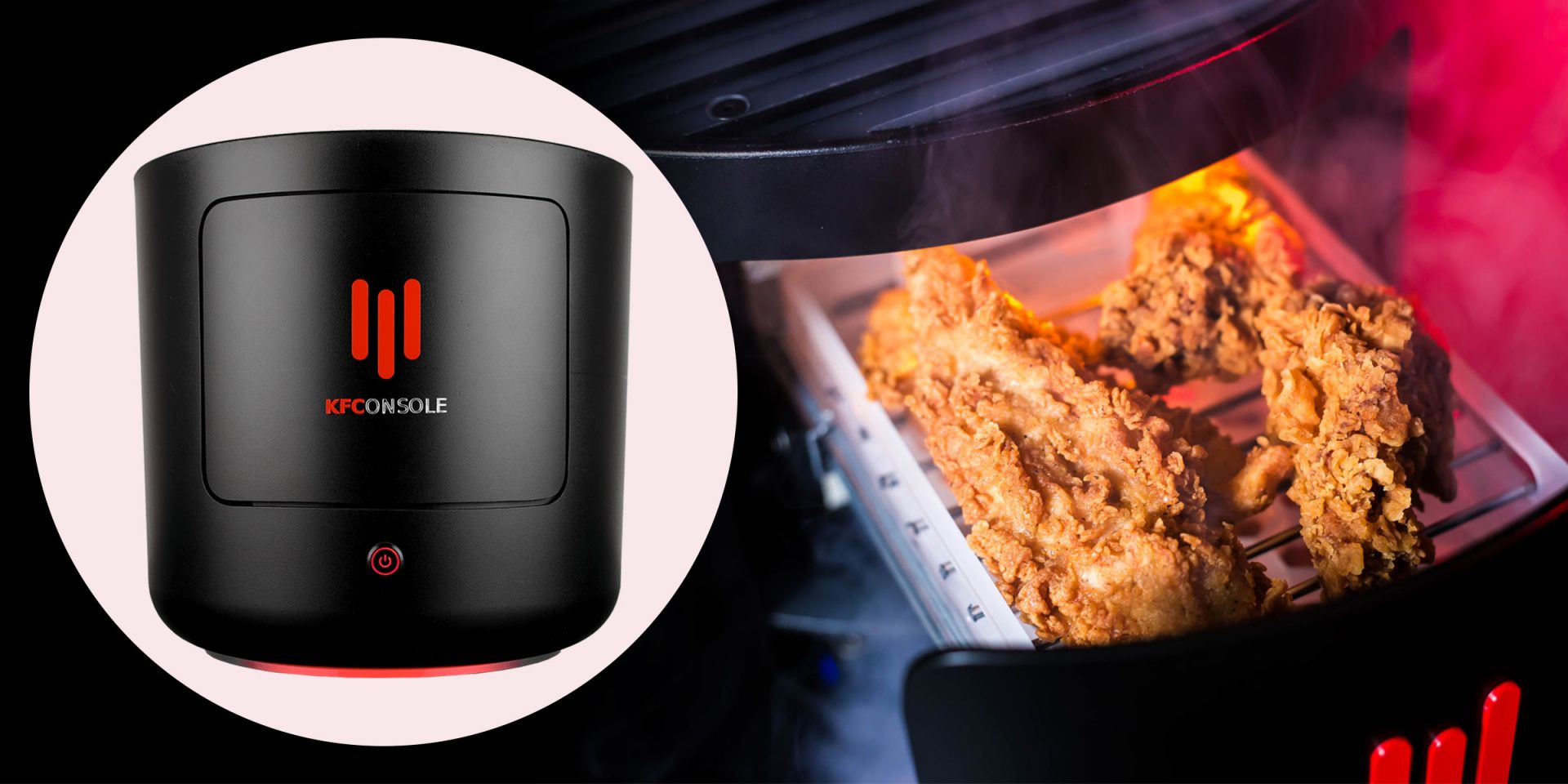
Yes, you read that right, KFC is making a console partnered with Cooler Master. Bizzare at it sounds, it is even more bizarre that the console is designed to keep your food warm!!! You can pull out the drawer from the console out on its top and place some food there in order to keep it warm. kfconsole drawerThe console itself is coming in cylindrical shape powered by Intel CPU and ASUS GPU of the unknown chipset. It has Seagate Baraccuda 1TB SSD and it is VR-ready. The console will have raytracing and will be 4K ready.

My thoughts

Well, my thoughts are somewhat strange, on one side I am not really sold on food heating gimmicks and without specific hardware specifications, it is difficult to say how much power the console will have. Price is also not leaked so that is also a stumbling stone for making an informed opinion. I am a little puzzled and concerned about this whole heating food thing because personally, I can see 2 issues: Console overheating and fat dripping on inside hardware, I am sure they have somehow eliminated this but I would be very interested to see how.
Read More
How to Fix Error Code 0x8007041d on Your PC

Error Code 0x8007041d - What is It?

Error Code 0x8007041d is an error that arises during the Windows 10 Update process. In some cases, this error code can also arise during the Windows 10 Activation process. It is an error code that has been present in multiple versions of the software but usually arises when antivirus or registry issues interfere with the Windows Update or Activation software.

Common symptoms include:

  • Inability to download the needed Windows 10 updates
  • Inability to complete the Windows 10 Update process

If you are experiencing the Error Code 0x8007041d on your machine, there are several methods that you can use to attempt to resolve the problem. Several of the steps that are most successful for the resolution of this error require familiarity with registry and antivirus tools, so if you are unsure of your ability to complete these steps on your own, contact a qualified computer repair technician to assist you.

Solution

Restoro box imageError Causes

In most cases, Error Code 0x8007041d arises when there is a conflict between multiple antivirus or malware tools on the computer, if there is an issue in the Windows registry, or if your Windows Defender software is out of date. During the Windows Update process, the system checks to ensure that there are not any factors that are present that could introduce viruses to the system, so if there are any indicators that could present issues to the software, Error Code 0x8007041d will often arise.

Further Information and Manual Repair

For users who experience Error Code 0x8007041d, there are several steps that can be taken to resolve the issue. If the following methods are not successful for you or if you are unsure of your ability to undertake them on your own, contact a qualified Windows 10 computer technician.

Here are the best ways to attempt to fix Error Code 0x8007041d on your computer:

Method 1:  Remove Additional Security Software Apart from Windows Defender

In some cases, having multiple versions of malware or antivirus software installed on your computer can cause the Windows system to create conflicts between them, which can interfere with your ability to update. During the update process, the system may attempt to determine if there is any malware present, and having multiple kinds of antivirus software present on the same machine may return mixed results.

If you currently are running antivirus software that is separate from Windows Defender, consider removing it from your computer prior to running the update software. This may allow you to successfully complete your update process without conflict. Additional software can be reinstalled after the update is complete, but make sure to keep both sets of software up to date in order to lessen the chances of encountering this error code again during future updates.

Method 2:  Update Your Windows Defender Software

If you currently have Windows Defender as your primary antivirus software, check to see whether it is fully up to date. Out of date antivirus software can cause conflicts with the Windows Update process since the update to Windows 10 will not be able to be completed unless the system is free from viruses or malware.

If you are unsure of whether or not your Windows Defender is up to date, open it and run the process to check for updates, then re-attempt to run Windows Update. In some cases, you may want to restart your computer before running the Windows 10 Update process a second time.

Method 3:  Run the Registry Repair Tool

Another issue that could cause Error Code 0x8007041d is a problem in the system registry. If you believe that this may be the case, run the Windows Registry Repair Tool on your machine to check for and resolve any issues. This is a fairly simple and straightforward tool to use, but it can help you to resolve any number of problems that may interfere with your ability to update your Windows 10 software.

If you have taken the steps listed above, restart your computer before attempting to proceed with the Windows Update process. If the three methods listed above are not successful in completely resolving Error Code 0x8007041d on your machine or if you are not comfortable in your ability to implement these steps on your own, contact a qualified Windows repair technician who is familiar with the Windows Update process to assist you.

If you wish to always have at your disposal a utility tool to fix these Windows 10 and other related issues when they do arise, download and install a powerful automated tool.

Read More
How to Fix dxgmms2.sys BSOD in Windows
The dxgmms2.sys file is a system driver file in Windows that is associated with the Graphics Rendering capabilities of a computer. However, this file is known to cause various Blue Screen of Death errors. Some of the culprits for these errors include issues with RAM, hard disk issues, corrupted drivers, and incompatible firmware. Despite its many causes, fixing this issue is quite straightforward so it should be easier for you to fix it. Here are some of the Blue Screen errors related to the dxgmms2.sys file:
  • SYSTEM_THREAD_EXCEPTION_NOT_HANDLED
  • SYSTEM_SERVICE_EXCEPTION
  • KMODE EXCEPTION NOT HANDLED
  • PAGE FAULT IN A NONPAGED AREA
  • IRQL NOT LESS OR EQUAL
If you have recently created a System Restore point prior to getting the dxgmms2.sys Blue Screen error, then you need to perform System Restore first before you further troubleshoot the problem as it might help in resolving the Blue Screen error. Refer to the steps below to perform System Restore.
  • First, press the Win + R keys to open the Run dialog box.
  • After that, type in “sysdm.cpl” in the field and tap Enter.
  • Next, go to the System Protection tab then click the System Restore button. This will open a new window where you have to select your preferred System Restore point.
  • After that, follow the on-screen instructions to finish the process and then restart your computer and check if the problem is fixed or not.
If System Restore didn’t help in fixing the Blue Screen error, now’s the time for you to resort to the troubleshooting tips provided below but before you get started, make sure that you create a System Restore point first.

Option 1 – Reinstall the Graphics Card drivers

  • Tap the Win + R keys to launch Run.
  • Type in devmgmt.msc into the box and tap Enter or click OK to open the Device Manager.
  • After that, a list of device drivers will be displayed. From there, look for the Graphics Card drivers listed under Display Adapters.
  • Right-click on each one of the Graphics Card drivers and select Uninstall device and then follow the next on-screen instructions given to uninstall the driver.
  • Now reboot your computer. During this time, your system will automatically reinstall the Graphics card drivers.
Note: You also have the option to go directly to the website of your graphics card manufacturer and check if there’s a new update – if there is, download it. After that, you could also check if there’s a new update of the game you’re getting the issue of the black bar.

Option 2 – Try running the DirectX Diagnostic Tool

Since the dxgmms2.sys Stop error has something to do with the DirectX Graphics APIs, you can run the DirectX Diagnostic tool to resolve the problem.

Option 3 – Try updating or re-installing DirectX

If the DirectX Diagnostic tool didn’t work, you can try to update or reinstall DirectX instead. This can help in fixing the problem because when you reinstall or update DirectX, it will replace the incompatible or corrupted components of DirectX from your computer.

Option 4 – Try to update the BIOS

Updating the BIOS can help you fix the Blue Screen error related to the dxgmms2.sys file but as you know, BIOS is a sensitive part of a computer. Even though it is a software component, the functioning of the hardware depends on it largely. Thus, you must be careful when modifying something in the BIOS. So if you don’t know much about it, it’s best if you skip on this option and try the other ones instead. However, if you are well-versed in navigating the BIOS, then follow the steps below.
  • Tap the Win + R keys to open the Run dialog box.
  • Next, type “msinfo32” in the field and press Enter to open System Information.
  • From there, you should find a search field on the bottom where you have to search for the BIOS version and then press Enter.
  • After that, you should see the developer and version of the BIOS installed on your PC.
  • Go to your manufacturer’s website and then download the latest version of BIOS on your computer.
  • If you are using a laptop, make sure that you keep it plugged in until you have updated the BIOS.
  • Now double click on the downloaded file and install the new BIOS version on your computer.
  • Now restart your computer to apply the changes made.

Option 5 – Use some registry tweaks

  • Tap the Win + R keys to launch the Run utility.
  • Then type “Regedit” in the field and hit Enter to open the Registry Editor.
  • Next, navigate to this registry key: HKEY_LOCAL_MACHINESYSTEMCurrentControlSetControlGraphicsDrivers
  • From there, right-click on the right-side panel and click on New > DWORD (32-bit) Value.
  • Then set the name of the new DWORD to “TdrDelay”.
  • After that, use the next set of instructions and select the one for the Windows version you are using.

32-bit Windows:

  • Choose the DWORD (32-bit) value.
  • Then type in “TdrDelay” as the name and hit Enter.
  • After that, double click on TdrDelay and add “10” as its value and click OK. This will set the response time for your GPU to be 10 seconds.

64-bit Windows:

  • Select the QWORD (64-bit) value.
  • Next, type in “TdrDelay” as the name and hit Enter.
  • Double click on TdrDelay and type in “10” as its value data and click OK.
  • Restart your computer to apply the changes made.

Option 6 – Disable the Sleep Functionality

You might also want to disable the Sleep Functionality as it could be the reason why you’re getting the Blue Screen error. There are times when the graphics card’s drivers are being used in the background and if the display goes to sleep and is awakened, it may cause a Blue Screen error. To fix it, you can prevent your computer from going into Sleep mode.

Option 7 – Try to run the Blue Screen Troubleshooter

The Blue Screen troubleshooter is a built-in tool in Windows 10 that might help you fix any Blue Screen errors related to the dxgmms2.sys file. It can be found on the Settings Troubleshooters page. To use it, refer to these steps:
  • Tap the Win + I keys to open the Settings panel.
  • Then go to Update & Security > Troubleshoot.
  • From there, look for the option called “Blue Screen” on your right-hand side and then click the “Run the troubleshooter” button to run the Blue Screen Troubleshooter and then follow the next on-screen options. Note that you might have to boot your PC into Safe Mode.
Read More
How to fix the Javaw.exe Error Code

Javaw exe - What is it?

Javaw.exe is a type of executable file or a process used by Sun Microsystems. It is in charge of executing programs created with Java on Windows PC. It is a part of the Oracle Java Runtime Environment. The javaw exe error hampers your ability to run programs supported by Java. Common Javaw.exe error messages include:
  • "Javaw.exe Application Error."
  • "Javaw.exe is not a valid Win32 application."
  • “Cannot find javaw.exe.""Javaw.exe not found."
  • "Error starting program: javaw.exe."
  • "Javaw.exe is not running.""Javaw.exe failed."
  • "Javaw.exe has encountered a problem and needs to close. We are sorry for the inconvenience."

Solution

Restoro box imageError Causes

There can be many reasons for javaw.exe error code on your PC such as:
  • Viral infection
  • Malware attack
  • Invalid registry entries
Ignoring such error messages is not wise. You must resolve it right away as such errors can lead to serious PC threats like system failure and data security threats.

Further Information and Manual Repair

Scan the Javaw.Exe File For Malware

To fix Java Exe error on your system, first you need to find out the cause of the error. Is it triggered by malware or invalid registry entries? The best way to identify the cause is to check your system’s CPU usage. This can be done through assessing the Task Manager by pressing Ctrl+Alt+Del all at the same time. After that, click ‘Processes and locate the javaw.exe file. Remember this file does not require too much memory, so abnormal memory usage is a surefire sign that the java.exe file on your system is a virus. To resolve it, download an antivirus and run it to scan and remove viruses from your PC. However, running an antivirus may slow down your PC performance. On the other hand, if you find the memory usage is fine, then this means the error is not caused by malware but it occurred either due to old version system files on your PC or registry corruption.

Update the Javaw.Exe File

To remove the old version files, go to the start menu. Click Control Panel and then Add/Remove programs. Here find the Java program and uninstall it. Now after the program is completely uninstalled, go to Java’s official website and download the latest version of your desired program. Restart your PC after the installation is successfully complete.

Clean & Repair Registry

If the problem still persists, then the javaw exe error is mostly likely triggered due to registry corruption. The best way to resolve it is to clean and restore the registry. You can do it manually but you may find the manual procedure slightly time-consuming and complex especially you are not a computer programmer. Therefore we recommend you download Restoro.

Why Restoro?

Whether the javaw exe error occurs due to viral infection, invalid entries, or registry corruption, Restoro takes care of all. This is a new, cutting edge, and multi functional PC fixer deployed with multiple performance-boosting and system repair utilities including a powerful registry cleaner, an antivirus, a system optimizer, and Active X controls, and a Class ID detector. The registry cleaning utility wipes out all the unnecessary files, clearing up the cluttered disk. It cleans the registry and restores it. Simultaneously, the antivirus feature detects and scans all malicious software infecting your PC and removes them right away. The system optimizer module boosts the speed of your system and ensures your PC performs at its optimum pace. This is a safe, efficient, and bug-free tool. It has a user-friendly interface and easy navigation. Furthermore, it is compatible with all Windows versions. Click here to download Restoro and resolve Javaw exe error on your PC today!
Read More
How to Fix the Error 103

Error 103 - What is it?

The error 103 may occur either due to issues in your Google Chrome browser or system issues. If error 103 occurs when using Chrome, this means there is a conflict between Google Chrome and the antivirus program running on your PC. It is displayed in either of the following formats: ‘Chrome error 103 connection aborted’, ‘Chrome error 103 err_connection_aborted’ or ‘Error 103 (net: ERR_CONNECTION_ABORTED): Unknown error. However, if this is a system error code, it may be displayed in the following format ‘The semaphore cannot be set again’ or as ‘ERROR_TOO_MANY_SEM_REQUESTS’ or as the value 0x67.

Solution

Restoro box imageError Causes

The error 103 is triggered due to multiple reasons such as: The conflict between Google Chrome and anti-viruses arises because when the web browser attempts to update, the anti-virus programs on your PC may view the update as a threat. Due to this, the connection to the internet is terminated and the error 103 message is displayed on your computer screen. And besides, this keeps you from upgrading your Google Chrome browser too. Other causes include:
  • Viral infection
  • Missing Windows component called ‘expand.exe’
  • Registry overlaps
  • Incompatible drivers

Further Information and Manual Repair

Here are some of the easy and efficient ways to resolve error 103. Choose a method according to the error 103 messages displayed on your screen.

Method 1: Check for the ‘Expand.exe’ Windows component

This method is workable if the error 103 is triggered due to browser issues. To get started, follow these steps. First, go to the start menu, and in the search bar type ‘expand.exe’. If you are able to find it, move it to the following directory C:\Windows\system32. However, if you are unable to locate it, then copy the file from Windows installation CD. Once you copy the file to the directory, reinstall the updated version of Google Chrome.

Method 2: Change the Location of the Temporary File

If the error still persists, try method 2. Go to the start menu and open the Run window. Now type C: and press OK. Then go to File, then New, and then Folder. Now create a temporary folder and name it ‘test’. After that go back to the start menu and open the Run window again. Now enter the following text in the text field:cmd.exe then press OK. In the command prompt type set TMP=C:\test. After that try reinstalling Google Chrome by typing the following in the command prompt: start ChromeSetup.exe.

Method 3: Update Drivers

If the error message 103 is generated due to system issues, then try updating drivers. Sometimes the error may occur due to incompatible drivers.

Method 4: Perform an Entire PC Scan for Viruses

To resolve error 103, perform an entire PC Scan for viruses. Sometimes the error may occur due to viral infection. Removing viruses may fix the error.

Method 5: Clean and Restore the Registry

If the error is triggered due to registry issues, then it is advisable to download Restoro. This is a multi-functional PC repair tool integrated with powerful utilities including an anti-virus, a registry cleaner, Active X controls, and class scanner, and a system optimizer. The registry cleaner feature wipes out all the unnecessary files including cookies, junk files, and bad registry keys that corrupt the registry. It cleans and restores the registry instantly. The anti-feature removes all viruses and spyware while the system optimizer utility ensures your system works at its optimum speed. It can be downloaded on all Windows versions. It is safe and efficient. This software is a one-stop solution for all PC-related errors. Click here to download Restoro.
Read More
One or more Network Protocols are missing
Windows 10 users a set of rules or standards called Network Protocols in communicating over the internet. These protocols are the ones that made sure that the data is correctly sent between computers. However, if any of the Network Protocol is missing in your Windows 10 computer, then you will most likely encounter a problem like not being able to browse the internet, or share files. For this, you can try to run the Incoming Connections troubleshooter: As you were not able to connect to your internet connection using your PC, you can try to run the Incoming Connections troubleshooter as it might resolve the problem. Refer to the following steps to run this troubleshooter:
  • Tap the Win + I keys to open Settings.
  • After opening Settings, go to Update and Security.
  • Next, navigate to the Troubleshoot pane and select the Incoming Connections section and click the Run Troubleshooter button to get started.
  • Wait until the troubleshooter is finished doing its job and then try connecting to your network again.
If after running the Incoming Connections troubleshooter you receive an error message instead that says, “Network Protocol is missing”, then here are some suggestions you need to check out to fix it. Take note that you must have admin privileges before you start troubleshooting the problem.

Option 1 – Try to update or rollback or uninstall the Network drivers

You might also want to update, roll back, or disable your Network drivers to fix the “This operation failed as no adapter is in the state permissible for this operation” error.
  • Tap the Win + R keys to launch the Run window and then type in the “devmgmt.msc” command and hit Enter to open the Device Manager window.
  • Under the Device Manager, you will see a list of drivers. From there, look for the Network Adapters and expand it.
  • Then right-click on each one of the Network drivers and depending on your preference, you can either select “Update driver”, “Disable device” or “Uninstall device”.
  • After that, restart your PC and see if it helped in fixing the netio.sys Blue Screen error.

Option 2 – Try to reset Winsock, TCP/IP & Flush DNS

You might also want to try resetting Winsock, TCP/IP, and flushing DNS might help you resolve errors. To do so, follow these steps:
  • Right-click on the Start button and click on Command Prompt (administrator) so you can pull up an elevated Command Prompt.
  • After that, execute each one of the commands listed below. And after you typed in one after the other, you have to hit Enter.
  1. netsh winsock reset – type in this command to reset Winsock
  2. netsh int ip reset resettcpip.txt – type in this command to reset TCP/IP
  3. ipconfig /flushdns – type in this command to flush the DNS cache
  • Next, restart your PC and check if the problem’s fixed.

Option 3 – Diagnose the Network Adapter

To diagnose the Network Adapter, go to Control Panel > All Control Panel Items > Network Connections, and from there, look for the network adapter that could be causing the error. Note that if you are using a Wi-Fi connection, then it’s probably your Wi-Fi adapter, otherwise it has something to do with your Ethernet adapter. Just right-click on the problematic network adapter and select diagnose to troubleshoot.

Option 4 – Try to perform Network Reset

You can also try to perform a Network Reset to resolve the problem. This will reset the entire network configuration including your IP address. To perform Network Reset, follow these steps:
  • Tap the Win + I keys to open Settings.
  • From there, go to the Network and Internet section.
  • Next, scroll down and look for “Network Reset” under the status pane.
  • After that, click on Network Reset and then on Reset now to start resetting the network configuration. Once done, check if it is able to fix the error or not.

Option 5 – Try importing Winsock settings from another computer

If resetting Winsock or the Network didn’t fix the problem, then you can try to import settings from a computer that’s in good condition. You need to have access to the registry to get this done and then export and import a couple of settings. Refer to these steps to get started:
  • Tap the Win + R keys to open the Run dialog box and type “Regedit” in the field and hit Enter to open the Registry Editor.
  • After that, go to this registry path: HKEY_LOCAL_MACHINESYSTEMCurrentControlSetServices
  • Next, look for two registry keys named “Winsock” and “Winsock2” and then right-click on each one of them and select the Export option.
  • Now copy the registry keys to a USB drive and then copy the keys on the PC in excellent condition.
  • Then double click on each one of them and it will install the WINSOCK keys.
Read More
Fix LoadLibrary failed with error 1114
If you are using a couple of graphics-intensive applications like video rendering software or some games, then something in the background of the system could get messed up and you might encounter the “LoadLibrary failed with error 1114, A dynamic link library (DLL) initialization routine failed” error message. This kind of error can usually get fixed by twerking some graphic settings, fixing and updating the drivers, and allowing your PC to work by leveraging the maximum use of the resources it’s got. Thus, in this post, you will be guided on some measures you can apply to resolve this kind of error message as soon as possible. Before you go over the options given below, if you have made any changes to any software component in your computer or installed new software recently, then you might want to undo them and then check if it fixes the “LoadLibrary failed with error 1114 “ error. Once you have that covered but you’re still getting the error, use the options given below as a reference to fix the error.

Option 1 – Try to modify the Dynamic Graphics Settings

You might want to modify the Dynamic Graphics Settings in order to fix the error. To do so, follow the steps below.
  • Open Control Panel and then Power Options.
  • From there, click on the Change plan settings option for your chosen power plan.
  • After that, click on Change advanced power settings.
  • Then look for the Switchable Dynamic Graphics option and then click on it to expand it.
  • Afterward, expand the Global Settings option and then select Maximize Performance for both the “On battery” and “Plugged in” options.
  • Now click on the Apply button and then OK to save the changes made.
Note: If the Switchable Dynamic Graphics option is not available on your computer, you can try the next given option below.

Option 2 – Try switching the Graphics card to High-Performance mode

Note that this second option varies from computer to computer since most computers use the Graphics card made by NVIDIA, while some by AMD and others use Intel HD Graphics. Thus, depending on which graphics card your computer uses, pick one of the three fixes below.

NVIDIA Graphics Drivers:

If your computer uses a graphics card made by NVIDIA and has the drivers are properly installed and updated, then follow the steps below.
  • Right-click on any empty space on your desktop and then click on the NVIDIA Control Panel.
  • After that, expand the 3D Settings on the left-hand side tree-structured list and then click on Manage 3D Settings.
  • Next, select your preferred GPU on the right-side panel and then set it to the High-Performance NVIDIA Card from the drop-down menu.
  • As an alternative, you can also go to the Program Settings tab,
  • From there, select the program that you are trying to run from the drop-down menu and click on Add.
  • Now set the graphics processor to a High-performing processor and then restart your computer to apply the changes made.

AMD Graphics card:

If your computer uses a graphics card made by AMD and has the drivers are properly installed and updated, then follow the steps below.
  • Right-click on any empty space on your desktop.
  • Click on AMD Control or Configure Switchable Graphics.
  • Next, click on Browse and select the program where you encounter the error.
  • Finally, click on High Performance for the selected program and then restart your computer to successfully apply the changes made.

Intel HD graphics:

If your computer uses the Intel HD graphics and then its drivers are properly installed and updated, then follow these steps:
  • Right-click on any empty space on your desktop and then click on the Intel Graphics Settings.
  • Next, click on the Power menu.
  • After that, select a Graphics Power Plan for both the “On battery” and “Plugged in” options to High-Performance Power Plan.
  • Then click on the Apply button and restart your computer.
Read More
1 2 3 171
Logo
Copyright © 2023, ErrorTools. All Rights Reserved
Trademark: Microsoft Windows logos are registered trademarks of Microsoft. Disclaimer: ErrorTools.com is not affiliated with Microsoft, nor claims direct affiliation.
The information on this page is provided for information purposes only.
DMCA.com Protection Status