Logo

Fix Error Code 30088-26 in Windows 10

Error Code 30088-26 is shown when the user tries to install the MS Office suite to their PC. It is mostly due to several reasons including corrupted Office installation, the remnant of old office installation, or even Windows updates. We will cover all reasons along with provided solutions to each one.

Follow the guide below to address each scenario with the fix for it.

Corrupted Office installation

In order to fix this issue, you will need to repair the installation itself.

  • Press ⊞ WINDOWS + R to open the run dialog
    keyboard with windows and r marked
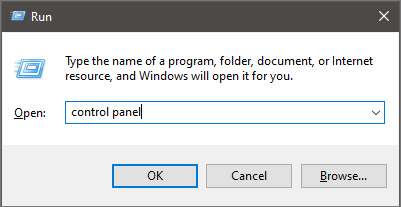
  • Inside run dialog type in Control Panel
    run dialog with control panel typed in
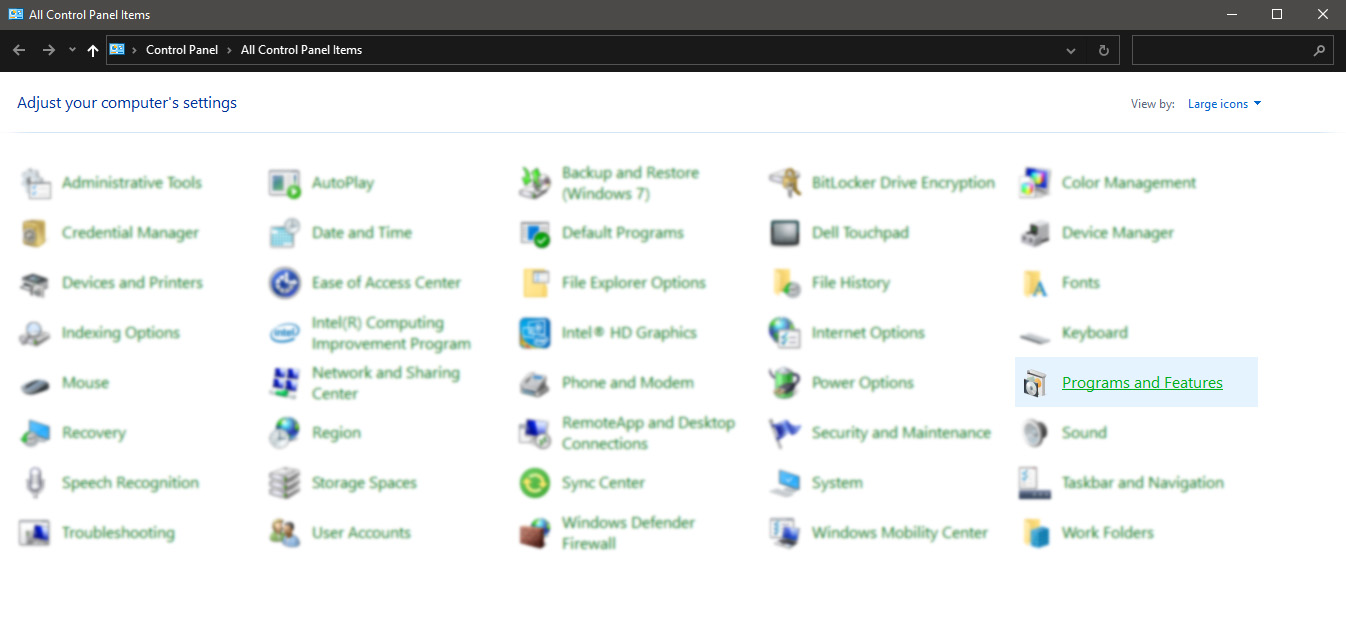
  • In the control panel double click on Programs and features
    control panel programs and features selected
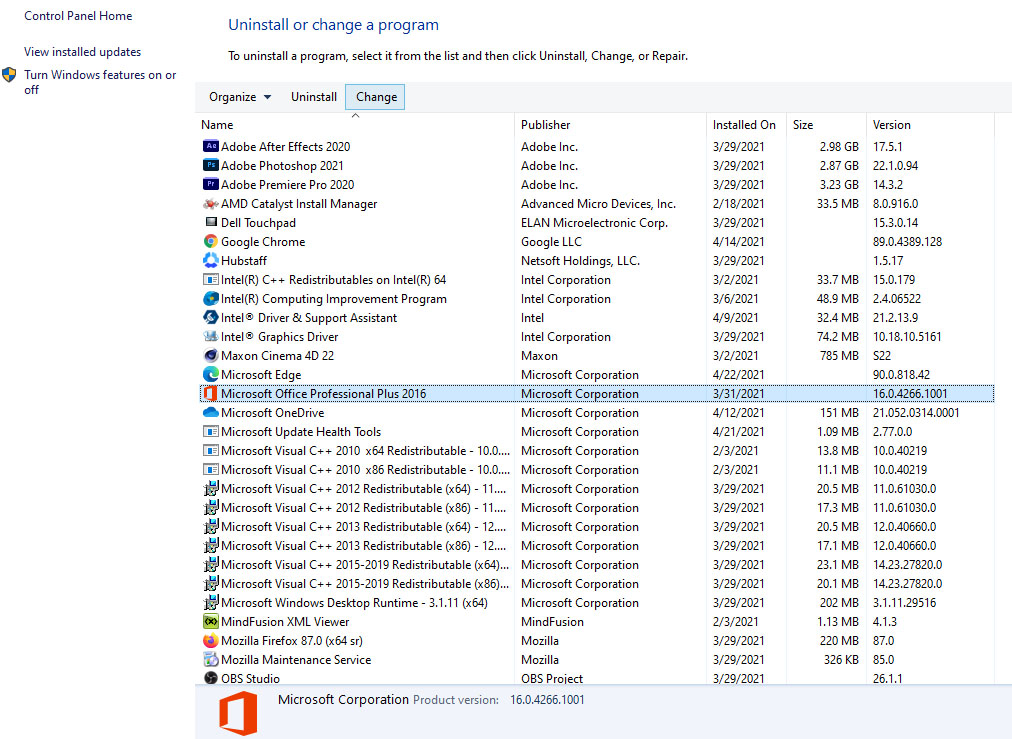
  • In the list of installed application find MS Office and click on it to select it
  • On top, just above the application list click on the change
    uninstall office screen
  • Office dialog will be opened with multiple choices
  • Click and select Online repair and then click on Repair
  • Make sure that you have a stable internet connection and leave the process to be finished

Remnants of old office installation

Manually cleaning remnants of old office installation is not an easy task and it can be different from system to system depending on the previous Office version.
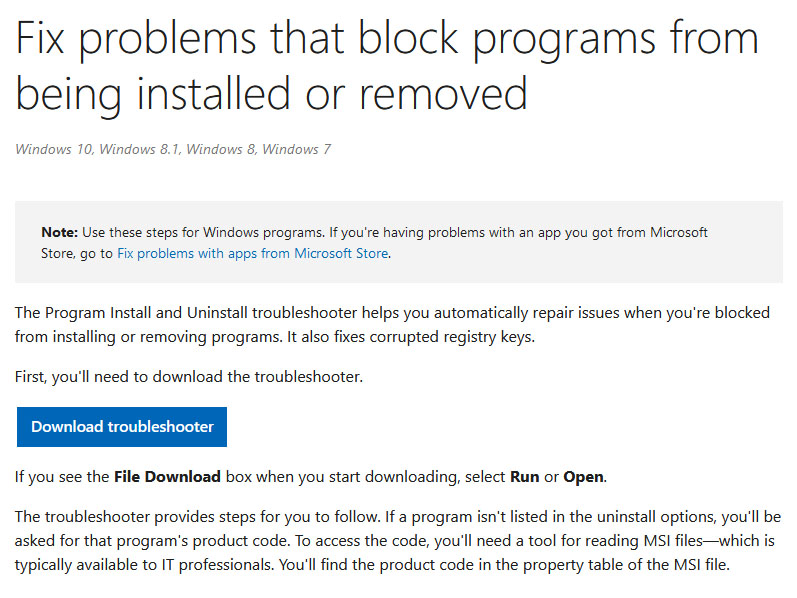
Luckily Microsoft has a dedicated office cleaning tool made for purpose of removing old tails and remnants of old office installations.

  • Download tool heremicrosoft troubleshooter
  • After the tool has been successfully downloaded, double-click on the .diagcab file to open it
  • Click on Advanced and make sure that the box associated with Apply repair automatically is checked.
  • Click the Next button to proceed
  • Wait until the initial detection phase is complete, then click on Installing at the first prompt
  • Select the program that you’re encountering issues with (most likely Microsoft Office) and click Next once again
  • At the next screen, click on Yes, try to uninstall
  • Wait until the operation is complete, then restart your computer and re-install the Microsoft Office suite

Windows Updates

After digging and trying out various solutions for this issue we came to the conclusion that this error can occur if Windows is not fully updated, and by fully updated we mean fully, not just critical updates, but all available ones. Check-in your setting to see if there are some uninstalled or pending updates waiting to be installed and if that is the case install them all.
After completely updating your Operating system error should vanish and you should be able to install Microsoft office without issues.

Do You Need Help with Your Device?

Our Team of Experts May Help
Troubleshoot.Tech Experts are There for You!
Replace damaged files
Restore performance
Free disk space
Remove Malware
Protects WEB browser
Remove Viruses
Stop PC freezing
GET HELP
Troubleshoot.Tech experts work with all versions of Microsoft Windows including Windows 11, with Android, Mac, and more.

Share this article:

You might also like

Different types of computer viruses
Computer viruses are malicious applications that have the ability to self replicate and spread over the system and various devices, just like viruses in organisms. We all know that computer viruses are bad and that you should avoid them however you can. So in this spirit, we are taking a deeper dive into what kind of viruses exist and how they function.

viruses types1. File-infecting Virus

A virus that attached itself to an executable program. It is also called a parasitic virus which typically infects files with .exe or .com extensions. Some file infectors can overwrite host files and others can damage your hard drive’s formatting.

2. Macro Virus

This type of virus is commonly found in programs such as Microsoft Word or Excel. These viruses are usually stored as part of a document and can spread when the files are transmitted to other computers, often through email attachments.

3. Browser Hijacker

This virus targets and alters your browser setting. It is often called a browser redirect virus because it redirects your browser to other malicious websites that you don’t have any intention of visiting. This virus can pose other threats such as changing the default home page of your browser.

4. Web Scripting Virus

A very sneaky virus that targets popular websites. What this virus does is overwrite code on a website and insert links that can install malicious software on your device. Web scripting viruses can steal your cookies and use the information to post on your behalf on the infected website.

5. Boot Sector Virus

These viruses are once common back when computers are booted from floppy disks. Today, these viruses are found distributed in forms of physical media such as external hard drives or USB. If the computer is infected with a boot sector virus, it automatically loads into the memory enabling control of your computer.

6. Polymorphic Virus

This virus has the capability to evade anti-virus programs since it can change codes every time an infected file is performed.

7. Resident Virus

A resident virus stores itself on your computer’s memory which allows it to infect files on your computer. This virus can interfere with your operating system leading to file and program corruption.

8. Multipartite Virus

A type of virus that is very infectious and can easily spread on your computer system. It can infect multiple parts of a system including memory, files, and boot sector which makes it difficult to contain.
Read More
How to Fix Application Load Error 5:0000065434
When it comes to downloading and installing games in the Windows operating system, Steam is one of the well-known sources. You can find many big titles in Streams such as PUBG, Heaven Vaults, and a whole lot more. It is undeniably a great source of getting games in the Windows operating systems. However, just like other software, Steam is not immune to errors as you could encounter errors while using it. This isn’t caused by a bad code but also due to reliance on various factors in both respects to the software and hardware. One of these errors is the Application Load Error 5:0000065434. This kind of error can appear when you launch numerous game titles on your Windows 10 computer like Skyrim, Oblivion, Bully, Morrowind, Vortex, and many more. To fix this application error in Steam, you can try to copy the Steam executable file or use the Command Prompt. You could also try to verify the integrity of the game files feature or delete any conflicting files on your computer.

Option 1 – Try copying the Steam executable file

The first thing you can do to fix the error is to copy the executable file of Steam.
  • First, right-click on the desktop shortcut of steam located on your Desktop and click on the “Open file location” option.
  • After that, copy the executable file for Steam and navigate to the folder of the library of the games which is usually located in SteamSteamAppsCommon
  • Now paste the Steam executable file you just copied inside the folder of the game and see if it fixes the error or not.

Option 2 – Try to use the Command Prompt

  • In the Start Search, type “command prompt” and right-click on Command Prompt from the search results and then select the “Run as administrator” option.
  • After opening Command Prompt as administrator, execute the following command:
cd "C:Program Files (x86)Steamsteamappscommon" mklink "steam.exe" "C:Program Files (x86)Steamsteam.exe"
  • The command you entered will create a link between the executable file of Steam to the operating system. Once you see a message that states, “Operation completed successfully”, restart your computer.

Option 3 – Try to use the “Verify integrity of the game files” feature

The next thing you can do to get rid of the error is to use the “Verify integrity of the game files” feature. How? Refer to these steps:
  • Open Steam and right-click on the entry of the game where you encountered the error in the Library and then select Properties.
  • After that, navigate to the LOCAL FILES tab and click the “VERIFY INTEGRITY OF GAME FILES” button.
  • Wait for the process to be completed and see if the feature has helped in fixing the error or not.

Option 4 – Try to delete any conflicting files

The error might be caused by some conflicting files on your computer which is why you have to delete them. To do that, follow these steps:
  • Open the Documents folder and look for the folder created by the game that’s throwing the error. For instance, it could be stored in the “My Games” folder.
  • Next, delete the folder and then try to launch the game again and see if the error is now fixed.
Read More
Choosing default browser in Windows 11
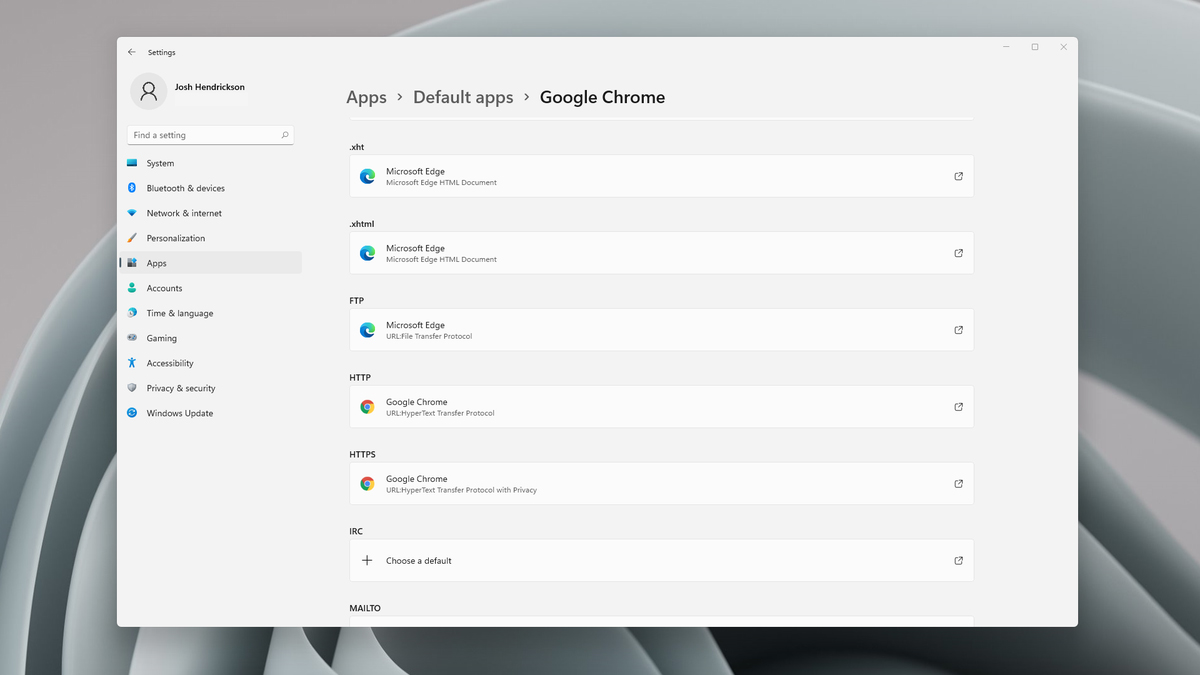
Default applications in previous Windows versions were a pretty straightforward process. The user went to the settings application and picked for each category which application he would like to choose from the list of installed ones. In Windows 11 things are little changed. In this article, we will show you how to choose the default internet browser inside Windows 11, and sadly it is a more tedious task than in previous versions.

windows 11 default browserChoosing default browser in settings

As in previous versions of the Windows operating system you will need to use the settings application in order to change your default Internet browser. Previously, in Windows 10, a variety of general categories like email, web browser, and photo viewer were all listed under the Default Apps section of the Settings panel. It was easy to click on one of those categories and click on the option you like best from the small pop-up suggestion window. In the Windows 11 Insider Build, you’ll see a gauche list of an individual file or link types that you’ll need to specify your preferred browser for. The types include: HTM, HTML, PDF, SHTML, SVG, WEBP, SHT, FTP, HTTP, and HTTPS. There are additional optional types you can specify your preferred browser for as well. The issue here is in order to use a single browser which most users do you will have to go through each file type and set your preferred one. I am really not sure why this was introduced or why it has to be this way, all I can do is hope that in the final release of Windows 11 this feature will be rolled back as it used to be and that you could set your default browser in just one simple click.
Read More
Fix Windows Update Error 0x8024A10A
The Windows Update service, just like other services in Windows 10 may sometimes experience some issues and stop behaving properly. One of the issues you might encounter as you use the Windows Update service is the Windows Update error 0x8024A10A. This kind of error code signifies that the Windows Update service is shutting down. So if you encounter this error, read on as this post will guide you on how you can fix it. When you receive the Windows Update error 0x8024A10A, you may see this error message on your screen: “USO_E_SERVICE_SHUTTING_DOWN indicates that the WU Service is shutting down. This may happen due to a very long period of time of inactivity, a system hang leading to the service being idle and leading to the shutdown of the service. Ensure that the system remains active and the connections remain established to complete the upgrade.” You could try to restart your computer to resolve the problem since there are instances when a simple restart can fix errors. However, if it does not work, you might find the options provided below useful.

Option 1 – Try to restart the Windows Update Service

The first thing you can do to fix Windows Update error 0x8024A10A is to restart the Windows Update Service from the Services Manager. To do so, follow these steps:
  • In the Cortana search box, type “services” and click on the Services icon to open the Services Manager. Alternatively, you can also tap the Win + R keys to launch the Run prompt and then type “services.msc” in the field and hit Enter to open the Services Manager.
  • After opening the Services Manager, look for the Windows Update Service.
  • Once you found it, right-click on it and check if the Service is stopped. If it is, then select the Start option. On the other hand, if the Windows Update Service is already started, just select the Restart option.
  • After that, try to run the Windows Update again and see if the error 0x8024A10A is now fixed.

Option 2 – Run the Windows Update Troubleshooter

Since the Windows Update troubleshooter reviews the status of the services that support the process, it would prompt and fix it if there is anything that’s not right. Thus, you might want to run a built-in Windows Update troubleshooter to resolve the Windows Update error. It is one of the things you can check out as it is known to automatically resolve any Windows Update errors like error 0x8024A10A. To run this troubleshooter, go to Settings and then select Troubleshoot from the options. From there, click on Windows Update and then click the “Run the troubleshooter” button. After that, follow the next on-screen instructions and you should be good to go.

Option 3 – Run Microsoft’s online troubleshooter

Aside from the Windows Update troubleshooter, running Microsoft’s online troubleshooter might also help you fix the Windows Update Error 0x8024A10A. This online troubleshooter is known to help in fixing Windows Update errors, it scans your computer for issues that might be causing the problem and then fixes them automatically.

Option 4 – Try to run the Windows Update Service in a Clean Boot State

There are some instances that some conflicting programs installed in your computer might be the one that’s causing Windows Update error code 0x8024A10A. To identify which program is causing the problem, you need to put your computer in a Clean Boot State. To do so, follow the steps below.
  • Log onto your PC as an administrator.
  • Type in MSConfig in the Start Search to open the System Configuration utility.
  • From there, go to the General tab and click “Selective startup”.
  • Clear the “Load Startup items” check box and make sure that the “Load System Services” and “Use Original boot configuration” options are checked.
  • Next, click the Services tab and select the “Hide All Microsoft Services” check box.
  • Click Disable all.
  • Click on Apply/OK and restart your PC. (This will put your PC into a Clean Boot State. And configure Windows to use the usual startup, just simply undo the changes.)
  • Now try to run the Windows Update Service again and see if Windows Update error 0x8024A10A is now gone.
Read More
Windows SmartScreen can’t be reached right now
SmartScreen is a cloud-based anti-phishing and anti-malware component that’s come packed in all Windows 8 (8.1) and Windows 10 versions. This security component is also used in several browsers and programs like Internet Explorer, Microsoft Edge and Outlook.com. Although this program is quite useful, there’ve been reports that SmartScreen is apparently blocking Microsoft’s own apps from opening. According to some users, they only get the “Windows SmartScreen can’t be reached right now” error message every time they try to open apps from the built-in Windows suite like Photos, Mail, Alarms, Maps, etc. Whenever Windows SmartScreen is either down or unreachable on an end-user PC, your computer won’t be able to download anything in both official and unofficial channels. This error might be due to a corrupted Windows account, or it could be that SmartScreen is disabled from the Windows Defender Security Center or it might be down due to an MS issue. In addition, the error might also be caused by a proxy entry.

Option 1 – Make sure that SmartScreen is enabled

Before anything else, the first thing you must do is to check if SmartScreen is even enabled as it might be the reason why you’re getting the error. You can verify this by simply going to the Windows Defender Security Center. To do so, follow the steps below.
  • Tap the Win + R keys to open the Run dialog box.
  • Next, type “ms-settings:windowsdefender” in the field and hit Enter to open the Windows Defender Security Center.
  • After that, click on the Open Windows Defender Security Center button located under Windows Security.
  • Then click on App & browser control.
  • From there, make sure that the Check apps and files toggle is set to Warn and then check the same thing for Microsoft Edge and SmartScreen for Microsoft Store apps.
  • If it turns out that SmartScreen is indeed disabled, you have to restart your computer after making some changes and then check if the issue is fixed upon the next startup.

Option 2 – Check if SmartScreen is down for maintenance

Another possible reason why SmartScreen is not working is that it might be scheduled for maintenance. When SmartScreen is scheduled for maintenance, it will become unreachable for a lot of users at the same time and so before you go over unnecessary troubleshooting steps, you need to verify if SmartScreen is down for maintenance or not.

Option 3 – Try to disable the proxy server

If applicable, you can try to disable the proxy server to fix SmartScreen. There are some users who reported that they’ve fixed the problem after they’ve disabled the use of a proxy server using the built-in way. In some instances, certain proxy servers can interfere with the SmartScreen component and cause it to become unusable. However, if you are not using a proxy server, just skip this option and proceed to the next one, otherwise, follow the steps below to disable the proxy server.
  • Tap the Win + R keys to open the Run dialog box.
  • Next, type “ms-settings:network-proxy” in the field and hit Enter to open the Proxy tab under Settings.
  • After that, scroll down to the Manual proxy setup and make sure that the toggle button of the “Use a proxy server” option is turned off.
  • Now restart your PC and check if the problem is fixed upon the next startup.

Option 4 – Try to create a new Windows user account

There are some users who were able to fix the problem by simply creating a new Windows user account. Although this solution will make you lose a couple of settings enforced through your user account, it’s actually effective in circumventing the “Windows SmartScreen can’t be reached right now” error. To create a new Windows user account, here’s what you have to do:
  • Tap the Win + R keys to open the Run dialog box.
  • And then type “ms-settings:otherusers” in the field and hit Enter to open the Family & other people tab under the Accounts menu.
  • After that, click on the “Add someone else to this PC” option and then click on “I don’t have this person’s sign-in information.
  • Next, insert the user credentials like emails, password, birth date, etc., and then click Next. Take note that if you want to create a new local user account, just click on Add a user without a Microsoft account.
  • After you’re done creating the new Windows user account, click the start icon and then click the account icon and choose to Sign out.
  • After you’re logged in, check if SmartScreen now works properly or not.
Read More
Fix Windows Update error 0x80096004
Recently, a lot of users reported to Microsoft about getting an error code 0x80096004 while trying to update their Windows 10 computers. This kind of Windows Update error occurs during the initial download and verification process. It also affects the Windows features (FODs) and when you encounter this error, you will also see this error code, “TRUST_E_CERT_SIGNATURE”. This error code indicates that the signature of the certificate could not be confirmed. This is caused by a broken certificate store or a corrupt copy of the Windows operating system is installed. Here’s the complete error message:
“There were some problems installing updates, but we’ll try again later. If you keep seeing this and want to search the web or contact support for information, this may help: (0x80096004).”
To fix Windows Update error 0x80096004, you can check out the options provided below.

Option 1 – Delete the contents in the Software Distribution folder and Catroot2 folder

  • Open the WinX Menu.
  • From there, open Command Prompt as admin.
  • Then type in the following command – don’t forget to hit Enter right after typing each one of them.
net stop wuauserv net start cryptSvc net start bits net start msiserver
  • After entering these commands, it will stop the Windows Update Service, Background Intelligent Transfer Service (BITS), Cryptographic, and the MSI Installer
  • Next, go to the C:/Windows/SoftwareDistribution folder and get rid of all the folders and files thereby tapping the Ctrl + A keys to select them all and then click on Delete. Note that if the files are in use, you won’t be able to delete them.
After resetting the SoftwareDistribution folder, you need to reset the Catroot2 folder to restart the services you just stopped. To do that, follow these steps:
  • Type each one of the following commands.
net start wuauserv net start cryptSvc net start bits net start msiserver
  • After that, exit Command Prompt and restart your computer, and then try to run Windows Update once more.

Option 2 – Run the Windows Update Troubleshooter

Running the built-in Windows Update troubleshooter is one of the things you can first check out as it is known to automatically resolve any Windows Update errors like error code 0x80096004. To run it, Refer to these steps:
  • Tap the Win + I keys to open Settings.
  • From there, click Update and Security and go to the Troubleshoot section.
  • Next, select Windows Update and click the “Run the troubleshooter” button and wait until it’s finished, and then try to run Windows Update again.

Option 3 – Try to temporarily disable anti-virus and Windows Defender Firewall

As mentioned, the error could be due to the antivirus program or the Windows Defender Firewall installed on your computer. Thus, disabling them or any security software installed in your computer is always a good idea you can try when you’re not able to access the shared drive on your computer. There are times when you encounter problems like Error Code 0x80096004 due to interference of antivirus or security programs. Thus, you have to disable both your antivirus program and Windows Defender Firewall for the meantime and check if it fixes the error or not.

Option 4 – Try to replace the DLL file with a trusted source

You can also try to replace the crypt32.dll file as it could help in fixing the Windows Update error. Just make sure that you get one from a trusted source.
  • First, you need to get the new DLL file from another computer with preferably the same file version number.
  • After that, you need to boot your PC into Safe Mode and navigate to the paths listed below and then replace the file using a USB drive or other external storage devices.
    • x86: This PC > C:/Windows/System32
    • x64: This PC > C:/Windows/SysWOW64
  • Next, type “cmd” in the Cortana search box and right-click on Command Prompt, and select “Run as administrator” to open it with administrator privileges.
  • Now type the “regsvr32 crypt32.dll” command and hit Enter.
  • Restart your PC and check if the error is now fixed.

Option 5 – Try downloading and installing the Windows Updates manually

Error Code 0x80096004 might be due to a Windows Update that has failed. So if it is not a feature update and only a cumulative update, you can download the Windows Update and install it manually. But first, you need to find out which update has failed, and to do so, refer to the following steps:
  • Go to Settings and from there go to Update and Security > View Update History.
  • Next, check which particular update has failed. Note that Updates that have failed to install will be displayed under the Status column which has a label of “Failed”.
  • After that, go to the Microsoft Download Center and look for that update using its KB number and once you find it, download and then install it manually.
Note: You can also use the Microsoft Update Catalog, a service from Microsoft that provides a list of software updates that can be distributed over a corporate network. With the help of this service, it can be easier for you to find Microsoft software updates, drivers as well as fixes.

Option 6– Run System File Checker or SFC scan

System File Checker or SFC is a built-in command utility that helps in restoring corrupted files as well as missing files. It replaces bad and corrupted system files to good system files. To run the SFC command, follow the steps given below.
  • Tap Win + R to launch Run.
  • Type in cmd in the field and tap Enter.
  • After opening Command Prompt, type in sfc /scannow
The command will start a system scan which will take a few whiles before it finishes. Once it’s done, you could get the following results:
  1. Windows Resource Protection did not find any integrity violations.
  2. Windows Resource Protection found corrupt files and successfully repaired them.
  3. Windows Resource Protection found corrupt files but was unable to fix some of them.
 Reboot your PC.

Option 7 – Try to run the Windows Update Service in a Clean Boot State

There are some instances that some conflicting programs installed in your computer might be the one that’s causing Windows Update error. To identify which program is causing the problem, you need to put your computer in a Clean Boot State. To do so, follow the steps below.
  • Log onto your PC as an administrator.
  • Type in MSConfig in the Start Search to open the System Configuration utility.
  • From there, go to the General tab and click “Selective startup”.
  • Clear the “Load Startup items” check box and make sure that the “Load System Services” and “Use Original boot configuration” options are checked.
  • Next, click the Services tab and select the “Hide All Microsoft Services” check box.
  • Click Disable all.
  • Click on Apply/OK and restart your PC. (This will put your PC into a Clean Boot State. And configure Windows to use the usual startup, just simply undo the changes.)
  • Now try to run the Windows Update Service again and see if Windows Update error 0x80096004 is now gone.
Read More
Fix Windows Update error 0x80070422
If you were trying to run Windows Update or activate Windows Firewall or download from the Windows Store but encounter the Windows Update Error 0x80070422 instead, read on as this post will show you how you can resolve the problem. This kind of Windows Update error occurs when the Windows Update or WUAUSERVE is not started or when the Background Intelligent Transfer Service or BITS can’t be started. It could be that they are disabled or because they have no enabled devices associated with them. Whichever the case is, you can check out the options given below to fix the Windows Update Error 0x80070422 and make sure that you create a System Restore point first before you start.

Option 1 – Check the status of some Windows Update Services

  • Tap the Win + R keys to open the Run dialog box.
  • Next, type “services.msc” in the field and hit Enter or click OK to open Services.
  • From the list of Services, look for the following services and make sure that their Startup type is as follows:
    • Windows Update – Manual (Triggered)
    • Background Intelligent Transfer Service – Manual
  • After that, check if the Service status of the listed services above is set to Running. If they’re not, click on the Start button to start these services and then check if you can now enable the Windows Update service or not.

Option 2 – Try to disable IPv6 in the Network Center

You might also want to disable IPv6 in the Network Center in order to fix the Windows Update Error 0x80070422. How? Follow these steps:
  • Tap the Win + X key combination on your keyboard and click on Network Connections.
  • This will open the Network Connections section under the Setting app. From there, click on the Network and Sharing Center link located at the right side of the panel which will open a Win32 version of the Windows settings known as Control Panel.
  • In the Control Panel, click on the network your computer is connected to.
  • A mini window will appear and in that window click on Properties which will open another mini window that will provide a list.
  • From this list, uncheck the option that says, “Internet Protocol Version 6 (TCP/IPv6)”.
  • Now click on OK and close all the other windows and see if it fixes the Windows Update error.

Option 3– Run the Windows Update Troubleshooter

If disabling IPv6 didn’t work, you could also try running the Windows Update Troubleshooter as it could also help in fixing any issues related to Windows Update including the Windows Update Error 0x80070422. To run it, go to Settings and then select Troubleshoot from the options. From there, click on Windows Update and then click the “Run the troubleshooter” button. After that, follow the next on-screen instructions and you should be good to go.

Option 4 – Try running the DISM tool

You can also try to run the Deployment Imaging and Servicing Management or DISM tool to fix the Windows Upgrade error. Using this built-in tool, you have various options such as the “/ScanHealth”, “/CheckHealth”, and “/RestoreHealth”.
  • Open the Command Prompt with admin privileges.
  • Then type in the following commands and make sure to hit Enter right after you type each one of them:
    • Dism /Online /Cleanup-Image /CheckHealth
    • Dism /Online /Cleanup-Image /ScanHealth
    • exe /Online /Cleanup-image /Restorehealth
  • Do not close the window if the process takes a while as it will probably take a few minutes to finish.

Option 5 – Run Microsoft’s online troubleshooter

Running Microsoft’s online troubleshooter might also help you fix the Windows Update Error 0x80070422. This online troubleshooter is known to help in fixing Windows Update errors, it scans your computer for issues that might be causing the problem and then fixes them automatically.
Read More
Remove HowToSimplified PUP Removal Tutorial

HowToSimplified is a browser extension developed by MindSpark inc. This extension offers users easy access to DIY tutorials, guides, and websites just a few clicks away. There is also a top video selection with the most popular DIY videos at the moment.

This extension, though it may look useful in the beginning, hijacks your browser's default search provider, it changes your default home page to HowToSimplified, powered by the MyWay search engine. During your browsing sessions, it will record your website visits, collect information, clicks, and sometimes even personal data. This information is later used to deliver ads that are injected into your browser search results. Aside from sponsored links, and additional unwanted ads that this extension displays, it also may from time to time display pop-up ads during your browsing sessions.

Multiple anti-virus scanners have detected HowToSimplified as a Browser Hijacker and are therefore not recommended to keep on your computer for security and privacy reasons.

About Browser Hijackers

Browser hijacking means that a malicious program code has control over and altered the settings of your internet browser, without your approval. Almost all browser hijackers are made for marketing or advertising purposes. In most cases, browser hijacking is used for earning ad revenue that comes from forced advert clicks and site visits. It could seem naive, but most of such sites aren’t legitimate and could pose a severe threat to your online safety. In a much worst case, your browser can be hijacked to download malware that can do a lot of damage to your computer system.

How you can recognize a browser hijack

There are many symptoms that indicate your browser has been highjacked: home page is changed; bookmark and the new tab are also changed; the default web engine is changed and your browser security settings have been cut down without your knowledge; find new toolbars that you simply didn’t add; unstoppable flurries of popup advertisements show up on your personal computer screen; your internet browser has become unstable or starts running sluggishly; you can’t navigate to certain internet pages, like computer security software related websites.

How they invade PCs

Browser hijackers infect computer systems through malicious email attachments, downloaded infected documents, or by visiting infected websites. They can also be deployed via the installation of a web browser toolbar, add-on, or extension. Other times you may have accidentally accepted a browser hijacker as part of an application bundle (generally freeware or shareware). An example of some notorious browser hijacker includes Babylon, Anyprotect, Conduit, DefaultTab, SweetPage, Delta Search, and RocketTab, but the names are regularly changing. Browser hijacking can lead to severe privacy issues and even identity theft, disrupt your browsing experience by taking command over outbound traffic, drastically slows down your personal computer by consuming a lot of resources, and cause system instability as well.

Browser Hijacker Malware – Removal

The one thing you can try to get rid of a browser hijacker is to find the malware inside the “Add or Remove Programs” list of the Windows Control Panel. It might or might not be there. When it is, uninstall it. However, many hijackers are harder to track down or remove since they might get themselves associated with some critical computer files that enable it to operate as a necessary operating-system process. Amateur computer users shouldn’t ever attempt the manual form of removal methods, since it requires detailed system knowledge to carry out repairs on the computer registry and HOSTS file.

How One Can Eliminate a Virus that is Blocking Websites or Preventing Downloads

Practically all malware is detrimental and the extent of the damage will vary greatly depending on the type of malware. Some malware is meant to hinder or block things that you want to do on your computer. It may well not let you download anything from the web or it will prevent you from accessing a few or all internet sites, especially the anti-malware websites. If you are reading this article right now, you may have perhaps realized that a malware infection is the cause of your blocked internet connectivity. So how to proceed if you need to install an anti-malware program like Safebytes? There are a few actions you can take to get around this problem.

Install the anti-malware in Safe Mode

The Windows operating system comes with a special mode referred to as “Safe Mode” where just the minimum required applications and services are loaded. If the malware is obstructing the internet connection and affecting your PC, starting it in Safe Mode allows you to download anti-malware and run a diagnostic scan while limiting potential damage. To enter into Safe Mode or Safe Mode with Networking, press the F8 key while the PC is starting up or run MSCONFIG and look for the “Safe Boot” options under the “Boot” tab. Once you’re in Safe Mode, you can attempt to install your anti-malware software application without the hindrance of the malicious software. At this point, you can actually run the antivirus scan to get rid of viruses and malware without interference from another malicious application.

Obtain the anti-malware program using an alternate web browser

Web-based viruses can be environment-specific, targeting a particular internet browser or attacking specific versions of the web browser. If you seem to have a trojan attached to Internet Explorer, then switch to a different browser with built-in security features, such as Firefox or Chrome, to download your favorite anti-malware program – Safebytes.

Install and run anti-malware from the USB drive

Another solution is to create a portable anti-malware program on your USB thumb drive. Try these simple measures to clear up your infected PC using portable anti-malware. 1) Download the anti-malware on a virus-free computer. 2) Plug the Thumb drive into the uninfected computer. 3) Double-click the Setup icon of the antivirus program to run the Installation Wizard. 4) Choose a thumb drive as the place when the wizard asks you where you want to install the application. Follow the on-screen instructions to complete the installation. 5) Transfer the USB drive from the uninfected PC to the infected PC. 6) Double-click the EXE file to run the Safebytes software right from the thumb drive. 7) Click on “Scan Now” to run a complete scan on the affected computer for viruses. If, after all of these methods, you are still having troubles with the possible infection, feel free to write to us with your question, through chat or email. If you are unsure which method to employ, simply call our toll-free number 1-844-377-4107 to speak to our technical support team. Our experts can walk you through the virus removal process on the phone and fix the computer remotely.

Protect Your Personal Computer From Viruses and Malware With SafeBytes Security Suite

Nowadays, an anti-malware tool can protect your laptop or computer from various kinds of internet threats. But exactly how to choose the best one amongst the many malware protection software that is available on the market? Perhaps you might be aware, there are several anti-malware companies and products for you to consider. A few of them are great but there are lots of scamware applications that pretend as authentic anti-malware software waiting to wreak havoc on the computer. You must be careful not to choose the wrong product, especially if you purchase a paid application. When thinking about trustworthy programs, Safebytes AntiMalware is certainly the highly recommended one. SafeBytes anti-malware is a powerful, highly effective protection tool designed to assist users of all levels of IT literacy in detecting and eliminating malicious threats from their PC. This tool can easily detect, eliminate, and protect your PC from the most advanced malware intrusions including spyware, adware, trojan horses, ransomware, parasites, worms, PUPs, as well as other possibly damaging software programs. SafeBytes has great features when compared to other anti-malware programs. A few of them are listed as below: Best AntiMalware Protection: Built on a highly acclaimed anti-virus engine, this malware removal application has the capacity to identify and remove various obstinate malware threats such as browser hijackers, potentially unwanted programs, and ransomware that other common anti-virus software will miss. Live Protection: SafeBytes provides real-time active monitoring service and protection against all known computer viruses and malware. It’ll constantly monitor your computer for hacker activity and also gives users superior firewall protection. Web Protection: Safebytes allots all websites a unique safety score that helps you to have an idea of whether the webpage you’re about to visit is safe to view or known to be a phishing site. “Fast Scan” Features: SafeBytes Anti-Malware possesses a multi-thread scan algorithm that works up to five times faster than any other protection software. Very Low CPU and RAM Usage: SafeBytes is a lightweight application. It uses up a really small amount of processing power as it works in the background therefore you won’t notice any computer performance difficulties. 24/7 Customer Support: You will get 24/7 technical support to quickly resolve any concern with your security tool.

Technical Details and Manual Removal (Advanced Users)

If you wish to manually remove HowToSimplified without the use of an automated tool, it may be possible to do so by removing the program from the Windows Add/Remove Programs menu, or in cases of browser extensions, going to the browsers AddOn/Extension manager and removing it. You will likely also want to reset your browser. To ensure the complete removal, manually check your hard drive and registry for all of the following and remove or reset the values accordingly. Please note that this is for advanced users only and may be difficult, with incorrect file removal causing additional PC errors. In addition, some malware is capable of replicating or preventing deletion. Doing this in Safe Mode is advised.

The following files, folders, and registry entries are created or modified by HowToSimplified

Files: C:DOCUME1USER1LOCALS1Tempnsu1.tmp C:76681c9c0f70e45328483cc27310678c28751a66f9849aa13f34d2e7f8c650 C:DOCUME1USER1LOCALS1Tempnsf2.tmp C:DOCUME1USER1LOCALS1Tempnsf2.tmpnsDialogs.dll C:DOCUME1USER1LOCALS1Tempnsf2.tmpSystem.dll C:DOCUME1USER1LOCALS1Tempnsf2.tmpnsDialogs.dll C:DOCUME1USER1LOCALS1Tempnsf2.tmpSystem.dll C:Program FilesHowToSimplified_8e Registry: Key: HKCUSOFTWAREMicrosoftWindowsCurrentVersionExplorerBrowser Helper ObjectsValue: Verizon Broadband Toolbar Data: A057A204-BACC-4D26-8398-26FADCF27386 Key: HKEY_CURRENT_USERSoftwareMicrosoftWindowsCurrentVersionRun Value: Hoolapp Android Data: C:usersuserappdataRoamingHOOLAP~1Hoolapp.exe Key: HKEY_CURRENT_USERSoftwareMicrosoftWindowsCurrentVersionRun Value: ctfmon.exe Data: C:Program Files3rundll32.exe C:Program Files3lni28.dat,FG00

Read More
How to fix the Javaw.exe Error Code

Javaw exe - What is it?

Javaw.exe is a type of executable file or a process used by Sun Microsystems. It is in charge of executing programs created with Java on Windows PC. It is a part of the Oracle Java Runtime Environment. The javaw exe error hampers your ability to run programs supported by Java. Common Javaw.exe error messages include:
  • "Javaw.exe Application Error."
  • "Javaw.exe is not a valid Win32 application."
  • “Cannot find javaw.exe.""Javaw.exe not found."
  • "Error starting program: javaw.exe."
  • "Javaw.exe is not running.""Javaw.exe failed."
  • "Javaw.exe has encountered a problem and needs to close. We are sorry for the inconvenience."

Solution

Restoro box imageError Causes

There can be many reasons for javaw.exe error code on your PC such as:
  • Viral infection
  • Malware attack
  • Invalid registry entries
Ignoring such error messages is not wise. You must resolve it right away as such errors can lead to serious PC threats like system failure and data security threats.

Further Information and Manual Repair

Scan the Javaw.Exe File For Malware

To fix Java Exe error on your system, first you need to find out the cause of the error. Is it triggered by malware or invalid registry entries? The best way to identify the cause is to check your system’s CPU usage. This can be done through assessing the Task Manager by pressing Ctrl+Alt+Del all at the same time. After that, click ‘Processes and locate the javaw.exe file. Remember this file does not require too much memory, so abnormal memory usage is a surefire sign that the java.exe file on your system is a virus. To resolve it, download an antivirus and run it to scan and remove viruses from your PC. However, running an antivirus may slow down your PC performance. On the other hand, if you find the memory usage is fine, then this means the error is not caused by malware but it occurred either due to old version system files on your PC or registry corruption.

Update the Javaw.Exe File

To remove the old version files, go to the start menu. Click Control Panel and then Add/Remove programs. Here find the Java program and uninstall it. Now after the program is completely uninstalled, go to Java’s official website and download the latest version of your desired program. Restart your PC after the installation is successfully complete.

Clean & Repair Registry

If the problem still persists, then the javaw exe error is mostly likely triggered due to registry corruption. The best way to resolve it is to clean and restore the registry. You can do it manually but you may find the manual procedure slightly time-consuming and complex especially you are not a computer programmer. Therefore we recommend you download Restoro.

Why Restoro?

Whether the javaw exe error occurs due to viral infection, invalid entries, or registry corruption, Restoro takes care of all. This is a new, cutting edge, and multi functional PC fixer deployed with multiple performance-boosting and system repair utilities including a powerful registry cleaner, an antivirus, a system optimizer, and Active X controls, and a Class ID detector. The registry cleaning utility wipes out all the unnecessary files, clearing up the cluttered disk. It cleans the registry and restores it. Simultaneously, the antivirus feature detects and scans all malicious software infecting your PC and removes them right away. The system optimizer module boosts the speed of your system and ensures your PC performs at its optimum pace. This is a safe, efficient, and bug-free tool. It has a user-friendly interface and easy navigation. Furthermore, it is compatible with all Windows versions. Click here to download Restoro and resolve Javaw exe error on your PC today!
Read More
Fix Boot Device Not Found Error in Windows
If you encounter an error saying, “Boot Device Not Found” when you turn on your Windows 10 computer, then you’ve come to the right place as this post will guide you on how you can fix this problem. Apart from the error message, you will also see a message that states, “Please install an operating system on your hard disk, Hard Disk<xxx>”. You will then be asked to tap the F2 key to initiate the System Diagnostics. If you install the Windows operating system, it becomes the boot device, and when your computer boots, the UEFI or the BIOS looks for the operating installed on your drive and continues the process. So when you encounter the “Boot Device Not Found” error, this means that the UEFI or the BIOS wasn’t able to locate the drive where it can boot. There are several suggestions you can check out to resolve this error. You can try checking the connection with your boot drive or change the boot order. You can also fix the Boot Record from Recovery and see if the primary partition is active or not. But before you troubleshoot the problem, make sure that you have a bootable Windows USB drive ready since two of the options provided below will require you to boot into the Advanced Recovery mode. Once you have this covered, proceed to each one of the following options.

Option 1 – Try checking the connection with the boot drive

If you have a custom computer that comes with a cabinet, you might want to open it and remove any connected power supply, and then check the wires. As you know, drives are connected with the motherboard using a cable. So all you have to do is check if both ends are connected properly and make sure that the connection is not loose. You could also try to unplug the cable and plug it back in.

Option 2 – Try changing the boot order

You might also want to try changing the boot order of your computer. Each time a computer boots, the BIOS or the UEFI follows a boot order. It is the one that tells where to first look for the boot drive and if for some reason, a USB is connected to your computer and the first boot device found in the USB, then you have resolved the problem. All you have to do is to remove the USB device and boot or go into the BIOS and change the boot order yourself.

Option 3 – Try to rebuild the BCD files

The next thing you can do to resolve the issue is to Rebuild Boot Configuration Data or BCD files.
  • You can start by booting into the installation environment for Windows 10 from an installation media.
  • After that, click on Repair your computer and on the blue screen, select Troubleshoot and then select the Advanced options menu.
  • From there, select Command Prompt and once you open it, enter each one of the commands given below by sequence.
    • bootrec /FixMbr
    • bootrec /FixBoot
    • bootrec /ScanOS
    • bootrec /RebuildBcd
  • Once you’re done executing the commands given above, type “exit” to close the Command Prompt window and then restart your computer and see if it fixed the “Boot Device Not Found” error.

Option 4 – Try setting the System Partition to Active

Like the first given option, you also have to make sure that you have a bootable Windows 10 USB drive before you proceed to set the System Partition to Active. Once you have it covered, refer to these steps:
  • Boot your computer using the bootable Windows 10 USB drive.
  • Next, click Next when you get to the Welcome Screen.
  • Then click on Repair your computer located at the bottom left part of the window and select Troubleshoot > Advanced Options > Command Prompt.
  • After opening Command Prompt, type the following command and hit Enter to start the Diskpart utility. It is a command line-based utility just like Command Prompt but has a UAC prompt once you provoke it. So if you encounter a UAC prompt, just click on Yes to proceed.
diskpart
  • Now type the following command:
list disk
  • From there, select your primary disk by typing the following command:
select disk number
  • After that, list all the partitions on the selected disk by entering the following command:
list partition
  • The command you just entered will list all the partitions created on your PC including both types of partitions that are visible to a normal user in the File Explorer as well as the ones created by Windows 10 by default which helps it in storing the boot files and other important system files.
  • Now type the following command to select the partition that is usually around 100 MB in size:
select partition number
  • Finally, type the following command to mark the partition active:
active
  • Then type the “exit” command to exit the disk part utility.
Once it’s done, the primary drive should now be active and you should now be able to boot into your computer without the “Boot Device Not Found” error.
Read More
1 2 3 171
Logo
Copyright © 2023, ErrorTools. All Rights Reserved
Trademark: Microsoft Windows logos are registered trademarks of Microsoft. Disclaimer: ErrorTools.com is not affiliated with Microsoft, nor claims direct affiliation.
The information on this page is provided for information purposes only.
DMCA.com Protection Status