Logo

How to Fix Error 3

What is Error 3?

This is a type of Google Chrome update error code. It indicates a failure to communicate with Google update. The error code is displayed in the following format:

‘Update server not available (error: 3)’

Solution

Restoro box imageError Causes

Error 3 may be triggered by several reasons. These include:

  • You are running Vista/ 7 and you have configured Google Chrome to run as an administrator
  • Google Update is not registered properly
  • Registry issues

Further Information and Manual Repair

Here are some of the best and effective DIY methods to resolve error 3 on your PC without any professional help. You don’t need to be a technical whiz to try these methods.

Method 1

If the reason for the error cause is related to Google Chrome configured as administrator on your PC, then simply run it as a normal user. This is a common issue with Google Chrome auto-updating mechanism.

Method 2

If the problem still persists, then it is advisable to try re-installing Google Chrome.

To do this, first, uninstall Google Chrome. Go to the start menu, control panel, and then program and features. Choose Add and Remove Programs and uninstall Google Chrome.

To activate changes, reboot your system. Now reinstall Google Chrome by downloading it from Google Chrome’s official website.

Method 3

If error 3 is triggered because Google Chrome is not registered properly, then try this method to fix the issue.

  1. First, verify that GoogleUpdate.exe exists in the location specified in the Windows Registry Editor. For this, go to the Start Menu and then type Regedit in the search bar.
  2. Now click OK. The registry editor will appear. Now in the tree view on the left, navigate to the following directory:
  3. HKEY_CLASSES_ROOTCLSID{2F0E2680-9FF5-43C0-B76E-114A56E93598}LocalServer32
  4. Make sure the default value corresponds to the location of your GoogleUpdate.exe or GoogleUpdateOnDemand.exe file. Also, verify that these files are located in the given path.
  5. For instance, if they are located in different locations, then right-click the default value and select Modify.
  6. Enter the correct file path and use double quotation marks for example "C:\Documents and Settings%USERNAME%Local SettingsApplication DataGoogleUpdateGoogleUpdate.exe(or GoogleUpdateOnDemand.exe)"

Method 4

Error 3 may also pop up because of registry issues.

These issues occur when the registry gets overloaded with obsolete and unnecessary files like cookies, internet history, bad entries, and junk files. In such an event, it is advisable to download Restoro

This is a user-friendly and cutting-edge PC Fixer embedded with a registry cleaner. The registry cleaner removes all the obsolete files instantly and repairs the damaged registry thereby resolving all errors including error 3.

Click here to download Restoro and resolve error 3.

Do You Need Help with Your Device?

Our Team of Experts May Help
Troubleshoot.Tech Experts are There for You!
Replace damaged files
Restore performance
Free disk space
Remove Malware
Protects WEB browser
Remove Viruses
Stop PC freezing
GET HELP
Troubleshoot.Tech experts work with all versions of Microsoft Windows including Windows 11, with Android, Mac, and more.

Share this article:

You might also like

Run as administrator is not working
Recently, a number of users reported that they were not able to use the “Run as administrator” context menu option when they tried using it or opening a program with administrator privilege. If you are one of these users facing this problem, then you’ve come to the right place as this post will guide you in fixing this issue. At the time of writing, it isn’t clear what the cause of the issue is but there are potential fixes you can try to fix the problem. You can try turning on the User Account Control or clean up the Context Menu items change the Group Membership. On the other hand, you can also perform both SFC and DISM scans via Command Prompt or troubleshoot the problem in a clean boot state as it is possible that some third-party programs are the ones that are causing the problem. You could also run an anti-malware scan using Windows Defender or your antivirus program.

Option 1 – Try to turn on the User Account Control

When you open a program with administrator privilege, the User Account Control or UAC prompt will pop up asking you to confirm the permission. However, if you have disabled the User Account Control by mistake or some malware has disabled it, then it’s no wonder why the “Run as administrator” option is not working. Thus, you need to check if UAC is turned on or not. All you have to do is go to the User Account Control settings.

Option 2 – Try changing the Group Membership

  • First, you need to sign in with your administrator account or ask your administrator to sign in for you. So if you only have a Standard User account, you have to add that account to the Administrators group.
  • In the taskbar search box, type “netplwiz” and check the search results.
  • From there, select your user account and click the Properties button.
  • After that, go to the Group Membership tab and select Administrator.
  • Now click on the Apply and OK buttons to save the changes made and then sign in to your computer again and see if the “Run as administrator” option is working or not.

Option 3 – Try to create a new Administrator User account

If you have a standard account, you can try creating a new account but this time, you create an administrator user account and then see if you can now use the Run as administrator option or not. Note that you have to sign in with your main account before you can create an admin account.

Option 4 – Run the DISM tool

You can run the DISM tool as well to help fix the problem with the “Run as administrator” option. Using this built-in tool, you have various options such as the “/ScanHealth”, “/CheckHealth”, and “/RestoreHealth”.
  • Open the Command Prompt with admin privileges.
  • Then type in the following commands and make sure to hit Enter right after you type each one of them:
    • Dism /Online /Cleanup-Image /CheckHealth
    • Dism /Online /Cleanup-Image /ScanHealth
    • exe /Online /Cleanup-image /Restorehealth
  • Do not close the window if the process takes a while as it will probably take a few minutes to finish.

Option 5 – Perform a System File Checker scan

The SFC or System File Checker scan could detect and automatically repair damaged system files that could be causing the problem with the “Run as administrator” option on your Windows 10 computer. SFC is a built-in command utility that helps in restoring corrupted files as well as missing files. It replaces bad and corrupted system files with good system files. To run the SFC command, follow the steps given below.
  • Tap Win + R to launch Run.
  • Type in cmd in the field and tap Enter.
  • After opening Command Prompt, type in sfc /scannow and hit Enter.
The command will start a system scan which will take a few whiles before it finishes. Once it’s done, you could get the following results:
  1. Windows Resource Protection did not find any integrity violations.
  2. Windows Resource Protection found corrupt files and successfully repaired them.
  3. Windows Resource Protection found corrupt files but was unable to fix some of them.
  • Once done, restart your computer.

Option 6 – Put your computer in a Clean Boot State

You can also troubleshoot the problem in a Clean Boot state. It could be that there are some third-party applications in your computer that are preventing you from using the “Run as administrator” option and to isolate this possibility, you need to boot your computer in a Clean Boot State and then try to use the Run as administrator again. Putting your computer in this state can help you identify which program is the culprit and thus isolates the problem. In a Clean Boot state, your computer will start using only the pre-selected minimal set of drivers and startup programs. Note that you have to disable and enable one process at a time.
  • Log onto your PC as an administrator.
  • Type in MSConfig in the Start Search to open the System Configuration utility.
  • From there, go to the General tab and click “Selective startup”.
  • Clear the “Load Startup items” check box and make sure that the “Load System Services” and “Use Original boot configuration” options are checked.
  • Next, click the Services tab and select the “Hide All Microsoft Services” check box.
  • Click Disable all.
  • Click on Apply/OK and restart your PC. (This will put your PC into a Clean Boot State. And configure Windows to use the usual startup, just simply undo the changes.)
  • After you’ve set your computer into a Clean Boot State, try to check if the error is now fixed and that you can now view the Properties.

Option 7 – Try scanning your computer using Windows Defender

As mentioned, if your computer was recently infected with some malware, it is possible that the malware changed the User Account Control settings which is why you’re not able to use the Run as administrator option. Thus, you need to scan your computer using Windows Defender.
  • Tap the Win + I keys to open Update & Security.
  • Then click on the Windows Security option and open Windows Defender Security Center.
  • Next, click on Virus & threat protection > Run a new advanced scan.
  • Now make sure that Full Scan is selected from the menu and then click the Scan Now button to get started.
Read More
How to Fix ‘Your Computer is Low on Memory’ Error
Low on Memory is a Windows PC memory leak error. You may come across it out of the blue however, there are various underlying reasons for this PC error. It is like a warning sign that indicates memory/RAM issues on your system. The ‘Your Computer is Low on Memory’ error means that your PC does not have enough memory space for all the activities you are trying to perform. Due to this error, your Windows and programs can also stop working. If this error is not fixed timely it can lead to serious PC threats like valuable data loss and hard disk corruption. Along with this memory error, you may also come to experience other types of signs including PC poor performance, speed issues, out-of-memory notifications, and display problems.

Solution

Restoro box imageError Causes

The ultimate and the underlying cause of low memory error is data overload in the RAM which triggers registry issues. To understand this better, here is a comprehensive explanation. The computer has 2 types of memory, RAM (Random Access Memory) and virtual memory. All programs and activities that you do on your computer are saved by the registry in the RAM. This includes obsolete and unnecessary files too like junk files, cookies, internet history, temporary files, invalid registry entries, and bad registry keys. Due to poor PC maintenance practices, these files accumulate in the RAM, thereby overloading it. Also, all programs on the PC use RAM to run. So, when there isn’t enough RAM for the program you are trying to run on your system, Windows temporarily moves information that would normally be stored in RAM to a file called a paging file which is also referred to as the virtual memory. By moving the information to and from the paging file- the virtual memory, Windows temporarily frees up enough RAM for programs to run smoothly. However, when you start running more programs than the RAM installed on your PC can support, low memory errors begin to occur. It triggers that the computer is out of RAM and is also low on virtual memory.

Further Information and Manual Repair

PC users should know that this is a critical error therefore it is advisable to fix it immediately before the damage sets in. Here are some of the best solutions that you can try to resolve Your computer is low on memory and similar memory leak errors on your system.

1. Run Few Programs at a Time

This is a temporary solution to prevent low memory problems.  By running a few programs at one time you can easily keep this memory error away from popping on your computer screen. However, this can cause you inconvenience if you run several programs together to perform different tasks simultaneously.

2. Increase the Virtual Memory Size

Though Windows automatically attempts to augment the virtual memory size the first time you experience ‘low on memory issues; however this again is a temporary way out of this problem. But if you are looking for a solution that can resolve these memory issues for a long time, then you can try manually increasing your PC’s memory size. Increase it up to a maximum size this is by the way determined by the amount of RAM installed on your system. Nonetheless, the drawback of this solution is that increasing the paging file size can reduce your PC performance. It can make your programs run more slowly.

3. Install More RAM

Another solution to resolve low on memory issues is to install more RAM. To do this first check your system properties to see the size of the RAM already installed on your PC. To do this press the Windows key+ Pause/Break key this will open system properties. If the RAM size is lower than 2 GB then you need to install more RAM. But if it is more then you should look for two things one check the piece of software that is causing the problem and secondly you need to clean the registry and remove the unnecessary files from your RAM and hard disk. This would free up space dramatically and resolve the low memory issue right away.

4. Download and Run Restoro, Registry Cleaner on your System

To clean the registry and wipe out unnecessary and obsolete files overloading your RAM and disk space, you should download Restoro. Restoro is a next-generation and highly functional error cleaner. By running this error cleaner on your system, you can easily scan for junk stored in your RAM and hard disk and remove it in seconds, clearing up ample disk space. This will resolve all your PC memory-related issues. Furthermore, it repairs the damaged files and restores the registry too. It spares you from the hassle of installing more RAM or virtual memory. Since this PC repair tool also functions as a system optimizer, it simultaneously boosts the speed of your system thus resolving speed issues too, all in one go. Restoro is a bug-free and efficient tool. It has a user-friendly interface making it easy for all levels of users to operate and run it on their systems. Furthermore, it is compatible with all Windows versions including Windows 7, 8, XP,  Vista & 10. Click here to download Restoro to resolve Low on Memory issues on your PC in seconds!
Read More
Cannot find the MS Software License Terms
Both the Windows 10 and Windows Server operating systems have a number of common system files that vary from the ones that support the installation, boot process, and other operations or tasks in the system. However, if any of these files get corrupted, it might cause some errors during the setup of the Windows 10 operating system. One of these errors is the “Windows cannot find the Microsoft Software License Terms” error.
“Windows cannot find the Microsoft Software License Terms. Make sure the installation sources are valid and restart the installation.”
The only option given when you encounter this error is to click on the OK button and nothing else and then the setup gets interrupted and won’t push through. To fix this error and proceed with the installation, you can try to get a new installation image or switch ports, or fix the CFG file. For more details, follow each one of the potential fixes provided below.

Option 1 – Try to get a new installation image

It is possible that there might be some issues with the installation image. It could be corrupted or was modified illegally. Or it could be that the bootable storage device created might have damaged sectors or installation. To resolve this problem, you need to download a fresh copy of the Windows 10 installation image using the Windows Media Creation tool or simply use the ISO image separately and then build a bootable USB.

Option 2 – Try to switch Ports

The error might be caused by the connection to the USB port. It could be that the port is unstable due to a number of factors that resulted in the interruption of the installation process. To fix this problem, you can try switching the USB port or if you are using an optical drive, you can get an external USB optical drive or connect it to another port internally and see if it fixes the problem.

Option 3 – Try to fix the CFG file

If none of the first two options worked, then you might want to fix the CFG file. This file is a configuration file format used for storing settings. All you have to do is download the CFG file. Once you’ve downloaded this file, copy this file to the root of your bootable drive and then check if it fixes the error. If not, then try to copy the same file inside the “/sources/” folder inside the root of the drive. This should fix the error.
Read More
How to get rid of Iminent Emoticons (Iminent.com)

Iminent Emoticons is a browser plugin developed by IMinent. This extension offers users a whole new way to chat by adding new emojis, memes, and other interesting features to social media chats. However, upon further investigation, we did not manage to get this extension work or show up in any chat.

While installing this extension may display additional ads throughout your browsing sessions depending if it has an affiliate link for the desired search terms. It may also change your default search engine and home page to search.iminent.com (depending on the extension version).

Malware has been detected in this extension by several anti-virus programs and is therefore not recommended to keep on your computer.

About Browser Hijackers

Browser hijacking means a malicious code has power over and modified the settings of your internet browser, without your consent. Nearly all browser hijackers are created for advertising or marketing purposes. Generally, hijackers are programmed for the benefit of internet hackers usually through revenue generation that comes from forced advert mouse clicks and website visits. Most people think that these websites are legitimate and harmless but that is not the case. Nearly every browser hijacker poses an actual threat to your online safety and it’s necessary to categorize them under privacy risks. Some browser hijackers are programmed to make certain modifications beyond the browsers, like changing entries in the computer registry and letting other types of malware further damage your PC.

Browser hijacking signs and symptoms

There are various symptoms that indicate the internet browser is hijacked: the browser’s home-page is modified; you get re-directed to internet sites you never meant to visit; The default search page of your web browser is altered; unwanted new toolbars are added to your browser; your browser displays constant pop-up ads; websites load very slowly and sometimes incomplete; you have prohibited entry to specific web pages, including the website of an anti-malware software manufacturer like SafeBytes.

Exactly how browser hijacker infects PCs

Browser hijackers can get into a computer by some means or other, for instance via downloads, file sharing, and e-mail too. They can also be deployed through the installation of a web browser toolbar, add-on, or extension. A browser hijacker may also come bundled up with some freeware which you unintentionally download and install, compromising your PC security. Some of the well-known hijackers are Iminent Emoticons, Babylon Toolbar, Conduit Search, OneWebSearch, Sweet Page, and CoolWebSearch. The existence of any browser hijacker on your computer might drastically diminish the browsing experience, track your online activities that result in serious privacy concerns, diminish overall system performance and cause application instability also.

The best ways to get rid of a browser hijacker

Certain browser hijacking can be easily reversed by discovering and eliminating the corresponding malware application through your control panel. But, most browser hijackers are hard to get rid of manually. Irrespective of how much you try to remove it, it may keep coming back again and again. Rookie computer users shouldn’t ever attempt the manual form of removal methods, as it needs in-depth system knowledge to carry out fixes on the computer registry and HOSTS file. Installing and running antivirus applications on the affected computer could automatically delete browser hijackers and also other malicious applications. One of the greatest tools for fixing browser hijacker malware is SafeBytes Anti-Malware. It will help you get rid of any pre-existing malware in your system and gives you real-time monitoring and protection from new threats. Employ a system optimiser along with your anti-malware software to fix various registry problems, eliminate computer vulnerabilities, and enhance your computer's overall performance.

Learn How to Eliminate Malware that is Blocking Websites or Preventing Downloads

Malware could cause all sorts of damage if they invade your computer, ranging from stealing your personal information to erasing files on your PC. Certain malware variants alter internet browser settings by including a proxy server or change the PC’s DNS settings. In these cases, you’ll be unable to visit some or all internet sites, and thus not able to download or install the necessary security software to clear out the infection. So what should you do if malicious software prevents you from downloading or installing Anti-Malware? There are some solutions you can attempt to get around with this particular obstacle.

Boot your computer in Safe Mode

The Windows OS comes with a special mode known as “Safe Mode” in which just the minimum required applications and services are loaded. In the event, the virus is set to load automatically when PC boots, shifting into this mode may prevent it from doing so. To start the computer into Safe Mode, hit the “F8” key on the keyboard right before the Windows boot screen appears; Or right after normal Windows boot up, run MSConfig, look over “Safe Boot” under Boot tab, and click Apply. As soon as you restart into Safe Mode with Networking, you can download, install, and update the anti-malware program from there. Now, you can actually run the antivirus scan to get rid of computer viruses and malware without interference from another application.

Switch to an alternate browser

Certain viruses might target vulnerabilities of a specific web browser that obstruct the downloading process. The most effective solution to avoid this issue is to choose an internet browser that is known for its security features. Firefox contains built-in Malware and Phishing Protection to help keep you safe online.

Run antivirus from a pen drive

Here’s yet another solution which is using a portable USB anti-virus software package that can check your system for malicious software without needing installation. Adopt these measures to employ a USB flash drive to clean your infected computer system. 1) Download the anti-malware on a virus-free PC. 2) Plug in the USB drive to a USB port on the clean computer. 3) Run the setup program by double-clicking the executable file of the downloaded application, with a .exe file format. 4) Select the drive letter of the USB drive as the place when the wizard asks you where you want to install the anti-virus. Follow the on-screen instructions to finish the installation. 5) Now, transfer the pen drive to the infected PC. 6) Double-click the EXE file to run the Safebytes tool right from the pen drive. 7) Run Full System Scan to identify and get rid of all sorts of malware.

Highlights of SafeBytes Anti-Malware

To help protect your computer or laptop from many different internet-based threats, it’s important to install an anti-malware application on your personal computer. However, with so many anti-malware companies in the market, nowadays it is difficult to decide which one you should buy for your computer. A few are worth your money, but many aren’t. You should pick a company that creates industry-best antimalware and has gained a reputation as reliable. Among few good programs, SafeBytes Anti-Malware is the highly recommended software for the security-conscious user. SafeBytes anti-malware is a highly effective and easy-to-use protection tool that is designed for users of all levels of computer literacy. With its outstanding protection system, this tool will instantly detect and get rid of most of the security threats, including browser hijackers, viruses, adware, ransomware, PUPs, and trojans.

SafeBytes has excellent features when compared with various other anti-malware programs. Here are some of the best ones:

Robust, Anti-malware Protection: This deep-cleaning anti-malware software program goes much deeper than most anti-virus tools to clean your PC. Its critically acclaimed virus engine locates and disables hard to remove malware that hides deep within your PC. Active Protection: SafeBytes provides complete and real-time security for your PC. They’re extremely effective in screening and getting rid of different threats since they’re constantly improved with new updates and safety measures. Web Security: SafeBytes provides an instant safety rating to the web pages you are about to visit, automatically blocking unsafe sites and ensuring that you are certain of your online safety while browsing the web. Faster Scanning: SafeBytes Anti-Malware has a multi-thread scan algorithm that works up to five times faster than any other protection software. Minimal CPU and RAM Usage: This application is not “heavy” on the computer’s resources, so you’ll not see any performance issues when SafeBytes is working in the background. 24/7 Online Tech Support: For any technical problems or product support, you can get 24/7 expert assistance via chat and e-mail. SafeBytes will keep your computer protected from the latest malware threats automatically, thereby keeping your web experience safe and secure. You now may realize that this particular tool does more than just scan and eliminate threats from your PC. So if you’re trying to find a comprehensive antivirus program that’s still easy to use, SafeBytes Anti-Malware is exactly what you will need!

Technical Details and Manual Removal (Advanced Users)

If you don’t wish to use malware removal software and like to eliminate Imminent Emoticons manually, you could do so by going to the Add/Remove Programs menu in the Control Panel and deleting the offending program; in cases of web browser plug-ins, you could remove it by visiting the browsers Add-on/Extension manager. You may also want to reset your home page and search engine providers, and also delete temporary files, browsing history, and internet cookies. If you choose to manually remove the system files and Windows registry entries, utilize the following checklist to make sure you know exactly what files to remove before executing any actions. Please keep in mind that only experienced computer users should try to manually edit the system files because deleting any single vital registry entry results in a major problem or even a PC crash. In addition to that, some malware is capable of replicating or preventing deletion. You are urged to do this procedure in Safe Mode.
Files: %PROGRAMFILES%\IMinent Toolbar\TbHelper2.exe %PROGRAMFILES%\IMinent Toolbar\tbhelper.dll %PROGRAMFILES(x86)%\IMinent Toolbar\uninstall.exe %COMMONPROGRAMFILES%\IMGUpdater\IMGUpdater.exe %TEMP%\RarSFX0\Binaries\IMinentToolbarInstallerCHR.exe %LOCALAPPDATA%\Microsoft\Windows\Temporary Internet Files\Content.IE5\X7WAGUH3\IminentSetup.exe %PROGRAMFILES%\IminentToolbar.8.21.26\bh\iminent.dll %PROGRAMFILES%\IminentToolbar.8.25.0\iminentsrv.exe %TEMP%\Setup.exe1b7d2cac9747d1a847e0a25b76eaa0\HKEY_LOCAL_MACHINE\Software\IminentSetup.exe %COMMONPROGRAMFILES%\Umbrella\Umbrella.exe %COMMONPROGRAMFILES%\Hydrup\hydrup.exe %TEMP%\Iminent\iminenttoolbar.exe %TEMP%\Iminent\IMinentToolbarFF.exe %TEMP%\Iminent\IminentToolbarChrome.exe C:\Program Files\iminent toolbar\access connections.resources.dll C:\Program Files\iminent toolbar\acwizres.dll C:\Program Files\iminent toolbar\diagres.dll C:\Program Files\iminent toolbar\f5res.dll C:\Program Files\iminent toolbar\guihlprres.dll C:\Program Files\iminent toolbar\iconres.dll C:\Program Files\iminent toolbar\iminent_toolbar.dll C:\Program Files\iminent toolbar\mainguires.dll C:\Program Files\iminent toolbar\p2pres.dll C:\Program Files\iminent toolbar\svchlprres.dll C:\Program Files\iminent toolbar\tbcommonutils.dll C:\Program Files\iminent toolbar\tbcore3.dll C:\Program Files\iminent toolbar\trayres.dll C:\Program Files\iminent toolbar\update.exe Registry: HKEY_LOCAL_MACHINE\Software\Iminent HKEY_LOCAL_MACHINE\Software\Classes\iminent HKEY_LOCAL_MACHINE\Software\Wow6432Node\Iminent HKEY_LOCAL_MACHINE\Software\Wow6432Node\Loader, value: Iminent HKEY_LOCAL_MACHINE\Software\Classes\AppID\Iminent.WebBooster.InternetExplorer.DLL HKEY_LOCAL_MACHINE\Software\Classes\IminentWebBooster.ActiveContentHandler HKEY_LOCAL_MACHINE\Software\Classes\IminentWebBooster.ActiveContentHandle.1 HKEY_LOCAL_MACHINE\Software\Classes\IminentWebBooster.BrowserHelperObject HKEY_LOCAL_MACHINE\Software\Classes\IminentWebBooster.BrowserHelperObject.1 HKEY_LOCAL_MACHINE\Software\Classes\IminentWebBooster.ScriptExtender HKEY_LOCAL_MACHINE\Software\Classes\IminentWebBooster.TinyUrlHandler.1 HKEY_LOCAL_MACHINE\Software\Wow6432Node\Microsoft\Internet Explorer\Low Rights\ElevationPolicy\68B81CCD-A80C-4060-8947-5AE69ED01199 HKEY_LOCAL_MACHINE\Software\Microsoft\Internet Explorer\Low Rights\ElevationPolicy\68B81CCD-A80C-4060-8947-5AE69ED01199 HKEY_LOCAL_MACHINE\Software\Wow6432Node\Microsoft\Internet Explorer\Low Rights\ElevationPolicy\E6B969FB-6D33-48d2-9061-8BBD4899EB08 HKEY_LOCAL_MACHINE\Software\Microsoft\Internet Explorer\Low Rights\ElevationPolicy\E6B969FB-6D33-48d2-9061-8BBD4899EB08 HKEY_LOCAL_MACHINE\Software\Wow6432Node\Microsoft\Windows\CurrentVersion\explorer\Browser Helper Objects\A09AB6EB-31B5-454C-97EC-9B294D92EE2A HKEY_LOCAL_MACHINE\Software\Microsoft\Windows\CurrentVersion\explorer\Browser Helper Objects\A09AB6EB-31B5-454C-97EC-9B294D92EE2A HKEY_LOCAL_MACHINE\Software\Microsoft\Internet Explorer\SearchScopes\BFFED5CA-8BDF-47CC-AED0-23F4E6D77732 HKEY_LOCAL_MACHINE\Software\Classes\iminent.iminentappCore HKEY_LOCAL_MACHINE\Software\Classes\iminent.iminentappCore.1 HKEY_LOCAL_MACHINE\Software\Classes\iminent.iminentHlpr.1 HKEY_LOCAL_MACHINE\Software\Classes\esrv.iminentESrvc HKEY_LOCAL_MACHINE\Software\Classes\esrv.iminentESrvc.1 HKEY_LOCAL_MACHINE\Software\Iminent.com HKEY_LOCAL_MACHINE\Software\SIEN SA\iminent\iestrg HKEY_LOCAL_MACHINE\Software\Wow6432Node\Microsoft\Windows\CurrentVersion\explorer\Browser Helper Objects\112BA211-334C-4A90-90EC-2AD1CDAB287C HKEY_LOCAL_MACHINE\Software\Microsoft\Internet Explorer\Toolbar, value: 1FAFD711-ABF9-4F6A-8130-5166C7371427 HKEY_LOCAL_MACHINE\Software\Microsoft\Windows\CurrentVersion\Policies\Ext\CLSID, value: 58124A0B-DC32-4180-9BFF-E0E21AE34026 HKEY_LOCAL_MACHINE\Software\Microsoft\Windows\CurrentVersion\Policies\Ext\CLSID, value: 977AE9CC-AF83-45E8-9E03-E2798216E2D5 HKEY_LOCAL_MACHINE\Software\Microsoft\Windows\CurrentVersion\Policies\Ext\CLSID, value: A09AB6EB-31B5-454C-97EC-9B294D92EE2A HKEY_LOCAL_MACHINE\Software\Wow6432Node\Microsoft\Windows\CurrentVersion\Policies\Ext\CLSID, value: 58124A0B-DC32-4180-9BFF-E0E21AE34026 HKEY_LOCAL_MACHINE\Software\Wow6432Node\Microsoft\Windows\CurrentVersion\Policies\Ext\CLSID, value: 977AE9CC-AF83-45E8-9E03-E2798216E2D5 HKEY_LOCAL_MACHINE\Software\Wow6432Node\Microsoft\Windows\CurrentVersion\Policies\Ext\CLSID, value: A09AB6EB-31B5-454C-97EC-9B294D92EE2A HKEY_LOCAL_MACHINE\Software\Wow6432Node\Google\Chrome\Extensions\pkhojieggfgllhllcegoffdcnmdeojgb HKEY_LOCAL_MACHINE\Software\Google\Chrome\Extensions\pkhojieggfgllhllcegoffdcnmdeojgb HKEY_LOCAL_MACHINE\Software\SIEN SA\iminent HKEY_LOCAL_MACHINE\Software\Microsoft\Windows\CurrentVersion\Installer\UpgradeCodes\F1057DD419AED0B468AD8888429E139A HKEY_LOCAL_MACHINE\Software\Classes\Installer\ProductsDA786FCDC08E1345AF052DDF8C9693C HKEY_LOCAL_MACHINE\Software\Classes\Installer\FeaturesDA786FCDC08E1345AF052DDF8C9693C HKEY_LOCAL_MACHINE\Software\Wow6432Node\SIEN SA\iminent HKEY_LOCAL_MACHINE\Software\IminentToolbar HKEY_LOCAL_MACHINE\Software\Wow6432Node\IminentToolbar HKEY_LOCAL_MACHINE\Software\Microsoft\Windows\CurrentVersion\Ext\Settings\112BA211-334C-4A90-90EC-2AD1CDAB287C HKEY_LOCAL_MACHINE\Software\Microsoft\Windows\CurrentVersion\Ext\Settings\1FAFD711-ABF9-4F6A-8130-5166C7371427 HKEY_LOCAL_MACHINE\Software\Microsoft\Windows\CurrentVersion\Ext\Stats\1FAFD711-ABF9-4F6A-8130-5166C7371427 HKEY_LOCAL_MACHINE\Software\Microsoft\Windows\CurrentVersion\Ext\Stats\A09AB6EB-31B5-454C-97EC-9B294D92EE2A HKEY_LOCAL_MACHINE\Software\Wow6432Node\Microsoft\Windows\CurrentVersion\Uninstall\0C3DD791-1026-4B03-8085-34EFB8CE1BBF HKEY_LOCAL_MACHINE\Software\Wow6432Node\Microsoft\Windows\CurrentVersion\Uninstall\A76AA284-E52D-47E6-9E4F-B85DBF8E35C3 HKEY_LOCAL_MACHINE\Software\Microsoft\Internet Explorer\DOMStorage\iminent.com HKEY_LOCAL_MACHINE\Software\Microsoft\Internet Explorer\Approved Extensions, value: 112BA211-334C-4A90-90EC-2AD1CDAB287C HKEY_LOCAL_MACHINE\Software\Microsoft\Internet Explorer\Approved Extensions, value: 1FAFD711-ABF9-4F6A-8130-5166C7371427 HKEY_LOCAL_MACHINE\Software\Microsoft\Windows NT\CurrentVersion\Schedule\TaskCache\Tree\FinishInstall igdhbblpcellaljokkpfhcjlagemhgjl HKEY_LOCAL_MACHINE\Software\Classes\Installer\Products\E396BA1A8EBEBBB43A064AB3ED340563 HKEY_LOCAL_MACHINE\Software\Classes\Installer\Features\E396BA1A8EBEBBB43A064AB3ED340563 SYSTEM\CurrentControlSet\services\SharedAccess\Parameters\FirewallPolicy\FirewallRules, value: CC8D0DB8-9F7A-4ADA-8076-7B117B2ED858 SYSTEM\CurrentControlSet\services\SharedAccess\Parameters\FirewallPolicy\FirewallRules, value: F59D208C-5E1B-4F8C-9A78-8223FBD4063A SYSTEM\ControlSet002\services\SharedAccess\Parameters\FirewallPolicy\FirewallRules, value: CC8D0DB8-9F7A-4ADA-8076-7B117B2ED858 SYSTEM\ControlSet002\services\SharedAccess\Parameters\FirewallPolicy\FirewallRules, value: F59D208C-5E1B-4F8C-9A78-8223FBD4063A SYSTEM\ControlSet001\services\SharedAccess\Parameters\FirewallPolicy\FirewallRules, value: F59D208C-5E1B-4F8C-9A78-8223FBD4063A SYSTEM\ControlSet001\services\SharedAccess\Parameters\FirewallPolicy\FirewallRules, value: CC8D0DB8-9F7A-4ADA-8076-7B117B2ED858 HKEY_LOCAL_MACHINE\Software\Google\Chrome\Extensions\igdhbblpcellaljokkpfhcjlagemhgjl HKEY_LOCAL_MACHINE\Software\Wow6432Node\Google\Chrome\Extensions\igdhbblpcellaljokkpfhcjlagemhgjl HKEY_LOCAL_MACHINE\Software\Wow6432Node\Microsoft\Internet Explorer\SearchScopes\BFFED5CA-8BDF-47CC-AED0-23F4E6D77732 HKEY_LOCAL_MACHINE\Software\Classes\Installer\Features449B1EE14291541B3C4CDDE93B252A HKEY_LOCAL_MACHINE\Software\Classes\Installer\Products586FB55F67A9248BBFDC2D8B1D2398 HKEY_LOCAL_MACHINE\Software\Classes\Installer\Products449B1EE14291541B3C4CDDE93B252A HKEY_LOCAL_MACHINE\Software\Classes\Installer\UpgradeCodesEAE1F36DDB49FE49B1371401AAC7E1B HKEY_LOCAL_MACHINE\Software\Classes\Installer\UpgradeCodes\FAD0B0799202FD24D9B96C24C2BD169E HKEY_LOCAL_MACHINE\Software\Microsoft\Windows\CurrentVersion\Installer\UpgradeCodesEAE1F36DDB49FE49B1371401AAC7E1B HKEY_LOCAL_MACHINE\Software\Microsoft\Windows\CurrentVersion\Installer\UpgradeCodes\FAD0B0799202FD24D9B96C24C2BD169E HKEY_LOCAL_MACHINE\Software\Microsoft\Internet Explorer\Approved Extensions, value: 0F417468-BE40-472B-8CB9-A2CDA9A071D6 HKEY_LOCAL_MACHINE\Software\Microsoft\Internet Explorer\Approved Extensions, value: A6E9BAAF-53CD-4575-967B-2AF710A7D21F HKEY_LOCAL_MACHINE\Software\Microsoft\Windows\CurrentVersion\Ext\Settings\0F417468-BE40-472B-8CB9-A2CDA9A071D6 HKEY_LOCAL_MACHINE\Software\Microsoft\Windows\CurrentVersion\Ext\Settings\84FF7BD6-B47F-46F8-9130-01B2696B36CB HKEY_LOCAL_MACHINE\Software\Microsoft\Windows\CurrentVersion\Ext\Settings\A6E9BAAF-53CD-4575-967B-2AF710A7D21F HKEY_LOCAL_MACHINE\Software\Microsoft\Windows\CurrentVersion\Ext\Stats\0F417468-BE40-472B-8CB9-A2CDA9A071D6 HKEY_LOCAL_MACHINE\Software\Microsoft\Windows\CurrentVersion\Ext\Stats\84FF7BD6-B47F-46F8-9130-01B2696B36CB HKEY_LOCAL_MACHINE\Software\Microsoft\Windows\CurrentVersion\Ext\Stats\A6E9BAAF-53CD-4575-967B-2AF710A7D21F HKEY_LOCAL_MACHINE\Software\Microsoft\Windows\CurrentVersion\explorer\Browser Helper Objects\A6E9BAAF-53CD-4575-967B-2AF710A7D21F HKEY_LOCAL_MACHINE\Software\America Online\AIM\Plugins\696E3174-4F6C-4777-7834-654C4A705677 HKEY_LOCAL_MACHINE\Software\Wow6432Node\Microsoft\Windows\CurrentVersion\explorer\Browser Helper Objects\A6E9BAAF-53CD-4575-967B-2AF710A7D21F HKEY_LOCAL_MACHINE\Software\Wow6432Node\Microsoft\Windows\CurrentVersion\Ext\PreApproved\c6137682-faae-4ea5-a6ab-88acb29d3667 HKEY_LOCAL_MACHINE\Software\Wow6432Node\Microsoft\Windows\CurrentVersion\Run, value: Iminent.Notifier HKEY_LOCAL_MACHINE\Software\Wow6432Node\America Online\AIM\Plugins\696E3174-4F6C-4777-7834-654C4A705677 HKEY_LOCAL_MACHINE\Software\Classes\AppID\Iminent.MMServer.EXE HKEY_LOCAL_MACHINE\Software\Classes\AppID\Iminent.WinCore.Aim.Plugin.DLL HKEY_LOCAL_MACHINE\Software\Classes\AppID\13C8734A-1AD2-4500-9F65-10D99AD80F54 HKEY_LOCAL_MACHINE\Software\Classes\AppID\C2A66189-05A0-4D30-8DD2-CF4C86E38863 HKEY_LOCAL_MACHINE\Software\Classes\AppID\CE187331-35C5-4917-A79B-25342D466651 HKEY_LOCAL_MACHINE\Software\Classes\AppID\F90A8B2A-0EE0-4C04-8DFB-91A3381E5A71 HKEY_LOCAL_MACHINE\Software\Classes\IminentBHONavigationError.CHelperBHO HKEY_LOCAL_MACHINE\Software\Classes\IminentMMServer.ACPlayer HKEY_LOCAL_MACHINE\Software\Classes\IminentMMServer.ACPlayer.1 HKEY_LOCAL_MACHINE\Software\Classes\Wow6432Node\AppID\Iminent.BHO.NavigationError.DLL HKEY_LOCAL_MACHINE\Software\Classes\Wow6432Node\AppID\Iminent.LinkToContent.DLL HKEY_LOCAL_MACHINE\Software\Classes\Wow6432Node\AppID\Iminent.MMServer.EXE HKEY_LOCAL_MACHINE\Software\Classes\Wow6432Node\AppID\Iminent.WinCore.Aim.Plugin.DLL HKEY_LOCAL_MACHINE\Software\Classes\Wow6432Node\AppID\13C8734A-1AD2-4500-9F65-10D99AD80F54 HKEY_LOCAL_MACHINE\Software\Wow6432Node\Classes\AppID\Iminent.BHO.NavigationError.DLL HKEY_LOCAL_MACHINE\Software\Wow6432Node\Classes\AppID\Iminent.LinkToContent.DLL HKEY_LOCAL_MACHINE\Software\Wow6432Node\Classes\AppID\Iminent.MMServer.EXE HKEY_LOCAL_MACHINE\Software\Wow6432Node\Classes\AppID\Iminent.WinCore.Aim.Plugin.DLL HKEY_LOCAL_MACHINE\Software\Wow6432Node\Classes\AppID\13C8734A-1AD2-4500-9F65-10D99AD80F54 HKEY_LOCAL_MACHINE\Software\Wow6432Node\Classes\AppID\C2A66189-05A0-4D30-8DD2-CF4C86E38863 HKEY_LOCAL_MACHINE\Software\Wow6432Node\Classes\AppID\CE187331-35C5-4917-A79B-25342D466651 HKEY_LOCAL_MACHINE\Software\Classes\Installer\Features\C73660D04266C3348A703CD454AD1B48 HKEY_LOCAL_MACHINE\Software\Classes\Installer\Products\C73660D04266C3348A703CD454AD1B48 HKEY_LOCAL_MACHINE\Software\Classes\Installer\Products86028EAE6ABEC44BE58148A174F21E HKEY_LOCAL_MACHINE\Software\Wow6432Node\Google\Chrome\Extensions\ehhlaekjfiiojlddgndcnefflngfmhen HKEY_LOCAL_MACHINE\Software\Wow6432Node\Google\Chrome\Extensions\nbljechdpodpbchbmjcoamidppmpnmlc HKEY_LOCAL_MACHINE\Software\Google\Chrome\Extensions\ehhlaekjfiiojlddgndcnefflngfmhen HKEY_LOCAL_MACHINE\Software\Google\Chrome\Extensions\nbljechdpodpbchbmjcoamidppmpnmlc HKEY_LOCAL_MACHINE\Software\Microsoft\Internet Explorer\DOMStorage\start.iminent.com HKEY_LOCAL_MACHINE\Software\Microsoft\Internet Explorer\DOMStorage\adserver.iminent.com HKEY_LOCAL_MACHINE\Software\Wow6432Node\Google\Chrome\Extensions\adpeheiliennogfclcgmchdfdmafjegc HKEY_LOCAL_MACHINE\Software\Google\Chrome\Extensions\adpeheiliennogfclcgmchdfdmafjegc HKEY_LOCAL_MACHINE\Software\Wow6432Node\Google\chrome\Extensions\olghjjajidfdflkafeekiojnfmiolccp HKEY_LOCAL_MACHINE\Software\Google\chrome\Extensions\olghjjajidfdflkafeekiojnfmiolccp HKEY_LOCAL_MACHINE\Software\Microsoft\Internet Explorer\LowRegistry\DOMStorage\setup3.iminent.com HKEY_LOCAL_MACHINE\Software\Microsoft\Internet Explorer\LowRegistry\DOMStorage\setup2.iminent.com HKEY_LOCAL_MACHINE\Software\Microsoft\Internet Explorer\DOMStorage\setup3.iminent.com

Read More
Android malware spies while posing as a Update
New malware with extensive spyware capabilities steals data from infected Android devices and is designed to automatically trigger whenever new info is read to be exfiltrated. The spyware can only be installed as a 'System Update' app available via third-party Android app stores as it was never available on Google's Play Store. This drastically limits the number of devices it can infect, given that most experienced users will most likely avoid installing it in the first place. The malware also lacks a method to infect other Android devices on its own, adding to its limited spreading capabilities. However, when it comes to stealing your data, this remote access trojan (RAT) can collect and exfiltrate an extensive array of information to its command-and-control server. Zimperium researchers who spotted it observed it while "stealing data, messages, images and taking control of Android phones."

What happens when malicious software is installed

"Once in control, hackers can record audio and phone calls, take photos, review browser history, access WhatsApp messages, and more," they added. Zimperium said its extensive range of data theft capabilities includes:
  • Stealing instant messenger messages;
  • Stealing instant messenger database files (if the root is available);
  • Inspecting the default browser's bookmarks and searches;
  • Inspecting the bookmark and search history from Google Chrome, Mozilla Firefox, and Samsung Internet Browser;
  • Searching for files with specific extensions (including .pdf, .doc, .docx, and .xls, .xlsx);
  • Inspecting the clipboard data;
  • Inspecting the content of the notifications;
  • Recording audio;
  • Recording phone calls;
  • Periodically take pictures (either through the front or back cameras);
  • Listing of the installed applications;
  • Stealing images and videos;
  • Monitoring the GPS location;
  • Stealing SMS messages;
  • Stealing phone contacts;
  • Stealing call logs;
  • Exfiltrating device information (e.g., installed applications, device name, storage stats).

How does it work?

Once installed on an Android device, the malware will send several pieces of info to its Firebase command-and-control (C2) server, including storage stats, the internet connection type, and the presence of various apps such as WhatsApp. The spyware harvests data directly if it has root access or will use Accessibility Services after tricking the victims into enabling the feature on the compromised device. It will also scan the external storage for any stored or cached data, harvest it, and deliver it to the C2 servers when the user connects to a Wi-Fi network. Unlike other malware designed to steal data, this one will get triggered using Android's contentObserver and Broadcast receivers only when some conditions are met, like the addition of a new contact, new text messages, or new apps being installed. "Commands received through the Firebase messaging service initiate actions such as recording of audio from the microphone and exfiltration of data such as SMS messages," Zimperium said. "The Firebase communication is only used to issue the commands, and a dedicated C&C server is used to collect the stolen data by using a POST request."

Camouflage

The malware will also display fake "Searching for the update.." system update notifications when it receives new commands from its masters to camouflage its malicious activity. The spyware also conceals its presence on infected Android devices by hiding the icon from the drawer/menu. To further evade detection, it will only steal thumbnails of videos and images it finds, thus reducing the victims' bandwidth consumption to avoid drawing their attention to the background data exfiltration activity. Unlike other malware that harvests data in bulk, this one will also make sure that it exfiltrates only the most recent data, collecting location data created and photos taken within the last few minutes. If you would like to read more helpful articles and tips about various software and hardware visit errortools.com daily.
Read More
Fix Microsoft Store error 0x80072F30
If you got the Microsoft Store error code 0x80072F30 while trying to open Microsoft Store, then it indicates that the Store fails to connect to the internet or is not able to launch successfully for some reason. It could be that the Windows Update Service has stopped or the Windows Store cache might be corrupted or it could just be due to a poor internet connection. Whichever the cause is, you have to fix this error so that you can use Microsoft Store again and you won’t be getting the following error message every time you open the app:
“Check your connection, Microsoft Store needs to be online, It looks like you are not, error code 0x80072f30.”
The error code 0x80072F30 is related to the Windows Store which prevents it from opening properly. To resolve this problem, you can try fixing the problem with the help of the options given below. Follow each one of them carefully.

Option 1 – Check your internet connection

The first and most obvious thing you can do is to check your internet connection. This may only be a basic tip but it sure works like a charm in most cases. And if you have another internet connection available, you can also try connecting to that and see if you can pull up Microsoft Store or not. 1] Change your internet connection: A basic tip, but sometimes works like a charm. You may want to check if your internet connection has an issue, or you can also try opening a website and see if you can open it and if possible try connecting to a different internet connection and see if the Microsoft Store opens for you. We also suggest you try changing your DNS and see if it helps.

Option 2 – Check the date and time as well as the time zone of your PC

A lot of services and apps rely on the Date, Time, and Time Zone of your PC which is why if they are not configured correctly, a request from the client machine will be rejected from the server and the same thing happens with the Microsoft Store.
  • First, go to Settings > Time and Language.
  • From there, check if it is set to Automatic or not – if it is, switch the toggle button off to set the Time and Time zone manually.
  • Then select the right time zone manually.
  • On the other hand, if the Time and Time zone is set manually, you have to switch the toggle button on to set Time and Time zone automatically.
  • Restart your PC and afterward try opening Microsoft Store again and check if the problem’s fixed or not.

Option 3 – Run the Network Adapter Troubleshooter

Since Windows 10 is packed with various troubleshooters – one of which is the Network Adapter Troubleshooter – you can use it to troubleshoot the problem. To use it, follow these steps:
  • Open the Search bar on your computer and type in “troubleshoot” to open the Troubleshoot settings.
  • Next, scroll down and select the “Network Adapter” option from the right pane.
  • Then click on the Run Troubleshooter” button.
  • After that, your computer will check for any possible errors and will pinpoint the root cause of the problem if possible.

Option 4 – Try to reset the Microsoft Store cache

Just like browsers, Microsoft Store also caches as you view apps and games so it is most likely that the cache is no longer valid and must be removed. To do so, follow the steps below.
  • Right-click on the start button and click on Command Prompt (administrator).
  • Next, type in the command, “exe” and tap Enter. Once you do, the command will clear the cache for the Windows Store app.
  • Now restart your PC and afterward, try opening Microsoft Store again.

Option 5 – Check the Windows Update Service status

You might also want to check the status of the Windows Update Service since the proper functioning of this app depends on the Windows Update Service. It could be that there is some issue with the service which is why you’re getting the error code 0x80072F30 while trying to open Microsoft Store.
  • Tap the Win + R keys to open the Run dialog box.
  • Then type “services.msc” in the field and hit Enter to open Services.
  • Next, look for Windows Update Service from the list of available services in Windows.
  • Once you see it, check if its status is STOP or Pause and then change the status to Automatic.
Read More
An Easy Guide to Fixing Internal Error 2503

Internal Error 2503 - What is it?

Internal Error 2503 mostly pops up on Windows 8. It occurs when you try to uninstall or install software on Windows 8. The error code message may vary and displayed in different formats such as:
The installer has encountered an unexpected error installing this package. This may indicate a problem with this package. The error code is 2503. Called RunScript when not marked in progress The installer has encountered an unexpected error installing this package. This may indicate a problem with this package. The error code is 2503. Called Install Finalize when no installation is in progress

Solution

Restoro box imageError Causes

Some of the most common causes for internal error 2503 are:
  • Permission not granted to access the Windows Installer Folder
  • Viruses
  • Problems with Windows Installer

Further Information and Manual Repair

To repair this issue on your PC without any professional assistance, try the DIY methods given below:

Method 1

Internal error 2503 may occur when your account has limited privileges. You don’t have the privilege to use or access the Windows Installer folder. Your inability to access this folder hampers you from successfully install or uninstall the desired program on your PC. To gain access, you need to ensure you have permission.
  • For this navigate to the C:\windows folder. Here find the installer folder and then right-click and choose properties.
  • After that click on the security tab and check if the System and Administrator account has Full access permission.
  • For that make sure the system group option has ‘all’ selected to allow you full permission.

Method 2 - Re-register Windows Installer

Another alternative to resolve internal error 2503 is to re-register Windows Installer.
  • To do this, go to Start and click Run. Now type ‘msiexec /unreg’ in the Run box and then press enter.
  • Follow the same steps and now type ‘msiexec /regserver’ in the box and then press enter. This will resolve the issue.

Method 3 - Remove Viruses

If internal error 2503 is triggered by a viral infection on your PC, then it is advisable to download an antivirus and scan your entire system. Viruses are notorious for system failures and pose data security threats. If not removed timely, these malicious programs can damage your PC. To remove all viruses on your system, run an antivirus. An antivirus detects all malicious software programs including viruses, malware, adware, and spyware. Delete all the malicious files found right away. This will help resolve internal error 2503.
Read More
How to do Disk cleanup in Windows 10
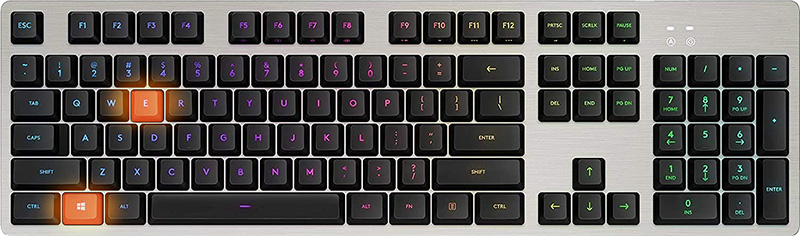
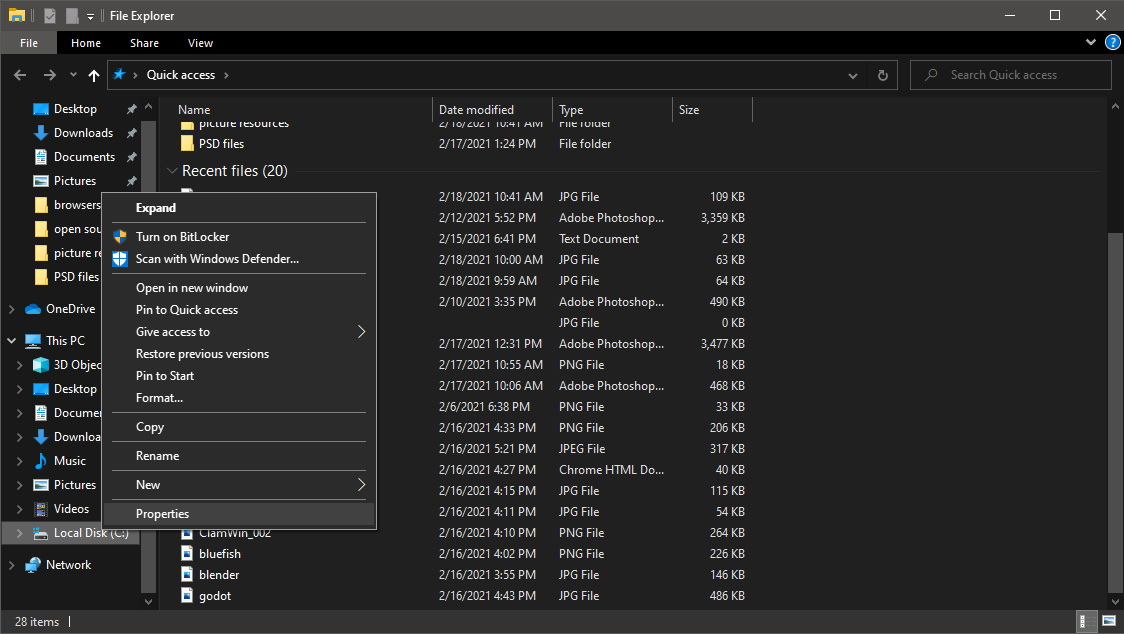
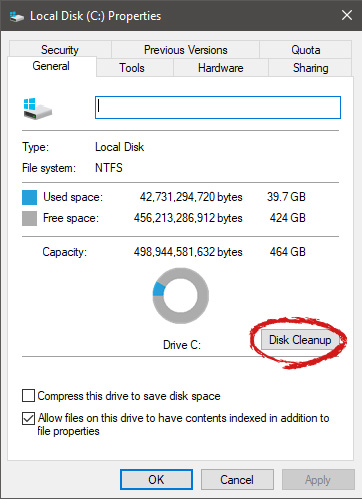
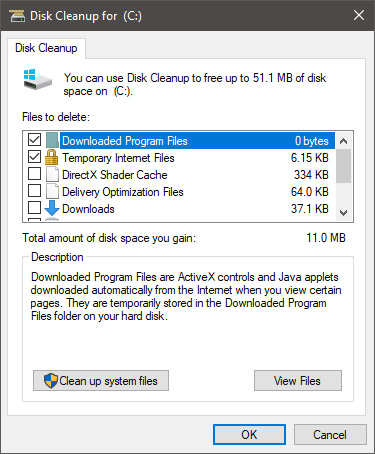
Disk cleanup is part of Windows 10 tools and it is essential in keeping your computer up and running in optimal settings and to free so much needed space as well as remove temporary files that can accumulate over time. Using disk cleanup from time to time is recommended and a very useful habit that will save you some headaches and optimize your computer running time, speed up boot sequence, etc. Think of it like cleaning up your desk, from time to time it can get too overwhelmed with junk and non-important things and if you are keeping it tidy all the time each time you need to find something it will be much faster and easier, same goes with computers, so if you do not have it, try to develop a habit that once per month you start disk clean up and remove trash from your hard drive. In order to do so, press ⊞ WINDOWS + E to bring File Explorer up Keyboard with windows and e markedOnce File Explorer is up and running right-click on the hard drive you wish to run disk cleanup on and click on properties. file explorer hd propertiesProperties Windows will open on the general tab, on that tab you have disk cleanup on the lower right part of properties, click on it. local disk properties cleanupWait for Windows to gather information about your hard drive and files on it. After it is finished you will be greeted with the next screen: disk cleanup section chooserHere you can thick and mark which items you would like to get rid of and which ones you would like to keep. Note that you can freely tick all of them and remove them since removing these files will not break WIndows in any way. make your choices and click on ok. You can also click on Clean up system files to run system files cleaner and get rid of junk there, you will not be able to choose any options there, Windows will alone clean up what is not needed. After disk cleanup is finished least thing you will have is more free disk space, but like mentioned, keeping your Windows and computer healthy goes a long way in its usability, speed, and performance.

Read More
Fix mfewfpk.sys, Epfwwfp.sys Errors in Windows
If you suddenly encounter a Blue Screen error that points out to either the mfewfpk.sys and epfwwfp.sys files, then this post might help. Both of these files are created by third-party software. The mfewfpk.sys file is created by the McAfee security software while the epfwwfp.sys is created by the ESET Antivirus. These files are residual files and sometimes it blocks upgrading Windows 10. Aside from blocking Windows 10 upgrade/update, these files can also cause a Blue Screen error after an upgrade which leaves your Windows 10 computer useless. When you get a Blue Screen error caused by any of these files, you will see an accompanying error message that states, “DRIVER IRQL NOT LESS OR EQUAL”. To fix this Blue Screen error, you can check out the suggestions laid out below but before you do that, you need to create a System Restore point first as it can help you undo any unwanted changes. In addition, make sure to also boot your computer into Safe Mode with Networking before you troubleshoot.

Option 1 – Try to remove the epfwwfp.sys file

You can try to remove the epfwwfp.sys file using Command Prompt. To do so, refer to the following steps:
  • Right-click on the Start button and click on Command Prompt (Admin) from the menu to open Command Prompt with admin privileges.
  • Next, type the following command and hit Enter to delete the epfwwfp.sys file:
DEL /F /S /Q /A “%systemroot%System32driversepfwwfp.sys”
  • After the scan is completed, restart your computer and see if it fixed the Blue Screen error.
Note: You can also use the ESET AV Remover tool to uninstall Eset security software to remove the epfwwfp.sys file.

Option 2 – Try to remove the mfewfpk.sys file

The same with the first option, you can remove the mfewfpk.sys file using CMD.
  • First, right-click on the Start button and click on Command Prompt (Admin) from the menu to open Command Prompt with admin privileges.
  • After, type the following command and hit Enter to delete the epfwwfp.sys file:
DEL /F /S /Q /A “%systemroot%System32driversmfewfpk.sys”
  • Once the scan is completed, restart your computer and see if it fixed the Stop error.

Note: You also have the option to remove the mfewfpk.sys file using McAfee Product Removal tool to uninstall the McAfee security software. All you have to do is download the McAfee Product Removal tool and run it and then follow the onscreen instructions to install it. Once it is installed, click on Next. After you select the radio button to agree to the terms of use, click on Next once again. Finally, restart your computer and check if it is able to resolve the problem or not.

Option 3 – Run the Blue Screen Troubleshooter

Troubleshooting Blue Screen of Death errors wouldn’t be complete without the Blue Screen troubleshooter. As you know, it is a built-in tool in Windows 10 that helps users in fixing BSOD errors. It can be found on the Settings Troubleshooters page. To use it, refer to these steps:
  • Tap the Win + I keys to open the Settings panel.
  • Then go to Update & Security > Troubleshoot.
  • From there, look for the option called “Blue Screen” on your right-hand side and then click the “Run the troubleshooter” button to run the Blue Screen Troubleshooter and then follow the next on-screen options. Note that you might have to boot your PC into Safe Mode.

Option 4 – Try running the DISM tool

You can try running the Deployment Imaging and Servicing Management or DISM tool to fix the Blue Screen error. Using this built-in tool, you have various options such as the “/ScanHealth”, “/CheckHealth”, and “/RestoreHealth”.
  • Open the Command Prompt with admin privileges.
  • Then type in the following commands and make sure to hit Enter right after you type each one of them:
    • Dism /Online /Cleanup-Image /CheckHealth
    • Dism /Online /Cleanup-Image /ScanHealth
    • exe /Online /Cleanup-image /Restorehealth
  • Do not close the window if the process takes a while as it will probably take a few minutes to finish.
Read More
Fix Google Chrome error “He’s dead, Jim!”
If you always use the Google Chrome browser in browsing the internet, then you might have come across an error message saying, “He’s dead, Jim!” along with a funny looking face that’s peeking its tongue out and another detailed message saying, “Either Chrome Ran out of memory or process for the webpage has terminated for some other reason. To continue, reload the webpage or go to another page”. This error message in Google Chrome is actually quite famous and it appears for various reasons but it may have something to do with a memory issue. The Google Chrome browser is known to consume a lot of memory and the more web pages you open and load, it takes up more resources. Thus, the first thing you need to do when you encounter this error is to simply click the Reload button to continue browsing the internet or close the browser and then open it again. On the other hand, if you keep seeing this error message, then that’s a whole different story as you have to take some action to prevent it from popping up again, for good. Follow the instructions given below to fix the error in Chrome.

Option 1 – Reduce Google Chrome’s memory usage

The first thing you can try is reducing the memory usage of the Chrome browser. However, this option has a bit of a disadvantage. If a website crashes, all the instances of that website will also crash although other open tabs and websites won’t be affected. This process is referred to as “Process-per-site” mode which you will have to launch Chrome within this parameter.

Option 2 – Run Google Chrome with Strict Site Isolation

Aside from reducing Chrome’s memory usage, you can also run the browser with the Strict Site Isolation which makes sure that the crashing of one tab in the browser won’t affect the entire Windows as this feature will run every website you open on its own isolated process.

Option 3 – Run the built-in Malware Scanner and Cleanup tool in Chrome

In case you don’t know, there is actually a built-in malware scanner and cleanup tool in Chrome that helps you get rid of any unwanted ads, pop-ups, and even malware, as well as unusual startup pages, toolbars, and other things that could affect the performance of the browser.

Option 4 – Reset Google Chrome

Resetting Chrome can also help you get rid of the “He’s dead, Jim!” error message for good. Resetting Chrome means restoring its default settings, disabling all the extensions, add-ons, and themes. Aside from that, the content settings will be reset as well and the cookies, cache, and site data will also be deleted. To reset Chrome, here’s what you have to do:
  • Open Google Chrome, then tap the Alt + F keys.
  • After that, click on Settings.
  • Next, scroll down until you see the Advanced option, once you see it, click on it.
  • After clicking the Advanced option, go to the “Restore and clean up the option and click on the “Restore settings to their original defaults” option to reset Google Chrome.
  • Now restart Google Chrome.

Option 5 – Perform a clean reinstall on the Chrome browser

Although reinstalling any program is easy, not so much for Google Chrome as you need to make sure that the User Data folder is deleted before you reinstall it.
  • Tap the Win + R keys to open the Run prompt.
  • Then type %LOCALAPPDATA%GoogleChromeUser Data in the field and hit Enter.
  • Next, rename the “Default” folder inside the path you were redirected to. For instance, you can rename it to “Default-old”.
  • After that, install the Chrome browser again.

Option 6 – Try to flush the DNS and reset the TCP/IP

There are instances when a network goes into haywire because of a bad DNS. Thus, a bad DNS might be the one that’s causing this headache so it’s time for you to reset the entire network to resolve the issue. To reset the network, here’s what you have to do:
  • Click the Start button and type in “command prompt” in the field.
  • From the search results that appear, right-click on Command Prompt and select the “Run as administrator” option.
  • After opening Command Prompt, you have to type each one of the commands listed below. Just make sure that after you type each command, you hit Enter
    • ipconfig /release
    • ipconfig /all
    • ipconfig /flushdns
    • ipconfig /renew
    • netsh int ip set dns
    • netsh winsock reset
After you key in the commands listed above, the DNS cache will be flushed and the Winsock, as well as the TCP/IP, will reset.
  • Now restart your computer and open Google Chrome then try opening the website you were trying to open earlier.
Note: You can also try changing the DNS server to the Google Server, i.e. 8.8.8.8, and then see if it works for you or not.

Option 7 – Disable both the antivirus and firewall temporarily

As you know, both the firewall and antivirus programs are there to protect the operating system from any malicious threats. So if they find that there is some malicious content in a website you are visiting, they will block the site right away. Thus, it could also be the reason why you’re getting the “He’s dead, Jim!” error so you need to disable both the firewall and antivirus program temporarily and then try opening the website again. If you are able to open the website, you need to add this site as an exception and then enable the firewall and antivirus program back.
Read More
1 2 3 171
Logo
Copyright © 2023, ErrorTools. All Rights Reserved
Trademark: Microsoft Windows logos are registered trademarks of Microsoft. Disclaimer: ErrorTools.com is not affiliated with Microsoft, nor claims direct affiliation.
The information on this page is provided for information purposes only.
DMCA.com Protection Status