Logo

How To Solve The Cyclic Redundancy Check Error

Cyclic Redundancy Check Error - What is it?

To begin with, Cyclic Redundancy Check is basically an error checking technique. This technique is used for data verification. It detects accidental changes in the data. It is used by computers to specifically check the data stored in the hard drive or optical disks (DVD’s and CD’s).

The Cyclic Redundancy Check error occurs when the data being verified on the hard drive or optical disks is corrupt.

Symptoms for this error code include program lock-ups, slow PC performance, inability to run and execute the desired program, system freeze and shutdown and startup issues.

Error Causes

The Cyclic Redundancy Check error code occurs due to the following reasons:

  • Cluttered hard disk
  • Registry corruption
  • Misconfigured files
  • Unsuccessful program installation

All these causes points towards registry issues and poor PC maintenance. The registry is the main database of the computer. This part of the PC saves practically every activity you perform on it including activities like application installation and deletion and web browsing to name a few.

With time and frequent PC usage, the files generated from every activity you execute on your system begin to load the registry. These include even the unnecessary files like junk files, internet files and files of applications that you’ve uninstalled.

All these files overload the registry and acquire a lot of hard disk space. And when you don’t remove these files on your system, eventually it leads to file misconfiguration, cluttered disk, and registry corruption.

New program versions that you want to install and run on your system also don’t function because the files of the old program version still saved in the registry.

Further Information and Manual Repair

As the Cyclic Redundancy Check Error causes data corruption on the hard disk, it is advisable to fix this error right away. The reason is that it can have serious consequences. It can lead to data loss, fatal crashes, and system failures.

When it comes to resolving Cyclic Redundancy Check Error, there are two ways to fix it:

Run the CHKDSK application.

This is a built-in feature in your Windows system. It checks for hard disk damage and attempts to resolve it.

Do You Need Help with Your Device?

Our Team of Experts May Help
Troubleshoot.Tech Experts are There for You!
Replace damaged files
Restore performance
Free disk space
Remove Malware
Protects WEB browser
Remove Viruses
Stop PC freezing
GET HELP
Troubleshoot.Tech experts work with all versions of Microsoft Windows including Windows 11, with Android, Mac, and more.

Share this article:

You might also like

DailyLocalGuide Removal Guide

DailyLocalGuide is a Browser Extension developed by Mindspark for Google Chrome. This extension hijacks your default search engine, the home page, and new tab, setting them to MyWebSearch.com.

From the Author:

The Software and Services are sponsored by third-party advertisements and commercial offers and may also contain links to third parties websites, advertisements, products, offers, applications, and more. By downloading and using the Software you give your consent to display to you such Third Party Content (by using display ads, pops, coupons, price comparison, in-line text, and content recommendations) through Our or Our business partners’ technology.

While installed, this extension gathers user browsing activity and sends it back to ad servers. This information is later used to better target ads. When browsing the internet with DailyLocalGuide installed you will see additional injected ads and sponsored content throughout your browsing sessions.

About Browser Hijackers

Browser hijacking is actually a type of unwanted software program, commonly a web browser add-on or extension, which causes modifications in web browser’s settings. They are made to interfere with browser functions for a variety of purposes. It redirects you to the sponsored websites and inserts ads on the browser that helps its creator generate revenue. Nonetheless, it isn’t that innocent. Your online safety is compromised and it is also very irritating. When the malware attacks your computer, it starts to mess things up a whole lot that slows your system down to a crawl. In the worse case, you may be forced to tackle serious malware threats too.

Symptoms of browser hijacker malware

Symptoms that your web browser is hijacked include: your home page is reset to some unfamiliar website; you see new unwanted favorites or bookmarks added, typically directed to advertisement-filled or pornography websites; the essential web browser settings are modified and unwanted or unsafe sites are added to the trusted sites list; you find unsolicited new toolbars added; your internet browser will display endless pop-up ads; your web browser starts running slowly or presents frequent glitches; you have prohibited entry to particular webpages, for example, the website of an antivirus software manufacturer like SafeBytes.

Exactly how they get into the computer

Browser hijackers infect computer systems in numerous ways, including through a file-share, a drive-by download, or an infected e-mail. They can also be deployed through the installation of an internet browser toolbar, add-on, or extension. Some internet browser hijackers spread in user’s computers using a deceptive software distribution method called “bundling” (often through freeware and shareware). Popular examples of browser hijackers include Conduit, CoolWebSearch, Coupon Server, OneWebSearch, RocketTab, Searchult.com, Snap.do, and Delta Search.

Browser Hijacker Malware – Removal

Some browser hijacking could be simply stopped by discovering and removing the corresponding malware program from your control panel. However, most browser hijackers are hard to eliminate manually. Irrespective of how much you attempt to get rid of it, it can keep returning over and over. Apart from that, manual removal expects you to do many time-consuming and complicated actions that are hard to accomplish for novice computer users. An anti-malware program is extremely effective with regards to finding out and eliminating browser hijackers that normal anti-virus software has missed. SafeBytes Anti-Malware detects all types of hijackers – such as DailyLocalGuide – and eliminates every trace quickly and efficiently.

What To Do If You Cannot Install Safebytes Anti-Malware?

Malware can cause many different types of damage to PCs, networks, and data. Certain malware types modify internet browser settings by including a proxy server or modify the PC’s DNS configuration settings. When this happens, you’ll be unable to visit certain or all websites, and therefore unable to download or install the required security software to eliminate the computer virus. If you’re reading this, you probably have affected by malware that prevents you from installing a computer security application such as Safebytes Antimalware on your PC. There are some solutions you can try to get around with this particular problem.

Remove malware in Safe Mode

The Windows OS has a special mode referred to as “Safe Mode” where just the minimum required programs and services are loaded. In case the malware is set to load immediately when the computer starts, switching into this mode may well prevent it from doing so. To start the computer into Safe Mode, hit the “F8” key on your keyboard right before the Windows boot screen shows up; Or right after normal Windows boot up, run MSConfig, check Safe Boot under Boot tab, and then click Apply. Once you’re in Safe Mode, you can attempt to install your antivirus program without the hindrance of the malicious software. Right after installation, run the malware scanner to remove most standard infections.

Obtain the security software in an alternate internet browser

Some viruses might target vulnerabilities of a particular browser that obstruct the downloading process. If you appear to have malware attached to Internet Explorer, then switch over to a different internet browser with built-in safety features, such as Firefox or Chrome, to download your favorite antivirus program – Safebytes.

Create a portable antivirus for eliminating viruses

Here’s another solution which is utilizing a portable USB anti-virus software that can check your system for malicious software without the need for installation. Adopt these measures to employ a USB drive to fix your corrupted computer. 1) Download the anti-malware on a virus-free computer. 2) Plug the Flash drive into the uninfected computer. 3) Double-click the Setup icon of the antivirus software to run the Installation Wizard. 4) Choose a USB flash drive as the location when the wizard asks you where you intend to install the application. Follow the directions to finish the installation process. 5) Transfer the USB drive from the clean computer to the infected PC. 6) Run the Safebytes Anti-malware directly from the flash drive by double-clicking the icon. 7) Run Full System Scan to identify and clean-up up all types of malware.

Highlights of SafeBytes Anti-Malware

Do you wish to install the best anti-malware program for your laptop? There are numerous applications available that come in free and paid versions for Windows systems. A few of them are excellent, some are decent, while some will destroy your computer themselves! You have to look for a product that has got a good reputation and detects not just computer viruses but other sorts of malware also. With regards to commercial antimalware tool options, many people go with well-known brands, like SafeBytes, and they are very happy with it. SafeBytes anti-malware is a trustworthy tool that not only secures your computer permanently but is also very user-friendly for people of all ability levels. With its outstanding protection system, this software will automatically detect and remove most of the security threats, which include browser hijackers, viruses, adware, ransomware, PUPs, and trojans.

SafeBytes anti-malware offers an array of advanced features which sets it apart from all others. These are some of the highlighted features included in the product.

World-class AntiMalware Protection: Safebytes is based on the very best virus engine within the industry. These engines will detect and remove threats even during the initial phases of a malware outbreak. Real-Time Protection: SafeBytes gives round-the-clock protection for your personal computer restricting malware attacks in real-time. This tool will continuously monitor your computer for suspicious activity and updates itself regularly to keep abreast of the constantly changing threat scenarios. Internet Security: SafeBytes provides an instant safety rating about the web pages you’re going to check out, automatically blocking harmful sites and making sure that you are certain of your safety while browsing the world wide web. Fast Scan: SafeBytes Anti-Malware possesses a multi-thread scan algorithm that works up to 5x faster than any other protection software. Lightweight: SafeBytes is really a lightweight application. It uses up a very small amount of processing power as it operates in the background so you’re free to use your Windows-based computer the way you want. Premium Support: You can get high levels of support around the clock if you are using their paid version. Overall, SafeBytes Anti-Malware is a solid program as it has loads of features and can detect and eliminate any potential threats. Once you’ve downloaded and installed this software, you will no longer have to bother about malware or other security worries. If you need advanced forms of protection features & threat detections, buying SafeBytes Anti-Malware could be well worth the money!

Technical Details and Manual Removal (Advanced Users)

If you wish to perform the removal of DailyLocalGuide manually rather than employing an automated software tool, you can follow these measures: Navigate to the Windows Control Panel, click the “Add or Remove Programs” and there, select the offending program to uninstall. In cases of suspicious versions of browser plugins, you can actually remove it via your web browser’s extension manager. You will likely also want to reset your internet browser to its default configuration settings. If you decide to manually remove the system files and Windows registry entries, utilize the following checklist to ensure that you know exactly what files to remove before carrying out any actions. But bear in mind, this is often a tricky task and only computer professionals could accomplish it safely. Furthermore, some malware keeps replicating which makes it tough to remove. Carrying out this malware-removal process in Safe Mode is suggested.
Files: Directory %LOCALAPPDATA%\DailyLocalGuideTooltab. Directory %LOCALAPPDATA%\Google\Chrome\User Data\Default\Extensions\hkeaafmlcginkhibjjdijabnpfobeibe Directory %LOCALAPPDATA%\Google\Chrome\User Data\Default\Local Extension Settings\hkeaafmlcginkhibjjdijabnpfobeibe Directory %LOCALAPPDATA%\Google\Chrome\User Data\Default\Sync Extension Settings\hkeaafmlcginkhibjjdijabnpfobeibe Registry: key DailyLocalGuide at HKEY_CURRENT_USER\Software\ key DailyLocalGuideTooltab Uninstall Internet Explorer at HKEY_CURRENT_USER\Software\Microsoft\Windows\CurrentVersion\Uninstall\

Read More
How to Fix Windows Activation Error Code 0xc004f050

Error Code 0xc004f050 – What is it?

Error code 0xc004f050 refers to a problem with activating the Windows key. The problem appears when you try to activate a copy of Windows by using Windows Activation wizard. This happens when the system becomes unstable and critical system files start missing. Though Windows 10 is a free upgrade for Windows 7/Windows 8/Windows 8.1 users, the activation error is still an issue. If you already had Windows 7/Windows 8/Windows 8.1 activated and did an upgrade successfully, then there should be no problem. This Problem Occurs only when you do a clean install.

Symptoms

When you try to activate a copy of Windows Vista or Windows 7 by using the Windows Activation wizard, you receive an error similar to the one below:
An error has occurred Code: 0xC004F050 Description: The Software Licensing Service reported that the product key is invalid

Solution

Restoro box imageError Causes

  • This causes due to an invalid product key.
  • This problem may occur if the license validity interval has expired, or if the license is not signed correctly.
  • Error Code 0xc004f050 occurs when the system becomes unstable and critical system files start missing.
  • Improper way of installing, deletion of some very important system files, misconfigured system files, etc. may also cause this error.
  • When you do a clean install, it wipes everything from the Primary Drive and after the install, windows can't find the Hardware ID which is used to verify your license.
  • For Windows 7, Windows Server 2008, and Windows Vista-based computers, this error may occur if you have entered the key for a beta version of the operating system while using the released version of the operating system.

Further Information and Manual Repair

This error is not something that can be fixed in seconds but will require some time and technical knowledge.

Method 1:

Re-insert the product key by using the Change Product Key tool:
  1. Click Start, click Computer, and then click System properties on the toolbar.
  2. In the Windows activation section, click Change product key.
  3. If you are prompted for an administrator password, type the password or click Continue.
  4. In the Product key box, type the product key, and then click Next.
  5. Follow the steps in the Windows Activation Wizard to complete the activation process.

Method 2:

Activate Windows by using the automated telephone system:
  1. Click Start, and then click Computer.
  2. Click System properties on the toolbar, and then click Click here to activate Windows now in the Windows activation
  3. If you are prompted for an administrative password, type it and click Continue.
  4. Click Show me other ways to Activate.
  5. Click Use the automated phone system and follow the instructions.

Method 3:

  1. Clean install Windows 7/Windows 8/Windows 8.1 using the installation disk and activate your copy.
  2. Now, download all the updates to see the Windows 10 Upgrade notification or download Windows Media Creation Tool and use the option Upgrade this PC to get Windows 10 right away.
  3. Once the upgrade is done, check the Activation Status. It will be fully activated as it should be. The Error code 0xc004f050 should not appear anymore.
If you want to get rid of the old Windows installation folder, then use the Windows Media Creation Tool to create a Flash Drive. Clean Install Windows 10. Now, every time when it asks for a product key, skip it. After installation is complete, Windows will automatically identify and activate your Copy. NOTE: Clean Install will make Sure you cannot roll back to your previous Windows 7 or Windows 8. So do it only if you are confident of using Windows 10 from here on. To verify the Windows activation status, follow these steps:
  • Click the Start button, and then click Computer.
  • Click System properties on the toolbar, and then view the activation status in the Windows activation section.
Read More
Troubleshooting Epic Games Launcher issues
If you are having trouble using the Epic Games Launcher, here are some troubleshooting steps that usually fix common problems.

Check the Epic Games server status

Check the Epic Games Server Status page to make sure all systems are operational. If the Epic Games Launcher is affected by an outage or system-wide issue, your issue may be fixed when the outage is resolved.

Clear your launcher’s webcache

Clearing the webcache often resolves display issues that may prevent you from using the launcher. Follow these steps to clear your webcache:

Windows

  1. Exit the Epic Games Launcher by right-clicking the system tray icon in the bottom-right corner, and then clicking Exit.
  2. Press Windows key + R, type “%localappdata%”, and then press Enter to open a File Explorer window.
  3. Open the Epic Games Launcher folder.
  4. Open the Saved folder.
  5. Click the webcache folder, and then delete it.
  6. Restart your computer, and then relaunch the Epic Games Launcher.

Mac

  1. Exit the Epic Games Launcher.
  2. Open Finder.
  3. Click on Go then Go to Folder...
  4. Type ~/Library/Caches/com.epicgames.EpicGamesLauncher and press Enter.
  5. Drag the webcache folder to the Trash.
  6. Press control and click on Trash.
  7. Click on Empty Trash.
  8. Relaunch the Epic Games Launcher.

Run the launcher as an administrator

Running the launcher as an administrator elevates its permissions so it can avoid problems with downloading games, for example. Follow these steps to run the launcher as an administrator:
  1. Right-click your Epic Games Launcher shortcut.
  2. Click Run as Administrator.

Update graphics card drivers

Making sure the player is using the latest graphics card drivers may resolve the launcher crashing. Review this article for steps on how to do update their graphics drivers.

Reinstall the Epic Games Launcher

Note: The following process will remove all of your installed games.

On Windows: 

Run system file checker then reinstall the Epic Games Launcher.
  1. Close the Epic Games launcher by right-clicking the system tray icon in the bottom right corner and then clicking Exit.
  2. Click Start.
  3. Type "cmd", right-click Command Prompt, and then click Run as administrator.
  4. In the window that opens, type "sfc /scannow", and then press Enter.  This may take a little while.
  5. Restart your computer.
  6. Click Start.
  7. Type "Add or Remove Programs", and then press Enter.
  8. Select Epic Games Launcher from the list of programs.
  9. Click Uninstall.
  10. Go to www.epicgames.com and click Get Epic Games in the top right corner to download the latest installer.

On Mac:

  1. Close the Epic Games Launcher.
  2. Verify there are no processes associated with the Epic Games Launcher by checking Activity Monitor.
  3. Open the Applications folder.
  4. Click and drag the Epic Games Launcher application to the Trash.
  5. Verify all the following directories no longer have any Epic Games Launcher folders or files:
    • ~/Library/Application Support
    • ~/Library/Caches
    • ~/Library/Preferences
    • ~/Library/Logs
    • ~/Library/Cookies
  6. Go to www.epicgames.com and click Get Epic Games in the top right corner to download the latest installer.

Launcher freezing on macOS 10.15.1 or earlier

If your launcher is freezing on macOS 10.15.1 or earlier, follow the steps above to reinstall the Epic Games Launcher on your Mac.

Verify system requirements

Make sure your computer meets the system requirements to run the Epic Games Launcher using this article here. The system requirements for the Epic Games Launcher are here.

Blinking Epic Games Launcher icon on the taskbar

If you can't start the Epic Games Launcher and see a blinking icon on your taskbar, use these steps to try and fix this:
  1. Right-click your Epic Games Launcher shortcut.
  2. Click Properties.
  3. Select Normal Window from the drop-down menu next to Run.
  4. Click the Compatibility tab.
  5. Uncheck any boxes, and then click Apply then OK.
  6. Click Start, then type "Graphics Settings" and press Enter.
  7. Select Classic app from the drop-down under Graphics performance preference.
  8. Click Browse.
  9. Navigate to the Epic Games Launcher installation directory. By default, this is C:/Program Files (x86)/Epic Games/Launcher/Portal/Binaries/Win64.
  10. Click the EpicGamesLauncher.exe file, and then click Add.
  11. Click Options.
  12. Select Power Saving.
  13. Click Save.
  14. Relaunch the Epic Games Launcher.
Read More
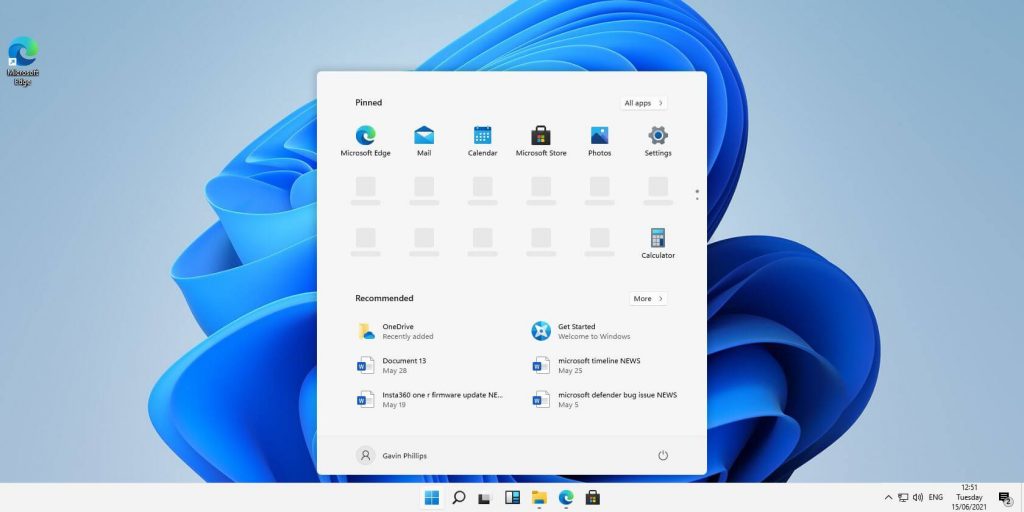
Upcoming Windows 11 features

Coming in October for insiders and in November for all in the update, Microsoft has prepared a series of updates which they call an "additional set of experiences"

These updates are looked upon by Panos Panay, a vice executive president at Microsoft & chief product officer for Windows and devices as sort of makeup tests. They will consist of new additions with the biggest one being a tabbed version of File Explorer.

windows 11 transparency off

File Explorer received a UI makeover in the last update but the tabbed interface was missing which was expected by many users so it will come in following the next update.

The rest of the features that we will receive are an updated Photos application, Suggested Actions in the Windows Shell, Overflow menu for the taskbar, and improved Nearby Share.

The tabbed File Explorer interface is essentially File Explorer’s version of Sets, the tabbed window interface that Microsoft tested out several years ago. In testing, the tabbed interface proved handy for moving and copying files, and we’d expect the same once the feature formally goes live. The difference between Sets and the tabbed File Explorer interface is Sets allowed for multiple applications to be clustered together via tabs.

Photos app will include a “new photos-managing experience that brings a gorgeous gallery, simplifying browsing, finding, management and consumption of your collection of photos.” It will allow “easy backup to OneDrive” and a “delightful Memories experience.”

As for other features, nothing specifically was said except giving just some tips on what will they bring, it is obvious that File Explorer and the photos app were the main focus for MS in this upcoming update.

Read More
Fix Chrome ERR QUIC PROTOCOL ERROR in Windows
If you aren’t able to pull up any website and instead got the ERR QUIC PROTOCOL ERROR error message in Google Chrome then read on as this post will help you resolve the problem. When you encounter such an error in Chrome, you will see the following error message:
“This site can’t be reached, The webpage at [website URL] might be temporarily down or it may have moved permanently to a new web address, ERR_QUIC_PROTOCOL_ERROR”
This kind of error message pops up when the URL is down. However, if you are certain that the site is not down and you’re still seeing this error message, then troubleshoot further using the suggestions given below.

Option 1 – Try to disable the QUIC Protocol

QUIC is an experimental transport layer network protocol that is present in Google Chrome in order to establish a connection between two endpoints over UDP. So if there is any problem on the development side, you will most likely encounter ERR_QUIC_PROTOCOL_ERROR on your Google Chrome browser when you try to open any website. Thus, you have to disable the QUIC protocol in order to resolve the error. How? Simply follow the steps below.
  • Open your Google Chrome browser.
  • Now type in “chrome://flags/” in the address bar and hit Enter.
  • After that, look for the Experimental QUIC protocol which should be set by default.
  • Then expand the drop-down menu and select Disable.
  • Restart Google Chrome and see if the error is fixed or not.

Option 2 – Disable VPN

As mentioned, if you are using VPN, this could be the reason why you’re getting the Windows Update error 0x800F0922 so the most obvious thing to do is for you to turn off the VPN and try to run the Windows Update once more. And if you use a VPN software that works using their software, you can just completely exit or log-off from its account. On the other hand, if you are using a built-in Windows 10 VPN, you can simply turn it off or delete all the settings you have created there. Although it’s understandable that you might have to use a VPN connection to connect to the work network, you really have to disable it at least until the Windows Update is no longer stuck in the error 0x800F0922. It would be best if you do this when you are not working.

Option 3 – Disable the Proxy server

You can also try to disable the Proxy server to fix the ERR_QUIC_PROTOCOL_ERROR in Chrome. Refer to these steps to do so:
  • Tap the Win + R keys to open the Run dialog box.
  • Then type “inetcpl.cpl” in the field and hit Enter to pull up the Internet Properties.
  • After that, go to the Connections tab and select the LAN settings.
  • From there. Uncheck the “Use a Proxy Server” option for your LAN and then make sure that the “Automatically detect settings” option is checked.
  • Now click the OK and the Apply buttons.
  • Restart your PC.
Note: If you are using a third-party proxy service, you have to disable it.
Read More
How to Fix Error 1005 Access Denied
Recently, some users reported that they were unable to access a website and only got the Error 1005 Access Denied instead. Specifically, users experience this issue when trying to open the Crunchyroll website – one of the largest anime and manga websites. This particular error is encountered not just on Crunchyroll but on a variety of websites like blogs, video streaming, forums, and so on. Here’s the full context of the error message:
“Error 1005 Access Denied – The owner of this website has banned the autonomous system number (ASN) your IP address from accessing this website.”
Usually, this error occurs when the website administrator decides to block an IP address or IP range. To fix this error, here are some suggestions you can try:

Option 1 – Uninstall the VPN service you are using or use a different provider

If you are using a VPN service, you might want to uninstall it. As mentioned, website administrator blocks IP ranges if they notice any malicious activities and because of this, your IP address might fall into the banned range even if you didn’t do anything at all. To uninstall the VPN service, follow the steps below.
  • Tap the Win + R keys to open the Run dialog box
  • Then type “appwiz.cpl” in the field and hit Enter to open the Programs and Features in Control Panel.
  • From there, look for the VPN service you are using, select it and then click on Uninstall to remove it.
  • After that, restart your computer and try to install the latest version of the program again. It should work now. If not, proceed to the next available option below.

Option 2 – Try disabling the Proxy server

There are some users who reported that they’ve fixed the problem after they’ve disabled the use of a proxy server using the built-in way. Follow the steps below to disable proxy server.
  • Tap the Win + R keys to open the Run dialog box.
  • Then type “inetcpl.cpl” in the field and hit Enter to pull up the Internet Properties.
  • After that, go to the Connections tab and select the LAN settings.
  • From there. Uncheck the “Use a Proxy Server” option for your LAN and then make sure that the “Automatically detect settings” option is checked.
  • Now click the OK and the Apply buttons.
  • Restart your PC.
Note: If you are using a third-party proxy service, you have to disable it.

Option 3 – Use the Google Public DNS

You might want to change your DNS to Google Public DNS as it could also help you in fixing the ERR_CERT_COMMON_NAME_INVALID error in Chrome. To do so, follow the steps below.
  • The first thing you have to do is right-click on the network icon in the Taskbar and select Network and Sharing Center.
  • Next, click on the “Change Adapter Settings” option.
  • After that, search for the network connection that you are using to connect to the internet. Note that the option might be “Wireless Connection” or “Local Area Connection”.
  • Right-click on your network connection and click on Properties.
  • Then select the new window to choose the “Internet Protocol 4 (TCP/IPv4)” option.
  • After that, click on the Properties button and click the checkbox in the new window for the option “Use the following DNS server addresses”.
  • Type in “8.8.8.8” and “8.8.4.4” and click OK and exit.

Option 4 – Try contacting the website administrator

If the first three given options didn’t work, you might want to consider contacting the website administrator especially if you’ve already determined that the issue does not occur due to a VPN or proxy server that you’re using. This option can be quite tricky since you won’t be able to submit a contact form since you’re banned from accessing the website but you can contact the admin via the form section if available.
Read More
How to Fix Windows 8 Error Code 0x8007007e

Error Code 0x8007007e – What is it?

Error code 0x8007007e occurs in Windows 8 or 8.1 when users attempt to, but fail to successfully use Windows Update. When this occurs, Windows 8 or 8.1 users will not be able to access updates or certain web pages. This error manifests itself via the following common symptoms:

  • Inability to complete tasks via Windows Update
  • Message box displaying error code 0x8007007e message

Solution

Restoro box imageError Causes

Error code 0x8007007e is usually caused by a malfunction within your system. This malfunction may be due to several issues such as malware on your device, or the accidental removal of a registry entry or system file.

Further Information and Manual Repair

To correct issues related to error code 0x8007007e in Windows 8.1, users may need to employ one or several manual repair methods. Users will not necessarily need technical skills to accomplish this task. However, if you are uncertain of your skills or you are unable to resolve the issue after completing the tasks below, consult a Windows repair technician or use an automated tool.

Method one: System File Checker

System File Checker (SFC) enables users to check their system for corrupt or missing system files. You will need to use Command Prompt. To access System File Checker on Windows 8 or 8.1, follow the instructions below.

  • Step one: Tap or use the mouse to click Search
  • Step two: Type Command Prompt in the Search box
  • Step three: Select Command Prompt, and then click Run as administrator
  • Step four: Type password if prompted by Command Prompt to do so or simply click Allow

Whether you run Windows 8 or 8.1 operating system on your computer, System File Checker will begin to find and repair missing or corrupted system files. If, however, you are unable to successfully complete the task via Command Prompt, repeat the steps above. You may also consider help from a professional or simply move to the next manual repair method listed below.

Method two: Perform a Clean Boot

A Clean Boot will help users determine if error code 0x8007007e in Windows 8.1 is caused by a problem associated with startup programs. Problems may arise when there is conflict among programs that run in the background when users turn on their device. To run a clean boot, follow the steps below:
  • Step one: Click the Start button and type msconfig in the search box
  • Step two: Click Services tab
  • Step three: Click Hide all Microsoft Services box then select Disable All
  • Step four: Click Startup tab
  • Step five: Select Disable All, then OK
  • Step six: Restart the computer then check if you can now update the system

If the Clean Boot is successful, you will be able to successfully update your system without receiving error code 0x8007007e. However, if the error code reappears while you attempt to access updates or web pages, proceed to the next manual repair method below.

Method three: Scan for Malware

Since error code 0x8007007e in Windows 8 or 8.1 can be caused by issues related to malware, it’s important for users to check their system using a powerful antivirus or anti-malware software. If you do not have one on your system, you will need to download such software as soon as possible.

Once you have the software on your PC, run a scan to check if your computer has been infected. If malware is indeed on your device, remove it using the anti-malware tool.

Method four: Run System Restore Tool

Another effective manual repair method relates to System Restore. This tool enables Windows users to restore their computer to an earlier period of time in which the error code was not present. When done properly, it can effectively resolve error code 0x8007007e. Before running this tool, however, be sure you select a time in which all important files and programs are present so as not to lose them.

Method Five: Use an Automated Tool

If you wish to always have at your disposal a utility tool to fix these Windows 8 and other related issues when they do arise, download and install a powerful automated tool.
Read More
The task image is corrupt/tampered 0x80041321
If you suddenly encountered an error that says, “The Task image is corrupt or has been tampered with”, along with an error code of 0x80041321, read on as this post will guide you on what you can do to resolve this problem in your Windows 10 computer. According to security experts, this kind of error has something to do with a corrupt scheduled backup task wherein each time the task service plans to execute a task, it validates a few things. And if it finds any issue with the integrity or corruption in the registry, it will mark those tasks as corrupt and throws the error 0x80041321. There are several options you can check out to fix the problem. You can try using the Registry Editor to edit and fix the corrupted tasks or you could also delete the schedule keys or the WindowsBackup file, as well as try deleting the task from the Task Scheduler or refresh the User_Feed_Synchronization. But before you of these potential fixes, make sure that you check every option and verify if it’s not associated or trying to run a file which it should not. In addition, make sure that you create a System Restore point as well so that you can undo any changes you will be making if anything goes wrong. Once you have these things covered, refer to each one of the options provided below.

Option 1 – Try to use the Registry Editor to edit and fix corrupted tasks

The first thing you can do to fix the problem is to edit those tasks via Registry Editor, as well as fix the corrupted ones in System32. Before you proceed, keep in mind that since you are dealing with the Backup triggered by the Task Scheduler, you can find the entries for the tasks in different locations. You can find the Task Scheduler at Task Scheduler Library > Microsoft > Windows > Windows Backup, whereas, you can find it in this path in the Registry Editor, HKEY_LOCAL_MACHINE SOFTWARE Microsoft Windows NT CurrentVersion Schedule WindowsBackup AutomaticBackup. On the other hand, you can find the Windows System folder at C:/Windows/System32/Tasks/MicrosoftWindows/WindowsBackup. You need to ensure that the name of the task name is the same as everywhere and take note of the name. Once you have these covered, follow the steps below.
  • Tap the Win + R keys to open Run and type “Regedit” in the field and hit Enter to open the Registry Editor.
  • Next, navigate to this key: ComputerHKEY_LOCAL_MACHINESOFTWAREMicrosoftWindows NTCurrentVersionScheduleTaskCacheTreeMicrosoftWindowsWindowsBackup
  • From there, take note of the GUID value in the ID entry of the task under the AutomaticBackup and Windows Backup Monitor folder.
  • After that, you have to remove the task registry entries related to the ID from these locations
    • HKEY_LOCAL_MACHINESOFTWAREMicrosoftWindows NTCurrentVersionScheduleTaskCachePlain
    • HKEY_LOCAL_MACHINESOFTWAREMicrosoftWindows NTCurrentVersionScheduleTaskCacheLogon
    • HKEY_LOCAL_MACHINESOFTWAREMicrosoftWindows NTCurrentVersionScheduleTaskCacheBoot
  • Once done, you have to create a temporary copy of the corrupted task file by going to this location: C:/Windows/System32/Tasks/MicrosoftWindows/WindowsBackup
  • From there, look for the AutomaticBackup and Windows Backup Monitor tasks and copy them to a location where you can keep them safe.
  • Next, you have to fix the corrupted task by deleting it from this location: C:/Windows/System32/Tasks/MicrosoftWindows/WindowsBackup
  • After that, you have to recreate the task by going to Task Scheduler > Microsoft > Windows> Windows Backup.
  • Now click on the Action menu and on Import task and navigate to the backup files and import them.
  • Once you’ve created the tasks, run them manually and see if the error is now fixed.

Option 2 – Try to delete the Schedule keys in the Registry

  • Launch the Registry Editor and go to this key: HKLMSOFTWAREMicrosoftWindows NTCurrent VersionSchedule
  • From there, delete all of its sub-keys.
  • Once done, exit the Registry Editor and check if the Backup Tasks are now working.

Option 3 – Try to remove the WindowsBackup file

The next thing you can do to fix the problem is to remove the WindowsBackup file if the first two options didn’t work. It is possible that the problem has something to do with corrupted Task files. The task files are XML files that include parameters, programs to use, and many more. If any of these files end up getting corrupted, the task scheduler will have trouble running it and will throw the “The Task image is corrupt or has been tampered with” error.
  • To delete it, go to C:WindowsSystem32TasksMicrosoftWindowsWindowsBackup.
  • From this location, get rid of all the files. You could also these files via Command Prompt using the DEL command.
  • Once done, go to the Backup and Restore in the Control Panel and set up the Windows Backup again.

Option 4 – Try to delete the task from the Task Scheduler

If you don’t want to delete the files from Windows Explorer, you can delete them instead via Task Scheduler.
  • Open the Task Scheduler and go to Task Schedule LibraryMicrosoftWindowsWindowsBackup.
  • From there, delete both of the tasks and set up Windows Backup again.
  • Once done, go to the Task Manager and run the AutomaticBackup task again and see if it works.

Option 5 – Try to restart the Task Scheduler service

As mentioned, it is possible that the Task Scheduler service could be disabled. You could have disabled it when trying to enhance your computer’s performance and whatnot. Thus, you need to verify if it’s running or not and then restart it.
  • First, you need to tap the Win + R keys on your keyboard to open the Run dialog box.
  • Next, type “services.msc” in the field and click OK or tap Enter to open the Windows Services Manager.
  • You will see a list of Services and from there, look for the Task Scheduler service and double click on it.
  • After that, go to the General tab and click on the Startup Type options and then select “Automatically” from the given list.
  • Click on the “RUN” option and select the “Restart the Service” option.
  • And click on the “After Second Failure” option and then select the “Restart-Service” option again.
  • Now click on the “After Subsequent Failures” tab and select the “Restart the Service” option.
  • Finally, click on the Apply and OK buttons and then run the Task Scheduler and see if the issue is now fixed.

Option 6 – Try refreshing the User_Feed_Synchronization

According to security experts, enabling and disabling the User Feed sync also known as the User_Feed_Synchronization task can help resolve the problem.
  • Tap the Win + X keys and select the PowerShell (admin) option from the menu.
  • Next, type the “msfeedssync disable” command and tap Enter.
  • Repeat the same process but this time run the “msfeedssync enable” command.
Read More
Removing TranslationBuddy from your PC

TranslationBuddy is a browser extension developed by MindSpark Inc. for Google Chrome. This extension allegedly offers users the ability to translate any text to any language. From the Author: Now enjoy immediate access to the FREE web, email, and text translations, Multilanguage Virtual Keyboards, words of the day, and more! This extension configures your New Tab page to TranslationBuddy™ to provide these features.

Get FREE translations instantly. An easy way to translate web pages, texts, and emails.

Unfortunately, this extension hijacks your browser's new tab page, and default search engine, changing it to MyWay. While installed, it monitors browser activity such as visited websites, clicked links, downloaded information, and sometimes even personal information that it later uses to display additional unwanted ads in your browser.

About Browser Hijackers

Browser hijacking is a type of unwanted program, usually a web browser add-on or extension, which then causes modifications in the web browser’s settings. Browser hijackers are capable of doing a number of things on your PC. Generally, browser hijacking is used for earning advertising revenue from forced advert clicks and site visits. Though it might appear harmless, these tools are made by vicious people who always try to take advantage of you, so that hackers can earn money from your naivety and distraction. Some browser hijackers are designed to make particular modifications beyond the browsers, like altering entries in the system registry and letting other malware further damage your machine.

Indications of browser hijack

There are several symptoms that point to a browser hijacking: you see unauthorized modifications to your Internet browser’s home page; bookmark and the new tab are likewise modified; The default search page of browser is modified; unwanted new toolbars are added to your web browser; unstoppable flurries of popup advertisements appear on your computer screen; your web browser gets sluggish, buggy, crashes very often; you’re blocked to access the websites of computer security solution providers.

Exactly how they invade computer systems

Browser hijackers can enter a PC by some means or other, for example via file sharing, downloads, and email also. They may also come from any BHO, browser extension, toolbar, add-on or plug-in with malicious intent. Some internet browser hijackers spread in user’s computers using a deceptive software distribution strategy called “bundling” (commonly through shareware and freeware). Browser hijacking may lead to severe privacy problems and even identity theft, affect your web browsing experience by taking control over outbound traffic, substantially slows down your computer or laptop by deleting lots of resources, and cause system instability at the same time.

Removing browser hijackers

Some hijackers could be removed by deleting the free software they came with or by deleting any add-ons you’ve recently added to your computer system. Having said that, many hijackers are extremely tenacious and require specialized applications to remove them. Inexperienced PC users shouldn’t ever attempt the manual form of removal, as it demands thorough system knowledge to perform fixes on the system registry and HOSTS file. You might opt for automatic browser hijacker removal methods by simply installing and running an efficient anti-malware program. One of the recommended tools for fixing browser hijacker infections is SafeBytes Anti-Malware. It will help you remove any pre-existing malicious software in your system and provides you real-time monitoring and protection from the latest internet threats. Together with the anti-malware tool, a system optimizer could help you in deleting all associated files and modifications in the registry automatically.

How To Get Remove Virus That Is Preventing Anti-Malware Downloads?

Malware can cause all kinds of damage when they invade your system, from stealing sensitive details to deleting data files on your PC. Certain malware variants modify browser settings by adding a proxy server or modify the computer’s DNS configurations. In these cases, you’ll be unable to visit certain or all websites, and thus unable to download or install the required security software to eliminate the malware. If you are reading this article now, you might have perhaps realized that virus infection is the reason behind your blocked net connectivity. So how to proceed if you want to download and install an antivirus program such as Safebytes? Refer to the instructions below to remove malware through alternative ways.

Install the antivirus in Safe Mode

In Safe Mode, you are able to modify Windows settings, uninstall or install some programs, and eliminate hard-to-delete viruses. In the event, the malicious software is set to load automatically when the PC starts, switching to this mode may prevent it from doing so. In order to get into Safe Mode or Safe Mode with Networking, press F8 while the system is booting up or run MSConfig and look for the “Safe Boot” options under the “Boot” tab. Once you’re in safe mode, you can try to install your anti-malware software application without the hindrance of the malware. After installation, run the malware scanner to eliminate most standard infections.

Switch to an alternate internet browser

Malicious code may exploit vulnerabilities on a particular internet browser and block access to all antivirus software sites. If you seem to have a virus attached to Internet Explorer, then switch over to an alternate browser with built-in safety features, such as Firefox or Chrome, to download your preferred anti-malware program – Safebytes.

Make a bootable USB anti-virus drive

Another approach is to download and transfer an anti-malware application from a clean PC to run a scan on the infected computer. Adopt these measures to run the antivirus on the affected computer system. 1) On a virus-free PC, download and install Safebytes Anti-Malware. 2) Plug the Flash drive into the clean computer. 3) Double-click the Setup icon of the antivirus software to run the Installation Wizard. 4) Select the USB flash drive as the location for saving the file. Follow the directions to complete the installation process. 5) Disconnect the pen drive. Now you can use this portable anti-malware on the infected computer system. 6) Double-click the EXE file to run the Safebytes tool from the pen drive. 7) Hit the “Scan” button to run a full system scan and remove malware automatically.

Let's Talk About SafeBytes Security Suite!

Today an anti-malware program can protect your computer from various kinds of internet threats. But wait, how to choose the right one amongst the many malware protection software that’s available out there? As you might be aware, there are numerous anti-malware companies and tools for you to consider. A few of them do a good job in getting rid of malware threats while some will damage your PC themselves. You need to be careful not to choose the wrong product, especially if you purchase a premium program. Among few good programs, SafeBytes Anti-Malware is the highly recommended software program for the security-conscious individual. SafeBytes anti-malware is really a powerful, very effective protection application made to assist users of all levels of computer literacy in finding and removing malicious threats out of their PC. Using its cutting-edge technology, this application can assist you to eliminate several types of malware which include viruses, worms, PUPs, trojans, adware, ransomware, and browser hijackers. SafeBytes anti-malware takes computer protection to a totally new level with its enhanced features. Below are some typical features found in this software: Real-time Threat Response: SafeBytes provides complete and real-time security for your laptop or computer. This utility will constantly monitor your computer for any suspicious activity and updates itself continuously to keep abreast of the newest threats. Anti-Malware Protection: This deep-cleaning anti-malware program goes much deeper than most antivirus tools to clean out your personal computer. Its critically acclaimed virus engine finds and disables hard to remove malware that hides deep inside your computer. “Fast Scan” Features: SafeBytes Anti-Malware has a multi-thread scan algorithm that works up to 5 times faster than any other protection software. Web Protection: Safebytes allots all websites a unique safety ranking that helps you to have an idea of whether the website you are about to visit is safe to browse or known to be a phishing site. Light-weight: SafeBytes provides total protection from online threats at a fraction of the CPU load because of its enhanced detection engine and algorithms. 24/7 Online Support: You could get high levels of support around the clock if you’re using their paid software. To sum it up, SafeBytes Anti-Malware offers great protection combined with very low system resource usage with both great malware prevention and detection. Now you may know that this tool does more than just scan and remove threats from your PC. So if you are looking for the best anti-malware subscription for your Windows-based PC, we suggest SafeBytes Anti-Malware software.

Technical Details and Manual Removal (Advanced Users)

If you wish to carry out the removal of TranslationBuddy manually rather than using an automated software tool, you may follow these steps: Proceed to the Windows Control Panel, click on the “Add/Remove Programs” and there, select the offending application to uninstall. In case of suspicious versions of web browser plugins, you can easily get rid of them via your web browser’s extension manager. Additionally, it is recommended to factory reset your browser to its default condition to fix corrupt settings. To ensure the complete removal, manually examine your hard drive and registry for all of the following and eliminate or reset the values accordingly. But bear in mind, this is often a challenging task and only computer professionals could carry it out safely. Furthermore, certain malware is capable of replicating or preventing deletion. It is recommended that you carry out the removal process in Windows Safe Mode.
Files: %PROGRAMFILES(x86)%\TranslationBuddy_5eEI952%PROGRAMFILES%\TranslationBuddy_5eEI943 %UserProfile%\Local Settings\Application Data\Google\Chrome\UserData\Default\Extensions\pdokjdabepficcifddlfndkildpcgdne934 %LOCALAPPDATA%\Google\Chrome\User Data\Default\Extensions\pdokjdabepficcifddlfndkildpcgdne925chrome-extension_pdokjdabepficcifddlfndkildpcgdne_0.localstorage746chrome-extension_pdokjdabepficcifddlfndkildpcgdne_0.localstorage-journal737http_translationbuddy.dl.tb.ask.com_0.localstorage-journal728http_translationbuddy.dl.tb.ask.com_0.localstorage719translationbuddy.dl.tb.ask1.xml7010 %UserProfile%\Local Settings\Application Data\Translation BuddyTooltab1311%LOCALAPPDATA%\Translation BuddyTooltab12 Registry: HKEY_CURRENT_USER\Software\TranslationBuddy_5e HKEY_LOCAL_MACHINE\SOFTWARE\Microsoft\Windows\CurrentVersion\Run, value: TranslationBuddy AppIntegrator 32-bit HKEY_LOCAL_MACHINE\SOFTWARE\Microsoft\Windows\CurrentVersion\Run, value: TranslationBuddy AppIntegrator 64-bit HKEY_LOCAL_MACHINE\SOFTWARE\Microsoft\Windows\CurrentVersion\Run, value: TranslationBuddy EPM Support HKEY_LOCAL_MACHINE\SOFTWARE\Microsoft\Windows\CurrentVersion\Run, value: TranslationBuddy Search Scope Monitor HKEY_LOCAL_MACHINE\SOFTWARE\Wow6432Node\Microsoft\Internet Explorer\Toolbar, value: a3c5f699-f046-47e7-8011-06269bc6ed24 HKEY_LOCAL_MACHINE\SOFTWARE\Microsoft\Internet Explorer\Toolbar, value: a3c5f699-f046-47e7-8011-06269bc6ed24 HKEY_LOCAL_MACHINE\SOFTWARE\Wow6432Node\Microsoft\Windows\CurrentVersion\Run, value: TranslationBuddy EPM Support HKEY_LOCAL_MACHINE\SOFTWARE\Wow6432Node\Microsoft\Windows\CurrentVersion\Run, value: TranslationBuddy Search Scope Monitor HKEY_LOCAL_MACHINE\SYSTEM\CurrentControlSet\services\TranslationBuddy_5eService HKEY_LOCAL_MACHINE\SYSTEM\ControlSet001\services\TranslationBuddy_5eService HKEY_LOCAL_MACHINE\SYSTEM\ControlSet002\services\TranslationBuddy_5eService HKEY_CURRENT_USER\Software\AppDataLow\Software\TranslationBuddy_5e HKEY_LOCAL_MACHINE\SOFTWARE\Wow6432NodeTranslation Buddy HKEY_LOCAL_MACHINE\SOFTWARE\Translation Buddy HKEY_CURRENT_USER\Software\Microsoft\Internet Explorer\DOMStorage\translationbuddy.dl.myway.com HKEY_CURRENT_USER\Software\Microsoft\Internet Explorer\DOMStorage\translationbuddy.dl.tb.ask.com HKEY_LOCAL_MACHINE\Software\APPLICATION\Microsoft\Windows\CurrentVersion\Uninstall..Uninstaller Translation BuddyTooltab Uninstall Internet Explorer
Read More
Easy PrivateSearchPlus Removal Guide

PrivateSearchPlus is a browser extension that redirects all your searches through yonto. This way the extension claims you are browsing privately.

From the author: Search the web without tracking your search history or any personally identifiable information Access quickly to popular websites with icons sliding from this homepage is easy speedy and accessed ..Google Search, Yahoo, Aol, Facebook, Amazon, eBay, and more from all world without login However, PrivateSearchPlus monitors your browsing activity, the websites you visit, the links you click, and stores personal information that is later sent to server ads. This extension changes your default search engine to Yonto, it displays additional unwanted ads, may display pop-up ads, and hijacks your home page. Several anti-virus scanners have classified this extension as a Browser Hijacker and are therefore not recommended to keep on your computer.

About Browser Hijackers

Browser hijacking is actually a type of unwanted program, commonly a web browser add-on or extension, which causes modifications in web browser’s settings. There are several reasons why you might have a browser hijack; but commercial, marketing, and advertising are the main purposes for their creation. In general, hijackers are made for the benefit of internet hackers often through income generation from forced ad clicks and site visits. Nonetheless, it’s not that innocent. Your web safety is compromised and it is also very irritating. Browser hijackers could also allow other vicious programs without your knowledge to further damage your computer.

How to know if your browser has been hijacked

When your web browser is hijacked, the following might happen: your browser’s homepage is suddenly different; you see new unwanted favorites or bookmarks added, usually directed to advertisement-filled or pornography websites; the default browser settings have been changed, and/or your default search engine is altered; you see unsolicited new toolbars added; you notice numerous ads show up on your web browsers or display screen; webpages load slowly and at times incomplete; Inability to navigate to particular sites, especially antivirus and also other security software websites.

So how does a browser hijacker infect a computer?

Browser hijackers might use drive-by downloads or file-sharing websites or an e-mail attachment in order to reach a targeted computer. They could also come from add-on applications, also referred to as browser helper objects (BHO), web browser extensions, or toolbars. Other times you may have unintentionally accepted a browser hijacker as part of a software program bundle (usually freeware or shareware). Some of the most well-known hijackers are EasySearchPlus, Babylon Toolbar, Conduit Search, OneWebSearch, Sweet Page, and CoolWebSearch. The presence of any browser hijacker malware on your system might drastically diminish the web browsing experience, monitor your internet activities that lead to major privacy concerns, produce system stability problems and ultimately cause your PC to slow down or to a nearly unusable state.

Browser Hijacker Malware – Removal

Some browser hijacking could be quite easily stopped by finding and eliminating the corresponding malware program from your control panel. Sadly, many of the software programs used to hijack an internet browser are intentionally created to be hard to detect or remove. Inexperienced PC users shouldn’t ever try for the manual form of removal methods, as it demands thorough computer knowledge to do repairs on the computer registry and HOSTS file.

What to Do if Virus Stops You From Downloading Or Installing Anything?

Malware can cause all sorts of damage once they invade your PC, ranging from stealing your personal details to erasing data files on your computer. Certain malware types alter internet browser settings by adding a proxy server or modify the computer’s DNS configuration settings. In these instances, you will be unable to visit certain or all websites, and therefore unable to download or install the necessary security software to get rid of the computer virus. So what to do if malware keeps you from downloading or installing Safebytes Anti-Malware? There are some options you can try to get around with this particular problem.

Install in Safe Mode with Networking

If the malware is set to load at Windows startup, then booting in Safe Mode should avoid it. Since only the minimal applications and services start-up in “Safe Mode”, there are rarely any reasons for issues to take place. You will need to do the following to eliminate malware in Safe mode. 1) Press the F8 key repeatedly as soon as your PC boots, however, before the big Windows logo appears. This will conjure up the Advanced Boot Options menu. 2) Use the arrow keys to choose Safe Mode with Networking and press ENTER. 3) Once this mode loads, you should have the internet. Now, make use of your web browser to download and install Safebytes. 4) After installation, run a complete scan and let the software program get rid of the threats it detects.

Obtain the antivirus program using an alternate web browser

Web-based viruses could be environment-specific, aiming for a specific browser or attacking particular versions of the browser. The best way to overcome this problem is to pick a browser that is well known for its security measures. Firefox contains built-in Phishing and Malware Protection to help keep you secure online.

Create a portable USB antivirus for eliminating malware

Another method is to download and transfer an antivirus application from a clean computer to run a scan on the affected computer. Follow these steps to employ a flash drive to fix your corrupted computer. 1) Download Safebytes Anti-Malware or Microsoft Windows Defender Offline onto a clean computer. 2) Plug the Thumb drive into the uninfected computer. 3) Double click on the downloaded file to open the installation wizard. 4) Choose a thumb drive as the place when the wizard asks you where you wish to install the software. Do as instructed on the screen to finish off the installation process. 5) Now, plug the pen drive into the infected system. 6) Double-click the anti-malware program EXE file on the thumb drive. 7) Press the “Scan” button to run a full computer scan and remove malware automatically.

A Look at the Best Anti-Malware Program

To help protect your computer from various internet-based threats, it is very important to install an anti-malware program on your computer system. However, with so many anti-malware companies in the market, these days it is tough to decide which one you should obtain for your personal computer. A few are very good ones, some are ok types, while some are just fake anti-malware programs that can ruin your PC themselves! You have to pick a product that has got a good reputation and detects not only computer viruses but other sorts of malware as well. While considering the reliable applications, Safebytes Anti-Malware is certainly the strongly recommended one. SafeBytes is a highly effective, real-time anti-spyware application that is created to assist regular computer users in safeguarding their computers from malicious internet threats. With its cutting-edge technology, this software will allow you to get rid of several types of malware like computer viruses, PUPs, trojans, worms, adware, ransomware, and browser hijackers. SafeBytes anti-malware takes computer protection to a totally new level with its advanced features. Some of them are given as below: Real-Time Protection: SafeBytes provides an entirely hands-free live protection that is set to check, prevent and get rid of all computer threats at its very first encounter. It will continuously monitor your computer for hacker activity and also gives users advanced firewall protection. Anti-Malware Protection: Safebytes is based on the best virus engine within the industry. These engines can detect and eliminate threats even during the initial phases of a malware outbreak. Web Security: SafeBytes checks the links present on a webpage for possible threats and notifies you whether the website is safe to view or not, through its unique safety rating system. “Fast Scan” Abilities: Safebytes Anti-Malware, using its enhanced scanning engine, offers extremely fast scanning which can promptly target any active online threat. Light-weight: SafeBytes is a lightweight and easy-to-use anti-virus and antimalware solution. As it uses very low computer resources, this tool leaves the computer power exactly where it belongs to: with you actually. 24/7 Live Expert Support: For any technical questions or product support, you may get 24/7 professional assistance via chat and e-mail.

Technical Details and Manual Removal (Advanced Users)

If you wish to manually remove PrivateSearchPlus without the use of an automated tool, it may be possible to do so by removing the program from the Windows Add/Remove Programs menu, or in cases of browser extensions, going to the browsers AddOn/Extension manager and removing it. You will likely also want to reset your browser. To ensure the complete removal, manually check your hard drive and registry for all of the following and remove or reset the values accordingly. Please note that this is for advanced users only and may be difficult, with incorrect file removal causing additional PC errors. In addition, some malware is capable of replicating or preventing deletion. Doing this in Safe Mode is advised.

The following files, folders, and registry entries are created or modified by PrivateSearchPlus

Registry: HKEY_LOCAL_MACHINESOFTWAREsupWPM HKEY_LOCAL_MACHINESYSTEMCurrentControlSetServicesWpm HKEY_CURRENT_USERSoftwareMicrosoftInternet ExplorerMain Default_Page_URL HKEY_LOCAL_MachineSoftwareClasses[PUP.Private Search Plus] HKEY_CURRENT_USERSoftwareMicrosoftWindowsCurrentVersionUninstall[PUP.Private Search Plus]
Read More
1 2 3 171
Logo
Copyright © 2023, ErrorTools. All Rights Reserved
Trademark: Microsoft Windows logos are registered trademarks of Microsoft. Disclaimer: ErrorTools.com is not affiliated with Microsoft, nor claims direct affiliation.
The information on this page is provided for information purposes only.
DMCA.com Protection Status