HomeworkSimplified is a Browser Hijacking extension for Google Chrome developed by Mindspark. This extension will set your home page and new tab to MyWay.com.
From the Terms of Use: As part of the download process for the Toolbar, you may be given the option to reset your Internet browser’s homepage to an Ask homepage product and/or reset your new tab page to an Ask new tab product. If you do not wish to reset your homepage and/or new tab page to the Ask homepage and/or Ask new tab product(s), you can decline/opt-out of these features by checking or unchecking the appropriate box(es) during the download process for the Toolbar.
While installing this extension monitors user browsing activity and sends it back to Mindspark servers, where they are later used/sold to better target and inject unwanted ads and sponsored content into your browsing sessions.
About Browser Hijackers
Browser hijacking is regarded as the web’s constant danger that targets web browsers. It is a kind of malware program that redirects the web browser requests to some other suspicious websites. Browser hijacker malware is developed for numerous reasons. Typically, browser hijacking is used for earning advertising revenue that comes from forced ad clicks and website visits. It may appear harmless, but the majority of such websites are not legitimate and will pose a major threat to your online safety. Additionally, hijackers will make the whole infected system vulnerable – other harmful malware and viruses will take hold of these opportunities to get into your computer effortlessly.
Indications of browser hijack
The typical signs that signify having this malicious software on your computer are:
1. your homepage is reset to some mysterious website
2. you observe new unwanted bookmarks or favorites added, usually directed to advertisement-filled or pornography sites
3. the default search engine is changed and the web browser security settings have been brought down without your knowledge
4. you’re getting new toolbars you have never seen before
5. you may notice numerous pop-up adverts on your computer screen
6. your browser has instability problems or exhibits frequent errors
7. you’ve prohibited entry to certain web pages, including the website of an anti-malware software developer like SafeBytes.
How they get into your computer or laptop
There are several ways your computer can become infected by a browser hijacker. They usually arrive through spam e-mail, via file-sharing networks, or by a drive-by download. They are generally included with toolbars, add-ons, BHO, plug-ins, or browser extensions. Browser hijackers sneak into your pc along with free software application downloads also that you unwittingly install alongside the original. Typical examples of browser hijackers include CoolWebSearch, Conduit, OneWebSearch, Coupon Server, RocketTab, Snap.do, Delta Search, and Searchult.com.
Browser hijacking may lead to serious privacy issues and also identity theft, disrupt your browsing experience by taking control of outbound traffic, considerably slows down your computer or laptop by depleting a lot of system resources and result in system instability as well.
How you can get rid of a browser hijacker
Some kinds of browser hijackers can be removed from the computer by uninstalling malicious software programs or any other recently added shareware. But, certain hijackers are very hard to identify or remove since they might get themselves connected with certain crucial system files which allow it to operate as a necessary operating system process. You should think about undertaking manual repairs only if you happen to be a tech-savvy individual, as potential risks are associated with tinkering with the system registry and HOSTS file.
You might opt for automatic browser hijacker removal by just installing and running an efficient anti-malware application. To eradicate any browser hijacker from your computer, you should download this certified malware removal application – SafeBytes Anti-Malware. Employ a system optimizer (like Total System Care) together with your anti-malware software to correct various computer registry issues, eliminate system vulnerabilities, and boost your computer overall performance
How To Get Eliminate Virus That Is Preventing Anti-Malware Downloads?
All malware is inherently harmful, but certain kinds of malware do a lot more damage to your computer than others. Some malware variants modify web browser settings by adding a proxy server or change the PC’s DNS configurations. In these instances, you will be unable to visit some or all of the websites, and thus not able to download or install the necessary security software to remove the malware. If you’re reading this article, you may have got affected by malware that prevents you from downloading a security application like Safebytes Antimalware on your PC. Do as instructed below to eliminate malware in alternate ways.
Get rid of viruses in Safe Mode
The Windows-based PC includes a special mode known as “Safe Mode” where only the bare minimum required applications and services are loaded. In the event the malware is blocking access to the internet and affecting your PC, launching it in Safe Mode enables you to download anti-virus and run a diagnostic scan whilst limiting possible damage. In order to get into Safe Mode or Safe Mode with Networking, press the F8 key while the system is booting up or run MSCONFIG and locate the “Safe Boot” options under the “Boot” tab. Once you are in Safe Mode, you can attempt to install your antivirus application without the hindrance of the malware. At this point, you can run the antivirus scan to remove viruses and malware without any hindrance from another application.
Switch over to an alternative browser
Certain viruses might target vulnerabilities of a particular web browser that obstruct the downloading process. If you are not able to download the security application using Internet Explorer, this means the virus may be targeting IE’s vulnerabilities. Here, you must switch over to another browser such as Chrome or Firefox to download the Safebytes Anti-malware program.
Install anti-malware on a USB drive
Another option is to store and run an anti-malware software program entirely from a Pen drive. Adopt these measures to use a USB drive to fix your infected computer system.
1) Make use of another virus-free computer to download Safebytes Anti-Malware.
2) Mount the pen drive on the same computer.
3) Double click on the exe file to run the installation wizard.
4) Select the flash drive as the destination for saving the file. Follow the activation instructions.
5) Now, transfer the pen drive to the infected computer.
6) Double-click the EXE file to open the Safebytes tool right from the thumb drive.
7) Click on the “Scan” button to run a full system scan and remove malware automatically.
SafeBytes Anti-Malware - More Protection For You Personally
If you’re looking to install anti-malware software for your PC, there are plenty of tools on the market to consider but you cannot trust blindly anyone, regardless of whether it is free or paid software. A few of them are good, some are ok types, while some will harm your computer themselves! You need to be careful not to select the wrong product, particularly if you purchase a premium application. While considering the dependable programs, Safebytes AntiMalware is certainly the strongly recommended one.
SafeBytes anti-malware is a highly effective and user-friendly protection tool that is made for end-users of all levels of computer literacy. With its outstanding protection system, this software will easily detect and remove most of the security threats, including adware, viruses, browser hijackers, ransomware, PUPs, and trojans.
SafeBytes possesses a plethora of wonderful features that can help you protect your PC from malware attack and damage. Listed below are some of the best ones:
Real-time Active Protection: SafeBytes provides an entirely hands-free live protection and is set to check, prevent and remove all computer threats at its first encounter. It’ll regularly monitor your computer for hacker activity and also provides users with superior firewall protection.
Anti-Malware Protection: This deep-cleaning antimalware application goes much deeper than most anti-virus tools to clean out your PC. Its critically acclaimed virus engine detects and disables hard-to-remove malware that conceals deep inside your PC.
Website Filtering: SafeBytes gives an instant safety rating to the web pages you are going to visit, automatically blocking harmful sites and ensuring that you’re certain of your safety while browsing the world wide web.
Light-weight: SafeBytes is a lightweight and easy-to-use antivirus and antimalware solution. Since it utilizes low computer resources, this application leaves the computer’s power exactly where it belongs to: with you actually.
Premium Support: You will get 24/7 technical support to quickly resolve any issue with your security application.
On the whole, SafeBytes Anti-Malware is a solid program since it has lots of features and can identify and eliminate any potential threats. You can be sure that your PC will be protected in real-time once you put this tool to use. For the best protection and the best value for your money, you can’t get better than SafeBytes Anti-Malware.
Technical Details and Manual Removal (Advanced Users)
If you’d like to manually get rid of Homework Simplified without using an automated tool, it might be possible to do so by removing the application from the Microsoft Windows Add/Remove Programs menu, or in cases of web browser extensions, going to the browser’s AddOn/Extension manager and removing it. You’ll likely also want to reset your web browser.
To ensure the complete removal, find the following Windows registry entries on your computer and eliminate them or reset the values accordingly. Please note that this is for experienced users only and could be difficult, with wrong file removal causing additional PC errors. Furthermore, some malware keeps replicating which makes it tough to eliminate. Carrying out this malware-removal process in Safe Mode is suggested.
Files:
%USERPROFILE%\Application Data\HomeworkSimplified_db
%LOCALAPPDATA%\HomeworkSimplified_db
%UserProfile%\Local Settings\Application Data\HomeworkSimplified_db
%UserProfile%\Local Settings\Application Data\Google\Chrome\User Data\Default\Extensions\cdbpjflelnapbhcfafncmhkhihdibegl
%LOCALAPPDATA%\Google\Chrome\User Data\Default\Extensions\cdbpjflelnapbhcfafncmhkhihdibegl
%PROGRAMFILES%\HomeworkSimplified_db
%UserProfile%\Local Settings\Application Data\Google\Chrome\User Data\Default\Extensions\lfnojckbabpgnjgcnglpacnmcpnbpfdb
%LOCALAPPDATA%\Google\Chrome\User Data\Default\Extensions\lfnojckbabpgnjgcnglpacnmcpnbpfdb
%PROGRAMFILES(x86)%\HomeworkSimplified_db
%LOCALAPPDATA%\HomeworkSimplifiedTooltab
%USERPROFILE%\Local Settings\Application Data\HomeworkSimplifiedTooltab
Registry:
HKEY_LOCAL_MACHINE\SOFTWARE\Microsoft\Windows\CurrentVersion\explorer\Browser Helper Objects\ff57b31a-0257-40cb-9c5e-6aec88bcf9de
HKEY_LOCAL_MACHINE\SOFTWARE\Wow6432Node\Microsoft\Windows\CurrentVersion\explorer\Browser Helper Objects\ff57b31a-0257-40cb-9c5e-6aec88bcf9de
HKEY_LOCAL_MACHINE\SOFTWARE\Wow6432Node\Microsoft\Internet Explorer\SearchScopes\d4c69a1b-c048-4976-bf25-48a4675a4b46
HKEY_CURRENT_USER\Software\Microsoft\Internet Explorer\SearchScopes\d4c69a1b-c048-4976-bf25-48a4675a4b46
HKEY_CURRENT_USER\Software\Microsoft\Internet Explorer\DOMStorage\HomeworkSimplified.dl.tb.ask.com
HKEY_CURRENT_USER\Software\Microsoft\Internet Explorer\Approved Extensions, value: FF57B31A-0257-40CB-9C5E-6AEC88BCF9DE
HKEY_CURRENT_USER\Software\Microsoft\Internet Explorer\Approved Extensions, value: F18926CE-BA1D-4467-8EBD-5BA4C0D0D4AE
HKEY_CURRENT_USER\Software\AppDataLow\Software\HomeworkSimplified_db
HKEY_CURRENT_USER\Software\HomeworkSimplified
HKEY_CURRENT_USER\Software\Wow6432Node\HomeworkSimplified
HKEY_LOCAL_MACHINE\SOFTWARE\Microsoft\Internet Explorer\LowRegistry\DOMStorage\HomeworkSimplified.dl.myway.com
HKEY_CURRENT_USER\Software\Microsoft\Internet Explorer\DOMStorage\HomeworkSimplified.dl.myway.com







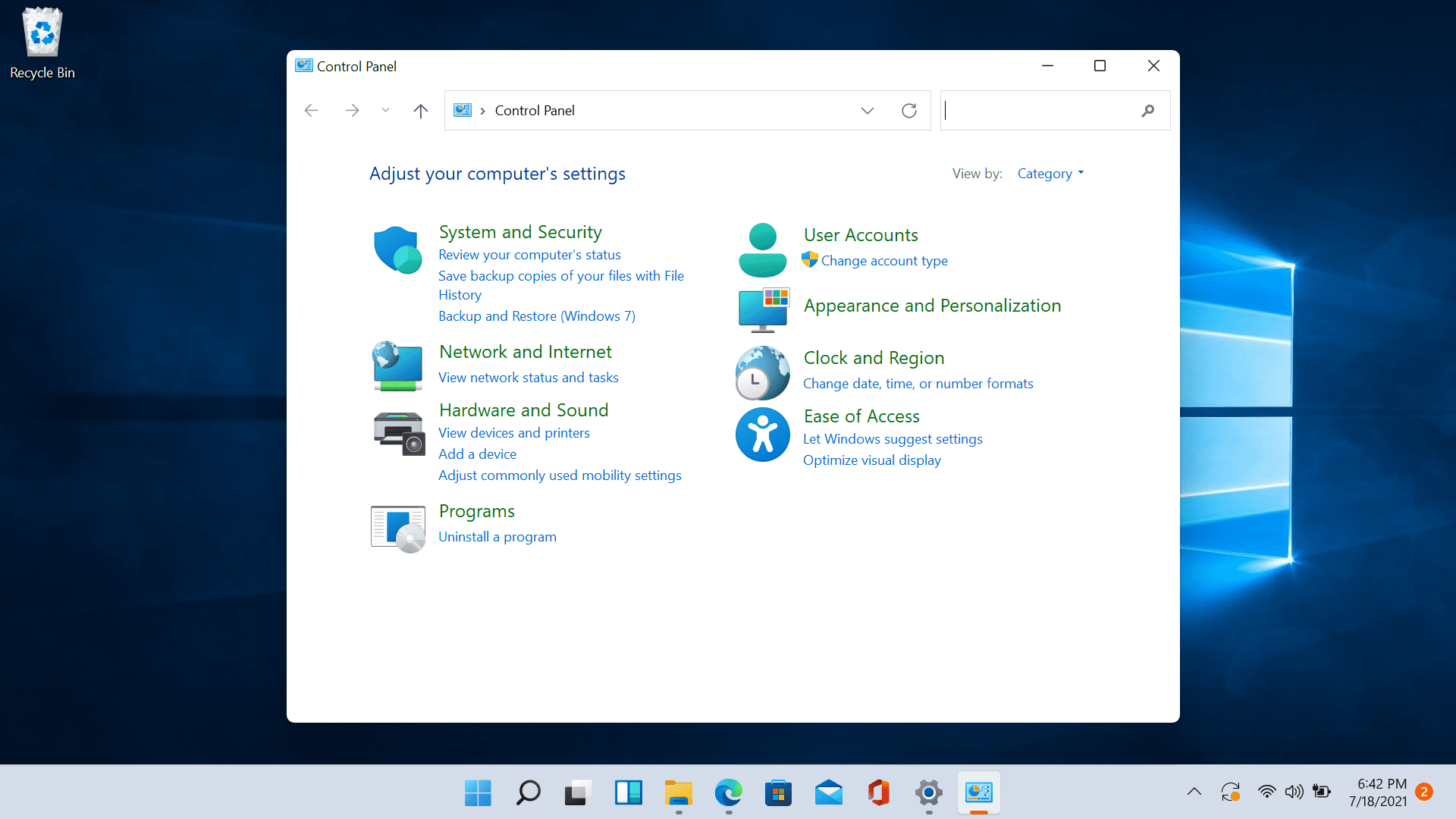 Since the Control Panel icon itself is somewhat not right away once clicked on the start button we are presenting you a couple of ways to open it so you can change each detail you want.

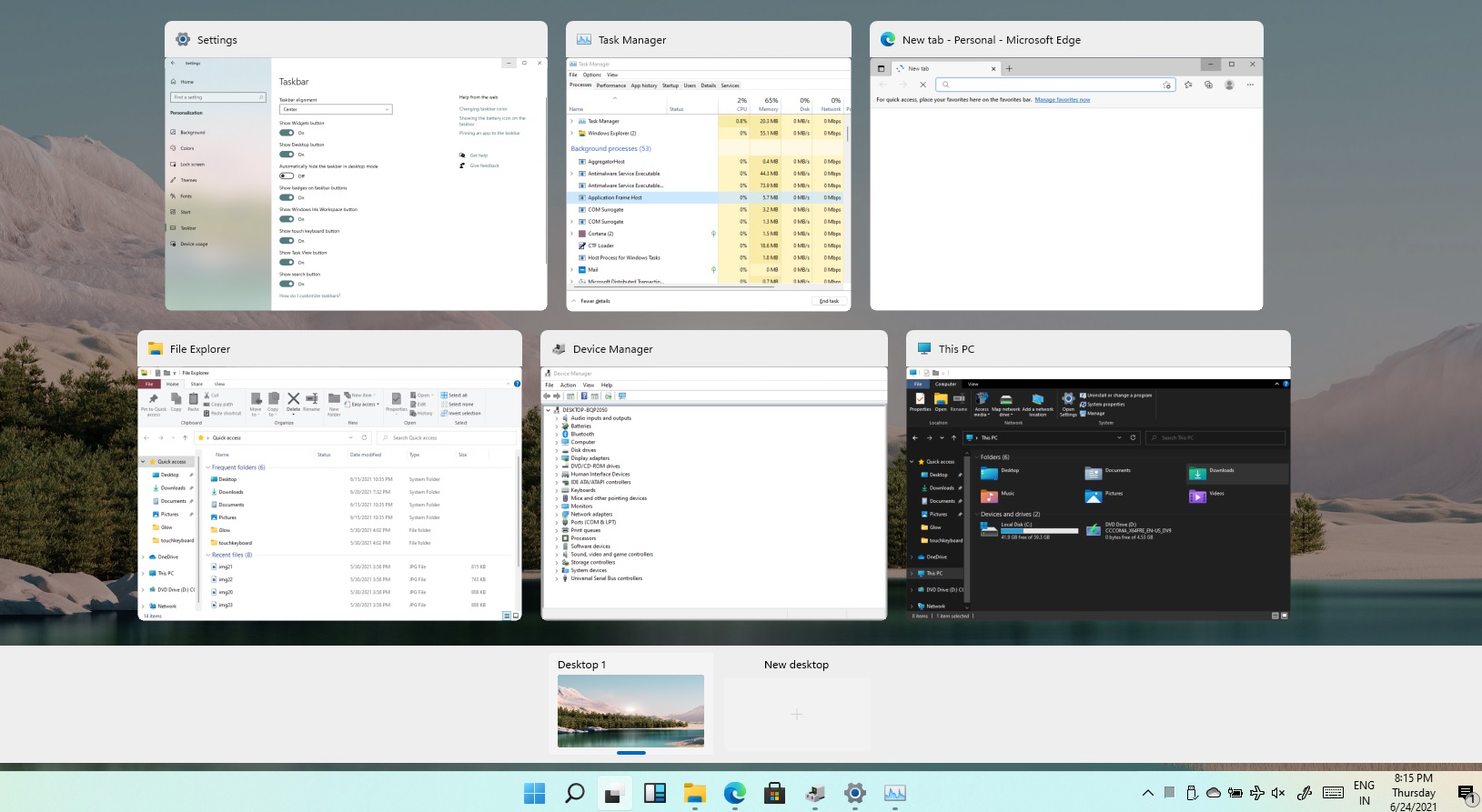 Task View feature inside Windows 11 is actually a great feature, letting you quickly view open windows and virtual desktops. How Task view itself could be reached with keyboard shortcut combination of ⊞ WINDOWS + TAB some users will prefer this way of using it and thus button on the taskbar is something you do not want or need.
There is a very easy way to remove mentioned button and I will show you how to do it.
Right-click the taskbar button itself and click on Hide From Taskbar.
That’s it, you have done it.
Now in order for you to bring it back if you change your mind, you will have to do some extra steps but it is nothing difficult.
Right-click on the taskbar and click on Taskbar settings, you will be lead to Personalization > Taskbar.
Inside locate Taskbar Items and switch Task View to ON, you will see the Task View button right away showing itself again.
Task View feature inside Windows 11 is actually a great feature, letting you quickly view open windows and virtual desktops. How Task view itself could be reached with keyboard shortcut combination of ⊞ WINDOWS + TAB some users will prefer this way of using it and thus button on the taskbar is something you do not want or need.
There is a very easy way to remove mentioned button and I will show you how to do it.
Right-click the taskbar button itself and click on Hide From Taskbar.
That’s it, you have done it.
Now in order for you to bring it back if you change your mind, you will have to do some extra steps but it is nothing difficult.
Right-click on the taskbar and click on Taskbar settings, you will be lead to Personalization > Taskbar.
Inside locate Taskbar Items and switch Task View to ON, you will see the Task View button right away showing itself again. 