Logo

Capture screen with Windows 10

if you were following our articles you are aware that Windows 10 has a build-in-game mode that you can summon
by pressing ⊞ WINDOWS + G. But did you know that you can use this to capture and record your screen?

Hello and welcome to another great tutorial about how to get the maximum out of your Windows 10, today our topic will be recording your screen using Windows 10 game mode.

  • In order to start recording first, we need to bring game mode by pressing ⊞ WINDOWS + G
  • In the Game Bar overlay screen, look for the “Capture” window.
  • If you don’t see it, click the Widget menu icon on the left. It looks like several lines with bullet points to their left.
  • A drop-down list will appear; click “Capture.” The “Capture” shortcut may also be in the Game Bar toolbar.
  • Look for the “Capture” widget window in the overlay. There are four buttons on the Capture widget (from left to right):
    • Screenshot: Takes a screenshot of the active window.
    • Record last 30 seconds: Creates a recording of the previous 30 seconds.
    • Start recording: Starts recording your active window.
    • Turn on the mic while recording: If this option is enabled, Windows 10 will capture audio from your computer’s microphone and include it in the recording.
  • You’ll notice text underneath the buttons. This is how you’ll know what the active window is, aka what will be recorded. For example, if you’re browsing the web, it will show the title of the open tab.
  • To start recording your screen, you must first decide whether you want to use your mic, which is useful if you’re trying to explain something on the screen.
  • Next, simply click the Start Recording button.
  • The screen recording will begin, and you’ll see a little toolbar appear in the corner of the screen. It will show the running time of the recording, and it also has buttons to stop recording and toggle the microphone.
  • When you’re finished, click the Stop icon to end the recording.
  • From the Capture widget, click “Show All Captures” to see your recording.
  • Your recording will be at the top of the list. Click the folder icon to see all recordings and screenshots in File Explorer.
  • These recordings are stored under your Windows user folder at C:\Users\NAME\Videos\Captures by default.

Do You Need Help with Your Device?

Our Team of Experts May Help
Troubleshoot.Tech Experts are There for You!
Replace damaged files
Restore performance
Free disk space
Remove Malware
Protects WEB browser
Remove Viruses
Stop PC freezing
GET HELP
Troubleshoot.Tech experts work with all versions of Microsoft Windows including Windows 11, with Android, Mac, and more.

Share this article:

You might also like

Blue Screen of Death in Windows

Symptoms of Blue Screen of Death Errors

Symptoms of a blue screen of death problem are easy to identify: if you have a blue screen error, then your computer will display a blue screen. Also known as the infamous “Blue Screen of Death”, this screen will pop up when something goes horribly wrong with your computer. The screen displays cryptic information about the problem before automatically restarting the system.

Bluescreen Of Death Errors Solution

Download Available To Completely Repair Blue Screen of Death Errors

Recommended: Download the Automatic Repair Utility to correct this and other PC performance issues.

Restoro box imageBluescreen Error Causes

This one can be a bit more complex: blue screens are caused by hundreds of different things. In fact, any miscommunication between the hardware and software of the computer can lead to the dreaded Blue Screen of Death, blue screens reference a communication problem between the Windows operating system and the hardware in your PC.

Why do computer blue screens of death errors occur?

Most computer users have experienced a blue screen of death at least once in their life. But have you ever stopped to wonder why they occur? Blue screens of death can occur for a number of different reasons, but the most common reason is that your PC’s hardware failed to properly communicate with its software, resulting in a fatal error. If your video card, processor, hard drive, or any other vital system component encountered a serious communication error with your operating system, then your PC may automatically display the blue screen and shut down for its own safety. Blue screens can also occur as a self-protection mechanism if the PC is overheated.

Further Information and Manual Repair

Where do Windows blue screen errors come from?

Blue screen errors come from many different sources on your computer. However, the majority of blue screen errors seem to come from the Windows Registry, which contains important configuration information about the programs, data, and personal files on your PC. Windows constantly rely on the registry in order to operate normally, but since the registry is incredibly complex (it holds hundreds of thousands of files), errors naturally develop over time. Fortunately, registry errors are fixable. They can be repaired using special registry cleaning software. During a scan, registry cleaning software looks for any registry entries that have errors. Once these entries are found, the software automatically repairs each entry. In many cases, this can permanently repair the blue screen error and prevent blue screens from ever appearing again.

Blue screen Windows 7

Windows 7, despite being Microsoft’s most popular operating system to date, is not immune to blue screen errors. It’s more stable than previous versions of Windows, although many users will inevitably encounter blue screen errors in Windows 7. No matter which version of Windows you’re currently using, the error remains the same: the hardware on your computer has trouble communicating with the software, forcing the system to display the blue error message we all love to hate.

“Blue Screen of Death”

There’s a reason this error message is famously called the “blue screen of death.” Immediately after displaying a blue screen, the Windows computer will ‘die’, which means that it restarts itself. Another reason why the error could be called the blue screen of death is that it is often displayed at the end of a PC’s life cycle. As PCs get older and their hardware starts to fail, blue screen errors become more and more common. In real life, death isn’t reversible. In the computer world, blue screens of death certainly are. With the right software support – like Restoro – even the most novice computer technician can fix their blue screen errors and restore their PC to healthy working conditions.

Benefits Of Using Restoro, BSOD Error Codes

Restoro is one of the world’s most popular PC optimization programs. Used by professional PC technicians around the world, Restoro is a feature-rich software suite that has helped many PC users breathe new life into an old PC. Restoro optimizes computer performance in hundreds of different ways. It looks through the registry and repairs any erroneous entries it finds. It also hunts down and eliminates malware and goes to work with the press of a button. And most importantly for you – it’s also amazingly effective at repairing blue screen errors. Ready to experience the Restoro difference? Here are a few more advantages of our favorite software program:
  • Easy for anyone to use: A few years ago, only the most tech-savvy individuals could optimize their computer’s performance.  Everybody else had to pay for expensive tech support or simply buy a new computer. Thankfully, the software development community has come up with innovations like Restoro which are easy for anyone to use. Just click a button and your computer will be clean within minutes. The process could not be easier.
  • Surprisingly fast: There are hundreds of thousands of files in the Windows Registry. In spite of that fact, Restoro goes to work incredibly quickly. It scans the depths of your PC in an effort to uncover whatever is causing your blue screen errors. The entire scan is complete within just a few minutes, making it easy for anyone to scan their computer on a regular basis.
  • Free trial: It’s good to be skeptical. And if you don’t think Restoro will fix any of the errors your computer is experiencing, then that’s okay. However, when you download the free Restoro, you can instantly scan your computer for errors. If any errors are found during this scan, then you can repair these problems with the click of a button.
  • Fixes frustrating errors: Blue screen errors are incredibly frustrating. You can’t get any work done on your computer when experiencing a blue screen problem. For that reason, Restoro helps alleviate some of the most frustrating PC problems in the world today.
  • More than just blue screen repairs: Sure, blue screens are annoying. But they’re only one of many different errors that a PC can develop over time. Fortunately, Restoro does more than just fix blue screen errors. The software also identifies and repairs other problem areas on your PC, making it easy to optimize performance.
Ready to get rid of your blue screen errors – permanently? Restoro today!
Read More
Transferring characters in diablo 2 remake
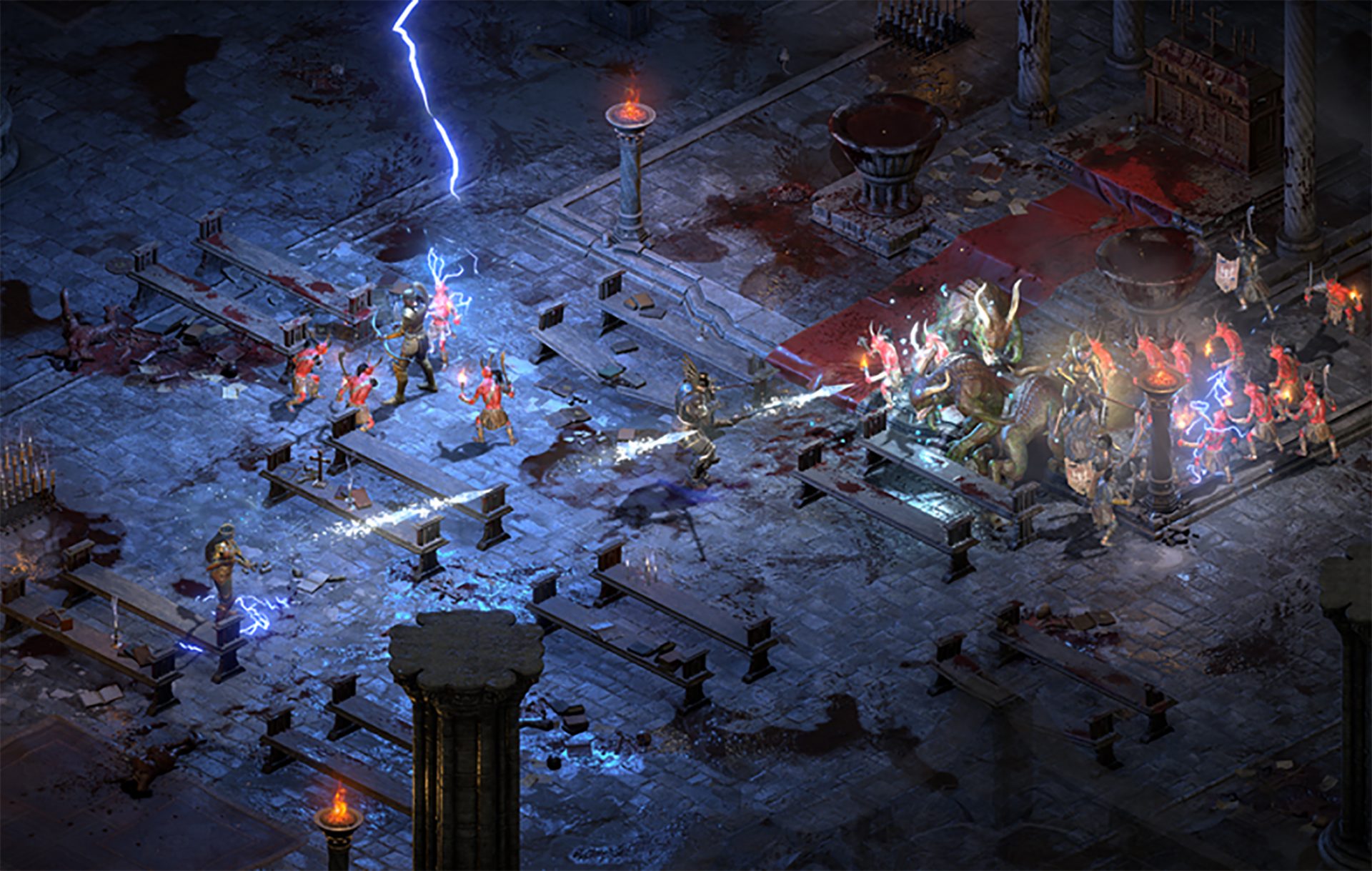
Diablo 2 resurrected has hit official release and servers seem to be finally taken care of and everything seems to be running smoothly now. The game also received great praise from gamers and attracted old players of the original Diablo 2 game. diablo 2 gameplaySpeaking of old players of old Diablo 2, they can transfer their old characters into remaster and continue playing them within this new great HD environment. There are some steps and requirements but we are here to help and transferred characters will bring full stash, inventory, and equipped items with them.

Requirements

There are not many requirements for this transfer to occur but they must be respected in order to be successful. The first thing is a minor requirement and somewhat annoying but it needs to be done, firstly fire up Diablo 2 resurrected and create a character, any kind of character with any kind of name, any kind of class. This strange requirement is to actually create a character folder and register it inside D2 resurrected so we can copy old ones there. The second requirement will be that characters that you wish to be transferred must be offline characters. Old battle net online characters cannot be transferred at this moment and probably will not be in the future as well. So for all of you that wish to transfer online characters, bad luck, for the rest of us casuals playing offline single-player mode, we can enjoy our characters.

Process of diablo 2 character trasfer

The process itself of transferring characters when previously mentioned requirements are met is just a simple and copy operation. If you have somewhere backed your characters go into your backup folder and copy files in c:\users\*current user*\saved games\*diablo 2 resurrected folder* If you do not have characters backed up and just have old Diablo 2 installed and playing it, you can go to c:\users\*current user*\saved games\*diablo 2 folder* and just copy all characters files into c:\users\*current user*\saved games\*diablo 2 resurrected folder* Your old characters end with .d2s extension, grab all that you want to transfer, and copy them into D2R. Take note that copied characters cannot be brought back into Diablo 2, once they are copied into Diablo 2 resurrected all further progress on them will be tied to the new game.

Conclusion

That’s it about the transfer process and requirements for it. Fire up the new game version and enjoy.
Read More
4 Methods of Fixing Error Code 49

Error Code 49 – What is it?

Error Code 49 is a common device driver error that users encounter on any Windows 2000 and later operating system versions. The error occurs when the connected peripheral devices fail to function properly due to an overload of the system hive’s size. The error when prompted pops up on your screen with the following message:
"Windows cannot start new hardware devices because the system hive is too large (exceeds the Registry Size Limit). (Code 49)”
The error causes unattached devices to be displayed on the system hive list.

Solution

driverfix boxError Causes

Error Code 49 mainly results from problems in Windows registry system files; the system hive in the Windows registry exceeds its size limit. The system hive is part of the Windows registry and it is where files regarding devices are contained along with user preferences and applications. The devices will not work until the system hive size is brought back to normal levels.

Further Information and Manual Repair

There are several ways you can use to fix your error code. Here are the following.

Method 1 – Uninstall unused devices

One of the best ways to address the error code is to uninstall the unused devices which are listed on your computer’s system hive. To do this:
  • Log in using an Administrator account
  • Click the Start button and then click ‘Run’
  • In the box, enter the command:
  • "set devmgr_show_nonpresent_devices=1 cd%SystemRoot%System32 exit" and click enter
  • Open Device Manager, click ‘View’, and then choose ‘Show hidden devices’ to see unused devices.
  • When you can see the list, click on the device you want to uninstall by selecting the ‘Driver’ tab and then select ‘Uninstall’.
  • After uninstall is complete, restart your computer.

Method 2 – Use System Restore

If the error still persists, you can use system restore to eliminate the problem. Here is how you can do so:
  1. Log in using an Administrator account
  2. Click ‘Start’ button and select All Programs > Accessories > System Tools > System Restore
  3. Click ‘Restore my computer to an earlier time’ and click ‘Next’
  4. Select the last Windows restore point from the ‘On this list, click a restore point’ list, and click ‘Next’
  5. Click ‘Next’ on the confirmation window to proceed
  6. Restart your PC after restoration is complete
By restoring the system via a last saved system checkpoint, you can obtain undamaged Windows system files that can help avert the error code.

Method 3 – Manually uninstall and reinstall the device driver

If using system restore does not work in resolving the error code either, you may have to resort to manually uninstalling and then reinstalling the device driver causing the problem. This would be necessary since the remaining incomplete files due to a partial removal or installation of programs is what results in the error code. By uninstall and reinstalling the device driver program, it would lead to the completion of the files. You can do this by firstly logging in as Administrator and open Device Manager. Select the device that is causing the problem and double click it and make sure that the peripheral is connected properly to the PC. Upon opening, click on the ‘Driver’ tab and then select ‘Update Driver’. Make sure to refer to the system documentation that you received with your PC or computer to check for the motherboard details and driver specifics.

Method 4 – Use software to automatically download the driver

Manually uninstalling and reinstalling the driver will do the trick; however, it may be time-consuming, especially when you would have to resort to your hardware user manual. Therefore, using a program such as DriverFIX can save you a lot of time and frustration in having your device work properly on your computer. DriverFIX, with its user-friendly approach to help you fix your PC issues, comes with an integrated database that detects which drivers you need to reconfigure within just a few seconds and downloads it automatically. It further ensures that your drivers are installed in their entirety leaving no room for any incomplete files to remain that create Error Code 49. It also has the added advantage of being able to backup and restore your files should there be the slightest possibility of system file damage. DriverFIX is the answer to fixing your PC error codes accurately and quickly. Click here to download DriverFIX to fix Error Code 49 quickly and effectively!
Read More
Are gaming mousepads worth their price?

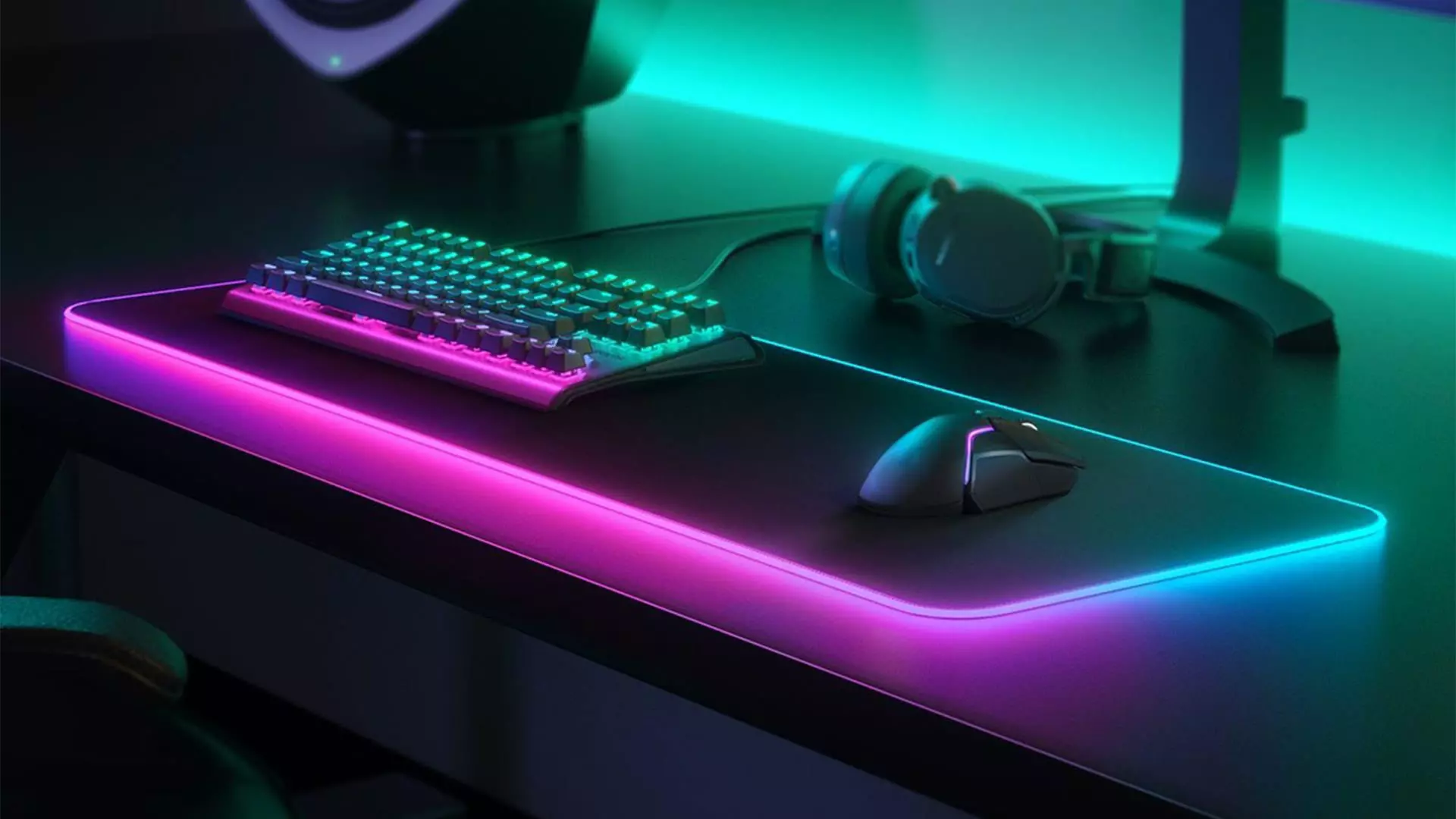
Mousepads are a common thing among computer users, everyone is using them and know what are they good for. Recently in the past few years, there are a lot of gaming mousepads on the rise, do you really need them, and do they back up their price? Short answer: YES, long answer: keep reading below.

gaming mousepad

Size advantage

One of the first things that one can see is the great difference in sizes between a regular mouse pad and a gaming one. Gaming pads have much more variety in size spawning all the way to really judge ones that you can use on your whole desk and place both keyboard and mouse on them. This will, of course, let you move your mouse more freely and have a much larger surface to use without the need to always lift the mouse up and center it on the regular pad.

Material advantage

Material on what are gaming pads built upon is extremely high in quality and usually even water phobic or water-resistant and it will allow great mouse movements on it. The backside is usually made of high-quality fabric that will stop slipping on the desk so the pad will stay at its pace during long sessions of work or gaming. Usually, standard mousepads are made with plastic or some other cheap material whereas gaming pads are made from fiber, high-quality fiber.

Other advantages

Among other great stuff that gaming pads have are wrist gel for hand resting and RBG light that looks cool, although RGB light is just a vanity that looks good gel for the wrist is a really good feature that will place less stress on your hands during long sessions of time spent in front of the computer.

Read More
Fix Windows is not starting
Hello everyone and welcome to how to fix Windows when it is not starting tutorial. Here we will tackle some common problems and solutions in order to help you to get back both your computer and Windows in working order. Windows not booting and loading is an annoying issue that can even result in complete loss of your data and can also consume a lot of time if no other solution than clean install remains. Also if you are not tech-savvy, this issue can cost you as well since you will have to hire a professional to solve this problem for you. Here at Error Tools, we aim to help so you can overcome your PC issues yourself by providing you daily with tutorials, tips, and tricks and helping you with all of your Windows issues. All of that being said, let's see what are issues that can prevent your computer or Windows from booting up and get around them so everything is back in working order.
  1. Use repair tool

    Windows 10 comes with a startup repair tool that has the goal to repair and fix errors preventing Windows from booting up. To use this tool however you will need Windows 10 bootable USB stick. You can create a bootable USB directly on the Microsoft site. Once you have it ready, plug it in and reboot your computer, choose to boot from USB. When you are on the Windows setup screen, click on next and then on Repair your computer. Go to troubleshoot > Advanced options > Startup repair. When Startup repair is clicked, Windows will boot, scan files for issues, and if they are found he will automatically fix them.
  2. “Windows Failed to Start” 0xc00000f error

    If you get this error on your boot of Windows, then you have corrupted boot configuration data. In order to fix this error, you will also need a bootable USB with Windows 10 on it. Make one on the Microsoft site if you don't have it and reboot your computer, boot from USB, on the setup screen click on next and then on Repair your computer. Click on Troubleshoot and then on the command prompt. In the command prompt type the following: bootrec /FixMbr bootrec /FixBoot bootrec /ScanOs bootrec /RebuildBcd exit Reboot your PC without a USB
  3. Boot into safe mode

    Safe mode for Windows loads only its core without drivers and with minimal services. If you can boot into safe mode then the issue is with some application or driver causing the problem. Try the selective boot option to eliminate what is causing the error.
  4. Make sure your hardware is connected

    Some RAM or hard drive out of socket can cause Windows not to be able to boot, check all connections just in case.
If everything else fails, perform a clean Windows installation. The reason for Windows not booting up can be caused by various viruses and malware also if that case it would be best to format and perform a clean install.
Read More
Fix Display driver failed to start Error
Recently, a number of users reported an error when they tried to open graphic-intensive apps like video games. According to users, when they tried to open an app, they get the “Display driver failed to start” error instead. Thus, if you encounter the same error, then you’ve come to the right place as this post will guide you on how exactly you can fix it. Here’s the full content of the error message:
“Display driver failed to start; using Microsoft Basic Display Driver instead. Check Windows Update for a newer display driver.”
This kind of error could be due to several factors. It is possible that it could be a result of a corrupted or outdated graphics driver. Aside from that, it could also be due to some issues with the system settings. Worry not though for there are potential fixes that can help you fix the problem. But before you troubleshoot the problem, you need to update your Windows 10 computer first and if it didn’t help fix the problem, then here are the potential fixes that should help resolve the “Display driver failed to start” error.

Option 1 – Try to restart the Graphics driver

Although Windows 10 can recover the graphics driver on its own when it crashes, there are times when it fails to do its job. To restart the graphics driver in your computer, simply tap the Win + Ctrl + Shift + B key combination. After that, the graphics driver will be back in less than a second.

Option 2 – Try running the Hardware and Devices troubleshooter

Running the built-in hardware and devices troubleshooter can also help you in fixing the “Display driver failed to start” error.
  • The first thing you need to do is click on Start and then on the gear-like icon to pull up the window for Settings.
  • After opening Settings, look for the Update and Security option and select it.
  • From there, go to the Troubleshoot option located on the left-hand side of the list.
  • Next, select Keyboard from the list and open the Troubleshooter and run it. Once it is doing its job, wait for it to complete the process and then restart the system.
  • After the system restarts, check if the problem’s now fixed. If not, refer to the next option given below.

Option 3 – Try to update or rollback the Graphics driver

You can try to update your Graphics card driver using the Device Manager in your computer to resolve the “Display driver failed to start” error or you can also go directly to the website of your graphics card manufacturers like NVIDIA, Intel, or AMD and go to the section called Drivers then check if there’s a new available update – if there is, download and install it. To update your Graphics driver via Device Manager, refer to these steps:
  • First, boot your computer into Safe Mode.
  • After that, tap the Win + R keys to launch Run.
  • Type in devmgmt.msc into the box and tap Enter or click OK to open the Device Manager.
  • After that, a list of device drivers will be displayed. From there, look for the Display Adapters and click on them.
  • After that, right-click on each entry under the Display Adapters and select the “Uninstall Device” option from the menu.
  • Now restart your computer.
  • After restarting your computer, go to the Settings app and Check for Updates in the Windows Update section.

Option 4 – Try setting your system for maximum performance

If the first three options didn’t fix the error, you can try setting your computer for maximum performance since Windows 10 allows you to choose the effects you want to activate your system and you can do this by adjusting the performance ratio. Adjusting the performance ratio can be done via a certain setting in your computer – and this setting should be set to “Maximum Performance” to resolve the error.
  • In the Windows Search bar, type in “performance” and from the search results that appear, select the “Adjust the appearance and performance of Windows” option.
  • Next, a mini window will appear and from there, click on the radio button that says, “Adjust for best performance”.
  • Once done, click on the Apply and OK buttons to save the changes made. This should resolve the problem.
Read More
Fix 0x0000007c (ERROR_INVALID_LEVEL) in W11
0x0000007c error inside Windows 11 is a printer error that is manifested when Windows users are trying to connect to a shared network remote printer. Error is displayed by the message:
Windows cannot connect to the printer. Operation failed with error 0x0000007c.
If you are experiencing this type of annoyance, fear now we are providing you with several solutions to this problem.

0x0000007c (ERROR_INVALID_LEVEL)Update Windows 11

  1. Open the Start menu, click on the settings app
  2. Select Windows update tab
  3. Click on Check for updates
  4. Click on Advanced options
  5. Inside select Optional updates
  6. If there are optional updates click on Download & Install

Run the printer troubleshooter

  1. Press ⊞ WINDOWS + I to open settings
  2. Click on Troubleshoot navigation on the system tab
  3. Select Other trouble-shooters
  4. Click on the Run for printer troubleshooter
  5. If the error is found click on Apply this fix

Restart the Print Spooler Service

  1. Right-click on the Start button
  2. Click on RUN
  3. Type in services.msc and press OK
  4. Right-click on Printer Spooler service and select Restart

Clear the Print Spooler

  1. Open services like in the previous step
  2. Right-click Print Spooler and select STOP
  3. Open File explorer
  4. Navigate to: C:\Windows\System32\spool\drivers\x64\3 (64-bit Platform) C:\Windows\System32\spool\drivers\W32X86\3 (32-bit Platform)
  5. Delete everything inside folders
  6. Go back to services, right-click on Print Spooler and select RESTART

Reinstall Driver for printer

  1. Right-click on Start and select device manager
  2. Double click on the Print queues category
  3. Right-click on the printer and select Uninstall device
  4. Click on Uninstall on prompt
  5. Right-click on the Print queues category and select Scan for hardware Changes
Read More
A Guide to Resolving Error Code 35

Error Code 35 - What is it?

Error Code 35 is a typical Device Manager error. It indicates information missing to properly configure your device.  Error code 35 is usually displayed in the following format:

“Your computer's system firmware does not include enough information to properly configure and use this device. To use this device, contact your computer manufacturer to obtain a firmware or BIOS update. Code 35”

Solution

driverfix boxError Causes

The 2 common reasons for Device Manager error code 35 are:

  • Outdated BIOS
  • Mis-configured, corrupted, or outdated Drivers

No matter what the reason may be, it is advisable to resolve the problem immediately without any delay otherwise you will be unable to use your hardware device.

Further Information and Manual Repair

Below is the list of the most effective and easy to perform solutions to resolve error code 35 on your PC. These solutions do not require any technical knowledge or understanding. Simply follow the instructions to resolve this error code.

Method 1 - Update the BIOS

BIOS (Basic Input/Output System) is the embedded software on the computer’s motherboard.

Though not all PCs have the same BIOS manufacturer, but the steps for updating the BIOS are similar for all versions. Before you get started with the updating process, first identify your current BIOS version.

  • For this, go to the start menu and type msinfo32, and press enter.
  • Now click System Summary to view your BIOS version. Here you will see the version number and date.
  • Now check your PC motherboard manufacturer’s website to download the BIOS update for the model you own. Also, download any Read Me Files and documentation. These contain guidelines and precautions that you should know before you update.
  • Backup all your data and existing BIOS before you update the BIOS version. This will keep your data protected in case the attempt to update BIOS fails.
  • Also, when updating, make sure to use an uninterruptible power supply. Remember power outage or even a small power fluctuation can corrupt the BIOS which is something you don’t want.
  • Now it’s time to perform the update. Run the downloaded installer for the BIOS updating software. Double click on the executable file.
  • Look for a button names Update, Flash, or Run.
  • Click on it to start updating the new version
  • After the update is complete, your computer will restart automatically.

This will hopefully resolve the problem. However, if the error still persists then there is a possibility that the error code is related to outdated drivers. To resolve, try method 2.

Method 2 - Download Driver Assist to Update Drivers Automatically

Update drivers to repair error code 35 on your PC by simply downloading DriverFIX. This is a cutting-edge program deployed with an intelligent programming system.

It is compatible with all Windows versions.

It scans your PC for problematic drivers and updates them with the latest and compatible versions automatically and in a few seconds thereby repairing all Device Manager error codes including error code 35 generated due to outdated/corrupted drivers.

In addition to this, it updates all device drivers on a regular basis, so you don’t have to stress over and keep a track of what drivers on your PC need to be updated and when.

Click here to download DriverFIX to resolve Device Manager error code 35 today!

Read More
MyImageConverter Removal Guide for Windows

This toolbar/web browser extension is ad/search-supported that is typically installed as an optional offer, users generally have this bundled with 3rd party software. During setup, this toolbar will modify the home page and new tab pages to the affiliate search portal MyWay.com using a primary search engine to collect shared search revenue. It will also modify the default search provider as well. While this extension is installed users will experience a display of additional ads and sponsored content throughout their browsing sessions, as well as the possibility of pop-up ads. Several anti-virus scanners have marked this extension as a Browser Hijacker and it is recommended to remove it from your computer.

About Browser Hijackers

Browser hijacking means that a malicious code has taken control over and altered the settings of your internet browser, without your consent. They are designed to interfere with browser programs for a variety of purposes. Usually, it’ll drive users to predetermined websites that are looking to increase their advertising campaign income. Though it may seem naive, all browser hijackers are damaging and thus always regarded as security risks. In a worst-case scenario, your internet browser can be hijacked to download malicious software that can do a great deal of damage to your laptop or computer.

How to know if your internet browser has been hijacked

The common symptoms that indicate having this malicious software on your PC are: 1. home page is modified 2. bookmark and the new tab are likewise modified 3. default online search engine is changed 4. you’re getting new toolbars you have never found before 5. your internet browser displays endless pop-up ads 6. your web browser has become unstable or starts running slowly 7. you can’t visit certain websites like homepages of anti-malware software.

Exactly how browser hijacker finds its way onto your computer system

Browser hijackers can enter a computer by some means or other, including via downloads, file sharing, and e-mail also. They may also come from any BHO, extension, add-on, toolbar, or plug-in with malicious intent. Browser hijackers sneak into your pc in addition to free software application downloads that you unintentionally install alongside the original. Some of the most popular hijackers are MyImageConverter, Conduit Search, Babylon Toolbar, Sweet Page, OneWebSearch, and CoolWebSearch.

Learn how to get rid of browser hijackers

Certain hijackers could be removed by just uninstalling the related freeware or add-ons through the Add or Remove Programs in the Windows control panel. In some cases, it could be a difficult job to find and remove the malicious piece because the associated file could be running as part of the operating system process. Besides, browser hijackers can modify the Windows registry so it can be quite tough to restore all the values manually, especially when you are not a very tech-savvy person. You can choose automatic browser hijacker removal by just installing and running an efficient anti-malware program. SafeBytes Anti-Malware detects all types of hijackers – including MyImageConverter – and eliminates every trace quickly and efficiently. In addition to anti-virus software, a PC optimizer program, like Total System Care, can help you fix Windows registry errors, remove unwanted toolbars, secure your internet privacy, and boost overall computer performance.

What to Do if Virus Stops You From Downloading Or Installing Antivirus?

Practically all malware is bad, but certain types of malware do much more damage to your PC than others. Some malware variants alter web browser settings by adding a proxy server or change the PC’s DNS configuration settings. In such cases, you’ll be unable to visit some or all of the websites, and therefore not able to download or install the required security software to clear out the computer virus. If you are reading this now, you might have perhaps realized that virus infection is a reason behind your blocked net connectivity. So how to proceed if you need to install an anti-virus software like Safebytes? Follow the instructions below to remove malware by alternate methods.

Download the software in Safe Mode with Networking

The Windows operating system comes with a special mode referred to as “Safe Mode” in which only the minimum required programs and services are loaded. In the event the malware is blocking internet connection and affecting your computer, running it in Safe Mode enables you to download anti-virus and run a diagnostic scan whilst limiting potential damage. To get into Safe Mode or Safe Mode with Networking, press F8 while the system is booting up or run MSCONFIG and locate the “Safe Boot” options in the “Boot” tab. Once you are in safe mode, you can try to install your anti-malware application without the hindrance of the malware. Now, you can run the antivirus scan to get rid of viruses and malware without hindrance from another malicious application.

Download the security software using an alternate internet browser

Some malware only targets particular web browsers. If this sounds like your situation, utilize another web browser as it might circumvent the virus. If you seem to have a trojan attached to Internet Explorer, then switch to an alternate web browser with built-in safety features, such as Firefox or Chrome, to download your preferred anti-malware program – Safebytes.

Install anti-malware on a USB drive

Another option would be to make a portable antivirus program on your USB flash drive. To run anti-malware from a USB pen drive, follow these simple measures: 1) On a virus-free computer, download and install Safebytes Anti-Malware. 2) Plug the USB drive into the clean computer. 3) Double-click on the downloaded file to open the installation wizard. 4) Select the drive letter of the flash drive as the location when the wizard asks you exactly where you want to install the antivirus. Follow the on-screen instructions to finish the installation process. 5) Transfer the flash drive from the uninfected computer to the infected computer. 6) Double-click the Safebytes Anti-malware icon on the USB drive to run the software. 7) Hit the “Scan” button to run a full computer scan and remove viruses automatically.

Protect Your PC and Privacy With SafeBytes Anti-Malware

Are you looking to install the best anti-malware software program for your PC? You can find many applications on the market which come in free and paid versions for Windows systems. A few of them do a great job in eradicating malware threats while some will affect your PC themselves. You should look for a product that has obtained a good reputation and detects not only viruses but other types of malware as well. While considering the highly regarded applications, Safebytes AntiMalware is certainly the highly recommended one. SafeBytes anti-malware is trustworthy software that not only secures your PC completely but is also quite user-friendly for people of all ability levels. Through its cutting-edge technology, this software will help you protect your computer against infections caused by various kinds of malware and similar internet threats, including adware, spyware, viruses, worms, trojans, keyloggers, ransomware, and potentially unwanted program (PUPs).

SafeBytes anti-malware offers an array of advanced features which sets it aside from all others. Let’s take a look at a few of them below:

Real-time Threat Response: SafeBytes provides real-time active supervision and protection from all known computer viruses and malware. It’ll inspect your personal computer for suspicious activity regularly and its unrivaled firewall protects your computer from illegal access by the outside world. World-class AntiMalware Protection: Using a critically acclaimed anti-malware engine, SafeBytes offers multilayered protection which is designed to catch and get rid of viruses and malware that are hidden deep inside your computer’s operating system. Web protection: SafeBytes inspects the hyperlinks present on a webpage for possible threats and notifies you if the site is safe to visit or not, through its unique safety ranking system. Light-weight: This application is not “heavy” on the computer’s resources, so you’ll not see any performance troubles when SafeBytes is working in the background. 24/7 Customer Support: Support service is readily available 24 x 7 x 365 days through email and chats to answer your concerns. SafeBytes has developed a great anti-malware solution to help you conquer the latest malware threats and virus attacks. You can be sure that your computer will be protected in real-time once you put this tool to use. So if you’re looking for the absolute best malware removal application out there, and if you don’t mind paying out a few bucks for it, opt for SafeBytes Anti-Malware.

Technical Details and Manual Removal (Advanced Users)

To get rid of MyImageConverter manually, navigate to the Add or Remove programs list in the Control Panel and choose the program you want to get rid of. For web browser extensions, go to your browser’s Addon/Extension manager and choose the plug-in you intend to disable or remove. You may also want to reset your home page and search engine providers, and also delete temporary files, browsing history, and cookies. If you opt to manually delete the system files and Windows registry entries, utilize the following checklist to make sure you know precisely what files to remove before performing any actions. But bear in mind, editing the Windows registry is usually a difficult task that only advanced users and professionals should attempt to fix the problem. In addition, some malware is capable of replicating or preventing removal. It is highly recommended that you carry out the removal procedure in Windows Safe Mode.
Files: %PROGRAMFILES(x86)%4zUninstall MyImageConverter.dll %SystemDrive%\Users\wsierra\AppData\Roaming\Mozilla\Firefox\Profiles\pe3eufs0.default\extensionszffxtbr-bs@MyImageConverter_4z.com\content\MyImageConverter.exe %LOCALAPPDATA%\MyImageConverter_4z %PROGRAMFILES%\MyImageConverter_4z %UserProfile%\Local Settings\Application Data\amailnkkmeeoijlkjdgloiclaiifpojf %LOCALAPPDATA%\amailnkkmeeoijlkjdgloiclaiifpojf %ProgramFiles%\MyImageConverter %UserProfile%\Local Settings\Application Data\Google\Chrome\User Data\Default\Sync Extension Settings\oeabadoffdnkmmecmhpknaklgmabippp %ProgramFiles(x86)%\MyImageConverter %UserProfile%\Local Settings\Application Data\Google\Chrome\User Data\Default\Extensions\ikgjglmlehllifdekcggaapkaplbdpje %LOCALAPPDATA%\Google\Chrome\User Data\Default\Extensions\ikgjglmlehllifdekcggaapkaplbdpje %LOCALAPPDATA%\Google\Chrome\User Data\Default\Sync Extension Settings\ikgjglmlehllifdekcggaapkaplbdpje %UserProfile%\Local Settings\Application Data\Google\Chrome\User Data\Default\Sync Extension Settings\ikgjglmlehllifdekcggaapkaplbdpje %UserProfile%\Local Settings\Application Data\MyImageConverterTooltab %LOCALAPPDATA%\MyImageConverterTooltab Registry: HKEY_CURRENT_USER\HKEY_CURRENT_USER\Software\ HKEY_CURRENT_USER\Software\AppDataLow\Software\MyImageConverter_4z HKEY_CURRENT_USER\Software\MyImageConverter_4z HKEY_LOCAL_MACHINE\SOFTWARE\Classes\MyImageConverter_4z.DynamicBarButton HKEY_LOCAL_MACHINE\SOFTWARE\Classes\MyImageConverter_4z.DynamicBarButton.1 HKEY_LOCAL_MACHINE\SOFTWARE\Classes\MyImageConverter_4z.FeedManager HKEY_LOCAL_MACHINE\SOFTWARE\Classes\MyImageConverter_4z.HTMLPanel HKEY_LOCAL_MACHINE\SOFTWARE\Classes\MyImageConverter_4z.HTMLPanel.1 HKEY_LOCAL_MACHINE\SOFTWARE\Classes\MyImageConverter_4z.MultipleButton HKEY_LOCAL_MACHINE\SOFTWARE\Classes\MyImageConverter_4z.MultipleButton.1 HKEY_LOCAL_MACHINE\SOFTWARE\Classes\MyImageConverter_4z.PseudoTransparentPlugin HKEY_LOCAL_MACHINE\SOFTWARE\Classes\MyImageConverter_4z.PseudoTransparentPlugin.1 HKEY_LOCAL_MACHINE\SOFTWARE\Classes\MyImageConverter_4z.Radio HKEY_LOCAL_MACHINE\SOFTWARE\Classes\MyImageConverter_4z.ScriptButton HKEY_LOCAL_MACHINE\SOFTWARE\Classes\MyImageConverter_4z.ScriptButton.1 HKEY_LOCAL_MACHINE\SOFTWARE\Classes\MyImageConverter_4z.SettingsPlugin HKEY_LOCAL_MACHINE\SOFTWARE\Classes\MyImageConverter_4z.SettingsPlugin.1 HKEY_LOCAL_MACHINE\SOFTWARE\Classes\MyImageConverter_4z.SkinLauncher HKEY_LOCAL_MACHINE\SOFTWARE\Classes\MyImageConverter_4z.SkinLauncher.1 HKEY_LOCAL_MACHINE\SOFTWARE\Classes\MyImageConverter_4z.SkinLauncherSettings HKEY_LOCAL_MACHINE\SOFTWARE\Classes\MyImageConverter_4z.SkinLauncherSettings.1 HKEY_LOCAL_MACHINE\SOFTWARE\Classes\MyImageConverter_4z.ToolbarProtector HKEY_LOCAL_MACHINE\SOFTWARE\Classes\MyImageConverter_4z.ToolbarProtector.1 HKEY_LOCAL_MACHINE\SOFTWARE\Classes\MyImageConverter_4z.UrlAlertButton HKEY_LOCAL_MACHINE\SOFTWARE\Classes\MyImageConverter_4z.UrlAlertButton.1 HKEY_LOCAL_MACHINE\SOFTWARE\Classes\MyImageConverter_4z.XMLSessionPlugin HKEY_LOCAL_MACHINE\SOFTWARE\Classes\MyImageConverter_4z.XMLSessionPlugin.1 HKEY_CURRENT_USER\Software\Microsoft\Internet Explorer\Approved Extensions, value: 312F84FB-8970-4FD3-BDDB-7012EAC4AFC9 HKEY_CURRENT_USER\Software\Microsoft\Internet Explorer\Approved Extensions, value: 48586425-6BB7-4F51-8DC6-38C88E3EBB58 HKEY_LOCAL_MACHINE\SOFTWARE\Wow6432Node\Google\Chrome\Extensions\adldappccjhelkmbkpiibilgnnjakieg HKEY_LOCAL_MACHINE\SOFTWARE\Wow6432Node\Microsoft\Internet Explorer\Low Rights\ElevationPolicy\3d429207-4689-492d-a0e5-cdc5dfbb5005 HKEY_LOCAL_MACHINE\SOFTWARE\Wow6432Node\Microsoft\Internet Explorer\Low Rights\ElevationPolicy\66d59105-fe06-43a4-b292-eb0097e9eb74 HKEY_LOCAL_MACHINE\SOFTWARE\Wow6432Node\Microsoft\Internet Explorer\Low Rights\ElevationPolicy\9103c314-c4e2-4463-8934-b19bcb46236d HKEY_LOCAL_MACHINE\SOFTWARE\Wow6432Node\Microsoft\Internet Explorer\Low Rights\ElevationPolicy\97cef41c-5055-474a-855a-892d4fe3e596 HKEY_LOCAL_MACHINE\SOFTWARE\Wow6432Node\Microsoft\Internet Explorer\Low Rights\ElevationPolicy\d375ee64-f893-498a-a0e9-0e9829c88c3d HKEY_LOCAL_MACHINE\SOFTWARE\Wow6432Node\Microsoft\Tracing\MyImageConverterCrxSetup_RASAPI32 HKEY_LOCAL_MACHINE\SOFTWARE\Wow6432Node\Microsoft\Tracing\MyImageConverterCrxSetup_RASMANCS HKEY_LOCAL_MACHINE\SOFTWARE\Wow6432Node\Microsoft\Windows\CurrentVersion\Ext\PreApproved\1f6f39c1-00a8-4752-a94c-d0ea92d978b6 HKEY_LOCAL_MACHINE\SOFTWARE\Wow6432Node\Microsoft\Windows\CurrentVersion\Ext\PreApproved\38122a36-83b2-46b8-b39a-ec72a4614a07 HKEY_LOCAL_MACHINE\SOFTWARE\Wow6432Node\Microsoft\Windows\CurrentVersion\Ext\PreApproved\5354d921-3f52-47c5-938d-77a2fb6defe7 HKEY_LOCAL_MACHINE\SOFTWARE\Wow6432Node\Microsoft\Windows\CurrentVersion\Ext\PreApproved\71144427-1368-4D18-8DC9-2AE3CC4C4F83 HKEY_LOCAL_MACHINE\SOFTWARE\Wow6432Node\Microsoft\Windows\CurrentVersion\Ext\PreApproved\99e1f6fd-2e94-4cf6-8344-1ba63cd3bd9b HKEY_LOCAL_MACHINE\SOFTWARE\Wow6432Node\Microsoft\Windows\CurrentVersion\Ext\PreApproved\a86782d8-7b41-452f-a217-1854f72dba54 HKEY_LOCAL_MACHINE\SOFTWARE\Wow6432Node\Microsoft\Windows\CurrentVersion\Ext\PreApproved\ed345812-2722-4dca-9976-d01832db44ee HKEY_LOCAL_MACHINE\SOFTWARE\Wow6432Node\MozillaPlugins\@MyImageConverter_4z.com/Plugin HKEY_LOCAL_MACHINE\SOFTWARE\Microsoft\Internet Explorer\Low Rights\ElevationPolicy\9103c314-c4e2-4463-8934-b19bcb46236d HKEY_LOCAL_MACHINE\SOFTWARE\Microsoft\Internet Explorer\Low Rights\ElevationPolicy\97cef41c-5055-474a-855a-892d4fe3e596 HKEY_LOCAL_MACHINE\SOFTWARE\Microsoft\Internet Explorer\Low Rights\ElevationPolicy\d375ee64-f893-498a-a0e9-0e9829c88c3d HKEY_LOCAL_MACHINE\SOFTWARE\Microsoft\Tracing\MyImageConverterCrxSetup_RASAPI32 HKEY_LOCAL_MACHINE\SOFTWARE\Microsoft\Tracing\MyImageConverterCrxSetup_RASMANCS HKEY_LOCAL_MACHINE\SOFTWARE\Microsoft\Windows\CurrentVersion\explorer\Browser Helper Objects\312f84fb-8970-4fd3-bddb-7012eac4afc9 HKEY_LOCAL_MACHINE\SOFTWARE\Microsoft\Windows\CurrentVersion\explorer\Browser Helper Objects\c547c6c2-561b-4169-a2a5-20ba771ca93b HKEY_LOCAL_MACHINE\SOFTWARE\Microsoft\Windows\CurrentVersion\Ext\PreApproved\1f6f39c1-00a8-4752-a94c-d0ea92d978b6 HKEY_LOCAL_MACHINE\SOFTWARE\Microsoft\Windows\CurrentVersion\Ext\PreApproved\71144427-1368-4D18-8DC9-2AE3CC4C4F83 HKEY_LOCAL_MACHINE\SOFTWARE\Microsoft\Windows\CurrentVersion\Ext\PreApproved\99e1f6fd-2e94-4cf6-8344-1ba63cd3bd9b HKEY_LOCAL_MACHINE\SOFTWARE\Microsoft\Windows\CurrentVersion\Ext\PreApproved\a86782d8-7b41-452f-a217-1854f72dba54 HKEY_LOCAL_MACHINE\SOFTWARE\Microsoft\Windows\CurrentVersion\Ext\PreApproved\ed345812-2722-4dca-9976-d01832db44ee HKEY_LOCAL_MACHINE\SOFTWARE\MozillaPlugins\@MyImageConverter_4z.com/Plugin HKEY_LOCAL_MACHINE\SOFTWARE\Microsoft\Windows\CurrentVersion\Run, value: MyImageConverter Search Scope Monitor HKEY_LOCAL_MACHINE\SOFTWARE\Wow6432Node\Microsoft\Windows\CurrentVersion\Uninstall\VDC_is1 HKEY_LOCAL_MACHINE\SOFTWARE\Google\Chrome\Extensions\adldappccjhelkmbkpiibilgnnjakieg HKEY_LOCAL_MACHINE\SOFTWARE\MyImageConverter HKEY_LOCAL_MACHINE\SOFTWARE\Wow6432Node\MyImageConverter_4z HKEY_LOCAL_MACHINE\SOFTWARE\Classes\MyImageConverter.ScriptHelper HKEY_LOCAL_MACHINE\SOFTWARE\Classes\MyImageConverter.ScriptHelper.1 HKEY_LOCAL_MACHINE\SOFTWARE\Wow6432Node\Microsoft\Internet Explorer\SearchScopes\cf6e4b1c-dbde-457e-9cef-ab8ecac8a5e8 HKEY_LOCAL_MACHINE\SOFTWARE\Wow6432Node\Microsoft\Windows\CurrentVersion\Uninstall\MyImageConverter HKEY_LOCAL_MACHINE\SOFTWARE\MozillaPlugins\@MyImageConverter_ScriptHelper.com/Plugin HKEY_LOCAL_MACHINE\SOFTWARE\Microsoft\Windows\CurrentVersion\Run, value: MyImageConverter_4z Browser Plugin Loader HKEY_LOCAL_MACHINE\SOFTWARE\Wow6432Node\Microsoft\Windows\CurrentVersion\Run, value: MyImageConverter_4z Browser Plugin Loader HKEY_LOCAL_MACHINE\SOFTWARE\Microsoft\Internet Explorer\LowRegistry\DOMStorage\MyImageConverter.dl.tb.ask.com HKEY_CURRENT_USER\Software\Microsoft\Internet Explorer\DOMStorage\MyImageConverter.dl.myway.com HKEY_LOCAL_MACHINE\SOFTWARE\Microsoft\Internet Explorer\DOMStorage\MyImageConverter.com HKEY_LOCAL_MACHINE\SOFTWARE\Microsoft\Internet Explorer\LowRegistry\DOMStorage\www.MyImageConverter.com HKEY_CURRENT_USER\Software\Microsoft\Internet Explorer\DOMStorage\free.MyImageConverter.com HKEY_LOCAL_MACHINE\HKEY_CURRENT_USER\Software\[APPLICATION]\Microsoft\Windows\CurrentVersion\Uninstall..Uninstaller

Read More
Screensaver Timeout Settings
One of the cool and interesting features in Windows is the Screensaver which allows users to display animation or change the wallpaper automatically when the computer is not being used. This feature can also time out and lock your computer when it remains idle for quite some time. However, if you notice that the screensaver of your computer turns on a lot earlier, then you’ve come to the right place as this post will guide you on how you can change the timeout settings of the screensaver of your Windows 10 computer. Usually, the screensaver in Windows 10 is turned off by default, however, if some other user has turned it on or if you have turned it on, you can actually change the timeout settings of the screensaver using several methods. You can do it through the Personalization settings, Registry Editor, as well as the Group Policy Editor. Before you proceed with the instructions provided below, make sure that you create a System Restore point first. Once done, follow each one of the suggestions carefully to successfully change the Screensaver timeout settings in Windows 10.

Option 1 – Modify the timeout settings of Screensaver via Personalization settings

  • Open the Start menu and type “screen saver” in the field.
  • On the search results that appear, click on the “Change Screen Saver” option.
  • From there, you have the option to change the screen saver type, preview, open settings, change the wait time, as well as choose to display lock screen on your resume.
  • Now to change the timeout settings of your screensaver, you have to increase the wait time from 1 to 15 or anything that works for you.
  • Once done, click OK and exit to save the changes made.

Option 2 – Try to change the screensaver time via Registry Editor

The next option you can try to change the timeout settings in the screensaver is using the Registry Editor. To get started, follow these steps:
  • Tap the Win + R keys to launch the Run utility and type “regedit” in the field and hit Enter to open the Registry Editor.
  • Next, navigate to this registry path: ComputerHKEY_CURRENT_USERSoftwarePoliciesMicrosoftWindows
  • From there, right-click on Windows located in the right pane and select New > Key.
  • Name the key as “Control Panel” and right-click on it and select New > Key and then name it as “Desktop”.
  • Once done, click on the newly created Desktop key to highlight it.
  • After that, right-click on any empty space in the right pane and select New > String Value and then type “ScreenSaveTimeOut” and hit Enter to save it.
  • Now right-click on ScreenSaveTimeOut and select Modify and then set its value data in seconds.
  • Click on OK and exit the Registry Editor to save the changes made.

Option 3 – Change Screensaver timeout settings via Group Policy Editor

  • Tap the Win + R keys to open the Run dialog box and type “gpedit.msc” in the field and hit Enter to open the Group Policy Editor.
  • Next, navigate to User Configuration > Administrative Templates > Control Panel > Personalization.
  • Then look for a policy setting named “Screen saver timeout” and double click on it and then click on the Enabled option to enable it.
  • Add the screen timeout in seconds and click on the Apply and OK buttons to save the changes.
  • Restart your computer.
Note: If you want to disable the screensaver feature in your computer, you can always do so by disabling a policy setting named “Enable Screen Saver”.
Read More
1 2 3 171
Logo
Copyright © 2023, ErrorTools. All Rights Reserved
Trademark: Microsoft Windows logos are registered trademarks of Microsoft. Disclaimer: ErrorTools.com is not affiliated with Microsoft, nor claims direct affiliation.
The information on this page is provided for information purposes only.
DMCA.com Protection Status