Logo

Assigning Multiple IP Addresses to Adapter

There are times when an IT admin has to set up multiple IP addresses to the same network adapter. Setting up multiple IP addresses in scenarios like hosting various SSL sites, speed up traffic exchanges can help in avoiding being blacklisted in the SPAM filters, and so on. So in this post, you will be guided on how exactly you can assign multiple IP addresses to the network adapter in your Windows 10 computer.

There are several ways to assign multiple IP addresses in a network adapter. You can do it using the Network Adapter settings or using the Netsh utility, as well as the Windows PowerShell utility. To get started, refer to each one of the options provided below.

Option 1 – Assign multiple IP addresses via Network Adapter settings

  • Go to Settings first and from there, select Network & Internet, and then click on the Change adapter options. This will show you a list of both the physical and virtual network adapters in your computer.
  • Next, double click on the Ethernet adapter where you want to assign the multiple IP addresses and then click on the Properties button.
  • After that, you should see the Ethernet properties where you have to select the “TCP/IPv4” or “TCP/IPv6”.
  • Once done, click on the Properties button and then select the “Use the following IP address” option under the General tab.
  • Now you have to add an IP address, subnet, and default gateway to the network adapter and then click on the Advanced button.
  • This will open the Advanced TCP/IP settings where you have to click on the Add button so you can add an IP address. From here, you can keep adding multiple IP addresses to the network adapter. You also have the option to add multiple gateways or DNS IP addresses.
  • Once done, if you execute the “ipconfig” command, you should see all the secondary IP addresses listed.

Option 2 – Assign multiple IP addresses using the Netsh command

Another way to assign multiple IP addresses to your network adapter is via the Netsh command.

  • In the Start Search, type “command prompt” and from the search results that appear, right-click on Command Prompt and then select the “Run as administrator” to open it with admin privileges.
  • If a User Account Control or UAC prompt pops up, just click on Yes.
  • After that, run this command: Netsh int ipv4 add address name="Local Area Connection" 192.168.100.100 255.255.255.0 SkipAsSource=True

Note: You have the option to set “SkepAsSource” since it depends on your needs using the Netsh command. When it is configured as true, the IP address won’t be used by the OS for outbound connections.

Option 3 – Assign multiple IP addresses via Windows PowerShell

  • Tap the Win + X key combination and click on the “Windows PowerShell (Admin)” option.
  • After opening Windows PowerShell as admin, use the NetIPAddress command so you can add more IP addresses. Execute this command: Get-NetIPAddress | ft IPAddress, InterfaceAlias, SkipAsSource
  • Next, assign an IP address to a network adapter by executing this command: New-NetIPAddress –IPAddress 192.168.100.100 –PrefixLength 24 –InterfaceAlias “vEthernet” –SkipAsSource $True
  • Now to modify the “SkipAsSource” parameter, use this command: Get-NetIPAddress 192.168.100.100 | Set-NetIPAddress -SkipAsSource $False

Do You Need Help with Your Device?

Our Team of Experts May Help
Troubleshoot.Tech Experts are There for You!
Replace damaged files
Restore performance
Free disk space
Remove Malware
Protects WEB browser
Remove Viruses
Stop PC freezing
GET HELP
Troubleshoot.Tech experts work with all versions of Microsoft Windows including Windows 11, with Android, Mac, and more.

Share this article:

You might also like

Easy PrivateSearchPlus Removal Guide

PrivateSearchPlus is a browser extension that redirects all your searches through yonto. This way the extension claims you are browsing privately.

From the author: Search the web without tracking your search history or any personally identifiable information Access quickly to popular websites with icons sliding from this homepage is easy speedy and accessed ..Google Search, Yahoo, Aol, Facebook, Amazon, eBay, and more from all world without login However, PrivateSearchPlus monitors your browsing activity, the websites you visit, the links you click, and stores personal information that is later sent to server ads. This extension changes your default search engine to Yonto, it displays additional unwanted ads, may display pop-up ads, and hijacks your home page. Several anti-virus scanners have classified this extension as a Browser Hijacker and are therefore not recommended to keep on your computer.

About Browser Hijackers

Browser hijacking is actually a type of unwanted program, commonly a web browser add-on or extension, which causes modifications in web browser’s settings. There are several reasons why you might have a browser hijack; but commercial, marketing, and advertising are the main purposes for their creation. In general, hijackers are made for the benefit of internet hackers often through income generation from forced ad clicks and site visits. Nonetheless, it’s not that innocent. Your web safety is compromised and it is also very irritating. Browser hijackers could also allow other vicious programs without your knowledge to further damage your computer.

How to know if your browser has been hijacked

When your web browser is hijacked, the following might happen: your browser’s homepage is suddenly different; you see new unwanted favorites or bookmarks added, usually directed to advertisement-filled or pornography websites; the default browser settings have been changed, and/or your default search engine is altered; you see unsolicited new toolbars added; you notice numerous ads show up on your web browsers or display screen; webpages load slowly and at times incomplete; Inability to navigate to particular sites, especially antivirus and also other security software websites.

So how does a browser hijacker infect a computer?

Browser hijackers might use drive-by downloads or file-sharing websites or an e-mail attachment in order to reach a targeted computer. They could also come from add-on applications, also referred to as browser helper objects (BHO), web browser extensions, or toolbars. Other times you may have unintentionally accepted a browser hijacker as part of a software program bundle (usually freeware or shareware). Some of the most well-known hijackers are EasySearchPlus, Babylon Toolbar, Conduit Search, OneWebSearch, Sweet Page, and CoolWebSearch. The presence of any browser hijacker malware on your system might drastically diminish the web browsing experience, monitor your internet activities that lead to major privacy concerns, produce system stability problems and ultimately cause your PC to slow down or to a nearly unusable state.

Browser Hijacker Malware – Removal

Some browser hijacking could be quite easily stopped by finding and eliminating the corresponding malware program from your control panel. Sadly, many of the software programs used to hijack an internet browser are intentionally created to be hard to detect or remove. Inexperienced PC users shouldn’t ever try for the manual form of removal methods, as it demands thorough computer knowledge to do repairs on the computer registry and HOSTS file.

What to Do if Virus Stops You From Downloading Or Installing Anything?

Malware can cause all sorts of damage once they invade your PC, ranging from stealing your personal details to erasing data files on your computer. Certain malware types alter internet browser settings by adding a proxy server or modify the computer’s DNS configuration settings. In these instances, you will be unable to visit certain or all websites, and therefore unable to download or install the necessary security software to get rid of the computer virus. So what to do if malware keeps you from downloading or installing Safebytes Anti-Malware? There are some options you can try to get around with this particular problem.

Install in Safe Mode with Networking

If the malware is set to load at Windows startup, then booting in Safe Mode should avoid it. Since only the minimal applications and services start-up in “Safe Mode”, there are rarely any reasons for issues to take place. You will need to do the following to eliminate malware in Safe mode. 1) Press the F8 key repeatedly as soon as your PC boots, however, before the big Windows logo appears. This will conjure up the Advanced Boot Options menu. 2) Use the arrow keys to choose Safe Mode with Networking and press ENTER. 3) Once this mode loads, you should have the internet. Now, make use of your web browser to download and install Safebytes. 4) After installation, run a complete scan and let the software program get rid of the threats it detects.

Obtain the antivirus program using an alternate web browser

Web-based viruses could be environment-specific, aiming for a specific browser or attacking particular versions of the browser. The best way to overcome this problem is to pick a browser that is well known for its security measures. Firefox contains built-in Phishing and Malware Protection to help keep you secure online.

Create a portable USB antivirus for eliminating malware

Another method is to download and transfer an antivirus application from a clean computer to run a scan on the affected computer. Follow these steps to employ a flash drive to fix your corrupted computer. 1) Download Safebytes Anti-Malware or Microsoft Windows Defender Offline onto a clean computer. 2) Plug the Thumb drive into the uninfected computer. 3) Double click on the downloaded file to open the installation wizard. 4) Choose a thumb drive as the place when the wizard asks you where you wish to install the software. Do as instructed on the screen to finish off the installation process. 5) Now, plug the pen drive into the infected system. 6) Double-click the anti-malware program EXE file on the thumb drive. 7) Press the “Scan” button to run a full computer scan and remove malware automatically.

A Look at the Best Anti-Malware Program

To help protect your computer from various internet-based threats, it is very important to install an anti-malware program on your computer system. However, with so many anti-malware companies in the market, these days it is tough to decide which one you should obtain for your personal computer. A few are very good ones, some are ok types, while some are just fake anti-malware programs that can ruin your PC themselves! You have to pick a product that has got a good reputation and detects not only computer viruses but other sorts of malware as well. While considering the reliable applications, Safebytes Anti-Malware is certainly the strongly recommended one. SafeBytes is a highly effective, real-time anti-spyware application that is created to assist regular computer users in safeguarding their computers from malicious internet threats. With its cutting-edge technology, this software will allow you to get rid of several types of malware like computer viruses, PUPs, trojans, worms, adware, ransomware, and browser hijackers. SafeBytes anti-malware takes computer protection to a totally new level with its advanced features. Some of them are given as below: Real-Time Protection: SafeBytes provides an entirely hands-free live protection that is set to check, prevent and get rid of all computer threats at its very first encounter. It will continuously monitor your computer for hacker activity and also gives users advanced firewall protection. Anti-Malware Protection: Safebytes is based on the best virus engine within the industry. These engines can detect and eliminate threats even during the initial phases of a malware outbreak. Web Security: SafeBytes checks the links present on a webpage for possible threats and notifies you whether the website is safe to view or not, through its unique safety rating system. “Fast Scan” Abilities: Safebytes Anti-Malware, using its enhanced scanning engine, offers extremely fast scanning which can promptly target any active online threat. Light-weight: SafeBytes is a lightweight and easy-to-use anti-virus and antimalware solution. As it uses very low computer resources, this tool leaves the computer power exactly where it belongs to: with you actually. 24/7 Live Expert Support: For any technical questions or product support, you may get 24/7 professional assistance via chat and e-mail.

Technical Details and Manual Removal (Advanced Users)

If you wish to manually remove PrivateSearchPlus without the use of an automated tool, it may be possible to do so by removing the program from the Windows Add/Remove Programs menu, or in cases of browser extensions, going to the browsers AddOn/Extension manager and removing it. You will likely also want to reset your browser. To ensure the complete removal, manually check your hard drive and registry for all of the following and remove or reset the values accordingly. Please note that this is for advanced users only and may be difficult, with incorrect file removal causing additional PC errors. In addition, some malware is capable of replicating or preventing deletion. Doing this in Safe Mode is advised.

The following files, folders, and registry entries are created or modified by PrivateSearchPlus

Registry: HKEY_LOCAL_MACHINESOFTWAREsupWPM HKEY_LOCAL_MACHINESYSTEMCurrentControlSetServicesWpm HKEY_CURRENT_USERSoftwareMicrosoftInternet ExplorerMain Default_Page_URL HKEY_LOCAL_MachineSoftwareClasses[PUP.Private Search Plus] HKEY_CURRENT_USERSoftwareMicrosoftWindowsCurrentVersionUninstall[PUP.Private Search Plus]
Read More
Turn off animations in Windows11

Windows 11 has come a long way from its infant stage. Today it is incredibly good and stable operating system that also looks good and modern. Unfortunately, fancy animations and good graphics come with a price, in this case, slower performance on some little older and weaker computers.

windows 11 animations

Animations itself which include also fading effects can sometimes feel slugging and laggy and have a general overall feeling of delay. For a more old-school instant experience, you can turn off animations.

In order to turn animations inside Windows 11 follow this simple guide:

First thing is to open Settings by pressing Windows + i key combination or you could open Start and in the search box type in Settings and then click on its icon.

Once inside settings on the left side find Accessibility and click on it to select it. Once it is selected on the right side choose Visual effects. Inside the visual effects section click on the switch next to Animation effects to OFF. You can also turn off transparency effects in this section if you wish if you have an older GPU in order to speed it up a little.

That is all you need to do, settings will be automatically saved and all animations will be turned off for a quicker and more responsive feeling when working inside W11

Read More
File or directory is corrupted and unreadable
If you encounter an error message that says, “<Drive>: is not accessible, The File or directory is corrupted and unreadable” when you try to connect your USB or external device, then the File System could have been corrupted or the external device might be infected with malware. On the other hand, it is also possible that the device might have some physical damage. To fix the “The file or directory is corrupted and unreadable” error, you can try to run Check Disk or scan your computer for malware or you could also format the destination drive. For more details, refer to each one of the given options below.

Option 1 – Run the Check Disk utility

You can also run the Check Disk utility to fix the error when you connect your USB or external device.
  • In the Windows Search box, type “command prompt” and from the search results, right click on Command Prompt and select “Run as administrator”.
  • After opening Command Prompt, type this command and tap Enter: chkdsk <Partition Letter>: /f /r /x /b
  • The command you entered will start to check for errors and fix them automatically. Else, it will throw an error message saying, “Chkdsk cannot run because the volume is in use by another process. Would you like the schedule this volume to be checked the next time the system restarts? (Y/N)”.
  • Tap the Y key to schedule Disk Check the next time your computer restarts.

Option 2 – Try to format the destination drive

Formatting the drive can also help you resolve the error. To format it, follow these steps:
  • To get started formatting your drive, tap the Win + E keys and then go the access page of the drive.
  • Next, right click on the drive and select Format.
  • After that, uncheck the “Quick Format” option and then format your drive properly.
  • Now once the formatting process is finished, unplug the drive and plug it back in afterwards.
  • Check if the error is already fixed. If the drive is not initialized, tap the Win + R keys and hit Enter.
  • After opening the Run dialog box, type “diskmgmt.msc” and hit Enter to open Disk Management.
  • From there, right click on the drive volume and select initialize Disk.
  • Next, select the correct partition type and proceed.
Option 3 – Try scanning your computer for malware using Windows Defender Your computer could be infected with malware which might have triggered the “The file or directory is corrupted and unreadable” error. To fix this, you need to scan your computer using a reliable program like Windows Defender.
  • Tap the Win + I keys to open Update & Security.
  • Then click on the Windows Security option and open Windows Defender Security Center.
  • Next, click on Virus & threat protection > Run a new advanced scan.
  • Now make sure that Full Scan is selected from the menu and then click the Scan Now button to get started.
Read More
How to Fix R6025 Pure Virtual Function Call
R6025 pure virtual function call’ is a runtime error that occurs suddenly on the screen and disrupts the program being run prior to it. This error display indicates that the program has been corrupted. R6025 runtime error usually occurs with the Visual C++ framework.

Solution

Restoro box imageError Causes

This error occurs when the C++ program crashes which is usually because of the malfunctioning or missing of the device driver or incomplete device driver files. It happens because your application indirectly calls a pure virtual member function in a context where a call to the function is invalid. Most of the time, the compiler detects it and reports it as an error when building the application. R6025 error is usually detected at run time.

Further Information and Manual Repair

To fix the R6025 pure virtual function call error, you need to find the call to the pure virtual function. After you find the call, you need to rewrite the code so that it is not called again. There are 2 ways to do this:

Alternative 1

One way to fix the R6025 pure virtual function call is to replace the function with an implementation that calls the Windows API function DebugBreak. The DebugBreak causes a hard-coded breakpoint. Once the code stops running at this breakpoint, it is easy for you to view the call stack. By viewing the call stack you can identify the place where the function was actually called.

Alternative 2

Another quick way to find a call to a pure virtual function to fix the R6025 error is to set a breakpoint on the _purecall function that is usually found in PureVirt.c. By breaking this function you can trace the problem occurring and rewrite the call to ensure the error does not occur and the program you are trying to develop on the Visual C++ framework is easily developed. If R6025 Error is related to Windows Registry Problem Then here’s how you can fix the problem: To fix the runtime error R6025, run registry cleaner software to scan and fix all errors.  This alternative is suitable if the R6025 error is related to the Windows registry problem and where the error has occurred due to corrupted or malicious registry entries. You can download the registry cleaner repair tool for free. Run it to scan errors and then click the fix error button to repair the problem immediately.
Read More
How to game on a low budget

If you are following the latest gaming trends and spend a lot of time on social media, watching streams, etc. you might be under impression that gaming as a hobby is very expensive. If you plan to play the latest games on a very large screen in their highest setting that might be true but if you do not care about that you can still play games and spend much less money on them.

gaming on a budget

That being said we are here to share with you some tips and tactics on how to play good games with minimum money spent.

Do not buy games the moment when they are released

Buying a game on its launch date is maybe the worst and most expensive thing you can do. Games have their highest price on launch day but sadly with the current state of the industry, they are in their worst state as well. Games eventually became better over time after patches are released but so does their price drops after the hype has calmed down. So if you really must have some specific game on its launch day, go for it but know that by doing so you are getting the worst version of the game for its higher price.

Wishlist games and wait for the sale

All services today have a wishlist, very good and money-saving tactic is to wishlist interesting titles and wait for them to be on the sale. Services will usually have the option of sending you an email once your wishlist titles are on sale so you will be notified once they do. A good tactic as well is to wait for large sales like for example summer, winter, easter sales, or many other seasonal ones.

Get free games

Some online stores are offering free games from time to time and some are always offering some titles as gifts in order to get customers to their platform. EPIC has become famous for gifting some great titles over the past years completely for free and there are a lot of free-to-play games on each platform that you can play.

Get second-hand PC

Having a new computer is great but if your budget is tight you might consider getting your PC as a second hand instead of the new one. Hardcore games will switch components more frequently than your typical users and usually the components will be sold cheaper and be more affordable.

Play games on some older devices in general

Many games today are available on many platforms not only just on your typical PC. Same titles are available on your mobile phones, tablets, and even on your Android TV. Many titles will not even require the latest technology or monster of a computer in order to run them. You can also lower game settings and play many games on lower hardware if you do not mind not having top graphics settings.

Play over the cloud streaming

If you are very tight on budget but want to enjoy new games in their full glory there is always the option to play games via a cloud streaming service, it is not exactly a mega cheap option since it has a monthly fee but it is cheaper than some high-end gaming computer. If you combine this with the game pass you can enjoy the latest games with high-quality settings and pay it on a monthly basis.

Read More
How to Fix Error Code 1627

Error Code 1627 - What is it?

Error Code 1627 is a type of HP printer installation error. It usually occurs when you try to install an HP printer on your PC. The error code 1627 pop-up hampers your ability to install an HP printer successfully. This error code is usually displayed in the following format:
Installation Error: Call to Driver Package Install returned error 1627 for package C:ProgramFilersHPHP deskjet 2510 seriesDriver storePipelinehpvplog.inf

Solution

Restoro box imageError Causes

Like every device installed on your PC, printers also need software called drivers to function on Windows Operating System. Although Windows supports several computer devices since many drivers are already installed in Windows but there are some devices that do need additional software to get started and operate smoothly on Windows such as Hewlett-Packard HP printers. Installing a Hewlett-Packard printer driver is slightly more time-consuming and complex than any other driver. Causes for HP printer installation usually include:
  • Driver issues
  • Bad Registry Keys
Though this is not a fatal error, it is still advisable to fix it right away to avoid inconvenience.

Further Information and Manual Repair

To resolve this error on your PC, you don’t necessarily have to hire a professional and spend hundreds of dollars in repair. The good news is that HP Installation error code 1627 is quite easy to fix. Here are some of the best and proven DIY methods to resolve error code 1627:

Method 1 - Uninstall and then Reinstall HP Printer Driver

HP printer installation errors can occur due to driver issues.  If the driver is not installed properly or is outdated, you will never be able to install an HP printer on your PC successfully. Therefore to solve this issue, first, make sure the driver used for printer installation is up to date. If it is outdated, then update it. On the other hand, if the printer driver is up to date but not installed properly then reinstall it. In both situations, first, you must uninstall the driver. Uninstalling the previous installation will help you clean the system. Once the system is clean you can reinstall the HP drivers again. To uninstall, go to the start menu and then the control panel. Now go to the Add/Remove program option and uninstall the driver. To activate changes, reboot your PC. Now install the updated version again.

Method 2 - Clean the Registry

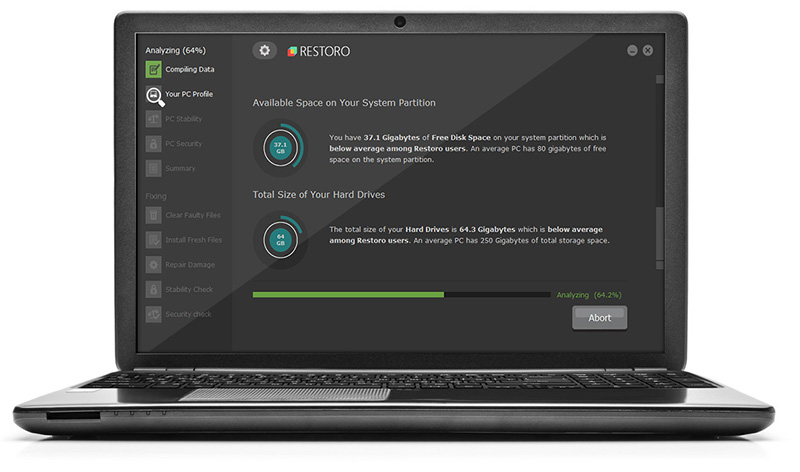
If the printer software installation fails while updating, then this means the removal of the failed software was not successful. It may not show up in the Control Panel program list. This means the entries of the failed software are still present in the registry of your PC. In this scenario, you need to clean the registry and remove the bad entries from there to successfully install the HP printer driver on your system. Though this can be done manually this can be both time-consuming and slightly challenging if you are not technically sound. Therefore, to remove bad entries from the registry in seconds in just a few clicks download Restoro. This is a user-friendly PC Repair Tool deployed with a powerful registry cleaner. The registry cleaner scans your entire PC, detects and removes all bad entries and files corrupting the registry right away. Once the registry is cleaned, you can try installing the printer driver again. This is most likely to resolve the issue. Click here to download Restoro.

Method 3: Locate and Install the Driver

As was pointed out, you might need to reinstall the printer driver again. Using DriverFIX, you'll be able to automatically update your computer system and install the drivers your computer needs to operate smoothly.
Read More
Changing the Left & Right mouse buttons
As you know, all computer mouse devices are designed ergonomically for users who are right-handed. Although that’s mostly the case, there are also other mouse devices that are designed specifically for left-handed users or the ones that can be used by either the right or left hand. But before you look for these kinds of mouse devices, there is actually an option you can try so that your mouse device can work with either the left or right hand. All you have to do is configure your mouse device. Aside from setting the device to work on either hand, you can also switch mouse buttons, from left to right, using only a couple of simple steps. As mentioned earlier, most mouse devices are created for right-handed users. Meaning to say, these mouse devices are configured to be right-handed with their primary button on the left and the second one on the right. The primary button is used for certain functions such as selecting and dragging. Now you can configure your mouse to be left-handed by swapping its predefined functionality. How? Refer to each one of the given instructions below.

Option 1 – via Control Panel

  • First, go to the Start Menu and search for “control panel” in the Start search.
  • Once you see it from the search results, click on it to open it and then go to the Hardware and Sound section.
  • From there, click on Mouse under the Device and Printers section. This will open the window for Mouse Properties.
  • Now you have to check the Switch primary and secondary buttons box.
  • Then click on OK to save the changes made. After that, your primary select button on your mouse device is your right button while the secondary button, also known as right-click, is now the left button.

Option 2 – via Windows 10 Settings

This is the second option you can check out to change the configuration of your mouse from being right-handed to being left-handed.
  • First, right-click on the Windows icon and select Search.
  • Next, type “mouse” and from the search results that appear, click on Mouse Settings.
  • After that, select “Right” from the “Select your primary button” drop-down menu. This should set the mouse device from being right-handed to being left-handed.
Read More
Quick Fix Guide for Error 0xe06d7363

What is Error 0xe06d7363?

Error 0xe06d7363 is displayed when a process or an operation is not launched, or completed by an application.

This error can prevent the user from performing some operations. It might close the application unconditionally. Sometimes a ‘GetLastError()’, a ‘GetExceptionCode()’, or a ‘GetExceptionInformation()’ is displayed with this error.

Error Causes

Error 0xe06d7363 can occur for a number of reasons. Damaged, corrupted, or missing files in the registry database are the main reasons why the error might occur. Another reason is when the system files are not configured correctly, thus they corrupt system files in applications. They can also affect the hardware devices.

All code-generated exceptions in the Microsoft Visual C + + compiler will contain this error. As this error is compiler-generated, the code will not be listed in Win32 API header files. This code is a cryptic device, with ‘e’ for exception while the final 3 bytes represent ‘msc’ ASCII values.

Further Information and Manual Repair

To resolve this error, you will have to debug an application. While using Microsoft Visual Studio, you can stop the program when the error 0xe06d7363 occurs. To start debugging, follow these steps:

  • Start debugging application
  • From Debug menu, click on Exceptions
  • In the Exceptions window, select error 0xe06d7363
  • In Action, Change to Stop always from Stop if not handled

Another fix for this issue is reverting back to an earlier copy or the last update of the same Windows. Error 0xe06d7363 can occur is when you try running a client application using Microsoft.SqlServer.Types.dll component on your computer that has Microsoft SQL Server 2008 Server Pack 2 installed. With the error, the following text can be seen:

“unable to load DLL ‘SqlServerSpatial.dll’ Exception from HRESULT 0xe06d7363".

A Cumulative Update 7 was initially released for SQL Server 2008 Service Pack 2 in order to fix this issue. Since the builds are cumulative, every new fix released contains hotfixes and all security fixes which were also included in the previous SQL Server 2008 fix release. This error can be found in all Microsoft products that are listed in the Applies to Category.

Microsoft SQL Server 2008 hotfixes are created to resolve errors like 0xe06d7363 on specific SQL Server service packs. This error is by design and has commonly occurred in the previous versions of Windows before Windows 7.

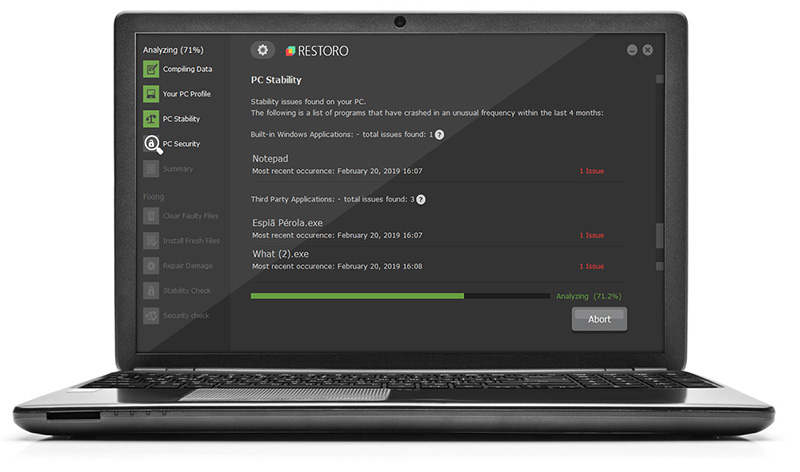
Congratulations, you have just fixed Error 0xe06d7363 in Windows 10 all by yourself. If you would like to read more helpful articles and tips about various software and hardware visit errortools.com daily. Now that’s how you fix Error 0xe06d7363 in Windows 10 on a computer. On the other hand, if your computer is going through some system-related issues that have to get fixed, there is a one-click solution known as Restoro you could check out to resolve them. This program is a useful tool that could repair corrupted registries and optimize your PC’s overall performance. Aside from that, it also cleans out your computer for any junk or corrupted files that help you eliminate any unwanted files from your system. This is basically a solution that’s within your grasp with just a click. It’s easy to use as it is user-friendly. For a complete set of instructions in downloading and using it, refer to the steps below Perform a full system scan using Restoro. To do so, follow the instructions below.
      1. Download and install Restoro from the official site.
      2. Once the installation process is completed, run Restoro to perform a full system scan. restoro application screen
      3. After the scan is completed click the “Start Repair” button. restoro application screen
Read More
How to Fix KMODE_EXCEPTION_NOT_HANDLED Error On Windows 10

KMODE_EXCEPTION_NOT_HANDLED – What is it?

Some users installing or upgrading to Windows 10 experienced the theKMODE_EXCEPTION_NOT_HANDLED Blue Screen of Death (or commonly known as BSOD) error. This error can be due to different types of things, ranging from software to driver issues. When you experience this BSOD error while trying to install Windows 10, it will prompt you to restart your computer every single time you experience it. In most cases, you will also not be able to proceed with the Windows 10 set-up.

Solution

Restoro box imageError Causes

The “KMODE_EXCEPTION_NOT_HANDLED” error is normally caused by:

  • Hardware incompatibility
  • A faulty device driver or system service

Further Information and Manual Repair

You won’t be able to successfully upgrade or set up Windows 10 if you continue to encounter this BSOD error. Note that this error will always prompt your computer to restart every time it happens, preventing you from completing the Windows 10 set-up.

If you’re not tech-savvy or not capable of debugging this issue, it’s highly advisable to proceed with the basic troubleshooting techniques available in this link.

After troubleshooting, below you’ll find a few solutions to rectify the issue.

Method 1 – Check The Cause of The BSOD Error

Two common causes of the KMODE_EXCEPTION_NOT_HANDLED issue are hardware incompatibility and faulty device driver or system service.

If you experience this error, check first if any of your newly installed hardware is compatible with Windows 10. You can find the required hardware for Windows 10 from this link

If all your hardware is compatible with Windows 10, you might need to check the device driver or system service. Review the bug check message. If any of the drivers you have is listed in the message, either disable or uninstall them before upgrading or setting up Windows 10.

You might also find it useful to check the System Log available in the Event Viewer for other error messages that can help you figure out the driver or device that’s causing the error. Running hardware diagnostics can also be useful.

Method 2 – Disable (or preferably uninstall) Software Before Upgrading

If you’re upgrading Windows 10 from Windows 7 or Windows 8.1, you might need to disable or uninstall the software first. First, try uninstalling your Antivirus utility before starting the upgrade. Restart a few times before starting the Windows 10 installation. If you’re upgrading using the Windows 10 update, make sure that you disconnect from your Wi-Fi or Internet LAN (Ethernet) connection as soon as the download reaches 100% before attempting to start the set-up. Other users also reported that the cause of the KMODE_EXCEPTION_NOT_HANDLED issue is BitDefender. If this is what happened in your case, it will show in the error message such as KMODE_EXCEPTION_NOT_HANDLED (bdselfpr.sys). Users reported that a common solution for this is renaming the file. In the case of BitDefender, try renaming it to bdselfpr.s__. However, make sure to do this cautiously. Sometimes, renaming a file will even do more damage than good.

Method 3 – Disable/Disconnect From Hardware

If you’re connected to any general USB devices (such a smart card reader), disable it. If your computer is connected to other external devices, disconnect all of them. Examples of this include gaming controllers, printers, external hard disk, USB keys, and other non-essential devices).

Method 4 – Other Troubleshooting Steps

Other troubleshooting steps include:

  • Upgrade using an .ISO file, instead of directly upgrading from Windows Update. When you do this, make sure you’re disconnected from the Internet during installation. If the process started and you forgot to disconnected, it’s best to restart the installation.
  • If you’re connected to a domain while trying to set up Windows 10, disconnect and use a local account.
  • If you’re using a SCSI hard disk, connect a thumb drive with the drivers for your storage device. While Windows 10 is setting up, click on the Custom Advanced Option. Using the thumb drive, use the Load Driver command to load the SCSI drive.
  • Another possible cause of this error is due to BIOS incompatibility. BIOS issues can be solved by upgrading your version of your system BIOS. If you don’t know how to do this, refer to your BIOS manufacturer’s website.

Method 5 – Use A Trusted Automated Tool

If you still experience the error after doing the methods above, you might want to try a powerful and trusted automated tool to fix the job.

Read More
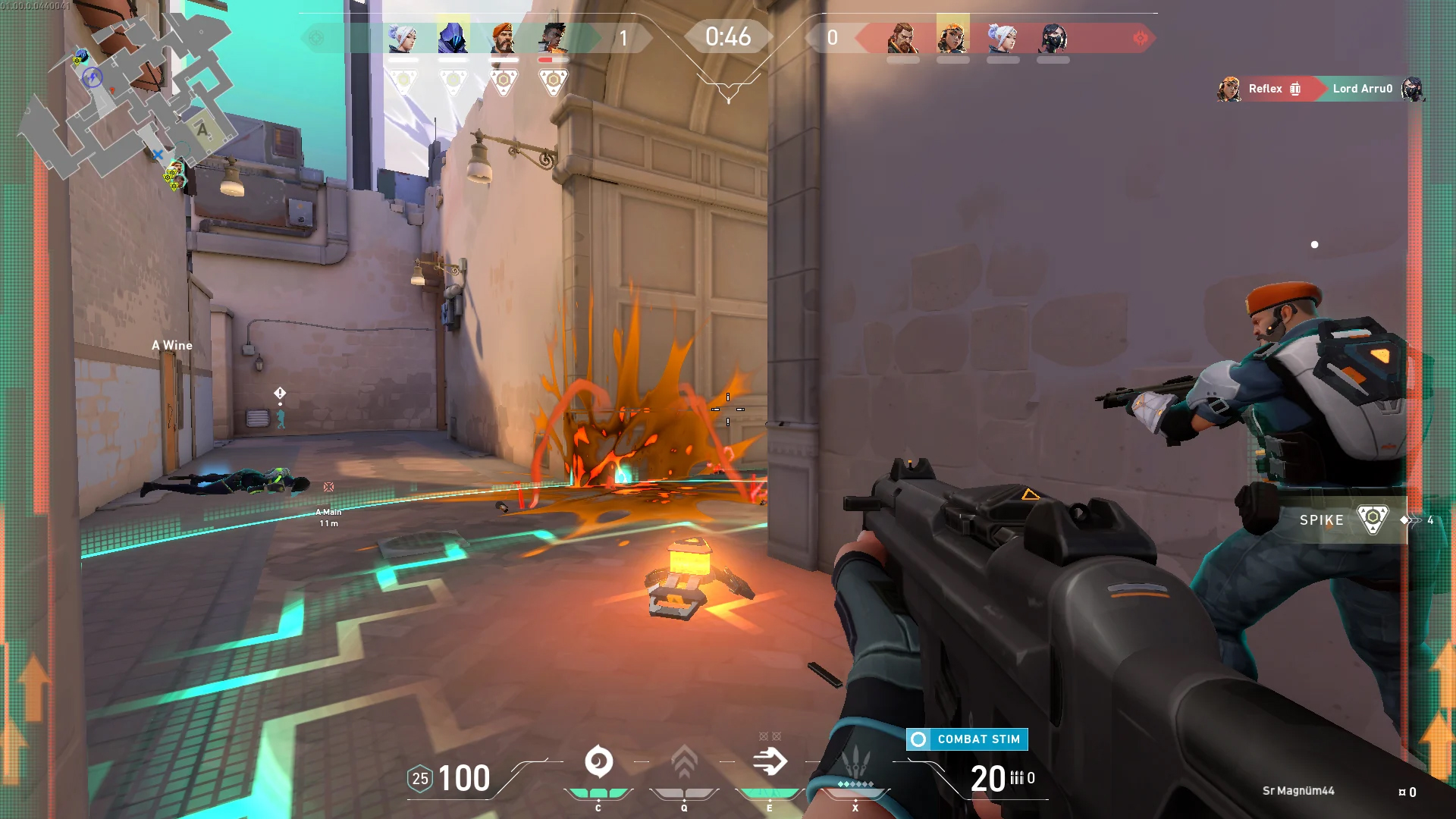
Valorant will enforce Windows 11 TPM 2.0
Valorant ingameBad or good news, depending on your view comes from RIOT for their game Valorant. It seems that Riot has decided to enforce Windows 11 TPM 2.0 feature into Valorant running on Windows 11 and there is a rumor that it will be de facto standard and that it will move to Valorant in general no matter on which system it runs. Furthermore, there is a rumor circling around that other developers are also talking about implementing TPM 2.0 requirements so they can harvest advanced security features of Windows 11 in order to prevent hacks and other cheats in their games. This is an interesting point to stand on, on one side, sure, advanced features that will prevent cheating and hacking is a great thing. On other hand denying access to many computers that do not support TPM 2.0 and removing them from the game can be a permanent loss of customers and therefore loss of money. It is a risk to be sure and I am not really sure that alienating gamers is a good choice for long-term income, especially when you will be able to install Windows 11 on an unsupported PC as stated by Microsoft. We will all see how this Riot decision will reflect on their business, as not a big Valorant player myself I am not impacted too much with this decision, but it will be interesting to see if others will indeed go with this trend or they will decide to wait a while until much more PC’s are upgraded.

Read More
1 2 3 171
Logo
Copyright © 2023, ErrorTools. All Rights Reserved
Trademark: Microsoft Windows logos are registered trademarks of Microsoft. Disclaimer: ErrorTools.com is not affiliated with Microsoft, nor claims direct affiliation.
The information on this page is provided for information purposes only.
DMCA.com Protection Status