Why You Need Antivirus Software & How to Select the Right One
Anxiety from all these digital threats lurking everywhere? An antivirus program can help put your mind at ease.
What can a virus do to your device?
A virus is malicious software that can affect pretty much any device and does so in a variety of ways. Be it your computer, your phone or your smart lightbulb - as long as there’s access to the internet, malware can get to it.
How exactly does this kind of attack manifest itself? Well, there’s a wide variety of effects ranging from mild to severe. Among other things, they depend on which type of malware attacks your device - a virus, spyware, ransomware, adware or something else.
These are some of the things you can expect to happen:
Slow performance
System crashes
Theft of data and sensitive information
Connectivity issues
Constant browser redirects
Strange messages sent to your contacts
Interference with files
It really can be the stuff of nightmares. So, if you want to sleep peacefully knowing that your devices are completely safe, you should definitely consider getting an antivirus.
P.S. don’t let its name fool you - an antivirus does indeed protect your devices against more than just viruses.
What is antivirus software exactly?
Antivirus software is designed to help you battle and ward off malware. Basically, it scans your device to detect any suspicious activity and offers tools to get rid of the culprit.
At first, antiviruses were developed to fight against viruses only, but nowadays they cover a lot more ground. Here are some of the biggest benefits of getting yourself a powerful defender.
Advantages of antivirus software
1. It fights those pesky ads
Look, constant ads that pop up everywhere aren’t the absolute worst thing that can happen on your computer. If anything, they are annoying, like when you’re trying to sleep but that one fly in your room just won’t stop buzzing.
Now, there’s a free, well-established solution for that - installing an ad blocker. And we’re about a hundred and ten percent sure you’ve already done that on each and every browser you use.
However, “if I can’t see it, it doesn’t exist” isn’t the most ideal approach for your online safety. Ad blockers can’t block everything and they won’t protect you from potential adware. An antivirus on the other hand offers that layer of protection against malware snuck into pop-ups and spammy websites.
2. It protects you from hackers
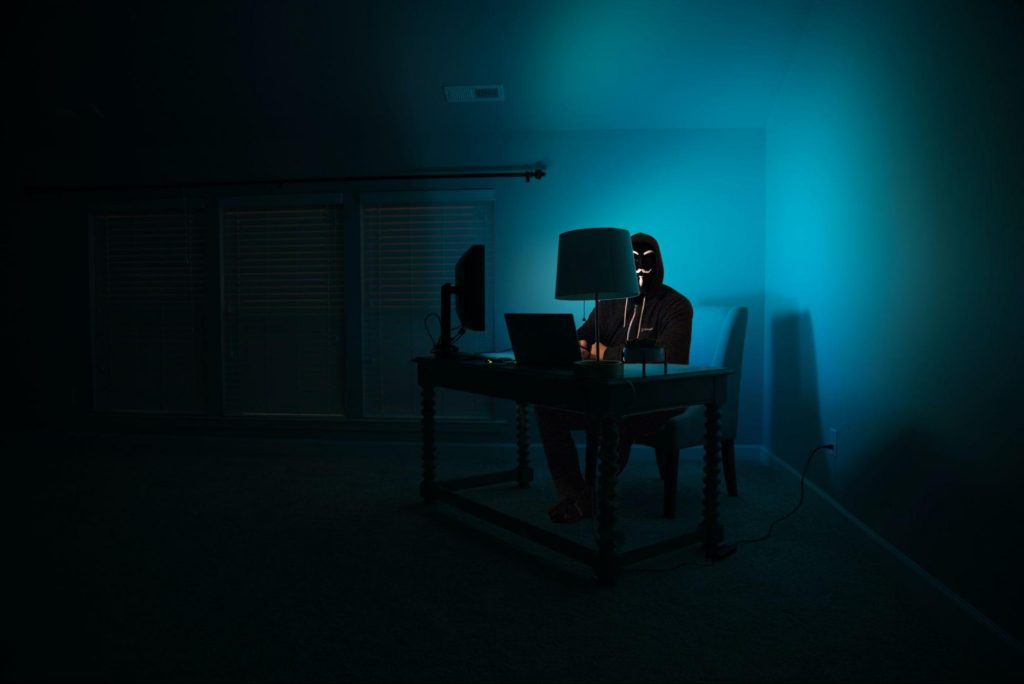
Hackers don’t target government institutions only. They’ll target regular people too if they have something to gain.
Credit Clint Patteron Unsplash
There are different types of hacking, such as phishing e-mails, transmission of malicious programs, credential reuse, denial of service and more. In any case, they take control of your device and hijack your data.
The good thing is that, as threats evolve, antiviruses evolve too and there are tons of quality programs on the market that can keep you secure for an affordable price.
3. It keeps your files and data safe
When malware enters your device, it can target pretty much any file and get access to any and all data.
Installing an antivirus program will make sure that every single file, new or old, is monitored at all times, warning you against threats immediately. That way, you can make sure to react before your other files become infected and data is lost or stolen.
Another great thing for data protection is that the best antivirus software normally comes with a password manager, so no one can use malware to steal your passwords.
4. It blocks all kinds of malware
As we already stated, malicious attacks can be performed in many ways and malware comes in in different shapes an sizes, such as:
Trojan horse
Spyware
Ransomware
Adware
Rootkit
RAT (remote access Trojan)
Keyloggers
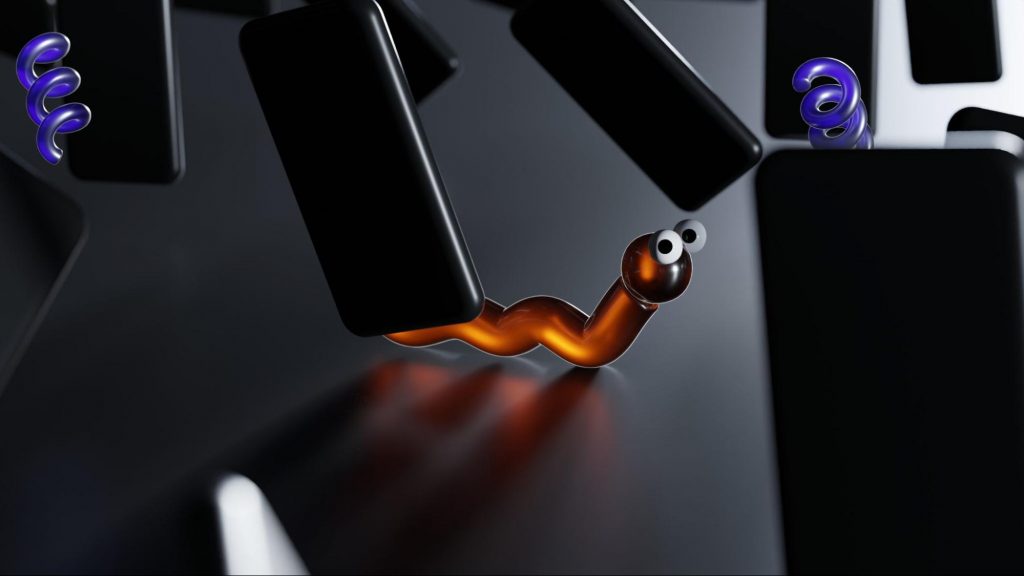
Worms
Botnets
Credit Growtika Unsplash
Nowadays, antivirus software is designed to fight against all of these types. That’s why more often than not we hear the term 'antivirus' used interchangeably with 'anti-malware,' like in this article.
5. It keeps your children protected
You can’t keep your eyes on your kid every second of the day and you can’t protect them from everything. But at least you can limit their exposure to the threats they can encounter at every corner of the digital world.
An antivirus program will block harmful or suspicious websites and ads, which is great both for you and your children. To take it a step further, though, many such programs come with special parental controls and offer monitoring as well. It’s a great solution for keeping your kids safe online without sounding like the irritating, overbearing, controlling parent who “just doesn’t get it!”
How to pick one
There are definitely lots of different antivirus programs out there, both free and paid. We recommend you look for a paid option, since free ones are unfortunately a lot more susceptible to being compromised through malicious attacks.
Now, there are a few factors to consider when choosing the right software. If you use your PC for basic things then a basic antivirus will suffice. However, the more complex your use and the more sensitive the data you deal with, the stronger it needs to be.
It’s also crucial that you take into account the features it includes. As we already mentioned, some programs have additional security options. For example, depending on the package you select, Bitdefender provides:
Some are included in plans and some are separate products, so make sure to check out all the offers.
And don’t worry if you have multiple PCs or you’re looking for protection for your smartphone or tablet as well; Bitdefender has suitable solutions for your needs. Of course, you can also just pick their classic antivirus software if you’re not in need of advanced protection.
Another important point is how regularly the software is updated and enhanced. The more frequent the updates the better, as bugs can make the program more vulnerable. Other things we advise you consider are user-friendliness, impact on performance, reputation (user reviews especially) and, of course, price.
The bottom line
Fact is: anyone can be a malware victim. Don’t let it be you.
You can’t put a price on peace and security, so don’t be reluctant to pay for yours - especially since a lot of options out there are extremely affordable. Is $159.00 a year really too much to pay for cross-platform protection for up to 10 devices? We don’t think so.
Explore your options and protect your files and data before it’s too late.
TPM 2.0 requirement for Windows 11 has produced a lot of discussions since it was announced. A lot of somewhat older hardware seems to be left behind with this decision from Microsoft.
So naturally, when something like this is announced, especially when it is stated it is the must-have thing, people find a way to break it and to prove it is not the case.
In that spirit, I am proud to present you with not one but three-way you can install Windows 11 on hardware that does not has TPM 2.0. Please note that by bypassing this you will not be able to use some Windows 11 features tied to modules like Device encryption, vTPM in Hyper-V, and all TPM-related services.
I will cover methods from the most simple and straightforward ones to the more complicated using registry editor.
Bypass TPM with changing installation media
For this method to work you will need both Windows 10 ISO and Windows 11 ISO since it will require some file copying between them.
You will also need Rufus or another tool to make a new installation media once files are copied
All you have to do in this method is to go into your Windows 10 ISO and delete the install.esd, then just copy install.wim from Windows 11 installation media into the same place, and you are done.
Make install ISO with Rufus and install Windows 11.
Change DLL on installation media method
For this method, you will need everything like in the previous one and the process is almost the same, but this time instead of migrating the whole installation file, we will just replace the appraiserres.dll file.
Copy appraiserres.dll file from your Windows 10 installation media over the same file on Windows 11 installation and you are good to go.
Bypassing TPM via registry editor
If for some reason previous easy solutions have not worked for you do not lose hope just yet, there is one more way you can bypass TPM.
In this given method you will not need Windows 10 installation media but the process is a little more complicated than previous ones.
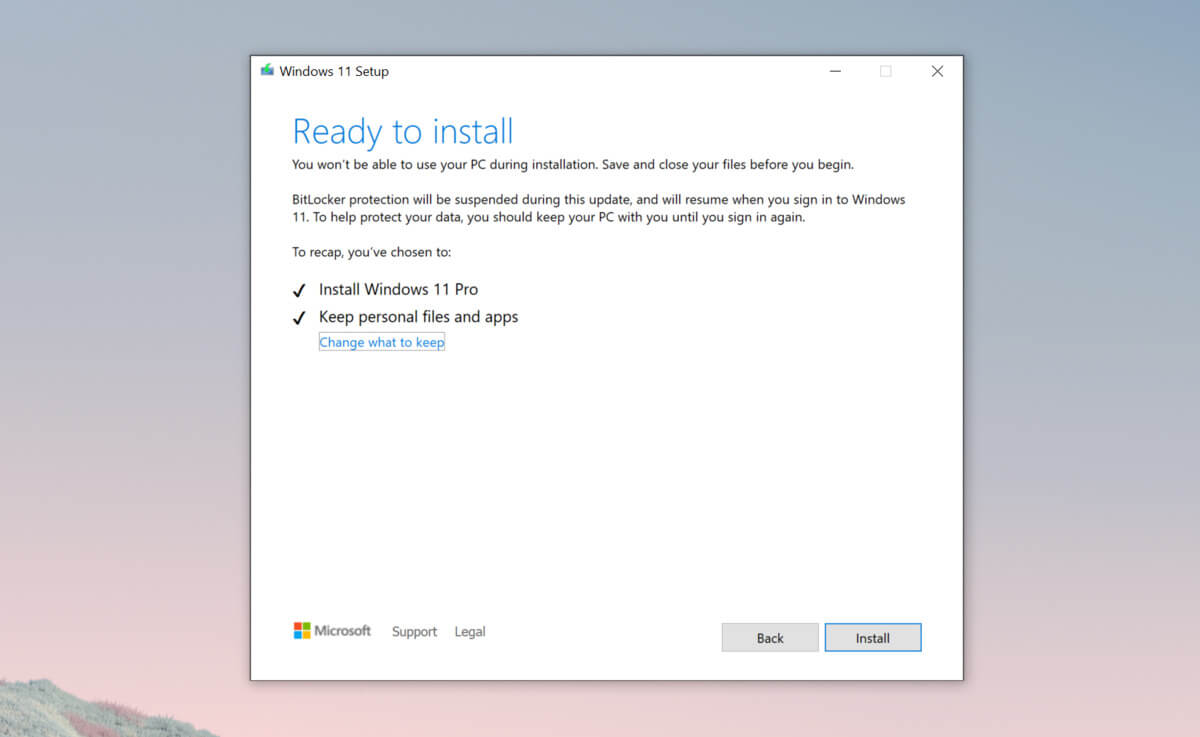
Create Windows 11 media installation
Start the installation process
Click the Next button.
Select region, language, and time when asked. You can change these settings later.
Click the Install now button.
If your device was already activated, click the I don’t have a product key option to continue.
Click the Next button.
Select the edition of Windows. When you’re installing the OS on an existing device, Windows won’t activate if you select the incorrect edition.
Click the Next button.
Select the I accept the license terms option and click next.
Select Custom: Install Windows only (Advanced)
During the Windows installation screen, now you will see a message stating that the PC can’t run Windows 11 if you do not have TPM 2.0
On this screen, press SHIFT + F10 to open Command Prompt window.
Launch the registry editor, type regedit.exe in Command Prompt, and press ENTER
Create a new key “LabConfig” by right-clicking on the Setup key and select New > Key under HKEY_LOCAL_MACHINE\SYSTEM\Setup.
Type LabConfig and press ENTER.
Right-click on the LabConfig key.
Select New > DWORD (32-bit) value.
Create two values: BypassTPMCheck and BypassSecureBootCheck.
Set their DWORD32 value to 1.
Press ENTER.
Close the Registry Editor.
Type exit in the Command Prompt and press ENTER or close its window.
Press the back button in the Windows installation setup if it still says “This PC can’t run Windows 11”.
Accept the terms & conditions.
Select Custom: Install Windows only (Advanced) option and configure the partition with the current installation.
Recently, several users reported an issue on their Windows 10 computers where the taskbar is not visible when they tried to connect to a computer via Remote Desktop Protocol or RDP. The Remote Desktop Connection feature uses the RDP which allows users to access a computer remotely. This is actually different from the taskbar being hidden automatically until the pointer hovers on it since, in this scenario, the taskbar is completely not accessible which makes using the remote computer entirely difficult, if not impossible.
There are several suggestions you can check out to resolve this problem, you can try to restart the process of Windows Explorer via Task Manager or you could clear the cache for multiple processes. You could also try to reinstall the Shell Experience components or show the local taskbar in the Remote desktop. Moreover, you could also try to update, uninstall or roll back the display driver/graphics card driver. For more details, refer to each one of the options given below.
Option 1 – Try to restart the Windows Explorer process
The first option you have to try to fix the problem with the taskbar is to simply restart the Windows Explorer process in the Task Manager.
Tap the Ctrl + Shift + Esc keys to open the Task Manager.
Next, go to the Processes tab and find the process of Windows Explorer.
Once you find it, right-click on it and select Restart to restart its process.
After that, restart your computer and see if you can now see the Taskbar.
Option 2 – Try clearing the cache of multiple processes
The next thing you can do to resolve the problem is to clear the cache of many processes in your computer. To do so, follow these steps:
Open the Notepad app and paste the following content in the text area:
After that, tap the Ctrl + S keys to save the changes you’ve made in Notepad and select the “All files” as its file type, and then name it “CacheClearTWC.bat”.
Next, go to the location where you saved the file using File Explorer and then run it. This will run a couple of batch scripts which will clear the cache of multiple processes in the system.
Tap the Win + X keys and select the “Windows PowerShell (Admin)” option to open PowerShell as admin.
Next, execute this command in the command line: Get-appxpackage -all *shellexperience* -packagetype bundle |% {add-appxpackage -register -disabledevelopmentmode ($_.installlocation + “appxmetadataappxbundlemanifest.xml”)}
After the command has been executed, this will reinstall the Shell Experience components and should fix the problem with the taskbar.
Option 4 – Update, uninstall or rollback the Graphics card drivers
First, boot your computer into Safe Mode.
After that, tap the Win + R keys to launch Run.
Type in MSC into the box and tap Enter or click OK to open the Device Manager.
After that, a list of device drivers will be displayed. From there, look for the Display Adapters and click on them.
After that, right-click on each entry under the Display Adapters and select the “Uninstall Device” option from the menu.
Now restart your computer.
After restarting your computer, go to the Settings app and Check for Updates in the Windows Update section.
Note: You also have the option to go directly to the website of your graphics card manufacturers like NVIDIA, Intel, or AMD and go to the section called Drivers then check if there’s a new available update – if there is, download and install it.
If you got the Microsoft Store error code 0x80072F30 while trying to open Microsoft Store, then it indicates that the Store fails to connect to the internet or is not able to launch successfully for some reason. It could be that the Windows Update Service has stopped or the Windows Store cache might be corrupted or it could just be due to a poor internet connection. Whichever the cause is, you have to fix this error so that you can use Microsoft Store again and you won’t be getting the following error message every time you open the app:
“Check your connection, Microsoft Store needs to be online, It looks like you are not, error code 0x80072f30.”
The error code 0x80072F30 is related to the Windows Store which prevents it from opening properly. To resolve this problem, you can try fixing the problem with the help of the options given below. Follow each one of them carefully.
Option 1 – Check your internet connection
The first and most obvious thing you can do is to check your internet connection. This may only be a basic tip but it sure works like a charm in most cases. And if you have another internet connection available, you can also try connecting to that and see if you can pull up Microsoft Store or not.
1] Change your internet connection:
A basic tip, but sometimes works like a charm. You may want to check if your internet connection has an issue, or you can also try opening a website and see if you can open it and if possible try connecting to a different internet connection and see if the Microsoft Store opens for you. We also suggest you try changing your DNS and see if it helps.
Option 2 – Check the date and time as well as the time zone of your PC
A lot of services and apps rely on the Date, Time, and Time Zone of your PC which is why if they are not configured correctly, a request from the client machine will be rejected from the server and the same thing happens with the Microsoft Store.
First, go to Settings > Time and Language.
From there, check if it is set to Automatic or not – if it is, switch the toggle button off to set the Time and Time zone manually.
Then select the right time zone manually.
On the other hand, if the Time and Time zone is set manually, you have to switch the toggle button on to set Time and Time zone automatically.
Restart your PC and afterward try opening Microsoft Store again and check if the problem’s fixed or not.
Option 3 – Run the Network Adapter Troubleshooter
Since Windows 10 is packed with various troubleshooters – one of which is the Network Adapter Troubleshooter – you can use it to troubleshoot the problem. To use it, follow these steps:
Open the Search bar on your computer and type in “troubleshoot” to open the Troubleshoot settings.
Next, scroll down and select the “Network Adapter” option from the right pane.
Then click on the Run Troubleshooter” button.
After that, your computer will check for any possible errors and will pinpoint the root cause of the problem if possible.
Option 4 – Try to reset the Microsoft Store cache
Just like browsers, Microsoft Store also caches as you view apps and games so it is most likely that the cache is no longer valid and must be removed. To do so, follow the steps below.
Right-click on the start button and click on Command Prompt (administrator).
Next, type in the command, “exe” and tap Enter. Once you do, the command will clear the cache for the Windows Store app.
Now restart your PC and afterward, try opening Microsoft Store again.
Option 5 – Check the Windows Update Service status
You might also want to check the status of the Windows Update Service since the proper functioning of this app depends on the Windows Update Service. It could be that there is some issue with the service which is why you’re getting the error code 0x80072F30 while trying to open Microsoft Store.
Tap the Win + R keys to open the Run dialog box.
Then type “services.msc” in the field and hit Enter to open Services.
Next, look for Windows Update Service from the list of available services in Windows.
Once you see it, check if its status is STOP or Pause and then change the status to Automatic.
TotalRecipeSearch is a browser extension for Google Chrome developed by Mindspark. This extension allows access to popular cooking websites.
From the Author: Discover 1000s of tasty recipes – for FREE! Find creative, new meal ideas all in one convenient place!
When installed, this extension changes your default search engine and home page to MyWebSearch.com. While active it will monitor user activity, recording browsing data, visited websites and clicked links. This data is later used to display targeted ads throughout your browsing sessions.
While browsing the internet you will see additional unwanted ads, sponsored links, and even pop-up ads injected into your search results and websites.
This extension has been marked as a Browser Hijacker by several anti-virus programs and it is targeted for removal.
About Browser Hijackers
Browser hijacking means a malicious code has taken power over and modified the settings of your web browser, without your consent. Practically most browser hijackers are made for advertising or marketing purposes. Typically, it will drive users to particular sites which are aiming to boost their ad income. Though it might appear naive, all browser hijackers are damaging and thus always classified as security risks. They not only mess up your web browsers, but browser hijackers could also modify the computer registry, making your computer susceptible to other malicious programs.
How to determine if your browser is hijacked
The typical signs that indicate having this malware on your computer are:
1. you see unauthorized changes to your web browser’s homepage2. when you key in a URL, you find yourself regularly directed to some other web page than the one you meant3. the default web browser settings have been changed and/or your default web engine is altered4. you are finding browser toolbars you have never witnessed before5. your web browser will display constant pop-up ads6. websites load slowly and at times incomplete7. you are blocked to access those sites of security solution providers.
How does a browser hijacker infect a computer?
Browser hijackers can enter a computer in some way or other, for example via downloads, file sharing, and email as well. They also come from add-on applications, also called browser helper objects (BHO), web browser plug-ins, or toolbars. Browser hijackers sneak into your computer in addition to free software downloads also that you unwittingly install alongside the original. Popular examples of browser hijackers include CoolWebSearch, Conduit, RocketTab, OneWebSearch, Coupon Server, Snap.do, Delta Search, and Searchult.com.
The existence of any browser hijacker malware on your system might significantly diminish the browsing experience, monitor your internet activities that lead to critical privacy concerns, develop system stability problems and ultimately cause your PC to slow down or to an almost unusable condition.
How you can fix a browser hijack
Certain hijackers could be removed by simply uninstalling the corresponding free software or add-ons from the Add or Remove Programs in the Windows Control Panel. But, the majority of hijackers are very tenacious and need specialized tools to remove them. Novice PC users should not try for the manual form of removal, as it calls for comprehensive computer knowledge to carry out repairs on the computer registry and HOSTS file.
Professionals always recommend users to get rid of any malware including browser hijacker by using an automatic removal tool, which is better, safer, and quicker than the manual removal technique. SafeBytes Anti-Malware discovers all types of hijackers – including TotalRecipeSearch – and eliminates every trace quickly and efficiently. Along with the anti-malware tool, a system optimizer, like SafeBytes’s Total System Care, will help you in deleting all linked files and modifications in the computer registry automatically.
Help! Malware Preventing Anti-Malware Installation And Access To The Internet
Malware could potentially cause plenty of damage to your PC. Certain malware variants alter browser settings by adding a proxy server or modify the PC’s DNS settings. In these instances, you will be unable to visit some or all of the internet sites, and thus unable to download or install the necessary security software to clear out the computer virus. So what you should do if malware prevents you from downloading or installing Safebytes Anti-Malware? Refer to the instructions below to get rid of malware through alternate methods.
Download the application in Safe Mode with Networking
In the event the malware is set to load at Windows start-up, then booting in Safe Mode should prevent it. Only minimal required applications and services are loaded when you start your PC into Safe Mode. To launch your Windows XP, Vista, or 7 PCs in Safe Mode with Networking, please do as instructed below.
1) At power-on/startup, hit the F8 key in 1-second intervals. This should bring up the Advanced Boot Options menu.2) Use the arrow keys to choose Safe Mode with Networking and hit ENTER.3) Once you get into this mode, you should have an internet connection again. Now, use your web browser normally and navigate to https://safebytes.com/products/anti-malware/ to download Safebytes Anti-Malware.4) Following installation, do a full scan and allow the software program to remove the threats it detects.
Obtain the antivirus software in a different web browser
Web-based viruses could be environment-specific, targeting a particular browser or attacking particular versions of the web browser. The best way to overcome this problem is to choose a browser that is well known for its security features. Firefox comprises built-in Malware and Phishing Protection to keep you safe online.
Install and run anti-malware from your flash drive
To effectively get rid of the malware, you need to approach the issue of installing anti-virus software on the infected computer system from a different angle. Adopt these measures to employ a flash drive to fix your corrupted PC.
1) Use another virus-free computer system to download Safebytes Anti-Malware.2) Plug the Flash drive into the clean computer.3) Run the setup program by double-clicking the executable file of the downloaded application, with a .exe file format.4) Select the flash drive as the location for saving the software file. Follow the directions to finish the installation process.5) Transfer the thumb drive from the clean PC to the infected computer.6) Double-click the EXE file to open the Safebytes software from the pen drive.7) Click on “Scan Now” to run a scan on the affected computer for viruses.
Features and Benefits of SafeBytes Anti-Malware
If you are looking to download anti-malware software for your computer, there are various tools in the market to consider however, you cannot trust blindly anyone, regardless of whether it is a paid or free software. A few are good ones, some are decent, while some are simply just fake anti-malware programs that can damage your personal computer themselves! You need to be careful not to pick the wrong application, especially if you buy a paid software. When thinking about the highly regarded applications, Safebytes AntiMalware is certainly the highly recommended one.
SafeBytes can be described as a highly effective, real-time anti-spyware application that is designed to assist everyday computer users in protecting their computers from malicious threats. This program can easily identify, remove, and protect your PC from the most advanced malware threats such as adware, spyware, trojan horses, ransomware, parasites, worms, PUPs, and other possibly damaging software programs.
SafeBytes anti-malware comes with a myriad of advanced features that sets it apart from all others. Listed below are some of the features you might like in SafeBytes Anti-Malware.
Real-time Threat Response: SafeBytes provides an entirely hands-free real-time protection and is set to check, prevent and destroy all computer threats at its very first encounter. They’re highly effective in screening and getting rid of different threats since they’re regularly improved with the latest updates and alerts.
Anti-Malware Protection: Built on a highly acclaimed anti-virus engine, this malware removal application can detect and get rid of many stubborn malware threats like browser hijackers, potentially unwanted programs, and ransomware that other typical anti-virus software will miss.
Fast Scan: This software program has one of the fastest and most effective virus scanning engines in the industry. The scans are highly accurate and take a little time to complete.
Internet Security: SafeBytes inspects the hyperlinks present on a web page for possible threats and notifies you whether the site is safe to browse or not, through its unique safety rating system.
Very Low CPU and RAM Usage: SafeBytes provides complete protection from online threats at a fraction of the CPU load because of its advanced detection engine and algorithms.
Fantastic Technical Support: Skilled technicians are at your disposal 24/7! They will immediately fix any technical issues you may be experiencing with your security software.
Put simply, SafeBytes has formulated a meaningful anti-malware solution that is aimed to protect your computer against various malware. Now you may realize that this software does more than just scan and eliminate threats from your computer. So when you want sophisticated forms of protection features & threat detections, buying SafeBytes Anti-Malware could be worth the dollars!
Technical Details and Manual Removal (Advanced Users)
To remove TotalRecipeSearch manually, navigate to the Add or Remove programs list in the Control Panel and choose the offending program you want to get rid of. For web browser plug-ins, go to your web browser’s Addon/Extension manager and choose the plug-in you want to remove or disable. It’s also advised to factory reset your web browser to its default condition to fix corrupt settings.
If you opt to manually delete the system files and Windows registry entries, utilize the following checklist to ensure that you know exactly what files to remove before carrying out any actions. Please keep in mind that only experienced computer users should try to manually edit the system files simply because removing any single critical registry entry results in a major problem or even a system crash. Also, certain malware is capable of replicating itself or preventing deletion. Doing this malware-removal process in Safe Mode is suggested.
Error code 0xc000021a occurs when the system is unable to start or there’s a failure in critical system processes. Normally, it would take about several seconds for the system to boot and while on the startup process, error code 0xc000021a may take place to block the system to boot up. Users will get a blue screen of death (BOSD) when this error occurs. When upgrading to Windows 10, be careful; you might encounter other error messages such as error code 8007002c.
Solution
Error Causes
There are several reasons why error code 0xc000021a occurs. It is important to have a full understanding of what caused the blue screen of death before attempting to fix the error by yourself. See below for a few common causes:
• Computer malware has infiltrated your device.
• Important files such as Winlogon.exe and Csrss.exe are damaged. Winlogon.exe file is responsible for handling the login and logout processes while Csrss.exe is a vital part of Microsoft Client or Server ‘Runtime Server Subsystem’. Once one of these files is damaged or deleted, a stop error will occur.
• When there are mismatched system files installed or system upgrading process failed or still incomplete.
• Premature unloading of Wbemprox.dll
• Newly installed third-party software is not compatible with the operating system.
• There are corrupted, outdated, or incorrectly configured device drivers.
• Windows registry is corrupted or damaged due to a software or system change. This means there are registry entries that are not cleared after uninstalling an application.
Further Information and Manual Repair
In fixing error code 0xc000021a, you might want to try and manually do so. Manual repair methods can give users effective and efficient solutions, addressing the root problems in relation to Windows error codes. Once the manual repair method is correctly implemented, users will be able to resolve issues immediately.
However, there might be instances when a Windows professional is needed. In such cases, seek help from a certified Windows expert or you might want to consider using an automated tool whenever necessary.
Method One: Convert the Drive or Partition from NTFS to GPT
In order to fix Error code 0xc000021a in Windows 10, you might need to convert the partition or drive from NTFS to GPT. See below for the procedure:
1. Shut down your device then put in the Windows installation USB key or DVD.2. Boot your device to the USB key or DVD in UEFI mode.3. Inside the Windows Setup, open a Command Prompt window by pressing Shift + F10.4. Type diskpart in the Command Prompt window to open the diskpart tool.5. Type list disk to identify which drive to reformat.6. Select which drive to reformat by typing select disk in the command prompt. Afterward, type clean then hit
Enter. Once done, type convert gpt to be able to convert the drive from NTFS to GPT. Finally, type exit and press Enter. You can now close the Command Prompt window.
7. Once the partition or drive is converted from NTFS to GPT, the user can now continue the Windows Setup installation.NOTE: Select Custom in choosing which installation type to use. The drive will then appear as a single area of unallocated space. Choose that unallocated space then select Next. At this point, Windows will now begin the installation.
Method Two: Fix System File Errors
There are times when system files get corrupted or damaged which will result in system failure. If this is the case, you can use a Windows free tool to repair corrupted or damaged system files.
1. Right-click on the Start button then selects Command Prompt (Admin) from the list to open a Command Prompt window.2. Once the Command Prompt appears, type sfc /scannow then hit Enter. Wait until the process completes. If the process is completed and it doesn’t report any error or issues that remain unsolved, you might want to employ the next method.
Method Three: Reset Windows 10
Resetting Windows will delete all software and user accounts installed in the operating system and will reinstall a fresh Windows.
1. Boot your device using a Windows installation USB key or DVD. Select Repair your computer to locate the Troubleshoot option. Afterward, choose Reset this PC.NOTE: If the device is able to boot the system, you can reset Windows without using a Windows installation USB key or DVD. You just have to boot the device then navigate to Settings in the Start button. Choose Update & Recovery then select Recovery found on the left pane. Choose Reset this PC option then select Go back to an earlier build and Advanced startup. Select Get Started button found in the Reset this PC tab.2. Depending on your device’s condition, you can either select Keep my files or Remove everything. Both options will remove all applications installed in the device and will revert to default settings.3. Choose either Just remove my files or Remove files and clean the drive depending on the situation. If you choose the Remove files and clean the drive option, the procedure will take longer as it will erase all the files permanently. In this case, deleted files cannot be recovered. However, if you don’t want to remove files permanently, select Just remove my files.4. Once you’ve decided how to reset your system, click on Next once the Warning screen appears. Afterward, choose Reset once prompted. When the process completed, click on Continue.
Method Four: Download an Automated Tool
Can’t seem to put up with the long and technical manual repair process? You can still fix this error by downloading and installing a powerful automated tool that will surely get the job done in a jiffy!
Device drivers serve as a connection between the hardware in your computer and the operating system. So if any of the device drivers fail, the concerned hardware will stop communicating with Windows. And when you encounter some network-related issues, you can run the Network Adapter troubleshooter to fix them. However, this built-in troubleshooter does not work all the time as there are still problems that it can’t fix on its own and you’ll see the following error message:
“Windows could not find a driver for your network adapter.”
If you encounter this kind of error, read on as this post will help you in fixing the problem but before you get started in troubleshooting the problem, try running the Network Adapter Troubleshooter again.
Open the Search bar on your computer and type in “troubleshoot” to open the Troubleshoot settings.
Next, scroll down and select the “Network Adapter” option from the right pane.
Then click on the Run Troubleshooter” button.
After that, your computer will check for any possible errors and will pinpoint the root cause of the problem if possible.
Refer to each one of the solutions given below to get started:
Option 1 – Update the Network Adapter drivers
Of course, the first thing you can try to do is to update the Network Adapter drivers to resolve the error.
Tap the Win + R keys to launch the Run window and then type in the “devmgmt.msc” command and hit Enter to open the Device Manager window.
Under the Device Manager, you will see a list of drivers. From there, look for the Network Adapters and expand it.
Then right-click on each one of the Network drivers and update them all.
Restart your PC and see if it helped in fixing the BSOD error.
Note: If updating the network drivers didn’t help in fixing the “Windows could not find a driver for your network adapter” error, you can also try to uninstall the very same drivers and restart your Windows 10 PC. After that, the system itself will reinstall the drivers you just uninstalled. Alternatively, you can also download and install the drivers from the manufacturer’s website directly.
To reinstall the network adapter driver, refer to these steps:
Open the Devices Manager from the Win X Menu.
Then locate the device drivers and right-click on them to open the Properties.
After that, switch to the Driver tab and click on the Uninstall Device button.
Follow the screen option to completely uninstall it.
Finally, restart your computer. It will just reinstall the device drivers automatically.
Option 2 – Try running the Hardware and Devices Troubleshooter
Apart from the Network Adapter Troubleshooter, you can also run another built-in troubleshooter in Windows, the Hardware and Devices Troubleshooter, as it can also help you in resolving the “Windows could not find a driver for your network adapter” error.
The first thing you need to do is click on Start and then on the gear-like icon to pull up the window for Settings.
After opening Settings, look for the Update and Security option and select it.
From there, go to the Troubleshoot option located on the left-hand side of the list.
Next, select Hardware and Devices from the list and open the Troubleshooter and run it. Once it is doing its job, wait for it to complete the process and then restart the system.
After the system restarts, check if the problem’s now fixed. If not, refer to the next option given below.
Option 3 – Try performing a System Restore
You might also want to perform a System Restore that might help you in fixing the error. You can do this option either by booting into Safe Mode or in System Restore. If you are already in the Advanced Startup Options, just directly select System Restore and proceed with the next steps. And if you have just booted your PC into Safe Mode, refer to the steps below.
Tap the Win + R keys to open the Run dialog box.
After that, type in “sysdm.cpl” in the field and tap Enter.
Next, go to the System Protection tab then click the System Restore button. This will open a new window where you have to select your preferred System Restore point.
After that, follow the on-screen instructions to finish the process and then restart your computer and check if the problem is fixed or not.
When you try to open your Google Chrome browser and it starts to connect to the internet but suddenly, your Windows 10 computer crashes along with a Blue Screen error that says, “MEMORY_MANAGEMENT”, then read on as this post will guide you in fixing the problem.
This kind of BSOD error occurs when Google Chrome requests more memory or when it tries to access the network and demand is raised for more memory, the memory management program fails. To fix the problem, here are some possible solutions you might want to try. Follow them thoroughly.
Option 1 – Use the Driver Verifier Manager
The Driver Verifier Manager is another tool in Windows that could help you fix driver-related issues. And since the MEMORY_MANAGEMENT Blue Screen error concerns Google Chrome and an internet connection, the root cause of the problem might have something to do with the Network driver and to verify that, you can use the Driver Verifier Manager:
Type in the keyword “Verifier” in the Cortana search box to search for Verifier in Windows 10.
After that, select the option “Create custom settings”.
Make sure that you have checked everything except the options “DDI compliance checking” and “Randomized low resources simulation”.
Next, select the option “Select driver names from a list” option.
Afterward, you have to select all the drivers from any unofficial or third-party provider. To simply put it, you have to select all the drivers that are not supplied by Microsoft.
Then click on the Finish button.
Open Command Prompt as administrator and execute this command – verifier /querysettings
The command you just executed will display the Driver Verifier settings so if you see any of the flags enabled boot your Windows 10 PC into Safe Mode.
Open the Command Prompt as admin again and run this command – verifier /reset
The command will reset the Driver Verifier. Once the process is done, restart your PC and check.
Option 2 – Try updating the Network drivers
Tap the Win + R keys to launch the Run window and then type in the “devmgmt.msc” command and hit Enter to open the Device Manager window.
Under the Device Manager, you will see a list of drivers. From there, look for the Network Adapters and expand it.
Then right-click on each one of the Network drivers and update them all.
Restart your PC and see if it helped in fixing the MEMORY_MANAGEMENT BSOD error.
Option 3 – Try disabling Hardware Acceleration
You might want to disable Hardware Acceleration system-wide or for a particular program like Google Chrome and see if it resolves the MEMORY_MANAGEMENT error
Option 4 – Run the Memory Diagnostic Tool to check for Memory leaks
Tap the Win + R keys to open Run and type exe and hit Enter to open the Windows Memory Diagnostic Tool.
After that, it will give two options such as:
Restart now and check for problems (Recommended)
Check for problems the next time I start my computer
Once your computer has restarted, perform a basic scan or you could also go for the “Advanced” options such as “Test mix” or “Pass count”. Simply tap the F10 key to start the test.
Note: After you select the option, your PC will restart and check for memory-based issues. If it finds any issues, it will automatically fix them and if there’s no issue found, then it’s most likely not a memory-based issue so you should try the other options given below.
Option 5 – Perform a System Restore
Performing System Restore might help you in fixing the SYNTP.SYS Blue Screen error. You can do this option either by booting into Safe Mode or in System Restore. If you are already in the Advanced Startup Options, just directly select System Restore and proceed with the next steps. And if you have just booted your PC into Safe Mode, refer to the steps below.
Tap the Win + R keys to open the Run dialog box.
After that, type in “sysdm.cpl” in the field and tap Enter.
Next, go to the System Protection tab then click the System Restore button. This will open a new window where you have to select your preferred System Restore point.
After that, follow the on-screen instructions to finish the process and then restart your computer and check if the problem is fixed or not.
Option 6 – Run the Blue Screen Troubleshooter
The Blue Screen troubleshooter is a built-in tool in Windows 10 that helps users in fixing BSOD errors like MEMORY_MANAGEMENT. It can be found in the Settings Troubleshooters page. To use it, refer to these steps:
Tap the Win + I keys to open the Settings panel.
Then go to Update & Security > Troubleshoot.
From there, look for the option called “Blue Screen” on your right-hand side and then click the “Run the troubleshooter” button to run the Blue Screen Troubleshooter and then follow the next on-screen options. Note that you might have to boot your PC into Safe Mode.
Hello everyone and welcome to our useful tips and tricks and problem-solving article blog. This time we are doing something different, instead of solving issues this time we are focusing on some quality of life tips like keyboard shortcuts in your Windows 10.
Shortcut Keys
Description
Windows Key
Opens/closes the Start menu.
Windows Key + Up Arrow
Maximizes the selected window.
Windows Key + Down Arrow
Reduces the window size. (Restore down.)
Windows Key + M
Minimizes all open windows.
Windows Key + Shift + M
Opens minimized windows.
Windows Key + Tab
Shows Task View.
Windows Key + L
Locks the screen.
Windows Key + A
Opens the Action Center.
Windows Key + V
Opens Clipboard History.
Windows Key + I
Opens the Settings menu.
Windows Key + F
Opens the Feedback hub.
Windows Key + H
Opens the dictation toolbar.
Windows Key + P
Opens the projection settings.
Windows Key + . (Windows Key + ;)
Opens the emoji panel.
Windows Key + C
Opens Cortana in listening mode.
Windows Key + C (Windows Key + Q)
Opens Windows Search.
Windows Key + G
Opens the Xbox game bar.
Windows Key + X
Opens the secondary start menu.
Windows Key + <number>
Opens the app in the taskbar relative to the number input.
For example, if Chrome is the fourth app on the taskbar, using Windows Key + 4 will open Chrome.
Windows Key + Alt + <number>
Opens the right-click menu for the app in the taskbar relative to the number input.
For example, if Chrome is the fourth app on the taskbar, using Windows Key + Alt + 4 will open Chrome’s right-click menu.
Windows Key + D
Shows/hides open apps on the desktop.
Windows Key + E
Opens File Explorer.
Windows Key + U
Opens Ease of Access in the Settings menu.
Windows Key + Print Screen
Takes a screenshot of the desktop.
Windows Key + Control + F
Opens the Find Computers window.
Windows Key + Control + D
Creates a virtual desktop.
Windows Key + Control + Left Arrow
Switches to the virtual desktop on the left.
Windows Key + Control + Right Arrow
Switches to the virtual desktop on the right.
Windows Key + Control + F4
Closes the active virtual desktop.
Windows Key + Space
Switches between installed languages (for writing text).
Error Code 0x800703e3 is an error that arises on Windows 10, as well as on many of the past versions of the Windows operating system, dating back to Windows 7. It is an error that is associated with a number of different causes, and therefore, there are many different ways to attempt to resolve the error.
Common symptoms include:
Programs running slowly or locking up
Computer freezing or going to a blue screen
Report of an error message
In most cases, users experience Error Code 0x800703e3 when they attempt to install new software or upgrade their programs and operating systems on their Windows machine. Error Code 0x800703e3 is fairly simple to fix and many of the methods used do not require advanced computer skills or knowledge. However, if you have any difficulty in implementing the steps below on your device, it is recommended that you contact a qualified computer repair technician to assist you.
Solution
Error Causes
There are a number of different causes for Error Code 0x800703e3. The most common ones that Windows users experience are:
Incomplete installations interfering with system files
Outdated operating system or programs
Updates left unfinished for long periods of time
Manual cancellation of the installation process
Malware or viruses
Corrupted files in the operating system
Redundancy in the installations of a program on the device
Further Information and Manual Repair
As there are many different things that can cause Error Code 0x800703e3 to appear on your Windows device, there are many methods that you can use to attempt to resolve the error. While many of these are easy to complete for basic users, some of the methods below require familiarity with advanced computing techniques. If you have trouble using the methods below, contact a qualified Windows repair technician.
Here are the top ways to resolve Error Code 0x800703e3:
Method One: Update Your Device Drivers and Registries
The best place to start in resolving Error Code 0x800703e3 is to open up your settings for your drivers and check to see if any updates are necessary. After updating your drivers, it is important to restart your computer to allow any changes to take effect.
Secondarily, you can also run the Windows Registry Repair tool to see if there are any system files in your library that can be fixed, removed, or added automatically by the repair wizard. Again, it is important that you restart your computer after the tool has finished its scan and repair process to ensure that all necessary changes become fully active and recognized by the system.
Method Two: Check for System and Program Updates
If it has been a while since you last updated your software and operating system, open up the settings for your system updates. Always restart your computer after a system update has been completed to allow the necessary changes to take effect.
Remember that it is important to regularly update both your Windows operating system and your programs to ensure that there is not a backlog of updates to be completed. This can help to keep your computer in optimum health and eliminate future errors during installations and standard operation of your computer.
Method Three: Restore Your System
In some cases, the best way to address Error Code 0x800703e3 is to reinstall the Windows operating system on your machine. If the core issue of the error is that there is a missing or damaged system file, this is the best way to address the problem quickly and efficiently. Before you attempt to reinstall the Windows operating on your machine, make sure that all of your programs and information have been backed up in a secure manner so that you can restore these items after the installation is complete.
Method Four: Remove Recently Added Programs
If you just began to experience the error after installing a new program, try removing the new program from your machine using the “uninstall” process, then restart your computer.
If you have any difficulty in completing the above methods on your own or if the problem has not been fully resolved using these methods, get in touch with a certified Windows technician who can help you to fix the issues at hand and get your computer up and running again.
Method Five: Use An Automated Tool
If you wish to always have at your disposal a utility tool to fix these Windows 10 and other related issues when they do arise, download and install a powerful automated tool.
If you are trying to copy a folder or file in your Windows 10 computer but encountered an error that says, “There is insufficient disk space to complete operation”, then you’ve come to the right place as this post will walk you through how you can fix the error. This kind of problem could be due to lack of disk space, corrupted disk, and many more. In such cases, this error usually pops up when you move or copy a file or folder to a particular location.
There are several potential fixes you can check out to fix this error. You can try to run the Storage Sense or Disk Cleanup or try copying or moving the file in a Clean Boot State. You could also try formatting the given partition to NTFS. For more information, refer to each one of the options provided below.
Option 1 – Try to delete the temporary files
The error could be caused by some temporary or junk files in your computer and so you need to clear them up to fix the problem. You can achieve that using the Storage Sense feature.
Open Setting > System > Storage from the WinX Menu.
From there, you will see a list of all the local and connected storage devices along with the details on the free space. Make sure that Storage Sense is on.
Next, find a link that says “Free Up Space” and click it to open.
After that, a screen which is the built-in program in Windows 10 will appear and will scan your computer for the following junk files so you can free up disk space:
Windows Upgrade Log Files
The system created Windows Error Reporting Files
Thumbnails
Temporary Internet Files
Previous Windows Installation Files
Delivery Optimisation Files
DirectX Shader Cache
Choose the files you want to get rid of and then click on the remove files option. Note that you’ll have an idea of the total size as you select any of the junk files listed above.
Now go to the “Free Up Space Now” section and click the Clean now button. This will get rid of all the temporary or junk files in your computer and should hopefully fix the “There is insufficient disk space to complete operation” error.
Option 2 – Restart your computer in a Clean Boot State
If the first options didn’t work and you still see the “There is insufficient disk space to complete operation” error when you copy folder or files, you can try putting your computer in a Clean Boot State and then again.
Log onto your PC as an administrator.
Type in MSConfig in the Start Search to open the System Configuration utility.
From there, go to the General tab and click “Selective startup”.
Clear the “Load Startup items” check box and make sure that the “Load System Services” and “Use Original boot configuration” options are checked.
Next, click the Services tab and select the “Hide All Microsoft Services” check box.
Click Disable all.
Click on Apply/OK and restart your PC. (This will put your PC into a Clean Boot State. And configure Windows to use the usual startup, just simply undo the changes.)
Now try to connect copy the folder or file once more and check if the error is now gone.
Option 3 – Try formatting the given partition to NTFS
Even though this option may take a lot of your time, it is proven to fix the “There is insufficient disk space to complete operation” error as reported by many users who also went through the same dilemma. So if the removable disk is showing the same error message no matter which computer you insert it, you might have to format the drive with the help of Command Prompt. But before you do that, you must know that all the contents of your drive will be permanently deleted after you format it.
Tap Win + R to launch Run.
Type in cmd and then tap Enter or click OK to open the Command Prompt.
And in the elevated window of Command Prompt, type in the following command:
format F: /fs:ntfs
In the command given above, “F” is the drive letter and “NTFS” is the file system you want. Just remember to replace “F” with the drive letter you want to format as well as the file system you prefer. Brace yourself as this process might take quite a while even if you only have a 4 GB USB drive – so you must not close the window under any circumstances as the drive might get corrupted and wait for the process to finish.







 Bypass TPM with changing installation media
