
jZip is a software utility published by Bandoo Media and is classified as a Potentially Unwanted Program. The software is an archive tool that used to compress and extract files in the rar, zip, and other formats. The program is typically bundled upon installation with other unwanted applications and is itself often installed in co-bundles. As of publication time, over 40 AntiViruses have flagged jZip as malicious or potentially unwanted.
It injects itself in Windows shell, providing quick access to the program by right-clicking on any file. jZip displays it's advertising in your browser, instead of the default search results, to better do this, it collects information about your browsing history and your current browsing session, so it can better target ads.
This software, upon install, defines an auto-start registry key in your system, this allows the software to launch every time your computer is rebooted, no matter what Windows account you log in to, it also adds Windows Tasks, to allow it to launch by itself at random times, even when closed.
If you have ever downloaded software programs from the internet (shareware, freeware, etc,), odds are high you’ve unintentionally installed unwanted programs on your personal computer. Potentially Unwanted Programs (PUP), also referred to as Potentially Unwanted Applications (PUA), are applications that you never wanted in the first place and quite often come bundled with freeware software. Once installed, most of these applications can be hard to remove and become more of a nuisance rather than a necessity.
The idea of PUP was actually coined to define this crapware as something other than malware. The primary reason for this is that most PUPs get into users’ computers not because they exploit security vulnerabilities, for instance, but because the users grant consent to install it – unwittingly in many instances. Nevertheless, there isn’t any doubt that PUPs are still bad news for PC users as they could be incredibly damaging to the computer in lots of ways.
The unwanted programs after installation display a lot of annoying pop-up advertisements create fake alerts, and quite often it even pushes the end-user to buy the software. PUPs which come as browser add-ons and toolbars are widely identifiable. Not just they needlessly take up space on your computer screen, toolbars could also manipulate search results, monitor your browsing activities, decrease your internet browser’s overall performance, and slow your net connection to a crawl.
They might seem innocent but PUPs tend to be spyware. The worst part of setting up a PUP is the spyware, adware, and keystroke loggers that might lurk inside. Even if the PUPs aren’t inherently malicious, these programs still do absolutely nothing good on your PC – they will take valuable system resources, slow down your computer or laptop, weaken your device’s security, and make your PC more susceptible to trojans.
• Read the EULA meticulously. Look for clauses that say that you have to accept advertisements and pop-ups or bundled programs from the company.
• Typically, when setting up a program you will get two options, ‘Standard Installation (recommended)’ and ‘Custom Installation’. Don’t pick ‘Standard’ as unwanted programs will automatically be installed that way!
• Have a solid anti-virus program such as Safebytes Anti-Malware that will protect your personal machine from PUPs. Once you install this software, the defense against viruses and PUPs is already switched on.
• Avoid installing freeware software you will not utilize. Turn off or get rid of toolbars and internet browser extensions you don’t really need.
• Only download programs from the original providers’ websites. Avoid download portals since they use their own download manager to bundle extra programs along with the initial download.
Malware may cause several kinds of damage to computers, networks, and data. Some malware types alter browser settings by including a proxy server or change the computer’s DNS configuration settings. In such cases, you will be unable to visit some or all of the websites, and therefore unable to download or install the required security software to clear out the infection. So what to do if malicious software keeps you from downloading or installing Safebytes Anti-Malware? Follow the instructions below to eliminate malware in alternate ways.
In Safe Mode, you are able to modify Windows settings, un-install or install some software, and eliminate hard-to-delete viruses. In case the virus is set to load immediately when the computer starts, switching to this particular mode may well prevent it from doing so. In order to get into Safe Mode or Safe Mode with Networking, press the F8 key while the system is booting up or run MSConfig and find the “Safe Boot” options in the “Boot” tab. After you restart the PC into Safe Mode with Networking, you may download, install, and update the anti-malware program from there. After installation, run the malware scanner to remove most standard infections.
Web-based viruses can be environment-specific, aiming for a particular web browser or attacking particular versions of the browser. The most effective solution to avoid this issue is to opt for an internet browser that is known for its security measures. Firefox contains built-in Phishing and Malware Protection to help keep you safe online.
Another solution is to save and run an anti-malware software tool completely from a USB drive. Adopt these measures to employ a USB drive to clean your corrupted system.
1) Download Safebytes Anti-Malware or MS Windows Defender Offline onto a clean computer.
2) Plug the Flash drive into the uninfected computer.
3) Double-click the exe file to open the installation wizard.
4) When asked, choose the location of the USB drive as the place in which you want to store the software files. Follow the activation instructions.
5) Now, plug the thumb drive into the corrupted PC.
6) Run the Safebytes Anti-malware directly from the pen drive by double-clicking the icon.
7) Run Full System Scan to detect and clean-up up all kinds of malware.
These days, anti-malware software can protect your laptop or computer from different kinds of internet threats. But how to select the right one among several malware protection application that is available in the market? Perhaps you might be aware, there are many anti-malware companies and tools for you to consider. Some of them are good, some are decent, while some will ruin your computer themselves! You must pick one that is dependable, practical, and has a good reputation for its malware source protection. On the list of recommended software programs is SafeBytes Anti-Malware. SafeBytes carries a superb track record of top-quality service, and customers seem to be happy with it.
Safebytes is one of the well-established PC solutions companies, which offer this comprehensive anti-malware program. Once you’ve got installed this software program, SafeByte's state-of-the-art protection system will ensure that absolutely no viruses or malicious software can seep through your computer.
SafeBytes anti-malware comes with a myriad of enhanced features which sets it aside from all others. Here are a few typical features found in this application:
Active Protection: SafeBytes provides real-time active monitoring service and protection against all known computer viruses and malware. This software will constantly monitor your PC for any suspicious activity and updates itself continuously to keep current with the newest threats.
Most effective AntiMalware Protection: By using a critically acclaimed malware engine, SafeBytes offers multilayered protection that is designed to catch and remove viruses and malware which are concealed deep in your computer system.
Safe Browsing: SafeBytes gives an instant safety rating about the web pages you are about to check out, automatically blocking harmful sites and make sure that you’re certain of your safety while browsing the world wide web.
Fast Multithreaded Scanning: Safebytes Anti-Malware, using its enhanced scanning engine, gives super-fast scanning which can promptly target any active internet threat.
Minimal CPU Usage: SafeBytes is a lightweight tool. It consumes a really small amount of processing power as it works in the background which means you won’t observe any computer performance issues.
24/7 Customer Support: You will get 24/7 technical support to quickly resolve any issue with your security application.
If you wish to manually remove Jzip without the use of an automated tool, it may be possible to do so by removing the program from the Windows Add/Remove Programs menu, or in cases of browser extensions, going to the browsers AddOn/Extension manager and removing it. You will likely also want to reset your browser.
To ensure the complete removal, manually check your hard drive and registry for all of the following and remove or reset the values accordingly. Please note that this is for advanced users only and may be difficult, with incorrect file removal causing additional PC errors. In addition, some malware is capable of replicating or preventing deletion. Doing this in Safe Mode is advised.
Files:
File APPDATAjziptoolbaruninstallIE.dat.
File APPDATAMozillaExtensions1FD91A9C-410C-4090-BBCC-55D3450EF433.
File COMMONDESKTOPEmoticons for your messenger!.url.
File LOCALSETTINGSTempinstallhelper.dll.
File LOCALSETTINGSTempnsb2.tmp.exe.
File LOCALSETTINGSTempSetupDataMngr_jZip.exe.
File PROGRAMFILESMozilla Firefoxextensions1FD91A9C-410C-4090-BBCC-55D3450EF433.
File PROGRAMFILESMozilla FirefoxsearchpluginsjZipWebSearch.xml.
Directory APPDATAjzipband.
Directory APPDATAjziptoolbar.
Directory APPDATAMozillaFirefoxProfilesENV(jZip_ff_profile)extensions1e48c56f-08cd-43aa-a6ef-c1ec891551ab.
Directory APPDATAMozillaFirefoxProfilesENV(jZip_ff_profile)jziptoolbar.
Directory PROGRAMFILESWindows jZip ToolbarDatamngr.
Directory PROGRAMFILESWindows jZip ToolbarToolBar.
Registry:
Key in HKEY_CLASSES_ROOT named JzipIEHelper.DNSGuard.*, plus associated values.
Key in HKEY_CLASSES_ROOT named JzipIEHelper.DNSGuard, plus associated values.
Key 1e48c56f-08cd-43aa-a6ef-c1ec891551ab at HKEY_CLASSES_ROOTCLSID.
Key 1e48c56f-08cd-43aa-a6ef-c1ec891551ab at HKEY_LOCAL_MACHINESOFTWAREMicrosoftWindowsCurrentVersionExplorerBrowser Helper Objects.
Key 41C4AA37-1DDD-4345-B8DC-734E4B38414D at HKEY_CLASSES_ROOTCLSID.
Key 41C4AA37-1DDD-4345-B8DC-734E4B38414D at HKEY_LOCAL_MACHINESOFTWAREMicrosoftWindowsCurrentVersionExplorerBrowser Helper Objects.
Key 99D9640D-7DD9-4AB1-946C-AD779E1EABE0 at HKEY_CLASSES_ROOTTypeLib.
Key jZipMediabarTb at HKEY_LOCAL_MACHINESOFTWARE.
Key jziptoolbar at HKEY_CURRENT_USERSoftware.
Value 1e48c56f-08cd-43aa-a6ef-c1ec891551ab at HKEY_LOCAL_MACHINESOFTWAREMicrosoftInternet ExplorerToolbar.
Value <$PROGRAMFILES>Windows jZip ToolbarToolBardtUser.exe at HKEY_LOCAL_MACHINESYSTEMControlSet001ServicesSharedAccessParametersFirewallPolicyStandardProfileAuthorizedApplicationsList.
Value <$PROGRAMFILES>Windows jZip ToolbarToolBardtUser.exe at HKEY_LOCAL_MACHINESYSTEMControlSet002ServicesSharedAccessParametersFirewallPolicyStandardProfileAuthorizedApplicationsList.
Value <$PROGRAMFILES>Windows jZip ToolbarToolBardtUser.exe at HKEY_LOCAL_MACHINESYSTEMControlSet003ServicesSharedAccessParametersFirewallPolicyStandardProfileAuthorizedApplicationsList.
Value <$PROGRAMFILES>Windows jZip ToolbarToolBardtUser.exe at HKEY_LOCAL_MACHINESYSTEMCurrentControlSetServicesSharedAccessParametersFirewallPolicyStandardProfileAuthorizedApplicationsList.
Remove <$PROGRAMFILES>WINDOW~4Datamngrdatamngr.dll <$PROGRAMFILES>WINDOW~4DatamngrIEBHO.dll from registry value AppInit_DLLs at HKEY_LOCAL_MACHINESOFTWAREMicrosoftWindows NTCurrentVersionWindows.






In today's age of smart gadgets and complete replacement of even some simple things with their smart counterpart, it is not really a surprise to see some strange innovations that try to take advantage of modern technology.
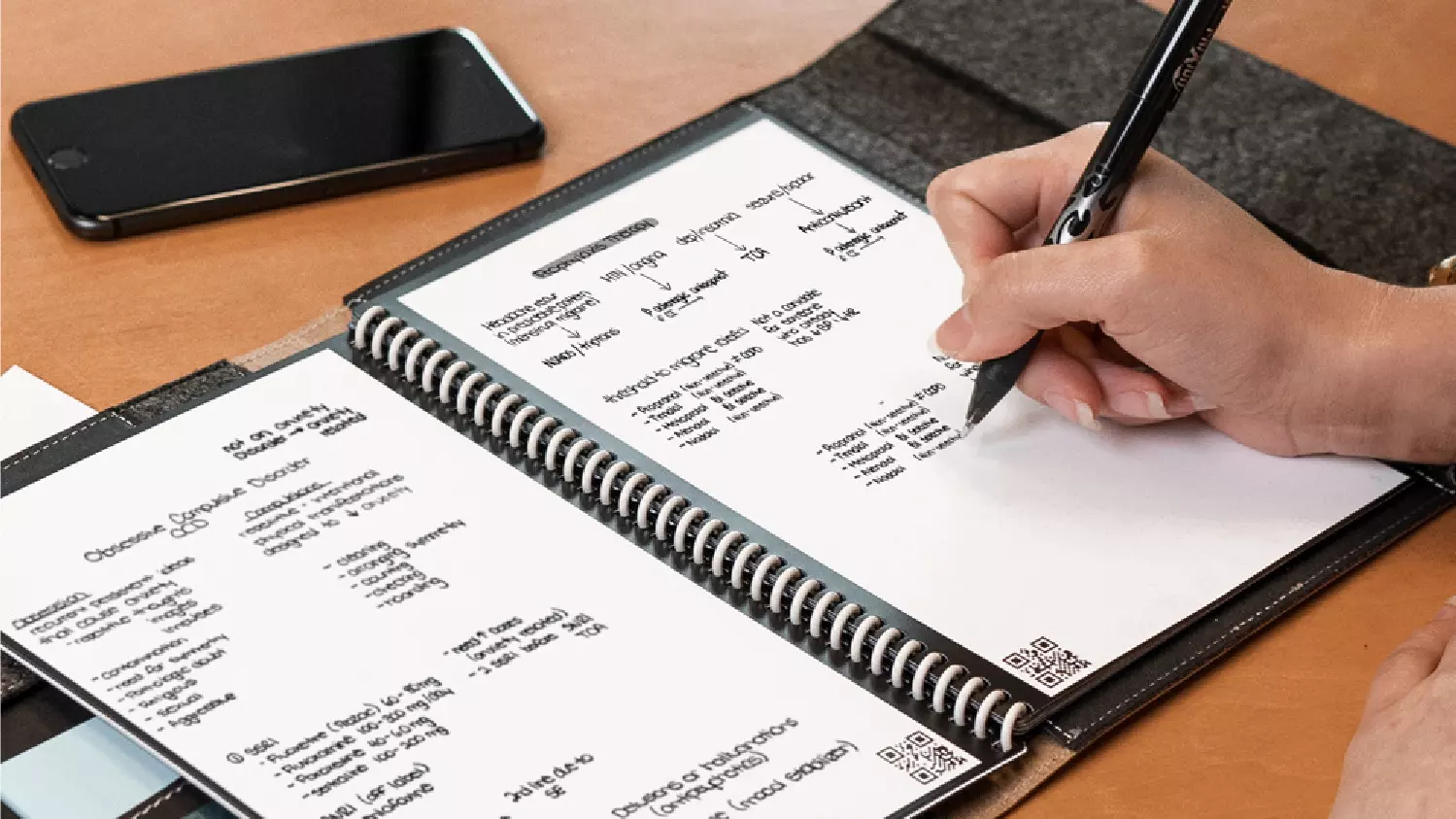
One of these innovations is a smart book, or to be more precise smart note, a reusable notebook that could be connected to your phone.
One thing that could justify, well it should justify buying Rocketbook is the preservation of trees and the environment since it can be reused. The second argument would be its price since it is not expensive considering what it offers.
On top of all, you also have a free application for your phone in order to take full advantage of it.
Imagine this scenario, you have a notebook of 42 pages with several different page styles inside. You write in it and after it is filled you upload its content to your email or cloud service of your choice, get a cloth, erase everything and start again from zero.
So as mentioned notebook comes with 42 pages of various page styles. Most of the pages are either lined or dotted but the notebook also includes a monthly calendar, two-week detailed calendar pages, and three pages for project or idea tracking. Since everything can be erased this is enough variety to cover all basis and eliminate any need for another workbook ever.
When you feel like you want to save work or once it is filled you can easily upload and save the workbook from the scan page option in the free Rocketbook app. Once scanned pages can be uploaded to your preferred cloud service or sent to your email.
Now in order to write and be able to erase any of Rocketbook's notebooks, you will have to use Pilot's Frixion writing pens. They will dry around 15s on the page and can be of course easily wiped with a damp microfiber cloth that is included with the purchase. One pen also comes with a workbook when purchased.
Application has cool features, of course, the most important and most useful one is setting your upload scan destination so when you scan your pages they get automatically uploaded to your chosen destination.
In the application settings, you can also toggle some handwriting recognition features that will allow you to easily search your uploaded documents. For example, you can search through documents just by writing now or two words. There is also a Smart List feature as well that will take your checklist and make it into a virtual checklist.
The app also has a fun Explore section where you can find all sorts of fun hacks and different ideas on how to use your Rocketbook.
bootrec /fixboot
chkdsk /f /r
‘Runtime Error! Program: C:…R6025-Pure Virtual Function Call’
 Error Causes
This device is disabled. (Code 22)It looks like a very simple matter to enable a device from the Device Manager interface but if the device fails to load then there are likely greater underlying problems with the drivers. Drivers allow hardware devices to communicate with other hardware devices and the operating system. Drivers contain instructions and operating procedures for devices. Without a driver, a hardware device will not function and may not even appear in the Device Manager.
 Error Causes
Afraid of the growing threats online? As you should be. But we’re here to show you what kinds of malware are out there and what you can do to keep them at bay.
Malware comes from the term malicious software. It’s software designed to attack and exploit devices and networks to the advantage of the hacker who made it.
Malware can be transmitted in different ways. Most commonly this happens via infected USB drives, downloadable files or malicious websites. Depending on the type and ultimate goal, the consequences of a malware attack can range from negligible to catastrophic.
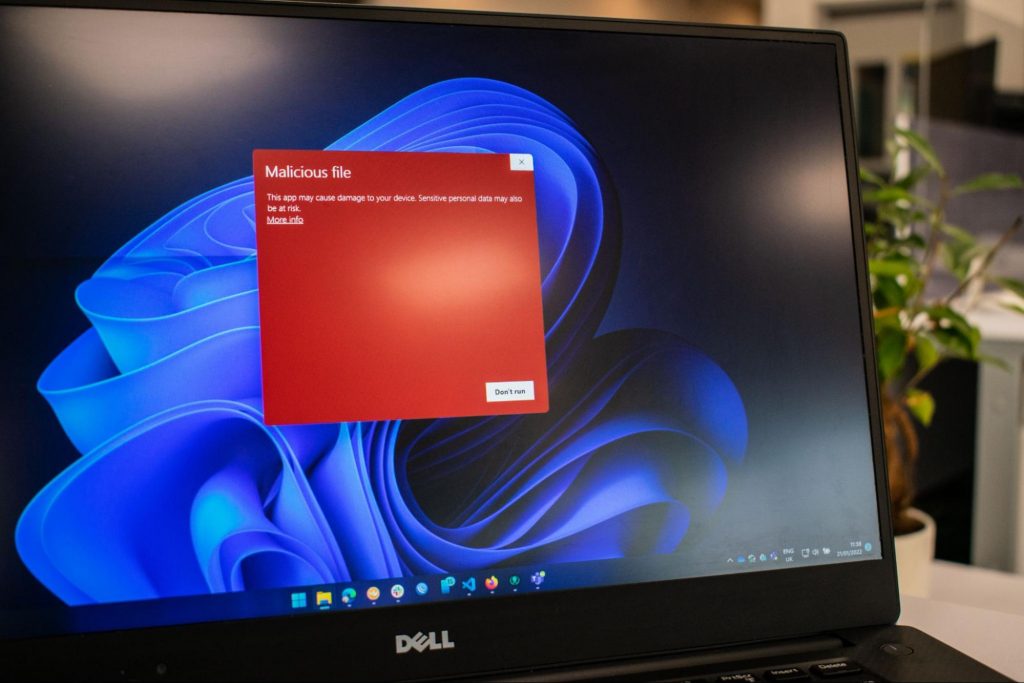
A virus is typically spread via infected files, websites or links. It’s one of the oldest malware types and one of the most difficult to get rid of. That’s because, once activated, it replicates itself - hence the name.
It can perform different kinds of attacks, depending on what the creator wants to achieve. The main characteristic of a virus is that it really doesn’t show itself until you activate the host. So that’s a scary thought for sure.
Sometimes an ad blocker isn’t enough to fight off unwanted ads. And some of them can, unfortunately, be malicious. They may redirect you to infected sites or prompt downloads of risky files. Even just opening a malicious site can lead to data theft.
So, definitely be careful when clicking around. Even if an ad seems completely legitimate, you can never be too sure.
Through ransomware, cybercriminals gain access to a user’s data and use it to extort them for money. Basically, the user is threatened with data deletion or even exposure if a ransom isn’t paid by a specific deadline.
This is a particularly nerve-wracking type of malware. If it targets an individual, it preys upon their sense of anxiety, fear, guilt and even shame. If it targets a business (which is a lot more common), it preys upon not only that business’s profit but also every single one of their customers and their data.
This type of malware disguises itself very well as a legitimate-looking program. Once you download it, hackers can get full access and control of your device, data and network. They can even be hidden in games, apps and attachments. They cannot self-replicate, though, so we guess that’s… good news?
Worms can replicate, just like viruses, but you don’t need to actually activate the infected program for them to get going. They can be used for various purposes, ranging from data deletion to file encryption to support a ransomware attack.

Spyware refers to malicious software that stays hidden on your computer and monitors your activity. The best-known type is keyloggers. This can be used to steal sensitive data like passwords and banking information.
Rootkits are among the most dangerous types of malware. They allow administrative access and full control of a device, which lets hackers continue hijacking all your data and monitoring your activity without your knowledge.
Botnets are networks made up of bots - computers that cybercriminals have infected with malicious software. Bots and botnets give hackers remote access to users’ devices and allow them to spy on your camera, take screenshots, memorize passwords and launch Distributed Denial of Service attacks. This one truly makes your hair stand on end.
You know the old adage - better safe than sorry. And trust us, malware attacks are such a pain in the you-know-what that you really don’t want to be sorry.
Luckily, there are simple solutions that can shield you from most digital threats these days. What you want to be looking at is a solid antivirus program. Well, technically, you need an antimalware program, but since the latter evolved from the former, we still mostly refer to them as antivirus software.
The majority of antimalware programs these days don’t just shield you from potential risks online, but include additional features as well. For example, some Bitdefender antivirus packages also include parental control and a VPN. And Bitdefender is not just for PCs either - it offers protection for your beloved iPhone or Android as well. You can throw in a password manager in there too, for an additional layer of security.
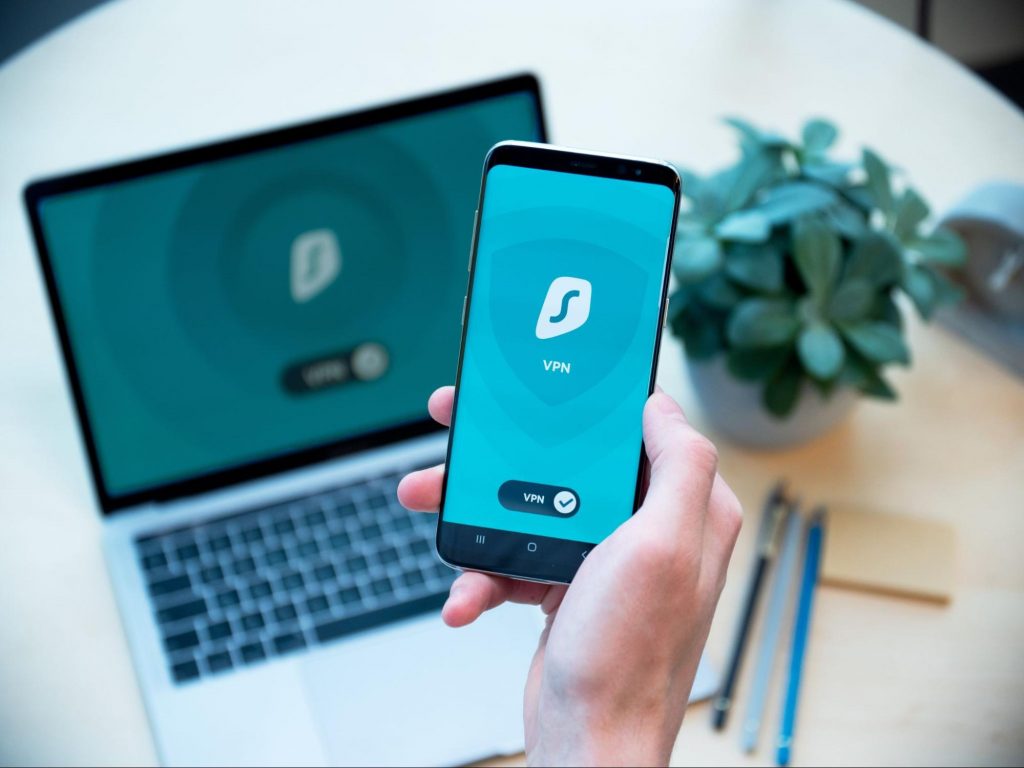
If you aren’t too concerned about all these various threats or feel like you don’t need extra security, you can at least take a step to protect your information from being exposed to lurking cybercriminals as you’re browsing. This can be done through a good VPN like Surfshark, which hides your identity in the digital space and prevents your data from being tracked.
Choosing the right protective software is especially important if you have children with access to the Internet, since they’re unfortunately even more vulnerable to malicious attacks. If you aren’t sure what the right kind of antimalware program is right for you, you can reach out to us and we’ll be happy to help keep your entire household or office digitally secure.
The truth is that there’s no way to be 100% protected in the online world. Hackers are constantly coming up with new ways to infiltrate our devices. But malware-battling software evolves along with them and there’s still plenty you can do to keep risks away. Stay safe!
CalendarSpark is a browser extension developed by MindSpark. This extension allows an easy way to print or view calendar templates and make schedulers for a day/week/month/year. This browser extension hijacks your browser home page and search engine, changing them to MyWay.com. While the extension is installed it monitors your browsing activity and collets visited websites, clicked links, and sometimes even personal information, which it later uses to display targeted unwanted ads through your browsing sessions.
While browsing the internet with this extension installed you will see additional sponsored links, ads, and sometimes even pop-up ads on websites that are not supposed to have any of these. Several anti-virus scanners have detected this extension as a Browser Hijacker, and due to its data collecting behavior, it is not recommended to keep it on your computer.
dism /online /enable-feature /featurename:MediaPlayback
“Error 651: The Modem (or other connecting device) has reported an error.”
Error Causes