Logo

Malware Guide: How to remove OpenCandy

What is OpenCandy?

OpenCandy is an application that downloads and installs software, including other Internet Browsers to a computer system. Used as a bundle, this application installs additional programs that you may knowingly or unknowingly agree to install. Since most users don’t accept the challenge of reading the EULA in its entirety, they tend to download bundled applications unknowingly.

Assessment of OpenCandy PUP

During the initial assessment of OpenCandy, I was a little skeptical about what to look out for or expect. In fact, I had to install the OpenCandy.exe file twice to discern its behavior. I’m not sure how this application got its name but I do believe it has something to do with the fact that it supposedly helps Internet users open a new world of Internet browsing. That conclusion was arrived at after realizing that OpenCandy.exe installed mostly Internet browsers along with a tune-up tool on the test computer. However, as a result of the system requirements, there was a pop-up message indicating that Internet Explorer 8 was not compatible with the computer system in question.

In comparison to the malware I’ve encountered since I started researching malware, OpenCandy is everything but malicious. In fact, this application is only categorized as malware because of its’ subtle covert nature of installing bundled programs unsolicited by the user.

Additionally, OpenCandy coerces users into changing their Internet Browsers by installing those unrequested by the user. In fact, it’s no shock that OpenCandy chose to install the Internet Browser ‘Opera’ as a part of this bundle since it’s one of the least used browsers according to the Federal Government. Clearly, this was a smoothly disguised advertisement or promotion to force users into using the Opera Browser, along with Internet Explorer 8.0.

While these aforementioned browsers in themselves aren’t malicious and are in no way considered malware, they were installed as a promotional tool and without the request of the user. Despite being mentioned within the EULA, advertisers are capitalizing on this since most users do not bother to read the agreements when installing a program.

Furthermore, OpenCandy, like most other bundled applications I’ve dealt with, threw in a tune-up tool as a part of the promotion. I found this tune-up application annoying since I had to hassle my way into getting it to close from the computer screen. I can only imagine the hassle users would go through trying to remove this software.

Image 7: Depiction of a scan performed by Tuneup Utilities. The scan detected that several areas on the test PC could be optimized/tuned up.

Image 8: After a scan was completed using the Tuneup utility program, I was given an option to buy the full version. Nothing is wrong with this marketing strategy. In fact, most utility tools if not all will scan your computer to detect threats or loopholes, but they won't exactly allow you to fix those problems unless you buy the full version. It's not unfair, it's just business.

Programs installed during the installation of OpenCandy include:

  • Web Companion: Developed by Lavasoft, Web Companion is said to be an application that serves as a security defense for your Internet browsers by preventing unauthorized changes (see image below)
  • Tuneup Utilities: Tuneup Utilities does exactly as it says. It cleans up a computer system, whereby preventing unused programs from slowing it down.
  • Opera Stable 30.01.1835.88: Opera is a fast, simple, and effective Internet browser that allows users to get around on the web.

All in all, the intent of installing an application such as OpenCandy is to unleash a world of promotion or advertisements on your computer. They are pretty annoying and in some cases difficult to remove. Furthermore, as a user, you want to control what gets installed on your computer without being dictated to or coerced in some EULA that you probably overlook.

To completely remove OpenCandy PUP from your computer, click here to download and install Spyhunter.

Do You Need Help with Your Device?

Our Team of Experts May Help
Troubleshoot.Tech Experts are There for You!
Replace damaged files
Restore performance
Free disk space
Remove Malware
Protects WEB browser
Remove Viruses
Stop PC freezing
GET HELP
Troubleshoot.Tech experts work with all versions of Microsoft Windows including Windows 11, with Android, Mac, and more.

Share this article:

You might also like

BringMeSports Removal Malware Removal Tutorial

BringMeSports is a browser extension developed by Mindspark Inc. that lets you watch live sports streams, follow sports scores, and catch up on the latest news from the sports world. BringMeSports installs an extension into your browser that replaces your default home page with the MyWebSearch starting page, it also replaces your default search engine, shows additional ads, and while running, collects personal and web browsing data that is later sent back to be Sold / Forwarded to serve ads. While browsing the internet with this extension installed, you will see additional ads and sponsored links appear in your search results. It may even show pop-up ads. Several anti-virus scanners have marked this extension as a Browser Hijacker and are therefore not recommended to keep on your computer.

About Browser Hijackers

Browser hijacking is a type of unwanted software, commonly a web browser add-on or extension, which causes modifications in web browser’s settings. Browser hijacker malware is created for many different reasons. The idea would be to force users to visit particular websites that are trying to increase their website visitor traffic and produce higher ad income. Although it might appear naive, all browser hijackers are damaging and therefore always regarded as security risks. Browser hijackers can even allow other harmful programs without your knowledge to further damage your personal computer.

Signs of browser hijack

There are various symptoms of browser hijacking. Here are a few of them: 1. you notice unauthorized changes to your Internet browser’s homepage 2. you find re-directed to websites you never meant to visit 3. the default search engine is changed and the web browser security settings have been lowered without your knowledge 4. you’re finding new toolbars you have never seen before 5. you observe numerous ads pop up on the browsers or computer screen 6. your web browser gets slow, buggy crashes frequently 7. you are blocked to access those sites of computer security solution providers.

Precisely how browser hijacker infects computers

Browser hijackers attack computer systems through malicious email attachments, downloaded infected computer files, or by going to infected internet sites. They could also come from add-on programs, also called browser helper objects (BHO), web browser extensions, or toolbars. A browser hijacker could also be installed as a part of freeware, shareware, demoware, and pirated programs. Common examples of browser hijackers include CoolWebSearch, Conduit, Coupon Server, OneWebSearch, RocketTab, Snap.do, Delta Search, and Searchult.com. The existence of any browser hijacker malware on your computer might drastically diminish the web browsing experience, track your online activities that result in troublesome privacy concerns, create system stability problems and eventually cause your computer to slow down or to a practically unusable state.

How you can remove browser hijackers

Some hijackers could be removed by deleting the free software they were included with or by removing any extension you have recently added to your system. Having said that, many hijackers are quite tenacious and need specialized tools to eliminate them. And there’s no denying the very fact that the manual fixes and removal methods can certainly be a complicated job for a novice PC user. Also, there are plenty of risks associated with fiddling around with the system registry files.

What To Do If You Cannot Install Any Anti-Malware?

Every malware is bad and the consequences of the damage could vary based on the specific kind of malware. Certain malware variants alter internet browser settings by including a proxy server or modify the computer’s DNS configurations. In these instances, you will be unable to visit certain or all of the websites, and therefore unable to download or install the required security software to remove the infection. If you are reading this, odds are you’re stuck with a malware infection that is preventing you to download or install Safebytes Anti-Malware software on your system. Although this type of issue will be difficult to circumvent, there are a few actions you can take.

Install in Safe Mode

In Safe Mode, you could change Windows settings, uninstall or install some programs, and remove hard-to-delete malware. If the malicious software is set to load automatically when the computer starts, switching to this particular mode may prevent it from doing so. To enter into Safe Mode or Safe Mode with Networking, press F8 while the PC is starting up or run MSCONFIG and look for the “Safe Boot” options in the “Boot” tab. Once you are in Safe Mode, you can try to install your antivirus software application without the hindrance of the malware. After installation, run the malware scanner to get rid of most standard infections.

Utilize an alternate internet browser to download the anti-malware application

Web-based viruses could be environment-specific, aiming for a particular browser or attacking particular versions of the browser. The most effective way to overcome this issue is to select a web browser that is renowned for its security features. Firefox comprises built-in Malware and Phishing Protection to keep you safe online. Create a portable anti-malware for removing viruses Another option is to create a portable anti-malware program onto your USB stick. To run anti-virus using a USB flash drive, follow these simple steps: 1) Download the anti-malware on a virus-free PC. 2) Insert the USB drive on the same system. 3) Run the setup program by double-clicking the executable file of the downloaded software, which has a .exe file format. 4) Select the drive letter of the pen drive as the place when the wizard asks you exactly where you want to install the anti-malware. Do as instructed on the screen to complete the installation process. 5) Transfer the flash drive from the uninfected PC to the infected PC. 6) Run the Safebytes Anti-malware directly from the flash drive by double-clicking the icon. 7) Click the “Scan” button to run a full system scan and remove malware automatically.

Protect Your PC & Privacy With SafeBytes Anti-Malware

If you are looking to buy anti-malware for your PC, there are lots of brands and packages for you to consider. A few of them do a great job in getting rid of malware threats while some will affect your PC themselves. You need to be careful not to pick the wrong product, especially if you buy a premium program. One of the recommended software is SafeBytes AntiMalware. SafeBytes carries a very good reputation for top-quality service, and clients appear to be very happy with it. Safebytes is among the well-established computer solutions firms, which provide this complete anti-malware application. Using its cutting-edge technology, this application will assist you to eliminate multiples types of malware such as viruses, PUPs, trojans, worms, ransomware, adware, and browser hijackers. SafeBytes has got a variety of features that can help you protect your computer from malware attacks and damage. Let’s check out a few of them below: Robust Anti-malware Protection: With a critically acclaimed malware engine, SafeBytes offers multilayered protection which is intended to catch and get rid of viruses and malware which are hidden deep in your computer system. Active Protection: SafeBytes provides real-time active checking and protection against all known viruses and malware. It’ll continuously monitor your laptop or computer for hacker activity and also provides users with superior firewall protection. “Fast Scan” Abilities: SafeBytes Anti-Malware has a multi-thread scan algorithm that works up to 5 times faster than any other anti-malware software. Internet Security: Safebytes assigns all sites a unique safety score that helps you to have an idea of whether the webpage you are going to visit is safe to view or known to be a phishing site. Lightweight Utility: SafeBytes is a lightweight and user-friendly anti-virus and anti-malware solution. Since it utilizes negligible computer resources, this application leaves the computer’s power exactly where it belongs: with you actually. Premium Support: Support service is available for 24 x 7 x 365 days via email and chats to answer your queries.

Technical Details and Manual Removal (Advanced Users)

If you wish to manually remove BringMeSports without the use of an automated tool, it may be possible to do so by removing the program from the Windows Add/Remove Programs menu, or in cases of browser extensions, going to the browsers AddOn/Extension manager and removing it. You will likely also want to reset your browser. To ensure the complete removal, manually check your hard drive and registry for all of the following and remove or reset the values accordingly. Please note that this is for advanced users only and may be difficult, with incorrect file removal causing additional PC errors. In addition, some malware is capable of replicating or preventing deletion. Doing this in Safe Mode is advised. The following files, folders, and registry entries are created or modified by BringMeSports
Files: C:Program Filesbringmesports_1c chrome extensionbarBringMeSportsCrxSetup.exe C:Program Filesbringmesports_1c chrome extensiont8sql.dll C:Program Filesbringmesports_1c chrome extensionBringMeSportsCrxSetup.exe C:Program Filesbringmesports_1c chrome extensionBringMeSportsCrxSetup.05F72CDF-5595-450B-9BAB-B1F6C606AAEC.exe C:Program Filesbringmesports_1c chrome extensionBringMeSportsCrxSetup.1E4C7E0D-19E7-4C18-ADB3-3D45FC4BE84C.exe C:Program Filesbringmesports_1c chrome extensionBringMeSportsCrxSetup.85D40F0D-233C-463F-8BAB-F6D446902D65.exe C:Program Filesbringmesports_1c chrome extensionBringMeSportsCrxSetup.A94A3339-330B-4B96-B05A-B909E6BB85A1.exe C:Program Filesbringmesports_1c chrome extensionBringMeSportsCrxSetup.EEE1FB37-85E3-49E8-BC44-36CC97CE3B73.exe C:Program Filesbringmesports_1c chrome extensionsqlite3.dll C:Program Files (x86)BringMeSports_1cEI C:Program Files (x86)BringMeSports_1c C:Users%USERNAME%AppDataLocalBringMeSports_1c C:Users%USERNAME%AppDataLocalIAC C:Users%USERNAME%AppDataLocalLowBringMeSports_1cEI C:Users%USERNAME%AppDataLocalLowBringMeSports_1c C:Users%USERNAME%AppDataRoamingMozillaFirefoxProfilesXXX.defaultextensionscffxtbr@BringMeSports_1c.com C:Users%USERNAME%AppDataLocalGoogleChromeUserDataDefaultExtensionsllkjooekcinmdmojmfdjhidbakfpepod Registry: HKEY_CURRENT_USERMicrosoftInternet ExplorerApproved Extensions, value: F653D037-97FA-4755-98C1-7F382EEB59A7 HKEY_CURRENT_USERMicrosoftInternet ExplorerApproved Extensions, value: CC53BD19-7B23-43B0-AB7C-0E06C708CCED HKEY_CURRENT_USERMicrosoftInternet ExplorerApproved Extensions, value: 002D1BA6-4766-4D7D-82B8-F49439C66F97 HKEY_CURRENT_USERMicrosoftInternet ExplorerToolbar, value: cc53bd19-7b23-43b0-ab7c-0e06c708cced HKEY_CURRENT_USERWow6432NodeMicrosoftInternet ExplorerToolbar, value: cc53bd19-7b23-43b0-ab7c-0e06c708cced HKEY_CURRENT_USERMicrosoftWindowsCurrentVersionExtPreApprovedbc61ca7a-6b81-47ec-b62d-ae1a236cadb9 HKEY_CURRENT_USERMicrosoftWindowsCurrentVersionExtPreApproved82c7004a-078e-468c-9c0f-2243618ff7cb HKEY_CURRENT_USERMicrosoftWindowsCurrentVersionExtPreApproved6285c254-4465-4f8b-a009-5f42ab02c291 HKEY_CURRENT_USERMicrosoftWindowsCurrentVersionExtPreApprovedA8CC25D-66FF-41DF-B3B4-416079EF8F87 HKEY_CURRENT_USERMicrosoftWindowsCurrentVersionexplorerBrowser Helper Objectsf653d037-97fa-4755-98c1-7f382eeb59a7 HKEY_CURRENT_USERMicrosoftWindowsCurrentVersionexplorerBrowser Helper Objects02d1ba6-4766-4d7d-82b8-f49439c66f97 HKEY_CURRENT_USERWow6432NodeMicrosoftWindowsCurrentVersionExtPreApprovedf0c8ccc2-baaa-4236-ad0a-22b5a401b9ef HKEY_CURRENT_USERWow6432NodeMicrosoftWindowsCurrentVersionExtPreApprovedA8CC25D-66FF-41DF-B3B4-416079EF8F87 HKEY_CURRENT_USERWow6432NodeMicrosoftWindowsCurrentVersionexplorerBrowser Helper Objectsf653d037-97fa-4755-98c1-7f382eeb59a7 HKEY_CURRENT_USERWow6432NodeMicrosoftWindowsCurrentVersionexplorerBrowser Helper Objects02d1ba6-4766-4d7d-82b8-f49439c66f97 HKEY_CURRENT_USERMicrosoftInternet ExplorerLow RightsElevationPolicyfa460720-7b38-421d-981c-66f0ae288fb9 HKEY_CURRENT_USERMicrosoftInternet ExplorerLow RightsElevationPolicya2b4da91-a53c-4a84-b486-40080de13a9b HKEY_CURRENT_USERMicrosoftInternet ExplorerLow RightsElevationPolicy89b7ae32-9c52-41d6-a64d-14d7bdec9c58 HKEY_CURRENT_USERMicrosoftInternet ExplorerLow RightsElevationPolicy32a63172-5bcc-4d7e-9fe8-072eee6c287e HKEY_CURRENT_USERWow6432NodeMicrosoftInternet ExplorerLow RightsElevationPolicya2b4da91-a53c-4a84-b486-40080de13a9b HKEY_CURRENT_USERWow6432NodeMicrosoftInternet ExplorerLow RightsElevationPolicy89b7ae32-9c52-41d6-a64d-14d7bdec9c58 HKEY_CURRENT_USERWow6432NodeMicrosoftInternet ExplorerLow RightsElevationPolicy32a63172-5bcc-4d7e-9fe8-072eee6c287e HKEY_CURRENT_USERWow6432NodeMicrosoftInternet ExplorerLow RightsElevationPolicy1856a7bd-de8c-488b-aa7a-5682d13166fc HKEY_CURRENT_USERWow6432NodeMicrosoftInternet ExplorerLow RightsElevationPolicy164ea1fc-b0a0-4202-8c65-e4ba4d54a3ae HKEY_CURRENT_USERMicrosoftWindowsCurrentVersionExtStatsF653D037-97FA-4755-98C1-7F382EEB59A7 HKEY_CURRENT_USERMicrosoftWindowsCurrentVersionExtStatsCC53BD19-7B23-43B0-AB7C-0E06C708CCED HKEY_CURRENT_USERMicrosoftWindowsCurrentVersionExtSettingsCC53BD19-7B23-43B0-AB7C-0E06C708CCED HKEY_CURRENT_USERMicrosoftWindowsCurrentVersionExtSettings02D1BA6-4766-4D7D-82B8-F49439C66F97 HKEY_CURRENT_USERWow6432NodeMicrosoftInternet ExplorerSearchScopes8c9ef753-beb6-4582-b653-93ac59274437 HKEY_CURRENT_USERMicrosoftInternet ExplorerSearchScopes8c9ef753-beb6-4582-b653-93ac59274437 HKEY_CURRENT_USERMicrosoftInternet ExplorerDOMStoragebringmesports.com HKEY_CURRENT_USERMicrosoftInternet ExplorerDOMStoragebringmesports.dl.tb.ask.com HKEY_CURRENT_USERBringMeSports HKEY_CURRENT_USERMicrosoftInternet ExplorerDOMStoragebringmesports.dl.myway.com HKEY_LOCAL_MACHINEHKEY_CURRENT_USER[APPLICATION]MicrosoftWindowsCurrentVersionUninstall..Uninstaller BringMeSports_1cbar Uninstall Internet Explorer BringMeSports_1cbar Uninstall Firefox BringMeSportsTooltab Uninstall Internet Explorer
Read More
Fix Windows 11 not using the whole RAM
It has been reported that there are systems out there with Windows 11 operating systems that do not use the whole RAM memory installed in the system. If by any chance you are one of the unfortunate users that has encountered this issue, fear not, we have a solution for you.

RAM memoryRun the Windows Memory Diagnostic tool

  1. Press ⊞ WINDOWS + S to open the search menu
  2. Type in Windows Memory Diagnostic tool
  3. Click on the found app
  4. Select Restart now and check for problems
  5. Wait for the tool to finish
Memory Diagnostic tool is a built-in tool in Windows, it was designed to automatically find and repair memory issues and should be your first step toward resolving this issue.

Check page file

  1. Press ⊞ WINDOWS + S to open the search menu
  2. Type in View advanced system settings
  3. Click on the search result
  4. Click on settings under performance
  5. Click on the Advanced tab
  6. Click on Change under Virtual memory
  7. Uncheck the box for Automatically manage paging file size for all drives
  8. Then select the drive and check the No paging file option
  9. Click on Set
  10. Repeat for all drives on the system
  11. Reboot the system for changes to take effect
If after reboot system still does not see and use whole available RAM, repeat this process and turn back ON paging. After you are done move to the next solution.

Modify usable RAM

  1. Press ⊞ WINDOWS + S to open the search menu
  2. Type in System configuration
  3. Click on the search result
  4. Go to the Boot tab and click on Advanced options
  5. Check the box for Maximum memory
  6. Enter the installed RAM on your system in the field box and click on OK
  7. Confirm once again on the OK and close the System configuration window
  8. Restart the system
If the provided solution has not worked, uncheck the Maximum memory checkbox and save the changes. Move to the next solution.

Change and modify the registry

  1. Press ⊞ WINDOWS + R to open the run menu
  2. Type in Regedit and press the OK button or hit ENTER
  3. Click on YES if prompted by UAC
  4. Locate the HKEY_LOCAL_MACHINE\SYSTEM\CurrentControlSet\Control\Session Manager\Memory
  5. On the right side find and double click on the ClearPageFileAtShutdown DWORD
  6. Enter 1 under Value data and click on OK to save the changes
  7. Close the registry and reboot the system

Enable memory remapping inside BIOS

In order to do this fix, you will need to enter BIOS on your system. How entering BIOS is different from system to system depending on your manufacturer, especially if it is a laptop this step you will have to do alone. Go to your motherboard manufacturer or laptop manufacturer and see how to enter BIOS.
  1. Enter BIOS (80% of the time this can be done by pressing DEL or F12 while the system is turned ON)
  2. Locate System Agent Configuration option
  3. Select Memory Remap Feature and Enable it
Your BIOS might be different from ours and you might not have the System Agent Configuration option, in this case, go through the setting and try to locate Memory Remap Feature. If this feature is missing as well move to the next step.

Rearrange RAM modules on the motherboard

Sometimes RAM memory cannot be slotted properly or just purely switching them in slots can solve the issue. Take RAM out, clean memory slots, clean motherboard connectors for them, and place them back in a different order. If by any chance none of the methods worked, then the issue might be in the hardware itself, either memory banks themselves, motherboard, power supply, etc. If this is sadly the case, you will have to locate the issue and replace the faulty part. If you are not technical enough for this adventure, the best solution is to take a PC to a computer repair shop.
Read More
Edge and Store apps are not connecting
If your Microsoft Edge browser and Windows Store apps are now unable to connect to the internet after you have just installed the newly released Windows 10 v1809 October 2018 update, then this post might help. As you know, Microsoft has made a change recently and because of this, some users are getting the “Hmm, we can’t reach this page” error when they try to open Microsoft Edge as well as other pre-installed apps like News, Mail, and so on. Aside from that, you also won’t be able to connect the Microsoft Store apps to the internet. What’s strange is that you can connect to the internet using other programs like Google Chrome, Internet Explorer, and many more. Apart from checking your internet connection, there are other things you can to resolve the problem. If your Windows Store apps are not able to connect to the internet and you’re only getting the Error 80072EFD, then you might have to enable IPv6 as the new Windows 10 v1809 requires IPv6 to be enabled so that you can use the UWP apps. And so you have to enable IPv6 in the network card along with IPv4. To do so, follow the steps below. Step 1: Tap the Win + R keys to open the Run dialog box. Step 2: After that, type “ncpa.cpl” and hit Enter or click OK to open Network Connections. From there, you will see your currently connected network profile. Step 3: Right-click on your network profile and select Properties and then go to the Networking tab and look for the “Internet Protocol Version 6 (TCP/IPv6)” and select its corresponding checkbox. Step 4: Now click the OK button to save the changes made and restart your computer.
Read More
What Is Phishing And How Can You Protect Yourself From It?

Ever gotten an e-mail offer that seemed just a little bit too good to be true? Might’ve been a phishing attempt! These are everywhere and can come in many different forms. 

So what’s phishing exactly, how can you detect it and how can you keep safe?

What is phishing?

Phishing (pronounced like fishing) is a type of cyberattack that tricks the user into trusting the source and revealing sensitive information. Fishing being the perfect analogy, the bait is a legitimate-looking site, e-mail or file and when you take a bite, your identity, banking information and much more can be revealed and stolen.

Phishing Illustration
Credit: Anne Nygård on Unsplash

Some phishing attempts are incredibly obvious, others are super elaborate. Like with most types of malware, cybercriminals have become extremely well-versed in phishing and anyone can fall for it. To help you recognize and avoid it, we’ll take you through a couple of phishing types and give you tips on what to do if faced with them.

Phishing techniques

E-mail phishing

This is actually the most common type of phishing. A cybercriminal creates an e-mail containing stuff like attractive offers, legitimate-looking attachments or links and makes it appear as though it’s coming from a trusted source.

Illustration of Email Phishing
Credit: Justin Morgan on Unsplash

For example, it looks like it’s coming from your bank or your favorite retailer. The logo looks legit and the structure of the e-mail seems familiar, so you might get tricked into clicking on whatever clickable content is in it.

Unfortunately this exposes your device to malware that hands your data off to the hacker, who can decide what to do with it further.

SMS and social media phishing

Like the above example, you could be approached with lucrative offers or links via text messages or social media messages. Typically, the messages seem relevant to the user as they will be made to look like they’re related to apps or services you’re using.

Voice phishing

Voice phishing attacks are schemes that appear as though they’re coming from a credible number. Normally, you’ll get a call about something related to credit cards or taxes to get you into a state of worry, leading you to disclose personal information on the phone.

Spear phishing, whaling and BEC

Spear phishing normally targets specific individuals within a company who are likely to have access to sensitive data. Spear phishers spend time collecting information they can use to reach out to the individual looking as trustworthy as possible. They’ll typically lead with something relevant, for example mentioning an upcoming company event, and make a seemingly legitimate request.

Whaling is a more elaborate form of spear phishing, which targets people in even stronger positions such as executives or high-value individuals. The ultimate goal is to get them to transfer financial or other sensitive information that can be used to compromise the entire business.

Spear Phishing Illustration
Credit: Azamat E on Unsplash

BEC, or Business e-mail compromise, is a specific spear phishing technique carried out via e-mail. While there are many ways this is done, most commonly you’ll see instances where the phisher poses as a CEO or similar executive, or as a lower-level employee in specific positions (e.g. sales managers or financial controllers).

In the first situation, the impersonator reaches out to employees requesting them to transfer certain files or pay invoices. In the second situation, the phisher takes control of the employee’s e-mail account and sends false instructions to other employees in order to obtain data and information from them.

What can you do?

There are many ways you can be aware and spot a phishing attempt. Here are some tips:

  • Always check the sender’s address in your e-mails, even when they seem to come from a familiar source.
  • In any instance where payment information is requested, be very, very careful.
  • If you are receiving attachments you never asked for and definitely didn’t expect, better not click on them. 
  • Beware of content that transmits a sense of urgency (sales deals, urgent updates to login credentials, etc.).
  • Bad spelling and grammar are usually a telltale sign of phishing.
  • Links that look shortened (e.g. Bit.ly) or just suspicious in general - if you have a bad feeling, do not click on them.
  • If you are receiving threats, you probably shouldn’t be clicking on anything in that message.
  • Always examine first-time senders in detail.
  • Block suspicious e-mail addresses, numbers and social media accounts.
  • If you are receiving a coupon for free stuff… You aren’t.
  • If you’re being asked to update your payment details by a service you use, such as Netflix, chances are it’s an impersonator.

Those are some of the ways to identify and prevent phishing attacks. However, sometimes phishers disguise themselves a little too well or a misclick happens and there you go - you’ve been exposed to malware.

Illustration of a Lock on Keyboard Keys
Credit: FLY:D on Unsplash

This won’t happen if you invest in powerful protection software from the get-go, though. A good antivirus program like Bitdefender will keep you safe from becoming a victim of phishing scams. In fact, it will protect you from malicious attacks overall.

Be it your household or your business you’re concerned about, there are a bunch of different packages and options available, providing different kinds of cybersecurity services. That’s the only way you can ever really be sure you aren’t at risk of a digital attack.

Summary

Have you ever been targeted by phishers and didn’t know that’s what it was until you read this article? Many can relate. Protect yourself before it’s too late!

Read More
Easy Remove FoxTab From Windows

FoxTab Toolbar is a browser hijacking toolbar add-on for IE, Firefox, Chrome, and Opera browsers that claims that it allows you to access your favorite sites faster, and improving your overall search and browsing experience. 1-click access to search results, most popular websites, and web services directly from our Foxtab browser toolbar.

Fox tab will integrate itself into your browser, modifying the search engine, welcome page, and new tab. This toolbar may change some browser settings, display unwanted ads, and sometimes displays additional ads from its ad sponsor. Some of the settings that this toolbar changes can lower the security of your browser.

Upon installation the toolbar ads scheduled tasks in Windows, allowing it to run with your browser every time, and to automatically update itself. Several anti-virus programs have flagged this software as Malware and therefore it is classified as a browser hijacker and recommended for optional removal.

About Browser Hijackers

Browser hijackers (sometimes called hijackware) are a type of malicious software that modifies internet browser settings without the user’s knowledge or approval. These types of hijacks are rising at an astonishing rate across the world, and they can be actually nefarious and sometimes dangerous too. They are created to interfere with web browser programs for many different reasons. Often, hijackers will force hits to internet sites of their choice either to increase targeted traffic generating higher ad revenue, or to gain a commission for every user visiting there. Although it might appear harmless, these tools are made by malicious people who always try to take full advantage of you, so that hackers can earn money from your naivety and distraction. What’s more, hijackers can make the whole infected system fragile – other destructive malware and viruses will take hold of these opportunities to get into your computer system effortlessly.

How to know whether the browser is hijacked?

Symptoms that your internet browser is hijacked include: 1. your home page has been reset to some unknown webpage 2. bookmark and the new tab are also changed 3. default web engine is changed 4. you see unwanted new toolbars added 5. you’ll notice random pop-ups start showing regularly 6. your web browser starts running sluggishly or exhibits frequent glitches 7. Inability to navigate to particular sites, particularly anti-malware as well as other computer security software webpages.

How it infects your PC

Browser hijackers infect PCs in numerous ways, including via a file-share, a drive-by download, or an infected email. They can also be deployed via the installation of an internet browser toolbar, extension, or add-on. Also, certain shareware and freeware can put the hijacker in your PC through “bundling”. Browser hijackers can record user keystrokes to collect potentially invaluable information that leads to privacy issues, cause instability on systems, drastically disrupt the user experience, and ultimately slow down the PC to a point where it becomes unusable.

Tips on how to get rid of browser hijackers

Certain kinds of browser hijackers can be removed from your computer by deleting malicious applications or any other recently added freeware. Often, it can be a tough task to find and eliminate the malicious component because the associated file might be running as part of the operating system process. Also, manual removals require in-depth system understanding and thus can be a very difficult task for beginner computer users. Professionals always suggest users remove any malicious software including browser hijacker by using an automatic removal tool, which is easier, safer, and quicker than the manual removal process. Safebytes Anti-Malware detects all kinds of hijackers – including FoxTab – and eliminates every trace efficiently and quickly. Employ a pc optimizer along with your antivirus software to solve various computer registry problems, eliminate system vulnerabilities, and boost your computer performance.

Malware Blocking Access To Safebytes Website And Anti-Malware Downloads - What You Should Do?

Malware may cause many different types of damage to computer systems, networks, and data. Some malware is meant to interfere with or prevent things that you wish to do on your PC. It may well not permit you to download anything from the internet or prevent you from accessing some or all of the sites, particularly the anti-malware sites. If you’re reading this, you may have affected by a virus that stops you from downloading a computer security program like Safebytes Anti-Malware. There are a few steps you can take to get around this problem.

Download the software in Safe Mode with Networking

If any virus is set to load automatically when Microsoft Windows starts, getting into Safe Mode could very well block the attempt. Just the minimum required programs and services are loaded when you start your PC in Safe Mode. To start your Windows XP, Vista, or 7 computers in Safe Mode with Networking, please do as instructed below. 1) Tap the F8 key repeatedly as soon as your system boots, but before the large windows logo comes up. This would conjure up the Advanced Boot Options menu. 2) Choose Safe Mode with Networking using arrow keys and hit ENTER. 3) When this mode loads, you will have the internet. Now, get the virus removal software you want by utilizing the internet browser. To install the software, follow the guidelines within the setup wizard. 4) Immediately after installation, do a complete scan and let the program remove the threats it finds.

Download the antivirus program in a different web browser

Some malware mainly targets particular browsers. If this is your situation, employ another web browser as it could circumvent the computer virus. In the event you suspect that your Internet Explorer has been hijacked by malware or otherwise compromised by online hackers, the ideal course of action would be to switch over to a different browser like Chrome, Firefox, or Safari to download your favorite computer security application – Safebytes Anti-Malware. Create a bootable USB anti-virus drive Another option is to make a portable anti-malware program onto your USB flash drive. Try these simple measures to clean up your infected PC using a portable antivirus. 1) Make use of another virus-free computer to download Safebytes Anti-Malware. 2) Insert the pen drive into the clean PC. 3) Double-click the Setup icon of the antivirus software to run the Installation Wizard. 4) When asked, choose the location of the USB drive as the place in which you would like to store the software files. Follow the on-screen instructions to finish the installation. 5) Disconnect the USB drive. You may now utilize this portable anti-virus on the affected computer system. 6) Run the Safebytes Anti-malware directly from the thumb drive by double-clicking the icon. 7) Hit the “Scan Now” button to start the malware scan.

Protect Your PC and Privacy With SafeBytes Anti-Malware

Do you want to install the best anti-malware software for your computer? There are plenty of applications on the market that comes in free and paid versions for Windows computers. Some are very good ones, some are decent, and some are simply just bogus anti-malware software that will damage your PC themselves! You need to be very careful not to pick the wrong product, particularly if you buy a paid application. On the list of recommended software programs is SafeBytes AntiMalware. SafeBytes has a very good reputation for excellent service, and clients seem to be happy with it. SafeBytes anti-malware is a trusted tool that not only protects your computer system permanently but is also quite easy to use for people of all skill levels. After you have installed this application, SafeBytes' superior protection system will make sure that absolutely no viruses or malware can seep through your computer. SafeBytes has great features when compared with other anti-malware programs. Below are some of the great features included in the application. Active Protection: SafeBytes offers real-time active monitoring service and protection against all known viruses and malware. It’ll monitor your computer system for suspicious activity regularly and its unparalleled firewall guards your PC against illegal access by the outside world. World-class AntiMalware Protection: Built on a highly acclaimed anti-virus engine, this malware removal tool is able to detect and remove numerous obstinate malware threats such as browser hijackers, potentially unwanted programs, and ransomware that other common antivirus software will miss. Safe Browsing: SafeBytes checks and provides a unique safety rating to every single site you visit and block access to web pages known to be phishing sites, thus protecting you from identity theft, or known to contain malicious software. Low Memory/CPU Usage: This software is lightweight and will run quietly in the background, and that does not have an effect on your PC efficiency. 24/7 Online Technical Support: SafeBytes provides you with 24/7 technical support, automatic maintenance, and updates for the best user experience. Overall, SafeBytes Anti-Malware is a solid program since it has plenty of features and can detect and remove any potential threats. There is no doubt that your computer will be protected in real-time as soon as you put this software program to use. If you’re looking for the absolute best malware removal tool out there, and if you don’t mind shelling out some money for it, go for SafeBytes Anti-Malware.

Technical Details and Manual Removal (Advanced Users)

If you wish to manually remove FoxTab without the use of an automated tool, it may be possible to do so by removing the program from the Windows Add/Remove Programs menu, or in cases of browser extensions, going to the browsers AddOn/Extension manager and removing it. You will likely also want to reset your browser. To ensure the complete removal, manually check your hard drive and registry for all of the following and remove or reset the values accordingly. Please note that this is for advanced users only and may be difficult, with incorrect file removal causing additional PC errors. In addition, some malware is capable of replicating or preventing deletion. Doing this in Safe Mode is advised.

The following files, folders, and registry entries are created or modified by FoxTab

Registry: HKEY_CURRENT_USERSoftwareMicrosoftWindowsCurrentVersionRunrandom.exe HKEY_CURRENT_USERSoftwareMicrosoftWindowsCurrentVersionUninstallFoxTab HKEY_CURRENT_USERSoftwareMicrosoftWindowsCurrentVersionUninstallFoxTabDisplayIcon %AppData%[RANDOM CHARACTERS][RANDOM CHARACTERS].exe HKEY_CURRENT_USERSoftwareMicrosoftWindowsCurrentVersionUninstallFoxTabDisplayName Trojan horse name HKEY_CURRENT_USERSoftwareMicrosoftWindowsCurrentVersionRunOnce[RANDOM CHARACTERS] %AppData%RANDOM CHARACTERS[RANDOM CHARACTERS].exe
[/section][/vc_column_text][/vc_column][/vc_row][/vc_section]

Read More
100sOfRecepies Removal Tutorial

100sOfRecepies is a Browser Extension developed by MindSpark Inc. that provides users with hundreds of recopies for breakfast, lunch, dinner, and dessert. This extension may appear very handy at the start, however, it may monitor your browser activity, and send it back to the developer to better serve ads. This extension injects itself into the System Registry allowing it to run each time your computer is restarted.

While browsing the internet with this extension installed you may see additional ads, sponsored links, and pop-up ads displayed in your browser. Many anti-virus scanners have detected this extension as a Browser Hijacker and are therefore not recommended to keep on your computer.

About Browser Hijackers

Browser hijacking is actually a form of an unwanted program, often a web browser add-on or extension, which causes modifications in browser settings. They are made to disrupt web browser programs for various reasons. Usually, it’ll force users to predetermined sites which are aiming to increase their advertisement income. Nevertheless, it’s not that harmless. Your internet safety is compromised and it is also very annoying. In a much worst case, your browser could be hi-jacked to download malware that may do a great deal of damage to your laptop or computer.

Major symptoms that your web browser has been highjacked

The typical symptoms that indicate having this malware on your computer are: 1. the browser’s home page is changed 2. bookmark and the new tab are also modified 3. the default search engine is changed and the browser security settings have been lowered without your knowledge 4. find new toolbars which you did not add 5. unstoppable flurries of pop-up ads show up on your personal computer screen 6. your web browser gets slow, buggy crashes often 7. Inability to navigate to certain websites, particularly anti-malware and also other security software webpages.

How does a browser hijacker infect a computer?

There are several ways your computer can become infected with a browser hijacker. They generally arrive by way of spam e-mail, via file sharing websites, or by a drive-by-download. They could also come from add-on software, also known as browser helper objects (BHO), web browser plug-ins, or toolbars. Some browser hijackers spread in user’s computer systems using a deceptive software distribution technique known as “bundling” (generally through freeware and shareware). An example of some well-known browser hijacker includes Babylon, Anyprotect, Conduit, DefaultTab, SweetPage, RocketTab, and Delta Search, but the names are continually changing. Browser hijackers could record user keystrokes to gather potentially valuable information that leads to privacy issues, cause instability on computers, drastically disrupt the user experience, and eventually slow down the PC to a point where it will become unusable.

Browser Hijacker Malware – Removal

Some browser hijacking could be quite easily stopped by discovering and eliminating the corresponding malware program from your control panel. But, most hijackers are hard to get rid of manually. No matter how much you try to remove it, it can come back over and over. Moreover, browser hijackers could modify the Computer registry so that it could be very tough to restore all of the values manually, particularly when you are not a very tech-savvy person.

Can't Install Safebytes Anti-malware due to the presence of Malware? Try This!

All malware is bad, but certain kinds of malicious software do a lot more damage to your PC than others. Some malware sits in between your computer and the internet connection and blocks some or all sites which you want to check out. It would also block you from adding anything to your machine, especially anti-virus programs. So what to do when malicious software keeps you from downloading or installing Anti-Malware? Do as instructed below to eliminate malware through alternate ways.

Eliminate malware in Safe Mode

In the event the malware is set to load at Windows start-up, then booting in safe mode should avoid it. Just the minimum required applications and services are loaded when you boot your computer in Safe Mode. Listed below are the steps you need to follow to start your computer into the Safe Mode of your Windows XP, Vista, or 7 computers (go to Microsoft website for instructions on Windows 8 and 10 computers). 1) At power-on/startup, press the F8 key in 1-second intervals. This will invoke the “Advanced Boot Options” menu. 2) Choose Safe Mode with Networking with arrow keys and hit Enter. 3) When this mode loads, you should have an internet connection. Now, use your internet browser to download and install Safebytes. 4) As soon as the software program is installed, allow the scan run to remove viruses and other threats automatically.

Switch over to an alternate web browser

Malicious program code could exploit vulnerabilities on a particular web browser and block access to all anti-virus software sites. The best way to overcome this problem is to choose a browser that is known for its security measures. Firefox contains built-in Malware and Phishing Protection to keep you secure online.

Install and run anti-malware from the Thumb drive

To effectively get rid of the malware, you might want to approach the issue of running an anti-virus program on the affected PC from a different perspective. Do these simple measures to clear up your infected computer by using a portable antivirus. 1) On a virus-free PC, download and install Safebytes Anti-Malware. 2) Insert the pen drive on the same PC. 3) Run the setup program by double-clicking the executable file of the downloaded software, with a .exe file format. 4) When asked, select the location of the USB drive as the place where you want to put the software files. Follow the instructions on the screen to finish off the installation process. 5) Now, transfer the USB drive to the infected computer system. 6) Double-click the EXE file to open the Safebytes program right from the thumb drive. 7) Simply click “Scan Now” to run a scan on the affected computer for viruses.

Protect Your Computer and Privacy With SafeBytes Anti-Malware

To help protect your computer or laptop from a variety of internet-based threats, it’s important to install an anti-malware application on your personal computer. However, with countless numbers of antimalware companies in the marketplace, nowadays it’s tough to decide which one you should buy for your laptop. Some of them are excellent, some are ok types, while some will affect your PC themselves! You need to be careful not to pick the wrong product, particularly if you purchase a premium application. Amongst few good applications, SafeBytes Anti-Malware is the strongly recommended software for security-conscious people. Safebytes is one of the well-established computer solutions firms, which provide this complete anti-malware software program. Through its cutting-edge technology, this software protects your personal computer against infections caused by different types of malware and similar internet threats, including adware, spyware, trojans horses, worms, computer viruses, keyloggers, potentially unwanted programs (PUPs), and ransomware. SafeBytes carries a plethora of wonderful features which can help you protect your computer from malware attack and damage. Here are some of the good ones: Robust Anti-malware Protection: By using a critically acclaimed anti-malware engine, SafeBytes provides multi-layered protection which is made to catch and remove threats that are concealed deep in your PC. Active Protection: SafeBytes offers complete and real-time security for your PC. It’ll check your PC for suspicious activity at all times and shields your PC from unauthorized access. Website Filtering: Through its unique safety rating, SafeBytes informs you whether a website is safe or not to visit it. This will assure that you’re always certain of your safety when browsing the online world. Lightweight Utility: SafeBytes is really a lightweight application. It consumes an extremely small amount of processing power as it runs in the background therefore you will not observe any computer performance issues. 24/7 Premium Support: Skilled technicians are at your disposal 24/7! They will immediately fix any technical issues you may be experiencing with your security software.

Technical Details and Manual Removal (Advanced Users)

If you’d like to carry out the removal of 100sOfRecepies manually rather than using an automated software tool, you may follow these simple steps: Navigate to the Windows Control Panel, click on the “Add or Remove Programs” and there, select the offending program to uninstall. In cases of suspicious versions of web browser extensions, you can easily remove them through your browser’s extension manager. You may also want to reset your web browser settings, as well as delete browsing history, temporary files, and internet cookies. To ensure the complete removal, find the following Windows registry entries on your system and delete them or reset the values appropriately. Please keep in mind that only advanced users should try to manually edit the registry because incorrect file removal leads to a major problem or even a PC crash. In addition, certain malware is capable of replicating itself or preventing deletion. It is recommended that you carry out the removal procedure in Safe Mode.
Files: %Documents and Settings%\All Users\Application Data0sOfRecipes Toolbar virus %program files %\internet explorer\ 100sOfRecipes Toolbar\[random].mof %program files (x86)%0sOfRecipes Toolbar \ %programData%\suspicious folders\ %windows%\system32\driver0sOfRecipes Toolbar %app data%\ 100sOfRecipes Toolbar virus\ Registry: [HKEY_LOCAL_MACHINE\SOFTWARE\Microsoft\MATS\WindowsInstaller\EAF386F0-7205-40F2-8DA6-1BABEEFCBE8914.07.30.07.52.18]ProductName=100sOfRecipes Toolbar [HKEY_LOCAL_MACHINE\SOFTWARE\Wow6432Node\Microsoft\Tracing\Muvic_RASAPI32] [HKEY_LOCAL_MACHINE\SOFTWARE\Wow6432Node\Microsoft\Tracing\Muvic_RASMANCS] [HKEY_LOCAL_MACHINE\SOFTWARE\Wow6432Node\Microsoft\Windows\CurrentVersion\Uninstall\EAF386F0-7205-40F2-8DA6-1BABEEFCBE89] DisplayName=100sOfRecipes Toolbar [HKEY_USERS\S-1-5-21-3825580999-3780825030-779906692-1001\Software\Microsoft\Windows\CurrentVersion\Uninstall\50f25211-852e-4d10-b6f5-50b1338a9271] DisplayName=100sOfRecipes Toolbar
Read More
Stopping automatic redirects in Browsers
As you know, the internet has changed the world immensely. Nowadays, JavaScript is pushing the modern web ahead. One of the things that make these experiences with the internet seamless and with less clutter is redirection. It is often used on web pages and there are times when a user is prompted about them and most of the time, we barely notice them. However, there are also instances when things can go wrong with redirects as they could become a loop that could mess things up. And since the browser takes a lot of system resources, redirection can result in a poor user experience. That’s why in this post, you will be guided on how you can stop these automatic redirects on browsers such as Microsoft Edge, Google Chrome, and Mozilla Firefox, on your Windows 10 computer. To get started, refer to each one of the options provided below to stop automatic redirects in Microsoft Edge, Google Chrome, and Mozilla Firefox.

Option 1 – Configure the browsers to stop pop-ups and deceptive contents

There are a lot of browsers with built-in settings that allow users to stop pop-ups and deceptive content. To configure these settings, refer to these steps:
  • Microsoft Edge:

    • Click on the three horizontal dots icon or the menu button.
    • Next, click on Settings and select Privacy & Security from the left side navigation.
    • After that, scroll down on the right-side panel and look for Block pop-ups and Windows Defender SmartScreen and then turn their toggle buttons to On.
  • Google Chrome:

    • Open Google Chrome and click on the three vertical dots icon for the menu located in the top right corner of the browser.
    • Next, click on Settings and scroll down until you see the Advanced option. Click on it to open the Advanced Settings.
    • Now scroll down until you reach the Privacy and Security section and look for the Safe browsing option and turn its toggle button to On.
  • Mozilla Firefox

    • Open Mozilla and click on the three horizontal lines icon for the menu button located in the top right corner of the browser and click on Options.
    • Next, go to the Settings section and click the Privacy & Security tab and scroll down and then click on Permissions.
    • From there, make sure that the Block pop-up windows checkbox is checked.
    • Finally, scroll down until you reach the Security section and make sure that the checkbox for the Block dangerous and deceptive content is checked.

Option 2 – Try to reset Winsock, TCP/IP & Flush DNS

To stop redirects, you can also reset Winsock and the TCP/IP as well as flush the DNS cache. To do so, follow these steps:
  • Right-click on the Start button and click on Command Prompt (administrator) so you can pull up an elevated Command Prompt.
  • After that, execute each one of the commands listed below. And after you typed in one after the other, you have to hit Enter.
  1. netsh winsock reset – type in this command to reset Winsock
  2. netsh int ip reset resettcpip.txt – type in this command to reset TCP/IP
  3. ipconfig /flushdns – type in this command to flush the DNS cache
  • Next, restart your PC and check if the problem’s fixed.

Option 3 – Edit your Hosts File

  • Tap the Win + R keys to open then type in %WinDir% and then click OK.
  • Go to System32/drivers/etc.
  • Open the host file using Notepad.
  • Delete all the suspicious entries.
  • After that, save the changes you’ve made and close the file.
Read More
Folder shortcuts in Windows 11 on Start menu
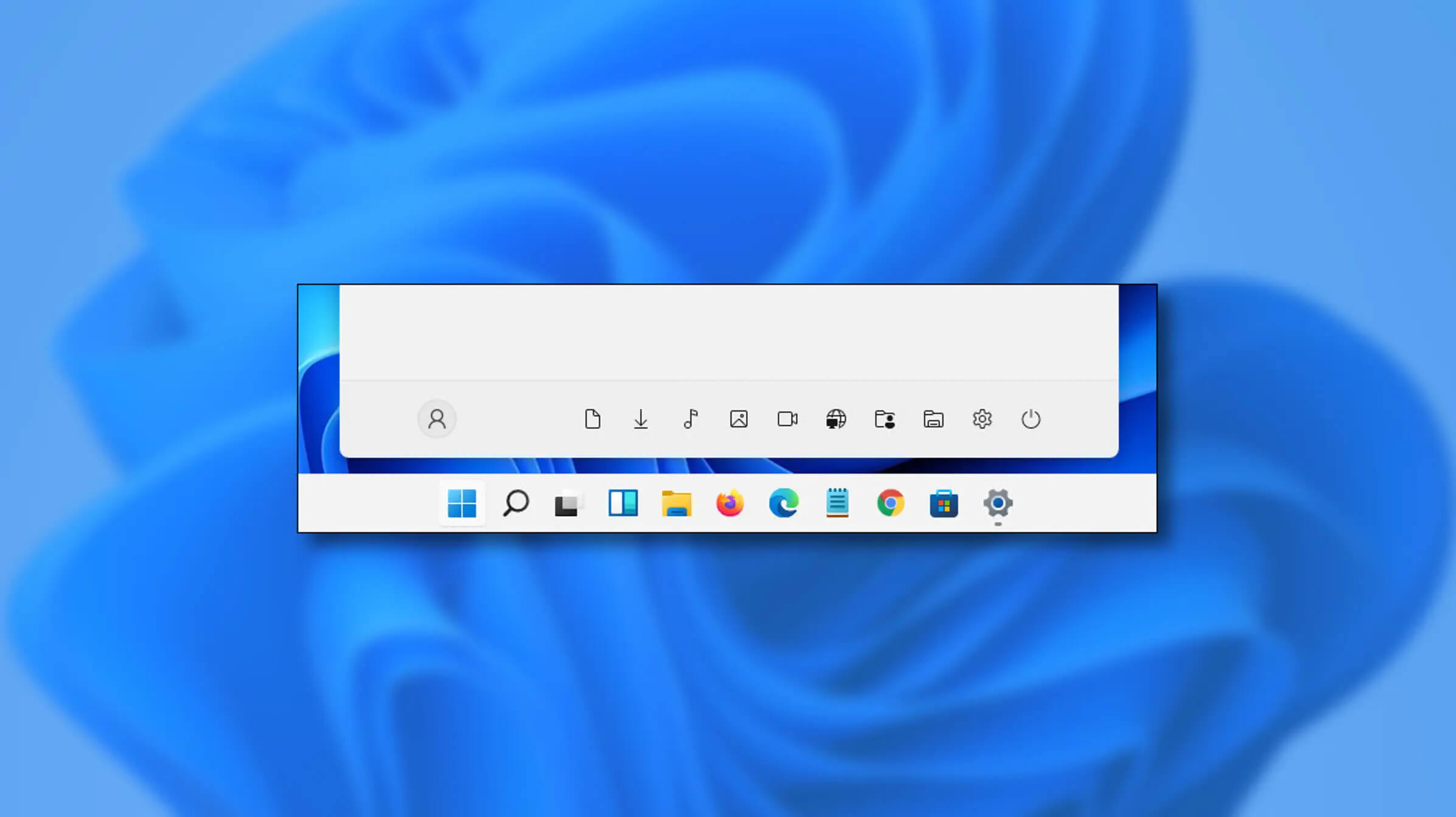
Special folders like music, pictures, download, videos, etc, can be placed as shortcuts in the start menu inside Windows 11 for easy access. Shortcuts will appear in the start menu on the bottom as simple glyphs. They are not present in the start menu by default so it needs to be turned ON first. Folder shortcutsIf you want to place these icons in your Star menu follow this step-by-step guide and you will have them in no time.

  1. Open Windows settings
  2. In settings go to Personalization > Start
  3. In Start click on Folders
  4. On the given list of Settings, File Explorer, Documents, Downloads, Music, Pictures, Videos, Network, and Personal folder click on the switch beside them if you want them as shortcuts in the Start menu. You can choose whichever you want.
  5. Close settings
You can revisit the settings menu to add more icons or remove some of them later if you wish so.
Read More
Connecting a Wireless Printer to a Windows PC
Although it’s easy to set up wired printers in most cases and they have their charm, you don’t have to be around the printer if you are connected to the same network. So in this post, you will be guided on how you can install and set up a wireless printer on your Windows 10 computer. The idea here is to ensure that your Wi-Fi printer and your Windows 10 computer are connected on the same network and to do that, you need to carry out the following steps:
  • You have to connect the printer to the Wi-Fi network.
  • You have to add the printer or scanner to Windows 10.
  • You have to install the printer software.
  • You have to change the default printer.
  • And troubleshoot the printer.

For more details, follow the instructions below.

Step 1: Connect your printer to the Wi-Fi network. In this step, you need to turn on your printer and look for the option to connect to a Wi-Fi network. Note that the step to connect to the Wi-Fi network depends on what kind of printer you use as well as its OEM since there will be a user interface or a Wi-Fi button that will get the job done for you. Once your printer is connected to the Wi-Fi network, you need to keep it turned on until the setup is completed. Step 2: Next, add a printer or scanner to Windows 10
  • Since you’re already connected to the Wi-Fi network, you now have to go to Settings > Devices > Printers & scanners.
  • From there, click on the Add a printer or scanner option.
  • After that, the scanning process will begin as Windows 10 looks for the printer and once it finds it, it will display the printer in the result.
  • Choose the Wi-Fi printer from the results and click on the Add device option. Once you click this option, Windows will install the drivers via Windows 10 update. Note that this process will apply to all the printers – connected, wireless, and so on.
Step 3: You have to install a printer software In this step, you need to use the driver software from the OEM even though the default printer software works since in most cases, the driver software from OEM works better compared to the default ones and offers much better functionality like ink-saving modes, and many more. Step 4: You now have to change the default printer After installing the printer software, you now have to set or change the default printer in your computer. If you have not installed any printer, the default printer in Windows is the one that saves the files. Now since you have already installed your printer, all that’s left for you to do is to change the default printer of Windows 10 to the one you installed earlier. To do that, follow these sub-steps:
  • Go to Settings and navigate to Devices > Printers & scanners.
  • From there, check the checkbox labeled, “Let Windows manage my default printer” if there are many printers. This will recommend you to use the most used printer. But if you don’t want to switch to the most used printer, then uncheck the checkbox.
  • Once done, click on the printer you want to set as the default one and go to Manage, and then click on the Set as default button.
Step 5: If you have any issues with your newly installed printer, then you need to troubleshoot it One of the first basic troubleshooting you can perform to resolve the printer issue is running the Printer Troubleshooter. This built-in troubleshooter can detect and automatically fix the problem for you. To use it, follow these steps:
  • Tap the Win + R keys to open the Run dialog box.
  • Next, type “exe /id PrinterDiagnostic” in the field and click OK or hit Enter to open the Printer Troubleshooter.
  • Then click the Next button and follow the next on-screen instructions to fix the issue with the printer.
Read More
7 Ways to Fix Error 0x80070020 in Windows 10

Error Code 0x80070020 – What is it?

One of the problems encountered by Windows users when upgrading to Windows 10 from Windows 7 or Windows 8/8.1 is the Error Code 0x80070020. This error code normally occurs when users try to download updates from the Windows Update Website or simply by upgrading to Windows 10. Error Code 0x80070020 also occurs when the device already has a Windows 10 installed.

Once this error is encountered, it will cause malfunction of update installs and display the following message:

An error (-5006 : 0x80070020) has occurred while running the setup. Or The process cannot access the file because it is being used by another process”

Solution

Error Causes

In an attempt to fix Error Code 0x80070020, it is important to pinpoint what the cause is. The most probable cause of this error is due to interference. This error code most likely occurs when there is another automatic update running, for instance, an Antivirus scanning in real-time. If you’re scheduled to have an automatic update during real-time scanning, the Windows 10 update might malfunction.

Further Information and Manual Repair

In trying to fix Error Code 0x80070020, you can perform manual repair methods to resolve the issue effectively and efficiently. Most Windows users can easily employ these manual repair methods, even those who do not have technical abilities. However, there are certain instances where a Windows professional’s help is needed. If you don’t want to face any risk in resolving the issue, it would be best to consult a professional Windows technician or you can also make use of a powerful automated tool.

NOTE: It is best to attend immediately to errors encountered since unresolved errors can result in slowing down your computer’s performance. This might also cause other error messages to arise such as Error Code 0x80070057.

Method One: Restart Your Device

Since Error Code 0x80070020 is most likely encountered due to interference during your update, the easiest method you can do is to close all opened programs and restart your device. After restarting, try to start the update process again.

Method Two: Disable Antivirus Temporarily

Another quick and safe way to fix Error Code 0x80070020 is to disable your antivirus. You must take note though that in doing so, your computer will be susceptible to virus attacks. If you want to proceed with this method, follow these steps:

  1. Locate all programs in process in the notifications area, found in the lower right-hand section of your screen. If in case the antivirus icon is not visible on the taskbar, you may have to click an arrow pointing up to show what programs are currently running.
  2. Right-click on the antivirus icon then select the disable option.

Method Three: Run the Update Troubleshooter for Windows

The Windows Update Troubleshooter may resolve many of the errors encountered by Windows users when installing updates from Windows Update. To execute the troubleshooter, follow the steps below:

  1. Access a menu by holding the Windows key and X. Wait for the menu to appear on the bottom left corner of the screen.
  2. Open the Control Panel.
  3. Change the appearance of files by selecting large or small icons in the View by option located on the upper right section of your screen.
  4. Once you change the appearance of the files, choose the troubleshooting
  5. Run the Windows Update Troubleshooter.
  6. Restart your device then check if this resolves the problem.

Method Four: Execute A Clean Boot

Executing a clean boot means starting Windows using only a few resources, including startup programs and drivers. This safeguards minimizing conflicts and prevent software clash when an update is received. In performing a clean boot, you will be able to pinpoint what caused the manifestation of error code 0x80070020. Check Microsoft’s Support website to know how to execute a clean boot.

Method Five: Reset Windows Update Components

Performing this method is a bit risky and should be your last option if all methods were unsuccessful. This process will alter your device’s registry so you must ensure to perform accurately the steps. A single mistake can lead to modifying your registry erroneously, which might result in the occurrence of other error messages. Carefully follow the steps found on Microsoft’s Support website to successfully reset Windows Update components.

Resetting Windows Update components can also be done by implementing the following steps:

  1. Open the Command Prompt by pressing Windows Key + X. Select Command Prompt (Admin) from the menu.
  2. Stop the BITS, MSI Installer, Cryptographic, and the Windows Update Services.
  3. Rename both the SoftwareDistribution and Catroot2 folders to <name of folder> old.
  4. Start now the BITS, MSI Installer, Cryptographic, and the Windows Update Services.
  5. Exit the Command Prompt then restart your device. After restarting, try installing the updates again.

Method Six: Disable Third-Party Antivirus

A third-party antivirus such as BitDefender may recognize the Windows Update as a threat since the new update of Windows 10 is probably not yet registered with this third-party antivirus vendor. To solve this, you must disable temporarily the antivirus before performing the update. Once the third-party antivirus is disabled, you can now proceed with the updating process. Update as well your third-party antivirus.

Method Seven: Use the DISM Tool for Windows 10

The Deployment Image Servicing and Management (DISM) is a command-line utility that is installed by default in Windows 10 system. This program is used to fix images in Windows. In the case of Error Code 0x80070020, the DISM can repair the recovery image in Windows 10 and can perform as a virtual hard disk as well.

  1. Scan and check files for errors.
  2. Open the Command Prompt by pressing Windows Key + X. Select Command Prompt (Admin) from the menu.
  3. Type sfc /scannow
  4. You can also use the following commands to check for corrupted files:

/CheckHealth – to check for corrupted files or components

/ScanHealth – to check for corrupted Windows image. This may take up to 10 minutes to finish

/RestoreHealth – to check for corrupted Windows image and do an automatic repair. This may take up to 20 to 30 minutes to finish

NOTE: In an instance where you cannot locate the good files in your computer, the system image files may be corrupted. If this happens, you need to have a copy of install.wim from a computer with good Windows 10 OS or the Windows 10 ISO file. Make sure that the source of the good files has the same language, version, and edition of your OS.

Cleaning corrupted files using DISM utility:

Enter the following commands one by one to perform the /RestoreHealth switch using the source path location of good files you copied:

  1. DISM /Online /Cleanup-Image /RestoreHealth /Source:repairSource install.wim
  2. DISM /Online /Cleanup-Image /RestoreHealth /Source:repairSource install.wim /LimitAccess
  3. DISM /Online /Cleanup-Image /RestoreHealth /Source:repairSource install.wim:1 /LimitAccess

For example purposes, the “repairSource” is the source of the good files.

Read More
1 2 3 171
Logo
Copyright © 2023, ErrorTools. All Rights Reserved
Trademark: Microsoft Windows logos are registered trademarks of Microsoft. Disclaimer: ErrorTools.com is not affiliated with Microsoft, nor claims direct affiliation.
The information on this page is provided for information purposes only.
DMCA.com Protection Status