Logo

Step by Step Guide for Removing RadioRage

RadioRage is a potentially unwanted application developed by Mindspark Inc. This browser add-on is compatible with Mozilla Firefox, Internet Explorer and Google Chrome and claims to enhance the Internet browsing experience by allowing users to listen to their favorite music via the installed toolbar.

RadioRage Toolbar is categorized as adware since it infiltrates computers and after successful installation, this browser extension redirects browsers to home.tb.ask.com. And changes your default search engine to myway.com.

While active on your computer RadioRage collects user information such as browsing data, website clicks, and sometimes even sensitive user information, that it later sells / forwards to its ad distributors.

About Browser Hijackers

Browser hijacking is regarded as the internet’s constant risk that targets web browsers. It’s a type of malicious software that modifies your internet browser’s settings so that you are redirected to websites or pages that you had no intention of checking out. They are made to interfere with browser programs for many different reasons. These are typically used to force visitors to a specific website, manipulating web traffic to generate ad revenue. Most people assume that the browser hijacker is just a harmless website but that is not the case. Nearly all browser hijackers pose an actual threat to your online safety and it is necessary to classify them under privacy dangers. In a much worst case, your browser can be hijacked to download malicious software that will do a great deal of damage to your PC.

Key signs that your web browser has been hijacked

The typical signs that signify having this malicious software on your computer are:
1. your web browser’s home page is suddenly different
2. you get re-directed to internet sites you never intended to visit
3. The default search page of the browser is modified
4. you see multiple toolbars on the web browser
5. you might notice many pop-up ads on your screen
6. web pages load slowly and sometimes incomplete
7. you cannot go to specific sites such as home pages of security software.

So how does a browser hijacker infect a PC

There are many ways your computer could become infected with a browser hijacker. They typically arrive by way of spam email, via file-sharing websites, or by a drive-by download. They may also be deployed through the installation of a web browser toolbar, add-on, or extension. Some internet browser hijackers spread in user’s computers by using a deceptive software distribution method known as “bundling” (often through freeware and shareware). Well-known examples of browser hijackers include Conduit, CoolWebSearch, Coupon Server, OneWebSearch, RocketTab, Searchult.com, Snap.do, and Delta Search.

Browser hijackers might record user keystrokes to collect potentially valuable information leading to privacy concerns, cause instability on systems, drastically disrupt the user experience, and finally slow down the computer to a point where it becomes unusable.

Browser hijacker removal methods

One thing you can try to eliminate a browser hijacker is to locate the malware within the “Add or Remove Programs” list of the Windows Control Panel. It might or might not be there. When it is, try to uninstall it. But, the majority of hijackers are really tenacious and require specialized tools to get rid of them. Inexperienced PC users should never attempt the manual form of removal, as it demands detailed system knowledge to carry out repairs on the computer registry and HOSTS file.

What To Do If You Cannot Install Any Anti-virus?

Every malware is detrimental and the effects of the damage will vary based on the specific kind of malware. Some malware is meant to restrict or prevent things that you wish to do on your computer system. It may well not permit you to download anything from the internet or it will prevent you from accessing a few or all websites, especially the anti-virus sites. So what should you do if malware keeps you from downloading or installing Anti-Malware? Refer to the instructions below to eliminate malware through alternate methods.

Use Safe Mode to resolve the issue

If the malware is set to run at Windows start-up, then booting in Safe Mode should avoid it. Only the bare minimum required applications and services are loaded when you boot your computer or laptop into Safe Mode. Listed below are the steps you need to follow to eliminate viruses in Safemode.

1) At power on, hit the F8 key before the Windows splash screen begins to load. This will bring up the Advanced Boot Options menu.
2) Select Safe Mode with Networking with arrow keys and press ENTER.
3) As soon as this mode loads, you will have an internet connection. Now, get the malware removal software you want by utilizing the browser. To install the application, follow the guidelines in the installation wizard.
4) As soon as the software is installed, allow the scan run to eliminate viruses and other threats automatically.

Switch over to some other web browser

Certain viruses might target vulnerabilities of a particular browser that block the downloading process. When you suspect that your Internet Explorer happens to be hijacked by malware or otherwise compromised by online hackers, the ideal plan of action is to switch over to a different web browser such as Firefox, Chrome, or Safari to download your favorite computer security application – Safebytes Anti-Malware.

Run anti-malware from a pen drive

Another approach is to download and transfer an antivirus program from a clean PC to run a virus scan on the infected system. Follow these steps to employ a flash drive to fix your infected system.
1) Make use of another virus-free computer system to download Safebytes Anti-Malware.
2) Insert the pen drive onto the same computer.
3) Run the setup program by double-clicking the executable file of the downloaded software, with a .exe file format.
4) Select the USB flash drive as the destination for saving the file. Follow activation instructions.
5) Now, transfer the flash drive to the infected computer.
6) Double click the Safebytes Anti-malware icon on the pen drive to run the software.
7) Hit the “Scan” button to run a full computer scan and remove viruses automatically.

Let's Talk About SafeBytes Security Suite!

These days, anti-malware software can protect your laptop or computer from various forms of online threats. But wait, how to select the right one amongst several malware protection software that’s available in the market? Perhaps you might be aware, there are many anti-malware companies and tools for you to consider. Some are really worth your money, but many aren’t. When looking for anti-malware software, purchase one which gives solid, efficient, and complete protection against all known computer viruses and malware. One of the recommended software programs is SafeBytes AntiMalware. SafeBytes carries a really good reputation for top-quality service, and clients seem to be very happy with it.

SafeBytes anti-malware is a highly effective and user-friendly protection tool that is designed for end-users of all levels of computer literacy. This application could easily detect, remove, and protect your personal computer from the most advanced malware attacks including spyware, adware, trojan horses, ransomware, PUPs, worms, parasites as well as other possibly damaging software programs.

There are numerous amazing features you’ll get with this particular security product. Listed below are a few of the great ones:

Real-time Protection: SafeBytes gives you round-the-clock protection for your computer limiting malware intrusions in real-time. It’ll continuously monitor your laptop or computer for hacker activity and also gives end-users sophisticated firewall protection.

Antimalware Protection: Built upon a greatly acclaimed antivirus engine, this malware removal application is able to find and remove several obstinate malware threats such as browser hijackers, PUPs, and ransomware that other common anti-virus applications will miss.

Web protection: SafeBytes checks and gives a unique safety ranking to every site you visit and block access to webpages considered to be phishing sites, thus protecting you from identity theft, or known to contain malicious software.

Light-weight: This application is not “heavy” on the computer’s resources, so you’ll not find any performance problems when SafeBytes is working in the background.

24/7 On-line Tech Support: Support service is accessible 24 x 7 x 365 days via email and chats to answer your questions.

Technical Details and Manual Removal (Advanced Users)

If you wish to manually remove RadioRage without the use of an automated tool, it may be possible to do so by removing the program from the Windows Add/Remove Programs menu, or in cases of browser extensions, going to the browsers AddOn/Extension manager and removing it. You will likely also want to reset your browser.

To ensure the complete removal, manually check your hard drive and registry for all of the following and remove or reset the values accordingly. Please note that this is for advanced users only and may be difficult, with incorrect file removal causing additional PC errors. In addition, some malware is capable of replicating or preventing deletion. Doing this in Safe Mode is advised.

The following files, folders, and registry entries are created or modified by RadioRage

Files:
C:Program FilesRadioRage_4jEIInstallr.binNP4jEISb.dl_
C:Program FilesRadioRage_4jEIInstallr.binNP4jEISb.dll
C:Program FilesRadioRage_4jEIInstallr.binjEIPlug.dl_
C:Program FilesRadioRage_4jEIInstallr.binjEIPlug.dll
C:Program FilesRadioRage_4jEIInstallr.binjEZSETP.dl_
C:Program FilesRadioRage_4jEIInstallr.binjEZSETP.dll
C:Program FilesRadioRage_4jEIInstallr.binNP4jEISb.dl_
C:Program FilesRadioRage_4jEIInstallr.binNP4jEISb.dll
C:Program FilesRadioRage_4jEIInstallr.binjEIPlug.dl_
C:Program FilesRadioRage_4jEIInstallr.binjEIPlug.dll
C:Program FilesRadioRage_4jEIInstallr.binjEZSETP.dl_
C:PROGRA1RADIOR1Installr.binjEZSETP.dl_
C:Program FilesRadioRage_4jEIInstallr.binjEZSETP.dll
C:WINDOWSsystem32rundll32.exe

Registry:
Key HKLMSYSTEMCurrentControlSetServicesRadioRage_4jService
Key HKLMSYSTEMControlSet001ServicesRadioRage_4jService
Key HKLMSOFTWAREMozillaPlugins@RadioRage_4j.com/Plugin
Key HKLMSOFTWARERadioRage_4j
Key HKLMSOFTWAREMicrosoftWindowsCurrentVersionUninstallRadioRage_4jbar Uninstall Internet Explorer
Key HKLMSOFTWAREMicrosoftWindowsCurrentVersionUninstallRadioRage_4jbar Uninstall Firefox
Key HKLMSOFTWAREMicrosoftWindowsCurrentVersionExplorerBrowser Helper Objects5848763c-2668-44ca-adbe-2999a6ee2858
Key HKLMSOFTWAREMicrosoftWindowsCurrentVersionExplorerBrowser Helper Objects48909954-14fb-4971-a7b3-47e7af10b38a
Key HKLMSOFTWAREClassesRadioRage_4j.XMLSessionPlugin.1
Key HKLMSOFTWAREClassesRadioRage_4j.XMLSessionPlugin
Key HKLMSOFTWAREClassesRadioRage_4j.UrlAlertButton.1
Key HKLMSOFTWAREClassesRadioRage_4j.UrlAlertButton
Key HKLMSOFTWAREClassesRadioRage_4j.ToolbarProtector.1
Key HKLMSOFTWAREClassesRadioRage_4j.ToolbarProtector
Key HKLMSOFTWAREClassesRadioRage_4j.ThirdPartyInstaller.1
Key HKLMSOFTWAREClassesRadioRage_4j.ThirdPartyInstaller
Key HKLMSOFTWAREClassesRadioRage_4j.SkinLauncherSettings.1
Key HKLMSOFTWAREClassesRadioRage_4j.SkinLauncherSettings
Key HKLMSOFTWAREClassesRadioRage_4j.SkinLauncher.1
Key HKLMSOFTWAREClassesRadioRage_4j.SkinLauncher
Key HKLMSOFTWAREClassesRadioRage_4j.SettingsPlugin.1
Key HKLMSOFTWAREClassesRadioRage_4j.SettingsPlugin
Key HKLMSOFTWAREClassesRadioRage_4j.ScriptButton.1
Key HKLMSOFTWAREClassesRadioRage_4j.ScriptButton
Key HKLMSOFTWAREClassesRadioRage_4j.RadioSettings.1
Key HKLMSOFTWAREClassesRadioRage_4j.RadioSettings
Key HKLMSOFTWAREClassesRadioRage_4j.Radio.1
Key HKLMSOFTWAREClassesRadioRage_4j.Radio
Key HKLMSOFTWAREClassesRadioRage_4j.PseudoTransparentPlugin.1
Key HKLMSOFTWAREClassesRadioRage_4j.PseudoTransparentPlugin
Key HKLMSOFTWAREClassesRadioRage_4j.MultipleButton.1
Key HKLMSOFTWAREClassesRadioRage_4j.MultipleButton
Key HKLMSOFTWAREClassesRadioRage_4j.HTMLPanel.1
Key HKLMSOFTWAREClassesRadioRage_4j.HTMLMenu.1
Key HKLMSOFTWAREClassesRadioRage_4j.HTMLPanel
Key HKLMSOFTWAREClassesRadioRage_4j.HTMLMenu
Key HKLMSOFTWAREClassesRadioRage_4j.FeedManager
Key HKLMSOFTWAREClassesRadioRage_4j.FeedManager.1
Key HKLMSOFTWAREClassesRadioRage_4j.DynamicBarButton.1
Key HKLMSOFTWAREClassesRadioRage_4j.DynamicBarButton

Do You Need Help with Your Device?

Our Team of Experts May Help
Troubleshoot.Tech Experts are There for You!
Replace damaged files
Restore performance
Free disk space
Remove Malware
Protects WEB browser
Remove Viruses
Stop PC freezing
GET HELP
Troubleshoot.Tech experts work with all versions of Microsoft Windows including Windows 11, with Android, Mac, and more.

Share this article:

You might also like

Samsung Odyssey Neo G9 monitor review
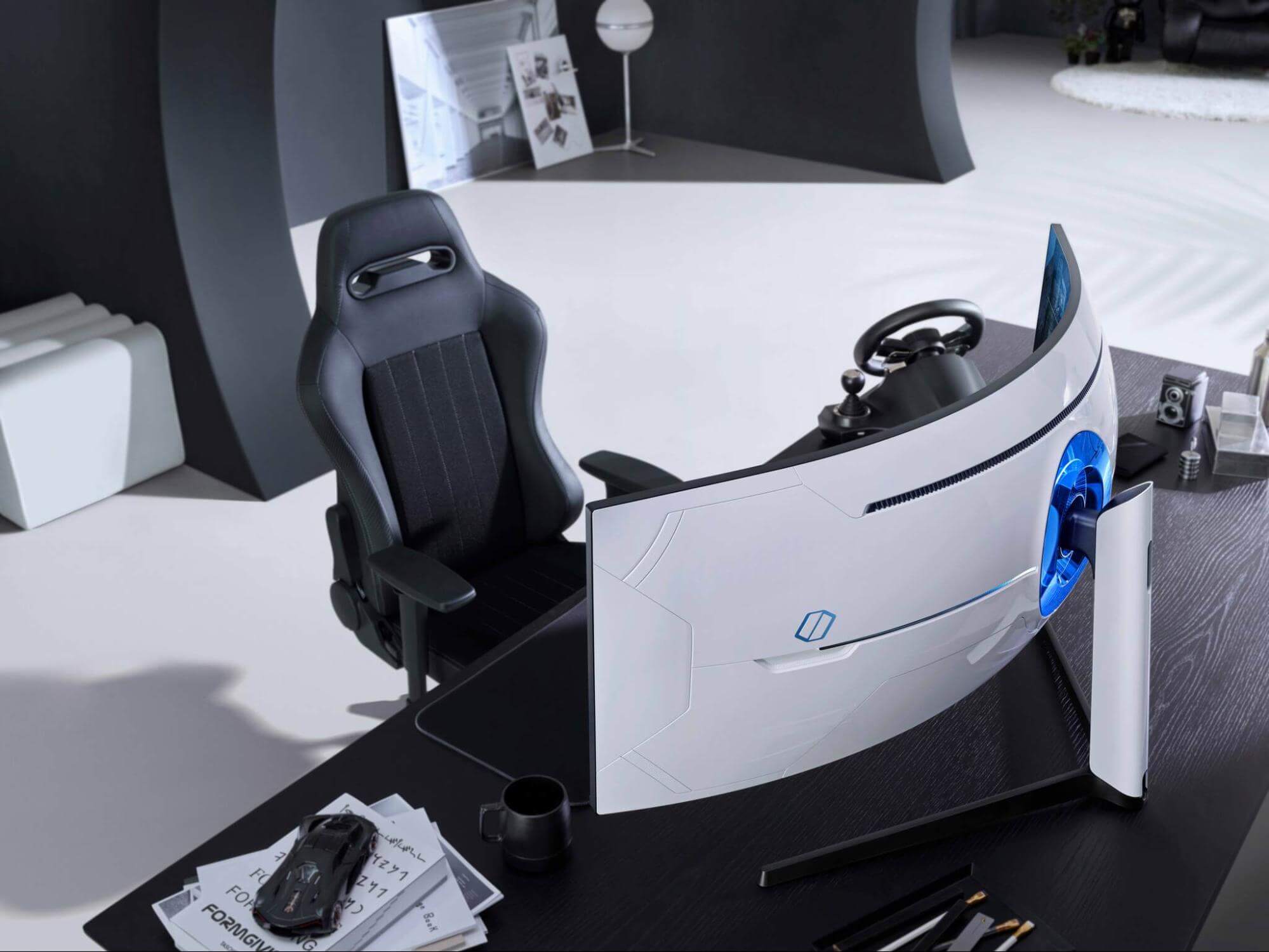
samsung Odyssey Neo G9Odyssey Neo G9 is a successor to Odyssey G9 curved gaming monitor and it is aimed again at the gaming community with its specifications but of course, it can be used for work as well. Gapping at a stunning $2500 USD price it is not really a cheap piece of hardware so it is normal to see what do you get for this kind of price and do features justify it, so let’s dive in.

Size and resolution

The first thing that you can notice about the screen is that it is big and curved, 49 inches big which is pretty big, and with it, I believe you can forget about using 2 or 3 screens because this single one will cover everything you need really. Going as far as 5120 X 1440 resolution is the strange definition, basically, this is 5K which is kind of nice but I do not see the advantage. Sure it is larger than 4K, but for the price of $2500 I expected an 8K monstrosity so if the resolution is not the main price justification then what is? Let’s move on and find out.

Odyssey tech specs

The monitor comes with HDR and 240Hz refresh rate which is very nice and coupled with 1ms pixel response time, adaptive sync, and Variable Refresh Rate you get pretty good other tech specs. All of this is very nice but the monitor's strongest selling point is Mini Led tech. Mini Led is a next-gen tech currently found only in high-end TVs. With this technology, monitors can produce truer blacks sort of speak thanks to a greater number of dimming zones. Odyssey Neo G9 is rated at 2000 nits in the brightness values and local dimming zones go to stunning 2048. It comes also with Quantum HDR that supports 10+, Freesync, and G-Sync capability. In connection, the department monitor comes with a single display 1.4 port and two HDMI 2.1 ports. It also includes a headphone jack along with two USB 3.0 ports.

Conclusion

While the resolution of the monitor is nothing impressive for the given price, its size and the rest of the tech specs surely are. Now I will not lie, the price is still a little too high but if you could afford it easily I think you should.
Read More
Could not find this item, no longer in path
If you were trying to copy, move modify or delete a folder or a file in your computer but you’re not able to do so and encountered an error instead that says, “Could not find this item, This is no longer located in <path>, Verify the item’s location and try again”, then you’ve come to the right place as this post will guide you on how you can fix this error. You can encounter this error when you delete, rename, open or copy a certain file which is often created by third-party software and lacks important information like file format, and so on. Although you can see these files in File Explorer, you might not be able to perform some operations in them. To fix this problem, you need to check out the given suggestions below.

Option 1 – Try to rename the file via Command Prompt

If you were trying to rename the file but unable to do so, you can achieve that by executing a command in Command Prompt. Make sure to follow the steps carefully.
  • Type in “Command Prompt” In the Start menu to search for it or you could also click the search button right next to the Start menu and then right-click on the related result and select the option “Run as administrator” to open Command Prompt with admin privileges.
  • Next, type in “cd” followed by the path where the file is located with this format – “C:/Folder1/Folder2/Folder3”. However, you have to omit the problematic file this time. To put it simply, the last folder in the command must be the folder where the file is located.
  • After inputting the command, press Enter on your keyboard and then use the set of commands given below. Note that each command is a new line so you need to tap Enter after copying each line.
    • DIR /A /X /P
    • RENAME (the current name of the problematic file) (a non-problematic name)
    • EXIT
Note: Make sure that you only input the current name and the new name separated by a space. You must not write the brackets in the command. If everything goes well, you will now be able to operate the file like you used to before.

Option 2 – Try to delete the file using Command Prompt

On the other hand, if you were trying to delete the file instead of renaming it, you can execute another command in Command Prompt.
  • Open Command Prompt with admin privileges like what you did earlier.
  • Once you’ve opened Command Prompt, copy and paste the command given below and tap Entre after you do so. You also have to make sure that you key in the correct path where the file is located as well as its name.
rd /s \?X:badfolderpath
Note: In the command above, “X” is the placeholder letter so you must input the letter that corresponds to the drive’s letter where the file is located.
  • After that, you will see the “Operation completed successfully” message on your screen. If you don’t, check if you’ve really inputted the correct location of the file or its name.

Option 3 – Delete the file without any extension

If the file you were trying to delete does not have an extension, this means that Windows does not know what to do with this file which is why it’s throwing an error message. The best thing to do in such cases is to delete the file especially if it takes up a lot of memory. To delete these kinds of files, here’s what you have to do:
  • Follow the first two steps from the previous option above so you can navigate to the location of the file accurately just be careful in inputting the folders.
  • Don’t forget to tap Enter right after each command and then use the next command below so you can delete the affected file which has no extension:
del *.*
  • After you’re done, open the File Explorer and then check if the file is now deleted or not.
Read More
Change Legacy to UEFI without reinstalling
There are some new generation motherboards for laptops and PCs that bring in support for both the Unified Extensible Firmware Interface or UEFI as well as the Basic Input Output System or BIOS. The main advantage of UEFI over the traditional BIOS is the fact that UEFI supports a hard drive that has a capacity of more than 2 terabytes. However, the disadvantage of UEFI is that it only supports the x64 Windows operating system versions and that the hard drive is supposed to use the GPT structure. So if your PC is compatible with and supports UEFI and you want to change from Legacy to UEFI, then you’ve come to the right place as this post will guide you on how you can exactly do that without having to reinstall it. There are two ways to change Legacy to UEFI. You can convert MBR to GPT using either the built-in utilities in Windows or using the Recovery Environment. Before you proceed, make sure that your computer fulfills the following prerequisites:
  • Your PC’s motherboard should support both Legacy and UEFI.
  • Your PC should be running at least the 1703 Windows 10 version or newer on an MBR partition.
Once you’ve made sure that your computer covers the aforementioned prerequisites, refer to the given options below.

Option 1 – Convert MBR to GPT via Windows built-in utilities

  • In the Windows Search box, type “command prompt” and from the search results that appear, right-click on Command Prompt and select the “Run as administrator” option.
  • After that, execute this command: exe /convert /allowfullOS
  • Now, wait until the process is completed since you can track its process on your screen.
  • Once it’s done, go to Settings > Update & Security > Advanced Startup options and from there, click on Restart Now. This will restart your computer and give you advanced options.
  • Next, select Troubleshoot > Advanced Options where you will see further options including System Restore, Startup Repair, Go back to the previous version, Command Prompt, System Image Recovery, and UEFI Firmware Settings.
  • Now select the UEFI Firmware Settings. This will take you to the BIOS. Boot Mode is typically available under Boot > Boot Configuration. Once you’re there, set it to UEFI and then save the changes you’ve made. After that, your computer will restart.

Option 2 – Convert MBR to GPT via the Recovery Environment

  • When the message appears on your screen while running Windows Setup, you need to tap the Shift + F10 keys to open Command Prompt.
  • Make sure to run Command Prompt as admin and then execute this command: exe /convert
  • After that, wait until the process is completed. When it’s done, you have to go to the BIOS just like in the first given option above.
  • As mentioned, you can usually find the Boot Mode under Boot > Boot Configuration. Once you’re there, set it to UEFI.
  • Now save the changes made and exit as your computer will restart.
Read More
Fix MS Store error code 0x80073d12 in Windows
The Microsoft Store error 0x80073d12 occurs when you try to download software from the store. In order to solve the issue follow the presented guide step by step in the order presented.
  1. Check do you have enough hard drive space for installation

    Store locates and assigned space on the hard drive before it installs the application, if there is not enough space available it will return the given error. Go to file explorer and check is there enough space available.
  2. Check that game is not expansion

    If you are trying to install expansion for the game without owning the required base game, you will receive the mentioned error. Check the store page to see if there are some prerequisites for the game like other games or packs.
  3. Install the game from my library

    Press Start. Open the Microsoft Store App. Click the See more button at the top right of the MS Store app’s window. Click Download and updates on the menu. Click Downloads on the left to open My library. Then click Ready to install to open a list of apps. Click the Install button for the game app that you need to install.
  4. Install on another partition

    It was reported that an error vanishes if installation is placed on another partition instead of the default C drive.
Read More
Installing Windows 11 on Raspberry Pi 4
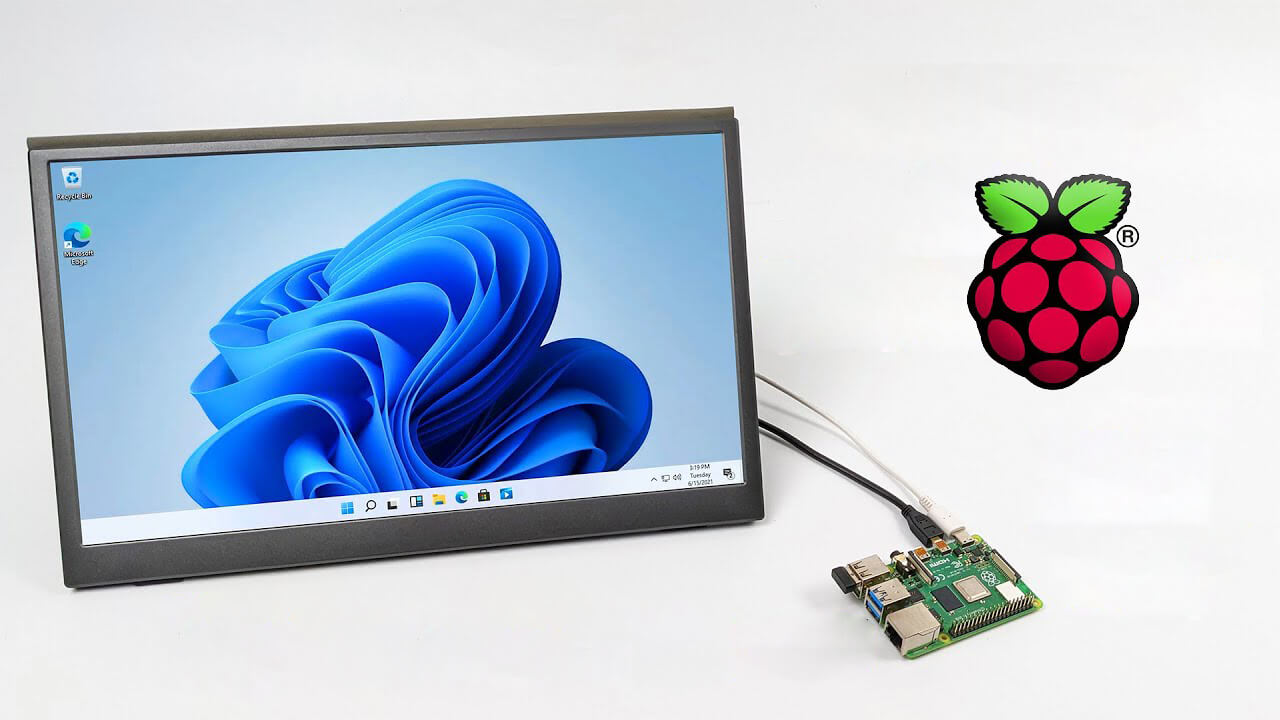
A lot of controversies and mixed emotions have come from statements about Windows 11 minimum system requirements, especially ones linked to TPM. Naturally, each time some software company giant announces how things are must have there are people who go out and prove them wrong. This time Raspberry Pi community was one which demonstrated that not only Raspberry Pi does not have a TPM module, it can run the full desktop version of Windows 11

Windows 11 on Raspberry Pi 4Raspberry Pi 4 and things you need for Windows 11 installation

In order to actually install Windows 11 on your Pi, there are certain things that you will need. Check out the below list and prepare everything.
  • Raspberry Pi 4 4GB or 8GB
  • A 32GB or larger SSD via a USB 3 caddy. Best for performance or 16GB or larger microSD card
  • USB boot enabled, see below.
  • A micro SD card with the latest Raspberry Pi OS
  • Windows 10 PC
  • USB to Ethernet or WiFi dongle
  • Bluetooth dongle (if you want Bluetooth)
  • Keyboard, mouse, HDMI, and power for your Raspberry Pi

Configuring Pi to boot from SSD

In order to boot from SSD be sure that firmware and bootloader are up to date on the latest version and upgrade if needed. Be aware that this firmware update can only be performed using the official Raspberry Pi OS. Also if you are eager and want to use a standard microSSD card instead of an SSD to run Windows 11 feel free to skip this entire section.
  1. Boot from microSSD with the latest Raspberry Pi OS on it.
  2. Update firmware and OS using the terminal by typing sudo apt update sudo apt full-upgrade sudo rpi-update
  3. Reboot your Pi
  4. Install the latest version of bootloader again using the terminal with the command sudo rpi-eeprom-update -d – a
  5. Reboot Pi
  6. Launch raspi-config on your Pi via terminal with sudo raspi-config
  7. Select option 3 (Boot options – Configure options for start-up) from boot options
  8. Select Boot ROM version and press ENTER
  9. Select latest and then OK
  10. Select NO when prompted to reset boot ROM to defaults on the latest version boot ROM selected screen. Press OK
  11. Select Boot order and press ENTER
  12. Select USB Boot and click on OK and remove microSD card from Pi
  13. Select Finish and click on NO when prompted to reboot

Creating Windows 11 installation image for Pi 4

In order to install Windows 11 on our Pi, we must create an installation image, follow the steps below explaining the process.
  1. Go to https://uupdump.net/
  2. Search for Windows 11 Arm
  3. Select the latest build for arm64
  4. Select Language on which you would like installer and Windows
  5. Pick Windows edition you would like
  6. Set download method to Download and convert to ISO and click on Create download package
  7. Extract downloaded content into win11 folder and go into it
  8. Double click on uup_download_windows.cmd
  9. On the security warning screen click on More info and then on Run anyway
  10. Wait for the process to finish completely
  11. Once the process is finished, press 0 to close the prompt

Installing image on microSSD or SSD

If previous steps of instruction were follower precisely you now have an ISO image that can be installed onto microSSD or SSD
  1. Connect SSD or insert microSSD card into your PC
  2. Go to https://www.worproject.ml/downloads
  3. Download Windows on Raspberry imager and extract it into the win11 folder
  4. Open Imager and allow it to make changes to your computer, set your language, and click on next
  5. Select storage drive where you would like to install Windows
  6. Set device type and click on next
  7. Select our Windows 11 ISO image we created and click on next
  8. On the drivers screen select Use the latest driver package available on the server
  9. On UEFI firmware select screen choose Use the latest firmware available on the server
  10. On configuration screen click on next
  11. Check your setting on the installation overview and if everything is ok click on install
  12. Wait for the whole process to be finished
  13. Once the process is completed, close Windows on Raspberry imager, take out SSD or microSSD card from PC and connect it on your Pi along with Pi peripherals.

Setting Windows 11 on Pi

In order to actually use Windows 11 on our Raspberry Pi we now have to set up the Windows 11 install using the standard post-installation setup sequence.
  1. Power up Pi and press ESC when prompted
  2. Go to Device manager and press ENTER
  3. Select Raspberry Pi Configuration
  4. Select Advanced configuration
  5. Set Limit RAM to 3GB to a disabled state, press F10 to save, and ESC to exit.
  6. Select Display configuration
  7. Set the resolution to desired option and press ENTER, F10 to save, and ESC to exit
  8. Go to CPU configuration
  9. Check if the CPU clock is set to default, if not set it
  10. Press ESC to go back all the way to the main menu
  11. Select Continue to exit BIOS and boot your Raspberry Pi with Windows 11 on it
And there you have it, fully working Windows 11 OS on Raspberry Pi despite what Microsoft says Note that due to lack of some drivers performance can be less than optimal, for example, full HD videos will not work since there are no compatible graphic drivers for Pi and some other stuff like Wi-Fi will also cause some issues but overall Windows 11 is working pretty well.
Read More
An Easy Guide to Resolving Internal Error 2324

Internal Error 2324 - What is it?

Internal Error 2324 occurs when you try to upgrade Firefox on your Windows 7 PC. The program fails to install and run successfully. The following error message is displayed:
‘The installer encountered an unexpected error installing this package. This may indicate a problem with this package. The error code is 2324.’

Solution

Restoro box imageError Causes

This error may occur due to different reasons. These include:
  • Viral infection
  • Bad registry entries (cookies or traces of old version of Firefox program)
  • Other programs running on your PC during Firefox program installation
  • Installation was not performed from the Administrator account
To use the Firefox web browser successfully on your PC, you first need to resolve error 2324 on your system.

Further Information and Manual Repair

To repair error 2324, try the following methods:

Method 1 - Perform a Clean Reinstall.

This means to remove the Firefox program completely from your PC and then reinstall it. To do this, remove the Firefox installation folder saved in one of the locations by default: C:\Program Files\Mozilla Firefox C:\Program Files (x86)\Mozilla Firefox Now download the latest Firefox version on your PC and save the setup file on your computer. After that double click, the downloaded installation file and follow the steps illustrated in the wizard to install Firefox on your PC.

Method 2

Sometimes Firefox installation may fail because of the interference from other programs running on your PC. Therefore, it is advisable to close all programs running in the background when upgrading the Firefox program. You can also disable programs like Logitech QuickCam and Spybot Tea Timer.  These are some of the many programs that are notorious for interfering with Firefox updates.

Method 3 - Scan for viruses to resolve.

Viruses are malicious programs that often enter computers through files downloads from unreliable websites and phishing emails. These programs then hide in your PC and infect it. You may often experience problems during program installation if your PC is infected by viruses. To fix the issue and ensure smooth Firefox program installation on your system, simply run an antivirus. Antivirus scans and detects all viruses in a few minutes. Upon detection, remove them right away to ensure your PC is free from such malicious programs. Now try updating Firefox on your system again. If it is updated smoothly, then the error is resolved.

Method 4

The registry of your system stores all the activities performed on your PC. You may have uninstalled the old Firefox version from the Control Panel but the traces of the uninstalled program may still remain in the registry as bad entries. These bad entries may be causing error 2324 to pop up on your PC. To resolve, you need to remove these entries from the registry. For quick removal, download Restoro. It is a user-friendly PC Fixer with a registry cleaner that scans and removes all obsolete files stored in the registry such as incorrect registry keys, bad entries, cookies, and junk files. Click here to download Restoro.
Read More
Microsoft removed password as a requirement
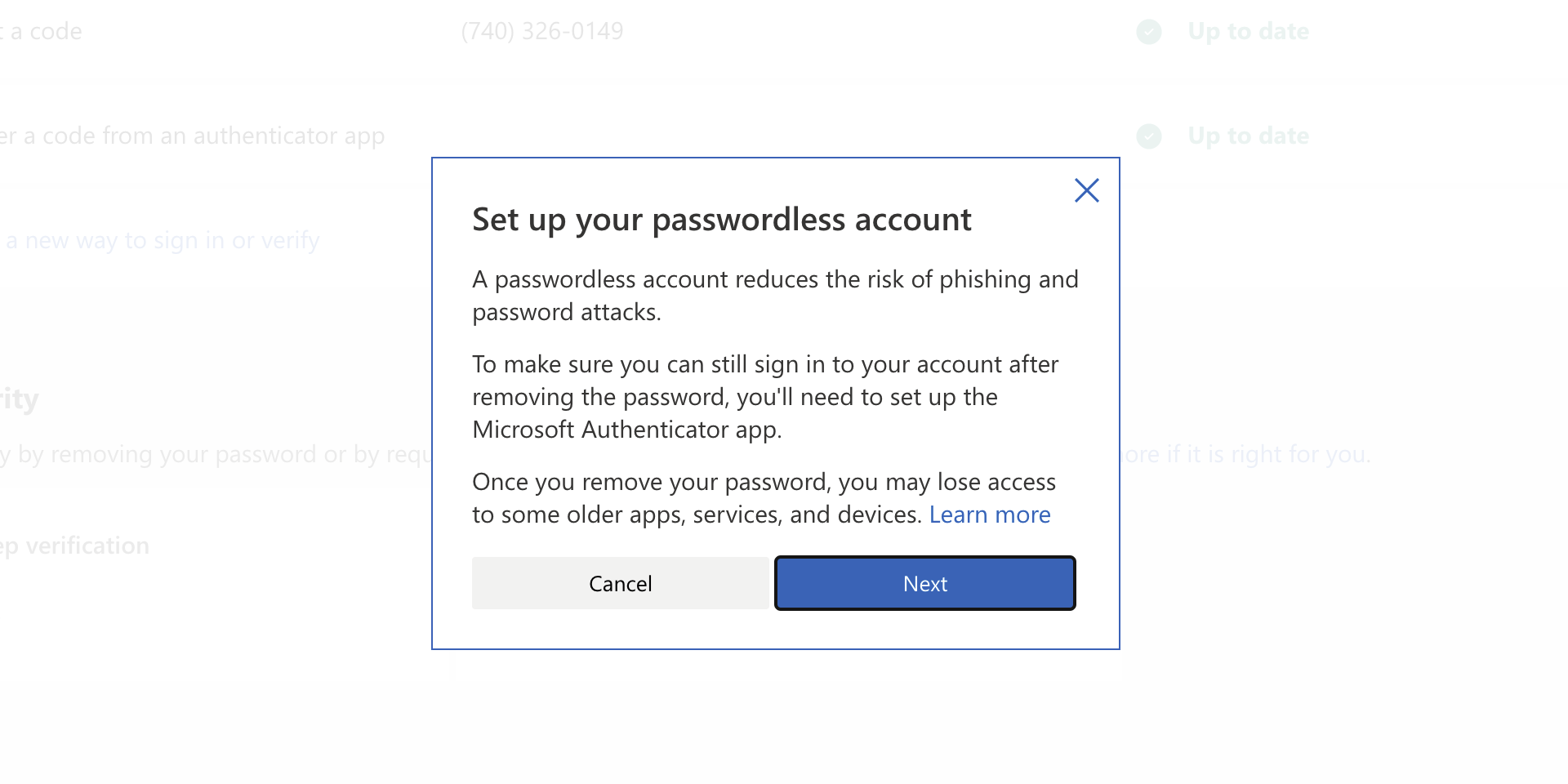
ms password goneAs of the time of writing this article you no longer need or are required to have a password if you plan to log in to your Microsoft account. Microsoft explored various options for account security and came to the conclusion that passwords are obsolete. Microsoft is letting you access your account through the Microsoft Authenticator app, Windows Hello, a security key, SMS verification, or email verification code. All of these methods are way better in terms of security than passwords.
How to turn these features on?

To get rid of your Microsoft password, the process is simple. You simply need to go to your Microsoft account, click “advanced security options,” then “enable passwordless accounts” under the Additional security section.
Read More
A Quick Guide to Resolving Error 0x80070003

Error 0x80070003 - What is it?

Error 0x80070003 is a type of Windows file backup and restore error code. This error occurs when you copy files or try to create backup and restore files and folders by using Windows Backup and Restore. This error stops you from using browse for files or folders. It hampers your ability to browse and restore files in the File Restore Wizard on your PC.

Solution

Restoro box imageError Causes

Error 0x80070003 may occur due to numerous reasons such as:
  • Registry files are corrupted and damaged
  • Missing directories
  • Boot sector corrupted
  • Outdated drivers
  • Faulty software installation
  • Malware infection
  • Improper maintenance and incomplete installation

Further Information and Manual Repair

Here are some manual and easy do-it-yourself methods that you can try at home and resolve the issue on your own and save hundreds of dollars that you would be otherwise spending to hire a professional for the job.

Method 1 - Use Search Functionality in the File Restore Wizard to restore files

To work out and resolve error 0x80070003 on your system simply use the search functionality in the File Restore Wizard to locate and restore the files. This can be done by going to the start menu and then click on search. Now enter the keywords in the search for box and then click search again. Click to select the files that you want to restore from the list and then click OK. This will help you restore the files and resolve the issue.

Method 2 - Recreate the Missing Directory

If the re-parse point is deleted, then you will have to recreate the missing directory. The deletion of the re-parse point can be identified if the error code is displayed in this format ‘Filename: C:\Myfolder\11111.txt, Error: the system cannot find the path specified (0x80070003)’. To resolve, simply follow the path that is pointed out in the error and create the corresponding folder. Create the folder Myfolder in Drive C. Then try the restore operation again. Now click to clear the Restore the files to their original subfolders check box and then run the File Restore Wizard. This is most likely going to resolve the issue.

Method 3 - Scan for Viruses

Sometimes error 0x80070003 may occur due to malware. This stops you from creating file backup and restore files. If this is the cause then simply download and run an antivirus to remove malware programs on your PC.

Method 4 - Clean and Repair the Corrupted Registry

Error 0x80070003 can be triggered due to registry corruption. If this is the cause then simply download Restoro. This is a user-friendly and powerful multi-functional PC Fixer integrated with a registry cleaner. The registry cleaner scans for all registry-related errors, wipe out all unnecessary and junk files, and also cleans and repairs the damaged registry in seconds. Click here to download Restoro and resolve error 0x80070003 today!
Read More
OneXPlayer Mini Handheld Gaming PC
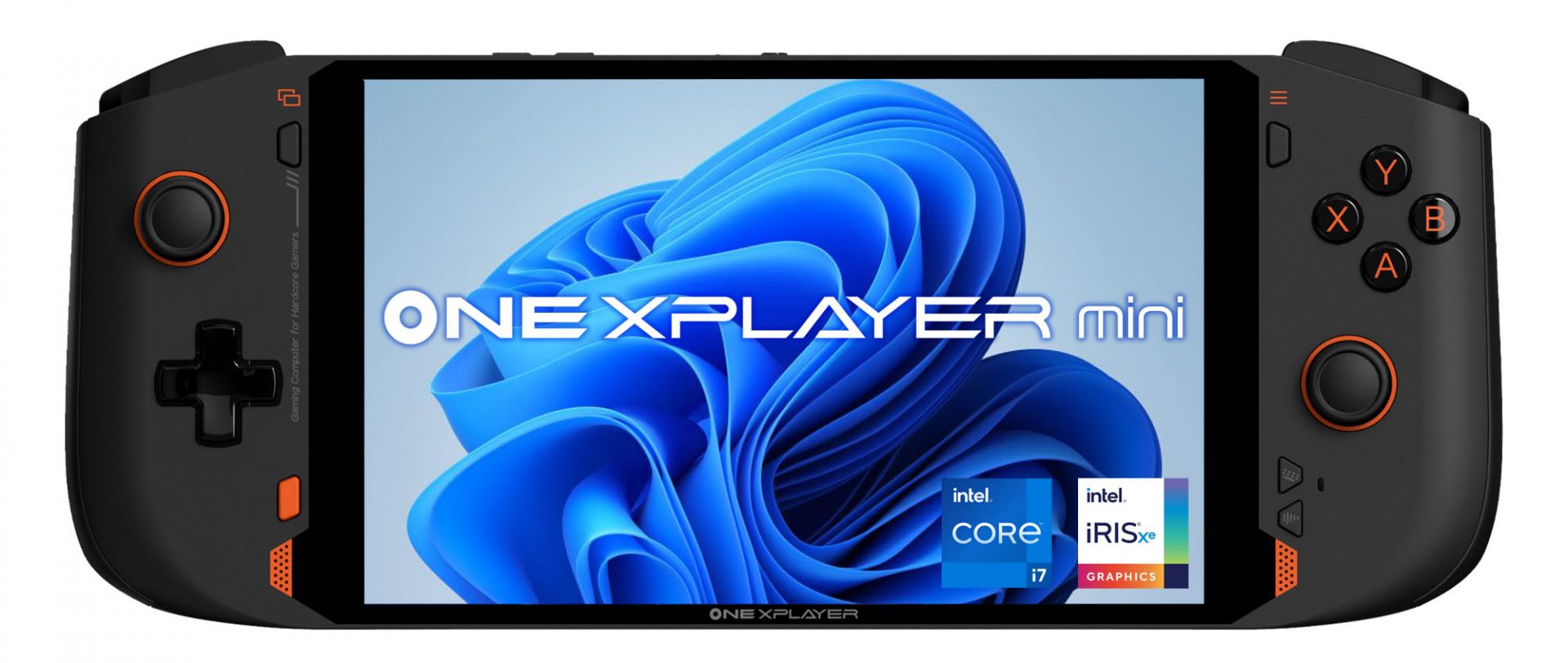
OneXPlayer is a direct competitor to Valve’s upcoming steam deck. This device is clearly inspired by Valve’s offering and it shows all over the place, from its looks to its purpose and aims to PC gamers as a handheld device.

OneXPlayer miniHardware under the hood

This device is packing a 7-inch 1080p display, 11th generation Intel Core i7-1195G7 CPU, stunning 16GB of RAM, 512GB SSD drive with the option to purchase 1TB or 2TB model. GPU of choice is Intel iris Xe Graphics that is in our opinion a bottleneck in the whole system and for more demanding games, we believe switching them to 720p would be a better option. Everything here is powered with a 10455 mAh lithium-ion battery.

OneXPlayer inputs and other stuff

Handheld is equipped with dual bumpers and dual linear triggers. The console comes with dual speakers on both sides of it. Inside the console, there is an aluminum heat sink with copper heat pipes and a fan in order to cool internal hardware. On the outside, we have two USB-C ports and one USB-A port for connections, and of course, a headphone jack for headphones. The console comes with Wi-Fi 6 and Bluetooth 5.0 for wireless connectivity.

Price

The base entry model will cost you a whopping $1.259, 1TB model $1.399 and 2TB one will go as far as $1,599. With this kind of price, I am not sure it can come up as a winner against Valve. Sure it is packing fully licensed Windows 11 that will for sure offer more options than Stem’s OS based on Linux but even with that advantage I do not think it justifies such a big price difference.

Conclusion

Of course, this kind of console or handheld PC will still find its customer base, many users will probably like it since it comes Windows ready out of the box. Sure, you can place Windows on Steam deck as well but you will need to know how, where everything is ready and you can run beside steam other launchers without issues like origin, uplay, gog, etc. How this will be accepted by community time will tell but it is good to see that there is variety and competition in handheld PC space.
Read More
Fix error code 16 in Windows 10
Access denied error code 16 is tied to websites, it is an error which you will encounter when trying to visit some specific website or if you are unlucky on all of the websites. Lucky for us this error is fixable and in order for us to do this, follow this guide for possible solutions.
  1. Check Date and Time, Incorrect date and time can often interfere with services in your Windows, browsers are not different and this can cause some websites not to be shown. Check your date and time and set it correctly if needed.
  2. Try to access the website from another device. If you manage to open a website on another PC or some other device then keep reading in order to find the solution, if you can not, then the problem is on the website itself.
  3. Turn off Firewall or antivirus. New antivirus and firewall applications can sometimes mark certain websites as malicious and will cut contact with them rendering them unable to be accessed or opened. Try turning the firewall and antivirus temporarily off and then try to access the website.
  4. Try opening web site in another browser. To eliminate browser-specific issues and their configuration, try opening the website in another browser.
  5. Disable PROXI server. Some applications, especially malicious ones can change your proxi setting in LAN. go to your LAN settings and turn off proxi if it is enabled.
  6. Reset your Browser. If this issue is caused by bad data in your browser or by its settings and preferences, resetting the complete browser will solve the issue.
  7. Use VPN. Sometimes the reason for you was not able to access some website might be because the site is not available for your region, to bypass this issue use VPN and reroute your location.
Read More
1 2 3 171
Logo
Copyright © 2023, ErrorTools. All Rights Reserved
Trademark: Microsoft Windows logos are registered trademarks of Microsoft. Disclaimer: ErrorTools.com is not affiliated with Microsoft, nor claims direct affiliation.
The information on this page is provided for information purposes only.
DMCA.com Protection Status