Logo

Step by Step Guide for Removing MyFunCardsToolbar

MyFunCards Toolbar is a browser hijacking extension for Google Chrome made by Mindspark Interactive. This extension installs a toolbar for your browser, changes your default search engine, and lowers the general performance of your browser. This extension has access to your personal information, injects your search results with potentially dangerous ads, and possibly breaks some of the browser functions. Since this extension injects its code into too many files and has access to all your browser details, upon removing it you will lose all your browser settings, themes, and login information. MyFunCards is considered a potentially unwanted application, and as a result, is flagged for optional removal by many anti-malware programs.

About Browser Hijackers

Browser hijacking is amongst the web’s constant problems that target internet browsers. It is a type of malware program that alters your web browser’s settings so that you are redirected to internet sites or pages that you had no intention of checking out. There are many reasons why you may have a browser hijack; however commercial, marketing, and advertising are the main reasons for their creation. It redirects you to the sponsored sites and injects advertisements on the browser that assists its developer to generate revenue. Even though it may seem naive, these tools were created by vicious people who always look to take advantage of you, so that they can easily earn money from your naivety and distraction. They not only mess up your browsers, but browser hijackers can also modify the computer registry to make your PC susceptible to various other types of attacks.

Key symptoms that an internet browser has been hijacked

When your web browser is hijacked, the following might happen:
1. the home page of the browser is changed all of a sudden
2. your internet browser is constantly being redirected to adult sites
3. the default search engine has been changed and the web browser security settings have been cut down without your knowledge
4. unwanted new toolbars are added to your browser
5. your browser will display endless pop-up ads
6. your internet browser has become unstable or starts running slowly
7. You cannot access certain websites, in particular anti-malware sites.

How browser hijacker finds its way onto your computer system

A browser hijacker could be installed on your PC if you visit an infected site, click an e-mail attachment, or download something from a file-sharing website. They could also be deployed via the installation of a web browser toolbar, add-on, or extension. A browser hijacker can be installed as a part of freeware, demoware, shareware, and fake programs. Common examples of browser hijackers include Conduit, CoolWebSearch, Coupon Server, OneWebSearch, RocketTab, Snap.do, Delta Search, and Searchult.com.

Browser hijacking can cause severe privacy issues and even identity theft, disrupt your web browsing experience by taking control of outgoing traffic, significantly slows down your personal computer by depleting lots of resources and result in system instability as well.

Browser hijacker removal methods

Certain hijackers can be removed by just uninstalling the corresponding freeware or add-ons through the Add or Remove Programs in the Windows control panel. Having said that, the majority of hijackers are quite tenacious and require specialized applications to eradicate them. Moreover, browser hijackers can modify the Computer registry therefore it can be quite hard to repair manually, especially when you’re not a tech-savvy individual.

Malware Blocking Internet And All Antivirus Software? Do This!

All malware is inherently dangerous, but certain kinds of malicious software do more damage to your computer than others. Some malware goes to great lengths to prevent you from installing anything on your computer system, especially anti-virus software programs. If you’re reading this article, you may have got affected by malware that prevents you from downloading a security program such as Safebytes Antimalware on your PC. There are a few options you can try to get around with this particular obstacle.

Install the anti-virus in Safe Mode

If any malware is set to load immediately when Windows starts, stepping into Safe Mode could block the attempt. Just bare minimum required applications and services are loaded when you start your personal computer in Safe Mode. You will have to do the following to eliminate malware in Safe mode.

1) After switching on the computer, press the F8 key before the Windows splash screen begins to load. This should bring up the Advanced Boot Options menu.
2) Use the arrow keys to select Safe Mode with Networking and hit ENTER.
3) As soon as this mode loads, you will have an internet connection. Now, make use of your browser normally and go to https://safebytes.com/products/anti-malware/ to download and install Safebytes Anti-Malware.
4) As soon as the software is installed, allow the scan run to eliminate viruses and other threats automatically.

Use an alternate web browser to download security application

Malicious program code might exploit vulnerabilities on a specific web browser and block access to all antivirus software websites. If you are not able to download the anti-malware application using Internet Explorer, it means malware could be targeting IE’s vulnerabilities. Here, you need to switch over to a different web browser like Firefox or Chrome to download Safebytes software.

Make a bootable USB antivirus drive

Another option is to create a portable antivirus program on your USB stick. Adopt these measures to employ a USB flash drive to clean your corrupted computer system.
1) Download Safebytes Anti-Malware or MS Windows Defender Offline onto a clean computer system.
2) Plug the Flash drive into the clean computer.
3) Run the setup program by double-clicking the executable file of the downloaded software, with an .exe file format.
4) Select the USB flash drive as the location for saving the software file. Follow the on-screen instructions to complete the installation.
5) Now, plug the USB drive into the corrupted system.
6) Run the Safebytes Anti-malware directly from the thumb drive by double-clicking the icon.
7) Run Full System Scan to detect and get rid of all kinds of malware.

SafeBytes Anti-Malware: Lightweight Malware Protection for Windows Computer

Nowadays, anti-malware software can protect your computer from various forms of online threats. But exactly how to select the best one among numerous malware protection application that is available in the market? You may be aware, there are lots of anti-malware companies and tools for you to consider. Some of them are great and some are scamware applications that pretend as authentic anti-malware software waiting around to wreak havoc on your computer. While looking for an anti-malware program, pick one which gives dependable, efficient, and total protection against all known computer viruses and malware. One of the strongly recommended software is SafeBytes Anti-Malware. SafeBytes has a really good history of excellent service, and customers are happy with it.

SafeBytes anti-malware is a powerful, very effective protection application created to assist users of all levels of IT literacy in finding and removing harmful threats from their PC. Using its outstanding protection system, this utility will easily detect and remove most of the security threats, which include viruses, adware, browser hijackers, PUPs, trojans, worms, and ransomware.

SafeBytes has great features when compared with various other anti-malware programs. Below are a few of the best ones:

Active Protection: SafeBytes provides a completely hands-free live protection that is set to monitor, prevent and destroy all computer threats at its very first encounter. They are very effective in screening and eliminating different threats because they’re continuously revised with new updates and alerts.

Anti-Malware Protection: With its enhanced and sophisticated algorithm, this malware removal tool can identify and eliminate the malware threats hiding in your PC effectively.

SuperSpeed Scanning: This application has one of the fastest and most effective virus scanning engines in the industry. The scans are extremely accurate and take a short amount of time to complete.

Safe Web Browsing: Safebytes allots all websites with a unique safety ranking that helps you to have an idea of whether the website you’re about to visit is safe to view or known to be a phishing site.

Lightweight: SafeBytes gives you total protection from internet threats at a fraction of the CPU load because of its advanced detection engine and algorithms.

24/7 Premium Support: Skilled technicians are at your disposal 24/7! They will quickly resolve any technical issues you might be encountering with your security software.

Technical Details and Manual Removal (Advanced Users)

If you wish to manually remove MyFunCardsToolbar without the use of an automated tool, it may be possible to do so by removing the program from the Windows Add/Remove Programs menu, or in cases of browser extensions, going to the browsers AddOn/Extension manager and removing it. You will likely also want to reset your browser.

To ensure the complete removal, manually check your hard drive and registry for all of the following and remove or reset the values accordingly. Please note that this is for advanced users only and may be difficult, with incorrect file removal causing additional PC errors. In addition, some malware is capable of replicating or preventing deletion. Doing this in Safe Mode is advised.

The following files, folders, and registry entries are created or modified by MyFunCardsToolbar

Files:
C:Program FilesFunWebProductsInstallr.binF3EZSETP.DLL
C:Program FilesFunWebProductsInstallr.binF3EZSETP.DL_
C:Program Files
C:Program FilesFunWebProducts
C:PROGRA~1FUNWEB~1Installr.binF3EZSETP.DL_
C:Program FilesFunWebProductsInstallr.binF3EZSETP.DLL

Registry:
HKEY_LOCAL_MACHINESoftwareFunWebProductsInstaller
HKEY_LOCAL_MACHINESOFTWAREMicrosoftWindowsCurrentVersion
HKEY_LOCAL_MACHINESoftware
HKEY_LOCAL_MACHINESoftwareMicrosoft
HKEY_LOCAL_MACHINESoftwareMicrosoftWindows
HKEY_LOCAL_MACHINESoftwareMicrosoftWindowsCurrentVersion
HKEY_LOCAL_MACHINESoftwareMicrosoftWindowsCurrentVersionExt
HKEY_LOCAL_MACHINESoftwareMicrosoftWindowsCurrentVersionExtPreApproved
HKEY_LOCAL_MACHINESoftwareMicrosoftWindowsCurrentVersionExtPreApproved1D4DB7D2-6EC9-47a3-BD87-1E41684E07BB
HKEY_CURRENT_USERSoftware
HKEY_CURRENT_USERSoftwareMicrosoft
HKEY_CURRENT_USERSoftwareMicrosoftWindows
HKEY_CURRENT_USERSoftwareMicrosoftWindowsCurrentVersion
HKEY_CURRENT_USERSoftwareMicrosoftWindowsCurrentVersionExt
HKEY_CURRENT_USERSoftwareMicrosoftWindowsCurrentVersionExtSettings
HKEY_CURRENT_USERSoftwareMicrosoftWindowsCurrentVersionExtSettings1D4DB7D2-6EC9-47a3-BD87-1E41684E07BB
HKEY_CLASSES_ROOTFunWebProductsInstaller.Start.1
HKEY_CLASSES_ROOTFunWebProductsInstaller.Start.1CLSID
HKEY_CLASSES_ROOTFunWebProductsInstaller.Start
HKEY_CLASSES_ROOTFunWebProductsInstaller.StartCLSID
HKEY_CLASSES_ROOTFunWebProductsInstaller.StartCurVer
HKEY_CLASSES_ROOTCLSID
HKEY_CLASSES_ROOTCLSID1D4DB7D2-6EC9-47a3-BD87-1E41684E07BB
HKEY_CLASSES_ROOTCLSID1D4DB7D2-6EC9-47a3-BD87-1E41684E07BBProgID
HKEY_CLASSES_ROOTCLSID1D4DB7D2-6EC9-47a3-BD87-1E41684E07BBVersionIndependentProgID
HKEY_CLASSES_ROOTCLSID1D4DB7D2-6EC9-47a3-BD87-1E41684E07BBProgrammable
HKEY_CLASSES_ROOTCLSID1D4DB7D2-6EC9-47a3-BD87-1E41684E07BBInprocServer32
HKEY_CLASSES_ROOTCLSID1D4DB7D2-6EC9-47a3-BD87-1E41684E07BBControl
HKEY_CLASSES_ROOTCLSID1D4DB7D2-6EC9-47a3-BD87-1E41684E07BBMiscStatus
HKEY_CLASSES_ROOTCLSID1D4DB7D2-6EC9-47a3-BD87-1E41684E07BBTypeLib
HKEY_CLASSES_ROOTCLSID1D4DB7D2-6EC9-47a3-BD87-1E41684E07BBVersion
HKEY_LOCAL_MACHINESOFTWAREMicrosoftOLEAUT
HKEY_CLASSES_ROOTTypeLib
HKEY_CLASSES_ROOTTypeLib1D4DB7D0-6EC9-47A3-BD87-1E41684E07BB
HKEY_CLASSES_ROOTTypeLib1D4DB7D0-6EC9-47A3-BD87-1E41684E07BB.0
HKEY_CLASSES_ROOTTypeLib1D4DB7D0-6EC9-47A3-BD87-1E41684E07BB.0FLAGS
HKEY_CLASSES_ROOTTypeLib1D4DB7D0-6EC9-47A3-BD87-1E41684E07BB.0C:Program FilesFunWebProductsInstallr.binF3EZSETP.DLL
C:Program FilesFunWebProductsInstallr.binF3EZSETP.DL_
C:Program Files
C:Program FilesFunWebProducts
C:PROGRA~1FUNWEB~1Installr.binF3EZSETP.DL_
C:Program FilesFunWebProductsInstallr.binF3EZSETP.DLL
HKEY_LOCAL_MACHINESoftwareFunWebProductsInstaller
HKEY_LOCAL_MACHINESOFTWAREMicrosoftWindowsCurrentVersion
HKEY_LOCAL_MACHINESoftware
HKEY_LOCAL_MACHINESoftwareMicrosoft
HKEY_LOCAL_MACHINESoftwareMicrosoftWindows
HKEY_LOCAL_MACHINESoftwareMicrosoftWindowsCurrentVersion
HKEY_LOCAL_MACHINESoftwareMicrosoftWindowsCurrentVersionExt
HKEY_LOCAL_MACHINESoftwareMicrosoftWindowsCurrentVersionExtPreApproved
HKEY_LOCAL_MACHINESoftwareMicrosoftWindowsCurrentVersionExtPreApproved1D4DB7D2-6EC9-47a3-BD87-1E41684E07BB
HKEY_CURRENT_USERSoftware
HKEY_CURRENT_USERSoftwareMicrosoft
HKEY_CURRENT_USERSoftwareMicrosoftWindows
HKEY_CURRENT_USERSoftwareMicrosoftWindowsCurrentVersion
HKEY_CURRENT_USERSoftwareMicrosoftWindowsCurrentVersionExt
HKEY_CURRENT_USERSoftwareMicrosoftWindowsCurrentVersionExtSettings
HKEY_CURRENT_USERSoftwareMicrosoftWindowsCurrentVersionExtSettings1D4DB7D2-6EC9-47a3-BD87-1E41684E07BB
HKEY_CLASSES_ROOTFunWebProductsInstaller.Start.1
HKEY_CLASSES_ROOTFunWebProductsInstaller.Start.1CLSID
HKEY_CLASSES_ROOTFunWebProductsInstaller.Start
HKEY_CLASSES_ROOTFunWebProductsInstaller.StartCLSID
HKEY_CLASSES_ROOTFunWebProductsInstaller.StartCurVer
HKEY_CLASSES_ROOTCLSID
HKEY_CLASSES_ROOTCLSID1D4DB7D2-6EC9-47a3-BD87-1E41684E07BB
HKEY_CLASSES_ROOTCLSID1D4DB7D2-6EC9-47a3-BD87-1E41684E07BBProgID
HKEY_CLASSES_ROOTCLSID1D4DB7D2-6EC9-47a3-BD87-1E41684E07BBVersionIndependentProgID
HKEY_CLASSES_ROOTCLSID1D4DB7D2-6EC9-47a3-BD87-1E41684E07BBProgrammable
HKEY_CLASSES_ROOTCLSID1D4DB7D2-6EC9-47a3-BD87-1E41684E07BBInprocServer32
HKEY_CLASSES_ROOTCLSID1D4DB7D2-6EC9-47a3-BD87-1E41684E07BBControl
HKEY_CLASSES_ROOTCLSID1D4DB7D2-6EC9-47a3-BD87-1E41684E07BBMiscStatus
HKEY_CLASSES_ROOTCLSID1D4DB7D2-6EC9-47a3-BD87-1E41684E07BBTypeLib
HKEY_CLASSES_ROOTCLSID1D4DB7D2-6EC9-47a3-BD87-1E41684E07BBVersion
HKEY_LOCAL_MACHINESOFTWAREMicrosoftOLEAUT
HKEY_CLASSES_ROOTTypeLib
HKEY_CLASSES_ROOTTypeLib1D4DB7D0-6EC9-47A3-BD87-1E41684E07BB
HKEY_CLASSES_ROOTTypeLib1D4DB7D0-6EC9-47A3-BD87-1E41684E07BB.0
HKEY_CLASSES_ROOTTypeLib1D4DB7D0-6EC9-47A3-BD87-1E41684E07BB.0FLAGS
HKEY_CLASSES_ROOTTypeLib1D4DB7D0-6EC9-47A3-BD87-1E41684E07BB.0%#MANIFEST#%
HKEY_CLASSES_ROOTTypeLib1D4DB7D0-6EC9-47A3-BD87-1E41684E07BB.0%#MANIFEST#%win32
HKEY_CLASSES_ROOTTypeLib1D4DB7D0-6EC9-47A3-BD87-1E41684E07BB.0HELPDIR
HKEY_CLASSES_ROOTInterface
HKEY_CLASSES_ROOTInterface1D4DB7D1-6EC9-47A3-BD87-1E41684E07BB
HKEY_CLASSES_ROOTInterface1D4DB7D1-6EC9-47A3-BD87-1E41684E07BBProxyStubClsid
HKEY_CLASSES_ROOTInterface1D4DB7D1-6EC9-47A3-BD87-1E41684E07BBProxyStubClsid32
HKEY_CLASSES_ROOTInterface1D4DB7D1-6EC9-47A3-BD87-1E41684E07BBTypeLib
HKEY_CLASSES_ROOTInterface1D4DB7D3-6EC9-47A3-BD87-1E41684E07BB
HKEY_CLASSES_ROOTInterface1D4DB7D3-6EC9-47A3-BD87-1E41684E07BBProxyStubClsid
HKEY_CLASSES_ROOTInterface1D4DB7D3-6EC9-47A3-BD87-1E41684E07BBProxyStubClsid32
HKEY_CLASSES_ROOTInterface1D4DB7D3-6EC9-47A3-BD87-1E41684E07BBTypeLib
HKLMSOFTWAREMyFunCards_5m
HKLMSOFTWAREClassesMyFunCards_5m.SkinLauncher
HKLMSOFTWAREClassesMyFunCards_5m.SettingsPlugin
HKLMSOFTWAREClassesMyFunCards_5m.ScriptButton
HKLMSOFTWAREClassesMyFunCards_5m.Radio
HKLMSOFTWAREClassesMyFunCards_5m.PseudoTransparentPlugin
HKLMSOFTWAREClassesMyFunCards_5m.MultipleButton
HKLMSOFTWAREClassesMyFunCards_5m.HTMLPanel
HKLMSOFTWAREClassesMyFunCards_5m.HTMLMenu
HKLMSOFTWAREClassesMyFunCards_5m.FeedManager
HKLMSOFTWAREClassesMyFunCards_5m.DynamicBarButton
HKLMSOFTWAREClassesCLSID4bdd2be-51e9-4031-a7a7-b882b3abea12
HKEY_CLASSES_ROOTTypeLib1D4DB7D0-6EC9-47A3-BD87-1E41684E07BB.0C:Program FilesFunWebProductsInstallr.binF3EZSETP.DLL
HKEY_LOCAL_MACHINESoftwareFunWebProductsInstaller
HKEY_LOCAL_MACHINESOFTWAREMicrosoftWindowsCurrentVersion
HKEY_LOCAL_MACHINESoftware
HKEY_LOCAL_MACHINESoftwareMicrosoft
HKEY_LOCAL_MACHINESoftwareMicrosoftWindows
HKEY_LOCAL_MACHINESoftwareMicrosoftWindowsCurrentVersion
HKEY_LOCAL_MACHINESoftwareMicrosoftWindowsCurrentVersionExt
HKEY_LOCAL_MACHINESoftwareMicrosoftWindowsCurrentVersionExtPreApproved
HKEY_LOCAL_MACHINESoftwareMicrosoftWindowsCurrentVersionExtPreApproved1D4DB7D2-6EC9-47a3-BD87-1E41684E07BB
HKEY_CURRENT_USERSoftware
HKEY_CURRENT_USERSoftwareMicrosoft
HKEY_CURRENT_USERSoftwareMicrosoftWindows
HKEY_CURRENT_USERSoftwareMicrosoftWindowsCurrentVersion
HKEY_CURRENT_USERSoftwareMicrosoftWindowsCurrentVersionExt
HKEY_CURRENT_USERSoftwareMicrosoftWindowsCurrentVersionExtSettings
HKEY_CURRENT_USERSoftwareMicrosoftWindowsCurrentVersionExtSettings1D4DB7D2-6EC9-47a3-BD87-1E41684E07BB
HKEY_CLASSES_ROOTFunWebProductsInstaller.Start.1
HKEY_CLASSES_ROOTFunWebProductsInstaller.Start.1CLSID
HKEY_CLASSES_ROOTFunWebProductsInstaller.Start
HKEY_CLASSES_ROOTFunWebProductsInstaller.StartCLSID
HKEY_CLASSES_ROOTFunWebProductsInstaller.StartCurVer
HKEY_CLASSES_ROOTCLSID
HKEY_CLASSES_ROOTCLSID1D4DB7D2-6EC9-47a3-BD87-1E41684E07BB
HKEY_CLASSES_ROOTCLSID1D4DB7D2-6EC9-47a3-BD87-1E41684E07BBProgID
HKEY_CLASSES_ROOTCLSID1D4DB7D2-6EC9-47a3-BD87-1E41684E07BBVersionIndependentProgID
HKEY_CLASSES_ROOTCLSID1D4DB7D2-6EC9-47a3-BD87-1E41684E07BBProgrammable
HKEY_CLASSES_ROOTCLSID1D4DB7D2-6EC9-47a3-BD87-1E41684E07BBInprocServer32
HKEY_CLASSES_ROOTCLSID1D4DB7D2-6EC9-47a3-BD87-1E41684E07BBControl
HKEY_CLASSES_ROOTCLSID1D4DB7D2-6EC9-47a3-BD87-1E41684E07BBMiscStatus
HKEY_CLASSES_ROOTCLSID1D4DB7D2-6EC9-47a3-BD87-1E41684E07BBTypeLib
HKEY_CLASSES_ROOTCLSID1D4DB7D2-6EC9-47a3-BD87-1E41684E07BBVersion
HKEY_LOCAL_MACHINESOFTWAREMicrosoftOLEAUT
HKEY_CLASSES_ROOTTypeLib
HKEY_CLASSES_ROOTTypeLib1D4DB7D0-6EC9-47A3-BD87-1E41684E07BB
HKEY_CLASSES_ROOTTypeLib1D4DB7D0-6EC9-47A3-BD87-1E41684E07BB.0
HKEY_CLASSES_ROOTTypeLib1D4DB7D0-6EC9-47A3-BD87-1E41684E07BB.0FLAGS
HKEY_CLASSES_ROOTTypeLib1D4DB7D0-6EC9-47A3-BD87-1E41684E07BB.0%#MANIFEST#%
HKEY_CLASSES_ROOTTypeLib1D4DB7D0-6EC9-47A3-BD87-1E41684E07BB.0%#MANIFEST#%win32
HKEY_CLASSES_ROOTTypeLib1D4DB7D0-6EC9-47A3-BD87-1E41684E07BB.0HELPDIR
HKEY_CLASSES_ROOTInterface
HKEY_CLASSES_ROOTInterface1D4DB7D1-6EC9-47A3-BD87-1E41684E07BB
HKEY_CLASSES_ROOTInterface1D4DB7D1-6EC9-47A3-BD87-1E41684E07BBProxyStubClsid
HKEY_CLASSES_ROOTInterface1D4DB7D1-6EC9-47A3-BD87-1E41684E07BBProxyStubClsid32
HKEY_CLASSES_ROOTInterface1D4DB7D1-6EC9-47A3-BD87-1E41684E07BBTypeLib
HKEY_CLASSES_ROOTInterface1D4DB7D3-6EC9-47A3-BD87-1E41684E07BB
HKEY_CLASSES_ROOTInterface1D4DB7D3-6EC9-47A3-BD87-1E41684E07BBProxyStubClsid
HKEY_CLASSES_ROOTInterface1D4DB7D3-6EC9-47A3-BD87-1E41684E07BBProxyStubClsid32
HKEY_CLASSES_ROOTInterface1D4DB7D3-6EC9-47A3-BD87-1E41684E07BBTypeLib
HKLMSOFTWAREMyFunCards_5m
HKLMSOFTWAREClassesMyFunCards_5m.SkinLauncher
HKLMSOFTWAREClassesMyFunCards_5m.SettingsPlugin
HKLMSOFTWAREClassesMyFunCards_5m.ScriptButton
HKLMSOFTWAREClassesMyFunCards_5m.Radio
HKLMSOFTWAREClassesMyFunCards_5m.PseudoTransparentPlugin
HKLMSOFTWAREClassesMyFunCards_5m.MultipleButton
HKLMSOFTWAREClassesMyFunCards_5m.HTMLPanel
HKLMSOFTWAREClassesMyFunCards_5m.HTMLMenu
HKLMSOFTWAREClassesMyFunCards_5m.FeedManager
HKLMSOFTWAREClassesMyFunCards_5m.DynamicBarButton
HKLMSOFTWAREClassesCLSID4bdd2be-51e9-4031-a7a7-b882b3abea12win32
HKEY_CLASSES_ROOTTypeLib1D4DB7D0-6EC9-47A3-BD87-1E41684E07BB.0HELPDIR
HKEY_CLASSES_ROOTInterface
HKEY_CLASSES_ROOTInterface1D4DB7D1-6EC9-47A3-BD87-1E41684E07BB
HKEY_CLASSES_ROOTInterface1D4DB7D1-6EC9-47A3-BD87-1E41684E07BBProxyStubClsid
HKEY_CLASSES_ROOTInterface1D4DB7D1-6EC9-47A3-BD87-1E41684E07BBProxyStubClsid32
HKEY_CLASSES_ROOTInterface1D4DB7D1-6EC9-47A3-BD87-1E41684E07BBTypeLib
HKEY_CLASSES_ROOTInterface1D4DB7D3-6EC9-47A3-BD87-1E41684E07BB
HKEY_CLASSES_ROOTInterface1D4DB7D3-6EC9-47A3-BD87-1E41684E07BBProxyStubClsid
HKEY_CLASSES_ROOTInterface1D4DB7D3-6EC9-47A3-BD87-1E41684E07BBProxyStubClsid32
HKEY_CLASSES_ROOTInterface1D4DB7D3-6EC9-47A3-BD87-1E41684E07BBTypeLib
HKLMSOFTWAREMyFunCards_5m
HKLMSOFTWAREClassesMyFunCards_5m.SkinLauncher
HKLMSOFTWAREClassesMyFunCards_5m.SettingsPlugin
HKLMSOFTWAREClassesMyFunCards_5m.ScriptButton
HKLMSOFTWAREClassesMyFunCards_5m.Radio
HKLMSOFTWAREClassesMyFunCards_5m.PseudoTransparentPlugin
HKLMSOFTWAREClassesMyFunCards_5m.MultipleButton
HKLMSOFTWAREClassesMyFunCards_5m.HTMLPanel
HKLMSOFTWAREClassesMyFunCards_5m.HTMLMenu
HKLMSOFTWAREClassesMyFunCards_5m.FeedManager
HKLMSOFTWAREClassesMyFunCards_5m.DynamicBarButton
HKLMSOFTWAREClassesCLSID4bdd2be-51e9-4031-a7a7-b882b3abea12

Do You Need Help with Your Device?

Our Team of Experts May Help
Troubleshoot.Tech Experts are There for You!
Replace damaged files
Restore performance
Free disk space
Remove Malware
Protects WEB browser
Remove Viruses
Stop PC freezing
GET HELP
Troubleshoot.Tech experts work with all versions of Microsoft Windows including Windows 11, with Android, Mac, and more.

Share this article:

You might also like

Diablo 2 Resurrected facing server issues
It has been some time since the release of Diablo 2 resurrected and overall reception was pretty good. People are enjoying the old classic game in hi-def. resolution and with new and improved visuals. Sadly some server issues are present still until this day and somewhat spoil the experience for players. diablo 2 server statusThe greatest lag and server crashes are pinpointed to game-creating events. When a player creates a new online game, the server needs to pull a lot of details from the database and make a game, due to some legacy code present this process takes some time and it is demanding a bit on the server-side, and although code was optimized to cater to more modern approach some legacy code still remains. Another thing that was spotted to affect performance itself is player behavior, to be more specific, modern gamer behavior. Where players find good builds and runs on the internet and then go to farm-specific areas or bosses for loot or experience points, which in return boils down to making plenty and short runs that are made by creating games and after run eliminating them. Now pair that with the previous statement about legacy server and database code and you can add 1 and 1 and see how this might be an issue. A lot of short games over legacy code are placing games in a state it was not designed for back in 2001 and therefore we have issues. Sadly solutions without completely rewriting the whole code are not very promising and they include rate limiting, which will prevent players to create many games in succession in a short period of time and maybe even login queues to drop a load on servers. Blizzard reached to people in the whole company, even old diablo 2 developers to ask for advice and they say that they are working on solutions so they could lift limitations and have everything running fine.

Read More
How to Repair Windows 10 Upgrade Error Code 0x80070070 – 0x50011

Code 0x80070070 – 0x50011 – What is it?

If you’ve recently tried installing Windows 10, you might have encountered error code 0x80070070 – 0x50011 or its alternatives (error code 0x80070070 – 0x50012 and 0x80070070 – 0x60000). Whatever formats this error code presents itself in, it's usually accompanied by a barrage of other errors, as underscored on Microsoft’s official site. If you’ve encountered this error code, it simply means that your computer system might not have the required or required space to install the upgrade.

Likely, if you’ve experienced error code 0x80070070 – 0x50011, it’ll likely appear in the formats highlighted below:

  • 0x80070070 – 0x50011
  • 0x80070070 – 0x50012
  • 0x80070070 – 0x60000

Solution

Restoro box imageError Causes

At present, this Windows 10 upgrade error is triggered or caused by various factors:

  • Lack of computer resources or space
  • Virus/malware infestation
  • A clogged registry

Further Information and Manual Repair

Whilst new, not much information has been propagated regarding this error. However, there are some manual / practical steps you can take to have your Windows 10 upgrade up and running. Since the primary aspect of solving this problem is to make space on your computer system, here are some ways in which you can do so manually.

Method 1: Get more space

  • Check the current space on your computer  

Before making attempts to create space on your computer, it’s vital that you check to decipher how much free space you have available.

  • Make use of Disk Clean-up 

Since there’s a free service available on your computer to create space, why not use it and save time? If the Disk Cleanup tool is employed regularly, this will free up hard drive space and optimize your computer to work better.

  • Remove unwanted desktop apps 

There are several apps lying around on your computer that you simply don’t use, uninstall those and make space to elude error code 0x80070070 – 0x50011 or its alternatives (Code 0x80070070 – 0x50012, Code 0x80070070 – 0x60000)

  • Remove or archive files  

If you have lots of photos, media, documents (files), videos, etc, that you don’t use or will only need in the future, try cloud storage. You’ll still have those files within your possession but just not in a physical location. However, they’re still accessible. Another suggestion: If you use programs such as One Drive or Google Drive for desktop, limit your use to only the online application.

  • Add more storage

If you’re not able to implement the above steps to clear some space to accommodate your Windows 10 upgrade due to error code 0x80070070 – 0x50011, acquire more storage. This can be expanded by incorporating storage devices such as USB flash drives, CDs, cloud storage, and SD Cards.

Method 2: Scan your computer for virus/malware

If you regularly download stuff, especially software on the Internet from ‘not so secured’ sites, you might have picked up something. You might have downloaded malware or virus (along with other legit programs).

To resolve this issue, it’s advised and very important that you download a powerful antivirus and perform a complete scan of your computer system. After you’ve detected and removed the suspected malware/virus, you’ll then be able to eliminate error code 0x80070070 – 0x50011 and resume with your Windows 10 upgrade.

Method 3: Clean up your computer’s registry

If you do not clean your computer’s registry often, it could become congested or clogged by .XML files, junk files, and cookies. To resolve this problem, clean your registry by using a powerful and user-friendly tool to clean up the problem.

Click here to download Restoro.

Read More
Headphones are not working or detected
If you find that your headphones are suddenly not working, read on as this post will help you sort out the problem. There could be several reasons why your headphone is malfunctioning, it could be due to an update you just installed, or it could also be due to incompatible operating system, drivers, and so on. Although updates are created to fix bugs on a computer, there are times when it also causes some issues in the computer. One of the issues it causes is the broken headphone. When this happens, the computer will stop playing any audio using the headphones. The problem, as pointed out, could be due to Windows Updates or incompatible or corrupted drivers in the system. To resolve this problem with the headphones, there are several fixes you can check out. Make sure that you follow each one of the given potential fixes below.

Option 1 – Try to set the headphone as the default device manually

There are times when you plug a headphone, it does not toggle the default audio device. Thus, to fix this issue, you have to set the default audio device to the headphones manually. To do that, follow these steps:
  • First, right-click on the volume icon located on the system tray.
  • Next, select the Open sound settings option to open the Sound section in the Windows 10 Settings app.
  • After that, go to the Output section and select Headphones for the “Choose your output device” option. This should fix the problem for you.

Option 2 – Try to update, rollback or reinstall the Audio driver

If the glitch in your audio has something to do with software, chances are it might be related to the audio driver – it could be that the newest version of your Windows 10 does not work well with the old version of the driver. This is why you have to update your audio driver to the newest available version.
  • Tap the Win + R keys to open the Run dialog box and then type in MSC and tap Enter or click OK to open the Device Manager.
  • Expand the section for the outdated device drivers.
  • And then select the outdated driver(s) and right-click on it/them.
  • From the drop-down menu, select the Update Driver option and follow the on-screen instructions to install the latest version of the driver.
  • Then also click on the option, “Search automatically for updated driver software.
  • Restart your PC after the installation.
Note: If updating the Audio driver didn’t work, you can go to the website of your PC manufacturer and look for the support section where you can download the drivers for your computer. You just need to take note of your PC’s correct model and model number so you can find the appropriate driver.

Option 3 – Try checking the status of the audio-related Windows Services

The Windows Services manages audio for all Windows-based programs and if this service is stopped, audio devices, as well as effects, will also be affected and if this service is disabled, any services that depend on it explicitly will fail to start. So you need to check the status of this service. How? Follow the steps below.
  • Tap the Win + R to open the Run dialog box.
  • Then type in “MSC” in the field and tap enter to open the Windows Service Manager.
  • Next, navigate down to the Windows Audio Service and double-click on it to open Properties.
  • After that, set the Startup Type to Automatic and then click on the Start button and if it has already started, stop it and then start it again.
Note: You should also make sure that the following Dependency Services are started and have Automatic Startup type:
  1. Remote Procedure Call
  2. Windows Audio Endpoint Builder
You should also start the Multimedia Class Scheduler and set it on Automatic if you have it in your system. The Multimedia Class Scheduler Service or MMCSS is a service in Windows that allows multimedia applications to get prioritized access to CPU for time-sensitive processing like the multimedia applications as well as prioritized disc access to make sure that the process does not lack data to process.

Option 4 – Try running the Playing Audio Troubleshooter

Since the Windows 10 operating system has the Playing Audio Troubleshooter, you can use this troubleshooter to try and fix the problem with the headphones. You can access this tool in the Control Panel or in the Taskbar Search and even on the Troubleshooters page of Windows 10. Run this troubleshooter and see if it can fix the issue or not.

Option 5– Try to rollback or install a newer Windows Update

As mentioned earlier, the issue with the headphones could be due to a Windows Update. Thus, to fix the problem, you can try to either roll back or install a newer Windows Update.
Read More
Fix The backup application could not start
Windows comes with a built-in backup solution. However, if it failed because of an internal error, you will encounter an error message saying, “The backup application could not start due to an internal error, Server execution failed (0x80080005)”. When you get this kind of error, it means that it did not start and the process failed with a Server execution error. If you got this kind of error worries not for this post will guide you in fixing the problem in your Windows 10 computer. The Windows Backup service is an excellent feature in Windows that only works on the NTFS file system and if you want to use this make sure that you have formatted your files system to NTFS. It is performed by the Volume Shadow Copy, all you have to do is right-click on any folder and if you see the “Previous versions” option, this means that a backup process runs from time to time and can bring back old files when needed. To resolve the “The backup application could not start due to an internal error”, here are two suggestions you can check out.

Option 1 – Check if the Volume Shadow Copy service is running and restart it

The first thing you need to do is check if the Volume Shadow Copy service. To do that, refer to the following steps:
  • Click on Start and type “cmd” and right-click on Command Prompt from the search results.
  • Then select the “Run as administrator” option to open Command Prompt with admin privileges.
  • After that, type “net stop sdrsvc” and hit Enter to execute the command in stopping the Volume Shadow Copy service.
  • Next, type the “net start sdrsvc” command and hit Enter to start the service again.
Note: You can also restart the service using the Windows Services Manager.
  • In the Cortana search box, type “services” and click on the Services icon to open the Services Manager. Alternatively, you can also tap the Win + R keys to launch the Run prompt and then type “services.msc” in the field and hit Enter to open the Services Manager.
  • From there, look for the Volume Shadow Service (sdrsv) from the list of services. Its Startup type should be set to Manual by default.
  • Restart the service and if you don’t encounter any error while you turn it on, re-run the backup service and see if the backup process runs successfully.

Option 2 – Try to run the Volume Shadow Copy Service in a Clean Boot State

If the first option didn’t work and the service still keeps on failing even though the service is running, you can try putting your computer in a Clean Boot State and then try to run Windows Backup again.
  • Log onto your PC as an administrator.
  • Type in MSConfig in the Start Search to open the System Configuration utility.
  • From there, go to the General tab and click “Selective startup”.
  • Clear the “Load Startup items” check box and make sure that the “Load System Services” and “Use Original boot configuration” options are checked.
  • Next, click the Services tab and select the “Hide All Microsoft Services” check box.
  • Click Disable all.
  • Click on Apply/OK and restart your PC. (This will put your PC into a Clean Boot State. And configure Windows to use the usual startup, just simply undo the changes.)
  • Now try to run the Volume Shadow Copy service again and see if the process goes smoothly.
Note: You might also want to delete all the files in the backup solution if you want to start fresh with the backup solution. Just go to C:/System/Volume/Information/Windows Backup and take ownership of the folder. After that, make sure to stop the Volume Shadow Copy service and then delete all the files inside it.
Read More
Fix the MEMORY 0x000000FC Stop Error
The Blue Screen of Death error or BSOD is definitely not an issue to face on your computer. Many users, if not all, have already experienced this headache at least once. One of these BSOD errors is the ATTEMPTED EXECUTE OF NOEXECUTE MEMORY error. The bug check error code for this is 0x000000FC and is usually caused by outdated or faulty drivers. In some cases, it could also be caused by an error in the Random Access Memory or RAM. This kind of error in the RAM might be physical, based on drivers, or even some kind of unwanted malware. So basically there are lots of possibilities why this particular BSOD error pops up. If you are currently facing this BSOD error, read on and carefully follow the suggestions given below but before you do that, make sure to create a System Restore point just in case something goes wrong. This way, you can always undo those changes using the System Restore point. Once you have that covered, proceed to the options given below to fix the ATTEMPTED EXECUTE OF NOEXECUTE MEMORY error.

Option 1 – Try updating Windows 10 with all the security patches and updates

You might be able to fix the ATTEMPTED EXECUTE OF NOEXECUTE MEMORY error by simply updating your Windows 10 computer with all the security patches and updates. To do so, go to Settings then proceed to the Windows Update section > Update & Security > Windows Update, and then click on the Check for Updates option. After you do that, it will automatically find and install all the latest security patches and feature updates from Microsoft.

Option 2 – Try updating all your drivers

From time to time, drivers get corrupted or outdated so it’s no surprise that they conflict with the operating system and cause errors like the ATTEMPTED EXECUTE OF NOEXECUTE MEMORY BSOD error. To fix the problem, you need to update all your drivers. Follow the steps below to update your drivers.
  • Tap the Win + R keys to launch Run.
  • Type in devmgmt.msc into the box and tap Enter or click OK to open the Device Manager.
  • After that, a list of device drivers will be displayed. If you see a red or yellow sign that shows up against the driver, right-click on the driver’s name and select “Update Driver Software” or “Uninstall”. And if you find any “Unknown device”, you need to update it as well.
  • Select the “Search automatically for updated driver software” option and then follow the instructions to complete the process.
  • Restart your PC.
Note: You also have the option to go directly to the website of your graphics card manufacturer and check if there’s a new update – if there is, download it.

Option 3 – Try running a Memory Check using Windows Memory Diagnostic

As mentioned, this error might be caused by some issues in the memory. To resolve it, you need to run the Memory Check on your Windows 10 PC. Refer to these steps to do so.
  • Tap the Win + R keys to open the Run dialog box.
  • Then type “mdsched.exe” in the field and hit Enter to open the Windows Memory Diagnostic.
  • After that, the Windows Memory Diagnostic will give out two options such as:
  1. Restart now and check for problems (recommended)
  2. Check for problems the next time I start my computer
  • Select any of the given options. After that, your computer will restart and check for memory-based issues upon the restart. If there are any issues, it will automatically them.

Option 4 – Try using the System File Checker via Command Prompt

System File Checker or SFC is a built-in command utility that helps in restoring corrupted files as well as missing files. It replaces bad and corrupted system files with good system files that might be causing the ATTEMPTED EXECUTE OF NOEXECUTE MEMORY BSOD error. To run the SFC command, follow the steps given below.
  • Tap Win + R to launch Run.
  • Type in cmd in the field and tap Enter.
  • After opening Command Prompt, type in sfc /scannow
The command will start a system scan which will take a few whiles before it finishes. Once it’s done, you could get the following results:
  1. Windows Resource Protection did not find any integrity violations.
  2. Windows Resource Protection found corrupt files and successfully repaired them.
  3. Windows Resource Protection found corrupt files but was unable to fix some of them.
Read More
My device used to work, but now it doesn’t
So you just have turned your computer ON only to find out that your device which was working perfectly yesterday is not working anymore. This situation can be very stressful and disappointing but do not despair, before you toss your device through the window know that this kind of behavior can be traced back to a software issue. In this article, we will give you hints on what to do and where to pay attention when something like this happens so you get the device back in working order.
  1. Check if it not a hardware malfunction

    To save yourself time and unnecessary frustration with juggling through Windows first inspect the device to be sure that indeed it is working properly, check all led lamps which could indicate that the device is working and receiving power, and if it is an internal device try opening the case and visually check if there are signs of working like rotating fans or led lamps on it.
  2. Check Cables

    If it is an external device that has stopped working try checking power cables and cables which go to your computer, see if they are tightly connected. If it is an internal device also check cables, nudge them and if possible disconnect and clean them.
  3. Disconnect and reconnect the device

    Try this solution to see will Windows register the device again and start it.
  4. Update Windows

    If there is a Windows update not installed, install it and see if the device will start working.
  5. Update device drivers

    Go to device manager and update the device driver to its latest version or go to the manufacturer's site and download the latest driver version.
  6. Reinstall the device

    In the device manager, uninstall the device driver and reboot Windows. When Windows boots it will recognize the device and install the necessary drivers for it.
  7. Disable antivirus and firewall

    Sometimes antivirus can prevent certain devices from working properly, especially if they rely on some system files to which antivirus or firewall has cut access. Try disabling your PC protection to see if this will resolve the issue.
  8. Use dedicated error software

    Use DRIVERFIX to automatically search and fix driver issues.
Read More
Fix error 0x8007000d in Windows
Hello everyone and welcome to another quick tutorial for your Windows error, this time we will wrestle with error 0x8007000d.

Let's begin:

1. Browse to "C:\Windows\SoftwareDistribution\Download" and delete the contents of the folder. 2. Press ⊞ WINDOWS + X > Click Command Prompt (Admin) then type "wuauclt.exe /updatenow". Hit Enter 3. Open Control Panel > Windows Update and Windows 10 should begin downloading. Press ⊞ WINDOWS + X Click Command Prompt (Admin) Type in at the prompt OR Copy and Paste these one at a time : (Hit ENTER after each)
Dism /Online /Cleanup-Image /CheckHealth Dism /Online /Cleanup-Image /ScanHealth Dism /Online /Cleanup-Image /RestoreHealth
also

Run the Windows Update Troubleshooter and check if it helps:

  1. Press ⊞ WINDOWS + X and select the Control panel.
  2. In the search box, type troubleshooter, and then click Troubleshooting.
  3. Under System and Security, click Fix problems with Windows Updates.
Read More
How to Fix Windows Setup Error 0x80300002
Installing a Windows 10 upgrade is definitely not an easy task since the process is not always smooth sailing and you could encounter some errors when doing so. This isn’t unusual since there are various software configurations and hardware configurations as well as services it depends on in order to properly work. So if any of them malfunctions or becomes corrupted, it will affect the process which will result in errors like the error code 0x80300002. When you encounter this kind of Windows Update error, you will see the following error message on your screen:
“We couldn’t install Windows in the location you choose. Please check your media drive. Here’s more info about what happened: 0x80300002”
You can encounter this kind of error if there is corruption in the partition table of the drive where the installation is in progress. In addition, corruption on the Media device could also cause this problem. So if you encounter this error when running Windows Setup, read on as this post will guide you in fixing it. There are several ways to resolve this issue. The first thing you can do is to verify the compatibility between the BIOS and the installation media. You could also try recreating all the partitions as well as recreating the bootable USB drive. For more detailed information, follow the given options below.

Option 1 – Check if the BIOS is compatible with the installation media

The first thing you can do to fix the error is to check if there are any compatibility issues between the BIOS and the installation media you’re using. This is actually one of the most likely reasons why you’re getting the error since this is a complicated point for the Windows installation process. If the installation media is based on GPT, then your BIOS must be based on UEFI. So if you have your bootable media with the MBR partitioning, you need to set your BIOS to Legacy.
  • In the Windows Search box, type “command prompt” and from the search results that appear, right-click on Command Prompt and select the “Run as administrator” option.
  • After that, execute this command: exe /convert /allowfullOS
  • Now, wait until the process is completed since you can track its process on your screen.
  • Once it’s done, go to Settings > Update & Security > Advanced Startup options and from there, click on Restart Now. This will restart your computer and give you advanced options.
  • Next, select Troubleshoot > Advanced Options where you will see further options including System Restore, Startup Repair, Go back to the previous version, Command Prompt, System Image Recovery, and UEFI Firmware Settings.
  • Now select the “Legacy” option. This will take you to the BIOS. Boot Mode is typically available under Boot > Boot Configuration. Once you’re there, set it to Legacy and then save the changes you’ve made. After that, your computer will restart.

Option 2 – Try recreating a new bootable drive

  • Insert your USB drive into your PC.
  • Tap the Win + R keys to open the Run dialog box and type in “cmd” and tap Enter to open the Command Prompt. Alternatively, you can also search for “cmd” in the Cortana search box to open Command Prompt.
  • Once you’ve opened CMD, type in this command to open the DISPART utility – diskpart
  • After that, you should see a new black and white window that would say, “DISKPART>”.
  • Next, type in “list disk” in the command line and tap Enter to see the list of all the Storage devices as well as your hard disk connected to your PC. Here, you have to identify your disk’s number.
  • Type in this command where “X” is the disk number you have identified and then tap Enter – disk X
  • Type in this command and hit Enter to clear the table records and all the visible data on the drive – clean
  • Now you have to recreate a new primary partition of the drive so you’ll have to type in this command and tap Enter right after – create part pri
  • A new primary partition has been created so you have to select it by typing this command and tapping Enter – select part 1
  • Now you have to format it to make it visible to normal users by typing – format fs=ntfs quick
Note: If your platform supports the Unified Extensible Firmware Interface or UEFI, replace the “NTFS” with “FAT32” in the command on Step 10.
  • After that, type in this command and tap Enter after – active
  • Finally, type this command and hit Enter to exit the utility – exit
  • After you prepare the image for the operating system, save it to the root of your USB Storage device.

Option 3 – Try to recreate all the partitions

If none of the first two options given above worked, then you can try to recreate all the partitions instead. All you have to do is restart the Windows installation process and wait until you get to the part that says, “Where do you want to install Windows?”. From there, you will see options like delete, format, extend, create new partitions, and many more. Now you have to select the Delete all the partitions options and then use the “New” button to create new partitions. Just make sure that you have one primary partition at least where you can install Windows 10. After that, continue the installation of Windows on the new partition. Keep in mind that when you create a new partition, it also recreates the partition table configuration which means that the chances of getting an error are very unlikely.
Read More
REvil vanishes over night without trace
REvilREevil is one of the most active and successful hacking groups connected to Russia and operating all over the world. The group recently demanded a huge bitcoin ransom for an attack targeting IT firm Kaseya in the USA. Since Tuesday blog and payment site run by REvil group cannot be longer reached without any kind of explanation or why. The reason behind the disappearance is unknown but has sparked speculation that the group may have been targeted deliberately by authorities. US President Joe Biden said he raised the issue with Vladimir Putin during a phone call on Friday, after discussing the subject during a summit with the Russian president in Geneva last month. Mr. Biden told reporters that he had "made it very clear to him...we expect them to act" on information and also hinted the US could take direct digital retaliation on servers used for intrusions. The timing of Tuesday's outage has sparked speculation that either the US or Russian officials may have taken action against REvil - though officials have so far declined to comment and cyber experts say sudden disappearances of groups are not necessarily uncommon. The development comes after a series of high-profile ransomware attacks which have hit major US businesses this year. The FBI accused REvil - also known as Sodinokibi - of being behind a ransomware attack on the world's largest meat processing company JBS last month.
Read More
Disable widgets menu inside Windows 11
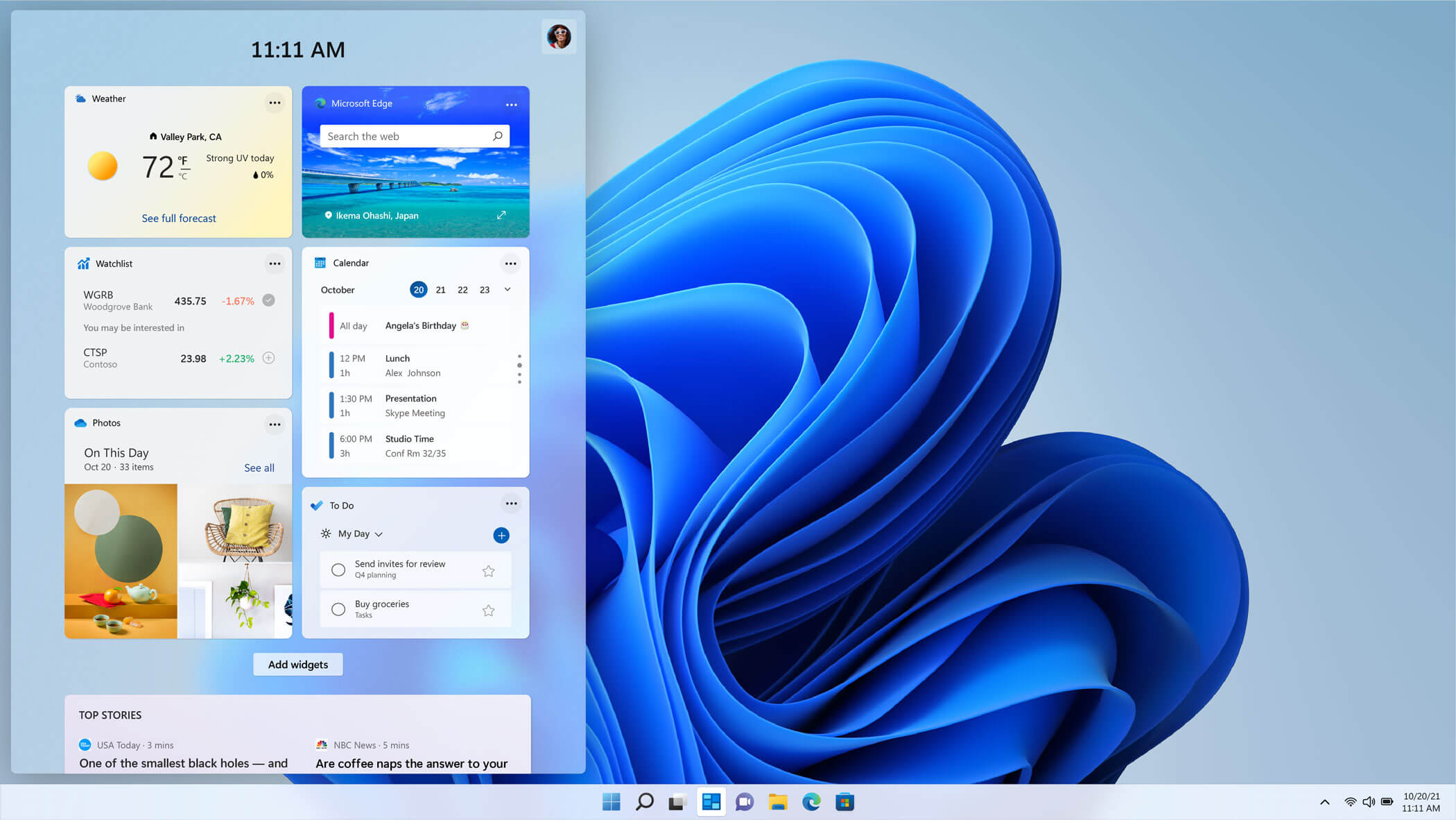
windows 11 widgets menuThe new widget's menu inside Windows 11 is generally met with a positive attitude but there are still users which prefer not to have it. Luckily for them, Microsoft included a very easy way to turn the widgets menu on or off. Follow this easy guide to see how. Right-click on the widget button in the taskbar and click on Hide from Taskbar and that’s it Alternatively, you can also turn it off via the setting app. Go to the settings app and navigate to Personalization > Taskbar > Taskbar Items and flipping the switch beside Widgets to Off. Please note that both methods will only hide the button to toggle widgets menu, at the current state there is no really a way to actually turn it off, only hide it and make it not available to bring it up.

Read More
1 2 3 171
Logo
Copyright © 2023, ErrorTools. All Rights Reserved
Trademark: Microsoft Windows logos are registered trademarks of Microsoft. Disclaimer: ErrorTools.com is not affiliated with Microsoft, nor claims direct affiliation.
The information on this page is provided for information purposes only.
DMCA.com Protection Status