Logo

Remove PriceGong from your Windows PC

PriceGong is a browser add-in for Internet Explorer, Chrome and Firefox that analyzes web sites your browser visits and attempts to find coupons and other deals associated with the merchant’s product offerings or services. If PriceGoing sees a corresponding deal, it will attempt to inject an affiliate ‘code’ in order to collect various affiliate based commissions if a purchase is made while trying to offer you the best price of that particular product, or, in many cases try and show you an alternative product that is similar even if it is sold by a different merchant. Upon further inspection it was found that PriceGong failed to function in our testing.

While installed, this extension might display additional ads, inject sponsored content into webpages, even if the sponsored content is of lower quality than the original ones.

About Browser Hijackers

Browser hijackers (sometimes known as hijackware) are a kind of malicious software that alters web browser settings without the computer owner’s knowledge or consent. These types of hijacks are increasing at an alarming rate around the globe, and it could be really nefarious and often dangerous too. They’re created to disrupt browser programs for various purposes. In most cases, hijackers are designed for the benefit of online hackers usually through income generation from forced advert mouse clicks and site visits. Though it might seem naive, all browser hijackers are damaging and thus always regarded as security risks. In a much worst case, your browser could be hi-jacked to download malware that will do a great deal of damage to your computer or laptop.

Major symptoms that an internet browser has been hijacked
Signs that an internet browser is hijacked include:
1. home page is changed
2. bookmark and the new tab are also modified
3. the essential web browser settings are modified and unwanted or insecure sites are put into the trusted websites list
4. discover new toolbars that you didn’t add
5. never-ending pop-up ads appear and/or your web browser popup blocker is disabled
6. your web browser has become unstable or starts running sluggishly
7. you’re disallowed access to specific web pages, for example, the website of an antivirus software manufacturer like SafeBytes.

Precisely how browser hijacker infects computers

A browser hijacker can be installed on your computer if you visit an infected website, click an email attachment, or download something from a file-sharing site. They are usually included with toolbars, add-ons, BHO, plug-ins or browser extensions. Other times you may have accidentally accepted a browser hijacker as part of a software program bundle (usually freeware or shareware). An example of some well-known browser hijacker includes Anyprotect, Conduit, Babylon, SweetPage, DefaultTab, RocketTab, and Delta Search, but the names are regularly changing.

The existence of any browser hijacker on your computer can substantially diminish the web browsing experience, record your internet activities that result in troublesome privacy issues, create system stability problems and finally cause your computer to slow down or to a practically unusable state.

Browser Hijacker Malware – Removal

Some hijackers can be removed by uninstalling the freeware they were included with or by removing any extension you have recently added to your system. However, most browser hijackers are hard to get rid of manually. No matter how much you try to eliminate it, it might come back over and over. You should think about performing manual repairs only if you are a tech-savvy individual, as there are potential risks associated with messing around with the system registry and HOSTS file.

Installing and running antivirus application on the affected computer could automatically erase browser hijackers and other malicious programs. SafeBytes Anti-Malware discovers all kinds of hijackers – including PriceGong – and eliminates every trace quickly and efficiently. Use a system optimizer along with your antivirus software to solve various computer registry issues, remove system vulnerabilities, and improve your computer's overall performance.

Tips on How to Remove Malware that is Blocking Websites or Preventing Downloads

Practically all malware is bad, but certain kinds of malware do much more damage to your PC than others. Some malware variants alter browser settings by including a proxy server or modify the PC’s DNS configuration settings. In these cases, you’ll be unable to visit some or all of the websites, and therefore unable to download or install the required security software to eliminate the infection. If you are reading this now, you may have perhaps recognized that a virus infection is the real cause of your blocked web traffic. So how to proceed if you want to install an anti-malware application like Safebytes? There are a few fixes you can attempt to get around with this particular issue.

Use Safe Mode to resolve the problem

Safe Mode is actually a unique, simplified version of Windows where just bare minimum services are loaded to counteract viruses as well as other troublesome programs from loading. In case the malware is set to load automatically when computer boots, switching into this particular mode could prevent it from doing so. To boot into Safe Mode, hit “F8” key on the keyboard right before Windows boot screen shows up; Or after normal Windows boot up, run MSCONFIG, look over “Safe Boot” under Boot tab, and click Apply. Once you’re in Safe Mode, you can attempt to download and install your antivirus program without the hindrance of the virus. At this point, you could run the antivirus scan to eliminate viruses and malware without any hindrance from another malicious application.

Download the anti-malware program in an alternate web browser

Malicious program code may exploit vulnerabilities in a specific internet browser and block access to all anti-malware software websites. If you appear to have a virus attached to Internet Explorer, then switch to an alternate web browser with built-in security features, such as Firefox or Chrome, to download your favorite anti-malware program – Safebytes.

Create a bootable USB antivirus drive
Another option is to save and operate an anti-malware software program entirely from a Flash drive. Follow these steps to use a flash drive to clean your infected PC.
1) On a virus-free computer, install Safebytes Anti-Malware.
2) Plug in the USB drive to a USB port on the uninfected computer.
3) Double-click on the downloaded file to open the installation wizard.
4) Choose the flash drive as the location for saving the software file. Follow activation instructions.
5) Transfer the flash drive from the clean computer to the infected PC.
6) Double-click the anti-malware software EXE file on the pen drive.
7) Run Full System Scan to detect and clean-up up all sorts of malware.

SafeBytes Anti-Malware: Light-weight Malware Protection for Windows Computer

If you’re looking to buy anti-malware for your laptop or computer, there are lots of brands and packages for you to consider. A few of them do a great job in eliminating threats while some will harm your computer by themselves. You should select a company that builds industry-best anti-malware and has earned a reputation as trustworthy. On the list of highly recommended application by industry analysts is SafeBytes Anti-Malware, a popular security application for Microsoft Windows.

SafeBytes antimalware is a very effective and easy to use protection tool which is ideal for users of all levels of IT literacy. This software could easily detect, eliminate, and protect your computer from the most advanced malware intrusions such as spyware, adware, trojan horses, ransomware, PUPs, worms, parasites as well as other potentially harmful software applications.

SafeBytes possesses a plethora of wonderful features that can help you protect your computer from malware attack and damage. Let’s check out some of them below:

Robust, Anti-malware Protection: Using a critically acclaimed malware engine, SafeBytes provides multilayered protection which is designed to find and remove threats which are hidden deep inside your computer’s operating system.

Real-time Threat Response: SafeBytes provides a totally hands-free live protection that is set to observe, block, and remove all threats at its very first encounter. It will constantly monitor your laptop or computer for hacker activity and also provides users with advanced firewall protection.

Web Filtering: SafeBytes inspects the hyperlinks present on a webpage for possible threats and notifies you if the website is safe to browse or not, through its unique safety ranking system.

Fast Scan: Safebytes Anti-Malware, with its enhanced scanning engine, offers ultra-fast scanning which will immediately target any active on-line threat.

Lightweight: SafeBytes is a light-weight and user friendly anti-virus and antimalware solution. Since it utilizes very little computer resources, this application leaves the computer’s power exactly where it belongs: with you.

24/7 Guidance: Support service is readily available for 24 x 7 x 365 days through chat and email to answer your queries.

SafeBytes can keep your PC protected from most advanced malware threats automatically, thus keeping your internet experience secure and safe. You can rest assured that your computer will be protected in real-time as soon as you put this software to use. So if you are looking for the best anti-malware subscription for your Windows-based PC, we highly recommend SafeBytes Anti-Malware program.

Technical Details and Manual Removal (Advanced Users)

To eliminate PriceGong manually, navigate to the Add/Remove programs list in the Control Panel and choose the offending program you want to remove. For web browser extensions, go to your web browser’s Addon/Extension manager and choose the add-on you want to disable or remove. You might even want to reset your home page and search engine providers, and also clear your web browser cache and cookies.

Finally, check your hard disk for all of the following and clean your registry manually to remove leftover application entries following uninstalls. However, editing the Windows registry is actually a complicated job that only advanced computer users and professionals should attempt to fix the problem. In addition to that, certain malware is capable of replicating or preventing deletion. You’re advised to do this procedure in Windows Safe Mode.


Folders:
C:\Documents and Settings\Lynn\Application Data\PriceGong
C:\Documents and Settings\Lynn\Application Data\PriceGong\Data

Files:
C:\Documents and Settings\Lynn\Application Data\PriceGong\Data.xml
C:\Documents and Settings\Lynn\Application Data\PriceGong\Data\a.xml
C:\Documents and Settings\Lynn\Application Data\PriceGong\Data\b.xml
C:\Documents and Settings\Lynn\Application Data\PriceGong\Data\c.xml
C:\Documents and Settings\Lynn\Application Data\PriceGong\Data\d.xml
C:\Documents and Settings\Lynn\Application Data\PriceGong\Data\e.xml
C:\Documents and Settings\Lynn\Application Data\PriceGong\Data\f.xml
C:\Documents and Settings\Lynn\Application Data\PriceGong\Data\g.xml
C:\Documents and Settings\Lynn\Application Data\PriceGong\Data\h.xml
C:\Documents and Settings\Lynn\Application Data\PriceGong\Data\i.xml
C:\Documents and Settings\Lynn\Application Data\PriceGong\Data\J.xml
C:\Documents and Settings\Lynn\Application Data\PriceGong\Data\k.xml
C:\Documents and Settings\Lynn\Application Data\PriceGong\Data\l.xml
C:\Documents and Settings\Lynn\Application Data\PriceGong\Data\m.xml
C:\Documents and Settings\Lynn\Application Data\PriceGong\Data\mru.xml
C:\Documents and Settings\Lynn\Application Data\PriceGong\Data\n.xml
C:\Documents and Settings\Lynn\Application Data\PriceGong\Data\o.xml
C:\Documents and Settings\Lynn\Application Data\PriceGong\Data\p.xml
C:\Documents and Settings\Lynn\Application Data\PriceGong\Data\q.xml
C:\Documents and Settings\Lynn\Application Data\PriceGong\Data\r.xml
C:\Documents and Settings\Lynn\Application Data\PriceGong\Data\s.xml
C:\Documents and Settings\Lynn\Application Data\PriceGong\Data\t.xml
C:\Documents and Settings\Lynn\Application Data\PriceGong\Data\u.xml
C:\Documents and Settings\Lynn\Application Data\PriceGong\Data\v.xml
C:\Documents and Settings\Lynn\Application Data\PriceGong\Data\w.xml
C:\Documents and Settings\Lynn\Application Data\PriceGong\Data\x.xml
C:\Documents and Settings\Lynn\Application Data\PriceGong\Data\y.xml
C:\Documents and Settings\Lynn\Application Data\PriceGong\Data\z.xml

Registry:
HKEY_CURRENT_USER\Software\PriceGong

Do You Need Help with Your Device?

Our Team of Experts May Help
Troubleshoot.Tech Experts are There for You!
Replace damaged files
Restore performance
Free disk space
Remove Malware
Protects WEB browser
Remove Viruses
Stop PC freezing
GET HELP
Troubleshoot.Tech experts work with all versions of Microsoft Windows including Windows 11, with Android, Mac, and more.

Share this article:

You might also like

How to remove PC Fix Speed from your Windows PC

PC Fix Speed is a Potentially Unwanted Program designed to improve the speed of your computer. This program usually comes bundled with other software, and when installs automatically scan your PC and displays exaggerated messages on the status of the PC’s performance, to get users to pay for the PRO version of the software. It also adds registry entities that allow it to run each time the computer is started, and the application itself will constantly keep reminding users that they have errors by putting the application windows on top.

From the Author: The Service is provided by PCRx through Crawler, LLC. Clean and repair your PC’s registry, optimize PC performance and free up disk and memory space. With everything you do on your PC, including adding on devices, a new entry is created in your Windows® registry, and seldom are any removed after they’re no longer needed. As a result, your PC gets bogged down with unnecessary entries, slowing your PC speed, the start-up, and your Internet browser. PC Fix Speed cleans up registry entries and puts your PC back on track for optimal performance. PC Fix Speed is an essential application that should be a part of every computer. PC Fix Speed especially helps computers that are unusually slow, freeze up often or show error messages, by cleaning the system registry and improving overall performance.

About Potentially Unwanted Applications

If you have ever downloaded software from the internet (shareware, freeware, etc,), it’s quite possible you’ve unconsciously installed unwanted programs on your computer system. A Potentially Unwanted Program, often known as PUP, in short, is software that contains adware, installs toolbars, or has other hidden goals. These kinds of programs are usually bundled up with free applications that you download from the internet or will also be bundled inside the custom installers on many download sites. It’s clear by its name – unwanted programs – but did not actually constitute “malware” in the traditional sense. An important difference between malware and PUP is distribution. Malware is normally dropped through vulnerability exploitation while PUP gets installed with the consent of the user, who intentionally or unwittingly approves the PUP installation on their computer. PUP developers can argue their programs aren’t malicious software however, it can nevertheless be unsafe software and put your PC at risk much the same way malware does.

Exactly how do PUPs look like?

Unwanted programs come in various forms. More often, they can be found in adware bundlers which are known to utilize aggressive and misleading advertising. Most bundlers install many adware programs from a number of vendors, each of which possesses its own EULA policy. Safebytes Anti-malware entirely eliminates this threat and safeguards your computer against unwanted programs or adware infection. Several PUPs also show up as toolbars or add-ons, mounted on your preferred web browser. These toolbars change your homepage and your search engine in the installed browser, track your web activities, control your search results with redirects and sponsored links, and eventually slow down your browser and diminish your web browsing experience. Potentially Unwanted Programs occasionally act very much like viruses or spyware. Some PUPs carry keyloggers, dialers, and other software to collect your personal details that can cause identity theft. Because of this unwanted program, your application may freeze, your security protections can get disabled which could leave your computer susceptible, your system may get ruined, and the list goes on and on.

Some tips on protecting yourself from PUPs

• Read meticulously before you install anything. Don’t click accept until you have read the fine print. There could be a clause about PUPs. • Use ONLY custom or manual install method – and don’t blindly click Next, Next, Next. • Use good anti-malware software. Try Safebytes Anti-malware which can spot PUPs and handle them as malware by flagging them for removal. • Be alert if you install freeware, open-source programs, or shareware. Disable or eliminate toolbars and browser extensions you don’t really need. • Only download applications from the original providers’ websites. Avoid download portals since they use their very own download manager to pack additional programs together with the initial download. Remember the fact that although PUPs could cause damage and hinder the proper function of the computer, they can’t get into your system without your consent, so be watchful not to provide them with it.

What To Do If You Cannot Install Any Antivirus?

Malware could cause a great deal of damage to your PC. Some malware sits in between your PC and your net connection and blocks some or all internet sites that you would like to check out. It could also prevent you from adding anything to your PC, especially the antivirus program. So what should you do when malware prevents you from downloading or installing Anti-Malware? Although this kind of issue will be tougher to get around, there are some steps you can take.

Start your computer in Safe Mode

If the malware is set to load at Windows start-up, then booting in Safe Mode should prevent it. Only the bare minimum required applications and services are loaded whenever you start your laptop or computer into Safe Mode. Listed below are the steps you should follow to boot into the Safe Mode of your Windows XP, Vista, or 7 computers (check out the Microsoft website for instructions on Windows 8 and 10 PCs). 1) At power-on/startup, tap the F8 key in 1-second intervals. This will bring up the Advanced Boot Options menu. 2) Make use of the arrow keys to select Safe Mode with Networking and press ENTER. 3) When you are into this mode, you will have an internet connection again. Now, use your web browser to download and install an anti-malware program. 4) After the application is installed, allow the diagnostic scan run to eliminate trojans and other threats automatically.

Switch to an alternate web browser

Web-based viruses could be environment-specific, aiming for a particular internet browser or attacking specific versions of the web browser. The ideal way to avoid this problem is to select an internet browser that is well known for its security features. Firefox contains built-in Malware and Phishing Protection to keep you safe online.

Make a bootable USB anti-virus drive

Here’s yet another solution which is using a portable USB anti-malware software package that can check your computer for malware without needing installation. To run anti-virus from a USB drive, follow these simple steps: 1) Make use of another virus-free PC to download Safebytes Anti-Malware. 2) Plug in the pen drive to a USB port on the uninfected computer. 3) Double-click the executable file to run the installation wizard. 4) Choose a USB drive as the location when the wizard asks you where you want to install the application. Follow the instructions on the computer screen to finish off the installation process. 5) Now, insert the USB drive into the corrupted PC. 6) Double-click the EXE file to run the Safebytes tool right from the thumb drive. 7) Click the “Scan” button to run a full system scan and remove viruses automatically.

SafeBytes AntiMalware Overview

Want to download the best anti-malware software program for your system? There are various applications available that come in free and paid versions for Microsoft Windows systems. A few are good ones, some are decent, while some are merely bogus anti-malware programs that can damage your personal computer themselves! When searching for an anti-malware tool, select one which gives dependable, efficient, and complete protection against all known viruses and malware. On the list of highly recommended software is SafeBytes Anti-Malware. SafeBytes carries a superb track record of excellent service, and customers appear to be happy with it. SafeBytes can be described as a powerful, real-time antivirus application that is created to assist the typical computer end user in protecting their PC from malicious threats. This tool can easily detect, remove, and protect your computer from the most advanced malware intrusions including adware, spyware, trojan horses, ransomware, worms, PUPs, parasites, and other potentially harmful software programs.

There are plenty of amazing features you will get with this particular security product. Here are some of the features you will like in SafeBytes.

Active Protection: SafeBytes provides a totally hands-free active protection that is set to observe, block, and remove all computer threats at its first encounter. This utility will always keep track of your PC for suspicious activity and updates itself continuously to keep abreast of the constantly changing threat landscape. Anti-Malware Protection: This deep-cleaning anti-malware software goes much deeper than most antivirus tools to clean your computer system. Its critically acclaimed virus engine finds and disables hard-to-remove malware that hides deep inside your PC. Web protection: Through its unique safety rating, SafeBytes informs you whether a site is safe or not to access it. This will make sure that you’re always certain of your online safety when browsing the web. Low Memory/CPU Usage: SafeBytes is a lightweight and easy-of-use anti-virus and antimalware solution. As it uses very little computer resources, this application leaves the computer’s power exactly where it belongs: with you. 24/7 Premium Support: SafeBytes provides 24/7 technical support, automatic maintenance, and updates for the best user experience. SafeBytes has developed a wonderful anti-malware solution that can help you conquer the latest malware threats and virus attacks. You can rest assured that your computer system will be protected in real-time as soon as you put this software to use. So if you need sophisticated forms of protection features and threat detections, purchasing SafeBytes Anti-Malware will be well worth the dollars!

Technical Details and Manual Removal (Advanced Users)

If you do not want to use malware removal software and prefer to get rid of PC Fix Speed manually, you might do so by going to the Add/Remove Programs menu in the control panel and removing the offending software; in cases of web browser plug-ins, you could un-install it by going to the browser’s Add-on/Extension manager. You will definitely also want to reset your browser. Finally, examine your hard drive for all of the following and clean your computer registry manually to remove leftover application entries after uninstalls. However, this is a tough task and only computer professionals can perform it safely. Moreover, some malware keeps replicating which makes it tough to get rid of. It is advised that you carry out the removal procedure in Windows Safe Mode.

Folders: C:\Program files\PC Fix Speed\ C:\Documents and Settings\All Users\Start menu\Programs\PC Fix Speed\ C:\Program filesx7Help\ Registry: HKLM\SOFTWARE\PCFixSpeed HKCU\Software\PCFixSpeed HKLM\SOFTWARE\Microsoft\Windows\CurrentVersion\Run\PCFixSpeed
Read More
Error Code 0x6d9 - The Causes & The Fix!

What is the Error Code 0x6d9?

If you have a firewall installed on your system, you may come across the error code 0x6d9.  This error occurs when opening Windows Firewall with advanced security. The error code 0x9d9 is displayed as:

“There was an error opening the Windows Firewall with Advanced Security snap-in. The Windows Firewall with Advanced Security snap-in failed to load. Restart the Windows Firewall service on the computer you are managing. Error code: 0x6D9”

This occurs when the Windows Firewall service is missing. The service doesn’t start due to permission errors on various registry keys. It is a critical blue screen of death error code that turns the computer screen blue and causes the Windows to shut down. If this error code is not fixed it may start appearing more and more frequently resulting in total system corruption.

Solution

Restoro box imageError Causes

Virtually, the underlying cause for Windows Firewall error code 0x6d9 is a damaged registry. The registry is the database of the system that saves all the activities including web browsing and programs installed and uninstalled and junk files on the PC. The registry saves all the information in the RAM, your hard disk. As the disk gets filled with files, it then requires more power to run which impacts the performance of the PC and slows it down. Simultaneously, since the hard disk is overloaded with data, it exposes the registry to file damages, fragmentation, and corruption which then eventually causes hindrance in running calling programs and running them on your system because files are either corrupt or missing. Other than cluttered disk issues, registry errors also occur due to viral and malware attacks. If the Firewall is inaccessible, your system is prone to malware.

Further Information and Manual Repair

To fix the error code 0x6d9 on your system, you don’t have to be a computer programmer or hire a professional. You can fix it all by yourself with Restoro. Restoro is an advanced, intuitive, user-friendly, and multi-functional repair tool with a comprehensive suite of powerful PC fixing utilities, all in one. From registry errors like the blue screen of death error codes including 0x6d9 to viral infection and system slowdowns, Restoro is your one-stop solution for all PC errors. With this software, you don’t need any technical expertise. You don’t have to get into the nitty-gritty of finding the deep-rooted cause for the error code 0x6d9 and then searching and installing a PC tool designed to solve that specific cause for the error. Restoro has an intuitive and sophisticated interface combined with an automated algorithm that enables it to detect, scan and identify all the underlying and deep-rooted causes for errors on your PC in seconds and resolves them all. All you have to do is hit the scan button and the Restoro takes care of the rest.

Restoro features

Restoro is also easy to use and has simple navigation making it easy for all levels of users including beginners and intermediates to use. This PC Fixer is both a high-functional registry cleaner and a powerful anti-virus. This means whether the error code 0x6d9 occurs due to disk overload or viral infection this helper can be used to fix the error in both scenarios. Its in-built registry cleaner cleans and clears up the hard disk in a few seconds. It removes all the unnecessary and obsolete files cluttering the system and repairs the damaged registry. For data safety during repair, it has a built-in back feature. This feature allows you to save and create backup copies of all your files. Its smart privacy error detector feature checks for viruses, spyware, adware, and malware invasion on your system. Such malicious software if not removed from your PC can expose you to data security risks.  Such software allows easy access to hackers. And since error code 0x6d9 hampers you in using Firewall, your system will have higher chances of getting infected by viruses and data security dangers. Nonetheless, by running Restoro on your system, you can easily remove this malicious software and resolve the error code 0x6d9. Unlike other repair tools, Restoro is compatible with all Windows versions.

How to get Restoro

So, what are you waiting for? It will take just 3 steps. To get started all you need to do is:
  1. Click here to install Restoro
  2. Run it to Scan for errors
  3. Hit the repair button to resolve
To prevent the error code 0x6d9 from reoccurring on your PC for a while proper PC maintenance is advisable to run Restoro on a weekly basis on your system so that the registry is not cluttered and your system is not exposed to viruses. Timely detection of errors and repair is the best way to keep your system performing smoothly and at its optimum speed.
Read More
4 Methods of Fixing Error Code 49

Error Code 49 – What is it?

Error Code 49 is a common device driver error that users encounter on any Windows 2000 and later operating system versions. The error occurs when the connected peripheral devices fail to function properly due to an overload of the system hive’s size. The error when prompted pops up on your screen with the following message:
"Windows cannot start new hardware devices because the system hive is too large (exceeds the Registry Size Limit). (Code 49)”
The error causes unattached devices to be displayed on the system hive list.

Solution

driverfix boxError Causes

Error Code 49 mainly results from problems in Windows registry system files; the system hive in the Windows registry exceeds its size limit. The system hive is part of the Windows registry and it is where files regarding devices are contained along with user preferences and applications. The devices will not work until the system hive size is brought back to normal levels.

Further Information and Manual Repair

There are several ways you can use to fix your error code. Here are the following.

Method 1 – Uninstall unused devices

One of the best ways to address the error code is to uninstall the unused devices which are listed on your computer’s system hive. To do this:
  • Log in using an Administrator account
  • Click the Start button and then click ‘Run’
  • In the box, enter the command:
  • "set devmgr_show_nonpresent_devices=1 cd%SystemRoot%System32 exit" and click enter
  • Open Device Manager, click ‘View’, and then choose ‘Show hidden devices’ to see unused devices.
  • When you can see the list, click on the device you want to uninstall by selecting the ‘Driver’ tab and then select ‘Uninstall’.
  • After uninstall is complete, restart your computer.

Method 2 – Use System Restore

If the error still persists, you can use system restore to eliminate the problem. Here is how you can do so:
  1. Log in using an Administrator account
  2. Click ‘Start’ button and select All Programs > Accessories > System Tools > System Restore
  3. Click ‘Restore my computer to an earlier time’ and click ‘Next’
  4. Select the last Windows restore point from the ‘On this list, click a restore point’ list, and click ‘Next’
  5. Click ‘Next’ on the confirmation window to proceed
  6. Restart your PC after restoration is complete
By restoring the system via a last saved system checkpoint, you can obtain undamaged Windows system files that can help avert the error code.

Method 3 – Manually uninstall and reinstall the device driver

If using system restore does not work in resolving the error code either, you may have to resort to manually uninstalling and then reinstalling the device driver causing the problem. This would be necessary since the remaining incomplete files due to a partial removal or installation of programs is what results in the error code. By uninstall and reinstalling the device driver program, it would lead to the completion of the files. You can do this by firstly logging in as Administrator and open Device Manager. Select the device that is causing the problem and double click it and make sure that the peripheral is connected properly to the PC. Upon opening, click on the ‘Driver’ tab and then select ‘Update Driver’. Make sure to refer to the system documentation that you received with your PC or computer to check for the motherboard details and driver specifics.

Method 4 – Use software to automatically download the driver

Manually uninstalling and reinstalling the driver will do the trick; however, it may be time-consuming, especially when you would have to resort to your hardware user manual. Therefore, using a program such as DriverFIX can save you a lot of time and frustration in having your device work properly on your computer. DriverFIX, with its user-friendly approach to help you fix your PC issues, comes with an integrated database that detects which drivers you need to reconfigure within just a few seconds and downloads it automatically. It further ensures that your drivers are installed in their entirety leaving no room for any incomplete files to remain that create Error Code 49. It also has the added advantage of being able to backup and restore your files should there be the slightest possibility of system file damage. DriverFIX is the answer to fixing your PC error codes accurately and quickly. Click here to download DriverFIX to fix Error Code 49 quickly and effectively!
Read More
Fix File Explorer stuck on Working on it…
One of the most useful utilities on a Windows 10 computer is the Windows File Explorer. It is undeniably one of the File Managers out there full of features on all the platforms. However, it is not without its issues and one of the most common ones most users encounter is when you are trying to open a folder or a location on File Explorer and it displays a message saying, “Working on it…” as it tries to load the content of that location or folder. This kind of issue mainly occurs to computers that run on an HDD although that doesn’t mean that it can’t happen to other computers that run an SDD. And so if the File Explorer on your Windows 10 computer keeps getting stuck on the “Working on it…” message along with a green animation bar moving very slowly while loading the contents of the folder, then it’s best if you follow the options given below to resolve this problem.

Option 1 – Try deleting the contents of the Automatic Destinations folder

  • Tap the Win + R keys on your keyboard to open the Run utility.
  • And then type “%AppData%MicrosoftWindowsRecentAutomaticDestinations” and hit Enter to open this location.
  • From there, select all the files and tap the Shift + Delete key combination.
  • After that, you will get a prompt that will ask you if you want to delete all the files permanently, just click on Yes. This will delete all the Quick Access cache.
  • Now check if you can now open a folder or a location without the “Working on it…” message.

Option 2 – Try to rebuild the Search Index

  • First, open the Indexing Options using the Search bar.
  • Next, click on the appropriate listing, e.g. Users folder.
  • After that, click on the Advanced button. This will open a mini-sized window and from there, go to the Index Settings tab.
  • Then click on the “Rebuild” option under the Troubleshooting section.
  • Now click on OK after the rebuilding is completed. This should rebuild the search index for all the files and thus, fix the File Explorer stuck on the “Working on it…” message.

Option 3 – Try to optimize the folder for General Items

You might also want to try optimizing the folder for General Items as it can help the File Explorer to load the contents faster.
  • Just right click on the folder that takes time to load the contents in it and is showing the “Working on it…” message.
  • After that, click on Properties to open the Properties mini window.
  • From there, go to the Customize tab and click on the drop-down menu to “Optimize this folder for” under the “What kind of folder do you want?” section and then select General Items.
  • Then check the checkbox with a label that says, “Also apply this template to all subfolders” and click on the OK button to save the changes.
  • Restart File Explorer and check if the problem is now fixed or not.

Option 4 – Try performing a System Restore

Running System Restore can also help you resolve whatever issue that’s causing the “Working on it…” message. You can do this option either by booting into Safe Mode or in System Restore. If you are already in the Advanced Startup Options, just directly select System Restore and proceed with the next steps. And if you have just booted your PC into Safe Mode, refer to the steps below.
  • Tap the Win + R keys to open the Run dialog box.
  • After that, type in “sysdm.cpl” in the field and tap Enter.
  • Next, go to the System Protection tab then click the System Restore button. This will open a new window where you have to select your preferred System Restore point.
  • After that, follow the on-screen instructions to finish the process and then restart your computer and check if the problem is fixed or not.
Read More
A Guide to Quickly Fixing Error 103

What Is Error 103?

Error 103 is an error that is usually encountered by those who use Google Chrome. This error is usually generated because of a conflict arising between Google Chrome and the antivirus program running on the user’s computer. Primarily, error 103 is an incompatibility issue. It is not critical in nature. However, since it will disrupt the smooth functioning of the browser, it is strongly advised to rectify this error that is generated due to any temporary conflicts between the logic of the two programs namely Google Chrome and antivirus. In layman's terms, it would be only justified to say that this error has a lot to do with the way programs react to each other in real-time.

Solution

Restoro box imageError Causes

When the error is displayed to the user, it usually states something like ‘chrome error 103 connection aborted’, ‘chrome error 103 err_connection_aborted’ or ‘Error 103 (net: ERR_CONNECTION_ABORTED): Unknown error. This begs the question, what triggers this error? Here it is important to understand that Google Chrome constantly applies to upgrade. In most instances, the upgrades almost go unnoticed. In the meanwhile, there are other programs running on any system such as firewall, Antispyware, or antivirus programs. All such programs govern the functionality of the web browser. Now, when the web browser attempts to update and any programs on the system view the update as a threat, the connection to the internet will be terminated. It is also important to understand that these programs will keep you from upgrading or from doing anything with your browser.

Further Information and Manual Repair

google chrome error 103Before we move on to the discussion of fixing the underlying causes for error 103, it is important to understand all those programs that are most likely to generate this error. A list of all such programs is outlined below as follows.
  • Kaspersky Pure 3.0
  • Kaspersky ONE
  • Kaspersky small office security 2013
  • Kaspersky internet security 2013
  • Kaspersky antivirus 2013
A downside associated with error 103 is that it won’t disappear on its own. That’s why it is important to make some manual changes as there are no tools available online to rectify this error automatically. Follow the steps listed below to easily fix the problem.
  • Click on the Start button.
  • In the search box, enter ‘expand.exe’.
  • Right-click on the file that appears and select the option ‘Open Folder Location’.
  • Now, copy the file and paste it at the destination ‘C:\Windows\System32’.
  • If you are not able to find the file, it is advised you copy it from Windows Installation Disk.
  • Now, click on the ‘Start’ button again.
  • Find and select ‘Run’.
  • Now enter ‘C: ’ in the search box and press Ok.
  • Now right-click anywhere on the screen, select new, and then select folder.
  • Rename this folder. Change the name from ‘New Folder’ to ‘Temp’.
  • Now go to the Start button again.
  • Select ‘Run’ once again.
  • Type ‘cmd.exe’ in the command prompt and press Ok.
  • Now type Command. Press enter.
  • Now type this code as it is: ‘set TMP=C:temp’ and press enter.
  • Now restart the browser.
  • If it fails, install Google Chrome once again.
  • Just make sure everything is in sync to avoid any data loss.
Read More
Fix Google Chrome error “He’s dead, Jim!”
If you always use the Google Chrome browser in browsing the internet, then you might have come across an error message saying, “He’s dead, Jim!” along with a funny looking face that’s peeking its tongue out and another detailed message saying, “Either Chrome Ran out of memory or process for the webpage has terminated for some other reason. To continue, reload the webpage or go to another page”. This error message in Google Chrome is actually quite famous and it appears for various reasons but it may have something to do with a memory issue. The Google Chrome browser is known to consume a lot of memory and the more web pages you open and load, it takes up more resources. Thus, the first thing you need to do when you encounter this error is to simply click the Reload button to continue browsing the internet or close the browser and then open it again. On the other hand, if you keep seeing this error message, then that’s a whole different story as you have to take some action to prevent it from popping up again, for good. Follow the instructions given below to fix the error in Chrome.

Option 1 – Reduce Google Chrome’s memory usage

The first thing you can try is reducing the memory usage of the Chrome browser. However, this option has a bit of a disadvantage. If a website crashes, all the instances of that website will also crash although other open tabs and websites won’t be affected. This process is referred to as “Process-per-site” mode which you will have to launch Chrome within this parameter.

Option 2 – Run Google Chrome with Strict Site Isolation

Aside from reducing Chrome’s memory usage, you can also run the browser with the Strict Site Isolation which makes sure that the crashing of one tab in the browser won’t affect the entire Windows as this feature will run every website you open on its own isolated process.

Option 3 – Run the built-in Malware Scanner and Cleanup tool in Chrome

In case you don’t know, there is actually a built-in malware scanner and cleanup tool in Chrome that helps you get rid of any unwanted ads, pop-ups, and even malware, as well as unusual startup pages, toolbars, and other things that could affect the performance of the browser.

Option 4 – Reset Google Chrome

Resetting Chrome can also help you get rid of the “He’s dead, Jim!” error message for good. Resetting Chrome means restoring its default settings, disabling all the extensions, add-ons, and themes. Aside from that, the content settings will be reset as well and the cookies, cache, and site data will also be deleted. To reset Chrome, here’s what you have to do:
  • Open Google Chrome, then tap the Alt + F keys.
  • After that, click on Settings.
  • Next, scroll down until you see the Advanced option, once you see it, click on it.
  • After clicking the Advanced option, go to the “Restore and clean up the option and click on the “Restore settings to their original defaults” option to reset Google Chrome.
  • Now restart Google Chrome.

Option 5 – Perform a clean reinstall on the Chrome browser

Although reinstalling any program is easy, not so much for Google Chrome as you need to make sure that the User Data folder is deleted before you reinstall it.
  • Tap the Win + R keys to open the Run prompt.
  • Then type %LOCALAPPDATA%GoogleChromeUser Data in the field and hit Enter.
  • Next, rename the “Default” folder inside the path you were redirected to. For instance, you can rename it to “Default-old”.
  • After that, install the Chrome browser again.

Option 6 – Try to flush the DNS and reset the TCP/IP

There are instances when a network goes into haywire because of a bad DNS. Thus, a bad DNS might be the one that’s causing this headache so it’s time for you to reset the entire network to resolve the issue. To reset the network, here’s what you have to do:
  • Click the Start button and type in “command prompt” in the field.
  • From the search results that appear, right-click on Command Prompt and select the “Run as administrator” option.
  • After opening Command Prompt, you have to type each one of the commands listed below. Just make sure that after you type each command, you hit Enter
    • ipconfig /release
    • ipconfig /all
    • ipconfig /flushdns
    • ipconfig /renew
    • netsh int ip set dns
    • netsh winsock reset
After you key in the commands listed above, the DNS cache will be flushed and the Winsock, as well as the TCP/IP, will reset.
  • Now restart your computer and open Google Chrome then try opening the website you were trying to open earlier.
Note: You can also try changing the DNS server to the Google Server, i.e. 8.8.8.8, and then see if it works for you or not.

Option 7 – Disable both the antivirus and firewall temporarily

As you know, both the firewall and antivirus programs are there to protect the operating system from any malicious threats. So if they find that there is some malicious content in a website you are visiting, they will block the site right away. Thus, it could also be the reason why you’re getting the “He’s dead, Jim!” error so you need to disable both the firewall and antivirus program temporarily and then try opening the website again. If you are able to open the website, you need to add this site as an exception and then enable the firewall and antivirus program back.
Read More
Removing Default Taskbar Buttons in Windows 11
Windows 11 taskbarI do not know about you, but I prefer to set my Windows to be more to my liking and not how Microsoft thinks it should be. Let’s face it, not all users feel comfortable whit Microsoft settings and idea how things should be. One of the things I particularly did not like even in Windows 10 is icons that come by default on my taskbar, now so far, well until the latest Windows 11 update you could remove default taskbar icons the same way as in Windows 10, just right-click on them and unpin, sadly with latest update build on Windows 11 this option has been removed. In order to remove default icons from the taskbar, one must go now to Windows 11 settings and choose from there which one you would like to be placed on it. Of course, this is nothing game-breaking but it still feels strange why the standard option has been removed, it just makes no sense but lately not many things that come from Microsoft do. I do not know about you, but I prefer to set my Windows to be more to my liking and not how Microsoft thinks it should be. Let’s face it, not all users feel comfortable whit Microsoft settings and idea how things should be. One of the things I particularly did not like even in Windows 10 is icons that come by default on my taskbar, now so far, well until the latest Windows 11 update you could remove default taskbar icons the same way as in Windows 10, just right-click on them and unpin, sadly with latest update build on Windows 11 this option has been removed. In order to remove default icons from the taskbar, one must go now to Windows 11 settings and choose from there which one you would like to be placed on it. Of course, this is nothing game-breaking but it still feels strange why the standard option has been removed, it just makes no sense but lately not many things that come from Microsoft do.
Read More
Change mouse pointer size & style in Windows11
mouse pointerWindows 11 provides several different ways to make your cursor stand out and be easier to spot inside it. You can make the mouse pointer larger, invert it, or change its color.

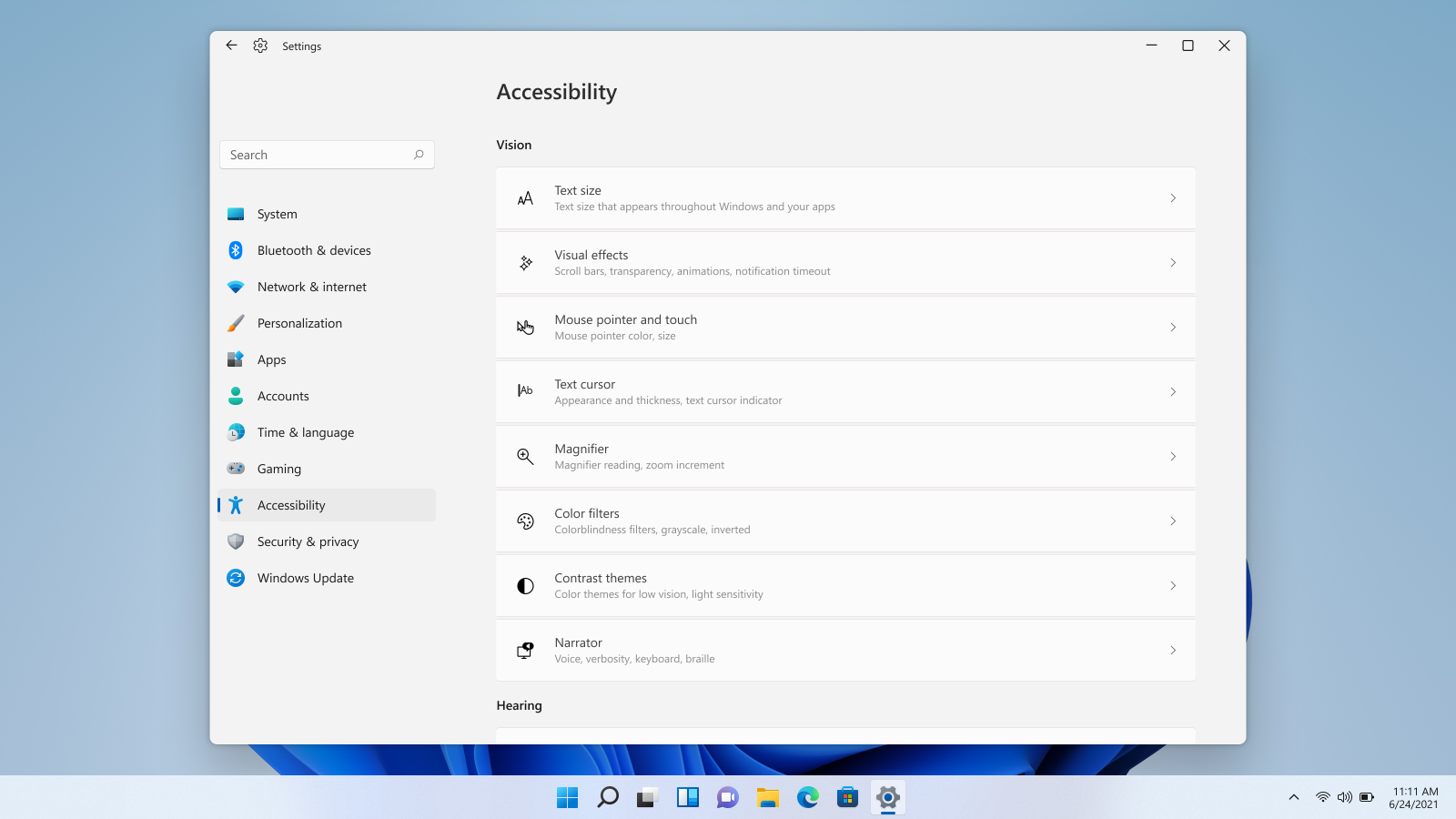
  1. Press ⊞ WINDOWS + I to open settings
  2. Click on Accessibility in the sidebar
  3. Select Mouse Pointer and Touch
  4. Adjust mouse cursor size with size slider by clicking on circle and dragging it left or right
  5. Under Mouse Pointer Style pick desired style from White, Black, Inverted, and Custom
    1. White: The cursor is white with a black outline (standard setting)
    2. Black: Cursor is black with a white outline
    3. Inverted: Cursor automatically changes color to an inverted version of the color it is currently hovering over
    4. Custom: You can pick the color for the cursor that you want.
And that is all about it, once you are done with pointer customization just close settings, all changes are saved automatically.
Read More
Enabling Enhanced Mode in the Windows Search
In case you don’t know, Microsoft has included an Enhanced Search Mode in the new Windows 10 v1903. This new Enhanced Search mode, compared to the Classic Mode, indexes everything on your Windows 10 computer, and in this post you will be guided on how you can disable this new feature as well as discuss how it is different from the Classic Search mode. Over the years, the Windows 10 Start Search has changed. When you tap the Start button and when you type, the results that appear are categorized into Apps, Documents, Email, Web, Folders, Music, People, Photos, Settings, Videos, and many more. This is the reason why the Enhanced Mode was brought into the picture. So unless everything is indexed, this new feature wouldn’t be of much use. A Classic Search is the term used for the old search technique in Windows 10. The Classic Search mode is restricted to Libraries and Desktop and end-users can only select to customize the search location by adding them manually to the indexer. To simply put it, it would only index files and folders which you want to get indexed and if the search term is not in the index, it would initiate the regular search which would take quite a while and this is where the Enhanced Windows Search comes in. It indexes everything as it is its default nature which is the exact opposite of the Classic Search mode. This feature allows you to exclude folders where the Search will not look and index anything that could be personal to you. In addition, it can also impact the life of the battery of laptops, if you are using one. The initial crawl of your data will take place only when connected to power and during that time, both the CPU usage and battery will take a bit of a hit.

To enable the Enhanced Search Mode in your Windows 10 computer, here’s what you have to do:

Step 1: Go to Settings > Search > Searching Windows. Step 2: Next, click on the radio button for Enhanced. Step 3: After that, select the folders which the Windows Indexer should exclude from the Enhanced Search mode. And that’s about it. The next time you search anything on your computer, Windows will be looking at all the locations except for the ones you excluded and the results will be a lot faster compared to the Classic Search. Now that you’ve enabled the Enhanced Search mode, there are two settings you need to check out.
  • Advanced Search Indexer Settings – this setting allows you to configure how or where Windows will search or what file types it will search in your computer. It will also open the same setting that’s available in the Classic Search.
  • Run the Indexing Troubleshooter – when you click on the Indexing Troubleshooter, it will start to troubleshoot any Search and Indexing issues on your Windows 10 computer and fix them automatically.
Read More
isapnp.sys, gv3.sys, storahci.sys, myfault.sys
One of the common causes of Blue Screen of Death or BSOD errors is system driver files due to varying reasons. So if you encounter a Stop error caused by some system driver files such as isapnp.sys, gv3.sys, storahci.sys, or myfault.sys, on your Windows 10 PC, then this post should help you fix the problem. These system driver files are associated with different error codes. The isapnp.sys file is related to the following error codes:
  • SYSTEM SERVICE EXCEPTION
  • PAGE FAULT IN A NONPAGED AREA
  • KERNEL DATA INPAGE
  • SYSTEM THREAD EXCEPTION NOT HANDLED
  • IRQL NOT LESS EQUAL
  • KMODE EXCEPTION NOT HANDLED.
While the gv3.sys file is related to the following BSOD error codes:
  • IRQL NOT LESS EQUAL
  • KMODE EXCEPTION NOT HANDLED
  • PAGE FAULT IN NONPAGED AREA.
On the other hand, the storahci.sys file is related to these error codes:
  • IRQL NOT LESS EQUAL
  • KMODE EXCEPTION NOT HANDLED
  • PAGE FAULT IN NONPAGED AREA.
And the myfault.sys file is associated with this error code: SYSTEM SERVICE EXCEPTION. Although this system driver file causes different kinds of Blue Screen errors, some of their potential fixes are quite the same so you need not carry out tons of troubleshooting steps. But before you troubleshoot the problem, you might want to check out System Restore first, especially if you create a System Restore point from time to time. To perform System Restore, follow these steps:
  • Tap the Win + R keys to open the Run dialog box.
  • After that, type in “sysdm.cpl” in the field and tap Enter.
  • Next, go to the System Protection tab then click the System Restore button. This will open a new window where you have to select your preferred System Restore point.
  • After that, follow the on-screen instructions to finish the process and then restart your computer and check if the problem is fixed or not.
If System Restore didn’t help in fixing the Blue Screen error, now’s the time for you to resort to the troubleshooting tips provided below but before you get started, make sure that you create a System Restore point first and boot your computer into Safe Mode.

Option 1 – Use the System Configuration utility

Note that this first fix is only applicable for Blue Screen errors associated with the myfault.sys file.
  • In the Cortana Search box, type “MSConfig” and click on the “System Configuration” entry to open it.
  • After opening System Configuration, go to the Processes tab.
  • Then scroll down and look for the “Digital Line Detection” process and disable it.
  • Now restart your computer and check if the Stop error is fixed or not.

Option 2 – Try to update, rollback or disable related device drivers

Incompatible and outdated drivers can also cause computer malfunctioning or crashing as well as Blue Screen errors. To fix that, you can update, roll back or disable the device drivers in your computer.
  • Tap the Win + R keys to launch the Run window and then type in the “devmgmt.msc” command and hit Enter to open the Device Manager window.
  • After opening the Device Manager, from the list of device drivers, look for the “WIN ISA Bus Driver” if you are facing a Stop error related to the isapnp.sys file. While you have to look for the Sony Recovery CDs PCG-Z1RAP Series device drivers if you face a Stop error concerning the gv3.sys file. For the storahci.sys, on the other hand, look for any outdated drivers and update them.
  • To update or roll back or disable these drivers, just right-click on each one of them, and depending on your preference, you can either select “Update driver”, “Disable device” or “Uninstall device”.
  • After that, restart your PC and see if it helped in fixing the Blue Screen error.

Option 3 – Use System File Checker

One of the built-in tools in Windows that you can use to fix Blue Screen errors is the System File Checker. This built-in command utility can help you restore corrupted or missing files as well as replace bad and corrupted system files. Chances are, any of the aforementioned system driver files might be corrupted so to fix them, use System File Checker.
  • First, right-click on the Start button and click on the “Command Prompt (Admin) option.
  • Next, type in the sfc /scannow command and hit Enter to execute it.
The command will start a system scan which will take a few whiles before it finishes. Once it’s done, you could get the following results:
  1. Windows Resource Protection did not find any integrity violations.
  2. Windows Resource Protection found corrupt files and successfully repaired them.
  3. Windows Resource Protection found corrupt files but was unable to fix some of them.
  • Now restart your computer.

Option 4 – Run the Blue Screen Troubleshooter

Troubleshooting Blue Screen of Death errors wouldn’t be complete without the Blue Screen troubleshooter. As you know, it is a built-in tool in Windows 10 that helps users in fixing BSOD errors. You can find it in Settings, under the Troubleshooters page. To use it, refer to these steps:
  • Tap the Win + I keys to open the Settings panel.
  • Then go to Update & Security > Troubleshoot.
  • From there, look for the option called “Blue Screen” on your right-hand side and then click the “Run the troubleshooter” button to run the Blue Screen Troubleshooter and then follow the next on-screen options.
  • Note that you might have to boot your PC into Safe Mode.
Read More
1 2 3 171
Logo
Copyright © 2023, ErrorTools. All Rights Reserved
Trademark: Microsoft Windows logos are registered trademarks of Microsoft. Disclaimer: ErrorTools.com is not affiliated with Microsoft, nor claims direct affiliation.
The information on this page is provided for information purposes only.
DMCA.com Protection Status




