Logo

How to Get Rid of GifsGalore

The GifsGalore Toolbar from Mindspark Interactive Network, Inc. is proposed to active Web users who like to embed GIFs into their emails and share entertaining GIFs with friends via social media services. The GifsGalore software can be added to your Internet client for free but you need to be using Google Chrome, Internet Explorer or Mozilla Firefox for the GifsGalore Toolbar to be activated.

When installed it hijacks your New tab page and default search engine changing them to search.myway.com. This extension also monitors user browsing activity recording information such as: visited websites, clicked links, viewed products, etc. This information is later used to better target ads.
While browsing the internet with this extension enabled you will see additional pop-up ads, as well as sponsored links and injected ads throughout your browsing session, especially in search results.

About Browser Hijackers

Browser hijacking is actually a form of unwanted software program, often a browser add-on or extension, which causes modifications in web browser’s settings. There are various reasons why you may experience an internet browser hijack; however commercial, advertising, and marketing are definitely the main reasons for their creation. The idea would be to force users to visit specific sites that are aiming to improve their site visitor traffic and generate higher ad earnings. It could seem naive, but most of these sites are not legitimate and could present a serious risk to your online safety. Browser hijackers can even let other vicious programs without your knowledge further damage the computer.

Find out how to identify a browser hijack

When your web browser is hijacked, the following can happen: the browser’s homepage is modified; bookmark and the new tab are also changed; the default search engine has been changed and your browser security settings have been lowered without your knowledge; you see unwanted new toolbars added; unstoppable flurries of popup ads appear on your computer screen; your web browser gets sluggish, buggy, crashes very often; you are prohibited access to particular web pages, including the site of an anti-malware software developer like SafeBytes.

How browser hijacker finds its way onto your computer system

Browser hijackers might use drive-by downloads or file-sharing networks or perhaps an email attachment to reach a targeted computer. They may also come from any BHO, browser extension, toolbar, add-on, or plug-in with malicious purpose. Other times you might have unintentionally accepted a browser hijacker as part of an application package (usually freeware or shareware). Examples of well-known browser hijackers are Fireball, CoolWebSearch. save, Ask Toolbar, RocketTab, and Babylon Toolbar.

Removal

Some browser hijacking could be quite easily reversed by discovering and removing the corresponding malware software from your control panel. Yet, certain hijackers are far harder to find or eliminate since they might get themselves associated with some crucial computer files that enable them to operate as a necessary operating system process. Additionally, manual removals demand deep system knowledge and therefore can be a very difficult job for novices.

Installing and running an anti-malware program on the affected computer could automatically erase browser hijackers and other malicious applications. Safebytes Anti-Malware has a sophisticated anti-malware engine to help you prevent browser hijacking in the first place, and mop up any pre-existing problems. And use a PC optimizer, like Total System Care, to get rid of all related files in the registry and repair browser issues.

What you can do if Malware Stops You From Downloading Or Installing Anything?

All malware is bad, but certain types of malware do a lot more damage to your computer than others. Some malware is created to restrict or prevent things that you want to do on your PC. It may well not let you download anything from the internet or stop you from accessing some or all websites, particularly the antivirus websites. If you’re reading this article, you may have infected by a virus that stops you from installing security software such as Safebytes Antimalware on your PC. There are some actions you can take to circumvent this problem.

Remove malware in Safe Mode

The Windows OS includes a special mode known as “Safe Mode” in which just the bare minimum required programs and services are loaded. If the malware is obstructing internet access and affecting the computer, launching it in Safe Mode allows you to download anti-virus and run a scan whilst limiting possible damage. To enter into Safe Mode or Safe Mode with Networking, press the F8 key while the computer is starting up or run MSConfig and find the “Safe Boot” options in the “Boot” tab. After you restart into Safe Mode with Networking, you can download, install, as well as update the anti-malware program from there. At this point, you could run the antivirus scan to remove computer viruses and malware without any interference from another application.

Download the security software using an alternate web browser

Web-based viruses can be environment-specific, aiming for a particular browser or attacking specific versions of the browser. If you are not able to download the anti-malware software program using Internet Explorer, it means the virus could be targeting IE’s vulnerabilities. Here, you should switch over to a different browser like Firefox or Chrome to download the Safebytes Anti-malware program.

Install and run antivirus from your USB drive

Another solution is to create a portable anti-malware program onto your USB stick. Adopt these measures to run the antivirus on the affected computer system.
1) Make use of another virus-free computer to download Safebytes Anti-Malware.
2) Plug the Thumb drive into the uninfected computer.
3) Double click on the executable file to run the installation wizard.
4) Select flash drive as the place when the wizard asks you where you wish to install the software. Do as instructed on the screen to finish up the installation process.
5) Now, transfer the USB drive to the infected computer system.
6) Double click the Safebytes Anti-malware icon on the thumb drive to run the software.
7) Click on “Scan Now” to run a complete scan on the affected computer for malware.

How SafeBytes Anti-Malware Keep your Computer Virus Free

If you’re planning to purchase anti-malware for your desktop, there are plenty of brands and utilities for you to consider. A few of them are good but there are lots of scamware applications that pretend as legit anti-malware programs waiting around to wreak havoc on your computer. You need to go with a tool that has obtained a strong reputation and detects not only viruses but other kinds of malware as well. Amongst few good applications, SafeBytes Anti-Malware is the strongly recommended software program for the security-conscious individual.

SafeBytes anti-malware is a trusted tool that not only protects your PC completely but is also extremely user-friendly for people of all ability levels. With its cutting-edge technology, this application can help you remove multiples types of malware which include viruses, trojans, PUPs, worms, ransomware, adware, and browser hijackers.

SafeBytes anti-malware provides a myriad of enhanced features that sets it aside from all others. Below are a few of the good ones:

Robust, Anti-malware Protection: Built upon a greatly acclaimed anti-virus engine, this malware removal tool can identify and remove several stubborn malware threats like browser hijackers, PUPs, and ransomware that other common antivirus software will miss.

Live Protection: SafeBytes gives you round-the-clock protection for your personal computer restricting malware intrusions instantly. They’re extremely effective in screening and removing numerous threats because they are regularly improved with new updates and alerts.

Web Filtering: SafeBytes inspects the links present on a web page for possible threats and alerts you whether the website is safe to browse or not, through its unique safety ranking system.

Fast Scan: SafeBytes’s virus scan engine is one of the quickest and most efficient in the industry. It's targeted scanning greatly increases the catch rate for viruses which is embedded in various computer files.

Very Low CPU and RAM Usage: SafeBytes is a lightweight and easy-of-use anti-virus and anti-malware solution. Since it uses low computer resources, this application leaves the computer power exactly where it belongs to: with you.

24/7 Premium Support: You will get 24/7 technical support to quickly resolve any issue with your security tool.

To sum it up all, SafeBytes Anti-Malware offers superb protection combined with very low system resource usage with both great malware detection and prevention. You now may realize that this particular software does more than just scan and eliminate threats from your computer. You’ll get the best all-around protection for the money you spend on SafeBytes AntiMalware subscription, there isn’t any doubt about it.

Technical Details and Manual Removal (Advanced Users)

To remove GifsGalore manually, go to the Add or Remove programs list in the Windows Control Panel and select the program you want to get rid of. For internet browser extensions, go to your web browser’s Addon/Extension manager and choose the add-on you would like to remove or disable. You’ll probably also want to reset your web browser.

If you choose to manually delete the system files and registry entries, use the following list to make sure you know precisely what files to remove before undertaking any actions. However, editing the registry is usually a difficult task that only experienced users and professionals should try to fix it. Moreover, some malware is capable of replicating or preventing deletion. Carrying out this malware-removal process in Safe Mode is recommended.


Files:
%LOCALAPPDATA%\GifsGaloreTooltab
%UserProfile%\Local Settings\Application Data\GifsGaloreTooltab
%UserProfile%\Local Settings\Application Data\Google\Chrome\User Data\Default\Sync Extension Settings\fnjgjdfhhakkbojkgmiihabbbjhgbchh
%UserProfile%\Local Settings\Application Data\Google\Chrome\User Data\Default\Extensions\fnjgjdfhhakkbojkgmiihabbbjhgbchh
%LOCALAPPDATA%\Google\Chrome\User Data\Default\Sync Extension Settings\fnjgjdfhhakkbojkgmiihabbbjhgbchh

Registry:
HKEY_LOCAL_MACHINE\Software\[APPLICATION]\Microsoft\Windows\CurrentVersion\Uninstall..Uninstaller
GifsGaloreTooltab Uninstall Internet Explorer
HKEY_CURRENT_USER\Software\Microsoft\Internet Explorer\LowRegistry\DOMStorage\gifsgalore.dl.tb.ask.com
HKEY_CURRENT_USER\Software\Microsoft\Internet Explorer\LowRegistry\DOMStorage\gifsgalore.dl.myway.com
HKEY_CURRENT_USER\Software\GifsGalore

Do You Need Help with Your Device?

Our Team of Experts May Help
Troubleshoot.Tech Experts are There for You!
Replace damaged files
Restore performance
Free disk space
Remove Malware
Protects WEB browser
Remove Viruses
Stop PC freezing
GET HELP
Troubleshoot.Tech experts work with all versions of Microsoft Windows including Windows 11, with Android, Mac, and more.

Share this article:

You might also like

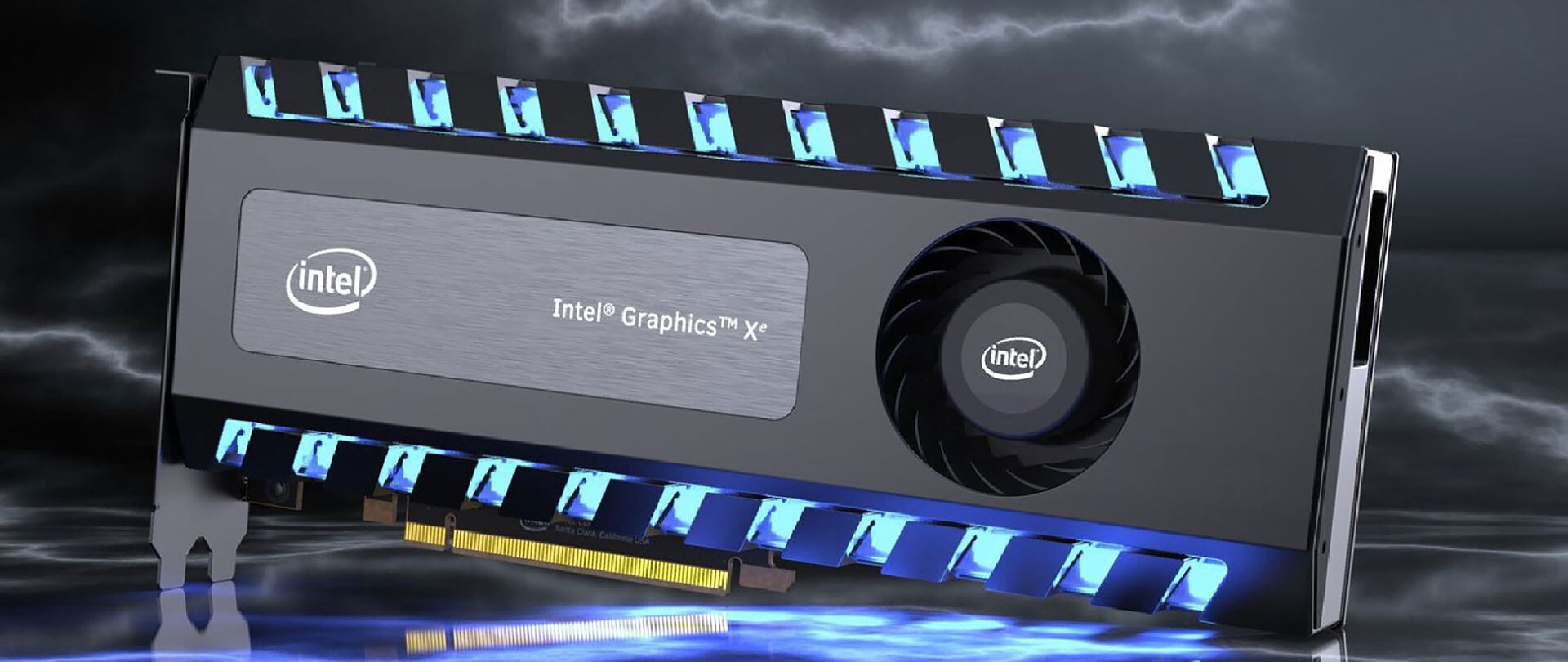
Intel’s GPU ARC coming aimed at AMD & Nvidia
intel ARCThis is not the first time that Intel is trying to enter the GPU field but its adventures so far were, well let us agree not so good. All of that is hoping to be changed with the upcoming ARC GPU. The first generation of Arc graphics, code-named Alchemist and previously known as DG2, will support desktop PCs and laptops and is set to arrive in the first quarter of 2022. Alchemist will have hardware-based Ray tracing and AI-driven supersampling. This indicates that GPU is aimed to compete in the Hi-end spectrum and battle side by side with Nvidia and AMD on the market. Alchemist will also pack full DirectX 12 Ultimate support. Intel also released names for the next upcoming future generations of ARC GPUs: Battlemage, Celestial & Druid. More information about ARC products will be released later this year. “Today marks a key moment in the graphics journey we started just a few years ago. The launch of the Intel Arc brand and the reveal of future hardware generations signifies Intel’s deep and continued commitment to gamers and creators everywhere,” Roger Chandler, Intel vice president, and general manager of client graphics products and solutions.

Read More
Windows Setup in Continuous Reboot Loop on Windows 10 Fix

Windows Setup in Continuous Reboot Loop – What is it?

After upgrading to Windows 10 operating system from Windows 7 or Windows 8/8.1, a lot of Windows users are complaining about the Windows setup in a continuous reboot loop. The computer would just keep on rebooting every time the machine is booted and this incites frustration for a lot of Windows users.

Solution

Restoro box imageError Causes

When Windows launched the third update for Windows 10, users trying to upgrade to Windows 10 encountered an endless reboot loop problem. The computer will crash repeatedly. The KB3081424, which is a roll-up of bug fixes of Windows 10, continuously fails once you start the update process and then triggers a message showing: “We couldn’t complete the updates, undoing the changes.” The undoing process will then cause a system reboot mandatorily.

Once you log back on your computer again, the Windows 10 update will try to reinstall KB3081424. You will not be able to stop the update which will cause your Windows setup in a continuous reboot loop.

The KB3081424 will not be successfully installed since if it fails for the first time, that initial failure can be detected to create a bad entry in your Windows 10 registry. This will then prevent your subsequent attempts to reinstall KB3081424 to make it work correctly.

Further Information and Manual Repair

In order to fix the problem of Windows 10 setup in a continuous reboot loop, there are a few methods you can try. Try following these simple steps and you’ll be able to get rid of the problem.

Note: If you’re not highly confident to solve this issue on your own, it is highly recommended to consult an authorized computer technician who would be knowledgeable enough to fix the issue for you. In addition, you can also use a system optimizer to resolve the issue.

Method One: Check For Windows Update

Microsoft Windows released an updated fix for the Windows setup in continuous reboot loop problem. You can try fixing the issue through Windows Update.

  1. Open Settings
  2. Go to Update & Security
  3. Select Windows Update then choose Check for updates
At this point, an additional update will be installed and downloaded to your operating system to resolve the continuous reboot loop problem.

Method Two: Eliminate Bad Registry Entry

Before KB3081424 attempts to install again, you can try doing this solution:

  1. Click on the Start menu then type regedit
  2. Once the window opens, go to HKEY_LOCAL_MACHINESOFTWAREMicrosoftWindows NTCurrentVersionProfileList
  3. Create a backup for your registry key (since this process is a bit risky). Select ProfileList then click on File and Export then choose your backup name.
  4. From the ProfileList IDs, remove anything with ProfileImagePath in it.
  5. Close Regedit then reboot. By this time, the KB3081424 should properly install.

Method Three: Perform A Startup Repair

Another thing you can try to solve the Windows setup in continuous reboot loop problem is to perform a startup repair from a working computer.

  1. Ensure that all unnecessary devices are disconnected from your computer as your computer might detect them.
  2. If you are connected to a network, you need to disconnect from this as well.
  3. On a working computer, download the Windows 10 ISO then you can perform a startup repair.
  4. Boot your computer from the Windows 10 DVD.
To change your BIOS option to boot from the Windows 10 DVD, follow these steps:
  1. Boot your computer then press the F2 function key to enter setup.

NOTE: You must do this quickly since the BIOS loads rapidly.

  1. Once you’re inside the BIOS, navigate to the Boot Configuration screen. On this screen, you’ll be able to change the first device to be loaded.
  2. Go to Removable Devices then hit Enter. Removable devices could either be a thumb drive or DVD. Select DVD to put it at the top and be the first boot device.
  3. Save your changes by pressing on the F10 function key. A setup confirmation box will appear with a message Save configuration changes and exit now. Select Yes.
  4. Exit BIOS by pressing on the ESC key. You should be prompted to boot from the Windows 10 DVD at this point.
If you're not able to execute the aforementioned processes on your own, get help or download and install a powerful system optimizer to assist with the windows continuous reboot loop process and other Windows 10 error messages.
Read More
Fix Cannot load Management Console
TPM, also known as Trusted Platform Module, is a specialized chip used for security as well as encryption of users’ private data like Fingerprint, Facial data, and many more. TPM also comes with a Management Console and if you are not able to load the Management Console and you got the “Cannot load Management Console” error instead, read on as this post will guide you in fixing the problem. This type of issue usually happens when you clear or disable the TPM using the settings in the BIOS and so when you run the Trusted Platform Module Management console, you encounter the error. To fix the “Cannot load Management Console” error in your Windows 10 computer, here are some options you should check out.

Option 1 – If TPM is cleared in the BIOS:

If the Trusted Platform Module is cleared in the settings of the BIOS, you have to close and restart the TPM Management console or TPM.msc once again. It could be that the TPM Management has to reload the changes again after you’ve made them which is why you encounter the “Cannot load management console” error.

Option 2 – If TPM is disabled in the BIOS:

If you opted to disable TPM using the BIOS settings or you have turned it off by accident, then you have to enable it back and you have two options to do that – you can either enable TPM from the BIOS or using the Windows PowerShell. For more details, refer to the instructions below.

Enabling TPM from the BIOS:

  • You need to first reboot your PC and then go to the BIOS.
  • From there, look for TPM under the security options and in case the TPM management option has been disabled or greyed out, refer to the sub-steps given below to make it active again
    • Enable the Admin password in the BIOS.
    • Then go back to the TPM settings and check if the TPM management is already available.
  • After that, you should now be able to enable TPM. Remember that it’s always a good idea to have an ADMIN password for your BIOS as it makes sure that no one can change the settings in your computer BIOS and Security level options.

Enable TPM via Windows PowerShell:

  • This second option is a lot easier compared to the first one if you have admin privileges. So once you’ve opened the Windows PowerShell with admin privileges, you need to run the following command:
    • $tpm = gwmi -n rootcimv2securitymicrosofttpm win32_tpm
    • $tpm.SetPhysicalPresenceRequest(6)
  • After you execute the commands given above, you need to restart your computer.
  • Now, once your computer has restarted, you need to accept any BIOS prompts and then check if the “Cannot load management console” error is now fixed.
Read More
Cortana is Not Connecting to the Internet
Recently, a number of Windows 10 users reported that they were not able to use Cortana properly because it wasn’t able to connect to the internet. According to these users, Cortana won’t connect to the internet even when their internet connection is stable. According to security experts, this issue is confirmed to occur only with Microsoft accounts. This problem might have something to do with a proxy server that interferes with Cortana. There were reports that this issue was caused by a proxy that was filtering the network connection which also happens to interfere with Cortana’s ability to adapt search results and queries based on the user’s location. It could also be caused by some glitch in the home network or your Microsoft account information is inconsistent or your Microsoft account has to be verified. Here are some suggestions that could help fix the connection issue in Cortana, just start with the first one and work your way down until you encounter an option that fixes the problem.

Option 1 – Restart or reset your modem or router

The first thing you can try is restarting or resetting your modem or router. All you have to do is unplug the power cable of the modem and then plug it back in after a few seconds. You could also use the reset button of the modem at the back if it is one. But before you press the reset button, keep in mind that it will erase all the connection credentials and it will be set back to its default settings. After rebooting the network, you can restart your computer to force your modem or router to reassign an IP address to your computer.

Option 2 – Restart Cortana

Restarting Cortana can help you resolve the issue.
  • To restart Cortana, open the Task Manager, right-click on Cortana and select the “End process” option.
  • Then go to the File tab and select “Run new task”.
  • After that, type in “cortana.exe” and press Enter to restart the process.

Option 3 – Try to remove Proxy

Removing the Proxy might also help you in fixing the connection issue in Cortana. Here’s how you can do it:
  • Tap the Win + R keys to open the Run dialog box.
  • Then type “inetcpl.cpl” in the field and hit Enter to pull up the Internet Properties.
  • After that, go to the Connections tab and select the LAN settings.
  • From there. Uncheck the “Use a Proxy Server” option for your LAN and then make sure that the “Automatically detect settings” option is checked.
  • Now click the OK and the Apply buttons.
  • Restart your PC.
Note: If you are using a third-party proxy service, you have to disable it.

Option 4 – Open another app that uses a Microsoft account

This might seem like an odd fix, however, a couple of users tried doing this and it worked for them as it allowed Cortana to connect to the internet again. In this option, you just have to launch another app that uses your Microsoft account information in the same way as Cortana, for instance, the Store app. Once you open the app, a prompt should appear along with a dialog box that allows you to update your Microsoft account with the information required. After that, restart your computer and check if Cortana is now able to connect to the internet or not.

Option 5 – Verify your Microsoft account

In some cases, Cortana might not be able to connect to the internet because your Microsoft account is no longer verified. This usually happens when you use a two-step authentication system with your Microsoft account. To verify it, just open Settings and click on Accounts. After that, check if you have a Verify hyperlink under your Microsoft account or not then click on Verify. Afterward, follow the next on-screen prompts to verify your Microsoft account. Once your account is verified, restart your computer.

Option 6 – Reset Cortana settings

  • Open Cortana and go to the Settings section where you’ll see the “Turning off Cortana clears what Cortana knows on this device, but won’t delete anything from the Notebook. After Cortana is off, you can decide what you’d like to do with anything still stored in the cloud” option. Turn this option off.
  • Restart your PC.
  • After your computer boots, launch Cortana again and check.
Read More
Completely Remove EasyEmailSuite PUP Removal Tutorial

EasyEmailSuite is a browser extension made by MyWay that may come bundled with other free software that you download off of the Internet. When installed EasyEmailSuite will set the homepage and search engine for your web browser to http://search.myway.com. EasyEmailSuite is an application that allows users to access their emails. Initially, this app may seem legitimate and useful, however, EasyEmailSuite is categorized as a browser hijacker. This extension changes your home page and searches engine to MyWay. It monitors your search activity and collects data, that is later sold/forwarded to display additional unwanted ads in your browser. Several anti-virus scanners have classified EasyEmailSuite as a Browser Hijacker / PUP and are therefore not recommended to keep on your computer.

About Browser Hijackers

Browser hijacking is a common type of internet fraud where your web browser settings are altered to allow it to carry out things you don’t intend. They are designed to disrupt browser functions for several reasons. Usually, it will drive users to particular sites which are trying to increase their advertisement earnings. While it might seem harmless, these tools are made by malicious individuals who always attempt to take full advantage of you, so that they could earn money from your naivety and distraction. They not only screw up your internet browsers, but browser hijackers could also modify the system registry to make your computer vulnerable to other malicious programs.

Symptoms of browser hijacker infection

There are plenty of symptoms that indicate your internet browser has been highjacked: 1. the home page of your web browser is changed unexpectedly 2. bookmark and the new tab are likewise changed 3. the default web browser settings are modified and/or your default web engine is altered 4. you see unsolicited new toolbars added 5. you may notice never-ending pop-up adverts on your screen 6. websites load very slowly and often incomplete 7. you are blocked to access the websites of security solution providers.

Exactly how they get into your computer

Browser hijackers infect computer systems via malicious e-mail attachments, downloaded infected computer files, or by visiting infected sites. They can also come from any BHO, extension, add-on, toolbar, or plug-in with malicious objectives. Other times you might have mistakenly accepted a browser hijacker as part of a software program bundle (generally freeware or shareware). Some of the most popular hijackers are EasyEmailSuite, Babylon Toolbar, Conduit Search, Sweet Page, OneWebSearch, and CoolWebSearch. Browser hijackers will interrupt the user’s browsing experience significantly, keep track of the websites frequented by users and steal private information, cause difficulty in connecting to the web, and then finally create stability issues, causing software programs and computers to freeze.

Browser hijacker removal methods

Some hijackers could be removed by uninstalling the freeware they were included with or by removing any add-ons you have recently added to your PC. However, many hijacking codes are not very easy to get rid of manually, since they go deeper into the operating system. You should think about undertaking manual fixes only if you happen to be a tech-savvy person, as risks are associated with tinkering with the system registry and HOSTS file. Experts always recommend users remove any malware including browser hijacker with an automatic malware removal tool, which is easier, safer, and quicker than the manual removal procedure. Safebytes Anti-Malware discovers all kinds of hijackers – such as EasyEmailSuite – and eliminates every trace efficiently and quickly. Along with anti-malware, a PC optimizer tool can help you resolve Windows registry errors, eliminate unwanted toolbars, secure online privacy, and stabilize programs installed on the computer.

Help! Malware Blocking Antivirus Installation And Access To The Web

Malware could cause several different types of damage to PCs, networks, and data. Some malware sits in between your computer and the internet connection and blocks a few or all internet sites which you want to visit. It will also prevent you from adding anything to your PC, especially anti-virus software. If you are reading this article, odds are you’re stuck with a virus infection that is preventing you to download or install the Safebytes Anti-Malware program on your PC. There are some options you can try to get around with this obstacle.

Install the anti-malware in Safe Mode

If the virus is set to load automatically when Windows starts, getting into Safe Mode could block this attempt. Since only the minimal programs and services start-up in “Safe Mode”, there are hardly any reasons for issues to take place. To start your Windows XP, Vista, or 7 computers in Safe Mode with Networking, do as instructed below. 1) Tap the F8 key continuously as soon as your computer boots, but before the big Windows logo shows up. This would conjure up the “Advanced Boot Options” menu. 2) Select Safe Mode with Networking with arrow keys and press Enter. 3) When this mode loads, you will have the internet. Now, make use of your browser to download and install an anti-malware application. 4) Immediately after installation, do a full scan and let the software remove the threats it detects.

Utilize an alternate internet browser to download the anti-malware application

Some malware only targets certain web browsers. If this sounds like your case, utilize another web browser as it may circumvent the virus. The best solution to avoid this issue is to opt for an internet browser that is well known for its security measures. Firefox contains built-in Phishing and Malware Protection to keep you secure online.

Install antivirus on a flash drive

Here’s yet another solution which is using a portable USB anti-malware software package that can check your system for viruses without the need for installation. To run anti-virus using a USB flash drive, follow these simple steps: 1) Download the anti-malware on a virus-free PC. 2) Put the USB drive into the uninfected computer. 3) Double click on the downloaded file to open the installation wizard. 4) Select flash drive as the place when the wizard asks you exactly where you wish to install the application. Follow the directions to finish the installation process. 5) Transfer the thumb drive from the clean PC to the infected PC. 6) Double-click the EXE file to open the Safebytes software right from the thumb drive. 7) Click on “Scan Now” to run a complete scan on the infected computer for malware. If no other method of downloading and installing antivirus software works, then you’ve got no other choice than to hit the last resort: a complete Windows reinstallation, the only solution proven to have a 100% rate of success at virus removal. If you’re not sure which method to employ, simply call our toll-free number 1-844-377-4107 to speak to our technical support team. Our experts can take you step-by-step through the virus removal process on the phone and also fix your personal computer remotely.

A Look at the Best AntiMalware Program

These days, an anti-malware program can protect your PC from various types of online threats. But exactly how to choose the best one amongst plenty of malware protection software that is available out there? You may be aware, there are many anti-malware companies and products for you to consider. Some are good ones, some are ok types, while some are merely bogus anti-malware programs that can harm your computer themselves! When searching for antivirus software, choose one which provides dependable, efficient, and complete protection against all known computer viruses and malware. When considering commercial anti-malware software options, the majority of people opt for well-known brands, like SafeBytes, and they are very happy with it. SafeBytes anti-malware is a very effective and user-friendly protection tool that is made for end-users of all levels of computer literacy. Once you have installed this application, SafeByte's sophisticated protection system will ensure that no viruses or malicious software can seep through your computer. SafeBytes anti-malware takes PC protection to a totally new level with its advanced features. The following are some typical features found in this program: Most effective AntiMalware Protection: Safebytes is based on the very best virus engine within the industry. These engines can find and get rid of threats even during the early phases of a malware outbreak. Real-time Threat Response: SafeBytes provides round-the-clock protection for your PC restricting malware attacks instantly. It’ll constantly monitor your laptop or computer for hacker activity and also gives end-users superior firewall protection. High-Speed Malware Scanning Engine: SafeBytes Anti-Malware has a multi-thread scan algorithm that works up to 5x faster than any other protection software. Web Filtering: SafeBytes provides an instant safety rating to the web pages you’re about to check out, automatically blocking dangerous sites and ensuring that you’re certain of your safety while browsing the net. Light-weight: SafeBytes is a lightweight and simple to use antivirus and antimalware solution. Since it utilizes minimum computer resources, this tool leaves the computer’s power exactly where it belongs to: with you actually. 24/7 Live Expert Support: You can get high levels of support around the clock if you are using their paid version.

Technical Details and Manual Removal (Advanced Users)

If you wish to manually remove EasyEmailSuite without the use of an automated tool, it may be possible to do so by removing the program from the Windows Add/Remove Programs menu, or in cases of browser extensions, going to the browsers AddOn/Extension manager and removing it. You will likely also want to reset your browser. To ensure the complete removal, manually check your hard drive and registry for all of the following and remove or reset the values accordingly. Please note that this is for advanced users only and may be difficult, with incorrect file removal causing additional PC errors. In addition, some malware is capable of replicating or preventing deletion. Doing this in Safe Mode is advised. The following files, folders, and registry entries are created or modified by EasyEmailSuite
Files: %UserProfile%Local SettingsApplication DataGoogleChromeUser DataDefaultLocal Extension Settingsifbgbfdfdgfngigejacbmmkeklfahmka %LOCALAPPDATA%GoogleChromeUser DataDefaultExtensionsifbgbfdfdgfngigejacbmmkeklfahmka %UserProfile%Local SettingsApplication DataGoogleChromeUser DataDefaultSync Extension Settingsifbgbfdfdgfngigejacbmmkeklfahmka Search and Delete: chrome-extension_ifbgbfdfdgfngigejacbmmkeklfahmka_0.localstorage-journal Search and Delete: chrome-extension_ifbgbfdfdgfngigejacbmmkeklfahmka_0.localstorage Search and Delete: http_easyemailsuite.dl.tb.ask.com_0.localstorage-journal Search and Delete: http_easyemailsuite.dl.tb.ask.com_0.localstorage %UserProfile%Local SettingsApplication DataEasyEmailSuiteTooltab %LOCALAPPDATA%EasyEmailSuiteTooltab %LOCALAPPDATA%GoogleChromeUser DataDefaultLocal Extension Settingsifbgbfdfdgfngigejacbmmkeklfahmka %UserProfile%Local SettingsApplication DataGoogleChromeUser DataDefaultExtensionsifbgbfdfdgfngigejacbmmkeklfahmka Registry: HKEY_LOCAL_MACHINESoftwareWow6432NodeEasyEmailSuite HKEY_LOCAL_MACHINESoftwareEasyEmailSuite HKEY_LOCAL_MACHINESoftwareMicrosoftInternet ExplorerLowRegistryDOMStorageeasyemailsuite.dl.tb.ask.com HKEY_LOCAL_MACHINESoftwareMicrosoftInternet ExplorerLowRegistryDOMStorageeasyemailsuite.dl.myway.com HKEY_LOCAL_MACHINESoftware[APPLICATION]MicrosoftWindowsCurrentVersionUninstall..Uninstaller HKEY_LOCAL_MACHINEEasyEmailSuiteTooltab Uninstall Internet Explorer
Read More
Quick Fix For 0x80004005 Outlook Error

What Is 0x80004005 Outlook Error?

0x80004005 Outlook is an error that users commonly encounter while attempting to send or receive emails on Outlook.

The message that appears usually states “This message could not be sent. Try sending the message again or contact your network administrator."

The client operation failed. Error is [OX80004005- 0X0004B9-OXOO501].

Error Causes

This error is usually caused by a problem in the Local Area Network or LAN. What actually happens is that signals with the wireless LAN are lost or a connection problem occurs within the network cable.

As a result, the 0x80004005 Outlook error is triggered while sending or receiving an email. Sometimes the problem goes away on its own. However, if it recurs after a few hours, it shows that some problem exists within the network.

Also, it is important to understand that different factors can affect the quality of wireless connections in a network.

For instance, garage door openers, microwave ovens, and Bluetooth devices can easily become obstacles, disrupting the connection and causing the quality to degrade. Other causes are listed below as follows.

  • Missing, corrupt, or damaged registry keys
  • Existence of viruses
  • Outdated drivers

It is a must to fix this error otherwise potential risks associate with this error such as permanent damage and blue screens.

Further Information and Manual Repair

There are two ways to fix this error and both are listed below as follows.

  • One solution is to disable script blocking in Norton Antivirus. Most users encountering this problem have Norton Antivirus installed on their PCs. To correct this problem, simply turn off the ‘Enable Script Blocking’ feature. However, there is a downside associated with this solution. Enabling script blocking will make your network or computer vulnerable to viruses and malware. That’s why it is not advised to implement this solution.
  • The alternative solution is to simply disable the new-mail notification feature offered in Outlook. To disable notifications of any new emails, the steps go as follows. Open Outlook and go to the Tools menu. Here you will come across ‘Options’.Click on it and then select the ‘Preferences’ tab. Here you will find the ‘Email Options’. Click on it and then uncheck the checkbox against the option, ‘Display a notification message when new mail arrives’. Click Ok two times.

Both these workarounds will work. Therefore, it is advised that you employ any one of them as per your needs.

Read More
How to Fix Windows 10 Error Code 0xc004c008

Error Code 0xc004c008 - What is it?

This specific Windows 8.1 or Windows 10 error code has to do with the number of times you can use your license number to install windows programs on computers. All windows activation codes are licensed to be used one time for a device, to control piracy, but what happens when your PC crashes, or you have to change a hard drive component and are forced to re-install Windows Operating System. Luckily, there is an easy fix for this issue.

Solution

Restoro box imageError Causes

Basically, when you need to re-install the Windows operating system that you have previously bought and installed on another computer an error code will be displayed with a message telling you that the activation server determined that the specific key could not be used for activation. This occurs because the key has already been used on that computer, or a different one, to install operating systems. There are a few easy fixes for this issue, and most of them should be easily completed on your own.

Further Information and Manual Repair

There aren’t many explanatory ways to repair Error Code 0xc004c008. Below are two methods to go about addressing this issue.

Methods 1:

  1. The first step is to open the “Run” Window. You can do this in two ways. First, press the “Window” key and press the “R” key simultaneously. This will open the “Run” menu. Or you can start the “run” window by going to the Start menu and selecting Run.
  2. In the Run window type “SLUI 4” and click enter.
  3. A Phone Activation window will open up, after which you'll need to select a few options.
  4. First chose the country in which you registered the product for the first time.
  5. Choose your country and a phone number will be displayed specific to your choice. You will now need to call the number provided.
  6. After you’ve dialed you will be prompted to write your “Installation ID”. Type your “Installation ID” on the phone.
  7. After that step, you will be asked how many copies of Windows have been installed using this license. Choose “1”, should anything else be chosen but “1”, this will not work.
  8. After the process is completed, you will be given a confirmation ID and should be able to proceed as normal with installation. You will have a workable product key again.
  9. Install whatever copy of the Windows Operating System you are attempting to with the new product key.

Method 2:

If the first method did not work, the only other option is to call Microsoft and walk through the process with a technician. To do this, dial “1-800-936-5700”. Explain the error that you received and the steps in the update process during which it was displayed. The technician will be able to walk through the steps from getting a new product key to finishing the installation.

If you're not a tech-savvy individual but would like to solve this problem without the aid of a technician, download a powerful automated tool to fix error code 0xc004c008.

Read More
How to Stop online tracking in Browsers
It is no longer a secret that websites, social media, and other various places on WEB are tracking you and your messages and emails for keywords that they will later use to promote and serve your specific ads linked to those keywords. Altho the process is fully automated it does feel a little forced and uneasy. That is why we are bringing you this article in which we will show you how to stop website tracking in the most popular and used browsers.

SAFARI

Apple’s Safari browser gives you the option to block cross-site tracking. It also has a Privacy Report that displays all the sites and agencies that are gathering information about you. Before blocking these trackers, you may want to review exactly which sites are tracking you online and gathering information about you. Armed with this information, you may decide that cross-site tracking isn’t a huge issue for your particular browsing habits, or you may decide to avoid certain websites entirely. To access Safari’s Privacy Report:
  1. Launch the Safari web browser.
  2. In the toolbar, select Safari > Privacy Report.
  3. Select the Websites tab. This will display information about all the websites that are profiling you.
  4. Select the Trackers tab. This displays a list of all the trackers that are gathering information about you. This includes the companies that created these trackers and the number of times Safari detected these trackers during your browsing sessions.
You can also check how intrusive a particular website is by navigating to the website in question and then selecting the shield icon that appears alongside Safari’s address bar. You can then select Trackers on This Web Page, and Safari will display a list of all the trackers that are active on this particular webpage. Once you’ve seen all the websites and agencies who are tracking you, if you want to block these trackers:
  1. In the Safari toolbar, select Safari > Preferences …
  2. Select the Privacy tab.
  3. Select the following checkbox: Prevent Cross-Site Tracking.
Safari will now prevent these trackers from following you across the World Wide Web.

CHROME

As you’re browsing the web, Chrome can send a request for websites not to collect or track your browsing data. It’s important to note that this is a request, so there’s no guarantee that every website will honor the request. Frustratingly, Chrome doesn’t provide information about the websites that are tracking you online. However, we still recommend enabling this feature, as it can help minimize the number of websites that are tracking your online movements:
  1. In Chrome’s upper-right corner, select the three-dot menu icon, then Settings.
  2. In the menu on the left, select Privacy and security.
  3. Click Cookies and other site data.
  4. Find the Do not track slider and push it into the On position.
Now Chrome will send a Do Not Track request to every website you visit. Since this is only a request, you may want to take additional steps to protect your online privacy. Ghostery is a Chrome extension that enables you to view and block online trackers. After installing Ghostery, you can view all the trackers that are active on a particular website:
  1. Head to the site in question.
  2. Click the Extensions icon in the Chrome toolbar.
  3. Select Ghostery to see a list of all the trackers this extension has detected.
  4. You can block all of these trackers by selecting the Detailed tab and then clicking Restrict site.
Repeat this process for every site you visit.

MOZILLA FIREFOX

Firefox has an Enhanced Tracking Protection feature that can block all the cross-site trackers identified by Disconnect. This feature can also preserve your online privacy by blocking social media trackers, fingerprints, and crypto miners, making this a great all-arounder for the security-conscious Internet user. Enhanced Tracking Protection should be enabled by default. However, you can verify whether it’s active for your particular Firefox installation by navigating to any website. Next, click the little shield icon that appears alongside Firefox’s address bar and you should see a message confirming that Enhanced Tracking Protection is enabled.
If Enhanced Tracking Protection isn’t enabled, we recommend activating it:
  1. In Firefox’s upper-right corner, select the three-line icon, then Preferences.
  2. In the menu on the left, select Privacy & Security.
  3. You can now select either Standard or Strict. Note that Strict may affect the functionality of certain websites, so it’s recommended you opt for Standard unless you specifically require a greater level of protection.
Similar to Chrome, Firefox can send a Do Not Track request. While you’re in the Privacy & Security menu, you may want to consider activating Mozilla’s Do Not Track feature.

OPERA

When you first installed Opera, it gave you the option to block trackers. If you didn’t take Opera up on the offer then, you can start blocking trackers now:
  1. Along the left side of the Opera browser, click the cog icon. This opens Opera’s settings.
  2. In the menu on the left, select Basic.
  3. Find the Block Trackers slider and push it into the On position.
  4. Blocking trackers can impact the functionality of certain websites. If you start noticing strange behavior on a particular website, you may want to add that site to your Exceptions list. By allowing this site to use trackers, you should be able to resolve any issues you’re experiencing.
To make an exception for one or more websites:
  1. Launch Opera’s settings by clicking the little cog icon.
  2. Navigate to Basic > Manage Exceptions.
  3. Click Add and then type the address of the site where you want to permit trackers.
Repeat for all the sites that you want to add to your exceptions list.
Read More
How to Fix Windows 10 Error Code 0x80072F8F

Error Code 0x80072F8F - What is it?

Error Code 0x80072F8F manifests in one main way. It is known to appear as early as Windows 7, and mainly deals with an error that occurs in the update process, or when the computer is trying to connect to the online activation service. It can appear when the activation fails to verify the product key. The error code will present itself when the system realizes that the PC's date and time are incorrect. Error Code 0x80072F8F will also appear if the computer has determined that the time zone settings on the computer are not accurate.

When Windows is going through the installation process and is verifying all of the information associated with the computer, Error Code 0x80072F8F will arise, indicating that the information in the computer's settings is not valid. Correct times and dates are necessary when using serial validation keys to install Windows. When these settings are outside of the tolerated window, the problem will arise.

Error Causes

There is only one main symptom to look out for, and it will manifest during a Windows installation. In the midst of the installation, the computer will not be able to proceed with the installation if Error Code 0x80072F8F has popped up. Because the information cannot be verified, Windows will not be able to continue the installation process when the time settings are not accurate. This interrupts the process, causing the need to edit the settings, restart the computer, and try again. It is imperative to be sure that the date and time on the computer are inside of the tolerated window for the serial key.

  • This error code will not give any information on how to correct it.
  • Windows Error 0x80072F8F is displayed on the screen.
  • The error code appears when typing the Windows serial key and proceeding.

Further Information and Manual Repair

When experiencing Error Code 0x80072F8F, the date and time need to be corrected in the computer settings menu, and then verify the correct time zone settings.  There are a few different ways to edit the time and date settings, and one may need to even edit the time zone settings. After this, restarting the computer may be needed. When booting into Windows, the validation code should be activated within 30 days of obtaining the serial number.

  • Method One

Check the time and date settings.

  1. Open the Start menu.
  2. Select Settings, then Time and Language, then Date and Time.
  3. Check and make sure that the PC is operating at the correct time and date.
  • Method Two

Ensure that the computer is connected to the internet.

  1. Enter “network troubleshooter” into the search box located on the taskbar.
  2. Select “Identify and Repair Network Problems”.
  3. Follow the instructions that are given on-screen. This will fix any problems that the network is experiencing.
  • Method Three

Review the timezone.

  1. Open the Start menu.
  2. Select Settings, then Time and Language, then Date and Time.
  3. Check to make sure that the correct timezone is selected from the drop-down menu.
  • Method Four

Reboot the PC and check if that fixes the problem. This may help in the event that the network troubleshooter does not detect a problem.

After completing these steps to edit the time, date, and time zone settings, it may be necessary to restart the computer. This is to ensure that the computer will save and recognize the new settings. After restarting, continue the process as intended and enter the product key. The computer will now be able to verify the product key since the time and date will be recognizable. The Windows installation should proceed as normal and complete successfully when the time, date, and time zone are inside of the parameters for the Windows product key.

In short, if it is not, the computer will not be able to recognize the product key, thus will not be able to install the Windows product. Generally, the fix is quite simple and does not take much time at all, but it is very important.

Read More
How to Fix Sysdata.xml Error Code on Your PC

Sysdata.xml Error Code - What is it?

To develop a good understanding of the Sysdata.xml error code, it is first important to learn what is sysdata.xml file and its function. Sysdata.xml is a type of XML file. The .XML file extension is an Extensible Markup Language file. XML-based formats have now become the default for many office productivity tools including Microsoft Office and LibreOffice. Furthermore, it has also come into common use for the interchange of data over the internet. Sysdata.xml error code usually pops up when .XML based applications are unable to run and crash while loading. This is a type of BSoD (Blue Screen of Death) error code. Common symptoms include:
  • System freeze
  • The screen turns blue
  • Sudden system shut down

Solution

Restoro box imageError Causes

The Sysdata.xml error code is triggered due to multiple reasons such as:
  • Faulty hardware
  • Malware or viral infection
  • Registry issues
No matter what the reason may be, it is advisable to fix this error code right away without any delays. This is a fatal error and can result in a system crash and loss of data. And recovering valuable lost data is the hardest.

Further Information and Manual Repair

Here are some of the effective and easy do it yourself methods to resolve this error on your system:

Method 1: Fix Faulty Hardware

Hardware issues may arise due to many reasons like manufacturing issues or voltage fluctuations. Electrical storms can cause power surges which may affect the hardware causing it to fail. The best way to resolve this is to download the latest drivers for the problematic devices or alter the device configuration in the BIOS setup program.
  • To reconfigure the BIOS simply restart your PC and before Windows starts, press Del Key to access your BIOS.
  • Now find the factory reset option.
  • Select the option and press the button to load your factory defaults.
  • After that save changes and confirm your selection.
  • Reboot your PC to activate the changes.

Method 2: Scan for Viruses

Sometimes viruses and malware can disguise themselves in the .XML files which can cause them to get corrupted. To resolve the issue, it is advisable to download a powerful antivirus and scan your entire PC for viruses. Remove the detected viruses to resolve the Sysdata.xml error on your system.

Method 3: Repair the Registry

If the registry is not cleaned frequently, it loads with unnecessary and obsolete files like the junk files and cookies. These files clutter and damage the registry and eventually corrupt it and the important files like .XML files stored in it. To resolve the issue it is recommended to download Restoro. It is a user-friendly and powerful PC Fixer embedded with a registry cleaner. It scans your entire PC for registry-related errors and removes them immediately. It cleans the cluttered registry and restores the damaged files thereby repairing the issue right away. Click here to download Restoro.
Read More
1 2 3 171
Logo
Copyright © 2023, ErrorTools. All Rights Reserved
Trademark: Microsoft Windows logos are registered trademarks of Microsoft. Disclaimer: ErrorTools.com is not affiliated with Microsoft, nor claims direct affiliation.
The information on this page is provided for information purposes only.
DMCA.com Protection Status