
Holiday Photo Edit is a Browser Extension for Google Chrome developed by Mindspark Inc. and offers users a basic photo editing tool alongside links to some popular editing websites.
When installed this extension changes your default search engine to MyWay and hijacks your New Tab page, changing it to HolidayPhotoEdit. It monitors user browsing activity recording visited websites and clicked links in order to learn more about the user, this data is later used/sold to better target Injected Ads.
While browsing the internet with the HolidayPhotoEdit extension enabled, users will experience more ads throughout their search results, additional sponsored links to partner products, and sometimes even pop-up ads with special giveaways designed to lure users to buy something.
Popular anti-virus scanners have marked HolidayPhotoEdit as a Browser Hijacker, and it is recommended to remove it from your computer.
Browser hijackers (sometimes called hijackware) are a type of malware that changes internet browser configuration settings without the computer owner’s knowledge or approval. These hijacks appear to be increasing at an alarming rate across the world, and they could be actually nefarious and often dangerous too. Practically all browser hijackers are made for advertising or marketing purposes. In most cases, it will drive users to particular sites which are trying to boost their advertising campaign revenue. Though it might appear naive, all browser hijackers are harmful and therefore always regarded as security risks. Browser hijackers can even permit other vicious programs without your knowledge to further damage your PC.
The typical signs that signify having this malicious software on your PC are:
1. the home page of the web browser is changed suddenly
2. you observe new unwanted bookmarks or favorites added, usually directed to advertisement-filled or pornography websites
3. the essential web browser settings are modified and unwanted or unsafe resources are put into the trusted sites list
4. unwanted new toolbars are added to your browser
5. many pop-up ads appear and/or your web browser pop-up blocker is disabled
6. your web browser has become unstable or starts running sluggishly
7. you have prohibited entry to particular websites, for example, the website of an anti-malware software developer like SafeBytes.
Browser hijackers can get into a PC by some means or other, including via file sharing, downloads, and email also. They also come from add-on software, also called browser helper objects (BHO), web browser plug-ins, or toolbars. Some internet browser hijackers spread in user’s PC using a deceptive software distribution method called “bundling” (generally through freeware and shareware). A good example of some well-known browser hijackers includes Anyprotect, Conduit, Babylon, SweetPage, DefaultTab, Delta Search, and RocketTab, but the names are constantly changing.
Certain hijackers can be removed by just uninstalling the related free software or add-ons from the Add or Remove Programs in the Microsoft Windows Control Panel. However, many hijackers are quite tenacious and require specialized tools to get rid of them. And there is no denying the very fact that the manual fixes and removal methods could be a difficult job for an amateur computer user. Furthermore, there are various risks associated with tinkering around with the pc registry files.
Browser hijackers can be effectively removed by installing and running anti-malware software on the affected PC. To eradicate any kind of browser hijacker from your PC, you could download this particular professional malware removal program – SafeBytes Anti-Malware. Together with the antivirus tool, a system optimizer, such as SafeBytes’s Total System Care, could help you in deleting all related files and modifications in the registry automatically.
Malware could potentially cause many different types of damage to PCs, networks, and data. Some malware variants modify internet browser settings by adding a proxy server or change the PC’s DNS configuration settings. When this happens, you’ll be unable to visit certain or all internet sites, and thus not able to download or install the required security software to clear out the computer virus. If you’re reading this right now, you may have probably realized that a malware infection is the cause of your blocked internet traffic. So how to proceed if you need to download and install an anti-malware program such as Safebytes? Even though this kind of issue will be difficult to get around, there are a few actions you can take.
If the malware is set to load at Windows startup, then booting in safe mode should prevent it. Only the bare minimum required applications and services are loaded whenever you start your computer in Safe Mode. You will have to do the following to eliminate malware in Safe mode.
1) At power-on/startup, hit the F8 key in 1-second intervals. This would invoke the “Advanced Boot Options” menu.
2) Select Safe Mode with Networking using arrow keys and hit ENTER.
3) When this mode loads, you should have internet access. Now, use your web browser normally and go to https://safebytes.com/products/anti-malware/ to download Safebytes Anti-Malware.
4) After installation, run a full scan and allow the program to delete the threats it discovers.
Malicious program code may exploit vulnerabilities on a particular internet browser and block access to all anti-virus software websites. The ideal way to overcome this issue is to select an internet browser that is renowned for its security features. Firefox contains built-in Malware and Phishing Protection to help keep you secure online.
Another way is to download and transfer an anti-malware program from a clean PC to run a scan on the infected computer. Adopt these measures to employ a flash drive to clean your corrupted PC.
1) On a clean computer, download and install Safebytes Anti-Malware.
2) Plug the Thumb drive into the uninfected computer.
3) Double-click the Setup icon of the anti-malware program to run the Installation Wizard.
4) Choose the drive letter of the flash drive as the place when the wizard asks you where you would like to install the antivirus. Follow the instructions on the computer screen to finish off the installation process.
5) Now, insert the pen drive into the corrupted PC.
6) Double click the Safebytes Anti-malware icon on the flash drive to run the software.
7) Click on the “Scan” button to run a full computer scan and remove viruses automatically.
To protect your PC from various internet-based threats, it’s very important to install an anti-malware application on your PC. However, with countless numbers anti-malware companies in the marketplace, nowadays it’s hard to decide which one you should purchase for your personal computer. Some of them are great and some are scamware applications that pretend as authentic anti-malware software waiting around to wreak havoc on your PC. You have to look for a product that has got a good reputation and detects not just computer viruses but other types of malware too. One of the recommended software is SafeBytes AntiMalware. SafeBytes has a superb reputation for top-quality service, and clients are very happy with it.
SafeBytes anti-malware is a highly effective and easy-to-use protection tool that is made for end-users of all levels of computer literacy. After you have installed this software program, SafeBytes advanced protection system will ensure that no viruses or malicious software can seep through your computer.
Live Protection: SafeBytes provides complete and real-time security for your personal machine. It’ll continuously monitor your computer for hacker activity and also gives end-users sophisticated firewall protection.
World-class AntiMalware Protection: Built upon a highly acclaimed anti-virus engine, this malware removal application can identify and get rid of many obstinate malware threats like browser hijackers, PUPs, and ransomware that other typical antivirus programs will miss.
Safe Browsing: SafeBytes checks and gives a unique safety ranking to each and every website you visit and block access to web pages known to be phishing sites, thus safeguarding you from identity theft, or known to contain malicious software.
Lightweight Application: SafeBytes is a lightweight and user-friendly anti-virus and antimalware solution. As it utilizes minimal computer resources, this tool leaves the computer’s power exactly where it belongs: with you.
Fantastic Tech Support Team: You could get high levels of support 24/7 if you’re using their paid software.
SafeBytes has developed a wonderful anti-malware solution to help you conquer the latest computer threats and virus attacks. There is no doubt that your computer system will be protected in real-time as soon as you put this software program to use. You will get the very best all-around protection for the money you pay on SafeBytes anti-malware subscription, there’s no question about it.
If you do not want to use malware removal software and prefer to get rid of HolidayPhotoEdit manually, you may accomplish this by going to the Windows Add/Remove Programs menu in the control panel and removing the offending software; in cases of web browser plug-ins, you could uninstall it by visiting the browsers Add-on/Extension manager. You’ll probably also want to totally reset your internet browser to its default configuration settings.
Lastly, examine your hard disk for all of the following and clean your computer registry manually to remove leftover application entries following an uninstallation. But bear in mind, this is often a challenging task and only computer experts could accomplish it safely. Furthermore, some malware keeps replicating which makes it difficult to remove. Completing this task in Safe Mode is recommended.
Files:
%LOCALAPPDATA%\HolidayPhotoEditTooltab
%LOCALAPPDATA%\Google\Chrome\User Data\Default\Local Extension Settings\ompcmhnafgchjgmdcdopfhlebohkgall
%UserProfile%\Local Settings\Application Data\Google\Chrome\User Data\Default\Local Extension Settings\ompcmhnafgchjgmdcdopfhlebohkgall
%LOCALAPPDATA%\Google\Chrome\User Data\Default\Extensions\ompcmhnafgchjgmdcdopfhlebohkgall
%UserProfile%\Local Settings\Application Data\Google\Chrome\User Data\Default\Extensions\ompcmhnafgchjgmdcdopfhlebohkgall
Registry:
HKEY_LOCAL_MACHINE\Software\Microsoft\Internet Explorer\DOMStorage\www.holidayphotoedit.com
HKEY_LOCAL_MACHINE\Software\Google\Chrome\PreferenceMACs\Default\extensions.settings, value: ompcmhnafgchjgmdcdopfhlebohkgall
HKEY_LOCAL_MACHINE\Software\Microsoft\Internet Explorer\DOMStorage\holidayphotoedit.dl.myway.com
HKEY_LOCAL_MACHINE\Software\Microsoft\Internet Explorer\DOMStorage\holidayphotoedit.dl.tb.ask.com
HKEY_CURRENT_USER\SOFTWARE\HolidayPhotoEdit
HKEY_CURRENT_USER\SOFTWARE\Wow6432Node\HolidayPhotoEdit
HKEY_LOCAL_MACHINE\Software\[APPLICATION]\Microsoft\Windows\CurrentVersion\Uninstall..Uninstaller
HolidayPhotoEditTooltab Uninstall Internet Explorer






takeown /f FileNameAndPathNote: In the given command, “FileNameAndPath” represents the name and the path of the corrupted file. For instance, the corrupted file is named “wuapi.dll”, then you need to type “takeown /f C:/Windows/System32/wuapi.dll” Step 5: Next, you need to grant administrators full access & control to the corrupted file and you can do that via Command Prompt again. Step 6: In the elevated Command Prompt, type and enter the following command to execute it:
icacls FileNameAndPath /GRANT ADMINISTRATORS:FNote: We’re going to use the wuapi.dll again as an example. So the command should be like this: icacls “C:/Windows/System32/wuapi.dll /grant administrators: F”. Step 7: Now all that’s left to do is replace the corrupted system file with a good copy from a trusted source. Once you have a copy, open an elevated Command Prompt again and execute the following command:
copy NewFileLocation FileNameAndPathNote: In the command given above, the “NewFileLocation” is the location where you have saved the copy of the file. For instance, if you’ve saved it on your desktop, this is how it should look: “copy C:/Users/<username>/Desktop/wuapi.dll C:/windows/system32/wuapi.dll”
Coming in October for insiders and in November for all in the update, Microsoft has prepared a series of updates which they call an "additional set of experiences"
These updates are looked upon by Panos Panay, a vice executive president at Microsoft & chief product officer for Windows and devices as sort of makeup tests. They will consist of new additions with the biggest one being a tabbed version of File Explorer.
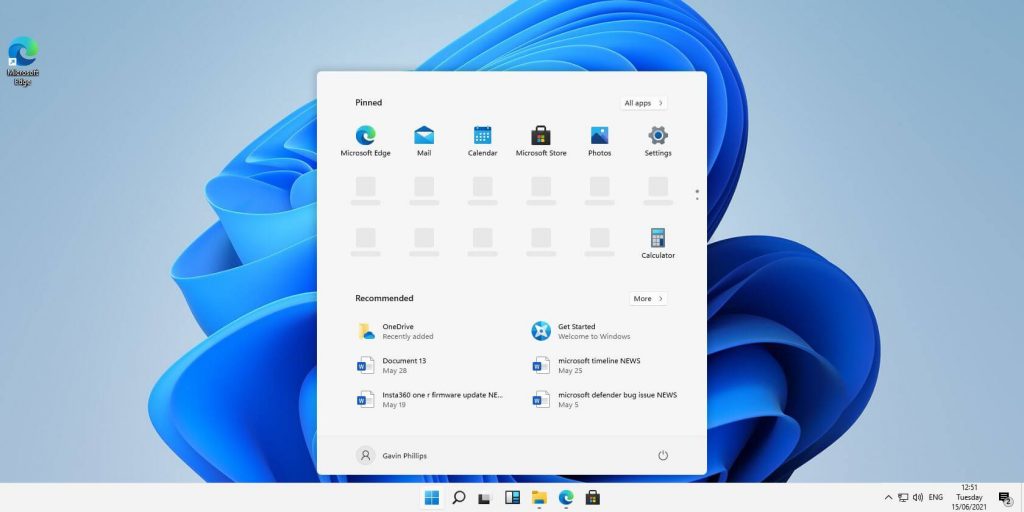
File Explorer received a UI makeover in the last update but the tabbed interface was missing which was expected by many users so it will come in following the next update.
The rest of the features that we will receive are an updated Photos application, Suggested Actions in the Windows Shell, Overflow menu for the taskbar, and improved Nearby Share.
The tabbed File Explorer interface is essentially File Explorer’s version of Sets, the tabbed window interface that Microsoft tested out several years ago. In testing, the tabbed interface proved handy for moving and copying files, and we’d expect the same once the feature formally goes live. The difference between Sets and the tabbed File Explorer interface is Sets allowed for multiple applications to be clustered together via tabs.
Photos app will include a “new photos-managing experience that brings a gorgeous gallery, simplifying browsing, finding, management and consumption of your collection of photos.” It will allow “easy backup to OneDrive” and a “delightful Memories experience.”
As for other features, nothing specifically was said except giving just some tips on what will they bring, it is obvious that File Explorer and the photos app were the main focus for MS in this upcoming update.
ComputerHKEY_CURRENT_USERSoftwareMicrosoftWindowsCurrentVersionExplorerUser Shell Folders
%USERPROFILE%Downloads
Music – {1CF1260C-4DD0-4ebb-811F-33C572699FDE} Pictures – {3ADD1653-EB32-4cb0-BBD7-DFA0ABB5ACCA} Videos – {A0953C92-50DC-43bf-BE83-3742FED03C9C} Documents – {A8CDFF1C-4878-43be-B5FD-F8091C1C60D0} Desktop – {B4BFCC3A-DB2C-424C-B029-7FE99A87C641}
 Once it opens, click on Device Manager to open it,
If you have a driver device error inside Windows, you should see it immediately when entering the Device Manager, it will have a yellow exclamation mark beside it. Right-click on it and choose update driver.
Once it opens, click on Device Manager to open it,
If you have a driver device error inside Windows, you should see it immediately when entering the Device Manager, it will have a yellow exclamation mark beside it. Right-click on it and choose update driver.After upgrading to Windows 10 operating system from Windows 7 or Windows 8/8.1, a lot of Windows users are complaining about the Windows setup in a continuous reboot loop. The computer would just keep on rebooting every time the machine is booted and this incites frustration for a lot of Windows users.
 Error Causes
When Windows launched the third update for Windows 10, users trying to upgrade to Windows 10 encountered an endless reboot loop problem. The computer will crash repeatedly. The KB3081424, which is a roll-up of bug fixes of Windows 10, continuously fails once you start the update process and then triggers a message showing: “We couldn’t complete the updates, undoing the changes.” The undoing process will then cause a system reboot mandatorily.
Once you log back on your computer again, the Windows 10 update will try to reinstall KB3081424. You will not be able to stop the update which will cause your Windows setup in a continuous reboot loop.
The KB3081424 will not be successfully installed since if it fails for the first time, that initial failure can be detected to create a bad entry in your Windows 10 registry. This will then prevent your subsequent attempts to reinstall KB3081424 to make it work correctly.
In order to fix the problem of Windows 10 setup in a continuous reboot loop, there are a few methods you can try. Try following these simple steps and you’ll be able to get rid of the problem.
Note: If you’re not highly confident to solve this issue on your own, it is highly recommended to consult an authorized computer technician who would be knowledgeable enough to fix the issue for you. In addition, you can also use a system optimizer to resolve the issue.
Microsoft Windows released an updated fix for the Windows setup in continuous reboot loop problem. You can try fixing the issue through Windows Update.
Before KB3081424 attempts to install again, you can try doing this solution:
Another thing you can try to solve the Windows setup in continuous reboot loop problem is to perform a startup repair from a working computer.
NOTE: You must do this quickly since the BIOS loads rapidly.
 When the settings window opens, choose DEVICES on it.
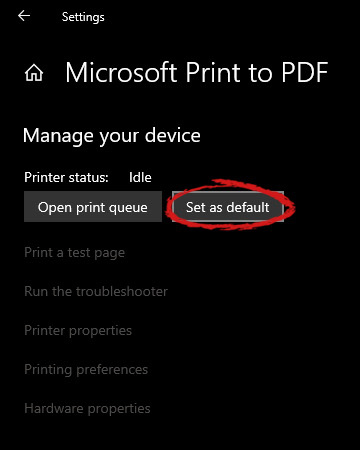
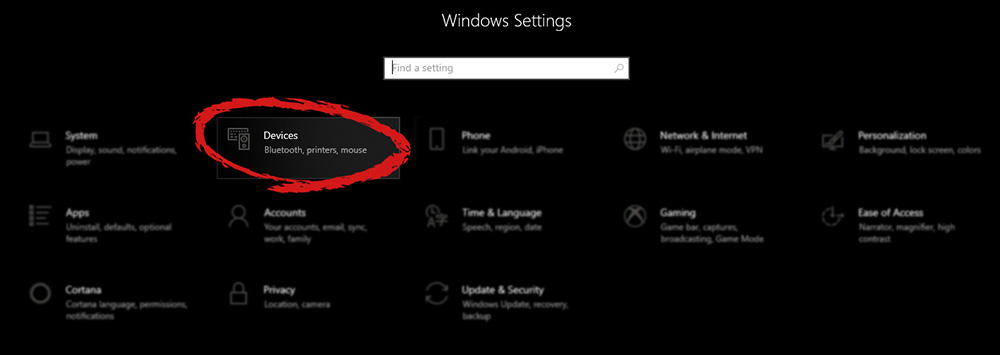 Once the device window opens, click once on printers and scanners, and on the right window go to the bottom and uncheck Let windows manage my default printer.
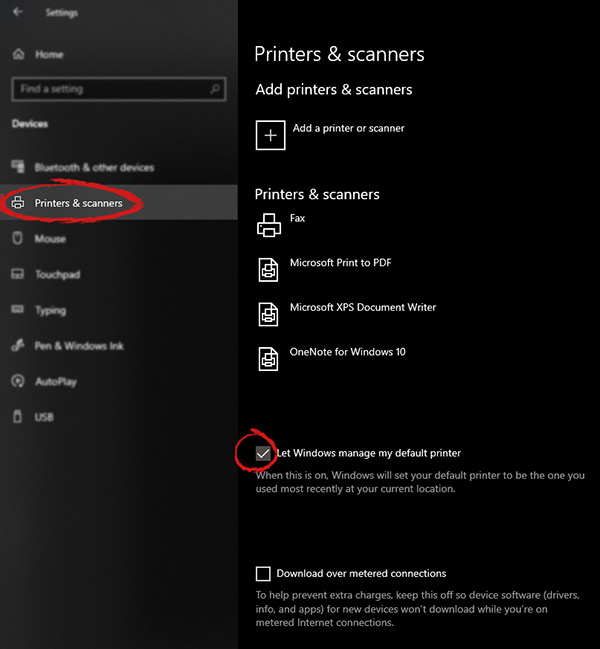 Unchecking that box will let Windows know that we do not wish anymore for him to set our default printers according to their use. Once the checkbox is clear go up to your printer list and click on the printer you wish to use as the default one. I will choose Microsoft Print to PDF as my default printer and click on it. Once the printer is clicked option menu will appear.
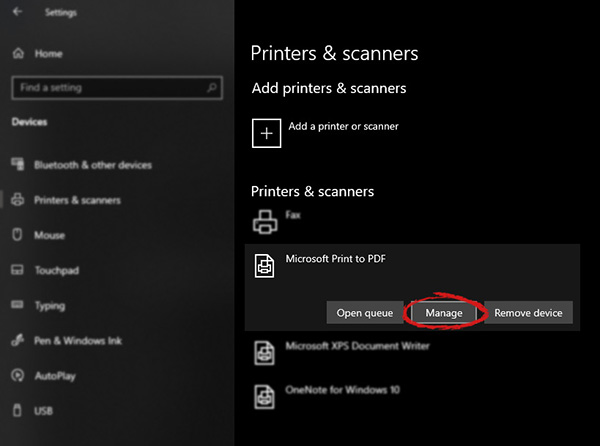 When the option menu appears under the printer name, click on Manage which will take you to the printer management screen. When you are on the manage screen, click on the Set as default button, and you are done.
mixGames is an Extension for Google Chrome that adds “Games:” functions to Google Chrome. In our testing, this function did not work and only redirects you back to the extension page. There are two variations of mixGames: mixGames Search, which changes the Chrome homepage to one managed by their own advertising-driven search; and mixGames Start, which changes the homepage in Chrome. These extensions utilize Searchalo to change search engine functions from the default or user-set preferences to Yahoo, injecting additional advertising. Due to the browser function modifications, mixGames is classified as potentially unwanted and is flagged for detection and optional removal by some Antivirus programs.
