Logo

APC_INDEX_MISMATCH  - What is it and how to fix it?

The error 0x0000001 also known as APC_INDEX_MISMATCH is one of the fatal errors that users encounter upon starting their computers. This error appears when there is a sequence mismatch in the driver or system file when it is disabling or re-enabling Asynchronous procedure calls. The mismatch happens maybe because of a virus or malware attack, not shutting down your computer properly and incomplete installation of the system files.

There are many ways to fix this error. The easiest way is to download a repair utility program. The use of these programs perfectly fits those that are not so technical. All you have to do is download the program and install it on your computer. As soon as it is installed, the program will now scan and diagnose your computer for any errors. After it identifies the errors, it will then repair your PC through either manual or automatic tools.

To those who are techie and enjoy the manual resolution, you may take advantage of Microsoft’s analyze debug extension which tells you the cause of the error. After determining the cause then you can now start fixing the error.

Check if Hardware is functioning properly. If the cause is due to a hardware malfunction, you will have to make sure that all the pieces you are using are working. All the wires should be attached to their respective ports. Not only that, but you also must make sure that before installing the hardware, it is compatible with the Windows version that is installed into your computer.

Use Compatible software. If the problem was caused by software or a driver, you can uninstall and reinstall it. Always make it a rule that whenever you install a program or new software to your computer, make sure it is compatible with your operating system and never skip a step during the installation process. You also have to see to it that the program you are installing does not contain any viruses, malware, or spyware that can be harmful to your computer.

Update your Drivers Regularly. In most cases though, the cause of the APC_INDEX_MISMATCH error are outdated device drivers. To resolve this, you will have to go to your Control Panel then look for Device Manager. As soon as you are in the Device Manager window, you can now see the different devices running on your computer. You right-click on each device and check the Properties.  In the Properties window, click on the Driver Tab and look for the date when it was last updated. You can then go to the manufacturer’s website and compare the dates.

For a new Windows operating system, you no longer have to go to the manufacturer's website though. All you have to do is click on Update Driver and it will automatically search for updates online.

Use a Genuine Operating System. There are also cases where the 0x0000001 error won’t allow you to access your computer. In this case, we have to suspect that the problem could be in your Operating system. To resolve this, you can reinstall your Operating System or update your current operating system. Only use a genuine licensed Windows Operating System because this will not only protect you from Malware and Viruses but it allows you to get all the recent update available from Microsoft. Update your Windows 10 regularly by going to Settings > Windows Update > Check for Updates. You may also turn on the Automatic Update by going to the Advanced options is found on the Windows Update Page.

You can always get help online but it really helps to know the basics and determining the root cause of the error.

Do You Need Help with Your Device?

Our Team of Experts May Help
Troubleshoot.Tech Experts are There for You!
Replace damaged files
Restore performance
Free disk space
Remove Malware
Protects WEB browser
Remove Viruses
Stop PC freezing
GET HELP
Troubleshoot.Tech experts work with all versions of Microsoft Windows including Windows 11, with Android, Mac, and more.

Share this article:

You might also like

Guide to Easily Fixing Error 1713

What Is Error 1713?

Error 1713 is essentially a programming error. It has specifically been designed in Microsoft applications. This is intended to allow customers to continue using the appropriate setup tool. The error can be quite annoying and is used by manufacturers to determine what caused the error so that counteractive methods can be employed. The number 1713 is simply the hexadecimal code that informs where the instruction was loaded when the error occurred.

Solution

Restoro box imageError Causes

As far as the causes of Error 1713 are in question, the primary cause is damaged, misconfigured, or corrupt windows system files. There are several other factors that lead to the occurrence of Error 1713. For instance, if the applications or hardware on your system has been improperly deleted, installed, or uninstalled, Error 1713 will occur. Similarly, Error 1713 is triggered when the computer has recovered from an attack by some virus, spyware, malware, or adware only recently. This attack corrupts the file and so the error appears. Incorrect system shutdown can also be blamed for this error. All the scenarios listed above actually damages the registry entries in Windows system files. The corrupt or damaged files will then lead to improperly linked or missing information. It goes without saying that such problems will keep the applications from performing in the desired manner and this makes it even more crucial to fix this error as soon as it appears.

Further Information and Manual Repair

Two of the most useful workarounds for Error 1713 are listed below.
  • This solution is for advanced users. Restart your computer. Log on to it as the admin in the safe mode. Now go to the Start button and follow this path All Programs-> Accessories-> System Tools->System Restore. Now an option will appear asking you to ‘Restore your computer to an earlier time’. Select it. This option will actually appear in a new window. Click Next. A list of restore points will be displayed to you. Select the most recent restore point before the occurrence of the error and press Next. Now click on the Next button that appears in the confirmation window. Restart your computer as soon as the restoration is finished.
  • This solution is for novice users. Download a 1713 repair utility available online. Install this program and use it to scan your system. After the scan is complete, click on repair to fix the error.
Read More
Windows requires a digitally signed driver
Device drivers are needed in order for the hardware and software to communicate in an operating system. Some of these drivers are digitally signed. These kinds of drivers are drivers that are signed by their issuing authority in a way that the end-user or any third party won’t be able to modify them. And there are times when you encounter an error that says, “Windows requires a digitally signed driver” when you try to install or update device drivers. Driver Signing is the process of associating a digital signature with a driver package. Digital signatures are used in Windows device installations to verify the identity of the vendor providing the driver packages as well as to verify the integrity of the driver packages. All the drivers you usually install on your PC from Windows Update, Original Equipment Manufacturers, or some other third-party driver download software and so on must be verified digitally by Microsoft through the digital signature. A digital signature is an electronic security mark that verifies the publisher for the driver and all the relevant information related to it. That’s why Windows won’t run a driver if it isn’t certified by Microsoft, be it a 32-bit or 64-bit system – this is called the Driver Signature Enforcement. The only Kernel-mode drivers that Windows 10 will load are the ones that are digitally signed by the Dev Portal. However, the changes only affect the new installations of the operating system with Secure Boot on while the non-upgraded fresh installations would require drivers that are signed by Microsoft. The “Windows requires a digitally signed driver” error indicates that the driver you are trying to update or install hasn’t been signed digitally by the issuing authority, preventing you from installing or updating it. To resolve this issue, you can try to update the drivers directly from the manufacturer’s site. You could also disable driver signing via Group Policy Editor.

Option 1 – Update the device drivers directly from the manufacturer’s site

The reason why you’re getting the “Windows requires a digitally signed driver” error in the first place is that you might have downloaded the drivers from external media. It could also be that the drivers didn’t update for some time now and the issuing authority changed its policies. Thus, you can try to update the drivers straight from the manufacturer’s website and install them. If this option didn’t work, then you’ll have to disable the driver signing or its recognition in Windows 10. Keep in mind that doing so is not advisable if you have to use the concerned driver.

Option 2 – Disable driver signing via Group Policy Editor

  • Tap the Win + R keys to open the Run utility and type “gpedit.msc” in the field and tap Enter to open the Group Policy Editor.
  • After that, navigate to this policy setting: User configuration > Administrative templates > System > Driver installation
  • Next, double click on the “Code signing for device drivers” entry located on the right pane to open its properties where you’ll see the following description:
“This setting determines how the system responds when a user tries to install device driver files that are not digitally signed. It establishes the least secure response permitted on the systems of users in the group. Users can use the System in Control Panel to select a more secure setting, but when this setting is enabled, the system does not implement any setting less secure than the one the setting established. When you enable this setting, use the drop-down box to specify the desired response. “Ignore” directs the system to proceed with the installation even if it includes unsigned files. “Warn” notifies the user that files are not digitally signed and lets the user decide whether to stop or to proceed with the installation and whether to permit unsigned files to be installed. “Warn” is the default. “Block” directs the system to refuse to install unsigned files. As a result, the installation stops, and none of the files in the driver package are installed. To change driver file security without specifying a setting, use System in Control Panel. Right-click My Computer, click Properties, click the Hardware tab, and then click the Driver Signing button.”
  • Now select the radio button for “Enabled” and select Ignore from the drop-down menu under “When Windows detects a driver file without a digital signature”.
  • Then click on the Apply and OK buttons to save the changes made. This will get rid of the “Windows requires a digitally signed driver” error but take note that this will also make your system less secure.
Read More
Bluetooth Headset in Windows gets disconnected
Many Windows 10 users use a Bluetooth headset as these kinds of Audio devices, as you know, lack wires since wires tend to get entangled and break which could get quite inconvenient. This is why using a wireless headphone is more preferable since it’s much simpler, however, using a wireless headphone also means it comes with a charging requirement and if it fails to charge, there is no music or audio or anything that you need a Bluetooth headphone for. However, wireless headphones are also susceptible to problems as you might encounter some problems when connecting your wireless headphone to your Windows 10 computer. One of these problems include when you try to get sound from the wireless device but nothing happened. This indicates that the Bluetooth headphone is disconnected in some way for some unknown reason even if you’ve already plugged it in. Thus, if you encounter this scenario, then there are several options you need to check out to fix the problem. To start troubleshooting the problem, here are the options you need to use as a reference.

Option 1 – Try turning off the device and turning it back on

The first thing you can do to resolve the problem is to turn off your wireless audio device and wait for a couple of seconds before you turn it back on. In most cases, this should fix the problem. In fact, you can also try to unpair and pair the Bluetooth audio device and see if it fixes the problem or not.

Option 2 – Try to set the headphone as the default device manually

There are times when you plug a headphone, it does not toggle the default audio device. Thus, to fix this issue, you have to set the default audio device to the headphones manually. To do that, follow these steps:
  • First, right-click on the volume icon located on the system tray.
  • Next, select the Open sound settings option to open the Sound section in the Windows 10 Settings app.
  • After that, go to the Output section and select Headphones for the “Choose your output device” option. This should fix the problem for you.

Option 3 – Try running the Bluetooth Troubleshooter

As you know, Windows 10 has various troubleshooters with user-friendly interfaces where you can utilize them to fix issues in your PC. And since you’re dealing with some Bluetooth problem, you have to run the built-in Bluetooth Troubleshooter. To do this, follow these steps:
  • Open the Windows 10 Settings.
  • Then go to Update & Security > Troubleshoot.
  • You should find the option for Bluetooth on your right-hand side – click on it then click on the “Run the troubleshooter” option.
  • Now follow the next screen options.

Option 4 – Try to update or reinstall the Bluetooth driver

The issue might have something to do with the Bluetooth drivers. It could be that it is outdated and needs to be updated or that you recently updated it and since then you have trouble in removing the Bluetooth devices and so to fix the issue, you can update, roll back or uninstall the Bluetooth drivers. How? Follow the steps below.
  • Tap the Win + X keys to open the Device Manager.
  • Next, look for the Bluetooth device and right-click on it.
  • Select the option “Update driver”.
  • After that, a new popup window will appear. In there, select the option, “Search automatically for updated driver software”.
Note: Checking the update may take a few minutes so you’ll have to wait until it finishes. If it is able to find an update, you must install it. And if you want to reinstall the Bluetooth driver, just select the “Uninstall driver” option and follow the next on-screen instructions that follow.
Read More
How to Fix Error Code 0xc004f210 in Windows 8

Error Code 0xc004f210 – What is it?

Error code 0xc004f210 occurs when Windows 8 users fail to activate their Windows operating system. Users will be able to identify error code 0xc004f210 because of the following common symptoms which occur:

Solution

Restoro box imageError Causes

If you enter an invalid product key or do not have a digital entitlement for the edition of Windows you are attempting to activate, you may experience error code 0xc004f210. Since this error usually occurs due to these main reasons, you will most likely find success resolving this issue by ensuring you use a valid product key or activate an appropriate edition of Windows based on the edition of your digital entitlement.

Further Information and Manual Repair

Error codes can be resolved through manual repair procedures that seek to fix the underlying issues causing the error. In the case of error code 0xc004f210, you should be able to resolve this error by using the methods below. You may also consider contacting a Windows repair technician if you have difficulty resolving the error code.

Method One: Enter Valid Product Key

To successfully activate your operating system and resolve error code 0xc004f210, you will need to enter a valid product key in the Update & security section of Windows. Follow the instructions below to enter the product key.

  • Step one: Click the Start button then select Settings
  • Step two: Select Update & security then Activation
  • Step three: Click the Change product key
  • Step four: Enter a valid product key

If the issue causing error code 0xc004f210 is related to the use of an invalid product key, you should be able to successfully activate your Windows operating system. Should the problem persist, however, you will need to attempt the next manual repair method explained below? Note: Failure to fix this error code might result in other Windows 10 error messages.

Method Two: Ensure Edition of Windows Matches Your Digital Entitlement

Digital entitlement allows Windows users to access activation without using a product key. This digital entitlement only affects Windows 8 users who are attempting to activate versions of Windows 10 that include Windows 10 Pro. Once you are using a genuine copy of Windows 8.1 and your edition of Windows matches your entitlement, you may proceed with the instructions below.

  • Step one: Click the Start button then select Settings
  • Step two: After selecting Settings, click Update & Security
  • Step three: Select Windows Update then the Check for updates tab
  • Step four: Click activate Windows 10 update

You should be able to activate your Windows update once you follow the instructions above. Remember error code 0xc004f210 is an activation code related to product keys or your digital entitlement so once these issues are rectified, you should have no problem activating your operating system of choice and enjoying the benefits it offers. If, however, the problem remains unresolved after you have attempted both manual repair methods, there may be unusual issues affecting your system. Contact Microsoft to rectify the issue or get help from a Windows repair technician.

Method Three: Download an Automated Tool

If you wish to always have at your disposal a utility tool to fix these Windows 8 and other related issues when they do arise, download and install a powerful automated tool.

Read More
T-Mobile Hack, 40 Million and more Impacted
T-MobileHacker group recently came up with claims that they have stolen data from 100 million T-Mobile customers. T-Mobile has responded with confirmation it has been compromised and that over 40 million records were stolen, among them are not just present customers, but anyone who has applied for T-Mobile service as well as past accounts.

What has been stolen?

Report from T-Mobile states that stolen records included first and last name, date of birth, social security number, driver’s license & ID information. The company said that it has “no indication that the data contained in the stolen files included any customer financial information, credit card information, debit or other payment information.” Not really a reassuring statement meaning that they really do not know, but even if the statement is true, already stolen information is as much if even not more damaging and devastating as payment information.

What T-Mobile is planning to do now?

It is stated that the hole used for the hack has been addressed and closed so no more data can be stolen. Considering people that had their personal information compromised, T-Mobile said it is planning to reach out to them and offer them two years of free identity protection through McAfee’s ID Theft Protection Service. Additionally, T-Mobile recommends postpaid customers change their PIN by going online into their T-Mobile account or calling T-Mobile customer service by dialing 611 on their phone. The company also recommends a feature called Account Takeover Protection that prevents unauthorized individuals from stealing a phone number and porting it out of T-Mobile. Finally, the company will publish a website “for one-stop information and solutions to help customers take steps to further protect themselves.”
Read More
Fix NO_USER_MODE_CONTEXT in Windows
If you have encountered the NO_USER_MODE_CONTEXT Blue Screen error when using your computer, read on as this post will walk you through a couple of suggestions you can try to resolve this Stop error. This kind of Blue Screen error can occur when a program is trying to leverage the use of a system driver but fails to do so. Some of the common causes of this BSOD error are incompatible or corrupted drivers, incorrect configuration of entries in the Registry, damaged memory locations, malware infection, and many more. In addition, this Stop error does not often occur and indicates that an attempt to enter user mode with no context was made. If this is the first time you’ve restarted your computer after you’ve installed additional hardware, you have to remove the hardware and then restart your computer once again and then check the Microsoft Hardware Compatibility List to confirm that the hardware and its drivers are compatible with your operating system. If it doesn’t help, you can check out the given suggestions below to fix the NO_USER_MODE_CONTEXT Blue Screen error in Windows 10.

Option 1 – Try to update or rollback your device drivers

The first thing you can try to fix the NO_USER_MODE_CONTEXT Blue Screen error is to either update or roll back the device drivers. It is most likely that after you updated your Windows computer that your driver also needs a refresh. On the other hand, if you have just updated your device drivers then you need to roll back the drivers to their previous versions. Whichever applies to you, refer to the steps below.
  • Open the Devices Manager from the Win X Menu.
  • Then locate the device drivers and right-click on them to open the Properties. Note that the main drivers that might be the cause behind the NO_USER_MODE_CONTEXT Blue Screen error will be listed under the “ID ATA/ATAPI controllers” section as well as the “Storage controllers” section.
  • After that, switch to the Driver tab and click on the Uninstall Device button.
  • Follow the screen option to completely uninstall it.
  • Finally, restart your computer. It will just reinstall the device drivers automatically.
Note: You can also directly download the relevant drivers of your computer from the manufacturers’ website. So if you have an SSD, the issue might be due to an old storage driver.

Option 2 – Try running System File Checker or SFC scan

System File Checker or SFC is a built-in command utility that helps in restoring corrupted files as well as missing files. It replaces bad and corrupted system files to good system files. To run the SFC command, follow the steps given below.
  • Tap Win + R to launch Run.
  • Type in cmd in the field and tap Enter.
  • After opening Command Prompt, type in sfc /scannow
The command will start a system scan which will take a few whiles before it finishes. Once it’s done, you could get the following results:
  1. Windows Resource Protection did not find any integrity violations.
  2. Windows Resource Protection found corrupt files and successfully repaired them.
  3. Windows Resource Protection found corrupt files but was unable to fix some of them.
 Reboot your PC.

Option 3 – Try running the Memory Diagnostic Tool

The Memory Diagnostic tool in windows can help resolve the NO_USER_MODE_CONTEXT Blue Screen error by checking and automatically fixing any memory-based issues. To run it, refer to these steps:
  • Tap the Win + R keys to open Run and type exe and hit Enter to open the Windows Memory Diagnostic Tool.
  • After that, it will give two options such as:
    • Restart now and check for problems (Recommended)
    • Check for problems the next time I start my computer
  • Once your computer has restarted, perform a basic scan or you could also go for the “Advanced” options such as “Test mix” or “Pass count”. Simply tap the F10 key to start the test.
Note: After you select your preferred option, your computer will restart and check for memory-based issues. If it finds any issues, it will automatically fix them.

Option 4 – Perform System Restore

  • First, tap the Win + R keys to open the Run dialog box.
  • After that, type in “sysdm.cpl” in the field and tap Enter.
  • Next, go to the System Protection tab then click the System Restore button. This will open a new window where you have to select your preferred System Restore point.
  • After that, follow the on-screen instructions to finish the process and then restart your computer and check if the problem is fixed or not.

Option 5 – Run the Blue Screen Troubleshooter

Troubleshooting Blue Screen of Death errors wouldn’t be complete without the Blue Screen troubleshooter. As you know, it is a built-in tool in Windows 10 that helps users in fixing BSOD errors like NO_USER_MODE_CONTEXT. It can be found on the Settings Troubleshooters page. To use it, refer to these steps:
  • Tap the Win + I keys to open the Settings panel.
  • Then go to Update & Security > Troubleshoot.
  • From there, look for the option called “Blue Screen” on your right-hand side and then click the “Run the troubleshooter” button to run the Blue Screen Troubleshooter and then follow the next on-screen options. Note that you might have to boot your PC into Safe Mode.
Read More
Marine Aquarium Lite Removal Guide and Instructions
Marine Aquarium Lite is a Browser Extension for Google Chrome. This extension changed your default search ending and home page to MyWebSearch.com. It is published by Mindspark Interactive and is considered a browser hijacking extension. While installed, users will see additional ads and sponsored links in their search results. This extension also collects user website data, which allows it to better target ads. Several anti-virus scanners have marked Marine Aquarium Lite as a Browser Hijacker and are marked for removal. From the Author: MyWebSearch is an incredibly popular toolbar (over 20 million active users each month!), that gives you access to the web’s leading search engine Google; includes some of the most popular products on the web for making communication easier, more expressive, and more entertaining. The MyWebSearch toolbar platform allows you to take advantage of more than a dozen interactive features and websites.

About Browser Hijackers

Browser hijacking is a very common type of online fraud where your web browser configuration settings are altered to make it carry out things you never intend. They’re created to interfere with web browser functions for a variety of reasons. Typically, hijackers will force hits to websites of their choice either to increase traffic generating higher ad earnings, or to obtain a commission for each and every user visiting there. Even though it may seem naive, all browser hijackers are damaging and thus always classified as security risks. Once the malware attacks your PC, it begins to mess things up a whole that slows your system down to a crawl. In the worse case, you will be pushed to deal with serious malware threats too.

Major signs that your browser has been hijacked

There are many signs of browser hijacking: home-page is changed; you observe new unwanted bookmarks or favorites added, typically directed to ad-filled or porn websites; The default search page of web browser is altered; you find multiple toolbars in your browser; you’ll notice random pop-ups start showing on a regular basis; your web browser starts running slowly or displays frequent glitches; you have prohibited entry to specific web pages, for example, the site of an anti-malware software developer like SafeBytes.

How they get into your computer or laptop

Browser hijackers infect PCs by numerous means, including through a file-share, a drive-by download, or an infected e-mail. They also come from add-on software, also referred to as browser helper objects (BHO), web browser plug-ins, or toolbars. Also, some shareware and freeware can put the hijacker inside your PC through “bundling”. An example of some notorious browser hijacker includes Conduit, Anyprotect, Babylon, DefaultTab, SweetPage, RocketTab, and Delta Search, but the names are constantly changing. Browser hijacking could lead to serious privacy issues and also identity theft, affect your web browsing experience by taking control over outbound traffic, drastically slows down your PC by deleting lots of resources, and result in system instability as well.

How you can fix a browser hijack

Some hijackers can be simply removed by uninstalling the free software they were included with or by eliminating any extension you have recently added to your computer system. But, the majority of hijacking codes are certainly not easy to get rid of manually, as they go deeper into the operating system. And there is no denying the very fact that manual fixes and removal could be a difficult job for an amateur computer user. Besides, there are several risks connected with fiddling around with the system registry files. You can choose automatic browser hijacker removal by simply installing and running efficient anti-malware software. SafeBytes Anti-Malware discovers all types of hijackers – including Marine Aquarium Lite – and eliminates every trace quickly and efficiently. Utilize a system optimizer (such as Total System Care) together with your anti-malware software to fix various computer registry issues, eliminate computer vulnerabilities, and enhance your computer performance.

Can't Install Safebytes Anti-malware because of Malware? Try This!

Malware may cause several different types of damage to computer systems, networks, and data. Some malware sits in between your PC and the net connection and blocks a few or all websites that you want to visit. It will also prevent you from installing anything on your PC, particularly antivirus applications. If you are reading this right now, you have probably realized that virus infection is the reason behind your blocked net traffic. So what to do when you want to install an anti-malware program such as Safebytes? Even though this sort of issue will be tougher to circumvent, there are some actions you can take.

Boot your system in Safe Mode

In Safe Mode, you could adjust Windows settings, uninstall or install some programs, and eradicate hard-to-delete viruses and malware. In the event the malware is blocking access to the internet and affecting your PC, running it in Safe Mode allows you to download anti-virus and run a diagnostic scan whilst limiting potential damage. To enter into Safe Mode or Safe Mode with Networking, press the F8 key while the system is booting up or run MSConfig and find the “Safe Boot” options in the “Boot” tab. As soon as you restart the PC into Safe Mode with Networking, you may download, install, as well as update the anti-malware program from there. At this point, you could run the anti-virus scan to get rid of viruses and malware without interference from another application.

Switch over to some other internet browser

Some malware mainly targets certain web browsers. If this is your situation, use another browser as it may circumvent the computer virus. When you suspect that your Internet Explorer happens to be hijacked by a virus or otherwise compromised by cybercriminals, the best thing to do would be to switch to a different web browser such as Google Chrome, Mozilla Firefox, or Apple Safari to download your chosen security software – Safebytes Anti-Malware.

Make a bootable USB anti-virus drive

To successfully get rid of the malware, you will need to approach the issue of running an antivirus software program on the infected computer system from a different angle. Do these simple measures to clean up your affected computer by using a portable antivirus. 1) Use another virus-free computer system to download Safebytes Anti-Malware. 2) Plug the pen drive into the clean PC. 3) Double-click on the downloaded file to run the installation wizard. 4) Select the drive letter of the pen drive as the place when the wizard asks you where you want to install the anti-virus. Follow the instructions on the computer screen to finish up the installation process. 5) Now, plug the thumb drive into the infected computer. 6) Run the Safebytes Anti-malware directly from the pen drive by double-clicking the icon. 7) Click on the “Scan” button to run a full computer scan and remove viruses automatically. SafeBytes Security Suite Benefits"]If you are looking to install an anti-malware program for your computer, there are various tools out there to consider but you just cannot trust blindly anyone, no matter whether it is a free or paid program. Some are good ones, some are decent, and some are simply just fake anti-malware programs that will harm your personal computer themselves! You must be careful not to choose the wrong product, particularly if you purchase premium software. One of the highly recommended software by industry analysts is SafeBytes Anti-Malware, a well-known security application for Microsoft Windows. SafeBytes anti-malware is a powerful, highly effective protection software intended to assist users of all levels of IT literacy in detecting and removing harmful threats from their PC. Through its cutting-edge technology, this software protects your personal computer against infections brought on by different kinds of malware and similar internet threats, including adware, spyware, trojans horses, worms, computer viruses, keyloggers, potentially unwanted program (PUPs), and ransomware.

SafeBytes anti-malware provides an array of advanced features that sets it aside from all others. Here are a few popular features present in this computer software:

Robust Anti-malware Protection: This deep-cleaning antimalware software program goes much deeper than most antivirus tools to clean your personal computer. Its critically acclaimed virus engine locates and disables hard to remove malware that conceals deep within your PC. Real-time Active Protection: SafeBytes offers an entirely hands-free active protection and is set to check, block, and get rid of all threats at its first encounter. This tool will constantly monitor your computer for any suspicious activity and updates itself regularly to keep abreast of the latest threats. Web protection: SafeBytes gives an instant safety rating on the web pages you’re going to visit, automatically blocking risky sites and making sure that you are certain of your safety while browsing the web. Lightweight Application: The program is lightweight and will work silently in the background, and will not have an effect on your computer efficiency. Fantastic Tech Support: For any technical questions or product guidance, you can get 24/7 professional assistance through chat and e-mail. SafeBytes has developed a fantastic anti-malware solution to help you conquer the latest malware threats and virus attacks. You can rest assured that your computer will be protected in real-time as soon as you put this software program to use. If you want sophisticated forms of protection features and threat detections, purchasing SafeBytes Anti-Malware could be worth the money!

Technical Details and Manual Removal (Advanced Users)

If you’d like to manually remove Marine Aquarium Lite without the use of an automated tool, it might be possible to do so by removing the application from the Microsoft Windows Add/Remove Programs menu, or in cases of browser plug-ins, going to the browsers AddOn/Extension manager and removing it. You’ll likely also want to reset your browser to its default configuration settings. To be certain of complete removal, find the following Windows registry entries on your system and delete them or reset the values accordingly. Please be aware that this is for skilled users only and could be challenging, with wrong file removal resulting in additional PC errors. In addition, some malicious programs have the capability to defend against its deletion. Doing this in Safe Mode is suggested.
Files: C:\%Documents%\%User%\Local\Temp\nst2.tmp\nsDialogs.dll C:\%Documents%\%User%\Local\Temp\nst2.tmp\System.dll

Read More
How to Fix Error Code 0x80070005 in Windows 10

Error Code 0x80070005 – What is it?

Error code 0x80070005 is also known as the “Access Denied” error code because it prevents Windows users from accessing updates on their machines. This error code exists due to a lack of permissions on one’s system files or registry, permissions which are necessary for the updates via Windows Update to complete successfully. Error code 0x80070005 affects multiple versions of the Windows operating system including Windows 8, 8.1, and Windows 10.

Solution

Restoro box imageError Causes

The lack of files or registry permissions which result in the presence of error code 0x80070005 on your device may occur based on several reasons. The most common of these relates to the existence of malware programs on your machine. Malware can disrupt and change system files which are required for the update process to occur. Thus, this error code requires a systematic approach to first find missing or corrupt files, as well as cleaning up malware programs that could be preventing your machine from accessing updates.

Further Information and Manual Repair

Windows 10 users can repair error code 0x80070005 by implementing manual repair procedures. These procedures include the installation of tools like SubInACL.exe which enable users to access information about registry keys and files, thus detecting issues that may be preventing them from completing the update process in Windows Update.

These manual repair methods are listed below with clear instructions that even average Windows users can understand and follow. However, if you attempt the procedures and experience any issues that prevent you from successfully fixing error code 0x80070005, contact a Windows repair technician. Also, consider downloading an automated tool since these tools often help users fix PC performance issues that cause error codes to occur within various versions of the Windows operating system.

Method One: Log on as Administrator to Install Updates

By logging on as an administrator, Windows users may be able to access updates via Windows Update and thereby fix error code 0x80070005 in Windows 10. Follow the steps below to complete this manual repair method.

  • Step one: Click the Search bar near the Start button
  • Step two: Type User Accounts in Search
  • Step three: Select User Accounts
  • Step four: Click Manage User Accounts, then type in password if prompted to do so

Once you are logged on as an administrator, go to Settings to access Windows Update. You will be given the option to install the latest updates. Select this option and wait for the process to be completed. If error code 0x80070005 reoccurs, however, you will need to proceed to manual repair method two which requires that you scan for malware.

Method Two: Scan for Malware

This method is very simple. As you scan for malware on your machine, you will be able to detect any malicious programs that may be preventing you from installing updates on your device. This will in turn enable Windows users to clean up their system, fix the error code, and prevent others from occurring.

First, be sure you have a viable antimalware program on your machine. Scan for viruses and other harmful programs using this third-party software. Another option is to run Windows Defender on your machine.

Once you’ve completed the scan and error Code 0x80070005 moved any malware that may be present, attempt to install updates via Windows Update. If the problem causing error code 0x80070005 in Windows 10 is resolved, you will be able to install the updates. However, proceed to the next manual repair method if the error code remains on your device after you have scanned and removed malware programs.

Method Three: Install SubInACL Tool

The SubInACL tool enables Windows users to access security details and other information regarding files and registry permissions. Use this tool to fix files and registry permissions by following the instructions below.

  • Step one: Download the SubInACL tool via Microsoft’s official website
  • Step two: Run program as administrator
  • Step three: Restart machine
  • Step four: Go to Settings, Update & security, then Windows Update
  • Step five: Reattempt installation of updates

Once you’ve been able to run the SubInACL tool and fix files or registry permissions, your machine should be able to access updates. If error code 0x80070005 reoccurs, however, you may need to contact a Windows repair technician to verify if issues unrelated to permissions are causing the error code to occur.

Method Four: Download an Automated Tool

If you wish to always have at your disposal a utility tool to fix these Windows 8 and other related issues when they do arise, download and install a powerful automated tool.
Read More
Nostalgic gaming with Retroid pocket 2
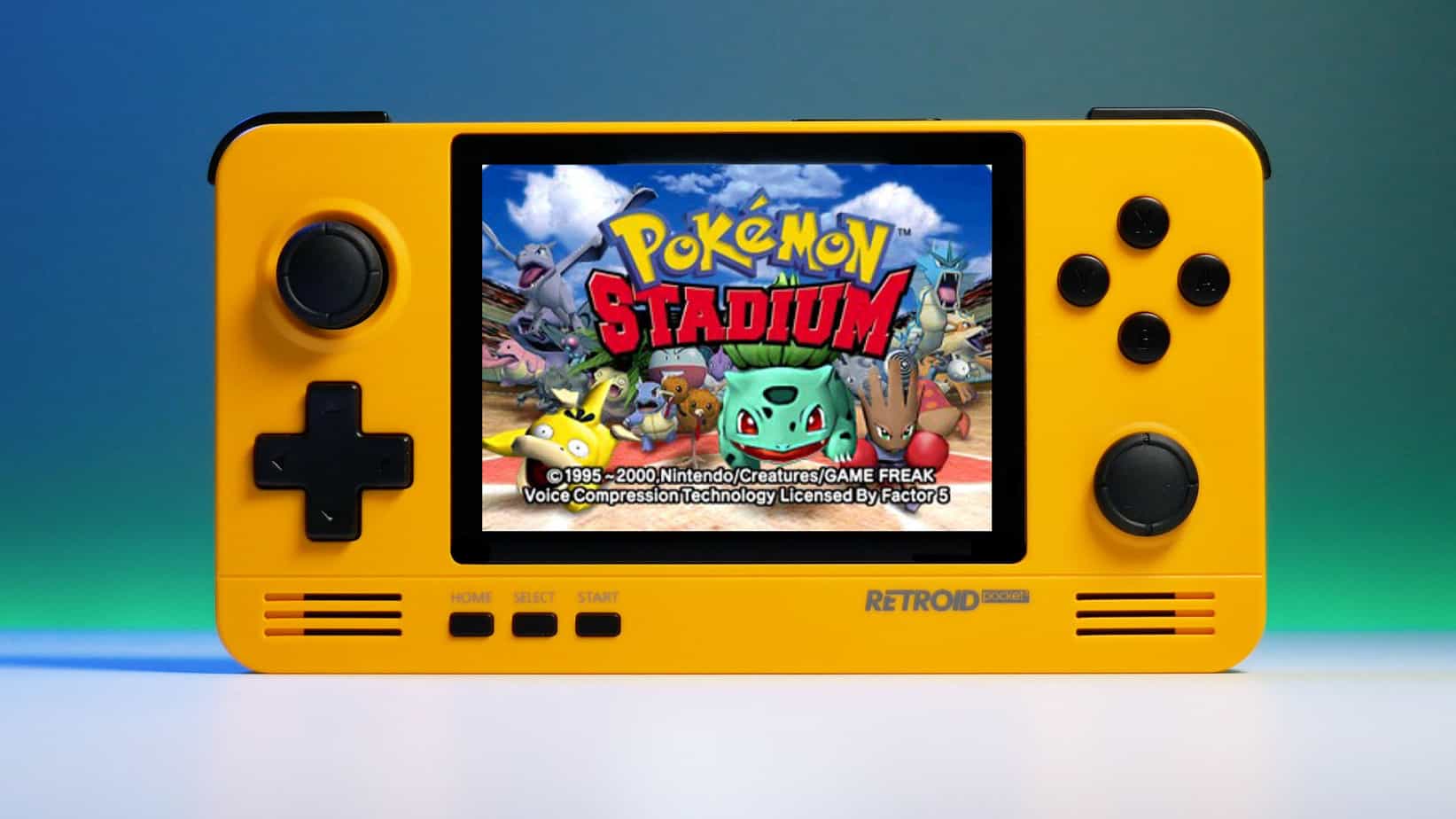
We have talked about gaming on old computers and have covered new and upcoming Steam deck handheld console. Today we are combining old gaming with a handheld console and our target of talk is Retroid pocket 2. This product is packed with really high-quality plastic and with some great features in it. retroid pocket 2So let's dive into this cool handheld in more detail and find out why we like it so much.

Good manufacturing quality

Plastic and overall manufacturing quality are really, really good. The battery is great, packing 4000mAh that can hold over 3 hours of nonstop gaming, and all buttons and joysticks are great. The screen is a 640 x 480 60Hz 3.5″ IPS screen (4:3 aspect ratio) that performs really great for its purpose, retro gaming. There is a Digital D-Pad and dual analog joysticks. The right joystick is the lower profile to avoid being accidentally moved when pressing the four gaming buttons. There are three buttons at the bottom which are Home, Start, and Select. On either side are good-quality stereo speakers. On the bottom of the device are a Micro SD Card slot and a 3.5mm headphone port. On the top of the device are Left and Right shoulder and trigger buttons. There are the power button and volume adjustments. There are a USB Type-C OTG port and a Micro HDMI output for connection to a TV.

Good technical statistics

Good, not great but then again since this is retro handheld you cannot really expect some crazy stuff like alder lake inside. So the console is punching ARM Cortex A7 CPU with 2 cores and a clock of 1.5GHz paired with ARM Mali 400-MP2 500MHz GPU. The console has 1GB LPDDR3 RAM memory and 8GB eMMC Storage where 5GB is freely available, the rest is taken for OS. As mentioned before the display is 640x480 resolution with a size of 3.5″. The battery is Lithium-Ion with a power of 4000mAh and on the handheld, there is a USB Type-C connector, 3.5mm headphone jack, and Micro-HDMI. It also has Wifi/Bluetooth 4.0

Retroid Pocket 2 OS and support

Pocket 2 comes with Android 6 but you can update its firmware to the 8.1 version on the official site that I would highly recommend. New versions of the handheld will come with 8.1 on it from the box. Having Android as OS opens many possibilities like you can download Android apps such as Steam Link, allowing you to play actual PC games on your Retroid Pocket 2. Not just that, if it does get a newer version of Android it could even have the ability to use xCloud, Xbox’s cloud gaming service. Of course, hardware will not be able to handle modern games but the option is still there and for some old PC titles available on steam like Commander Keen, for example, this is a great option. The console can emulate basically everything up to Dreamcast, including N64, PSP, and Playstation 1. It can emulate Nintendo DS also, but it can only do so with one screen. The only problem with this console is you will need to install and update Apps. You’ll need to learn about RetroArch, an app that lets you download emulators or cores to play games.

Retroid price

The last thing on the list is the price of the console itself. Going just under the 100$ mark this really makes it an affordable option for plenty of people that would like to experience retro handheld gaming or for ones like me, nostalgic gamers wanting to relive some era of playing games on the road.

Conclusion

Among Chinese handheld devices for retro gaming, Retroid Pocket 2 is really on top of what the market can offer. If you are looking for a great handheld retro console and are not afraid of little dive-ins into the OS and various configurations, Pocket 2 will reward you with plenty and wide emulation support.
Read More
Fix Chrome is Waiting for cache in Windows
There are times when you may encounter some glitches on your Google Chrome browser in your Windows 10 computer. One of these glitches is when the connection status of Chrome keeps on saying “Waiting for cache” which is displayed at the bottom-left side of the browser in the Status bar. At the time of writing, it isn’t clear yet what could be causing this problem. Although it is possible that it’s caused by browser cache, some extensions in the browser. On the other hand, it could also be caused by the browser profile or due to some fragmented files or that the SSD is occupied. Whatever the cause is, you can check out each one of the given options below to fix the problem.

Option 1 – Try clearing browser cache

There are times when some data in the browser is conflicting with the loading of the website and triggers some problems like “Waiting for cache”. And so you can try to clear your browser’s data. This might be a very basic solution but oftentimes it works in fixing this kind of error in Google Chrome. Follow the steps below to clear the data in your browser.
  • Open your Google Chrome browser.
  • After that, tap the Ctrl + H keys. Doing so will open a new panel that allows you to delete the browsing history and other data in your browser.
  • Now select every checkbox that you see and click on the Clear browsing data button.
  • Then restart your Chrome browser and check if you can now open any website or not.

Option 2 – Try to disable writing of Cache files to the SSD

You can also disable the writing of Cache files to the SSD to stop Google Chrome’s dependency on the SSD to gather all the cache files.

Option 3 – Delete the User Profile in Chrome

You can also try deleting the User Profile folder in Chrome. To do so, follow these steps:
  • You need to first end every single process of Google Chrome. To do so, right-click on the Taskbar then select the Task Manager. And if the Task Manager is not responding, you can just use the Alt + Ctrl + Del keys and then select the Task Manager.
  • After opening the Task Manager, under Processes, look for Google Chrome’s process which would most likely be named “chrome.exe”.
  • Right-click on Google Chrome’s process and then select the End task option.
  • Next, tap the Win + R keys to open the Run dialogue box.
  • Then copy and paste “%USERPROFILE%AppDataLocalGoogleChromeUser Data” and hit Enter.
  • From there, look for a folder named “Default folder” and then copy the folder to another drive as a backup.
  • After creating a copy of the folder, delete the Default folder.
  • Next, open Google Chrome again and go to Settings > Advanced > Reset.

Option 4 – Reset Chrome

Resetting Chrome can also help you fix the error. This means that you will be restoring its default settings, disabling all the extensions, add-ons, and themes. Aside from that, the content settings will be reset as well and the cookies, cache, and site data will also be deleted. To reset Chrome, here’s what you have to do:
  • Open Google Chrome, then tap the Alt + F keys.
  • After that, click on Settings.
  • Next, scroll down until you see the Advanced option, once you see it, click on it.
  • After clicking the Advanced option, go to the “Restore and clean up option and click on the “Restore settings to their original defaults” option to reset Google Chrome.
  • Now restart Google Chrome.

Option 5 – Try to clean reinstall Chrome

There are instances when programs leave files behind after you’ve uninstalled them and the same thing can happen to Chrome so before you reinstall Chrome, you have to make sure that you have deleted the User Data folder. To do so, refer to the following steps:
  • Hit the Win + R keys to open the Run dialog box.
  • Next, type “%LOCALAPPDATA%GoogleChromeUser Data” in the field and hit Enter to open the User Data folder.
  • From there, rename the default folder and name it something else, e.g. “Default.old”.
  • After that, install Google Chrome again and check if the issue is now fixed.
Read More
1 2 3 171
Logo
Copyright © 2023, ErrorTools. All Rights Reserved
Trademark: Microsoft Windows logos are registered trademarks of Microsoft. Disclaimer: ErrorTools.com is not affiliated with Microsoft, nor claims direct affiliation.
The information on this page is provided for information purposes only.
DMCA.com Protection Status