Quick Fix Guide for Error 0xe06d7363

What is Error 0xe06d7363?

Error 0xe06d7363 is displayed when a process or an operation is not launched, or completed by an application.

This error can prevent the user from performing some operations. It might close the application unconditionally. Sometimes a ‘GetLastError()’, a ‘GetExceptionCode()’, or a ‘GetExceptionInformation()’ is displayed with this error.

Error Causes

Error 0xe06d7363 can occur for a number of reasons. Damaged, corrupted, or missing files in the registry database are the main reasons why the error might occur. Another reason is when the system files are not configured correctly, thus they corrupt system files in applications. They can also affect the hardware devices.

All code-generated exceptions in the Microsoft Visual C + + compiler will contain this error. As this error is compiler-generated, the code will not be listed in Win32 API header files. This code is a cryptic device, with ‘e’ for exception while the final 3 bytes represent ‘msc’ ASCII values.

Further Information and Manual Repair

To resolve this error, you will have to debug an application. While using Microsoft Visual Studio, you can stop the program when the error 0xe06d7363 occurs. To start debugging, follow these steps:

  • Start debugging application
  • From Debug menu, click on Exceptions
  • In the Exceptions window, select error 0xe06d7363
  • In Action, Change to Stop always from Stop if not handled

Another fix for this issue is reverting back to an earlier copy or the last update of the same Windows. Error 0xe06d7363 can occur is when you try running a client application using Microsoft.SqlServer.Types.dll component on your computer that has Microsoft SQL Server 2008 Server Pack 2 installed. With the error, the following text can be seen:

“unable to load DLL ‘SqlServerSpatial.dll’ Exception from HRESULT 0xe06d7363".

A Cumulative Update 7 was initially released for SQL Server 2008 Service Pack 2 in order to fix this issue. Since the builds are cumulative, every new fix released contains hotfixes and all security fixes which were also included in the previous SQL Server 2008 fix release. This error can be found in all Microsoft products that are listed in the Applies to Category.

Microsoft SQL Server 2008 hotfixes are created to resolve errors like 0xe06d7363 on specific SQL Server service packs. This error is by design and has commonly occurred in the previous versions of Windows before Windows 7.

Congratulations, you have just fixed Error 0xe06d7363 in Windows 10 all by yourself. If you would like to read more helpful articles and tips about various software and hardware visit errortools.com daily.

Now that’s how you fix Error 0xe06d7363 in Windows 10 on a computer. On the other hand, if your computer is going through some system-related issues that have to get fixed, there is a one-click solution known as Restoro you could check out to resolve them. This program is a useful tool that could repair corrupted registries and optimize your PC’s overall performance. Aside from that, it also cleans out your computer for any junk or corrupted files that help you eliminate any unwanted files from your system. This is basically a solution that’s within your grasp with just a click. It’s easy to use as it is user-friendly. For a complete set of instructions in downloading and using it, refer to the steps below

Perform a full system scan using Restoro. To do so, follow the instructions below.

      1. Download and install Restoro from the official site.
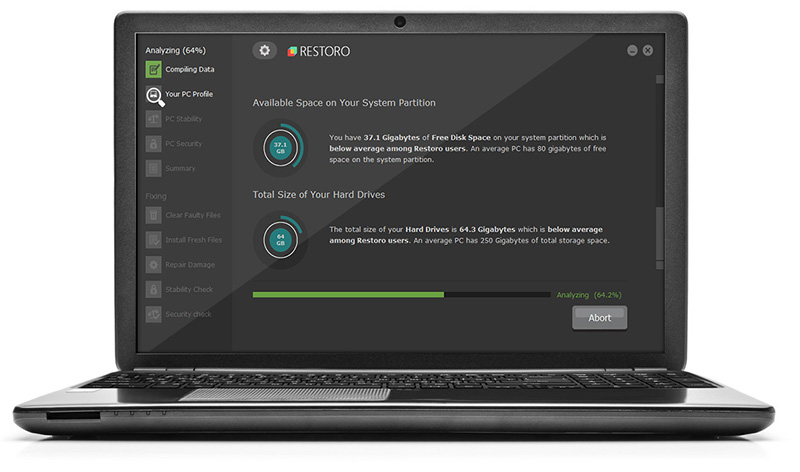
      2. Once the installation process is completed, run Restoro to perform a full system scan.
        restoro application screen
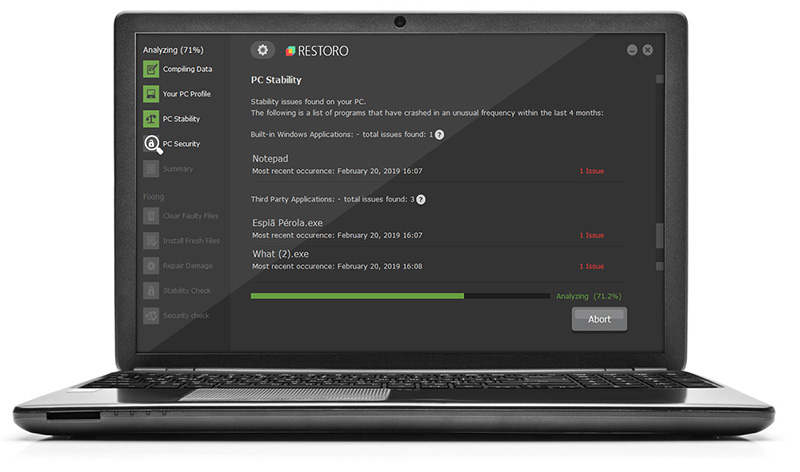
      3. After the scan is completed click the “Start Repair” button.
        restoro application screen

Do You Need Help with Your Device?

Our Team of Experts May Help
Troubleshoot.Tech Experts are There for You!
Replace damaged files
Restore performance
Free disk space
Remove Malware
Protects WEB browser
Remove Viruses
Stop PC freezing
GET HELP
Troubleshoot.Tech experts work with all versions of Microsoft Windows including Windows 11, with Android, Mac, and more.

Share this article:

You might also like

Fix Update Error 0x800705B3 in Windows
Some Windows users are encountering the 0x800705b3 error code after failing to install a pending update on Windows 10. Most commonly this particular issue is reported to occur with Integrated webcam drivers updates and Bluetooth adapter driver updates. Follow the guide below in order to fix the issue and update your Windows successfully

Running the Windows Update Troubleshooter

The majority of users that were dealing with this issue reported that the issue was fixed after they ran the Windows Update Troubleshooter and applied the recommended fix.
  1. Open a Run dialog box by pressing ⊞ WINDOWS + R. Inside the text box, type ‘ms-settings:troubleshoot’ and press ENTER to open up the Troubleshooting menu. Opening the Troubleshooting tab on Windows 10
  2. Once you’re inside the Troubleshooting tab, move over to the right-hand section of the screen and click on Windows Update (under Get up and Running). Next, from the context menu that just appeared, click on Run the Troubleshooter.
  3. Once you’re inside the Windows Update troubleshooter, wait until the initial scan is complete and see if a viable repair strategy is found.
  4. If the scan has identified a strategy with the potential to fix your ongoing issue, click on Apply this fix and wait until the procedure is complete. Applying the fix Note: Depending on the type of fix that was recommended, you might need to follow an additional set of instructions before the fix will be properly imposed.
  5. After you’ve done this, reboot your computer and wait for the next startup to complete.
  6. Open Windows Update once again and see if the installation of this pending update is now successful.

Installing the pending Update Manually

Whether you’re experiencing this issue with an integrated webcam driver or with anything else, chances are you’ll be able to circumvent the apparition of the 0x800705b3 error by using the Microsoft Update Catalog to find, download and install the pending update manually.
  1. Open your default browser and navigate to the root web page of the Microsoft Update Catalog.
  2. Once you’re inside the Microsoft Update Catalog, use the search function (top-right corner of the screen) to search for the update that is failing.
  3. After the search is completed and you get the list of results, look for an updated driver version that is compatible with your Windows version and CPU architecture.
  4. Once you manage to identify the correct Windows Update, click on the hyperlink associated with the update that you want to install, then click the Download button and wait for the process to complete.
  5. After the download is complete, use File Explorer to navigate to the location where you previously downloaded the update.
  6. When you get to the correct location, right-click on the .inf file and choose Install from the context menu that just appeared. Note: If you have multiple failing updates with the same 0x800705b3, repeat the instructions above with every Windows Update that you’re having trouble installing.
  7. At the end of this operation, reboot your computer and see if the problem is fixed at the next computer startup.

Enabling the Windows Installer Service

The Windows installer service is responsible for installing pending updates that get downloaded by the Windows Update component. If this service is disabled on your configuration, none of the updates waiting to get installed will get completed.
  1. Press ⊞ WINDOWS + R to open up a Run dialog box. Inside the text box, type ‘services.msc’ and press ENTER to open up the Services utility.
  2. Once you’re inside the Services screen, move over to the right-hand tab of the screen, scroll down through the list of services and locate the Windows Installer service. When you find it, right-click on it and choose Properties from the context menu that just appeared.
  3. Once you are inside the Properties screen of the Windows Installer services, access the General tab, click on the Start button to force-start the service. Note: If you can, also change the Startup type to Automatic via the associated drop-down menu. However, depending on your administrator settings, this might not be possible.
  4. Restart your computer and wait for the next startup to complete. Once your PC boots back up, attempt to reinstall the driver that was previously triggering the 0x800705b3 error and see if the issue is now fixed.

Performing a Winsock Reset

In case the 0x800705b3 error is related to some kind of network inconsistency (TCP or IP related), you might see Windows Updates failing due to bad data that forces the Windows to abort the installation of new pending updates. In this case, you should proceed by doing a complete Winsock reset procedure to fix the majority of the socket and temporary data-related issues that might cause this behavior. Several affected users have confirmed that this method was the only thing that allowed them to finally fix the Windows Update issue and install pending updates normally. Here are some step-by-step instructions that will walk you through the process of performing Winsock Reset:
  1. Open up a Run dialog box by pressing ⊞ WINDOWS + R. Inside the text box, type ‘cmd’, then press CTRL + SHIFT + ENTER to open up an elevated Command Prompt. Accessing an elevated CMD prompt Note: When prompted by the UAC (User Account Control) prompt, click Yes to grant admin access.
  2. Inside the elevated CMD prompt, type and taste the following commands in order and press ENTER after each one to effectively reset the TCP and IP data that might be responsible for the apparition of the 0x800705b3 error code:
    nbtstat -R
    nbtstat -RR
    netsh int reset all
    netsh int ip reset
    netsh winsock reset
  3. Once every command above is processed successfully, you can go ahead and close the elevated Command Prompt and reboot your computer.
  4. After the next startup is complete, repeat the installation of the Windows Update that was previously failing and see if the issue is now fixed.

Performing SFC and DISM Scans

If none of the ‘superficial’ causes have worked in your case, you should start considering some type of system corruption that might affect your computer’s ability to complete pending updates that are currently waiting to be installed. In case you find yourself in this particular scenario, you should run a couple of built-in utilities capable of fixing corrupted instances that might be currently affecting the Windows Update component. Our recommendation is to start with a simple System File Checker scan. An SFC scan will cross-check every Windows File against a local archive that maintains healthy copies. In case corrupted instances are found, this utility will swap the corrupted instance with the healthy equivalent.

Performing an SFC scan

Once the SFC scan is complete, reboot your computer and wait for the next startup to complete. After your computer boots back up, initiate a DISM scan. This utility works differently in the sense that it relies on a sub-component of Windows Update to download healthy copies for the corrupted Windows files that need to be replaced. Because of this, it’s important to make sure that you have a reliable Internet connection before initiating this operation.

Doing a DISM scan

After the DISM scan is complete, reboot your computer one final time and see if the issue is fixed once the next startup is complete.
Read More
Fix Windows Update Error Code 0x80246017
Updating your Windows 10 computer isn’t always as easy as it should be since there are times when you might encounter some errors along the way. One of these errors is the error code 0x80246017 that comes with the error message “WU_E_DM_UNAUTHORIZED_LOCAL_USER”. According to Microsoft, the cause of this particular Windows Update error is that “The download failed because the local user was denied authorization to download the content”. So if you got this error when you tried updating your computer, read on as this post will provide you some suggestions on how you can fix it. Before you troubleshoot the problem using the options given below, make sure that you are logged in as administrator. If you are already logged in as an administrator, follow each one of the options carefully.

Option 1 – Try to check the status of some Windows Update Services

  • Tap the Win + R keys to open the Run dialog box.
  • Next, type “services.msc” in the field and hit Enter or click OK to open Services.
  • From the list of Services, look for the following services and make sure that their Startup type is as follows:
    • Windows Update – Manual (Triggered)
    • Background Intelligent Transfer Service – Manual
  • After that, check if the Service status of the listed services above is set to Running. If they’re not, click on the Start button to start these services and then check if you can now enable the Windows Update service or not.

Option 2 – Try to grant Full Control of the System Volume Information directory

  • First, tap the Win + X key combination and then select Command Prompt (Admin) from the given menu.
  • After opening Command Prompt with admin privileges, type the following command and tap Enter to execute it:
c md.exe /c takeown /f "C:System Volume Information*" /R /D Y && icacls "C:System Volume Information*" /grant:R SYSTEM:F /T /C /L
  • Once the command is executed, it will run a batch of tasks and will show each one of their statuses on the command line window and once they’re done, exit Command Prompt.
  • Now restart your computer and see if it fixed the problem or not.

Option 3 – Try to disable your antivirus program or Firewall

Disabling the antivirus program or Firewall or any other security software installed in your computer is always a good idea you can try when the Windows Update process does not go smoothly. So before you try updating your computer again, make sure to disable the antivirus or security program and once the Windows Update is done, don’t forget to enable the antivirus program back again.

Option 4 – Try running the DISM tool

You can try running the Deployment Imaging and Servicing Management or DISM tool to fix the Windows Update error. Using this built-in tool, you have various options such as the “/ScanHealth”, “/CheckHealth”, and “/RestoreHealth”.
  • Open the Command Prompt with admin privileges.
  • Then type in the following commands and make sure to hit Enter right after you type each one of them:
    • Dism /Online /Cleanup-Image /CheckHealth
    • Dism /Online /Cleanup-Image /ScanHealth
    • exe /Online /Cleanup-image /Restorehealth
  • After that, wait until the process is finished and do not close the window as the process will probably take a couple of minutes.
  • Once it’s done, restart your computer.

Option 5– Run the Windows Update Troubleshooter

If the DISM tool didn’t work in fixing the error, you could also try running the Windows Update Troubleshooter as it could also help in fixing any issues related to Windows Update including the Windows Update error code 0x80246017. To run it, go to Settings and then select Troubleshoot from the options. From there, click on Windows Update and then click the “Run the troubleshooter” button. After that, follow the next on-screen instructions and you should be good to go.

Option 6 – Run Microsoft’s online troubleshooter

Running Microsoft’s online troubleshooter might also help you fix the Windows Update error code 0x80246017. This online troubleshooter is known to help in fixing Windows Update errors, it scans your computer for issues that might be causing the problem and then fixes them automatically.
Read More
Screensaver Timeout Settings
One of the cool and interesting features in Windows is the Screensaver which allows users to display animation or change the wallpaper automatically when the computer is not being used. This feature can also time out and lock your computer when it remains idle for quite some time. However, if you notice that the screensaver of your computer turns on a lot earlier, then you’ve come to the right place as this post will guide you on how you can change the timeout settings of the screensaver of your Windows 10 computer. Usually, the screensaver in Windows 10 is turned off by default, however, if some other user has turned it on or if you have turned it on, you can actually change the timeout settings of the screensaver using several methods. You can do it through the Personalization settings, Registry Editor, as well as the Group Policy Editor. Before you proceed with the instructions provided below, make sure that you create a System Restore point first. Once done, follow each one of the suggestions carefully to successfully change the Screensaver timeout settings in Windows 10.

Option 1 – Modify the timeout settings of Screensaver via Personalization settings

  • Open the Start menu and type “screen saver” in the field.
  • On the search results that appear, click on the “Change Screen Saver” option.
  • From there, you have the option to change the screen saver type, preview, open settings, change the wait time, as well as choose to display lock screen on your resume.
  • Now to change the timeout settings of your screensaver, you have to increase the wait time from 1 to 15 or anything that works for you.
  • Once done, click OK and exit to save the changes made.

Option 2 – Try to change the screensaver time via Registry Editor

The next option you can try to change the timeout settings in the screensaver is using the Registry Editor. To get started, follow these steps:
  • Tap the Win + R keys to launch the Run utility and type “regedit” in the field and hit Enter to open the Registry Editor.
  • Next, navigate to this registry path: ComputerHKEY_CURRENT_USERSoftwarePoliciesMicrosoftWindows
  • From there, right-click on Windows located in the right pane and select New > Key.
  • Name the key as “Control Panel” and right-click on it and select New > Key and then name it as “Desktop”.
  • Once done, click on the newly created Desktop key to highlight it.
  • After that, right-click on any empty space in the right pane and select New > String Value and then type “ScreenSaveTimeOut” and hit Enter to save it.
  • Now right-click on ScreenSaveTimeOut and select Modify and then set its value data in seconds.
  • Click on OK and exit the Registry Editor to save the changes made.

Option 3 – Change Screensaver timeout settings via Group Policy Editor

  • Tap the Win + R keys to open the Run dialog box and type “gpedit.msc” in the field and hit Enter to open the Group Policy Editor.
  • Next, navigate to User Configuration > Administrative Templates > Control Panel > Personalization.
  • Then look for a policy setting named “Screen saver timeout” and double click on it and then click on the Enabled option to enable it.
  • Add the screen timeout in seconds and click on the Apply and OK buttons to save the changes.
  • Restart your computer.
Note: If you want to disable the screensaver feature in your computer, you can always do so by disabling a policy setting named “Enable Screen Saver”.
Read More
Enable or disable Fast User Switching
When your computer is slow, you don’t have much choice but to wait until it gets done with a task at its own pace, albeit a slow one. So if you want to switch user accounts on your computer a couple of times daily, then a slow computer can get really irritating. What makes system processes slow is that the accounts have some programs or applications running and resources allocated to them. And besides, if your computer is already low on performance, it will kill the natural fluidic flow of the user. But worry not, for this post will guide you in switching user accounts with the help of some minor tweaks in your Windows 10 computer. To disable or enable Fast User Switching, you have two methods to do that using the Registry Editor and the Group Policy Editor. Either way, refer to the instructions laid out below.

Option 1 – Enable or disable Fast User Switching via Registry Editor

  • Tap the Win + R keys to open the Run dialog box.
  • After that, type “Regedit” in the field and tap Enter to open the Registry Editor.
  • Next, go to this registry key: HKEY_LOCAL_MACHINESOFTWAREMicrosoftWindowsCurrentVersionPoliciesSystem
  • Then right-click on System and select New > DWORD (32-bit) Value and name this newly created DWORD as “HideFastUserSwitching”.
  • Now double click on it. If you want to enable Fast User Switching, input “0” as the value, and if you want to disable it, input “1” as its value.
  • Restart your PC to successfully apply the changes made.

Option 2 – Enable or disable Fast User Switching via Group Policy Editor

Take note that this option will not work if you are using the Windows 10 Home edition since the Group Policy Editor does not come with Windows 10 Home. Refer to the steps below to enable or disable Fast User Switching using Group Policy Editor.
  • Tap the Win + R keys to open the Run dialog box and then type in “gpedit.msc” in the field and hit Enter to open the Group Policy Editor.
  • Next, navigate to this path inside the Group Policy Editor: Computer ConfigurationAdministrative TemplatesSystemLogon
  • Now double click on the configuration listing labeled as “Hide entry points for Fast User Switching” to open the configuration page.
Note: On the configuration page, you will see the following description:
“This policy setting allows you to hide the Switch User interface in the Logon UI, the Start menu, and the Task Manager. If you enable this policy setting, the Switch User interface is hidden from the user who is attempting to log on or is logged on to the computer that has this policy applied. The locations that the Switch User interface appears in the Logon UI, the Start menu, and the Task Manager. If you disable or do not configure this policy setting, the Switch User interface is accessible to the user in the three locations.”
  • From there, you can choose to enable or disable the Fast User Switching depending on your preferences. After you’ve selected, click OK and exit the Group Policy Editor.
  • Now restart your PC to apply the changes made successfully.
Read More
How to Fix Camera app Error code 0xa00f4243
Windows 10 has a UWP app for its Camera that you can use to take pictures and videos. However, if you suddenly encounter an error code 0xa00f4243 while using the Camera UWP app, then you’ve come to the right place as this post will provide some potential fixes that you can use to fix the problem. This kind of error could be due to an outdated or corrupted driver or a third-party program. When this error appears on the Camera UWP app, you will see the following error message:
“Close other apps. It looks as though another app is already using the camera. If you need it, here’s the error code: 0xA00F4243 (0xC00D3704)”
To fix the error code: 0xA00F4243 (0xC00D3704) in the Camera UWP app, you can try to run the Windows Store Apps troubleshooter or reset the Camera app or update or reinstall the driver or apply some tweaks in the Registry Editor. In addition, you can also try checking the Windows Services or run the System File Checker.

Option 1 – Try to run the Windows Store Apps troubleshooter

The Windows 10 Store Apps Troubleshooter will help you in fixing the Camera UWP app error code: 0xA00F4243 (0xC00D3704). This is a great built-in tool from Microsoft that helps users fix any app installation issues. So this is worth a try to solve the problem. This built-in tool also helps you fix the Windows 10 Store if it isn’t working. To use the Windows Store Apps Troubleshooter, follow the steps below.
  • Tap Win + I keys again to open the Windows Settings panel.
  • Go to Update & Security and then go to Troubleshoot.
  • Under the Troubleshoot section, on your left-hand side, scroll down to find Window Store Apps.
  • Then click on the Run the troubleshooter option and follow the on-screen instructions and then see if it fixes the problem.

Option 2 – Try to reset the Camera app to fix

As pointed out earlier, you can also reset the Camera app to fix the error. To do so, follow the steps below.
  • The first thing you have to do is go to the My Pictures folder under the C: drive of the File Explorer and then delete the Camera Roll folder.
  • Once you’re done, right-click on an empty area on your screen and create a new folder and name it “Camera Roll”.
  • Then from the Start menu open the Settings app and select System.
  • From there, navigate to the Apps and features section.
  • Now go to Camera and click on the Advanced Options and click the Reset button.

Option 3 – Try to reinstall the drivers for the Camera app

You might want to reinstall the Camera drivers as it could resolve the problem. To do so, refer to these steps:
  • First, boot your computer into Safe Mode.
  • After that, tap the Win + R keys to launch Run.
  • Type in devmgmt.msc  into the box and tap Enter or click OK to open the Device Manager.
  • After that, a list of device drivers will be displayed. From there, look for the driver listed under the Camera section and then, right-click on each entry of the device drivers and select the “Uninstall Device” option from the menu.
  • Now restart your computer.
  • After restarting your computer, go to the Settings app and Check for Updates in the Windows Update section.

Option 4 – Try to use the Registry Editor

  • Tap the Win + R keys to open the Run utility and type “Regedit” in the field and hit Enter to open the Registry Editor.
  • After that, navigate to this registry key: ComputerHKEY_LOCAL_MACHINESOFTWAREWOW6432NodeMicrosoftWindows Media FoundationPlatform
  • Here, look for a DWORD named “EnableFrameServerMode” and if you can’t see it, just create a new DWORD by right-clicking on any empty space.
  • Then select New > DWORD (32-bit) Value and name it as “EnableFrameServerMode”.
  • Double click on the newly created DWORD and set its Value data to “0” and click on OK.
  • Restart your computer and see if it fixes the Camera UWP app error code: 0xA00F4243 (0xC00D3704).

Option 5 – Try checking the Windows Services

Note that this option only applies to computers with Intel Hardware for the Camera.
  • Tap the Win + R keys to open the Run dialog box and type “services.msc” and hit Enter to open the Services Manager.
  • Next, look for the “Intel(R) RealSense(TM) Depth” service from the list of services and double click on it to open its Properties.
  • After that, change its Startup Type to “Automatic” and make sure it’s running and then click on the Apply and OK buttons to save the changes made.
  • Restart your computer and check if the problem has been resolved.

Option 6 – Try running System File Checker or SFC scan

System File Checker or SFC is a built-in command utility that helps in restoring corrupted files as well as missing files. It replaces bad and corrupted system files to good system files. To run the SFC command, follow the steps given below.
  • Tap Win + R to launch Run.
  • Type in cmd in the field and tap Enter.
  • After opening Command Prompt, type in sfc /scannow
The command will start a system scan which will take a few whiles before it finishes. Once it’s done, you could get the following results:
  1. Windows Resource Protection did not find any integrity violations.
  2. Windows Resource Protection found corrupt files and successfully repaired them.
  3. Windows Resource Protection found corrupt files but was unable to fix some of them.
  • Reboot your PC.
Read More
Quick Fix Guide for STOP 0x00000014 Error

What Is STOP 0x00000014 Error?

0x00000014 error is actually an error that is always displayed on a STOP message.

It is also known as Blue Screen of Death, abbreviated as BSOD. When this error occurs, the message that is displayed to the user either says ‘STOP: 0x00000014’ or states ‘CREATE_DELETE_LOCK_NOT_LOCKED’. It is crucial to fix this error to ensure your program is functioning appropriately. If this error message is not rectified, you might be opened to other error messages, such as error code 0x000000d1

Solution

Restoro box image Error Causes

As far as the causes of STOP 0x00000014 error are concerned, this error usually occurs when a device driver or hardware problem occurs. This error may also occur if users attempt to run some specific application or update or modify an existing application. When a 0x00000014 error occurs, the operating system restarts to disable the PC from performing any further.

Without taking into consideration the causes of its occurrence, it is crucial to make sure that the 0x00000014 error is fixed as soon as possible to eliminate any undesired inconvenience in the future.

Further Information and Manual Repair

A lot of times when an operating system tries to recover from the STOP 0x00000014 error, the user is prompted that Windows has recovered from an unexpected shutdown.

However, if Windows fails to recover on its own, manual repair has to be performed.

While there are several ways this error can be fixed, some of the most effective and efficient ways of troubleshooting the 0x00000014 error are listed below as follows.

  • Restart your computer. Often simply restarting the computer can help eliminate the problem.
  • If restarting the system doesn’t help, find if you have recently modified or altered any hardware or driver. It is possible that the 0x00000014 error has been caused by the recent modification. Undo the changes and find out if the error occurs again. If it doesn’t, it is highly likely the issue has been resolved.

However, if the error persists, some solutions that may work are outlined below.

  • Start your system using the Last Known Good Configuration. This will undo any changes in the driver and recent registry.
  • Another solution is to manually perform System Restore. This will also return the system back to its former state.
  • Another idea that my work is to use roll back the device driver. When the driver will return to its previous version, the problem will easily be resolved.

To keep the 0x00000014 error from occurring in the future, it is advised to unplug any newly installed hardware or reinstall any deleted software.

If you're not tech-savvy and wish to get this error code rectified in a jiffy, download a powerful automated tool and perform a computer scan.

Read More
A command is not recognized Error in Windows
A command is not recognized Error, what it is? If you are constantly using programs like CMD or DISM directly from the Run prompt, you might have wondered how they launched instantly and how is it that the Windows operating system is able to find them right away. For instance, when you create a shortcut of a program, the shortcut knows where exactly the program is located and launches it quickly. The Windows operating system keeps a list of paths where the most common system programs are located so when you use the Run prompt, it opens easily. The list kept by Windows is called the Windows Environment Variables. If something goes wrong with this list, the programs won’t work. So in this guide, you will be guided on how you can troubleshoot the problem where any command you use is not recognized as an internal or external command, operable program, or batch file. Before you start troubleshooting the problem, you need to make sure that the program you are trying to run really exists. In fact, this can also happen to the Run program which is pulled up using the Win + R shortcut. To check, go to C:\Windows\System32 and there, check if the program exists or not or you can also try searching for the EXE in the System 32 folder. After making sure that the program exists, refer to the instructions given below.

Modify the Windows Environment Variables:

  • Step 1: Tap the Win + X keys and then select System. After that, it will open the section where you can see all the properties on your computer.
  • Step 2: Next, select the Advanced system setting located on the left pane and click on the Environment Variables.
  • Step 3: After that, locate Path under the System Variables and select EDIT.
  • Step 4: Before you edit, you need to copy the entire string and paste it into the Notepad app so that in case something went wrong, you can paste it back.
  • Step 5: Next, look for the directory path, “C:\Windows\System32”. If you can’t find it, try adding a semi-colon at the end.
  • Step 6: Afterwards, click OK to save the changes made and then exit.
  • Step 7: Now restart your computer as all the paths are picked up when your computer restarts.
Note: Now all you have to do is to try executing the programs once again – the ones where you got the error, “ is not recognized as an internal or external command, operable program or batch file” every time you open them and then see if you can now open these programs or not.
Read More
Blue Screen of Death in Windows

Symptoms of Blue Screen of Death Errors

Symptoms of a blue screen of death problem are easy to identify: if you have a blue screen error, then your computer will display a blue screen. Also known as the infamous “Blue Screen of Death”, this screen will pop up when something goes horribly wrong with your computer. The screen displays cryptic information about the problem before automatically restarting the system.

Bluescreen Of Death Errors Solution

Download Available To Completely Repair Blue Screen of Death Errors

Recommended: Download the Automatic Repair Utility to correct this and other PC performance issues.

Restoro box imageBluescreen Error Causes

This one can be a bit more complex: blue screens are caused by hundreds of different things. In fact, any miscommunication between the hardware and software of the computer can lead to the dreaded Blue Screen of Death, blue screens reference a communication problem between the Windows operating system and the hardware in your PC.

Why do computer blue screens of death errors occur?

Most computer users have experienced a blue screen of death at least once in their life. But have you ever stopped to wonder why they occur? Blue screens of death can occur for a number of different reasons, but the most common reason is that your PC’s hardware failed to properly communicate with its software, resulting in a fatal error. If your video card, processor, hard drive, or any other vital system component encountered a serious communication error with your operating system, then your PC may automatically display the blue screen and shut down for its own safety. Blue screens can also occur as a self-protection mechanism if the PC is overheated.

Further Information and Manual Repair

Where do Windows blue screen errors come from?

Blue screen errors come from many different sources on your computer. However, the majority of blue screen errors seem to come from the Windows Registry, which contains important configuration information about the programs, data, and personal files on your PC. Windows constantly rely on the registry in order to operate normally, but since the registry is incredibly complex (it holds hundreds of thousands of files), errors naturally develop over time. Fortunately, registry errors are fixable. They can be repaired using special registry cleaning software. During a scan, registry cleaning software looks for any registry entries that have errors. Once these entries are found, the software automatically repairs each entry. In many cases, this can permanently repair the blue screen error and prevent blue screens from ever appearing again.

Blue screen Windows 7

Windows 7, despite being Microsoft’s most popular operating system to date, is not immune to blue screen errors. It’s more stable than previous versions of Windows, although many users will inevitably encounter blue screen errors in Windows 7. No matter which version of Windows you’re currently using, the error remains the same: the hardware on your computer has trouble communicating with the software, forcing the system to display the blue error message we all love to hate.

“Blue Screen of Death”

There’s a reason this error message is famously called the “blue screen of death.” Immediately after displaying a blue screen, the Windows computer will ‘die’, which means that it restarts itself. Another reason why the error could be called the blue screen of death is that it is often displayed at the end of a PC’s life cycle. As PCs get older and their hardware starts to fail, blue screen errors become more and more common. In real life, death isn’t reversible. In the computer world, blue screens of death certainly are. With the right software support – like Restoro – even the most novice computer technician can fix their blue screen errors and restore their PC to healthy working conditions.

Benefits Of Using Restoro, BSOD Error Codes

Restoro is one of the world’s most popular PC optimization programs. Used by professional PC technicians around the world, Restoro is a feature-rich software suite that has helped many PC users breathe new life into an old PC. Restoro optimizes computer performance in hundreds of different ways. It looks through the registry and repairs any erroneous entries it finds. It also hunts down and eliminates malware and goes to work with the press of a button. And most importantly for you – it’s also amazingly effective at repairing blue screen errors. Ready to experience the Restoro difference? Here are a few more advantages of our favorite software program:
  • Easy for anyone to use: A few years ago, only the most tech-savvy individuals could optimize their computer’s performance.  Everybody else had to pay for expensive tech support or simply buy a new computer. Thankfully, the software development community has come up with innovations like Restoro which are easy for anyone to use. Just click a button and your computer will be clean within minutes. The process could not be easier.
  • Surprisingly fast: There are hundreds of thousands of files in the Windows Registry. In spite of that fact, Restoro goes to work incredibly quickly. It scans the depths of your PC in an effort to uncover whatever is causing your blue screen errors. The entire scan is complete within just a few minutes, making it easy for anyone to scan their computer on a regular basis.
  • Free trial: It’s good to be skeptical. And if you don’t think Restoro will fix any of the errors your computer is experiencing, then that’s okay. However, when you download the free Restoro, you can instantly scan your computer for errors. If any errors are found during this scan, then you can repair these problems with the click of a button.
  • Fixes frustrating errors: Blue screen errors are incredibly frustrating. You can’t get any work done on your computer when experiencing a blue screen problem. For that reason, Restoro helps alleviate some of the most frustrating PC problems in the world today.
  • More than just blue screen repairs: Sure, blue screens are annoying. But they’re only one of many different errors that a PC can develop over time. Fortunately, Restoro does more than just fix blue screen errors. The software also identifies and repairs other problem areas on your PC, making it easy to optimize performance.
Ready to get rid of your blue screen errors – permanently? Restoro today!
Read More
Software review series:CodeTwo QR Code Desktop

What is a QR Code

QR code or if you want to be more technical Quick Response code is a two-dimensional code made of square dots creating a pattern that can be scanned via QR scanner and then interpreted. Usually, they are present on product packaging, on business cards, websites, etc. When you decode a QR code you can get a link to a website or link to a file or whatever, you can get text, image, email, contact information, etc.

QR Code Desktop Reader & Generator sample code

How to decode a QR Code? You can scan it with your mobile devices like iPhone, iPad, Android or Blackberry equipped with additional software for scanning QR Codes. You might want to check out tools like Barcode Scanner or Red Laser. If you don’t have a mobile device or you need to scan a barcode on your PC, simply use CodeTwo QR Code Desktop Reader & Generator.

How this program works

QR Code reading

CodeTwo QR Code Desktop Reader & Generator is a free tool that will let you quickly scan any QR Code from your screen – be it a part of the website, email, banner, or document. Simply run the program and hit From the screen on the top menu. Your standard mouse cursor will change into a cross to help you make a selection on your screen. Simply select an area with a QR Code and the program will automatically scan it. You can scan QR codes from websites, documents, movie files – you name it. You can also select an image file that contains a QR Code and the program will locate it automatically and decode it. To do that, simply click From file on the top menu of the program and select the desired image from your hard drive. If you have a file copied to your clipboard, or if you make a screenshot of a QR Code, QR Code Desktop Reader & Generator will let you decode those QR codes in one click. Just click From clipboard and the program will automatically locate and decode the QR code for you. That is not all, you can also use your camera to scan QR codes. If you have more than one camera, the program will let you choose which one to use. To use this option, simply click From webcam, and you will be able to scan QR codes with your recording device.

QR Code generation

  • CodeTwo QR Code Desktop Reader & Generator also acts as a QR code generator. Creating QR codes is as easy as reading them. Here is how to generate a QR code:
  • In the top menu, click Generate mode on and enter the text you want to translate into QR Code
  • Choose if you want to copy it to the clipboard or save it in a file. The QR Code will be scaled automatically, but you can resize it in the Size settings tab.
  • The resulting QR code can be used however you like. To name just a few options, you can:
  • Upload it to your blog/website which is especially useful for mobile users.
  • Print it on a poster, providing easily accessible links with more information on your event.
  • Send it in newsletters, or include it in your email signature.

QR Codes in email signatures

Inserting QR codes in email signatures lets mobile users quickly grab your contact details, or provides them with links so that they can get more information on your company or topic you were discussing. You can also provide your recipients with a link to QR Code Desktop Reader & Generator. This will help them easily decode QR codes when they open your email on a PC.

QR code

If you want to include a QR code automatically in email signatures throughout a whole organization, try CodeTwo central email signature management solution. It is a very useful tool, which enables you to unify email signatures on Exchange Server and Office 365 (Microsoft 365).
Read More
Fix GeForce Experience error code 0x0001
The GeForce Experience on graphics card manufactured by NVIDIA is an advantage for users who loves gaming as it makes enhances users’ gaming experience. However, there are times when it may also encounter some problems. One of the problems users may encounter is the error code 0x0001. This kind of error occurs when users open the NVIDIA GeForce Experience utility. Here’s the full content of the error message:
“Something went wrong, try rebooting your PC and then launch GeForce Experience, ERROR CODE: 0x0001.”
Errors like this one diminish the overall experience of users due to the fact that when this error occurs, the NVIDIA GeForce experience wouldn’t even start which renders its features useless. There are several potential fixes you can check out to resolve this error but before you check them out, you can try to restart your computer first and then open the NVIDIA GeForce Experience once again, if you still encounter the error, then you need to check the NVIDIA Display Driver Services or update your NVIDIA display drivers or switch to the BETA release. You could also try to install and reinstall the NVIDIA display drivers or perform System Restore and see if it helps. For detailed instructions, follow the given options below.

Option 1 – Try to check the NVIDIA Display driver services

  • Tap the Win + R keys to open Run and then type “services.msc” in the field and hit Enter to open the Services Manager.
  • From there, look for the following NVIDIA services and make sure that their Startup types are as follows:
    • NVIDIA Display Container LS – Automatic
    • NVIDIA NetworkService Container – Manual
    • NVIDIA LocalSystem Container – Automatic
    • NVIDIA LocalSystem Container – Automatic
    • NVIDIA GeForce Experience Service – Automatic (Delayed Start)
    • NVIDIA Geforce Experience Backend Service – Automatic (Delayed Start)
    • NVIDIA Telemetry Container service – Automatic
  • Next, double click on each one of the services and go to Properties. Here, check if the service is running. If it’s not, just click on the Start button. On the other hand, if they’re already running, just click on Stop and then click on Start again.

Option 2 – Try to update the NVIDIA Display drivers

You can also try updating the NVIDIA display drivers as it might help in fixing the error. To update them, follow the steps below.
  • Tap the Win + R keys to open the Run dialog box.
  • Next type in “dxdiag” in the field and click OK or hit Enter to open the DirectX Diagnostic Tool.
  • From there, you can see what type of NVIDIA graphics card that your system is on.
  • Take note of your graphics card information and then look for the best drivers for your operating system. Once you’ve downloaded and installed the file, restart your PC.
Note: If you want to try out the beta release of the NVIDIA display drivers, click on this link. Beware though that the beta software is unstable and buggy and may cause some different bugs.

Option 3 – Try to roll back the driver to the previous version

If updating the NVIDIA display drivers didn’t work for you, then it’s time to roll back the device drivers. It is most likely that after you updated your Windows computer that your driver also needs a refresh.
  • Tap the Win + R keys to launch the Run window and then type in the “msc” command and hit Enter to open the Device Manager window.
  • Under the Device Manager, you will see a list of drivers. From there, look for the NVIDIA Drivers and expand it.
  • Next, select the driver entries that are labeled appropriately.
  • Then select each one of them and double click to open a new mini window.
  • After that, make sure that you’re on the Driver tab and if you are not, just navigate to it then click the Roll Back Driver button to switch back to the previous version of the NVIDIA Drivers.
  • Now restart your computer to successfully apply the changes made.

Option 4 – Try to run System Restore

You could also run System Restore as it might help fix the error code 0x0001 in NVIDIA GeForce Experience.
  • Tap the Win + R keys to open the Run dialog box.
  • After that, type in “sysdm.cpl” in the field and tap Enter.
  • Next, go to the System Protection tab then click the System Restore button. This will open a new window where you have to select your preferred System Restore point.
  • After that, follow the on-screen instructions to finish the process and then restart your computer and then check if the error code 0x0001 in GeForce Experience is now fixed.

Option 5 – Do a clean install on the NVIDIA driver

  • Before you do a clean install on the NVIDIA driver, you have to download the latest version of the Display Driver first.
  • Boot your Windows 10 PC into Safe Mode.
  • After that, double click on the executable file of the Display Driver Uninstaller to run and install it.
  • After the installation, open the program. Once you do, you should see the following window on your screen:
  • In the program window, click on the “Clean and restart” button.
  • After your PC has rebooted, download the NVIDIA drivers.
  • Then select your Product Type, Product Series, Product, Operating System, and Language appropriate for your hardware specifications as well as personal requirements.
  • Next, click on Search to display the latest available driver as per the information you entered.
  • And click on Agree and Download to start downloading the latest driver executable file.
  • Run the executable file after you finished downloading the latest driver executable file and then select Custom and click on Next.
  • Afterward, select “Clean Install” and proceed. Doing so would install the latest driver on your PC.
  • Restart your PC and check if the error’s now fixed. If not, you can try installing an older version of the driver instead.
Read More
1 2 3 171
Logo
Copyright © 2023, ErrorTools. All Rights Reserved
Trademark: Microsoft Windows logos are registered trademarks of Microsoft. Disclaimer: ErrorTools.com is not affiliated with Microsoft, nor claims direct affiliation.
The information on this page is provided for information purposes only.
DMCA.com Protection Status