Logo

How to Fix the Error Code 28

Error Code 28- What is it?

The error code 28 is a driver error. This is one of the many device manager error codes. When this error occurs on your computer, the following message is displayed:

“The drivers for this device are not installed. (Code 28)”

Another driver device error message you might encounter is error code 41. 

Error Causes

Error 28 occurs because of unsuccessful device driver installation. This usually happens when you try to update new drive versions on your system. It is advisable to repair this error right away as it can hamper your ability to use certain hardware.

For example, if error 28 occurs due to the unsuccessful installation of the USB driver, then it if not fixed and resolved it may prevent you from using hardware devices.

Unsuccessful driver installation means you either didn’t install it properly or your computer has registry issues. If it’s the registry then you must fix it without any delay because it can expose your PC to serious threats like system crash and failure.

To avoid such inconvenience, repair it.

Further Information and Manual Repair

When it comes to repairing the error code 28, here’s what you can do:

Simply go to the control panel and click on the Device Manager option:

  • In the details pane with the list of devices, locate the device for which you want to reinstall the driver software.
  • Double click on it to open the properties dialog box.
  • Now click on the driver tab and then click update driver.

After updating, try using that device again if it doesn’t work and shows the error code 28 on your computer screen then this means the underlying cause is the registry.

Do You Need Help with Your Device?

Our Team of Experts May Help
Troubleshoot.Tech Experts are There for You!
Replace damaged files
Restore performance
Free disk space
Remove Malware
Protects WEB browser
Remove Viruses
Stop PC freezing
GET HELP
Troubleshoot.Tech experts work with all versions of Microsoft Windows including Windows 11, with Android, Mac, and more.

Share this article:

You might also like

Disabling the Recently Opened Files in Windows
The Windows 10 operating system comes with a user-friendly interface as well as better security features compared to its previous versions. One of these new features is the “Recently Opened Files” feature which displays all the files you’ve opened recently in File Explorer. Although it might seem useful, some users see this as a privacy concern especially if there are other users that use the same computer. If you are one of these users, read on as this post will guide you on how you can disable the “Recently Opened Files” feature in Windows 10. There are three ways you can disable the “Recently Opened Files” feature. You can manually clear the recent files, or disable the feature via Control Panel. You can also do it using the Group Policy Editor.

Option 1 – Manually clear the recent files

The first thing you can do is to clear the recent files manually. Since the information about the recently opened files is stored in the form of cached data, you can locate this data and delete it manually, from time to time. To do that, follow these steps:
  • Tap the Win + R keys to open the Run utility and copy this address in the field: %AppData%MicrosoftWindowsRecent
  • Next, tap the Ctrl + A keys to select all the items and then tap the Shift + Delete keys simultaneously.
  • After that, a prompt will appear where you have to click on Yes. This will delete all the recently opened files in the File Explorer the next time you open it.

Option 2 – Disable the feature via Control Panel

The next option you can try to disable the feature is via Control Panel. Refer to these steps to do so:
  • First, click on the Start Menu button and select the Settings icon.
  • After that, click on Personalization and then on Start located on the left pane.
  • Next, scroll down until you see the “Show recently opened items” in Jump Lists on the Start or the Taskbar and click on it and then toggle it off.

Option 3 – Disable the feature using the Group Policy Editor

If you are using the Windows 10 Pro version, then you have access to edit the functions in the Group Policy. The Group Policy function has the option that can disable all the default services of Windows 10. Note that in this step, you will permanently disable the “Recently Opened Files” feature. So before you proceed, make sure that you really want to disable this feature permanently and not in the meantime.
  • Tap the Win + R keys to open the Run dialog box and type “gpedit.msc” in the field and click OK or tap Enter to open the Group Policy Editor.
  • Next, on the left side pane, click on the “User Configuration” option and then click the “Administrative Templates” option.
  • After that, select the “Start Menu and Taskbar” option and select the “Don’t keep the history of recently opened documents” option in the right pane.
  • Now double click on this option and check the “Enabled” option and then click on Apply and OK buttons to save the changes made.
Read More
Microsoft acquires Activision Blizzard
In the latest news, Microsoft has reached a deal to purchase Activision Blizzard for 67.8 billion. Now franchises like Warcraft, Starcraft, Overwatch, Call of duty, Diablo are now the property of Microsoft and I am sure that some of these games we can expect to be included in the Xbox game pass. microsoft activision blizzardThis is the second large game company acquisition by Microsoft, Acquiring Bethesda first and a big hit to Sony since Xbox will now have more games in its catalog and as exclusives. Of course, the sale has to go through the standard closing conditions and completion of regulatory review and Activision Blizzard’s shareholder approval before it’s finalized. Assuming that all goes well, the deal is slated to be completed during the fiscal year 2023, which is July 1, 2022, through June 30, 2023.
Read More
Transferring characters in diablo 2 remake
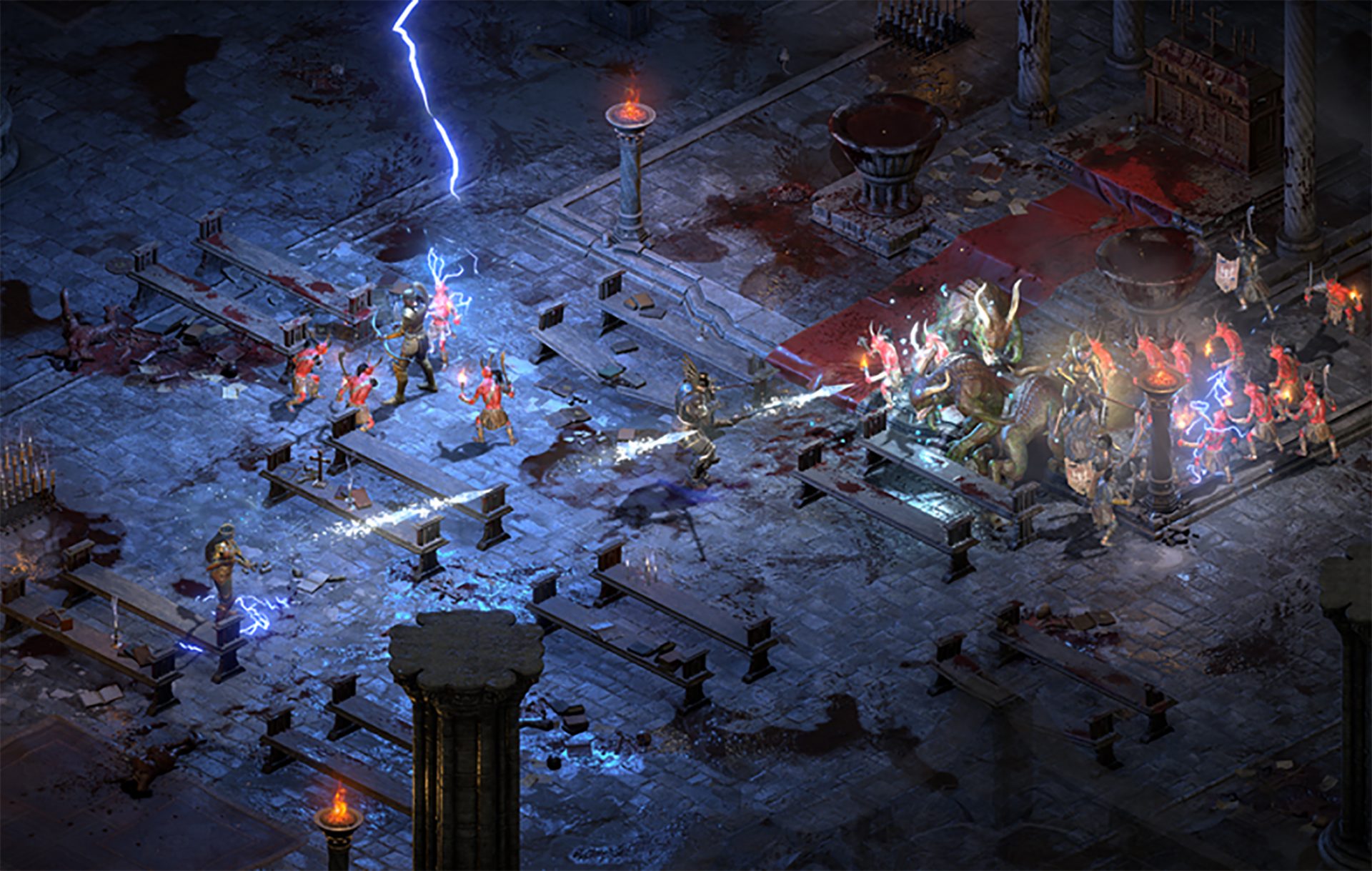
Diablo 2 resurrected has hit official release and servers seem to be finally taken care of and everything seems to be running smoothly now. The game also received great praise from gamers and attracted old players of the original Diablo 2 game. diablo 2 gameplaySpeaking of old players of old Diablo 2, they can transfer their old characters into remaster and continue playing them within this new great HD environment. There are some steps and requirements but we are here to help and transferred characters will bring full stash, inventory, and equipped items with them.

Requirements

There are not many requirements for this transfer to occur but they must be respected in order to be successful. The first thing is a minor requirement and somewhat annoying but it needs to be done, firstly fire up Diablo 2 resurrected and create a character, any kind of character with any kind of name, any kind of class. This strange requirement is to actually create a character folder and register it inside D2 resurrected so we can copy old ones there. The second requirement will be that characters that you wish to be transferred must be offline characters. Old battle net online characters cannot be transferred at this moment and probably will not be in the future as well. So for all of you that wish to transfer online characters, bad luck, for the rest of us casuals playing offline single-player mode, we can enjoy our characters.

Process of diablo 2 character trasfer

The process itself of transferring characters when previously mentioned requirements are met is just a simple and copy operation. If you have somewhere backed your characters go into your backup folder and copy files in c:\users\*current user*\saved games\*diablo 2 resurrected folder* If you do not have characters backed up and just have old Diablo 2 installed and playing it, you can go to c:\users\*current user*\saved games\*diablo 2 folder* and just copy all characters files into c:\users\*current user*\saved games\*diablo 2 resurrected folder* Your old characters end with .d2s extension, grab all that you want to transfer, and copy them into D2R. Take note that copied characters cannot be brought back into Diablo 2, once they are copied into Diablo 2 resurrected all further progress on them will be tied to the new game.

Conclusion

That’s it about the transfer process and requirements for it. Fire up the new game version and enjoy.
Read More
How to Fix DCOM Error 1084 on Windows
Distributed Component Object Model or DCOM is a module on Windows computers that allows computers to run programs over a network to another computer. It is a software component from Microsoft that allows COM objects to communicate with each other while that program is remotely running over the network. The COM Model is another extension of the DCOM model which both work together in order for the intended task to be executed. To make this module work, there are three components needed such as the Class Identifier or CLSID, the Programmatic Identifier or PROGID, and the Application Identifier or APPID. However, DCOM does not always work as expected as it could still encounter some errors. One of them is error 1084. Because of this error, the execution of programs in a remote computer on the network would be interrupted. So if you encounter the DCOM error 1084 when you try to start a service like running the DISM tool or in other scenarios on your Windows 10 computer, then this post could help you. Refer to the instructions given below to start troubleshooting the problem.

Option 1 – Try checking the status of DCOMLAUNCH Service or DCOM Server Process Launcher and its 3 dependencies

The DCOM Server Process Launcher service launches both COM and DCOM servers in response to object activation requests. This is why if this service is stopped or disabled, the programs that are using COM and DCOM won’t properly function. So you need to make sure that the DCOMLAUNCH service is running.
  • In the Cortana search box, type “services” and click on the Services icon to open the Services Manager. Alternatively, you can also tap the Win + R keys to launch the Run prompt and then type “services.msc” in the field and hit Enter to open the Services Manager.
  • Next, check the following services:
    • DCOM Service Process Launcher
    • Background Tasks Infrastructure Service
    • Local Session Manager
    • Remote Procedure Call (RPC)
  • Then right-click on each one of the services and click on their Properties.
  • After that, select Automatic from the drop-down menu of Startup Type and make sure that all the aforementioned services are Running.
  • Now click OK for each one of the services.

Option 2 – Troubleshoot the problem in a Clean Boot State

There are instances that some conflicting programs installed in your computer might be the one that’s causing DCOM error 1084. To identify which program is causing the problem, you need to put your computer in a Clean Boot State. To do so, follow the steps below.
  • Log onto your PC as an administrator.
  • Type in MSConfig in the Start Search to open the System Configuration utility.
  • From there, go to the General tab and click “Selective startup”.
  • Clear the “Load Startup items” check box and make sure that the “Load System Services” and “Use Original boot configuration” options are checked.
  • Next, click the Services tab and select the “Hide All Microsoft Services” check box.
  • Click Disable all.
  • Click on Apply/OK and restart your PC. (This will put your PC into a Clean Boot State. And configure Windows to use the usual startup, just simply undo the changes.)
  • From there, start to isolate the problem by checking which one of the programs you installed recently is the root cause of the problem.

Option 3 – Try to use the DISM tool

You might want to repair potentially corrupted files in your system as having them could also trigger the DCOM error 1084. To repair these corrupted system files, you can run the DISM commands:
  • Tap the Win + X keys and click on the “Command Prompt (Admin)” option.
  • After that, input each one of the commands listed below sequentially to execute them:
    • Dism /Online /Cleanup-Image /CheckHealth
    • Dism /Online /Cleanup-Image /ScanHealth
    • Dism /Online /Cleanup-Image /RestoreHealth
  • Once you’ve executed the commands given above, restart your computer and check if the DCOM error is now fixed.

Option 4 – Reset your computer

  • Tap the Win key or click on the Start button located in the Taskbar.
  • Then click on the Power button at the bottom right portion of the screen.
  • Next, press and hold the Shift key on your keyboard and then click on Restart. This will restart your Pc into the Advanced Startup options.
Note: Once you have access to the Advanced Startup options, you have to go to the setting which allows you to Reset your Windows 10 PC. All you have to do is select Troubleshoot > Reset this PC to reach the following screen Afterward, select either the “Keep my files” option and then proceed to the next on-screen instructions that follow to reset your Windows 10 computer without losing your files.
Read More
Fix Your PIN is no longer available in Windows
A recent update in Windows 10 has caused a couple of glitches. One of these glitches is having trouble signing into Windows 10. Some users reported that they were not able to sign in to their computers using a PIN and they weren’t also able to reset it either. If you are one of these users, then you’ve come to the right place as this post will help you resolve issues that you are having in signing in to your computer using your PIN or fingerprint with Windows Hello. When you encounter this issue, you will get an error message on your screen stating:
“Your PIN is no longer available due to a change in the security setting on this device on this device.”

To resolve this problem, you need to follow the steps laid out below carefully.

  • Step 1: The first thing you need to do is to make sure that you are using an administrator account. After signing in as admin, tap the Win + E keys to open the File Explorer.
  • Step 2: After that, under the View menu, enable Hidden items.
  • Step 3: Next, navigate to the following path:
C:\Windows\Service\Profiles\Local\Service\AppData\Local\Microsoft
Note: From there, you should see a folder named “Ngc”. This folder might be the one that’s causing the problem so you are going to fix it by making some changes. This folder contains all the files responsible for any PIN-related settings. So if you are not able to access the Ngc folder, or it has gotten corrupted for some reason during an update here’s how to fix it.
  • Step 4: Try opening the Ngc folder. If you are able to open it, just skip to step 11 but if you can’t open it and you got the “Permission Denied” error message, proceed to the next few steps.
  • Step 5: Right-click on the Ngc folder and select Properties.
  • Step 6: Under Properties, go to the Security tab and click on the Advanced button.
  • Step 7: Next, click on the Change link which corresponds to the Owner field.
  • Step 8: Then click on Object Types and ensure that everything is selected.
  • Step 9: After that, enter your username in the field. You can just use the email that corresponds to your Microsoft account or you can also use the Check Names button to verify it. Now click OK.
  • Step 10: You should now see a change in the owner's name. Just make sure that you enable the checkbox below it which is labeled, “Replace owner on subcontainers and objects” and then click Apply and close everything.
  • Step 11: Next, try opening the Ngc folder again. You should now be able to access it. After opening the folder, delete all of its contents and make sure that it’s empty.
  • Step 12: Restart your PC. After your computer has booted, go to the Account Settings and try setting up a new PIN. You should now be able to set up a new PIN and use it to sign in to your PC.
Read More
A 3 Step DIY Guide to Repairing Error 501

Error 501 - What is it?

Error 501 is an error code that sometimes may occur while you are using Internet Explorer on your Windows PC. The error message is displayed as:

'Error 501: Not implemented or not supported.'

Solution

Restoro box imageError Causes

It is difficult to narrow down the ultimate cause of error 501. This is because this error code can be triggered by multiple reasons such as:
  • Third-party confliction or due to an incorrect HTTP 1.1 setting
  • Improper program installation
  • Changes in the “LocalAccountTokenFilterPolicy” registry key
  • Corrupted Registry Database

Further Information and Manual Repair

The occurrence of this error regardless of what the cause is may cause a lot of inconvenience to you. And if not fixed on the time it can lead to system failure too. To repair the error 501, identifying the cause for the error really helps. By identifying the cause, you can easily select the most suitable solution to fix it.

Let us walk you through the solutions to fix error 501 timely:

Cause: Third-party conflicts or due to an incorrect HTTP 1.1 setting

Solution: If the above cause is the reason for error 501, this means the Local Policy Rights Settings have been altered. And because of that, Windows is not running your desired program. To solve this error simply log on to Windows as an administrator. Then run local computer policy snap-in. Open it and click on the computer configuration. Here you will see the Windows settings option. Click on it and then open security settings, local policies, and click on properties. Now in the add users section select the user which you want to add to the policy and save by pressing OK. After you’ve made changes, now try using internet explorer again. If this is the cause for the error pop, the error will not occur. If it still occurs then this means there is some other underlying cause for the error. Read on to find out.

Cause: Improper Program Installation

Solution: Error 501 may also occur due to improper program installation. The best way to resolve it is to uninstall recently installed programs.

Cause: Changes in the “LocalAccountTokenFilterPolicy” registry key

Solution: Sometimes during installation registry keys also get damaged or changed. If changes in the LocalAccountTokenFilterPolicy” registry key is the issue, then you need to alter the registry key ‘LocalAccountTokenFilterPolicy settings and its value. This key inside the registry database allows Windows to control the various access options that you have. However, due to wrong settings, it denies access and shows error 501 when you open Internet Explorer. To alter registry key settings can be tricky and complex if you are not a computer programmer. In such as scenario it is advisable to download Restoro. This is a user-friendly and multi-functional repair tool embedded with a powerful register cleaner. In addition to this, it also functions as anti-virus and a system optimizer.

Restoro Solution

Restoro is simple and easy to use. To operate this tool on your PC and to reset registry settings you don’t need any technical expertise or sound knowledge. Its smooth navigation makes it easy for users to scan and repair errors like 501 due to registry misconfiguration in seconds.  With this helper, you don’t have to modify Windows registry settings manually. It will do it automatically. Furthermore, if Error 501 is triggered by a corrupted registry database, you can run it to repair this issue too. It cleans and wipes out all the unnecessary and obsolete files that could be corrupting your registry. This includes junk files, internet history, and invalid registry entries. It clears up your hard disk space and repairs your corrupted registry. If your PC’s registry is damaged due to malicious software like viruses and malware, then it uses advanced antivirus to remove them from your system. It has a value-adding backup feature that enables you to create a backup of your files for data safety and recovery in case of loss during repair. Restoro is compatible with all Windows versions.

Starting with Restoro

Here are 3 simple steps to get started:
  1. Click here to download Restoro.
  2. Once the installation is complete, run it to scan for errors
  3. After scanning the errors, simply click repair to resolve the issues including the error code 501.
Along with fixing error code 501 triggered by registry damage, it also repairs all other PC-related issues. It helps maintain a stable and error-free system for the longest time.
Read More
Fix Can’t initialize disk in Windows 10
If you have recently installed a new internal or external hard drive or SSD and you’ve noticed that its status on the left side of the Disk Management tool states “Unknown Not Initialized”, this indicates that Windows can’t initialize the disk and that you won’t be able to use this new SSD or hard drive. You can encounter this kind of issue randomly and not just with a new hard drive or SSD but also with existing drives. There are times when you won’t be able to find your drive or partition in the File Explorer. In such a case, you have to check the Disk Management if your drive or partition is there physically. You also have to check if you can see it as Not Initialized. If it is, then this means that the disk or partition does not have a valid signature that is if it’s not registered with the system properly. Note that a disk is registered when you format it at least once so if the disk was available before, then it could be somehow corrupted. To resolve the problem, you can try to initialize the disk manually or bring it online and add a drive letter. You can also try checking the Device Manager for issues or check the cable physically.

Option 1 – Try to manually initialize the disk

Since initializing the disk is the most common way to resolve the “Unknown Not Initialized” error, this is what you have to try first.
  • To initialize the disk manually, you have to open the Disk Management from the WinX menu by tapping Win + X keys and selecting Disk Management.
  • From there, you can find the non-initialized disk. Right-click on it and select the “Initialize Disk” option.
  • Next, select the partition style. It is recommended that you use the MBR option instead of the GPT or GUID Partition Table.
  • Now click the OK button. Your hard drive or SSD should now initialize without any problem.

Option 2 – Set the disk Online and add the Drive letter

  • If the disk appears to be offline under Disk Management, right-click on it and select the Online option.
  • On the other hand, if the disk is already set Online but does not have a drive letter, right-click on it and select the Change drive letter and path option.
  • Select a letter that is not allocated yet.
  • Once you’re done, you have the option to format the disk in either NTFS or FAT32 but if you are using a 64-bit computer, make sure that you opt for NTFS.

Option 3 – Try to check any issues in the Device Manager

It is also possible that the hard drive is not working properly due to some driver issues. Thus, it’s better if you check the Device Manager and see if that drive is listed with a yellow exclamation mark next to it. And if that’s the case, you have to right-click on that drive and select the Uninstall drive option. After that, click on Action and then run the Scan for hardware changes. It should fix the problem.

Option 4 – Try to physically check the cable

You might also want to check the physical status of the wires and see if they are connected properly or not. Specifically, you have to check two cables, such as:
  • The first one is the power cable that’s connected to your SMPS.
  • Next is the one that’s connected to your motherboard.
If any of the two cables are not working or missing, then it’s no wonder why your drive has an “Unknown Not Initialized” status. Thus, you need to have them replaced to fix the problem.
Read More
Coller Master HAF 700 evo

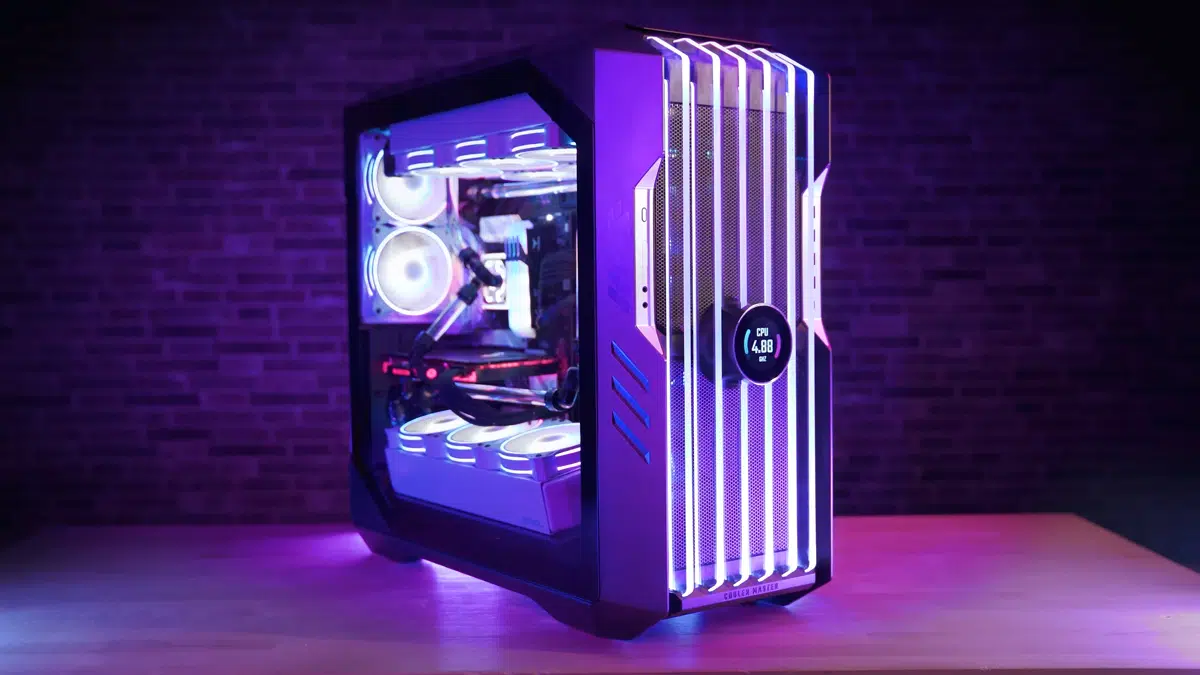
The New and upcoming HAF 700 Evo from Coller master is a beast of a case, but so is its price. The case itself is still not released but as sources say it will be soon, well at least we hope so. The price will be around $500 which is a little on the expensive side of things but the features it is bringing are very impressive.

cooler mster haf 700 evo

HAF 700 EVO Size and its advantages

HAF stands for High Airflow and with this case, you are going to get it but first let us talk about other characteristics of the case. Firstly case is ATX full tower, pretty big going 24.64 x 11.45. x 26.22 inches in size but like all full tower cases it can hold all motherboard types including Mini-ITX, Micro-ATX, ATX, E-ATX. The large case size also lets you place a pretty big GPU, going to 19.29 inches (490 mm) in its length covering currently all available Graphic cards on market.

Being a very big computer case is not just placing motherboard and big GPU, there are other great advantages of it, firstly that you can go wild with your CPU cooler, going all the way to 6.5 inches in cooler height will satisfy all users and having 12x 2.5 or 3.5-inch internal bays will. And if even that is not enough you have 8 expansion slots available.

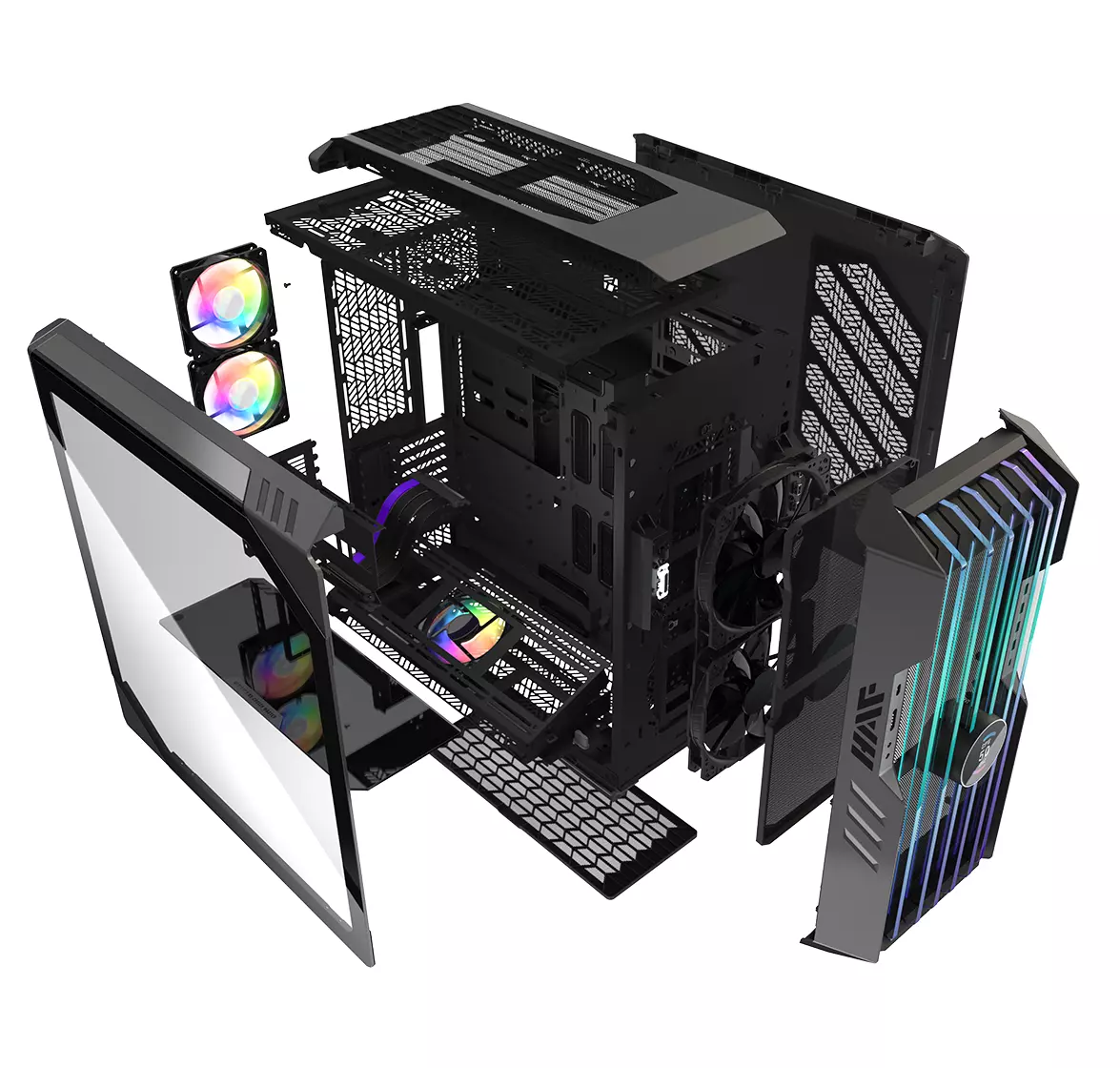
Inside HAF 700 EVO

haf 700 evo inside

Inside the casing you will also find 2 front fans with 200mm diameter, 2 rear fans sized 120mm, and 1 bottom fan of 120mm. You can also manually mount standard 120mm fans on top of the case for maximum airflow.

Front panel and outsides

The front side is filled with 4x USB 3.2 Gen 1 Type-A (5 Gbps), 1X USB Type-C (up to 10Gbps), 3.5mm both headphone and audio jack along with a reset switch. Also, the circle in the very front is a hi-resolution LCD customizable display, you know, just to add more flavor and personal touch to the case. Fron is also filled with glass panels emitting RGB light.

Of course, you must also have a Tempered Glass Side Panel and well weight of 53.57 pounds (24.3 kg), yup you read that correctly, beside its hefty price tag this cooler master beast also is pretty heavy. Granted all of the weight comes from the glass front panel it is still a little hard on moving and taking out of the box.

This is also the case where you will not need a single screwdriver, everything is made to be assembled with your hands alone pushing easy assembly into the front row.

Conclusion

So in the end what are my thoughts about this expensive and heavy PC case? Would I recommend it? The answer to that question could depend really on your budget, let us be really honest here if you can afford it, YES, wholeheartedly I would recommend the case, it is great, it feels great, it looks great and the airflow is amazing. However, if you are tight on a budget, there are other great cases with excellent airflow and you might want to skip this one.

Read More
How to Fix Windows 10 Error 0x8007007b

Error code 0x8007007b - What is it?

Error code 0x8007007b will present itself when Windows users are trying to activate Windows. You may try to activate it through the update and security option, but it is likely that you will receive the same error code. Error code 0x8007007b may be presented when Windows 7 and Windows 8.1 users try to upgrade and activate Windows 10 on their computer.

Common symptoms include:

  • An error message will display that says Windows cannot be activated. The KMS host cannot be located in the DNS, please have the system administrator verify that the KMS is published correctly in DNS.
  • Error 0x8007007b will be displayed, stating that the file or directory name or the volume label syntax is not correct.

Solution

Restoro box imageError Causes

There are multiple causes for the user to see this error code, including if a user is using volume-licensed media while installing a number of various Windows operating systems. This error may also be caused because the activation wizard cannot connect to a KMS host computer. It is likely that if the user has a volume-licensed form of media, they were likely given a MAK (multiple activation keys).

Further Information and Manual Repair

There are several ways to go about repairing error code 0x8007007b. It is important to try all of the methods, but if it is too difficult or you do not know what you are doing, please do contact a Windows repair technician. They will likely be able to fix the problem with ease.

Method One: Instead of KMS activation, use a Multiple Key Activation

When KMS activation is not used, and when there is not a KMS server, the product key type should then be changed to a MAK. For MSDN (Microsoft Developer Network) or TechNet, the SKUs that are listed on the media are generally volume-licensed media, and that means that the product key that is supplied is a Multiple Activation Key.

To change the KMS to a MAK, click Start, All Programs, Accessories, and then right-click on Command Prompt. Click Run as Administrator. If prompted for a password or confirmation, enter it now.

When the command prompt opens, type in the following command, and press enter after:

slmgr -ipk xxxxx-xxxxx-xxxxx-xxxxx (these x's are representative of the MAK product key).

Method Two

While on the desktop, press the Windows key and R. The Run window should appear, and then you should enter the following command: Slui 3. Press Enter and then wait for the window to appear. This window will ask for the operating system activation product key. Enter the product key and then press the Activate button. Reboot the computer. Now the Error Code 0x8007007b should be gone.

Method Three

Open the Command Prompt with access as administrator as mentioned previously. Enter the following command: sfc /scannow. The command will then complete its task. This will take a good bit of time, so leave the computer to do its work. The sfc must finish the scan. When the scan has finished, reboot the computer. Now you can check for activation. The error code should be gone.

Method Four: When the client can't locate a KMS host on the network to complete activation

This method for correction should be used when the network does have a KMS host computer setup, and the client is not able to locate the KMS host on the network to complete activation.

To verify that the computer does in fact have the KMS host installed. Click Start, All Programs, Accessories, and then right-click on Command Prompt. Run as administrator. If you are now prompted to enter a password or confirmation, do so. When the command prompt box comes up, type in the following command, and then press Enter: nxlookup -type=all_vlmcs._tcp>kms.txt

The command will generate a file, open this KMS file. The file will contain one or more entries. As a default, the KMS host server will dynamically register a DNS SRV server evidence once every 24 hours. In order to check the registry to ensure that this is happening, follow these steps:

  • Click Start, type in regedit, and then press Enter.
  • Locate the key HKEY_LOCAL_MACHINESOFTWAREMicrosoftWindows NTCurrentVersionSL and then click on it.
  • The DisableDnsPublishing subkey should be present and have a value of 1. If it is missing, create a DWORD value by right clicking DisableDnsPublishing, click Modify, in the Value Data box type in 0, and then click Okay.

Method Five: Use An Automated Tool

If you wish to always have at your disposal a utility tool to fix these Windows 10 and other related issues when they do arise, download and install a powerful automated tool.

Read More
How to Fix Logon.scr Application Error

Logon.scr Application Error - What is it?

To understand Logon.scr application error, it is first important to understand the function of logon.scr. Logon.scr is an important file that is located in the Windows\System32 folder. It guarantees Windows systems stability. Logon.scr application error occurs when logon.scr file gets corrupt. It is a common system error that can happen in most Windows platforms. It usually pops up during system start-ups and when trying to launch certain programs. Some of the common systems of this error code include: system halt, freeze, no application icons are visible on the desktop, random blue screen of death and system performance decreases dramatically.

Solution

Restoro box imageError Causes

Two of the most common causes of logon.scr application error is:
  • Corrupted and damaged logon.scr file
  • Viral infection
It is advisable to fix this error code immediately because it leads to serious damages. It is fatal and can result in a system crash; therefore resolve it right away.

Further Information and Manual Repair

To resolve this issue on your computer you don’t have to spend hundreds of dollars to hire a professional for the job. The good news is that it can be repaired easily and does not require any technical expertise. Here are some of the most effective and easy DIY methods to resolve the error on your screens.

Method 1 - Replace the Damaged and the Corrupted Logon.scr File

Whether the file gets corrupted or is accidentally deleted, the best way to fix the issue is to download the Logon.scr file again from a reliable website and install in the following location C:\Windows\System32. Alternatively you can also get the file copy form another proper functioning computer by using flash drive if you don’t have an internet connection to download the logon.scr file online.

Method 2 - Restore Points by Applying System Restore of Windows

Another way to resolve this is to restore points to bring back your system to the previous state before the error occurred. To do this, simply click the start button and type ‘System Restore’. Now click System Restore in the result and click next. Select the restore point in the list and click the next button to proceed. To activate changes reboot your PC.

Method 3 - Scan and Remove Viruses

If Logon.scr application error still persists, then it could be due to viruses. To resolve, install a powerful anti-virus. Scan your entire PC and remove viruses.

Method 4 - Repair the Registry

Corrupt and damaged Logon.scr file also triggers issues with the registry. DLL files and other important files like Logon.scr application files may get damage due to too many bad and invalid registry entries. Registry stores all the activities performed on the PC including unnecessary files like junk files and cookies. If these are not removed timely, these files accumulate and corrupt important files. Therefore, to fix the error it is advisable to clean and repair the registry. The best way to go about is to download Restoro. This is a user-friendly and multi-functional PC Fixer deployed with a registry cleaner. It scans for all registry errors and removes all the invalid entries. It cleans the registry and repairs the damaged files thereby resolving the issue in seconds. Click here to download Restoro and resolve the Logon.scr application error now!
Read More
1 2 3 171
Logo
Copyright © 2023, ErrorTools. All Rights Reserved
Trademark: Microsoft Windows logos are registered trademarks of Microsoft. Disclaimer: ErrorTools.com is not affiliated with Microsoft, nor claims direct affiliation.
The information on this page is provided for information purposes only.
DMCA.com Protection Status