Logo

Patch for Windows Error Code 41

Code 41 - What is it?

Poor PC maintenance can lead to error message pop-ups like error code 41. Code 41 is one of the several Device Manager Error codes.

This error indicates 2 things: issues with the device driver for the hardware you wish to use, or the hardware device is not properly attached to your system.

The error code 41 is usually displayed in the following format:

“Windows successfully loaded the device driver for this hardware but cannot find the hardware device.”
Code 41

Solution

driverfix boxError Causes

For successful installation of a new hardware piece, it is imperative to follow the installation routine correctly and allow it to complete properly, especially with USB devices.

This is important largely because if installation is not followed and executed properly, code 41 can pop up.

Code 41 is also related to device driver problems. It can occur if your system device drivers are outdated. Also, if the device is a CD/DVD drive, code 41 can occur due to conflicts with 3rd party disc burning software.

Although Device Manager Error code 41 is not detrimental, it is still advisable to repair it as quickly as you can. Code 41 can negatively affect your PC. It can:

  • Lower your PC’s Performance
  • Limit your ability to use your desired piece of hardware device

Further Information and Manual Repair

As compared to the blue screen of death errors, Device Manager Error codes are much easier to resolve.

Here are some of the best, effective and easy-to-resolve methods to help you fix code 41 on your PC, in a few minutes.

To work around these methods, you don’t have to be a technical whiz or a computer programmer. Simply follow these steps to resolve:

Method 1 - Uninstall Faulty Drivers and then Reinstall

To repair code 41 on your system, try uninstalling problematic drivers and then reinstalling new drivers. To do this, follow these instructions:

  • Click the start button
  • Then type Device Manager in the search bar and press enter
  • Once the Device Manager opens, look for problematic devices
  • Click on the device whose driver you wish to uninstall
  • Double click to uninstall
  • Windows will prompt you to confirm the device removal
  • Accept changes and confirm by clicking on OK
  • Now reboot your PC to activate changes
  • The next step is to reinstall the driver properly. To do this, simply follow the same steps. Once you access the Device Manager,
  • Click on the Action tab in the toolbar
  • After that select the option ‘Scan for Hardware Changes’

This will hopefully resolve error code 41 on your system and you will be able to use your desired hardware device without any hassle. Nonetheless, if the error code continues to persist, try other methods illustrated below.

Method 2 - Replace the Hardware or Try Reattaching it to your System

Sometimes the error may pop up due to poorly configured devices. This is common if it is a plug-and-play device. The best way to resolve is to remove the device, reattach it properly, and then try using it again.

However, if the problem is with the hardware, then it is advisable to replace the hardware with a new device compatible with your Windows version.

Method 3 - Update the Drivers Manually

If the underlying cause for error code 41 is outdated or corrupted drivers, then it is advisable to update the drivers.

However, when updating drivers and ensuring that the newly installed drivers work perfectly, make sure you install versions that are compatible with your device and Windows. Incompatible drivers are no good.

You will continue to face Device Manager Errors if you install incompatible drivers.

To update drivers, here’s what you have to do:

  • Identify the problematic drivers
  • Go to the Device Manager and locate all drivers with yellow exclamation marks
  • Now install new and compatible driver versions from the manufacturers’ site

Method 4 - Download Driver Assist to Update Drivers Automatically

Updating drivers manually will take time, so perform this task when you are free and have nothing else on your mind. However, if you wish to resolve the issue immediately and have the time to invest in manual updates, then consider downloading DriverFIX.

DriverFIX is a feature-rich and an innovative software program deployed with an intelligent programming system and intuitive technology.

It is exclusively designed to resolve PC device driver problems. Once installed on your system, it scans your PC and identifies problematic drivers.

After that it matches latest and compatible driver versions and updates them  immediately within a few seconds. DriverFIX updates drivers both automatically and on a regular basis.

Click here to download DriverFIX to update drivers and repair error code 41.

Do You Need Help with Your Device?

Our Team of Experts May Help
Troubleshoot.Tech Experts are There for You!
Replace damaged files
Restore performance
Free disk space
Remove Malware
Protects WEB browser
Remove Viruses
Stop PC freezing
GET HELP
Troubleshoot.Tech experts work with all versions of Microsoft Windows including Windows 11, with Android, Mac, and more.

Share this article:

You might also like

A Guide to Fixing Error Code 80070490

Error Code 80070490 - What is it?

This error 80070490 code may occur when you try to update your PC either through the Microsoft Update website or with a Windows update. The error message is displayed in the following format:
Error 80070490 (Element not found)

Solution

Restoro box imageError Causes

Error Code 80070490 is triggered because of a couple of reasons. It indicates the file CBS Manifest that is needed to install Windows update is corrupt or damaged. CBS (Component Based Servicing) Manifest is the file that is used to help your computer recognize various components inside your PC. Another reason for error occurrence is registry corruption. If the registry that stores all the information and activities performed is not cleaned frequently, the obsolete files saved in the registry like the junk files, bad entries and cookies eventually accumulate and corrupt it thereby generating such error codes.

Further Information and Manual Repair

Here are some effective and proven methods that you can try by yourself to resolve error code 80070490 on your PC.

Method 1 - Use the System Update Readiness Tool

Download the System Update Readiness Tool from the Windows website and run it on your PC. This tool is designed to detect and scan for abnormalities and inconsistencies that could be preventing and causing problems during the system update. Once you have downloaded and scanned your PC, try to install the updates again. If the error still persists, try other methods illustrated below.

Method 2 - Repair Windows

Here are the steps that you need to follow to repair Windows:
  • First, close all programs and then reboot your PC. Insert the Windows DVD into the computer’s disk drive and wait for the setup to begin.
  • If for any reason, the setup doesn’t start automatically, then don’t worry simply click start, then type Drive: setup.exe in the search box. Please note, in the drive insert the letter of your computer’s DVD drive for example D:setup.exe.
  • Now in the programs list, click setup.exe  And then click install now.
  • After that click ‘go online to obtain the latest updates for installation’, if you are asked for the Windows Product Key, then simply type it to proceed.
  • In the ‘Which kind of Installation do you want?’ option, click Upgrade.
When the Windows installation is complete, restart your PC and then run Windows update.

Method 3 - Clean the Registry

If the cause of error code 80070490 on your PC is related to registry corruption, then it is advisable to download Restoro. This is an advanced and easy-to-use PC Repair Tool embedded with a registry cleaner. The registry cleaner scans your entire PC, removes all obsolete and unnecessary files corrupting the registry, and cleans it right away. Click here to download Restoro to repair error code 80070490
Read More
Personalize Windows 11 Start menu
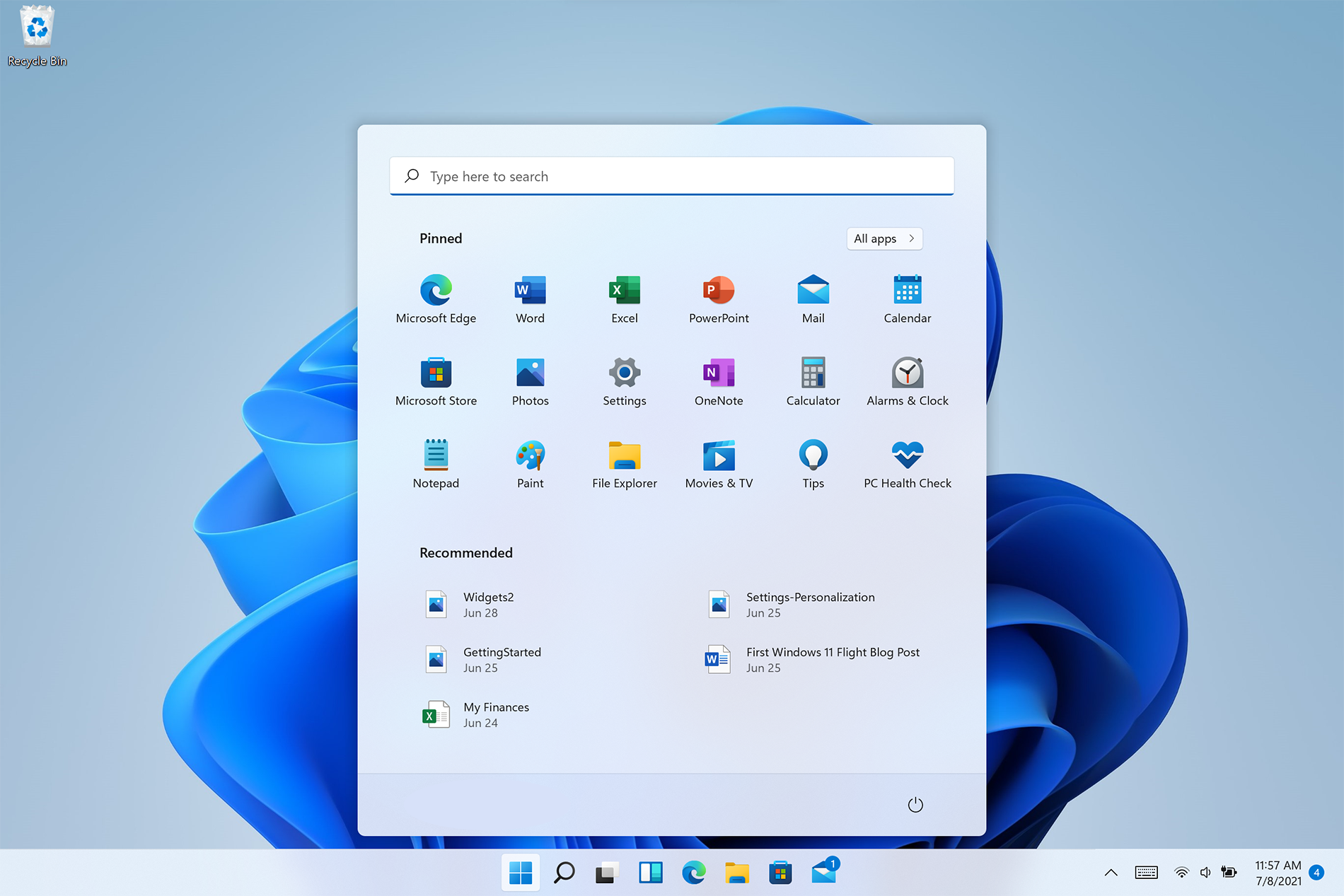
Windows 11 is released and its adoption goes slower than Microsoft would like but nevertheless, it is slowly getting adopted, especially among new computers. Windows 11 has brought us a new modern look of OS but if you would like to personalize it a little more you can. Follow the guide on various things that you can change inside Windows 11.

windows 11 desktop iconsPersonalize list of recently added apps, opened items, folders

The recommended section that shows recently added apps and recently open items can be turned off and hidden now to be shown. In order to do this follow these steps:
  1. Open Windows Settings by pressing WINDOWS + I
  2. Click on personalization in the sidebar
  3. Click on START and go through the options
  4. Turn OFF switch beside recently accessed files
  5. Additionally, you can also change which folders appear on the Start menu.

Remove apps or change app order on the Start Menu

To remove application not to be shown in the Start menu at all follow this simple guide:
  1. Right-click on app
  2. Choose unpin
  3. To place the application on Start click on All Apps, right-click on the app and choose Pin to Start
  4. To drag and rearrange apps, simply click on them and drag them to the new place.

Change the Start Menu location

When Windows 11 was first released Start Menu could only be located in the middle of the screen but thanks to plenty of backlash from users now it is possible to move it on a more traditional left side.
  1. Press WINDOWS + I to open the settings app
  2. Click on Personalization
  3. Look for taskbar behaviors
  4. Inside taskbar behaviors look for Taskbar alignment
  5. Change alignment to left

Change the Start Menu color

In order to change the color of the Start Menu follow the next steps:
  1. Open Settings app
  2. Go to personalization settings
  3. Go to Colors
  4. Switch to custom
  5. Under accent color pick a color you like or make your custom one.
Read More
Easy Directions Finder Removal Guide for Windows PC

Easy Directions Finder is a browser extension developed by Mindspark Inc. for Google Chrome. This extension offers users quick access to popular websites for navigation and evens. While at first glance this might look useful, keep in mind that this extension has been marked as a Browser Hijacker by several anti-virus applications.

When installed EasyDirectionsFinder will record your browsing history, visited links, clicked URL-s, and viewed products. This data is later forwarded/sold to Mindspark's ad network and used to better target ads to users.

While browsing the internet with this extension installed (it does not have to be enabled) you will see additional injected ads, sponsored links, and pop-up ads throughout your browsing sessions. Due to its information mining behavior and aggressive ad injections, it is recommended to remove this extension from your computer.

About Browser Hijackers

Browser hijacking is a type of unwanted software, often a web browser add-on or extension, which causes modifications in web browser’s settings. Browser hijackers are capable of doing more than just modifying homepages. In general, browser hijacking is utilized for earning advertising revenue from forced ad mouse clicks and site visits. While it may seem naive, all browser hijackers are dangerous and thus always classified as security risks. When the malware attacks your laptop or computer, it starts to mess things up a whole that slows your system down to a crawl. In the worse case, you may be pushed to deal with serious malware threats as well.

How one can know whether the web browser is hijacked?

The common symptoms that suggest having this malicious software on your computer are: the browser’s home page is modified; you find yourself regularly directed to some other webpage than the one you actually intended; the default web browser settings have been modified and/or your default search engine is altered; unsolicited new toolbars are added to your web browser; your internet browser displays endless pop-up ads; web pages load slowly and often incomplete; you can’t navigate to certain webpages, like computer security software related sites.

So how does a browser hijacker infect a computer?

Browser hijackers may use drive-by downloads or file-sharing networks or an e-mail attachment in order to reach a targeted PC. They could also be deployed via the installation of an internet browser toolbar, add-on, or extension. A browser hijacker could also come bundled up with some freeware that you unintentionally download to your PC, compromising your internet security. Some of the most popular hijackers are EasyDirectionsFinder, Babylon Toolbar, Conduit Search, Sweet Page, OneWebSearch, and CoolWebSearch.

Browser hijacker removal tips

Some browser hijacking could be easily reversed by discovering and eliminating the corresponding malware software through your control panel. Sometimes, it can be a tough task to discover and eliminate the malicious component since the associated file will be running as part of the operating system process. Moreover, browser hijackers could modify the Computer registry therefore it can be quite tough to restore all the values manually, especially when you’re not a very tech-savvy individual. Industry experts always suggest users eliminate any malware including browser hijacker with an automatic removal tool, which is better, safer, and quicker than the manual removal solution. SafeBytes Anti-Malware could counter persistent browser hijackers and give you active PC protection against all types of malware. Together with the antivirus tool, a PC optimizer, such as SafeBytes Total System Care, can help you in deleting all related files and modifications in the computer registry automatically.

How To Get Eliminate Malware That Is Preventing Antivirus Downloads?

Malware could cause many different types of damage to computers, networks, and data. Some malware sits in between the computer and the internet connection and blocks a few or all sites that you really want to visit. It will also prevent you from adding anything to your PC, particularly anti-virus applications. So what to do when malicious software prevents you from downloading or installing Safebytes Anti-Malware? There are a few actions you can take to get around this issue.

Boot your computer in Safe Mode

If any malware is set to load immediately when Microsoft Windows starts, getting into Safe Mode could very well block the attempt. Since only the minimal programs and services launch in Safe Mode, there are hardly any reasons for conflicts to happen. Below are the steps you should follow to start into the Safe Mode of your Windows XP, Vista, or 7 computers (check out Microsoft site for directions on Windows 8 and 10 computers). 1) At power on, press the F8 key while the Windows splash screen starts to load. This will conjure up the “Advanced Boot Options” menu. 2) Choose Safe Mode with Networking with arrow keys and hit ENTER. 3) Once you get into this mode, you should have an internet connection again. Now, utilize your internet browser normally and go to https://safebytes.com/products/anti-malware/ to download and install Safebytes Anti-Malware. 4) After the software program is installed, let the diagnostic scan run to remove trojans and other malware automatically.

Switch over to an alternative web browser

Web-based malware can be environment-specific, targeting a specific web browser or attacking particular versions of the browser. If you seem to have malware attached to Internet Explorer, then switch to an alternate browser with built-in security features, such as Chrome or Firefox, to download your preferred antivirus program – Safebytes.

Install security software on a flash drive

Another option is to create a portable antivirus program onto your USB flash drive. Abide by these steps to run the anti-malware on the infected PC. 1) Download the anti-malware on a virus-free computer. 2) Plug the pen drive into the clean PC. 3) Run the setup program by double-clicking the executable file of the downloaded application, with a .exe file format. 4) Select the USB stick as the location for saving the software file. Follow the on-screen instructions to complete the installation process. 5) Now, insert the USB drive into the infected computer. 6) Run the Safebytes Anti-malware directly from the pen drive by double-clicking the icon. 7) Run Full System Scan to detect and clean-up up all sorts of malware.

SafeBytes AntiMalware Overview

If you’re looking to purchase anti-malware for your laptop or computer, there are plenty of brands and packages for you to consider. A few are very good ones, some are ok types, while some are just fake anti-malware applications that will damage your computer themselves! You need to purchase a product that has obtained a good reputation and detects not just viruses but other sorts of malware too. While thinking about reliable applications, Safebytes AntiMalware is certainly the strongly recommended one. Safebytes is among the well-established computer solutions companies, which provide this complete anti-malware tool. Using its outstanding protection system, this tool will quickly detect and remove most of the security threats, including adware, viruses, browser hijackers, ransomware, PUPs, and trojans.

There are numerous wonderful features you’ll get with this security product. Here are some of the good ones:

Best AntiMalware Protection: With its enhanced and sophisticated algorithm, this malware elimination tool can detect and eliminate the malware threats hiding in the computer system effectively. Live Protection: SafeBytes offers totally hands-free real-time protection and is set to observe, prevent and eliminate all threats at its very first encounter. It’ll regularly monitor your pc for hacker activity and also gives end-users superior firewall protection. SuperSpeed Scanning: Safebytes Anti-Malware, with its enhanced scanning engine, provides extremely fast scanning that can promptly target any active internet threat. Website Filtering: SafeBytes provides an instant safety rating about the pages you’re going to check out, automatically blocking dangerous sites and making sure that you are certain of your online safety while browsing the net. Low CPU Usage: SafeBytes is a lightweight and easy-of-use antivirus and antimalware solution. As it uses low computer resources, this program leaves the computer power exactly where it belongs: with you. 24/7 Live Professional Support: You may get high levels of support 24/7 if you are using their paid version. Overall, SafeBytes Anti-Malware is a solid program since it has plenty of features and can detect and eliminate any potential threats. You can be sure that your computer will be protected in real-time once you put this software to use. So if you’re searching for the absolute best malware removal tool out there, and if you don’t mind paying out a few bucks for it, go for SafeBytes Anti-Malware.

Technical Details and Manual Removal (Advanced Users)

If you do not wish to use a malware removal software and like to remove EasyDirectionsFinder manually, you could possibly accomplish this by going to the Windows Add/Remove Programs menu in the Control Panel and delete the offending program; in cases of browser plug-ins, you may uninstall it by going to the browser’s Add-on/Extension manager. You’ll likely also want to reset your browser. Finally, examine your hard drive for all of the following and clean your Windows registry manually to remove leftover application entries after uninstallation. But bear in mind, editing the registry is often a hard task that only advanced computer users and professionals should attempt to fix the problem. Moreover, some malicious programs have the capability to defend against its deletion. Completing this task in Safe Mode is advised.
Files: %LOCALAPPDATA%\EasyDirectionsFinderTooltab %UserProfile%\Local Settings\Application Data\EasyDirectionsFinderTooltab %LOCALAPPDATA%\Google\Chrome\User Data\Default\Sync Extension Settings\pjclebnjamlmkpgapopafeniobfnlllf %UserProfile%\Local Settings\Application Data\Google\Chrome\User Data\Default\Sync Extension Settings\pjclebnjamlmkpgapopafeniobfnlllf %LOCALAPPDATA%\Google\Chrome\User Data\Default\Local Extension Settings\pjclebnjamlmkpgapopafeniobfnlllf %UserProfile%\Local Settings\Application Data\Google\Chrome\User Data\Default\Local Extension Settings\pjclebnjamlmkpgapopafeniobfnlllf Registry: HKEY_CURRENT_USER\SOFTWARE\EasyDirectionsFinder HKEY_CURRENT_USER\SOFTWARE\Wow6432Node\EasyDirectionsFinder HKEY_LOCAL_MACHINE\Software\Microsoft\Internet Explorer\DOMStorage\easydirectionsfinder.com HKEY_LOCAL_MACHINE\Software\Google\Chrome\PreferenceMACs\Default\extensions.settings, value: pjclebnjamlmkpgapopafeniobfnlllf HKEY_LOCAL_MACHINE\Software\Microsoft\Internet Explorer\DOMStorage\easydirectionsfinder.dl.myway.com HKEY_LOCAL_MACHINE\Software\Microsoft\Internet Explorer\DOMStorage\easydirectionsfinder.dl.tb.ask.com HKEY_LOCAL_MACHINE\Software\[APPLICATION]\Microsoft\Windows\CurrentVersion\Uninstall..Uninstaller EasyDirectionsFinderTooltab Uninstall Internet Explorer

Read More
There was a problem resetting your PC
If you’ve tried resetting your Windows 10 computer using the Reset This PC option in order to restore your computer’s factory settings and the process suddenly fails for some reason and you got an error message instead stating, “There was a problem resetting your PC, No changes were made on your Windows 10 computer”, then this post might help you resolve the problem. Carefully follow each one of the options given below to resolve the “There was a problem resetting your PC error on Windows 10.

Option 1 – Try renaming the System and Software hive

  • If you’re still able to boot to the desktop of your Windows 10 PC, open an elevated Command Prompt from the WinX menu.
  • Now use the CD command and change the directory to Windows\System32\config folder. Simply type in the following command and hit Enter:
cd %windir%system32config
  • After that, you have to rename the System and Software registry hives to “System.001” and “Software.001”, respectively. To do that, just type each one of the following commands and hit Enter after you type each of them.
    • ren system system.001
    • ren software software.001
On the other hand, if your Windows 10 PC isn’t able to boot to the desktop, you can just access Command Prompt from the Advanced Startup options or you can also boot into Sage Mode and open Command Prompt from there and then run the given commands above. Note: If you only want to use the Refresh your PC option, you must only rename System hive and not Software hive. On the other hand, if the Software hive is really corrupted, you might not be able to use the Refresh your PC option in such a case. Thus, you really need to rename the Software hive as well. Once you’ve renamed the Software hive, you won’t be able to use the Refresh your PC option but only the Reset your PC option.
  • Type “exit” to close the Command Prompt and then restart your PC and try resetting your PC again.

Option 2 – Try to disable and re-enable the Windows Recovery Environment

If the first option didn’t help, you can try disabling the Windows Recovery Environment and then enable it back again. To configure a Windows Recovery Environment or Windows RE boot image and recovery options, you have to use the REAgentC.exe tool.
  • Tap the Win + S key and type “REAgentC.exe” to open the REAgentC.exe tool.
  • After that, type the following command and hit Enter to disable the Windows RE:
reagentc /disable
  • After disabling the Windows RE, you need to enable it back by typing the following command:
reagentc /enable

Option 3 – Try to boot the USB recovery drive

If the two previous options failed, you need to try another workaround which is to boot to the USB recovery drive > Troubleshoot > Recover from a drive. From there, follow the on-screen instructions and you should be good to go.
Read More
Purchased Adobe CC applications show as trial
Buying a product and then finding out that is not working is one of the most annoying and disappointing things that a consumer can experience. It is no secret that Adobe software and services online can malfunction or detect somewhat false information and behave accordingly placing buyers in an awkward position. Adobe no matter how huge and great can also still sometimes has software that can misbehave in this way and sometimes downloading their suite and buying it after can not be 100% registered and even after the money is transferred and purchase has been completed you can still have a trial status for your adobe cloud applications. In this guide, we will address this issue and see how we can fix it so you can get back to your creative work in no time. Follow this guide as it is presented step by step.
  1. Wait an hour

    No, seriously, wait an hour. Sometimes transaction and registration of transaction along with activation can take up to one hour of time. If you just made a purchase and you are still under trial in the launcher, give it a little time to detect the purchase and adjust accordingly.
  2. Check to see if your subscription is active

    Sign in to https://account.adobe.com/plans. If you have more than one account, make sure you sign in with the proper one. Under My plans, select Manage plan. In the Plan Information section, check to make sure that your subscription is active. If it’s expired, it's likely why you’re seeing messaging that indicates you are in trial mode or that your trial has expired. If your subscription is showing as active, then an out-of-date payment method may be the issue. To see if your payment information is current, in the Plan information section, select Manage payment. If your payment method isn’t current, update your credit card information in the pop-up window and select Save. Your new payment method will take effect in the next billing cycle.
  3. Sing out and then sign back in

    Open the Creative Cloud desktop app. (Select the icon in your Windows taskbar or the macOS menu bar.) Select the Account icon in the upper right, and then select Sign out. In the confirmation dialog box, select Sign Out. The Creative Cloud apps and services associated with your account are deactivated on the computer. Sign in again to your Adobe account. Launch any Creative Cloud app included in your membership, such as Photoshop or Illustrator. If prompted, sign-in on the next screen.
  4. Update creative cloud applications

    Open the Creative Cloud desktop app. (Select the icon in your Windows taskbar or the macOS menu bar.) Depending on your version of the Creative Cloud desktop app, do one of the following: On the Help menu, select Check for updates. or
    Select the three vertical dots icon in the upper-right corner of the app. Choose Check for App Updates from the menu. If you aren’t using the latest version of your Creative Cloud app, an update prompt appears next to it on the apps list. Select Update.
  5. Remove entries in the HOSTS file

    If the previous solutions do not work, your computer could have trouble connecting to Adobe's activation servers. This could be because of an incorrectly configured Operating System hosts file (Operating system hosts files map host names to IP addresses). To solve this issue, try removing Adobe-related entries from the hosts file. You can remove the Adobe-related entries from the hosts file in two ways: Automatically repair the hosts file using the Limited Access Repair tool: Repair the hosts file using the Limited Access Repair tool. With this method, you do not have to manually edit the hosts file -- the tool automatically repairs the file. Reset the hosts file manually: If the issue is not fixed even after you run the Limited Access Repair tool, reset the hosts file manually: To reset the hosts file on Windows, do the following: Navigate to C:\WINDOWS\System32\drivers\etc. Open the hosts file with a text editor such as Notepad. Check for any Adobe-related entries in the hosts file. If there are Adobe-related entries in the hosts file, move the file to the desktop, for example by dragging. Delete the Adobe-related entries from the hosts file. Make sure that you do not delete any other entries. Save the hosts file that you edited in the previous step. The updated hosts file should not have any Adobe-related entries. Move the file from desktop to the original location: C:\WINDOWS\System32\drivers\etc. When moving the file, select the Replace option. To reset the hosts file on macOS, do the following: To find the hosts file, open Finder and then choose to Go > Go to Folder. In the box, type the following location and then press Return: /private/etc/hosts If you are unable to locate the file, it means that the hosts file is hidden. Type the following command in terminal to unhide the file, and then repeat Step 1. chflags nohidden /etc/hosts Open the hosts file using a text editor such as Text Edit. Check for any Adobe-related entries in the hosts file. If there are Adobe-related entries in the hosts file, move the file to the desktop, for example by dragging. Delete the Adobe-related entries from the hosts file. Make sure that you do not delete any other entries. Save the hosts file that you edited in the previous step. Move the file from the desktop to the original location: /private/etc/hosts. When moving the file, select the Replace option.
Read More
How to turn the game mode off in Windows 11
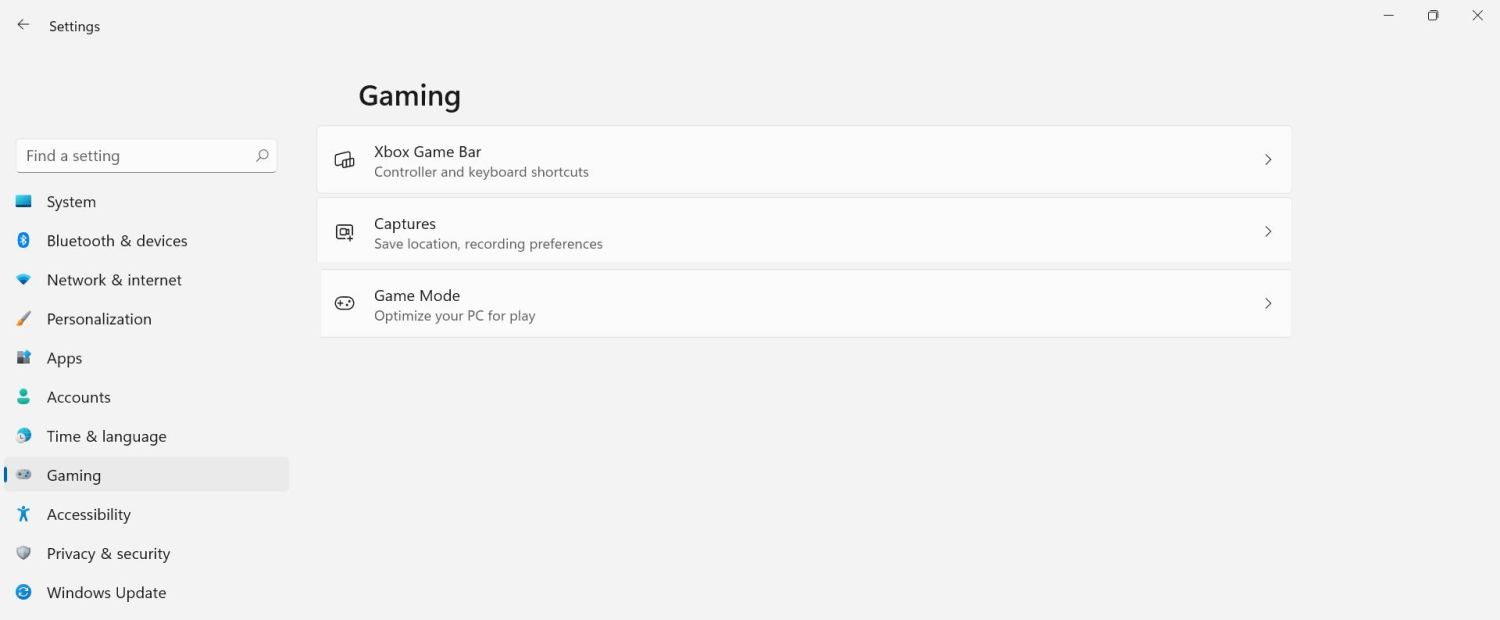
Among other things and innovations, Windows 11 brings to the table is the game mode. The game mode is a system designed to release some resources and optimize your system when Windows 11 detects that you are playing games. It also turns off automatic updates while the game is active. game mode in Windows 11The game mode is active at all times and usually, everything works great but in some instances, it can sadly cause some performance issues. If you are one of these unlucky people where game mode is not working as supposed to do, don’t panic, we have a quick guide for you on how to turn it off.
  1. Press ⊞ WINDOWS + I to open settings
  2. Inside click on Gaming
  3. Select Game mode
  4. Click switch beside Game mode to turn it off
  5. Close settings
Everything will be automatically saved and applied and you should not have any issues from now on. If for any reason you wish to turn game mode back ON, just follow the same steps and turn the switch to ON.
Read More
Installing Windows 11 on Raspberry Pi 4
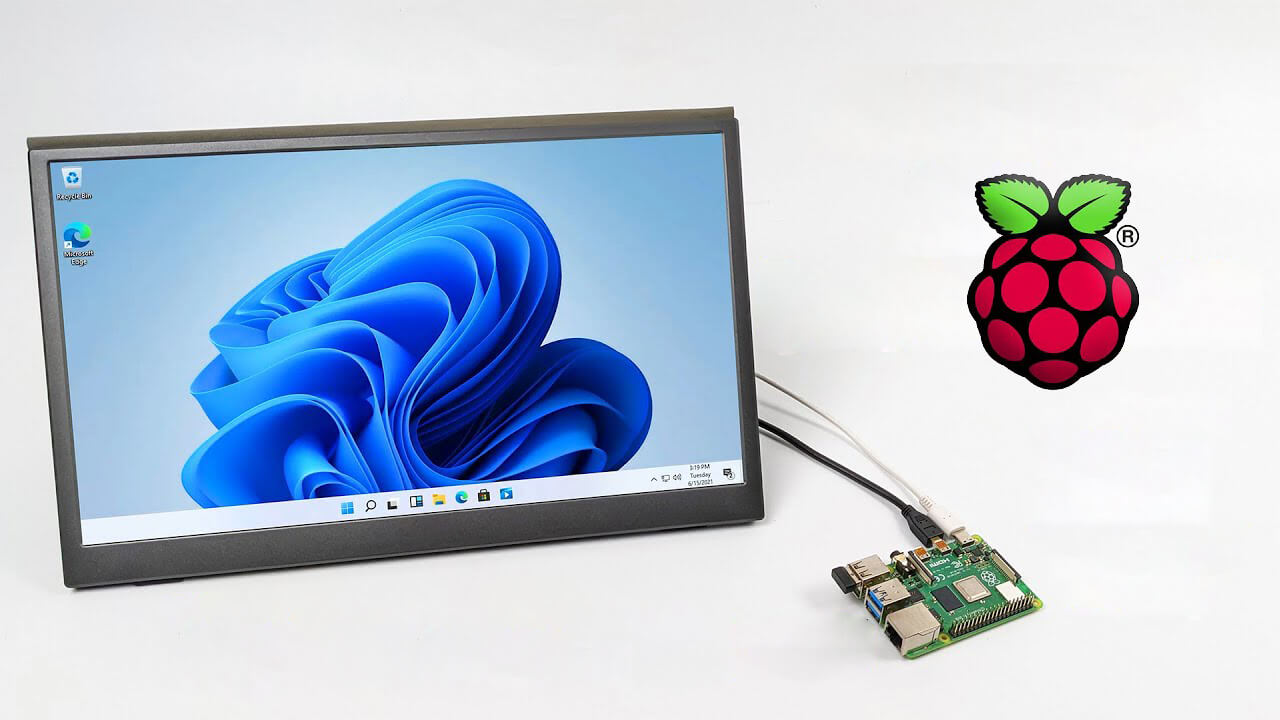
A lot of controversies and mixed emotions have come from statements about Windows 11 minimum system requirements, especially ones linked to TPM. Naturally, each time some software company giant announces how things are must have there are people who go out and prove them wrong. This time Raspberry Pi community was one which demonstrated that not only Raspberry Pi does not have a TPM module, it can run the full desktop version of Windows 11

Windows 11 on Raspberry Pi 4Raspberry Pi 4 and things you need for Windows 11 installation

In order to actually install Windows 11 on your Pi, there are certain things that you will need. Check out the below list and prepare everything.
  • Raspberry Pi 4 4GB or 8GB
  • A 32GB or larger SSD via a USB 3 caddy. Best for performance or 16GB or larger microSD card
  • USB boot enabled, see below.
  • A micro SD card with the latest Raspberry Pi OS
  • Windows 10 PC
  • USB to Ethernet or WiFi dongle
  • Bluetooth dongle (if you want Bluetooth)
  • Keyboard, mouse, HDMI, and power for your Raspberry Pi

Configuring Pi to boot from SSD

In order to boot from SSD be sure that firmware and bootloader are up to date on the latest version and upgrade if needed. Be aware that this firmware update can only be performed using the official Raspberry Pi OS. Also if you are eager and want to use a standard microSSD card instead of an SSD to run Windows 11 feel free to skip this entire section.
  1. Boot from microSSD with the latest Raspberry Pi OS on it.
  2. Update firmware and OS using the terminal by typing sudo apt update sudo apt full-upgrade sudo rpi-update
  3. Reboot your Pi
  4. Install the latest version of bootloader again using the terminal with the command sudo rpi-eeprom-update -d – a
  5. Reboot Pi
  6. Launch raspi-config on your Pi via terminal with sudo raspi-config
  7. Select option 3 (Boot options – Configure options for start-up) from boot options
  8. Select Boot ROM version and press ENTER
  9. Select latest and then OK
  10. Select NO when prompted to reset boot ROM to defaults on the latest version boot ROM selected screen. Press OK
  11. Select Boot order and press ENTER
  12. Select USB Boot and click on OK and remove microSD card from Pi
  13. Select Finish and click on NO when prompted to reboot

Creating Windows 11 installation image for Pi 4

In order to install Windows 11 on our Pi, we must create an installation image, follow the steps below explaining the process.
  1. Go to https://uupdump.net/
  2. Search for Windows 11 Arm
  3. Select the latest build for arm64
  4. Select Language on which you would like installer and Windows
  5. Pick Windows edition you would like
  6. Set download method to Download and convert to ISO and click on Create download package
  7. Extract downloaded content into win11 folder and go into it
  8. Double click on uup_download_windows.cmd
  9. On the security warning screen click on More info and then on Run anyway
  10. Wait for the process to finish completely
  11. Once the process is finished, press 0 to close the prompt

Installing image on microSSD or SSD

If previous steps of instruction were follower precisely you now have an ISO image that can be installed onto microSSD or SSD
  1. Connect SSD or insert microSSD card into your PC
  2. Go to https://www.worproject.ml/downloads
  3. Download Windows on Raspberry imager and extract it into the win11 folder
  4. Open Imager and allow it to make changes to your computer, set your language, and click on next
  5. Select storage drive where you would like to install Windows
  6. Set device type and click on next
  7. Select our Windows 11 ISO image we created and click on next
  8. On the drivers screen select Use the latest driver package available on the server
  9. On UEFI firmware select screen choose Use the latest firmware available on the server
  10. On configuration screen click on next
  11. Check your setting on the installation overview and if everything is ok click on install
  12. Wait for the whole process to be finished
  13. Once the process is completed, close Windows on Raspberry imager, take out SSD or microSSD card from PC and connect it on your Pi along with Pi peripherals.

Setting Windows 11 on Pi

In order to actually use Windows 11 on our Raspberry Pi we now have to set up the Windows 11 install using the standard post-installation setup sequence.
  1. Power up Pi and press ESC when prompted
  2. Go to Device manager and press ENTER
  3. Select Raspberry Pi Configuration
  4. Select Advanced configuration
  5. Set Limit RAM to 3GB to a disabled state, press F10 to save, and ESC to exit.
  6. Select Display configuration
  7. Set the resolution to desired option and press ENTER, F10 to save, and ESC to exit
  8. Go to CPU configuration
  9. Check if the CPU clock is set to default, if not set it
  10. Press ESC to go back all the way to the main menu
  11. Select Continue to exit BIOS and boot your Raspberry Pi with Windows 11 on it
And there you have it, fully working Windows 11 OS on Raspberry Pi despite what Microsoft says Note that due to lack of some drivers performance can be less than optimal, for example, full HD videos will not work since there are no compatible graphic drivers for Pi and some other stuff like Wi-Fi will also cause some issues but overall Windows 11 is working pretty well.
Read More
Fix DRIVER_PAGE_FAULT_IN_FREED_SPECIAL_POOL
If you suddenly encounter the DRIVER_PAGE_FAULT_IN_FREED_SPECIAL_POOL Blue Screen error on your Windows 10 computer along with the error codes, 0x000000D5, 0xb10BBD9E, 0x0D82DA24, 0Xfecd479D, 0x779827CB then read on as this post will provide you some troubleshooting tips that could help you resolve the BSOD error. Getting this kind of BSOD error means that a driver has referenced memory that was freed earlier and it could also mean that the Driver Verifier Special Pool option has caught the driver accessing memory which was freed earlier. Follow the given options below to fix the DRIVER_PAGE_FAULT_IN_FREED_SPECIAL_POOL BSOD error.

Option 1 – Use the Driver Verifier Manager

The Driver Verifier Manager is another tool in Windows that could help you fix driver-related issues.
  • Type in the keyword “Verifier” in the Cortana search box to search for Verifier in Windows 10.
  • After that, select the option “Create custom settings”.
  • Make sure that you have checked everything except the options “DDI compliance checking” and “Randomized low resources simulation”.
  • Next, select the option “Select driver names from a list” option.
  • Afterward, you have to select all the drivers from any unofficial or third-party provider. To simply put it, you have to select all the drivers that are not supplied by Microsoft.
  • Then click on the Finish button.
  • Open Command Prompt as administrator and execute this command – verifier /querysettings
  • The command you just executed will display the Driver Verifier settings so if you see any of the flags enabled boot your Windows 10 PC into Safe Mode.
  • Open the Command Prompt as admin again and run this command – verifier /reset
  • The command will reset the Driver Verifier. Once the process is done, restart your PC and check.

Option 2 – Try updating SSD firmware

If you have installed SSD on your computer recently and you have started getting the DRIVER_PAGE_FAULT_IN_FREED_SPECIAL_POOL Blue Screen error since then you may have to update the SSD firmware. To fix this, you can download the Intel Solid-State Drive Toolbox from the official website. This toolbox is compatible with Windows 10 and Windows 7 and later versions.

Option 3 – Try running the Blue Screen Troubleshooter

The Blue Screen troubleshooter is a built-in tool in Windows 10 that helps users in fixing BSOD errors like DRIVER_PAGE_FAULT_IN_FREED_SPECIAL_POOL. It can be found in the Settings Troubleshooters page. To use it, refer to these steps:
  • Tap the Win + I keys to open the Settings panel.
  • Then go to Update & Security > Troubleshoot.
  • From there, look for the option called “Blue Screen” on your right-hand side and then click the “Run the troubleshooter” button to run the Blue Screen Troubleshooter and then follow the next on-screen options. Note that you might have to boot your PC into Safe Mode.

Option 4 – Try running Microsoft’s online Blue Screen Troubleshooter

If running the built-in Blue Screen Troubleshooter didn’t work, you can also try running Microsoft’s online Blue Screen Troubleshooter. All you have to do is go to Microsoft’s website and from there, you will see a simple wizard that will walk you through the troubleshooting process.

Option 5 – Try to reinstall or update device drivers of recently installed hardware

If the first few options didn’t work for you, then it’s time to either update or roll back the device drivers. It is most likely that after you updated your Windows computer that your driver also needs a refresh. On the other hand, if you have just updated your device drivers then you need to roll back the drivers to their previous versions. Whichever applies to you, refer to the steps below.
  • Open the Devices Manager from the Win X Menu.
  • Then locate the device drivers and right-click on them to open the Properties.
  • After that, switch to the Driver tab and click on the Uninstall Device button.
  • Follow the screen option to completely uninstall it.
  • Finally, restart your computer. It will just reinstall the device drivers automatically.
Note: You can install a dedicated driver on your computer in case you have it or you could also look for it directly from the website of the manufacturer.

Option 6 – Try disabling Hardware Acceleration

You might want to disable Hardware Acceleration system-wide or for a particular program like Google Chrome and see if it resolves the DRIVER_PAGE_FAULT_IN_FREED_SPECIAL_POOL BSOD error
Read More
Fix Chassis Intruded…Fatal Error…System Halted
When you encounter an error message that says, Chassis Intruded…Fatal Error…System Halted on your monitor then it indicates that the Chassis or the cabinet that holds the CPU, GPU, motherboard, and many more is open. It is a security feature offered by OEMs wherein a connector that is found in the motherboard can detect if the chassis component has been replaced or removed. There are a few OEMs that offer onboard speaker or PC chassis speaker which goes off in this kind of situation. Obviously, the problem has something to do with the hardware and in most cases, you have to put the jumper back on the motherboard with the pin-labeled chassis signal and ground. There are times when some OEMs offer a simple switch that is armed automatically when you properly close the chassis. Thus, you need to check if this switch has something to do with the error. If there is no switch or if it doesn’t resolve the issue, although you may be able to get into Windows with a warm boot, the normal Windows boot won’t really work unless you fix the problem. It is rather false positive and has something to do with the RTC RAM state or the BIOS. You might need to completely disable the Chassis intrusion feature to fix the error. Refer to the suggestions given below to try and fix the “Chassis Intruded, Fatal Error … System Halted” error.

Option 1 – Try to clear CMOS

You can easily clear CMOS by shorting two pins which can be found side by side on the motherboard. Keep in mind that it may vary from OEM to OEM although the basics are still the same to clear CMOS. In addition, you might also have to download the manual from the OEM’s website so that you’ll know its exact location.

Option 2 – Try booting into the BIOS

You can also try booting into the BIOS. All you have to do is tap either the DEL or F2 keys to get there. Note that everything will be set back to their default setting after you reset the CMOS.

Option 3 – Try disabling Chassis intrusion

In this option, you have to look for the Chassis intrusion feature in your BIOS. It might be located under security. From there, disable it and check if the problem’s fixed.

Option 4 – Try to reconfigure the BIOS

Once you have disabled the Chassis feature, you need to reconfigure the BIOS the way you expect it to be or to what it was before the reset.
Read More
How to create a public VPN Server on Windows
As you know, a Virtual Private Network or VPN is used to access a particular network from another network which is why it is also referred to as a mini-internet. Moreover, you can use it in two ways. One, you can use it to get you access to a closed server which means that you would not be getting access to the internet. Second, you can also use it to access a set of resources while at the same time get access to the internet. However, what if you want to access your resources at home even when you’re away? And what if you want to use the private server at home or at your office even when you’re away? This is where the callout for a VPN server for yourself comes in. And so in this post, you will be guided in how you can create a public VPN server on your Windows 10 computer. Follow each one of the given steps below to get started. Step 1: Find your IP address. This step is rather simple since all you have to do is open Control Panel > Network and Internet > Network and Sharing Center. From there, click on “Local Area Connection” and then click on Details where you’ll see your IP address next to “Autoconfiguration IPv4 Address”. Step 2: Next, set up port forwarding on your router. In this step, you will have to configure port forwarding in your router so that you would be able to connect to the VPN server through a public network like the internet.
  • Log in to the Admin Panel of your router. You have to do this since your router will be the gateway for your access to the network.
  • After you’re logged in, look for the “Port Forwarding” or “Applications and Gaming” or “NAT/QoS” menu tab and other similar names.
  • Now you need to set the port number to 1723 for connections based on Point to Point Tunneling Protocol.
  • Then save the configuration and reboot your router.
Step 3: Set up a VPN server on Windows 10.
  • In the Cortana search box, type “ncpa.cpl” and click on the related entry from the search results.
  • After that, tap the Alt + F keys to bring down the File Menu and then select New Incoming Connection which will open a mini window where you can allow the user accounts on the particular machine to access the VPN connection.
  • On the other hand, you can also click the “Add someone” button so that you can add someone else to the whitelist that can access the connection.
  • Now click on Next and you’ll see an option to select how people will connect to the network. Check the checkbox for the “Through the Internet” option.
  • After that, you will see a page where you have to configure the network. Just select IPv4 and then click on Properties.
  • From there, you will be asked to continue some additional settings like letting users access your Local Area Network or how IP addresses will be allocated to these users. Click on OK to save the changes you’ve made.
  • Click on Allow Access after you configure the network. And if you want to, you have the option to print this information for future reference or for the client machine.
  • Now click on Close to exit the configuration process.
Step 4: Allow the VPN Connections through the firewall In this step, you will have to allow the VPN connections through the firewall.
  • In the Cortana search box, type “Allow an app through Windows Firewall” and click on the related search result to open the intended Windows Firewall settings.
  • Next, click on Change Settings.
  • Then scroll down to check if Routing and Remote Access is Enabled for both the Public and Private networks and click on OK.
Step 5: Set up a VPN connection on Windows 10 Now all that’s left for you to do is to set up a VPN connection on Windows 10.
  • Go to Settings > Network and Internet.
  • From the list of options given, click on VPN located on the left pane to see the related settings.
  • After that, click on the “+” icon to add a VPN connection.
  • Next, select Windows Default under VPN Provider and under the Connection Name, input your VPN’s name, and then enter the IP address you got from the VPN service provider under the Server name or address section.
  • Now select PPTP under VPN type since it is the most commonly used protocol for VPNs.
Read More
1 2 3 171
Logo
Copyright © 2023, ErrorTools. All Rights Reserved
Trademark: Microsoft Windows logos are registered trademarks of Microsoft. Disclaimer: ErrorTools.com is not affiliated with Microsoft, nor claims direct affiliation.
The information on this page is provided for information purposes only.
DMCA.com Protection Status