Logo

Steps to Fixing Error Code 38

Error Code 38 – What is it?

Error Code 38 is a device driver error that users encounter on any Windows 2000 operating system and its following versions.

It occurs when the peripheral device that you connect to your PC cannot be accessed due to an inability of the Windows system to acknowledge the driver as a previous record of the driver being loaded is found in its memory.

It is a common error that users come across and appears on your PC with the following message:

“Windows cannot load the device driver for this hardware because a previous instance of the device driver is still in memory. (Code 38)”

Solution

driverfix boxError Causes

Error Code 38 is prompted when incomplete program files are left in the Windows system which damage or corrupt its files. There are various factors that contribute to this, some of which are:

  • An incomplete program installation
  • An incomplete program uninstallation
  • Hardware is not removed properly
  • System recovery from viruses
  • An improper system shut down

The above triggers are very likely to create incomplete files within the Windows registry thereby leading to its damage and corruption.

This is especially true in the case of your PC when it has recovered from viruses when using anti-virus software. The anti-virus in its effort to remove the virus also could remove the files which contain them thereby increasing the risk of the error code.

These damaged files can severely impact the health of your PC and are imperative to fix it immediately to prevent further problems.

Further Information and Manual Repair

Although this error code may pose serious problems for your PC, thankfully, it is very similar to other PC driver errors and thus is an easy one to get rid of. Here are various methods that you can use to get your PC running smoothly again.

Method 1 – Restart your PC

The easiest method you can use to solve your PC error code is to simply restart your PC. It may be that the error prompted upon connecting the device you have connected is merely a temporary problem, and upon restart, will resume functioning smoothly.

Method 2 – Run the Troubleshooting Wizard

If restarting your PC does not help, you will have to find the exact nature of the problem by running the troubleshooting wizard for the device and then address the problem accordingly. To do this, proceed with the following steps:

  1. Run Device Manager on your PC
  2. Click on the program under the installed programs that is creating problems for you
  3. Click on the ‘General’ Tab
  4. Click ‘Troubleshoot’
  5. Upon opening, the Troubleshooting Wizard will ask a series of questions regarding the error. Answer the questions and follow its directions for solving the error code.

After following the directions of the Troubleshooting wizard, make sure to restart your PC for the changes to take effect. Now check if your device is still causing problems.

Method 3 – Use System Restore

If the error persists, you can use system restore to eliminate the problem. Here is how to do so:

  1. Log in using an Administrator account
  2. Click ‘Start’ button and select All Programs > Accessories > System Tools > System Restore
  3. Click ‘Restore my computer to an earlier time’ and click ‘Next’
  4. Select the last Windows to restore point from the ‘On this list, click a restore point’ list, and click ‘Next’
  5. Click ‘Next’ on the confirmation window to proceed
  6. Restart your PC after restoration is complete

By restoring the system via a last saved system checkpoint, you can obtain undamaged Windows system files that can help resolve the error code.

Method 4 – Manually uninstall and reinstall the device driver

If using system restore does not work either, you may have to resort to manually uninstalling and then reinstalling the device driver causing the problem.

This would be necessary since the remaining incomplete files due to a partial removal or installation of programs are responsible for the error code. By uninstalling and reinstalling the device driver program, it would lead to the completion of the files.

You can do this by firstly logging in as Administrator and opening Device Manager. Select the device that is causing the problem and double click it; make sure that the peripheral is connected properly to the PC.

Upon opening, click on the ‘Driver’ tab and then select ‘Update Driver’. Make sure to refer to the system documentation that you received with your PC or computer to check for the motherboard details and driver specifics.

Method 5 – Use software to automatically download the driver

Manually uninstalling and reinstalling the driver will do the trick; however, it may be time-consuming especially when you would have to resort to your hardware user manual.

Using a program such as DriverFIX can save you a lot of time and frustration in having your device to work properly on your computer.

DriverFIX, with its user-friendly approach to help you fix your PC issues, comes with an integrated database that detects which drivers you need to reconfigure within just a few seconds and downloads it automatically.

It further ensures that your drivers are installed in their entirety leaving no room for any incomplete files to remain that create Error Code 38, or any other driver-related errors for that matter.

It also has the added advantage of being able to backup and restores your files should there be the slightest possibility of system file damage. DriverFIX is the answer to fixing your PC error codes accurately and quickly.

Click here to download DriverFIX to fix Error Code 38 quickly and effectively!

Do You Need Help with Your Device?

Our Team of Experts May Help
Troubleshoot.Tech Experts are There for You!
Replace damaged files
Restore performance
Free disk space
Remove Malware
Protects WEB browser
Remove Viruses
Stop PC freezing
GET HELP
Troubleshoot.Tech experts work with all versions of Microsoft Windows including Windows 11, with Android, Mac, and more.

Share this article:

You might also like

Fix Error 0x80244018 when Installing Apps
If you suddenly encounter an error saying, “Something happened and this app couldn't be installed. Error Code: 0x80244018”, when trying to install apps on your Windows 10 computer, then you’ve come to the right place as this post will help you in resolving the problem. It’s not just you that’s experiencing this problem right now as several users also reported getting this error they try to apply a Windows update or download and install the application from Microsoft Store. There could are several reasons why you’re getting this error. It could be caused by a third-party application, or it could be that the update is blocked by your VPN or proxy server, or that the BITS service is disabled. In addition, the error could also be due to some glitch in the component services or it could be that the system files are corrupted. Whatever the cause is, you can fix the error by following any of the given options below.

Option 1 – Run the Windows Update Troubleshooter

Running the Windows Update Troubleshooter can help in fixing Error Code 0x80244018. To run it, go to Settings and then select Troubleshoot from the options. From there, click on Windows Update and then click the “Run the troubleshooter” button. After that, follow the next on-screen instructions and you should be good to go.

Option 2 – Put your PC in a Clean Boot State

It could be that some third-party application is the one that’s causing the problem so it’s best if you put your computer in a Clean Boot state. During this state, you can start the system with a minimum number of drivers and startup programs that will surely help you in isolating the root cause of the issue.
  • Log onto your PC as an administrator.
  • Type in MSConfig in the Start Search to open the System Configuration utility.
  • From there, go to the General tab and click “Selective startup”.
  • Clear the “Load Startup items” check box and make sure that the “Load System Services” and “Use Original boot configuration” options are checked.
  • Next, click the Services tab and select the “Hide All Microsoft Services” check box.
  • Click Disable all.
  • Click on Apply/OK and restart your PC. (This will put your PC into a Clean Boot State. And configure Windows to use the usual startup, just simply undo the changes.)
  • After that, try to install the Windows app again.
Note: If you are able to install the app without any trouble at all then it means that the error is caused by some third-party application on your computer. You need to look for the culprit and uninstall it once you found it.

Option 3 – Restart BITS

The Background Intelligent Transfer Service or BITS is a part of the Windows Update service and is the one that manages the background download of Windows Update, as well as scans for new updates and so on. And if Windows Update is experiencing some problems, you can try restarting BITS but make sure that you have admin privileges to do so.
  • Tap the Win + R keys to open the Run dialog box.
  • Next, type “services.msc” in the field and hit Enter to open Windows Services.
  • From the list of Services, look for the Background Intelligent Transfer Service and double-click on it to open Properties.
  • After that, you need to set the Startup type to “Automatic (Delayed Start) and click on Apply.
  • Now click the Stop button to stop BITS and then click the Start button to restart the service.
  • Click OK to save the changes made and then restart your PC.

Option 4 – Disable the Proxy server

  • Tap the Win + R keys to open the Run dialog box.
  • Then type “inetcpl.cpl” in the field and hit Enter to pull up the Internet Properties.
  • After that, go to the Connections tab and select the LAN settings.
  • From there. Uncheck the “Use a Proxy Server” option for your LAN and then make sure that the “Automatically detect settings” option is checked.
  • Now click the OK and the Apply buttons.
  • Restart your PC.
Note: If you are using a third-party proxy service, you have to disable it.

Option 5 – Try disabling the VPN

As mentioned, if you are using VPN, this could be the reason why you’re getting Error Code 0x80244018 so the most obvious thing to do is for you to turn off the VPN and try to run the Windows Update once more. And if you use a VPN software that works using their software, you can just completely exit or log-off from its account. On the other hand, if you are using a built-in Windows 10 VPN, you can simply turn it off or delete all the settings you have created there. Although it’s understandable that you might have to use a VPN connection to connect to the work network, you really have to disable it at least after you’ve successfully installed the app.

Option 6 – Reset Windows Update components

  • Open Command Prompt with admin privileges.
  • After that, type each one of the following commands and hit Enter after you key in one after the other.
    • net stop wuauserv
    • net stop cryptsvc
    • net stop bits
    • net stop msiserver
Note: The commands you entered will stop the Windows Update components such as Windows Update service, Cryptographic services, BITS, and MSI Installer.
  • After disabling WU components, you need to rename both the SoftwareDistribution and Catroot2 folders. To do that, type each one of the following commands below, and don’t forget to hit Enter after you type one command after the other.
    • ren C:WindowsSoftwareDistribution SoftwareDistribution.old
    • ren C:WindowsSystem32catroot2 Catroot2.old
  • Next, restart the services you’ve stopped by entering another series of commands. Don’t forget to hit Enter after you key in one command after the other.
    • net start wuauserv
    • net start cryptsvc
    • net start bits
    • net start msiserver
  • Close Command Prompt and reboot your PC.

Option 7 – Run the System File Checker Scan

System File Checker or SFC is a built-in command utility that helps in restoring corrupted files as well as missing files. It replaces bad and corrupted system files with good system files that might be the cause why you’re getting the Error Code 0x80244018. To run the SFC command, follow the steps given below.
  • Tap Win + R to launch Run.
  • Type in cmd in the field and tap Enter.
  • After opening Command Prompt, type in sfc /scannow
The command will start a system scan which will take a few whiles before it finishes. Once it’s done, you could get the following results:
  1. Windows Resource Protection did not find any integrity violations.
  2. Windows Resource Protection found corrupt files and successfully repaired them.
  3. Windows Resource Protection found corrupt files but was unable to fix some of them.
  • Restart your PC.

Option 8 – Run the DISM tool

You can also run the DISM Tool as it helps in repairing the Windows System Image as well as the Windows Component Store in Windows 10. Using this built-in tool, you have various options such as the “/ScanHealth”, “/CheckHealth”, and “/RestoreHealth” which could help in fixing the Error Code 0x80244018.
  • Open the Command Prompt with admin privileges.
  • Then type in the following commands and make sure to hit Enter right after you type each one of them:
    • Dism /Online /Cleanup-Image /CheckHealth
    • Dism /Online /Cleanup-Image /ScanHealth
    • exe /Online /Cleanup-image /Restorehealth
  • Do not close the window if the process takes a while as it will probably take a few minutes to finish.
Read More
How to remove BIOS password
BIOS is software that is running in a chip located on your motherboard, you can enter BIOS usually by hitting DEL once the computer is turned ON but this sometimes varies and it depends solely on the motherboard manufacturer. Inside BIOS you can configure your computer components and set up some other important things including passwords for BIOS itself or for the entire system. Password itself is meant to protect access to BIOS from other non-technical users or to prevent access to the system from other people if for example computer is in one household and you would like to be the only one having access to it. However, passwords can be forgotten, and sometimes you can even purchase a second-hand computer with a password on it. In this guide, we will lead you through ways on how to remove your BIOS password so you can regain access to your BIOS settings.
  1. Use Manufacturers master password

    Most motherboard manufacturers have built-in a couple of master passwords for BIOS access. If your motherboard has one you can easily find it on the manufacturer's website. Use the master password and remove other passwords inside BIOS, save and exit.
  2. Remove CMOS battery

    If you could not find the manufacturer's master password or your motherboard model does not have one remove the CMOS battery to reset BIOS. Note that this method will reset the whole BIOS not only the password. Open on side of your computer casing and locate the round battery on it, do not worry, there is only one battery so you can not make mistake. Remove the battery and leave it outside for around 20 to 30 minutes then place it back as it was, CMOS is reset now and you can access BIOS.
  3. Reset BIOS via jumper

    If you want to remove only the password and do not touch other BIOS setting you can locate the BIOS password reset jumper. How the location of this jumper and position is different from the motherboard to motherboard we can not cover them all here and it is advisable to read the manual or find information on the official manufacturer's website.
If you would like to read more helpful articles and tips about various software and hardware visit errortools.com daily.
Read More
FreeDownloadManager Removal Tutorial

Free Download Manager is a software program developed by FreeDownloadManager.ORG. According to the publisher:

This software downloads files and converts videos. Its features include integration with all browsers, support of downloads from RapidShare, BitTorrent support, adjusting traffic usage, resuming broken downloads, and adds BitTorrent support, flash video download, upload manager, portable mode, and remote control.

During setup, the program creates a startup registration point in Windows in order to automatically start when any user boots the PC. It adds a browser extension to help it cache files you are downloading over your browser. The software is designed to connect to the internet and adds a Windows Firewall exception in order to do so without being interfered with. It also hooks up to start automatically and cache every download even if it's turned off.

This software comes bundled with video converters that some anti-virus programs marked as malware and therefore it is considered a potentially unwanted program.

About Potentially Unwanted Applications

If you’ve ever downloaded freeware or shareware, odds are high that your computer can get installed with a bunch of unwanted programs. These unwanted applications, officially known as Potentially Unwanted Programs (PUPs), often come bundled with other software and install themselves on user’s computers without their knowledge. They might not look like computer viruses to some individuals, but they can create huge annoyances and lead to serious difficulties for users. It’s clear by its name – unwanted programs – but did not really constitute “malware” in the traditional sense. What makes a PUP different from malware is the fact that when you download one, you’re doing it with your approval – even though in most cases unconsciously and unwillingly. Nevertheless, there is no doubt that PUPs continue to be bad news for PC users as they can be incredibly detrimental to your computer in several ways.

How does unwanted software affect you?

Unwanted programs come in various forms. Usually, they could be found in adware bundlers that are known to use aggressive and deceptive advertising. The majority of bundlers install multiple adware applications from a number of companies, each of which has its own EULA policy. Safebytes Anti-Malware entirely eliminates this threat and safeguards your PC against PUP or adware infection. They will also come in the form of web browser extension add-ons and toolbars. Not just they needlessly fill up space on your computer screen, toolbars could also manipulate search results, keep an eye on your web browsing activities, decrease your internet browser’s efficiency, and slow down your net connection to a crawl. Potentially unwanted programs utilize aggressive distribution methods to get in your computer. They will often include things like information gathering code that will collect and send your private information to other companies. Due to this unwanted program, your application may freeze, your security protections may get turned off that can leave your computer susceptible, your system could get damaged, and this list goes on and on.

Tips to prevent PUPs

• Always read the license agreement and privacy statement. Don’t agree unless you understand exactly what you are acknowledging. • Always choose “Custom” or “Advanced” installation and don’t blindly click the Next button, which will allow you to uncheck any foistware software programs you do not want. • Install an ad blocker/pop-up blocker; Add anti-malware products such as Safebytes Anti-Malware. These applications could establish a wall between the computer and cybercriminals. • Be alert if you install freeware, open-source programs, or shareware. Nowadays ‘freeware’ is not really freeware – but ‘crapware’ bundling nonsense. • Always download software from trusted sources like official websites instead of untrustworthy sharing space. Avoid file-hosting sites wherever possible.

Can't Install Safebytes Anti-malware due to the presence of Malware? Do This!

Malware could cause plenty of damage to your PC. Some malware types modify browser settings by including a proxy server or change the PC’s DNS configurations. In these cases, you’ll be unable to visit certain or all of the internet sites, and thus not able to download or install the required security software to remove the infection. If you are reading this article, you may have got infected by malware that stops you from installing a computer security program such as Safebytes Anti-Malware. There are some fixes you can attempt to get around with this obstacle.

Get rid of viruses in Safe Mode

In the event the malware is set to load at Windows startup, then booting in safe mode should avoid it. Only minimal required programs and services are loaded whenever you boot your PC in Safe Mode. To launch your Windows XP, Vista, or 7 computers in Safe Mode with Networking, do as instructed below. 1) Tap the F8 key continuously as soon as your PC boots, however, before the large Windows logo appears. This would conjure up the Advanced Boot Options menu. 2) Choose Safe Mode with Networking using arrow keys and hit Enter. 3) Once you get into this mode, you should have an internet connection once again. Now, use your browser normally and navigate to https://safebytes.com/products/anti-malware/ to download and install Safebytes Anti-Malware. 4) Following installation, run a complete scan and let the software program remove the threats it discovers.

Obtain the anti-malware program using an alternate browser

Web-based viruses could be environment-specific, targeting a particular web browser or attacking particular versions of the web browser. In case you suspect that your Internet Explorer has been hijacked by a computer virus or otherwise compromised by online hackers, the most effective thing to do would be to switch to a different browser like Chrome, Firefox, or Safari to download your chosen computer security program – Safebytes Anti-Malware.

Run antivirus from your pen drive

Here’s yet another solution which is creating a portable USB antivirus software package that can scan your computer for malicious software without the need for installation. Try these simple steps to clear up your infected computer by using a portable antivirus. 1) On a virus-free PC, download and install Safebytes Anti-Malware. 2) Put the pen drive into the clean PC. 3) Double click on the downloaded file to open the installation wizard. 4) Choose the drive letter of the flash drive as the location when the wizard asks you where you want to install the antivirus. Follow the directions to finish the installation process. 5) Unplug the pen drive. Now you can utilize this portable anti-virus on the affected computer system. 6) Run the Safebytes Anti-malware directly from the USB drive by double-clicking the icon. 7) Click on “Scan Now” to run a scan on the infected computer for malware.

Features and Benefits of SafeBytes Anti-Malware

If you are looking to purchase anti-malware for your computer system, there are numerous brands and applications for you to consider. A few of them do a good job in getting rid of malware threats while some will ruin your PC by themselves. You must choose a product that has gained a good reputation and detects not only viruses but other kinds of malware too. Among few good programs, SafeBytes Anti-Malware is the strongly recommended software for the security-conscious user. SafeBytes anti-malware is a very effective and easy-to-use protection tool that is created for users of all levels of IT literacy. Once you’ve got installed this software program, SafeBytes superior protection system will make sure that no viruses or malware can seep through your computer. SafeBytes anti-malware provides an array of advanced features that sets it aside from all others. The following are some of the good ones: World-class AntiMalware Protection: Safebytes is made on the very best virus engine in the industry. These engines can detect and remove threats even during the early stages of a malware outbreak. Real-time Active Protection: SafeBytes provides complete and real-time security for your personal machine. It will monitor your personal computer for suspicious activity at all times and shields your PC from unauthorized access. Fast Multi-threaded Scanning: Safebytes Anti-Malware, using its advanced scanning engine, provides super-fast scanning that can immediately target any active online threat. Safe Web Browsing: Through its unique safety rating, SafeBytes notifies you whether a website is safe or not to access it. This will ensure that you’re always certain of your safety when browsing the online world. Lowest Memory/CPU Usage: This software is lightweight and will work silently in the background, and that does not have an effect on your PC efficiency. 24/7 Live Expert Support: You can obtain high levels of support round the clock if you’re using their paid software.

Technical Details and Manual Removal (Advanced Users)

If you wish to manually remove FreeDownloadManager without the use of an automated tool, it may be possible to do so by removing the program from the Windows Add/Remove Programs menu, or in cases of browser extensions, going to the browsers AddOn/Extension manager and removing it. You will likely also want to reset your browser. To ensure the complete removal, manually check your hard drive and registry for all of the following and remove or reset the values accordingly. Please note that this is for advanced users only and may be difficult, with incorrect file removal causing additional PC errors. In addition, some malware is capable of replicating or preventing deletion. Doing this in Safe Mode is advised.

The following files, folders, and registry entries are created or modified by FreeDownloadManager

Files: C:WINDOWSsystem32netmsg.dll C:DocumentsUserLocalTempfdminst.exe C:DocumentsUserLocalTempis-FJKMF.tmpfdminst.tmp C:WINDOWSsystem32msctfime.ime C:DocumentsUserLocalTempis-FN3E3.tmp_isetup_shfoldr.dll C:WINDOWSsystem32shfolder.dll C:DocumentsUserLocalTempis-FN3E3.tmpfdminno.dll C:DocumentsUserLocalTempis-FN3E3.tmpnsProcessW_modified.dll C:WINDOWSsystem32shell32.dll C:Documents and SettingsUserStart Menudesktop.ini C:Documents and SettingsUserStart MenuProgramsdesktop.ini C:WINDOWSRegistrationR000000000007.clb C:WINDOWSwin.ini Registry: HKEY_CURRENT_USERSoftwareCodeGearLocales HKEY_LOCAL_MACHINESoftwareCodeGearLocales HKEY_CURRENT_USERSoftwareBorlandLocales HKEY_CURRENT_USERSoftwareBorlandDelphiLocales HKEY_LOCAL_MACHINESoftwareMicrosoftWindows NTCurrentVersionIMM HKEY_USERSS-1-5-21-1547161642-507921405-839522115-1004SoftwareMicrosoftWindows NTCurrentVersionAppCompatFlagsLayers HKEY_CURRENT_USERSOFTWAREMicrosoftCTF HKEY_LOCAL_MACHINESoftwareMicrosoftCTFSystemShared HKEY_LOCAL_MACHINESOFTWAREMicrosoftWindows NTCurrentVersionFontSubstitutes HKEY_LOCAL_MACHINESoftwareMicrosoftWindowsCurrentVersion HKEY_LOCAL_MACHINESOFTWAREMicrosoftWindows NTCurrentVersion HKEY_CURRENT_USERSoftwareFreeDownloadManager.ORGFree Download Manager 5 HKEY_LOCAL_MACHINESoftwareMicrosoftWindowsCurrentVersionPoliciesExplorer HKEY_CURRENT_USERSoftwareMicrosoftWindowsCurrentVersionPoliciesExplorer HKEY_LOCAL_MACHINESOFTWAREMicrosoftWindowsCurrentVersionShellCompatibilityObjects20D04FE0-3AEA-1069-A2D8-08002B30309D HKEY_CLASSES_ROOTHKEY_LOCAL_MACHINESoftwareClassesCLSID20D04FE0-3AEA-1069-A2D8-08002B30309DInProcServer32 HKEY_CLASSES_ROOTDriveshellexFolderExtensions HKEY_CLASSES_ROOTDriveshellexFolderExtensionsfbeb8a05-beee-4442-804e-409d6c4515e9 HKEY_CURRENT_USERSoftwareMicrosoftWindowsCurrentVersionExplorerUser Shell Folders HKEY_LOCAL_MACHINESoftwareMicrosoftWindowsCurrentVersionExplorerUser Shell Folders HKEY_LOCAL_MACHINESystemCurrentControlSetControlSession Manager HKEY_CURRENT_USERSoftwareMicrosoftWindowsCurrentVersionExplorerShell Folders HKEY_CURRENT_USERSoftwareMicrosoftWindowsCurrentVersionExplorerMountPoints2CPCVolume HKEY_CURRENT_USERSoftwareMicrosoftWindowsCurrentVersionExplorerMountPoints2CPCVolume475c7950-e3d2-11e0-8d7a-806d6172696f HKEY_CURRENT_USERSoftwareMicrosoftWindowsCurrentVersionExplorerMountPoints2CPCVolume475c7952-e3d2-11e0-8d7a-806d6172696f HKEY_CURRENT_USERSoftwareMicrosoftWindowsCurrentVersionExplorerMountPoints2475c7952-e3d2-11e0-8d7a-806d6172696f HKEY_CURRENT_USERSoftwareMicrosoftWindowsCurrentVersionExplorerMountPoints2475c7950-e3d2-11e0-8d7a-806d6172696f HKEY_CLASSES_ROOTDirectory HKEY_CLASSES_ROOTDirectoryCurVer HKEY_CLASSES_ROOTDirectory HKEY_CURRENT_USERSoftwareMicrosoftWindowsCurrentVersionExplorer HKEY_CURRENT_USERSoftwareMicrosoftWindowsCurrentVersionExplorer HKEY_CURRENT_USERSoftwareMicrosoftWindowsCurrentVersionPoliciesSystem HKEY_CURRENT_USERSoftwareMicrosoftWindowsCurrentVersionExplorerAdvanced HKEY_CLASSES_ROOTDirectoryShellExIconHandler HKEY_CLASSES_ROOTDirectoryClsid HKEY_CLASSES_ROOTFolder HKEY_CLASSES_ROOTFolderClsid HKEY_CURRENT_USERSoftwareMicrosoftwindowsCurrentVersionExplorerAutoComplete HKEY_LOCAL_MACHINESoftwareMicrosoftwindowsCurrentVersionExplorerAutoComplete HKEY_CURRENT_USERSoftwareMicrosoftWindowsCurrentVersionExplorerAutoComplete HKEY_LOCAL_MACHINESoftwareMicrosoftWindowsCurrentVersionExplorerAutoComplete HKEY_LOCAL_MACHINESoftwareMicrosoftCOM3 HKEY_USERSS-1-5-21-1547161642-507921405-839522115-1004_Classes HKEY_LOCAL_MACHINESoftwareClassesREGISTRYUSER HKEY_LOCAL_MACHINESoftwareClassesHKEY_LOCAL_MACHINESoftwareClassesCLSID0BB2765-6A77-11D0-A535-00C04FD7D062 HKEY_LOCAL_MACHINESoftwareClassesHKEY_LOCAL_MACHINESoftwareClassesCLSID0BB2765-6A77-11D0-A535-00C04FD7D062TreatAs HKEY_LOCAL_MACHINESoftwareClassesHKEY_LOCAL_MACHINESoftwareClassesCLSID0BB2765-6A77-11D0-A535-00C04FD7D062 HKEY_LOCAL_MACHINESoftwareClassesHKEY_LOCAL_MACHINESoftwareClassesCLSID0BB2765-6A77-11D0-A535-00C04FD7D062InprocServer32 HKEY_LOCAL_MACHINESoftwareClassesHKEY_LOCAL_MACHINESoftwareClassesCLSID0BB2765-6A77-11D0-A535-00C04FD7D062InprocServerX86 HKEY_LOCAL_MACHINESoftwareClassesHKEY_LOCAL_MACHINESoftwareClassesCLSID0BB2765-6A77-11D0-A535-00C04FD7D062LocalServer32 HKEY_LOCAL_MACHINESoftwareClassesHKEY_LOCAL_MACHINESoftwareClassesCLSID0BB2765-6A77-11D0-A535-00C04FD7D062InprocHandler32 HKEY_LOCAL_MACHINESoftwareClassesHKEY_LOCAL_MACHINESoftwareClassesCLSID0BB2765-6A77-11D0-A535-00C04FD7D062InprocHandlerX86 HKEY_LOCAL_MACHINESoftwareClassesHKEY_LOCAL_MACHINESoftwareClassesCLSID0BB2765-6A77-11D0-A535-00C04FD7D062LocalServer HKEY_CLASSES_ROOTHKEY_LOCAL_MACHINESoftwareClassesCLSID0BB2765-6A77-11D0-A535-00C04FD7D062 HKEY_CLASSES_ROOTHKEY_LOCAL_MACHINESoftwareClassesCLSID0BB2765-6A77-11D0-A535-00C04FD7D062TreatAs HKEY_LOCAL_MACHINESoftwareClassesHKEY_LOCAL_MACHINESoftwareClassesCLSID3C036F1-A186-11D0-824A-00AA005B4383 HKEY_LOCAL_MACHINESoftwareClassesHKEY_LOCAL_MACHINESoftwareClassesCLSID3C036F1-A186-11D0-824A-00AA005B4383TreatAs HKEY_LOCAL_MACHINESoftwareClassesHKEY_LOCAL_MACHINESoftwareClassesCLSID3C036F1-A186-11D0-824A-00AA005B4383 HKEY_LOCAL_MACHINESoftwareClassesHKEY_LOCAL_MACHINESoftwareClassesCLSID3C036F1-A186-11D0-824A-00AA005B4383InprocServer32 HKEY_LOCAL_MACHINESoftwareClassesHKEY_LOCAL_MACHINESoftwareClassesCLSID3C036F1-A186-11D0-824A-00AA005B4383InprocServerX86 HKEY_LOCAL_MACHINESoftwareClassesHKEY_LOCAL_MACHINESoftwareClassesCLSID3C036F1-A186-11D0-824A-00AA005B4383LocalServer32 HKEY_LOCAL_MACHINESoftwareClassesHKEY_LOCAL_MACHINESoftwareClassesCLSID3C036F1-A186-11D0-824A-00AA005B4383InprocHandler32 HKEY_LOCAL_MACHINESoftwareClassesHKEY_LOCAL_MACHINESoftwareClassesCLSID3C036F1-A186-11D0-824A-00AA005B4383InprocHandlerX86 HKEY_LOCAL_MACHINESoftwareClassesHKEY_LOCAL_MACHINESoftwareClassesCLSID3C036F1-A186-11D0-824A-00AA005B4383LocalServer HKEY_CLASSES_ROOTHKEY_LOCAL_MACHINESoftwareClassesCLSID3C036F1-A186-11D0-824A-00AA005B4383 HKEY_CLASSES_ROOTHKEY_LOCAL_MACHINESoftwareClassesCLSID3C036F1-A186-11D0-824A-00AA005B4383TreatAs HKEY_LOCAL_MACHINESoftwareClassesCLSID0BB2763-6A77-11D0-A535-00C04FD7D062 HKEY_LOCAL_MACHINESoftwareClassesCLSID0BB2763-6A77-11D0-A535-00C04FD7D062TreatAs HKEY_LOCAL_MACHINESoftwareClassesCLSID0BB2763-6A77-11D0-A535-00C04FD7D062 HKEY_LOCAL_MACHINESoftwareClassesCLSID0BB2763-6A77-11D0-A535-00C04FD7D062InprocServer32 HKEY_LOCAL_MACHINESoftwareClassesCLSID0BB2763-6A77-11D0-A535-00C04FD7D062InprocServerX86 HKEY_LOCAL_MACHINESoftwareClassesCLSID0BB2763-6A77-11D0-A535-00C04FD7D062LocalServer32 HKEY_LOCAL_MACHINESoftwareClassesCLSID0BB2763-6A77-11D0-A535-00C04FD7D062InprocHandler32 HKEY_LOCAL_MACHINESoftwareClassesCLSID0BB2763-6A77-11D0-A535-00C04FD7D062InprocHandlerX86 HKEY_LOCAL_MACHINESoftwareClassesCLSID0BB2763-6A77-11D0-A535-00C04FD7D062LocalServer HKEY_CLASSES_ROOTHKEY_LOCAL_MACHINESoftwareClassesCLSID0BB2763-6A77-11D0-A535-00C04FD7D062 HKEY_CLASSES_ROOTHKEY_LOCAL_MACHINESoftwareClassesCLSID0BB2763-6A77-11D0-A535-00C04FD7D062TreatAs HKEY_CLASSES_ROOTHKEY_LOCAL_MACHINESoftwareClassesCLSID3C036F1-A186-11D0-824A-00AA005B4383InProcServer32 HKEY_CLASSES_ROOTHKEY_LOCAL_MACHINESoftwareClassesCLSID0BB2763-6A77-11D0-A535-00C04FD7D062InProcServer32 HKEY_CURRENT_USERsoftwareMicrosoftWindowsCurrentVersionExplorerAdvanced HKEY_LOCAL_MACHINEsoftwareMicrosoftWindowsCurrentVersionExplorerAdvanced HKEY_LOCAL_MACHINESoftwareMicrosoftWindows NTCurrentVersionFontSubstitutes HKEY_USERSS-1-5-21-1547161642-507921405-839522115-1004 HKEY_LOCAL_MACHINESOFTWAREMicrosoftWindows NTCurrentVersionLanguagePackSurrogateFallback HKEY_CURRENT_USERSoftwareMicrosoftWindowsCurrentVersionUninstallFree Download Manager_is1 HKEY_LOCAL_MACHINESoftwareMicrosoftWindowsCurrentVersionUninstallFree Download Manager_is1 HKEY_CURRENT_USERSoftwareFreeDownloadManager.ORGFree Download ManagerSettingsCommunity HKEY_CURRENT_USERSoftwareFreeDownloadManager.ORGFree Download ManagerSettingsNetworkBittorrent HKEY_CURRENT_USERKeyboard LayoutToggle HKEY_CURRENT_USERSOFTWAREMicrosoftCTFLangBarAddIn HKEY_LOCAL_MACHINESOFTWAREMicrosoftCTFLangBarAddIn

Read More
UEFI Firmware settings goes missing
When it comes to booting an operating system on a computer, one of the most essential pieces of software you can use is the UEFI. In fact, a lot of users now prefer to use UEFI instead of BIOS. It also depends on whether the UEFI or the BIOS is supported on the motherboard. Recently, a number of users reported an issue with UEFI where they were unable to find it under the Advanced Options screen where it’s supposed to be located. The missing UEFI Firmware settings in the Advanced Options could be caused by several reasons. It is possible that the access to the UEFI menu is blocked or it could also be due to the Extra Fast Startup feature being enabled. It is also possible that the operating system is installed in Legacy mode. There are several options to try to fix this issue. You need to check if your computer supports UEFI or you could also try to disable Fast Startup or bypass the Extra Fast Startup feature. You can also use a boot to UEFI shortcut as well as check the CMOS battery.

Option 1 – Try checking if your computer supports UEFI

The first thing you have to do is to verify if your computer supports UEFI. If your computer does not support UEFI, then it’s no wonder why you don’t see the UEFI Firmware settings in the Advanced Options.

Option 2 – Try turning off Fast Startup

  • First, boot your computer in Safe Mode.
  • Once your computer is booted in Safe Mode, tap the Win + R keys to open the Run dialog box and type in “control” to open the Control Panel.
  • Next, click on the Hardware and Sound section and click on Power Options.
  • Afterward, select the “Choose what the power buttons do” option from the left side menu pane.
  • Now click on Change settings that are currently unavailable and uncheck the entry that says, “Turn on fast startup (Recommended)”.
  • Then click on Save Changes and restart your computer and see if it has fixed the problem or not.

Option 3 – Try bypassing the Extra Fast Startup feature

As mentioned, the missing UEFI Firmware settings could be due to the Extra Fast Startup feature. To fix it, you have to disable this feature. All you have to do is tap and hold the Shift key and click on the Shutdown button from the Start button. This will boot your PC with the UEFI booting from the beginning and then use the hotkey for your motherboard to boot into the UEFI setup.

Option 4 – Try using a boot to UEFI shortcut

  • Right-click on any empty space on your Desktop and select New > Shortcut.
  • This will open a new mini window. And here, you have to type this in the text field: shutdown /r /fw
  • After that, click on Next and name the desktop shortcut and then click on Finish.
  • Next, right-click on the newly created shortcut and select Properties.
  • Click on the Advanced button and select the “Run as administrator” option.
  • Now click OK to save the changes made. Each time you execute this shortcut, your computer will automatically be booted to the UEFI Firmware Settings.

Option 5 – Try to check the CMOS battery

Another thing you can do is check the CMOS battery physically on the motherboard and see if it has to be replaced since a damaged CMOS battery can also cause the issue with the missing UEFI Firmware settings.

Option 6 – Set your computer from Legacy to UEFI

If applicable, you can try to set your computer from Legacy to UEFI to resolve the problem.
  • In the Windows Search box, type “command prompt” and from the search results that appear, right-click on Command Prompt and select the “Run as administrator” option.
  • After that, execute this command: mbr2gpt.exe /convert /allowfullOS
  • Now, wait until the process is completed since you can track its process on your screen.
  • Once it’s done, go to Settings > Update & Security > Advanced Startup options and from there, click on Restart Now. This will restart your computer and give you advanced options.
  • Next, select Troubleshoot > Advanced Options where you will see further options including System Restore, Startup Repair, Go back to the previous version, Command Prompt, System Image Recovery, and UEFI Firmware Settings.
  • Now select the UEFI Firmware Settings. This will take you to the BIOS. Boot Mode is typically available under Boot > Boot Configuration. Once you’re there, set it to UEFI and then save the changes you’ve made. After that, your computer will restart.
Read More
Fix Sechost.dll missing error in Windows 10
If you are facing a missing sechost.dll error in your Windows 10, welcome, you have come to the right place to solve it and get back your computer in working order. Sechost.dll is a file that allows other programs to function and complete their tasks as well as control and change the behavior of other programs. The file is found in Windows subfolder System32, it is a completely safe file and should not be deleted. Sometimes however various other reasons can corrupt it or delete it. This guide will lead you to common solutions on how to get file back up and running.
  1. Update device driver

    Have you installed a new device and all of a sudden you get the error message that Sechost is missing? Update device driver, it is possible that the file has been corrupted or replaced with an older version and therefore reported as missing. Update device driver to lastest version and issue should run away.
  2. Re-register file via command prompt

    If Sechost got corrupted re-registering will solve the issue, press ⊞ WINDOWS + X and choose Command prompt (administrator), click on it. type regsvr32 sechost.dll and press ENTER Reboot your PC
  3. Reinstall application

    Usually, Sechost gone bad or missing is due to the installation of another application that corrupts the file. Reinstall the application to try to solve errors. In order to properly reinstall the application first use the control panel to remove it completely from the system and then install it again, hopefully, this time correct version of Sechost.dll will be installed in the system.
  4. Check your hard drive

    In some cases, a hard drive malfunction can cause several files to be corrupted or gone missing. To eliminate hard drive malfunction run check disk from Windows on C drive to check it and find if there are any errors.
  5. Uninstall Windows update

    Same as with some application, even Windows update could corrupt some files due to update not being properly downloaded. Try uninstalling the latest update and revert to the previous Windows state, then update it again.
Read More
How to Fix Error 118

Error 118 - What is it?

Error 118 is a typical Google Chrome error. It pops up when Google Chrome fails to load websites like Facebook. It is usually displayed in the following format:
‘Error Message: Error 118 (net::ERR_CONNECTION_TIMED_OUT): The operation timed out.’

Solution

Restoro box imageError Causes

Error 118 may be triggered due to several reasons. This includes:
  • Problems with DNS setting
  • IP Address is filtering websites
  • Cookies and invalid registry entries

Further Information and Manual Repair

To ensure smooth internet browsing on Google Chrome, it is advisable to repair the error 118. If error 118 is not resolved you will be unable to load and access your desired websites. To avoid inconvenience and resolve the issue immediately, try the methods suggested below. These are easy and effective do-it-yourself methods that require no technical skills.

Method 1 - Change Proxy Settings

If your IP address is filtering websites, then you might experience error 118 while using Google Chrome. When this is the error cause, then it is advisable to add a proxy for your PC. To change proxy settings and add a new proxy, simply click on Customize and Control Google Chrome menu. Now click the options button. Under the Google Chrome Options window select the Under the Hood tab. After that in the Network, section click the change proxy settings button. Check Show Suggestions for navigation errors and Use DNS pre-fetching to improve page load performance boxes. Now under Internet Properties, click LAN Settings. Under LAN settings you will see the Proxy Server box, check it, and enter your new proxy settings. Click OK to confirm and save settings. This will hopefully resolve the issue.

Method 2 - Change to Google DNS

When the error is related to DNS settings then try this method to resolve it. Simply set DNS to use Google DNS. Here’s how it’s done:
  1. Go to the start menu, click Windows Control Panel, Network and Internet, and change adapter settings. Here you will see Local Area Connection.
  2. Right click to select properties at the bottom.
  3. Check Internet Protocol Version 4 and click properties.
  4. Now check the ‘Obtain an IP address automatically’ box and also select the option that says ‘Use the following DNS server addresses’.
  5. Change Preferred DNS to 8.8.4.4 and Alternate DNS server to 8.8.8.8 now click OK to confirm.

Method 3 - Remove the Bad Entries and Cookies Damaging the Registry

Bad entries and cookies saved in the registry can also trigger error 118. To fix the issue immediately download Restoro. This is PC Fixer with multiple utilities including a registry cleaner. The registry cleaner removes all bad entries and cookies in seconds and repairs the damaged registry. Click here to download Restoro and resolve error 118.
Read More
Application side-by-side configuration ...
A lot of users lately reported getting an error that says, “The application has failed to start because its side-by-side configuration is incorrect”. This kind of error can pop up when you try to open a number of programs, regardless of their origin, the developer, and compatibility. Here’s the full context of the error message:
“<PATH OF THE EXECUTABLE FILE>, This application has failed to start because its side-by0side configuration is incorrect. Please see the application event log or use the command-line sxstrace.exe tool for more detail”.
This kind of problem has something to do with the C++ runtime package in the background. It could also be related to an error for a registry value. Whatever the cause is, you can fix this error with the help of some suggestions provided in this post. You can try to reinstall the application or check the registry setting or reinstall the suitable Visual C++ Runtimes or re-enable the Microsoft .NET Framework. For more details, refer to the instructions given below.

Option 1 – Try to reinstall the application

There are times when some supporting module for your application under the hood could have messed up the application. And so to fix that, you need to uninstall the concerned application and then try reinstalling it again. Once you’re done, check if it fixed the problem or not.

Option 2 – Try to change the Registry setting

  • Tap the Win + R key combination to open the Run dialog box.
  • Then type “Regedit” in the fields and tap Enter to open the Registry Editor.
  • Next, navigate to this registry key: Computer HKEY_LOCAL_MACHINE SOFTWARE Microsoft Windows NT CurrentVersion SideBySide Winners x86_policy.9.0.microsoft.vc90.crt_1fc8b3b9a1e18e3b_none_02d0010672fd8219 9.0
  • From there, look for a String value named “default” and double click on it.
  • After that, change its Value data to match the one as the third value in BINARY.
  • Now restart your computer to successfully apply the changes made.

Option 3 – Try reinstalling the appropriate Visual C++ Runtime

  • You need to open the Event Viewer first by searching for it in the Windows Search box.
  • After opening Event Viewer, look for the error events that are sourced by SideBySide.
  • Next, look for the actual Visual C++ Runtime module that’s causing the error.
  • Now download the module from the official website of Microsoft Support and then install it and see if it fixed the problem.

Option 4 – Re-enable the Microsoft .NET Framework

You could also try to disable the Microsoft .NET Framework then enable the latest version of the .NET Framework on your PC and check if the error is fixed.
Read More
GoDaddy data breach compromised 1.2M accounts
A very serious data breach has happened to the unfortunate GoDaddy hosting service placing a little over 1.2 million accounts affected. Security breaches sadly are not a rare occurrence but this time it is a little different. GoDaddy breachEach time when the company is breached data is stolen and that places the company in a bad light usually because its user database has been compromised and people are concerned about their data being misused. This is very rational fear and concern but this time things are a little bit different than usual, why is that, you might ask? Well, as before mentioned GoDaddy is a hosting company and the vector of attack was aimed at the part where it is hosting WordPress. Attackers were able to get their hands on the sFTP credentials of customers on that server meaning that all of the websites are also been relieved of their user base as well. This potentially means that there is a high chance that all of the hosted web site's content is also compromised, meaning that your data could also be compromised even if you were not a GoDaddy customer, all you needed to do is to be a member of any site hosted on their platform. GoDaddy has reset WordPress passwords and private keys, so it’s already taken the steps required to stock the attacker from exploiting anything with the passwords obtained. The company is in the process of generating new SSL certificates for customers. Bad thing is that the attack used a compromised password to get into systems all the way back around September 6th, 2021, the breach was discovered on November 17th, 2021, which is more than a 2-month active time where the attacker could harvest tons of data. The outcome of this attack will be seen in the upcoming time, until then be safe, and Just in case change your passwords.
Read More
How to remove weather widget from W11
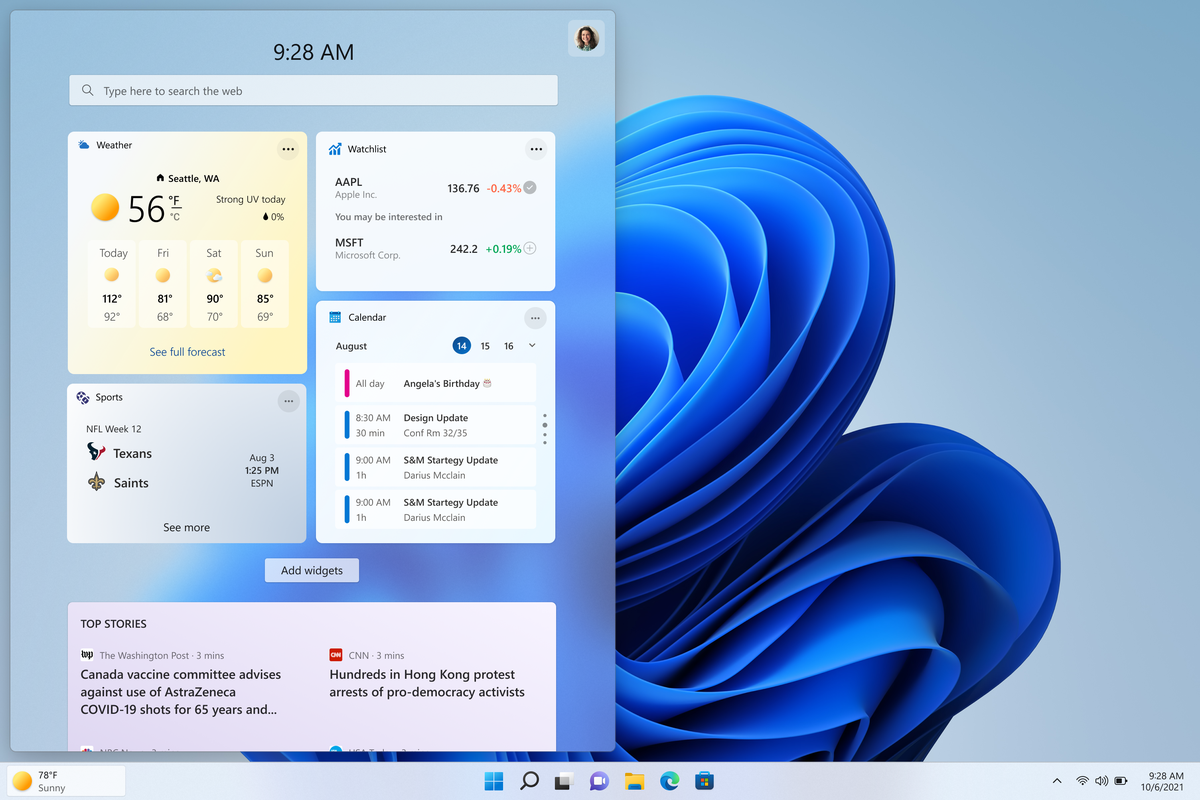
The latest Windows 11 update has brought with it not so popular widget from Windows 10, the weather widget that will reside into the taskbar and constantly show stuff like temperature, weather conditions, etc. The weather widget is not a bad thing but most users found it a little annoying and turned it off in Windows 10. If you wonder how can you do the same but this time inside Windows 11 please keep reading. weather widgetThe first step is to right-click  anywhere on the taskbar (in empty space) and choose Taskbar settings Once the taskbar settings are opened, find Widgets and click on the switch on the far right to turn it off, immediately no more information will be shown on the taskbar and it will be free again. And that is all there is to it.

Read More
Fix rtf64x64.sys Blue Screen error on Windows
rtf64x64.sys Blue Screen error happens in random intervals but it is a regular occurrence, it can happen when playing games, when watching movies, or even when the computer is idle. in this article we will guide you on how to resolve this error from the most simple steps you could take and do not worry, altho the error seems dreadfully and scary, it is nothing to worry about. If you can boot Windows normally after error great, proceed with instructions, else reboot into safe mode or use installation media to boot.
  1. Use official Microsoft online troubleshooter Microsoft has an online blue screen troubleshooter that was made specifically for this kind of situation. Go to Troubleshoot screen error and answer questions needed. Most of the time this will be enough to solve any blue screen issue.
  2. Update network and sound drivers How is this error traced back to Realtek devices, go to the Realtek website and download drivers. Install them and reboot the system.
  3. Use a dedicated software solution DRIVERFIX is an application made for these and other kinds of driver issues and problems, it is one click automated solution for driver fixing. Visit the Driverfix site and download the application
  4. Perform system Restore If you have not managed to fix the issue with previous steps roll back to a previous restore point when everything was working.
  5. Replace network or sound card If everything failed including system restore then it is likely that it is a hardware malfunction. Replace faulty components and you should not receive errors anymore.
Read More
1 2 3 171
Logo
Copyright © 2023, ErrorTools. All Rights Reserved
Trademark: Microsoft Windows logos are registered trademarks of Microsoft. Disclaimer: ErrorTools.com is not affiliated with Microsoft, nor claims direct affiliation.
The information on this page is provided for information purposes only.
DMCA.com Protection Status