Logo

Fix Bad Image Error Status 0xc000012f

When you run a program in Windows 10, error 0xc000012f may pop up, mentioning that the files and binaries you’re trying to run are corrupted. Error 0xc000012f means Bad Image, denoting that the program’s executable or one of the supporting modules is corrupt. Or there is probably a DLL mismatch.

This error usually manifests itself after a windows update or after installation of some application, in order to fix it follow the steps below:

  1. Perform SFC scan

    Press ⊞ WINDOWS + X to open the Windows menu
    keyboard with windows and x markedFrom the menu choose command prompt (admin)
    Windows menu command prompt adminIn command prompt type sfc /scannow and press ENTER
    Leave the computer for the operation to be completed and Reboot your computer

  2. Run DISM

    Press ⊞ WINDOWS + X to open the Windows menu
    keyboard with windows and x markedFrom the menu choose command prompt (admin)
    Windows menu command prompt adminin command prompt type: DISM.exe /Online /Cleanup-image /Restorehealth and press ENTER
    wait for the process to be finished and Reboot your computer

  3. Reinstall application

    If this error has been popping up after the application install remove the installed application and install it again. There is the possibility that the application installer has by accident corrupted some files, reinstalling it might fix the issue.

  4. Uninstall Windows update

    In some cases, Windows update can introduce this issue, go to Windows updates, into advanced options, and uninstall the latest update to see if this will fix the error.

  5. Install Visual C++ Redistributable

    Go to the official Microsoft website and download C++ redistributable package and install it

  6. Install new windows update

    If there is a new Windows update install, there is a chance that in the last update something went wrong and it is very likely that it was fixed in the last one.

Do You Need Help with Your Device?

Our Team of Experts May Help
Troubleshoot.Tech Experts are There for You!
Replace damaged files
Restore performance
Free disk space
Remove Malware
Protects WEB browser
Remove Viruses
Stop PC freezing
GET HELP
Troubleshoot.Tech experts work with all versions of Microsoft Windows including Windows 11, with Android, Mac, and more.

Share this article:

You might also like

How to Fix The Rtl70.bpl Error on Your System

Rtl70.bpl Error - What is it?

To understand Rt170.bpl error code, it is important to have a good understanding of .bpl files first. BPL is the abbreviation of Borland Package Library. BPL is a developer file format used by Borland. It contains dynamic link libraries which are used for constructing Borland programs. BPL files are most commonly used for Borland Delphi programs. Delphi competes with Visual Basic as an offering for an object-oriented visual programming approach to application development. There are many programs/applications on your system that use rtl70.bpl file format to run successfully on Windows PC. The rtl70.bpl error occurs when this file gets damaged or corrupted. It fails to execute the command and run the application on your system. When your computer experiences this problem with this file, the following error messages are likely to appear:
  • rtl70.bpl is not responding
  • Runtime error: rtl70.bpl
  • Symantec User Session has encountered a problem and needs to close. We are sorry for the inconvenience. Application Name: rtl70.bpl
This error code exposes you to system freeze, crash, abrupt system shutdowns, blue screen of death errors, and it also reduces your PC performance.

Solution

Restoro box imageError Causes

The potential causes of rtl70.bpl error code includes:
  • DLL file was damaged due to viral infection or spyware
  • DLL file was overwritten by an incompatible version
  • Poor program installation
  • Too many invalid and obsolete registry entries stored in the RAM
  • Related Registry entries are corrupt

Further Information and Manual Repair

Here are some of the best yet simple solutions for you to resolve rtl70.bpl error on your PC:

1. Reboot Your PC

Sometimes this error can be resolved by simply restarting your system. Try rebooting your system and running .bpl supported program. If the program runs after you reboot your PC, then that’s great! But you should keep in mind that this is a temporary solution. The error may reappear anytime soon. So, it is advisable to consider a long-term solution for repairing the error code for the longest time.

2. Uninstall and then Reinstall the Program Causing the Error

If the error occurred after a certain program installed on your system,  it is advisable to uninstall it and then reinstall the program. Simply go to the control panel, select Add/Remove program option and uninstall the program that you recently installed that could be triggering the rtl70.bpl error code. Now reinstall and run it on your system. If the error is resolved, then this means the poor installation was the cause. If not, then this means the cause of the error is related to the registry.

3. Registry Restore to Fix rt170.bpl error

There are two ways to go about it. The first one is to click on the start menu, type registry editor, and press run. This will open the registry editor. Now click on the computer option then click file and import. This helps restore the registry but it is possible that the problem might persist. The error code may pop up again. Also, if the registry is damaged due to viral infection, then this solution may not work and you may still experience the error on your system. Then you will also have to download an antivirus which may further reduce the speed of your PC. However, the best way to restore the registry and to get rid of the error code for the longest time is to download Restoro. This is a new, user-friendly, high and multi-functional repair tool that functions as a registry cleaner and a system optimizer. It cleans the registry by scanning and removing all the unnecessary and obsolete files saved in RAM such as junk files, internet history, invalid registry entries, and more. It also repairs the damaged dll files and restores the registry thereby resolving the rtl70.bpl error. Restoro is easy to use, safe, efficient, and compatible on all Windows versions. To get started and resolve the rtl70.bpl error code in just a few seconds on your system click here and download Restoro.
Read More
How to remove Converters now

Converters Now developed by Mindspark Interactive is a Browser Extension for Google Chrome and is promoted at their website like a very useful tool for converting PDF and Doc files, alongside with dictionary, and other useful tools. While this might appeal to you the extension hijacks your New Tab page, changing it to Search.MyWay.com

While active, this extension monitors user’s online activity, recording visited websites, clicked links, bought products, and other browsing information. This information is later forwarded or sold to Mindsparks ad network to better deliver user Targeted Ads.

Browsing the internet with ConvertersNow will result in displaying additional ads, sponsored content, and sometimes even pop-up ads injected into various pages or websites throughout your browsing sessions. CovertersNow has been marked as a Browser Hijacker by several anti-virus programs and it is marked for removal.

About Browser Hijackers

Browser hijacking is actually a type of unwanted software, commonly a browser add-on or extension, which then causes modifications in the web browser’s settings. There are plenty of reasons why you may experience a web browser hijack; however commercial, advertising, and marketing are the major purposes for their creation. Usually, the idea would be to force users to visit particular websites that are aiming to improve their site visitor traffic and generate higher ad income. Though it might appear harmless, these tools were created by vicious individuals who always try to take advantage of you, so that they can easily earn money from your naivety and distraction. Browser hijackers could also let other vicious programs without your knowledge further damage your PC.

How you can recognize a browser hijack

Signs that an internet browser is hijacked include: the home page of your respective web browser is changed all of a sudden; your web browser is constantly being redirected to pornography websites; default web engine is changed; you are finding new toolbars you haven’t witnessed before; unstoppable flurries of popup ads show up on your computer screen; your web browser starts running sluggishly or presents frequent glitches; Inability to navigate to certain sites, particularly anti-malware and also other security software websites.

So how does a computer get infected with a browser hijacker

Browser hijackers could use drive-by downloads or file-sharing networks or even an e-mail attachment in order to reach a targeted computer system. Many web browser hijackings come from add-on applications, i.e., browser helper objects (BHO), toolbars, or plug-ins added to browsers to provide the extra features. Also, certain freeware and shareware can put the hijacker inside your computer through the “bundling” technique. Some of the most well-known hijackers are ConvertersNow, Conduit Search, Babylon Toolbar, OneWebSearch, Sweet Page, and CoolWebSearch. Browser hijackers might record user keystrokes to collect potentially important information leading to privacy issues, cause instability on systems, drastically disrupt user’s browsing experience, and eventually slow down the PC to a stage where it becomes unusable.

Removal

Some hijackers could be removed by deleting the freeware they were included with or by eliminating any extension you’ve recently added to your computer. Having said that, most hijackers are quite tenacious and need specialized applications to eradicate them. Furthermore, manual removals require deep system knowledge and therefore can be very difficult task for beginner computer users. You might opt for automatic browser hijacker removal by just installing and running efficient anti-malware software. If you want to eliminate persistent hijackers quickly and effectively, install the top-rated, award-winning Anti-Malware tool Safebytes Anti-Malware.

What To Do If You Cannot Install Any Anti-virus?

Malware can cause several kinds of damage to computing devices, networks, and data. Certain malware goes to great lengths to prevent you from installing anything on your computer system, particularly anti-virus software. If you’re reading this article now, you might have perhaps recognized that a malware infection is the cause of your blocked web traffic. So what to do when you want to download and install an anti-malware program such as Safebytes? Although this kind of issue will be tougher to circumvent, there are some actions you can take.

Install in Safe Mode

If the malware is set to load immediately when Windows starts, entering safe mode could block the attempt. Since only the minimal applications and services start-up in Safe Mode, there are seldom any reasons for issues to occur. You will have to do the following to remove malware in Safe mode. 1) At power-on/startup, hit the F8 key in 1-second intervals. This should bring up the Advanced Boot Options menu. 2) Make use of the arrow keys to choose Safe Mode with Networking and hit ENTER. 3) When this mode loads, you will have an internet connection. Now, use your web browser to download and install Safebytes. 4) After installation, do a complete scan and let the software program remove the threats it finds.

Download the security software using a different internet browser

Certain viruses may target vulnerabilities of a specific browser that obstruct the downloading process. If you’re not able to download the security software using Internet Explorer, this means malware may be targeting IE’s vulnerabilities. Here, you must switch to another web browser like Chrome or Firefox to download the Safebytes application.

Create a portable USB antivirus for removing viruses

Another way is to download and transfer an anti-malware program from a clean PC to run a scan on the infected computer. Try these simple steps to clear up your affected computer using portable anti-malware. 1) Download Safebytes Anti-Malware or Microsoft Windows Defender Offline onto a clean PC. 2) Insert the pen drive on the same computer. 3) Double-click on the downloaded file to run the installation wizard. 4) Choose the drive letter of the USB drive as the location when the wizard asks you where you would like to install the anti-virus. Follow the instructions to complete the installation process. 5) Now, plug the pen drive into the infected system. 6) Double-click the EXE file to open the Safebytes tool from the pen drive. 7) Simply click “Scan Now” to run a complete scan on the infected computer for malware.

Benefits and Features of SafeBytes Security Suite

In order to protect your personal computer from a variety of internet-based threats, it’s important to install an anti-malware program on your personal computer. But with countless numbers of antimalware companies out there, these days it’s hard to decide which one you should buy for your personal computer. A few of them do a good job in eradicating malware threats while many will ruin your PC by themselves. You need to pick out a tool that has got a good reputation and detects not only computer viruses but other kinds of malware also. When considering trustworthy software programs, Safebytes Anti-Malware is undoubtedly the strongly recommended one. Safebytes is one of the well-established PC solutions firms, which offer this all-inclusive anti-malware program. Using its outstanding protection system, this utility will automatically detect and eliminate most of the security threats, which include viruses, adware, browser hijackers, PUPs, trojans, worms, and ransomware.

There are lots of amazing features you will get with this particular security product. Listed below are some of the highlighted features included in the product.

Anti-Malware Protection: Using a critically acclaimed anti-malware engine, SafeBytes offers multilayered protection which is designed to catch and eliminate threats which are concealed deep in your PC. Live Protection: SafeBytes provides real-time active supervision and protection from all known computer viruses and malware. It will constantly monitor your pc for hacker activity and also provides end-users with advanced firewall protection. Safe Browsing: Through its unique safety score, SafeBytes notifies you whether a website is safe or not to visit it. This will make sure that you’re always certain of your safety when browsing the world wide web. High-Speed Malware Scanning Engine: SafeBytes’s very fast malware scanning engine cuts down scan times and extends battery life. At the same time, it’ll effectively detect and remove infected files or any internet threat. Lightweight: SafeBytes is a lightweight application. It consumes a very small amount of processing power as it works in the background therefore you won’t observe any computer performance difficulties. 24/7 Online Tech Support: You can get high levels of support 24/7 if you are using their paid software. To conclude, SafeBytes Anti-Malware is pretty great for securing your computer against all sorts of malware threats. There is no doubt that your computer system will be protected in real-time once you put this software program to use. For top protection and the best value for money, you can’t get better than SafeBytes Anti-Malware.

Technical Details and Manual Removal (Advanced Users)

If you’d like to carry out the removal of ConvertersNow manually instead of employing an automated tool, you may follow these steps: Proceed to the Windows Control Panel, click on the “Add/Remove Programs” and there, choose the offending program to remove. In case of suspicious versions of web browser extensions, you can easily get rid of them via your browser’s extension manager. It’s also advised to factory reset your web browser to its default condition to fix corrupt settings. If you decide to manually delete the system files and Windows registry entries, use the following checklist to make sure you know precisely what files to remove before executing any actions. But bear in mind, this is often a tough task and only computer professionals could accomplish it safely. Furthermore, certain malicious programs are capable to defend against its removal. Doing this malware-removal process in Safe Mode is recommended.
Files: %UserProfile%\Local Settings\Application Data\ConvertersNowTooltab %LOCALAPPDATA%\Google\Chrome\User Data\Default\Sync Extension Settings\jbfdncemokhjnhoiohfdjahheefaiaec %UserProfile%\Local Settings\Application Data\Google\Chrome\User Data\Default\Sync Extension Settings\jbfdncemokhjnhoiohfdjahheefaiaec %LOCALAPPDATA%\Google\Chrome\User Data\Default\Local Extension Settings\jbfdncemokhjnhoiohfdjahheefaiaec %UserProfile%\Local Settings\Application Data\Google\Chrome\User Data\Default\Local Extension Settings\jbfdncemokhjnhoiohfdjahheefaiaec %LOCALAPPDATA%\Google\Chrome\User Data\Default\Extensions\jbfdncemokhjnhoiohfdjahheefaiaec %UserProfile%\Local Settings\Application Data\Google\Chrome\User Data\Default\Extensions\jbfdncemokhjnhoiohfdjahheefaiaec Registry: HKEY_LOCAL_MACHINE\Software\Wow6432Node\ConvertersNow HKEY_LOCAL_MACHINE\Software\ConvertersNow HKEY_LOCAL_MACHINE\Software\Google\Chrome\PreferenceMACs\Default\extensions.settings, value: jbfdncemokhjnhoiohfdjahheefaiaec HKEY_LOCAL_MACHINE\Software\Microsoft\Internet Explorer\DOMStorage\convertersnow.dl.tb.ask.com HKEY_LOCAL_MACHINE\Software\Microsoft\Internet Explorer\DOMStorage\convertersnow.dl.myway.com HKEY_LOCAL_MACHINE\Software\[APPLICATION]\Microsoft\Windows\CurrentVersion\Uninstall..Uninstaller ConvertersNowTooltab Uninstall Internet Explorer

Read More
Fix Something went wrong with the projection
As you know, Windows 10 is created with the goal of developing an operating system that caters to users’ needs and enhances productivity. That’s why modern computers that are running the Windows 10 OS have the capabilities to project their screen to an external display wirelessly. That said, Microsoft has a dedicated and pre-installed app called Connect which helps another device to project their screen on the computer. However, this feature is kind of delicate and won’t work unless it’s properly configured. So if some configuration does not work out well, it will throw an error message that says
“Something went wrong with the projection”.
This kind of error is caused by some issues with the Display driver, hardware, corrupted or damaged system files, and so on. And to fix it, there are several methods you can check out. You can try to update, roll back or reinstall the Display drivers. You could also run the Network Adapter troubleshooter or the Video Playback troubleshooter as well as run System Restore to undo any recent changes that might have triggered the error or reset your Windows 10 computer without deleting any files. For more details, refer to each one of the options provided below.

Option 1 – Try to update or rollback the Graphics driver

You can try to update your Graphics card driver using the Device Manager in your computer to resolve the blank dialog boxes problem or you can also go directly to the website of your graphics card manufacturers like NVIDIA, Intel, or AMD and go to the section called Drivers then check if there’s a new available update – if there is, download and install it. To update your Graphics driver via Device Manager, refer to these steps:
  • First, boot your computer into Safe Mode.
  • After that, tap the Win + R keys to launch Run.
  • Type in MSC into the box and tap Enter or click OK to open the Device Manager.
  • After that, a list of device drivers will be displayed. From there, look for the Display Adapters and click on them.
  • After that, right-click on each entry under the Display Adapters and select the “Uninstall Device” option from the menu.
  • Now restart your computer.
  • After restarting your computer, go to the Settings app and Check for Updates in the Windows Update section.
Note: If updating the Graphics driver didn’t fix the problem, you can also try to roll back to its previous version and see if that helps or you could also try to roll back, update or reinstall the Network Adapter drivers.

Option 2 – Try to run the Network Adapter troubleshooter

To run the Network Troubleshooter, refer to these steps:
  • Open the Search bar on your computer and type in “troubleshoot” to open the Troubleshoot settings.
  • Next, scroll down and select the “Network Adapter” option from the right pane.
  • Then click on the Run Troubleshooter” button.
  • After that, your computer will check for any possible errors and will pinpoint the root cause of the problem if possible.
  • Restart your computer.

Option 3 – Try to run the Video Playback troubleshooter

If the Network Adapter troubleshooter didn’t work in fixing the problem, you can try to run the Video Playback troubleshooter instead. To run it, simply go to Settings > Update & security > Troubleshoot. From there, scroll down until you see the Video Playback option and then click on the “Run the troubleshooter” button to get started. This troubleshooter will detect and automatically fix any problems related to video playback so it should help fix the error.

Option 4 – Try performing a System Restore

You might also want to perform a System Restore that might help you in fixing the error. You can do this option either by booting into Safe Mode or in System Restore. If you are already in the Advanced Startup Options, just directly select System Restore and proceed with the next steps. And if you have just booted your PC into Safe Mode, refer to the steps below.
  • Tap the Win + R keys to open the Run dialog box.
  • After that, type in “sysdm.cpl” in the field and tap Enter.
  • Next, go to the System Protection tab then click the System Restore button. This will open a new window where you have to select your preferred System Restore point.
  • After that, follow the on-screen instructions to finish the process and then restart your computer and check if the problem is fixed or not.

Option 5 – Reset your computer

  • Tap the Win key or click on the Start button located in the Taskbar.
  • Then click on the Power button at the bottom right portion of the screen.
  • Next, press and hold the Shift key on your keyboard and then click on Restart. This will restart your Pc into the Advanced Startup options.
Note: Once you have access to the Advanced Startup options, you have to go to the setting which allows you to Reset your Windows 10 PC. All you have to do is select Troubleshoot > Reset this PC to reach the following screen Afterward, select either the “Keep my files” option and then proceed to the next on-screen instructions that follow to reset your Windows 10 computer without losing your files.
Read More
Selected boot image did not authenticate Error
If you are using UEFI and you encountered an error message that says, “Selected boot image did not authenticate”, then read on as this post will show you what to do it fix it. This kind of error indicates that UEFI is having an issue in figuring out if the boot image has tampered with. UEFI offers Secure Boot and if the boot image seems to be invalid, you won’t be allowed to boot into your computer. Aside from that, it could be that you may be using endpoint encryption and the software can’t validate the certificate. To fix the “Selected boot image did not authenticate” error in UEFI, you need to first check if the error has given any reference to any software that you might have for encryption. If it has, then you need to disable the Encryption tool to resolve the problem. In addition, you could also try to disable Secure Boot or perform Startup Repair in case the disabling Encryption tool didn’t work. For more details, make sure to use each one of the options provided below as a reference.

Option 1 – Try to disable the Encryption tool

The first thing you can do to fix the “Selected boot image did not authenticate” error is to disable the Encryption tool. Many users reported that some encryption tools like the ESET Endpoint Encryption won’t let them boot into the computer if the system manufacturer does not include the correct certifications as a part of the UEFI BIOS. And since there is no way to bypass this, you have to disable Secure Boot in order for you to boot into your computer.

Option 2 – Disable the Secure Boot in the BIOS

Disabling the Secure Boot in the BIOS settings is definitely recommended to resolve the error. To disable Secure Boot, here’s what you have to do:
  • First, boot your computer into Windows 10.
  • Next, go to Settings > Windows Update. From there, check if there is anything that you have to download and install if you see any available updates. Usually, OEMs send and update the list of trusted hardware, drivers, and operating systems for your computer.
  • After that, go to the BIOS of your computer.
  • Then go to Settings > Update & Security > Advanced Startup options. If you click on Restart Now, it will restart your computer and give you all the advanced options.
  • Next, select Troubleshoot > Advanced Options. As you can see, this screen offers you further options including System restore, Startup repair, Go back to the previous version, Command Prompt, System Image Recovery, and UEFI Firmware Settings.
  • Select the UEFI Firmware Settings which will take you to the BIOS.
  • From there, go to the Security > Boot > Authentication tab where you should see Secure Boot. Note that every OEM has its own way of implementing the options so it varies.
  • Next, set Secure Boot to Disabled and set Legacy Support to On or Enabled.
  • Save the changes made and exit. Afterward, your computer will reboot.

Option 3 – Try to run the Automatic Repair Utility

If disabling Secure Boot did not fix the problem, you might also want to run the Automatic Repair utility in fixing the error. To do so, follow the steps below.
  • You can start by booting into the Advanced Recovery Mode.
  • After that, select Troubleshoot > Startup Repair.
  • Next, follow the on-screen instructions that appear on the screen and finish the Automatic Repair process.
  • Now check if the block is gone once the reboot is completed.
Read More
Fixing To use System Restore you must ...
There are cases when you want to undo some changes you’ve made to your computer and to do that you have to perform the System Restore task. However, if you encounter an error that states “To use System Restore you must specify which Windows installation to restore”, when doing so, read on as this post will help you fix the problem. This kind of error in System Restore could be due to corrupted files in the system. There are also situations where you are not able to boot up once you encounter this error which could be a big problem. On the other hand, this error might have something to do with corrupted BCD files. Whatever the cause is, here are some potential fixes you have to try.

Option 1 – Try to run System File Checker offline

Like pointed out, since the error might be due to corrupted system files, you can try to run System File Checker offline. How? Refer to these steps:
  • You need to go to the Advanced Startup Options and from there select Troubleshoot.
  • Next, select the Advanced Options and then Command Prompt.
  • After opening Command Prompt, type the commands given below and tap Enter right after you type each one of them.
    • Cd /
    • Dir
  • If you can see the “Users” folder, that is your system’s drive. However, if you can’t see it, you can just change the drive-by assigning “D” as its alphabet volume.
  • Then execute this command where “C” is the system drive: sfc /scannow /offbootdir=C: /offwindir=C:Windows
  • Now repeat the given steps sequentially.

Option 2 – Try to run DISM tool

You can also run the DISM tool to repair the potentially corrupted system image. First, you have to check the health of the system like checking the integrity of the system files and Windows services. To run DISM, follow the given steps below sequentially.
  • Open Command Prompt from the Advanced Startup options.
  • After that, execute this command where “C:” is the system volume: DISM /Image:C:Windows /Cleanup-Image /RestoreHealth /Source:C:WindowsWinSxS
  • If you encounter an error after executing the given command, insert the Windows USB or DVD and then execute this next command where “E:” is the USB or DVD drive: DISM /Image:C:Windows /Cleanup-Image /RestoreHealth /Source:esd:E:SourcesInstall.esd:1 /limitaccess
  • In some cases, “install.esd” would be “install.wim” and in such case, you have to modify and execute this command: DISM /Image:C:Windows /Cleanup-Image /RestoreHealth /Source:wim:E:SourcesInstall.wim /limitaccess

Option 3 – Try to repair corrupted BCD

As mentioned, the error could also be due to corruption in BCD, and to fix it, you can use Bootrec.exe – a built-in command-line tool used to troubleshot issues related to boot up and Windows Startup. Before you run this tool, make sure that you have inserted a bootable USB or DVD into your computer. Once you have that covered, follow these steps:
  • You need to go to the Advanced Startup Options.
  • Then click on Troubleshoot.
  • Next, select the Advanced Options and then Command Prompt.
  • Once Command Prompt has been pulled up, enter each one of the following commands and in the sequence that they are given to rebuild BCD files and repair MBR files:
    • Bootrec /Fixmbr
    • Bootrec /FixBoot
  • After you execute the commands given above, you should see a confirmation message that says, “The operation completed successfully”.
  • Now type the “Bootrec /RebuildBCD” command to rebuild BCD.
  • Finally, close Command Prompt and then restart your computer to successfully apply the changes made.

Option 4 – Try to run the Automatic Repair Utility

You might also want to use Automatic Repair in fixing the error. To do so, follow the steps below.
  • You can start by creating and booting from a bootable Windows 10 USB Stick.
  • After that, click on Repair your computer located in the bottom left corner when you are on the initial Windows Startup screen.
  • Next, click on Troubleshoot, and then on the other screen, click the Startup Repair option.
  • Now select the operating system you want to repair. Once you do that, it will start to repair your operating system. Wait until the process is completed and then check if the problem’s now fixed.

Option 5 – Try to use the Windows Recovery Environment

If the four options given above didn’t help fix the problem, you could try running Windows Repair and a Windows bootable USB or DVD.
  • First, insert the bootable USB or DVD and boot into it, and select the “Repair your computer” option.
  • Next, once you see the manufacturer logo on your computer, tap the key to enter into Windows Recovery Environment.
  • After that, change the Boot sequence to DVD drive under the UEFI Firmware settings and restart your computer.
  • Once your computer has restarted, select the boot order and make changes accordingly as displayed in the BIOS.

Option 6 – Try running System Restore in Advanced Startup Options

Since you probably can’t boot into your Windows 10 computer, you can try to run System Restore again in the Advanced Startup Options.
  • Boot your computer into the Advanced Startup Options screen.
  • From there, you will see some options to troubleshoot when you can’t log in to Windows in the usual way.
  • Now select Troubleshoot > Advanced Options > Command Prompt.
  • After that, type “exe /OFFLINE:C:Windows” and hit Enter to execute the command which will start the System Restore process.
Note: You need to replace “C” with the drive where Windows Installation is located.
Read More
An Easy Guide to Resolving Error 0x80040600

0x80040600 - What is it?

This is a typical MS Outlook error code. This error message may prevent you from sending and receiving emails via your Outlook account. The error message is displayed in the following format:
"An unknown error has occurred. 0x80040600"
If this is the primary source of your communication in the office, then this error can cause you a great deal of inconvenience as it may prevent you from running important business errands via your Outlook account efficiently. Therefore, when you experience the 0x80040600 error on your PC, it is advisable to fix it immediately.

Solution

Restoro box imageError Causes

This error code is triggered due to multiple reasons. These include but are not limited to:
  • PST (Personal Storage Table) file reaches its file size limit
  • PST file corruption
  • Viral infection
  • Incorrect Windows registry settings
  • Improper shutdown of Outlook
This error code can lower your office productivity as you may be unable to send and receive emails on your Outlook account. Also, you may get locked out of your account and be unable to view your calendar entries and open email attachments saved previously in your account.

Further Information and Manual Repair

To resolve the error on your PC, you don’t have to wait for the network personnel to fix it or be a computer expert. Here is a list of easy and effective DIY methods to help you fix this error code right away.

Method 1: Download a PST File Repair

If the error occurs because your PST file has reached it maximum limit which is normally 2 GB or because of PST file corruption, then it is advisable to download a PST file repair tool. After downloading it, simply run it on your PC. This tool will immediately fix the damaged PST file and file the issue.

Method 2: Download an Antivirus

Deadly viruses like Trojans and spyware can penetrate into your PC if through downloads and opening phishing emails. Therefore, to remove such viruses it is important to install an antivirus and scan your entire PC.

Method 3: Install Restoro.

If the problem is associated with incorrect Windows registry settings or viral infection, it is advisable to download Restoro. This software is multi-functional deployed with 6 different and powerful utilities including an antivirus, a registry cleaner, and a system optimizer to name a few. The registry cleaner repairs the registry corrects the settings and fixes the damaged files. The antivirus on the other hand simultaneously removes all types of viruses including Trojans, spyware, malware, and adware on the system. While the system optimizer feature ensures the PC performance and speed are not compromised during the scanning and cleanup process. This software is safe, efficient, and compatible with all Windows versions. It has a user-friendly interface and simple navigations which makes it quite easy for all levels of users including novice and intermediate to operate. Click here to download Restoro and resolve the 0x80040600 error code on your PC today!
Read More
Turn On/Off and Clear Windows Clipboard
Windows 10 has a Cloud Clipboard feature that allows users to have a list of multiple copied text in place so that they can reuse it. And each time the computer restarts, the Clipboard Data is cleared. However, you can actually do it manually. How? Read on as this post will walk you through how you can turn on or off as well as clear the Clipboard history in Windows 10. This kind of feature is already available in Windows 10 v1903. In the previous versions of Windows, there was no feature to turn off history in the clipboard and users have to use other ways to clear the clipboard history. And now it seems that Microsoft has put an end to this dilemma as it now allows users to clear the clipboard history. To turn on or off or clear the Clipboard history, here are some instructions you need to follow: Step 1: Tap the Win + X keys to open the power menu and select Settings. Step 2: After that, navigate to Settings > System > Clipboard. Step 3: From there, turn off the toggle button under the Clipboard history section. This will turn off the Cloud Clipboard feature. As a result, the default clipboard will hold one last item and will not display the data on the clipboard. Note: When you tap the Win + V keys to invoke the clipboard manager, you will see a prompt that says, “Can’t show history, See all copied items in place, Turn on clipboard history”. You have the option to turn it back on by simply clicking on the available button. Doing so would only hide the existing data and makes sure that no copy of the data is kept.

Conclusion

On the other hand, if you want to clear the clipboard without affecting its history data, you have to make sure to pin the items on the clipboard that you want to stay. After that, click on the three-dotted icon for the menu and click on the “clear all” option. This will delete all the entries but will keep the pinned items on your clipboard.
Read More
How to Fix Error Code 0x800704c7 in Windows 10

Error Code 0x800704c7 – What is it?

Error code 0x800704c7 occurs when Windows users attempt to update their system. It affects various Windows users including those using Windows 7, Windows 8, and 8.1 and Windows 10. It usually occurs due to poor maintenance of the system and includes common symptoms such as the following:

  • Inability to upgrade your Windows operating system
  • Message box with error code 0x800704c7

Solution

Restoro box imageError Causes

Error code 0x800704c7 in Windows 10 can occur due to several reasons. For instance, it may be due to corrupted or missing system files. It may also result from malicious programs affecting your system or occur when a program or several programs are running in the background of one’s system while the user attempts to run the update.

To correct this issue, Windows users will need to select one or a few methods, depending on the issues affecting their PC.

Further Information and Manual Repair

Some of the best solutions for error code 0x800704c7 available to Windows users including using tools to scan for missing systems files or correct other issues inherent within your system.

These methods may include the use of Command Prompt and the performance of technical repair procedures. If you are uncertain of your skills, avoid compounding the issue or causing further damage to your PC by contacting a skilled Windows repair technician. This IT professional will be best equipped to use Windows tools and other methods to resolve error code 0x800704c7.

Method One: Scan Your System for Missing or Corrupt System Files

Using System File Checker Tool (SFC), Windows users can check their system for missing o corrupt system files. These utility tools within your Windows device will be able to replace missing files and repair corrupted ones, resulting in a more efficient system.  Run this tool by following the steps below:

  • Step One: Go to Start and type Command Prompt or CMD.
  • Step Two: Run as Administrator
  • Step Three: Type sfc /scannow. (Be sure to place a space between “sfc” and “/scannow”).

After running these procedures, check if the error code has been resolved. Go to Settings > Update & security > Windows Update. Update your Windows operating system. If error code 0x800704c7 reoccurs, you will need to try the next method below.

Method Two: Restore your System

System Restore is one of the best manual repair solutions Windows users can apply when they come across error codes like error code 0x800704c7. That’s because this method requires no technical or advanced knowledge and therefore can be performed by anyone. Simply follow the steps below to restore your system to a period of time in the past where the error was not present on your system. If done correctly, this could enable you to resolve the issue with little frustration on your part.

  • Step one: Type Control Panel in the search bar near the Start button
  • Step two: Select Control Panel, then Recovery
  • Step three: Select System Restore then click Next
  • Step four: Select a restore point before appeared on your Windows 10 system
  • Step five: Select Next then Finish

Note that once System Restore is enabled it will remove drivers, apps, and even updates installed after the restore point. For this reason, be careful to choose the most appropriate restore point. Also once you’ve completed this task, check to see if you are able to update your system. If the update stops before the process is complete and a message box occurs with the error code 0x800704c7, proceed to the next manual repair option below.

Method Three: Check for and Remove Malware

Viruses or other forms of malware can adversely affect your system, causing error codes and other issues to take place. To resolve error code 0x800704c7 in Windows 10, check for and remove malware using a reputable anti-malware program.

If no anti-virus software is present on your system or if you scan your device but fail to spot an issue, proceed to method four.

Method Four: Use an Automated Tool

This method involves the use of a powerful automated tool. But why is this important you might ask? A third-party tool is often the best solution when all manual repair efforts fail. Automated tools come equipped to tackle the most serious PC problems including error codes which can cause frustration and result in reduces PC performance.

Read More
Fix DRIVER_IRQL_NOT_LESS_OR_EQUAL in Windows
DRIVER_IRQL_NOT_LESS_OR_EQUAL will cause your computer to go to the blue screen of death but do not worry there are solutions around this and we are here to instruct you on how to solve this.
  1.  Uninstall and install network drivers

    DRIVER_IRQL_NOT_LESS_OR_EQUAL is most commonly tied to bad network drivers, whatever that be a corruption of the driver files or their incompatibility. So first thing is to check if this is the case. Press ⊞ WINDOWS + X to open the hidden menu in Windows and click on Device Manager. keyboard with windows and x marked Windows menu device manager In the Device Manager expand Network adapters, choose adapter, right-click on it and choose Uninstall. network device manager Install latest driver or reboot so Windows will install the driver automatically
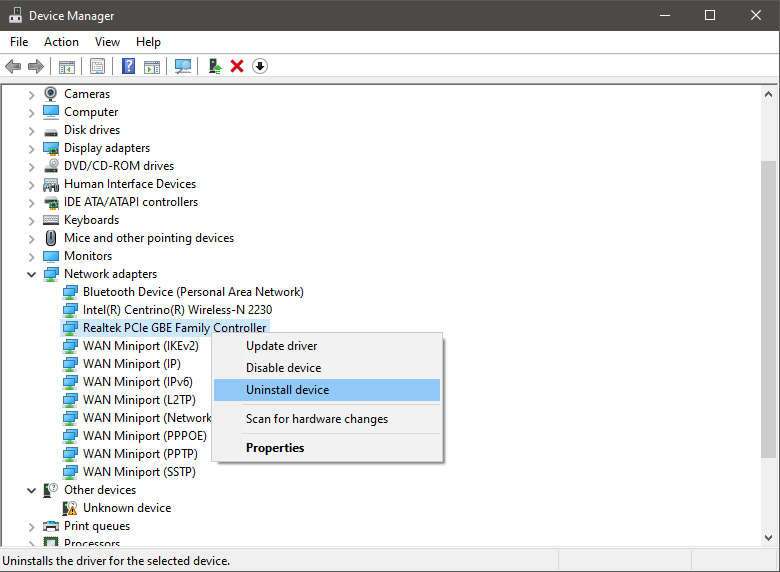
  2. Update driver

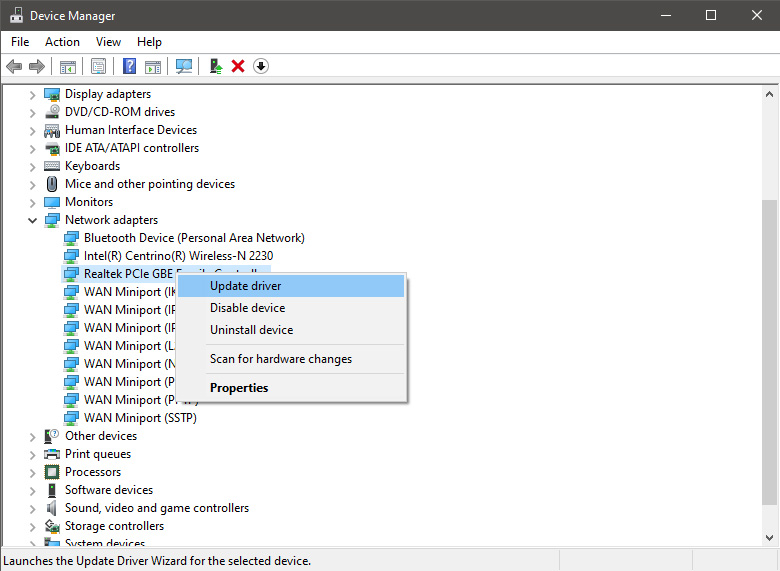
    If you do not want to reinstall the driver or you are unable to for whatever reason updating the driver might do the trick. To update driver: Press ⊞ WINDOWS + X to open the hidden menu in Windows and click on Device Manager. keyboard with windows and x markedWindows menu device manager In the Device Manager expand Network adapters, choose adapter, right-click on it and choose Update Driver. network device manager update
  3. Fix via Command prompt

    If both of the beforementioned solutions fail, try running the command prompt and fix the issue from there. Press ⊞ WINDOWS + X to open the hidden menu in Windows and click on Command Prompt (administrator) keyboard with windows and x markedWindows menu command prompt admin In command prompt type next line and press ENTERDEL /F /S /Q /A “C:\Windows\System32\drivers\mfewfpk.sys Reboot the system
  4. Scan your PC for malware

    Sometimes corruption in the system is caused by malware, Scan your system for malware, viruses, etc.
  5. Check connections or other hardware issues

    If all methods fail, open your PC case and check to see if connections everywhere are properly connected and tight. Clean your PC and turn it back ON
  6. Use system restore

    If anything fails, use Windows system restore and bring back computer into a state where everything was working fine.
Read More
Intel & MS fixed DRM issue with alder lake
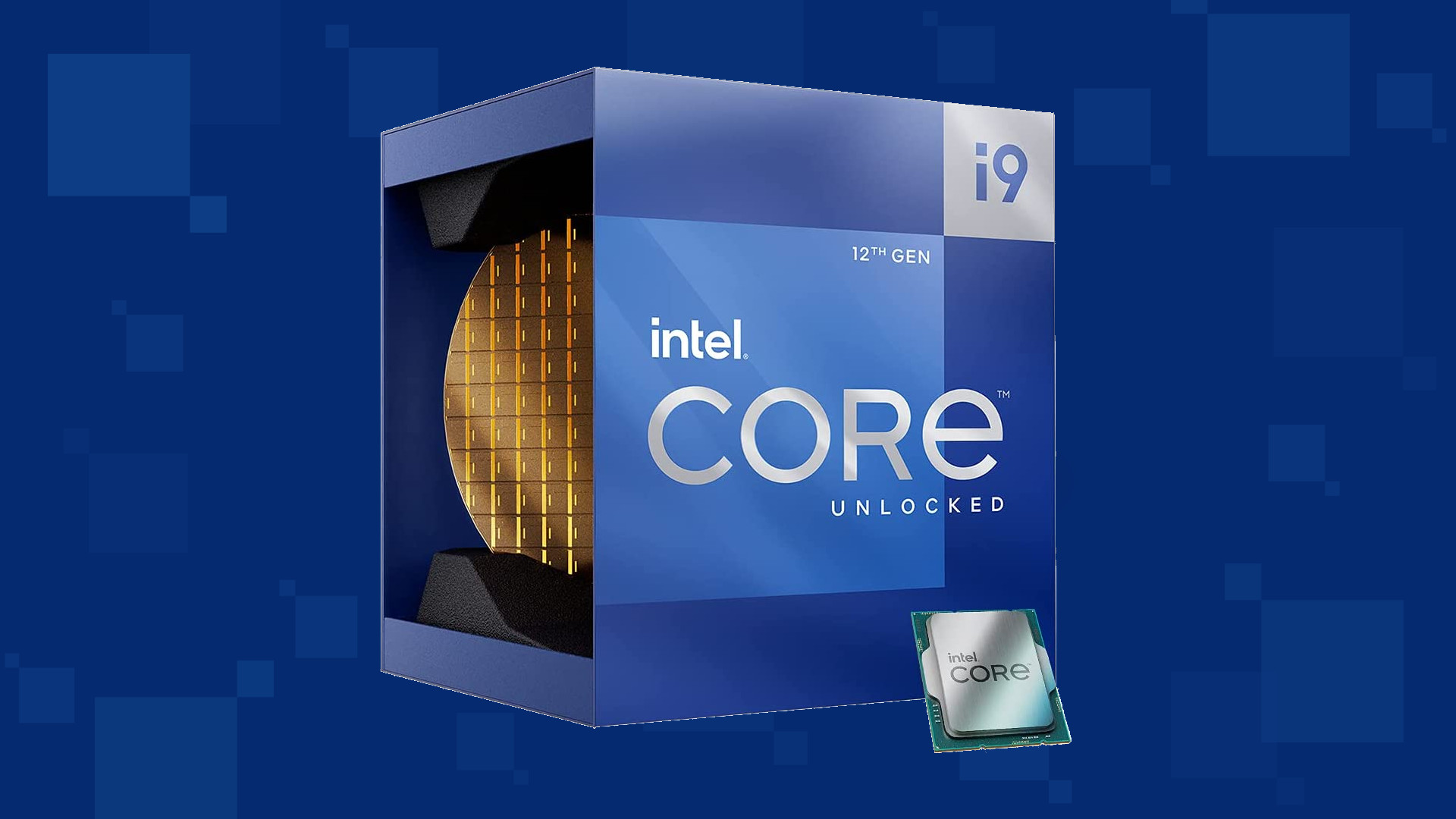
Due to its hybrid core technology, the Alder Lake line of processors had some DRM issues with some game titles where DRM protection software detected hybrid core design switching via manager as a hack attempt and prevented the game from working properly. Over 50 titles were affected by this issue, now only 3 remain still affected but it is being worked on them so that can be also resolved. alder lake drmIntel says that the remedy to the issue for these games is the scroll lock fix which can be done so by enabling Legacy Game Compatibility mode from the BIOS of your motherboard. When running the said games, you can press scroll lock to park the E-cores on Intel's Alder Lake Desktop CPUs to get rid of DRM issues. Certain motherboard manufacturers such as MSI and Gigabyte have made this even easier through software tools with which you don't have to access the BIOS. All you need to do is select a button in the tool which works on both Windows 11 and Windows 10 operating systems and you will enable compatibility mode.

Read More
1 2 3 171
Logo
Copyright © 2023, ErrorTools. All Rights Reserved
Trademark: Microsoft Windows logos are registered trademarks of Microsoft. Disclaimer: ErrorTools.com is not affiliated with Microsoft, nor claims direct affiliation.
The information on this page is provided for information purposes only.
DMCA.com Protection Status







