Logo

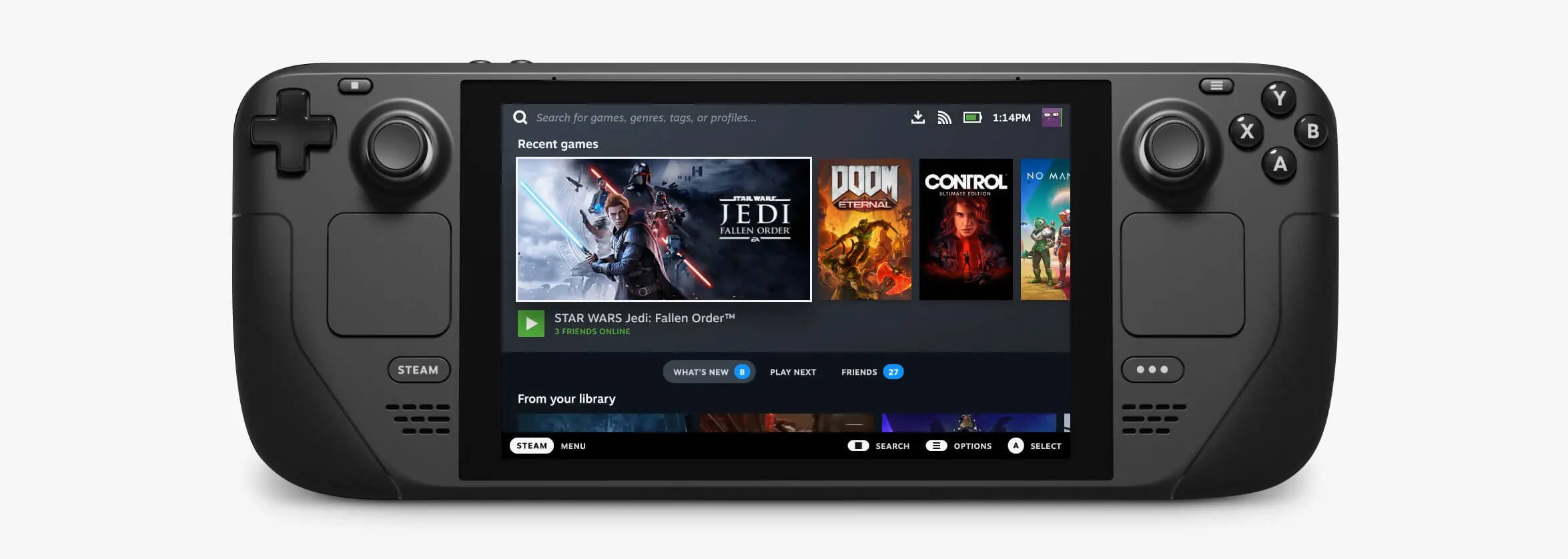
Valve Steam Deck is Compatible with Windows 11

Steam DeckValve has officially announced that Steam Deck will be compatible with Windows 11 despite TPM 2.0 Microsoft requirements.

From the beginning, Deck was announced like a mini handheld PC device. Powered with new Steam OS 3.0 based on Linux. However, besides out-of-the-box OS it was also stated that Deck will be a personal device meaning that other PC-based operating systems could be installed on it and even run your typical applications in it.

Since Microsoft announced Windows 11 hardware requirements, specifically the TPM 2.0 requirement many users voiced concern that Steam Deck will not be able to connect to Windows 11

TPM 2.0 is something that Microsoft requires for every internal and hardware component that is to connect on a Windows 11 device. This is to ensure that only trusted devices would be included in the array of a PC setup and avoid any problems like malicious hardware injecting software into a system.

This would also minimize the compromise Windows would have, as unverified or untrusted devices connect to a Windows PC.

However, Valve and AMD are ensuring us that Deck will not have any issue connecting to a PC running Windows 11 or even if you wish to transform Deck itself into a Device running Windows 11.

Do You Need Help with Your Device?

Our Team of Experts May Help
Troubleshoot.Tech Experts are There for You!
Replace damaged files
Restore performance
Free disk space
Remove Malware
Protects WEB browser
Remove Viruses
Stop PC freezing
GET HELP
Troubleshoot.Tech experts work with all versions of Microsoft Windows including Windows 11, with Android, Mac, and more.

Share this article:

You might also like

How to Fix Windows 10 Error 0x8007000d

Error Code 0x8007000d - What is it?

Error Code 0x8007000d is a common error code that can be found on the Windows 10 Operating system, although it can also appear in previous versions of the operating system, as well.

Common symptoms include:

  • Inability to download new updates.
  • Inability to run the Update tool through to completion.

There are four basic ways to try to resolve Error Code 0x8007000d on your Windows machine. Three of these are pretty simple for even the most basic users, while the final method requires some familiarity with running commands in the Command Prompt. If you don’t feel that you have the skill or confidence to complete the steps listed below, it is generally recommended that you get in touch with a qualified computer repair technician that can assist you in error resolution.

Error Causes

The main cause for the appearance of Error Code 0x8007000d on a Windows machine is that one of the files that the Update tool uses to run one or more updates cannot be found or has experienced damage. Fortunately, there are a few things that you can try on your machine that can be used to attempt to resolve the issues at hand.

Further Information and Manual Repair

Three primary methods exist for the resolution of Error Code 0x8007000d on a Windows machine. As mentioned above, two of these methods can usually be accomplished by basic users, while the third requires some degree of familiarity with the tools associated with the Command Prompt. If you don’t feel that you have the knowledge or skill necessary to follow these steps, contact a computer repair technician to aid you.

Here are the best ways to try to resolve Error Code 0x8007000d on your device:

Method One:  Use the Troubleshooting Tool from Windows Update

From the Windows Update tool, you can attempt to run a scan using the Windows Update Troubleshooter, which can try to identify the specific issue that is occurring and to fix it automatically.

Not only will this tool often fix the problem at hand, but it can also help you to avoid other errors that you may have encountered later on in the Update process. This tool should always be your starting point when you encounter an error as you attempt to download or install updates for your Windows machine.

After the tool has been run, restart your computer to apply any changes and then reopen the Update tool to reattempt installation.

Method Two:  Reset Your Computer

In some cases, the missing or corrupted files may be extensive enough that you need to restore your computer to an earlier point. If you create regular backups of your information or have a past version of the software that you can install, this can help you to resolve the issue. Otherwise, you may need to restore your device to its factory settings to resolve the error.

Always make sure to backup your important files and information before you perform a reset of your device, in order to ensure that you are able to return the computer to its original state when you have finished.

Method Three:  Use Command Line Tools to Resolve the Issue

One of the ways that you can try to resolve this particular error code is the use a DISM tool. This is accessed through the Command Prompt. In order to use this method, follow the steps below:

  • Step One: Open up the search bar in the Start Menu and type in the words “Command Prompt,” selecting it and choosing to run it as an administrator.
  • Step Two: Enter each of the commands below, hitting the “Enter” key when you finish each one:
    • exe /Online /Cleanup-image /Scanhealth
    • exe /Online /Clean-upimage /Restorehealth
    • Exit
  • Step Three: Attempt to run the Update program again. In some cases, you may want to restart your computer before you attempt to run the Update tool again.

If you have not been able to resolve the error code using the steps above or if you are unsure of your ability to follow these steps on your own, get in touch with a trusted computer repair professional that is familiar with the Update process and the errors associated with it.

Read More
A Quick Guide to Resolving Error 2738

Error 2738 - What is it?

The error code 2738 typically occurs either when you attempt to install a program or uninstall it on Windows Vista and 7. The error message is displayed in the following format:
“Error 2738. Could not access VBScript run time for custom action.”
It is a type of runtime error associated with VB (Visual Basic) Script. It indicates that the VB script engine is not correctly registered on your computer.

Solution

Restoro box imageError Causes

The error 2738 may occur due to multiple reasons. These include:
  • Windows VB Script engine is not properly installed or is disabled on your PC
  • Registry keys are incorrect
  • Corrupt registry entries
  • Poor PC maintenance
As this error code may be generated due to registry issues, it is advisable to fix it immediately as it may pose serious threats to your system like system failure, crash and valuable data loss. And complete data retrieval is often the hardest task.

Further Information and Manual Repair

To avoid such threats and to resolve the error 2738 on your PC immediately, here are some solutions that you can try:

Register the VB Script Engine Correctly on Your PC

This can be done by running the command prompt as administrator:-
  • Simply go to the start menu, click all programs, and select accessories.
  • Right-click on Command Prompt and select ‘run as Administrator’.
  • Navigate to the folder that contains the DLL. If you are using Windows 32 bit version, then type cd %windir%system32 into the Command Prompt and then press enter.
Nonetheless, if you are using 64-bit version Windows then type the following command: regsvr32 vbscript.dll and then press enter. This will help you register the VB script engine correctly and resolve the issue.

Download and Run Restoro

If the error still persists, then this means the underlying cause of the error 2738 could be invalid and corrupt registry keys. To resolve either of the causes in seconds, it is advisable to install and run Restoro. Restoro is an advanced, innovative, and multi-functional PC Fixer. This tool is embedded with multiple utilities including a powerful registry cleaner, an antivirus and a system optimizer.  The registry cleaner is a powerful utility that instantly detects all registry issues and resolves them right away. The registry saves all activities performed on the PC. It stores all types of files including invalid registry keys, cookies, internet history, junk files and temporary files. If these unnecessary files are not removed and cleared from the PC, it not only takes a lot of disk space but also damages the registry and dll files. The registry cleaning utility detects all such files and removes them. It wipes out all invalid registry entries and bad keys clean the registry and restores it. In addition to this, this tool can also be used to remove viruses and optimize the system speed. It is a user-friendly and highly functional PC repair tool. It is compatible with all Windows versions Click here to download Restoro on your PC and resolve error 2738 right away!
Read More
Fix Error Code 30088-26 in Windows 10
Error Code 30088-26 is shown when the user tries to install the MS Office suite to their PC. It is mostly due to several reasons including corrupted Office installation, the remnant of old office installation, or even Windows updates. We will cover all reasons along with provided solutions to each one. Follow the guide below to address each scenario with the fix for it.

Corrupted Office installation

In order to fix this issue, you will need to repair the installation itself.
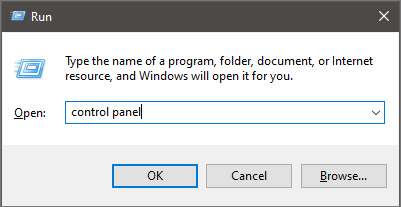
  • Press ⊞ WINDOWS + R to open the run dialog keyboard with windows and r marked
  • Inside run dialog type in Control Panel run dialog with control panel typed in
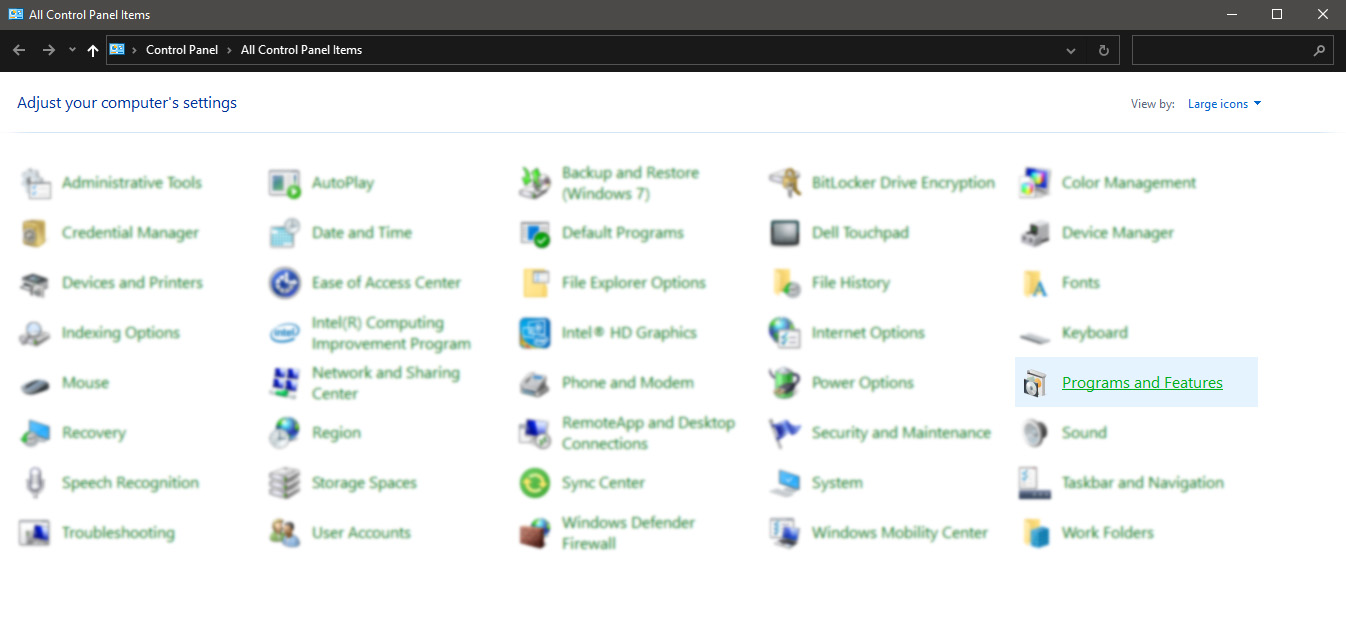
  • In the control panel double click on Programs and features control panel programs and features selected
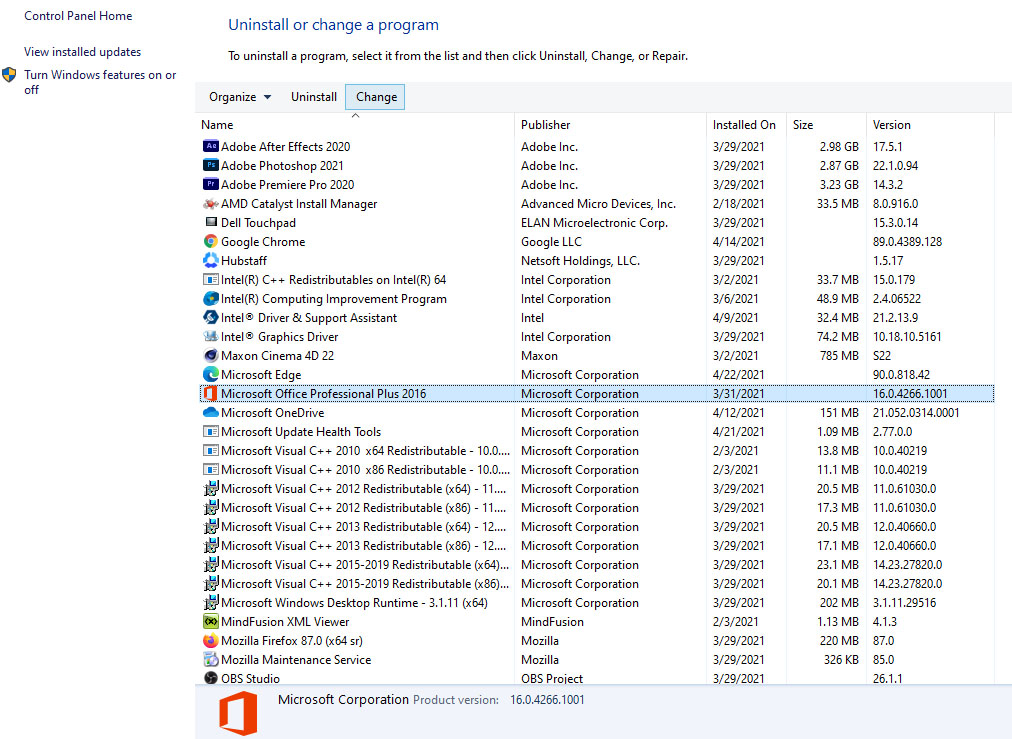
  • In the list of installed application find MS Office and click on it to select it
  • On top, just above the application list click on the change uninstall office screen
  • Office dialog will be opened with multiple choices
  • Click and select Online repair and then click on Repair
  • Make sure that you have a stable internet connection and leave the process to be finished

Remnants of old office installation

Manually cleaning remnants of old office installation is not an easy task and it can be different from system to system depending on the previous Office version. Luckily Microsoft has a dedicated office cleaning tool made for purpose of removing old tails and remnants of old office installations.
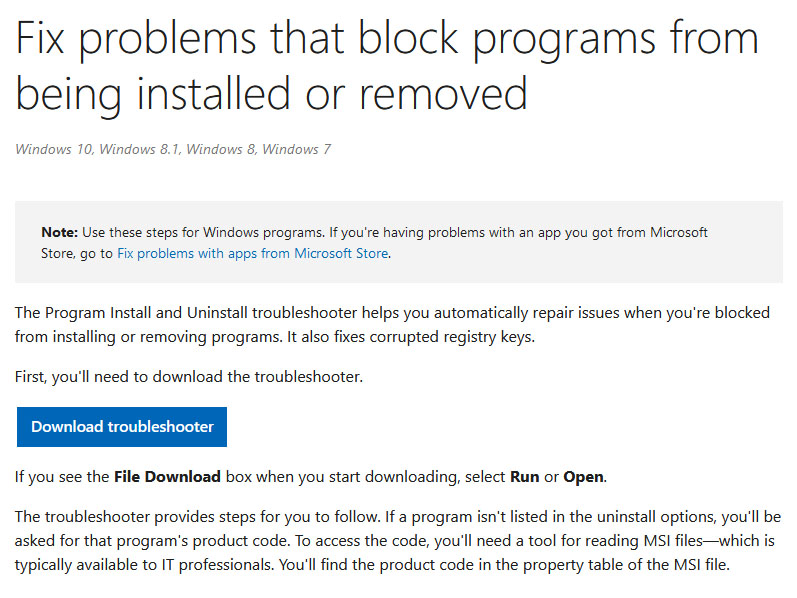
  • Download tool heremicrosoft troubleshooter
  • After the tool has been successfully downloaded, double-click on the .diagcab file to open it
  • Click on Advanced and make sure that the box associated with Apply repair automatically is checked.
  • Click the Next button to proceed
  • Wait until the initial detection phase is complete, then click on Installing at the first prompt
  • Select the program that you’re encountering issues with (most likely Microsoft Office) and click Next once again
  • At the next screen, click on Yes, try to uninstall
  • Wait until the operation is complete, then restart your computer and re-install the Microsoft Office suite

Windows Updates

After digging and trying out various solutions for this issue we came to the conclusion that this error can occur if Windows is not fully updated, and by fully updated we mean fully, not just critical updates, but all available ones. Check-in your setting to see if there are some uninstalled or pending updates waiting to be installed and if that is the case install them all. After completely updating your Operating system error should vanish and you should be able to install Microsoft office without issues.
Read More
Remove ChatZum from Windows

ChatZum is a Potentially Unwanted Program that installs a Toolbar into your browser. This program allegedly allows users to zoom in on photos without clicking on them, however, upon further research, it was discovered that this function does not work on the latest version of browsers.

From the Author: ChatZum is a Browser add-on (toolbar) that enables its users to hover over images in Major Social network's websites and view a larger version of an image.

While installing this toolbar will track user web browsing sessions and will record website visits, clicks, and sometimes even personal information. This information is later used to display targeted ads to the user. To allow easier user tracking, the program changes the browser home page and default search engine to Nation Search Advanced, which injects additional advertisements and tracks user activity.

Several anti-virus applications have marked this program as Potentially Unwanted, and it is not recommended to keep it on your computer, especially considering the fact it will most likely not work on your browser.

About Potentially Unwanted Applications

If you have ever installed a free application or shareware, chances are high that the computer will get installed with a bunch of unwanted applications. A Potentially Unwanted Program, also called PUP, in short, is actually software that contains adware, installs toolbars, or has got other hidden objectives. These types of programs are generally bundled up with a free application that you download from the internet or may also be bundled inside the custom installers of many download websites. PUPs aren’t always viewed as “pure” malware in the strictest sense. A fundamental difference between PUP and malware is distribution. Malware is normally dropped by silent installation vectors like drive-by downloads while PUP gets installed with the consent of the computer user, who knowingly or unknowingly approves the PUP installation on their computer system. But, there is no doubt that PUPs remain bad news for PC users as it could be quite dangerous to your computer in many ways.

The damage PUPs can do

The unwanted programs after installation display numerous annoying pop-up ads, trigger fake alerts, and sometimes even forces a computer owner to pay for the software. PUPs that come as browser add-ons and toolbars are commonly recognizable. These toolbars alter your homepage and your search engine in the installed web browser, track your web activities, modify your search results with redirects and sponsored links, and eventually slow down your browser and diminish your browsing experience. Potentially unwanted programs use aggressive distribution methods to get onto your computer. The worst part of setting up a PUP is the adware, spyware, and keystroke loggers that could lurk inside. Even if the PUPs really aren’t inherently malicious, these applications still do practically nothing good on your PC – they’ll take valuable system resources, slow down your PC, weaken your computer security, making your PC more vulnerable to malware.

How to avoid ‘crapware’

• Read the EULA thoroughly. Look for clauses that state that you have to accept advertising and pop-ups or bundled applications from the company. • Always opt for the custom if you’re offered an option between “Custom” and “Recommended” Installations – never ever click Next, Next, Next thoughtlessly. • Use a good anti-malware application. Try Safebytes Anti-malware which can find PUPs and treat them as malware by flagging them for deletion. • Be alert if you download and install freeware, open-source applications, or shareware. Do not ever install software applications that seem shady or malicious. • Always download applications from the original website. The majority of PUPs find their way onto your laptop or computer is via download portals, so steer clear of it altogether. Remember the fact that even though PUPs could potentially cause damage and hinder the proper functioning of the PC, they can’t enter into your system without your consent, so be alert not to provide them with it.

How One Can Get rid of Malware that is Blocking Websites or Preventing Downloads

Malware could potentially cause many kinds of damage to PCs, networks, and data. Some malware goes to great lengths to stop you from downloading or installing anything on your computer, especially antivirus software. If you’re reading this article, odds are you’re stuck with a malware infection that is preventing you to download or install the Safebytes Anti-Malware program on your PC. Even though this sort of problem can be tougher to circumvent, there are some steps you can take.

Make use of Safe Mode to resolve the issue

If the malware is set to run automatically when Microsoft Windows starts, stepping into safe mode could block the attempt. Just minimal required programs and services are loaded when you boot your computer in Safe Mode. To launch your Windows XP, Vista, or 7 computers in Safe Mode with Networking, do as instructed below. 1) Tap the F8 key repeatedly as soon as your PC boots, however, before the big Windows logo or black screen with white texts come up. This would invoke the Advanced Boot Options menu. 2) Choose Safe Mode with Networking with arrow keys and hit ENTER. 3) When this mode loads, you should have the internet. Now, obtain the malware removal program you want by utilizing the web browser. To install the program, follow the guidelines in the installation wizard. 4) Right after installation, do a full scan and allow the software program to get rid of the threats it detects.

Switch to an alternate internet browser

Some malware mainly targets certain browsers. If this is your situation, employ another internet browser as it might circumvent the computer virus. When you suspect that your Internet Explorer has been hijacked by a trojan or otherwise compromised by online hackers, the best thing to do is to switch over to an alternate internet browser such as Mozilla Firefox, Google Chrome, or Apple Safari to download your chosen security program – Safebytes Anti-Malware.

Create a portable USB antivirus for eliminating viruses

Another technique is to download and transfer an antivirus application from a clean computer to run a scan on the infected computer. Follow these steps to run the anti-malware on the affected computer. 1) Download the anti-malware on a virus-free PC. 2) Connect the flash drive to a USB slot on the clean computer. 3) Double click on the exe file to run the installation wizard. 4) Choose the USB stick as the location for saving the file. Follow the instructions on the screen to finish off the installation process. 5) Now, transfer the flash drive to the infected computer. 6) Run the Safebytes Anti-malware directly from the USB drive by double-clicking the icon. 7) Click the “Scan Now” button to start the virus scan.

Protect your PC from Malware With SafeBytes Security Suite

If you are looking to install an anti-malware program for your PC, there are lots of tools in the market to consider nonetheless, you just cannot trust blindly anyone, regardless of whether it is a paid or free program. A few of them are great but there are several scamware applications that pretend as authentic anti-malware programs waiting around to wreak havoc on your PC. You have to pick a company that develops industry-best anti-malware and it has earned a reputation as reliable. One of the highly recommended applications by industry analysts is SafeBytes Anti-Malware, the safest program for Microsoft Windows. SafeBytes can be described as a highly effective, real-time antivirus application that is made to assist the average computer user in protecting their PC from malicious internet threats. Through its cutting-edge technology, this software will help you protect your computer against infections brought on by various kinds of malware and other internet threats, including spyware, adware, trojans, worms, computer viruses, keyloggers, ransomware, and potentially unwanted program (PUPs).

There are many wonderful features you’ll get with this particular security product. Listed below are some of the features you will like in SafeBytes.

Active Protection: SafeBytes offers a completely hands-free active protection and is set to observe, block, and kill all computer threats at its very first encounter. It will check your PC for suspicious activity at all times and its unrivaled firewall shields your computer from illegal entry by the outside world. Robust, Anti-malware Protection: Using a critically acclaimed malware engine, SafeBytes offers multilayered protection which is made to catch and remove threats that are concealed deep inside your PC. Web Security: Safebytes allots all sites a unique safety ranking that helps you to get an idea of whether the webpage you’re just about to visit is safe to view or known to be a phishing site. Extremely Speed Scanning: SafeBytes’s virus scan engine is among the fastest and most efficient in the industry. It's targeted scanning significantly increases the catch rate for viruses which is embedded in various computer files. Lightweight: SafeBytes is really lightweight software. It consumes an extremely small amount of processing power as it runs in the background which means you will not observe any computer performance difficulties. 24/7 Support: For any technical concerns or product assistance, you may get 24/7 expert assistance via chat and email. To sum it up, SafeBytes Anti-Malware offers outstanding protection combined with an acceptable low system resources usage with both great malware detection and prevention. You now may realize that this particular tool does more than just scan and remove threats from your computer. You will get the best all-around protection for the money you pay on SafeBytes AntiMalware subscription, there’s no question about it.

Technical Details and Manual Removal (Advanced Users)

If you wish to do the removal of ChatZum manually rather than using an automated software tool, you can follow these simple steps: Navigate to the Windows Control Panel, click the “Add/Remove Programs” and there, choose the offending application to remove. In case of suspicious versions of web browser plug-ins, you can easily get rid of it through your web browser’s extension manager. You might also want to reset your home page and search providers, as well as delete browsing history, temporary files, and cookies. If you choose to manually remove the system files and Windows registry entries, use the following list to make sure you know exactly what files to remove before undertaking any actions. Please note that only advanced users should try to manually edit the system files mainly because removing any single vital registry entry results in a serious problem or even a PC crash. In addition, certain malware is capable of replicating itself or preventing its removal. Doing this malware-removal process in Safe Mode is recommended.
Files: Search And Delete: tbcore3.dll arrow_refresh.png basis.xml chatzum.dll info.txt inst.tmp loaderie.js suggestion_plugin.dll TbCommonUtils.dll tbcore3.dll tbhelper.dll TbHelper2.exe uninstall.exe uninstaller.exe update.exe Folders: C:\Program Files\ChatZum Toolbar\ C:\Documents and Settings\username\Application Data\Mozilla\Firefox\Profiles\gb5e8gtn.default\extensions\staged\ADFA33FD-16F5-4355-8504-DF4D664CFE83 Registry: Key HKLM\SOFTWARE\ChatZum Toolbar Key HKLM\SOFTWARE\Microsoft\Windows\CurrentVersion\Uninstall\ChatZum Toolbar

Read More
Enable Windows Sandbox on Windows
One of the most common ways cybercriminals use to inject suspicious code into devices is by tricking users into installing a malicious program on a targeted device. Oblivious users are vulnerable to such tricks, which is why Microsoft has been working hard in the background to address this issue. Recently, Microsoft announced the availability of a sandboxed version of Windows 10 that runs inside Windows 10 in order to isolate suspected software to run inside it and protect the system from potential threats. This Windows Sandbox feature is a new feature that keeps your computer secure. It is a virtual disposable environment that you can enable. So if suspect any software of being malicious, you can run this software in an environment and ensure that it won’t interfere with any normal processes and would not jeopardize files on your computer. To simply put it, “Windows Sandbox is a new lightweight desktop environment tailored for safely running applications in isolation”. So if the Sandbox is closed, all the residual files, software, and other data are deleted permanently. To enable Windows Sandbox, refer to the instructions provided below. Step 1: You have to make sure that you are running either Windows 10 Enterprise Editions or Windows 10 Pro and that your computer is running build 18305 or newer. Step 2: After that, you have to enable Virtualization to let another instance of Windows 10 running in Sandbox mode. Step 3: Next, search for Windows Features on and off in the search box and then select the appropriate entry. Step 4: From the list, go to the mini window and check the Windows Sandbox and then click on OK. Step 5: Afterwards, in the Cortana Search box, search for “Windows Sandbox” and select the related entry to run it in an elevated window. Step 6: Then from your main computer (host), copy the executable file and paste it inside the Windows Sandbox environment. Step 7: Now run the executable file in the Sandbox environment and use it as you normally do. Step 8: Once you’re done, close the Windows Sandbox application and as mentioned, every data regarding the executable file and the temporary environment will be deleted. Step 9: And for the sake of safety, ensure that there are no modifications made to the host because of the executions in the Sandbox environment. You have the option to contact Microsoft for feedback related to Windows Sandbox. You can use the traditional Feedback Hub if you have any suggestions or any issues. Just fill in the appropriate details and select Windows Sandbox for the feature category under the Security and Privacy section. And if you have any issues related to the execution of and within Windows Sandbox, simply choose “Recreate my problem” then select Start capture to reproduce the issue, and once you’re done, select Stop capture.
Read More
Completely Remove SafeSearch Guide

SafeSearch is an ad-supported, cross web browser plugin for Internet Explorer and Firefox/Chrome. The browser extension will modify the default or custom settings of the browser including the home page, search settings, and in some cases will modify Internet Explorer’s load time threshold, place a lock file within Firefox to prevent changing settings as well as disable the browser’s Content Security Policy in order to allow for cross-site scripting of the plugin. For these reasons, it has been classified as a browser hijacker.

From the publisher: SafeSearch created by AVSoftware is the unique search engine that filters malicious sites or sites with bad reputations. Every website is weighted on several critical factors – vendor reliability, child safety, privacy issues, user opinions, and ratings.

SafeSearch has been found to be bundled with 3rd party software and malware and therefore is not recommended to keep on your computer.

About Browser Hijackers

Browser hijacking is amongst the internet’s constant problems that target browsers. It’s a kind of malware program that directs web browser requests to some other malicious sites. They’re created to disrupt browser functions for several purposes. Typically, the idea is to force users to visit certain websites that are trying to improve their visitor traffic and produce higher ad revenue. Even though it might seem naive, all browser hijackers are damaging and therefore always regarded as security risks. Furthermore, hijackers can make the entire infected system vulnerable – other dangerous malware and viruses will take hold of these opportunities to intrude into your PC effortlessly. Browser hijacking symptoms There are several signs of web browser hijacking: home-page is changed; you see new unwanted bookmarks or favorites added, usually directed to advertisement-filled or pornography websites; the main web browser settings are altered and undesirable or insecure sites are added to the trusted websites list; you notice many toolbars on your internet browser; unstoppable flurries of pop-up advertisements show up on your PC screen; web pages load very slowly and at times incomplete; you cannot visit specific sites like homepages of security software.

So how does a PC get infected with a browser hijacker?

Browser hijackers infect computers in numerous ways, including via a drive-by download, a file-share, or an infected e-mail. They could be included with toolbars, add-ons, BHO, plugins, or browser extensions. Also, some shareware and freeware can put the hijacker within your computer through “bundling”. An example of some notorious browser hijacker includes Conduit, Anyprotect, Babylon, SweetPage, DefaultTab, Delta Search, and RocketTab, but the names are continually changing.

Browser Hijacker Malware – Removal

Certain hijackers could be removed simply by uninstalling the related freeware or add-ons through the Add or Remove Programs in the Microsoft Windows control panel. However, the majority of hijacking codes are certainly not simple to remove manually, as they go much deeper into the operating system. Moreover, manual removal expects you to perform several time-consuming and intricate procedures that are tough to conduct for novice computer users.

What you can do if Virus Stops You From Downloading Anything?

Malware can cause all kinds of damage once they invade your PC, from stealing your personal information to erasing data files on your PC. Certain malware variants alter internet browser settings by adding a proxy server or modify the computer’s DNS settings. In these instances, you will be unable to visit certain or all of the websites, and thus not able to download or install the necessary security software to eliminate the malware. If you are reading this, you may have got infected by malware that stops you from downloading a computer security program like Safebytes Anti-Malware. Even though this type of issue will be tougher to get around, there are a few actions you can take.

Install antivirus in Safe Mode with Networking

Safe Mode is actually a unique, basic version of Windows where only minimal services are loaded to counteract malware and other troublesome applications from loading. In case the malware is set to load automatically when PC boots, switching into this particular mode may well prevent it from doing so. In order to get into Safe Mode or Safe Mode with Networking, press F8 while the system is booting up or run MSCONFIG and locate the “Safe Boot” options under the “Boot” tab. Once you reboot into Safe Mode with Networking, you can download, install, as well as update anti-malware software from there. At this point, you could run the antivirus scan to remove computer viruses and malware without hindrance from another application.

Switch over to an alternate browser

Malicious program code might exploit vulnerabilities in a particular browser and block access to all anti-malware software websites. If you suspect that your Internet Explorer has been hijacked by a computer virus or otherwise compromised by hackers, the most effective approach is to switch over to an alternate web browser such as Google Chrome, Mozilla Firefox, or Apple Safari to download your favorite security program – Safebytes Anti-Malware.

Install security software on a flash drive

To successfully eliminate the malware, you might want to approach the issue of installing an antivirus software program on the affected PC from a different perspective. Do these simple measures to clean up your infected computer using a portable antivirus. 1) Use another virus-free PC to download Safebytes Anti-Malware. 2) Mount the pen-drive onto the same system. 3) Run the setup program by double-clicking the executable file of the downloaded application, which has a .exe file extension. 4) Select the USB drive as the location when the wizard asks you exactly where you would like to install the application. Follow the on-screen instructions to finish the installation. 5) Transfer the flash drive from the uninfected PC to the infected computer. 6) Double-click the antivirus software EXE file on the thumb drive. 7) Click on the “Scan Now” button to start the virus scan.

Ensure the Safety of Your Computer by Installing SafeBytes Anti-Malware

If you’re looking to install an anti-malware application for your computer, there are numerous tools in the market to consider but you just cannot trust blindly anyone, irrespective of whether it is a free or paid program. Some of them are good but there are several scamware applications that pretend as authentic anti-malware software waiting to wreak havoc on the computer. When searching for an anti-malware program, choose one that provides solid, efficient, and full protection against all known computer viruses and malware. When considering the dependable software programs, Safebytes AntiMalware is certainly the strongly recommended one. SafeBytes can be described as a powerful, real-time anti-spyware application that is made to assist regular computer users in safeguarding their PC from malicious threats. This tool can easily identify, remove, and protect your computer from the latest malware intrusions such as spyware, adware, trojan horses, ransomware, parasites, worms, PUPs, along with other potentially harmful software applications. SafeBytes anti-malware comes with a myriad of enhanced features that sets it aside from all others. Here are a few popular features present in this software: Anti-Malware Protection: By using a critically acclaimed malware engine, SafeBytes gives multi-layered protection which is designed to catch and eliminate threats that are hidden deep inside your computer system. Real-time Active Protection: Malware programs trying to get into the computer are identified and stopped as and when detected by the SafeBytes active protection shields. They’re highly efficient in screening and getting rid of various threats because they are continuously revised with the latest updates and safety measures. Safe Web Browsing: SafeBytes provides an instant safety rating on the web pages you are about to visit, automatically blocking risky sites and ensure that you’re certain of your safety while browsing the net. Low CPU and Memory Usage: This software is lightweight and will work quietly in the background, and will not have an effect on your computer efficiency. 24/7 Customer Service: SafeBytes provides 24/7 technical support, automatic maintenance, and updates for the best user experience.

Technical Details and Manual Removal (Advanced Users)

If you wish to manually remove SafeSearch without the use of an automated tool, it may be possible to do so by removing the program from the Windows Add/Remove Programs menu, or in cases of browser extensions, going to the browsers AddOn/Extension manager and removing it. You will likely also want to reset your browser. To ensure the complete removal, manually check your hard drive and registry for all of the following and remove or reset the values accordingly. Please note that this is for advanced users only and may be difficult, with incorrect file removal causing additional PC errors. In addition, some malware is capable of replicating or preventing deletion. Doing this in Safe Mode is advised.

The following files, folders, and registry entries are created or modified by SafeSearch

Files: C:Program FilesPrimesoftSafeSearchsafesearch.dll C:Program FilesPrimesoftSafeSearch_safesearch.dll C:Program FilesPrimesoftSafeSearchaanyvkcf.exe C:Program FilesPrimesoftSafeSearchsafesearch.exe C:Program FilesPrimesoftSafeSearchrgzcdhtn.exe Registry: HKEY_LOCAL_MACHINESOFTWAREMicrosoftWindowsCurrentVersionRunaanyvkcf HKEY_LOCAL_MACHINESOFTWAREMicrosoftWindowsCurrentVersionRunSafeSearch HKEY_LOCAL_MACHINESOFTWAREMicrosoftWindowsCurrentVersionRunrgzcdhtn HKEY_CURRENT_USERSoftwarePrimeSoft HKEY_CURRENT_USERSoftwareSafeSearch HKEY_CLASSES_ROOT.QSCH HKEY_CLASSES_ROOTQSCH File HKEY_CLASSES_ROOTSafeSearch.SafeSearchBHO HKEY_CLASSES_ROOTSafeSearch.SafeSearchBHO.1 HKEY_CLASSES_ROOTCLSID00000000-0000-0000-0000-000000000001 HKEY_CLASSES_ROOTInterface28E6CCE2-3F2C-4B3D-9CB4-2FC8715A3ECE HKEY_CLASSES_ROOTTypelib82E9DE01-D860-40E4-B9C1-91F0E8272962 HKEY_CLASSES_ROOTTypelibCB5006EE-F57D-4116-B7B6-48EB564FE0F0 HKEY_CLASSES_ROOTmimedatabasecontent typeapplication/x-QSCH HKEY_USERS.defaultSoftwareNetscapeNetscape NavigatorTrusted External Applications%System%aanyvkcf.exe=yes HKEY_USERS.defaultSoftwareNetscapeNetscape NavigatorSuffixesApplication/x-QSCH HKEY_LOCAL_MACHINESoftwareMicrosoftInternet ExplorerToolbar00000000-0000-0000-0000-000000000001 HKEY_LOCAL_MACHINESOFTWAREMicrosoftWindowsCurrentVersionUninstallaanyvkcf HKEY_LOCAL_MACHINESOFTWAREMicrosoftWindowsCurrentVersionUninstallrgzcdhtn
Read More
Fix CompareExchange128 error
During Windows 10 installation, you will see all the beautiful user interfaces, however, what’s more, important are the drivers, your processor, and free storage disk in order for the installation to be successfully completed. So if you are getting the CompareExchange128 error during the installation of Windows 10, this means that the CPU lacks a very important instruction known as “CMPXCHG16B”. Thus, if you don’t have CMPXCHG16B, then it will result in the CompareExchange128 error when you install Windows 10. In fact, CMPXCHG16B, PrefetchW as well as LAHF/SAHF is a criterion for you to be able to use Windows 10 64-bit version when upgrading from an earlier version of Windows. So what exactly is the CMPXCHG16B instruction? The CMPXCHG16B instruction is the one that performs an atomic compare-and-exchange on 16-byte values. This instruction can also be referred to as “CompareExchange128”. The atomic compare-and-exchange means that the CPU compares the contents of a memory location with a given value. So if the values are the same, it modifies the contents of that memory location to a new given value. Note that this kind of issue only happens to the 64-bit Windows 10 version and the only way to resolve it is by getting an update on the hardware level from the OEM. On the other hand, if nothing really works, it’s maybe time for you to get a new CPU but before you resort to that, in the meantime, you can try following the options given below to fix the CompareExchange128 error during the installation of Windows 10.

Option 1 – Try to update the BIOS and Chipset Drivers

One of the best things you can do to fix the CompareExchange128 error is by updating the BIOS and chipset drivers which is why you need to check if your OEM has an update available for your computer’s BIOS as well as the related chipset drivers. But before that, you need to first check the BIOS version. To do so, follow these steps:
  • Type “msinfo32” in the search bar and hit Enter to open the System Information Tools.
  • After opening the System Information Tools, check the BIOS version.
  • Then take note of that BIOS version. You also need to use the BIOS utility that came with your computer and use it for the upgrade. Note that it is different for every computer and if you don’t have it, you can just go to the OEM website and see if there is an option to download it there.

Option 2 – Try to downgrade to the 32-bit Windows 10 version

If option 1 didn’t work as the BIOS update is not available, you can also try downgrading to the 32-bit version of Windows 10. Keep in mind that this will bring restrictions on the amount of RAM installed and other places but that won’t be a problem as you can still switch.

Option 3 – Try buying a new hardware

If none of the first two options didn’t work for some reason then maybe it’s time for you to purchase new hardware especially if your computer is way too old. In such cases, it’s better to buy new hardware or better yet, a new computer that can keep up for the next couple of years.
Read More
How to Fix Windows 10 Error 0x8007000b

Error Code 0x8007000b - What is it?

Error Code 0x8007000b has appeared on Windows operating systems from Windows 10 all the way back to Windows XP. In most cases, it occurs when there is a problem within the transaction log for the filing system within Windows.

Common symptoms include:

  • Inability to install one or more updates
  • Message regarding Windows Update having an unknown error

There are several different ways that you can attempt to resolve the problems that cause Error Code 0x800700b to appear on your operating system. Several of these methods are pretty easy for basic users, but others require some comfort and knowledge in working with advanced tools on your operating system.

If the methods below do not completely resolve the appearance of Error Code 0x800700b on your Windows operating system or if you are not confident in your ability to undertake these steps on your own, you may need to get in touch with a qualified computer repair professional to assist you with the error resolution process. If this error message is not resolved, you could expose your computer to other error codes such as error code 80070103.

Solution

Restoro box imageError Causes

The primary cause for Error Code 0x800700b is that there is an issue or corrupt entry in the transaction log for the file system within Windows. This makes it impossible for Windows to complete the Windows Update process. Although the error message states that an unknown error has been encountered, it is usually fairly simple to resolve the appearance of faulty or corrupt entries in the transaction log if you follow the steps below to complete.

Further Information and Manual Repair

There are several ways that you can attempt to resolve Error Code 0x800700b manually on your Windows operating system. At least one of these methods requires some advanced knowledge or skill in using the command prompt, so if you aren’t confident in your ability to follow these steps through to completion, be sure to get in touch with a qualified computer repair technician who can help you to resolve the error.

Here are the top three methods that can be used to resolve Error Code 0x800700b on your machine:

Method One:  Reset Your Transaction Log for the File System in Windows

To clear and reset the entries in your transaction log, there are a few simple steps that you should follow:

  • Step One: Open up the Start menu and go into the search bar. When it opens up, type in “cmd”.
  • Step Two: Right-click on the icon for the Command Prompt that opens up and selects the option to run it as an administrator.
  • Step Three: In the menu that appears, enter in this command:  “fsutil resource setautoreset true C:/
  • Step Four: Reboot your computer before re-attempting the download and install of the necessary update.

Method Two:  Run the System Update Readiness Tool

An alternative method to resolving Error Code 0x800700b is to open and run the System Update Readiness Tool on your machine. This program runs a scan on your Windows operating system to determine whether it is ready for updates, attempting to resolve any errors it encounters along the way.

After you have scanned and run this tool, you should always take the time to restart your computer before attempting to perform the update process, so that any changes made can be successfully applied to your computer.

Method Three:  Run the System File Checker Tool on Your Computer

The System File Checker is a tool for Windows that runs a basic scan for problem files and attempts to resolve them. To run this tool, follow these steps:

  • Step One: From the Start menu, open up the search box, and type in “cmd,” selecting the option to run the command prompt as an administrator.
  • Step Two: Type in this command and run it:  “sfc /scannow

This tool should tell you what the specific issues are so that you can resolve them. It may give you a message that the action couldn’t be performed, that corrupt files were fixed, or that corrupt files were encountered, but could not be fixed automatically.

Method Four: Use An Automated Tool

If you wish to always have at your disposal a utility tool to fix these Windows 10 and other related issues when they do arise, download and install a powerful automated tool.
Read More
A Quick Guide to Resolving Error 0x80070003

Error 0x80070003 - What is it?

Error 0x80070003 is a type of Windows file backup and restore error code. This error occurs when you copy files or try to create backup and restore files and folders by using Windows Backup and Restore. This error stops you from using browse for files or folders. It hampers your ability to browse and restore files in the File Restore Wizard on your PC.

Solution

Restoro box imageError Causes

Error 0x80070003 may occur due to numerous reasons such as:
  • Registry files are corrupted and damaged
  • Missing directories
  • Boot sector corrupted
  • Outdated drivers
  • Faulty software installation
  • Malware infection
  • Improper maintenance and incomplete installation

Further Information and Manual Repair

Here are some manual and easy do-it-yourself methods that you can try at home and resolve the issue on your own and save hundreds of dollars that you would be otherwise spending to hire a professional for the job.

Method 1 - Use Search Functionality in the File Restore Wizard to restore files

To work out and resolve error 0x80070003 on your system simply use the search functionality in the File Restore Wizard to locate and restore the files. This can be done by going to the start menu and then click on search. Now enter the keywords in the search for box and then click search again. Click to select the files that you want to restore from the list and then click OK. This will help you restore the files and resolve the issue.

Method 2 - Recreate the Missing Directory

If the re-parse point is deleted, then you will have to recreate the missing directory. The deletion of the re-parse point can be identified if the error code is displayed in this format ‘Filename: C:\Myfolder\11111.txt, Error: the system cannot find the path specified (0x80070003)’. To resolve, simply follow the path that is pointed out in the error and create the corresponding folder. Create the folder Myfolder in Drive C. Then try the restore operation again. Now click to clear the Restore the files to their original subfolders check box and then run the File Restore Wizard. This is most likely going to resolve the issue.

Method 3 - Scan for Viruses

Sometimes error 0x80070003 may occur due to malware. This stops you from creating file backup and restore files. If this is the cause then simply download and run an antivirus to remove malware programs on your PC.

Method 4 - Clean and Repair the Corrupted Registry

Error 0x80070003 can be triggered due to registry corruption. If this is the cause then simply download Restoro. This is a user-friendly and powerful multi-functional PC Fixer integrated with a registry cleaner. The registry cleaner scans for all registry-related errors, wipe out all unnecessary and junk files, and also cleans and repairs the damaged registry in seconds. Click here to download Restoro and resolve error 0x80070003 today!
Read More
A Guide to Quickly Fixing Error 103

What Is Error 103?

Error 103 is an error that is usually encountered by those who use Google Chrome. This error is usually generated because of a conflict arising between Google Chrome and the antivirus program running on the user’s computer. Primarily, error 103 is an incompatibility issue. It is not critical in nature. However, since it will disrupt the smooth functioning of the browser, it is strongly advised to rectify this error that is generated due to any temporary conflicts between the logic of the two programs namely Google Chrome and antivirus. In layman's terms, it would be only justified to say that this error has a lot to do with the way programs react to each other in real-time.

Solution

Restoro box imageError Causes

When the error is displayed to the user, it usually states something like ‘chrome error 103 connection aborted’, ‘chrome error 103 err_connection_aborted’ or ‘Error 103 (net: ERR_CONNECTION_ABORTED): Unknown error. This begs the question, what triggers this error? Here it is important to understand that Google Chrome constantly applies to upgrade. In most instances, the upgrades almost go unnoticed. In the meanwhile, there are other programs running on any system such as firewall, Antispyware, or antivirus programs. All such programs govern the functionality of the web browser. Now, when the web browser attempts to update and any programs on the system view the update as a threat, the connection to the internet will be terminated. It is also important to understand that these programs will keep you from upgrading or from doing anything with your browser.

Further Information and Manual Repair

google chrome error 103Before we move on to the discussion of fixing the underlying causes for error 103, it is important to understand all those programs that are most likely to generate this error. A list of all such programs is outlined below as follows.

  • Kaspersky Pure 3.0
  • Kaspersky ONE
  • Kaspersky small office security 2013
  • Kaspersky internet security 2013
  • Kaspersky antivirus 2013
A downside associated with error 103 is that it won’t disappear on its own. That’s why it is important to make some manual changes as there are no tools available online to rectify this error automatically. Follow the steps listed below to easily fix the problem.
  • Click on the Start button.
  • In the search box, enter ‘expand.exe’.
  • Right-click on the file that appears and select the option ‘Open Folder Location’.
  • Now, copy the file and paste it at the destination ‘C:\Windows\System32’.
  • If you are not able to find the file, it is advised you copy it from Windows Installation Disk.
  • Now, click on the ‘Start’ button again.
  • Find and select ‘Run’.
  • Now enter ‘C: ’ in the search box and press Ok.
  • Now right-click anywhere on the screen, select new, and then select folder.
  • Rename this folder. Change the name from ‘New Folder’ to ‘Temp’.
  • Now go to the Start button again.
  • Select ‘Run’ once again.
  • Type ‘cmd.exe’ in the command prompt and press Ok.
  • Now type Command. Press enter.
  • Now type this code as it is: ‘set TMP=C:temp’ and press enter.
  • Now restart the browser.
  • If it fails, install Google Chrome once again.
  • Just make sure everything is in sync to avoid any data loss.
Read More
1 2 3 171
Logo
Copyright © 2023, ErrorTools. All Rights Reserved
Trademark: Microsoft Windows logos are registered trademarks of Microsoft. Disclaimer: ErrorTools.com is not affiliated with Microsoft, nor claims direct affiliation.
The information on this page is provided for information purposes only.
DMCA.com Protection Status