MapsGalaxy is a Browser Extension developed by MindSpark Inc. witch usually comes bundled with other software. This extension claims it allows users to search the web, open maps, and check out fasters routes to a destination.
While active, it monitors your browser activity. The links you visit, the searches you make, the websites you use, and even personal information is sent back to MindSpark Inc. to later be sold/used to deliver ads to your browser.
While this extension is active you may see additional unwanted ads, sponsored links, and pop-up ads displayed in your search results and browser. It also changes your default search engine to MyWay, ensuring its ads are displayed. Several anti-virus scanners have marked this extension as a Browser Hijacker and are therefore not recommended to keep on your PC.
About Browser Hijackers
Browser hijacking is actually a form of unwanted software program, usually a web browser add-on or extension, which causes modifications in browser settings. Practically all browser hijackers are made for marketing or advertising purposes. Typically, it will drive users to predetermined websites that are looking to increase their advertising campaign revenue. Many people believe that such websites are legitimate and harmless but that is not true. Almost every browser hijacker poses an actual threat to your online safety and it is vital to classify them under privacy risks. They do not just screw up your internet browsers, but browser hijackers can also modify the computer registry to make your computer or laptop vulnerable to various other malware attacks.
How to know if your internet browser has been hijacked
Below are some symptoms that indicate you have been hijacked:
1. your web browser’s homepage is suddenly different
2. you observe new unwanted bookmarks or favorites added, usually directed to ad-filled or pornography websites
3. The default search page of your web browser is modified
4. discover new toolbars that you didn’t add
5. you’ll notice random pop-ups start occurring frequently
6. websites load very slowly and sometimes incomplete
7. Inability to navigate to certain websites, especially anti-malware and other security software sites.
Exactly how they infect computer systems
There are many ways your PC can get infected by a browser hijacker. They typically arrive by way of spam email, via file-sharing networks, or by a drive-by download. They could also be deployed via the installation of a web browser toolbar, extension, or add-on. A browser hijacker could also be installed as a part of freeware, shareware, demoware, and pirated programs. Well-known examples of browser hijackers include Conduit, CoolWebSearch, RocketTab, OneWebSearch, Coupon Server, Searchult.com, Snap.do, and Delta Search.
Browser hijackers might record user keystrokes to collect potentially invaluable information leading to privacy concerns, cause instability on computers, significantly disrupt the user experience, and eventually slow down the PC to a point where it will become unusable.
How to fix a browser hijack
The one thing you can try to get rid of a browser hijacker is to locate the malicious software in the “Add or Remove Programs” list in the Windows Control Panel. It may or may not be there. When it is, try to uninstall it. Having said that, most hijackers are quite tenacious and need specialized tools to remove them. Inexperienced PC users should not attempt the manual form of removal methods, since it requires in-depth computer knowledge to do fixes on the system registry and HOSTS file.
Find Out How To Install Safebytes Anti-Malware On An Infected Computer system
Practically all malware is inherently unsafe, but certain kinds of malicious software do more damage to your PC than others. Some malware variants alter web browser settings by adding a proxy server or change the PC’s DNS configurations. In these cases, you’ll be unable to visit certain or all internet sites, and therefore unable to download or install the required security software to eliminate the infection. If you’re reading this article now, you have perhaps recognized that virus infection is the cause of your blocked web connectivity. So how to proceed when you want to download and install an antivirus application such as Safebytes? There are some options you could try to get around with this problem.
Get rid of viruses in Safe Mode
Safe Mode is a special, basic version of Microsoft Windows in which just a bare minimum of services are loaded to prevent viruses as well as other problematic applications from loading. In the event, the malicious software is set to load immediately when the computer boots, switching into this particular mode could prevent it from doing so. In order to get into Safe Mode or Safe Mode with Networking, press F8 while the computer is booting up or run MSCONFIG and look for the “Safe Boot” options under the “Boot” tab. Once you’re in Safe Mode, you can attempt to download and install your anti-malware program without the hindrance of the malware. At this point, you are able to run the anti-virus scan to remove computer viruses and malware without hindrance from another malicious application.
Utilize an alternate web browser to download the anti-malware application
Malicious code could exploit vulnerabilities in a specific browser and block access to all anti-virus software sites. If you seem to have a trojan attached to Internet Explorer, then switch to a different browser with built-in safety features, such as Chrome or Firefox, to download your favorite antivirus program – Safebytes.
Install and run anti-virus from your flash drive
Here’s another solution which is utilizing a portable USB anti-malware software package that can scan your computer for malicious software without the need for installation. Adopt these measures to run the anti-virus on the infected computer.
1) Download Safebytes Anti-Malware or Microsoft Windows Defender Offline onto a clean computer.
2) Plug the pen drive into the uninfected computer.
3) Double-click on the downloaded file to open the installation wizard.
4) Select the drive letter of the pen drive as the place when the wizard asks you exactly where you would like to install the antivirus. Do as instructed on the screen to finish up the installation process.
5) Unplug the USB drive. You may now utilize this portable anti-malware on the infected computer.
6) Double-click the Safebytes Anti-malware icon on the flash drive to run the software.
7) Run Full System Scan to detect and clean-up up all types of malware.
Features and Benefits of SafeBytes Anti-Malware
If you are looking to download an anti-malware application for your computer, there are plenty of tools in the market to consider nonetheless, you should not trust blindly anyone, regardless of whether it is a paid or free program. Some are worth your money, but many aren’t. You need to pick one that is trustworthy, practical, and has a strong reputation for its malware source protection. On the list of the recommended tools by industry leaders is SafeBytes Anti-Malware, the most dependable program for Windows computers.
SafeBytes anti-malware is really a powerful, very effective protection tool created to assist users of all levels of computer literacy in detecting and removing harmful threats from their personal computers. This software program can easily identify, eliminate, and protect your PC from the most advanced malware threats such as spyware, adware, trojan horses, ransomware, worms, PUPs, along with other possibly damaging software programs.
SafeBytes carries a plethora of amazing features which can help you protect your laptop or computer from malware attack and damage. Let’s look into some of them below:
Live Protection: SafeBytes provides real-time active checking and protection from all known computer viruses and malware. It will regularly monitor your pc for hacker activity and also provides end-users with sophisticated firewall protection.
Optimum AntiMalware Protection: With its advanced and sophisticated algorithm, this malware elimination tool can detect and remove the malware threats hiding in your computer system effectively.
Safe Web Browsing: SafeBytes inspects the hyperlinks present on a web page for possible threats and notifies you if the website is safe to check out or not, through its unique safety rating system.
Fast Multi-threaded Scanning: SafeBytes’s virus scan engine is among the quickest and most efficient within the industry. It's targeted scanning drastically increases the catch rate for viruses that are embedded in various PC files.
Lightweight: The program is lightweight and can run silently in the background, and will not impact your PC efficiency.
24/7 On-line Tech Support: Support service is available for 24 x 7 x 365 days via email and chats to answer your queries.
Technical Details and Manual Removal (Advanced Users)
If you want to manually get rid of MapsGalaxy without the use of an automated tool, it might be actually possible to do so by removing the program from the Windows Add/Remove Programs menu, or in cases of browser extensions, going to the browsers AddOn/Extension manager and removing it. You’ll likely also want to reset your internet browser.
If you choose to manually delete the system files and registry entries, make use of the following list to make sure you know exactly what files to remove before undertaking any actions. But bear in mind, this can be a difficult task and only computer experts could accomplish it safely. Additionally, certain malicious programs have the capability to defend against its deletion. It is highly recommended that you carry out the removal process in Safe Mode.
Files:
%PROGRAMFILES(x86)%Maps4PC_0cbar.bin%PROGRAMFILES(x86)%Maps4PC_0cbar.bin%#MANIFEST#%cbrmon.exe 26,576 682c1b3de757f8d44c49aa01fff940ab
%PROGRAMFILES%Maps4PC_0cbar.bin%#MANIFEST#%cbarsvc.exe 34,864 2114e46c4564da66ac9026e9c848504d
%PROGRAMFILES%MapsGalaxy_39bar.binbarsvc.exe 87,264 6b0c56f3192873cddf2bda0c6615118d
%LOCALAPPDATA%GoogleChromeUser DataDefaultExtensionsmjkonbafhhjkakmgejhidcnkkidokinm
%LOCALAPPDATA%GoogleChromeUser DataDefaultExtensionseejjfjgkdnjfeflpeeopjobjjldcmlfi
%LOCALAPPDATA%GoogleChromeUser DataDefaultExtensionsggjmakejeechofmkhjljemfepbhppbbh
%LOCALAPPDATA%GoogleChromeUser DataDefaultExtensionslkfkgnbjmeminilhckfckamlbkdgeaik
%LOCALAPPDATA%GoogleChromeUser DataDefaultExtensionsijjnmdphpnlnelhbhefnfmimenjgbfcn
%PROGRAMFILES%MapsGalaxy_39EIMapsGalaxy_39EIInstallr.binEIPlug.dll 55,784 59a25ac6974b6c98bfd4d11d4b2653f8
%PROGRAMFILES%MapsGalaxy_39EIMapsGalaxy_39EIInstallr.binEzSetp.DLL 739,816 8e7674f70d21bbc0703000ce5c72398a
%PROGRAMFILES%MapsGalaxy_39EIMapsGalaxy_39EIInstallr.binNP39EISb.DLL 31,216 fa7fbc48b84026c2a0dcb611e0e04bf9
%LOCALAPPDATA%GoogleChromeUser DataDefaultExtensionsdcahllpkcnofkhpacpajmibjfjccajlj
%LOCALAPPDATA%GoogleChromeUser DataDefaultExtensionshfnlkbpoacofighnabkdomkfdbpjeomm
%LOCALAPPDATA%MapsGalaxy Installer(00ef2c80).exe
Registry:
HKEY_CURRENT_USERSoftwareAppDataLowHKEY_CURRENT_USERSoftwareMapsGalaxy_39
HKEY_CURRENT_USERSoftwareMapsGalaxy_39
HKEY_CURRENT_USERSoftwareWow6432NodeMicrosoftInternet ExplorerLow RightsElevationPolicy6818868a-1b3d-4e35-a561-fa964a96cd3b
HKEY_CURRENT_USERSoftwareWow6432NodeMicrosoftInternet ExplorerLow RightsElevationPolicy79e57afa-bc05-4636-9457-fbc0abb3576b
HKEY_CURRENT_USERSoftwareWow6432NodeMicrosoftInternet ExplorerLow RightsElevationPolicy9193e23b-4182-493f-a38e-682307a7c463
HKEY_CURRENT_USERSoftwareWow6432NodeMicrosoftInternet ExplorerLow RightsElevationPolicyae0f4663-eae3-437f-be60-9ec9b745dbfa
HKEY_CURRENT_USERSoftwareWow6432NodeMicrosoftInternet ExplorerLow RightsElevationPolicye1f80eb5-8af4-410d-87c1-4f3e2776822a
HKEY_CURRENT_USERSoftwareWow6432NodeMicrosoftInternet ExplorerToolbar, value: 364ea597-e728-4ce4-bb4a-ed846ef47970
HKEY_CURRENT_USERSoftwareWow6432NodeMicrosoftWindowsCurrentVersionexplorerBrowser Helper Objects1e91a655-bb4b-4693-a05e-2edebc4c9d89
HKEY_CURRENT_USERSoftwareWow6432NodeMicrosoftWindowsCurrentVersionexplorerBrowser Helper Objects71c1d63a-c944-428a-a5bd-ba513190e5d2
HKEY_CURRENT_USERSoftwareWow6432NodeMicrosoftWindowsCurrentVersionExtPreApproved3ED5E5EC-0965-4DD3-B7D8-DBC48A1172B9
HKEY_CURRENT_USERSoftwareWow6432NodeMicrosoftWindowsCurrentVersionExtPreApproved4b7d0b0c-cff3-49c5-9bc3-ffabc031c822
HKEY_CURRENT_USERSoftwareWow6432NodeMicrosoftWindowsCurrentVersionExtPreApproved8f0b76e1-4e46-427b-b55b-b90593468ac6
HKEY_CURRENT_USERSoftwareWow6432NodeMicrosoftWindowsCurrentVersionExtPreApproveda35ff019-6dbe-4044-b080-6f3fa78a947f
HKEY_CURRENT_USERSoftwareWow6432NodeMicrosoftWindowsCurrentVersionExtPreApprovede045df14-bf1d-405c-a37b-a75c1551ad17
HKEY_CURRENT_USERSoftwareWow6432NodeMicrosoftWindowsCurrentVersionRun, value: MapsGalaxy Search Scope Monitor
HKEY_CURRENT_USERSoftwareWow6432NodeMicrosoftWindowsCurrentVersionUninstallMapsGalaxy_39bar Uninstall Firefox
HKEY_CURRENT_USERSoftwareWow6432NodeMicrosoftWindowsCurrentVersionUninstallMapsGalaxy_39bar Uninstall Internet Explorer
HKEY_CURRENT_USERSoftwareMicrosoftInternet ExplorerLow RightsElevationPolicy1241cebd-9777-4bc6-aae5-2a77e25db246
HKEY_CURRENT_USERSoftwareMicrosoftInternet ExplorerLow RightsElevationPolicy6818868a-1b3d-4e35-a561-fa964a96cd3b
HKEY_CURRENT_USERSoftwareMicrosoftInternet ExplorerLow RightsElevationPolicy79e57afa-bc05-4636-9457-fbc0abb3576b
HKEY_CURRENT_USERSoftwareMicrosoftInternet ExplorerLow RightsElevationPolicy9193e23b-4182-493f-a38e-682307a7c463
HKEY_CURRENT_USERSoftwareMicrosoftInternet ExplorerLow RightsElevationPolicyae0f4663-eae3-437f-be60-9ec9b745dbfa
HKEY_CURRENT_USERSoftwareMicrosoftInternet ExplorerLow RightsElevationPolicye1f80eb5-8af4-410d-87c1-4f3e2776822a
HKEY_CURRENT_USERSoftwareMicrosoftInternet ExplorerToolbar, value: 364ea597-e728-4ce4-bb4a-ed846ef47970
HKEY_CURRENT_USERSoftwareMicrosoftWindowsCurrentVersionExtPreApproved1796ec91-d094-4a5f-b681-e16015d1ceac
HKEY_CURRENT_USERSoftwareMicrosoftWindowsCurrentVersionExtPreApproved3ED5E5EC-0965-4DD3-B7D8-DBC48A1172B9
HKEY_CURRENT_USERSoftwareMicrosoftWindowsCurrentVersionExtPreApproved4b7d0b0c-cff3-49c5-9bc3-ffabc031c822
HKEY_CURRENT_USERSoftwareMicrosoftWindowsCurrentVersionExtPreApproved8f0b76e1-4e46-427b-b55b-b90593468ac6
HKEY_CURRENT_USERSoftwareMicrosoftWindowsCurrentVersionExtPreApproveda35ff019-6dbe-4044-b080-6f3fa78a947f
HKEY_CURRENT_USERSoftwareMicrosoftWindowsCurrentVersionExtPreApprovede045df14-bf1d-405c-a37b-a75c1551ad17
HKEY_CURRENT_USERSoftwareMicrosoftWindowsCurrentVersionRun, value: MapsGalaxy Search Scope Monitor
HKEY_CURRENT_USERSoftwareMicrosoftWindowsCurrentVersionRunOnce, value: MapsGalaxy_39bar Uninstall
HKEY_CURRENT_USERSoftwareWow6432NodeMicrosoftInternet ExplorerLow RightsElevationPolicybf75b5a2-8403-4f70-88a6-488e3bea0d7b
HKEY_CURRENT_USERSoftwareWow6432NodeMapsGalaxy_39
HKEY_CURRENT_USERSoftwareMicrosoftInternet ExplorerLow RightsElevationPolicybf75b5a2-8403-4f70-88a6-488e3bea0d7b
HKEY_CURRENT_USERSoftwareMicrosoftInternet ExplorerApproved Extensions, value: 71C1D63A-C944-428A-A5BD-BA513190E5D2
HKEY_CURRENT_USERSoftwareMicrosoftWindowsCurrentVersionExtSettings364EA597-E728-4CE4-BB4A-ED846EF47970
HKEY_CURRENT_USERSoftwareMicrosoftWindowsCurrentVersionExtStats1E91A655-BB4B-4693-A05E-2EDEBC4C9D89
HKEY_CURRENT_USERSoftwareMicrosoftWindowsCurrentVersionExtStats364EA597-E728-4CE4-BB4A-ED846EF47970
HKEY_CURRENT_USERSoftwareMicrosoftWindowsCurrentVersionExtStats71C1D63A-C944-428A-A5BD-BA513190E5D2
HKEY_CURRENT_USERSoftwareMicrosoftInternet ExplorerDOMStoragesearch.myway.com
HKEY_CURRENT_USERSoftwareMicrosoftInternet ExplorerSearchScopesb0441a0e-a49a-4e16-afc1-74ecced1921f
HKEY_CURRENT_USERSoftwareMicrosoftInternet ExplorerDOMStoragemapsgalaxy.dl.myway.com
HKEY_CURRENT_USERSoftwareWow6432NodeMicrosoftInternet ExplorerSearchScopesb0441a0e-a49a-4e16-afc1-74ecced1921f
HKEY_CURRENT_USERSoftwareMapsGalaxy
HKEY_CURRENT_USERSoftwareWow6432NodeMapsGalaxy
HKEY_CURRENT_USERSoftwareMicrosoftInternet ExplorerLowRegistryDOMStoragewww.mapsgalaxy.com
HKEY_CURRENT_USERSoftwareMicrosoftInternet ExplorerLowRegistryDOMStoragemapsgalaxy.dl.myway.com
HKEY_CURRENT_USERSoftwareMicrosoftInternet ExplorerLowRegistryDOMStoragemapsgalaxy.com
HKEY_CURRENT_USERSoftwareMicrosoftWindowsCurrentVersionExplorerStartupApprovedRun32, value: MapsGalaxy EPM Support
HKEY_CURRENT_USERSoftwareMicrosoftWindowsCurrentVersionRun, value: MapsGalaxy EPM Support
HKEY_CURRENT_USERSoftwareWow6432NodeMicrosoftTracingMapsGalaxy_RASMANCS
HKEY_CURRENT_USERSoftwareMicrosoftTracingMapsGalaxy_RASMANCS
HKEY_CURRENT_USERSoftwareMicrosoftTracingMapsGalaxy_RASAPI32
HKEY_CURRENT_USERSoftwareWow6432NodeMicrosoftTracingMapsGalaxy_RASAPI32
HKEY_CURRENT_USERSoftwareMicrosoftInternet ExplorerLowRegistryDOMStoragemapsgalaxy.dl.tb.ask.com
HKEY_LOCAL_MACHINEHKEY_CURRENT_USERSoftware[APPLICATION]MicrosoftWindowsCurrentVersionUninstall..Uninstallercbrmon.exe 26,576 682c1b3de757f8d44c49aa01fff940ab
%PROGRAMFILES%Maps4PC_0cbar.bin%PROGRAMFILES(x86)%Maps4PC_0cbar.bin%#MANIFEST#%cbrmon.exe 26,576 682c1b3de757f8d44c49aa01fff940ab
%PROGRAMFILES%Maps4PC_0cbar.bin%#MANIFEST#%cbarsvc.exe 34,864 2114e46c4564da66ac9026e9c848504d
%PROGRAMFILES%MapsGalaxy_39bar.binbarsvc.exe 87,264 6b0c56f3192873cddf2bda0c6615118d
%LOCALAPPDATA%GoogleChromeUser DataDefaultExtensionsmjkonbafhhjkakmgejhidcnkkidokinm
%LOCALAPPDATA%GoogleChromeUser DataDefaultExtensionseejjfjgkdnjfeflpeeopjobjjldcmlfi
%LOCALAPPDATA%GoogleChromeUser DataDefaultExtensionsggjmakejeechofmkhjljemfepbhppbbh
%LOCALAPPDATA%GoogleChromeUser DataDefaultExtensionslkfkgnbjmeminilhckfckamlbkdgeaik
%LOCALAPPDATA%GoogleChromeUser DataDefaultExtensionsijjnmdphpnlnelhbhefnfmimenjgbfcn
%PROGRAMFILES%MapsGalaxy_39EIMapsGalaxy_39EIInstallr.binEIPlug.dll 55,784 59a25ac6974b6c98bfd4d11d4b2653f8
%PROGRAMFILES%MapsGalaxy_39EIMapsGalaxy_39EIInstallr.binEzSetp.DLL 739,816 8e7674f70d21bbc0703000ce5c72398a
%PROGRAMFILES%MapsGalaxy_39EIMapsGalaxy_39EIInstallr.binNP39EISb.DLL 31,216 fa7fbc48b84026c2a0dcb611e0e04bf9
%LOCALAPPDATA%GoogleChromeUser DataDefaultExtensionsdcahllpkcnofkhpacpajmibjfjccajlj
%LOCALAPPDATA%GoogleChromeUser DataDefaultExtensionshfnlkbpoacofighnabkdomkfdbpjeomm
%LOCALAPPDATA%MapsGalaxy Installer(00ef2c80).exe
HKEY_CURRENT_USERSoftwareAppDataLowHKEY_CURRENT_USERSoftwareMapsGalaxy_39
HKEY_CURRENT_USERSoftwareMapsGalaxy_39
HKEY_CURRENT_USERSoftwareWow6432NodeMicrosoftInternet ExplorerLow RightsElevationPolicy6818868a-1b3d-4e35-a561-fa964a96cd3b
HKEY_CURRENT_USERSoftwareWow6432NodeMicrosoftInternet ExplorerLow RightsElevationPolicy79e57afa-bc05-4636-9457-fbc0abb3576b
HKEY_CURRENT_USERSoftwareWow6432NodeMicrosoftInternet ExplorerLow RightsElevationPolicy9193e23b-4182-493f-a38e-682307a7c463
HKEY_CURRENT_USERSoftwareWow6432NodeMicrosoftInternet ExplorerLow RightsElevationPolicyae0f4663-eae3-437f-be60-9ec9b745dbfa
HKEY_CURRENT_USERSoftwareWow6432NodeMicrosoftInternet ExplorerLow RightsElevationPolicye1f80eb5-8af4-410d-87c1-4f3e2776822a
HKEY_CURRENT_USERSoftwareWow6432NodeMicrosoftInternet ExplorerToolbar, value: 364ea597-e728-4ce4-bb4a-ed846ef47970
HKEY_CURRENT_USERSoftwareWow6432NodeMicrosoftWindowsCurrentVersionexplorerBrowser Helper Objects1e91a655-bb4b-4693-a05e-2edebc4c9d89
HKEY_CURRENT_USERSoftwareWow6432NodeMicrosoftWindowsCurrentVersionexplorerBrowser Helper Objects71c1d63a-c944-428a-a5bd-ba513190e5d2
HKEY_CURRENT_USERSoftwareWow6432NodeMicrosoftWindowsCurrentVersionExtPreApproved3ED5E5EC-0965-4DD3-B7D8-DBC48A1172B9
HKEY_CURRENT_USERSoftwareWow6432NodeMicrosoftWindowsCurrentVersionExtPreApproved4b7d0b0c-cff3-49c5-9bc3-ffabc031c822
HKEY_CURRENT_USERSoftwareWow6432NodeMicrosoftWindowsCurrentVersionExtPreApproved8f0b76e1-4e46-427b-b55b-b90593468ac6
HKEY_CURRENT_USERSoftwareWow6432NodeMicrosoftWindowsCurrentVersionExtPreApproveda35ff019-6dbe-4044-b080-6f3fa78a947f
HKEY_CURRENT_USERSoftwareWow6432NodeMicrosoftWindowsCurrentVersionExtPreApprovede045df14-bf1d-405c-a37b-a75c1551ad17
HKEY_CURRENT_USERSoftwareWow6432NodeMicrosoftWindowsCurrentVersionRun, value: MapsGalaxy Search Scope Monitor
HKEY_CURRENT_USERSoftwareWow6432NodeMicrosoftWindowsCurrentVersionUninstallMapsGalaxy_39bar Uninstall Firefox
HKEY_CURRENT_USERSoftwareWow6432NodeMicrosoftWindowsCurrentVersionUninstallMapsGalaxy_39bar Uninstall Internet Explorer
HKEY_CURRENT_USERSoftwareMicrosoftInternet ExplorerLow RightsElevationPolicy1241cebd-9777-4bc6-aae5-2a77e25db246
HKEY_CURRENT_USERSoftwareMicrosoftInternet ExplorerLow RightsElevationPolicy6818868a-1b3d-4e35-a561-fa964a96cd3b
HKEY_CURRENT_USERSoftwareMicrosoftInternet ExplorerLow RightsElevationPolicy79e57afa-bc05-4636-9457-fbc0abb3576b
HKEY_CURRENT_USERSoftwareMicrosoftInternet ExplorerLow RightsElevationPolicy9193e23b-4182-493f-a38e-682307a7c463
HKEY_CURRENT_USERSoftwareMicrosoftInternet ExplorerLow RightsElevationPolicyae0f4663-eae3-437f-be60-9ec9b745dbfa
HKEY_CURRENT_USERSoftwareMicrosoftInternet ExplorerLow RightsElevationPolicye1f80eb5-8af4-410d-87c1-4f3e2776822a
HKEY_CURRENT_USERSoftwareMicrosoftInternet ExplorerToolbar, value: 364ea597-e728-4ce4-bb4a-ed846ef47970
HKEY_CURRENT_USERSoftwareMicrosoftWindowsCurrentVersionExtPreApproved1796ec91-d094-4a5f-b681-e16015d1ceac
HKEY_CURRENT_USERSoftwareMicrosoftWindowsCurrentVersionExtPreApproved3ED5E5EC-0965-4DD3-B7D8-DBC48A1172B9
HKEY_CURRENT_USERSoftwareMicrosoftWindowsCurrentVersionExtPreApproved4b7d0b0c-cff3-49c5-9bc3-ffabc031c822
HKEY_CURRENT_USERSoftwareMicrosoftWindowsCurrentVersionExtPreApproved8f0b76e1-4e46-427b-b55b-b90593468ac6
HKEY_CURRENT_USERSoftwareMicrosoftWindowsCurrentVersionExtPreApproveda35ff019-6dbe-4044-b080-6f3fa78a947f
HKEY_CURRENT_USERSoftwareMicrosoftWindowsCurrentVersionExtPreApprovede045df14-bf1d-405c-a37b-a75c1551ad17
HKEY_CURRENT_USERSoftwareMicrosoftWindowsCurrentVersionRun, value: MapsGalaxy Search Scope Monitor
HKEY_CURRENT_USERSoftwareMicrosoftWindowsCurrentVersionRunOnce, value: MapsGalaxy_39bar Uninstall
HKEY_CURRENT_USERSoftwareWow6432NodeMicrosoftInternet ExplorerLow RightsElevationPolicybf75b5a2-8403-4f70-88a6-488e3bea0d7b
HKEY_CURRENT_USERSoftwareWow6432NodeMapsGalaxy_39
HKEY_CURRENT_USERSoftwareMicrosoftInternet ExplorerLow RightsElevationPolicybf75b5a2-8403-4f70-88a6-488e3bea0d7b
HKEY_CURRENT_USERSoftwareMicrosoftInternet ExplorerApproved Extensions, value: 71C1D63A-C944-428A-A5BD-BA513190E5D2
HKEY_CURRENT_USERSoftwareMicrosoftWindowsCurrentVersionExtSettings364EA597-E728-4CE4-BB4A-ED846EF47970
HKEY_CURRENT_USERSoftwareMicrosoftWindowsCurrentVersionExtStats1E91A655-BB4B-4693-A05E-2EDEBC4C9D89
HKEY_CURRENT_USERSoftwareMicrosoftWindowsCurrentVersionExtStats364EA597-E728-4CE4-BB4A-ED846EF47970
HKEY_CURRENT_USERSoftwareMicrosoftWindowsCurrentVersionExtStats71C1D63A-C944-428A-A5BD-BA513190E5D2
HKEY_CURRENT_USERSoftwareMicrosoftInternet ExplorerDOMStoragesearch.myway.com
HKEY_CURRENT_USERSoftwareMicrosoftInternet ExplorerSearchScopesb0441a0e-a49a-4e16-afc1-74ecced1921f
HKEY_CURRENT_USERSoftwareMicrosoftInternet ExplorerDOMStoragemapsgalaxy.dl.myway.com
HKEY_CURRENT_USERSoftwareWow6432NodeMicrosoftInternet ExplorerSearchScopesb0441a0e-a49a-4e16-afc1-74ecced1921f
HKEY_CURRENT_USERSoftwareMapsGalaxy
HKEY_CURRENT_USERSoftwareWow6432NodeMapsGalaxy
HKEY_CURRENT_USERSoftwareMicrosoftInternet ExplorerLowRegistryDOMStoragewww.mapsgalaxy.com
HKEY_CURRENT_USERSoftwareMicrosoftInternet ExplorerLowRegistryDOMStoragemapsgalaxy.dl.myway.com
HKEY_CURRENT_USERSoftwareMicrosoftInternet ExplorerLowRegistryDOMStoragemapsgalaxy.com
HKEY_CURRENT_USERSoftwareMicrosoftWindowsCurrentVersionExplorerStartupApprovedRun32, value: MapsGalaxy EPM Support
HKEY_CURRENT_USERSoftwareMicrosoftWindowsCurrentVersionRun, value: MapsGalaxy EPM Support
HKEY_CURRENT_USERSoftwareWow6432NodeMicrosoftTracingMapsGalaxy_RASMANCS
HKEY_CURRENT_USERSoftwareMicrosoftTracingMapsGalaxy_RASMANCS
HKEY_CURRENT_USERSoftwareMicrosoftTracingMapsGalaxy_RASAPI32
HKEY_CURRENT_USERSoftwareWow6432NodeMicrosoftTracingMapsGalaxy_RASAPI32
HKEY_CURRENT_USERSoftwareMicrosoftInternet ExplorerLowRegistryDOMStoragemapsgalaxy.dl.tb.ask.com
HKEY_LOCAL_MACHINEHKEY_CURRENT_USERSoftware[APPLICATION]MicrosoftWindowsCurrentVersionUninstall..Uninstallercbarsvc.exe 34,864 2114e46c4564da66ac9026e9c848504d
%PROGRAMFILES%MapsGalaxy_39bar.binbarsvc.exe 87,264 6b0c56f3192873cddf2bda0c6615118d
%LOCALAPPDATA%GoogleChromeUser DataDefaultExtensionsmjkonbafhhjkakmgejhidcnkkidokinm
%LOCALAPPDATA%GoogleChromeUser DataDefaultExtensionseejjfjgkdnjfeflpeeopjobjjldcmlfi
%LOCALAPPDATA%GoogleChromeUser DataDefaultExtensionsggjmakejeechofmkhjljemfepbhppbbh
%LOCALAPPDATA%GoogleChromeUser DataDefaultExtensionslkfkgnbjmeminilhckfckamlbkdgeaik
%LOCALAPPDATA%GoogleChromeUser DataDefaultExtensionsijjnmdphpnlnelhbhefnfmimenjgbfcn
%PROGRAMFILES%MapsGalaxy_39EIMapsGalaxy_39EIInstallr.binEIPlug.dll 55,784 59a25ac6974b6c98bfd4d11d4b2653f8
%PROGRAMFILES%MapsGalaxy_39EIMapsGalaxy_39EIInstallr.binEzSetp.DLL 739,816 8e7674f70d21bbc0703000ce5c72398a
%PROGRAMFILES%MapsGalaxy_39EIMapsGalaxy_39EIInstallr.binNP39EISb.DLL 31,216 fa7fbc48b84026c2a0dcb611e0e04bf9
%LOCALAPPDATA%GoogleChromeUser DataDefaultExtensionsdcahllpkcnofkhpacpajmibjfjccajlj
%LOCALAPPDATA%GoogleChromeUser DataDefaultExtensionshfnlkbpoacofighnabkdomkfdbpjeomm
%LOCALAPPDATA%MapsGalaxy Installer(00ef2c80).exe
HKEY_CURRENT_USERSoftwareAppDataLowHKEY_CURRENT_USERSoftwareMapsGalaxy_39
HKEY_CURRENT_USERSoftwareMapsGalaxy_39
HKEY_CURRENT_USERSoftwareWow6432NodeMicrosoftInternet ExplorerLow RightsElevationPolicy6818868a-1b3d-4e35-a561-fa964a96cd3b
HKEY_CURRENT_USERSoftwareWow6432NodeMicrosoftInternet ExplorerLow RightsElevationPolicy79e57afa-bc05-4636-9457-fbc0abb3576b
HKEY_CURRENT_USERSoftwareWow6432NodeMicrosoftInternet ExplorerLow RightsElevationPolicy9193e23b-4182-493f-a38e-682307a7c463
HKEY_CURRENT_USERSoftwareWow6432NodeMicrosoftInternet ExplorerLow RightsElevationPolicyae0f4663-eae3-437f-be60-9ec9b745dbfa
HKEY_CURRENT_USERSoftwareWow6432NodeMicrosoftInternet ExplorerLow RightsElevationPolicye1f80eb5-8af4-410d-87c1-4f3e2776822a
HKEY_CURRENT_USERSoftwareWow6432NodeMicrosoftInternet ExplorerToolbar, value: 364ea597-e728-4ce4-bb4a-ed846ef47970
HKEY_CURRENT_USERSoftwareWow6432NodeMicrosoftWindowsCurrentVersionexplorerBrowser Helper Objects1e91a655-bb4b-4693-a05e-2edebc4c9d89
HKEY_CURRENT_USERSoftwareWow6432NodeMicrosoftWindowsCurrentVersionexplorerBrowser Helper Objects71c1d63a-c944-428a-a5bd-ba513190e5d2
HKEY_CURRENT_USERSoftwareWow6432NodeMicrosoftWindowsCurrentVersionExtPreApproved3ED5E5EC-0965-4DD3-B7D8-DBC48A1172B9
HKEY_CURRENT_USERSoftwareWow6432NodeMicrosoftWindowsCurrentVersionExtPreApproved4b7d0b0c-cff3-49c5-9bc3-ffabc031c822
HKEY_CURRENT_USERSoftwareWow6432NodeMicrosoftWindowsCurrentVersionExtPreApproved8f0b76e1-4e46-427b-b55b-b90593468ac6
HKEY_CURRENT_USERSoftwareWow6432NodeMicrosoftWindowsCurrentVersionExtPreApproveda35ff019-6dbe-4044-b080-6f3fa78a947f
HKEY_CURRENT_USERSoftwareWow6432NodeMicrosoftWindowsCurrentVersionExtPreApprovede045df14-bf1d-405c-a37b-a75c1551ad17
HKEY_CURRENT_USERSoftwareWow6432NodeMicrosoftWindowsCurrentVersionRun, value: MapsGalaxy Search Scope Monitor
HKEY_CURRENT_USERSoftwareWow6432NodeMicrosoftWindowsCurrentVersionUninstallMapsGalaxy_39bar Uninstall Firefox
HKEY_CURRENT_USERSoftwareWow6432NodeMicrosoftWindowsCurrentVersionUninstallMapsGalaxy_39bar Uninstall Internet Explorer
HKEY_CURRENT_USERSoftwareMicrosoftInternet ExplorerLow RightsElevationPolicy1241cebd-9777-4bc6-aae5-2a77e25db246
HKEY_CURRENT_USERSoftwareMicrosoftInternet ExplorerLow RightsElevationPolicy6818868a-1b3d-4e35-a561-fa964a96cd3b
HKEY_CURRENT_USERSoftwareMicrosoftInternet ExplorerLow RightsElevationPolicy79e57afa-bc05-4636-9457-fbc0abb3576b
HKEY_CURRENT_USERSoftwareMicrosoftInternet ExplorerLow RightsElevationPolicy9193e23b-4182-493f-a38e-682307a7c463
HKEY_CURRENT_USERSoftwareMicrosoftInternet ExplorerLow RightsElevationPolicyae0f4663-eae3-437f-be60-9ec9b745dbfa
HKEY_CURRENT_USERSoftwareMicrosoftInternet ExplorerLow RightsElevationPolicye1f80eb5-8af4-410d-87c1-4f3e2776822a
HKEY_CURRENT_USERSoftwareMicrosoftInternet ExplorerToolbar, value: 364ea597-e728-4ce4-bb4a-ed846ef47970
HKEY_CURRENT_USERSoftwareMicrosoftWindowsCurrentVersionExtPreApproved1796ec91-d094-4a5f-b681-e16015d1ceac
HKEY_CURRENT_USERSoftwareMicrosoftWindowsCurrentVersionExtPreApproved3ED5E5EC-0965-4DD3-B7D8-DBC48A1172B9
HKEY_CURRENT_USERSoftwareMicrosoftWindowsCurrentVersionExtPreApproved4b7d0b0c-cff3-49c5-9bc3-ffabc031c822
HKEY_CURRENT_USERSoftwareMicrosoftWindowsCurrentVersionExtPreApproved8f0b76e1-4e46-427b-b55b-b90593468ac6
HKEY_CURRENT_USERSoftwareMicrosoftWindowsCurrentVersionExtPreApproveda35ff019-6dbe-4044-b080-6f3fa78a947f
HKEY_CURRENT_USERSoftwareMicrosoftWindowsCurrentVersionExtPreApprovede045df14-bf1d-405c-a37b-a75c1551ad17
HKEY_CURRENT_USERSoftwareMicrosoftWindowsCurrentVersionRun, value: MapsGalaxy Search Scope Monitor
HKEY_CURRENT_USERSoftwareMicrosoftWindowsCurrentVersionRunOnce, value: MapsGalaxy_39bar Uninstall
HKEY_CURRENT_USERSoftwareWow6432NodeMicrosoftInternet ExplorerLow RightsElevationPolicybf75b5a2-8403-4f70-88a6-488e3bea0d7b
HKEY_CURRENT_USERSoftwareWow6432NodeMapsGalaxy_39
HKEY_CURRENT_USERSoftwareMicrosoftInternet ExplorerLow RightsElevationPolicybf75b5a2-8403-4f70-88a6-488e3bea0d7b
HKEY_CURRENT_USERSoftwareMicrosoftInternet ExplorerApproved Extensions, value: 71C1D63A-C944-428A-A5BD-BA513190E5D2
HKEY_CURRENT_USERSoftwareMicrosoftWindowsCurrentVersionExtSettings364EA597-E728-4CE4-BB4A-ED846EF47970
HKEY_CURRENT_USERSoftwareMicrosoftWindowsCurrentVersionExtStats1E91A655-BB4B-4693-A05E-2EDEBC4C9D89
HKEY_CURRENT_USERSoftwareMicrosoftWindowsCurrentVersionExtStats364EA597-E728-4CE4-BB4A-ED846EF47970
HKEY_CURRENT_USERSoftwareMicrosoftWindowsCurrentVersionExtStats71C1D63A-C944-428A-A5BD-BA513190E5D2
HKEY_CURRENT_USERSoftwareMicrosoftInternet ExplorerDOMStoragesearch.myway.com
HKEY_CURRENT_USERSoftwareMicrosoftInternet ExplorerSearchScopesb0441a0e-a49a-4e16-afc1-74ecced1921f
HKEY_CURRENT_USERSoftwareMicrosoftInternet ExplorerDOMStoragemapsgalaxy.dl.myway.com
HKEY_CURRENT_USERSoftwareWow6432NodeMicrosoftInternet ExplorerSearchScopesb0441a0e-a49a-4e16-afc1-74ecced1921f
HKEY_CURRENT_USERSoftwareMapsGalaxy
HKEY_CURRENT_USERSoftwareWow6432NodeMapsGalaxy
HKEY_CURRENT_USERSoftwareMicrosoftInternet ExplorerLowRegistryDOMStoragewww.mapsgalaxy.com
HKEY_CURRENT_USERSoftwareMicrosoftInternet ExplorerLowRegistryDOMStoragemapsgalaxy.dl.myway.com
HKEY_CURRENT_USERSoftwareMicrosoftInternet ExplorerLowRegistryDOMStoragemapsgalaxy.com
HKEY_CURRENT_USERSoftwareMicrosoftWindowsCurrentVersionExplorerStartupApprovedRun32, value: MapsGalaxy EPM Support
HKEY_CURRENT_USERSoftwareMicrosoftWindowsCurrentVersionRun, value: MapsGalaxy EPM Support
HKEY_CURRENT_USERSoftwareWow6432NodeMicrosoftTracingMapsGalaxy_RASMANCS
HKEY_CURRENT_USERSoftwareMicrosoftTracingMapsGalaxy_RASMANCS
HKEY_CURRENT_USERSoftwareMicrosoftTracingMapsGalaxy_RASAPI32
HKEY_CURRENT_USERSoftwareWow6432NodeMicrosoftTracingMapsGalaxy_RASAPI32
HKEY_CURRENT_USERSoftwareMicrosoftInternet ExplorerLowRegistryDOMStoragemapsgalaxy.dl.tb.ask.com
HKEY_LOCAL_MACHINEHKEY_CURRENT_USERSoftware[APPLICATION]MicrosoftWindowsCurrentVersionUninstall..Uninstaller







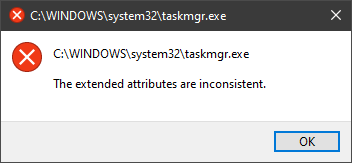 In this guide, we will show you common ways in fixing Extended Attributes are inconsistent errors inside your Windows that are easy to do and less time-consuming than complete reinstallation of the system.

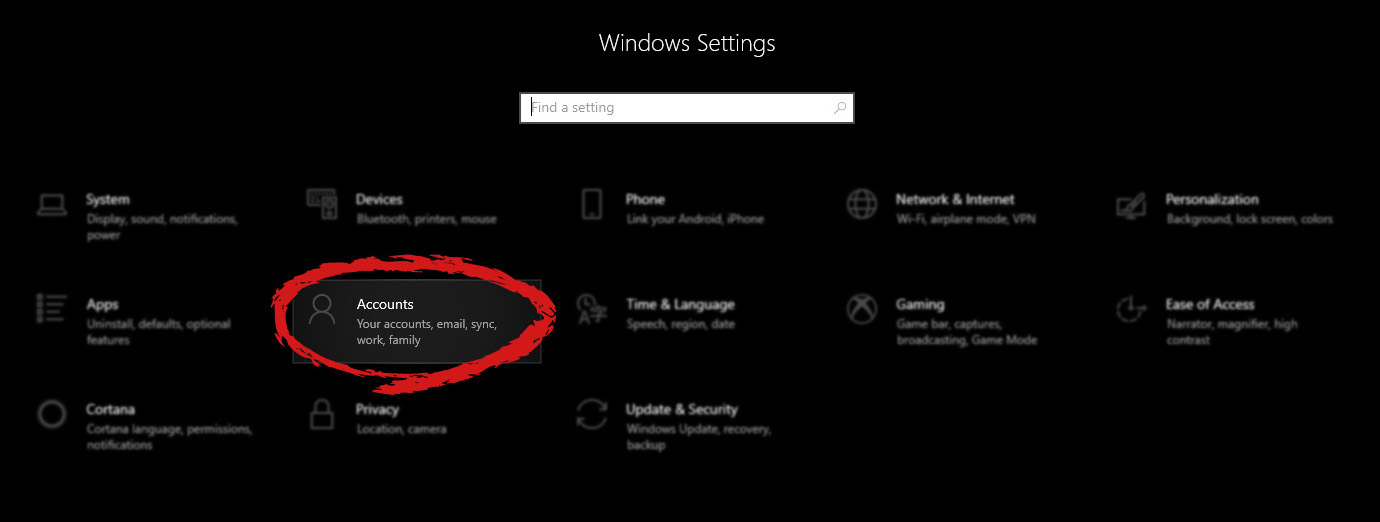
 When the settings window opens, choose ACCOUNTS on it.
 Windows will then go to the accounts settings page. Within that page, click on the Family & other users to open the setting for the chosen section on right. On the right settings, screen navigate to the lower section and click once with the left button on add someone else to this PC
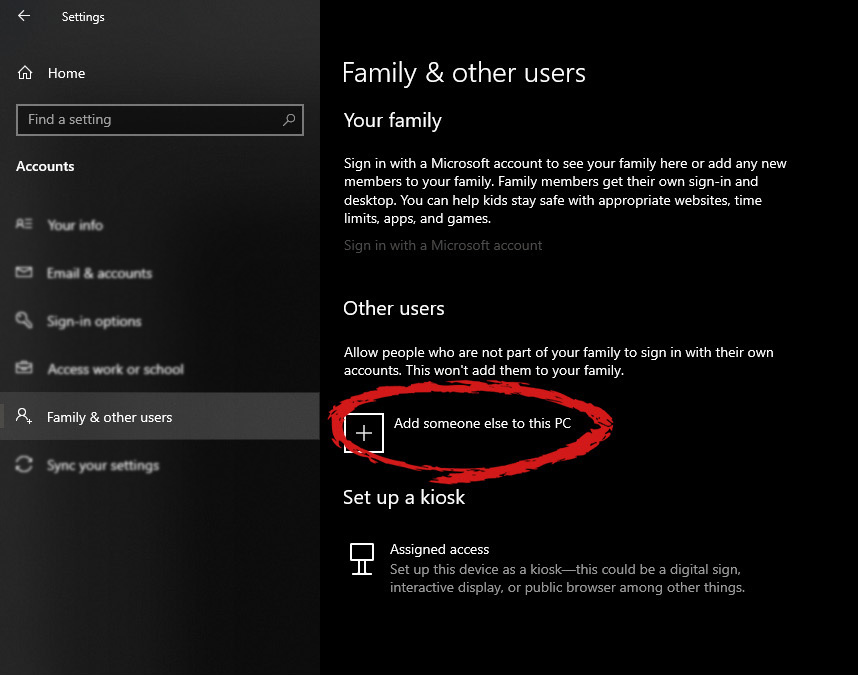 When add someone else to this PC is clicked, pop up window will appear which will ask you to provide the persons email address and later on the password of his/her Microsoft account, after the required information is provided you are done, a new user has been added and he can use his Microsoft credentials on the login screen to use this computer.
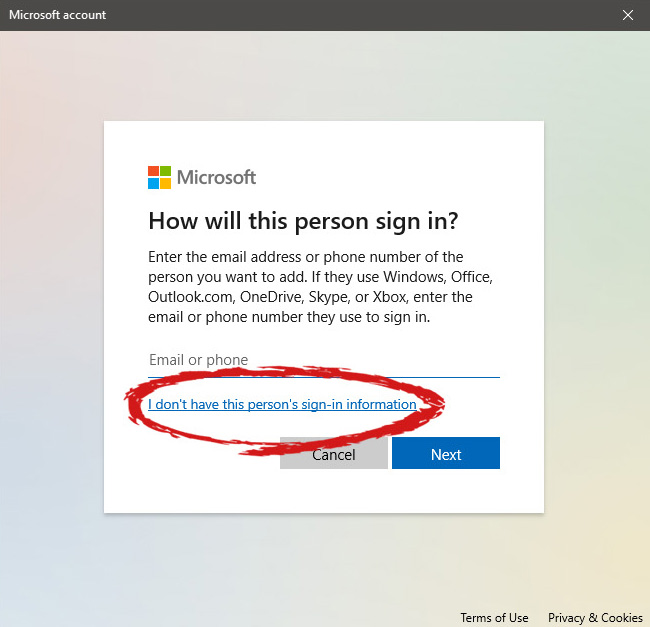 This will open yet another pop-up giving you the option to create a Microsoft account for this person, to use a phone number instead of a Microsoft account, or to create a new email address for the user. Any of these options will create a new user for this computer with provided credentials but there is the last option at bottom of the pop-up which will allow you to create a local user only without a Microsoft account. This user will be able to use this computer, will not be able to transfer his document through various devices like he/she would if using a valid Microsoft account but it could use the computer and personalize it fully to his/her liking.
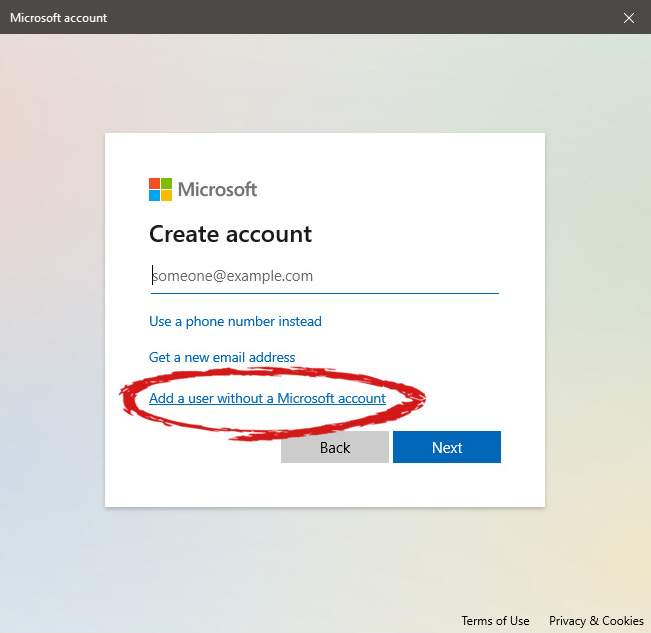 Once the link is clicked, you will be presented with a floating window requiring you to input needed information in order for the account to be created. You will need to provide username, password, and answers to 3 security questions.
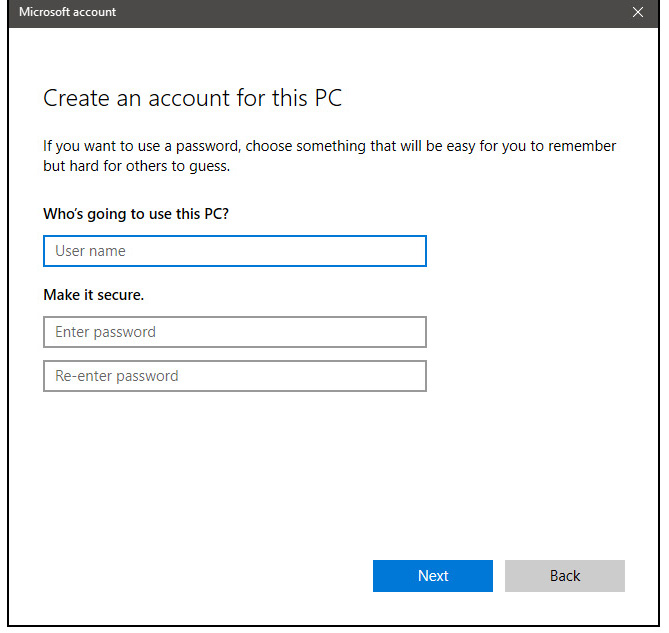 Once all information has been provided, click on next and your new non-Microsoft local user has been created. Now when you click on Family & other users you will see that Windows has added a new user with the provided name to this computer. If you wish, you can add another user in the same manner, following the previous steps. Microsoft Windows does not have a limit for how many users can be on one computer so feel free to create as many as you like.
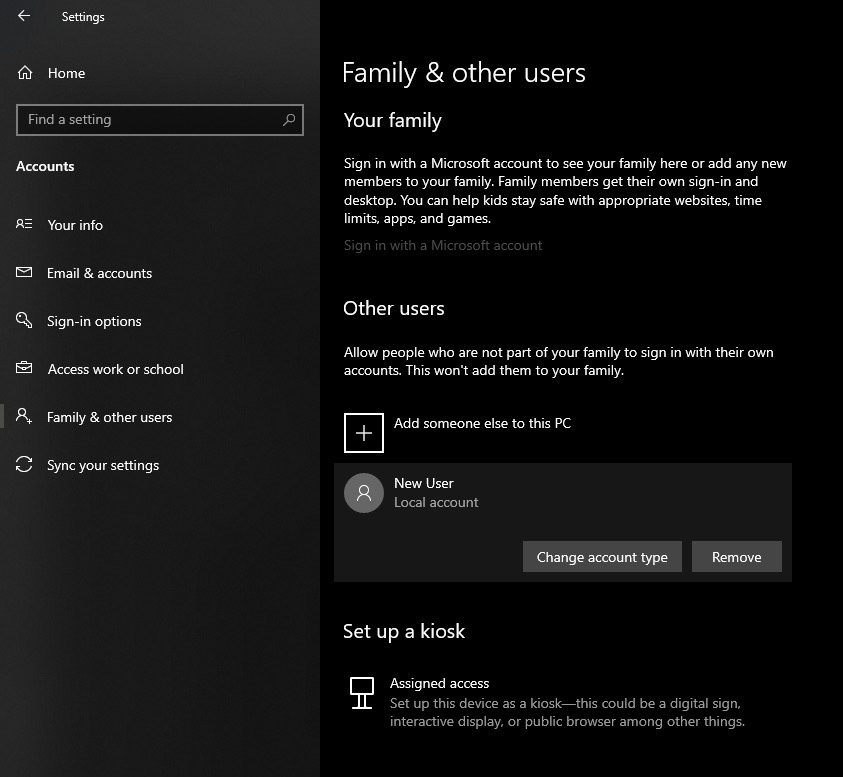 Click on Change account type.
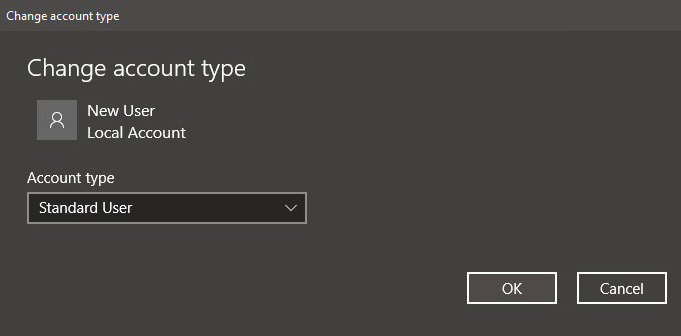 Under account type, you will have the option to promote this user to an administrator if you wish or you can leave it as a standard user.