Logo

Steam Deck, a modern PC handheld console

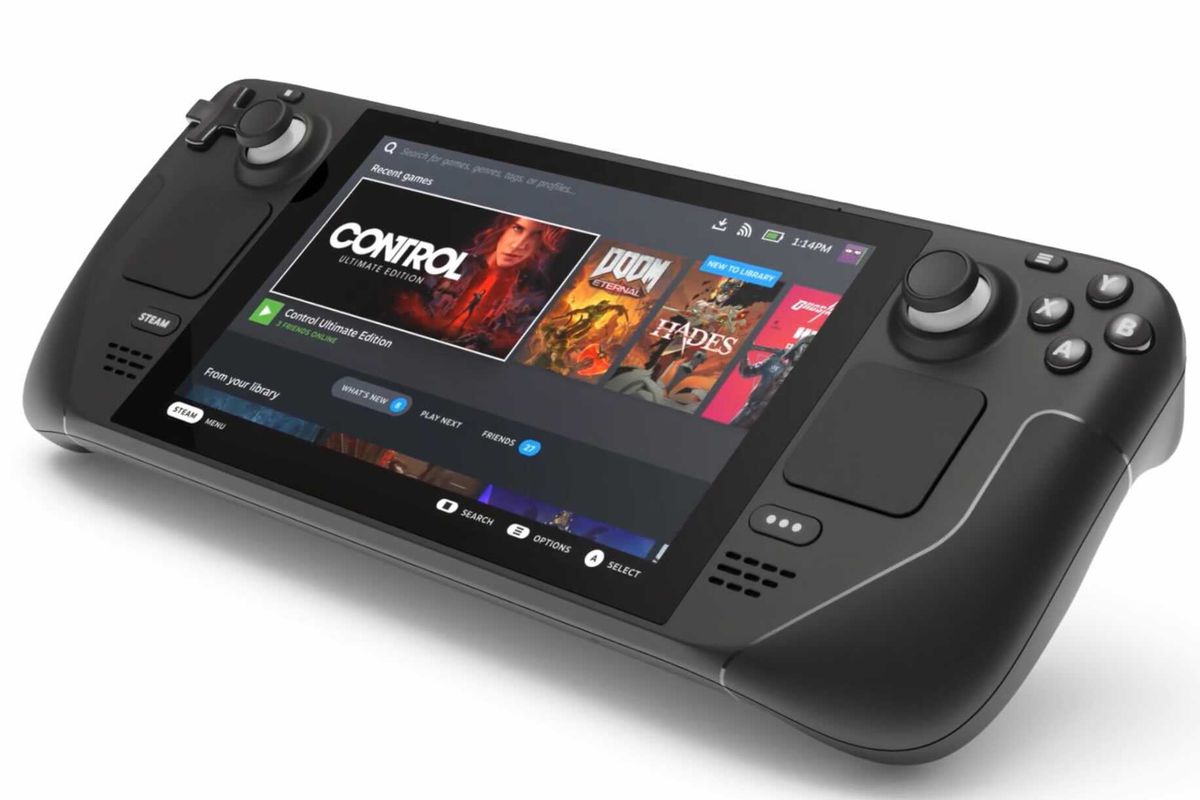
steam deckValve has announced the first gaming PC handheld console: Steam Deck. At its core, Stead Deck is just a portable, small PC in little casing. It uses AMD Zen 2 CPU and RDNA 2 GPU architecture, has 16GB of RAM, Wi-Fi, and Bluetooth.

It is a portable device with both a touchpad and joystick packing a seven-inch screen with a resolution of 1280x800 (16:10 aspect ratio). The screen has an ambient light sensor for automatic light adjustments same as your modern mobile device.

Stating to Valve battery will hold up from two to eight hours depending on the activity of the user and what exactly he is doing. The handheld comes also with a carrying case.

Steam Deck operating system and software

Out of the box, Steam Dock comes with the latest Valve’s version of SteamOS 3. Just for comparing, the steam box was coming SteamOS 2, so this new Linux-based OS is aimed to provide better performance and better compatibility.

Naturally, all Linux games in your Steam library will work right out of the box but Valve has something called PROTON inside OS, it is emulation software based on Wine that will supposedly let you play all of your Library games on a given OS.

One big thing to mention here is that this is PC after all meaning that if you do not like having SteamOS on it you can install Windows instead and so far as we know it will support Windows 11. Now with Windows 11, you will be able to play all of your Steam games and run any kind of Windows software on it including EPIC store, battle.net, and others.

Cost and release date

The initial release date is set for December 2021 and today on July 16th Valve is opening you can reserve your copy if you want to pre-purchase. Follow this link if you want to reserve your copy. Reserve your Steam Deck device

The price of the device will depend on the memory capacity which you would like to have. Please note that each of the 3 offered devices will have the same hardware, the only difference will be in memory available, and the most expensive version will also have anti-glare screen, everything else is identical.

64GB model will be $399, 256GB model will have the price of $529 and largest one with whooping 512GB will be $649

Conclusion

Valve ventures into the digital hardware domain again but it is unsure will they make it this time. Both Steam machine and their controller were in long run failed and later unsupported products so perhaps some customer caution is advised.

Although having a handheld PC is tempting I would advise seeing how the overall market will accept this contraption before throwing money into it.

Do You Need Help with Your Device?

Our Team of Experts May Help
Troubleshoot.Tech Experts are There for You!
Replace damaged files
Restore performance
Free disk space
Remove Malware
Protects WEB browser
Remove Viruses
Stop PC freezing
GET HELP
Troubleshoot.Tech experts work with all versions of Microsoft Windows including Windows 11, with Android, Mac, and more.

Share this article:

You might also like

Fix Cannot load Management Console
TPM, also known as Trusted Platform Module, is a specialized chip used for security as well as encryption of users’ private data like Fingerprint, Facial data, and many more. TPM also comes with a Management Console and if you are not able to load the Management Console and you got the “Cannot load Management Console” error instead, read on as this post will guide you in fixing the problem. This type of issue usually happens when you clear or disable the TPM using the settings in the BIOS and so when you run the Trusted Platform Module Management console, you encounter the error. To fix the “Cannot load Management Console” error in your Windows 10 computer, here are some options you should check out.

Option 1 – If TPM is cleared in the BIOS:

If the Trusted Platform Module is cleared in the settings of the BIOS, you have to close and restart the TPM Management console or TPM.msc once again. It could be that the TPM Management has to reload the changes again after you’ve made them which is why you encounter the “Cannot load management console” error.

Option 2 – If TPM is disabled in the BIOS:

If you opted to disable TPM using the BIOS settings or you have turned it off by accident, then you have to enable it back and you have two options to do that – you can either enable TPM from the BIOS or using the Windows PowerShell. For more details, refer to the instructions below.

Enabling TPM from the BIOS:

  • You need to first reboot your PC and then go to the BIOS.
  • From there, look for TPM under the security options and in case the TPM management option has been disabled or greyed out, refer to the sub-steps given below to make it active again
    • Enable the Admin password in the BIOS.
    • Then go back to the TPM settings and check if the TPM management is already available.
  • After that, you should now be able to enable TPM. Remember that it’s always a good idea to have an ADMIN password for your BIOS as it makes sure that no one can change the settings in your computer BIOS and Security level options.

Enable TPM via Windows PowerShell:

  • This second option is a lot easier compared to the first one if you have admin privileges. So once you’ve opened the Windows PowerShell with admin privileges, you need to run the following command:
    • $tpm = gwmi -n rootcimv2securitymicrosofttpm win32_tpm
    • $tpm.SetPhysicalPresenceRequest(6)
  • After you execute the commands given above, you need to restart your computer.
  • Now, once your computer has restarted, you need to accept any BIOS prompts and then check if the “Cannot load management console” error is now fixed.
Read More
WslRegisterDistribution, 0x8007019e,0x8000000d
The Windows Subsystem for Linus, also known as WSL, is a useful and excellent tool for developers. However, it isn’t without flaws as users can still encounter some errors when using it. One of these errors is the error code WslRegisterDistribution, 0x8007019e,0x8000000d. Although it seems like the error is have something to do with the installation of WSL, it could be a false positive since some users who’ve installed WSL still encountered the same problem. Here’s the context of the error:
“Installing, this may take a few minutes… WslRegisterDistribution failed with error: 0x8007019e/0x8000000d Error: 0x8007019e/0x8000000d The parameter is incorrect. Press any key to continue.”
Error code 0x8007019e or 0x8000000d could be due to the absence of supporting Windows 10 features since the error does not even let one use the WSL-based command line. If you are one of the users facing this problem, then you’ve come to the right place as this post will provide you with a couple of suggestions to fix it. There are two options you can check out to fix the problem, but before you do that, you need to make sure that the Windows Subsystem for Linux feature is enabled. The two options include enabling WSL using the “Turn Windows features on or off” option and using the Windows PowerShell.

Option 1 – Try to enable the WSL using the “Turn Windows features on or off” option

  • To get started, search for “Turn Windows Features on or off” in the Start Search and click on the appropriate result to open a dialog box.
  • After that, you will see a populated list in the dialog box and from there, look for the “Windows Subsystem for Linux” option.
  • Once you find it, select OK. This will search and install the system files needed and ask you to restart your computer.
  • Restart your computer. The Linux distro should now work without any trouble.

Option 2 – Try to use Windows PowerShell

The next thing you can do to fix the error code 0x8007019e or 0x8000000d is to use Windows PowerShell.
  • Tap the Win + X keys and click on the “Windows PowerShell (Admin)” option to open Windows PowerShell as admin.
  • After that, execute this command to enable the Windows Subsystem for Linux feature: Enable-WindowsOptionalFeature -Online -FeatureName Microsoft-Windows-Subsystem-Linux
  • The command you entered will start to search for the required system files and install them.
  • If prompted, type “Y” to restart your computer. This should fix the problem.
Read More
Windows 11 Home edition account requirements
Windows 11 has been officially presented during Microsoft’s virtual event on June 24th. Since presentation internet has been pretty live and busy with a discussion about it, some discussions are positive, some not so much but that is expected and it happens always when a new product is presented. One of information that we have about Windows 11 is tied to the home edition of this OS, Windows 11 home edition will require an internet connection at setup, and a Microsoft account in order to be installed and used. Previous versions of Windows could be installed and used with local accounts but it seems Microsoft has abandoned that idea for its new OS. OS will be delivered mostly as updates or via internet download so internet and online requirement make sense but why it cannot use the local account and must have a Microsoft one is beyond me.
Read More
How to save google DOC as a PDF

Google Docs has cemented itself as a great free alternative to Microsoft Office Word. Most of the time people just share links to google Docs among themselves but sometimes you need to save and download files.

PDF

Luckily Google docs let you download easily files in various formats including PDF as well. In this short tutorial we will explain how can you download your Google document as a PDF file.

Saving Google Docs as a PDF

Open the Google document inside the browser and click on the File drop-down menu. In the file drop-down menu go to Download and choose PDF document. Next, choose the location where you would like your file to be saved and click on SAVE.

And that's all that needs to be done. Also, you can edit PDF files as well in google docs if you need to.

Read More
Microsoft Designer, a new app from MS

Microsoft Designer, a new application developed by Microsoft will bring design backed with DALL-E 2, an AI image creation open-source software. The new app is shown as a dedicated graphic design tool that will help you in the creation of stunning social media posts, invitations, digital postcards, graphics, and more, all in a flash.

Use of the application will be by typing headings and then typing text into the prompt to generate a background image. Since Microsoft uses DALL-E 2 for image creation output should be fairly good but if you wish you will be able to use your own images instead of using AI to generate one.

microsoft designer

The designer will be a free application once it is ready and it already has a web preview version, also free but with a waitlist. There will be premium features inside the app once it is released that will be available to Microsoft 365 Personal and Family subscribers. Microsoft also wants to add a version of a designer directly to the Edge browser as well.

Read More
How to remove SearchAnonymo from your computer

SearchAnonymo is a Google Chrome browser extension. This extension allegedly allows you to browse the internet anonymously without your data being tracked. From the Author: Search Anonymo – Search the Web Privately

Switch your default search to Search Anonymo and become safer on the web. Search through our Search Anonymo extension instead of search engines that track your personal profile and your search history. Search Anonymo provides you with an easy and safe search tool. -Advanced Security -No User Profiling -No Tracking -No Search Leakage This extension replaces your Default Search to Search Anonymo. This extension reroutes your search algorithms through a few websites before finally forwarding it to Yahoo Search. It changes your default search engine to Yahoo, which keeps track of any search information you make. It will change your homepage, search provider, and in our testing added considerable delay to the speed of search. This browser hijacker is considered a low-risk threat but is detected for optional removal for previous reasons.

About Browser Hijackers

Browser hijacking means that a malicious program code has power over and altered the settings of your internet browser, without your permission. Nearly all browser hijackers are created for marketing or advertising purposes. In most cases, it will force users to predetermined websites that are trying to increase their advertising campaign revenue. Nonetheless, it isn’t that harmless. Your web safety is compromised and it is also really irritating. Browser hijackers can also let other malicious programs without your knowledge further damage your PC.

How one can know whether the web browser is hijacked?

There are many symptoms that could indicate a browser hijacking: the browser’s home-page is changed; you see new unwanted favorites or bookmarks added, typically directed to ad-filled or porn sites; the default browser configurations have been changed and/or your default search engine is altered; you’re getting browser toolbars you have never found before; never-ending pop-up ads appear and/or your web browser popup blocker is disabled; web pages load very slowly and at times incomplete; you can’t visit specific sites like homepages of security software.

How they get into your computer or laptop

There are a number of ways your PC can get infected by a browser hijacker. They usually arrive by way of spam e-mail, via file-sharing networks, or by a drive-by download. They can be included with toolbars, BHO, add-ons, plugins, or browser extensions. Also, certain freeware and shareware can put the hijacker in your PC through “bundling”. Examples of well-known browser hijackers are Fireball, GoSave, Ask Toolbar, CoolWebSearch, Babylon Toolbar, and RocketTab. The presence of any browser hijacker on your computer can considerably diminish the browsing experience, record your internet activities that lead to major privacy issues, develop system stability problems, and eventually cause your computer to slow down or to a practically unusable condition.

Getting rid of browser hijackers

Certain hijackers could be removed by just uninstalling the related freeware or add-ons through the Add or Remove Programs in the Windows control panel. Having said that, the majority of hijackers are very tenacious and need specialized tools to get rid of them. And there’s no denying the very fact that the manual fixes and removal methods can be a complicated job for a novice computer user. Additionally, there are plenty of risks connected with tinkering around with the system registry files. You can opt for automatic browser hijacker removal methods by simply installing and running an efficient anti-malware application. To eradicate any browser hijacker from your PC, you can download this particular certified malware removal application – SafeBytes Anti-Malware. In addition to anti-malware, a system optimizer software can help you correct registry errors, get rid of unwanted toolbars, secure internet privacy, and stabilize software programs installed on your computer.

What you can do if Virus Stops You From Downloading Or Installing Anti-malware?

All malware is inherently harmful, but certain kinds of malicious software do a lot more damage to your PC than others. Some malware is designed to hinder or prevent things that you want to do on your computer system. It may not allow you to download anything from the web or stop you from accessing some or all websites, especially the anti-virus sites. If you’re reading this, chances are you’re stuck with a malware infection that is preventing you to download or install Safebytes Anti-Malware software on your system. Do as instructed below to get rid of the malware by alternate methods.

Use Safe Mode to fix the problem

In Safe Mode, you could change Windows settings, un-install or install some software, and get rid of hard-to-delete viruses. In the event the malware is blocking internet connection and affecting your computer, starting it in Safe Mode enables you to download antivirus and run a scan while limiting possible damage. In order to get into Safe Mode or Safe Mode with Networking, press the F8 key while the PC is starting up or run MSConfig and locate the “Safe Boot” options in the “Boot” tab. As soon as you restart the PC into Safe Mode with Networking, you could download, install, as well as update anti-malware software from there. After installation, run the malware scanner to remove standard infections.

Switch to an alternate web browser

Some malware mainly targets particular internet browsers. If this sounds like your case, make use of another web browser as it might circumvent the virus. When you suspect that your Internet Explorer happens to be hijacked by a trojan or otherwise compromised by online hackers, the best thing to do is to switch over to an alternate browser such as Firefox, Chrome, or Safari to download your chosen security software – Safebytes Anti-Malware.

Run anti-malware from your USB drive

Another technique is to download and transfer anti-malware software from a clean PC to run a scan on the infected system. Do these simple actions to clean up your infected computer by using a portable antivirus. 1) On a virus-free computer, download and install Safebytes Anti-Malware. 2) Plug in the pen drive into the clean computer. 3) Double-click the executable file to run the installation wizard. 4) Select the USB flash drive as the location for saving the software file. Follow the onscreen instructions to finish the installation process. 5) Now, transfer the USB drive to the infected PC. 6) Run the Safebytes Anti-malware directly from the USB drive by double-clicking the icon. 7) Run Full System Scan to identify and get rid of all kinds of malware.

Overview of SafeBytes Anti-Malware

Do you want to install the very best anti-malware software program for your PC? There are numerous applications in the market that comes in paid and free versions for Windows systems. A few of them are great and some are scamware applications that pretend as legitimate anti-malware programs waiting to wreak havoc on your personal computer. When searching for anti-malware software, choose one that gives dependable, efficient, and comprehensive protection against all known viruses and malware. Amongst few good applications, SafeBytes Anti-Malware is the strongly recommended tool for the security-conscious individual. SafeBytes can be described as a powerful, real-time anti-malware application that is created to assist the everyday computer end user in protecting their PC from malicious threats. With its cutting-edge technology, this application will help you get rid of multiples types of malware such as computer viruses, worms, PUPs, trojans, adware, ransomware, and browser hijackers. SafeBytes anti-malware offers an array of enhanced features that sets it apart from all others. Listed below are some of the features you may like in SafeBytes. Most effective AntiMalware Protection: Built on a highly acclaimed anti-virus engine, this malware removal tool can find and remove numerous obstinate malware threats like browser hijackers, potentially unwanted programs, and ransomware that other common anti-virus applications will miss. Real-time Threat Response: SafeBytes offers a completely hands-free real-time protection that is set to monitor, block and destroy all threats at its first encounter. It will regularly monitor your pc for hacker activity and also gives end-users superior firewall protection. Web protection: SafeBytes checks the hyperlinks present on a webpage for possible threats and tells you whether the site is safe to visit or not, through its unique safety rating system. Lightweight: SafeBytes is renowned for its low effect on computer resources and great detection rate of countless threats. It runs quietly and efficiently in the background so you’re free to utilize your computer or laptop at full power all the time. 24/7 Guidance: You will get 24/7 technical assistance to immediately resolve any issue with your security application. To sum it up, SafeBytes Anti-Malware is pretty great for securing your computer against all sorts of malware threats. Malware problems can become a thing of the past once you put this tool to use. If you want advanced forms of protection features & threat detections, purchasing SafeBytes Anti-Malware will be well worth the dollars!

Technical Details and Manual Removal (Advanced Users)

If you wish to manually remove SearchAnonymo without using an automated tool, it may be possible to do so by removing the program from the Windows Add/Remove Programs menu, or in cases of web browser plug-ins, going to the browser’s AddOn/Extension manager and removing it. Additionally, it is suggested to reset your browser to its default state to fix corrupt settings. In order to ensure the complete removal, manually check your hard drive and computer registry for all the following and eliminate or reset the values as needed. But bear in mind, this is often a complicated task and only computer professionals could accomplish it safely. Furthermore, certain malware is capable of replicating itself or preventing deletion. Carrying out this in Safe Mode is recommended.

Read More
Error: 0x80070035. Network path was not found
As you know, Windows allows you to share files between systems that are on the same network even though they are not connected physically. All you have to do is to make sure that the folder administrator allows access to the intended use and that your computer should be connected to the internet. Once you meet these conditions, you can share files between systems. However, recently a number of users reported that despite fulfilling these conditions, they end up getting errors instead when they try to access the shared drive. The error states:
“Error code: 0x80070035. The network path was not found.”
One of the common causes of this error is the antivirus program or the Firewall installed on your computer. It could also be that the drive is not shared in the first place or there are some issues with your network drivers. Whichever the case is, here are some potential fixes you need to check out to fix the Error code: 0x80070035.

Option 1 – Try to temporarily disable anti-virus and Windows Defender Firewall

As mentioned, the error could be due to the antivirus program or the Windows Defender Firewall installed on your computer. Thus, disabling them or any security software installed in your computer is always a good idea you can try when you’re not able to access the shared drive on your computer. There are times when you encounter problems like Error code: 0x80070035 due to interference of antivirus or security programs. Thus, you have to disable both your antivirus program and Windows Defender Firewall for the meantime and check if it fixes the error or not.

Option 2 – Check if the drive is shared

Before you further troubleshoot the problem, make sure that the drive you are trying to access is shared first. To do so, follow these steps:
  • Right-click on the folder and select Properties.
  • Go to the Sharing tab and check the status of the Network File and Folder Sharing.
  • And if the status is “Not Shared”, you need to select Share.
  • Next, select the intended Network User for sharing the file and choose the permission level for the user.
  • After that, click on the Apply and OK buttons to save the changes made. You or the intended user should now be able to access the shared folder or file.

Option 3 – Try to ping the IP address of the targeted computer

Even though the shared folder or file is shared correctly, it is possible that the network channel is not connected properly which is why you have to test it by pinging the IP address of the targeted computer from the primary computer.
  • Tap the Win + R keys to launch the Run dialog box.
  • Type “cmd” in the field and tap Enter to open Command Prompt.
  • Next, type the “ipconfig/all” command and tap Enter to execute it. This will populate various details.
  • From the given details, take note of the IPv4 address.
  • Afterward, open Command Prompt on the primary computer and then type the “ping <IPv4 address of the target computer>” command and hit Enter.
  • Now check if you get 4 confirmation replies or not. If not, you can try to access the Network Adapter Troubleshooter.
To run the Network Troubleshooter, refer to these steps:
  • Open the Search bar on your computer and type in “troubleshoot” to open the Troubleshoot settings.
  • Next, scroll down and select the “Network Adapter” option from the right pane.
  • Then click on the Run Troubleshooter” button.
  • After that, your computer will check for any possible errors and will pinpoint the root cause of the problem if possible.
  • Restart your computer.

Option 4 – Verify if Network Discovery is enabled

All you have to do is go to Start > Settings > Network & Internet and from there, click on the “Change connection properties” option and shift the radio button for Network profile to Private. After that, check if folder sharing is now working.

Option 5 – Try to modify the Network Security settings

There are times when the Network Security settings interfere with the folder or file sharing process. And if that’s the case, you can modify it to resolve the problem. How? Refer to these steps:
  • Tap the Win + R keys to open the Run dialog box.
  • Then type “secpol.msc” in the field and tap Enter to open the Local Security Policy manager window.
  • After that, go to Local Policies > Security Options located on the left pane.
  • Next, double click on Network security: LAN Manager authentication level in the right pane to open its Properties.
  • And then select the “Send LM & NTLM-use NTLMv2 session security if negotiated” option from the drop-down menu.
  • Now click on Apply and OK buttons to save the changes made.
  • Reboot your computer.

Option 6 – Try to enable NetBIOS over TCP/IP

  • Tap the Win + R keys to open the Run dialog box.
  • Then type “ncpa.cpl” in the field and tap Enter to open the Network Connections window.
  • After that, right-click on your network and select Properties.
  • Next, double click on Internet Protocol Version 4 and click on the Advanced button.
  • From there, go to the WINS tab and shift the radio button to Enable NetBIOS over TCP/IP.
  • Now click OK to save the changes made and then restart your computer.

Option 7 – Update the Network Adapter drivers

You might also want to update the Network Adapter drivers by following these steps:
  • Tap the Win + R keys to launch the Run window and then type in the “MSC” command and hit Enter to open the Device Manager window.
  • Under the Device Manager, you will see a list of drivers. From there, look for the Network Adapters and expand it.
  • Then right-click on each one of the Network drivers and update them all.
  • Restart your PC and see if it helped in fixing the BSOD error.
Note: If updating the network drivers didn’t help in fixing Error code: 0x80070035, you can also try to uninstall the very same drivers and restart your Windows 10 PC. After that, the system itself will reinstall the drivers you just uninstalled. Alternatively, you can also download and install the drivers from the manufacturer’s website directly. To reinstall the network adapter driver, refer to these steps:
  • Open the Devices Manager from the Win X Menu.
  • Then locate the device drivers and right-click on them to open the Properties.
  • After that, switch to the Driver tab and click on the Uninstall Device button.
  • Follow the screen option to completely uninstall it.
  • Finally, restart your computer. It will just reinstall the device drivers automatically.
Read More
How to Fix Dxgkrnl.sys Error Code

Dxgkrnl.sys Error - What is it?

To understand Dxgkrnl.sys error code, it is important to develop an understanding about Dxgkrnl.sys file. Dxgkrnl.sys is a type of system file associated with Windows 8 Consumer Preview ISO images that are developed by Microsoft for the Windows OS. System files like Dxgkrnl.sys are third-party device drivers, critical system files. These files enable attached PC hardware such as a printer to communicate with 3rd party software programs like web browsers and Windows 8 Consumer Preview ISO images. Dxgkrnl.sys error code is a blue screen of death error. It occurs when the Dxgkrnl.sys files are unable to function properly. This is a critical error. It can cause system failure, crash, and data loss. Therefore, it must be resolved immediately before the damage is done. The error may pop up in any one of the following formats
"STOP 0×00000050: PAGE_FAULT_IN_NONPAGED_AREA – dxgkrnl.sys"
A problem has been detected and Windows has been shut down to prevent damage to your computer. The problem seems to be caused by the following file: Dxgkrnl.sys."
"STOP 0x0000000A: IRQL_NOT_LESS_EQUAL – dxgkrnl.sys"
"Your PC ran into a problem and needs to restart. We’re just collecting some info, and then we’ll restart for you. If you would like to know more, you can search online later for this error: dxgkrnl.sys."
"STOP 0x0000001E: KMODE_EXCEPTION_NOT_HANDLED – dxgkrnl.sys"
Some of the common symptoms of this error code include
  • Blue screen
  • System freeze
  • And sudden shutdown

Solution

Restoro box imageError Causes

Dxgkrnl.sys error code may be triggered due to several reasons. These include:
  • Incorrectly configured or corrupted Windows 8 Consumer Preview ISO images device drivers
  • Windows registry issues
  • Malware infection
  • Hardware conflict
  • Damaged hard disk

Further Information and Manual Repair

To resolve Dxgkrnl.sys error code on your PC, here are some effective and easy DIY methods that you can try:

Method 1 - Scan and Remove Viruses

Dxgkrnl.sys error may occur due to malware and viral infection. If this is the cause, then it is advisable to download a powerful antivirus and scan your entire PC. Remove all viruses from your system to resolve the error.

Method 2 - Utilize Windows System Restore to Undo Recent System Changes

Windows System Restore is an in-built powerful tool that enables Windows Operating System users to restore previous your PC to its former state. To repair Dxgkrnl.sys error, use this tool. It can help you avoid hours of troubleshooting headaches associated with SYS errors. To get started, simply go to the start menu, type System Restore in the search box and press Enter. Now click on System Restore to proceed. If you are prompted for an administrator password, insert it to move to the next step. Now to bring your computer to its former state, simply choose a restore point. To activate these changes, reboot the PC. This is most likely to resolve the issue.

Method 3 - Clean the Registry

The registry is a collection of databases. It stores much of the information and activities you perform on your system including unnecessary and obsolete files like junk files, cookies, internet history, bad and invalid registry entries. These files accumulate in the registry and damages and corrupt the registry itself. Due to this runtime and BSoD errors are triggered. To repair and clean the registry manually can be time consuming and technical, therefore it is advisable to download Restoro. This is a user-friendly PC Fixer embedded with a powerful registry cleaner. The registry cleaner scans your entire PC, wipes out all bad entries, cookies and unnecessary files, cleans the registry and repairs the damaged system files in seconds. Click here to download Restoro and resolve Dxgkrnl.sys error today!
Read More
How to Fix Error 421

What is the Error 421?

Error 421 is a common SMTP (Simple Mail Transfer Protocol) Outlook error message. MS Outlook is one of the best and popular email applications widely used by PC Windows users for sending and receiving emails within and outside workplaces. It is most commonly used in offices by professionals for faster communication. This error may occur while sending and receiving emails on the server. The error 421 messages is displayed in either of the following formats:
“An unknown error has occurred: Server error 421” "Could not send your message. Error 421" 421 4.2.1 : (DYN:T1) http://postmaster.info.aol.com/errors/421dynt1.html 421 4.3.1 Out of disk space for temp file 421 4.3.2 All server ports are busy 421 Downstream server error 421 Fork failed 421 Greylisting enabled, please try later “An unknown error has occurred. Subject ‘Testing’, Account: ‘pop.charter.net’, Server: ‘mail.charter.net’, Protocol: SMTP, Server Response: ’421 Message rejected’, Port: 25, Secure(SSL): No, Server Error: 421, Error Number: 0x800CCC67”

Solution

Restoro box imageError Causes

Some common causes for this critical Outlook error are:
  • PST storage size exceeds 2GB file size
  • Improper ISP settings
  • Slow internet connection
  • PST file corruption
  • Trojan attack and viral infection
This is a critical Outlook error that should be resolved timely. If you delay, it may cause you a great deal of inconvenience. The error code 421 hampers your ability to access your email account, send and receive emails, add new contacts, view emails, calendar entries, and journals. In other words, it just brings your email activities to a standstill locking you out of the account.

Further Information and Manual Repair

To resolve this error code on your system, you don’t always have to hire a professional or call the network personnel to do the job. It may be a critical error but the good news is that it is quite easy to fix. Even if you don’t have technical expertise, you can still repair it. Here are some of the best methods to repair this issue on your system:

1. Change the Server Settings to its Maximum Limit

Try changing your server settings. Here set the inbound connections limit at the maximum limit.
  • To do this, open the Microsoft Exchange Server Administrator utility. The access path of this utility will vary depending on the installation procedure used to set up Exchange Server.
  • Once you open the MS Exchange Server Administrator utility, click the ‘Connections’ icon in the left side navigation pane. Now double click the internet mail service icon in the right side pane. As you click it, the Properties window will open.
  • Now click the ‘Connections’ tab in the Properties window and then click the ‘Advanced’ button. This will open the configuration window.
  • Here reset the number for ‘Maximum Number of Inbound Connections’ to a high number, its maximum limit. After changing the settings, close all open Exchange Server Administrator program windows to successfully complete the process.
After the process is complete, try accessing your Outlook email account again; if it works, then that’s great the error 421 is resolved. However, if it doesn’t, then the problem could be related to viral infection.

2. Download a PST Repair Tool

If the cause of the error is PST files corruption, then not only will you be locked out of your email account, you are also at risk of losing all the data stored in your email account. However, the best way to resolve the error and ensure full data recovery is to download a reliable PST repair tool. By running a PST repair tool on your system, you can resolve the error 421 right away. It recovers your data, repairs corrupt and damaged PST files.

3. Scan Your PC with Restoro.

If viral infection and Trojans are causing the error 421 to pop up on your system, then it is recommended to download and scan your PC with Restoro. This is an advanced, intuitive, and user-friendly PC fixer. It is not just an antivirus but also a system optimizer and a registry cleaner. Unlike common antivirus software that only removes viruses and simultaneously slows down the system’s speed, Restoro removes all types of malicious software on your PC including malware, spyware, Trojans, and viruses, and also boosts the speed of your PC significantly. It is safe, easy to operate, and a quick fixer. It is compatible with all Windows versions. Click here to download Restoro and resolve error 421 today!
Read More
Fix boot into the next phase of installation
There are various complex tasks that take place under the hood while you upgrade or clean install the Windows operating system on a computer. Because of its complexity, there are times when you might encounter some errors when you upgrade or clean install Windows 10. One of the errors you could encounter is the error that states, “Windows could not prepare the computer to boot into the next phase of installation. To install Windows, restart the installation”. This error does not only occur in Windows 10 as it could also occur on the other versions of Windows. There are a lot of possible causes for this error. It could be due to incompatible BIOS, corrupted system files, improper installation media or it could also be due to excessive hardware plugged into your computer and so on. Whatever the cause is, here are some potential fixes you need to check out to fix the problem.

Option 1 – Try to disconnect or disable newly installed hardware

In this option, you will have to disable or remove the hardware you’ve just installed recently since external devices could be the one that’s causing the Blue Screen of Death error to appear. To do that, just disconnect any external device that’s connected to your computer physically and then check if it fixes the error.

Option 2 – Try to update the BIOS

As you know, the BIOS is a sensitive part of a computer. Even though it is a software component, the functioning of the hardware depends on it largely. Thus, you must be careful when modifying something in the BIOS. So if you don’t know much about it, it’s best if you skip on this option and try the other ones instead. However, if you are well-versed in navigating the BIOS, then follow the steps below.
  • Tap the Win + R keys to open the Run dialog box.
  • Next, type “msinfo32” in the field and press Enter to open System Information.
  • From there, you should find a search field on the bottom where you have to search for the BIOS version and then press Enter.
  • After that, you should see the developer and version of the BIOS installed on your PC.
  • Go to your manufacturer’s website and then download the latest version of BIOS on your computer.
  • If you are using a laptop, make sure that you keep it plugged in until you have updated the BIOS.
  • Now double click on the downloaded file and install the new BIOS version in your computer.
  • Now restart your computer to apply the changes made.

Option 3 – Try to reconfigure all the created partitions

You could also try to reconfigure the partitions by deleting and recreating all the available partitions on your computer and then see if it fixes the problem.

Option 4 – Make a proper bootable USB Drive/Stick

To make a proper bootable USB drive, you need to use the Windows Media Creation tool. The Media Creation tool in Windows allows you to use the ISO installation file to make a bootable device that you can use to install Windows on your PC. Note that this is kind of different from the usual installation process as it could erase your computer’s current settings and data on the primary drive. Thus, before you proceed, you need to backup all your data into some removable drive and then use the Media Creation Tool to make a bootable drive.
  • After making the bootable drive, you need to plug it into your computer and then reboot.
  • Next, tap the F10 or Esc key to open the boot options.
  • Now set the boot priority of the removable drive the highest. Once the setup comes forth, follow the next onscreen instructions and install Windows without any problems.
Read More
1 2 3 171
Logo
Copyright © 2023, ErrorTools. All Rights Reserved
Trademark: Microsoft Windows logos are registered trademarks of Microsoft. Disclaimer: ErrorTools.com is not affiliated with Microsoft, nor claims direct affiliation.
The information on this page is provided for information purposes only.
DMCA.com Protection Status