Logo

Software review series: Freeplane

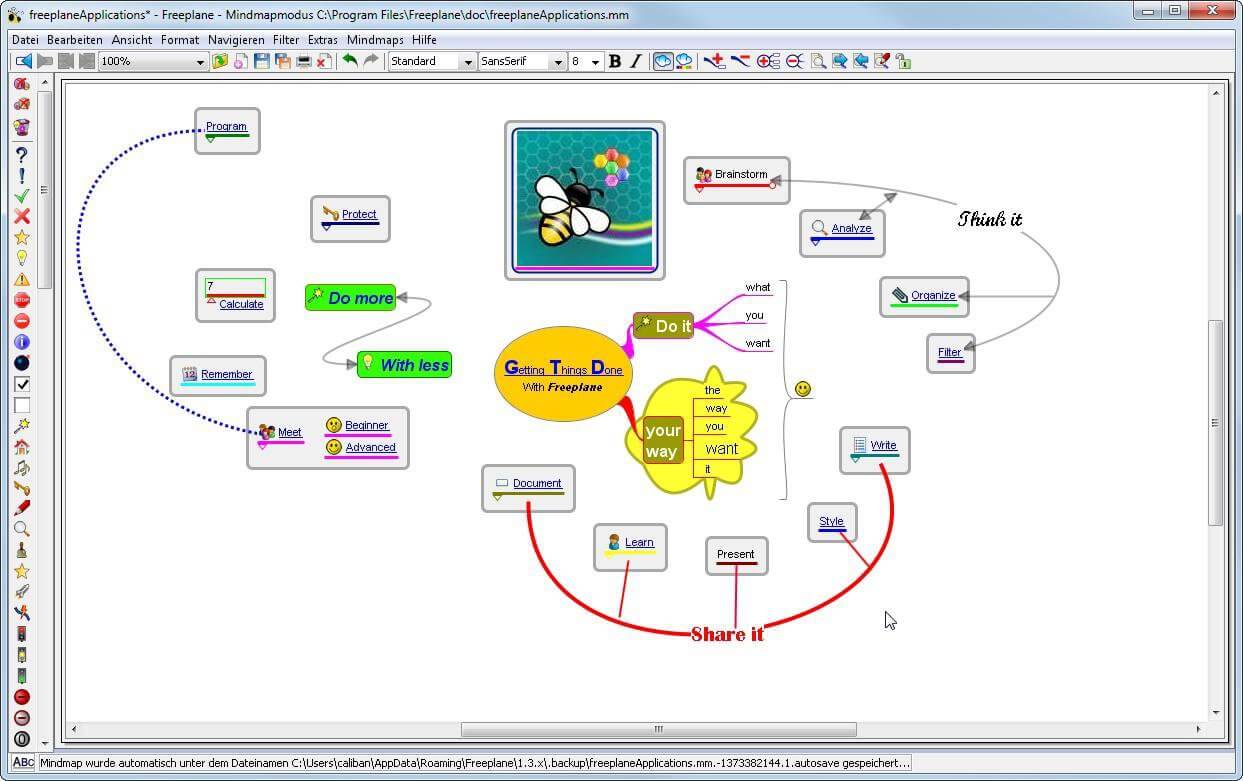
There are not many applications for creating mind maps, even fewer that are completely free, so it is with great pleasure to present you with Freeplane. Freeplane is mind mapping, Knowledge Management, and Project Management software completely free and open source.

freeplaneYou can it here: https://sourceforge.net/projects/freeplane/files/latest/download

And from developers git page and I quote:

Freeplane is a free and open-source software application that supports thinking, sharing information, and getting things done at work, in school, and at home. The core of the software is tools for mind mapping (also known as concept mapping or information mapping) and using mapped information. Freeplane is written in Java using OSGi and Java Swing. It runs on any operating system that has a current version of Java installed. It can be run locally or portably from removable storage like a USB drive.

We use Github only as of the main code repository, all other project parts are hosted at the source forge. So all bugs and feature requests are managed in a separate issue tracker. There is a drop-down box for selecting different types of issues. Other sources of inspiration are our new forum and old forum. Some users write their ideas there. Every contributor and every team member freely decides what task he is going to work on, but for making the best decision we can communicate our self-set goals in the above forum. It is supposed to enable early discussions and community feedback and also to motivate you and other people.

How to start hacking and contributing

People new to the project can start with implementing a new small feature or doing some refactoring or documentation and not with the bug fixing. Not all bug reports seem to be equally important, and if there are important bugs they usually get fixed by people who broke the functionality. I think you should first get there :).

For internal developer discussions, there is a private mailing list. It is held private to avoid spam mails. If you want to be subscribed let us know what mail address you are going to use with it. This list is the preferred way to ask all code-related questions because they usually get answered soon and by the most competent team member.

Some documentation for new developers is available in Freeplane wiki https://www.freeplane.org/wiki/index.php/How_to_build_Freeplane and also here and here. It is written for new guys and should also be maintained by the new guys to stay up to date.

Looking forward to any questions and contributions,

Freeplane development team

Do You Need Help with Your Device?

Our Team of Experts May Help
Troubleshoot.Tech Experts are There for You!
Replace damaged files
Restore performance
Free disk space
Remove Malware
Protects WEB browser
Remove Viruses
Stop PC freezing
GET HELP
Troubleshoot.Tech experts work with all versions of Microsoft Windows including Windows 11, with Android, Mac, and more.

Share this article:

You might also like

Removing Search.schooldozer.com hijacker

What is Search.schooldozer.com? And how does it function?

Search.schooldozer.com is a browser extension that functions as a search engine. It is developed and maintained by “Schooldozer”. It claims to improve users’ browsing experience by providing them with improved search results. However, it does not really do the things it claims to do. In fact, they’re quite the opposite ones – instead of improving the browsing experience, it makes users’ browsing experience unsafe and full of sponsored content. This is in contrast to what it states in its Privacy Policy:
“Install applications the easy way and without the hassle, using the Schooldozer downloader. The Schooldozer platform stems from years of experience with installing applications, resulting in a highly optimized process, yielding faster downloads, better user experience, and more successful installations.”
In addition, once installed Search.schooldozer.com is installed, it will change the default settings of a browser such as the default search engine, homepage, and new tab page. This is why security experts regard this browser extension as a browser hijacker and a potentially unwanted program. The modification of the browser's settings allows it to control users’ browsing by redirecting them to sponsored sites as well as deliver sponsored content from its affiliated sites in order to gain profit via pay-per-click marketing. And if you think that the ads it displays are harmless, think again for some of these ads can redirect you to suspicious websites that might contain harmful content. What’s more is that this browser hijacker can also keep track and monitor all your browsing activities in order to obtain your browsing data like search queries, what sites you always visit, browsing history, browser type, OS version, and so on. The information collected is then used and may even be shared with its affiliated third parties to deliver more customized and personalized advertisements.

How is Search.schooldozer.com distributed over the web?

Like a typical browser hijacker, Search.schooldozer.com is distributed using the software bundling method where several unknown and unwanted programs are bundled in a software package. Thus when you install any software bundle, make sure to always opt for the Custom or Advanced installation setup rather than the quick setup to avoid installing unwanted programs like Search.schooldozer.com. To remove Search.schooldozer.com from your computer, follow the removal guide below carefully. Step 1: Start the removal process by closing all the browsers infected with Search.schooldozer.com. If you’re having a hard time closing them, you can close them using the Task Manager just tap on Ctrl + Shift + Esc. Step 2: After you open the Task Manager, go to the Processes tab and look for the infected browser’s process and end it. Step 3: Then close the Task Manager and tap the Win + R keys to open Run and then type in appwiz.cpl to open Programs & Features in Control Panel. Step 4: From there, look for Search.schooldozer.com or any unfamiliar program that could be related to it under the list of installed programs and once you’ve found it, uninstall it. Step 5: Edit your Hosts File.
  • Tap the Win + R keys to open then type in %WinDir% and then click OK.
  • Go to System32/drivers/etc.
  • Open the host file using Notepad.
  • Delete all the entries that contain Search.schooldozer.com.
  • After that, save the changes you’ve made and close the file.
Step 6: Reset all your browsers to default to their default state.

Google Chrome

  1. Launch Google Chrome, press Alt + F, move to More tools, and click Extensions.
  2. Look for Search.schooldozer.com or any other unwanted add-ons, click the Recycle Bin button, and choose Remove.
  3. Restart Google Chrome, then tap Alt + F, and select Settings.
  4. Navigate to the On Startup section at the bottom.
  5. Select “Open a specific page or set of pages”.
  6. Click the More actions button next to the hijacker and click Remove.

Mozilla Firefox

  1. Open the browser and tap Ctrl + Shift + A to access the Add-ons Manager.
  2. In the Extensions, menu Remove the unwanted extension.
  3. Restart the browser and tap keys Alt + T.
  4. Select Options and then move to the General menu.
  5. Overwrite the URL in the Home Page section and then restart the browser.

Internet Explorer

  1. Launch Internet Explorer.
  2. Tap Alt + T and select Internet options.
  3. Click the General tab and then overwrite the URL under the homepage section.
  4. Click OK to save the changes.
Step 7: Hold down Windows + E keys simultaneously to open File Explorer. Step 8: Navigate to the following directories and look for suspicious files associated to the browser hijacker such as the software bundle it came with and delete it/them.
  • %USERPROFILE%Downloads
  • %USERPROFILE%Desktop
  • %TEMP%
Step 9: Close the File Explorer. Step 10: Empty the contents of Recycle Bin.
Read More
How to fix windows 10 error code 0x80073712
Windows 10 has displayed one of the most efficient and user-friendly interfaces. However there have been many issues on the backend of this commonly praised operating system: For example, Windows Update is still a wonky and error-laded system application. One example of this error is Windows Update Error 0x80073712 which stands in the way of users just wanting to keep their PCs updated hassle-free. The error code 0x80073712 signifies that a file needed by Windows Update to function is either damaged, missing, or corrupted. However, this does not mean that your Windows version will forever stay as-is with no mode to update it. Windows Update Error 0x80073712 is perfectly fixable with the set of provided steps below and some of Windows’ built-in troubleshooting steps:

Solution 1: Open Windows Update Troubleshooter

  1. Open the Windows Update Troubleshooter by pressing the Windows and S keys simultaneously.
  2. Enter the word “Troubleshoot” in the search box and select the Troubleshoot result
  3. On the new window, select “Windows Update” to troubleshoot.
  4. Run the troubleshooter, then open Windows Update and try to install the update again.

Solution 2: Run the DISM tool

  1. Open the command prompt by pressing Windows and S keys simultaneously
  2. Enter “cmd” in the search box. Right Click command prompt among the results and select “Run as administrator”
  3. In the Command Prompt window type the following and press the Enter key after every command
DISM.exe /Online /Cleanup-image /Scanhealth DISM.exe /Online /Cleanup-image /Restorehealth
  1. To close the Administrator: Command prompt window, type Exit, and then press Enter.
  2. Run Windows Update again.

Solution 3: Rename the Software Distribution folder

  1. Open the command prompt as previously mentioned
  2. Input the following command pressing Enter after every line net stop wuauserv net stop cryptSvc net stop bits net stop msiserver rename c:/windows/SoftwareDistribution/softwaredistribution.old net start wuauserv net start cryptSvc net start bits net start msiserver exit
  3. Restart the PC and run the updater if it works again.

Solution 4: Restart Windows Update Services

  1. Press the Windows logo key and R together to open Run -> Input services.msc -> and press Enter
  2. Search for the Windows Update service -> Check its status
  3. If it is not indicated, right-click on the service and select Start to force start your Windows Update
  4. If you see an error, locate the Startup Type option and set it to Automatic
  5. Now you should reboot your computer and see if your Windows Update is OK

Solution 5: Fix Registry Issues

If after all the aforementioned solutions, you still experience problems with Windows Update, the problem may lie in the registry that is either damaged or corrupted. You may choose to do manual editing of your Windows registry by opening your Windows registry editor. But doing so is risky as one wrong letter may do incalculable damage to your system. To do so safely for more inexperienced users we recommend using a third-party registry cleaner/tools, many of which can be found online.
Read More
Cortana Web Preview is not working in Windows
Recently, a lot of users experience issues after the Windows 10 v1903 upgrade and one of them is that the Cortana Web Preview is not functioning like it’s supposed to. Even though Microsoft has already replaced the unified search where you no longer have to use Cortana, it is still undeniably useful and is packed with some great features, one of which is the Web view. Each time you type a search query, it will open a web view where you can see the results using Bing. However, some users reported experiencing some issue wherein the web view does not show anything and appears to be broken and users have to click on the Open in Browser link. Thus, if you are one of the users who experience the same problem, then this post is for you – it will guide you on what you can do if the web preview in Cortana is not working on your Windows 10 device. To fix the Web Preview issue in Cortana, you can try to restart Cortana or reset it using the Windows Settings app or change the Search filter level. You could also try to run the Windows Store App troubleshooter or re-register or reinstall Cortana. For more details refer to the options provided below.

Option 1 – Try to restart the process of Cortana

There are times when the running process of Cortana might encounter an error and breaks a particular component of the whole service so the first thing you can do is to restart Cortana’s process in the Task Manager.
  • Tap the Ctrl + Shift + Esc keys to open the Task Manager.
  • Next, go to the Processes tab and look for Cortana’s entry.
  • Once you find it, right-click on it and select the End task option.
  • Afterward, open Cortana again and see if it fixes the web view problem or not.

Option 2 – Try changing the search filter level

The next thing you can do to fix the Web View is to change the search filter level. All you have to do is go to Settings > Search and change filter level and from there, modify the search filter level and then see if it fixes the problem.

Option 3 – Run the Windows Store App troubleshooter

The Windows 10 Store Apps Troubleshooter will help you in fixing the Web Preview problem in Cortana. This is a great built-in tool from Microsoft that helps users fix any app issues. To use the Windows Store Apps Troubleshooter, follow the steps below.
  • Tap Win + I keys again to open the Windows Settings panel.
  • Go to Update & Security and then go to Troubleshoot.
  • Under the Troubleshoot section, on your left-hand side, scroll down to find Window Store Apps.
  • Then click on the Run the troubleshooter option and follow the on-screen instructions and then see if it fixes the problem.

Option 4 – Try to reset Cortana via Settings

  • Launch the Windows 10 Settings app and go to Apps > Apps & Features.
  • Next, look for the entry of Cortana on the right-side panel and select it.
  • After that, select the Advanced options and then select the Terminate button under the Terminate section.
  • Once done, click on the Reset button under the Reset section.
  • Restart your PC.
  • After your computer boots, launch Cortana again and check.

Option 5 – Try to re-register and reinstall Cortana

If none of the options given above works, you must consider reinstalling Cortana.
  • First, right-click on the Start button and click on the Windows Powershell (Admin) option from the list.
  • Next, type the following command and hit Enter to execute it:
Set-ExecutionPolicy Unrestricted
  • After that, execute this second command to reinstall Cortana:
Get-AppXPackage -AllUsers | Foreach {Add-AppxPackage -DisableDevelopmentMode -Register "$($_.InstallLocation)AppXManifest.xml"}
  • Restart your computer and check if the Web Preview in Cortana is now working.
Read More
Step by Step Guide for Removing MyFunCardsToolbar

MyFunCards Toolbar is a browser hijacking extension for Google Chrome made by Mindspark Interactive. This extension installs a toolbar for your browser, changes your default search engine, and lowers the general performance of your browser. This extension has access to your personal information, injects your search results with potentially dangerous ads, and possibly breaks some of the browser functions. Since this extension injects its code into too many files and has access to all your browser details, upon removing it you will lose all your browser settings, themes, and login information. MyFunCards is considered a potentially unwanted application, and as a result, is flagged for optional removal by many anti-malware programs.

About Browser Hijackers

Browser hijacking is amongst the web’s constant problems that target internet browsers. It is a type of malware program that alters your web browser’s settings so that you are redirected to internet sites or pages that you had no intention of checking out. There are many reasons why you may have a browser hijack; however commercial, marketing, and advertising are the main reasons for their creation. It redirects you to the sponsored sites and injects advertisements on the browser that assists its developer to generate revenue. Even though it may seem naive, these tools were created by vicious people who always look to take advantage of you, so that they can easily earn money from your naivety and distraction. They not only mess up your browsers, but browser hijackers can also modify the computer registry to make your PC susceptible to various other types of attacks.

Key symptoms that an internet browser has been hijacked

When your web browser is hijacked, the following might happen: 1. the home page of the browser is changed all of a sudden 2. your internet browser is constantly being redirected to adult sites 3. the default search engine has been changed and the web browser security settings have been cut down without your knowledge 4. unwanted new toolbars are added to your browser 5. your browser will display endless pop-up ads 6. your internet browser has become unstable or starts running slowly 7. You cannot access certain websites, in particular anti-malware sites.

How browser hijacker finds its way onto your computer system

A browser hijacker could be installed on your PC if you visit an infected site, click an e-mail attachment, or download something from a file-sharing website. They could also be deployed via the installation of a web browser toolbar, add-on, or extension. A browser hijacker can be installed as a part of freeware, demoware, shareware, and fake programs. Common examples of browser hijackers include Conduit, CoolWebSearch, Coupon Server, OneWebSearch, RocketTab, Snap.do, Delta Search, and Searchult.com. Browser hijacking can cause severe privacy issues and even identity theft, disrupt your web browsing experience by taking control of outgoing traffic, significantly slows down your personal computer by depleting lots of resources and result in system instability as well.

Browser hijacker removal methods

Certain hijackers can be removed by just uninstalling the corresponding freeware or add-ons through the Add or Remove Programs in the Windows control panel. Having said that, the majority of hijackers are quite tenacious and require specialized applications to eradicate them. Moreover, browser hijackers can modify the Computer registry therefore it can be quite hard to repair manually, especially when you’re not a tech-savvy individual.

Malware Blocking Internet And All Antivirus Software? Do This!

All malware is inherently dangerous, but certain kinds of malicious software do more damage to your computer than others. Some malware goes to great lengths to prevent you from installing anything on your computer system, especially anti-virus software programs. If you’re reading this article, you may have got affected by malware that prevents you from downloading a security program such as Safebytes Antimalware on your PC. There are a few options you can try to get around with this particular obstacle.

Install the anti-virus in Safe Mode

If any malware is set to load immediately when Windows starts, stepping into Safe Mode could block the attempt. Just bare minimum required applications and services are loaded when you start your personal computer in Safe Mode. You will have to do the following to eliminate malware in Safe mode. 1) After switching on the computer, press the F8 key before the Windows splash screen begins to load. This should bring up the Advanced Boot Options menu. 2) Use the arrow keys to select Safe Mode with Networking and hit ENTER. 3) As soon as this mode loads, you will have an internet connection. Now, make use of your browser normally and go to https://safebytes.com/products/anti-malware/ to download and install Safebytes Anti-Malware. 4) As soon as the software is installed, allow the scan run to eliminate viruses and other threats automatically.

Use an alternate web browser to download security application

Malicious program code might exploit vulnerabilities on a specific web browser and block access to all antivirus software websites. If you are not able to download the anti-malware application using Internet Explorer, it means malware could be targeting IE’s vulnerabilities. Here, you need to switch over to a different web browser like Firefox or Chrome to download Safebytes software.

Make a bootable USB antivirus drive

Another option is to create a portable antivirus program on your USB stick. Adopt these measures to employ a USB flash drive to clean your corrupted computer system. 1) Download Safebytes Anti-Malware or MS Windows Defender Offline onto a clean computer system. 2) Plug the Flash drive into the clean computer. 3) Run the setup program by double-clicking the executable file of the downloaded software, with an .exe file format. 4) Select the USB flash drive as the location for saving the software file. Follow the on-screen instructions to complete the installation. 5) Now, plug the USB drive into the corrupted system. 6) Run the Safebytes Anti-malware directly from the thumb drive by double-clicking the icon. 7) Run Full System Scan to detect and get rid of all kinds of malware.

SafeBytes Anti-Malware: Lightweight Malware Protection for Windows Computer

Nowadays, anti-malware software can protect your computer from various forms of online threats. But exactly how to select the best one among numerous malware protection application that is available in the market? You may be aware, there are lots of anti-malware companies and tools for you to consider. Some of them are great and some are scamware applications that pretend as authentic anti-malware software waiting around to wreak havoc on your computer. While looking for an anti-malware program, pick one which gives dependable, efficient, and total protection against all known computer viruses and malware. One of the strongly recommended software is SafeBytes Anti-Malware. SafeBytes has a really good history of excellent service, and customers are happy with it. SafeBytes anti-malware is a powerful, very effective protection application created to assist users of all levels of IT literacy in finding and removing harmful threats from their PC. Using its outstanding protection system, this utility will easily detect and remove most of the security threats, which include viruses, adware, browser hijackers, PUPs, trojans, worms, and ransomware. SafeBytes has great features when compared with various other anti-malware programs. Below are a few of the best ones: Active Protection: SafeBytes provides a completely hands-free live protection that is set to monitor, prevent and destroy all computer threats at its very first encounter. They are very effective in screening and eliminating different threats because they’re continuously revised with new updates and alerts. Anti-Malware Protection: With its enhanced and sophisticated algorithm, this malware removal tool can identify and eliminate the malware threats hiding in your PC effectively. SuperSpeed Scanning: This application has one of the fastest and most effective virus scanning engines in the industry. The scans are extremely accurate and take a short amount of time to complete. Safe Web Browsing: Safebytes allots all websites with a unique safety ranking that helps you to have an idea of whether the website you’re about to visit is safe to view or known to be a phishing site. Lightweight: SafeBytes gives you total protection from internet threats at a fraction of the CPU load because of its advanced detection engine and algorithms. 24/7 Premium Support: Skilled technicians are at your disposal 24/7! They will quickly resolve any technical issues you might be encountering with your security software.

Technical Details and Manual Removal (Advanced Users)

If you wish to manually remove MyFunCardsToolbar without the use of an automated tool, it may be possible to do so by removing the program from the Windows Add/Remove Programs menu, or in cases of browser extensions, going to the browsers AddOn/Extension manager and removing it. You will likely also want to reset your browser. To ensure the complete removal, manually check your hard drive and registry for all of the following and remove or reset the values accordingly. Please note that this is for advanced users only and may be difficult, with incorrect file removal causing additional PC errors. In addition, some malware is capable of replicating or preventing deletion. Doing this in Safe Mode is advised.

The following files, folders, and registry entries are created or modified by MyFunCardsToolbar

Files: C:Program FilesFunWebProductsInstallr.binF3EZSETP.DLL C:Program FilesFunWebProductsInstallr.binF3EZSETP.DL_ C:Program Files C:Program FilesFunWebProducts C:PROGRA~1FUNWEB~1Installr.binF3EZSETP.DL_ C:Program FilesFunWebProductsInstallr.binF3EZSETP.DLL Registry: HKEY_LOCAL_MACHINESoftwareFunWebProductsInstaller HKEY_LOCAL_MACHINESOFTWAREMicrosoftWindowsCurrentVersion HKEY_LOCAL_MACHINESoftware HKEY_LOCAL_MACHINESoftwareMicrosoft HKEY_LOCAL_MACHINESoftwareMicrosoftWindows HKEY_LOCAL_MACHINESoftwareMicrosoftWindowsCurrentVersion HKEY_LOCAL_MACHINESoftwareMicrosoftWindowsCurrentVersionExt HKEY_LOCAL_MACHINESoftwareMicrosoftWindowsCurrentVersionExtPreApproved HKEY_LOCAL_MACHINESoftwareMicrosoftWindowsCurrentVersionExtPreApproved1D4DB7D2-6EC9-47a3-BD87-1E41684E07BB HKEY_CURRENT_USERSoftware HKEY_CURRENT_USERSoftwareMicrosoft HKEY_CURRENT_USERSoftwareMicrosoftWindows HKEY_CURRENT_USERSoftwareMicrosoftWindowsCurrentVersion HKEY_CURRENT_USERSoftwareMicrosoftWindowsCurrentVersionExt HKEY_CURRENT_USERSoftwareMicrosoftWindowsCurrentVersionExtSettings HKEY_CURRENT_USERSoftwareMicrosoftWindowsCurrentVersionExtSettings1D4DB7D2-6EC9-47a3-BD87-1E41684E07BB HKEY_CLASSES_ROOTFunWebProductsInstaller.Start.1 HKEY_CLASSES_ROOTFunWebProductsInstaller.Start.1CLSID HKEY_CLASSES_ROOTFunWebProductsInstaller.Start HKEY_CLASSES_ROOTFunWebProductsInstaller.StartCLSID HKEY_CLASSES_ROOTFunWebProductsInstaller.StartCurVer HKEY_CLASSES_ROOTCLSID HKEY_CLASSES_ROOTCLSID1D4DB7D2-6EC9-47a3-BD87-1E41684E07BB HKEY_CLASSES_ROOTCLSID1D4DB7D2-6EC9-47a3-BD87-1E41684E07BBProgID HKEY_CLASSES_ROOTCLSID1D4DB7D2-6EC9-47a3-BD87-1E41684E07BBVersionIndependentProgID HKEY_CLASSES_ROOTCLSID1D4DB7D2-6EC9-47a3-BD87-1E41684E07BBProgrammable HKEY_CLASSES_ROOTCLSID1D4DB7D2-6EC9-47a3-BD87-1E41684E07BBInprocServer32 HKEY_CLASSES_ROOTCLSID1D4DB7D2-6EC9-47a3-BD87-1E41684E07BBControl HKEY_CLASSES_ROOTCLSID1D4DB7D2-6EC9-47a3-BD87-1E41684E07BBMiscStatus HKEY_CLASSES_ROOTCLSID1D4DB7D2-6EC9-47a3-BD87-1E41684E07BBMiscStatus HKEY_CLASSES_ROOTCLSID1D4DB7D2-6EC9-47a3-BD87-1E41684E07BBTypeLib HKEY_CLASSES_ROOTCLSID1D4DB7D2-6EC9-47a3-BD87-1E41684E07BBVersion HKEY_LOCAL_MACHINESOFTWAREMicrosoftOLEAUT HKEY_CLASSES_ROOTTypeLib HKEY_CLASSES_ROOTTypeLib1D4DB7D0-6EC9-47A3-BD87-1E41684E07BB HKEY_CLASSES_ROOTTypeLib1D4DB7D0-6EC9-47A3-BD87-1E41684E07BB.0 HKEY_CLASSES_ROOTTypeLib1D4DB7D0-6EC9-47A3-BD87-1E41684E07BB.0FLAGS HKEY_CLASSES_ROOTTypeLib1D4DB7D0-6EC9-47A3-BD87-1E41684E07BB.0C:Program FilesFunWebProductsInstallr.binF3EZSETP.DLL C:Program FilesFunWebProductsInstallr.binF3EZSETP.DL_ C:Program Files C:Program FilesFunWebProducts C:PROGRA~1FUNWEB~1Installr.binF3EZSETP.DL_ C:Program FilesFunWebProductsInstallr.binF3EZSETP.DLL HKEY_LOCAL_MACHINESoftwareFunWebProductsInstaller HKEY_LOCAL_MACHINESOFTWAREMicrosoftWindowsCurrentVersion HKEY_LOCAL_MACHINESoftware HKEY_LOCAL_MACHINESoftwareMicrosoft HKEY_LOCAL_MACHINESoftwareMicrosoftWindows HKEY_LOCAL_MACHINESoftwareMicrosoftWindowsCurrentVersion HKEY_LOCAL_MACHINESoftwareMicrosoftWindowsCurrentVersionExt HKEY_LOCAL_MACHINESoftwareMicrosoftWindowsCurrentVersionExtPreApproved HKEY_LOCAL_MACHINESoftwareMicrosoftWindowsCurrentVersionExtPreApproved1D4DB7D2-6EC9-47a3-BD87-1E41684E07BB HKEY_CURRENT_USERSoftware HKEY_CURRENT_USERSoftwareMicrosoft HKEY_CURRENT_USERSoftwareMicrosoftWindows HKEY_CURRENT_USERSoftwareMicrosoftWindowsCurrentVersion HKEY_CURRENT_USERSoftwareMicrosoftWindowsCurrentVersionExt HKEY_CURRENT_USERSoftwareMicrosoftWindowsCurrentVersionExtSettings HKEY_CURRENT_USERSoftwareMicrosoftWindowsCurrentVersionExtSettings1D4DB7D2-6EC9-47a3-BD87-1E41684E07BB HKEY_CLASSES_ROOTFunWebProductsInstaller.Start.1 HKEY_CLASSES_ROOTFunWebProductsInstaller.Start.1CLSID HKEY_CLASSES_ROOTFunWebProductsInstaller.Start HKEY_CLASSES_ROOTFunWebProductsInstaller.StartCLSID HKEY_CLASSES_ROOTFunWebProductsInstaller.StartCurVer HKEY_CLASSES_ROOTCLSID HKEY_CLASSES_ROOTCLSID1D4DB7D2-6EC9-47a3-BD87-1E41684E07BB HKEY_CLASSES_ROOTCLSID1D4DB7D2-6EC9-47a3-BD87-1E41684E07BBProgID HKEY_CLASSES_ROOTCLSID1D4DB7D2-6EC9-47a3-BD87-1E41684E07BBVersionIndependentProgID HKEY_CLASSES_ROOTCLSID1D4DB7D2-6EC9-47a3-BD87-1E41684E07BBProgrammable HKEY_CLASSES_ROOTCLSID1D4DB7D2-6EC9-47a3-BD87-1E41684E07BBInprocServer32 HKEY_CLASSES_ROOTCLSID1D4DB7D2-6EC9-47a3-BD87-1E41684E07BBControl HKEY_CLASSES_ROOTCLSID1D4DB7D2-6EC9-47a3-BD87-1E41684E07BBMiscStatus HKEY_CLASSES_ROOTCLSID1D4DB7D2-6EC9-47a3-BD87-1E41684E07BBMiscStatus HKEY_CLASSES_ROOTCLSID1D4DB7D2-6EC9-47a3-BD87-1E41684E07BBTypeLib HKEY_CLASSES_ROOTCLSID1D4DB7D2-6EC9-47a3-BD87-1E41684E07BBVersion HKEY_LOCAL_MACHINESOFTWAREMicrosoftOLEAUT HKEY_CLASSES_ROOTTypeLib HKEY_CLASSES_ROOTTypeLib1D4DB7D0-6EC9-47A3-BD87-1E41684E07BB HKEY_CLASSES_ROOTTypeLib1D4DB7D0-6EC9-47A3-BD87-1E41684E07BB.0 HKEY_CLASSES_ROOTTypeLib1D4DB7D0-6EC9-47A3-BD87-1E41684E07BB.0FLAGS HKEY_CLASSES_ROOTTypeLib1D4DB7D0-6EC9-47A3-BD87-1E41684E07BB.0%#MANIFEST#% HKEY_CLASSES_ROOTTypeLib1D4DB7D0-6EC9-47A3-BD87-1E41684E07BB.0%#MANIFEST#%win32 HKEY_CLASSES_ROOTTypeLib1D4DB7D0-6EC9-47A3-BD87-1E41684E07BB.0HELPDIR HKEY_CLASSES_ROOTInterface HKEY_CLASSES_ROOTInterface1D4DB7D1-6EC9-47A3-BD87-1E41684E07BB HKEY_CLASSES_ROOTInterface1D4DB7D1-6EC9-47A3-BD87-1E41684E07BBProxyStubClsid HKEY_CLASSES_ROOTInterface1D4DB7D1-6EC9-47A3-BD87-1E41684E07BBProxyStubClsid32 HKEY_CLASSES_ROOTInterface1D4DB7D1-6EC9-47A3-BD87-1E41684E07BBTypeLib HKEY_CLASSES_ROOTInterface1D4DB7D3-6EC9-47A3-BD87-1E41684E07BB HKEY_CLASSES_ROOTInterface1D4DB7D3-6EC9-47A3-BD87-1E41684E07BBProxyStubClsid HKEY_CLASSES_ROOTInterface1D4DB7D3-6EC9-47A3-BD87-1E41684E07BBProxyStubClsid32 HKEY_CLASSES_ROOTInterface1D4DB7D3-6EC9-47A3-BD87-1E41684E07BBTypeLib HKLMSOFTWAREMyFunCards_5m HKLMSOFTWAREClassesMyFunCards_5m.SkinLauncher HKLMSOFTWAREClassesMyFunCards_5m.SettingsPlugin HKLMSOFTWAREClassesMyFunCards_5m.ScriptButton HKLMSOFTWAREClassesMyFunCards_5m.Radio HKLMSOFTWAREClassesMyFunCards_5m.PseudoTransparentPlugin HKLMSOFTWAREClassesMyFunCards_5m.MultipleButton HKLMSOFTWAREClassesMyFunCards_5m.HTMLPanel HKLMSOFTWAREClassesMyFunCards_5m.HTMLMenu HKLMSOFTWAREClassesMyFunCards_5m.FeedManager HKLMSOFTWAREClassesMyFunCards_5m.DynamicBarButton HKLMSOFTWAREClassesCLSID4bdd2be-51e9-4031-a7a7-b882b3abea12 HKEY_CLASSES_ROOTTypeLib1D4DB7D0-6EC9-47A3-BD87-1E41684E07BB.0C:Program FilesFunWebProductsInstallr.binF3EZSETP.DLL HKEY_LOCAL_MACHINESoftwareFunWebProductsInstaller HKEY_LOCAL_MACHINESOFTWAREMicrosoftWindowsCurrentVersion HKEY_LOCAL_MACHINESoftware HKEY_LOCAL_MACHINESoftwareMicrosoft HKEY_LOCAL_MACHINESoftwareMicrosoftWindows HKEY_LOCAL_MACHINESoftwareMicrosoftWindowsCurrentVersion HKEY_LOCAL_MACHINESoftwareMicrosoftWindowsCurrentVersionExt HKEY_LOCAL_MACHINESoftwareMicrosoftWindowsCurrentVersionExtPreApproved HKEY_LOCAL_MACHINESoftwareMicrosoftWindowsCurrentVersionExtPreApproved1D4DB7D2-6EC9-47a3-BD87-1E41684E07BB HKEY_CURRENT_USERSoftware HKEY_CURRENT_USERSoftwareMicrosoft HKEY_CURRENT_USERSoftwareMicrosoftWindows HKEY_CURRENT_USERSoftwareMicrosoftWindowsCurrentVersion HKEY_CURRENT_USERSoftwareMicrosoftWindowsCurrentVersionExt HKEY_CURRENT_USERSoftwareMicrosoftWindowsCurrentVersionExtSettings HKEY_CURRENT_USERSoftwareMicrosoftWindowsCurrentVersionExtSettings1D4DB7D2-6EC9-47a3-BD87-1E41684E07BB HKEY_CLASSES_ROOTFunWebProductsInstaller.Start.1 HKEY_CLASSES_ROOTFunWebProductsInstaller.Start.1CLSID HKEY_CLASSES_ROOTFunWebProductsInstaller.Start HKEY_CLASSES_ROOTFunWebProductsInstaller.StartCLSID HKEY_CLASSES_ROOTFunWebProductsInstaller.StartCurVer HKEY_CLASSES_ROOTCLSID HKEY_CLASSES_ROOTCLSID1D4DB7D2-6EC9-47a3-BD87-1E41684E07BB HKEY_CLASSES_ROOTCLSID1D4DB7D2-6EC9-47a3-BD87-1E41684E07BBProgID HKEY_CLASSES_ROOTCLSID1D4DB7D2-6EC9-47a3-BD87-1E41684E07BBVersionIndependentProgID HKEY_CLASSES_ROOTCLSID1D4DB7D2-6EC9-47a3-BD87-1E41684E07BBProgrammable HKEY_CLASSES_ROOTCLSID1D4DB7D2-6EC9-47a3-BD87-1E41684E07BBInprocServer32 HKEY_CLASSES_ROOTCLSID1D4DB7D2-6EC9-47a3-BD87-1E41684E07BBControl HKEY_CLASSES_ROOTCLSID1D4DB7D2-6EC9-47a3-BD87-1E41684E07BBMiscStatus HKEY_CLASSES_ROOTCLSID1D4DB7D2-6EC9-47a3-BD87-1E41684E07BBMiscStatus HKEY_CLASSES_ROOTCLSID1D4DB7D2-6EC9-47a3-BD87-1E41684E07BBTypeLib HKEY_CLASSES_ROOTCLSID1D4DB7D2-6EC9-47a3-BD87-1E41684E07BBVersion HKEY_LOCAL_MACHINESOFTWAREMicrosoftOLEAUT HKEY_CLASSES_ROOTTypeLib HKEY_CLASSES_ROOTTypeLib1D4DB7D0-6EC9-47A3-BD87-1E41684E07BB HKEY_CLASSES_ROOTTypeLib1D4DB7D0-6EC9-47A3-BD87-1E41684E07BB.0 HKEY_CLASSES_ROOTTypeLib1D4DB7D0-6EC9-47A3-BD87-1E41684E07BB.0FLAGS HKEY_CLASSES_ROOTTypeLib1D4DB7D0-6EC9-47A3-BD87-1E41684E07BB.0%#MANIFEST#% HKEY_CLASSES_ROOTTypeLib1D4DB7D0-6EC9-47A3-BD87-1E41684E07BB.0%#MANIFEST#%win32 HKEY_CLASSES_ROOTTypeLib1D4DB7D0-6EC9-47A3-BD87-1E41684E07BB.0HELPDIR HKEY_CLASSES_ROOTInterface HKEY_CLASSES_ROOTInterface1D4DB7D1-6EC9-47A3-BD87-1E41684E07BB HKEY_CLASSES_ROOTInterface1D4DB7D1-6EC9-47A3-BD87-1E41684E07BBProxyStubClsid HKEY_CLASSES_ROOTInterface1D4DB7D1-6EC9-47A3-BD87-1E41684E07BBProxyStubClsid32 HKEY_CLASSES_ROOTInterface1D4DB7D1-6EC9-47A3-BD87-1E41684E07BBTypeLib HKEY_CLASSES_ROOTInterface1D4DB7D3-6EC9-47A3-BD87-1E41684E07BB HKEY_CLASSES_ROOTInterface1D4DB7D3-6EC9-47A3-BD87-1E41684E07BBProxyStubClsid HKEY_CLASSES_ROOTInterface1D4DB7D3-6EC9-47A3-BD87-1E41684E07BBProxyStubClsid32 HKEY_CLASSES_ROOTInterface1D4DB7D3-6EC9-47A3-BD87-1E41684E07BBTypeLib HKLMSOFTWAREMyFunCards_5m HKLMSOFTWAREClassesMyFunCards_5m.SkinLauncher HKLMSOFTWAREClassesMyFunCards_5m.SettingsPlugin HKLMSOFTWAREClassesMyFunCards_5m.ScriptButton HKLMSOFTWAREClassesMyFunCards_5m.Radio HKLMSOFTWAREClassesMyFunCards_5m.PseudoTransparentPlugin HKLMSOFTWAREClassesMyFunCards_5m.MultipleButton HKLMSOFTWAREClassesMyFunCards_5m.HTMLPanel HKLMSOFTWAREClassesMyFunCards_5m.HTMLMenu HKLMSOFTWAREClassesMyFunCards_5m.FeedManager HKLMSOFTWAREClassesMyFunCards_5m.DynamicBarButton HKLMSOFTWAREClassesCLSID4bdd2be-51e9-4031-a7a7-b882b3abea12win32 HKEY_CLASSES_ROOTTypeLib1D4DB7D0-6EC9-47A3-BD87-1E41684E07BB.0HELPDIR HKEY_CLASSES_ROOTInterface HKEY_CLASSES_ROOTInterface1D4DB7D1-6EC9-47A3-BD87-1E41684E07BB HKEY_CLASSES_ROOTInterface1D4DB7D1-6EC9-47A3-BD87-1E41684E07BBProxyStubClsid HKEY_CLASSES_ROOTInterface1D4DB7D1-6EC9-47A3-BD87-1E41684E07BBProxyStubClsid32 HKEY_CLASSES_ROOTInterface1D4DB7D1-6EC9-47A3-BD87-1E41684E07BBTypeLib HKEY_CLASSES_ROOTInterface1D4DB7D3-6EC9-47A3-BD87-1E41684E07BB HKEY_CLASSES_ROOTInterface1D4DB7D3-6EC9-47A3-BD87-1E41684E07BBProxyStubClsid HKEY_CLASSES_ROOTInterface1D4DB7D3-6EC9-47A3-BD87-1E41684E07BBProxyStubClsid32 HKEY_CLASSES_ROOTInterface1D4DB7D3-6EC9-47A3-BD87-1E41684E07BBTypeLib HKLMSOFTWAREMyFunCards_5m HKLMSOFTWAREClassesMyFunCards_5m.SkinLauncher HKLMSOFTWAREClassesMyFunCards_5m.SettingsPlugin HKLMSOFTWAREClassesMyFunCards_5m.ScriptButton HKLMSOFTWAREClassesMyFunCards_5m.Radio HKLMSOFTWAREClassesMyFunCards_5m.PseudoTransparentPlugin HKLMSOFTWAREClassesMyFunCards_5m.MultipleButton HKLMSOFTWAREClassesMyFunCards_5m.HTMLPanel HKLMSOFTWAREClassesMyFunCards_5m.HTMLMenu HKLMSOFTWAREClassesMyFunCards_5m.FeedManager HKLMSOFTWAREClassesMyFunCards_5m.DynamicBarButton HKLMSOFTWAREClassesCLSID4bdd2be-51e9-4031-a7a7-b882b3abea12
Read More
Some Steam tips and tricks for easy life
steamSteam has cemented itself as the largest digital game shop in the World. First, release all the way back on September 12th, 2003, it was meant to be a standalone software client aimed to deliver updates to Valve’s games. It was soon expanded to include titles from third parties. The greatest Steam expansion and its popularity started in 2004 with the release of Half-life 2. Steam allowed prepurchased editions to be downloaded before the official release of the game making it available for play the moment it was officially out. Very soon after Steam gained its popularity, Valve has opened doors to other developers and offered them to use Steam as means for a digital distribution platform. Today it hosts over 30000 different game titles, not including DLC or applications. And how soon Valve’s steam deck is coming out soon we would like to share some great tips and tricks about Steam itself for easy everyday gaming.

Steam guard account security

Security of any of your accounts should be something that you really take seriously. So as always use a strong password for Steam but if you want an extra layer of security for it, and you should, use the Steam built-in feature: Guard Account Security. In order to activate Security Guard go to Steam>Settings>Account>Manage Steam Guard Account Security. Once enabled you will be able to use the Steam mobile application for special code when opening Steam or your email address.

Use Steam beta feature

Once a Steam account is created by default you will download and install the client. In the client, you will have the latest features available but there are more Steam features than default ones, beta features that can offer some improved and new functionality, and do not worry, they are stable and bug-free. I have been in Steam beta for years and not even once have I had any issues with the client itself but I have always had the latest features that will come to regular users later. To enable beta participation to go to Steam>Settings>Account, open the drop-down Beta participation menu, and choose Steam Beta Update. Confirm on OK and restart the Steam client. You will now get all the latest features first.

Manage your library via Collections

The collection is a neat idea for organizing your large game library into different collections or sections easily expanded and contracted for easier navigation and organization. To add the game to a collection just right-click on it and select Add To>New Collection, make a name for a collection like action, RPG, or whatever rocks your boat, and you are done. Once the collection is created other games can be added to it simply just by dragging it into the desired collection.

Make shelves

Shelves are ways to see your collections in the larger areas of the Steam clients. By clicking Add Shelf>Choose a Shelf, you can now add your collection to a shelf on the larger part of the client as a horizontal scrolling container with your chosen games. There are also some predefined shelves like All Games, Recent friend activity, and more.

Hide Game from Library

By right-clicking on a game and selecting Manage>Hide This Game you will remove the game from the active view of your Steam library. Note that the game will still be owned and a part of your library, you will just not be able to see it. This is a great feature when for example you have some things that came as a part of the game pack you are not really interested in when you have 2 different versions of the same game as for example standard and deluxe edition or just by simply not wanting to have game visible in the library. You can find a hidden game by typing its name in the search box and from there you can unhide it.

Play game soundtracks inside Steam

Some games offer you to purchase their soundtracks if you like music from them and some even include OST with a regular purchase. Steam lets you play these soundtracks and even lets you import your own music library folder into it in order to play all of your music inside the client itself. It has even options to automatically stop music playing once the game is run and you can make playlists as well. Your purchased game soundtracks are automatically included, the rest you will need to add by pointing Steam to the folder where you keep music in.

Configure gamepad

Inside Steam, you can configure your gamepad’s general settings, big picture settings, desktop settings, etc. Steam embraced the idea that many OC users these days own and play with gamepads so it has implemented configuration options inside it. To configure your pad go to Steam>Settings>Controller.

Use big picture Steam mode

Big picture mode is Steam's idea of making Steam an entertainment center. Once it is activated it switches from the application into full-screen mode aimed at large TV screens or monitors. You can easily navigate through it via gamepad, mouse, keyboard, or other devices. You have access to the store, your game library, etc. Same as your typical steam app but a little different. You can easily activate it via View> Big Picture Mode and see for yourself is this something you prefer over a standard application layout.

Enable Steam Cloud

Steam Cloud is a great feature that uses cloud storage to save your game progress meaning that you can easily switch to another PC, install games there and continue where you have left off. Many games support this feature instead of keeping saves locally and it is a great feature worth turning it ON. To turn and use Steam Cloud service go to Steam>Settings>Cloud>Enable Steam Cloud Synchronization. Just remember to check does game you are playing supports this option.

Share your Games via Family sharing

Family sharing is a Steam feature allowing you to share your game library with up to 5 accounts on up to 10 different devices. This is a great way to let other members of your family or even close friends enjoy some games you have or vice versa. They will get as well their own save games so you can sleep safe knowing that your progress can not be changed or hindered. Family sharing can be turned ON by logging into PC Steam client where you would like to share your library and navigate to Steam>Settings>Family and then clicking on Authorize Library Sharing On This Computer.

Refund a game

Sometimes the game is not the same as advertised, sometimes it will not work on your PC, sometimes hardware specifications are too high making the game unplayable, etc. For whatever reason, you might have Steam offers you a full game price refund if you wish to do so, you only need to meet 2 criteria, the game must have been purchased within 2 weeks period, older purchases cannot be refunded, and your game playtime must not be over 2 hours of game time. If you fit into this category all you need to do in order to get the full money back is going to Help>Steam Support, pick a recent game from the eligible list, and ask for a refund.

Gift a game

As you can buy gifts for your friends or loved ones in real life, Valve made sure you can do it in digital as well. Gifting game via Steam is simple and straightforward. Choose a game you wish to gift, go to your shopping cart and instead of clicking Purchase for myself, click on Purchase As a Gift, from there you will be taken to your friend list to choose to whom you would like to gift a game along with the option to write a little note to the receiver like happy birthday, enjoy or whatever.

Stream games in Steam itself

Although Steam is not there yet in streaming as Twitch or Facebook gaming is, there is an option to stream your game sessions on it. Click on Steam>Settings>Broadcast to make all adjustments and start streaming. You can also watch streams from your friend list and Steam is now broadcasting popular streams directly to its client if you want to watch it.

Take a game screenshot

By pressing F12, you can take a screenshot from any game and save it inside your Steam cloud library. You can change of course this default screenshot key via Settings>In-Game and if you would like to see your screenshots you can always do it under View Screenshot Library on a game’s page. That’s it, our Steam tips and tricks for easy and good gaming life, I hope to see you soon on errortools.com for your daily articles, tips, and tricks.

Read More
A Guide to Fixing Error Code 0x8007007b in Windows 8

Error Code 0x8007007b – What is it?

This error code occurs when users fail to activate their Windows operating system. It is one of the more popular Windows error codes since it affects many versions of Windows including Windows 7, Windows 8.1, and Windows 10. Error code 0x8007007b has common symptoms which include the following:

  • Inability to activate a Windows installation
  • Message box highlighting error code 0x8007007b

Solution

Restoro box imageError Causes

Error code 0x8007007b in Windows 8.1 usually results due to one or more main clauses. Windows 8.1 users may experience this error due to the use of volume-licensed media. The error code may also arise if the activation wizard is unable to connect to Key Management Service (KMS) host computer or if corrupted system files are present on your computer.

Further Information and Manual Repair

Windows error codes such as Error code 0x8007007b can be a complicated issue, requiring the use of technical knowledge and skills. For this reason, we have listed instructions in the simplest of forms to enable even average users to successfully complete manual repair methods that will resolve error code 0x8007007b.

The same approach has been applied to all our error code solutions. See also Error Code 0x00000024 and Error Code 0x80004005.

Below are the two main methods for correcting this issue.

Method One: Use Multiple Activation Key (MAK) to Activate Windows

This method involves the use of a Multiple Activation Key (MAK) instead of the Key Management Service (KMS) to activate the Windows operating system you intend to use on your PC. This manual repair method requires the use of Command Prompt so ensure you follow the instructions provided carefully so as to avoid the risks of causing harm to your system.

  • Step one: Select Windows log key + X.
  • Step two: Click Command Prompt, then Admin
  • Step three: Type in admin password if Command Prompt requests it
  • Step four: Type slmgr -ipk followed by the MAK product key. Note that the product key should have 25 characters with dashes between them like this xxxxx-xxxxx-xxxxx-xxxxx-xxxxx

Attempt to activate your Windows installation once you’ve completed the exact instructions above. If you are unable to complete this process, consider getting help from a Windows repair technician or simply move to the next manual repair method listed below.

Method Two: Run System File Checker

System File Checker (SFC) enables Windows users to scan and repair errors or corruption on system files. Since such errors within your system files can cause error code 0x8007007b to occur, follow the steps below to fix this error code.

  • Step One: Go to Start and type Command Prompt or CMD.
  • Step Two: Run as Administrator
  • Step Three: Type sfc /scannow with a space between “sfc” and “/scannow”.

The System File Checker tool will begin scanning your machine for corrupted or missing files in need of repair. If these files are found on your system, the tool will repair and replace them. Once this is done, restart your computer then check to see if you can now activate your Windows operating system.

Method Three: Use an Automated Tool

If you wish to always have at your disposal a utility tool to fix these Windows 8 and other related issues when they do arise, download and install a powerful automated tool.

Read More
Valve Steam Deck is Compatible with Windows 11
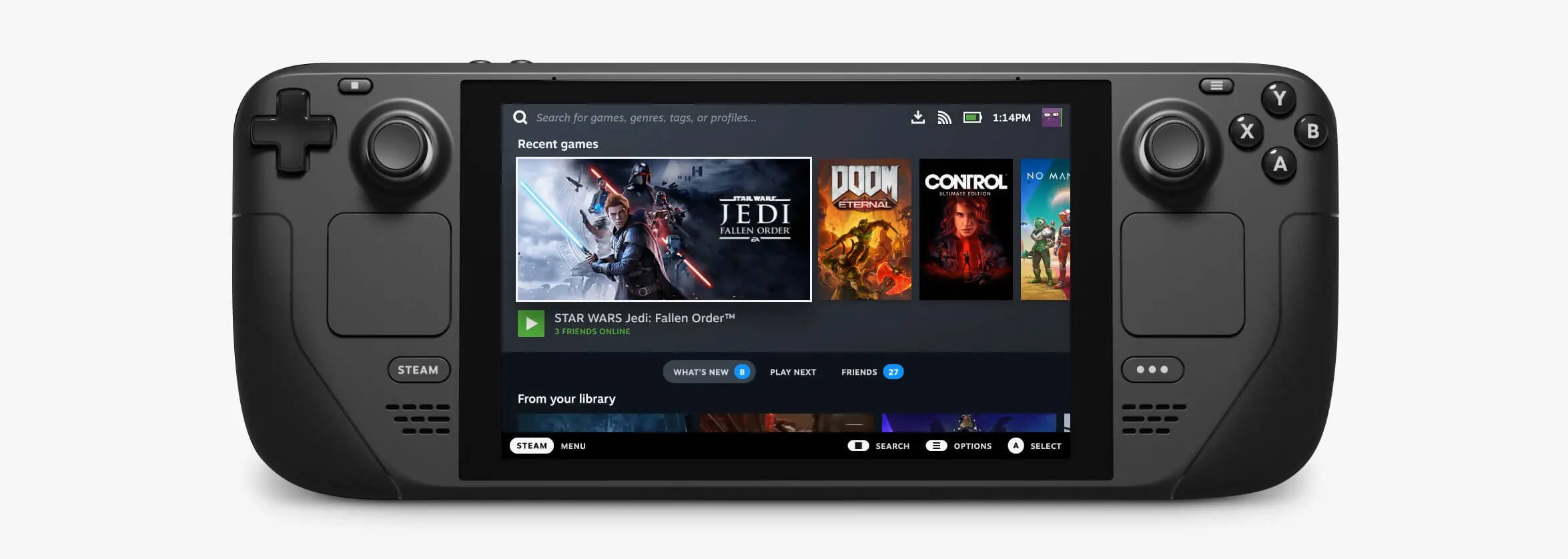
Steam DeckValve has officially announced that Steam Deck will be compatible with Windows 11 despite TPM 2.0 Microsoft requirements. From the beginning, Deck was announced like a mini handheld PC device. Powered with new Steam OS 3.0 based on Linux. However, besides out-of-the-box OS it was also stated that Deck will be a personal device meaning that other PC-based operating systems could be installed on it and even run your typical applications in it. Since Microsoft announced Windows 11 hardware requirements, specifically the TPM 2.0 requirement many users voiced concern that Steam Deck will not be able to connect to Windows 11 TPM 2.0 is something that Microsoft requires for every internal and hardware component that is to connect on a Windows 11 device. This is to ensure that only trusted devices would be included in the array of a PC setup and avoid any problems like malicious hardware injecting software into a system. This would also minimize the compromise Windows would have, as unverified or untrusted devices connect to a Windows PC. However, Valve and AMD are ensuring us that Deck will not have any issue connecting to a PC running Windows 11 or even if you wish to transform Deck itself into a Device running Windows 11.

Read More
Enumerating user sessions to generate ...
There are times when the Windows Search doesn’t work and you wouldn’t have a clue as to why it happened since it does not give any error codes. In such cases, you have to check the error logs in the Event Viewer to find out more about the problem. From there, look for an error with the Event ID 3104 in the Windows error logs and if you see an error message that says, “Enumerating user sessions to generate filter pools failed”, read on as this post will guide you in fixing the problem. Apart from the error message, you might also see more information in the details section of the log that says, “(HRESULT: 0x80040210) (0x80040210)”. This kind of error is most likely caused by something that prohibits the search function from initializing. A lot of users assumed that it could be due to Cortana but it’s actually not. While some users also reported that they encounter the issue after they restarted their computers. This error was also reported with the same event ID 3104 on the Windows Server. According to security researchers, this error could be caused by problems in the Registry entry of Windows search. It could also be due to an issue with the SYSTEM account where it hasn’t been added to the DCOM Security. It is also possible that the Windows Search function has not been initialized. To fix this error, you can try to rebuild the Search Index manually or run the Search and Indexing troubleshooter. You can also check the startup type of the Windows Search service or try some registry tweak.

Option 1 – Try to rebuild the Search Index manually

The first thing you can do to fix the problem is to manually rebuild the Search Index. You can do that by going to Control Panel > Indexing Options and from there, click on Advanced. After that, go to the Index Settings tab and then click on Rebuild > OK. Once you’re done, check if it fixed the problem.

Option 2 – Try running the Search and Indexing troubleshooter

You could also run the Search and Indexing troubleshooter in Windows 10 as it checks whether the settings are in place and automatically corrects any issues with the Windows 10 search function. To run this troubleshooter, just click on the Start button and select Settings > Updates and Security > Troubleshoot. From there, select the Search and Indexing Troubleshooter. Once the troubleshooter is done, restart your computer and see if it fixed the error.

Option 3 – Try checking the startup type of the Windows Search Service

In this option, you have to check the startup type of the Windows Search service since the service won’t start. To do so, refer to these steps:
  • Tap the Win + R keys to open the Run utility and type “services.msc” in the field and then tap Enter to open the Services Manager.
  • Next, from the list of services, look for the Windows Search Service or WSearch. Once you find it, right-click on it and select Properties.
  • After that, change the Startup type to Automatic and click on the Start button if the service is in the Stop state.
  • Now click on the Apply and OK buttons to save the changes made and then restart your computer.

Option 4 – Try changing the Registry entry for Windows Search

Before you apply some registry tweak, you need to create a System Restore point first. Once you have that covered, follow these steps:
  • Tap the Win + R keys to open the Run utility and type “Regedit” in the field and tap Enter to open the Registry Editor.
  • If a User Account Control prompt appears, just click Yes to proceed.
  • After opening the Registry Editor, navigate to this registry path: HKEY_LOCAL_MACHINESOFTWAREMicrosoftWindows Search
  • From there, click on Windows Search and look for the key named “SetupCompletedSuccessfully” and change its value to “0”. Just right-click on it and select Modify.
  • Then input “0” as its value data and click on OK to save the changes made.
  • Exit the Registry Editor and restart your computer.
  • Now check if the Enumerating user sessions to generate filter pools failed is fixed or not.
Read More
Increase your Internet Speed in Windows 10
If you are dissatisfied with your internet speed on your computer but do not want to shell out more money for a faster package or simply there is not a faster package, lay down and enjoy this article where we will go through some common practices and tweaks which will result in increasing your internet speed. Please note that this guide will not be able to go beyond the limits of your internet provider's physical speed, this guide is made you can squeeze the maximum from your existing plan and eliminate speed drops.
      1. Modify IRPStackSize

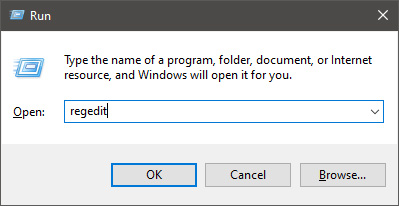
        Press ⊞ WINDOWS + R to open the run dialog keyboard with windows and r markedIn run dialog type RegEdit and press ENTER run dialog with regeditIn registry editor find HKEY_LOCAL_MACHINE\SYSTEM\CurrentControlSet\Services\LanmanServer\Parameters Right-click on Parameters> New> DWORD 32 Name it IRPStackSize and change the value to 32 Save and reboot your computer.

      2. Add a Default TTL

        Press ⊞ WINDOWS + R to open the run dialog keyboard with windows and r markedIn run dialog type RegEdit and press ENTER run dialog with regeditIn registry editor find a key Computer\HKEY_LOCAL_MACHINE\SYSTEM\CurrentControlSet\Services\Tcpip\Parameters Right-click on Parameters> New> DWORD 32 Name it DefaultTTL and change the value to 64 Save and Reboot
      3. Close Background Applications which are using the internet

        If some applications are running in the background that are using the internet, your speed will be much lower. CLose them to gain speed.
      4. Modify the TCP1323Opts value

        Press ⊞ WINDOWS + R to open the run dialog keyboard with windows and r markedIn run dialog type RegEdit and press ENTER run dialog with regeditIn registry editor find a key Computer\HKEY_LOCAL_MACHINE\SYSTEM\CurrentControlSet\Services\Tcpip\Parameters There should be a DWORD Value, TCP1323Opts, if not, then create it. Right-click on Parameters> New> DWORD (32-bit) Value. Double-click on it and change its value to 1 Save and reboot
      5. Scan system for Viruses and other malware

        Viruses and malware applications can not only slow your entire system, but they can also reduce your internet speed as well. Do a complete scan of your system to be sure you do not have any malicious software on it.
Read More
Fix Windows defender 0x800700AA Error
Windows defender error 0x800700AA, service can not be started comes when the user is trying to run Windows defender scan on their system. This kind of behavior happens for two reasons mostly, third-party application conflict or corrupted system files. In this article, we will tackle both scenarios and provide you with solutions in both cases.

Third-party application conflict

In this rare scenario when Windows defender can not start scan due to conflict with installed service or application in the system solution is quite simple. Restart your PC into safe mode and run the scan from there. In a safe mode environment, minimum drivers and services are only loaded eliminating any conflicts that might occur when everything is booted. If Windows defender can not run the scan in safe mode and you get the same 0x800700AA error then you can eliminate application conflict as a reason and move to the next solution which will tackle corrupted system files. If you, however, managed to run a scan then you have a rare third-party application conflict, you can boot normally into windows and try to eliminate one by one to see which one is causing the issue. The safest bet would be to start with security software because most of the time that is what causes conflicts in running services and applications.

Corrupted system files

If the previous solution has not provided you with results then you have system file corruption that needs to be fixed. Move from one solution to another as presented below:
  1. Run SFC scan

    SFC scan is a built-in Windows tool for solving corrupted system files issues, it is fully automated and does not require from the user any kind of knowledge or information. To run it and scan the system do the following: Press ⊞ WINDOWS + X to open the secret menu Left-click on the command prompt (admin) In command prompt type SFC /SCANNOW and press ENTER Wait for the process to finish, do not interrupt it and once it is done, restart your computer
  2. Run DISM scan

    DISM scan is similar to SFC scan but it tackles different types of system file corruption and it is recommended to run it also after SFC has been completed. Please note that for DISM scan to be successful you will need a stable internet connection since DISM will replace corrupted files with new ones downloaded from Microsoft. To run it do the following: Press ⊞ WINDOWS + X to open the secret menu Left-click on the command prompt (admin) inside command prompt type: exe /online /cleanup-image /scanhealth followed by ENTER, then type: Dism.exe /online /cleanup-image /restorehealth also followed with ENTER. Leave scan to finish and reboot your PC
Read More
1 2 3 171
Logo
Copyright © 2023, ErrorTools. All Rights Reserved
Trademark: Microsoft Windows logos are registered trademarks of Microsoft. Disclaimer: ErrorTools.com is not affiliated with Microsoft, nor claims direct affiliation.
The information on this page is provided for information purposes only.
DMCA.com Protection Status