Logo

Razer Iskur gaming chair for healthy gaming

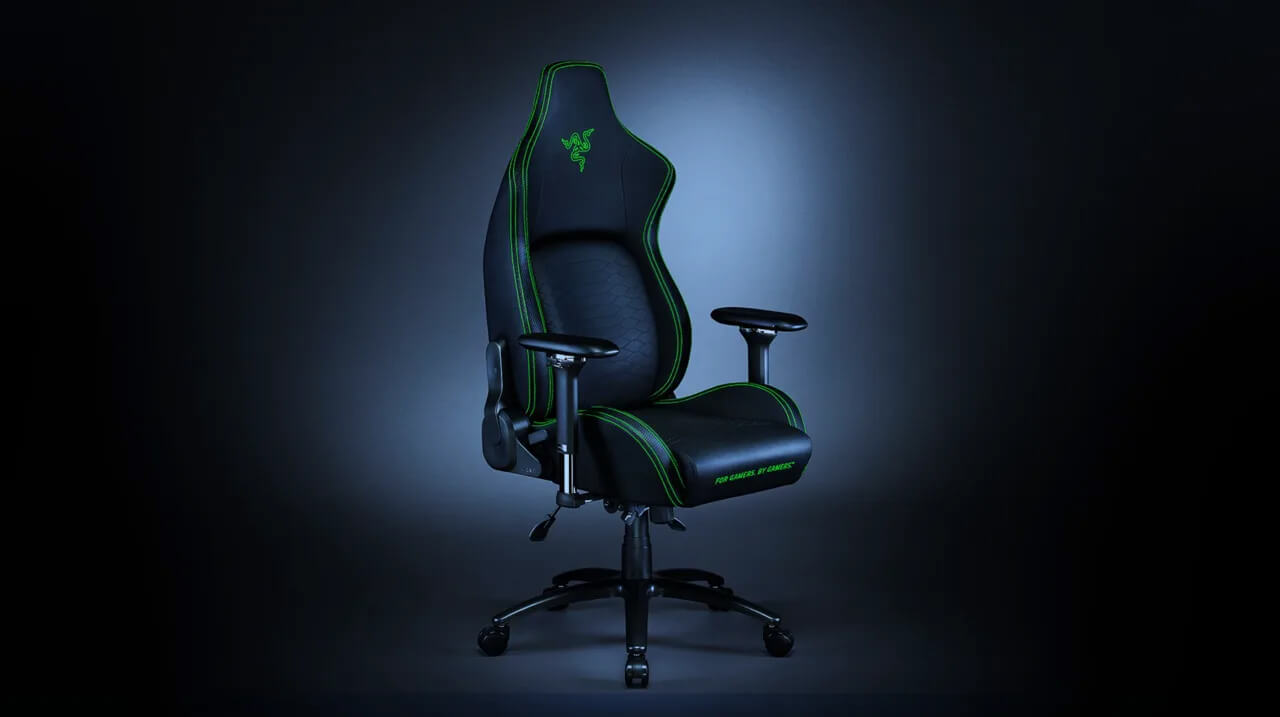
Razer IskurIt seems that last few days we were riding some Razer bandwagon but rest assured that we are not sponsored by them in any way, truth is that simply they come up with some interesting accessories which I believe are worth covering.

Gaming Chair itself comes in two colors, fully black and green black combination and it is not really an entry-level chair if we are talking about price. The chair itself is around 600USD depending on the distributor and considering that price range it is placed in more top cream of gaming chairs but it is worth every dime.

Iskur Specifications

Iskur is made of a steel frame with a reinforced plywood lumbar support frame for added weight tolerance. Frame and lumbar support are surrounded with memory foam and all of that is wrapped in cotton and polyester layer which is again wrapped in multi-layer synthetic leather making the chair very durable for long hours of daily use.

The chair also comes with a memory foam head cushion which is detachable and removable if you do not wish to use it. On the Razer website among specifications, it stands that the chair is best suited for persons from 5’6” – 6’2” (170 – 190cm) height and up to 299lbs (136kg).

Features

The chair has, of course, height adjustment as any gaming chair and surprisingly it has great control for the armrest. The armrest can be adjusted in 4 different ways: up & down, left & right, forward & backward, and inward & outward. The backrest can be also tilted up to 26 degrees angle.

All of these features are great and good but there is one more feature that really makes this chair stand out from rest and it is Lumbar support. Iskur has an adjustable lumbar support system on the lower part of the backrest. With your lumbar support secured, you can then make the necessary tweaks to optimize the rest of your posture using the Razer Iskur’s adjustable height, backrest, and armrests.

Conclusion

Razer Iskur is neither cheapest nor perhaps the best gaming chair you can buy, but it is a really good one. It is well manufactured and made to feel and look like a premium product that actually it is.

Do You Need Help with Your Device?

Our Team of Experts May Help
Troubleshoot.Tech Experts are There for You!
Replace damaged files
Restore performance
Free disk space
Remove Malware
Protects WEB browser
Remove Viruses
Stop PC freezing
GET HELP
Troubleshoot.Tech experts work with all versions of Microsoft Windows including Windows 11, with Android, Mac, and more.

Share this article:

You might also like

Desk365 Complete Removal - PUP Removal Guide

What is Desk365?

Desk 365 is a program developed by 337 Technology Limited and is classified as a potentially unwanted application by a number of Antiviruses. While not technically malware, for many users it is unwanted as it is often distributed as a bundle with other downloads. It allows a fast way to access your shortcuts and applications. Upon installation this program will insert itself into the system registry, adding startup strings to allow it to automatically start every time your system is restarted. The software adds a scheduled windows task to allow it to reopen itself even when closed. The applications also access the internet and add firewall rules to your system, that allow it to access anything without restrictions.

The main executable file for this application is Dock365.exe. It is possible to delete this file preventing the application to run, but its monitoring services and registry entities remain hidden inside your computer.

The software sends browsing information back to its ad servers, displaying custom ads and sponsored products instead of the usual search results. And the app itself pins itself to the start menu and cannot be removed.

About Potentially Unwanted Applications

Have you ever discovered an unwanted program on your PC that you didn’t consciously download and never gave authorization to be installed? Potentially Unwanted Programs (PUP), also referred to as Potentially Unwanted Applications (PUA), are applications that you never wanted in the first place and often come bundled with freeware. Once installed, the majority of these applications can be difficult to eliminate and become much more of an annoyance rather than a necessity. PUPs did not actually constitute pure “malware” in the strict sense of the definition. What normally makes a PUP different from malicious software is that whenever you download one, you’re doing it with your consent – though in many instances unconsciously and unwillingly. A PUP may not be regarded as malicious or unsafe yet still, it’s a common cause of clunky OS’s; some PUPs are a lot more aggressive by intentionally slowing down your computer or laptop.

Exactly how do unwanted programs look like?

Potentially Unwanted Programs can be found in different forms and varieties, but in the majority of cases, these are typically adware programs that exhibit irritating pop-up adverts and advertisements on websites you check out. They even come in the form of browser extension toolbars and add-ons. Not only they needlessly take up space on your screen, but toolbars can also manipulate search engine results, keep an eye on your surfing activities, decrease your internet browser’s efficiency, and slow down your internet connection to a crawl. PUPs load up a dangerous bite if left unchecked. They could include keyloggers, dialers, and other program built into them which could track you or send your sensitive information to third parties. Typically, such software will disable security protections and configuration settings to take control over your computer or laptop, leaving that PC vulnerable to online hackers and data fraud. At a minimum, PUPs slow your computer down with every added program.

Tips on how to prevent PUPs

• Read the fine print so that the end-user license agreement (EULA) you are accepting is only for the software you primarily intend to download. • Choose the “custom” install whenever installing an application. Especially, look closely at those small boxes which have been checked as default, where you may ‘agree’ to receive promotions or install software bundlers. • Use an anti-PUP program. Security applications such as Safebytes Anti-Malware gives the very best real-time protection against PUPs and also other malware. • Be alert if you download and install freeware, open-source programs, or shareware. Nowadays ‘freeware’ isn’t actually freeware – but “crapware” bundling nonsense. • Always download software from trustworthy sources like official websites rather than untrustworthy sharing space. Avoid file-hosting sites where/when possible.

What To Do If You Cannot Download Safebytes Anti-Malware?

Every malware is detrimental and the level of the damage can vary greatly according to the type of infection. Some malware is designed to restrict or prevent things that you wish to do on your PC. It may well not permit you to download anything from the web or prevent you from accessing some or all internet sites, in particular the antivirus sites. If you are reading this, chances are you’re stuck with a virus infection that is preventing you to download or install Safebytes Anti-Malware software on your computer system. There are a few fixes you could try to get around with this particular problem. Download the software in Safe Mode with Networking The Windows-based PC comes with a special mode known as “Safe Mode” in which just the minimum required programs and services are loaded. If the malicious software is set to load immediately when PC boots, shifting into this mode may well prevent it from doing so. To get into Safe Mode or Safe Mode with Networking, press the F8 key while the system is starting up or run MSCONFIG and look for the “Safe Boot” options in the “Boot” tab. After you restart the PC into Safe Mode with Networking, you can download, install, and update the anti-malware program from there. At this point, you could run the anti-virus scan to eliminate viruses and malware without any hindrance from another malicious application.

Switch over to an alternate web browser

Some malware mainly targets specific internet browsers. If this sounds like your situation, use another internet browser as it might circumvent the malware. If you are not able to download the anti-virus software using Internet Explorer, it means the virus could be targeting IE’s vulnerabilities. Here, you need to switch to a different internet browser such as Chrome or Firefox to download Safebytes Anti-malware software.

Install and run anti-virus from your flash drive

Another option would be to create a portable anti-malware program on your USB stick. To run antivirus from a thumb drive, follow these simple steps: 1) Make use of another virus-free computer to download Safebytes Anti-Malware. 2) Plug in the pen drive to a USB port on the uninfected computer. 3) Double-click the Setup icon of the antivirus software package to run the Installation Wizard. 4) When asked, choose the location of the USB drive as the place in which you want to put the software files. Follow activation instructions. 5) Now, insert the USB drive into the infected PC. 6) Run the Safebytes Anti-malware directly from the flash drive by double-clicking the icon. 7) Run Full System Scan to detect and clean-up up all kinds of malware. If all the above approaches fail to help you in downloading the anti-malware, then you’ve no alternative but to reinstall the computer’s operating system to wipe out all the data, including the malicious programs which are obstructing the anti-malware installation. If you are already our customer, technical help for Malware Removal is just a phone call away. Call 1-844-377-4107 to speak to our expert technicians and get assistance remotely.

Let's Talk About SafeBytes Anti-Malware!

To help protect your computer from many different internet-based threats, it’s very important to install anti-malware software on your personal computer. But with so many antimalware companies out there, nowadays it’s tough to decide which one you should obtain for your PC. A few are good ones, some are decent, and some are merely fake anti-malware programs that will harm your PC themselves! You need to be very careful not to pick the wrong product, especially if you buy a paid program. On the list of the highly recommended tools by industry experts is SafeBytes Anti-Malware, well-known security software for Windows computers. Safebytes is among the well-established computer solutions firms, which offer this comprehensive anti-malware software program. Using its outstanding protection system, this utility will quickly detect and eliminate the majority of the security threats, including viruses, adware, browser hijackers, ransomware, PUPs, and trojans. SafeBytes anti-malware offers an array of advanced features which sets it apart from all others. Listed below are some of the highlighted features included in the tool. Real-time Threat Response: SafeBytes delivers complete and real-time security for your PC. It will inspect your computer for suspicious activity continuously and shields your personal computer from unauthorized access. Optimum AntiMalware Protection: This deep-cleaning anti-malware software goes much deeper than most antivirus tools to clean your computer. Its critically acclaimed virus engine finds and disables hard-to-remove malware that conceals deep within your computer. Web Filtering: SafeBytes gives an instant safety rating about the web pages you’re about to visit, automatically blocking harmful sites and ensuring that you are certain of your online safety while browsing the net. Light-weight: This software program is not “heavy” on your computer’s resources, so you will not notice any performance issues when SafeBytes is working in the background. 24/7 Online Support: You can obtain high levels of support round the clock if you’re using their paid version. Overall, SafeBytes Anti-Malware is a solid program since it has plenty of features and can identify and remove any potential threats. You can rest assured that your computer will be protected in real-time once you put this tool to use. For optimum protection and the best bang for your buck, you can’t get better than SafeBytes Anti-Malware.

Technical Details and Manual Removal (Advanced Users)

If you wish to manually remove Desk365 without the use of an automated tool, it may be possible to do so by removing the program from the Windows Add/Remove Programs menu, or in cases of browser extensions, going to the browsers AddOn/Extension manager and removing it. You will likely also want to reset your browser. To ensure the complete removal, manually check your hard drive and registry for all of the following and remove or reset the values accordingly. Please note that this is for advanced users only and may be difficult, with incorrect file removal causing additional PC errors. In addition, some malware is capable of replicating or preventing deletion. Doing this in Safe Mode is advised. The following files, folders, and registry entries are created or modified by Desk365
Files: File $APPDATACheckRun22find.exe. File $APPDATADesk 365accelerate. File $APPDATADesk 365desk_bkg_list.xml. File $APPDATADesk 365desk_list.xml. File $APPDATADesk 365desk_settings.ini. File $APPDATADesk 365firstrun. File $APPDATADesk 365process_mgr.xml. File $APPDATADesk 365promote.xml. File $APPDATAeDownloadfindhpnt_v2.exe. File $APPDATAMicrosoftInternet ExplorerQuick Launchfind.lnk. File $COMMONPROGRAMSDesk 365Desk 365.lnk. File $COMMONPROGRAMSDesk 365eUninstall.lnk. File $DESKTOPfind.lnk. File $LOCALAPPDATAGoogleChromeUser DataDefaultExtensionsnewtab.crx. File $LOCALSETTINGSTempV9Zip_003Desk365.exe. File $PROGRAMFILESDesk 365desk_bkg_list.xml. File $PROGRAMFILESDesk 365desk_list.xml. File $PROGRAMFILESDesk 365desk_settings.ini. File $PROGRAMFILESDesk 365desk365.exe. File $PROGRAMFILESDesk 365deskSvc.exe. File $PROGRAMFILESDesk 365ebase.dll. File $PROGRAMFILESDesk 365edeskcmn.dll. File $PROGRAMFILESDesk 365eDhelper.exe. File $PROGRAMFILESDesk 365eDhelper64.exe. File $PROGRAMFILESDesk 365edis.dll. File $PROGRAMFILESDesk 365edis64.dll. File $PROGRAMFILESDesk 365ElexDbg.dll. File $PROGRAMFILESDesk 365eUninstall.exe. File $PROGRAMFILESDesk 365libpng.dll. File $PROGRAMFILESDesk 365main. File $PROGRAMFILESDesk 365ouilibnl.dll. File $PROGRAMFILESDesk 365process_mgr.xml. File $PROGRAMFILESDesk 365promote.xml. File $PROGRAMFILESDesk 365recent.xml. File $PROGRAMFILESDesk 365sqlite3.dll. File $PROGRAMFILESDesk 365svc.conf. File $PROGRAMFILESDesk 365TrayDownloader.exe. File $PROGRAMFILESDesk 365zlib1.dll. File $PROGRAMFILESMozilla Firefoxsearchpluginsfind.xml. File $SENDTODesk 365.lnk. Directory $APPDATADesk 365. Directory $APPDATAeDownload. Directory $COMMONPROGRAMFILES7. Directory $COMMONPROGRAMSDesk 365. Directory $LOCALSETTINGSTempDesk365. Directory $LOCALSETTINGSTempV9Zip_003. Directory $PROGRAMFILESDesk 365. Registry: Key 33BB0A4E-99AF-4226-BDF6-49120163DE86 at HKEY_CURRENT_USERSoftwareMicrosoftInternet ExplorerSearchScopes. Key deskSvc at HKEY_LOCAL_MACHINESOFTWARE. Key desksvc at HKEY_LOCAL_MACHINESYSTEMControlSet001Services. Key desksvc at HKEY_LOCAL_MACHINESYSTEMControlSet001ServicesEventlogApplication. Key desksvc at HKEY_LOCAL_MACHINESYSTEMCurrentControlSetServices. Key desksvc at HKEY_LOCAL_MACHINESYSTEMCurrentControlSetServicesEventlogApplication. Key findSoftware at HKEY_LOCAL_MACHINESOFTWARE. Key ijblflkdjdopkpdgllkmlbgcffjbnfda at HKEY_LOCAL_MACHINESOFTWAREGoogleChromeExtensions. Key lnkguard at HKEY_CURRENT_USERSoftware. Key V9 at HKEY_LOCAL_MACHINESOFTWARE.
Read More
How to remove Fooriza from your PC

Fooriza is a browser extension for Google Chrome. This extension offers users the latest trending news from the internet. These news widgets are usually sponsored content that the application displays based on your search history or visited links. While this extension is not that dangerous on its own, it usually comes bundled with other Potentially Unwanted Programs and Browser Hijackers that could pose a security risk.

When installed this extension changes your default search engine to yahoo. And while active you might see some additional ads injected into the search results. Due to its bundled nature with other PUP-s and the potential dangers that might come with them, several anti-virus scanners have detected this extension as a Browser Hijacker and are marked for removal.

About Browser Hijackers

Browser hijackers (also called hijackware) are a kind of malware that alters internet browser configurations without the user’s knowledge or consent. These kinds of hijacks appear to be increasing at a worrying rate around the world, and it could be really nefarious and often dangerous too. They’re made to interfere with browser functions for many different purposes. In general, hijackers are programmed for the benefit of internet hackers often through revenue generation from forced advert clicks and site visits. However, it isn’t that harmless. Your internet safety is compromised and it is extremely irritating. Additionally, hijackers can make the whole infected system vulnerable – other destructive malware and viruses would seize these opportunities to get into your PC effortlessly.

Indications of browser hijack

Signs that your web browser is hi-jacked include: 1. your browser’s home page is suddenly different 2. you find yourself constantly directed to a different web page than the one you actually intended 3. default web engine is changed 4. you’re getting new toolbars you haven’t seen before 5. you may find numerous pop-up ads on your computer screen 6. your web browser gets sluggish, buggy, and crashes frequently 7. you are blocked to access those sites of anti-malware solution providers.

Exactly how browser hijacker finds its way to your computer

Browser hijackers infect computer systems in numerous ways, including via a file-share, a drive-by download, or an infected e-mail attachment. They are usually included with toolbars, BHO, add-ons, plug-ins, or browser extensions. Also, some freeware and shareware can put the hijacker in your PC through “bundling”. Some of the most well-known hijackers are Fooriza, Babylon Toolbar, Conduit Search, OneWebSearch, Sweet Page, and CoolWebSearch. Browser hijacking could lead to serious privacy issues and even identity theft, disrupt your web browsing experience by taking control over outbound traffic, drastically slows down your personal computer by consuming lots of resources, and cause system instability also.

Browser Hijacker Malware – Removal

Some hijackers can be simply removed by deleting the freeware they came with or by deleting any add-ons you have recently added to your system. At times, it can be a challenging task to discover and remove the malicious program since the associated file will be running as part of the operating system process. You should think of carrying out manual repairs only if you happen to be a tech-savvy person since there are potential risks associated with messing around with the computer registry and HOSTS file. Installing and running antivirus software on the affected system can automatically erase browser hijackers and other malicious applications. SafeBytes Anti-Malware detects all kinds of hijackers – such as Fooriza – and eliminates every trace quickly and efficiently.

What To Do If You Cannot Install Safebytes Anti-Malware?

Every malware is bad and the degree of the damage will vary greatly with regards to the type of infection. Some malware is designed to interfere with or prevent things that you wish to do on your personal computer. It may not allow you to download anything from the internet or prevent you from accessing some or all of the websites, in particular the antivirus websites. If you are reading this, you probably have infected by malware that prevents you from installing a computer security application like Safebytes Anti-Malware. There are a few actions you can take to get around this problem.

Get rid of malware in Safe Mode

If the malware is set to load at Windows start-up, then booting in Safe Mode should avoid it. Just minimal required programs and services are loaded when you boot your PC in Safe Mode. The following are the steps you should follow to eliminate malware in Safemode. 1) At power on, press the F8 key while the Windows splash screen starts to load. This will bring up the Advanced Boot Options menu. 2) Choose Safe Mode with Networking with arrow keys and press Enter. 3) When you are into this mode, you should have access to the internet again. Now, obtain the malware removal program you need by using the internet browser. To install the software, follow the guidelines within the installation wizard. 4) Once the software is installed, allow the diagnostic scan to run to eliminate viruses and other malware automatically.

Use an alternate web browser to download the anti-malware application

Some malware might target vulnerabilities of a specific web browser that block the downloading process. The ideal way to overcome this problem is to select an internet browser that is known for its security measures. Firefox contains built-in Malware and Phishing Protection to help keep you secure online.

Run anti-malware from your USB drive

Another option is to make a portable anti-malware program on your USB stick. Do these simple actions to clean up your affected PC using a portable antivirus. 1) On a clean PC, install Safebytes Anti-Malware. 2) Put the USB drive into the clean PC. 3) Double-click the executable file to run the installation wizard. 4) When asked, choose the location of the USB drive as the place in which you would like to put the software files. Follow the instructions on the computer screen to finish off the installation process. 5) Disconnect the USB drive. You may now use this portable anti-virus on the affected computer. 6) Double-click the antivirus program EXE file on the pen drive. 7) Press the “Scan” button to run a full system scan and remove malware automatically.

How SafeBytes Anti-Malware Keep your Machine Virus Free

Nowadays, an anti-malware program can protect your PC from different types of internet threats. But how to decide on the best one amongst plenty of malware protection application that’s available out there? As you might be aware, there are many anti-malware companies and tools for you to consider. A few of them do a good job in removing malware threats while many will ruin your computer by themselves. When searching for an antimalware program, purchase one that gives dependable, efficient, and complete protection against all known viruses and malware. Among few good applications, SafeBytes Anti-Malware is the highly recommended program for the security-conscious individual. SafeBytes anti-malware is a very effective and easy-to-use protection tool that is designed for end-users of all levels of IT literacy. With its cutting-edge technology, this application will assist you to get rid of several types of malware including computer viruses, trojans, PUPs, worms, adware, ransomware, and browser hijackers.

SafeBytes anti-malware takes computer protection to a whole new level with its enhanced features. These are some of the great features included in the software.

Active Protection: SafeBytes provides real-time active checking and protection against all known computer viruses and malware. This utility will constantly monitor your PC for any suspicious activity and updates itself regularly to keep abreast of the latest threats. Robust, Anti-malware Protection: Using its advanced and sophisticated algorithm, this malware elimination tool can detect and remove the malware threats hiding in the computer system effectively. Extremely Speed Scanning: This application has got one of the fastest and most efficient virus scanning engines in the industry. The scans are highly accurate and take a short amount of time to complete. Web Filtering: SafeBytes checks the links present on a web page for possible threats and alerts you whether the website is safe to explore or not, through its unique safety rating system. Light-weight: SafeBytes gives total protection from online threats at a fraction of the CPU load because of its enhanced detection engine and algorithms. 24/7 Assistance: You may get high levels of support round the clock if you’re using their paid software. All in all, SafeBytes Anti-Malware is a solid program as it has lots of features and can identify and remove any potential threats. You now may understand that this particular software does more than just scan and delete threats on your computer. So if you’re trying to find a comprehensive antivirus program that’s still simple enough to use, SafeBytes Anti-Malware is just what you need!

Technical Details and Manual Removal (Advanced Users)

If you want to perform the removal of Fooriza manually rather than employing an automated software tool, you may follow these steps: Go to the Windows Control Panel, click the “Add or Remove Programs” and there, choose the offending program to remove. In case of suspicious versions of browser plug-ins, you can easily remove them through your web browser’s extension manager. It is also advised to factory reset your browser to its default condition to fix corrupt settings. Finally, examine your hard disk for all of the following and clean your computer registry manually to remove leftover application entries following uninstalls. Please note that only experienced computer users should try to manually edit the system files mainly because deleting any single vital registry entry leads to a major problem or even a computer crash. Moreover, some malware keeps replicating which makes it tough to remove. Doing this malware-removal process in Safe Mode is recommended.
Files: %LOCALAPPDATA%\Google\Chrome\User Data\Default\Extensions\nnamllomkmngnaklpijbbaokmonnkcne %UserProfile%\Local Settings\Application Data\Google\Chrome\User Data\Default\Extensions\nnamllomkmngnaklpijbbaokmonnkcne
Read More
Fix Error codes 12002-4, 12007-4, 12152-4
If you are trying to install Office but got an error saying, “Something went wrong, Sorry we ran into a problem” with error codes 12002-4, 12007-4, or 12152-4 instead, this indicates that you have a problem with your internet connection. Aside from internet connection issues, the problem could also be due to some programs that block the installation files to be downloaded so when they time out, you get these error codes. There are several options you can try to fix the 12002-4, 12007-4, or 12152-4 error codes. You can try to install Office offline or turn off the proxy server or VPN (if you’re using one). You can also try to temporarily disable your antivirus program or Firewall. Refer to the given potential fixes below to troubleshoot and fix the problem.

Option 1 – Try to install Office offline

The first thing you can do if you encounter the error codes 12002-4, 12007-4, or 12152-4 when installing Office is to download an offline copy of Office especially when you’re certain that your internet connection is slow. Once you’ve downloaded it, install it again. The offline installer will download both the 32 and 64-bit versions of Office. Keep in mind that you must download the correct version.

Option 2 – Disable the Proxy server

The first thing you can do is to try disabling the Proxy server as it might be the reason why you’re getting error 0x80244022 for Windows Updates. To disable the proxy server, refer to the steps below.
  • Tap the Win + R keys to open the Run dialog box.
  • Then type “inetcpl.cpl” in the field and hit Enter to pull up the Internet Properties.
  • After that, go to the Connections tab and select the LAN settings.
  • From there. Uncheck the “Use a Proxy Server” option for your LAN and then make sure that the “Automatically detect settings” option is checked.
  • Now click the OK and the Apply buttons.
  • Restart your PC.
Note: If you are using a third-party proxy service, you have to disable it. In addition, if you are also using a VPN, you can try to disable it as well.

Option 3 – Temporarily disable the Antivirus and Firewall

As mentioned earlier, the downloading of the installation files could be blocked by either the antivirus program or Firewall or it could be both especially when the link seems suspicious. To fix this problem, you have to disable both the antivirus like Windows Defender and the Firewall or any third-party software you might be used temporarily and then download the installation files again. Once the download is completed, make sure to turn on the antivirus program and the Firewall again. On the other hand, you can also try downloading in a different location which also means that you have to try a different network. It could be that the load on the current system is too high which is why it’s not able to offer enough bandwidth to download the installation files of Microsoft Office.
Read More
Fix 0x8000ffff error in Windows 11
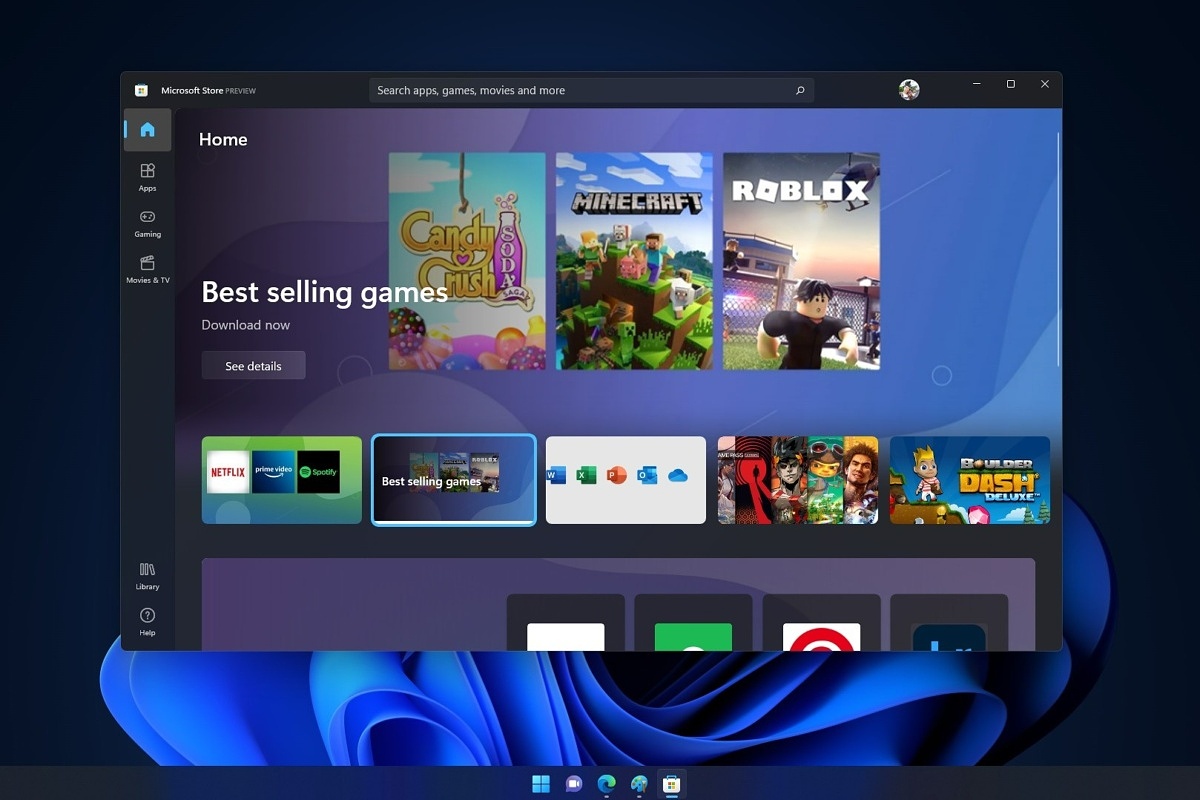
Error 0x8000ffff prevents you from using the Microsoft store. Altho it is not a critical error that will break Windows, it is annoying enough that will require fixing so we can use the store once again and install apps when we want to. Interesting thing is that this error was present inside Windows 10 as well causing some annoyance, you think Microsoft would learn, and then you see reality. Anyway, we have not come here to bash Microsoft, we came to solve errors. 0x8000ffff errorSo there are several problems that can cause this error like issues with accessing the Microsoft servers, corrupt system files, settings being misconfigured, malware infections, or conflicting applications. We will cover all solutions for each scenario taking approaches from most simple solutions to more complex ones. Follow the guide and let's fix this annoyance.
Wait for Microsoft's servers to become accessible

Yes, just wait. If the problem is tied to Microsoft servers having heavy load or being temporarily down there is not much you can do except for their tech team to resolve the issue. Go to Twitter or Facebook and check the Microsoft page to see if anyone else has this issue, if several people are reporting the same error then it is due to server problems. In this case, the only thing you can do is to wait.

Run troubleshooter

If servers are working fine then the issue is within your system so let's get down to fixing. Most simple and easiest solution is to let Windows try and resolve the problem by itself. We will use troubleshooter for this, Windows's integrated fixing solution: Press ⊞ WINDOWS + I to open the settings app Click on System in the left panel, then on Troubleshoot on the right Click on Other troubleshooters In most Frequent section find Windows Update and click on the Run button Wait for the troubleshooter to finish and follow on-screen instructions

Clear Store cache

If the troubleshooter has not found the issue or was unable to repair it, the next step is cleaning the Microsoft store cache in order to eliminate corrupted or partial cache files. Press ⊞ WINDOWS + R to open the run dialog In run dialog type in: wsreset and press OK or press ENTER A black screen will appear and it will not give any kind of feedback about progress, so it might seem like Windows has frozen, but do not panic nor try to do anything, this kind of behavior is normal, just wait for the process to finish and once it is done Microsoft store will launch with the cleared cache.

Disable Proxy

Proxy setting can interfere with establishing a connection to the store servers and if previous solutions have not worked we will check proxy next. Press ⊞ WINDOWS + R to open the run dialog Inside run dialog type: inetcpl.cpl and hit ENTER or press OK button Inside Internet Properties click on the Connections tab and then on LAN settings Uncheck the box next to Use a proxy server for your LAN and click on OK

Turn off antivirus

If nothing worked so far, turn off your anti-virus software, there is a slight possibility that your antivirus is misconfigured or preventing the system from accessing the store. Turn off antivirus and firewall to make sure that this is not an issue.

Delete the software distribution folder

So, we have tried a lot of things, and the error still persists? Let's then go to the next step and delete the software distribution folder in order to be remade new so we can eliminate corruption in the folder itself. To do this follow the guide: Press ⊞ WINDOWS + S to open the search menu Inside search type in Windows terminal, right-click on the terminal and click on Run as administrator. Confirm with YES on UAC prompt pop up Inside terminal press CTRL + SHIFT + 2 to open command prompt inside command prompt type in: net stop wuauserv and press ENTER Then type in: net stop bits followed with ENTER Next press ⊞ WINDOWS + R to open the run dialog Inside run dialog type in C:\Windows\SoftwareDistribution and press the OK button or ENTER File Explorer will open and you will find yourself inside SoftwareDistribution folder. Press CTRL + A to select all files inside Press on the delete icon or press DEL, confirm with YES Once all files are deleted, the system will redownload new ones.

Enable Cryptographic service

Windows 11 has come with a cryptographic service that aims to make your computer more secure but if the service is turned off it can be the cause of 0x8000ffff error. In order to turn this service back ON, follow the guide: Press ⊞ WINDOWS + R to open the run dialog In run dialog type in services.msc and press ENTER or click on the OK button In the list find Cryptographic Services and double click on it Inside properties click on Startup type dropdown menu and select Automatic from the list Click on the Start button to run service and then on the OK button to save the changes

Run SFC scan

SFC is an internal Windows tool for fixing corrupt system files, application will scan all system files and repair ones that are corrupted. To run an SFC scan do the following: Press ⊞ WINDOWS + S to open the search menu Inside search type in Windows terminal, right-click on the terminal and click on Run as administrator. Confirm with YES on UAC prompt pop up Inside terminal press CTRL + SHIFT + 2 to open command prompt inside command prompt type in: SFC /scannow and press ENTER Wait for the whole process to finish and reboot your system

Run DISM scan

Similar to SFC, DISM scan will scan your system Windows image and if required it will repair it. Press ⊞ WINDOWS + S to open the search menu Inside search type in Windows terminal, right-click on the terminal and click on Run as administrator. Confirm with YES on UAC prompt pop up Inside terminal press CTRL + SHIFT + 2 to open command prompt inside command prompt type in: DISM /Online /Cleanup-Image /RestoreHealth and press ENTER Wait for the whole process to finish and restart your computer

Read More
Fix Tile Database is corrupt Error in Windows
As you know, the Start Menu in Windows 10 is quite a stable experience. However, there are times when it can encounter some issues as well like getting corrupted. If your computer is going through the same problem, you’ve come to the right place as this post will guide you on how you can fix the “Tile Data is corrupt” error. This kind of problem is actually quite common among a lot of Windows 10 users. This kind of problem prevents the Start Menu from working properly and no amount of clicking the keyboard keys or mouse will resolve the issue. Fixing it is important since the Start Menu is required for the operating system to function properly and even though there are several ways to get around in using the Start Menu, it can get quite problematic. Even if you manage to open the Start Menu, the ability to click on apps to open them is out of the question and you need to fix the problem. Worry not for the potential fixes provided in this post are not hard to follow. You can try to run the Start Menu troubleshooter or run the DISM tool. You could also reset the folder for Tile Database or re-register the Windows 10 Start Menu. For more details, refer to each one of the options provided below.

Option 1 – Try running the Start Menu troubleshooter

The first and basic thing you can do to fix the problem is to run the Start Menu troubleshooter as it can help you fix the problem automatically. Since this is not a built-in troubleshooter, you can download it from the official website of Microsoft. After you download it, run it and wait until it’s done identifying the problem and automatically fixing it.

Option 2 – Try running the DISM tool

You can run the DISM tool as well to help fix the “Tile Database is corrupt” error. Using this built-in tool, you have various options such as the “/ScanHealth”, “/CheckHealth”, and “/RestoreHealth”.
  • Open the Command Prompt with admin privileges.
  • Then type in the following commands and make sure to hit Enter right after you type each one of them:
    • Dism /Online /Cleanup-Image /CheckHealth
    • Dism /Online /Cleanup-Image /ScanHealth
    • Dism(.)exe /Online /Cleanup-image /Restorehealth
  • Do not close the window if the process takes a while as it will probably take a few minutes to finish.
  • Once it’s done, check if it was able to fix the corrupted Start Menu or not.

Option 3 – Try to reset the Tile Database folder

  • First, you need to restart your computer and log into another user account where the Start Menu works.
  • Next, navigate to this folder location, C:/Users/<userX>/AppData/Local/Tile/DataLayer.
  • From there, copy the “TdlData.xml” file and save it to another drive.
  • Once done, restart your computer and log into the user account where the Start Menu is corrupted.
  • After that, navigate to this folder location, C:/Users/<userY>/AppData/Local/Tile/DataLayer.
  • Now paste the TdlData.xml file you copied earlier and navigate to this location, %LocalAppData%MicrosoftWindowsShell.
  • Afterward, copy the DefaultLayouts.xml file from the user account that’s working fine to the user account where the Start Menu is corrupted.

Option 4 – Try to re-register the Windows 10 Start Menu

  • Tap the Win + X and select the “Windows PowerShell (Admin” option from the menu.
  • After opening PowerShell, execute this command: Get-AppXPackage -AllUsers |Foreach{Add-AppxPackage -DisableDevelopmentMode -Register "$($_.InstallLocation)AppXManifest.xml"}
  • Wait until the command is executed and then see if it fixed the problem with the Start Menu or not.
Read More
How to Fix Error Code 0x80060100 on Your PC

Error Code 0x80060100

Error Code 0x80060100 is an error that relates to the Windows Update process. It most commonly occurs when the Update process runs and cannot be completed, as the system appears to have necessary files corrupted or absent.

Common symptoms include:

  • Inability to begin the Windows Update process
  • Inability to complete the Windows Update process

While it can be frustrating when users are not able to complete their necessary updates for Windows 10, there are several solutions that are available to fix the problem at hand. Some of the methods that can be used are simple and accessible, even for beginners, while advanced methods of resolution are also available for users who are more confident in their abilities.

Error Code 0x80060100 appears on Windows 10 and earlier versions of the Windows operating systems. In most cases, the steps to resolve the problem remain the same, regardless of the system on which the error appears. This error code is also related to Error Code 0x800b0100, which appears in similar circumstances.

If the solutions below are not successful in resolving Error Code 0x80060100 on your machine, you may need to get in touch with a qualified repair technician who can assist you in the resolution of the issue at hand. Any repair technician used should be familiar with the needs of the Windows 10 update process.

Solution

Restoro box imageError Causes

The primary cause for the appearance of Error Code 0x80060100 on a Windows machine is that the Update files have had damage to them or are found to have elements missing that are necessary for the completion of the Update process.

Further Information and Manual Repair

If Error Code 0x80060100 has appeared on your Windows operating system as you are attempting to download, install, or run Windows Update, there are several steps that you can take to attempt to resolve the error. Some of these methods require advanced knowledge or skills, so if you are not confident in your ability to undertake the steps below, contact a qualified Windows repair technician to assist you in the process.

Here are the best ways to resolve Error Code 0x80060100:

Method One: Run the Troubleshooter for Windows Update

As you attempt to run the Windows Update process and experience difficulty, there is a tool that will usually appear on the screen called the Windows Update Troubleshooter. This process can scan the files being used for the update process and attempt to fix the errors on its own, retrieving or repairing any damaged files as it comes across them.

In most cases, this step on its own will resolve Error Code 0x80060100 on a computer. However, if you are still unable to run Windows Update after using the Troubleshooter, you may need to run a disk repair tool before proceeding.

Method Two: Restart Your Computer

In some cases, Error Code 0x80060100 can be resolved simply by restarting the computer that is affected by the error. Even if this step is not successful on its own, restarting after each of the other methods can allow necessary changes to take place and refresh the progress of the Windows Update process.

Method Three: Use the DISM Tool

This method requires some skill and knowledge of your operating system. To use this tool, follow the steps below:

  • Step One: From the right side of the screen, use your mouse to swipe inward and select the “Search” option.
  • Step Two: When the search box appears, enter in the words “command prompt".
  • Step Three: From the results that appear, right-click on the “Command Prompt” option, then choose the option to “Run as Administrator.” An administrator password may be required at this point.
  • Step Four: In the window that comes up, enter in the following words, hitting the “Enter” key after each:
    • Dism.exe /online /cleanup-image /scanhealth
    • Dism.exe /online /cleanup-image /restorehealth
  • Step Five: Type in “exit” to close the prompt window and hit the Enter key.
  • Step Six: Attempt to run the Windows 10 Update process again, restarting your computer as needed beforehand.

If the methods above are not successful in the resolution of Error Code 0x80060100, a qualified Windows repair technician may be able to assist you.

If you wish to always have at your disposal a utility tool to fix these Windows 10 and other related issues when they do arise, download and install a powerful automated tool.

Read More
Fix Windows Update Error 0x80244007
Getting errors while trying to update your Windows 10 computer is not an uncommon occurrence. Although some of them are easy to fix, there are others that need a lot of time and research in order to resolve. One of these tough Windows Update errors is Error 0x80244007. This kind of Windows Update error halts the process of Windows Update and a simple system restart won’t help much to fix it. When you encounter this Windows Update error, you will see a description that says, “SOAP client failed because there was a SOAP fault for reasons of WU_E_PT_SOAP_* error codes”. One of the main causes of such an error is that Windows was not able to renew the cookies for Windows Update. To fix this error, here are some suggestions that might be useful.

Option 1 – Clear up temporary or junk files

The error could be caused by some temporary or junk files in your computer and so you need to clear them up to fix the problem. You can achieve that using the Storage Sense feature.
  • Open Setting > System > Storage from the WinX Menu.
  • From there, you will see a list of all the local and connected storage devices along with the details on the free space. Make sure that Storage Sense is on.
  • Next, find a link that says “Free Up Space” and click it to open.
  • After that, a screen which is the built-in program in Windows 10 will appear and will scan your computer for the following junk files so you can free up disk space:
    • Windows Upgrade Log Files
    • The system created Windows Error Reporting Files
    • Thumbnails
    • Temporary Internet Files
    • Previous Windows Installation Files
    • Delivery Optimisation Files
    • DirectX Shader Cache
  • Choose the files you want to get rid of and then click on the remove files option. Note that you’ll have an idea of the total size as you select any of the junk files listed above.
  • Now go to the “Free Up Space Now” section and click the Clear Now button. This will get rid of all the temporary or junk files in your computer and should hopefully fix the Windows Update error 0x80244007.

Option 2 – Try running the Windows Update troubleshooter

Windows 10 have various troubleshooters that can help you resolve many system issues. So if you’re dealing with Windows Update errors like Error 0x80244007, you can run the Windows Update troubleshooter to resolve it. To run it, go to Settings and then select Troubleshoot from the options. From there, click on Windows Update and then click the “Run the troubleshooter” button. After that, follow the next on-screen instructions and you should be good to go.

Option 3 – Try to reset the Windows Update components

If by any chance that the second option didn’t work, resetting the Windows Update components could also help you resolve the problem. How? Refer to the following steps:
  • Open Command Prompt with admin privileges.
  • After that, type each one of the following commands and hit Enter after you key in one after the other.
    • net stop wuauserv
    • net stop cryptsvc
    • net stop bits
    • net stop msiserver
Note: The commands you entered will stop the Windows Update components such as Windows Update service, Cryptographic services, BITS and MSI Installer.
  • After disabling WU components, you need to rename both the SoftwareDistribution and Catroot2 folders. To do that, type each one of the following commands below and don’t forget to hit Enter after you type one command after the other.
    • ren C:WindowsSoftwareDistribution SoftwareDistribution.old
    • ren C:WindowsSystem32catroot2 Catroot2.old
  • Next, restart the services you’ve stopped by entering another series of commands. Don’t forget to hit Enter after you key in one command after the other.
    • net start wuauserv
    • net start cryptsvc
    • net start bits
    • net start msiserver
  • Close Command Prompt and reboot your PC.
Read More
A Quick Guide to Resolving Error 0x800ccc17

What is error 0x800ccc17?

This is a typical Outlook Express error code. Outlook Express is email software by Microsoft. This error may pop up when sending or receiving emails on your Outlook Express. It cancels email sending and receiving operations. In other others, the 0x800ccc17 error code hampers your email communication via Outlook Express account. This error message is displayed in the following format:
0x800CCC17 - User cancelled operation

Solution

Restoro box imageError Causes

0x800ccc17 error code may appear on your PC due to multiple reasons. These include:
  • Issues with Pop3uid.dbx file (this file supports Outlook Express software on Windows Vista)
  • Viral infection
  • Registry corruption
No matter what the underlying reason for this error code may be, it is advisable to resolve the issue right away without any delay. This error may cause great deal of inconvenience. It may lower your office productivity badly especially if you interact and communicate with people of other office departments via your Outlook Express account.

Further Information and Manual Repair

Here are some of the best and efficient do-it-yourself methods to resolve the 0x800ccc17 error code on your system. These methods are very easy to work around and do not require any kind of technical expertise.

Method 1 - Restart Your PC

Sometimes this might error can be resolved by simply rebooting your system. So, restart your PC and try using your Outlook Express account again. If it works, the error is resolved. However, if it persists then try other methods given below.

Method 2 - Rename pop3uid.dbx File on Your System

If the underlying cause of error 0x800ccc17 is related to pop3uid.dbx file damage, then simply rename it to resolve. This can be done by searching for the file pop3uid.dbx. After locating it rename it to ‘pop3uid.bak’. Now reopen Outlook Express and try sending or receiving emails again. If the operations are executed successfully then the error is resolved.

Method 3 - Remove Viruses

Viruses can infect your PC without you knowing about it. These malicious programs usually enter your system through phishing emails and file downloads. If the error 0x800ccc17 is triggered due to viral infection then it is advisable to install a powerful antivirus and remove all viruses from your PC.

Method 4 - Repair the Registry

If you don’t clean the registry frequently it fills up with unnecessary and obsolete files like junk files, cookies, internet history, and bad registry entries. These files then corrupt and damage the registry thereby generating codes like error 0x800ccc17. To resolve this, you first need to remove all these unnecessary files and repair the registry. Though this can be done manually if you are not technically sound, it may be time-consuming and slightly tricky. Therefore it is advisable to download Restoro. This is a powerful registry cleaner that wipes away all obsolete files instantly, cleans the registry, and repairs it in seconds. Click here to download Restoro and fix error 0x800ccc17 on your PC today.
Read More
Cannot Create User Account During Out Of Box Experience or Sign In, Non-Responsive Behavior (Welcome Back) Page

When you upgrade your Windows 7 or Windows 8.1 system to Windows 10, you’ll undergo a phase called Out of Box Experience, or simply OOBE. This phase is intended to allow users to customize their Windows 10 experience, which includes defining personal settings, creating user accounts, and more. Some users reported having issues when creating their user account during the Out of Box Experience (OOBE) on Windows 10 upgrade. Some also reported issues about non-responsive behavior (Welcome Back) page.

Solution

Restoro box imageError Causes

Unfortunately, there’s no known cause for this error. However, some users reported that this occurs when:

  • There’s a problem with the ISO or CD used to install Windows 10
  • There’s hardware malfunctioning on the computer

Further Information and Manual Repair

Your Windows 10 upgrade will not be successful if you’re not able to create a user account or finish the Out of the Box (OOBE) phase of the installation. Here are some methods that will help you fix this manually.

Method 1 – Wait and retry

Some users reported that waiting for about an hour and retrying the process again will solve this problem. It’s also recommended that you keep your computer in a ventilated place while you wait to retry the process.

Method 2 – Load default user manually

This method has 2 requirements in order to work.

  1. You need to be upgrading from a previous Windows version, and
  2. Your Windows was originally configured to automatically boot to desktop

If you meet these two requirements, you can solve the error by following the steps below:

  1. Hold CTRL+ESC keys. Windows should load the default user after doing this step.
  2. Press the Windows key + X. Then, click the Computer Management icon
  3. Choose “Local Users and Groups”
  4. Double click on Users
  5. Right-click on the right pane, and then choose “New User”
  6. Create a new user account and password

Method 3 – Power down your laptop

This method only applies if you’re a laptop user.

  1. Power down your laptop
  2. Remove the battery of your laptop
  3. Wait for about 10 minutes
  4. Connect your laptop using direct current
  5. Turn on your laptop again
  6. Create a new user account and log in

Method 4 – Create a local account if you’re trying to set up a Microsoft account

Instead of connecting to a Microsoft Account after the set-up, you might want to try creating a local account. To do this, follow the steps below:

  1. Power down your computer if you are to set up a Local Account.
  2. Disconnect your computer from the Internet, either Wired or Wireless
  3. Unplug your computer, and wait for about 10 minutes.
  4. Reconnect your computer and start Windows. Do NOT connect to the Internet and make sure you’re disconnected to any devices you don’t need.
  5. Try creating a user account again

 If the steps above don’t work, you might want to try Startup repair.

Method 5 – Boot your computer from Windows 10 media

In order to do this step, you need to have official Windows 10 ISO files.

  1. Go to the “Install Now” screen
  2. Choose Repair your computer
  3. Click Advanced Options
  4. Click Safe Mode

After doing the steps above, there’s a chance you get an error message that says “installation cannot be completed in safe mode”. When you see this, just press Shift+F10. This will execute and open the command prompt of your computer.

 From the command prompt, you can try and create a new user account.

 For example, net user Username Password /add

 The username here should be replaced with the account name you want to add, and the Password here should be replaced with the password you want to use for the account.

 After replacing the username and password on the text, press the Enter button on your keyboard. You’ll know if the command is successful once you see the message, “The command completed successfully.”

You can now close the command prompt. Restart your computer and try to log in using the account you just created.

Method 6 – Use a powerful automated software

If all the above methods still don’t work, it might be best to try automated software to help you fix this problem.

Read More
What to do if Remote Desktop is not working or won’t connect in Windows 10
One of the biggest annoyances in Windows 10 is that it’s upgrading from one version to another. Although these upgrades are necessary to fix some bugs or improve user experience, some of them actually bring bugs into the computers instead. And in one of the recent Windows 10 updates, a lot of issues were found especially for users who use Remote Desktop on a daily basis. The error stacks up as Windows 10 Remote Desktop Protocol client is not working or won’t connect and can’t find the computer HOSTNAME generally. Based on the reports by users who experienced this issue, there are two cases around it:
  1. Users who try to reach a specific website or folder on the network
Some users encounter this error when they try to run the Network Troubleshooter. Even when they add the server name inside it, it still won’t identify the problem, and unpredictably, the driver seems to appear and disappear every now and then. And even after connecting, the network commands don’t work at all. This is really troublesome for users who have lots of PCs and all the other systems do not appear on the network.
  1. Remote Desktop isn’t able to find the computer HOSTNAME
Some other users reported that the error appeared when they use the classic remote desktop software. It keeps on failing and throwing the error message, “Remote Desktop can’t find the computer “HOSTNAME”. If this is the same scenario you are having, it means that “HOSTNAME” does not belong to the specified network. So you need to verify the computer name and domain where you are trying to connect to. There are times when it used to work after some users tried connecting to the domain a couple of times. However, when users try to use the UWP version of Remote Desktop, it seems to connect most of the time. This kind of problem is definitely a DNS issue. It could be that there are two different records on the DNS server which is why it connects and other times it doesn’t. When it is able to resolve the correct address, the drives connect to the PC however, after a couple of minutes, they will suddenly go missing. Using “nslookup” for the hostname, multiple times, you can check this and see if you’ll get identical results all the time.
nslookup [–SubCommand …] [{ComputerToFind| [–Server]}]
If you’ve determined that the drives disappear each time, you may have to change the DNS server or ask your admin to resolve the problem for you. Alternatively, you can also check out another option that has worked for a lot of users. This second option is disabling the IPv6 on the network adapter. In case you don’t know, Windows 10 prefers IPv6 over IPv4 so if you now have issues using IPv6 to connect to the servers, you can change your computer’s settings so that it’ll only use IPv4 instead of IPv6. To do so, follow these instructions:
  • Open Settings > Network and Internet > Ethernet > Change Adapter options.
  • From there, right-click on the adapter for where you want to disable it and then select Properties.
  • Next, look for the checkbox labeled, “Internet Protocol Version 6 (TCP/IPv6)” then uncheck it.
  • Now click on OK and restart your PC to save the changes made.
Read More
1 2 3 171
Logo
Copyright © 2023, ErrorTools. All Rights Reserved
Trademark: Microsoft Windows logos are registered trademarks of Microsoft. Disclaimer: ErrorTools.com is not affiliated with Microsoft, nor claims direct affiliation.
The information on this page is provided for information purposes only.
DMCA.com Protection Status